A product loop can look right in its first second and quietly change the bottle cap by the fifth. For gpt image 2.6 product photo animation, the practical question is whether your existing photograph survives the motion. GPT Image 2.6 can generate GIFs, and it can edit a product photograph into a cleaner starting frame. In the Atlas Cloud workflow described here, its text-to-image GIF route does not take an uploaded product photo as the source. To animate that specific photo with controlled camera movement, approve a GPT Image 2.6 edit first, then pass it to an image-to-video model. Check the product again before publishing.
Key takeaways
- Use native GIF generation for a product concept that does not need to match an existing SKU.
- For a real item, edit its photograph into an approved still before asking a video model for motion.
- Compare the original, the opening frame, the middle, and the ending frame; a smooth loop can still change the product.
- Budget for rejected outputs, then choose GIF for a silent loop or MP4 when sound or playback control matters.
Can GPT Image 2.6 Animate a Product Photo?
Native GIFs versus animation from an uploaded photo
OpenAI announced Images 2.6 on November 4, 2026, including GIF creation and two API variants. It positions Flare for faster everyday generation and Sunburst for more precise, consistent edits at medium or high quality (OpenAI, November 2026). That announcement describes a capability across OpenAI products. It does not mean every individual model endpoint accepts the same input and returns the same formats.
On Atlas Cloud, the GPT Image 2.6 Flare text-to-image route offers output_format: gif and a frame count from 2 to 64. It starts from text. The Sunburst Edit route accepts an uploaded image, but its listed outputs are still PNG, JPEG, and WebP. These are different operations. If you prompt the text route to make a glass perfume bottle, it may make a useful concept GIF, but it has no reference-photo field through which to verify your own bottle.
A ChatGPT interface may expose a different photo-to-GIF experience. Keep the product surface and the endpoint separate when you evaluate a claim online. For this guide, the relevant question is what the current Atlas model pages let a marketer submit, inspect, and deliver.
Choose the route by what must remain identical
The choice depends on what a customer must recognize. A mood-board loop can tolerate a newly invented package. A paid ad for a stocked item cannot quietly change its cap, label, or silhouette. If sound matters, a silent GIF cannot carry the message, however good its frames look.
| Deliverable | Starting input | Output | Identity requirement | Sensible route |
|---|---|---|---|---|
| Unbranded product concept loop | Written description | Native GIF | General appearance, no exact SKU | GPT Image 2.6 Flare Text-to-Image with GIF output; inspect every frame |
| Short loop for an existing SKU | Licensed product photograph | Approved still, then video and GIF | Bottle, pack, colors, and any label must match | Sunburst Edit, then Wan 3.0 Image-to-Video |
| Short ad whose point is dialogue or music | Approved product frame and audio brief | MP4 | Product and sound must both pass review | Image-to-video with audio, then keep the video file |
The workflow later in this article follows the existing-photo route. First, these published clips show how framing and lighting affect product checks.
Three Real Product Loops: What the Same Photo Reveals
The published product-photo animation comparison puts one synthetic practice bottle beside three five-second silent outputs. That input-then-result layout lets readers judge the product instead of trusting a promotional claim. These clips were made with P-Video, not GPT Image 2.6 or the Atlas workflow. They are reference cases for choosing motion and reviewing drift.
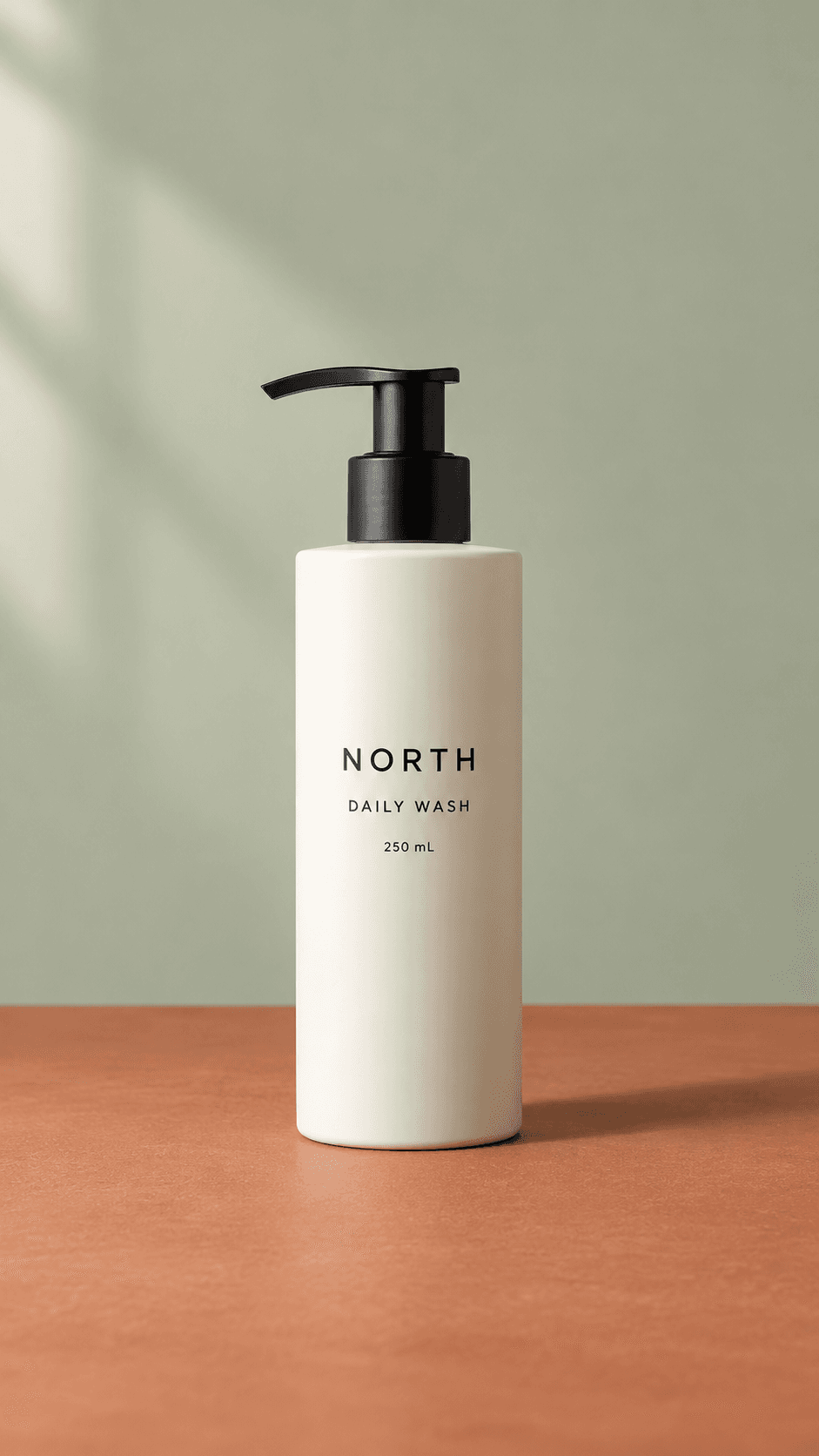
The same source photo is used in all three cases. Image and clips: published product-photo animation comparison.
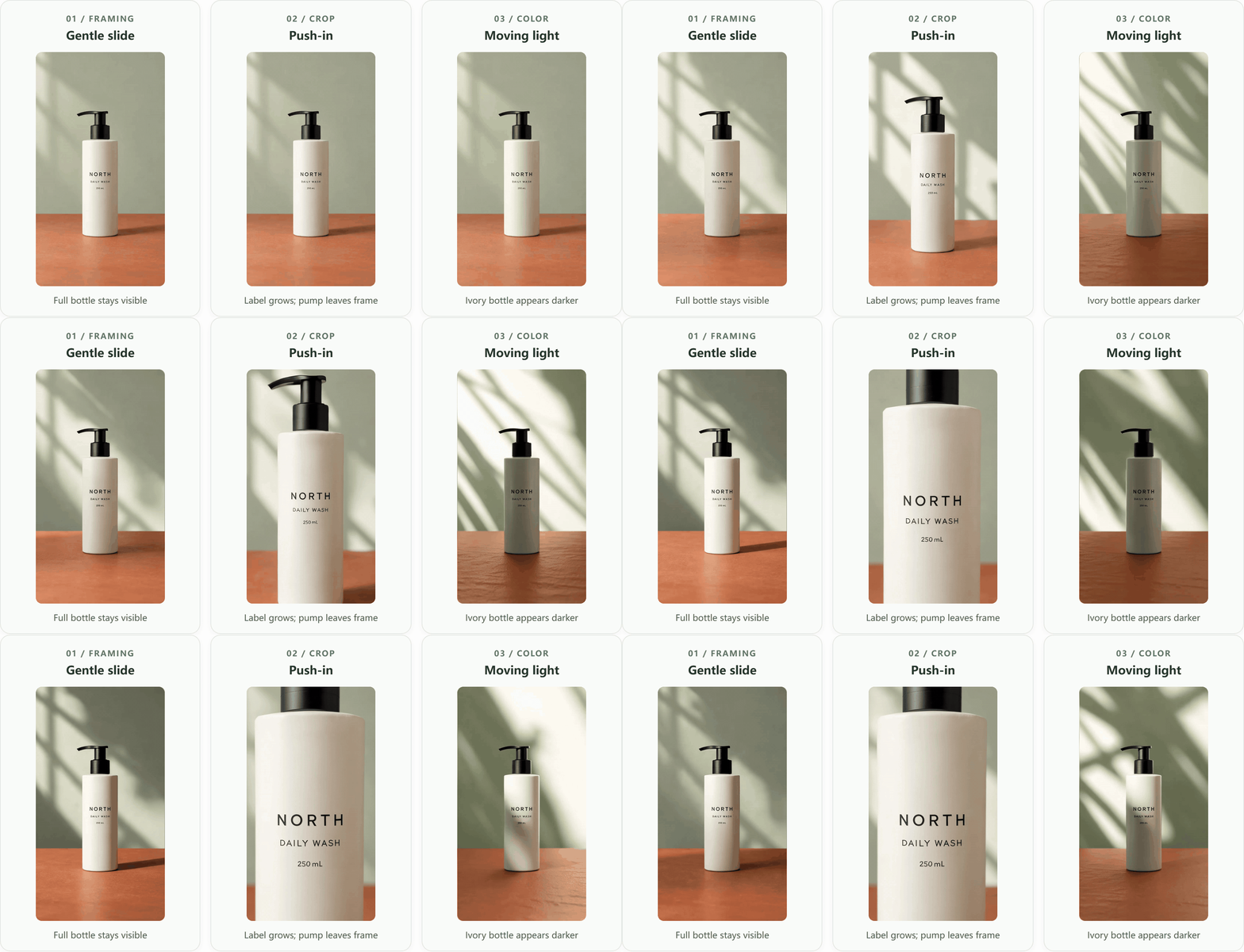
Case 1: A gentle slide keeps the whole bottle in view
The bottle remains readable as a complete pack shot. The pump silhouette and main label can be compared against the source at normal article size; the fine print still needs a full-resolution check. This is a useful starting motion for a real SKU when showing the entire package matters more than dramatic camera movement.
Case 2: A push-in makes the label larger but loses the pump
The larger label may suit a detail shot, but the ending no longer shows the full product. For a listing hero or pack shot, that framing would fail even if the letters remained stable. An instruction to keep the entire cap and base visible in every frame is testable; a vague request for a cinematic push-in is not.
Case 3: A nearly fixed product can still change color under moving light
Here the packaging stays in view, yet the moving light makes the ivory bottle look much darker in some frames. If color matching is part of the buying decision, this version needs a stricter review than the gentle slide. Motion quality and product accuracy are separate acceptance checks.
One More Product Case: A Sneaker Steps into a Rainy Street
This published five-second reference case starts with two inputs: a white sneaker product photo and a rainy street photo. Its output was made with Seedance 2.5 Reference, not GPT Image 2.6 or the Atlas workflow. The separate inputs make it possible to inspect both the product and the setting before watching the motion.
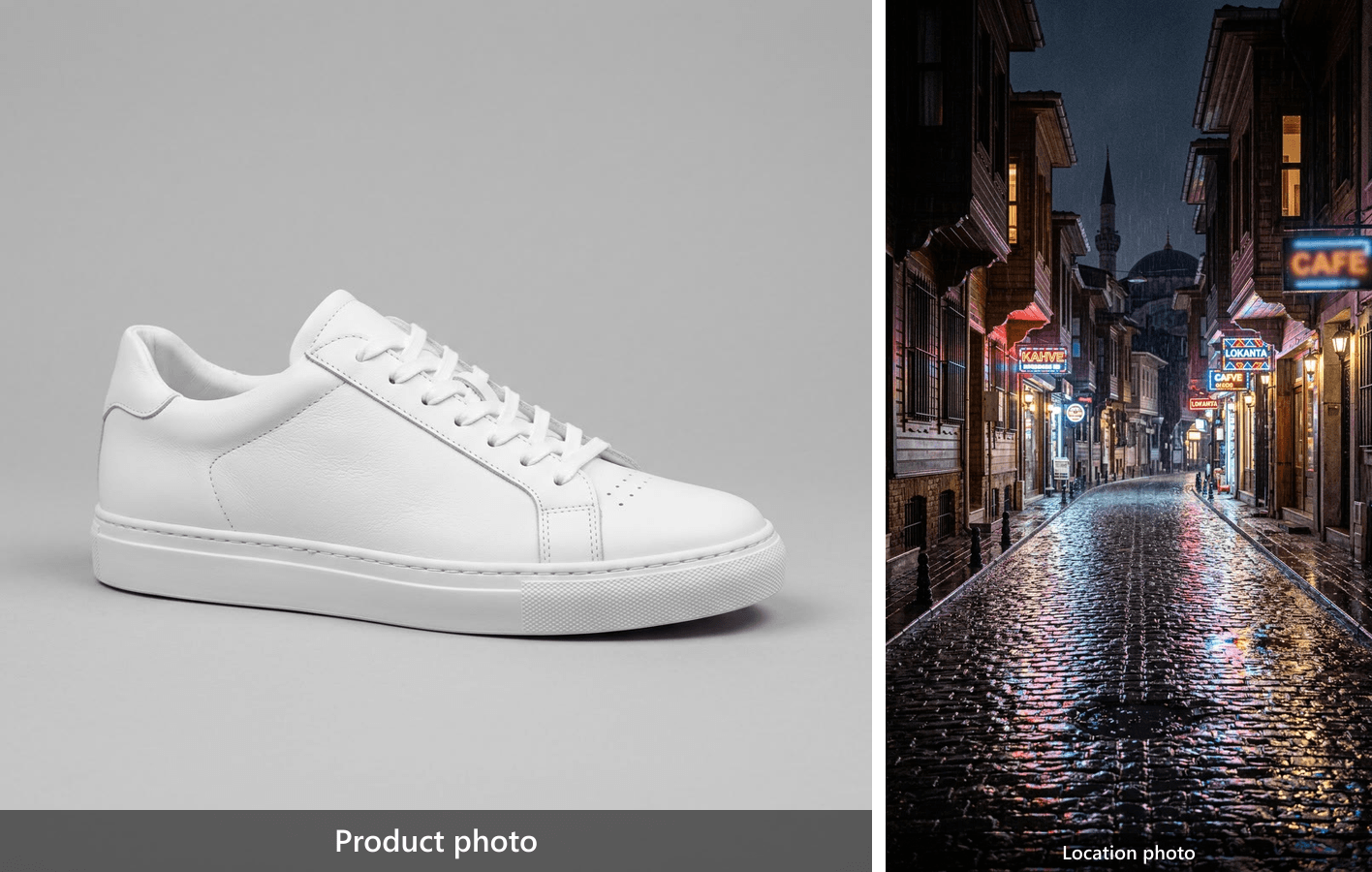
The two source images from the published case: the shoe to preserve and the street to use as the setting.
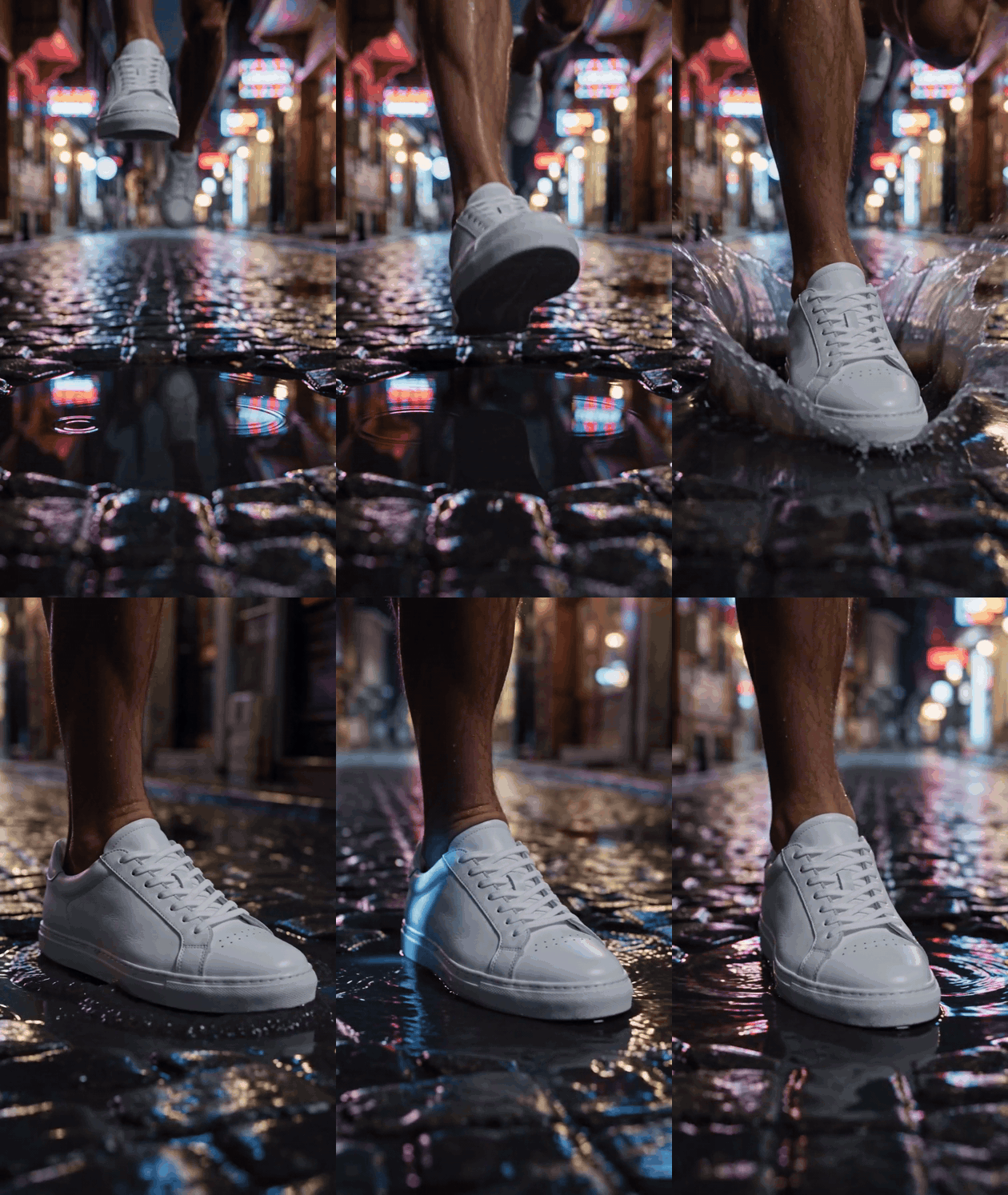
Actual output from the published case, converted from its downloadable MP4 to a silent GIF. The shoe lands in a puddle, sends water outward, and turns from a front view toward a side view.
The splash and changing angle give this case more to inspect than a simple camera push. Compare the toe perforations, laces, side seam, and sole against the source photo at several points in the loop. The setting and motion are effective only if those product details remain acceptable for the item being advertised.
Product Identity Check: A Tumbler Gains a Handle
Another published five-second reference case combines a portrait photo with a product photo of a sage-green travel tumbler. The motion was made with Kling 4.0 Reference, not GPT Image 2.6 or the Atlas workflow. Its autumn park setting gives the product a clear use scene, while the two inputs make a specific accuracy check possible.
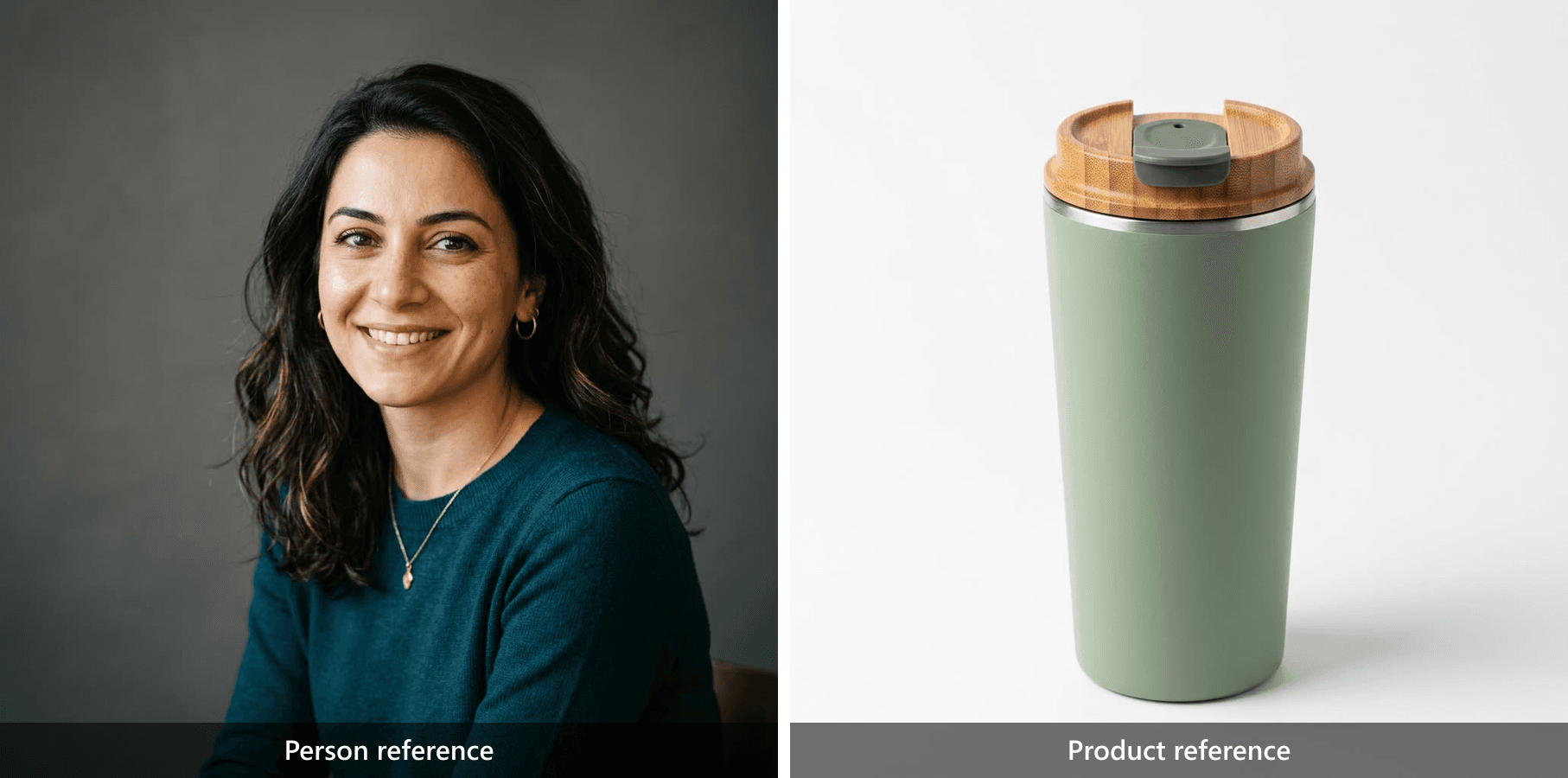
The published case supplies both inputs. The product photo shows a wood-look lid, gray drinking closure, and a smooth cup body without a handle.
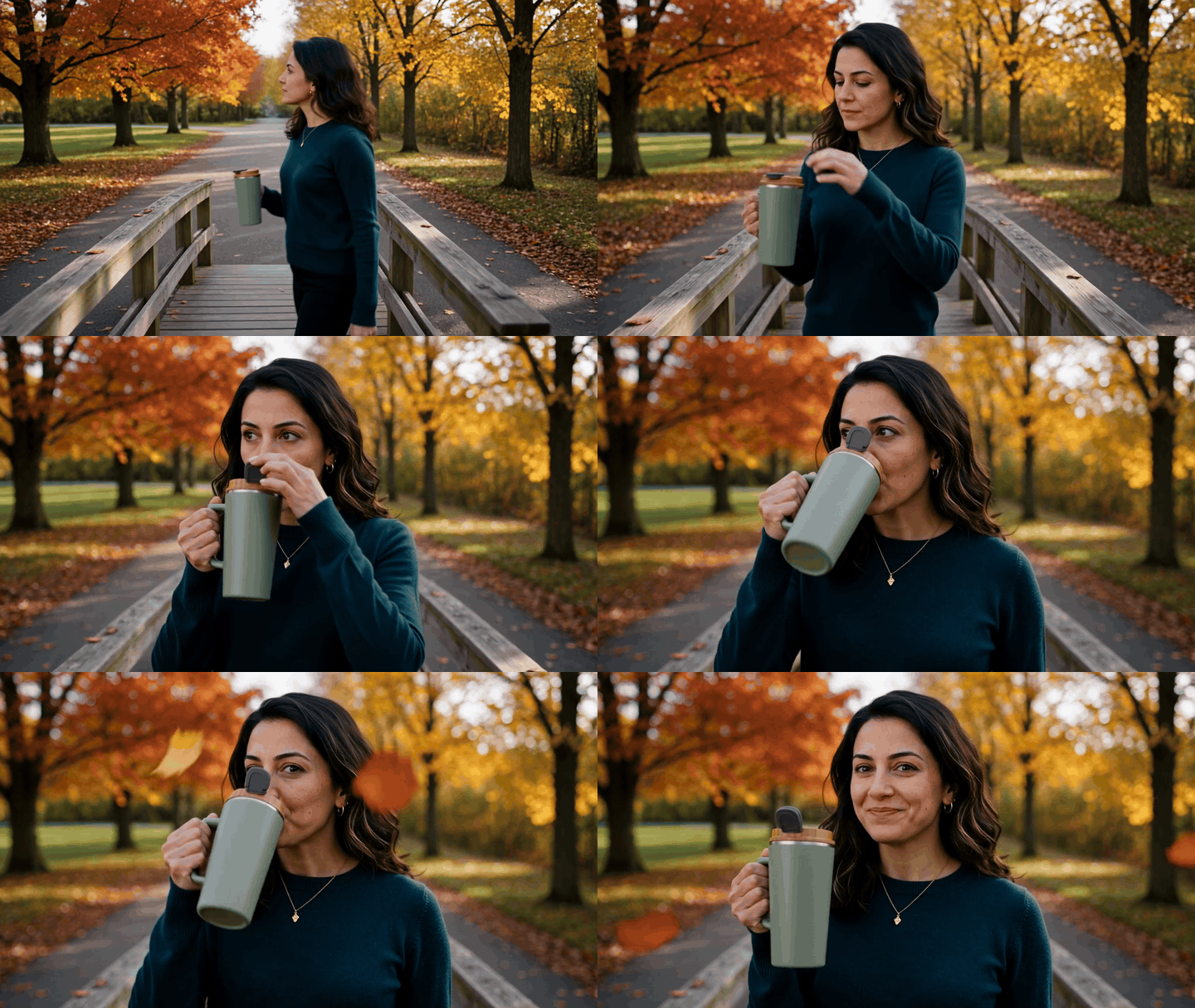
By the end, the cup has a visible side handle that is absent from the product photo. The park scene and drinking action do not make that a faithful ad for this tumbler. This is the kind of drift a first-frame check can miss: compare the product again during the action and in the final frame before approving a clip for a real SKU.
Start with a Product Photo You Can Verify
Prepare one source image for a fair before-and-after check
Use the original resolution, 806 × 1,475 pixels, as your source. Do not crop away the stopper, base, or surrounding table before the first comparison. Make a separate working copy if the upload interface needs a smaller file. A wide 16:9 output will need new horizontal surroundings, but it should not require a new bottle.
Write down the acceptance points before generating anything:
- The outer silhouette, shoulder, neck, and spherical stopper match the source.
- The stopper stays attached, with no second rim or invented lid.
- Glass remains transparent rather than becoming opaque crystal or metal.
- The bottle stands upright and has a coherent contact shadow.
- No label, logo, extra bottle, or unseen side detail appears.
This list makes a useful boundary between a scene edit and a product redesign. It also makes review faster: a striking background is irrelevant if the item has changed. The same list will apply again to the moving frames, where drift is easier to miss at normal playback speed.
Make an Animation-Ready Frame with GPT Image 2.6
Edit the source photo without redesigning the product
Open GPT Image 2.6 Sunburst Edit and upload the source photo. Set quality to high, size to 1536x864, background to opaque, output to png, and complexity to low where those controls are available. OpenAI's image prompting advice supports stating both what should change and what must stay fixed (OpenAI image prompting guide). Here the setting and framing may change; the physical product may not.
Paste this edit prompt:
plaintext1Use the uploaded photograph as the only reference for the product. Create a wide 16:9 studio product photograph of the same clear glass perfume bottle with its spherical stopper. Keep the bottle's visible silhouette, stopper shape, neck, glass color, transparency, and front-facing orientation faithful to the source. Do not invent a label, logo, text, cap, second bottle, or unseen product detail. Place the existing bottle on a dark slate surface against a quiet charcoal background, with soft light from the upper left and enough space around the bottle for a small camera move. Change the setting and framing only. Keep realistic contact shadow and glass reflections.
The prompt asks for space around the product because an image-to-video model needs room for a restrained camera arc. The soft upper-left light provides a plausible highlight to move across the glass. Neither instruction asks for a new bottle design. Avoid adding sales copy or a logo to this image: new text introduces another detail to verify and may look convincing from a distance while being wrong at full size.
Approve the still frame before adding motion
Place the source and edited still side by side at a size where you can inspect the neck and stopper. A wider composition can move the bottle within the frame and change the surface beneath it. It cannot be called faithful if the shoulder width, glass tone, or stopper connection changes. Check the image at 100% zoom, then reduce it to the size of the planned ad. Some errors only appear close up; others, such as a changed silhouette, are more obvious as a thumbnail.
If the edit fails, revise that step while the source photo is still attached. A video prompt cannot reliably repair a wrong cap that already exists in its opening frame. Save only the accepted still as the animation input, and keep the rejected versions out of the handoff folder so a teammate cannot accidentally use them.
Animate the Approved Frame into a Short Product Loop
Give the video model motion instructions, not a second product description
Open Wan 3.0 Image-to-Video. Upload the approved still as the first frame. Choose 1080P, a 5 second duration, and audio: false. If the page offers an optional last-frame input, try the same still there to encourage a matching end composition. That is a constraint, not a guarantee of a seamless loop.
Paste this motion prompt:
plaintext1Use the supplied image as the exact opening frame. Make a five-second silent studio product loop. The clear glass perfume bottle remains upright and stationary on the slate surface. Move the camera gently from a slight front-left view to straight-on, then to a slight front-right view, and return to the starting composition by the final frame. A soft highlight travels naturally across the glass as the viewpoint changes. Keep the spherical stopper attached, the bottle silhouette and material stable, and the background continuous. No product rotation, no new label or text, no extra objects, no zoom-only motion, and no cuts.
The motion instruction describes a small arc and a returning composition, not a new product. That matters for a single-photo input: the model has no verified picture of the back or sides. An ambitious orbit may invent structure the source never shows. The front-left, center, and front-right views should remain slight enough that the known outline still governs the shot.
Check the first, middle, and last frames
Play each clip once for overall motion, then pause at the beginning, midpoint, and end. The published gentle-slide case shows why: the bottle is complete at all three sampled points, but the background and contact shadow change. For your own perfume-bottle run, compare every paused frame to the approved GPT Image 2.6 still and then to the original photograph, not only to its neighboring video frames. A matching final composition also matters if the deliverable is meant to loop.
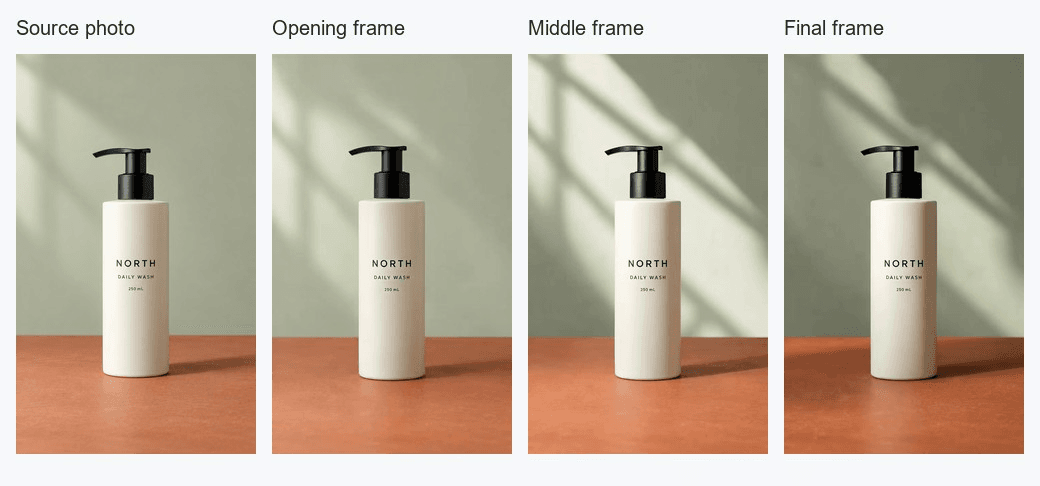
Frame check from the published gentle-slide case: the product stays complete while the lighting and shadow move. This is a third-party P-Video example, not a GPT Image 2.6 result.
Look for a stopper that grows, detaches, or turns into a different cap. Watch the glass edge against the background, the neck width, and the base shadow. A reflection may travel with the viewpoint; a second bottle edge that appears and disappears is a structural error. If the side detail drifts, reduce the requested left and right angle, then generate again from the approved still. If the first and last frames differ too much, simplify the return move or test the optional last-frame input. Do not hide the discontinuity by trimming the source clip into separate article embeds.
For a branded SKU, repeat the review at full resolution with the actual packaging beside the monitor. Video can preserve the overall bottle while altering a single word. This unbranded example can demonstrate shape and material review, but it cannot certify label fidelity for another product. The final decision belongs to the person responsible for the ad, not to the model's completed status badge.
Export the Right Asset and Budget the Whole Workflow
GIF for a silent loop; MP4 when playback or sound matters
The three five-second silent cases above are presented as GIFs so readers can compare the actual motion without starting a player. For your own approved loop, convert the entire accepted clip, retaining the move out and return. A GIF carries no audio and uses a limited palette, so inspect fine glass gradients and the darker background after conversion. It can also be much larger than a compressed video. Test the actual destination instead of assuming the smaller source MP4 will translate into a small GIF.
Use MP4 when a channel requires video playback controls, longer duration, or sound. If a later version of the ad relies on a voice, dialogue, music, or sound design, keep the video with a poster image even if it is short. Export variants from the same approved master so the product review remains meaningful. Check the loop in a browser and on a phone at the size a shopper will actually see.
Before upload, use this release check:
- Source rights and product permissions are clear.
- The first frame matches the approved still and the real product checklist.
- The middle frame shows the intended camera change without invented side structure.
- The last frame returns cleanly to the first.
- Any brand text, logo, or regulated claim survives frame-by-frame inspection.
- The chosen file plays correctly, looks legible at placement size, and fits the channel's file limit.
Estimate cost per accepted result, not per first attempt
The catalog's starting prices are useful for planning, but the bill depends on actual settings, tokens, duration, and retries. The following catalog figures were recorded on November 5, 2026 and need a live price check before publication. A starting still-image figure is not a quote for a high-quality edit or a multi-frame GIF. Recheck the model page and the run estimate before submitting a job.
| Model and role | Displayed catalog price, November 5, 2026 | How to budget this workflow |
|---|---|---|
| GPT Image 2.6 Sunburst Edit, approved first frame | About $0.01 per image starting price; no catalog discount shown | High quality and the chosen dimensions can cost more; use the run's actual estimate |
| Wan 3.0 Image-to-Video, 5-second clip | $0.05 per second standard; $0.04 per second shown with a 20% discount | At the displayed rate, 5 seconds is about $0.20 before any retry; confirm the settings and current rate |
| GPT Image 2.6 Flare Text-to-Image, concept GIF only | About $0.009 per image starting price; no catalog discount shown | GIF frames and tokens add cost; do not price a whole GIF as one still image |
A usable result costs more than the first submission when an edit changes the bottle or a video invents its side. Track the number of still edits submitted, the number approved, the video attempts, and the actual charged amount. For example, one approved edit followed by 2 video attempts costs roughly twice the single-video estimate plus the edit charge, assuming the same video settings and rate. That simple record gives a campaign manager a better cost per accepted asset than a catalog floor alone.
For gpt image 2.6 product photo animation, the next useful action is to put your own SKU photo beside the delivered loop and run the same approval check. The point of this workflow is a recognizable product in a publishable motion asset. If the product fails that check, change the still or reduce the camera arc before spending time on export variants.
FAQ
Can GPT Image 2.6 animate an uploaded product photo directly on Atlas Cloud?
The Flare text-to-image route described here can output a GIF, but it starts from text rather than an uploaded product photo. Sunburst Edit accepts a photo and returns a still image on the listed Atlas route. To animate that specific photo, approve the edited still and pass it to an image-to-video model.
How do I keep the product recognizable through the animation?
Keep the original photo beside the edited still. Lock the visible silhouette, cap, material, color, and any label in the edit prompt. Then inspect the opening, middle, and final moving frames at full size. A smooth clip still needs a product-accuracy check.
Is a single product photo enough for a full 360-degree rotation?
A single front-facing photo does not show the back or sides. A wide orbit asks the model to invent those details. Start with a small camera move that stays close to the verified view, or provide additional approved reference views if the workflow supports them.
Should I export the result as a GIF or an MP4?
Use a GIF for a short, silent loop in an article or placement that benefits from automatic replay. Use MP4 when the clip needs sound, playback controls, or a longer duration. Review the exported file itself, since GIF conversion can change gradients and file size.
What should I check before publishing a product loop?
Confirm permission to use the source photo, then compare the product in the first, middle, and last frames with the real item. Check labels, logos, cap shape, color, contact shadow, and the jump between the final and opening frames. Test the file in its intended placement before release.


