You get the shot right in Nano Banana, open it at full size for a print or a banner, and the eyelashes melt into a smudge. The obvious fix is to make it bigger. There are now three ways to upscale Nano Banana images, though, and they disagree on price, on pixel count, and on whether the result is still the picture you approved.
We ran all three this week: the Gemini app's own download, Nano Banana 2.1 rendering 4K directly, and a 1K render pushed through a cloud upscaler on Atlas Cloud. Below are the 100 percent crops, the exact output sizes, and the cost of each route per image, so you can choose on evidence instead of a thumbnail.

Rendered by Nano Banana 2.1 at 4K (5504 x 3072) on Atlas Cloud from one reference portrait and one prompt.
Key Takeaways
- Nano Banana 2.1 renders 4K natively, up to 5504 x 3072 at 16:9.
- Google lists no upscale option for the Gemini app, and downloads stop at 2K.
- A 1K render plus a 4x upscale reaches the same sizeforabout 40 percent less.
- Generate at 4K for small text, and upscale when the image already exists.
- Nano Banana 2.1 on Atlas Cloudand the upscaler share one account and one API key.
Nano Banana 4K in Actual Pixels
Before upscaling anything, it helps to know what "1K" and "4K" mean for this model, because neither is a single size. Google's image generation guide lists the output for every aspect ratio, and the pattern is tidy: the 2K tier is exactly twice the 1K tier on each side, and 4K is exactly four times.
| Aspect ratio | 1K | 2K | 4K |
|---|---|---|---|
| 1:1 | 1024 x 1024 | 2048 x 2048 | 4096 x 4096 |
| 16:9 | 1376 x 768 | 2752 x 1536 | 5504 x 3072 |
| 9:16 | 768 x 1376 | 1536 x 2752 | 3072 x 5504 |
| 3:2 | 1264 x 848 | 2528 x 1696 | 5056 x 3392 |
| 4:3 | 1200 x 896 | 2400 x 1792 | 4800 x 3584 |
| 21:9 | 1584 x 672 | 3168 x 1344 | 6336 x 2688 |
That grid is the reason upscaling works so cleanly here. A 4x upscale of a 1K Nano Banana image lands on the same pixel count as a native 4K render, and a 2x upscale of a 2K file does too. The real choice is who fills in the extra pixels: the image model, or a super-resolution model working from the smaller file.
Nano Banana 2 and Nano Banana Pro use the same pixel sizes for every aspect ratio they share, so everything in this guide applies to images from those models as well. The 0.5K tier that Nano Banana 2 offered is gone in 2.1.
How to Upscale Nano Banana Images on Atlas Cloud
We also rendered the portrait prompt at 1K, which gives 1376 x 768. Here is that file next to its 4x pass through the Tencent Image Upscaler on Atlas Cloud, with the face cropped at 100 percent.
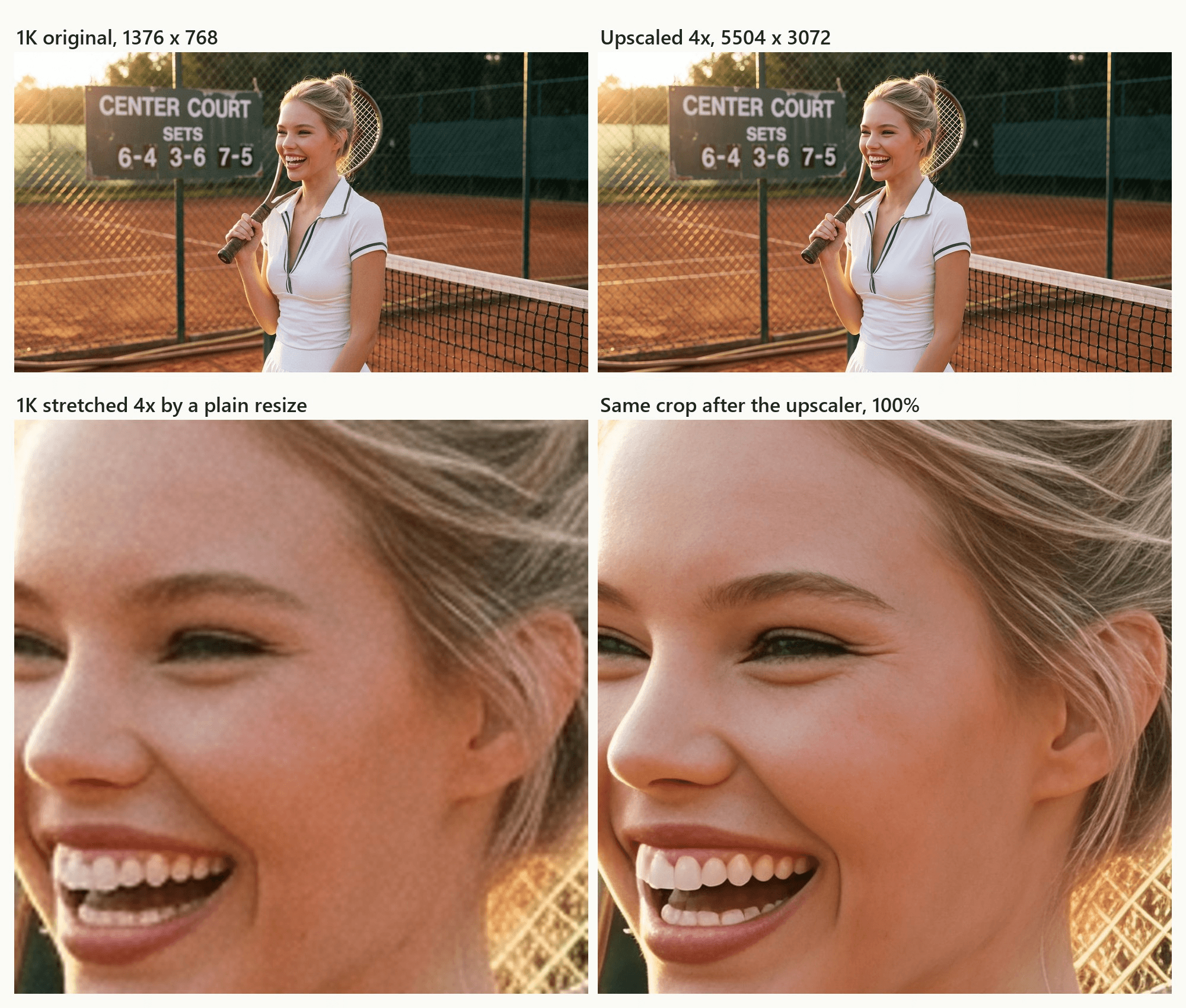
A plain resize spreads the 1K pixels thinner, so the lashes turn into a brown band and the film grain becomes blotches. The upscaler predicts what a larger version would contain, so lashes come back as separate strokes, the teeth get clean edges, and the loose hairs read as hairs. The composition, the face and the scoreboard stay as rendered.
Atlas Cloud hosts two upscalers that suit Nano Banana output. The Tencent model scales by any factor from 1 to 10, or straight to an exact long or short edge, and offers four engines; our guide to increasing image resolution covers how those engines differ. The AtlasCloud Image Upscaler runs RealESRGAN with factors from 1 to 4. Every upscale in this article used the Tencent model on its default engine, ultra.
Method 1: Generate at 1K, Then Run the Cloud Upscaler
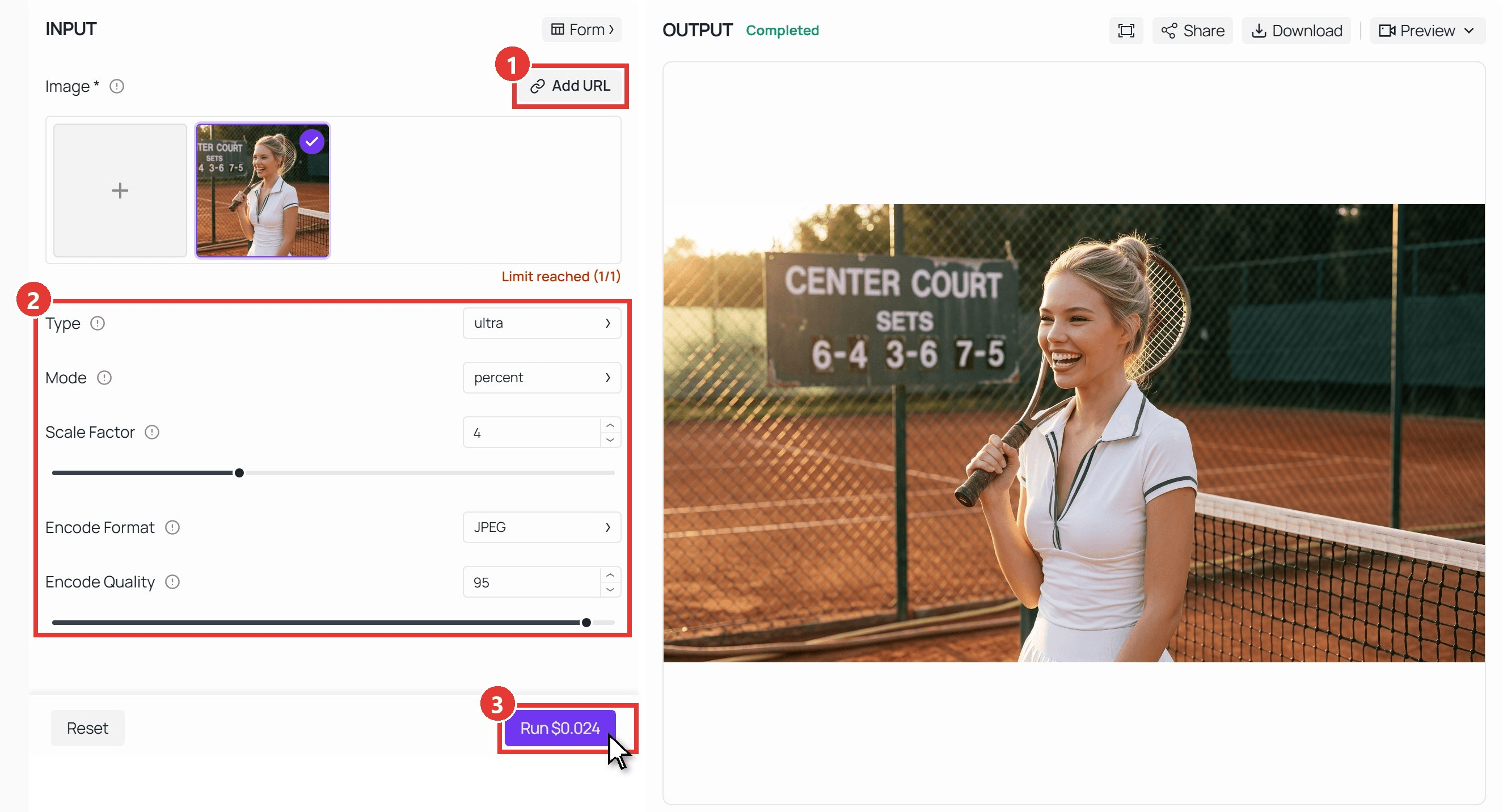
Start in the Nano Banana 2.1 text-to-image playground, pick 1k, run your prompt until you like the result, and download it. Then open the Tencent Image Upscaler playground. It loads a sample photo into the single image slot, so delete that first.
- Add your image. Use Add URL for an image that is already online, or click the plus tile to upload the file. The model reads JPEG and PNG.
- Leave Type on ultra and Mode on percent, set Scale Factor to 4, and raise Encode Quality to 95 so JPEG compression does not eat the new detail. For an exact size instead of a factor, switch Mode to aspect and enter a long edge such as 3840.
- Press Run. Our 1376 x 768 portrait came back at 5504 x 3072 in under a minute.
Method 2: Chain Both Calls Through the API
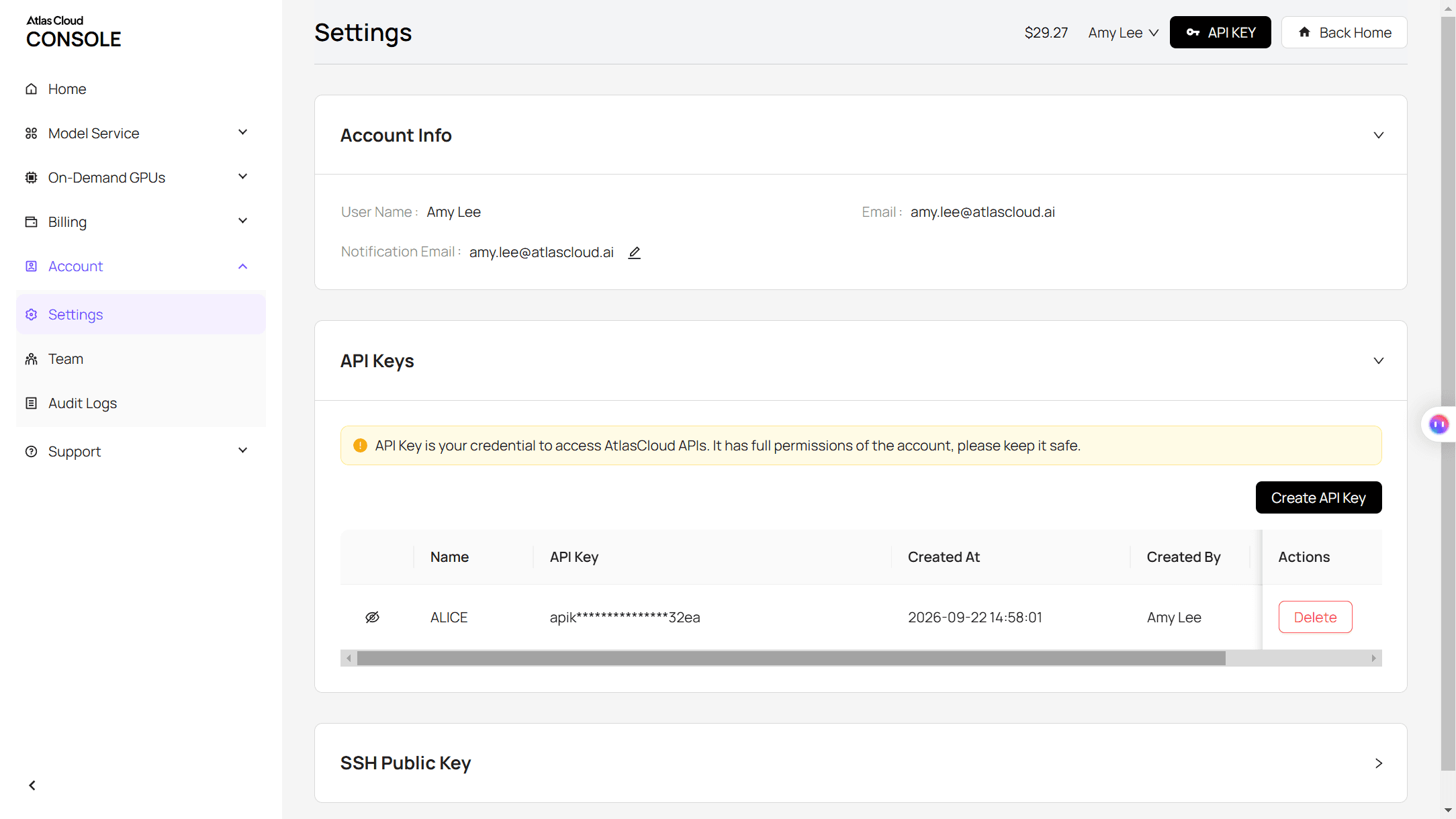
Step 1: Get your API key. Create a key in the Atlas Cloud console and keep it in an environment variable rather than in client-side code.
Step 2: Check the API docs. Endpoints, parameters and authentication for both models are in the API documentation.
Step 3: Make your first request. Generate the 1K image first:
plaintext1curl -X POST https://api.atlascloud.ai/api/v1/model/generateImage \ 2 -H "Content-Type: application/json" \ 3 -H "Authorization: Bearer $ATLASCLOUD_API_KEY" \ 4 -d '{ 5 "model": "google/nano-banana-2.1/text-to-image", 6 "prompt": "Photorealistic portrait of a tennis player laughing beside the net on a red clay court at golden hour, racket on her shoulder, a green scoreboard reading CENTER COURT behind her", 7 "aspect_ratio": "16:9", 8 "resolution": "1k" 9 }'
The response returns a prediction ID. Poll it until the status reads completed, then copy the image URL from outputs:
plaintext1curl https://api.atlascloud.ai/api/v1/model/prediction/<prediction_id> \ 2 -H "Authorization: Bearer $ATLASCLOUD_API_KEY"
Pass that URL to the upscaler. The Tencent service fetches the file itself, so the URL has to be publicly reachable, which Atlas Cloud output URLs are:
plaintext1curl -X POST https://api.atlascloud.ai/api/v1/model/generateImage \ 2 -H "Content-Type: application/json" \ 3 -H "Authorization: Bearer $ATLASCLOUD_API_KEY" \ 4 -d '{ 5 "model": "tencent/image/upscaler", 6 "image_url": "<image URL from the first call>", 7 "type": "ultra", 8 "mode": "percent", 9 "percent": 4, 10 "encode_format": "JPEG", 11 "encode_quality": 95 12 }'
This model reports through a different polling path, result instead of prediction:
plaintext1curl https://api.atlascloud.ai/api/v1/model/result/<request_id> \ 2 -H "Authorization: Bearer $ATLASCLOUD_API_KEY"
To hit an exact size, replace the mode and percent lines with "mode": "aspect" and a "long_side" value. Everything else, from the key to the header to the submit-and-poll loop, stays the same across Atlas Cloud, so swapping the image model for Nano Banana Pro or another generator only changes the model string in the first call.
Nano Banana 2.1 4K vs a 1K Image Upscaled 4x
So which is better, letting the model render 4K or upscaling 1K? We gave Nano Banana 2.1 the same reference portrait and the same prompt twice, once at 4k and once at 1k, then upscaled the 1K result 4x. Each call is a fresh generation, so the framing differs between the two. The fair comparison is feature against feature at 100 percent.
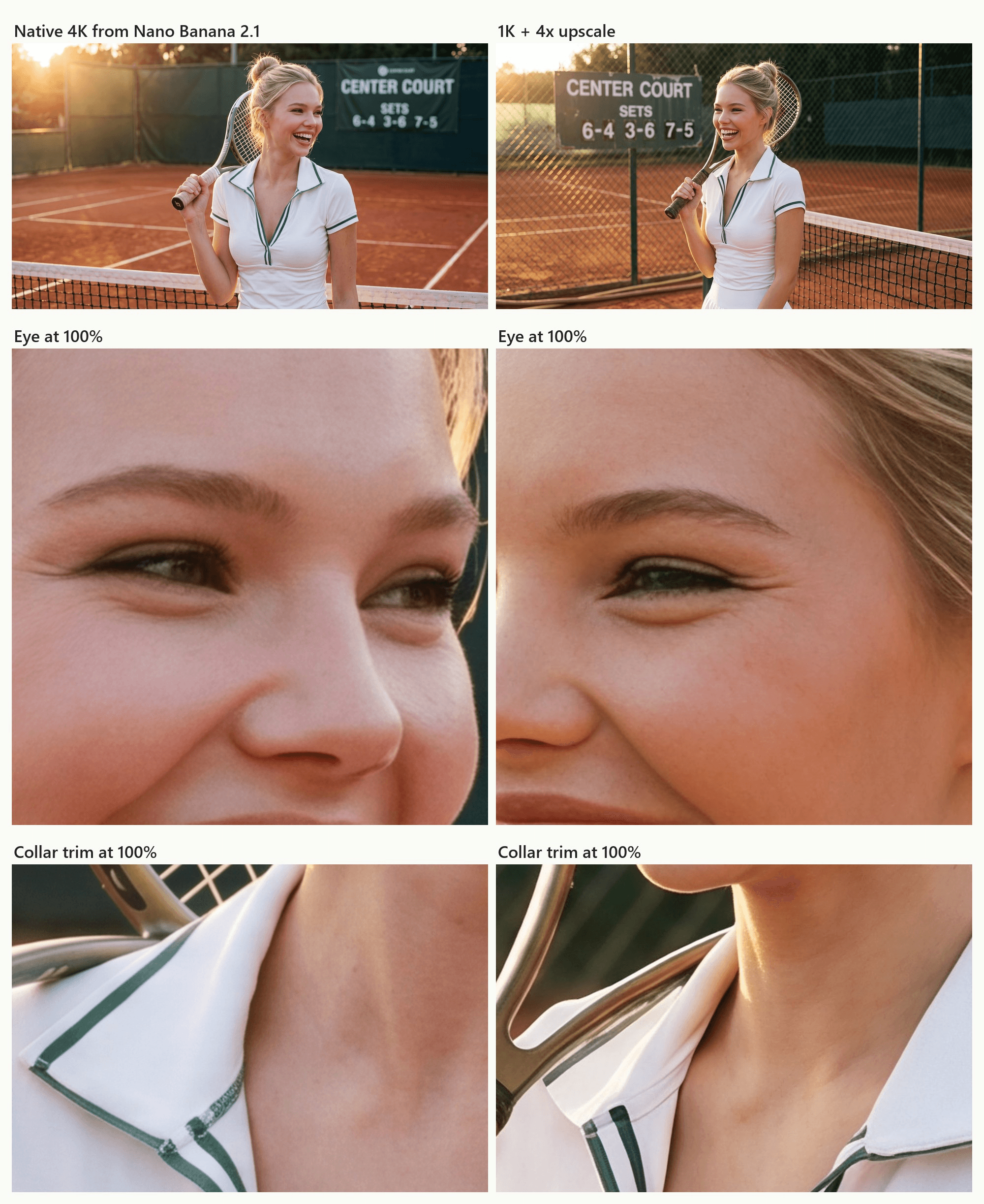
The difference is where the detail comes from. At 4k, the model draws the image at that size, so it adds detail that never existed at 1K: stitching along the green collar trim, creases at the corner of the eye, single flyaway hairs against the fence. The upscaled version is crisp and consistent, and its detail is the 1K image's detail, sharpened and rebuilt. It will not invent stitching that was never there.
Small text follows the same logic. Atlas Cloud's own Nano Banana 2.1 page advises "Use 2k or 4k for small text", since fine lettering gets too few pixels at 1K to stay sharp. For a portrait, a product shot or a landscape, the upscaled 1K holds up at full size. For a menu, an infographic or fine print on a label, render at 4K. Both runs in our test finished in under a minute.
Upscale a Nano Banana Image to 4K Through the Edit Endpoint
Several published guides, along with a well-known r/Bard thread about Nano Banana Pro upscaling, teach a different trick: hand the model your existing image with a prompt like "Upscale to 4K". The poster of that thread, writing in November 2025, called the result "by far the best I've seen of any model."
That trick only produces a 4K file where you can set the output size, though, and the Nano Banana 2.1 edit endpoint on Atlas Cloud has the same 1k, 2k and 4k switch as text-to-image.
We fed it the 1K portrait with this prompt and set the output to 4k:
plaintext1Upscale this image to 4K. Keep the composition, the woman's face, her hair, her outfit, the racket, the net and every letter and number on the scoreboard exactly as they are. Only add fine detail and sharpness.
It returned 5504 x 3072 with the pose, the scoreboard digits and the net exactly where they were. The difference shows at 100 percent: the Edit version redrew the face with more skin texture and strand-level hair, while the upscaled version kept the original's look and simply sharpened it.
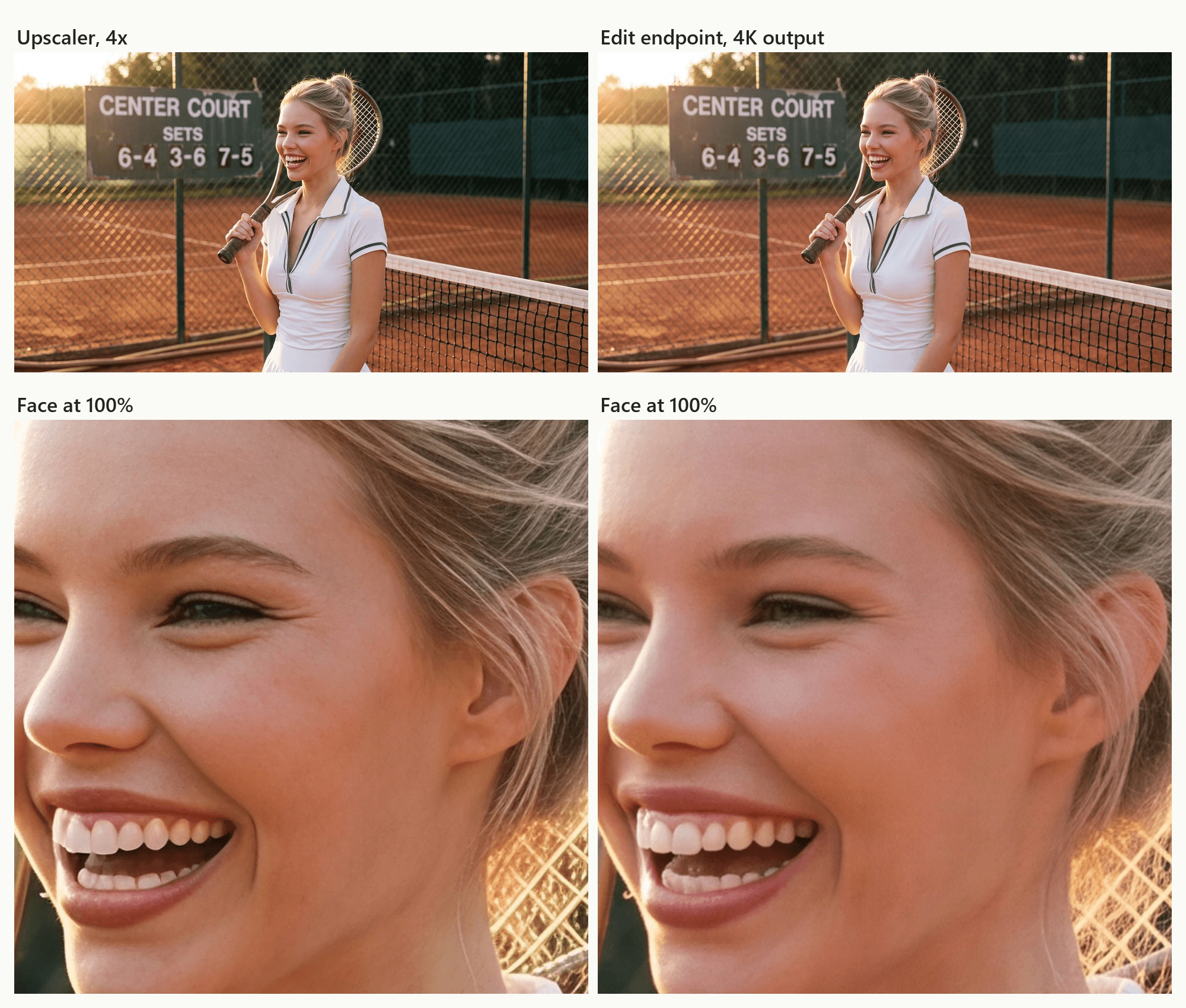
That redraw is the whole point of the method, and it also sets its scope. When we shrank both results back to 1K and compared them with the source, the Edit output differed about twice as much as the upscaled one. Use Edit when you want to change something in the same pass, such as relighting the scene, fixing a hand or rewriting a sign. Use the upscaler when the image is already approved and has to stay exactly as it is.
What Each Nano Banana Upscale Route Costs per Image
Google's Gemini API pricing page bills Nano Banana 2.1 output at $30 per million tokens: 1,120 tokens or $0.0336 for a 1K image, and 3,780 tokens or $0.113 for 4K. The 1K price is half of Nano Banana 2's, but 4K only dropped from $0.151, a 25 percent cut.
One caveat: the size table in Google's image generation guide lists 2,520 tokens for a 4K image, which would price it lower, so the two pages currently disagree. We budget with the pricing page, since it is the one that states the cost. Our Nano Banana 2.1 launch breakdown covers the input and thinking costs.
On Atlas Cloud, the Run button showed these prices on October 10, 2026, with the Nano Banana 2.1 pages marking a 20 percent launch discount and no end date: $0.04 at 1k, $0.06 at 2k, $0.112 at 4k, and $0.113 for a 4k edit with one reference image. The Tencent upscaler bills $0.024 per image and the RealESRGAN upscaler $0.01, both at any factor.
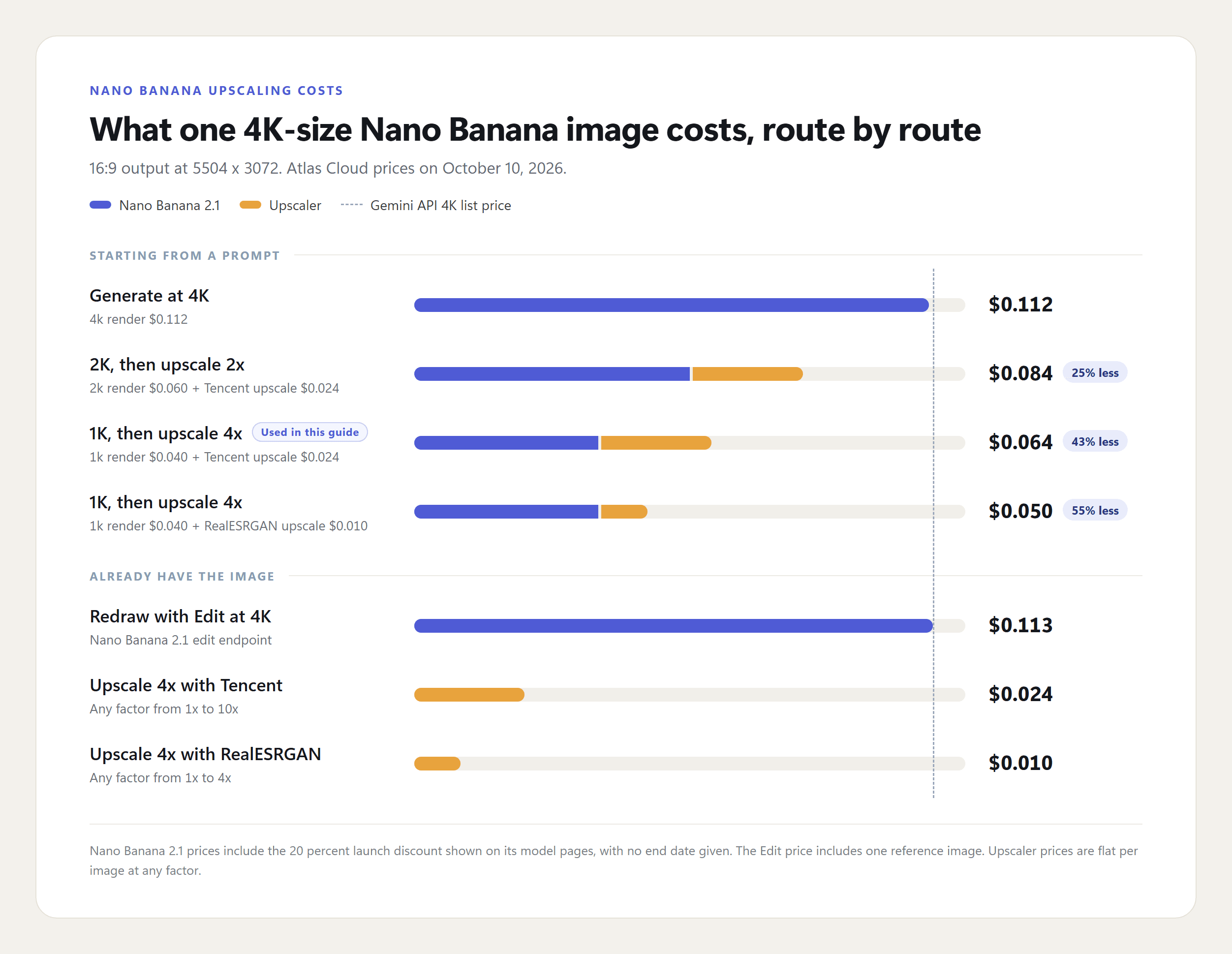
Rendering at 1K and upscaling 4x with Tencent comes to $0.064, about 43 percent below native 4K. Across 1,000 images that is $48 back, and every one of those 1K drafts is cheap to throw away while you are still iterating on the prompt. The 2K route sits in between at $0.084 and gives the model more pixels to work with before the upscale. For an image you already have, the gap is wider still: a redraw with Edit costs $0.113, while the upscale alone costs $0.024 or $0.01.
Can the Gemini App Upscale Nano Banana Images?
No, at least not with a button. Google's Gemini Apps Help page says you can "Download images at 2K resolution with a Google AI plan or at 1K without an AI plan," and it lists no upscale option.
We checked in the app on a Google Workspace account, where the Images tool generated with Nano Banana 2. The image menu offered Share via Drive, Copy image and Download full size image. The response menu offered Redo with Pro along with export and listen options, and nothing that enlarges. The aspect ratio picker had five choices and there was no resolution control at all.
The full-size download of a 16:9 image measured 2752 x 1536, the 2K tier. Then we asked, in the same chat, to upscale the image to 4K. Gemini replied that it had produced an upscaled version, and the new download was 2752 x 1536 again. It was a fresh render at the same size: the scoreboard shifted slightly and the paint chips changed.
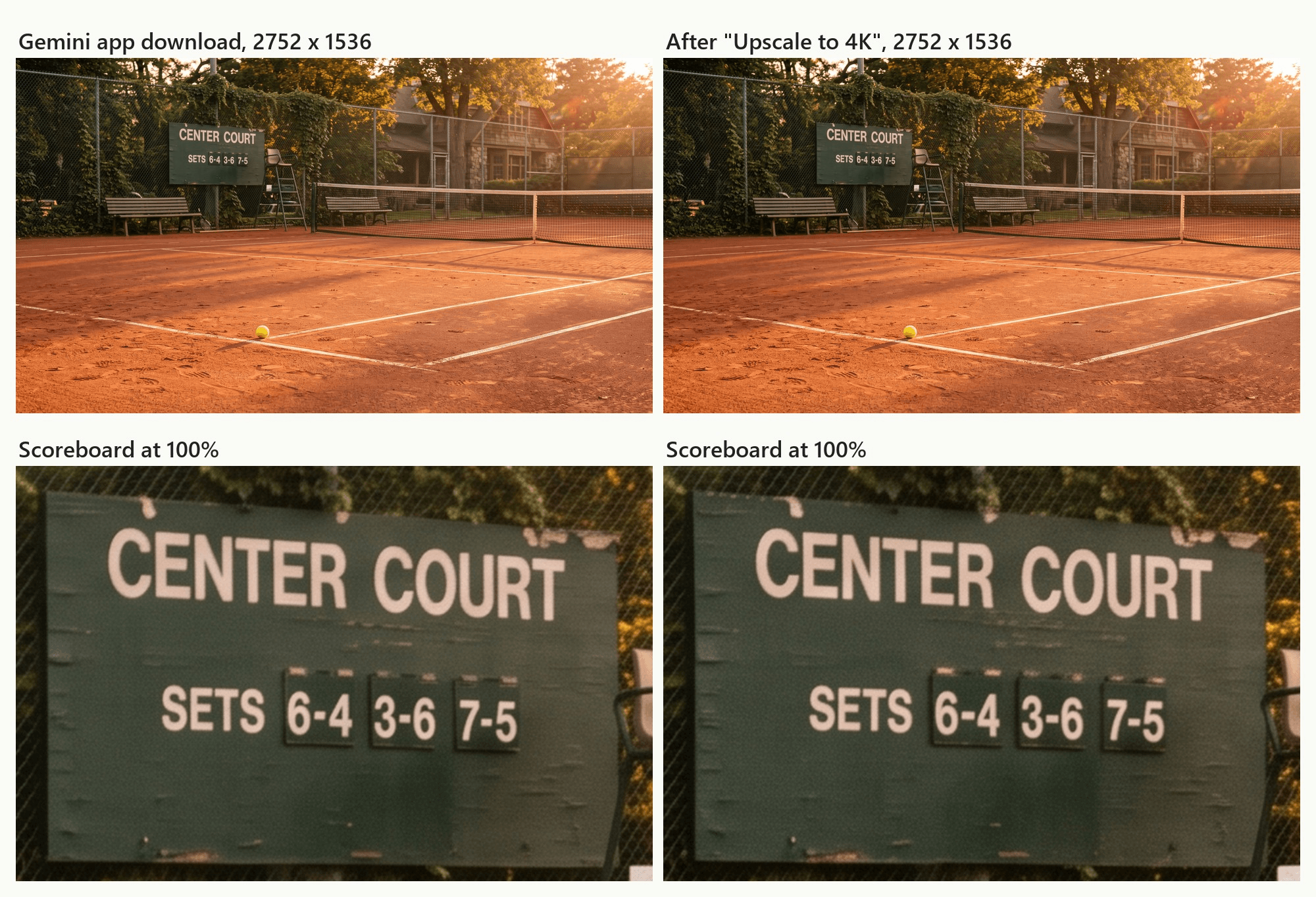
If your images live in the Gemini app, the shortest route to 4K is to download the 2K file and run a 2x upscale. Because 2752 x 2 is 5504, the result lands on the same grid as a native 4K render.
Do You Need a Nano Banana Upscaler Like Topaz?
Topaz Labs runs a web landing page called Nano Banana Image Upscaler, and it is one of the top results for this search. The page claims enhancement "by up to 8x" and output up to 100 megapixels, and offers new users 10 free enhancements. It also describes Nano Banana output as "generally restricted to 1024x1024," a line the page ties to the original Gemini 2.5 Flash Image model. It does not describe 2.1, which renders the 4K grid above.
| Upscaler | Largest factor | Exact output size | How it bills |
|---|---|---|---|
| Tencent Image Upscaler on Atlas Cloud | 10x | Yes, by long or short edge | Per image |
| AtlasCloud Image Upscaler (RealESRGAN) | 4x | Set by factor | Per image |
| Topaz Nano Banana Image Upscaler (web) | 8x | Not stated on its page | 10 free enhancements for new users, then paid |
A dedicated upscaler earns its place in two situations. The first is going past 4K: native Nano Banana tops out at 5504 x 3072 for 16:9, while a 1K image at 10x reaches 13760 x 7680 for large prints and exhibition walls. The second is an image you can no longer re-render, such as an app download or an older Nano Banana file. For anything at 4K or below that you can still regenerate, the choice is the one in the next section.
When to Generate at 4K Instead of Upscaling
The decision comes down to two questions: do you already have the image, and does it contain text or fine pattern that has to survive at full size?
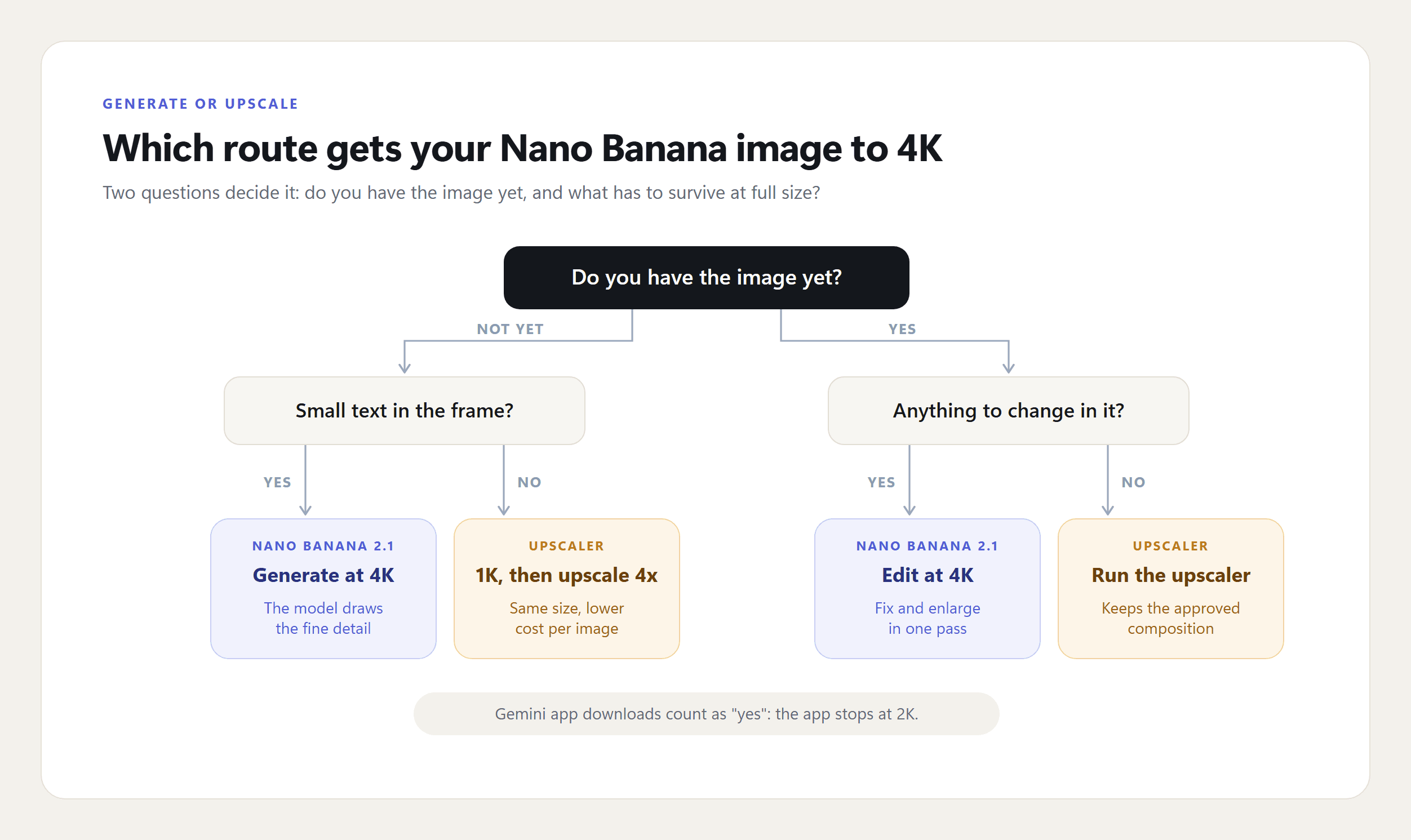
Render at 4K when the image carries small type, a dense infographic, or a texture the viewer will inspect up close, and when it is a final asset you will generate once. Render at 1K and upscale when you are iterating, producing in volume, or working with portraits, products and scenes where sharpness matters more than invented micro-detail. Reach for Edit only when the image also needs a change.
Frequently Asked Questions
Does Nano Banana 2.1 really output 4K?
Yes. The 4K tier is 4096 x 4096 at 1:1 and 5504 x 3072 at 16:9, roughly 16 megapixels, which is more than a 3840 x 2160 UHD screen needs. That leaves room to crop a 4K render to a tighter frame and still deliver a full UHD wallpaper or slide.
Which aspect ratio gives the widest Nano Banana 4K image?
The 8:1 ratio, at 12288 x 1536 pixels, followed by 4:1 at 8192 x 2048 and 21:9 at 6336 x 2688. Those ultra-wide ratios suit website banners and panoramas, and Google's model card lists a 2.1 fix for the tiling artifacts that used to appear at 4:1, 1:4, 8:1 and 1:8 in 2K and 4K.
Can you upscale a Nano Banana image beyond 4K?
Yes, with an upscaler rather than the model itself. Setting a long edge lets you hit a print size exactly: a 24-inch print at 300 pixels per inch needs 7200 pixels on its long side, which a 1K render reaches in one pass. Our guide on how to increase the DPI of an image works out how many pixels a given print size needs.
How much does it cost to upscale a Nano Banana image?
At the time of writing, $10 on Atlas Cloud covers about 416 upscales with the Tencent model or about 1,000 with RealESRGAN, at any factor. Since the price does not change with scale, set the factor or long edge for your largest planned use in one pass rather than upscaling twice.
Is there a free way to upscale Nano Banana images?
Only partly. A free Gemini account gets 1K downloads, and Google's API has no free tier for Nano Banana models, so the step to 4K costs something once trial credits run out. The smallest paid step in this guide is a $0.01 RealESRGAN pass, which takes a 1K download to the 4K grid in one call.
Conclusion
Nano Banana 2.1 made upscaling a choice instead of a rescue. The model renders a real 4K grid, the 1K tier is exactly a quarter of it on each side, and a 4x upscale lands on the same pixels for about 40 percent less. Native 4K adds detail the model invents at full size, while the upscaler sharpens the detail you already approved. The Gemini app sits outside both, capped at 2K with no upscale control.
So the answer to how to upscale Nano Banana images depends on where the image is in its life. Render at 4K when small text has to survive, render at 1K and upscale when you are iterating or producing in volume, and use the Edit endpoint only when the image also needs a change. Pick the route by what the final file has to show.





