

You ask a character to gesture across the frame, but your source is a face close-up. No clever sentence can restore the missing shoulders, hands, or clothing details with certainty. OmniHuman 2.0 full-body gesture generation from one image works best as a coordinated choice: give the model a frame that contains the body parts you want to move, audio with a clear performance cue, and a short prompt describing one action.
OmniHuman is an audio-driven human video generation system. Its advertised workflow combines a still image and audio, with optional text direction for movement or camera behavior. Treat “full-body” as the kind of performance you want, not a guarantee that every portrait can produce a complete, stable figure. The publicly documented specifications cited here are for OmniHuman 1.5, so they should not be assumed to describe every OmniHuman 2.0 interface or deployment.
Key takeaways
- The source image sets the visible body area and starting composition.
- Audio supplies speech or singing timing; a prompt adds visual direction.
- Match the crop to the gesture, and keep the requested action inside the visible frame.
- Check version, input limits, and price on the current official product page before committing.
What OmniHuman 2.0 Does for Full-Body Gestures
OmniHuman 2.0 is presented as an image-and-audio driven way to create a human performance video. The still image establishes the subject and initial view. The audio gives the performance a voice, rhythm, and timing reference. Optional text can describe the scene, movement, or camera direction. The generated clip combines these cues into a moving result.
That makes the task broader than making a still mouth move. A useful take may involve lip movement, expression, head motion, posture, and hand gestures. Those parts need to agree with the same performance. For a spoken explainer, a small open-palm gesture at an important phrase may read more naturally than continuous arm movement. For singing, the body can follow phrasing and energy across the track.
The model does not receive a complete 3D record of the person from one photograph. It has to infer what is outside the crop and how hidden surfaces should look as the subject moves. A request for a full-body action therefore carries more uncertainty when the input only shows the face. The practical control is to choose the reference image around the action you need, then use text to refine what is already visually supported.
The research project page for OmniHuman 1.5 describes audio-driven animation from a single image and discusses motion and prompt control. That is useful background for the model family, but it is not proof that a particular OmniHuman 2.0 prompt will produce a specific gesture every time (OmniHuman 1.5 project page).
Before choosing inputs, define the intended shot in one sentence: “a waist-up presenter emphasizes one point,” “a full-body performer shifts weight while singing,” or “a close-up speaker delivers a calm line.” The frame and audio can then serve that one task.
Choose a Source Image That Leaves Room for the Gesture
For full-body gestures, start with the widest source image that still suits the final composition. If the result is intended as a close talking-head video, a tight portrait may be appropriate. If the viewer needs to see a hand point to an object or the subject shift their weight, include those parts in the source image.
| Intended result | Useful starting crop | Reasonable movement to request |
|---|---|---|
| Close-up narration | Head and shoulders | Expression, head turns, restrained shoulder movement |
| Product explanation | Waist-up with hands visible | Brief pointing, presenting, or open-palm emphasis |
| Standing performance | Full figure with space around the body | Posture changes, weight shifts, and larger gestures |
These are production choices, not published BytePlus requirements or success guarantees. For a full-body frame, leave some breathing room around hands, elbows, and feet. A hand already against the edge can be clipped as soon as it moves. Keep the face clear enough to read, use even light where possible, and avoid a source with another person crossing the subject. A clean background also makes unwanted background motion easier to spot.
The image should resemble the shot you plan to publish. A portrait source placed into a landscape output may require more invented background and body area. A vertically framed source is often easier to judge for a standing character intended for a vertical social post. These are composition guidelines; check the target tool’s current controls for any actual aspect-ratio or resolution limits.
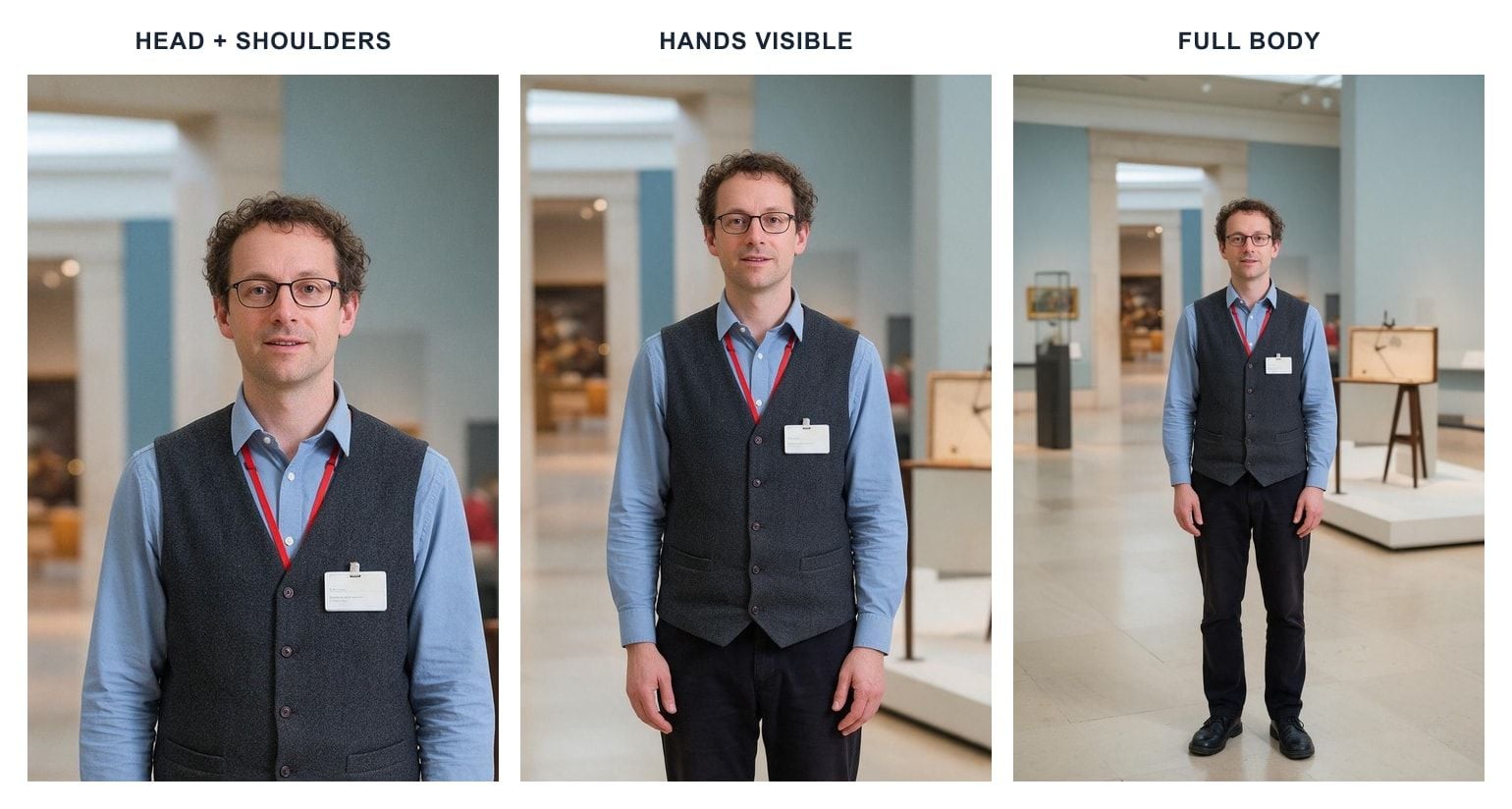
The same example source photo at three crops: a close frame suits facial expression, visible hands give a presenter room to gesture, and the full figure supports a standing performance.
A simple decision test helps: point to the body part that must move in the finished shot. If it is absent from the source, either change the image or lower the movement goal. For instance, use a visible-hand waist-up image for a presenter who will emphasize “three practical steps.” A face-only portrait is a better match for a short greeting or close narration.
Build a One-Image Performance From Audio and Direction
Think of the inputs as three different jobs. The image answers who is on screen and how the shot begins. Audio carries the actual words, pauses, and vocal energy. Text direction asks for a visual behavior that fits those cues. Keep the inputs aligned; a calm voice paired with “wild, constant dancing” gives the model conflicting direction and may produce an awkward performance.
A useful first-pass workflow is:
- Choose the shot. Decide whether the viewer needs a close face, visible hands, or the full figure. Select a source with that area in frame.
- Prepare representative audio. Use a short section of the real voiceover or song, including the phrase where the gesture should happen. The test should represent the final rhythm and delivery.
- Add one movement idea. Describe a single gesture and where it belongs in the performance. Keep other actions and camera requests restrained.
- Generate and review. Check the face, hands, body, background, and overall framing. Change one input at a time on the next attempt.
For a product explainer, an original test line might be: “We’ll cover three practical steps, then you can choose the one that fits your team.” Record it with a brief pause before the phrase “three practical steps.” Use a waist-up image with both hands visible. That gives the intended gesture a clear semantic cue and a visible range of motion.
The official BytePlus documentation that can be verified here refers to OmniHuman 1.5, not 2.0. For 1.5, it lists an image and audio as required inputs, an optional prompt, supported prompt languages, and 720p or 1080p output. Its overview also lists a 60-second audio limit and recommends shorter audio for quality. These details help distinguish the documented 1.5 product; verify the 2.0 interface or official documentation before applying any of them to 2.0 (BytePlus OmniHuman video generation documentation, updated October 2026).
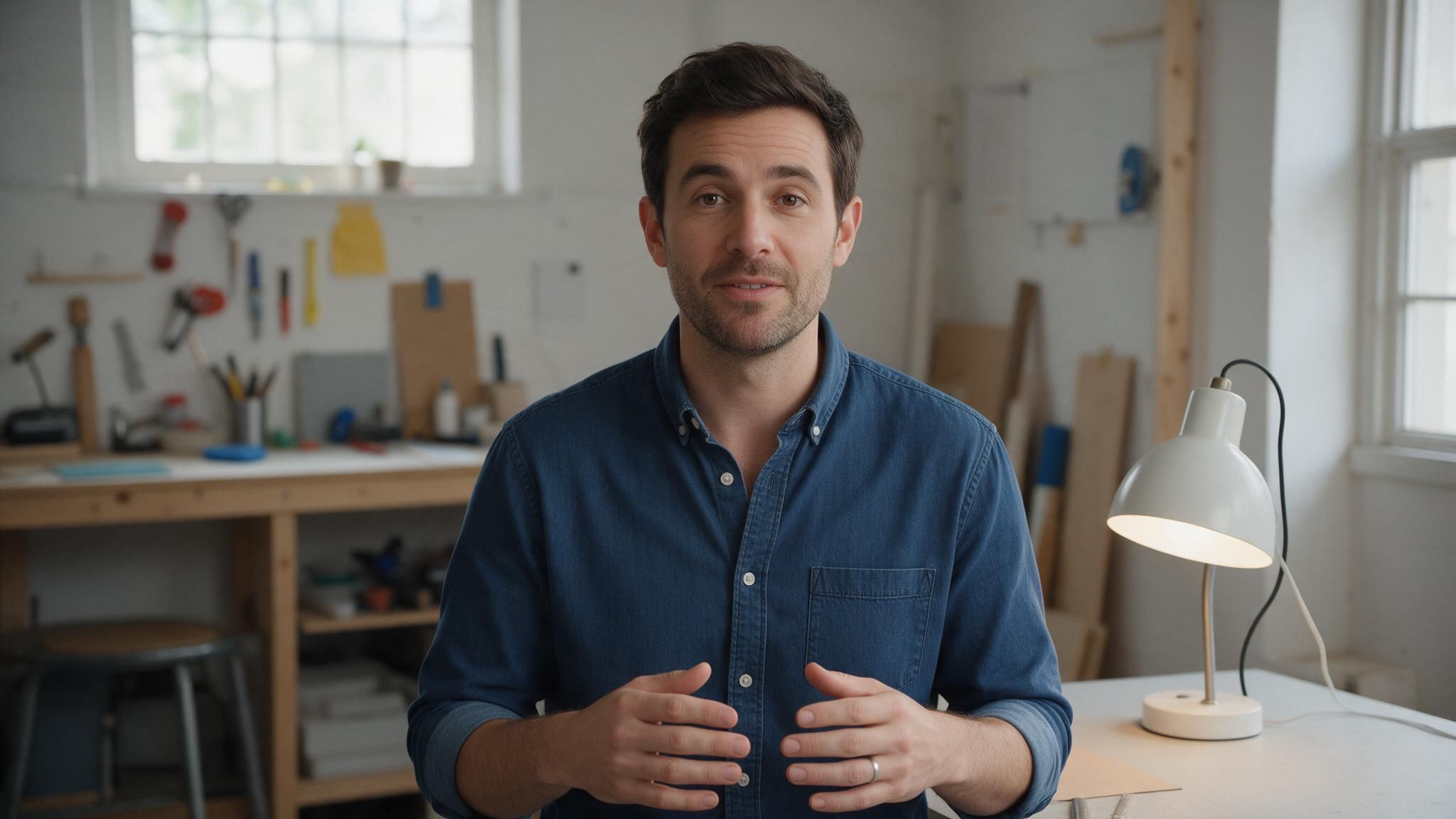
Example source still for the product explainer: the presenter's face, both hands, and the lamp are visible, making a small timed hand gesture easy to assess. This is an input photo, not an OmniHuman output.
Use one representative sample before preparing a long recording. A short trial makes it quicker to notice a mismatched crop, a phrase with no gesture cue, or a prompt that asks for too much. It is a quality-control choice, not a claim about a specific 2.0 duration limit.
Write Gesture Prompts With a Clear Cue
A prompt becomes easier to evaluate when it names an action, its cue, its size or pace, and any framing constraint. A broad instruction such as “make the person natural and expressive” leaves several decisions open. A focused instruction tells the model what visible action matters and when it should occur.
Try this example with the sample line above:
The speaker delivers the line with a calm, confident tone. Keep the camera steady. When the speaker says “three practical steps,” raise one hand briefly to emphasize the point, then lower it naturally. Use small, relaxed gestures that stay within the visible frame.
The quoted phrase connects the action to a moment in the audio. “Raise one hand briefly” gives a bounded gesture, and “stay within the visible frame” avoids asking for motion beyond the crop. This is a prompt-writing template, not a tested or guaranteed OmniHuman 2.0 command. If the system does not follow exact words or timing consistently, keep the phrase as a broad cue and judge the rendered motion rather than assuming frame-accurate choreography.
Change only one main variable between attempts. If the gesture appears too early, adjust the cue or audio pause. If the hand movement is too large, reduce the requested amplitude. If the arm is unstable or partly invented, choose a source where the arm is already visible. Changing the image, audio, movement, and camera direction at once makes it hard to learn which change helped.
Avoid stacking unrelated requests: a hand wave, a point, a turn, a walk, a camera orbit, and an emotional shift all in one short line. Each adds another demand to the same performance. Start with one purposeful movement; add a second only if the first result remains legible and the scene calls for it.
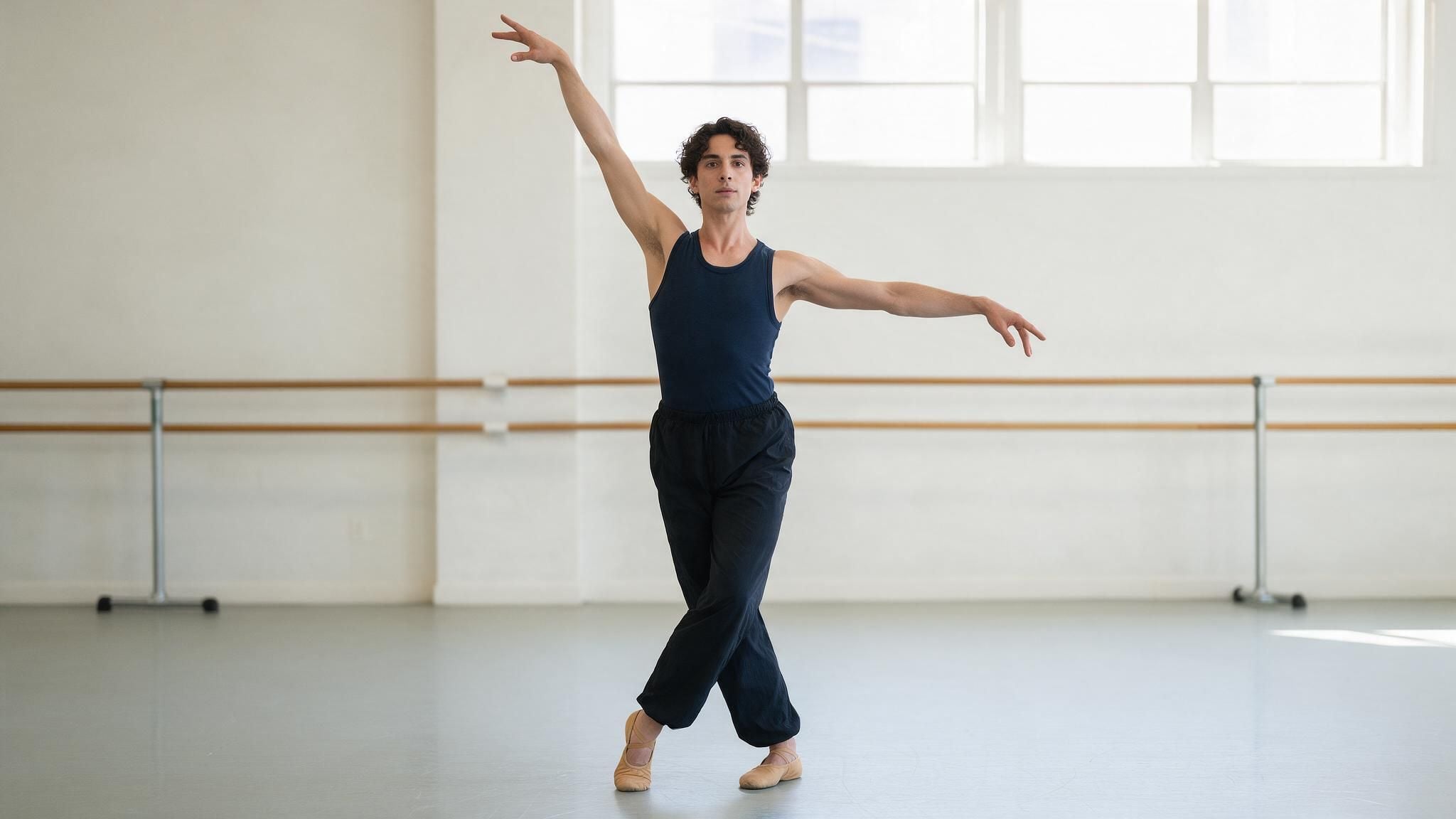
Example source still for a coordinated full-body pose: the raised arm, extended arm, and stepping feet remain inside the frame. This is a reference image for planning a gesture, not an OmniHuman-generated frame.
Review the Result Before You Publish
Watch the result once for the overall performance, then again for specific details. The second viewing is useful because a clip can feel plausible at normal speed while revealing a hand or background problem on closer inspection.
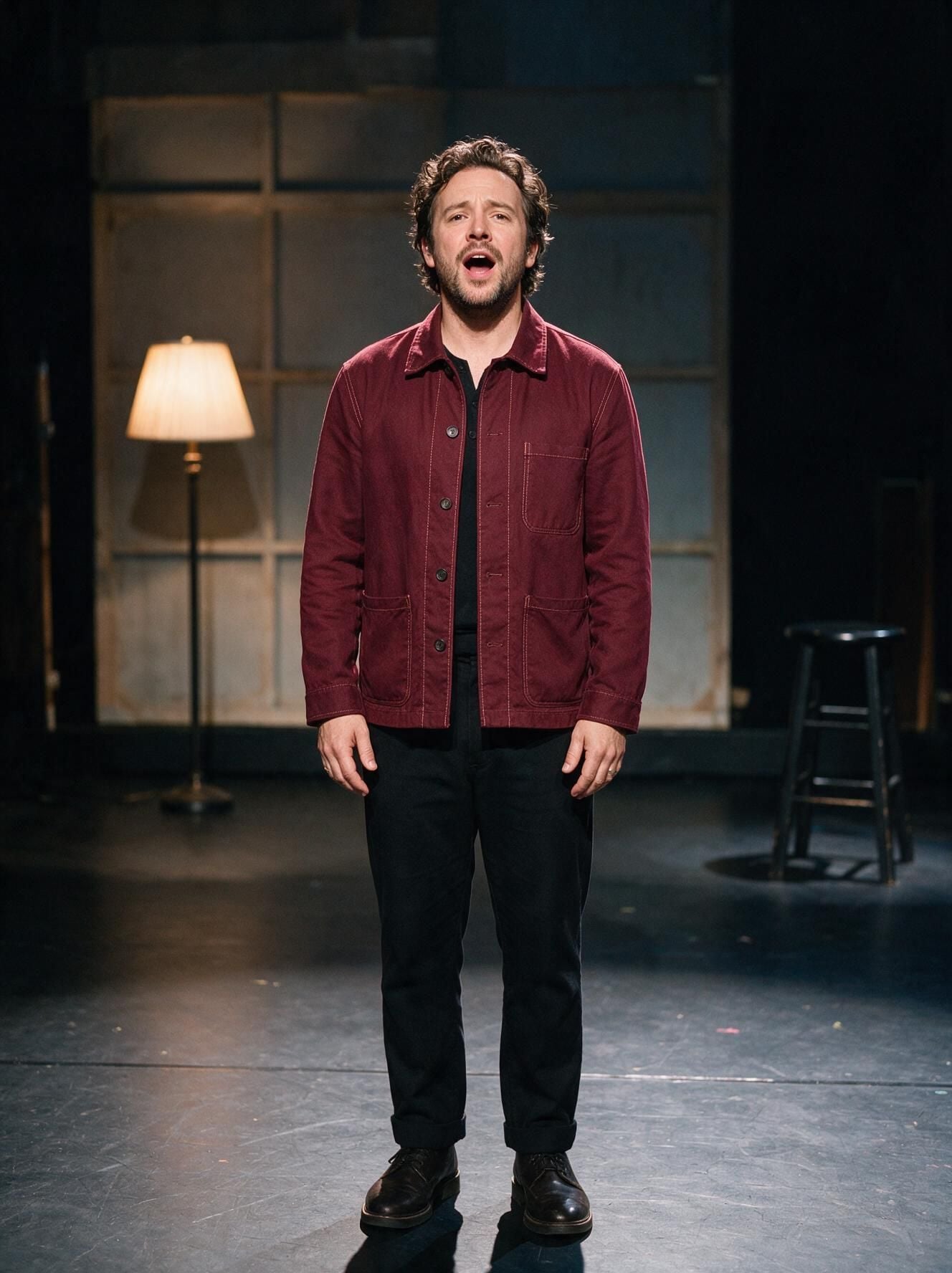
Example source still for a standing performance: compare any generated take against the visible face, hands, jacket, shoes, lamp, and stool when checking identity and scene consistency. This is an input photo, not a generated frame.
Check these five areas:
- Speech and expression: Does the mouth broadly follow the spoken or sung phrase? Do expressions fit the vocal delivery?
- Gesture timing: Does the movement appear near the intended idea or pause? Does it stop when the emphasis ends?
- Hands and body: Look for briefly fused fingers, bent joints, changing sleeves, or body proportions that shift between frames.
- Identity and scene: Does the face remain recognizable? Do clothing, background objects, and lighting stay reasonably consistent?
- Delivery framing: Are the hands or feet cut off? Does the subject remain clear in the aspect ratio and crop you need?
When something fails, tie the next attempt to the observed cause. Replace the image when the needed body area is missing or the crop leaves no movement room. Replace or shorten the audio when the key phrase is rushed, unclear, or emotionally mismatched. Rewrite the direction when the action arrives at the wrong moment or is too broad. If the clip is for a public campaign, also confirm you have permission to animate the image and use the voice recording, and obtain any consent required for the people represented.
A useful result is not necessarily the one with the most movement. For a course intro or product explanation, a restrained gesture that preserves identity and keeps the subject inside frame can communicate better than an elaborate action that draws attention to visual errors. Keep the take that supports the message and meets the publishing format, then retain the source image, audio, prompt, and selected output together for later revisions.
OmniHuman 2.0 Access, Versions, and Pricing
BytePlus lists OmniHuman V2.0 in its video-model savings-plan documentation. That confirms the version name appears in BytePlus materials, but it does not establish a public 2.0 playground, detailed input limits, or an Atlas Cloud endpoint (BytePlus AI Savings Plans). Check the exact model version before building a workflow around it. The name “OmniHuman 2.0” should not be treated as interchangeable with “OmniHuman 1.5.” The BytePlus documentation currently surfaced for this article is labeled OmniHuman 1.5. It documents its own input schema and service constraints, which should not be carried over to 2.0 without a matching official source.
At the time checked for this article, Atlas Cloud’s public model directory showed a broad model catalog, but no OmniHuman 2.0 detail page could be verified there. The specific Avatar Omni Human model page identifies the adjacent 1.5 offering. Its displayed starting price has been reported as $0.12 per second in the official materials, but pricing and discounts can change. Recheck the detail page and the Atlas Cloud model directory before budgeting or publishing. Do not use the 1.5 price as an estimate for 2.0.
If you need OmniHuman 2.0 specifically, confirm its official access route, current input requirements, and price with BytePlus before preparing production assets. If you are open to an adjacent version, Atlas Cloud’s directory can help you verify which currently listed video and avatar models are available from one catalog. Treat that as a separate product choice: a 1.5 run cannot validate a 2.0 prompt or result.
Frequently Asked Questions
Can OmniHuman 2.0 generate a full-body video from a face-only image?
A face-only image does not show the body detail needed to guide a full-body performance. A system may infer missing areas, but their appearance and motion are less directly grounded in the source. For a hand gesture, use a source that shows the hand and enough arm. For a standing action, begin with a full-body image.
Does OmniHuman 2.0 need audio, or can a text prompt animate the image alone?
The described OmniHuman workflow is driven by an image and audio, with optional text direction. Do not assume text-only image animation is supported by the exact 2.0 service you plan to use. Check that service’s current product page for its accepted inputs.
How long can an OmniHuman 2.0 audio input be?
I could not verify a current official 2.0 audio-duration limit. BytePlus’s published 1.5 overview states a limit under 60 seconds and recommends shorter inputs for quality, but that is a 1.5 specification. Confirm the 2.0 limit at its official access point before recording or uploading a long track.
Is OmniHuman 2.0 available on Atlas Cloud yet?
No public OmniHuman 2.0 listing was verifiable in the Atlas Cloud directory when this article was checked. Atlas Cloud’s adjacent OmniHuman page is for 1.5. Check the directory again before use, since catalog availability can change.
Before starting your next OmniHuman 2.0 full-body gesture generation from one image attempt, make one decision first: identify the body area the finished shot must show, then choose a source that already contains it. Verify the exact version and current limits at the service you will use, and test one short, representative audio passage before preparing the full production take.





