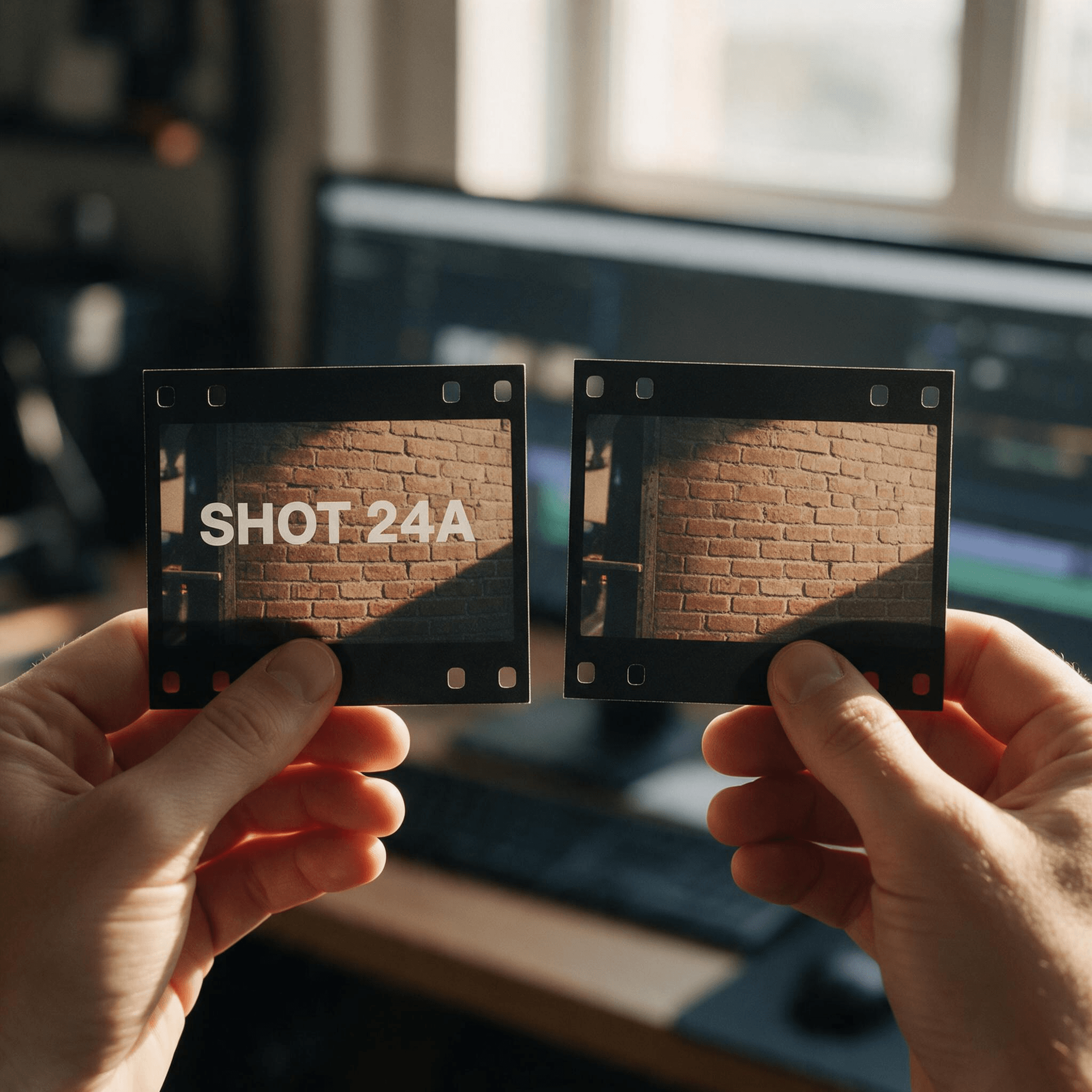
A client's logo burned into the corner. The wrong caption baked into a clip. An old family video with a TV network's date stamp nobody wanted. Different footage, same problem: the words aren't on a layer you can switch off, they're pixels, exactly like the wall behind them.
So when you remove text from video, the tool isn't deleting anything. It's guessing what used to sit under the letters, frame after frame, and trying to keep that guess steady while the camera moves. Get it wrong and you trade one eyesore for another: a soft smudge where sharp footage used to be.
We ran the same clip through four removal methods, then pushed an AI video editor through three cases that trip most tools up: text that moves, captions over a face, a sticker on a vertical TikTok clip.
Key Takeaways
- Text burned into a clip lives in every frame. A video text remover has to rebuild the background in all of them and keep the result steady as the camera moves.
- Crop, blur and sticker overlays hide the words. Only generative rewriting removes them and puts something believable in their place.
- Open Atlas Cloud's video editor , switch to the Video Edit tab, upload the clip and describe exactly which text to erase.
- Soft captions, like TikTok's auto-generated subtitles, can be switched off by the viewer. They don't need an AI eraser at all.
- Only remove text from footage you own or have the rights to edit.
Why It's Hard to Remove Text in Video, Not Just One Frame
Erasing text from a single photo is a one-shot problem: patch the pixels, done. Video multiplies that problem by every frame in the clip, and the patches all have to agree with each other.
A tool that reads one frame at a time, guesses a fill, then moves to the next frame has no memory of what it painted a moment ago. Each patch can land a shade off from the last one.
Play the result back and that tiny disagreement shows up as a flicker right where the text used to be, worse the moment the camera pans or the lighting shifts.
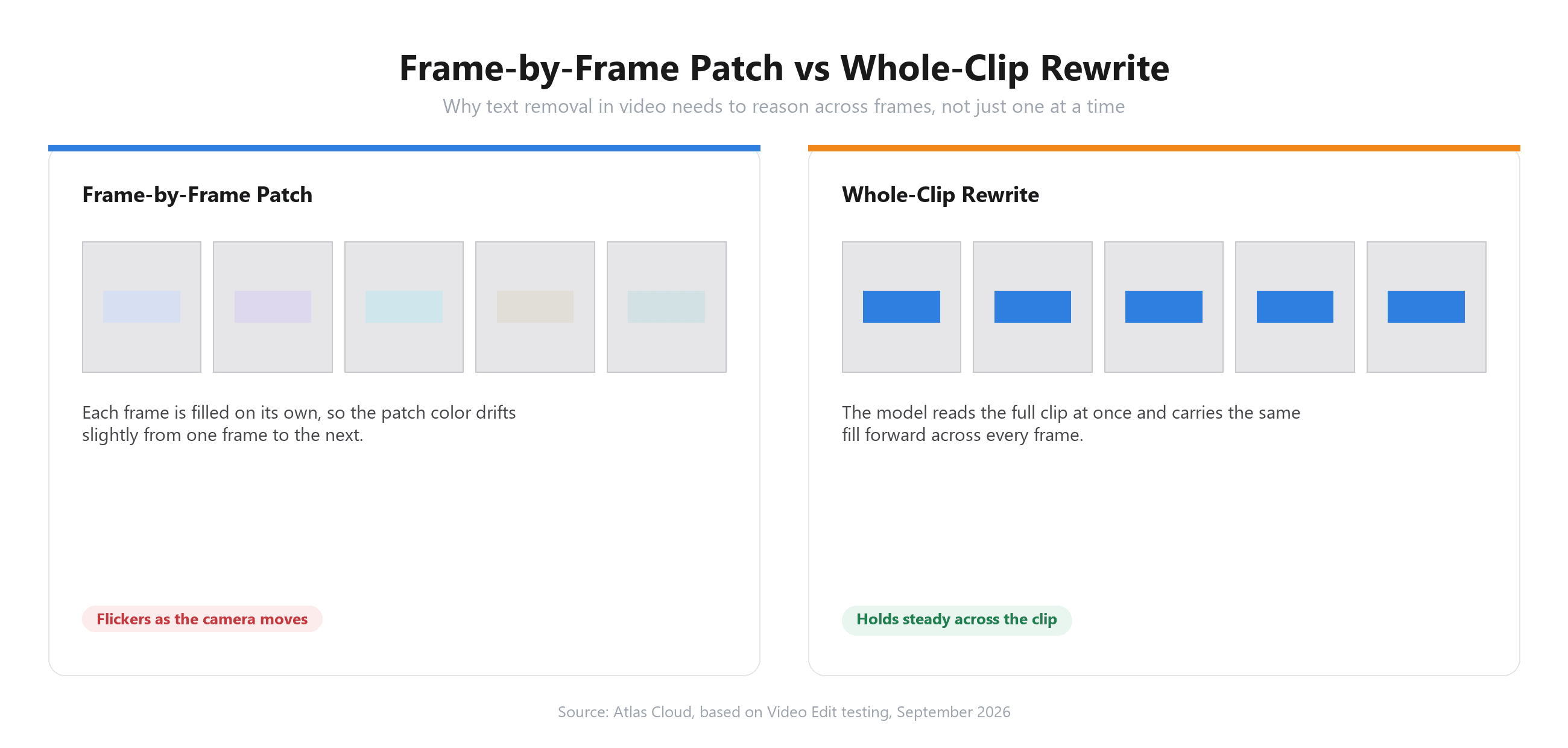
A model built to edit video, rather than a photo tool run frame by frame, reads the whole clip at once and carries that context forward. It's the difference between four still photos of the same wall and one continuous shot of it.
That's also why a text remover built for photos can't just be pointed at a video export and expected to hold up.
One thing worth separating out before any of this: if the text is a caption a platform generated for you, like TikTok's auto captions or YouTube's auto subtitles, it usually isn't burned into the picture at all. A viewer can switch it off from the share panel, no AI removal needed.
Burned-in text, the kind laid down by an editor or a screen recording, is what the rest of this guide covers.
4 Ways to Erase Text From Video: Which Ones Leave Blur?
Search around and you'll find four approaches people reach for. Only one of them actually removes the text instead of hiding it.
| Method | How it works | What's left behind | Best for |
|---|---|---|---|
| Crop | Cut off the part of the frame with the text | A smaller, zoomed-in frame; anything else in that strip is gone too | Text sitting right at the edge of the shot |
| Blur or pixelate | Smear the text area so it's unreadable | An obvious soft patch that reads as "something was hidden here" | Fast fixes where hiding, not removing, is the goal |
| Cover with a sticker or box | Paste a shape or graphic over the text | A visible overlay that has to match the background color or it stands out worse than the text did | Short clips where a logo or watermark in the corner is acceptable |
| Generative rewrite | An AI model repaints the region using the surrounding footage as a guide | Nothing, when the background is simple; a soft patch only on dense, high-detail backgrounds | Text sitting over a real scene the viewer needs to see clearly |
The first three all hide the words. None of them rebuild what was actually behind the letters, which is why a cropped, blurred or covered clip still reads as edited at a glance.
Generative rewriting is the only one aiming to make the text look like it was never there. It's also the only one that can fail quietly, if the background under the text is too dense for the model to reconstruct with confidence, the same tradeoff covered in our guide to AI inpainting tools.
Remove Text From Video With AI on Atlas Cloud
Atlas Cloud runs text removal as a video editing task: upload the clip, describe what to take out, and the model regenerates the frame around it while leaving the rest of the footage alone.
The default model behind it is Seedance 2.5, which reads the source video as a reference and outputs a clip matching its original length, so the edit drops straight back into a timeline without retiming anything.
Method 1: Remove Text in the Video Edit Tab
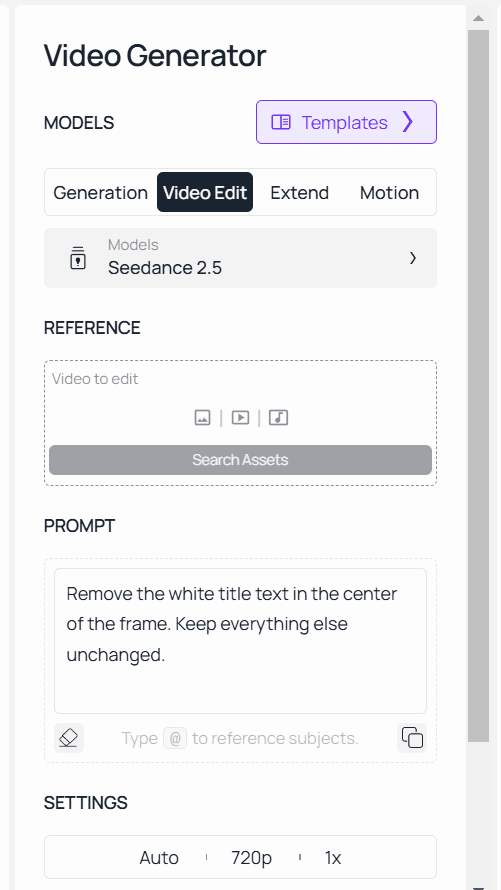
- Open the AI video editor and switch to the Video Edit tab. It sits next to Generation, Extend and Motion, and it's where the model reads an existing clip instead of generating from a blank prompt.
- Upload the clip that has the text on it.
- Describe only the text, not the whole scene: "Remove the caption at the bottom of the frame. Keep everything else unchanged." Naming exactly what to change, and telling the model to leave the rest alone, keeps the edit narrow.
- Run the job and check the result at full resolution before exporting. On a busy background, zoom into the erased area first.
Method 2: Remove Text From a Video via API
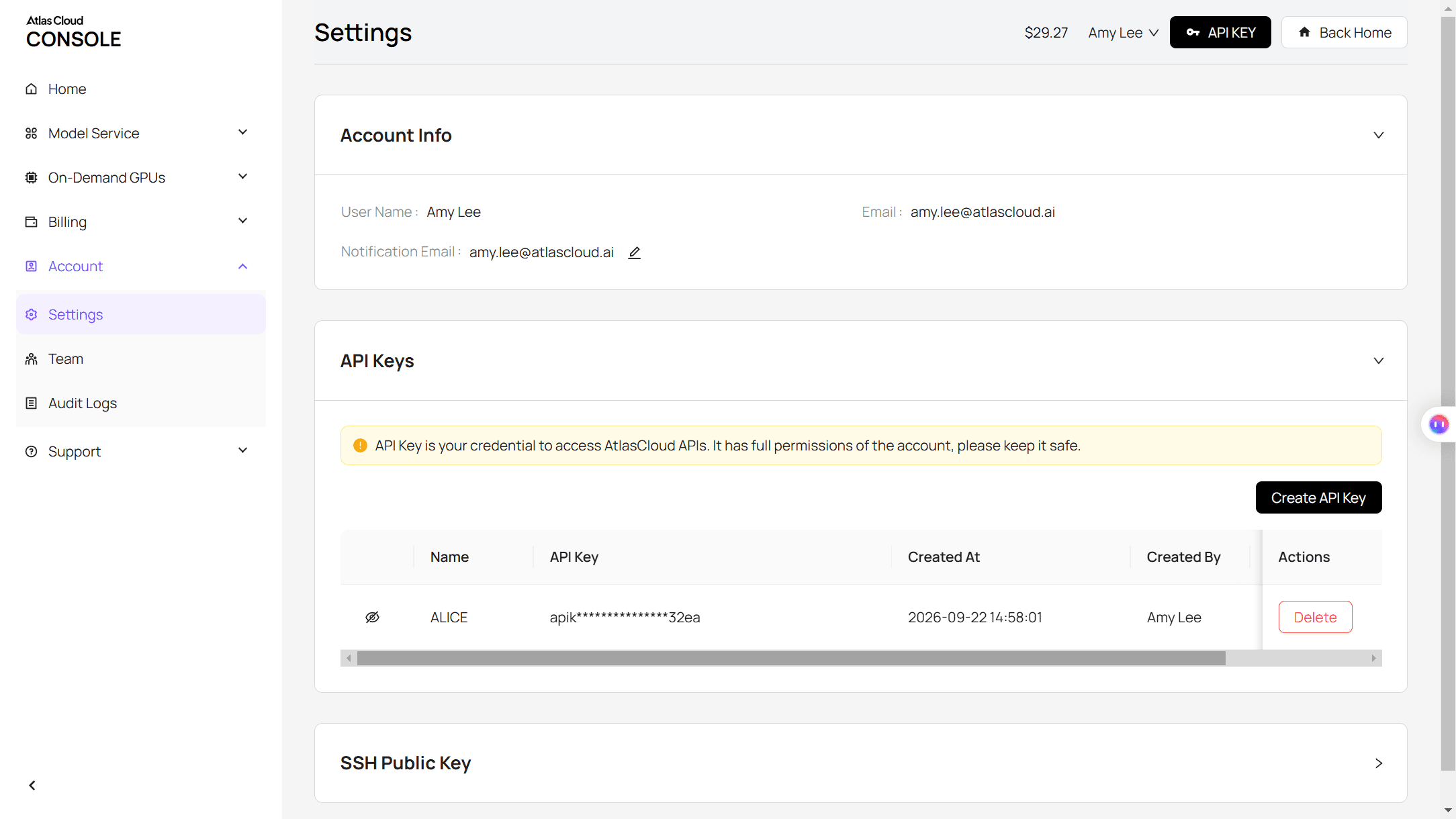
Step 1: Get your API key. Create one in the Atlas Cloud console and copy it.
Step 2: Check the API docs. Parameters, accepted formats and duration limits live in the API documentation.
Step 3: Make your first request. Submit the clip and the instruction:
plaintext1curl -X POST https://api.atlascloud.ai/api/v1/model/generateVideo \ 2 -H "Content-Type: application/json" \ 3 -H "Authorization: Bearer $ATLASCLOUD_API_KEY" \ 4 -d '{ 5 "model": "bytedance/seedance-2.5/reference-to-video", 6 "prompt": "Remove the white title text in the center of the frame. Keep everything else unchanged.", 7 "reference_videos": ["<your_clip_url>"], 8 "duration": -1, 9 "resolution": "720p" 10 }'
duration has to stay at -1 for an editing prompt like this one. The model reads it as an instruction to match the source clip's length rather than generate a new one.
Poll the job until it finishes:
plaintext1curl https://api.atlascloud.ai/api/v1/model/prediction/<prediction_id> \ 2 -H "Authorization: Bearer $ATLASCLOUD_API_KEY"
Atlas Cloud runs one API across the whole platform, so this same key and the same submit-and-poll loop work for every model it hosts. Swap the model string later and the rest of the integration doesn't change.
We Tried to Remove Words From Video in 3 Hard Cases
A static caption over a plain wall is the easy case, the kind of demo clip that makes any text remover look flawless. We picked three that aren't.
Large static title over a textured background. A big white title sitting across brick or foliage, something with enough detail that a weak fill shows up immediately.
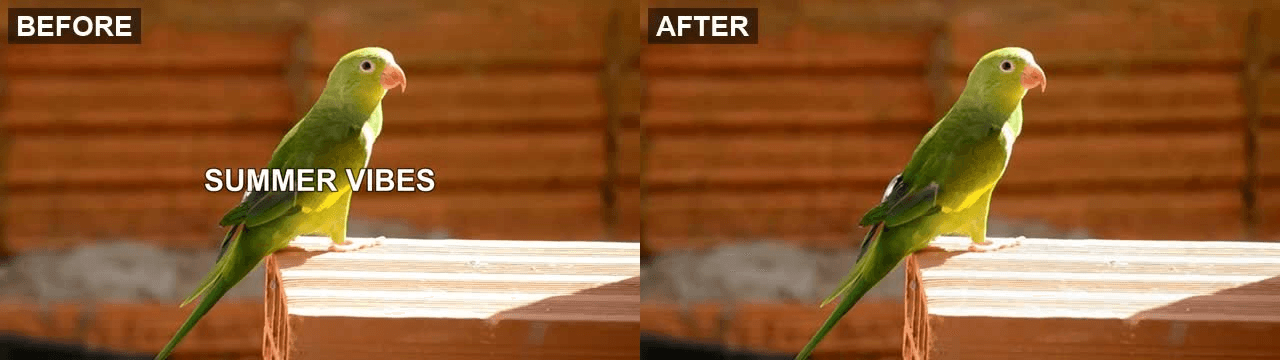
Captions that change as the clip plays. A short clip with burned-in subtitles at the bottom, different words on screen every couple of seconds, camera moving throughout.
A text sticker sitting over a face. A vertical clip where the overlay partly covers someone's face or clothing, the case that separates a model that understands the scene from one that just paints a rectangle.
Across all three, check more than whether the letters are gone. Watch the edges of the erased area as the camera moves, confirm the rest of the frame stayed exactly as it was, and listen for whether the audio survived the edit untouched.
What to Type So Only the Text Disappears
The prompt is doing almost all the work here, since there's no mask or brush control in Atlas Cloud's video editor, just a text field.
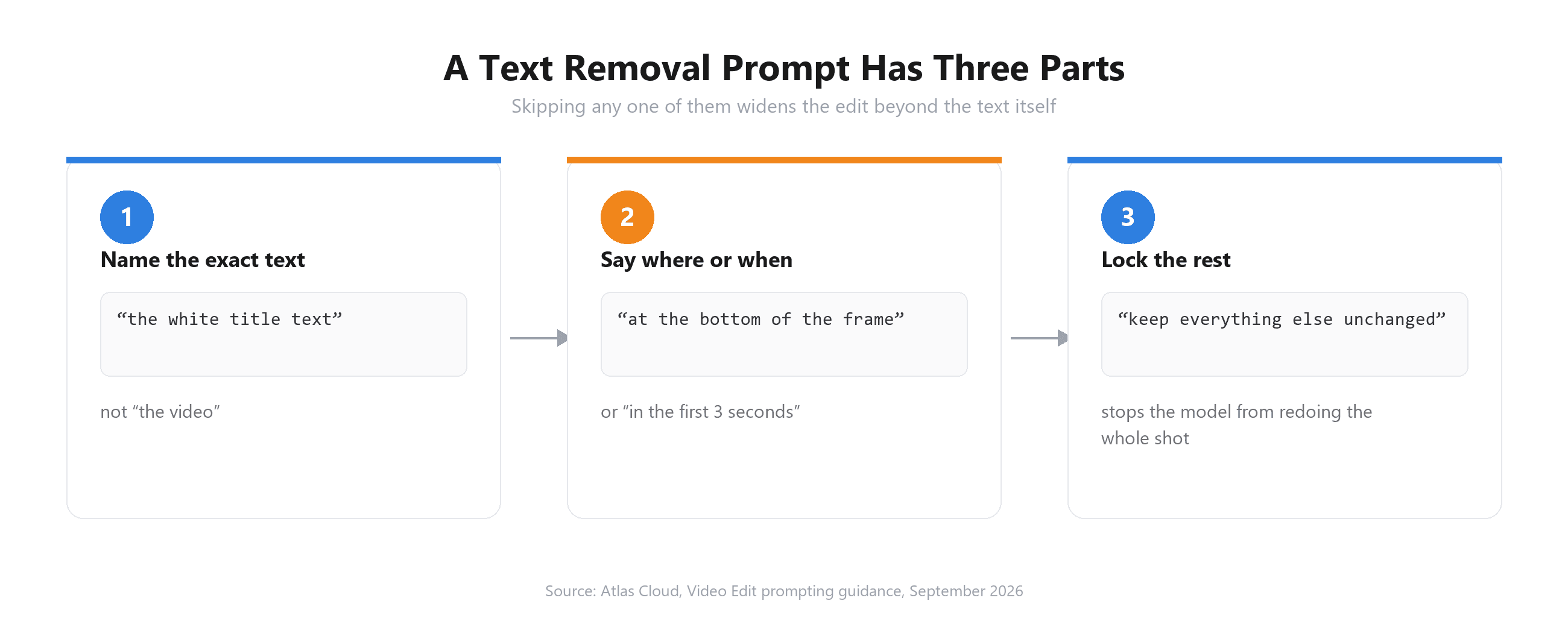
A prompt that works has three parts. Name the exact thing to remove, not the whole scene: "the white title text," not "the video." Say where or when it shows up if the clip has more than one thing going on: "at the bottom of the frame," "in the first three seconds," "over the person's face."
Then close with an explicit instruction to leave everything else untouched. A model reading a vague prompt will sometimes reinterpret the whole shot instead of making one targeted change.
"Remove the text" on its own is the kind of prompt that produces a technically correct but overly aggressive edit, sometimes with lighting or color shifted across the whole frame. "Remove the burned-in subtitles at the bottom of the frame, keep everything else in the shot exactly as it is" gives the model a boundary it can actually work inside.
How to Remove Text From TikTok Video
TikTok text comes in two forms, and they need two completely different fixes.
Still a Draft? Delete the Text in TikTok's Editor
If the clip hasn't been posted yet, there's no AI step involved. TikTok's own drafts editor removes a text overlay directly: press and hold the text or sticker, drag it toward the top of the screen until a Delete button appears, then drop it there.
That editing flow only covers your own draft before you post it, not text on a clip after it's already live.

Already Posted: Run a TikTok Text Remover on the Clip
Once a video is live, that in-app delete path isn't there anymore. The clip has to be treated like any other footage with burned-in text: download it, run it through a video editor, and export the result.
The same Video Edit tab covered above works on a 9:16 clip without any extra steps, since resolution and aspect ratio follow the source.
Frequently Asked Questions
Can I remove text from video online free?
Yes, for short or single clips. Atlas Cloud's Video Edit tab is browser-based with no software to install, and pricing runs per second of output rather than a flat subscription, so a short clip costs a small fraction of a full-length edit.
Check the current rate on the model page before a larger batch, since promotional pricing changes.
Does removing text lower the video quality?
Only in the area that got repainted, and only if the background there is dense. A flat wall or a soft blur behind the text reconstructs cleanly.
Tight brick, dense foliage, or fine fabric texture is harder for any model to rebuild convincingly, the same limitation covered for blurry source footage generally. The rest of the frame keeps its original resolution untouched either way.
Can AI remove moving text or subtitles that change through the clip?
Yes, when the model reads the whole clip rather than one frame at a time. Tell it what to remove and where it sits ("the captions at the bottom of the frame, throughout the clip") rather than describing a single instant, so the instruction applies across every frame instead of just the one the model happened to preview.
Will the audio stay the same after the edit?
The source audio is preserved through a text-only removal prompt as long as the instruction doesn't ask for anything involving sound. Confirm this on your own clip before relying on it for anything with dialogue or music that matters.
Is it OK to remove text from someone else's video?
Only if you made it or have permission to edit it. TikTok's community guidelines put it plainly: "You should only post content you created or have the right to share." The same principle holds regardless of which platform the clip came from or which tool does the editing.
Conclusion
Removing text from video comes down to one question: does the fix hide the words, or does it rebuild what was actually behind them? Cropping, blurring and stickers all do the first.
A model that reads the whole clip and repaints just the area you name does the second, and that's the difference between footage that still looks edited and footage that doesn't look touched at all.
Start with the simplest case in your own footage, a static caption over a plain background, before moving on to a moving overlay or a clip shot in portrait. Whether the job is a one-off TikTok download or a batch of client footage, the same rule applies: name exactly what to remove, tell the model what has to stay.
Check the result at full resolution before you call it done. That's what makes an AI video text remover worth trusting over a crop or a blur.





