Use Seedance 2.5 Flash when you still need to decide what a video should do: which opening earns attention, which product action communicates the benefit, or which shot makes a scene understandable. The Seedance 2.5 Flash best use cases are social short videos, ad creative testing, music video concepts, AI short drama storyboards, and previsualization.
Each involves reviewing several possible executions before committing to a finished sequence. Start with Seedance 2.5 Flash to test a specific creative question. Move approved shots to Seedance 2.5 when the delivery brief calls for higher native resolution or a larger reference set. A usable Seedance 2.5 Flash result can also be the final asset when it meets the brief.
This guide separates documented capabilities from recommended production methods. The five examples below use published Seedance 2.5 Flash demonstrations, their available online references, and clearly labeled English adaptations of the source prompts. Model information was checked on November 17, 2026.
Key takeaways
- Seedance 2.5 Flash fits repeated decisions about hooks, action, pacing, and shot structure across five practical video workflows.
- Seedance 2.5 Flash supports native 480p and 720p output; Seedance 2.5 also supports native 1080p and 4K.
- Test one creative variable at a time, then inspect the entire clip before approving it.
- “Seedance 2.5 Flash first, Seedance 2.5 final” means transferring an approved brief and generating again. Seedance 2.5 Flash does not support the native Draft mode.
- Keep Seedance 2.5 Flash output when it already satisfies the delivery requirements; regenerate only for a defined reason.
When should you use Seedance 2.5 Flash?
Choose Seedance 2.5 Flash when an early result can answer a decision that would otherwise hold up the project. A social editor may need to choose the opening of a chase or the moment of a product reveal. A director may need to see whether an entrance reads clearly before planning the reverse angle. In both cases, the useful output is a decision someone can make after watching.
The documented family supports text-to-video, first-frame and first-and-last-frame generation, multimodal references, editing, and extension. Seedance 2.5 Flash generates clips from 4 to 30 seconds at 480p or 720p. Its reference allowance is up to 10 images, 5 videos, and 5 audio clips. Seedance 2.5 allows a larger set. These limits describe available inputs, not guaranteed consistency. (BytePlus series tutorial, November 2026.)
Start at 480p when you need to assess broad staging or edit rhythm. Use 720p when the decision depends on smaller product features or closer inspection. A longer clip can contain more action to review; do not select 30 seconds simply because the model supports it.
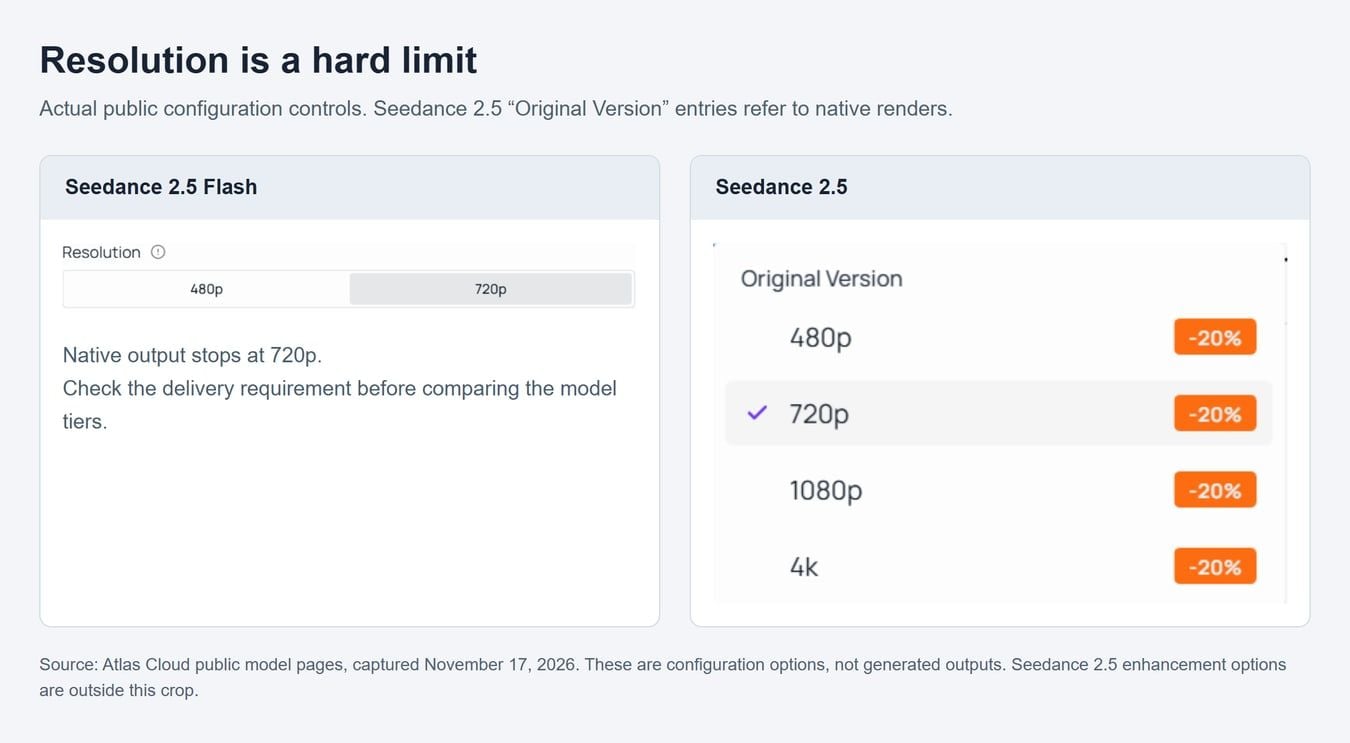
Real public model controls captured on November 17, 2026, reused from the local source library. These show output settings, not generated results. Native resolution limits were cross-checked against the current BytePlus documentation.
| Use case | What to test with Seedance 2.5 Flash | What earns approval | Reason to move to Seedance 2.5 |
|---|---|---|---|
| Social short videos | Cat chase through a detailed market | Route, prop continuity, and readable cuts | Higher native resolution required for delivery |
| Ad creative testing | Image-guided three-shade lipstick editorial | Product identity through changes in lighting and framing | Finish selected campaign treatments to specification |
| Music videos | Music-led animated fantasy insert | Action phases and a usable musical ending | Remake approved inserts at the required resolution |
| AI short drama storyboards | Two-character animated fight | Identity, impact, and continuity across cuts | Rebuild selected shots with the approved references |
| Previsualization | Clay-to-rendered multi-character inn | Entrances, furniture, paths, and action geography | Higher-resolution presentation or final generated shots |
The case selection combines text-to-video, image-guided generation, and video-reference rendering. The examples are distinct published demonstrations, rather than a measured ranking of model performance.
5 Seedance 2.5 Flash best use cases, with published examples
The examples below come from public demonstrations and available online inputs. The English prompt capsules condense source instructions; they are adaptations, not verbatim originals. The cat review publishes only a partial prompt, while the other selected sources provide their original prompts. A downloaded output is a published example, not a new generation or our own performance benchmark.
1. Social short videos: a cat parkour chase through a detailed shopping street
A social clip can carry a small story when each action changes what happens next. A chase provides an immediate objective, a moving subject, and a reason to cut between wide views and close details. Seedance 2.5 Flash is useful during development because the editor can check that chain before building a longer post around it.
The Zhidx published test uses a cat portrait and a shop-lined street as references for a 15-second Seedance 2.5 Flash chase. Its prompt calls for an overturned apple basket and a climb through market furniture toward the roofs. The public inputs and complete reviewer-uploaded clip appear below. The source reports 480p, 16:9, with sound.
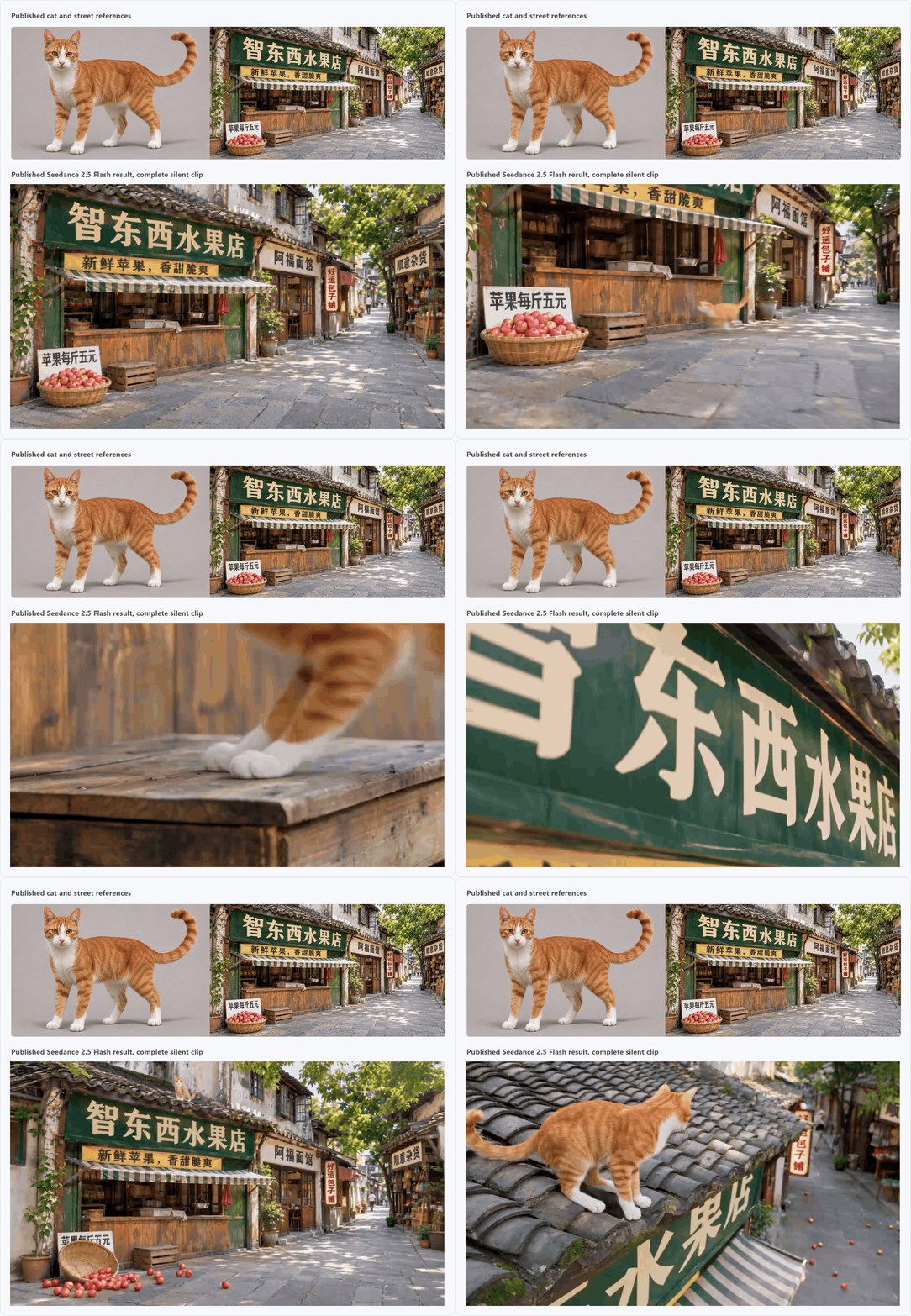
The reviewer supplied both visual references. The combined GIF preserves the complete public clip as a silent visual preview. It is an external test, not a generation performed for this article.
Source-based English prompt capsule:
plaintext1Use the cat portrait for identity and the shopping street for the environment. Create a 15-second chase: the cat overturns an apple basket, runs past the scattered fruit, and climbs using a crate, counter, and awning. Alternate street wides, paw details, and side tracking. Preserve the street layout and existing sign text across views and occlusions.
The useful review question is whether the viewer can follow the route after each cut. Track the basket, the cat's landing points, and the return to a wider street view. A close-up earns its place when it clarifies an action that a wide shot would hide.
For your own social edit, separate motion approval from typography approval. Inspect important signs at full size, then decide which text belongs in a controllable editorial overlay. The source itself identifies text errors in some background signage. A moving shot can communicate its story while still needing correction before a branded release.
Try a different opening, ending, or crop as a separate variant after the route works. Keep a successful Seedance 2.5 Flash take when its native resolution meets the placement. Transfer the approved shot description and reference files to Seedance 2.5 when the final brief requires a higher-resolution generation.
2. Ad creative testing: three lipstick shades, macro detail, and changing light
Product advertising often needs several visual treatments of the same item. A useful test batch changes how the product is presented while keeping the object identifiable. Light direction, foreground glass, framing, and the opening detail can become separate variables, giving reviewers a reason to select one treatment over another.
Creator Irene's published Seedance 2.5 Flash examples supply the beauty reference below, the character material in case 4, and the before/after animations in case 5. The public page also contains the full Chinese prompts. The preview files are shown at their published lengths; they do not establish every requested outcome.
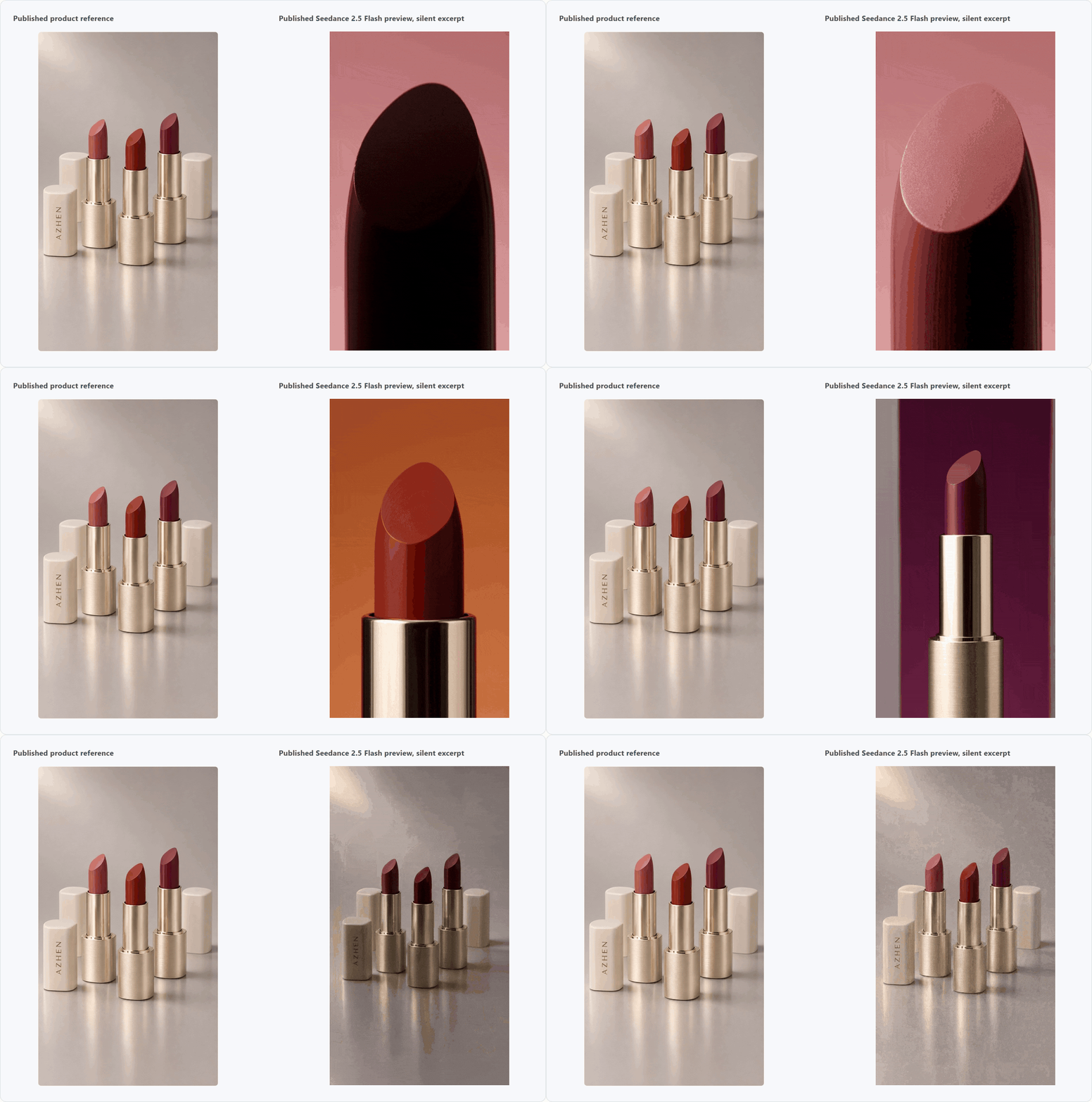
The original product image accompanies a short published macro preview. This is image-guided generation; the source does not expose a first-frame-only request or a campaign performance test.
Source-based English prompt capsule:
plaintext1Use @Image1 to preserve the three lipstick shades, ivory caps, brushed-gold bases, narrow metal trim, and packaging lettering. Build a vintage beauty editorial with macro product views, textured glass, soft foreground layers, and restrained rose, ivory, brown, and wine tones. Vary the lighting and composition while keeping product structure consistent.
An image-guided product video gives the team a concrete object to audit. Compare the tube silhouette, the cap, the placement of lettering, and the visible shade with the reference. Keep those checks separate from your preference for a particular lighting treatment. A desirable lighting idea can be worth revisiting even when the first execution alters a product feature.
For a controlled batch, fix the product reference, duration, aspect ratio, and message. Change the opening detail in one version, the foreground material in another, and the light direction in a third. Review a small batch before expanding it. Avoid changing every creative dimension together, which makes the next decision harder to explain.
Choose the input route deliberately. A product reference guides a new scene; a strict image-to-video request uses an approved opening frame. Use the latter when the first composition must match exactly, and the reference route when the model should explore new framing. Keep each source image's role explicit.
After screening usable assets, finish selected treatments at the required specification and test them in the campaign. Visual review can establish product fidelity and message clarity. Conversion or return-on-spend claims require actual advertising data.
3. Music video inserts: a piano performance on a mirror-like sea
A music video insert needs a clear progression that an editor can place against a musical phrase. In this Seedance 2.5 Flash example, a white grand piano on reflective water gives the sequence a consistent visual anchor. Wide views establish the performance, hand and side views bring the audience closer, and a luminous wave gives the ending a distinct visual event.
The supplied clip follows the piano-on-the-sea concept in the prompt below. It combines a violet sunset, golden rings on the water, a black-clad pianist, and a wave behind the performance. The original audio remains attached so the soundtrack and picture can be reviewed together.
The complete supplied video runs about 15 seconds at 1280 × 720 and retains its original audio. The prompt describes the intended camera and musical progression; inspect the delivered clip to decide which details work for your edit.
English generation prompt:
plaintext1Create a 15-second cinematic music video interlude with synchronized original instrumental music and sound design. 2 3SETTING AND CONTINUITY 4A lone pianist in an elegant black outfit plays a white grand piano on a shallow, mirror-like sea at blue hour. Distant mountains, violet clouds, a thin golden horizon, and subtle luminous particles create a spacious, dreamlike atmosphere. Keep the same pianist, outfit, piano structure, and location throughout. Photorealistic cinematic imagery, detailed reflections, restrained blue and gold lighting. 5 60–5 SECONDS - INTRODUCTION 7Begin with a low, wide lateral tracking shot across the reflective water, revealing the pianist and piano. Small ripples spread naturally around the piano legs. The pianist begins a delicate, clearly audible piano melody. Let the camera gently arc toward the performer rather than simply zooming in. 8 95–10 SECONDS - BUILD 10Cut to an oblique close-up of the hands playing the keys, then a medium side view of the performer. Keep finger movement plausible and coordinated with the audible piano phrases. Each accented note sends a soft ring of golden light across the water. Add warm strings and a restrained electronic pulse as the music builds. The pianist’s hair and clothing move slightly in the sea breeze. 11 1210–15 SECONDS - MUSICAL PAYOFF 13On the musical crescendo, transition into a rising crane shot that curves around the piano. A broad, luminous wave travels across the sea behind the performer while golden particles rise into the violet sky. Keep the wave away from the piano. Resolve the music with a clear final piano chord as the camera reveals the complete reflection. Hold the final composition briefly and let the chord decay naturally. 14 15AUDIO 16Generate an original instrumental soundtrack: intimate piano opening, gradual string arrangement, subtle electronic percussion, and a satisfying melodic resolution. Include quiet water and wind beneath the music. No vocals, speech, or narration. Coordinate the two major shot transitions and the luminous wave with musical accents. 17 18Avoid extra performers, duplicated instruments, distorted hands, changing piano geometry, abrupt location changes, excessive slow motion, text, logos, subtitles, and watermarks.
Review the relationship between the music and three visible changes: the move from the opening wide view to the keyboard, the closer view of the performer, and the wave behind the piano. Listen for whether the arrangement builds toward that final image and leaves a usable ending. Check hand movement and instrument structure separately from your preference for the atmosphere.
For another Seedance 2.5 Flash trial, keep the pianist, piano, location, and duration fixed while changing one musical or visual choice. You could test an earlier wave reveal or a quieter ending. Compare the entire picture-and-sound sequence before selecting an insert.
When selected shots need a new generation in Seedance 2.5, carry over the approved prompt, shot timings, and soundtrack brief. Recheck the new performance against the music, then finish the sequence with the master soundtrack in the editor.
4. AI short drama storyboards: a two-character animated fight
An action scene gives a short-drama team several decisions to resolve at once: who attacks, who responds, which side of the frame each person occupies, and which contact moment should motivate the cut. A storyboard test becomes useful when it exposes those relationships before the team develops a complete episode.
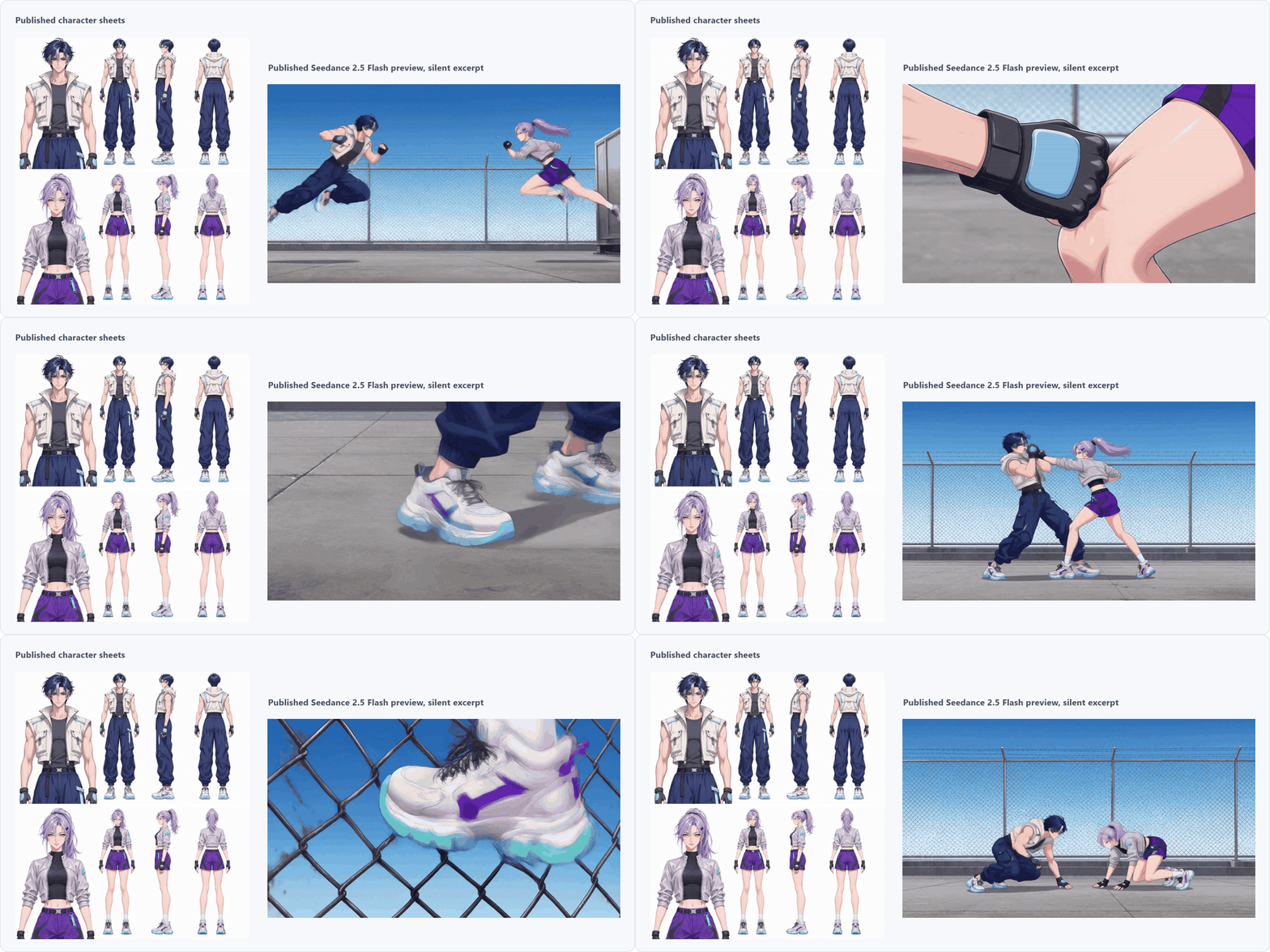
The published example below pairs two character sheets with an animated fight excerpt. The English capsule condenses the creator's instructions; the original full prompt is available in the case-2 source. The preview is silent and shorter than a complete scene, so use it to inspect visible motion rather than infer dialogue or sound quality.
Source-based English prompt capsule:
plaintext1Use @Image1 and @Image2 as separate identity references for the two unarmed fighters. Maintain their faces, hairstyles, clothing, and screen positions. Stage fast close-range attacks, blocks, and counters on open ground. Cut around visible contact while carrying the action forward. Keep footing and impact reactions readable; avoid clothing swaps, teleportation, slow motion, and action resets.
Make the acceptance check an action relationship. The defender should respond to the incoming limb, and the next shot should inherit a plausible state from the previous one. Watch the last frames before a cut and the first frames after it. This is where a visually energetic sequence can lose its geography.
Review identity independently from choreography. Character references let you compare faces, costume shapes, hair, and color accents, while the motion tells you whether the intended exchange is readable. A scene can pass one check and fail the other. Record the difference so the next iteration fixes a specific problem.
For an episode workflow, save the selected reference order, shot sequence, and continuity notes with the accepted preview. Add the surrounding reaction or dialogue shots in the edit, then check the pacing of the whole scene. Carry the same reference package to Seedance 2.5 for selected final shots, and review the replacements across every cut.
5. Previsualization: turn a clay blocking animation into a populated inn scene
Previsualization can answer a staging question before finished surfaces, costumes, and lighting are settled. A rough animation makes entrances, paths around furniture, and character spacing explicit. Video-reference rendering then lets a director evaluate a developed visual proposal while comparing it with that blocking.
The public before/after pair below demonstrates this idea. The complete published clay and rendered animations play together in one silent GIF, aligned from their opening frames. The comparison preserves the available material without reconstructing missing footage.
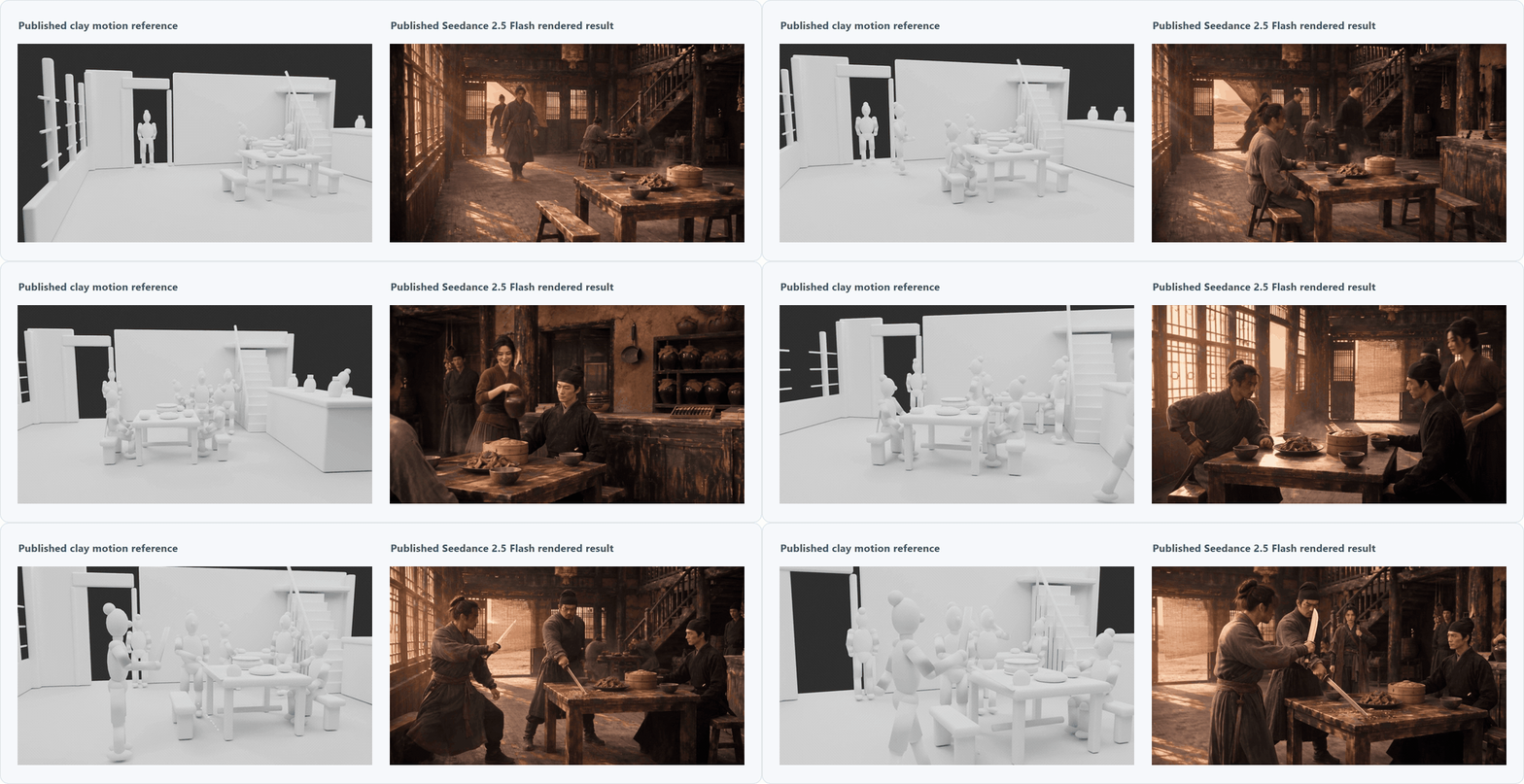
Source-based English prompt capsule:
plaintext1Use @Video1 for blocking and motion, with separate character references for appearance and a scene reference for the opening composition. Render a 15-second live-action martial-arts inn sequence. Preserve the door, tables, benches, counter, stairs, and clear walking paths. Carry entrances, seating, and the brief final confrontation forward continuously at real-time speed.
Compare the two sides at the same moment in the synchronized GIF. Start with the door and the main table as landmarks, then follow the walking paths and the final interaction. The question is whether the developed scene still communicates the approved staging. Changes in illumination or surface detail should be assessed alongside that structural check.
Use a small, clearly labeled reference package in your own test. One video can define motion, while images define appearance or an opening view. Give each file a role in the prompt so an ambiguous reference does not silently become a different task. This is a reference-rendering workflow; the public example does not prove that a native video-editing mode was used.
This local package supplies the published clay animation and rendered result, without the original set of individual appearance-reference files. Exact recreation of that cast is therefore unverified. For a new production, assemble a complete set of identified online appearance references before submitting.
Treat this as an approval tool for blocking and scene development. It does not establish measured set dimensions or a reproducible camera-rig simulation. A live-action team can move from approved previs to a shot plan; a generated production can remake selected shots in Seedance 2.5 and verify that the agreed geography survives.
A practical Seedance 2.5 Flash-to-Seedance 2.5 workflow
Step 1: define what this trial must resolve
Write one decision and one acceptance check before opening the generator. For an ad, the decision might be whether to open on a product silhouette or a macro surface detail. The check might be that a viewer can identify the product and action within the opening shot. Record the final duration, aspect ratio, and required native resolution alongside it.
On Atlas Cloud, choose an input route that fits the material you already have. Use Seedance 2.5 Flash text-to-video for a written scene. Use Seedance 2.5 Flash reference-to-video when the brief relies on product, character, motion, or audio references.
Step 2: run a small, controlled set of variations
Save a baseline prompt and label each change. Keep the references, duration, aspect ratio, and audio instructions fixed while testing one creative variable. Run a small set, review it, and decide what the next set needs to answer.
Store the actual submitted settings with each downloaded output. A filename such as beauty-hook-b-macro-v01 is more useful than final-new-3. Avoid treating the same seed on different models as a guarantee of the same video.
Step 3: choose an accepted shot, then assemble the sequence
Watch every candidate from start to finish. Check subject identity, complete action, contact points, screen direction, usable ending, and audio. Make a rough edit before approving isolated clips; a shot can work alone and still fail at the cut.
Track accepted outputs alongside the total attempts, review time, and actual charges. Cost per accepted shot is the total generation spend divided by the number of accepted shots. Include failed creative attempts in that total so a lower initial quote does not hide repeated unusable results.
Step 4: transfer the approved brief and generate the final shots
Move to Seedance 2.5 reference-to-video when that route and its output capabilities fit the approved shot. Bring the original references, selected prompt, action timings, continuity notes, and required delivery settings. Use the Seedance 2.5 Flash clip as a motion reference only when that is the intended task and the selected interface supports it.
Seedance 2.5 Flash does not provide a native Draft task that Seedance 2.5 can finalize. BytePlus documents a separate Draft-to-final mechanism within Seedance 2.5, with the final request required to use the same model as the Draft request. The proposed Seedance 2.5 Flash-to-Seedance 2.5 handoff therefore starts another generation and requires another review.
Native output settings also differ: Seedance 2.5 Flash supports 480p and 720p, while Seedance 2.5 supports 480p, 720p, 1080p, and 4K. Confirm the options exposed by the selected delivery route. The BytePlus series tutorial above documents these output limits and Draft-mode requirements.
Step 5: check the final edit against the same brief
Compare the replacement shots with the selected Seedance 2.5 Flash takes. Recheck product details, character continuity, action timing, and sound through the cuts. Add final titles, captions, music, and branding in the editor, then export to the agreed specification.
You can estimate the break-even point before committing a whole project. Let N be the number of candidate shots, K the number selected for final rendering, and C_trial and C_final the comparable per-shot costs of Seedance 2.5 Flash and Seedance 2.5, respectively. A simplified two-stage plan costs N × C_trial + K × C_final; generating every candidate directly in Seedance 2.5 costs N × C_final.
Under those assumptions, the two-stage plan spends less only when C_trial / C_final < 1 - K / N. For example, testing 6 candidates and remaking 2 requires a Seedance 2.5 Flash-to-Seedance 2.5 cost ratio below two-thirds before extra retries or editing time. This is planning arithmetic, not a price quote or a measured saving. Add reference-input charges, reruns, and review work to your real estimate.
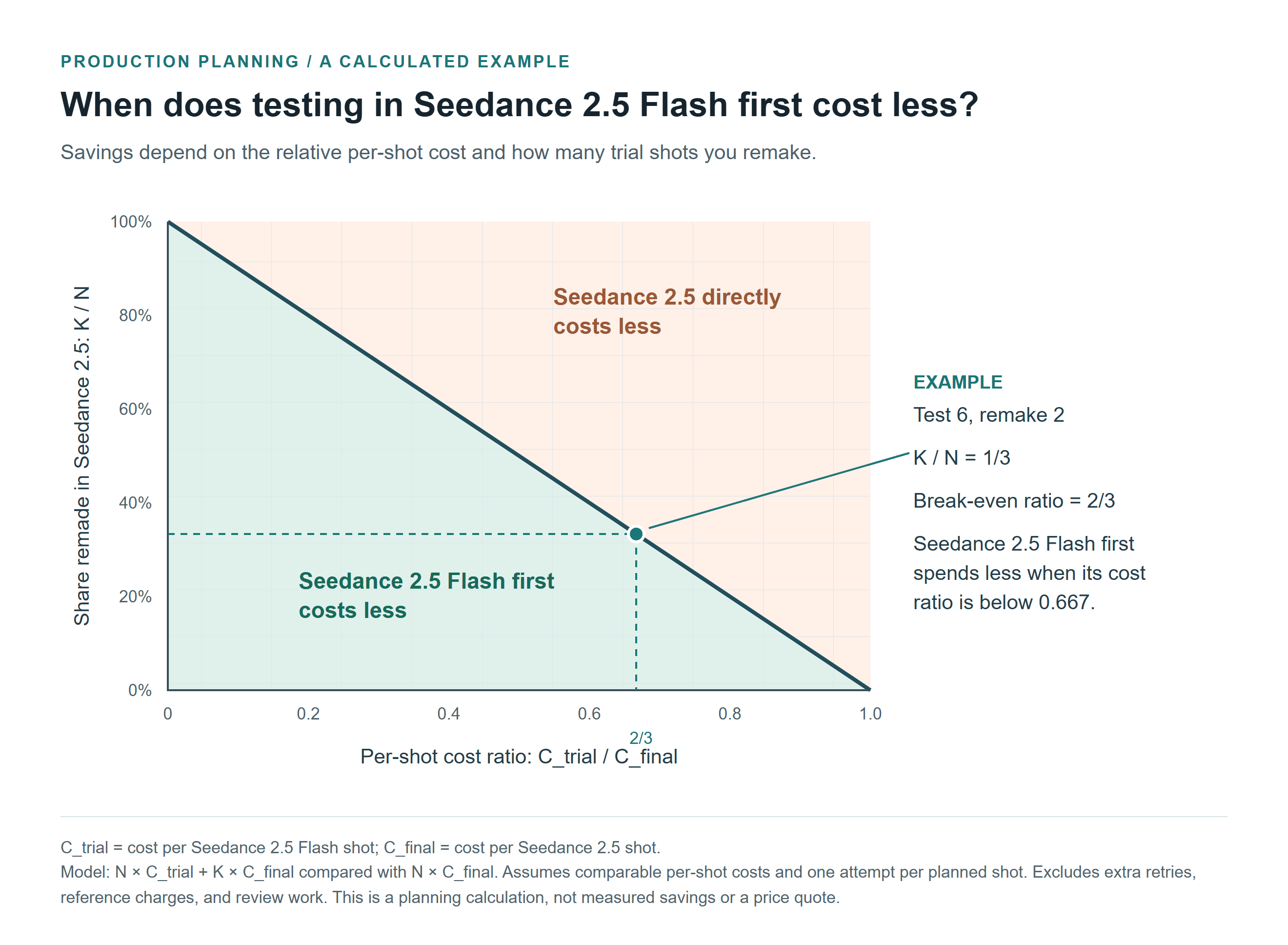
The diagonal marks equal planned generation costs. The green region favors a Seedance 2.5 Flash-first plan under the stated assumptions. Actual retries and input charges can change the result.
When Seedance 2.5 Flash adds an unnecessary round of work
Start directly in Seedance 2.5 when the concept is already approved and the task requires a higher native resolution. A Seedance 2.5 Flash pass has less value if it cannot resolve a remaining decision. The same applies when the planned reference package exceeds Seedance 2.5 Flash's documented allowance.
Stay with Seedance 2.5 Flash when the accepted output already meets the delivery requirements. A social post or internal animatic does not automatically benefit from being regenerated. Changing models can introduce a different action or expression and create more editing work.
Choose the Seedance 2.5 Draft workflow when you specifically need its documented Draft-to-final mechanism and have verified support in your chosen interface. Keep it separate from the cross-model workflow described here.
The Seedance 2.5 Flash best use cases share a practical pattern: an unresolved creative question, a trial that makes it visible, and a clear approval decision. For your next project, choose one of those questions and write its acceptance check before submitting the first prompt.
Frequently Asked Questions
Can Seedance 2.5 Flash produce a complete music video or short drama?
Build longer works as edited sequences of clips. The documented single-generation limit is 30 seconds. Plan continuity, transitions, and sound across the sequence, then inspect the assembled edit rather than judging each clip in isolation.
Is Seedance 2.5 Flash the same as Seedance 2.5 Draft mode?
No. Seedance 2.5 Flash is a separate model variant without Draft mode. The native Draft-to-final mechanism belongs to Seedance 2.5 and has its own request rules. A Seedance 2.5 Flash output does not become a compatible Draft task ID.
Should every Seedance 2.5 Flash test be remade in Seedance 2.5?
Remake selected shots for a specific delivery requirement or a reference need. Keep an accepted Seedance 2.5 Flash output when it already meets the brief. Regenerating every experiment can remove the economic reason for testing in Seedance 2.5 Flash first.
Which input route should I use for product or character consistency?
Use an image-based route when an approved starting frame is central to the shot, or the reference route when several visual or audio assets guide the scene. Keep references consistent and inspect every result. Reference support provides control inputs; it does not guarantee identical subjects across all frames.
Does a good-looking ad variation prove it will perform better?
An asset review can establish that the intended action and message are readable. Advertising performance requires campaign testing. Keep the creative comparison controlled, then use the campaign's actual data to make performance claims.