A missing 1080p option, a rejected reference, and a completed clip that misses the action need different fixes. With Seedance 2.5 Flash, start by checking the model's limits, then identify whether the problem occurred before submission, during processing, or in the finished video. That distinction also determines what to check in your billing history.
This guide covers practical troubleshooting on Atlas Cloud, with specifications and policies checked on November 17, 2026. Screenshots document public controls and official guidance. The sample prompts are suggested starting points, with no claimed generation benchmark or refund test.
Key takeaways
- Seedance 2.5 Flash generates native 480p or 720p video and does not support the dedicated Draft mode available in Seedance 2.5.
- Match the input route to your task, check reference limits, and assign each reference a clear role.
- Test the action that determines whether a shot is usable before adding more scenes, camera changes, or dialogue.
- Check the original job after a timeout. A slow page does not establish that generation failed.
- Atlas Cloud releases reserved balance for tasks that reach a failed state. A successful clip you dislike and a request to refund a top-up are separate situations.
Seedance 2.5 Flash resolution limits: why 1080p is missing
Seedance 2.5 Flash supports native 480p and 720p output, with generated durations from 4 to 30 seconds. Its lower-resolution iteration role can fit concept reviews and some publishing briefs, but you should decide the delivery requirement before creating a batch. Seedance 2.5 has a different feature set, including its own Draft workflow. Seedance 2.5 Flash does not inherit that workflow. (Source: BytePlus Seedance 2.5 series tutorial, checked November 2026.)
Writing “1080p,” “4K,” or “ultra HD” in the prompt cannot add an unsupported output setting. Those words may describe your visual intent; they do not change the model's resolution ceiling. Check the actual resolution control and, after generation, the downloaded file's properties.
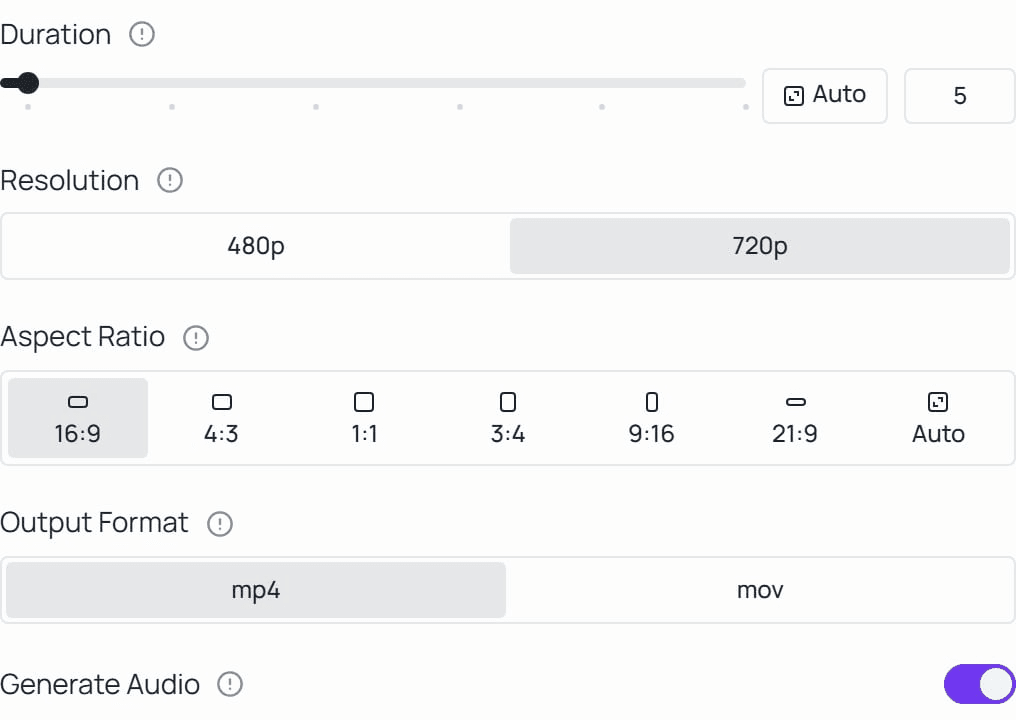
The public Seedance 2.5 Flash form exposes 480p and 720p. This capture documents available controls, not a completed generation or a comparison of picture detail.
A larger export from your editing software does not establish native high-resolution generation. If a client requires a native 1080p master, settle that requirement before approving a Seedance 2.5 Flash take. If enhancement is acceptable, inspect the enhanced result for changes to faces, product details, and motion before delivery.
Keep resolution separate from action accuracy. A clip can have the requested pixel dimensions while missing the handoff, turn, or reveal that the brief needs. Increasing the export size does not repair a missing event. Review those requirements independently so that a resolution change does not become an expensive distraction.
Also avoid treating an approved Seedance 2.5 Flash clip as a Seedance 2.5 Draft job. Resubmitting a prompt to another model creates another generation to review. Preserve the approved take and confirm the new result before replacing it in an edit.
Reference problems: check the route, files, and assignments
Choose text-to-video for a written scene, image-to-video when an opening frame anchors the shot, and reference-to-video for a collection of image, video, or audio guidance. The Seedance 2.5 Flash reference-to-video model page lists the current schema, including up to 10 images, 5 videos, and 5 audio clips per request.
Those counts are only the first check. Video references have a combined 30-second allowance; audio references have a separate combined 30-second allowance. Individual files must also meet the listed format, size, and duration requirements. Five accepted slots do not mean five unrestricted files.
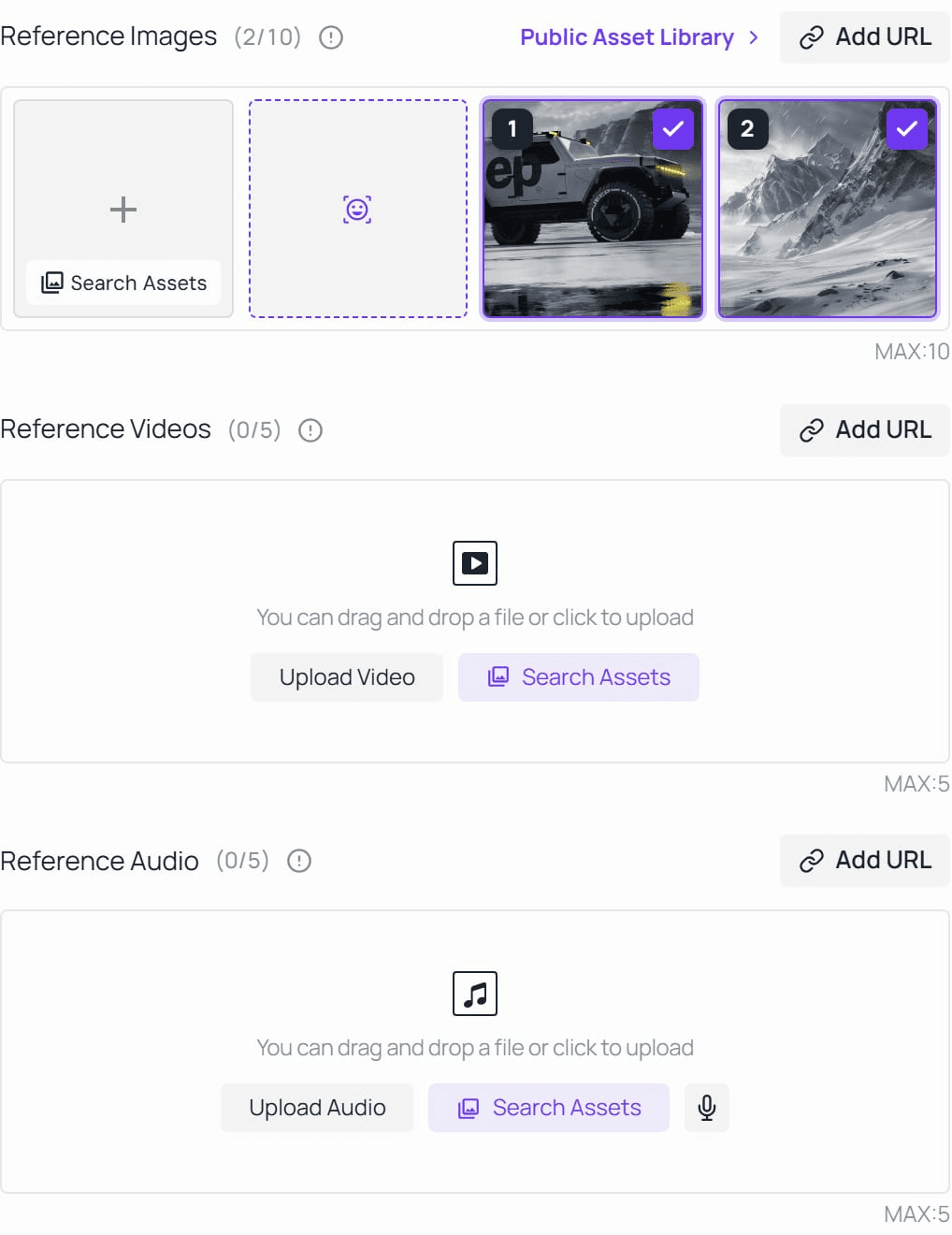
The public form separates image, video, and audio references and displays their count limits. The two selected images are the page's default examples, not files submitted or tested for this article.
When an upload fails, read the specific message before altering the prompt. Confirm that the file opens locally, then compare its properties with the selected route's requirements. If you use a hosted file, check that it can be fetched without your personal browser session. Changing descriptive prose will not make an inaccessible file downloadable.
Assign references explicitly with submission-order tags such as @Image1, @Video1, and @Audio1. Give each asset a job. One might define the product, another the setting, and a video the camera movement. A folder full of good references can still give ambiguous instructions when several assets disagree about the same feature.
For a product shot, start with the view that clearly shows the feature you need to preserve. If the label matters, it should be readable in the source. If a second image shows different packaging, explain its purpose or remove it. This is a practical way to reduce conflicting guidance, with no guarantee of exact reproduction.
Editing an existing clip also has different constraints from generating a new reference-guided scene. Atlas Cloud's current reference schema specifies automatic duration (-1) and adaptive ratio for video editing. A fixed new-shot duration can conflict with that task. Check the selected operation before copying settings from a previous generation.
Prompt problems: the shot looks plausible but misses the point
A useful prompt gives the viewer an observable event. “A cinematic product video” leaves the important decisions open: which product detail matters, what the subject does, how the camera moves, and when the shot ends. Adding more style adjectives rarely makes those decisions easier to evaluate.
Write one sentence describing the event you must see. For example: “The customer places the closed headphone case on the counter, releases it, and leaves it stationary in frame.” The release and stationary ending provide concrete review points. You can then specify the environment and camera without hiding the action in a long paragraph.
For an initial reference-guided test, this suggested prompt keeps the request narrow:
plaintext1Use @Image1 as the reference for the closed headphone case. 2On a pale wooden shop counter in soft daylight, a customer places 3the case upright, releases it, and withdraws their hand. 4The case stays closed and stationary after the release. 5A gentle lateral camera move keeps the full case visible. 6No scene change. Leave clear space above the product for a caption 7that will be added in editing. Quiet room ambience, no dialogue.
Use a short supported duration for the first check. This example is a writing template, not a tested claim that Seedance 2.5 Flash will complete the action on every attempt. Watch the interaction in full: does the hand release the object, does the case keep its shape, and does the ending leave enough usable footage?
If the result misses the release, change the action description before expanding the scene. If the action works but the framing fails, adjust the camera instruction while keeping the rest stable. Changing the subject, references, duration, and camera together makes it difficult to learn which change helped.
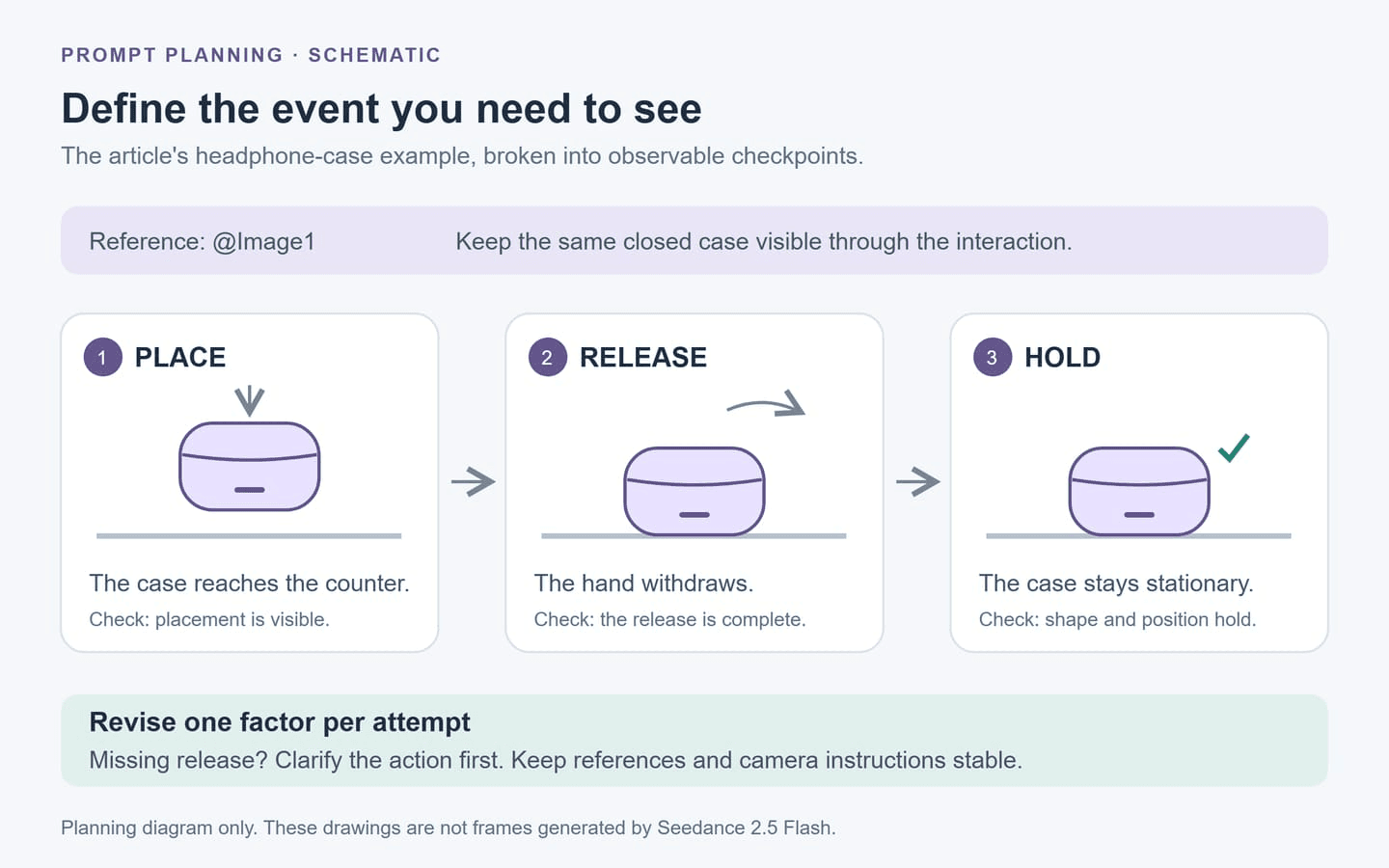
Schematic breakdown of the suggested prompt: check placement, complete release, and a stable ending. These drawings are planning aids, not generated video frames.
For identity or product drift, inspect moments around occlusion. A hand covering a label or a subject passing behind a doorway gives you a useful before-and-after checkpoint. Record the specific change, such as “the hinge moved after the hand crossed,” so the next revision addresses an observable problem.
Treat exact text as a separate acceptance requirement. If a caption, price, disclaimer, or logo must be correct, plan a controlled editing step and verify every character. Asking for space for a later overlay can be more practical than repeatedly requesting a finished title inside moving footage. This is a production choice, not a claim that Seedance 2.5 Flash always fails at text.
Audio problems: inspect the setting, playback, and script
Seedance 2.5 Flash provides synchronized audio generation and a control to enable or disable it. Check the committed setting before submission. A prompt mentioning music does not help if audio generation was turned off in the form.
When playback appears silent, test the downloaded file in another player and check the player's mute state and device volume. Separate a playback problem from an output problem before paying for another take. Record whether the file contains an audio stream if your media software exposes that information.
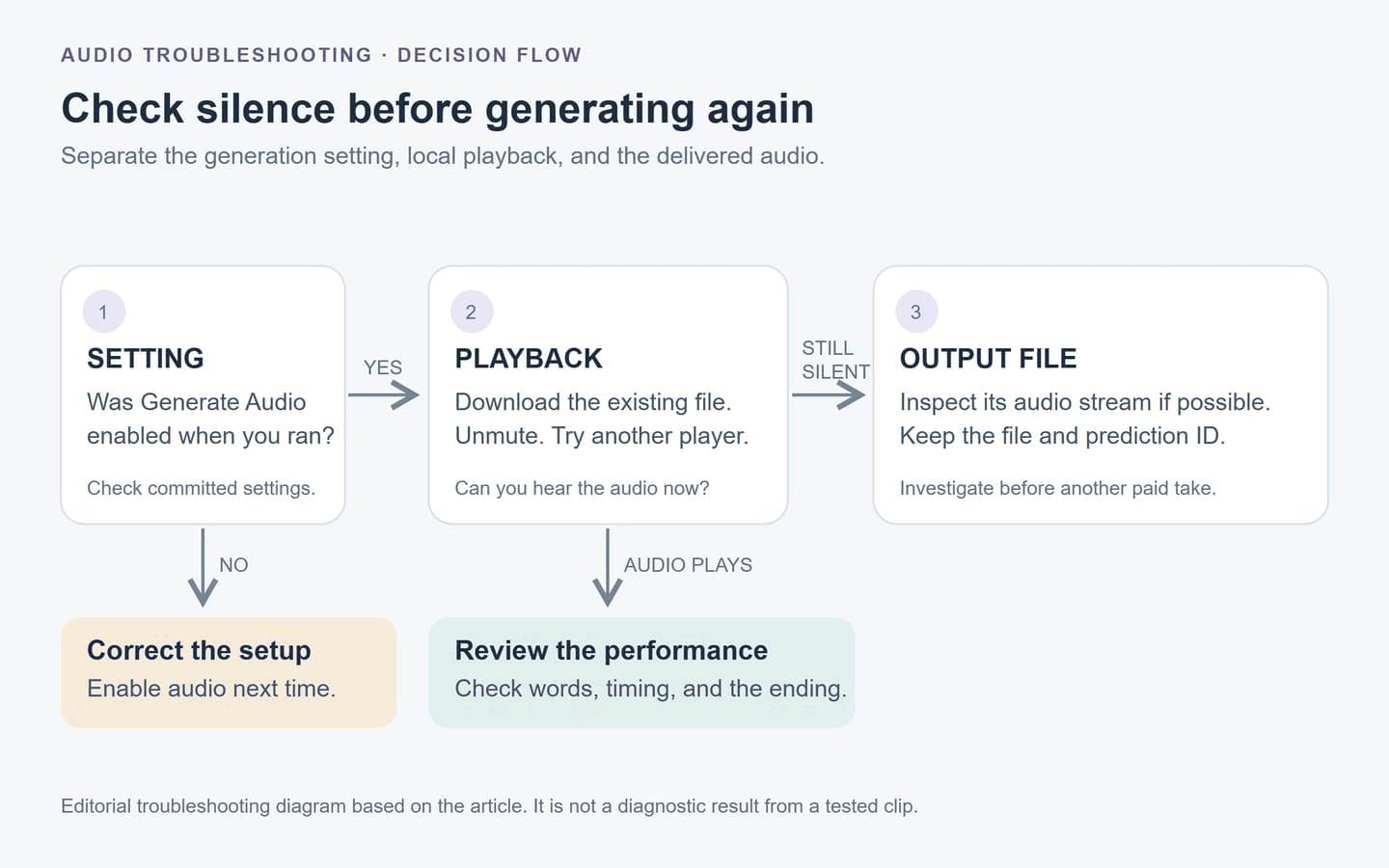
Follow the audio setting, playback, and file checks before another generation. This diagram summarizes the existing troubleshooting advice.
For dialogue, write the exact line and identify the speaker. Keep the first test to one speaking person with enough screen time to finish the sentence. Listen to the entire line while watching the mouth movement, then check the ending for missing words or an abrupt cutoff.
Background audio can make review harder when several sounds compete with speech. If the line matters most, simplify the requested soundscape during testing. Add environmental detail after the spoken content is usable. Save the earlier version so you can compare whether the change actually improved intelligibility.
For client work, get approval for the wording before generating multiple performances. A late script correction can invalidate otherwise usable footage. Keep a written acceptance list for pronunciation, completeness, timing, and any required silence at the end; these are clearer review criteria than “make it sound more natural.”
Generation failed or still processing: check before retrying
Start with the original request's status. A browser spinner, interrupted connection, or local wait limit does not prove that the server stopped working. Open Request History and inspect the existing job before pressing Run again. If you have a prediction ID, keep it with the error details.
Atlas Cloud's error guidance distinguishes request errors, job failures, and temporary service problems. It also warns that retrying a submission after a timeout can create a second billable job if the first was accepted. (Source: Atlas Cloud error and retry documentation, checked November 2026.)
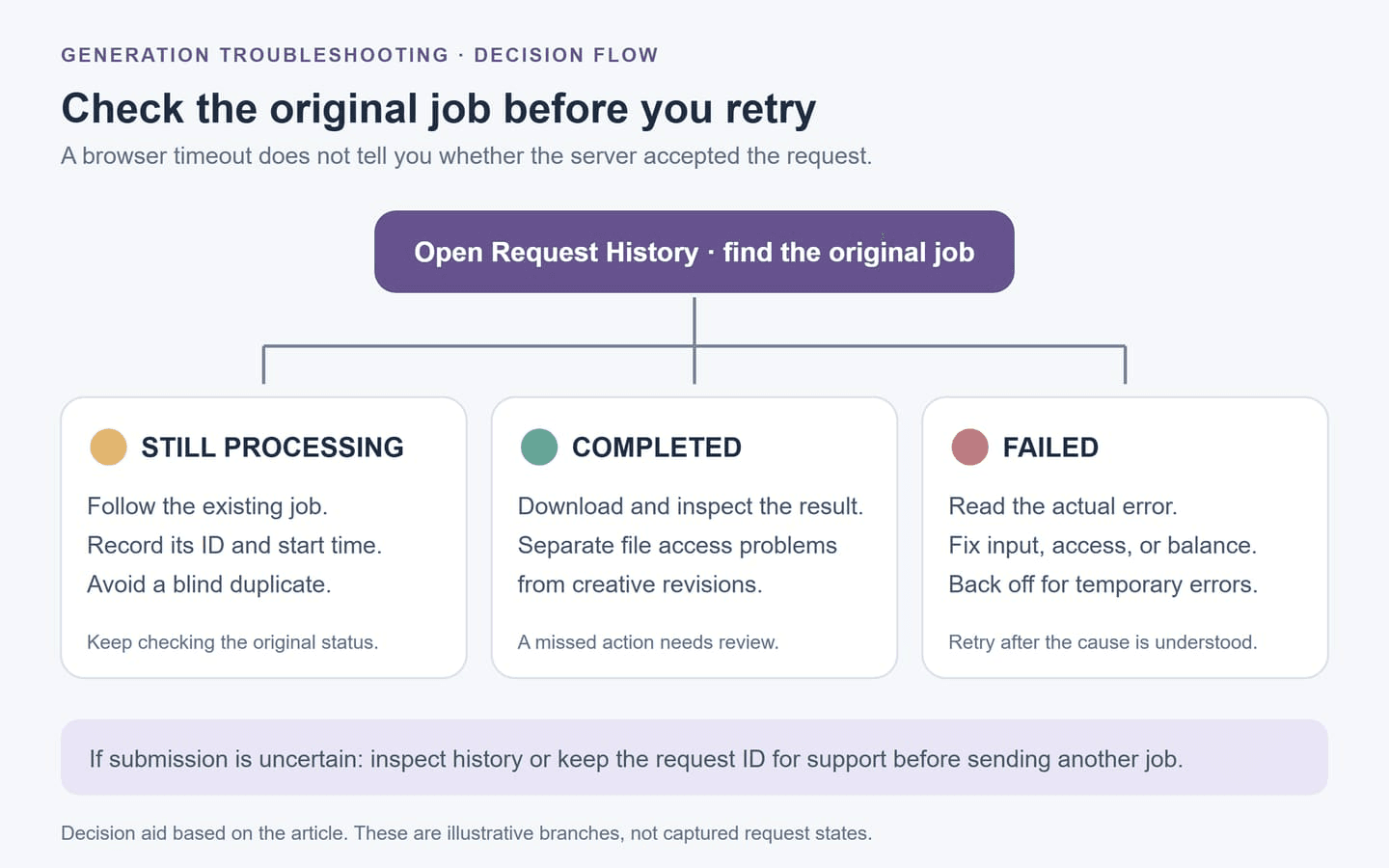
Check the original job, then follow the branch for its actual status. The branches illustrate the decision process and are not captured task states.
| What you observe | Check first | Next action |
|---|---|---|
Invalid input or 400 | Error message, required fields, selected route | Correct the request before resubmitting |
401 or 403 | Authentication, endpoint, account permission | Resolve access rather than changing the creative prompt |
Insufficient balance or 402 | Available balance and existing tasks | Resolve the balance issue before another attempt |
Rate limit or 429 | How many requests are active | Reduce concurrency and use backoff |
| Temporary server error | Existing job and request identifier | Check whether submission succeeded before a controlled retry |
| Input moderation rejection | Error details and submitted material | Revise permitted inputs without trying to evade safeguards |
| Completed status, missed action | Downloaded output and acceptance criteria | Treat as a creative revision and review the charge separately |
A moderation rejection needs a different response from a broken upload. Use material you are authorized to submit and read the stated rejection reason. If permitted material appears to have been rejected incorrectly, retain the request identifier for support rather than repeatedly submitting minor wording variations.
For a stuck job, note the submission time and last observed status. Avoid inventing a universal completion deadline from one slow attempt. A clip's running time is different from the service's generation time, and a speed claim does not guarantee a specific wait for your request.
Keep a small attempt log when troubleshooting persists. Record the prompt version, input filenames, committed settings, status, and whether a downloadable result exists. That record prevents you from comparing different configurations as though they were repeated failures of the same request.
Failed-generation refunds: what returns to your balance?
Atlas Cloud's Refunds & Failed Tasks policy states that failed media tasks release their reserved amount automatically, including tasks that end in a timeout failure. Token-billed Seedance 2.5 Flash tasks are charged on successful completion. The final task state matters when checking a temporary balance hold. (Checked November 17, 2026.)
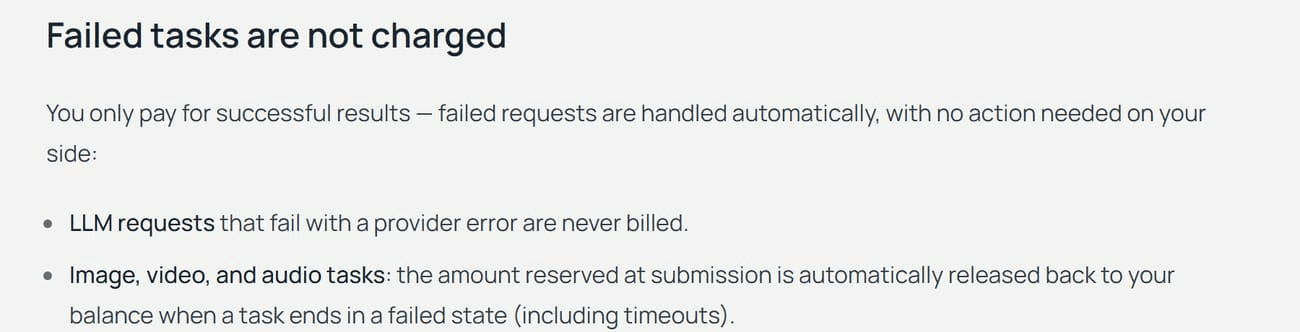
Official billing guidance, captured on the check date. This documents the policy; it is not a receipt from a refund test performed for this article.
Separate these situations before contacting support:
| Situation | What to check |
|---|---|
| Task reaches a final failed state | Confirm that the temporary reservation was released |
| Job is still processing | Follow its status before assuming a charge is final |
| Job completes but the video misses your brief | Review the output and any specific billing discrepancy; do not assume automatic failed-task treatment |
| You want to withdraw a top-up | The published policy describes purchases as final, non-refundable, and non-transferable |
The release of reserved balance is different from money being returned to a bank card. Describe the issue precisely when requesting help. A missing balance release, an unexpected successful-job charge, and a top-up payment question require different records.
If a failed job appears charged, provide the account email, request or prediction ID, and approximate charge time, as the policy requests. Adding the model name, final status, error message, and relevant billing screenshot can make the discrepancy easier to explain. Keep sensitive account information out of public posts.
A successful render that you cannot use is still worth documenting, but the failed-task policy does not establish an automatic creative-satisfaction refund. Budget revisions separately. Before starting a large batch, decide what makes a clip acceptable and how many paid creative attempts you are willing to review.
A preflight check before your next Seedance 2.5 Flash run
Use the next attempt to answer one unresolved question. If the problem was an invalid reference, test the corrected reference without introducing a new story. If the product changed shape during an interaction, keep the product and camera stable while simplifying that interaction. A controlled revision produces information even when it needs another pass.
Before submitting, check:
- Delivery: 480p or 720p meets this stage's requirement, and you have no dependency on Seedance 2.5 Flash supporting Draft mode.
- Inputs: The route matches the task; files meet its limits; reference tags match upload order.
- Action: The prompt states one essential event with a visible beginning and ending.
- Settings: Duration, ratio, resolution, and audio show the values you intend to use.
- Budget: You have reviewed the current configuration's displayed quote and set a limit on revisions.
- Existing jobs: You have checked the previous attempt before creating another request.
After generation, download and inspect the full result before approving it. Check the exact event, continuity, audio, and file properties against the brief. Save the prompt and settings beside the accepted take so someone else can understand how it was made.
Seedance 2.5 Flash becomes easier to troubleshoot when each attempt has a clear purpose. Resolve unsupported settings first, test the difficult action next, and use the original task status and billing record to investigate failures. Expand into a batch once the setup meets your actual delivery needs.
Frequently Asked Questions
Can I force Seedance 2.5 Flash to generate 1080p?
No. Its native options are 480p and 720p. A prompt requesting 1080p does not change that limit. Confirm whether your delivery brief permits enhancement or requires a different native output capability.
Can a Seedance 2.5 Flash clip become a Seedance 2.5 Draft final?
Do not assume that conversion exists. Seedance 2.5 Flash lacks the dedicated Draft mode. Treat a submission to Seedance 2.5 as a separate generation unless the selected workflow explicitly documents a supported handoff.
Does a moderation rejection automatically mean a cash refund?
Check the task's final status and the platform's billing record. Atlas Cloud's failed-task policy concerns releasing reserved account balance. That is separate from reversing a payment used to top up the account.
What if the task says completed but the video will not download?
Keep the original prediction ID and test the existing output link again before generating another clip. Record the download error and contact support if it persists. A file-access problem alone does not establish that generation failed.
Should I change the seed while troubleshooting?
If your selected workflow exposes a seed, record it with the other settings. Change one factor at a time when investigating a specific problem. Reusing a seed across different models does not establish an identical result.