The official Tencent Hunyuan3D 2.0 Blender add-on demonstration shows a character reference selected and converted into a mesh inside Blender. The later segments cover text-to-mesh and texture controls. This recording uses Tencent Hunyuan3D 2.0, while the four user-supplied image-to-3D cases below use Tencent Hunyuan 3D Pro Image-to-3D.
Tencent 3D AI can turn an object image into a 3D asset that you can rotate, download, and continue editing. The Tencent Hunyuan3D family also includes text-based generation, depending on the service and model you select. For a first project, start with one object whose shape you can judge from several angles.
The useful result is a file that survives its next job: importing into Blender, appearing in a game scene, or being prepared for printing. This guide explains which Tencent Hunyuan3D route to use, how to set up a meaningful first generation, and what to inspect before calling the asset finished.
Key takeaways
- Tencent Hunyuan3D is a model family. Open-source releases, Tencent's current online services, and hosted variants have different controls and requirements.
- Use image-to-3D when you have an approved design. Use text-to-3D when you are still exploring the object.
- Download a mesh format for editing. A rotating MP4 preview does not contain editable geometry.
- Check silhouette, hidden surfaces, materials, and the requirements of your target application before using the result.
72.7-second excerpt from the Tencent Hunyuan3D team’s demonstration. Generation segments are sped up in the original video; the playback length is not a generation-time measurement.
Which Tencent Hunyuan3D model are you using?
The phrase “Tencent AI 3D model generator” can point to several products. An older ComfyUI tutorial, a Tencent browser tool, and a hosted Tencent Hunyuan3D model may all carry the same family name while accepting different inputs. Identify the exact version and entry point before following instructions or comparing results.
The open-source Tencent Hunyuan3D 2.1 release separates shape generation from PBR texture generation. Its official repository provides model weights and training code, alongside public examples. (Tencent Hunyuan3D team, June 2025.)
PBR describes materials designed to respond to lighting through properties such as roughness and metallic behavior. That release is a useful technical reference, but its controls do not define every hosted Tencent Hunyuan3D service.
There is also a specific reason to check the date on a tutorial. Tencent announced that its older dedicated interfaces for Tencent Hunyuan3D 2.5 and version 1.0 of Tencent's 3D character generation service would end full service on October 20, 2026, with migration to Tencent Hunyuan3D 3.1. This notice concerns the named interfaces. It does not establish that every third-party hosted variant or downloadable release has stopped working. (Tencent Cloud service notice, checked November 2026.)
Use these distinctions when choosing a route:
| Route | What to confirm before starting | Practical implication |
|---|---|---|
| Open-source Tencent Hunyuan3D 2.1 | Hardware, dependencies, model weights, and release terms | You manage installation and inference |
| Tencent Hunyuan3D online service | Current model, account access, available inputs, and export permissions | Follow the controls shown in your account |
| Hosted Tencent Hunyuan3D variant | Exact model name, input schema, material options, and output formats | Match the tutorial to that specific listing |
Read public cases with the same care. In the published Tencent Hunyuan3D 2.1 penguin example, the horned helmet appears in the reference image, gray shape, and albedo view. The metallic/roughness view records a different kind of surface information. This makes the example useful for understanding the separation of geometry and materials. It does not measure a newer hosted model's performance.
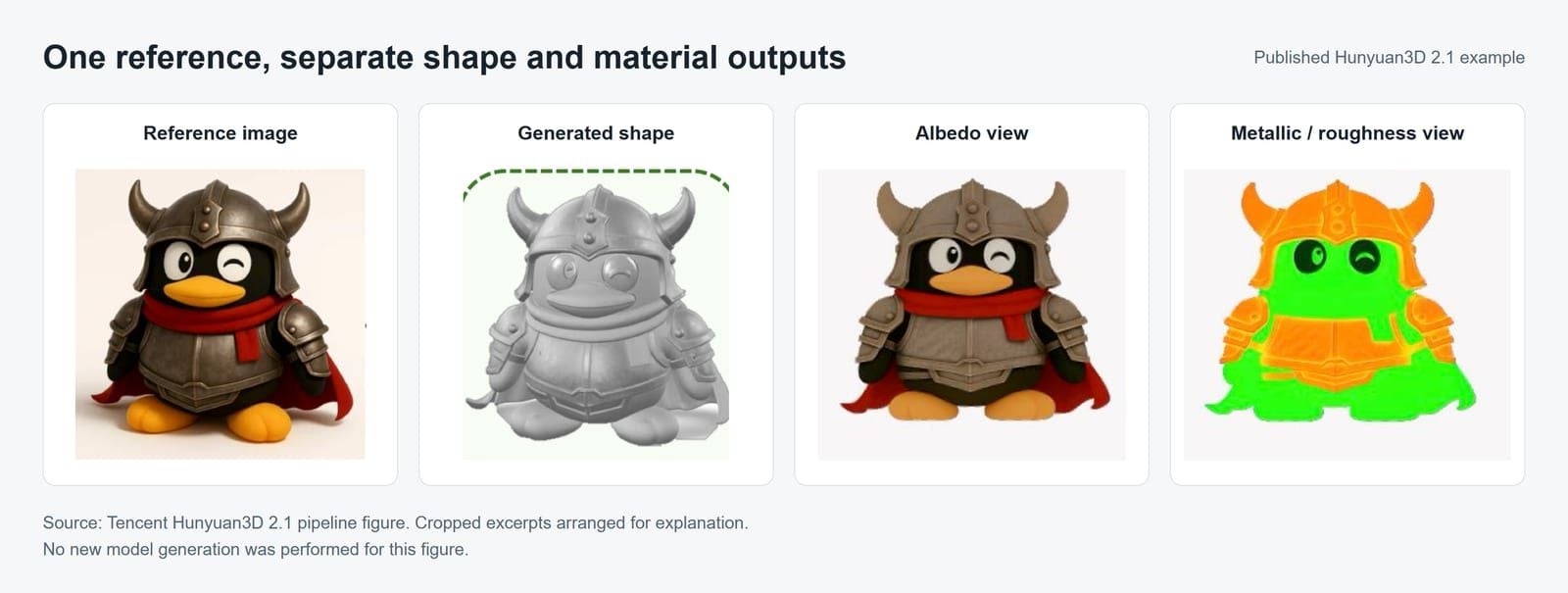
Cropped excerpts from the published Tencent Hunyuan3D 2.1 pipeline figure, arranged for explanation. These are official release examples, not models generated for this article.
For your own evaluation, keep the source image and exported file together. A gallery thumbnail can show the intended appearance, but it cannot establish whether a hidden surface, separate part, or material channel works in your project. Those questions need the asset itself.
Start your Tencent 3D AI project with a clear scene brief
Image-to-3D suits a design whose silhouette and proportions you already want to preserve. Text-to-3D suits early exploration, when several interpretations are acceptable. If you need a particular product outline or character costume, approving a reference image first gives you a clearer basis for judging the reconstruction.
A single photograph records visible surfaces. The generator has to infer the rest. A front view of a backpack might clearly show the main pocket while hiding the straps, underside, and depth of the body. Expect to inspect those inferred regions after generation, especially if the asset will be visible from behind.
Choose a source image that shows the complete object against a simple background. Leave small but visible gaps between parts that must remain separate. A handle that merges into the body in the image gives you little evidence for the opening you expect in 3D. A perspective that reveals the top and one side can make the main volumes easier to read.
A garden diorama gives you several connected details to evaluate. Make a vintage watering can the focal object, then add pots, a stone path, and a low garden wall. The can's handle and spout provide clear structural checks, while the background tests whether the generator preserves depth and separation between objects.
Describe the background as physical elements on a shared base so the scene has a defined boundary. The completed garden example below uses this text-to-3D brief:
plaintext1Create a stylized 3D garden diorama on an oval stone base. Centerpiece: a vintage sage-green watering can with a ribbed metal body, rolled rim, open arched handle, and curved spout ending in a perforated brass rose. Add embossed leaf motifs, copper rivets, chipped paint, and subtle patina. Set the can on a cobblestone path beside two terracotta pots with lavender and broad-leaf plants. Behind it, build a low curved brick wall with moss in the joints and a wooden trellis covered in thick climbing vines. Keep the wall below the handle so the can's silhouette stays clear. All elements rest on the same base, with no floating parts or detached backdrop. Give leaves and stems substantial thickness and keep gaps readable. Distinguish matte paint, aged brass, porous clay, rough stone, and wood grain. Show the complete diorama from a three-quarter view in soft morning light, with a warm pale-gray environment beyond the base.
Use the text directly in a text-to-3D tool. For an image-to-3D tool, provide the actual approved image. Writing an image description into an unrelated field does not give an image-conditioned model its required input.
Keep the watering can larger than the surrounding props and leave space between the handle, trellis, and vines. When comparing attempts, change one part of the brief at a time. Inspect whether the pot rims stay open, foliage stays attached, and the wall remains behind the can rather than merging into it.
Generate and export a Tencent Hunyuan3D model
Atlas Cloud offers specific Tencent Hunyuan3D listings for readers who want a hosted route. The relevant distinction here is the input: Tencent Hunyuan 3D Rapid Image-to-3D accepts an image, while Tencent Hunyuan 3D Rapid Text-to-3D accepts a written prompt. Both listings document material and export options. Confirm the selected entry before uploading or submitting anything.
The following sequence explains how to set up the garden example and choose an export for your task. The supplied screenshot below records the prompt and completed preview.
- Prepare the input. On the text route, paste the garden brief above. On the image route, upload a reference image of the complete asset and confirm that its thumbnail shows your intended input. Keep an unchanged copy of your input so you can compare attempts.
- Choose the output you will inspect. The supplied garden example uses MP4 for a rotating preview. Choose GLB when you need an editable mesh for geometry and material checks. Verify support for any other format your downstream application requires.
- Set material options deliberately. The supplied screenshot shows PBR and geometry-only output switched off. Enable PBR if you need material maps. Tencent Hunyuan 3D Rapid Text-to-3D also documents an option to return a separate geometry-only GLB for inspecting shape without surface appearance.
- Run one controlled attempt. Record the model name, input, committed controls, and displayed cost. Change one input or setting at a time when testing a correction.
- Download and reopen the asset. Check the file extension, retain any companion files, and import the result into your target application. Save a preview separately if you need a convenient visual reference.
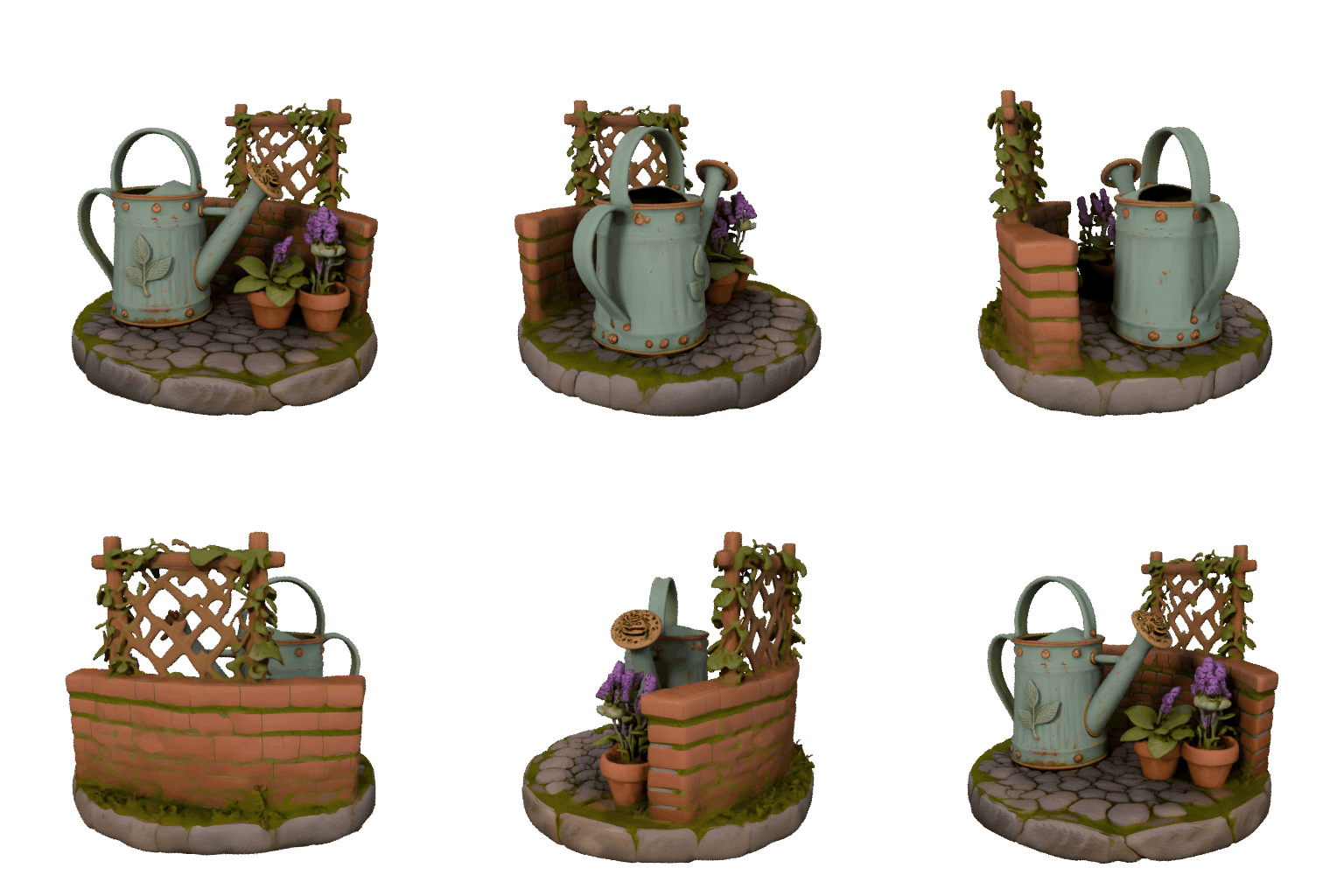
The supplied 512 × 512 MP4 preview, converted in full to a looping GIF. The complete rotation lasts about 2 seconds and includes the front, sides, and back.
The result includes a raised leaf motif on the can, two planted pots, a cobbled base, and a curved wall supporting the trellis. The rear view reveals how much of the watering can the wall hides. That change in visibility is useful to inspect when a prompt adds scenery around a focal object.
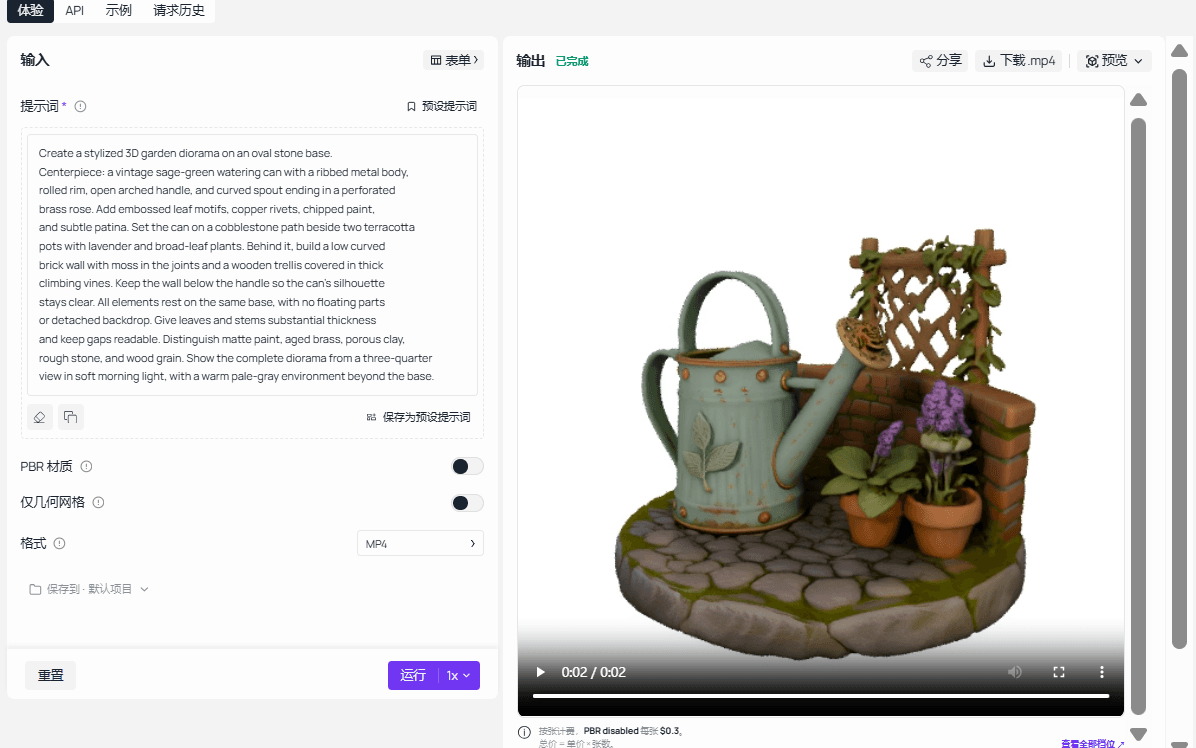
User-supplied completed-run capture: the garden prompt and result appear together. PBR and geometry-only output are off, and the selected export is MP4.
Do not assume that every switch transfers between variants. The Tencent Hunyuan 3D Pro Image-to-3D listing documents Normal and Geometry generation modes. In Geometry mode, its PBR setting has no effect. A request for an untextured mesh therefore needs different expectations from a request for a textured asset.
The export choice deserves attention. A GLB can carry geometry and material information for further use. An MP4 contains rendered frames. A rotating preview can help you spot silhouette changes, but you cannot recover the underlying editable mesh by importing that video into a 3D scene.
Keep a small record for each attempt: input filename, model variant, settings, export format, observed defect, and next action. “Handle filled in” is a useful observation. “Try again with better quality” leaves you without a clear hypothesis. A revised source image that reveals the handle opening gives the next attempt a specific change to evaluate.
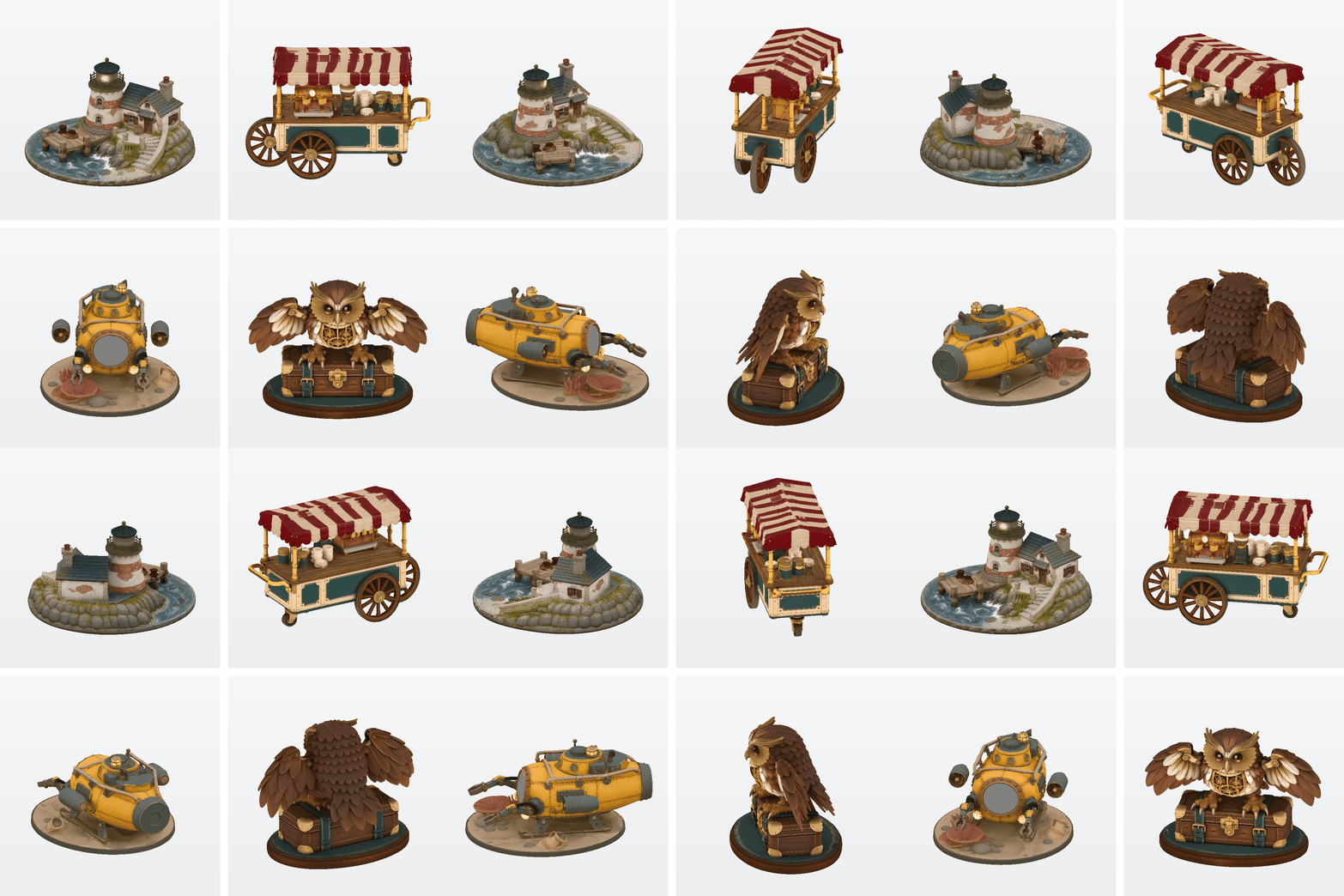
Four user-supplied image-to-3D outputs combined into one synchronized 3-second, 36-frame GIF. Top left: lighthouse. Top right: espresso cart. Bottom left: submersible. Bottom right: clockwork owl. All four complete rotations are retained; their input images and completed-run captures appear below.
a coastal lighthouse diorama. The supplied reference places a red-and-ivory lighthouse, keeper's cottage, stone steps, and a wooden pier on one rocky base. The completed Tencent Hunyuan 3D Pro Image-to-3D capture shows that image loaded, Normal generation selected, and PBR switched off. The preview below rotates the result to show the front, sides, and back.
plaintext1Create a detailed handcrafted coastal lighthouse diorama on a single oval rocky base. The centerpiece is a stout lighthouse with weathered ivory plaster, muted brick-red bands, a brass lantern housing, and a dark slate-blue roof. Attach a small keeper’s cottage with timber shutters, recessed windows, a stone chimney, and a curved exterior staircase. Add a short wooden pier with thick support posts, a coil of rope, and carved blue-green waves contained within the base. Include chipped masonry, visible wood grain, salt-weathered metal, moss between stones, and distinct stair treads. Keep the tower, cottage, stairs, and pier clearly separated and structurally connected. Show the entire base from a slightly elevated three-quarter view, with no cropped parts. Soft directional morning light, gentle shadows, restrained colors, and a clean warm-gray studio background. One coherent scene, no text, logos, borders, or multiple views. Landscape 16:9.
a vintage espresso cart. The reference combines a striped canopy, large spoked wheels, and coffee equipment on one cart.
plaintext1Design a detailed vintage espresso cart as a single freestanding miniature on a rectangular cobblestone base. Give it a cream enamel body with deep-teal panels, two large wooden spoked wheels, a smaller front caster, thick brass handles, and a burgundy-and-ivory striped canvas canopy supported by four sturdy posts. Arrange a copper espresso machine, a compact grinder, stacked ceramic cups, and two sealed coffee tins on the counter. Add panel seams, rivets, worn wood grain, folded canvas edges, chipped paint, and brushed metal textures. Keep the wheel gaps, canopy supports, counter edges, and accessories clearly separated and structurally plausible. Show the entire cart and base from a slightly elevated front-right three-quarter view. Soft directional morning light, warm neutral studio background, restrained colors, realistic miniature materials, 50mm product-photography look. No people, readable text, logos, borders, cropped parts, or additional views. Landscape 16:9.
a retro exploration submersible. The reference combines a round yellow hull, side thrusters, sampling arms, and a seabed base.
plaintext1Create a detailed handcrafted miniature of a retro underwater exploration submersible resting on a single oval seabed base. Give it a rounded mustard-yellow pressure hull, a large recessed circular glass viewport with a thick brass rim, two short side thruster pods, a raised conning tower, and sturdy landing skids. Attach two compact articulated sampling arms with broad joints and clearly separated grippers. Add riveted panel seams, rubber seals, protective metal rails, faded paint, subtle rust around bolts, and dark teal mechanical housings. Place a small cluster of broad coral forms, smooth stones, and a half-buried ceramic amphora on the sandy base. Keep the submersible as the main subject, with all parts physically connected and visible gaps between the arms, skids, and hull. Show the entire object and base from a slightly elevated front-left three-quarter view. Soft directional morning light, gentle shadows, realistic miniature materials, restrained colors, 50mm product photography, clean warm-gray studio background. No surrounding ocean, bubbles, people, readable text, logos, cropped parts, or multiple views. Landscape 16:9.
a clockwork owl on a travel trunk. The reference combines layered metal feathers, an exposed clockwork chest, and talons gripping a travel trunk.
plaintext1Create a detailed handcrafted clockwork owl collectible perched securely on a closed vintage travel trunk, all mounted on one compact oval display base. Give the owl a rounded copper-and-ivory body, a layered brass facial disk, two large dark amber glass eyes, a short curved beak, and overlapping metal feather plates. Hold both wings slightly open with thick, clearly separated feather segments and solid hinge joints. Reveal a few large recessed gears beneath a chest grille, with no floating components. Give the owl sturdy legs and broad talons gripping the trunk. Add dark walnut trunk panels, teal leather straps, rounded brass corners, a central latch, stitched edges, small dents, and worn wood grain. Keep the owl silhouette readable and the face, wing edges, talons, and trunk corners unobstructed. Show the whole collectible and base from a slightly elevated front-right three-quarter view. Soft directional morning light, gentle shadows, realistic miniature materials, restrained colors, 50mm product photography, clean warm-gray studio background. No people, readable text, logos, borders, cropped parts, or additional views. Landscape 16:9.
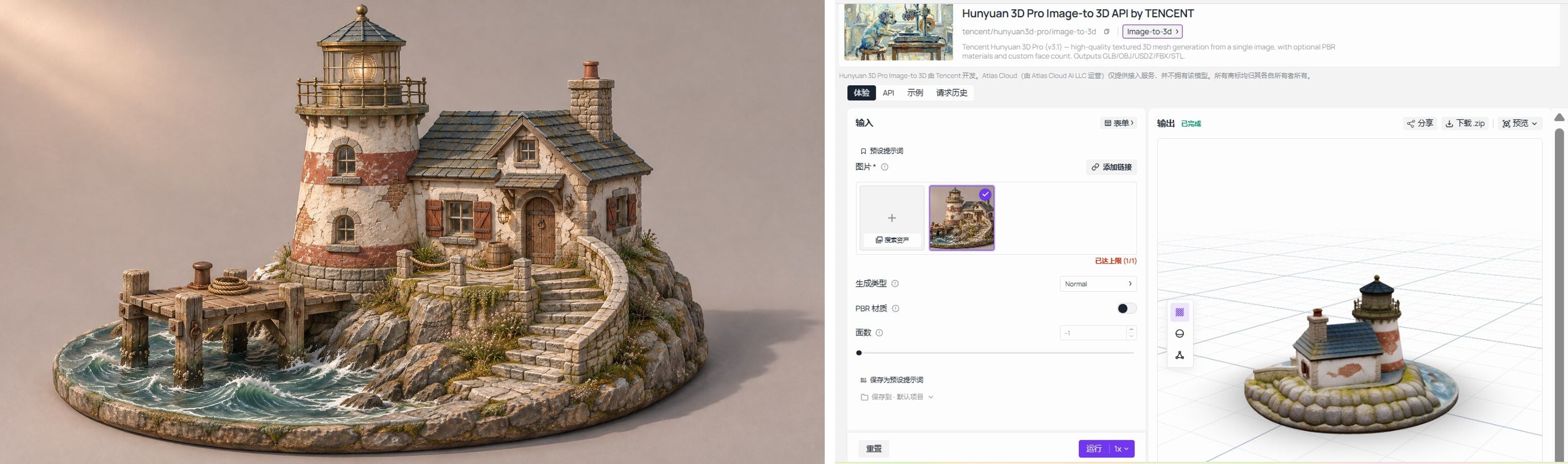
Left: the original input image. Right: the supplied generation-completed screenshot, including the model name, uploaded reference, settings, and result.
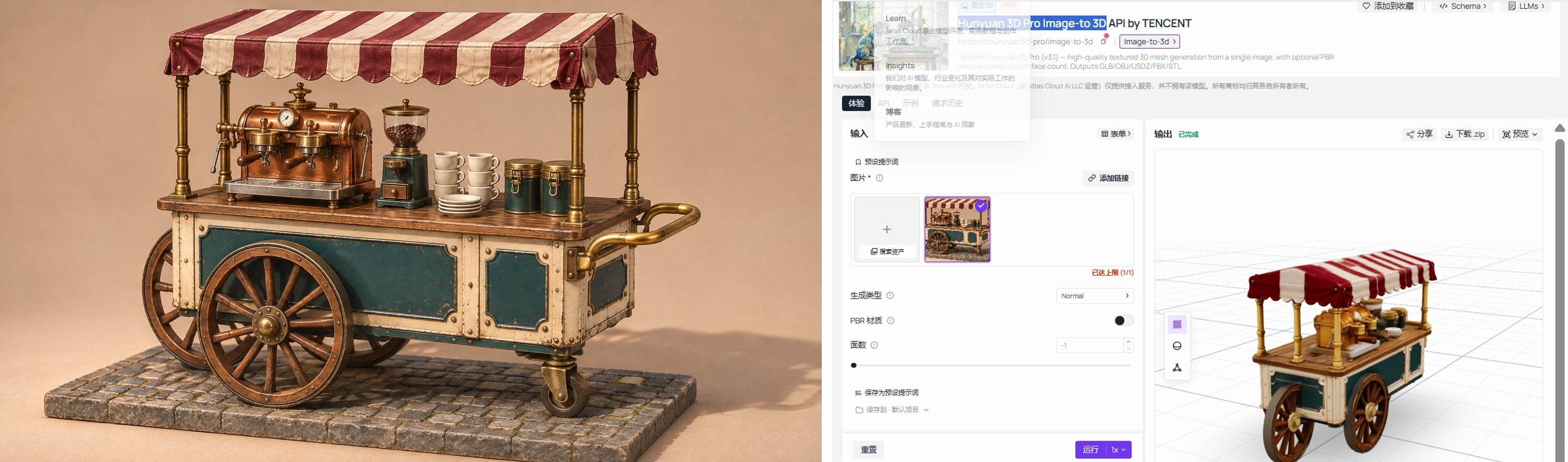
Left: the original input image. Right: the supplied generation-completed screenshot, including the uploaded reference, settings, and result.
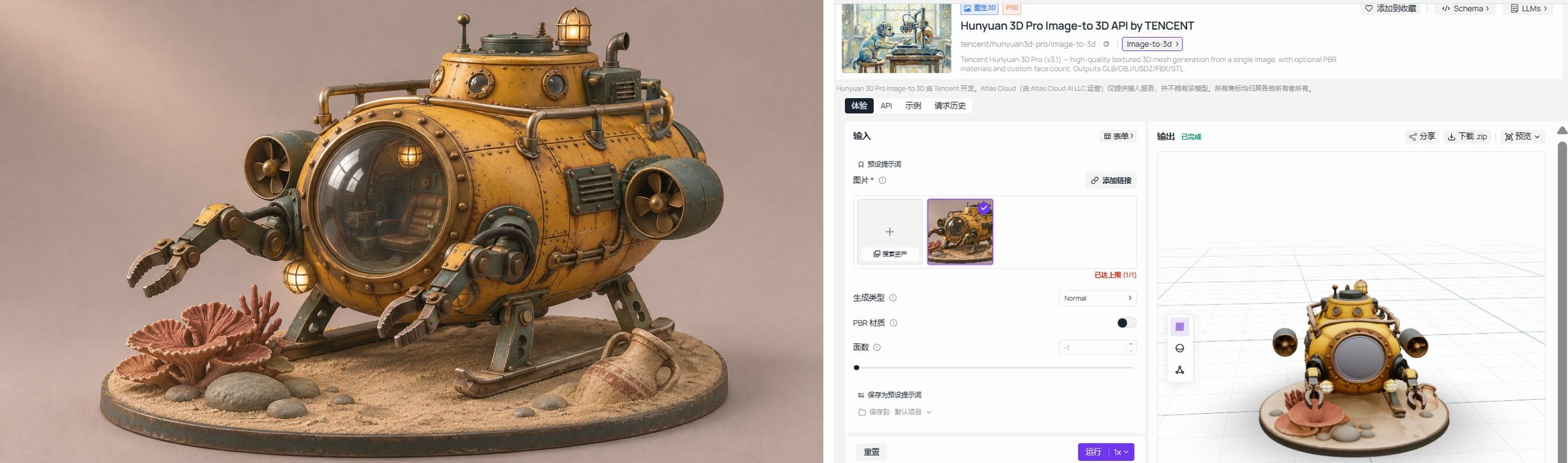
Left: the original input image. Right: the supplied generation-completed screenshot, including the uploaded reference, settings, and result.
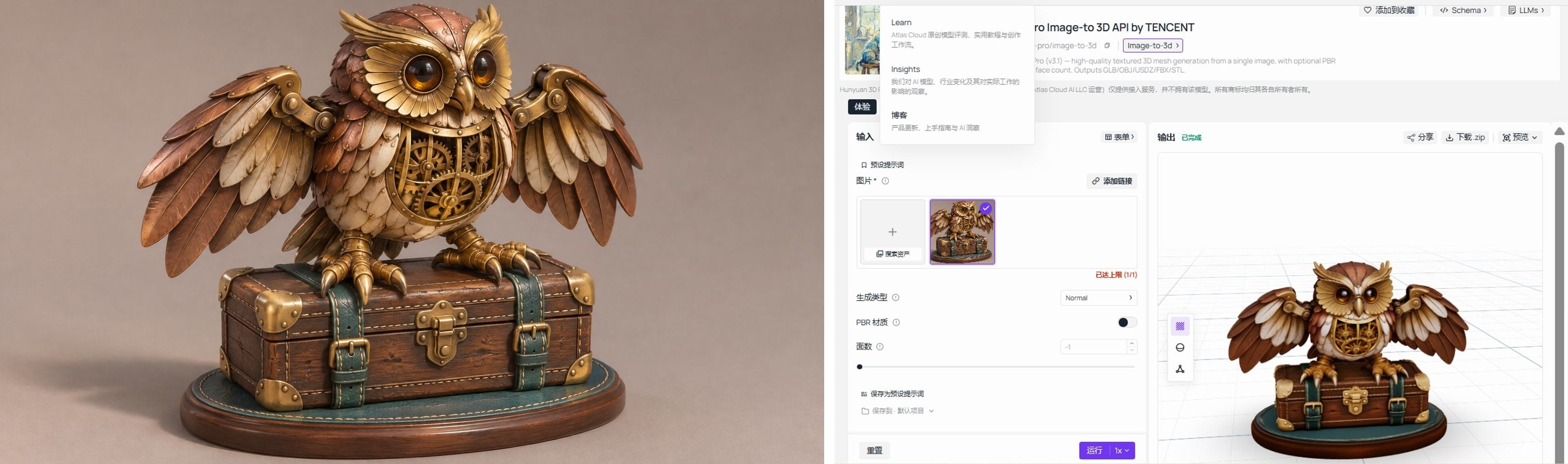
Left: the original input image. Right: the supplied generation-completed screenshot, including the uploaded reference, settings, and result.
Check your Tencent Hunyuan3D model in Blender before using it
Open the downloaded GLB in Blender through File > Import > glTF 2.0. Work in a separate inspection scene so that your original export remains available. Begin with geometry, then inspect materials, and finally test the asset under the conditions of its intended use.
Check the silhouette and hidden surfaces
Rotate around the asset, including its back and underside. Compare the main volumes with the source image. On the garden-diorama test, inspect the handle opening, spout attachment, pot rims, and separation between the can and trellis. A front view alone cannot tell you whether those features remain coherent from another angle.
Switch to neutral solid shading. Surface color can make a recess look deeper than it is, or make two connected regions appear separate. If the visual feature disappears when textures are removed, examine the mesh before deciding whether it represents the structure you need.
This matters even for a background prop. A filled handle may be acceptable at a distant camera angle but become obvious in a close-up. Judge the asset at its planned distance and lighting, then decide whether to regenerate, repair, simplify, or keep it.
Inspect materials under changing light
Blender's glTF importer reconstructs supported materials as nodes. Its manual documents the metal/rough PBR workflow, including base color, metallic, roughness, normal, and other channels. Check that the imported textures connect to the intended material inputs. (Blender Manual, accessed November 2026.)
Move a light or change the environment and watch the surface response. A metallic-looking highlight painted into base color remains part of that image as illumination changes. A material's metallic and roughness properties affect how it responds to the scene. Comparing the behavior helps you identify problems that a fixed preview can conceal.
If the object imports without its expected appearance, inspect the material assignments and missing images before regenerating the model. Keep companion texture files with the export when the chosen format requires them. An import or packaging problem calls for a different fix from an incorrect shape.
Test scale, structure, and the destination
Set a known dimension and compare the asset with a familiar scene object. Inspect its origin and orientation before placing several copies. A prop that arrives at an inconvenient scale can still be useful, but you need to correct it before building a scene around it.
For a game asset, inspect triangle count, material count, UVs, and performance in the actual engine. If you simplify the mesh, recheck the silhouette and important openings. A smaller file has little value if the reduction closes the feature that identifies the object.
For animation, check whether the parts you need to move exist separately. A generated character needs a suitable rig, weights, and deformation checks. A watering can with a fixed handle is a different problem from a character whose elbow must bend through a full range of motion.
For printing, check closed volume, wall thickness, connected parts, and the intended physical dimensions. A dark interior in a texture does not establish a hollow container. Exporting an STL changes the file representation; the printability checks still have to happen.
| Inspection result | Next action |
|---|---|
| Main form matches, but the hidden back is wrong | Improve the reference where possible or repair that region |
| Shape works, but materials import incorrectly | Check files, assignments, and material nodes |
| Surface detail hides a filled opening | Inspect and repair geometry, or regenerate with clearer input |
| Asset works in isolation but runs poorly in a scene | Simplify and test again in the target engine |
| Character looks correct but bends badly | Review topology, rigging, and weights |
Is Tencent Hunyuan3D free, and what will the project cost?
Separate three questions: can you access the model, can you run it on your hardware, and can you export the result under terms suitable for your project? A free demonstration, downloadable weights, and a hosted generation allowance answer different parts of that problem.
For readers looking for a free AI 3D model generator, Tencent Hunyuan3D 2.1 provides a local route through its published release. Installation, GPU capacity, storage, and maintenance still need to be planned. Its repository states 10 GB VRAM for shape generation, 21 GB for texture generation, and 29 GB in total for shape and texture. These are that release's published requirements, rather than a universal requirement for every Tencent Hunyuan3D variant.
Before using an online allowance, check your account's current generation limits, download permissions, and usage terms. Tutorial titles containing “free” describe an offer at a particular time. They cannot establish the allowance available to your account today.
For a hosted job, use the selected model page's current quote and record the settings. Avoid comparing a geometry-only request with a textured request as though they bought the same deliverable. This article leaves prices to the live listing so readers can check the configuration they actually need.
Count correction time as well. A low-cost generation that requires extensive repair can be a poor choice for a deadline. For your first small test, record generation time and cleanup time separately. That gives you evidence for deciding whether the same method is worthwhile on the next asset.
Choose a first task that Tencent 3D AI can help you finish
Start with one asset and one destination. A stylized background prop, an early shape concept, or an object for a non-deforming scene gives you a manageable test. Define its acceptance conditions before you run the model: the required outline, visible angles, material behavior, scale, and export format.
For a game scene, place the imported prop beside existing assets and inspect it through the actual gameplay camera. For a product concept, compare proportions from several views and mark surfaces that still need design work. For a printable object, move into geometry and physical checks before spending time on a presentation render.
Keep the first source, generation, and repaired version. If a later attempt improves one region while damaging another, those saved versions help you choose which result to continue. They also prevent a good-looking thumbnail from replacing a more useful asset without inspection.
Use Tencent 3D AI to produce a candidate you can evaluate. Keep it when the exported file meets the job's requirements. Revise the input when the design is ambiguous, repair localized problems when that is quicker, and move to manual modeling when exact structure or movement demands it. That decision is where AI 3D modeling becomes part of a workable production process.
Frequently Asked Questions
Can Tencent 3D AI generate a model from text?
Yes, specific services and hosted variants support text-to-3D. Select an entry that explicitly accepts a prompt. An image-to-3D listing requires an image even when the wider Tencent Hunyuan3D family supports text inputs elsewhere.
Can I edit a Tencent Hunyuan3D model in Blender?
Yes, when you download a supported mesh file such as GLB. Import it, then inspect the geometry and materials. Editability does not establish that the topology suits animation or that the model meets your project's requirements.
Does Tencent Hunyuan3D generation include animation?
A generated mesh and a rendered turntable preview do not establish that an asset is rigged. Check for an armature, skin weights, and animation data if those are required. Plan a separate animation stage when the export contains only a static object.
Can I use Tencent Hunyuan3D for 3D printing?
You can use a generated mesh as a starting point. Confirm real dimensions, connected volume, thickness, and other print requirements in your preparation software. An STL download alone does not establish that a model is ready to print.
Why does my result differ from an online Tencent Hunyuan3D tutorial?
Compare the model version, service, source image, material mode, and export settings. Also check whether the tutorial shows the downloaded asset or only a preview. These differences can change what you receive and what you can do with it.vvvvv