An AI 3D model generator can turn a written object description into a mesh you can rotate, download, and edit. If you are searching for text to 3d model ai, start with a small, clearly defined object and choose a tool that exports the file your project needs.
The work usually continues after generation. You still need to check whether a handle has an opening, whether the back matches the front, and whether the materials survive import. This guide explains how to write that first prompt, choose useful controls, and carry the result into Blender.
Key takeaways
- Describe the object's shape, parts, and connections before adding surface details.
- Text-to-3D tools can use different underlying pipelines. Confirm the selected model's actual inputs and downloadable outputs.
- Set format, materials, and mesh options in the tool's controls where available. Prompt wording alone does not guarantee those properties.
- Inspect the exported asset from multiple angles and under neutral shading before using it in a project.
What does text-to-3D AI turn your words into?
An AI text to 3D model system interprets a description and produces a spatial representation of an object. For an editable asset, look for a polygon mesh: vertices and faces that describe its surface, potentially accompanied by materials and texture images. A picture of a 3D object gives you a different deliverable.
One documented example is the OpenAI Shap-E project, whose official release includes text-conditioned samples and notebooks for text and image inputs. Its published examples include an avocado-shaped chair, a tree-shaped chair, and a green boot. These are examples from a 2023 research release, rather than a comparison of today's hosted generators. (OpenAI Shap-E official repository, accessed November 2026.)
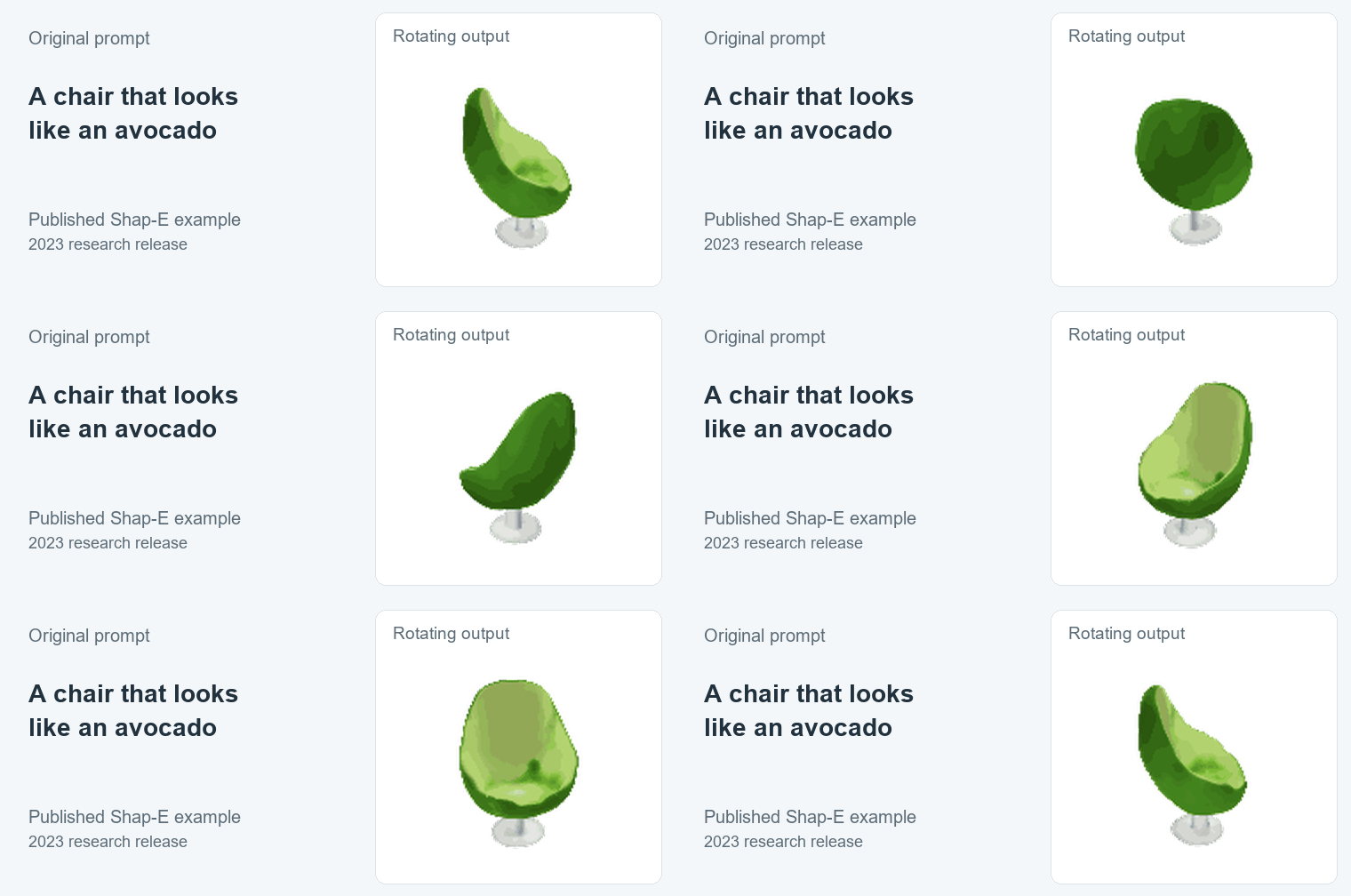
Published OpenAI Shap-E text-conditioned example, shown through its full rotation. The original 128 × 128 output is enlarged for display. This is an existing project sample, not a generation performed for this article.
The chair example joins a recognizable furniture shape with an avocado-like appearance. Its rotating view reveals more of the object than a single thumbnail. When evaluating public cases, look for that link between a specific prompt and visible structure, then inspect the actual export for your own task.
For your own project, the practical question is what information survives the export. A textured object might contain a continuous mesh even when its appearance suggests separate panels. A dark patch can resemble a hole while remaining a closed surface. You discover the difference by inspecting the geometry.
Text is useful when you are still deciding what an object should look like. A reference image becomes useful when a particular silhouette, color arrangement, or proportion matters. Moving from text to an approved image and then to 3D gives you an intermediate design to evaluate, although unseen surfaces still require inspection.
Define the destination before generating. A background prop needs recognizable form at its intended viewing distance. A printable ornament needs viable thickness and connected volume. A character intended to bend needs suitable topology and a rig. These requirements lead to different cleanup work even when all three assets begin with a text prompt.
Write an AI 3D model prompt as an object brief
An effective starting prompt gives the generator a manageable physical problem. Name one object, describe its main volume, and explain how its important parts connect. Then add materials and style. This ordering makes it easier for you to notice contradictions before submitting the request.
For example, “a fantasy lantern” leaves the generator to invent the body, handle, openings, and base. A more useful brief specifies a squat hexagonal body, a broad top handle, and four support feet. Those features also give you something concrete to inspect after generation.
Use this reusable structure:
plaintext1A single [object] with a [main shape]. It has [important parts], connected by [physical arrangement]. The proportions are [large versus small relationships]. Materials: [surface materials and colors]. Style: [one consistent visual style]. Show the complete object without unrelated scene elements.
This is a design brief, not a technical guarantee. If the tool provides a dedicated negative-prompt field, follow its documentation. Otherwise, describe the desired construction directly in the main prompt. A phrase such as “game-ready” leaves many technical decisions unspecified.
The two examples below use a reference image to guide the 3D step on Atlas Cloud. Each comparison pairs that image with a Tencent Hunyuan 3D Rapid Image-to-3D geometry preview. The text brief defines the object, while the reference image provides the reconstruction input.
Example prompt: a lantern with inspectable openings
plaintext1A single stylized camping lantern with a squat hexagonal metal body and a broad arched handle attached to two top brackets. Four thick corner supports connect the top cap to a solid base. There are open gaps between the supports around the central lamp. The handle has a clearly open center. Rounded edges, dark green painted metal, warm cream lamp housing, restrained surface wear. The complete lantern is isolated without scenery or a display stand.
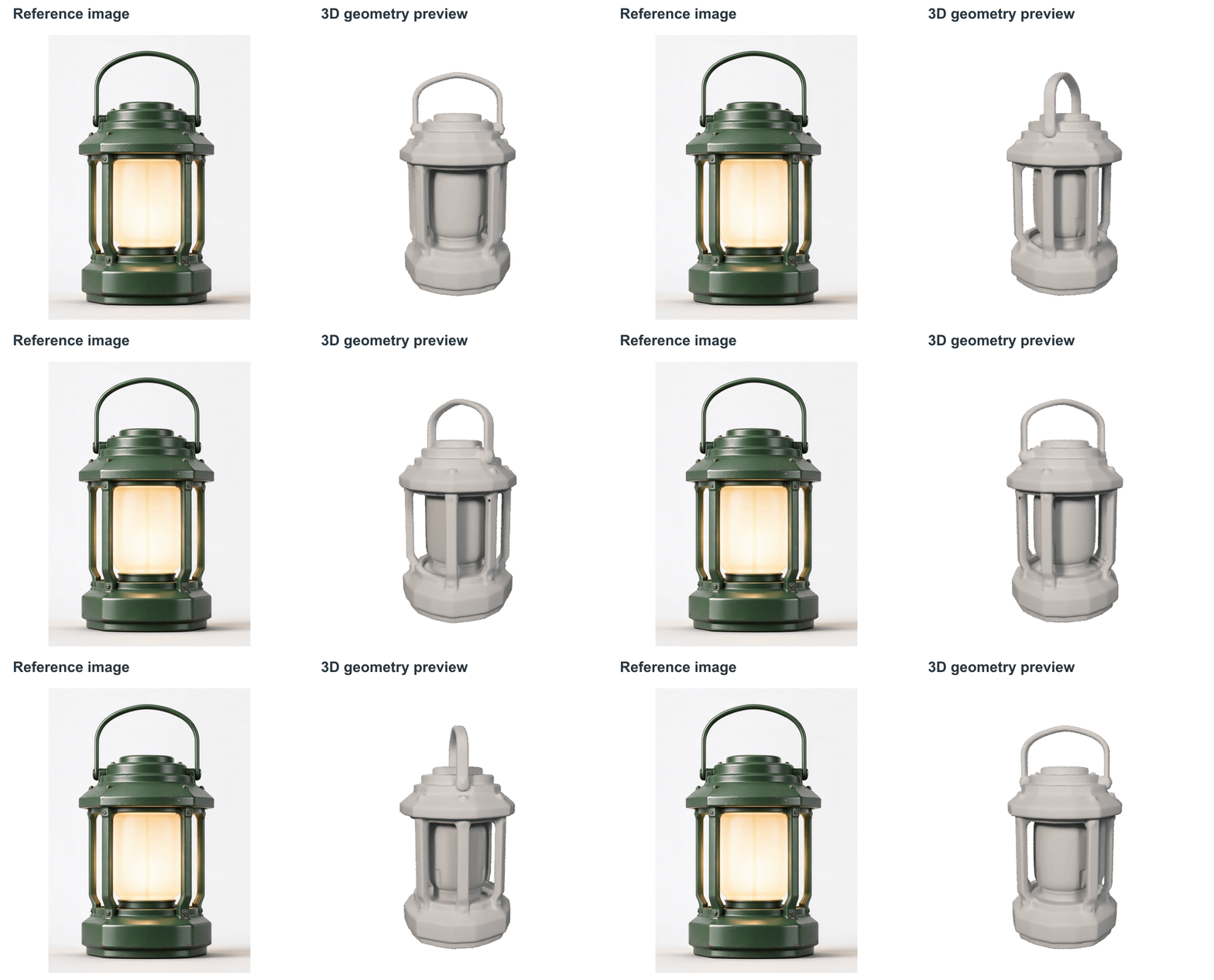
Left: the lantern reference image. Right: its untextured geometry turntable, shown through the complete rotation.
The reference makes the handle opening and the spaces around the lamp visible. In the turntable, follow the arched handle and the gaps between the supports as the object rotates. These views help you inspect the frame from several directions; they do not establish wall thickness or printability.
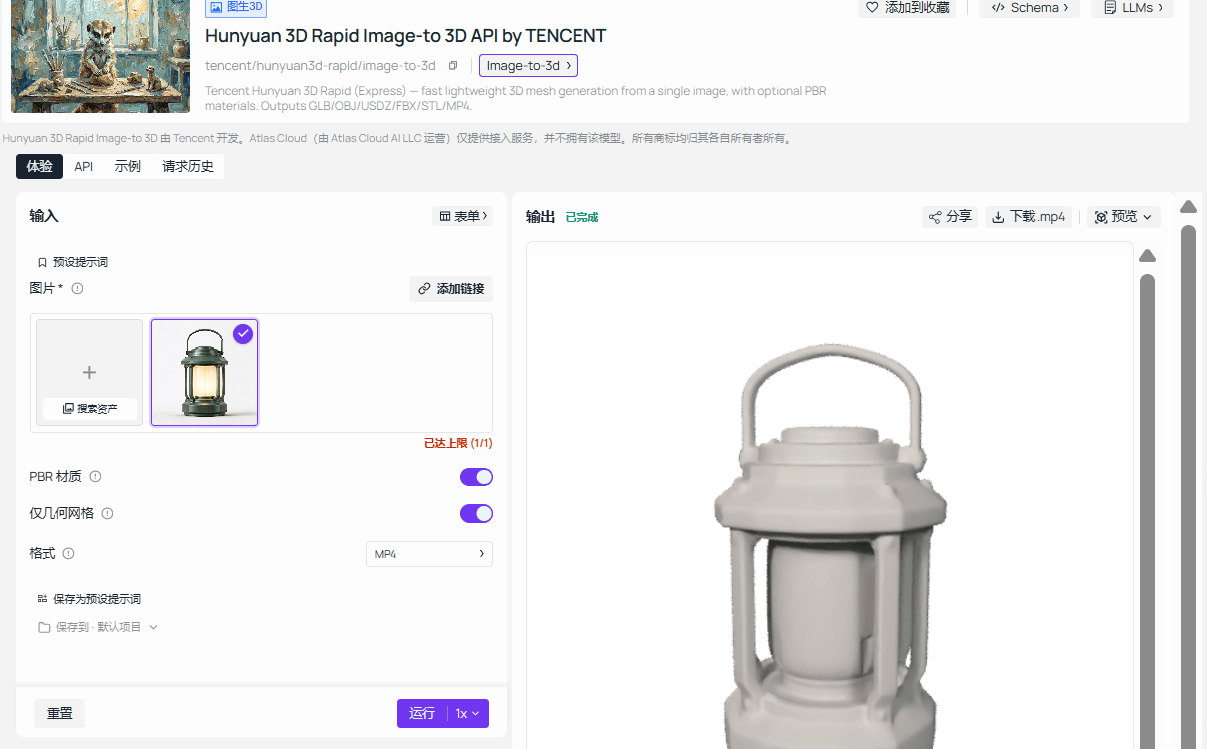
The lantern playground capture records the reference input, geometry controls, and completed MP4 preview.
MP4 is the preview format selected in this capture. To edit the surface in Blender, obtain a supported mesh export such as GLB and inspect that file separately. If an opening is filled in the mesh, revise the structure or repair the surface. Adding more lighting adjectives would not directly address that failure.
Example prompt: a crate with a readable lid
plaintext1A single compact storage crate for a stylized exploration game. The main body is a wide rectangular box with rounded corners. A separate-looking flat lid sits flush on top, with two broad hinge housings along the rear edge and one large front latch. Thick side handles sit close to the body. Desaturated blue panels, dark gray reinforced corners, broad simple surface details. No lettering, decals, surrounding props, or decorative base.
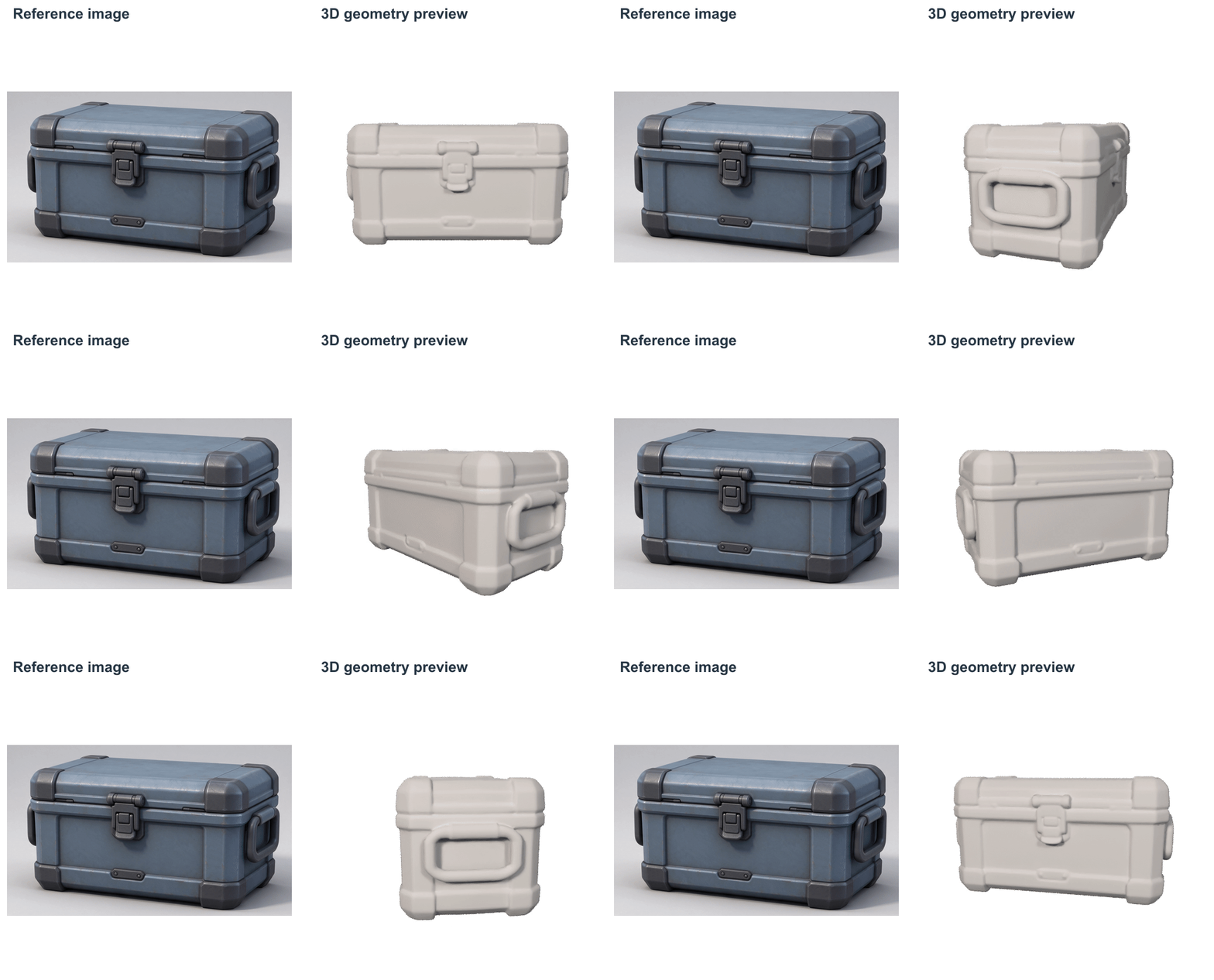
Left: the crate reference image. Right: its untextured geometry turntable, showing the exterior from successive angles.
Watch the front latch, side handles, and lid seam across the rotation. The words “separate-looking” describe appearance. They do not promise an independently selectable lid.
If your game requires the lid to open, inspect the object hierarchy and geometry, then separate or rebuild the relevant parts as necessary. A visible hinge does not establish a working hinge mechanism.
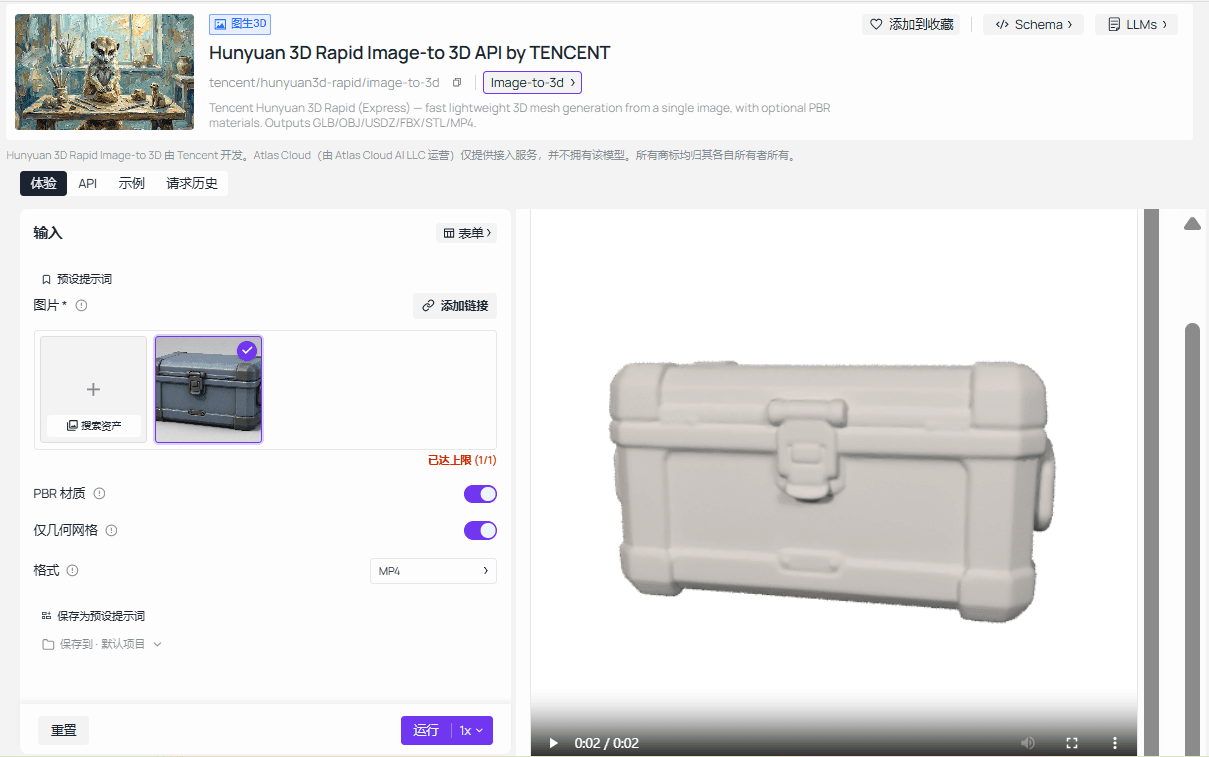
The crate playground capture shows the reference input and geometry preview with MP4 selected. The preview demonstrates the exterior shape, rather than a lid-opening animation.
Start with one change per revision. If the crate body is correct but the handles are thin, change their thickness and attachment description while keeping the rest of the brief stable. Record the model and settings alongside the prompt so you can distinguish a design revision from a change in generation configuration.
Avoid filling the prompt with every related concept. Asking for a low-poly, highly subdivided, mechanically exact, hand-sculpted object creates competing requirements. Choose the intended appearance in text and specify measurable constraints through supported controls or subsequent modeling work.
Choose text-to-3D AI tools by the controls they expose
An AI 3D model generator from text should offer a path from a description to an exported asset. Before comparing previews, check whether the model accepts text, whether textures are optional, and which files it returns. A similarly named image-to-3D endpoint may require an image instead.
Atlas Cloud lists separate text-to-3D models with different controls. The verified model pages below give you concrete options to evaluate rather than relying on broad product labels.
| Model | Documented controls relevant to this task | Practical reason to check them |
|---|---|---|
| Tencent Hunyuan 3D Rapid Text-to-3D | Text prompt, optional PBR materials, optional geometry-only output, output-format selection | Choose an editable mesh format and inspect geometry separately from appearance |
| Tencent Hunyuan 3D Pro Text-to-3D | Text prompt, Normal or Geometry generation, optional PBR materials, face-count control | Set supported geometry and material options explicitly |
Model-page capabilities checked in November 2026. This table describes the text-input models; the illustrated lantern and crate cases use Tencent Hunyuan 3D Rapid Image-to-3D.
For Tencent Hunyuan 3D Pro Text-to-3D, the documented face-count range is 40,000 to 1,500,000. That matters if your project needs a very small mesh: a low-poly phrase in the prompt does not replace checking the supported numerical range, and you may need a later reduction or retopology pass. PBR also has no effect in its Geometry mode.
Use those controls according to the asset's purpose. For a surface inspection, geometry-only output can make it easier to judge the structure. For a material preview, request the relevant maps and inspect how your destination application interprets them. Record the actual selections rather than assuming that the defaults match a tutorial.
Budget around the full attempt. Include revisions, the required export, and time spent repairing the result. Generation cost alone does not tell you what it will take to obtain a usable prop. Check the live model page before submitting a job because options and charges can change.
Carry AI-generated 3D models from text into Blender
Save the original download before editing. Keep the prompt, selected model, and settings beside it. This gives you a reference when an import, material conversion, or cleanup operation changes the result. If the generator returns several files, identify which one contains geometry and which ones are previews.
GLB is a practical starting format when both your generator and destination support it. Blender's glTF importer handles GLB and glTF assets, including supported material information. Its documentation explains that glTF's material system differs from Blender's, so a successful import still deserves a material check. (Blender glTF 2.0 manual, accessed November 2026.)
In Blender, use File > Import > glTF 2.0 for the downloaded GLB. Select the object, frame it in the viewport, and rotate around it. Confirm that the back, underside, and attachment points exist in a useful form. Then inspect its size against your scene rather than assuming the generated object has meaningful real-world dimensions.
Check shape before trusting the texture
Switch to a neutral solid view and inspect the silhouette and openings. For the lantern brief, check the handle's center and the spaces between its supports. For the crate, inspect the rear hinge housings and the transition between lid and body. These are specific pass-or-revise decisions tied to the prompt.
Tencent Hunyuan3D 2.0's published system separates shape generation from texture synthesis. That distinction is useful during inspection: evaluate the surface independently from the color that makes it readable. (Tencent Hunyuan3D 2.0 official repository, accessed November 2026.)
Two published DreamFusion examples pair text prompts with rotating 3D results. Each clip shows an appearance view beside a neutral shaded view. (DreamFusion project, accessed November 2026.)
Text prompt:
plaintext1A teddy bear pushing a shopping cart full of fruits and vegetables.

Published DreamFusion result. The rotating views let you compare the bear, cart, and produce as a single generated scene.
Text prompt:
plaintext1a sliced loaf of fresh bread.
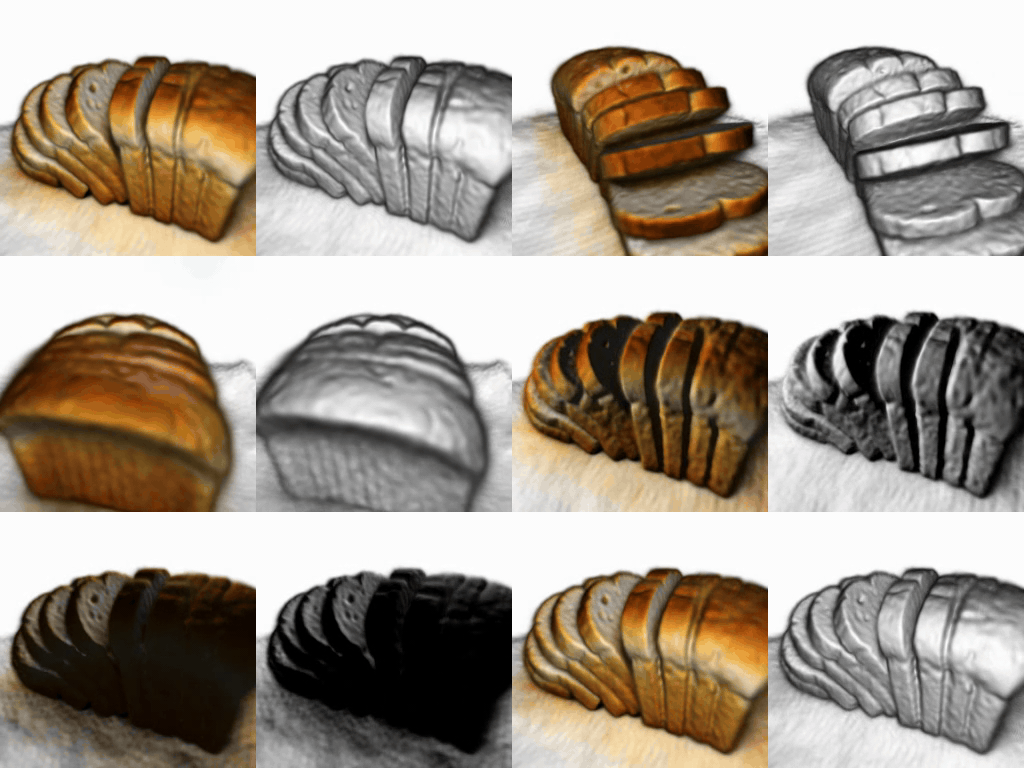
Published DreamFusion result. Compare the spaces between the slices in the appearance and neutral shaded views as the loaf turns.
Next, inspect the wireframe where the object will bend, where silhouettes change, and around small attachments. Dense triangles alone do not tell you whether the asset fits its job. A static background object and a deforming character require different decisions about edge structure and performance.
Check materials after import and after export
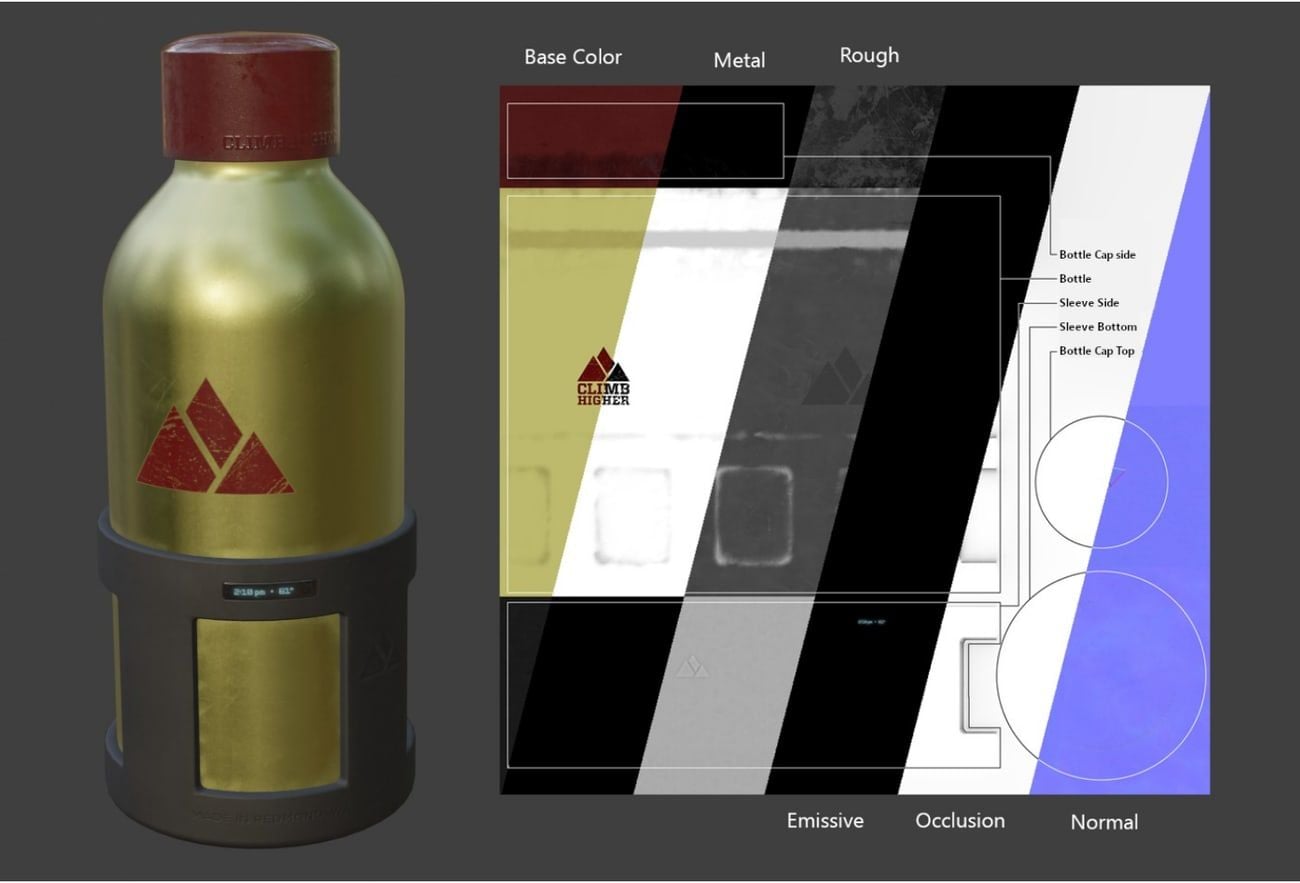
Compare the neutral surface with a material preview. Look for textures that disappear, unexpected transparency, or shading that changes substantially between applications. Confirm that the required texture images are present and assigned to the appropriate material inputs.
Blender documentation example of glTF material maps. Surface appearance depends on the material inputs as well as the mesh. Image credit: Blender Documentation Team, CC BY-SA 4.0.
Export a copy and reopen it in a clean scene or the intended destination application. This catches a different class of problem from inspecting the original download: your own edits or export options may have changed what travels with the asset. Check the reopened copy before arranging a larger batch around the workflow.
Fix the failure that is actually in the model
When an AI prompt to 3D model workflow misses the brief, identify whether the failure concerns design, geometry, materials, or file delivery. Each calls for a different response. Rewriting the entire prompt can discard parts that already work and make the next result harder to compare.
If the silhouette is wrong, revise the object description. Replace vague terms with proportion relationships: a broad shallow body, a handle wider than its supports, or a lid that sits flush. If the tool supports an image input, an approved reference can help specify appearance more concretely.
If the silhouette is right but the mesh contains an unwanted bridge across an opening, inspect whether a local repair is practical. For an object that needs clean moving parts, plan deliberate modeling work. Repeated generations may still produce a single connected surface around a visually separate component.
If colors communicate a detail that disappears in solid view, decide whether that detail needs depth. A painted seam may be sufficient for a distant prop. A connector that must fit another part needs actual geometry. Make this choice around the final use and viewing distance.
| What you observe | What to check next | Useful next action |
|---|---|---|
| Correct object category, wrong proportions | Main volume and part relationships in the prompt | Revise the structural description |
| Handle or opening appears filled | Solid view from several angles | Repair the geometry or simplify and regenerate |
| Lid looks separate but moves with the body | Object hierarchy and connected geometry | Separate or rebuild the moving component |
| Materials differ after transfer | Texture files, material assignments, supported export features | Fix the material setup and reopen a fresh export |
| Only a rotating preview downloads | Available output files and selected format | Obtain a mesh file for editing |
For text-to-3D printing, add checks for a closed volume, useful wall thickness, and features that your intended process can reproduce. Preview the model in a slicer at the intended size. A text-to-3D CAD search implies a further requirement: precise dimensions and editable construction history. Verify those capabilities separately from ordinary mesh generation.
What to check before choosing a free text-to-3D model AI tool
Free access can apply to several different parts of the process. A tool may let you generate a preview while reserving mesh downloads for another access level. Another may include a limited number of exports but restrict the material options or usage terms. Check the specific action you need to complete.
For searches such as “AI text to 3D model free no signup,” test the download path before writing a complex brief. Look for an explicitly stated account requirement, the required format, and the terms that apply to your intended use. A page that loads anonymously does not establish that generation and export work anonymously.
Locally runnable model code offers another route, with hardware and setup work to consider. Use the requirements for the particular model version and pipeline you intend to run. Shape generation and texture generation can have different resource requirements, so a demonstration of one stage does not establish that your machine can run the complete process.
Choose a small representative asset for the first trial. Carry it through generation, download, import, one edit, and a fresh export. This gives you useful evidence about the entire path before you commit to producing a collection of props.
For a text to 3d model ai project, a useful first milestone is an object that matches a clear brief and survives that round trip. Keep the prompt specific, use the available technical controls, and judge the exported asset in the application where it will do its work.
Frequently Asked Questions
Can AI generate 3D models from text without a reference image?
Yes, when the selected model supports text input. Some systems use an intermediate image inside the pipeline. You can still begin with words, but check the particular endpoint rather than assuming every model in a family accepts a text prompt.
Does a text-to-3D AI generator create an animated character?
A generated mesh does not establish that the asset contains a skeleton, skin weights, or animation. Check those outputs explicitly. For a character that will move, inspect deformation in the poses your project needs and budget for rigging and topology work where required.
Is Blender text-to-3D AI the same as importing a generated GLB?
Importing a GLB brings an existing asset into Blender. A text-generation integration adds another operation that creates or requests the asset. Identify which part a tutorial actually demonstrates so you can reproduce its dependencies and account requirements.
Can I use an AI 3D model commercially?
Check the terms for the service, model, and source material you actually use. A publicly displayed example or downloadable model is not, by itself, evidence of permission for every downstream use. Keep the applicable terms with your project records.
Should I download a model or a turntable video?
Download the mesh when you need to edit geometry, change materials, or place the object in another scene. A turntable video is useful for presentation and review, but it does not supply the editable surface. Keep both only when your project needs both deliverables.