Yararlı bir görsel düzenleme sıfırdan başlamaz. İnanılır bir anı, kişi, eylem ve kamera ilişkisi tanınabilir kalacak şekilde yeni bir duruma taşır. Kahve dükkanının camındaki kadın, bitkileri budayan bahçıvan ve dağ yolundaki yürüyüşçü, bu rehbere birer kaynak sahne ve kasıtlı olarak sınırlandırılmış tek bir değişiklik kazandırır.
Pratik kural basittir: sahneyi bir kez kurun, değişemeyecek olanları listeleyin ve ardından yalnızca tek bir değişiklik kategorisi isteyin. Işık ve saat değişebilir. Hava değişebilir. Özne sessizce başka bir kişiye dönüşmemeli, yeni bir obje edinmemeli veya kare içinde başka bir yere taşınmamalı.
Önemli çıkarımlar
- Kaynak görseli kişi, poz, kıyafet ve kompozisyon için referans kabul edin.
- Her seferinde tek kategoriyi değiştirin: günün saati, hava veya atmosfer.
- Yeni ışığa hayran kalmadan önce özneyi ve eylemi kontrol edin.
- Kurgusal sahneleri; kişilerin, yerlerin veya olayların kaydı olarak değil, açıkça yaratıcı konseptler olarak etiketleyin.
MAI Image 2.6 Sahne Düzenlemesi Neden Bir Koruma Listesi Gerektirir
MAI-Image-2.6 ve Flash varyantı görsel düzenlemeyi destekler ve Microsoft aileyi Public Preview aşamasında sunulduğu şekilde tanımlıyor. Resmi belgeler metinden görsele ve görsel düzenleme iş akışlarını listelerken, lansman duyurusu referans düzenleme ve esnek çerçevelemeyi ailenin parçası olarak açıklar (Microsoft Foundry belgeleri, Microsoft AI lansman duyurusu).
Bu yetenek, brief sınırlar içerdiğinde en kullanışlıdır. “Bunu sinematik yap” gibi belirsiz bir istek, modelin her şeyi yeniden çizmesine yol açar. Kontrollü bir istek önce referans alınacak ayrıntıları belirler, ardından tek amaçlanan farkı adlandırır. Sahnedeki bir kişiyi içeren düzenlemelerde koruma listesi normalde şunları kapsar:
| Korunacak | Değişecek | Çalıştırma sonrası incele |
|---|---|---|
| Kişi, yüz, saç, kıyafet, eylem, kamera açısı | Günün saati, hava veya renk sıcaklığı | Poz, eller, objeler, kompozisyon ve mekân sürekliliği |
| Mekân düzeni, ana nesneler ve ufuk çizgisi | Işık yönü ve atmosfer | Herhangi bir yeni nesnenin veya kişinin ortaya çıkıp çıkmadığı |
| Öznenin kare içindeki konumu | Yalnızca arka plan koşulları | Sonucun çevredeki metni hâlâ destekleyip desteklemediği |
Bir iş çalıştırdığınız gün geçerli düzenleme yolunu ve kabul edilen girdi ayarlarını doğrulamak için güncel MAI Image 2.6 model sayfasını kullanın. Aşağıdaki örnekler kurgusal görsel konseptlerdir. Gerçek bir konum, kişi, hava durumu veya olayın kanıtı değildirler.
MAI Image 2.6 Sahne Düzenleme İş Akışı: Üç Bağlantılı Örnek
Aşağıdaki her çift, bir kaynak sahneyle başlar ve tek bir sınırlandırılmış düzenlemeyle biter. Görsel seri ortak bir belgesel fotoğraf hissine sahiptir, ancak her örnek farklı bir süreklilik türünü test eder: günün saati, hava durumu ve sıcak ışık.
Adım 1: Kahve Dükkanı Sabah Sahnesini Oluşturun
İlk kaynak; kadını, kömür rengi örgü kazağını, defterini, seramik kupasını, masayı ve pencere kenarındaki kamera açısını sabitler. Bunlar, düzenlemeden sonra da korunması gereken ayrıntılardır.
MAI Image 2.6 sahne düzenlemesi için kaynak sahne: yağmurlu bir sabahta kahve dükkanı camındaki kadın
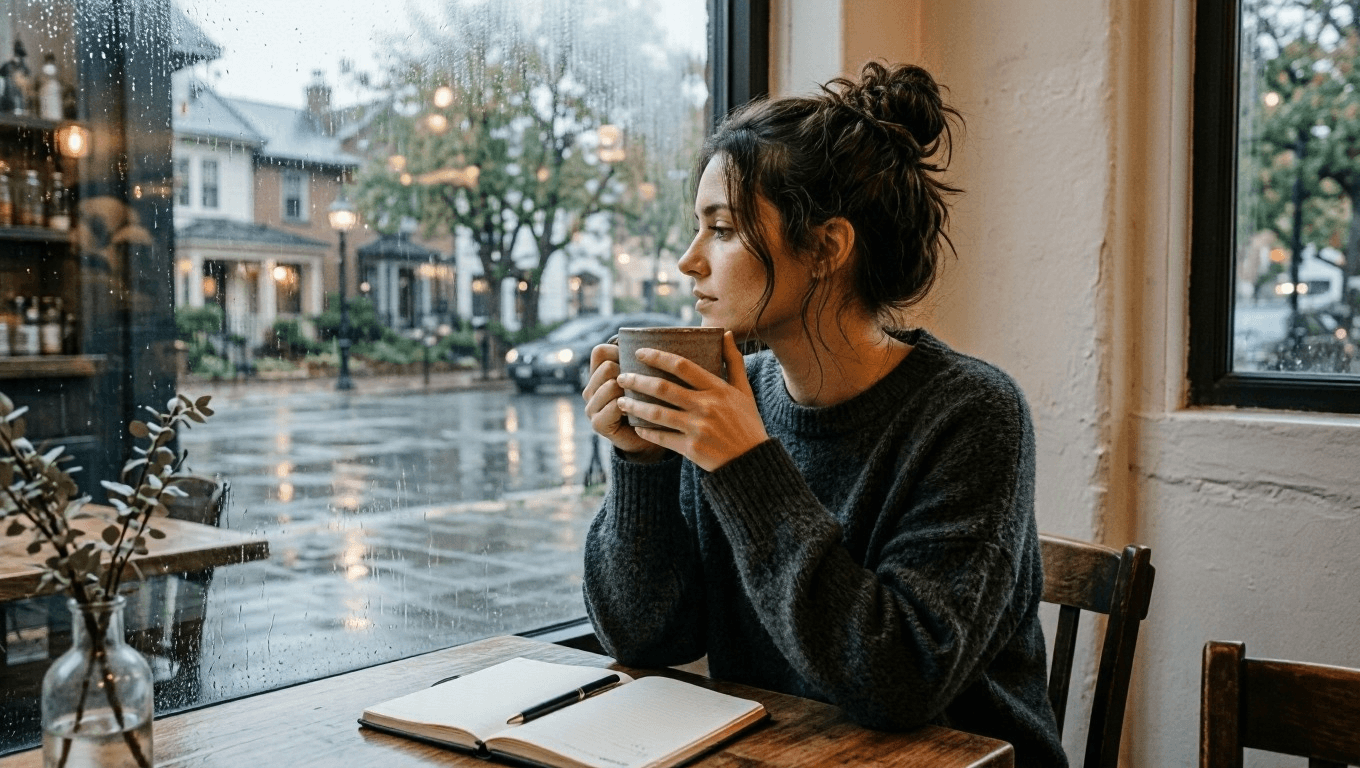
Kaynak sahne: atmosfer değişmeden önce kurgusal, sakin bir kahve dükkanı anı.
Yeni bir sahne için şu kaynak istemini kullanın:
plaintext1Create a cinematic editorial photograph of one young adult woman sitting alone beside a large window in a quiet neighborhood coffee shop at early morning. She wears a soft charcoal knit sweater, has a notebook open on the table, and holds a ceramic cup with both hands while looking out toward the rain-washed street. Warm wood tables, pale plaster walls, subtle reflections in the window, natural skin texture, soft overcast daylight, realistic documentary photography, vertical 4:5 composition. No readable text, logos, watermark, extra people, distorted hands, or duplicate objects.
Adım 2: Yalnızca Kahve Dükkanındaki Günün Saatini Değiştirin
Onaylanmış sabah görselini yükleyin. Kadını, kıyafeti, kupayı, defteri, masa konumunu ve kamera açısını değiştirmeden koruyun. Tek revizyon, gri sabahtan mavi saat akşamına geçiştir; daha sıcak iç mekan lambaları ve dışarıdan geçen bir tramvayla birlikte.
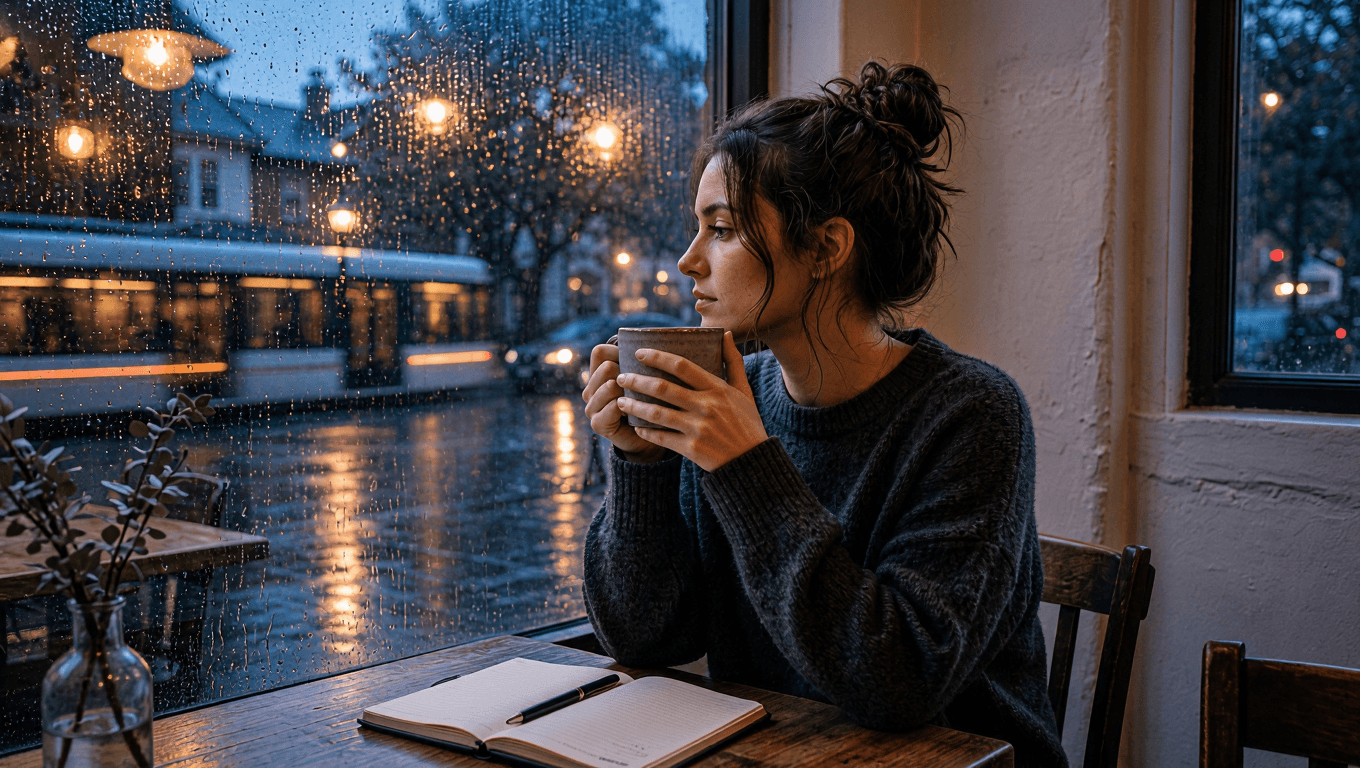 Kontrollü sahne düzenlemesi: yağmurla aydınlanan sokak yansımalarıyla mavi saatte kahve dükkanındaki aynı kadın
Kontrollü düzenleme: aynı pencere kenarı anı, artık yağmur ışığıyla aydınlanan bir mavi saate taşındı.
plaintext1Use the uploaded image as the source of truth. Preserve the same adult woman, face, hairstyle, charcoal knit sweater, notebook, ceramic cup, seated posture, camera angle, and table position. Change only the setting and light: transform the same coffee shop into a calm blue-hour evening scene with warm pendant lights, rain droplets glowing on the window, and a softly blurred passing tram outside. Keep the woman looking toward the window. Cinematic realistic photography, vertical 4:5 composition. No text, logos, watermark, extra people, changed clothing, changed facial features, distorted hands, or duplicated objects.
Adım 3: Çatı Bahçesi Çalışma Sahnesini Oluşturun
Bir sonraki kaynak bir portreden çok bir eylemle ilgilidir. Bahçıvanın diz çökme pozu, zeytin yeşili gömleği, eldivenleri, budama makası, yükseltilmiş saksılar ve biberiye koruma listesini oluşturur. Bu, yapılan iş kaybolmadan hava durumu düzenlemesinin değerlendirilmesini mümkün kılar.
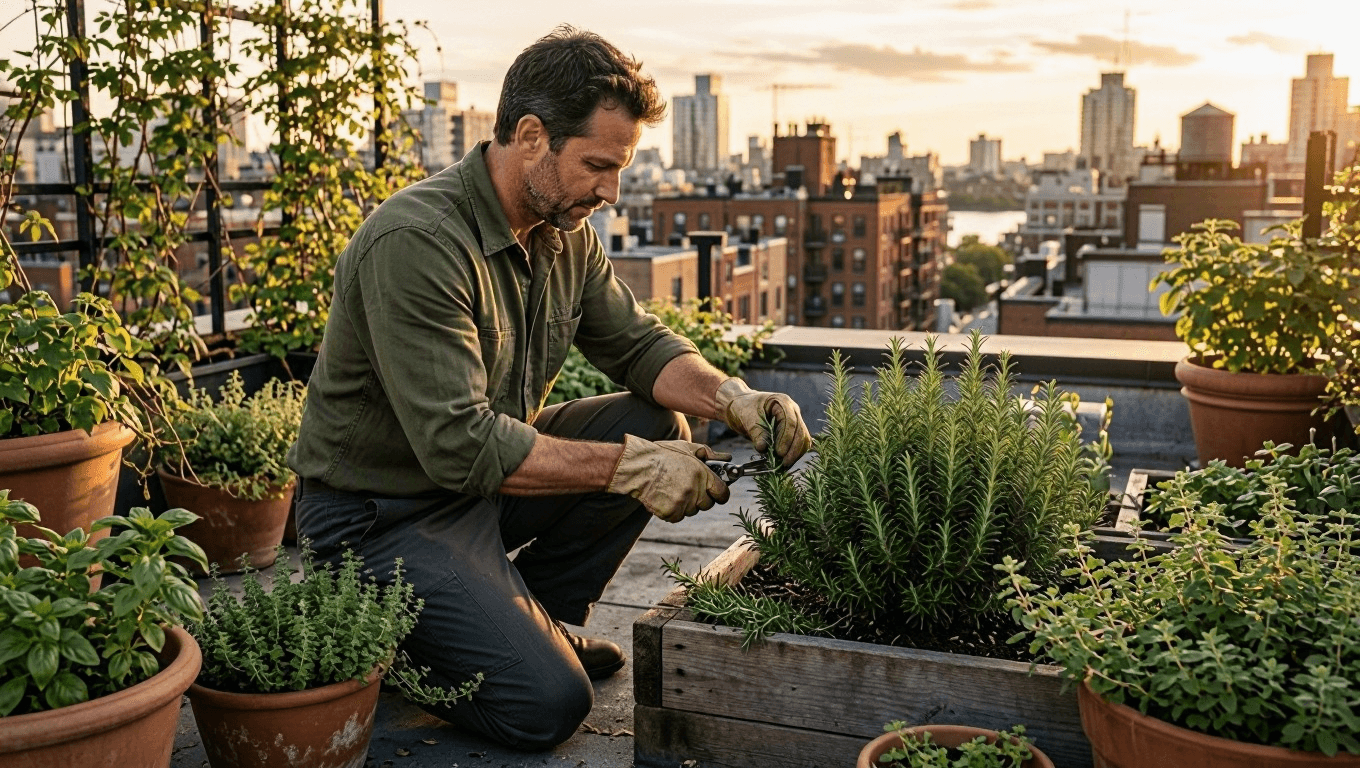 MAI Image 2.6 sahne düzenlemesi için kaynak sahne: öğleden sonra geç saatte çatıda biberiye budayan bahçıvan
Kaynak sahne: berrak, öğleden sonra geç saat ışığında kurgusal bir çatı bahçesi görevi.
plaintext1Create a natural editorial photograph of one adult man tending herbs in a small urban rooftop garden during late afternoon. He wears an olive work shirt with rolled sleeves, dark trousers, and worn gardening gloves. He kneels beside raised wooden planters, carefully trimming rosemary with small shears. Surround him with terracotta pots, climbing vines, distant apartment rooftops, and gentle warm sunlight. Realistic fabric texture, natural skin, documentary 50mm photography, vertical 4:5 composition. No logos, readable labels, watermark, extra people, duplicate tools, distorted hands, or extra limbs.
Adım 4: Aynı Bahçeyi Yağmurdan Hemen Sonra Oluşturun
Yeni bir bahçe tanımlamak yerine çatı kaynağını yükleyin. Eylem birebir aynı kalır; yağmur, ıslak yapraklar ve daha yumuşak gün ışığı tek amaçlanan farklardır. Ruh halini onaylamadan önce budama makasını, elleri, gömleği, saksıları ve şehir düzenini inceleyin.
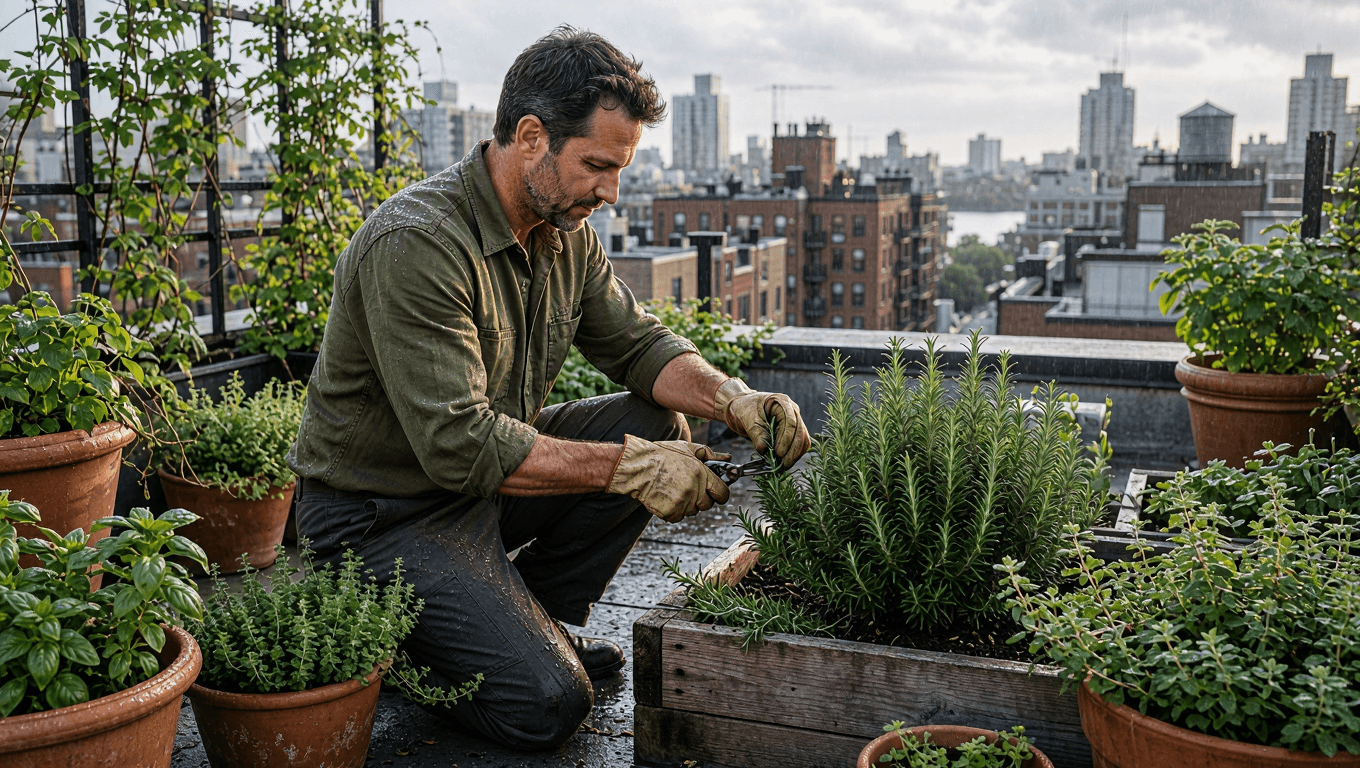 Kontrollü sahne düzenlemesi: yağmurun hemen ardından çatı bahçesinde biberiye budayan aynı bahçıvan
Kontrollü düzenleme: hava değişirken bahçıvan, görev ve çatı geometrisi sürekliliğini korur.
plaintext1Use the uploaded image as the source of truth. Preserve the same adult man, olive work shirt, trousers, gloves, gardening shears, kneeling posture, rooftop-garden layout, raised wooden planters, and camera angle. Change only the weather and atmosphere: make it just after a light spring rain, with wet leaves, small water droplets on the rosemary, softened cloudy daylight, and a faint city haze beyond the rooftops. Keep the action of trimming herbs unchanged. Realistic editorial documentary photography, vertical 4:5 composition. No text, logos, watermark, extra people, changed clothing, extra tools, distorted hands, or altered pose.
Adım 5: Dağ Patikası Sabah Sahnesini Oluşturun
Son kaynakta süreklilik rota ve hareketle taşınır. Pas rengi rüzgarlık, yeşil sırt çantası, trekking batonu, yürüme yönü, patika ve dağ kompozisyonu, ışık değiştirilmeden önce sabit kalmalıdır.
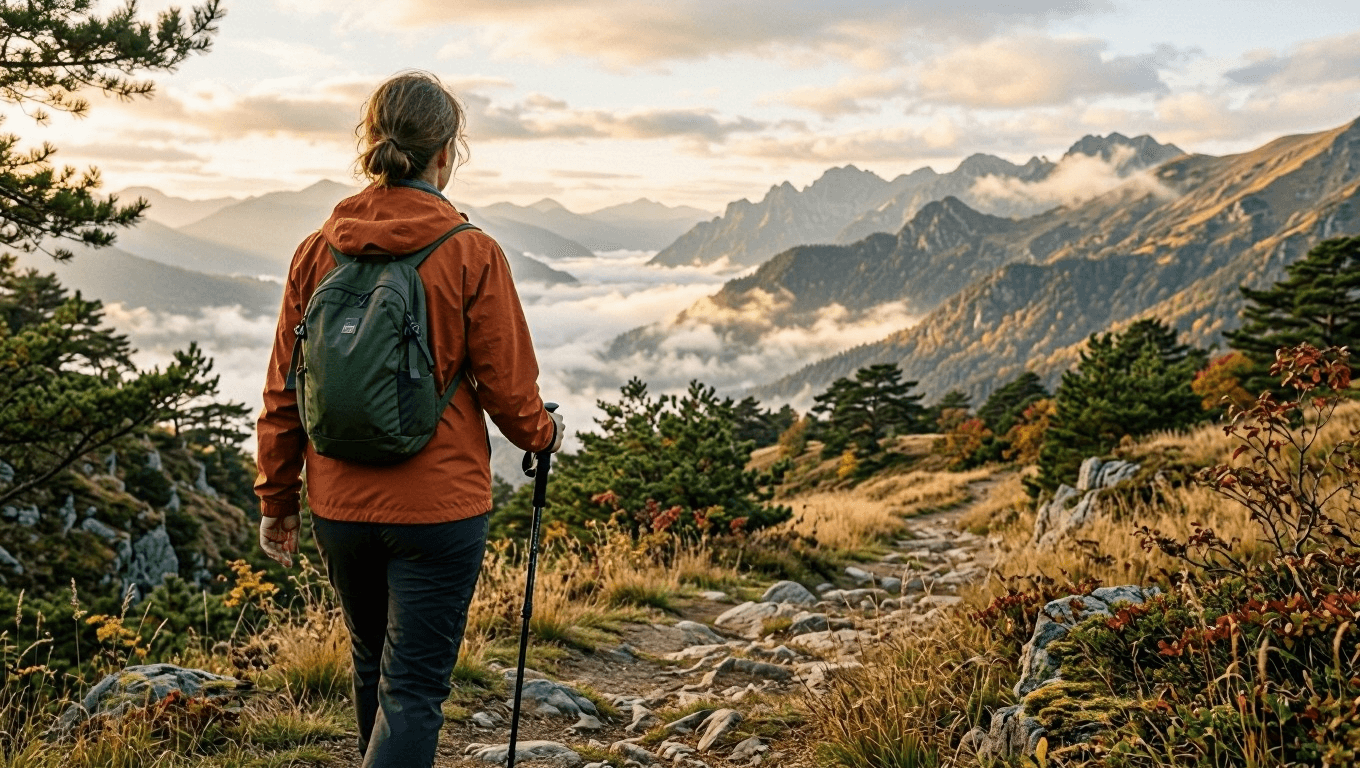 MAI Image 2.6 sahne düzenlemesi için kaynak sahne: sonbahar başı sabah ışığında dağ patikasında yürüyen kadın
Kaynak sahne: yumuşak sabah ışığında kurgusal bir sonbahar başı dağ yürüyüşü.
plaintext1Create a cinematic travel photograph of one adult woman walking alone along a narrow mountain trail in early autumn. She wears a rust-colored windbreaker, dark hiking trousers, and a small forest-green backpack. Seen from behind at a natural walking pace, she carries one trekking pole in her right hand. Golden grass, low pine trees, layered mountain ridges, and gentle morning mist fill the landscape. Natural light, realistic outdoor texture, documentary 35mm photography, vertical 4:5 composition. No logos, text, watermark, extra hikers, duplicate trekking poles, distorted limbs, or unrealistic terrain.
Adım 6: Sabah Işığını Altın Gün Batımına Dönüştürün
Dağ kaynağını yükleyin ve rotayı olduğu gibi bırakın. Düzenleme yürüyüşçüyü hareket ettirmemeli, ekipmanını değiştirmemeli veya patikada başka bir grup icat etmemelidir. Yalnızca güneş açısını, renk sıcaklığını, ufku ve gölgeleri değiştirir.
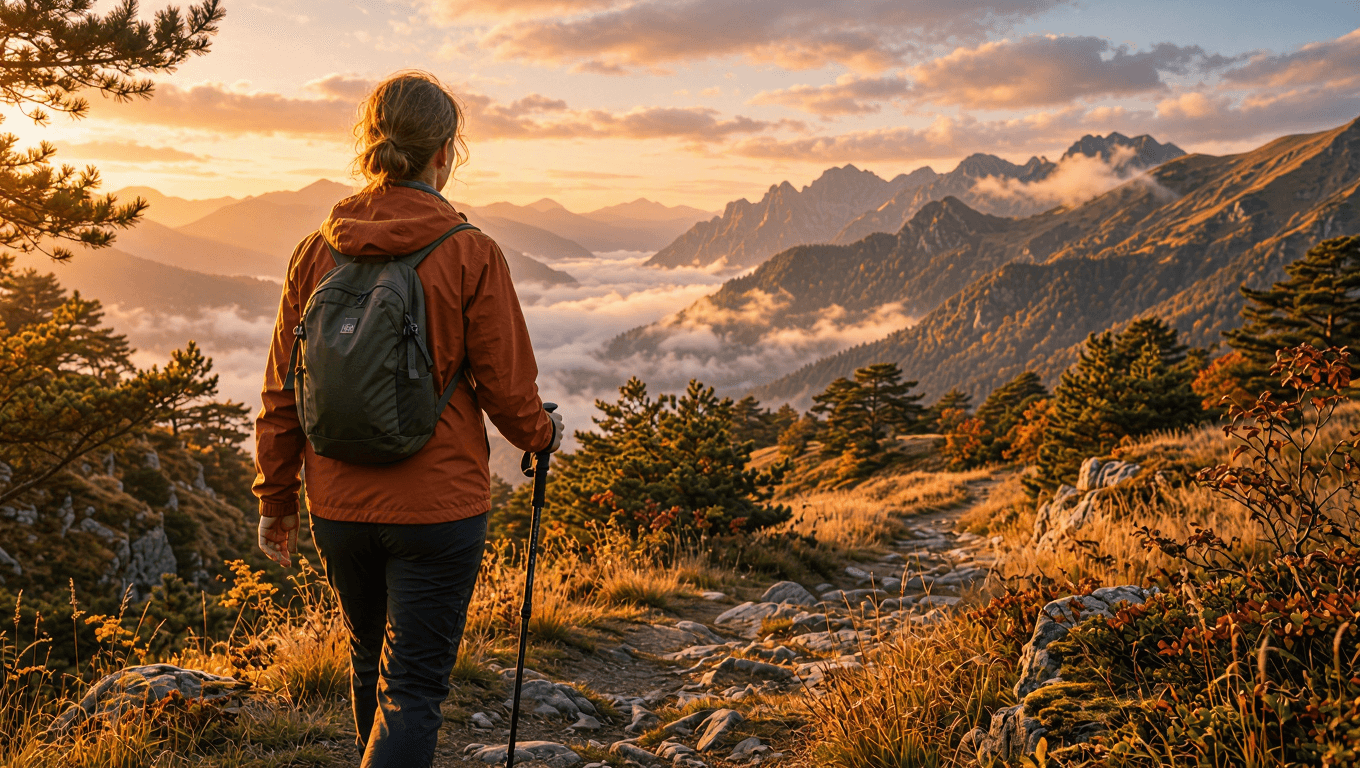 Kontrollü sahne düzenlemesi: sıcak altın gün batımı altında aynı yürüyüşçü ve dağ patikası
Kontrollü düzenleme: sabah atmosferinin yerini altın gün batımı ışığının aldığı aynı rota ve yürüyüşçü.
plaintext1Use the uploaded image as the source of truth. Preserve the same adult woman, rust-colored windbreaker, dark hiking trousers, forest-green backpack, trekking pole, walking posture, trail, camera angle, and mountain composition. Change only the lighting and atmosphere: turn the early-autumn morning into a warm golden sunset, with amber rim light on the jacket and grass, long soft shadows across the trail, and a glowing peach-colored horizon behind the mountain ridges. Keep the subject walking in the same direction. Cinematic realistic travel photography, vertical 4:5 composition. No text, logos, watermark, extra hikers, changed clothing, altered backpack, duplicate limbs, or distorted terrain.
SSS
MAI Image 2.6 sahne düzenlemesi ne işe yarar?
Yaratıcı bir ekip, bir kişiyi, eylemi veya kompozisyonu koruyarak tek bir revize koşulu test etmek istediğinde kullanışlıdır. Kahve dükkanı, bahçe ve dağ örnekleri; günün saati, hava durumu veya ışıklandırma revizyonunun sabit bir kaynağa karşı nasıl değerlendirilebileceğini gösterir.
Yeni bir sahne mi oluşturmalıyım yoksa mevcut bir sahneyi mi düzenlemeliyim?
Kişi, yer, eylem ve çerçeveleme üzerinde hâlâ karar veriyorken yeni bir sahne başlatın. Bu temeller zaten onaylanmışken ve yalnızca tek bir yaratıcı değişkenin hareket etmesi gerekiyorken düzenleme kullanın.
Bir düzenlemenin kişiyi değiştirmesini nasıl engellerim?
Onaylanmış kaynağı yükleyin, kişiyi, kıyafeti, pozu, objeleri ve kamera açısını korunacak gereksinimler olarak listeleyin, ardından tek bir değişiklik kategorisi belirtin. İstemi garanti olarak görmek yerine gerçek çıktıyı inceleyin.
Oluşturulan bir sahne gerçek bir yeri veya olayı belgeleyebilir mi?
Hayır. Bunu yaratıcı bir konsept olarak ele alın. Oluşturulan kişileri, hava durumunu, konumları, olayları veya seyahat koşullarını gerçek kanıt olarak sunmayın.
Model kullanılabilirliği ve güncel kontroller için Atlas Cloud'daki MAI Image 2.6 sayfasını kullanın ve üretim kullanımından önce seçilen rotayı doğrulayın.





