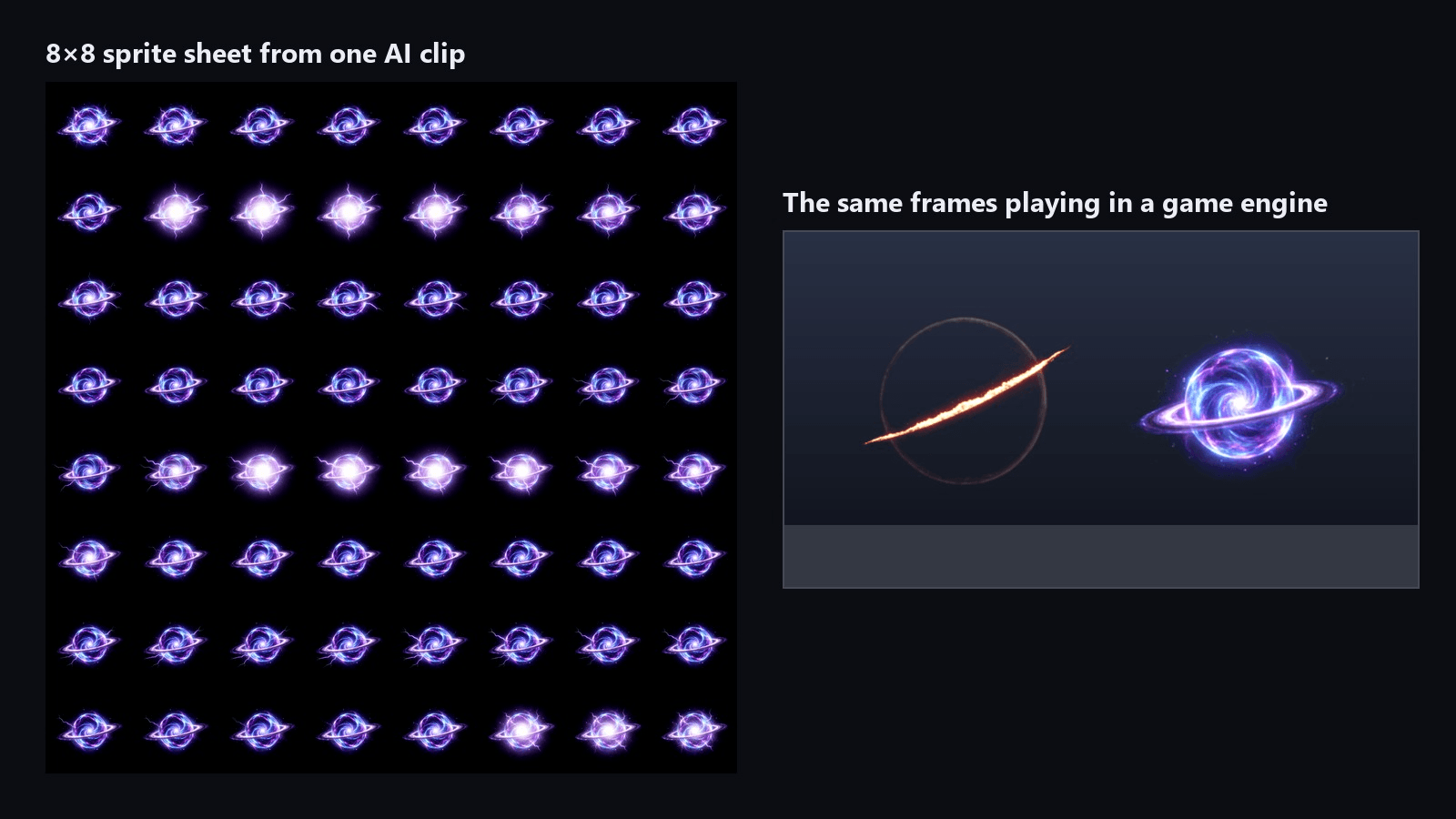
一個會在五秒內蓄能、斬擊並燃盡的太陽斬擊,過去意味著得在粒子編輯器裡耗上一個週末,或購買付費 VFX 包。我們只花了一個下午就做出來:一張靜態圖、一段 AI 影片、一行 FFmpeg 指令。
做法是影片轉 Sprite Sheet。影片模型在黑色背景上繪製動態,FFmpeg 將影格打包成網格,引擎再把這個網格當作翻頁動畫播放。我們把整條流程跑了兩次,一次是斬擊命中,一次是循環能量球,兩者最後都能在 Godot 中播放。我們使用的設定如下。
重點摘要
- 影片轉 Sprite Sheet 工作流程能把一段短 AI 影片變成遊戲引擎逐格播放的翻頁動畫。
- Atlas Cloud 影片生成器 中的 Seedance 2.5 會接收第一幀與最後一幀,而最後一幀決定特效如何結束。
- 純黑的最後一幀會讓一次性特效淡出,而重複使用第一幀則讓我們得到無縫循環。
- 一行 FFmpeg 指令就把每段五秒 MP4 變成 64 幀、8×8 的 Sprite Sheet。
- 在 Godot 中使用加法材質,黑色背景會消失,也不需要 Alpha 通道。
遊戲 VFX 的影片轉 Sprite Sheet 工作流程長什麼樣
翻頁動畫是把多個影格存在同一張材質中的網格。引擎一次顯示一格,就像紙本翻頁書的運作方式。遊戲 VFX 美術會用翻頁動畫製作火焰、爆炸與類似特效。
改變的是誰來繪製這些影格。2026 年 10 月下旬,開源專案 effekseer-vfx-skill 在 v0.3 版本中加入了影片翻頁動畫流程。其 README 表示,該流程已用 Seedance 2.5 驗證過,而且任何支援第一幀與最後一幀的圖片轉影片模型都能使用。概念是:圖片模型繪製其中一幀,影片模型繪製所有中間影格。
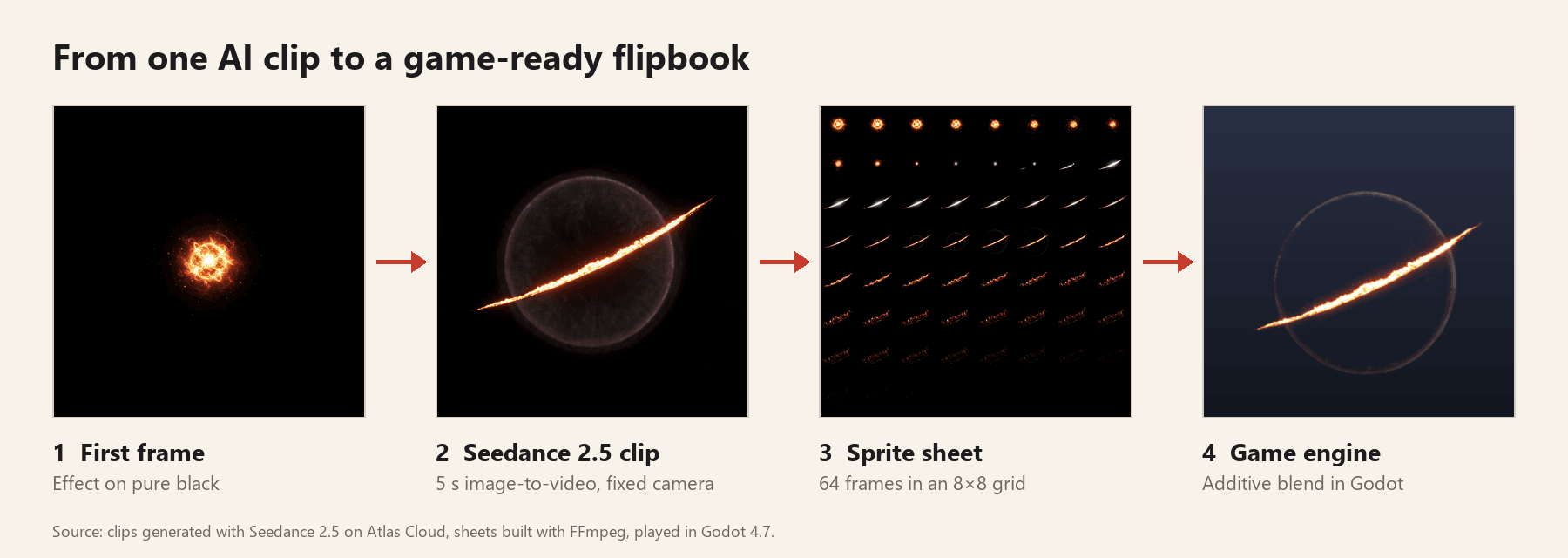
該專案指南說明了這在哪裡有幫助:會改變形狀的特效。分層粒子基本元件可以縮放、淡出與捲動圖片,但無法在同一個輪廓內把火焰變成煙霧。影片模型能在單一片段中畫出這種變化。
用 Seedance 2.5 生成法術特效片段
這段影片就是過去需要美術人員的部分。Atlas Cloud 代管 Seedance 2.5,其圖片轉影片模式同時接受第一幀與最後一幀。對遊戲 VFX 來說,這一對就是你要的控制:第一幀固定外觀,最後一幀固定結尾。
以下是我們用一張靜態圖與一段提示詞得到的斬擊命中效果:
方法 1:Atlas Cloud 影片生成器
在開啟生成器之前,準備兩張正方形圖片。第一幀是純黑背景上的特效;任何圖片模型都能畫出來。最後一幀是純黑色方塊。
讓元素保持小尺寸。我們那顆明亮核心大約佔畫面寬度的七分之一,因為特效會從那個尺寸開始增長,而任何碰到邊緣的東西都會在 Sprite Sheet 中變成一條硬邊。
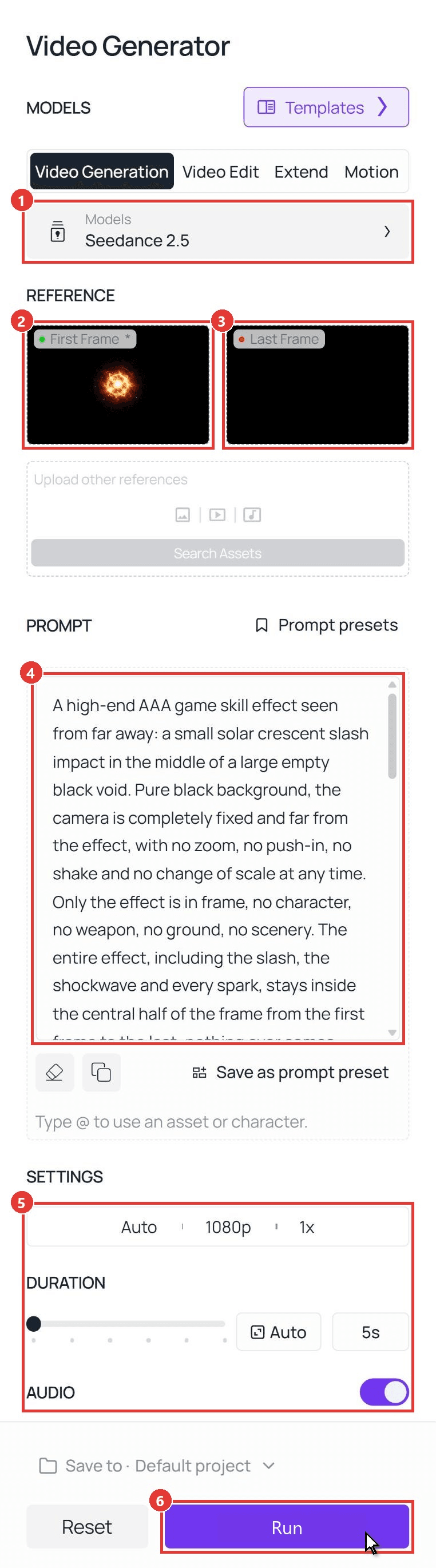
接著,在 影片生成分頁 中:
- 在模型列保持選取 Seedance 2.5。
- 將特效圖片上傳到 First Frame。
- 將黑色方塊上傳到 Last Frame。
- 貼上提示詞。
- 設定解析度與 5 秒時長。我們用的是 1080p。
- 點擊 Run。
我們使用的提示詞:
plaintext1A high-end AAA game skill effect seen from far away: a small solar crescent slash impact in the middle of a large empty black void. Pure black background, the camera is completely fixed and far from the effect, with no zoom, no push-in, no shake and no change of scale at any time. Only the effect is in frame, no character, no weapon, no ground, no scenery. The entire effect, including the slash, the shockwave and every spark, stays inside the central half of the frame from the first frame to the last: nothing ever comes near the frame edges, and a wide band of pure black stays visible on all four sides in every single frame. No full-screen flash, no white-out, no haze, no fog, no grey or lit background at any moment. 20-1 s: the small solar core from the first frame implodes: its embers and thin golden streaks are pulled inward along curved paths, and the core shrinks to a tiny blinding white point. 31-2 s: a short razor-sharp crescent of plasma, no longer than one third of the frame width, flicks diagonally through the core from lower left to upper right within a few frames and stops. It has a white-hot leading edge, a molten gold body and thin trailing ribbons of orange fire. Both tips of the crescent are clearly visible inside the frame, surrounded by black. 42-3 s: one thin bright shockwave ring pops out from the core, expands to about one third of the frame width and fades there, while the crescent tears into short curling tongues of fire and a spray of fast sparks that travel only a short distance. 53-5 s: the fire tongues thin into glowing filaments, the sparks slow, cool from gold to deep red and die out one by one until the frame is pure black, matching the last frame. 6Look: modern AAA real-time VFX, cinematic HDR bloom kept tight around the effect, fine particle detail, fluid fire motion, fast attack and slow decay. Color: white-hot, molten gold, amber, deep crimson. The background stays pure black in every frame; no ground, no reflection, no text.
其中三個部分可套用到任何特效。說明特效停留在哪裡,以及攝影機距離多遠。說出你不想要的陳腔濫調,例如霧霾或全螢幕閃光。為每個秒數區間指定一個變化和它的結束狀態。若想要手繪質感而非這種發光風格,我們的 Seedance 2D 動畫指南 有更深入的說明。
方法 2:Seedance 2.5 圖片轉影片 API
一款遊戲需要數十種特效。提示詞一旦可行,同樣的工作就能以請求執行,因此指令碼可以迴圈處理火焰、冰、毒與閃電。
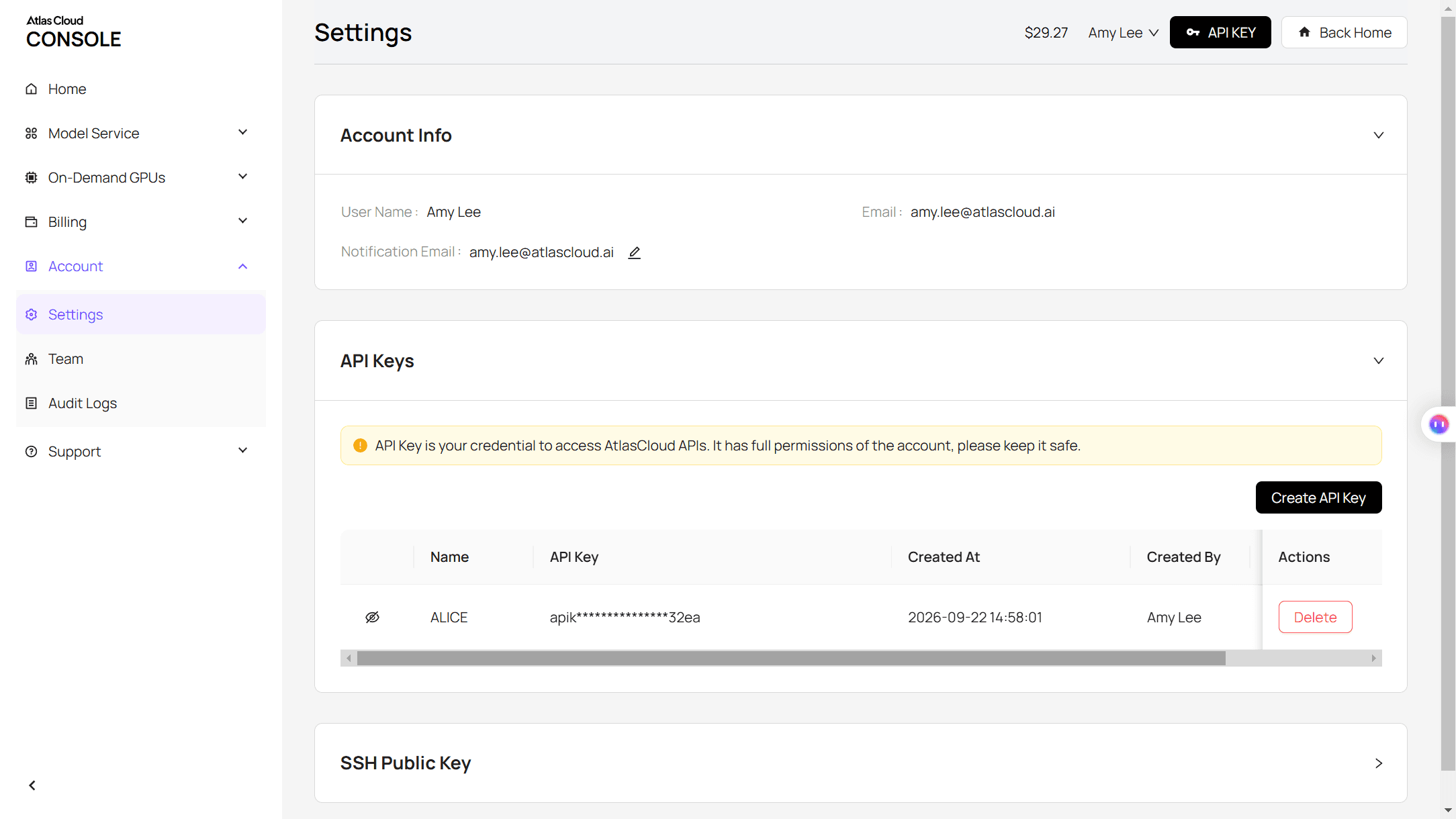
步驟 1:在 Atlas Cloud 主控台的設定頁面建立並複製 API 金鑰。
步驟 2:在 Atlas Cloud API 文件中,或 Seedance 2.5 圖片轉影片頁面的 API 分頁上,查看請求格式。第一幀放在名為 image 的欄位,最後一幀放在 last_image,兩者皆為 URL。
步驟 3:提交片段,然後輪詢檔案。 這裡的提示詞經過刪減;請貼上方法 1 的完整提示詞。
plaintext1curl -X POST https://api.atlascloud.ai/api/v1/model/generateVideo \ 2 -H "Authorization: Bearer $ATLASCLOUD_API_KEY" \ 3 -H "Content-Type: application/json" \ 4 -d '{ 5 "model": "bytedance/seedance-2.5/image-to-video", 6 "image": "https://your-cdn.com/solar-core-first-frame.png", 7 "last_image": "https://your-cdn.com/black-last-frame.png", 8 "prompt": "A high-end AAA game skill effect seen from far away: a small solar crescent slash impact. Pure black background, fixed camera, only the effect is in frame. 0-1 s: the core implodes to a white point. 1-2 s: a short crescent of plasma cuts through it. 2-3 s: one thin shockwave ring expands and fades. 3-5 s: the fire dies out until the frame is pure black.", 9 "duration": 5, 10 "resolution": "1080p", 11 "generate_audio": false 12 }'
plaintext1curl https://api.atlascloud.ai/api/v1/model/prediction/<prediction_id> \ 2 -H "Authorization: Bearer $ATLASCLOUD_API_KEY"
輪詢直到狀態顯示為 completed,然後從 outputs 下載 MP4。同一個端點與金鑰可以存取 Atlas Cloud 上的其他影片模型,因此在另一個模型上測試特效只需要更改一個字串。
用 FFmpeg 將 MP4 轉成 Sprite Sheet
我們的 1080p 片段以 1440×1440 MP4 檔案返回,24 fps 共 121 幀。翻頁動畫不需要全部影格。我們保留 64 幀,足夠組成 8×8 網格,並用一行指令打包:
plaintext1ffmpeg -i orb.mp4 -vf "fps=12.8,format=gbrp,colorlevels=rimin=0.08:gimin=0.08:bimin=0.08,crop=1180:1180:113:108,scale=256:256:flags=lanczos,tile=8x8" -frames:v 1 orb_sheet.png
從左到右閱讀濾鏡鏈:
- fps 將片段重新取樣為每秒 12.8 幀,也就是 5 秒內共 64 幀。
- format 與 colorlevels 提高黑點,讓邊緣附近的微弱輝光變成真正的黑色,且沒有任何格子顯示邊界。我們的片段是 10-bit,必須先轉換成 RGB。
- crop 裁掉特效周圍的空白黑色,讓每個格子都填得飽滿。請量測你自己的片段並更改那四個數字。斬擊本身已填滿畫面,所以那一個我們省略了 crop。
- scale 將格子尺寸設為 256 像素。
- tile 將影格排列成網格。
輸出是一張 2048×2048 PNG。
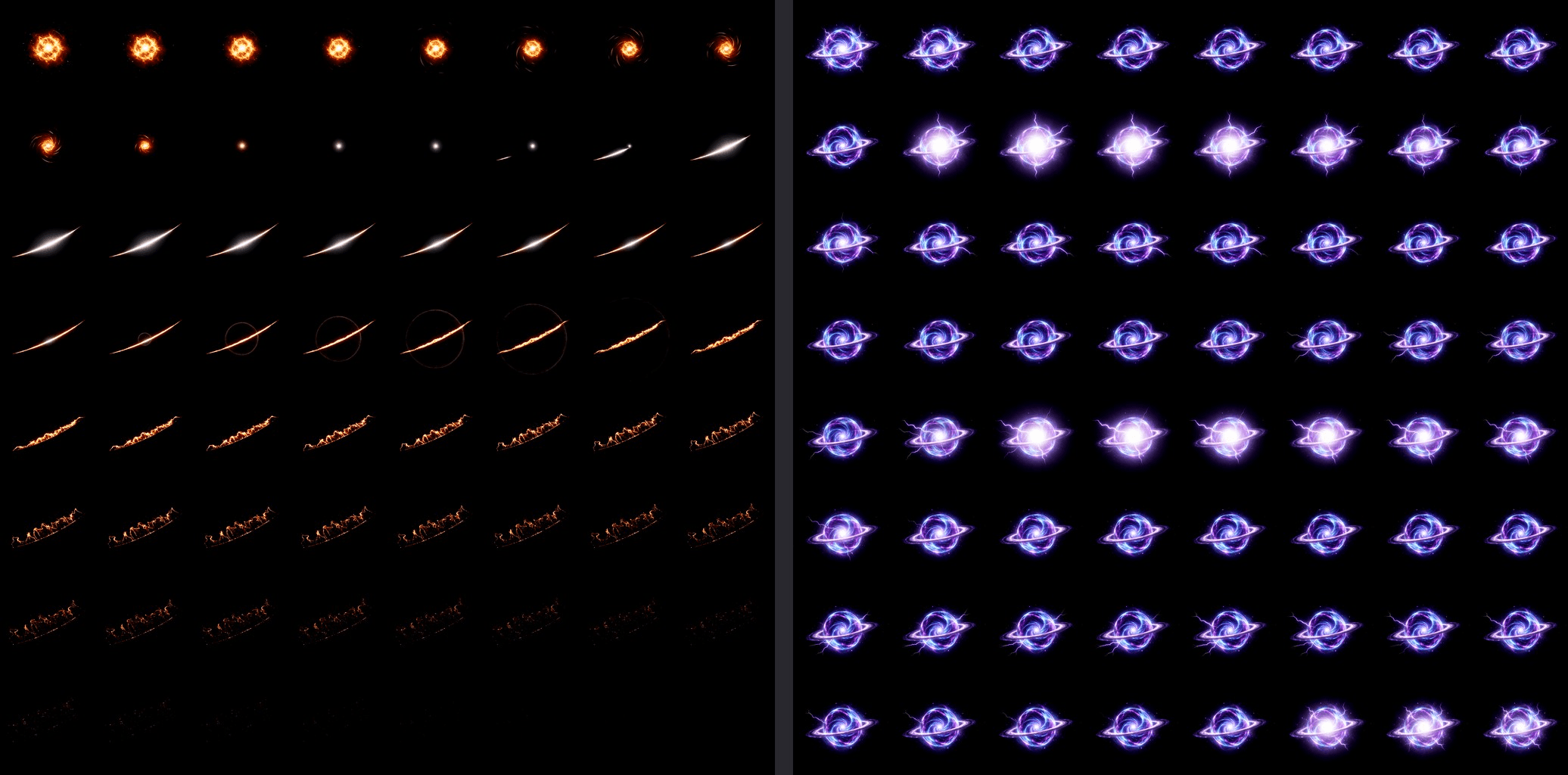
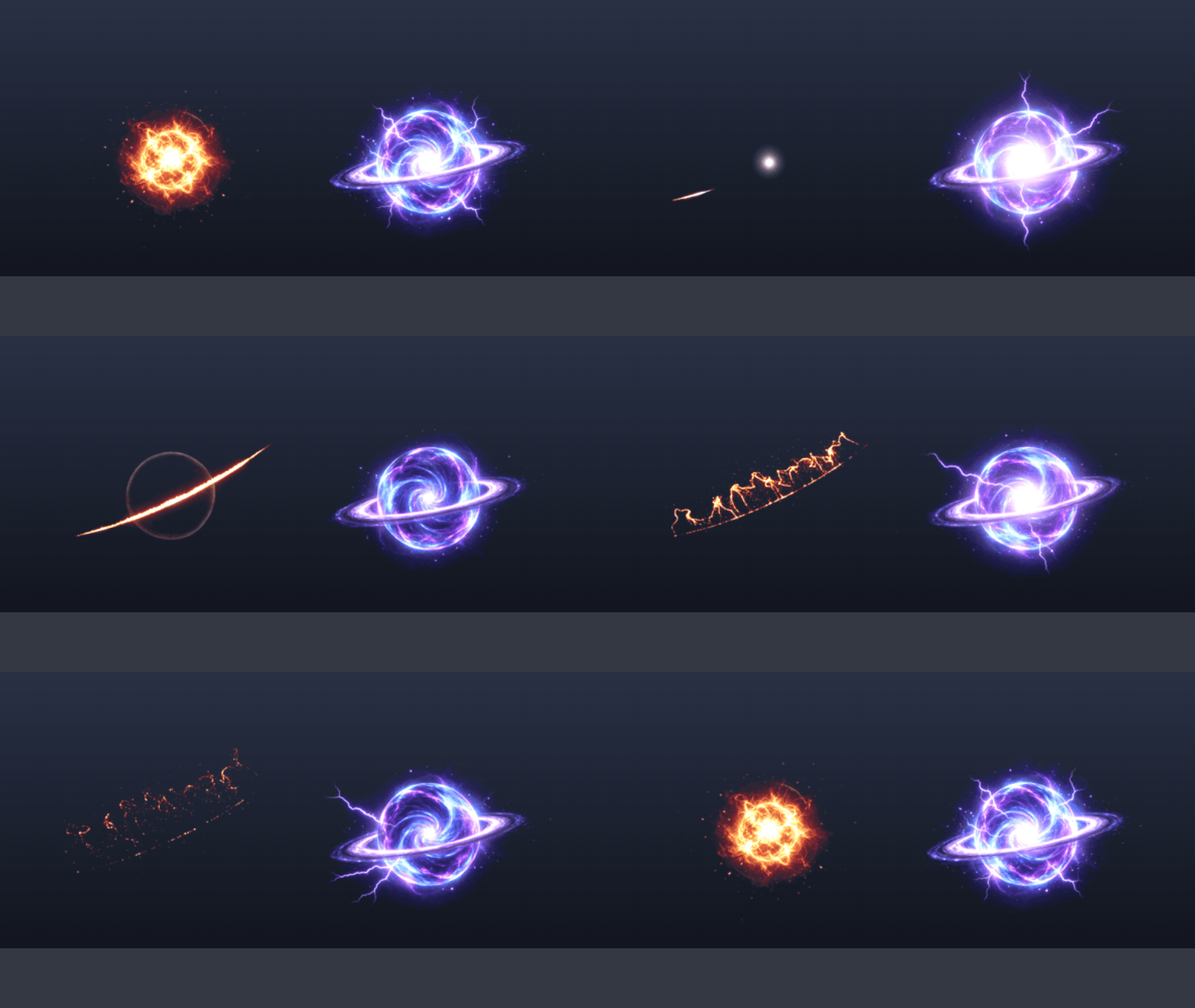
MP4 轉 Sprite Sheet 這一步也是你設定播放速度的地方。以 12.8 fps 播放 64 幀,特效會維持原本的 5 秒。以 24 fps 播放,斬擊會在不到 3 秒內迅速閃過。
爆炸 Sprite Sheet 或循環能量球:兩種最後一幀設定
遊戲特效分為兩種。一次性特效播放一次就消失:命中火花、斬擊命中、爆炸 Sprite Sheet。循環特效則會在法術維持期間持續播放:施法者手中的能量球、火把、光環。最後一幀就是你告訴模型想要哪一種的方式。
| 一次性爆發 | 無縫循環 | |
|---|---|---|
| 第一幀 | 純黑背景上的特效,尺寸小 | 純黑背景上的特效,最終尺寸 |
| 最後一幀 | 純黑色方塊 | 與第一幀相同的圖片 |
| 提示詞結尾 | 淡出直到畫面全黑 | 回到與第一幀完全相同的形狀 |
| 我們的測量結果 | 最後一幀最亮像素為 255 中的 3 | 第 121 幀與第 1 幀在 0 到 255 尺度上相差約 0.8 |
| 在引擎中 | 播放一次,然後釋放節點 | 循環開啟 |
至於循環,我們將同一張能量球圖片上傳到兩個欄位,並要求原地旋轉的電漿。
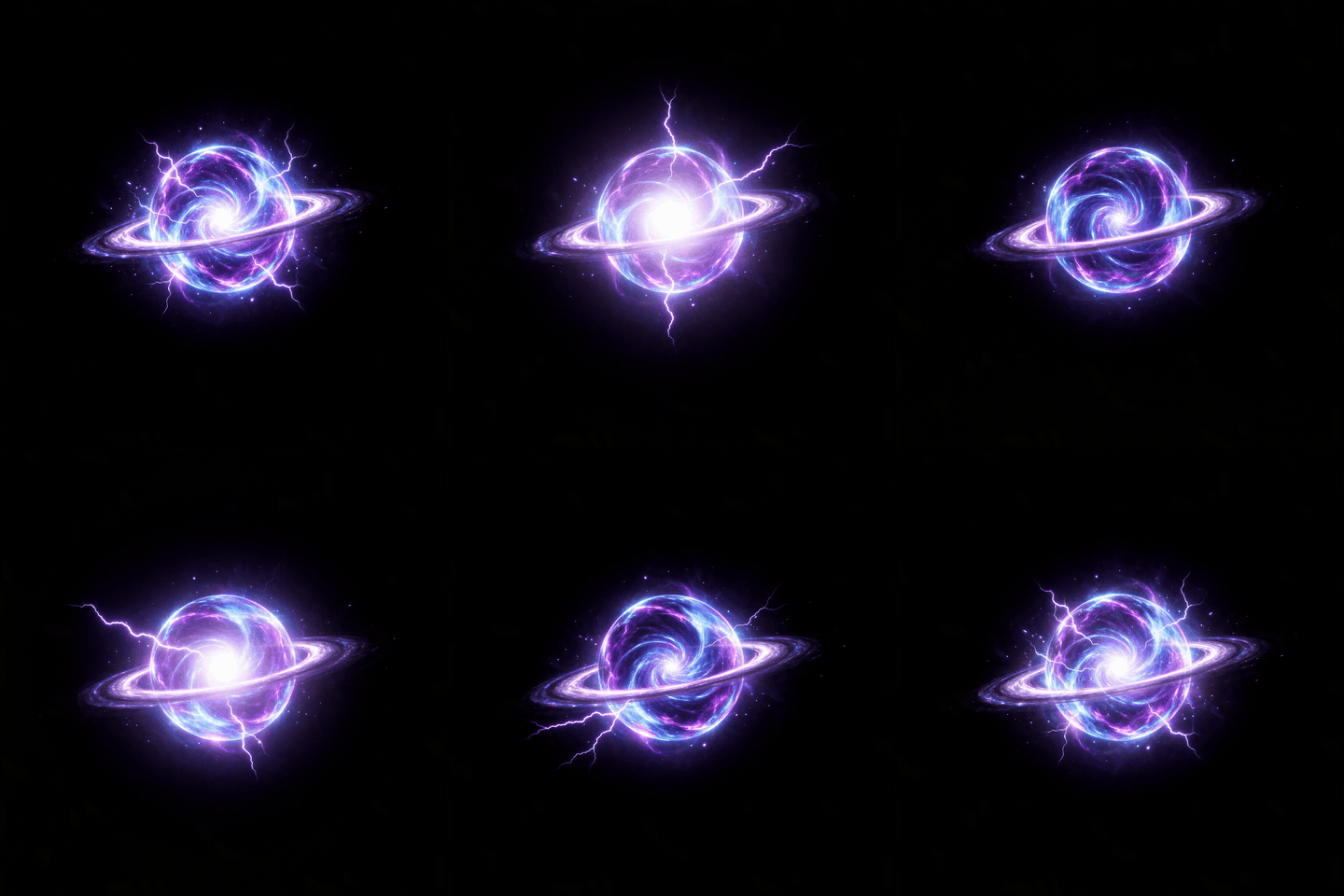
因為片段結束於開始的位置,64 幀 Sprite Sheet 不需額外處理就能循環。像上述指令一樣以固定速率取樣整個片段,最後一格就會接回第一格。
Godot 翻頁動畫的 Sprite Sheet 動畫設定
Godot 自家的 2D Sprite 動畫 教學涵蓋了標準 Sprite2D 節點上由 AnimationPlayer 驅動的 Sprite Sheet。那就是我們在 Godot 4.7 中使用的設定,另外針對黑色背景做了一項材質變更。
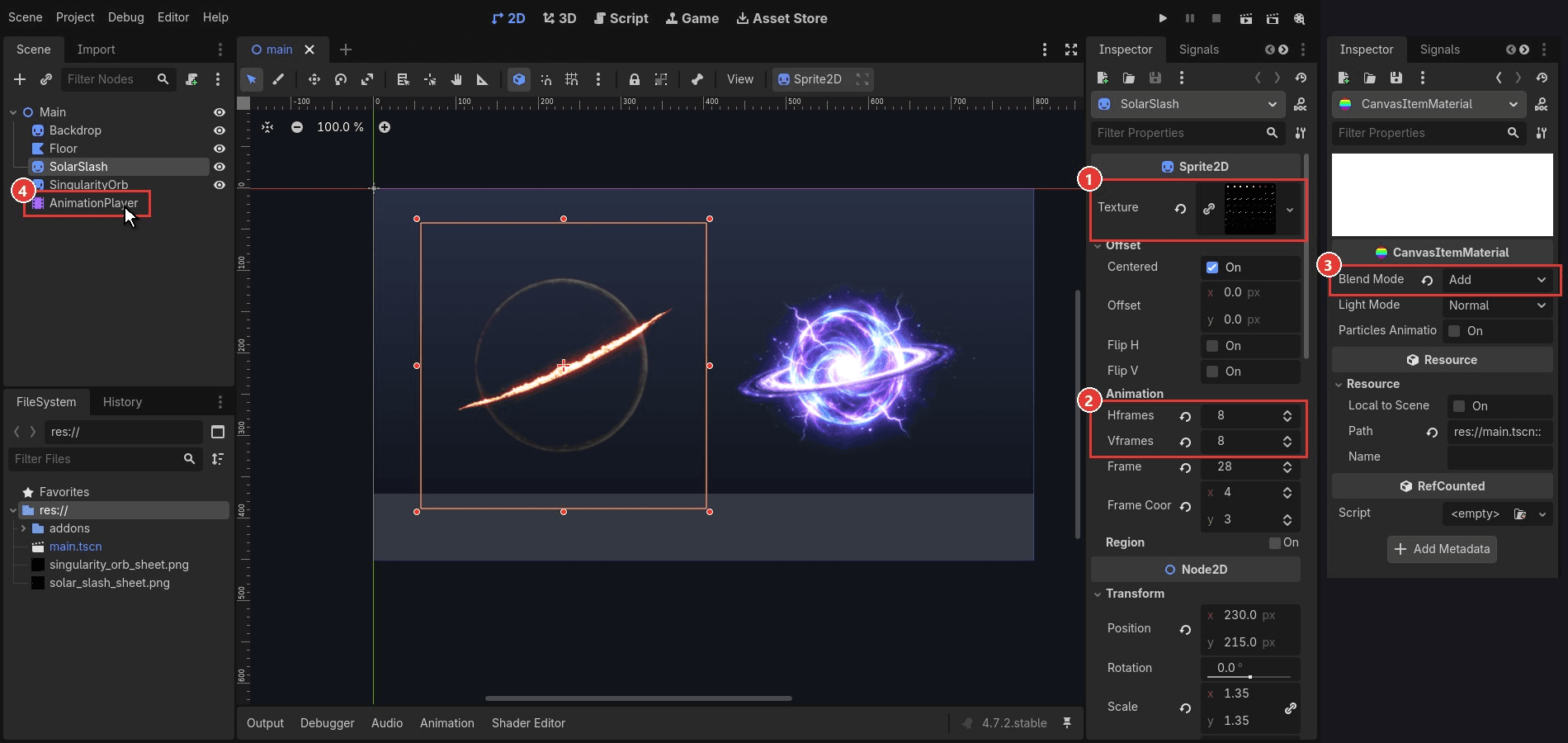
- 新增 Sprite2D,並將 Sprite Sheet 拖到 Texture。
- 在 Animation 下,將 Hframes 設為 8、Vframes 設為 8。此時 Sprite 會顯示單一格子。
- 在 Material 下,建立 CanvasItemMaterial,並將 Blend Mode 設為 Add。
- 新增 AnimationPlayer,並將 Frame 屬性設關鍵影格:開始時為 0,4.92 秒時為 63。
步驟 3 就是片段要在黑色背景上拍攝的原因。加法混合會將每個像素的顏色加到其後方內容上,而黑色不會加入任何東西。背景不需去背、也不需要 Alpha 通道就會消失。
AI Sprite Sheet 生成器適合用在哪裡
搜尋 AI Sprite Sheet 生成器,第一頁大多都是為角色打造的:走路循環、待機與攻擊動畫。那是不同工作,規則也不同。
| 角色 Sprite 工具 | 遊戲 VFX 的影片轉 Sprite Sheet | |
|---|---|---|
| 典型主體 | 必須維持造型一致的角色 | 火、冰、煙、能量 |
| 每個動作的幀數 | 走路循環可以只有 8 幀 | 我們每張 Sprite Sheet 都是 64 幀 |
| 背景處理 | 透明 PNG | 黑色,透過加法混合移除 |
| 困難之處 | 每個影格的比率完全一致 | 讓特效保持在畫面內 |
所以依主體來選擇。英雄的跑步循環屬於角色工具,因為影格之間的一致性正是重點。一顆沸騰成煙霧的火球沒有比率需要保護,而影片模型的連續動態正是它所需要的。
常見問題
我可以用同樣方式把 GIF 轉成 Sprite Sheet 嗎?
可以。FFmpeg 能讀取 GIF 檔案,所以同樣的指令也能以 GIF 作為輸入。但預期顏色會較粗糙,因為 GIF 每幀限制為 256 色。如果你有原始 MP4,請從它開始。
VFX Sprite Sheet 應該要有多少幀?
這取決於特效在畫面上停留多久。我們為一段 5 秒片段使用了 8×8 網格中的 64 幀。快速的命中火花用 4×4 網格中的 16 幀就夠了。更多幀意味著更大的材質,因此一閃而過的小型特效很少需要 64 幀。
這在 Unity 或 Unreal 中也能用嗎?
Sprite Sheet 是單純的 PNG 網格,因此不受限於單一引擎。在 Unity 中,Particle System 的 Texture Sheet Animation 模組也接受相同的 8×8 圖塊數量。在 Unreal 中,Niagara Sprite 使用 SubUV 設定達成相同目的。我們只在 Godot 中測試播放。
如果我的引擎需要透明背景怎麼辦?
在 tile 之前加入 FFmpeg 的 colorkey 濾鏡,例如 colorkey=black:0.12:0.1。它會將接近黑色的像素設為透明,而我們的測試輸出是 RGBA PNG。特效的暗部邊緣會變成部分透視,因此在未處理的黑色 Sprite Sheet 上使用加法混合通常看起來更乾淨。
一段特效片段要多少錢?
截至 2026 年 11 月 13 日,Atlas Cloud 上一段 5 秒 1080p Seedance 2.5 圖片轉影片片段定價約為 $3.00。那是促銷價,比 $3.75 的定價低 20%。相同片段在 720p 約為 $1.52,並以 960×960 返回,仍遠大於 256 像素的格子。
AI VFX 生成器是同一回事嗎?
這個標籤涵蓋不只一種工具。有些會直接從文字提示詞生成 Sprite Sheet。這裡的工作流程更狹窄:一般影片模型繪製動態,而你自己控制格子尺寸、影格數與混合方式。
結論
兩張特效靜態圖、兩段提示詞,以及每段影片一行 FFmpeg 指令,就讓我們得到能在引擎中播放的斬擊命中與循環效果。最後一幀主導了大部分結果:會結束的特效用黑色,會重複的特效則再次使用第一幀。在黑色背景上拍攝意味著引擎能免費移除背景。
如果你想在自己的遊戲中試試影片轉 Sprite Sheet,先從一個特效與一段 5 秒片段開始。檢查它是否保持在畫面內,以 8×8 打包,然後放到使用加法材質的 Sprite 上。一旦這個能播放,法術書裡的其他內容也只是一樣步驟、換一張第一幀。