You shot the clip in April. The client now wants it to look like January, and the orange barriers in the background have to go. Nobody is paying for a reshoot.
That is the moment people search for the best AI video editor, and the roundups they land on mix two very different kinds of software under one name. Some tools cut, caption and reframe the footage you already have. Others rewrite the pixels in the frame when you type an instruction. A list that ranks both on the same scale tells you very little about which one fixes your problem.
So this list sorts them first. We ran one 5 second street clip through three written edits, read every vendor's pricing and help pages in September 2026, and ranked ten tools on what a free account actually exports, what the AI really changes, and what one finished video costs. The comparison table comes first, then the tools in order.
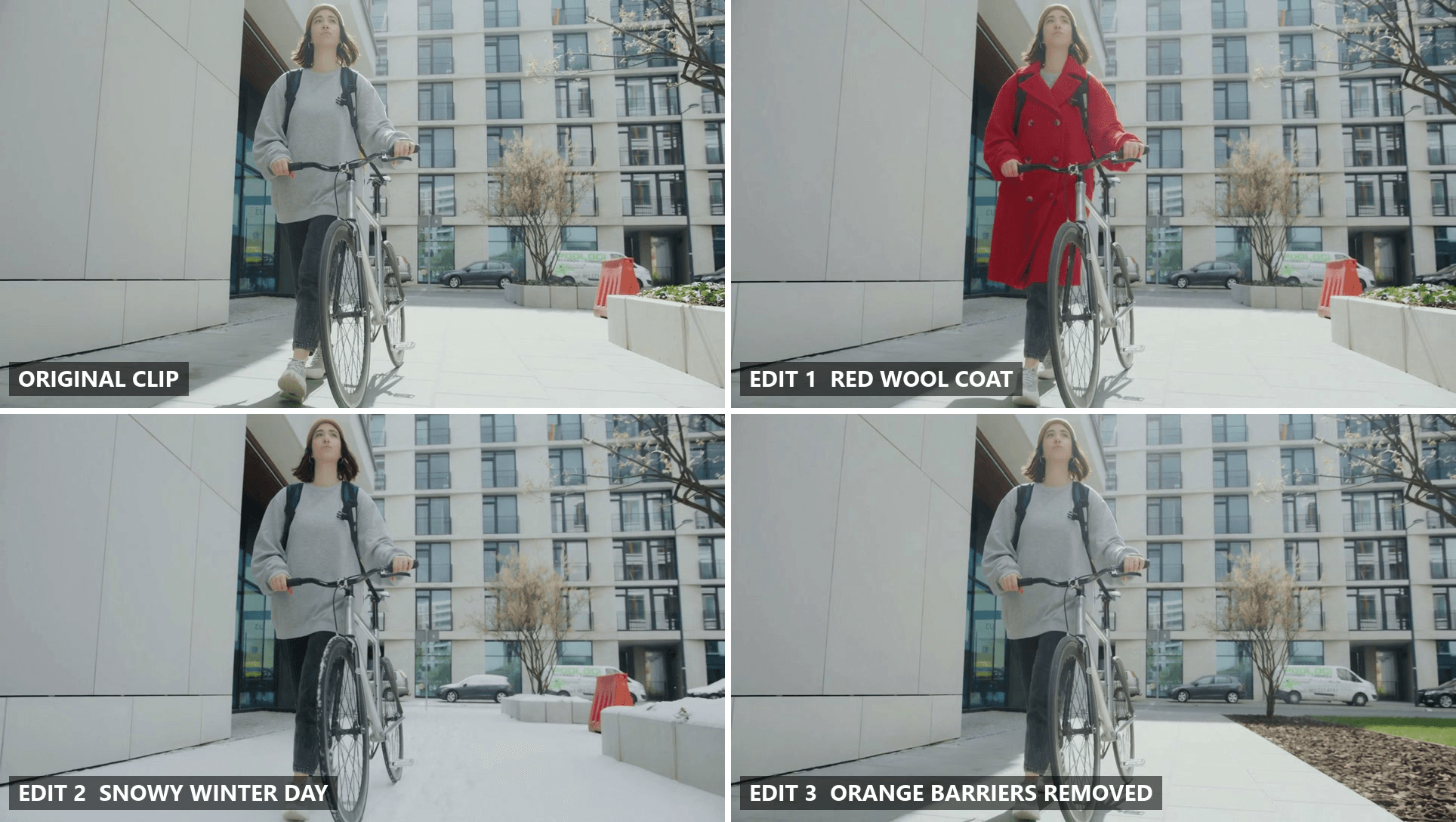
The same frame, 2.5 seconds in, from our source clip and the three edits Seedance 2.5 returned on Atlas Cloud. Each edit came from one written prompt, with no mask and no keyframes. The source is a Pexels stock clip.
Key Takeaways
- "AI video editor" covers two jobs: assistive tools trim and caption the footage you shot, while generative tools rewrite what is in the frame from a written instruction.
- The Video Edit generator on Atlas Cloud turned one street clip into three versions from three prompts, and the walk and the camera move stayed intact in all of them.
- Two of the ten, Atlas Cloud and Runway, are built around prompt edits to existing footage, while Premiere Pro and Filmora add generativeextensionon top of a timeline.
- Free plans split sharply: DaVinci Resolve and CapCut export at full resolution for free, while Descript Free stops at 720p, Filmora's free version watermarks, and Premiere Pro and InVideo AI have no free plan.
- YouTube asks creators to disclose edits that alter footage of a real place or event, while color changes and filters need no label.
Best AI Video Editor Comparison Table
Two of the ten tools are built around editing the pixels of footage you already shot from a text prompt: Atlas Cloud and Runway. Two more, Adobe Premiere Pro and Wondershare Filmora, put generative extension and removal tools on top of a regular timeline. The other six mainly cut, caption, clip or assemble what you give them.
On the money side, eight of the ten let you in for free in some form, while Premiere Pro and InVideo AI start at a paid plan. Published entry prices run from $12 a month billed annually at Runway to $22.99 a month for Premiere Pro, with two outliers that skip the monthly model: Filmora Basic at $59.99 a year and a $295 one-time license for DaVinci Resolve Studio.
| Tool | Best for | Free tier | Entry paid plan | How the AI edits | Runs on |
|---|---|---|---|---|---|
| Atlas Cloud | Changing what is in a shot you already filmed | Free browser video upscaler with no account; edits pay as you go | No plan, per second billing from one balance | Generative: rewrites the clip from a prompt, 7 models | Atlas Cloud servers, via browser or API |
| Descript | Talking-head, podcast and interview video | 720p export, 100 one-time AI credits | Hobbyist $16/mo billed annually | Assistive: edit the video by editing its transcript | Desktop and web app |
| CapCut | Short-form social video on a phone | Free app, export up to 8K | Pro $19.99/mo, varies by region | Assistive: captions, background removal, templates | Mobile, desktop and web |
| Adobe Premiere Pro | Professional timelines | None, subscription only | $22.99/mo on an annual plan | Assistive, plus Generative Extend up to 2 seconds | Desktop, with generative tools in Adobe's cloud |
| Runway | Generative experiments on real footage | 125 one-time credits, Aleph not included | Standard $12/mo billed annually | Generative: Aleph edits clips up to 30 seconds | Browser, Runway's cloud |
| DaVinci Resolve | Free local editing and color | Free version exports Ultra HD | Studio $295 one-time | Assistive: Neural Engine masking, reframing, object removal | Desktop |
| OpusClip | Cutting long video into short clips | Watermarked clips up to 1080p, exportable for 3 days | Starter $15/mo | Assistive: finds and cuts highlight moments | Browser and mobile, OpusClip's cloud |
| Wondershare Filmora | Hobbyist desktop editing | Free version with watermark | Basic $59.99/yr | Mixed: timeline tools plus AI Video Extend | Desktop, AI features in the cloud |
| InVideo AI | Prompt-to-video for social posts | None | Starter $20/mo | Assistive transcript editing plus generated B-roll | Browser and mobile |
| Canva | Template video for non-editors | 20 AI uses, 5GB storage | Pro US$144/yr | Prompt assembles your uploaded clips and images | Browser and mobile |
How We Tested Every AI Video Editor on This List
Every price, limit and plan detail in this article came off the vendor's own pricing, feature, help or policy pages, read on September 28, 2026. Review scores came from Trustpilot, the App Store and Google Play the same day. G2 blocks automated reads, so it is not used here.
The hands-on part is narrow, and it is worth saying exactly how narrow. We ran one clip through three prompt edits on Atlas Cloud, using Seedance 2.5 in the model's reference-to-video playground at 720p. We did not run the same clip through the other nine tools, most of which need a paid plan or an account for their AI features, so this article does not claim a picture quality ranking between them.
| Test input | What we asked for | What came back |
|---|---|---|
| Pexels stock clip "Woman Walking with her Bike", first 5 seconds, 1280 x 720, audio removed | "Change only her grey sweatshirt into a bright red knee-length wool coat, buttoned, same fit as she walks," plus a list of everything to keep | A red double-breasted coat through the whole walk, backpack straps still on top |
| Same clip | "Turn this into a snowy winter day," with snow on the pavement, planters and parked cars, and the woman, bike and camera move locked | White pavement, snow on the planters and car roofs, her grey sweatshirt unchanged |
| Same clip | "Remove the orange traffic barriers in the background behind her," with the pavement and planter rebuilt | Barriers gone, the corner rebuilt as a planted bed |
Four criteria decided the ranking:
- What leaves the tool on a free account. A watermark, a 720p cap, a three day expiry or a plan wall all mean the same thing in practice: you do not have your finished video yet.
- WhattheAI actually edits. Whether it changes the pixels in the frame, extends a shot, or organizes footage you already have, and whether the vendor publishes the clip length and resolution it works on.
- Price transparency. A number printed on the page beats a number behind a signup, and a monthly price beats a promotion with a countdown timer.
- Wherethework happens. On your own graphics card, in the vendor's cloud, or both, which decides what hardware you need and where your footage travels.
The second one carries the most weight. A tool that captions beautifully cannot remove a traffic barrier, and a tool that removes the barrier will not tighten a 40 minute interview. Matching the kind of AI to the job matters more than any feature count.
Disclosure: Atlas Cloud publishes this article and operates the tool ranked first. No other tool here paid for placement, and every one of them is described from its own published pages.
1. Atlas Cloud: Best AI Video Editor for Prompt-Based Edits
Upload a clip, write what should change, and the whole shot comes back rewritten with everything you did not mention held in place. That is how the three versions in the hero image were made, and the loop below shows them in motion.
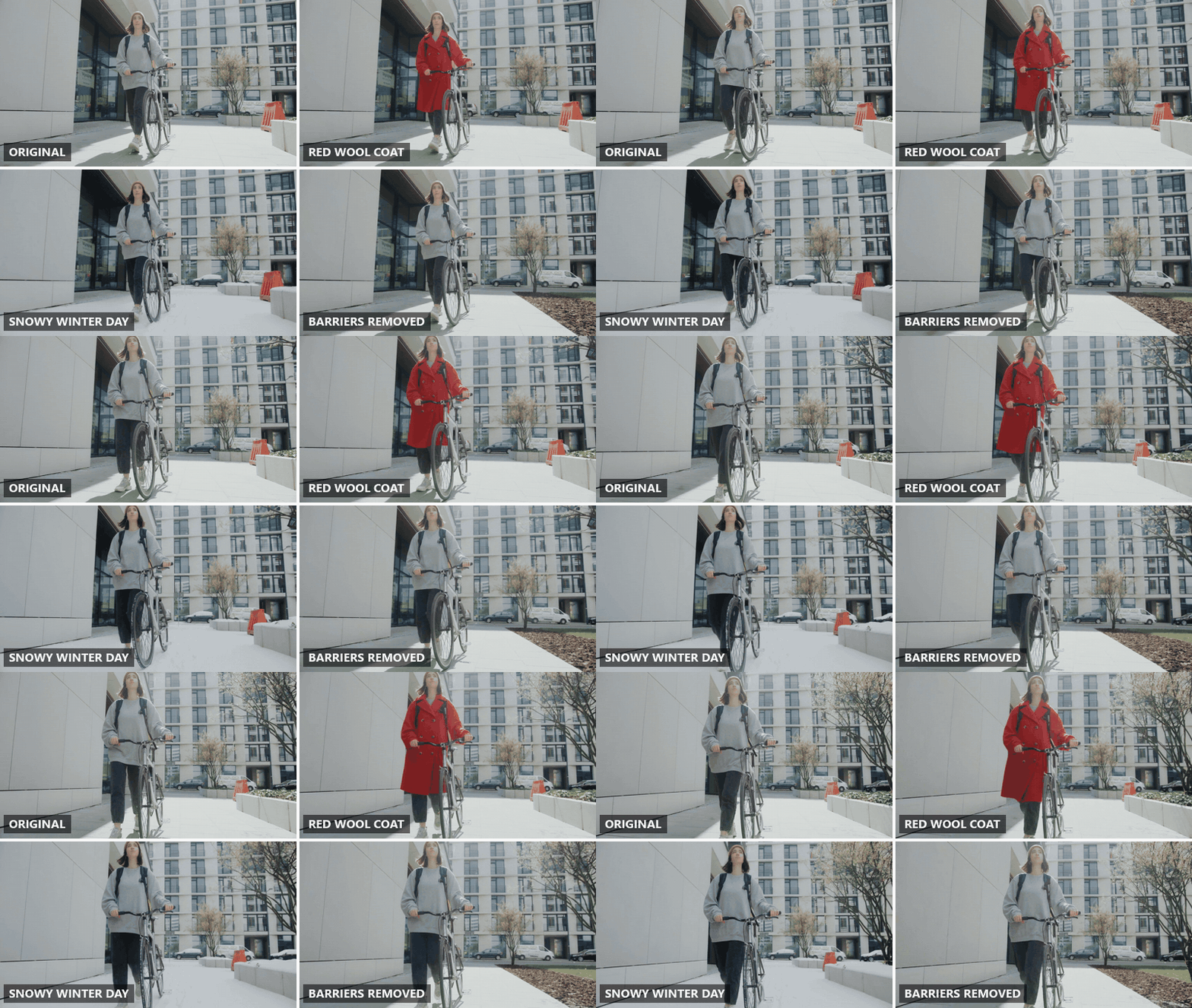
All four panels play in sync at the same speed. The edits kept her stride, the handlebar grip and the low tracking camera from the source.
To run the same kind of edit, open the AI video generator and switch to its Video Edit tab.
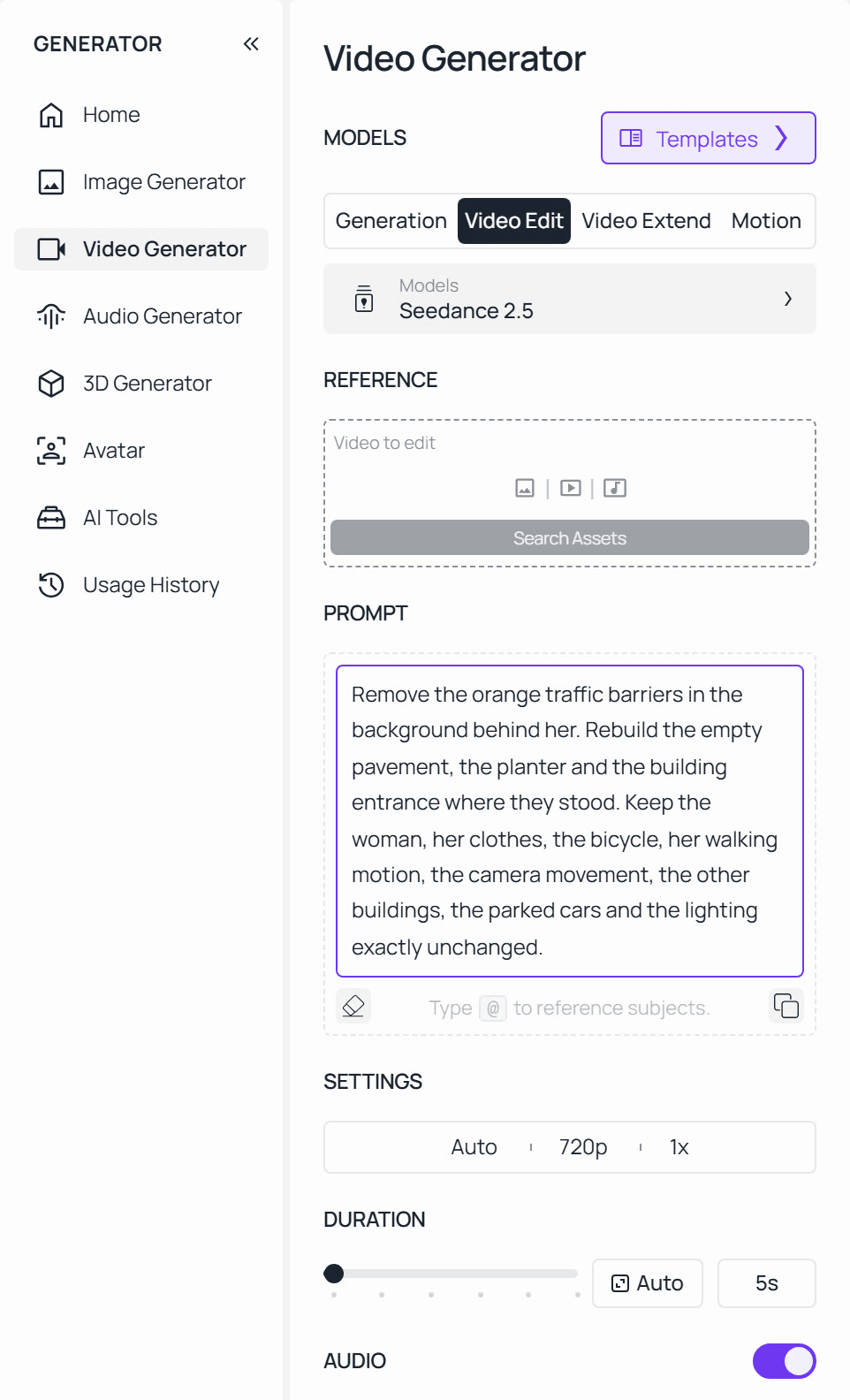
The Video Edit tab before a clip is added. The source video goes in the Video to edit slot, and the prompt shown is the one that removed the barriers.
Atlas Cloud puts seven editing models behind that one tab, with Seedance 2.5 selected by default and Seedance 2.0, Gemini Omni Flash, HappyHorse 1.0, Wan 2.7, Kling Video O3 Pro and Grok Imagine a click away.
The prompts that worked were specific in two directions. Each named the one thing to change and then listed what had to stay: her face, the bike, the walking motion, the camera movement. The same pattern held up on harder footage in our guide to removing objects from video, where a subject in front of dense foliage needed the background described before the removal was clean.
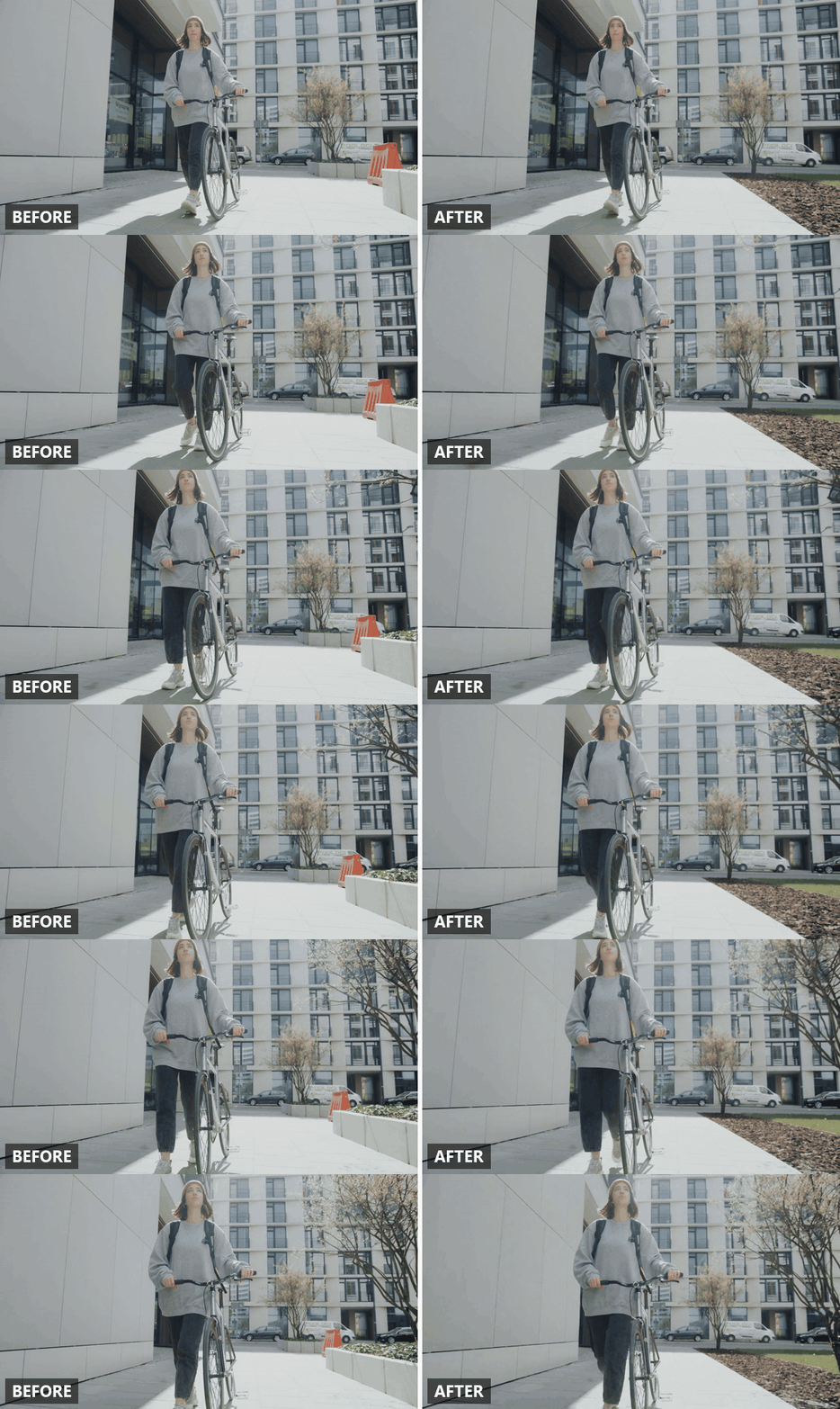
The removal at full width. Her stride, the bike and the low tracking camera follow the source, and only the area behind her was rebuilt.
The tab sits next to two others worth knowing. Video Extend adds seconds to the end of a clip, with Grok Imagine as its default model, and Motion moves a character image to match a motion reference video, with Kling 3.0 Pro by default.
Why it stands out: Seven editing models share one tab and one balance, so a prompt that stalls on one model can be retried on another without re-uploading anywhere else or opening a second account.
Best for: Changing what is in a shot after the fact. Wardrobe, weather, a sign or an object that should not be there, a product swapped for next season's version, all on footage you already shot and approved.
Pricing: There is no subscription. Edits bill per second from the same Atlas Cloud balance that covers every other model on the platform, and the Run button shows the cost before you submit. For sharpening a finished short clip, the free browser video upscaler on Atlas Cloud needs no account.
2. Descript: Best AI for Video Editing by Transcript
Descript turns a recording into a document. Delete a sentence from the transcript and the matching video disappears from the timeline, which is why it keeps showing up wherever people talk to a camera for a living: podcasts, interviews, course recordings, webinars. Its AI layer, called Underlord, sits on top of tools like Studio Sound for cleaning audio, Remove Filler Words and Eye Contact.
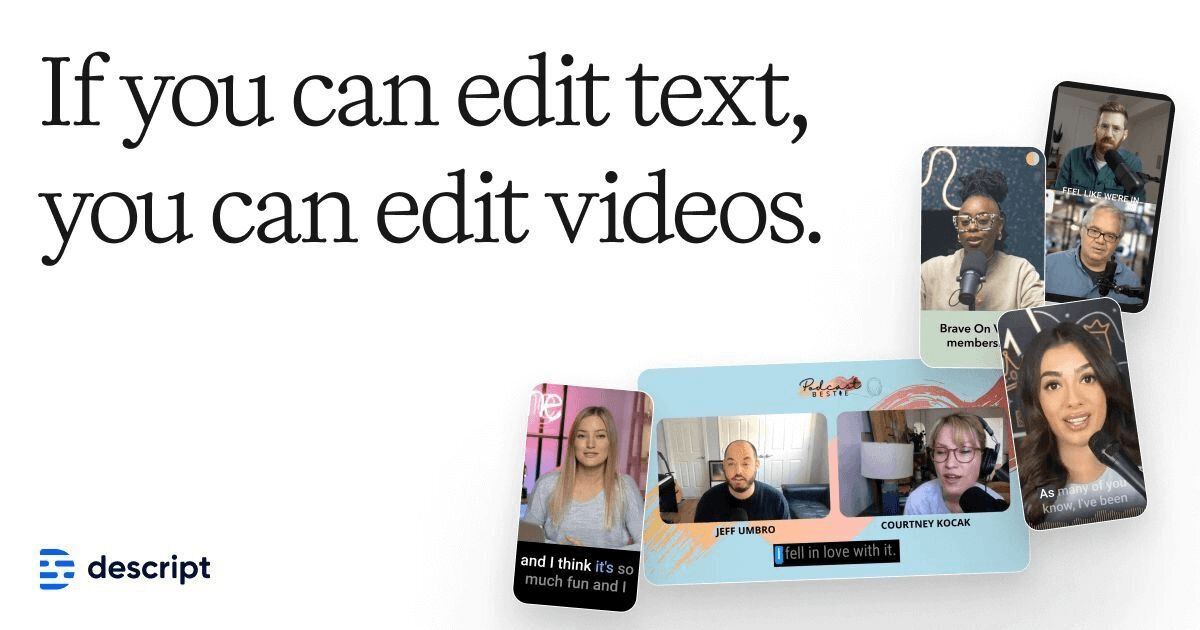
Image from Descript's official pricing page, September 2026.
Where the free tier stops you: At the export. Descript's pricing page lists Free exports at 720p with a watermark. You also get 60 minutes of transcription a month and 100 AI credits once, not monthly.
What one usable video actually costs: The Hobbyist plan is $16 a month billed annually or $24 month to month, the page noting a saving of up to 35 percent on the annual plan. It includes 10 media hours and 400 AI credits a month and exports at 1080p without a watermark.
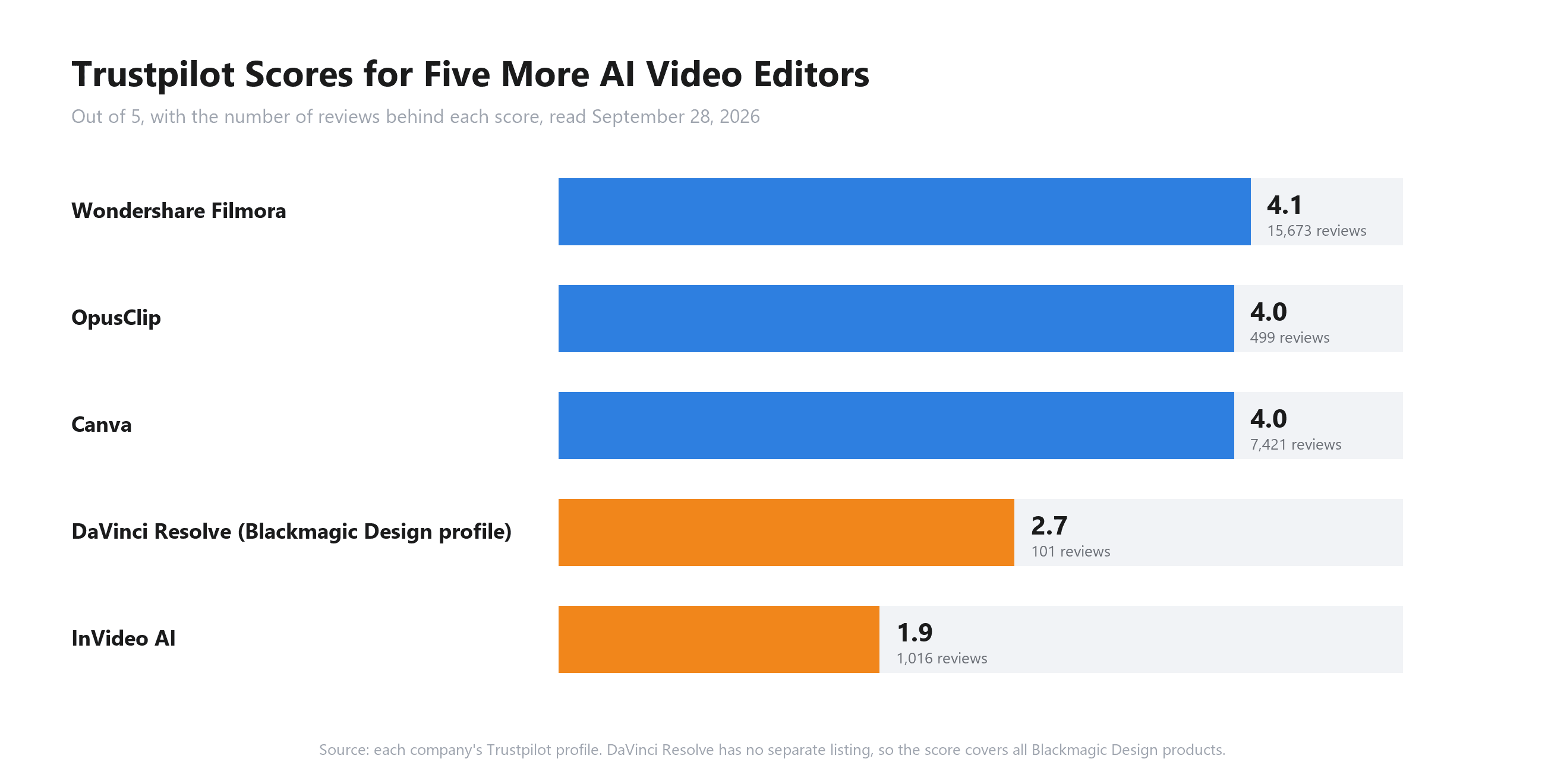
What users report: Trustpilot shows 2.7 out of 5 from 288 reviews. We found no Descript-branded app in the App Store to add a store rating from.
Where it falls short for AI video editing: Descript's AI works on speech. It will cut the ums and fix where your eyes are looking, but it is not built to put snow on a street or take an object out of the frame. A video without much talking gives the transcript editor very little to hold on to.
Fits: Podcasters, course creators and anyone who records themselves talking. Not for you if: your footage is mostly visuals with no dialogue to edit around.
3. CapCut: Best AI Video Editing App for Short-Form Video
CapCut is a free editor built around short social video, with versions for phones, desktop and the web. Its own comparison article, dated September 23, 2026, says both the free and Pro tiers can save video in 8K, so resolution is not where its free tier stops you.
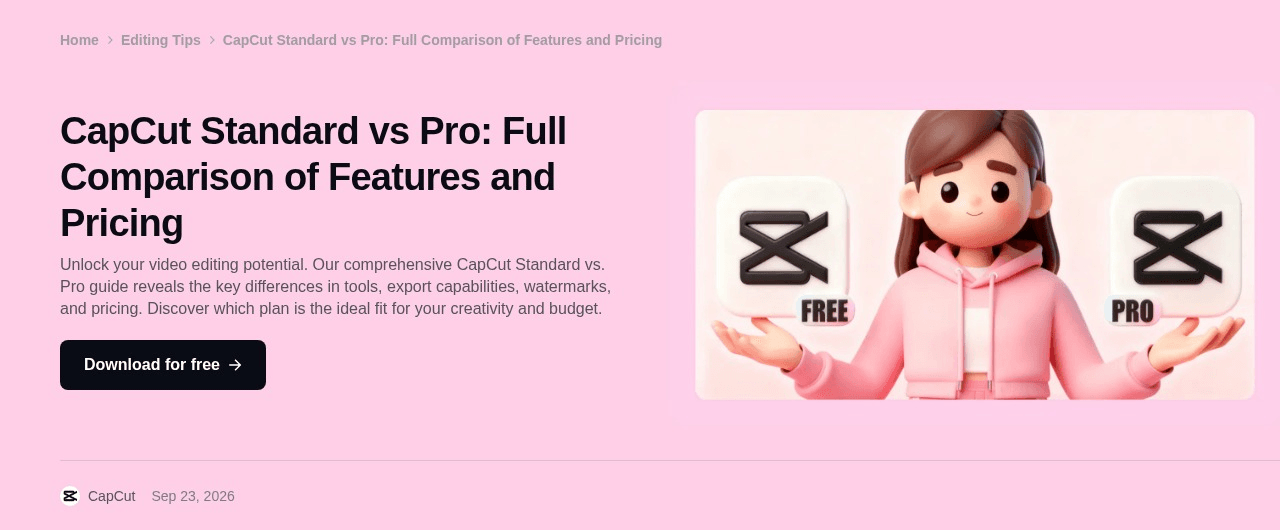
Screenshot from CapCut's official Standard vs Pro article, September 2026.
Where the free tier stops you: At the AI tools. The same article lists the auto caption generator, background remover, motion tracking, noise reduction, AI video, AI music and advanced video enhancement among the Pro features. The editor and the export are free; most of the AI is not.
What one usable video actually costs: Pro is $19.99 a month or $179.99 a year for individual users. CapCut adds that prices can vary by region, platform, taxes and promotions, and it publishes no single fixed pricing page.
What users report: Two very different pictures. The App Store shows 4.6 out of 5 from 1.1 million ratings and Google Play 3.6 from about 13 million, while Trustpilot shows 1.2 out of 5 from 1,306 reviews, most of them one star.
Where it falls short for AI video editing: The AI here serves templates and short social formats. Captions, cutouts and effects are quick, but you are editing inside CapCut's formats rather than rewriting what is in your own footage, and the features you came for are the ones behind Pro.
Fits: Creators posting vertical video several times a week from a phone. Not for you if: you need long-form structure or edits to what is actually in the shot.
4. Adobe Premiere Pro: Best Video Editing AI for Pro Timelines
Premiere Pro is Adobe's professional timeline editor, and Adobe has been adding AI to it one tool at a time: text-based editing, Auto Reframe, Scene Edit Detection, Enhance Speech. The generative piece is Generative Extend, which uses Adobe's Firefly video model to add frames when a shot ends a beat too early.
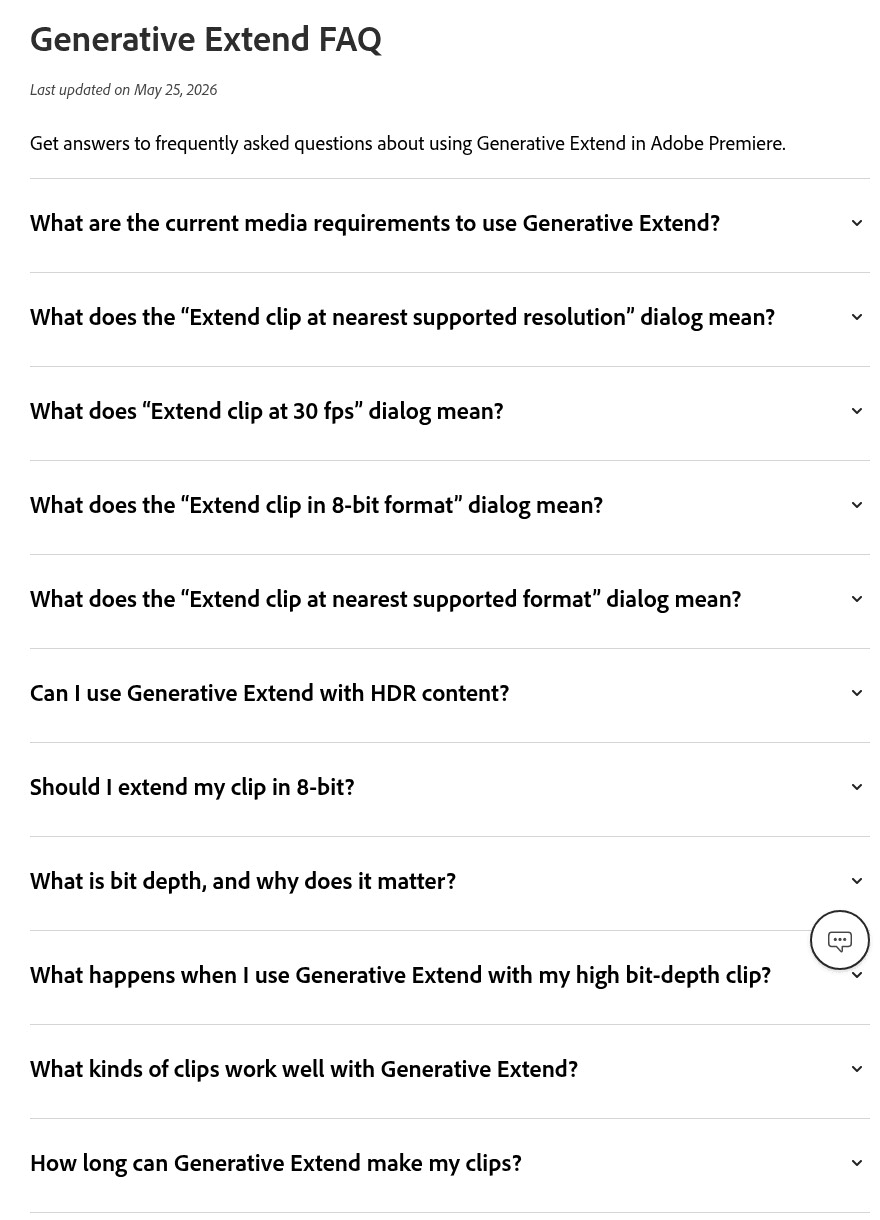
Screenshot from Adobe's official Premiere help center, September 2026. The answers on the page expand under each question.
Where the free tier stops you: There is no free Premiere Pro plan. It is a subscription product, and the separate Firefly app offers a limited number of free daily generations without saying how many.
What one usable video actually costs: Adobe's own pricing FAQ puts Premiere Pro as a single app at US$22.99 a month for individuals on an annual plan, or $263.88 a year prepaid. Generative Extend consumes generative credits, and Adobe says the number depends on the clip's resolution and frame rate. Extra room comes from Firefly plans, starting with Firefly Standard at $9.99 a month for 2,000 generative credits.
What users report: Trustpilot shows 1.1 out of 5 from 7,488 reviews, but that profile covers Adobe as a whole rather than Premiere Pro alone.
Where it falls short for AI video editing: Generative Extend adds up to 2 seconds of video and 10 seconds of audio. It works at 1280 x 720, 1920 x 1080, 3840 x 2160 and 4096 x 2160, with sources between 12 and 60 frames per second. That fixes a cut that ends too soon; it does not change what happens inside the shot.
Fits: Editors who already live in Adobe and want AI inside the timeline they know. Not for you if : you want to change a shot's content rather than trim, extend and grade it.
5. Runway: Best AI Video Editing for Generative Experiments
Runway is the other tool on this list built around rewriting existing footage. Its Aleph model, now at version 2.0, is described on Runway's own research page as an in-context video model for adding, removing and transforming objects, generating new angles of a scene and changing style and lighting. We covered its limits and API in our Runway Aleph breakdown.
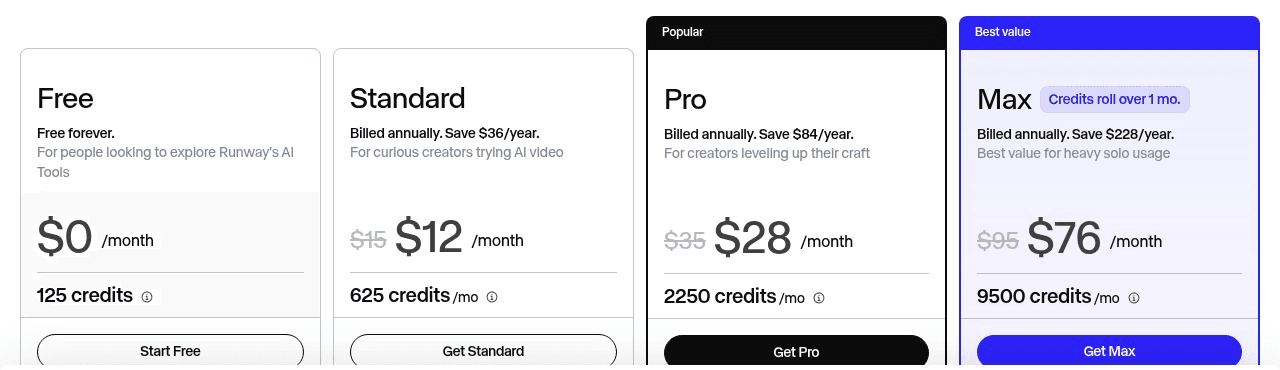
Screenshot from Runway's official pricing page, September 2026.
Where the free tier stops you: Before Aleph. The free plan gives 125 credits once, for lighter tools, and Aleph 2.0 starts at the Standard plan.
What one usable video actually costs: Standard is $12 a month billed annually or $15 month to month, with 625 credits a month. Aleph 2.0 runs at 28 credits a second with a 56 credit minimum, so a month of Standard credits covers about 22 seconds of edited video, less than one clip at the 30 second cap.
What users report: The runwayml.com listing on Trustpilot shows 1.1 out of 5 from 343 reviews.
Where it falls short for AI video editing: Editing runs through a single model, Aleph. If it misreads a prompt on your footage, the fix is another run on the same model, and at 28 credits a second the retries come out of the same small monthly allowance.
Fits: Filmmakers and motion designers testing what generative editing can do to real footage. Not for you if: you need a predictable cost per finished clip.
The Other Five AI Video Editors Worth Knowing
These five missed the top half for one of four reasons: the AI tools sit behind a paid tier, the free export expires or carries a watermark, there is no free plan at all, or the AI works on templates and highlights rather than on what is inside your shot. Each is still the right pick for a specific job.
6. DaVinci Resolve: Best AI Video Editor Free for Local Editing
Blackmagic Design gives away a full editor. The free DaVinci Resolve works with 8-bit formats at up to 60 frames per second and resolutions as high as 3840 x 2160, and it is a separate product rather than a trial. The AI sits in Studio, a $295 one-time purchase: Blackmagic's Studio page lists the DaVinci Neural Engine behind Magic Mask for object isolation and tracking, Smart Reframe, object removal, Super Scale and voice isolation. It is a desktop application, so editing and rendering happen on your own machine. What you give up is time: the interface takes weeks to learn, and in return there is no subscription and nothing leaves your machine.
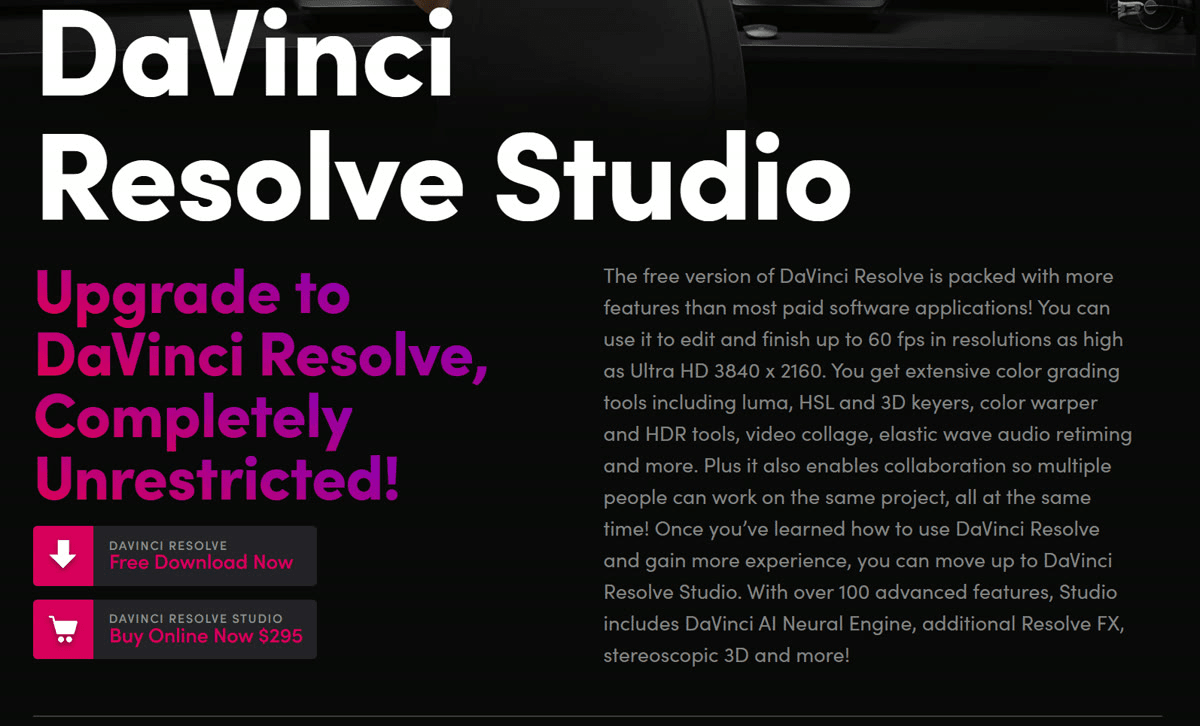
Screenshot of Blackmagic Design's DaVinci Resolve Studio page, September 2026.
7. OpusClip: Best AI Video Editing for Repurposing Long Video
OpusClip does one job: it watches a long video, finds the moments it rates most likely to work as shorts, and cuts, captions and reframes them. The free plan renders watermarked clips at up to 1080p, leaves out the editor, and stops letting you export a clip after three days. Starter is $15 a month, sold monthly only, and removes the watermark; AI B-roll starts on the Pro plan. It turns one podcast into ten clips in minutes, and gives you no say over what is inside any single frame.

Screenshot of OpusClip's pricing page with yearly billing selected, September 2026.
8. Wondershare Filmora: Desktop Editor With AI Video Extend
Filmora is a desktop editor for hobbyists that has been adding generative tools. AI Video Extend adds a few seconds to either end of a clip at 720p or 1080p, and an AI Object Remover sits alongside it. Wondershare's AI privacy page names outside model providers, including OpenAI and PixVerse, behind those features. The free version watermarks exports, and Basic is $59.99 a year. The yearly price is the lowest on this list, though the checkout page was running a countdown discount when we read it.
9. InVideo AI: Best for Prompt-to-Video Social Posts
InVideo AI turns a prompt into a social video built from stock footage and generated B-roll, then lets you edit the result from its transcript, as its AI video editor page puts it. There is no free plan. Starter is $20 a month with 400 credits, which the pricing page itself converts to about 15 fast video generations. A first draft appears in minutes from nothing at all, but footage you shot yourself gets little say in the result.
10. Canva: Best for Template Video Without Editing Skills
Canva's AI video editor asks you to upload clips or pictures, enter a prompt, and let it assemble the video from your material and its templates. The free plan includes 20 AI uses and 5GB of storage, and Canva Pro is US$144 a year for one person with ten times the AI allowance. The trade-off is the easiest start on this list against editing that stays at the level of layout and sequence.
Will an AI-Edited Video Need a Label on YouTube or TikTok?
The export is not the last step. Every edit in our test changed what a real street looked like, and that is exactly the kind of change YouTube, TikTok and Meta now ask about.
YouTube's disclosure policy asks creators to flag content that "alters footage of a real event or place" or "generates a realistic scene that didn't actually occur." It exempts "color adjustment or lighting filters" and "special effects filters, like adding background blur or vintage effects." Snow added to a real street in a realistic style most likely sits on the disclosure side of that line. A warmer grade on the same street does not. Creators who consistently skip the label can face a label applied by YouTube, content removal or suspension from the YouTube Partner Program.
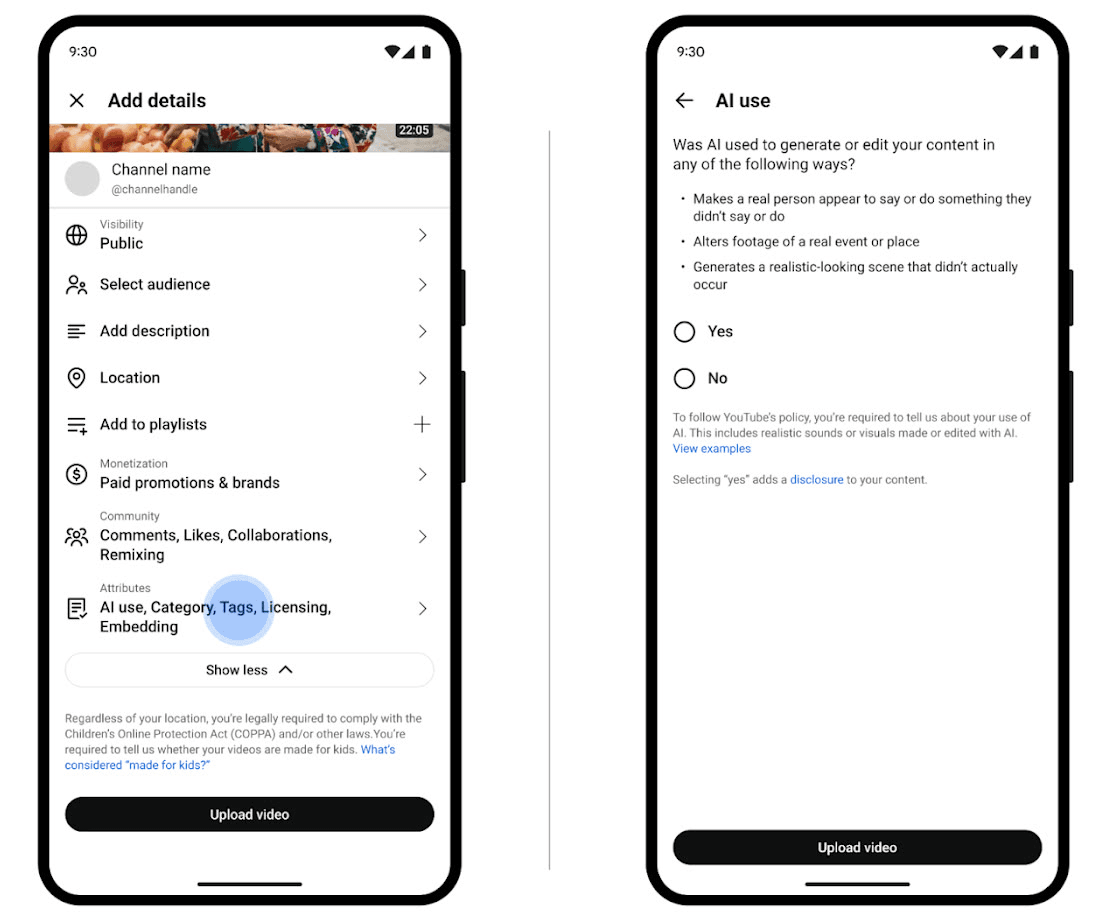
Image from YouTube Help's page on disclosing GenAI content, September 2026. The AI use question sits under Attributes during upload.
TikTok's AI-generated content rules require creators to label AI content "that contains realistic images, audio, and video," and TikTok may apply the label itself when an upload carries Content Credentials, the C2PA provenance metadata some AI tools attach. Meta took a softer line for edits: its labeling update says content only "modified or edited by AI tools" gets its "AI info" label in the post's menu rather than on the post itself.
| Platform | Needs a label | No label needed | What else applies |
|---|---|---|---|
| YouTube | Realistic footage of a real place or event altered, a realistic scene that never happened, a real person made to say or do something | Color and lighting adjustments, beauty filters, background blur, clearly fantastical scenes, AI used for scripts, titles or thumbnails | A label added by YouTube, removal, or suspension from the Partner Program |
| TikTok | Realistic AI-generated or significantly AI-edited images, audio and video | Not itemised; TikTok may auto-label uploads that carry Content Credentials | TikTok may apply the label itself, and some AI content is banned outright |
| Instagram and Facebook | Content Meta detects as AI-generated, or that you disclose | Edits made with AI tools get the label in the post menu instead | A more prominent label for content with a high risk of deceiving the public |
What to do instead: Decide before you edit which version the audience will see and whether it depicts something real. Keep the source file next to the edited one. Tick the platform's AI disclosure box whenever the edit changes a real place, a real event or a real person in a way a viewer could take as filmed, and skip it for grades, blurs and obviously stylized looks.
What Does Reddit Say About the Best AI Video Editor?
Two threads, a year apart, show how much the term has moved. In the r/VideoEditing software thread from August 2023, the moderator's note on AI reads: "there isn't an auto editor, not based on text description - not yet," and adds that a free one is further off still. The rest of that thread's advice was DaVinci Resolve for almost every job, a warning that CapCut buries "anything really good" in its subscription, and a rule that web editors are not recommended "because you'll have to pay to export." When one poster asked for an AI tool that could blur license plates across a busy intersection, the answer was that nothing did it in one step and that a tracked power window in Resolve would.
By October 2024 the question in r/DigitalMarketing was simply "Anybody using AI Video editing? which tool do you recommend?", and 224 comments later the original poster had to ask a follow-up: which of the tools named actually edits video with AI, rather than generating it. The top-voted answer, from someone who had tested several, was that tools which clip or caption existing footage "tend to work best rather than full text-to-video solutions," and that "combining AI for assets with manual editing usually gives better outcomes" than handing everything to one tool. A daily Premiere Pro user added that the 2024 release "hardly has AI enhancements just yet." CapCut drew the most repeat mentions for quick social edits, OpusClip was recommended for clipping long video, once by a user of two years and once by the company's own account, and one commenter reported Descript crashing on a new PC with a dedicated graphics card.

Screenshot of the r/DigitalMarketing thread, September 2026. The poster's username is blurred.
Two cautions run through the newer thread. Check the account before trusting a recommendation, because a large share of the replies come from names that match the product they suggest, and one reply is a bare "beware, scam" flag against a tool nobody else there had used. And none of the replies we read in either thread points to an editor that takes a clip plus a typed instruction and returns the changed clip. A reply from 2025 asks for exactly that, a tool where you "upload a video and type what you want in a text box," which is the workflow the three prompt edits at the top of this article ran on.
| Thread | What was asked | What got recommended | What got warned about |
|---|---|---|---|
| r/VideoEditing monthly software thread, August 2023, 151 comments | Which editor to use, including "what AI tool will edit for me" | DaVinci Resolve's free version for nearly every case, Shutter Encoder for conversion, OpusClip for cutting down a 2 hour recording | No text-instruction editor existed yet; CapCut's best features sit behind its subscription; web editors charge to export; AI blur tools, as one poster put it, cost a monthly fee, a $300 license or a watermark across the frame |
| r/DigitalMarketing, October 2024, 224 comments | Which AI video editing tool marketers actually use | CapCut for quick social edits; OpusClip, Riverside and Vizard for clipping long video; Captions for subtitles; Runway for background removal and scene cleanup | Premiere Pro's AI was thin in the 2024 release; Descript crashed on a new PC; many replies come from vendor accounts; one tool flagged as a scam; "always plan to do a manual pass" |
Frequently Asked Questions
What Is the Best AI Video Editor Free Option?
Match the free route to the job. For long projects on a desktop with a decent graphics card, DaVinci Resolve's free version is a complete editor, with the AI saved for Studio. For vertical social clips, CapCut's free app handles the edit and export on a phone. For a quick template video from photos and clips, Canva's free plan gets you there in the fewest steps. For prompt edits to the content of a shot, Runway keeps Aleph behind its Standard plan, and Atlas Cloud bills edits per second with no subscription to sign up for first.
What Is the Best AI Video Editor App for iPhone and Android?
For editing on a phone, CapCut is the default for short social video. Among the other apps on this list, Canva holds 4.9 out of 5 from 3.6 million App Store ratings, Filmora's mobile app 4.7 from 90,000 on the App Store and 4.0 from 1.17 million on Google Play, InVideo AI 4.6 from 5,400 on the App Store and 3.9 from 139,000 on Google Play, and OpusClip's iPhone app 4.9 from 7,200.
How Is AI Video Editing Different From AI Video Generation?
Generation starts from nothing but a prompt or an image and invents the whole clip. Editing starts from footage you already have. Assistive editing organizes that footage: cuts, captions, reframes, filler word removal. Generative editing changes what is inside it, a coat, the weather, an object in the background, while keeping the motion and framing of the original. The same model can often do both. Seedance 2.5 on Atlas Cloud generates clips from text and also edits uploaded video, and which one you get depends on whether a source clip goes in with the prompt.
Do AI Video Editors Train on Your Footage?
Several say they may. Runway's terms state that inputs and outputs "may be used by the Company to train and improve its AI models." CapCut's privacy policy lists training machine learning models among its uses of user content. Descript's privacy policy includes training its AI models and lets you opt out by turning off the Share Data with Descript setting, and Canva lets you manage AI training use under its privacy settings. OpusClip says it may use data from individual users to improve its models.
On the other side, Adobe says it has never trained Firefly on user content, InVideo AI says it does not train its proprietary models on user content, and Wondershare says it will not use personal data to train AI models outside its customization products.
Conclusion
Ten tools, and the phrase AI video editor meant something different at nearly every one of them. Descript edits a transcript, CapCut and Canva edit templates, OpusClip edits a long video down into short ones, Premiere Pro and Filmora extend a shot, and DaVinci Resolve does serious local work for free. Only Atlas Cloud and Runway are built around rewriting what is inside the frame from a written prompt, and that is the job the three edits in our test clip were about.
So the best AI video editor for you starts with one question: do you need to cut what you filmed, or change it? If it is the second, upload the shot, name the one thing that should be different, list what has to stay, and let the model do the rest.





