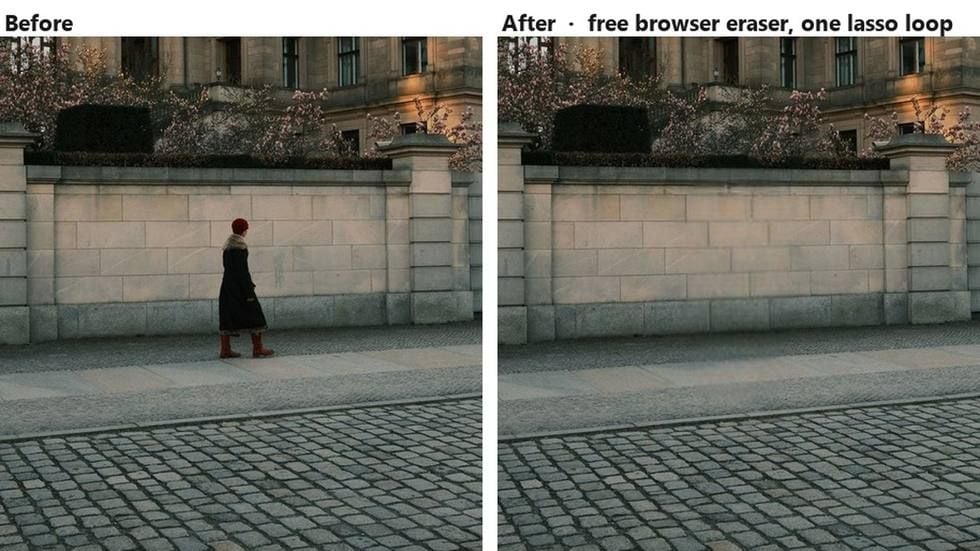
One stranger. They stepped into the frame half a second before the shutter, they are the only thing wrong with an otherwise clean shot, and they are the only reason Photoshop is open at all.
There are three different ways to make it disappear, and the step lists that rank for photoshop remove object tend to line them up as three buttons on the same shelf. They run on different hardware. They bill in different currencies. One of them will be greyed out on a lot of laptops before you get anywhere near it.
So this is the pricing side of the question instead. Everything below comes from Adobe's own help pages and plan pages, read in September 2026: which tool costs generative credits and which does not, what the Remove tool demands from your graphics card, and what the plan with Photoshop's name on it actually includes. Then the version of the job that runs in a browser tab for nothing.
Key Takeaways
- Photoshop offers three removal routes with three mechanisms: the Remove tool runs a model, Content-Aware Fill copies surrounding pixels, and Generative Fill writes new content from a prompt.
- Adobe's generative credits FAQ lists the Photoshop Remove tool among the features that consume no credits at all. The catch is hardware, and Adobe publishes the minimum spec.
- Generative Fill with an Adobe Firefly model costs 1 credit per generation, and the plan sold as Photoshop carries 25 credits a month that do not roll over.
- The free Object Eraser does the mask-and-fill job inside a browser tab with no account, no credit meter and no install .
- For changes a mask cannot describe, a hosted image edit model takes a written instruction and bills per run instead of per month.
What the Photoshop Remove Tool Actually Runs On
Adobe's own instructions start here: pick the Remove tool out of the Tools panel, draw a loop around the stranger, and Photoshop replaces them. Adobe introduced it alongside Generative Fill in its May 23, 2023 announcement, describing it as an AI-powered feature that replaces an unwanted object "by simply brushing over it," and recommending it for big objects and for anything sitting in front of structure such as a fence or a horizon.
Two controls decide what happens next. The Mode option in the Options bar sets whether generative AI is used at all: Auto, on, or off. When it is on, a second choice appears between Cloud and Device processing. The Contextual Task Bar also carries a Find distractions dropdown that hunts for three categories on its own: general distractions, people, and wires and cables.
Then comes the part that decides whether you get to use it at all. Adobe publishes a separate hardware page for this one tool, and its floor sits well above Photoshop's own. The app installs on a machine with 8 GB of RAM and 1.5 GB of GPU memory. The Remove tool page asks for 16 GB of RAM and a discrete card carrying 8 GB.
| Component | Remove tool minimum, Windows | On-device generative model |
|---|---|---|
| CPU | 8 cores, Intel Rocket Lake or equivalent | Same |
| Discrete GPU | Card such as NVIDIA RTX 3060 or higher with at least 8 GB RAM | NVIDIA RTX 30-series or later with 14 GB VRAM, Intel Arc with 12 GB VRAM, or AMD RDNA2 or newer with 23 GB VRAM |
| Integrated GPU | Not listed | Intel Arrow Lake or Lunar Lake with 32 GB RAM, or AMD RDNA2 or newer with 64 GB RAM |
| Memory | 16 GB | Covered by the rows above |
| Storage | 512 GB SSD | Components download once on first use |
| Drivers | Latest GPU drivers recommended | Drivers older than 2 years may not be supported |
Adobe's own known-issues page fills in what happens when a machine falls short: the Device option simply becomes unavailable and you are told to use Cloud mode. That page also covers a first-run message about required components downloading, and a crash workaround that involves choosing More stable under Remove Tool Processing in Preferences.
Now the surprise. Adobe's generative credits FAQ keeps a short list of generative features that consume no credits, and "Photoshop: Remove Tool" is on it. Run it a thousand times in a month and the credit balance in your account menu does not move. The tool is unmetered. It is the graphics card and the subscription that gate it.
Content-Aware Fill: Removal Without a Model
When the Remove tool is unavailable or its result goes soft, the fallback is older and stranger. Content-Aware Fill has been in Photoshop for years, and Adobe's description of it is refreshingly plain: it removes objects and fills the area "with the surrounding pixels."
No model runs. Nothing downloads. Nothing is generated. Photoshop copies texture from elsewhere in your image and blends it over the hole, which is why the workflow starts with a selection tool instead of a brush, and why the fill opens its own workspace with a sampling area you are expected to adjust.
That workspace is where the labour moved. Instead of a model deciding what belongs behind the figure, you tell Photoshop where to look.
| Control | What you are setting | Options |
|---|---|---|
| Sampling area | Which pixels Photoshop copies from | Auto, Rectangular, Custom via the Sampling Brush, Sample All Layers |
| Color Adaptation | Contrast and brightness matching for gradual shifts | None, Default, High, Very High |
| Rotation Adaptation | Alignment for rotated or curved patterns | None, Low, Medium, High, Full |
| Scale | Resizing for repeating patterns at different sizes | On or off |
| Mirror | Horizontal flip for symmetrical frames | On or off |
| Output To | Where the filled content lands | Current Layer, New Layer, Duplicate Layer |
Six controls, and the honest reading of that list is that Content-Aware Fill has no concept of what a person is. It samples and blends. On a flat wall or an even lawn that is plenty. Across a horizon line, a railing, or a tiled floor, you will be dragging the Sampling Brush around for a while, and the Rotation Adaptation dropdown exists precisely because the naive answer goes wrong.
Is There a Content-Aware Fill Online?
People type that phrase because they want the result without the desktop app, and it is worth being clear about what a browser can hand back. The panel above is a desktop workspace with six dependent settings, so a web page is not going to reproduce it control for control.
What a browser can run is the other mechanism entirely: a masked inpainting model that looks at the hole and the whole image and paints in what it thinks belongs there. That is closer to what the Remove tool does than to what Content-Aware Fill does, and it needs one input from you instead of six. The next section is that tool.
The Free Photoshop Remove Object Alternative That Runs in a Browser Tab
Open a tab, drop the photo in, draw a loop around the stranger, download a PNG. No install step, no account, no counter ticking down, and the picture never leaves the machine you are sitting at.
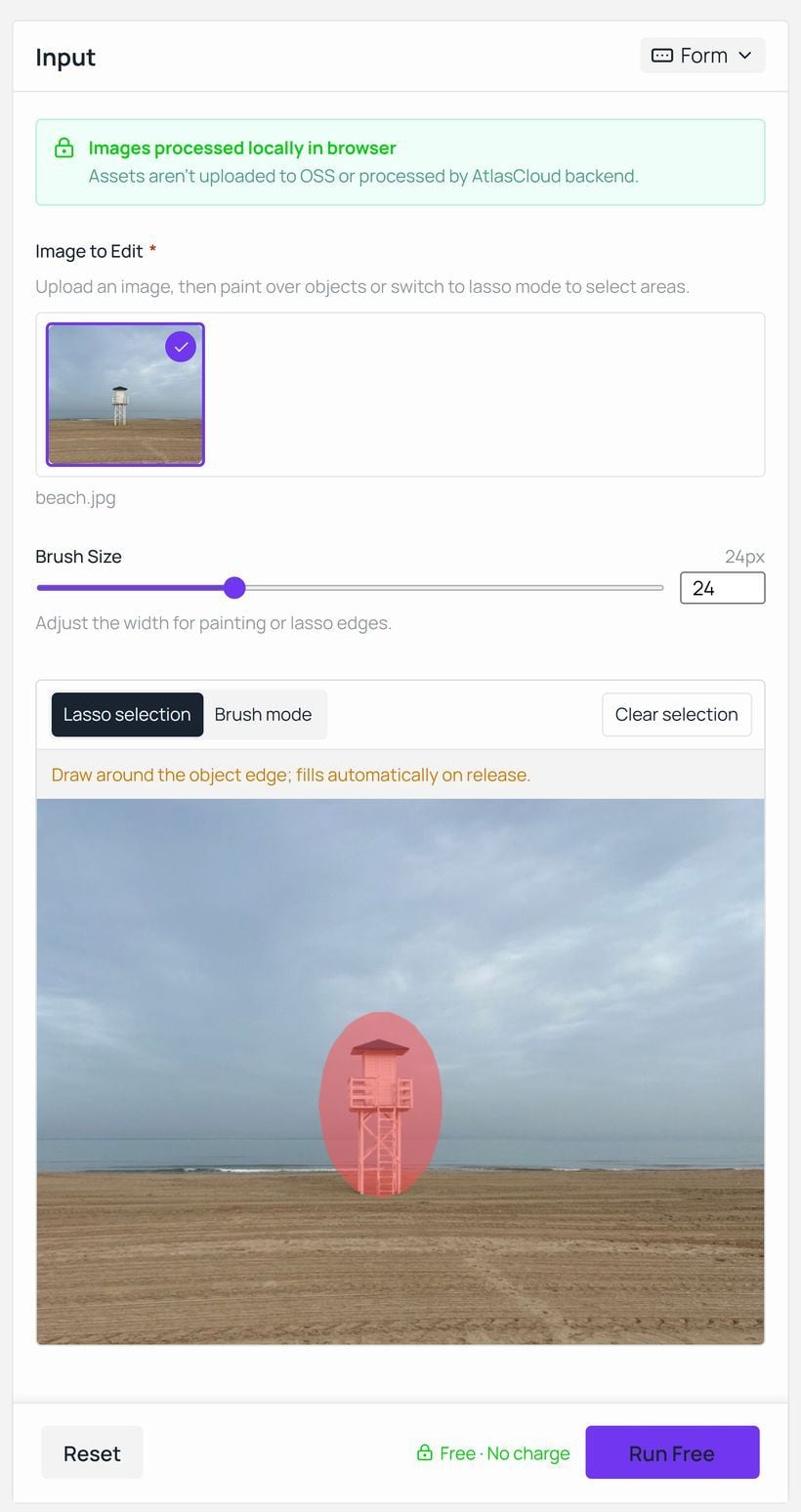
The page is one of the free AI tools that Atlas Cloud runs without a sign-in wall. Its own FAQ puts the terms flatly: "No account is needed at any point," and the tool is free "with no credits, no daily limits, and no metering on how much you erase." A panel on the page adds that images are processed locally in the browser and that assets are not uploaded to storage or handled by a backend.
The output keeps the resolution of the file you put in. A note under the workspace explains the one thing worth knowing before the first click: the browser downloads and caches the model weights on first run, and actual speed depends on device performance and network conditions. If the photo is sitting on a phone instead, the built-in options are compared separately in our guide to removing objects on iPhone.
Working the browser object eraser takes three steps, and the second one is the only one with a decision in it.
- Upload the photo, or drag it onto the upload area.
- Choose how to mark the object. Lasso selection wants a loop drawn around the edge and fills it on release. Brush mode paints over the object directly, with Brush Size running from 6 to 64 pixels.
- Press Run Free, then Download when the output panel reports it finished.
The lasso is faster on a single compact object like a bollard or a road sign. The brush is better on something with limbs and gaps, where a loop would swallow half the background with it. Either way you are doing the job the Sampling Brush does in Content-Aware Fill, except you are marking what should go rather than where to copy from. Removing the whole backdrop behind a subject is a different task with different tools, covered in our roundup of AI background removers.
Where Generative Fill Stops Being Free
The third Photoshop route is the one that does more than erase. Select an area, open Generative Fill, pick a model, and type what should be there. Adobe's help page notes you can also leave the prompt blank and let Photoshop fill the selection from surrounding pixels.
The model picker is worth reading, because it has grown. Adobe's own side offers Firefly Fill & Expand, Firefly Image 5 and Firefly Image 1. Alongside them sit partner models: FLUX.2 pro, FLUX Kontext pro, Gemini 3.1 with Nano Banana 2, and Gemini 3 with Nano Banana Pro.
That picker is also the billing boundary. Adobe's credits FAQ describes Generative Fill with Adobe Firefly models as a standard feature at 1 credit per generation. Partner models are classified as premium, where the credit cost varies with the model, the output and the file size. Credits reset monthly on your billing date, and the FAQ is unambiguous that they do not roll over.
So how many generations does a month contain? That depends entirely on which plan you bought.
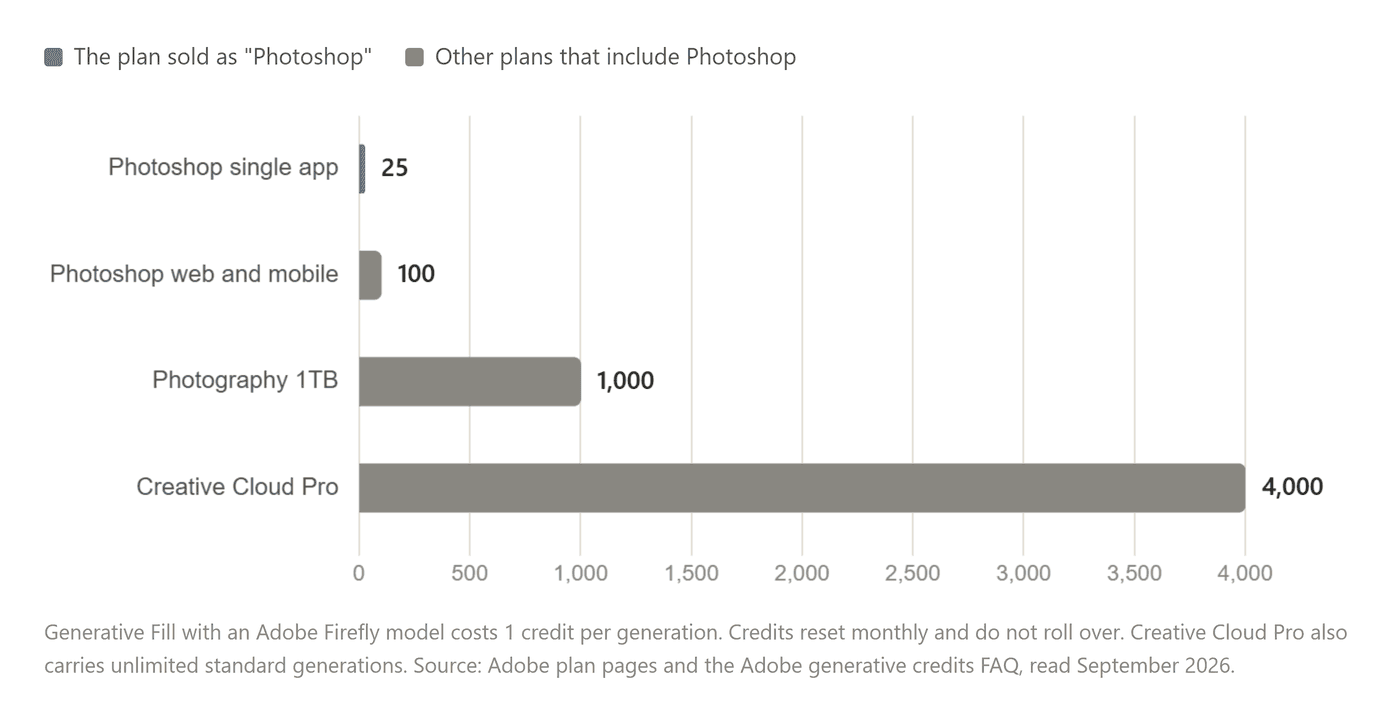
Read the top bar again. Adobe's Photoshop plan page, checked in September 2026, lists the standalone app at US$22.99 a month on annual billing, or US$263.88 paid for the year, and puts its generative credit allowance at 25 a month. The same comparison row marks standard AI features like Generative Fill as "Access with generative credits" on that plan, while Creative Cloud Pro and the Firefly plans get unlimited standard generations instead.
Twenty-five Firefly generations. Each press of Generate on a selection is one, and a fill you reject because the shadow fell the wrong way is one as well. The Photography plan at US$19.99 a month ships 1,000 credits, 1TB of storage and Lightroom with them, which is the quiet arbitrage in Adobe's lineup for anyone who bought the Photoshop plan to edit photographs. What you give up going that way is the Adobe Express Premium plan bundled with the Photoshop tier.
Two more lines from the same page belong in the account. Adobe answers "Can I buy Photoshop outright?" with "No. Photoshop is available only through a Creative Cloud subscription." And the free trial runs 7 days, after which it "will automatically convert to a paid Creative Cloud membership" unless you cancel first.
A Photoshop Generative Fill Alternative Without a Monthly Meter
Prompt-driven editing does not have to arrive bundled with an allowance. The same class of model can be run directly, one job at a time, priced per run.
Notice which names appear in Adobe's partner list. Nano Banana 2 is in the Photoshop model picker as a premium feature drawing down credits, and Nano Banana 2 Edit is available on its own in the Atlas Cloud playground at 1K, 2K and 4K output. You upload the frame, write the instruction, and the playground quotes the cost of that run before you submit it. There is no monthly balance to exhaust and nothing expires at the end of the month.
The instruction is where this route earns its keep. A mask says "this area is wrong." A prompt says what should replace it, which is the difference between erasing a parked car and turning the space it occupied back into a continuous kerb with the right shadow direction. The eraser page draws the same line itself: it fills the gap with matching background "rather than inserting new content," and sends anything needing a brand new element to generative editing.
Write the sentence like a brief: name the object to remove, describe what the background behind it should continue into, and state that nothing else in the frame should change.
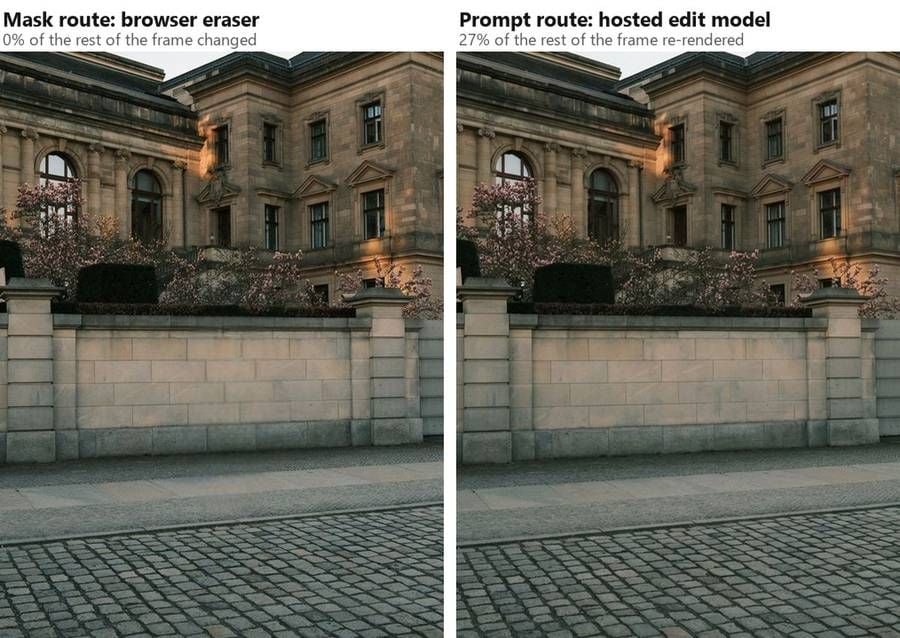
That difference is measurable. We ran both routes on the same photograph and then compared every pixel outside the area that had been cleared.
The browser eraser gave back the rest of the frame unchanged, pixel for pixel. The hosted model gave back a frame in which 27% of those remaining pixels had moved: small shifts in the stonework, the blossom and the evening colour. Masked inpainting fills a hole and composites the original back around it. A generative edit reads the whole picture and writes a new one.
So the mask route suits the jobs where everything you did not select has to come back exactly as it went in, and the prompt route suits the jobs where the scene itself has to change rather than close over.
Adobe Photoshop Object Removal vs Atlas Cloud, Side by Side
| Adobe Photoshop | Atlas Cloud | |
|---|---|---|
| How you get in | Creative Cloud subscription only, 7-day trial converts automatically | Browser tab for the free eraser, account for hosted models |
| Mask-based removal | Remove tool, plus Content-Aware Fill | Free Object Eraser, lasso or brush |
| Credits for mask-based removal | None. Adobe lists the Remove tool as credit-free | None on the free tool, and no daily cap |
| Prompt-based removal | Generative Fill, 1 credit per Firefly generation | Hosted image edit model, priced per run |
| Monthly allowance | 25 credits on the Photoshop plan, no rollover | No monthly allowance to run out of |
| Hardware floor | Published minimums including a discrete GPU with 8 GB for the Remove tool | A browser with WebGPU support |
| Where the pixels go | Cloud or Device, your choice in the Remove tool Mode option | Stays in the browser on the free tool, uploaded for hosted models |
| What it also does | Layers, masks, CMYK and 16-bit, plus everything else in the app | One job per page, no document model |
The last row is the one to be honest about. Photoshop is not a single-purpose eraser and nothing in a browser tab replaces the rest of it.
Should You Switch?
Not entirely, and that is a reasonable answer. The useful question is narrower: for the specific job of taking one unwanted thing out of one photograph, which side should you open?
| Stay in Photoshop when | Open the browser tool when |
|---|---|
| You already pay, and your machine clears the Remove tool's spec | Photoshop is not installed, or the Device option is greyed out |
| The removal is one step inside a layered composite | The photo needs one fix and nothing else |
| You need CMYK, 16-bit, or an action running over a folder | The file is a JPEG or PNG headed for the web |
| The fill has to be hand-tuned with sampling controls | You want the result before you have finished reading the settings |
| Your subscription includes 1,000 or 4,000 credits for prompt work | You would rather pay for the run than for the month |
There is a middle path that costs nothing to try. Run the free AI image eraser first, because it takes a minute and no money. If the fill holds up at full size, the job is done. If it smears a railing or leaves a ghost where the shadow was, you have lost a minute and you still have Photoshop, or a prompt-driven model that can be told exactly what the railing should do.
Frequently Asked Questions
How do you remove objects in Photoshop?
Three tools do it and they work differently. The Remove tool brushes or loops over the object and rebuilds the area with a model. Content-Aware Fill wants a selection first and fills it from surrounding pixels. Generative Fill takes a selection plus a written prompt and generates replacement content. Adobe's help centre carries the current step-by-step instructions for each one, and they change with the release.
How do I remove an object in Photoshop on a laptop with integrated graphics?
Check the Mode option in the Remove tool first. If your hardware falls short of Adobe's published spec, the Device setting will be unavailable and Cloud processing handles the job instead, which needs a connection but not the graphics card. Content-Aware Fill is the other in-app route, since it samples pixels instead of running a model. A browser tool that processes locally is the third option, and it has its own WebGPU requirement.
Can Lightroom remove objects instead?
Yes, and it bills differently. Lightroom's Generative Remove masks the object and lets Adobe Firefly fill the area, returning three variations to choose between. Its Detect objects option will pick up an object's shadow or reflection along with the object itself when you scribble over it. Adobe's own note on that page states that generative credits are not deducted for using Generative Remove.
Is Generative Fill free?
Not on every plan. Adobe counts Generative Fill with Firefly models as a standard generative feature at 1 credit per generation, and the plan sold as Photoshop includes 25 credits a month that do not roll over. Creative Cloud Pro and the Firefly plans carry unlimited standard generations, so on those the same action costs nothing. Partner models such as Nano Banana 2 are classified as premium, where Adobe says the credit cost depends on the model, the output and the file size.
What does prompt-based removal cost on Atlas Cloud?
Nano Banana 2 Edit was priced at $0.08 per image at 1K, $0.12 at 2K and $0.16 at 4K on September 20, 2026, with no discount applied, and the lighter Nano Banana 2 Lite Edit at $0.04 for 1K. The playground shows the figure for your exact settings before the run starts. The browser Object Eraser stays free and unmetered whatever you do with it.
Is the free eraser really free, and does it watermark the download?
The tool page answers both. It is free "with no credits, no daily limits, and no metering on how much you erase," no account is needed at any point, and the download "carries no watermark." The page also states the model it is built on carries a licence permitting commercial use, with the obvious condition that you hold the rights to the photo you are editing.
Conclusion
Go back to the stranger in the frame. If you are already inside Photoshop on a machine that meets the spec, the Remove tool is the route to reach for, because Adobe charges no generative credits for it at all. Reach for Generative Fill instead and the meter starts, at one credit a generation against an allowance of twenty-five on the plan that carries Photoshop's name.
So the decision turns on which route you pick rather than on which app you own. Mark the object and let a model rebuild what was behind it, and a browser tab does it with no account and no monthly balance. Describe the replacement in a sentence, and a hosted edit model charges for the run and nothing else. Either way you have a working photoshop remove object alternative for the afternoon when the only thing between you and a finished photo is one pole.





