Kling 3.0 a redéfini le cinéma par IA en toute discrétion dès son lancement en février 2026. Le constat est simple : les mouvements respectant les lois de la physique et l'identité constante des personnages ne sont plus l'exception, mais la norme. En tant que nouvelle série de modèles IA multimodaux unifiés de Kuaishou, Kling 3.0 comble le fossé de la « vallée de l'étrange » qui nécessitait auparavant des équipes d'effets visuels coûteuses en post-production.
Qu'est-ce qui fait de Kling 3.0 un changement majeur en 2026 ?
- Architecture Omni One : Un système unifié unique gérant la vidéo, l'image et l'audio simultanément.
- Synchronisation labiale native : Un alignement naturel des dialogues multilingues sans retouches en post-production.
- Zéro dérive visuelle : Une continuité parfaite entre les plans, préservant les visages, les vêtements et les proportions.
Cela place Kling 3.0 en concurrence directe avec Seedance 2.0 et le modèle Veo 3.1 de Google, établissant une nouvelle référence pour la vidéo par IA hyperréaliste. De la continuité multi-plans à la synchronisation audio native, ce guide détaille la marche à suivre pour obtenir des résultats cinématographiques avec des mouvements de personnages fluides dans le paysage actuel des générateurs de vidéo par IA.
Qu'est-ce que Kling 3.0 ? Analyse du moteur Omni One basé sur la physique
Au cœur du générateur vidéo Kling AI se trouve l'architecture Omni One de Kuaishou, un système unifié qui gère la génération, la compréhension et le montage en une seule passe, plutôt que de traiter les images de manière séquentielle. Il modélise la façon dont les objets se déplacent dans l'espace, comment l'éclairage change au fil du temps et comment les différents éléments interagissent physiquement, ce qui constitue le fondement d'une véritable simulation physique du monde réel.
Comment l'attention conjointe spatio-temporelle 3D corrige les mouvements « flottants »
L'attention conjointe spatio-temporelle 3D et le raisonnement par « chaîne de pensée » (Chain-of-Thought) extraient et transfèrent le mouvement en respectant la physique réelle, préservant la gravité, l'équilibre, la déformation et l'inertie. Le composant de chaîne de pensée signifie que le modèle « réfléchit » essentiellement avant de générer, en décomposant d'abord le prompt en éléments de scène et en trajectoires de mouvement, ce qui explique pourquoi Kling est désormais cité comme une alternative crédible à Sora.
Kling V3 vs Kling O3
Le choix entre Kling V3 et Kling O3 dépend de votre flux de travail créatif. Kling V3 agit comme une centrale pilotée par le texte pour créer des vidéos hyperréalistes à partir de zéro, tandis que Kling O3 sert de cadre basé sur des références, conçu pour un montage précis, la réplication de personnages et le contrôle basé sur des actifs.
| Fonctionnalité / Capacité | Kling V3 (Video 3.0) | Kling O3 (Omni 3.0) |
| Intention principale | Priorité au prompt : Idéal pour passer du script à la vidéo et générer des plans cinématographiques à partir de zéro. | Priorité au contrôle : Idéal pour le montage basé sur des références, le transfert de style et le remixage d'actifs existants. |
| Styles d'entrée supportés | Prompts textuels élaborés, images fixes uniques (I2V) | Références d'images multiples (jusqu'à 4), clips vidéo de référence, texte et vidéo existante |
| Référence vers vidéo (R2V) | Pas de parcours dédié (repose uniquement sur le prompt texte/image) | Oui (Support complet) : Lie l'apparence du personnage/produit entre les clips via des références multi-images. |
| Montage vidéo vers vidéo (V2V) | Non supporté | Oui : Inclut le transfert de style, le remplacement d'arrière-plan et le remplacement fluide d'objets/personnages. |
| Coréférence multi-personnages | Avancé : Gère des scènes de groupe complexes avec 3+ personnages en respectant strictement les scripts. | Bon (maintient la stabilité, mais optimisé principalement pour la cohérence d'un seul actif). |
| Audio natif et synchronisation labiale | Oui (génère des dialogues synchronisés, voix off et effets sonores nativement) | Oui (partage les mêmes capacités d'alignement audio et de liaison vocale multilingue). |
| Durée max par clip | Jusqu'à 15 secondes par génération | Jusqu'à 15 secondes (les générations peuvent atteindre 30 secondes selon les modes). |
| Coût et vitesse d'itération | Coût en crédits réduit ; parfait pour les tests rapides et l'itération de prompts à haute vitesse. | Coût en crédits plus élevé ; conçu pour le rendu final de production et les vérifications de cohérence critiques. |
Les deux modèles partagent l'architecture révolutionnaire Omni One, ce qui signifie que la synchronisation labiale Kling AI et la couleur HDR 16 bits sont incluses par défaut, alimentant chaque clip cinématographique Kling AI quel que soit le modèle choisi.
Maîtriser le référencement d'éléments pour des personnages IA 100 % cohérents
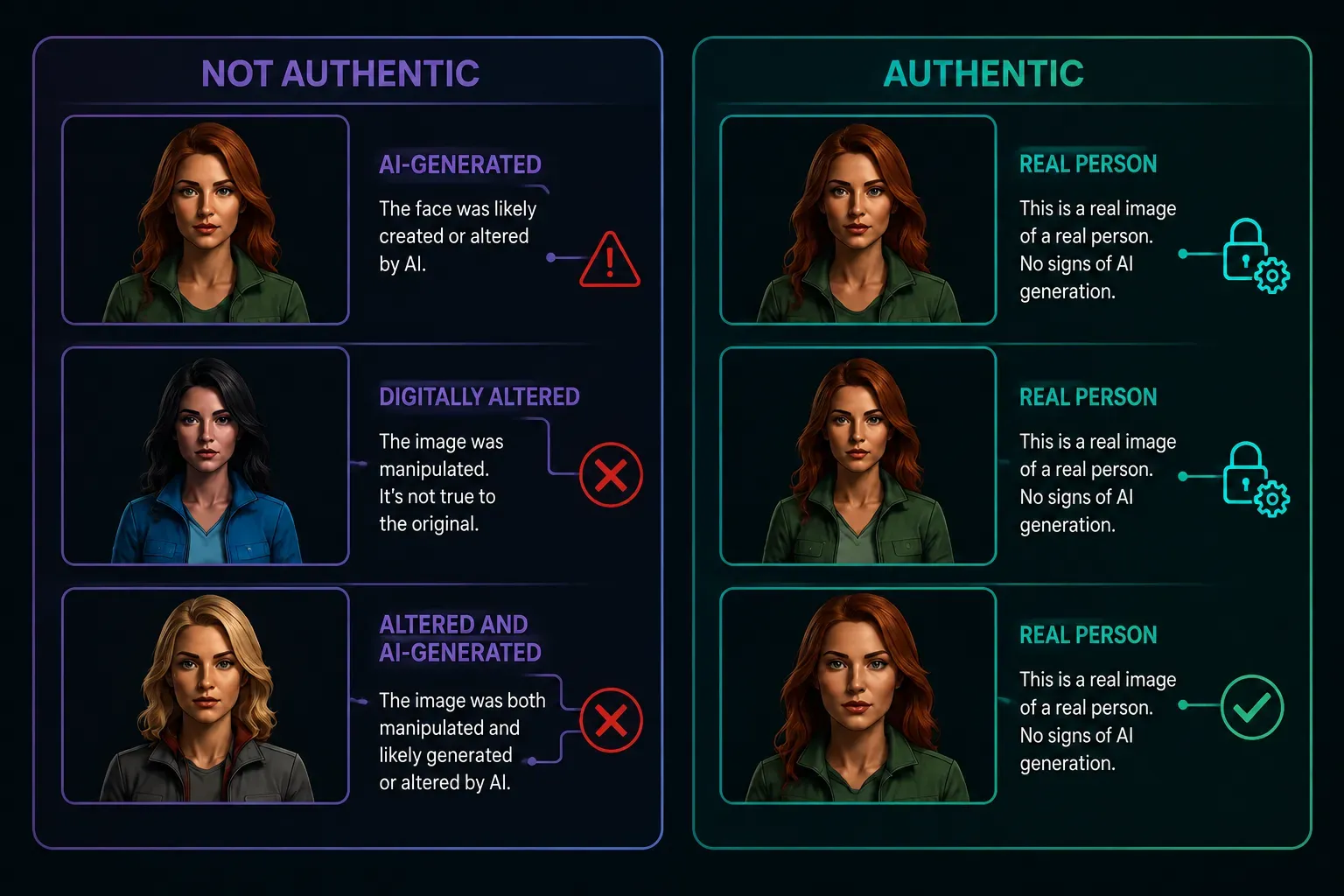
La dérive visuelle, lorsque le visage, la tenue ou les proportions d'un personnage changent entre les coupes, a été le bug le plus frustrant de la vidéo par IA. Le référencement d'éléments façon Kling est ce qui se rapproche le plus d'un véritable tueur de dérive visuelle actuellement disponible, car il cesse de traiter chaque image comme une nouvelle tentative et lie un personnage à un profil d'identité fixe.
Étape par étape : verrouiller un personnage sur son modèle
- Créez un élément à partir d'environ quatre angles du même sujet, ce qui donne au modèle une perception 3D de son identité.
- Ou ignorez les images fixes : créez ou enregistrez un échantillon vocal de 3 à 8 secondes pour que Kling extrait les traits vocaux du personnage et maintienne cette identité constante à chaque plan.
- En mode image vers vidéo, activez la fonction « Lier le sujet » (Bind Subject) pour fixer le visage et les vêtements, puis utilisez l'outil de storyboard multi-plans pour maintenir ce rendu sur toute la durée du clip de 15 secondes.
- Réutilisez l'élément enregistré entre différentes générations, et pas seulement pour un seul clip, pour obtenir une cohérence réelle de personnage sur le long terme.
Garder la cohérence avec plusieurs personnages
La coréférence multi-personnages permet d'éviter que deux ou trois personnes présentes dans la même scène ne fusionnent en un seul visage. En spécifiant clairement les dialogues pour chaque personnage dans votre prompt, le modèle associe automatiquement chaque personnage à ses répliques, même lors d'échanges bilingues dans un même plan.
| Flux de travail | Idéal pour |
| Élément multi-images (2-4 photos) | Un protagoniste récurrent au fil des épisodes |
| Référence vidéo de personnage | Scènes axées sur la performance, interprétation de mouvement |
| Coréférence multi-personnages (3+) | Dialogues de groupe, ensembles d'acteurs |
Ingénierie de prompt avancée pour un réalisme cinématographique 4K et une physique réelle
Une bonne ingénierie de prompt Kling AI traite le modèle comme un opérateur caméra, pas comme une liste de souhaits. Le système répond fortement au langage cinématographique spécifique, car il définit l'ambiance visuelle globale de la sortie. Les instructions sur la manière dont le plan est capturé comptent donc davantage qu'une longue liste d'éléments présents dans le cadre.
Prompt court vs prompt long : une vraie comparaison
| Style de prompt | Exemple | Résultat |
| Court | "Une femme marche sous une pluie au néon" | Valeurs par défaut aléatoires, physique de suivi plate, éclairage au néon saturé entrant en conflit avec l'environnement. |
| Long | "Plan cinématographique au ralenti, une femme en imperméable lourd marchant sous une pluie nocturne sombre, éclairage atmosphérique réaliste, poids naturel du tissu, étalonnage des couleurs froid, HDR 16 bits, style cinématographique professionnel." | Stabilité structurelle parfaite, physique des matériaux naturelle et ambiance cinématographique profondément immersive. |
Regardons les résultats vidéo réels. Le clip de gauche (le prompt long) semble bien meilleur et plus cohérent que celui de droite. Observons attentivement les images pour comprendre pourquoi le côté gauche surpasse le droit :
Si vous analysez ces rendus bruts de près, vous verrez comment le maintien d'une structure propre déclenche une passe de rendu plus disciplinée et cinématographique. Cela repose sur trois détails visuels critiques :
- Focus narratif pur : La vidéo de gauche verrouille entièrement l'œil du spectateur sur le personnage. La profondeur de l'arrière-plan et les éléments de pluie ne volent pas la vedette, et la composition épurée laisse une marge artistique pour le montage en post-production.
- Mouvement physique naturel : Observez le mouvement de l'imperméable. Le tissu sur la gauche s'affaisse, se plie et se balance avec une gravité réelle lorsqu'elle marche. Il ne présente pas ces étranges saccades sur les bords qui surviennent lorsqu'un modèle IA est confus par trop de détails.
- Éclairage cinématographique simple : Le côté droit propose des reflets néon plus tape-à-l'œil, mais les couleurs sombres et froides de la pluie nocturne à gauche créent une ambiance bien meilleure. On croirait un vrai film plutôt qu'un effet bon marché.
Avant de dépenser vos crédits premium sur un rendu Pro Tier critique, résistez à l'envie d'empiler sans réfléchir de longues phrases descriptives. Plus de mots ne signifient pas automatiquement une meilleure qualité. Lorsque trop de mouvements de caméra complexes et d'indices environnementaux sont cumulés, cela peut compliquer la tâche du moteur de raisonnement physique et provoquer des artefacts localisés. Utilisez toujours le mode Brouillon (Draft) en premier pour tester la stabilité du sujet avec un prompt de base épuré, puis ajoutez progressivement vos modificateurs d'éclairage et de texture une fois que le plan est validé.
Conseil de production rapide : si vous exécutez des lots lourds en mode Pro via le navigateur web, vous rencontrerez souvent des files d'attente ou des délais d'expiration lors des heures de pointe. Pour éviter l'attente, nous avons généré ces clips de comparaison côte à côte directement via l'API Atlas Cloud Kling Text-to-Video. Il s'agit d'un pipeline stable et performant qui exécute vos générations en arrière-plan—une excellente solution de contournement si vous testez des lots de prompts ou exécutez des scripts programmatiques sans latence d'interface.
Diriger la mécanique de caméra
Pour un contrôle cinématographique de la caméra, nommez un seul mouvement par prompt au lieu d'empiler les effets, car la combinaison de mouvements comme « zoom travelling avant tout en orbitant vers la gauche » tend à produire un mouvement de caméra qui ne correspond pas à la description :
- Dolly zoom : "Effet dolly zoom-in, changement d'éclairage vers le bleu, alors que l'expression de l'homme passe de l'inquiétude à l'horreur"
- Travelling : "La caméra suit la femme au niveau des yeux, puis pousse doucement en gros plan"
- Rack focus : "La mise au point bascule du guerrier au premier plan vers le monstre debout derrière lui"
Indices physiques qui vendent le réalisme
Les détails de texture concrets comme le grain, les reflets de lentille, les reflets, le brillant du tissu, la condensation, la fumée et la sueur rendent le rendu physiquement réel. Nommer des sources lumineuses réelles comme des enseignes au néon, des bougies ou l'heure dorée produit de meilleurs résultats que des termes vagues comme « éclairage dramatique ».
Verrouiller la 4K, le HDR et la longueur du clip
Pour une véritable génération de film IA 4K, sélectionnez le mode Pro ; la sortie native atteint 3840×2160 avec une couleur HDR 16 bits, prête pour la diffusion sans mise à l'échelle supplémentaire, ce qui en fait une véritable vidéo IA HDR 16 bits. La longueur maximale du clip Kling AI 3.0 en 2026 est de 15 secondes par génération simple, avec le mode multi-plans permettant d'enchaîner plusieurs segments en une séquence plus longue.
Comment utiliser le flux de travail « AI Director » et le storyboard multi-plans
Le flux de travail « AI Director » permet aux créateurs de construire une scène structurée sans toucher à un logiciel de montage. Au lieu de générer des clips séparés pour les assembler en post-production, le storyboard multi-plans façon Kling permet d'intégrer jusqu'à six coupes de caméra dans une seule génération.
Construire une scène sans montage tiers
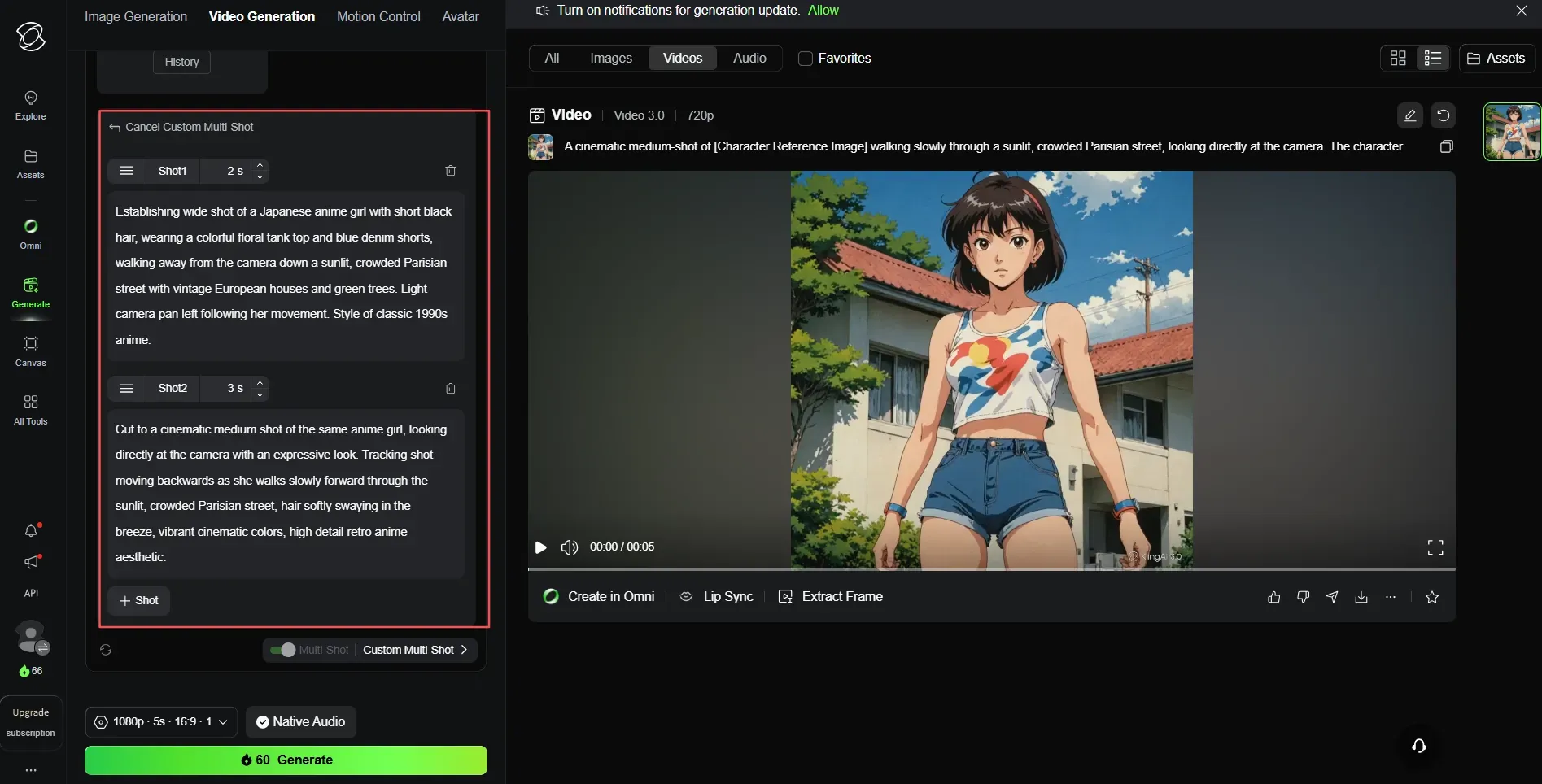
Le mode Storyboard intelligent utilise l'IA pour diviser automatiquement votre histoire en différents plans avec les meilleurs angles de caméra et transitions. Le mode Storyboard personnalisé vous permet de définir vous-même la durée, le mouvement de caméra et la mise en page pour chaque plan, ce qui est idéal pour les conversations ou un timing précis. Les deux choix conservent tout dans un seul clip vidéo IA de 15 secondes, assurant une cohérence des personnages et de l'éclairage à travers chaque coupe sans effort supplémentaire. Les coupes peuvent paraître un peu rigides comparées à un éditeur humain ; utilisez donc cette fonctionnalité comme un excellent brouillon plutôt que comme une vidéo finie pour les gros projets.
Kling Standard vs Pro : quel mode choisir pour le rendu
| Mode | Vitesse | Idéal pour |
| Mode Brouillon | 5 à 20x plus rapide, offrant souvent des aperçus en quelques secondes | Tester les prompts et les angles de caméra avant de dépenser des crédits |
| Standard | Environ 1 à 3 minutes pour un clip de 10 secondes | Livrables rapides où le 1080p suffit |
| Mode Pro | Environ 3 à 8 minutes | Sortie cinématographique finale avec simulation physique complète et 4K |
Alors, combien de temps prend le rendu Kling Pro ? Généralement entre 3 et 8 minutes par clip, bien que les temps de traitement varient en fonction de la charge du serveur et du niveau de priorité de votre plan. Le mode Pro consomme également nettement plus de crédits que le Standard ; réservez-le donc aux plans finaux.
Un flux de travail pratique
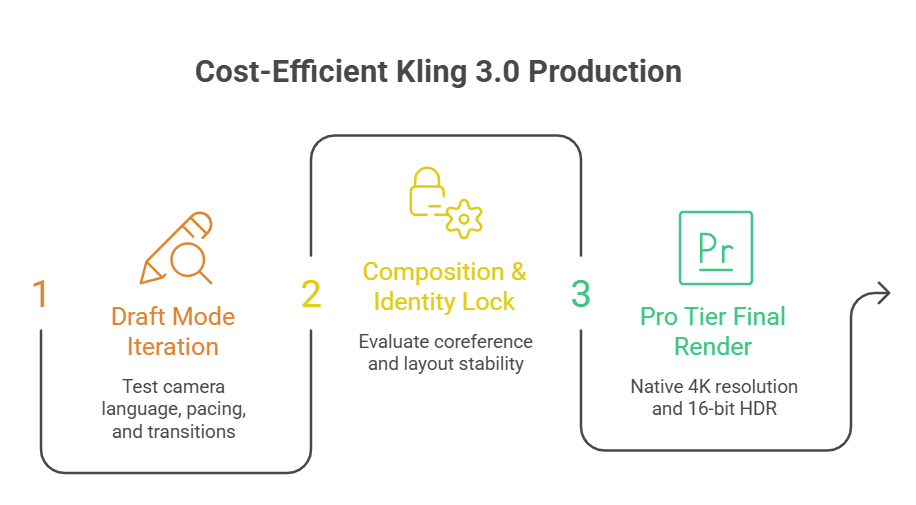
Pour maximiser votre budget sans sacrifier la qualité, ne passez pas directement au rendu Pro. Implémentez plutôt cette boucle « Brouillon-vers-Pro » standard de l'industrie pour économiser jusqu'à 80 % de vos crédits Kling.
-
Itérer et affiner en mode Brouillon : 5 à 20 secondes par rendu
Générez 5 à 10 itérations en mode Brouillon. Concentrez-vous entièrement sur le test de votre langage de caméra, de votre rythme et de vos transitions multi-plans. Le mode Brouillon vous offre une prévisualisation quasi instantanée pour une fraction du coût.
-
Verrouiller la composition et l'identité : étape de révision
Évaluez vos clips brouillons. Vérifiez la stabilité de la coréférence multi-personnages et assurez-vous que les coupes de caméra semblent naturelles. Une fois le cadrage et les trajectoires de mouvement verrouillés, cessez d'itérer.
-
Passer au mode Pro pour le rendu final : 3 à 8 minutes par rendu
Basculez vos paramètres sur le mode Pro. Gardez le même numéro de seed et le même prompt, puis lancez le rendu final pour débloquer la résolution 4K native, la couleur HDR 16 bits et la simulation physique complète.
Note : Considérez le mode Brouillon comme votre croquis au crayon et le mode Pro comme votre peinture à l'huile finale. Ne dépensez jamais de crédits premium sur un prompt ou un mouvement de caméra que vous n'avez pas validé en mode Brouillon au préalable.
Synchronisation audio native et montage vidéo vers vidéo : le playbook de production
Kling 3.0 se comporte comme un moteur multimodal unique plutôt que comme un modèle vidéo greffé à un outil audio séparé. La synchronisation audio native de Kling 3.0 génère des voix off synchronisées, des dialogues avec synchronisation labiale, des effets sonores et de la musique en une seule passe, et non comme une étape séparée de post-production.
Tutoriel rapide de synchronisation labiale Kling AI
| Étape | Outil d'action | Flux de travail de production (ce qu'il faut cliquer) |
| 01. Extraire la voix | Entrée de référence audio | Téléchargez ou enregistrez un échantillon vocal propre de 3 à 8 secondes. Kling extraira automatiquement les traits vocaux principaux et le timbre. |
| 02. Lier le personnage | Référencement d'éléments | Liez cet échantillon vocal directement à votre élément d'identité de personnage enregistré dans le panneau de génération. |
| 03. Prompt du dialogue | Boîte multi-personnages | Spécifiez les répliques directement dans votre texte de prompt. Pour les scènes bilingues, écrivez les dialogues exacts en anglais, chinois ou japonais. |
| 04. Sortie finale | Rendu unifié | Cliquez sur générer. Le moteur Omni One aligne les mouvements des lèvres image par image avec la piste audio nativement en une seule passe. |
Conseil pro pour les campagnes internationales : Comme la synchronisation s'exécute via une architecture unique, la synchronisation labiale Kling AI reste parfaitement précise même si un personnage change de langue en cours de vidéo — la géométrie des lèvres se déforme automatiquement pour correspondre aux phonèmes régionaux changeants.
Déploiement de la génération audio bilingue native
Le modèle supporte nativement l'anglais, le chinois, le japonais, le coréen et l'espagnol, gère les accents et dialectes régionaux et permet aux personnages de passer d'une langue à l'autre en milieu de vidéo avec des mouvements de lèvres synchronisés tout du long. C'est le mécanisme derrière ce qui est commercialisé sous le nom d'IA de synchronisation labiale image par image : spécifiez la réplique de chaque personnage directement dans le prompt, et le système fait correspondre automatiquement le dialogue au bon visage, même lors d'échanges bilingues.
Contrôle de mouvement et mode Édition de Kling 3.0
Pour le travail d'IA de montage vidéo vers vidéo, téléchargez une image de référence pour l'apparence du personnage et une vidéo de référence pour le mouvement que vous souhaitez lui voir suivre. Deux modes d'orientation façonnent le résultat : l'orientation « Image » maintient le personnage face à la même direction que la photo pour des clips jusqu'à 10 secondes, tandis que l'orientation « Vidéo » fait correspondre l'orientation du personnage dans la vidéo de référence pour des séquences jusqu'à 30 secondes.
Le contrôle de mouvement de Kling 3.0 et son mode Édition sont réellement utiles pour :
| Type d'édition | Ce qu'il fait |
| Transfert de style | Applique l'esthétique d'une vidéo à une autre en utilisant le mode référence de fonctionnalité |
| Remplacement d'arrière-plan | Remplace les environnements tout en gardant intacts les sujets au premier plan |
| Remplacement d'objet/personnage | Transforme les sujets et les paramètres tout en conservant intacts le mouvement de caméra original et le mouvement |
Parce que l'audio, le mouvement et l'édition passent par une seule architecture, la sortie atteint une qualité de vidéo IA prête pour le commerce sans avoir à passer par une suite d'effets visuels séparée.
Kling 3.0 est-il adapté à votre flux de travail et à votre budget ?
À travers cette revue de Kling 3.0, un verdict s'impose clairement. Après 48 heures de tests intensifs, les critiques le qualifient sans doute comme le modèle vidéo généraliste le plus capable actuellement disponible, à égalité avec Veo 3.1 et potentiellement supérieur sur certains points.
Ses points faibles
Deux mises en garde honnêtes comptent pour les flux de travail de production vidéo IA :
- Il peine un peu avec les visuels davantage basés sur le design ou l'illustration ; Grok reste donc le meilleur choix pour du contenu abstrait ou graphique.
- Kling 3 Pro a pris plus de 3 minutes pour rendre certains clips, comparé à Grok qui pourrait le faire en 30 secondes, et les coûts en crédits grimpent rapidement lorsque vous avez besoin de plusieurs itérations pour obtenir un plan utilisable.
Kling AI en vaut-il la peine ?
Kling 3.0 est livré avec l'une des offres gratuites les plus généreuses de sa catégorie, soit environ 66 crédits par mois sans carte de crédit requise.
| Choisissez Kling 3.0 quand | Choisissez un concurrent quand |
| Vous avez besoin de mouvements respectant la physique, de storyboarding multi-plans et d'audio multilingue natif | Vous travaillez sur de l'illustration ou des visuels abstraits (Grok), ou avez besoin de la rotation la plus rapide |
| Le budget et la vitesse d'itération comptent le plus | Vous avez besoin de l'écosystème de Google (Veo 3.1) ou d'une continuité plus longue en un seul plan |
Pour les marketeurs, les créateurs indépendants et les cinéastes prévisualisant des scènes, Kling 3.0 gagne sa place en tant que meilleur modèle vidéo IA généraliste sur le plan du réalisme et du prix. Pour des graphismes axés sur le design, associez-le plutôt à un outil plus rapide et adapté à l'illustration.
Conclusion : comment aborder Kling 3.0 aujourd'hui
Kling 3.0 est bien plus qu'une mise à jour mineure. Il change complètement la donne en utilisant un système intelligent piloté par une physique réelle et des actifs directs. En regroupant la vidéo, les guides de mouvement et l'audio multilingue dans une configuration Omni One unique, il élimine le changement fastidieux entre différents outils qui ralentissait toujours les créateurs indépendants.
Pour économiser vos crédits premium et obtenir les meilleurs résultats de la plateforme, utilisez cette liste de contrôle de production rapide :
- Agissez comme un réalisateur : Tenez-vous-en à des mouvements de caméra clairs et à des styles d'éclairage spécifiques au lieu d'empiler des mots descriptifs inutiles.
- Exécutez la boucle Brouillon-vers-Pro : N'engagez jamais de crédits Pro Tier sur un prompt non vérifié. Construisez, ajustez et verrouillez le rythme narratif en mode Brouillon d'abord.
- Ancrez votre continuité : Tirez parti du référencement d'éléments et de la coréférence multi-personnages tôt dans votre script pour agir comme un véritable tueur de dérive visuelle.
- Rationalisez le pipeline : Si vous exécutez des scripts de prompts complexes ou des lots de génération multi-plans lourds, contournez l'interface web et utilisez le canal stable API Atlas Cloud Kling Text-to-Video pour éviter les files d'attente.
Il n'a jamais été aussi simple de réaliser des vidéos par IA de qualité cinématographique. Commencez petit, testez d'abord vos mouvements de caméra et laissez la simulation physique faire le travail difficile pour votre prochain projet.





