Canva will swap a face for you exactly once per day before it asks for money. That single daily credit catches most first-time users off guard, so it's worth knowing precisely where the tool lives, how the upload flow works, and what to do when one swap isn't enough.
This guide walks the official route from Canva's own face swap page, compares the marketplace apps that actually do the work, and covers a pay-per-image API path for anyone producing swaps in volume. The neon-alley portrait just below is our own test output from that API route, and both runs behind this article came back in under half a minute each.
Key Takeaways
Canva has no built-in face swap button. The feature runs through marketplace apps, and Canva's own feature page directs users to search for Faceswap in the editor's Apps panel.
The free allowance is 1 FaceSwap credit per day. Subscribing inside the app raises that to 100 credits per day, per Canva's official FAQ.
The official face swap app accepts photos only. For video swaps you need a different tool, in or out of Canva.
Past the daily credit, Atlas Cloud's free AI face swap tool runs the same photo swap at no cost, with no usage cap or watermark.
For batch or automated work, Atlas Cloud also runs a dedicated face swap endpoint with metered per-image pricing and no daily cap. In our two test runs for this guide, each swap returned in under half a minute.
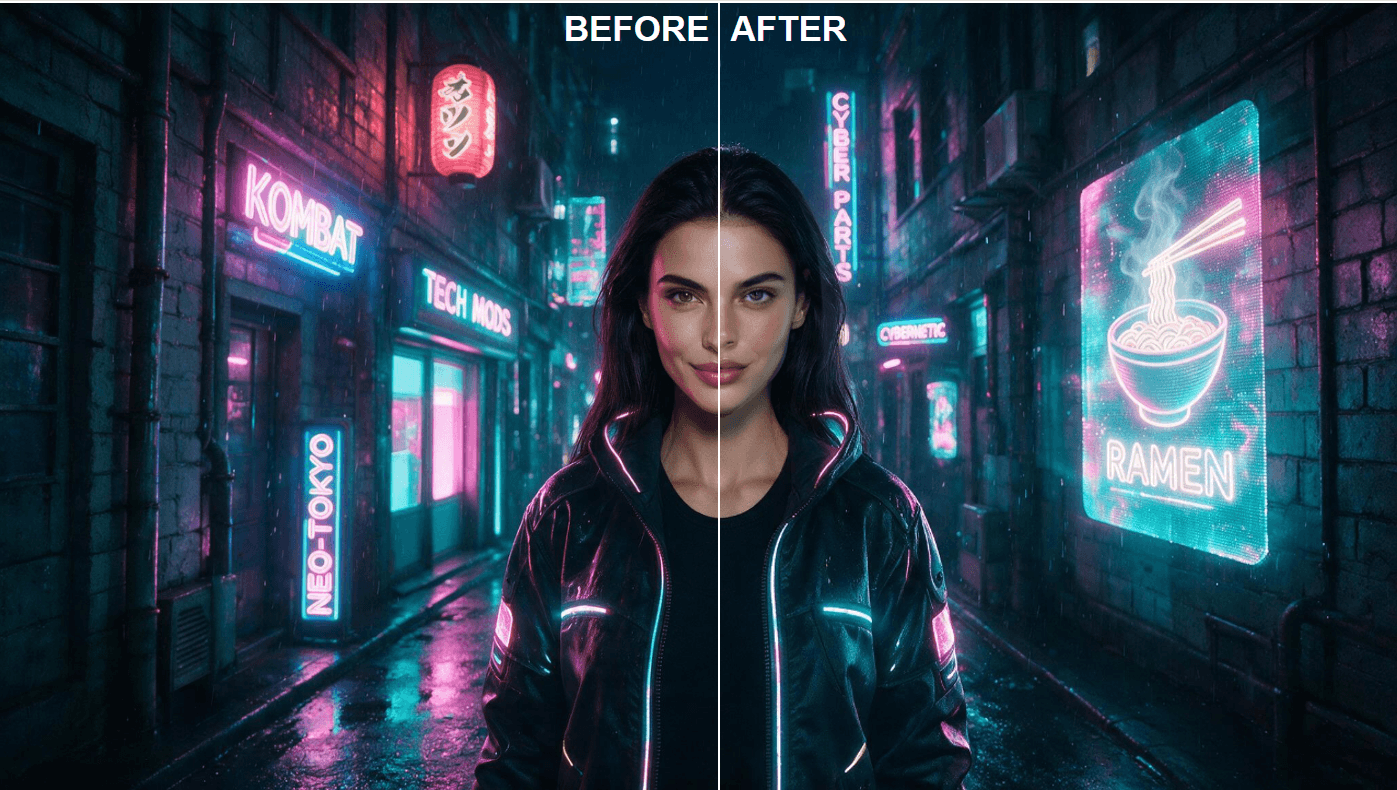
Test swap generated for this guide with the Atlas Cloud free AI face swap endpoint, July 2026. Both input photos are AI-generated; no real person's likeness was used.
Canva Face Swap Tools Compared
Searching "face swap" inside Canva's Apps marketplace returns several apps with confusingly similar names. They come from different third-party developers, and their scopes differ.
| App | Developer | Scope | Access |
|---|---|---|---|
| Faceswap | Imagineers Studio Inc. | Photo face swaps | 1 free credit/day, 100/day with in-app subscription |
| AI Face Swapper | Imgkits (NO FRIENDS LTD) | Claims photo and video swaps | Free to install on any Canva plan |
| Magic Edit | Canva (built-in) | Prompt-based object replacement, positioned as a retouching aid | Requires Canva Pro |
Faceswap is the app Canva's feature page tells you to search for, which makes it the closest thing to an official route. For AI Face Swapper, Canva's store copy confirms a free install on any plan, though the app's own internal limits aren't published on the listing. Reface and Video Reface also appear in the same marketplace search if you want more candidates to test.
Magic Edit sits in a different category. Canva's feature page recommends it for refining a swapped photo by replacing objects through a text prompt, a Pro-plan capability rather than a face-specific tool.
How to Face Swap on Canva Step by Step
The flow below follows Canva's published five steps for the Faceswap app, with the practical details filled in.
- Open Canva and start a design. A blank canvas works, and so does any template. The app operates on images you upload, so the design itself is just a workspace.
- Open Apps in the editor's side panel and search "Faceswap". Click the app to load it inside the editor. Its marketplace listing discloses the access it takes once enabled: reading and changing design content, plus uploading media on your behalf, which is standard for image apps in the marketplace.
- Upload two images. The original photo whose face you want replaced, then the target face you want placed into it. Once both are in, click Swap faces. This consumes your daily credit.
- Edit the result like any Canva image. Filters, text layers, lighting adjustments, stickers, and frames all apply normally, since the swapped photo lands on your canvas as a regular image element.
- Download or share. Export as PNG, JPG, or PDF, or push straight to social channels from inside Canva.
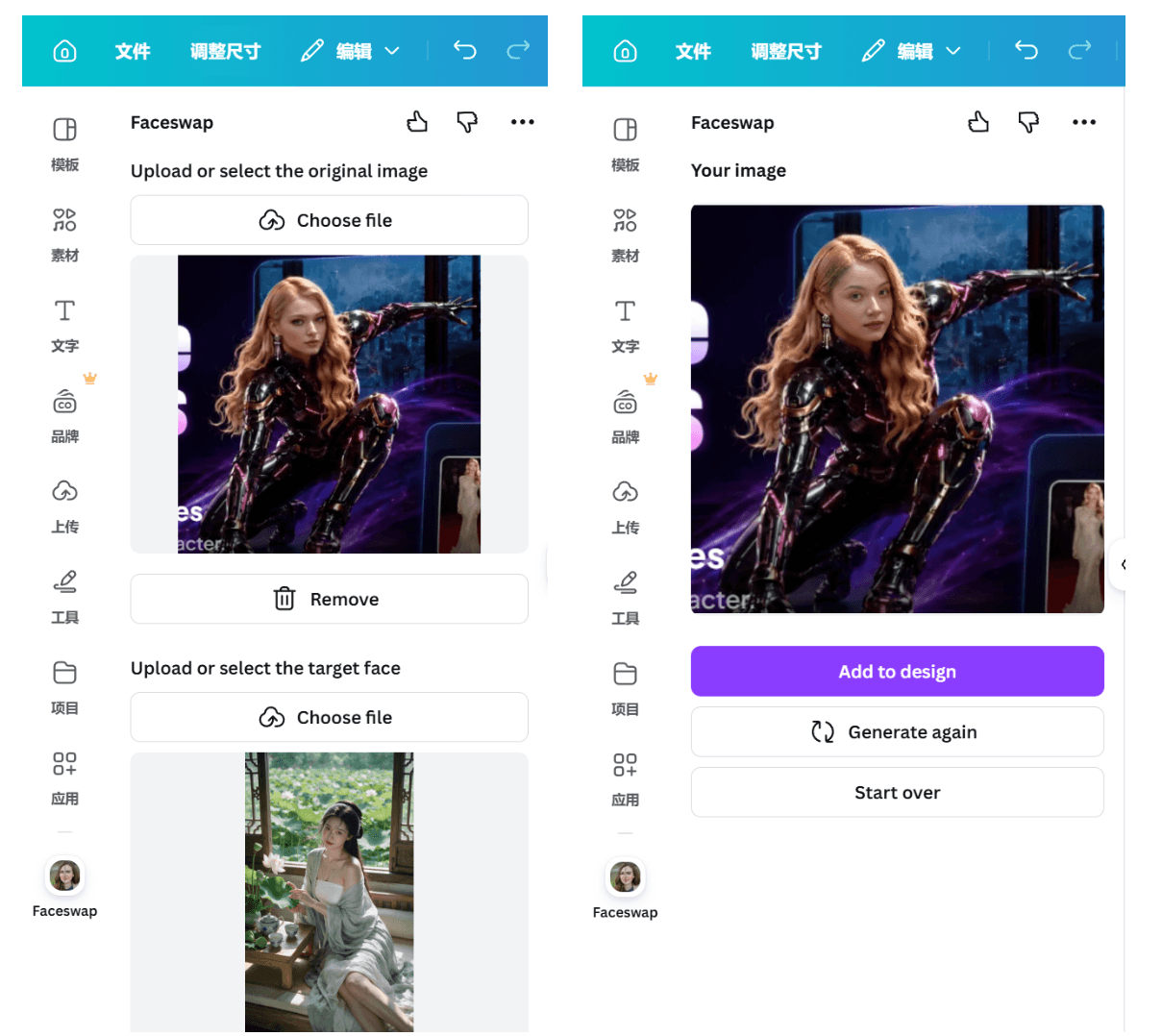
One habit worth forming: keep both source photos at the highest resolution you have. The app works with what you give it, and a compressed thumbnail as the target face is the fastest way to a blurry result.
Face Swapping Past the Daily Credit on Atlas Cloud
A meme for the group chat fits comfortably inside one credit a day. A batch of fifty product shots, a recurring social format, or a feature inside your own app does not. That's the gap Atlas Cloud covers, with two lanes past the reset clock: metered endpoints for scripted volume, and a free swap tool in its AI tools collection for runs that shouldn't cost anything at all.
Run the arithmetic on a concrete job and the lanes separate fast. Fifty swapped headshots at the playground's $0.096 rate come to $4.80, delivered in a single batch. The same fifty through Canva's free credit is a fifty-day wait. The in-app subscription clears the volume in one day, but it keeps you clicking through an editor one image at a time, with no way to script the work. The free tool in Method 3 splits the difference: zero cost and no daily reset, fed by hand one photo at a time.
Method 1: Swap Faces in the Atlas Cloud Playground
Atlas Cloud runs a dedicated Face Swap endpoint. The mechanics mirror what you do in Canva by hand: you provide a source face and a target image, and the model transfers the facial identity while keeping the target's pose, clothing, background, and lighting in place. By default it replaces the full head. The catalog lists it from $0.09 per image; in the Face Swap playground the default auto-size run is quoted at $0.096, which puts a $10 top-up at roughly 104 swaps. There's no subscription floor and no daily cap. A companion video endpoint handles face swaps on footage, listed from $0.2 per second.
The general editors cost less per image, but they perform instruction-based edits rather than identity transfer. The face swap endpoint exists for one job, and the form shows it: little more than two image slots and a size picker.
No code needed. Log in at Atlas Cloud, open the Face Swap model page, and the form asks for two uploads: Source Face (a clear, front-facing photo of the face you want swapped in, per the model page's guidance) and Target Image (the photo whose face gets replaced). Leave size on auto unless you need a specific resolution, and click Run; output arrives as jpeg by default. The result lands in the output panel for download.
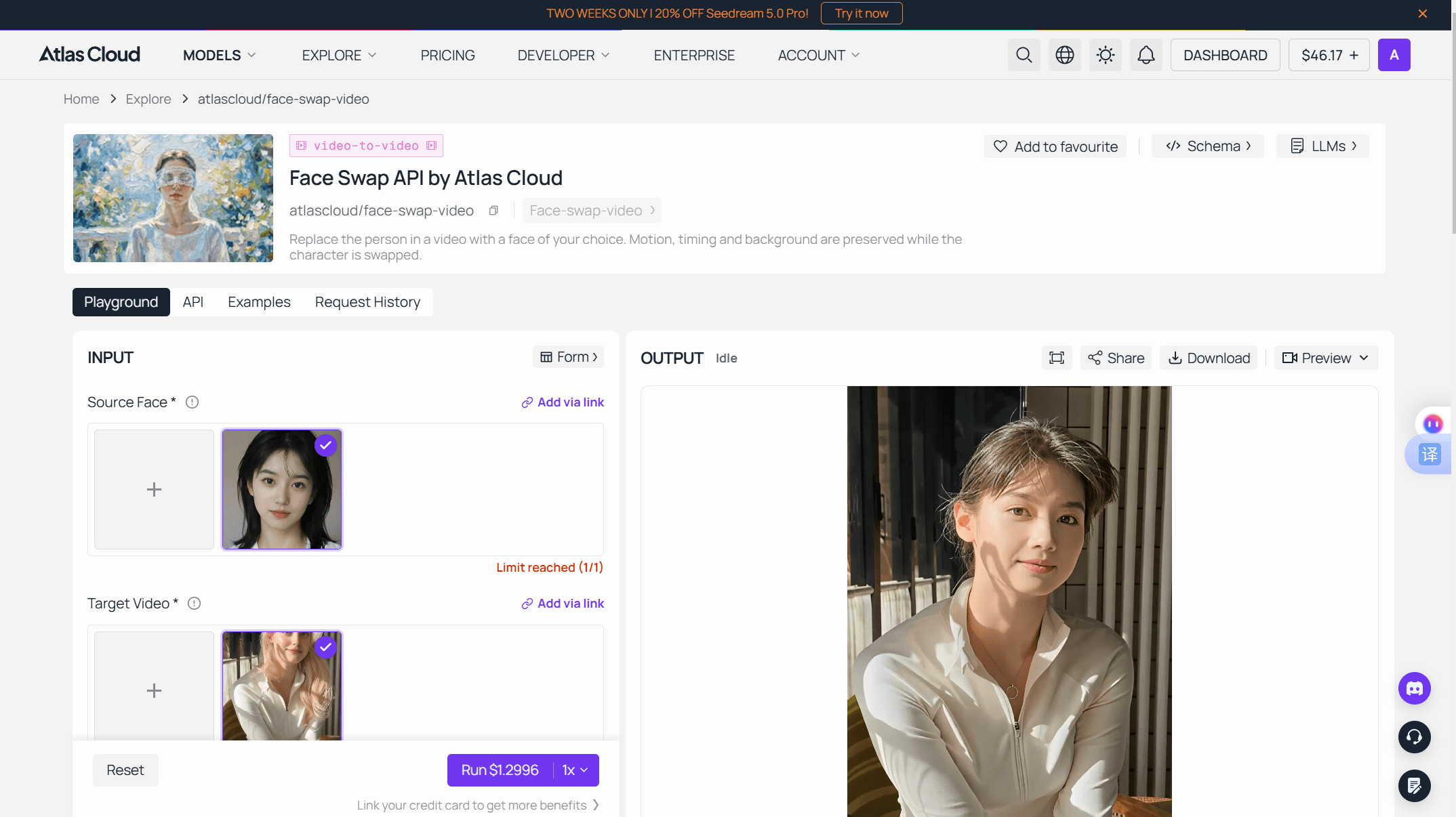
We ran it for this article with two AI-generated inputs: a studio portrait as the source face, and a cyberpunk alley character as the target.

Source face, target image, and result, generated with Seedream v5.0 Pro and the face-swap-image endpoint on Atlas Cloud, July 2026.
The swap landed in about twenty seconds and held the scene: jacket, rain, neon signage, even the lettering behind the subject stayed put. One detail worth noticing is the hair. The output carries the source portrait's loose dark hair rather than the target's tied-back style, which is the documented full-head replacement behaving exactly as described.
Both inputs came from a text-to-image model, so the whole experiment reproduces for about thirty cents. The two generation prompts, verbatim:
plaintext1Professional studio portrait photograph of a strikingly beautiful young woman, facing the camera directly, direct eye contact, soft even studio lighting, neutral warm gray background, natural skin texture, glossy dark hair, subtle confident smile, ultra sharp focus, high-end beauty photography
plaintext1Cinematic waist-up portrait of a female cyberpunk street samurai standing in a neon-lit rainy alley at night, face fully visible and evenly lit, facing the camera, glowing pink and cyan neon signs reflecting on wet surfaces, futuristic jacket with LED trim, holographic advertisements in the background, light rain, photorealistic, high detail
Method 2: Automate Face Swaps Through the API
Three steps take you from zero to a programmatic swap.
Step 1: Get your API key. Create one in the Atlas Cloud console dashboard and copy it.
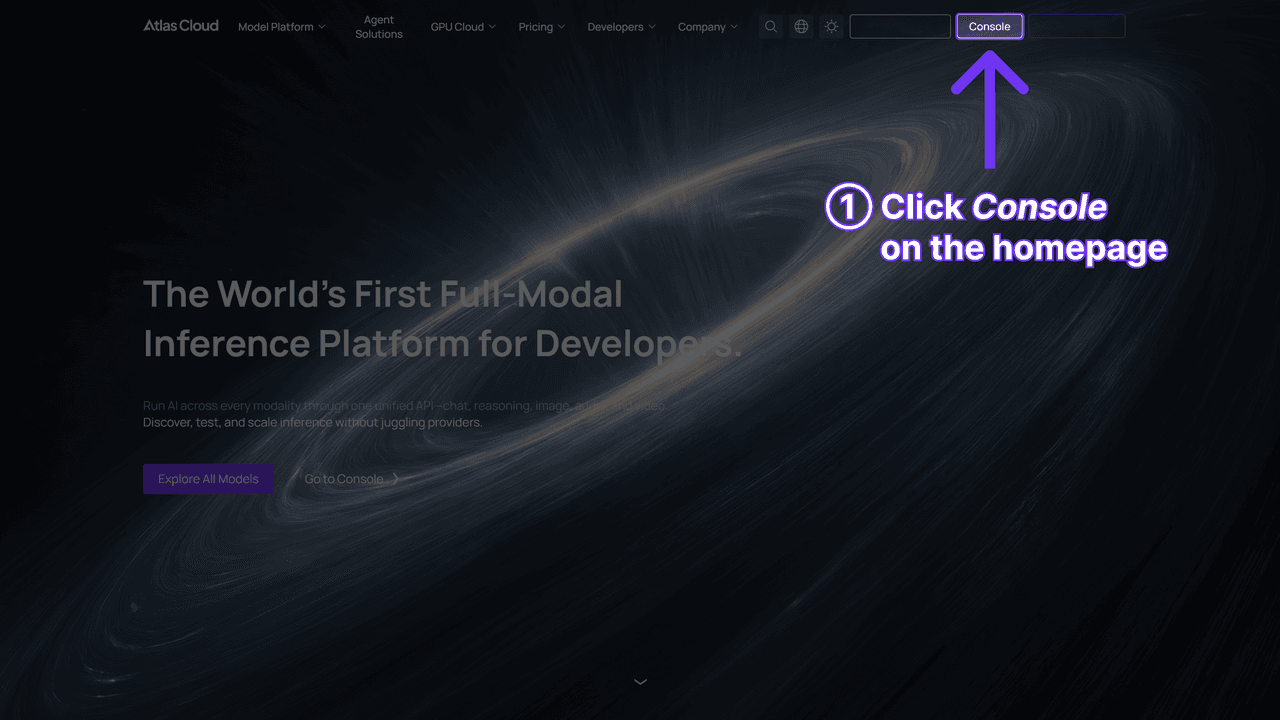
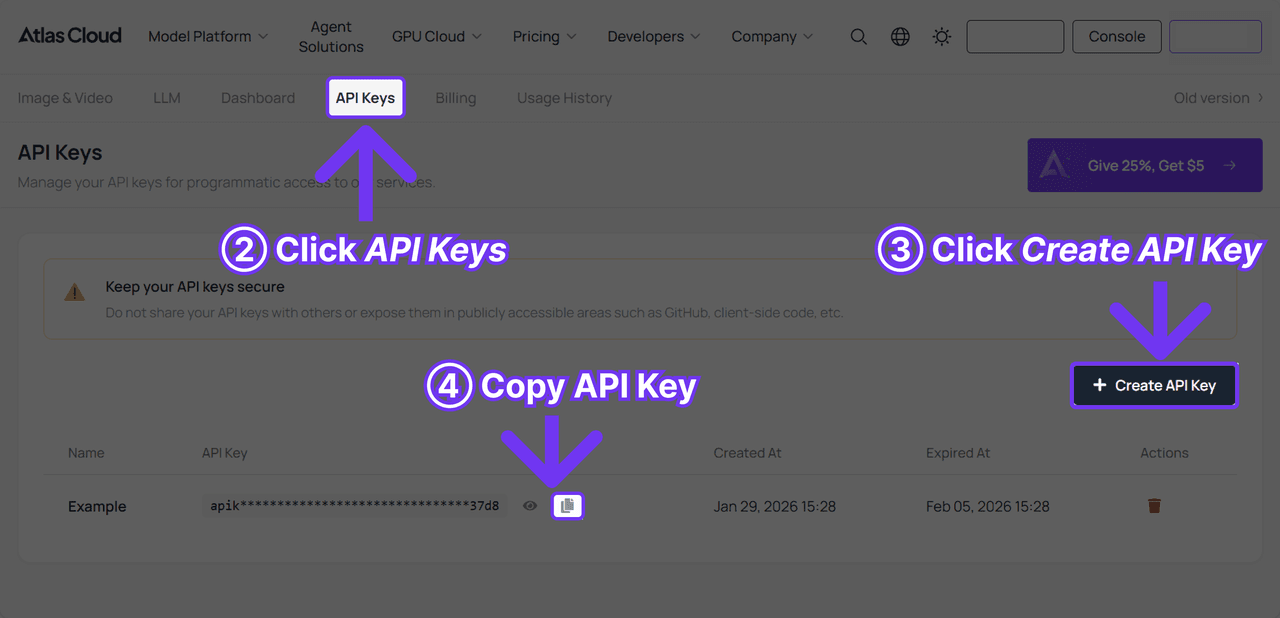
Step 2: Check the API docs for the image generation endpoint, parameters, and authentication format.
Step 3: Send your first request. Face swap runs through the same generateImage endpoint as every image model on the platform:
plaintext1curl -X POST https://api.atlascloud.ai/api/v1/model/generateImage \ 2 -H "Authorization: Bearer $ATLASCLOUD_API_KEY" \ 3 -H "Content-Type: application/json" \ 4 -d '{ 5 "model": "atlascloud/face-swap-image", 6 "image": "https://your-cdn.com/source-face.jpg", 7 "Image": "https://your-cdn.com/target-photo.jpg", 8 "output_format": "jpeg", 9 "size": "auto" 10 }'
Watch the parameter casing: lowercase image is the source face, capitalized Image is the target photo. The two names differ only by that first letter, and swapping them reverses your inputs.
Generation is asynchronous. The response returns a prediction ID, which you poll until the status flips to completed:
plaintext1curl https://api.atlascloud.ai/api/v1/model/prediction/<prediction_id> \ 2 -H "Authorization: Bearer $ATLASCLOUD_API_KEY"
The finished swap arrives as a URL in the outputs array. Every image model on the platform shares this endpoint, auth, and polling flow, so wiring in a second tool is mostly a matter of switching the model string and adjusting the input fields.
Method 3: Free Swaps Without the Daily Credit
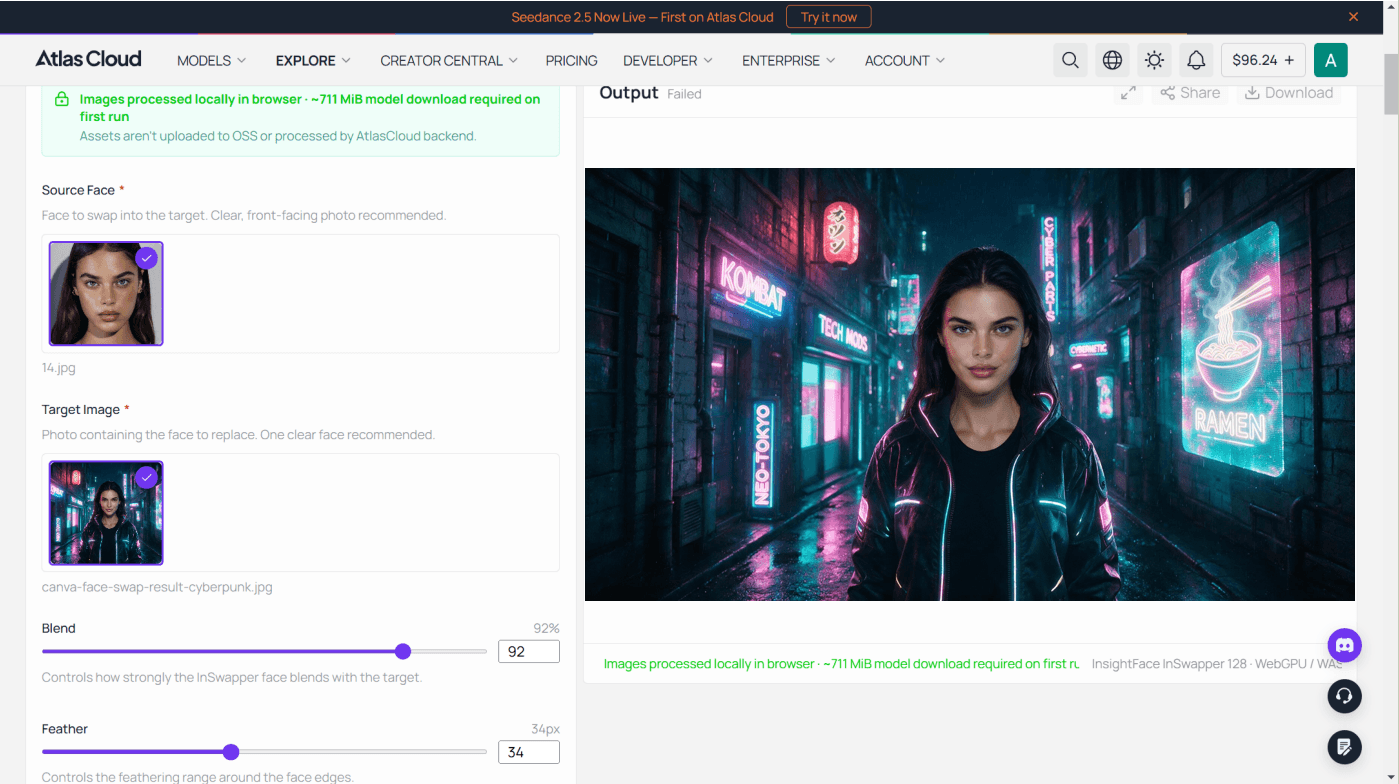
The third lane costs nothing. Atlas Cloud's free AI face swap tool runs the same two-image operation as the endpoint, and its own FAQ is direct about the terms: free, no usage cap, no watermark. Where Canva meters this exact job at one credit per day, there is no credit counter here to reset.
The workflow needs no new instructions if you've read this far: upload a face photo, upload the target image, swap. The tool maps 468 facial points, and a swap lands in about eight seconds. Instead of the API's size picker you get two sliders, Blend and Feather — one sets how strongly the new face takes, the other how softly its edges melt into the surrounding photo. Results download as PNG at the size of your target photo, up to 1280 pixels on the longest side.
The boundaries are worth stating plainly: that 1280-pixel ceiling sits below the API's 2048 cap, swaps run one photo at a time with no batch upload, and the first visit fetches about 711 MiB of model files before the first swap runs.
To see the free lane against the metered one, rerun this article's test pair: the AI-generated studio portrait as the face photo, the neon-alley character as the target — the exact job the playground priced at $0.096. The finished PNG drops back into a Canva template as cleanly as the API output did.
Reference Photos That Decide Swap Quality
Both Canva's apps and the API route reward the same input discipline, and Atlas Cloud's model page states the core rule directly: the source face should be a clear, front-facing photo.
We tested what happens when you break that rule. Same cyberpunk target as before, but the source face replaced with a candlelit side profile that hides half the face in shadow.
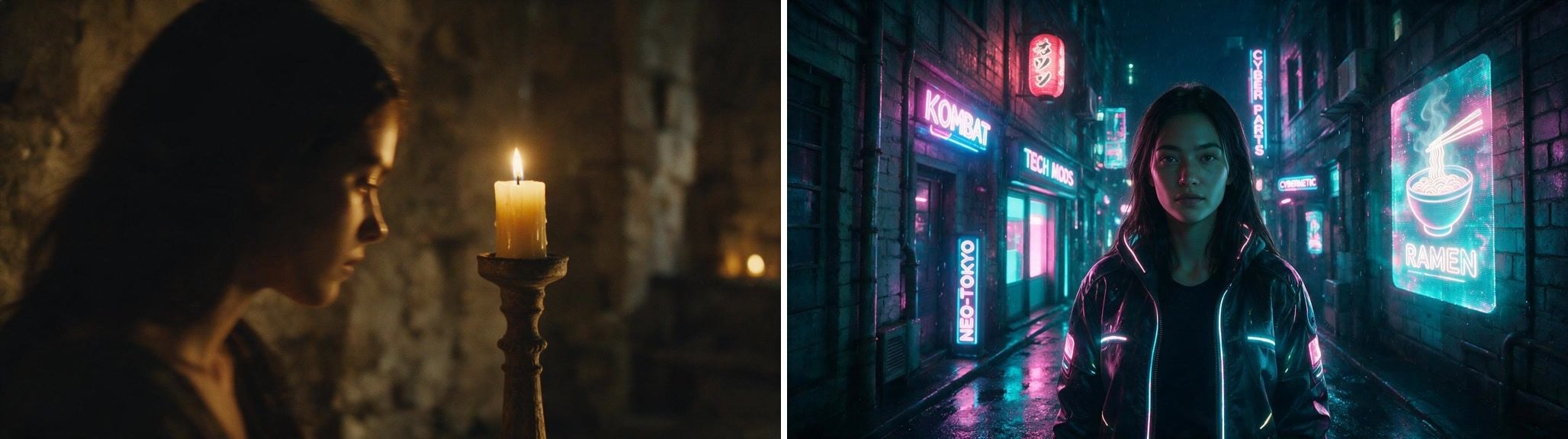
The rule-breaking source photo and its swap result, generated with Seedream v5.0 Pro and the face-swap-image endpoint on Atlas Cloud, July 2026.
The failure mode surprised us. No warped features, no glitch. The output is a clean, plausible face, and that's the trap: nothing in it verifiably matches the woman in the candlelit photo, because the model only ever saw half of her face and guessed the rest. The skin also reads flatter and warmer than the first run, which picked up the alley's pink and cyan neon on the cheeks. You pay the same $0.096 either way; a bad reference just buys you a stranger.
A few practical extensions of the front-facing rule:
- Match the angle. Keep the source and target head angles close. Whatever the model can't see, it invents, as our candlelit run showed.
- Light the source evenly. Our candlelit source carried its warm cast into the output; a neutral, evenly lit source transfers cleaner.
- One face per image. Neither tool's page explains how it picks among multiple faces, so crop to a single face before uploading.
- Feed real resolution. Compression artifacts in the source tend to follow the face into the output. Use the original file, not a screenshot of it.
Canva's feature page also markets the reverse use of the same mechanics: replacing a blurred or blinking face in an otherwise good photo with a clean take of the same person. The quality rules are identical in that direction.
After the Face Swap: Upscale, Animate, Reuse
A swap is rarely the final deliverable. Three follow-ups cover most real uses of the result.
Back into Canva. The swapped image downloads as a normal photo, so the round trip is natural: generate the face swap wherever suits the volume, then drop the file into a Canva template for the social-format work Canva is genuinely good at. Nothing about the API route locks you out of the design editor you started in.
Sharper output. On the auto size setting, our test swaps came back at the target photo's resolution, and target photos like profile pictures often start small. The same API runs an Image Upscaler that enlarges up to 4x for a flat $0.01 per image, with the scale set by one parameter:
| Parameter | Value |
|---|---|
| model | atlascloud/image-upscaler |
| image | URL of your swapped photo |
| outscale | 1.0 to 4.0 |
| output_format | jpeg, png, webp, or jpg |
The request shape is identical to the swap call, so the second step reuses your existing polling code as is.
A moving version. Canva's official app stops at photos, but a finished swap makes a clean first frame for an image-to-video model on the same platform. Atlas Cloud's catalog lists Seedance 2.0 Mini image-to-video from about $0.056 per second, so a five-second animated portrait runs about $0.28. For swapping a face inside footage you already have, the dedicated video endpoint covered earlier is the better fit.
We cut a short one ourselves from the two test frames above, in two clips. First a face-morph transition, which needs a model that accepts both a first and a last frame: feed it the original target as frame one and the swap as the final frame. Seedance 2.0 Mini and Kling V3.0 Turbo both list that control; PixVerse V6 image-to-video takes a single first frame, which makes it the tool for the second clip instead. Both models generate audio from the scene description, so treat the music lines below as direction rather than a guarantee.
The morph prompt:
plaintext1Static camera on a cyberpunk alley in neon rain. The woman stares into the lens as a vertical wave of digital glitch sweeps across her face; pixel shards and holographic scanlines peel away, revealing a different face beneath. Her tied-back hair bursts loose into dark waves in slow motion. Neon signs flicker in sync with each glitch pulse, camera pushes in slowly. Music: dark driving synthwave, rising tension, one hard bass hit exactly when the new face locks in.
And the follow-up shot, with the swap result as the only input frame:
plaintext1The woman smirks. She raises her right arm and it transforms: the sleeve shatters into floating chrome plates that reassemble into a glossy black mechanical arm with glowing pink and cyan LED seams and hydraulic joints. She aims straight at the camera and fires a single shot. White muzzle flash, slow-motion shell casing ejecting, thin smoke curling from the barrel, neon signs flare with the recoil. Music: aggressive electronic beat with a bass drop synced to the gunshot, glitch stingers.
chfvVsItURc
Canva Face Swap Rules Worth Knowing
The constraints below all come from Canva's own published pages rather than community guesswork.
| Constraint | Detail |
|---|---|
| Media type | Photos only in the official face swap app |
| Export formats | PNG, JPG, PDF |
| App permissions | Read and change design content, access and upload your Canva media |
The photos-only line comes straight from Canva's FAQ: "As of now, the online face swap app on our platform only allows you to upload photos." Note the scope, though. That statement covers the official app; third-party listings like AI Face Swapper and Video Reface advertise video swapping inside Canva, and Canva's store copy for those apps hasn't been contradicted or endorsed by the feature page. Treat video-in-Canva claims as something to test on a throwaway clip first.
The legal guidance on Canva's page is more useful than the usual boilerplate. It's explicit that face swap technology is legal for personal and creative use, then lists the boundaries: get permission from the people depicted, don't impersonate or mislead, and remember that celebrity images can collide with publicity rights. Atlas Cloud's face swap page carries a matching consent notice. None of that is legal advice, and rules vary by country, but the direction from both vendors is consistent: swap faces you have the right to use.
Frequently Asked Questions
Is face swap on Canva free?
Partially. The Faceswap app that Canva's feature page points to installs free and grants 1 swap credit per day. Going past that requires the app's subscription, which raises the allowance to 100 credits per day per Canva's FAQ. The subscription price isn't published on the feature page or the app listing.
Can I face swap a video on Canva?
Not through the official route. Canva's FAQ states the face swap app accepts photos only. Marketplace apps like AI Face Swapper and Video Reface claim video support, unverified by Canva's own pages. For a dedicated video route, Atlas Cloud's video face swap endpoint runs at $0.2 per second, and our PixVerse face swap guide covers editing an existing clip with a reference image.
Which Canva app should I pick for a face swap?
Start with Faceswap by Imagineers Studio, since it's the one Canva's feature page names. If you want to experiment beyond it, AI Face Swapper by Imgkits is free to install on any plan and claims broader media support. Check each app's permissions panel before granting access; both request the ability to read and modify your designs and upload media as you.
Is face swapping on Canva safe?
Canva reviews marketplace apps against its security requirements, and each app's listing shows exactly which permissions it takes. The safety questions that matter more are about use: Canva's own guidance says to obtain consent from the people in your photos and to avoid misleading or impersonating anyone.
How much does face swapping cost outside Canva?
On Atlas Cloud, the dedicated image endpoint is listed from $0.09 per image, with the playground quoting $0.096 per run at auto size. Ten dollars covers roughly 104 swaps, metered with no subscription or daily reset.
Conclusion
Face swapping on Canva is genuinely easy: open Apps, load Faceswap, upload two photos, spend your daily credit. For an occasional meme or a fixed profile picture, that free lane is all you need, and the built-in editor makes the finishing touches painless.
The decision point is volume. One credit a day, or a subscription capped at photos, stops making sense once swaps become a workflow instead of a moment. At that point the same two-image operation costs about a dime per run on a metered endpoint, scales without a reset clock, and drops into code in an afternoon. Pick the lane that matches how often you actually swap.





