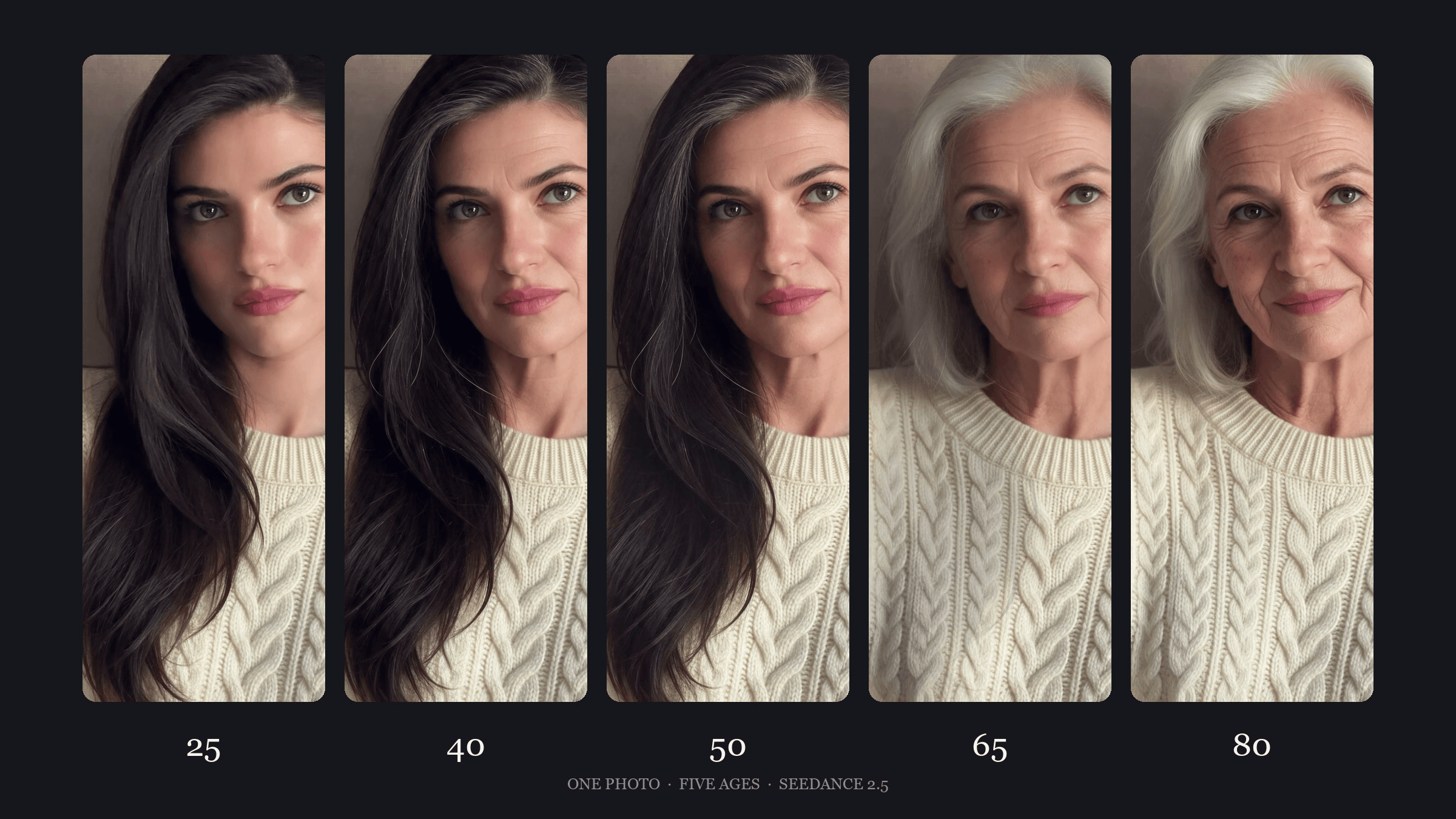
The beat drops, the cut lands, and the woman on screen is fifteen years older. Three cuts later she is eighty and still smiling at you. That is the aging filter trend, and the whole clip starts from one photo. Here is where it came from, which templates copy it, and how to build it with Seedance 2.5 so every age stays the same person.
Key Takeaways
- The trend cuts one photo through five ages on the beat, in the same pose and place every time.
- Three early posts from late March 2026 link to one CapCut template, now past 161,000 uses.
- Two aged stills plus first and last frames give a smooth aging shot you can cut on the beat.
- One adult photo is enough for the AI video generator.
- Name the features that never change in the prompt, so the last age still looks like the first.
What Is the Aging Filter Trend on TikTok?
The photo version is old news: an app makes you old, you post it. The video version plays one photo as a short clip and jumps to a new age on every beat, about every two seconds, in the same pose and place. Captions call it the 5 ages filter, me at 5 ages, or the different ages filter.
It took off in late March 2026. One 13-second post captioned "5 ages filter trend" had 314,700 likes by October 28, and another posted five days later passed 664,000 likes. Both link to the same CapCut template, All ages AI trend.
Photo apps and TikTok's own aged effect live in our guide to the old age filter.
The 5 Ages Filter, Beat by Beat
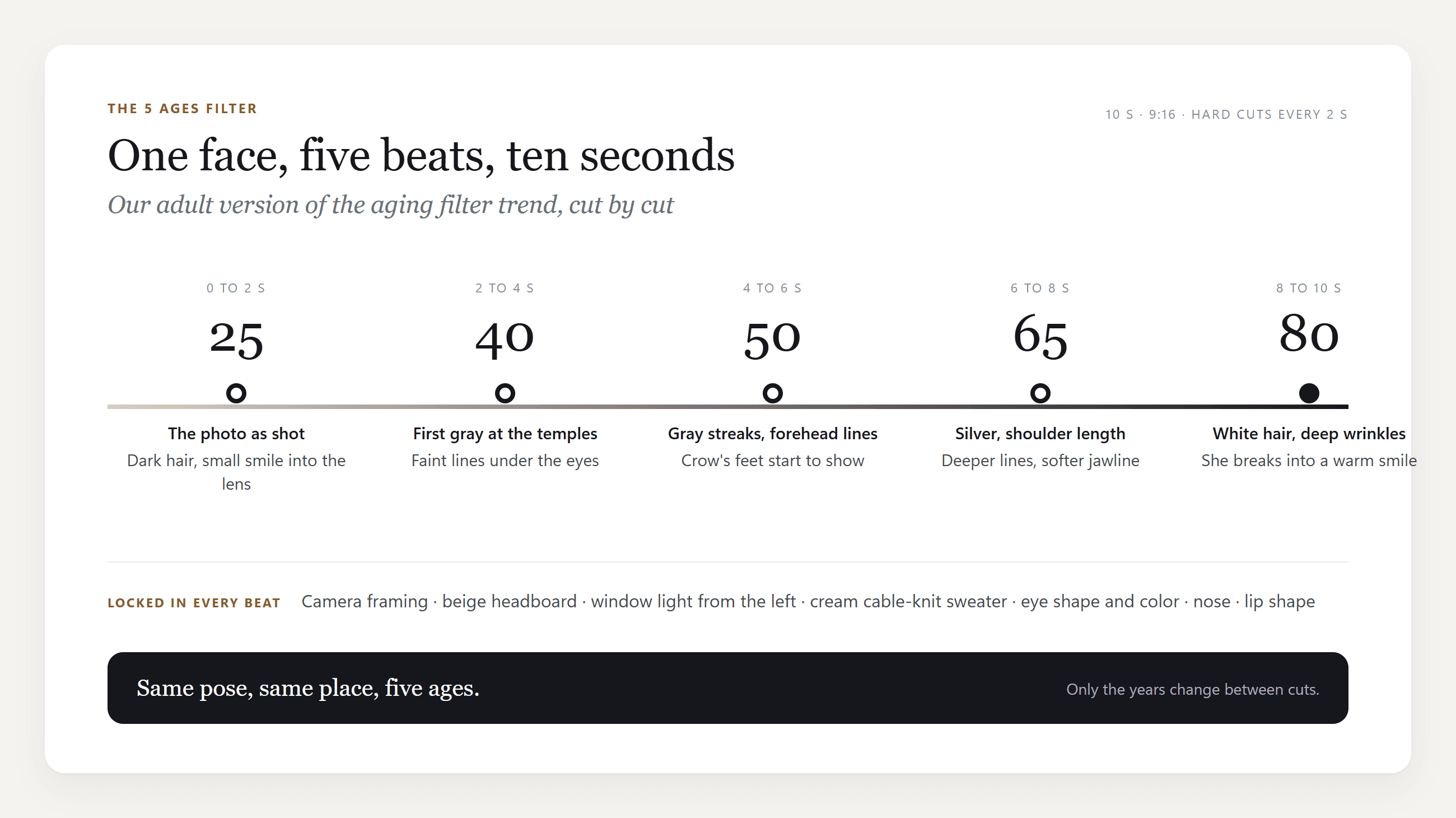
In the March posts the ages run 4, 12, 21, 40 and 80. A column of numbers sits down the left side, and each new age flies onto the face as the cut lands. Ours starts at 25 because we only age adults, and it swaps the numbers for a soft white flash.
How to Make an AI Aging Video With Seedance 2.5
Here is our 9:16 version, made from one photo with the AI video generator and cut on the beat:
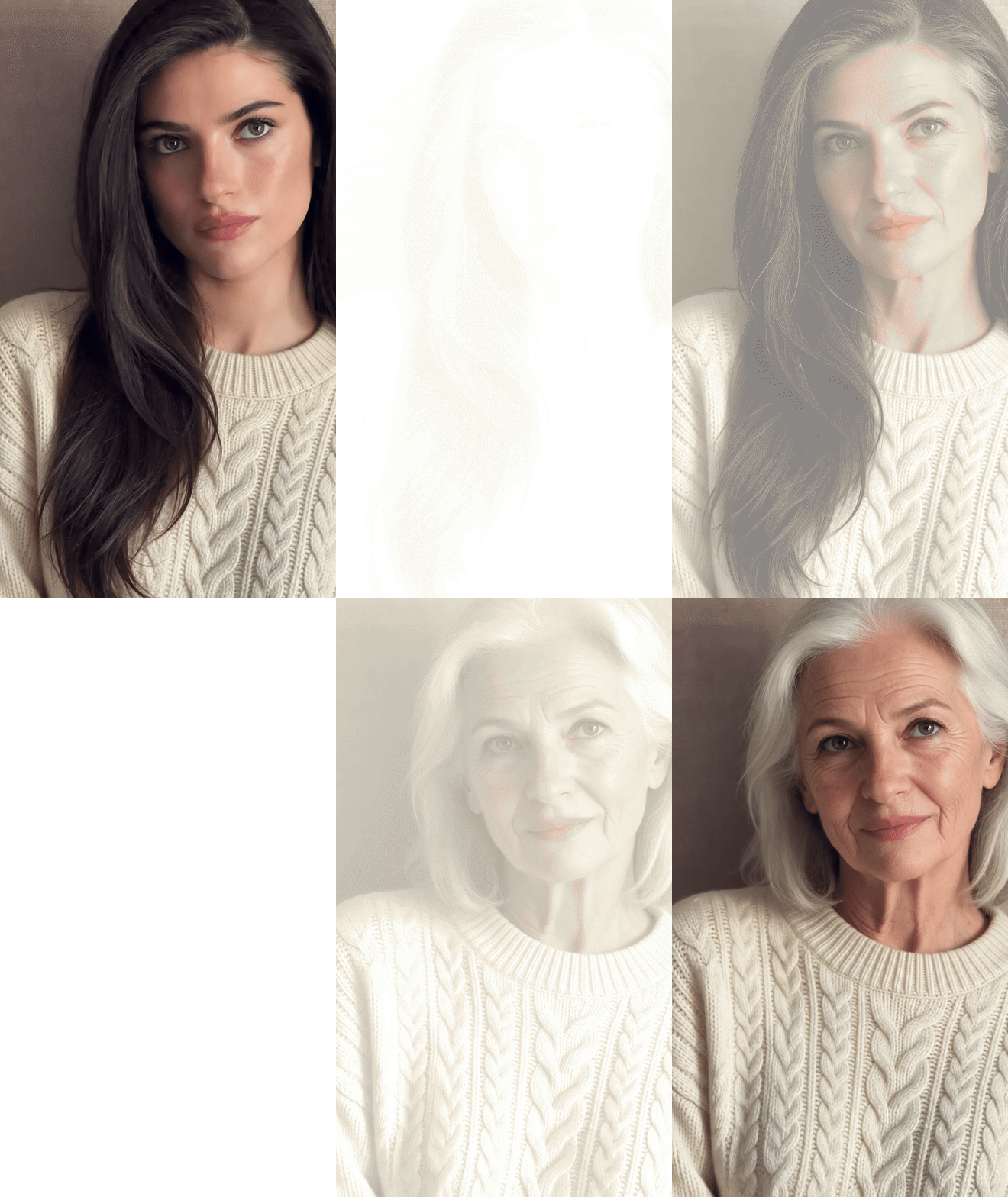
Seedance 2.5 Image-to-Video takes a first and a last frame and generates the motion between them. Give it two stills of one person at different ages and you get a continuous aging shot. Cut five frames from it and you have the trend.
Method 1: Turn One Photo Into an Aging Timeline Filter
First make two aged stills. We used Seedream 5.0 Pro Edit with one prompt each: the same woman at 50 with gray temples, then at 80 with silver hair, same sweater and headboard.
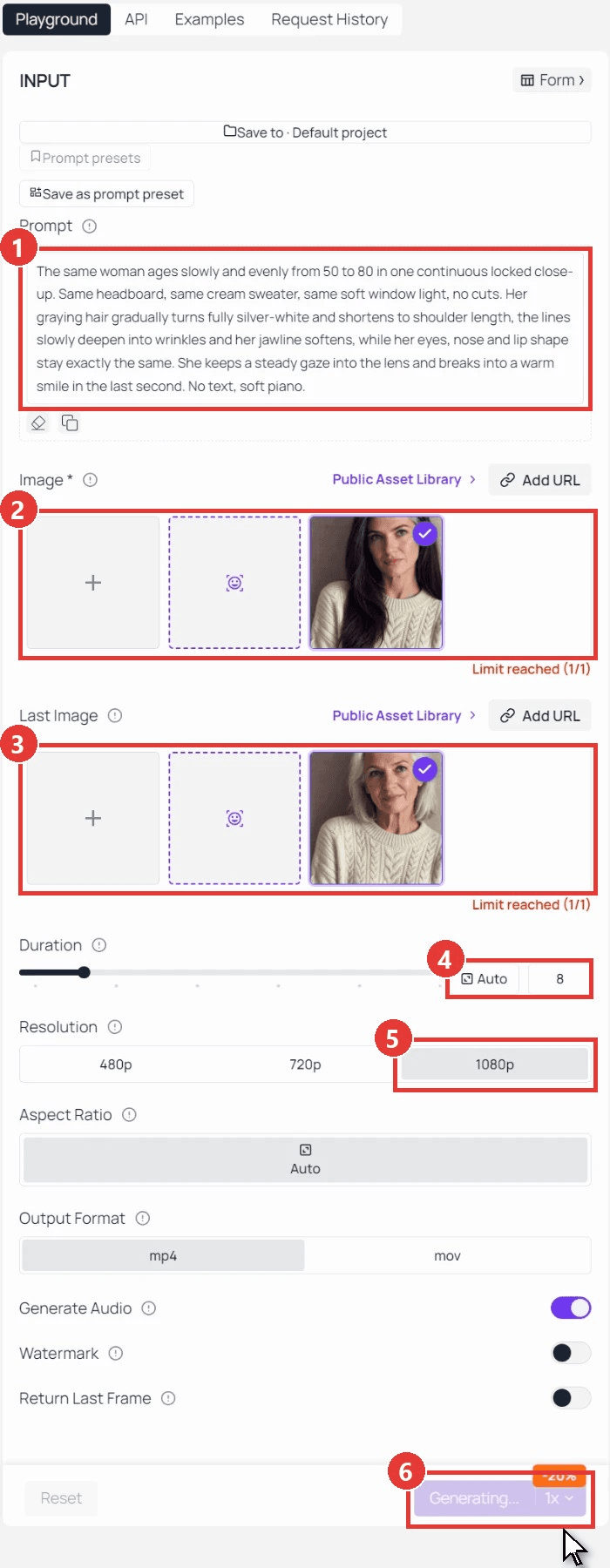
Then sign in to Seedance 2.5 Image-to-Video. The screenshot shows the 50-to-80 leg:
- Paste the prompt below.
- Upload the younger still as Image.
- Upload the older still as Last Image.
- Set Duration to 8.
- Pick 1080p.
- Click Run. Repeat with your photo and the 50 still for the 25-to-50 leg.
plaintext1The same woman ages slowly and evenly from 50 to 80 in one continuous locked close-up. Same headboard, same cream sweater, same soft window light, no cuts. Her graying hair gradually turns fully silver-white and shortens to shoulder length, the lines slowly deepen into wrinkles and her jawline softens, while her eyes, nose and lip shape stay exactly the same. She keeps a steady gaze into the lens and breaks into a warm smile in the last second. No text, soft piano.
Join the two legs, cut 2-second pieces at the five ages you want, and add a short white flash on each cut in CapCut or Premiere.
Method 2: Send the Aging Video Prompt Through the API
Step 1: Create and copy an API key in the Settings page of the Atlas Cloud console.
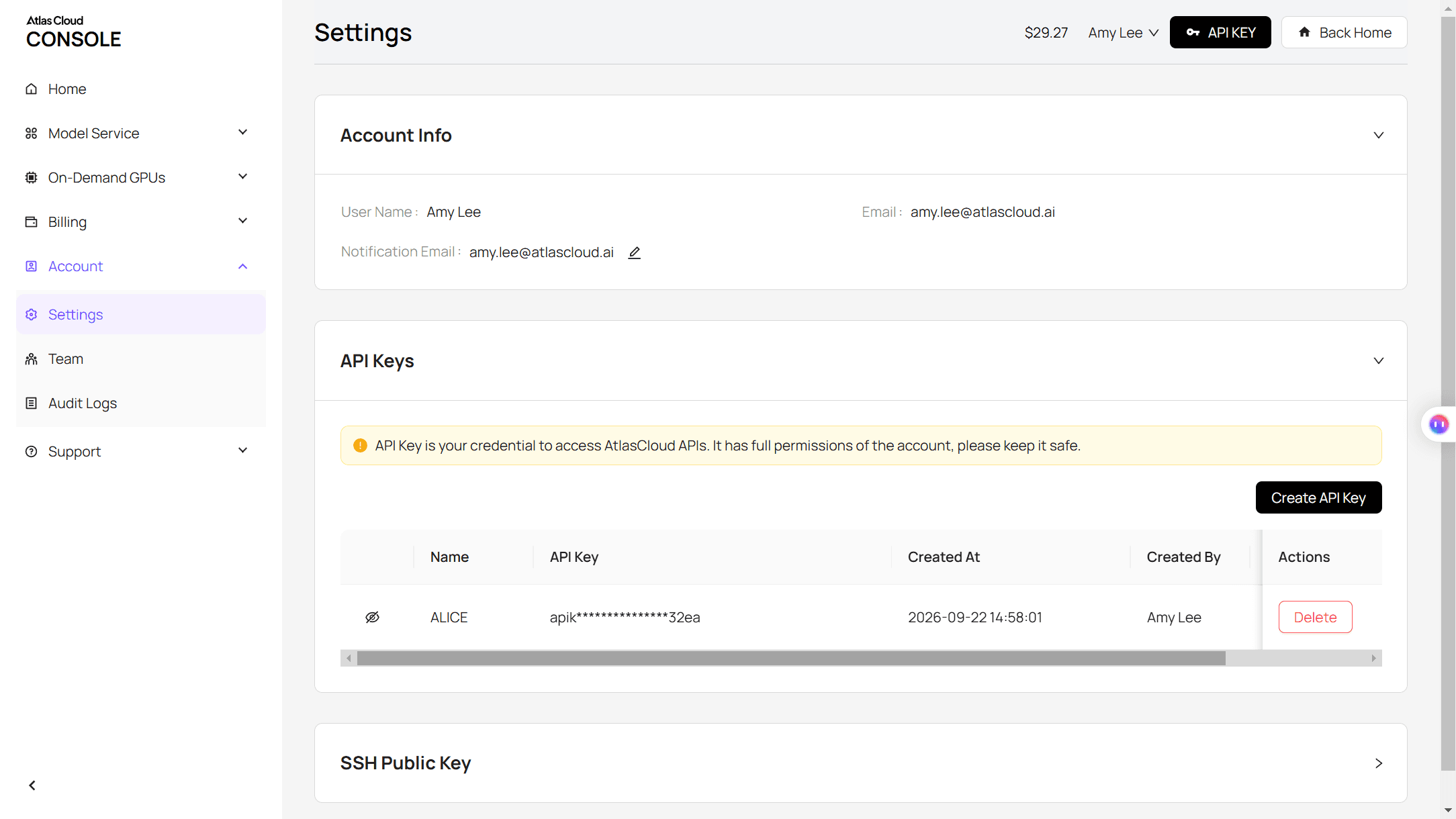
Step 2: Check the request format in the API docs.
Step 3: Submit one leg, then poll for the file.
plaintext1curl -X POST https://api.atlascloud.ai/api/v1/model/generateVideo \ 2 -H "Authorization: Bearer $ATLASCLOUD_API_KEY" \ 3 -H "Content-Type: application/json" \ 4 -d '{ 5 "model": "bytedance/seedance-2.5/image-to-video", 6 "prompt": "The same woman ages slowly and evenly from 25 to 50 in one continuous locked close-up. Same headboard, same cream sweater, same soft window light, no cuts. Her hair gradually gains gray strands and fine lines appear, while her eyes, nose and lip shape stay exactly the same.", 7 "image": "https://your-cdn.com/portrait-25.jpg", 8 "last_image": "https://your-cdn.com/portrait-50.jpg", 9 "duration": 8, 10 "resolution": "1080p", 11 "generate_audio": true 12 }'
plaintext1curl https://api.atlascloud.ai/api/v1/model/prediction/<prediction_id> \ 2 -H "Authorization: Bearer $ATLASCLOUD_API_KEY"
The same endpoint and key run the other video models on Atlas Cloud. Change the model string to switch.
A Young to Old Filter With First and Last Frames
Skip the cutting and the same two legs become a second version, an age transformation video of about 16 seconds with no jump from 25 to 80. Gray reaches her temples first, then the hair shortens and whitens, and she smiles at the end because the 80-year-old still smiles.
Which AI Aging Filter Templates Match the Trend?
| Template | Input | Output | Model named | Notes |
|---|---|---|---|---|
| CapCut, All ages AI trend | 6 clip slots | 14 s, 9:16 | Not stated | Linked from the March posts; 161.44K uses |
| MakeViral, AI Aging Filter | 1 adult photo | 10 s, 720p, 9:16, with sound | Seedance 2.5 | Now, 25, 40, 60, 80 every 2 s; 126 credits; 18+ only |
| Magic Hour, The aging process | First and last frame | 5 s, 1080p | Kling 3.0 | One transition between two frames |
| Viberot, AI Age Change Filter | 1 selfie | Image only | Not stated | 20 free credits a month |
| Atlas Cloud, Seedance 2.5 | 1 photo, or first and last frame | 4 to 30 s, native 1080p, 9:16 to 21:9 | Seedance 2.5 | Same model as MakeViral; you set the beats |
MakeViral's page states its photo rule plainly: "Never a child, a celebrity or a stranger." It is a good rule for every row.
An Aging Filter Prompt That Keeps the Same Face
To get the beats in one run, Seedance 2.5 Reference-to-Video takes your photo as a reference plus one timed line per age, and it follows the timestamps, so the cuts land on 2, 4, 6 and 8 seconds. Type @ in the prompt box and pick image1:
plaintext1Vertical 9:16 close-up portrait video of the woman in @image1, sitting against the same beige padded headboard in soft window light from the left, wearing the same cream cable-knit sweater. The camera stays locked on her face at the same framing for the whole clip; only her age changes, in five hard cuts on the beat. Her eye shape, eye color, nose, lip shape and face proportions never change, so every age is clearly the same person. 20-2s: age 25, exactly as in the reference, long dark brown hair, a small smile into the lens. 32-4s: hard cut, age 40, first gray at the temples, faint lines under the eyes, she tilts her head slightly. 44-6s: hard cut, age 50, gray streaks, forehead lines, light crow's feet. 56-8s: hard cut, age 65, hair mostly silver and shoulder length, deeper lines, a softer jawline. 68-10s: hard cut, age 80, white hair, deep wrinkles, light age spots, she smiles warmly at the camera. 7Each cut lands with a soft camera flash and a light whoosh. Natural skin texture at every age, no text or numbers on screen.
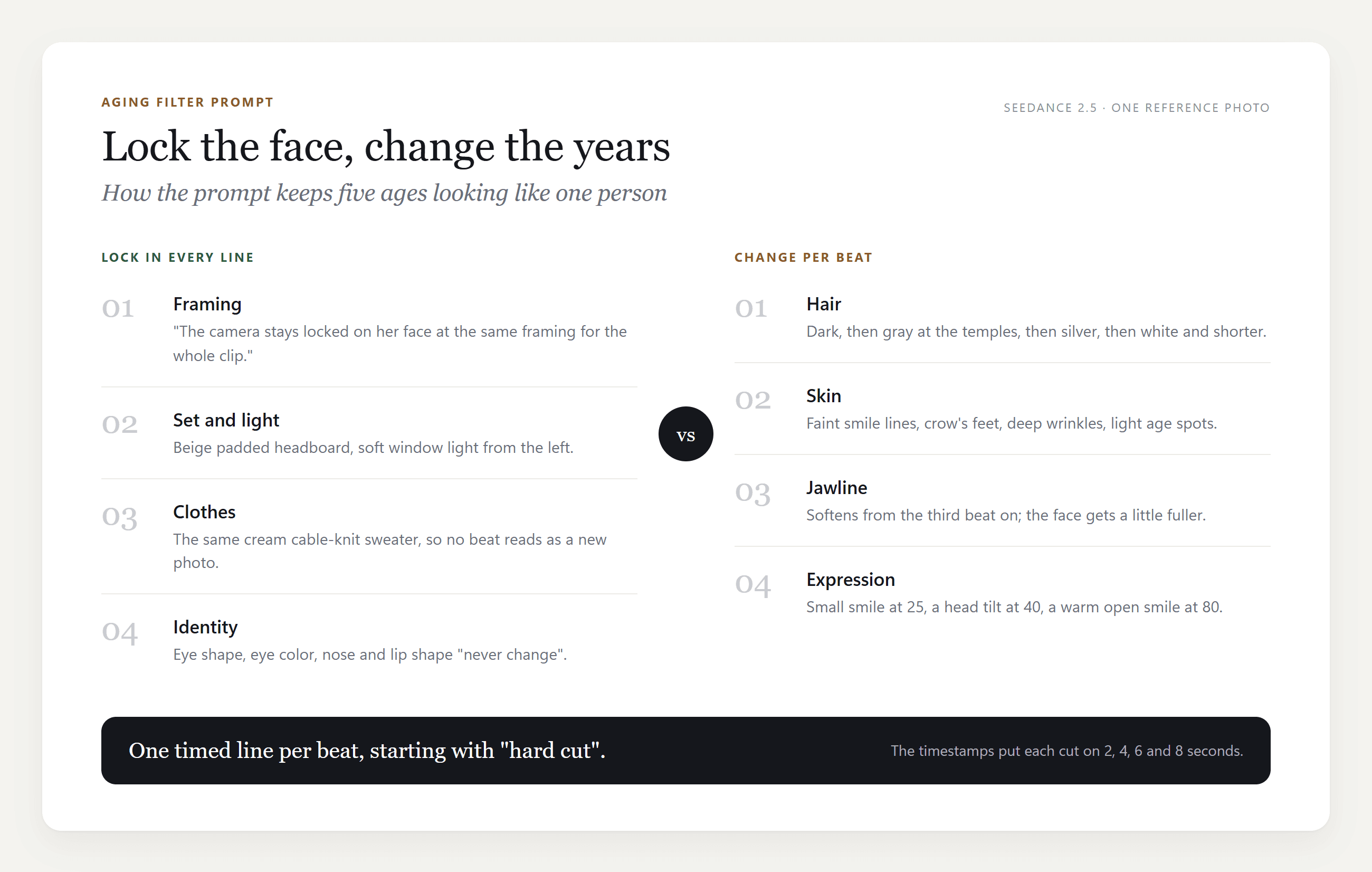
The identity line does the heavy lifting: it names what may never move. More on timing syntax in our guide to writing Seedance 2.5 prompts.
Hug Your Younger Self AI, Flipped: Meet Your Older Self
Hug your younger self AI clips pair you with an old photo of yourself. We flipped it: the 25-year-old meets her 80-year-old self. Reference-to-Video takes both stills as @image1 and @image2, and the prompt runs three beats: they look at each other, hug, then lean back and laugh.
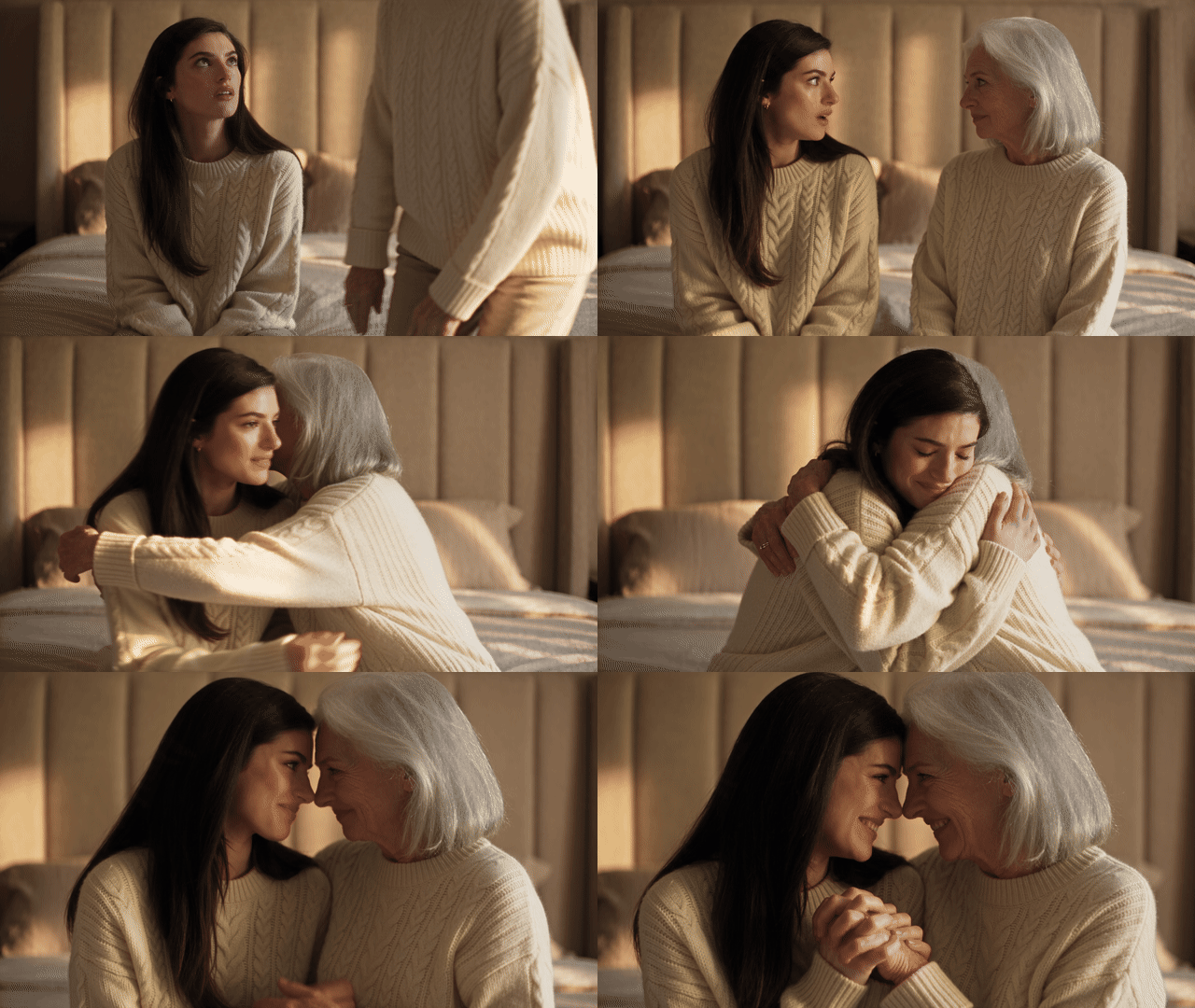
Dress both in the same sweater and the clip reads as one person across 55 years.
Frequently Asked Questions
Can I use a childhood photo for the aging filter trend?
Start from your own adult photo. MakeViral limits its template to adults, and aging someone else's childhood photo adds a consent problem on top.
How do I add the age numbers on screen?
Keep numbers out of the prompt and add them in your editor after the cut: a column down one side, with the current age sliding onto the face as in the March posts. Editor text stays sharp, and you can change the ages without generating again.
Why is my first and last frame clip not vertical?
Image-to-Video keeps the ratio of the photo you upload. Crop the stills to 9:16 first, or crop the finished clip around the face as we did.
Can the aging video run longer than 10 seconds?
Yes, Seedance 2.5 accepts 4 to 30 seconds per run, so the slow version can be one 30-second generation. Keep the beat version at 10 seconds, since five two-second ages is the rhythm people know.
How much does a 10-second aging video cost?
On the Seedance 2.5 model page, 10 seconds at 720p shows $3.02 on the Run button with the current 20% discount (list $3.77), and 1080p shows $5.94 (list $7.42). The two 8-second 1080p legs in Method 1 add up to about $9.50, so draft at 720p and render the keeper at 1080p.
Conclusion
The aging filter trend looks like a filter but works like an edit: one face, one pose, five ages on the beat. That is why a six-slot template can copy it and why one photo is enough to make it. Identity is the hard part, and it is solved in the prompt.
Seedance 2.5 gives you two ways in. First and last frames turn two stills into an aging shot you can cut on the beat or leave running. Reference-to-Video takes one photo and a timed prompt when you want the beats in a single run. Start from an adult photo you have the right to use, lock the eyes and nose in the prompt, and your aging filter trend clip is one afternoon's work.





