

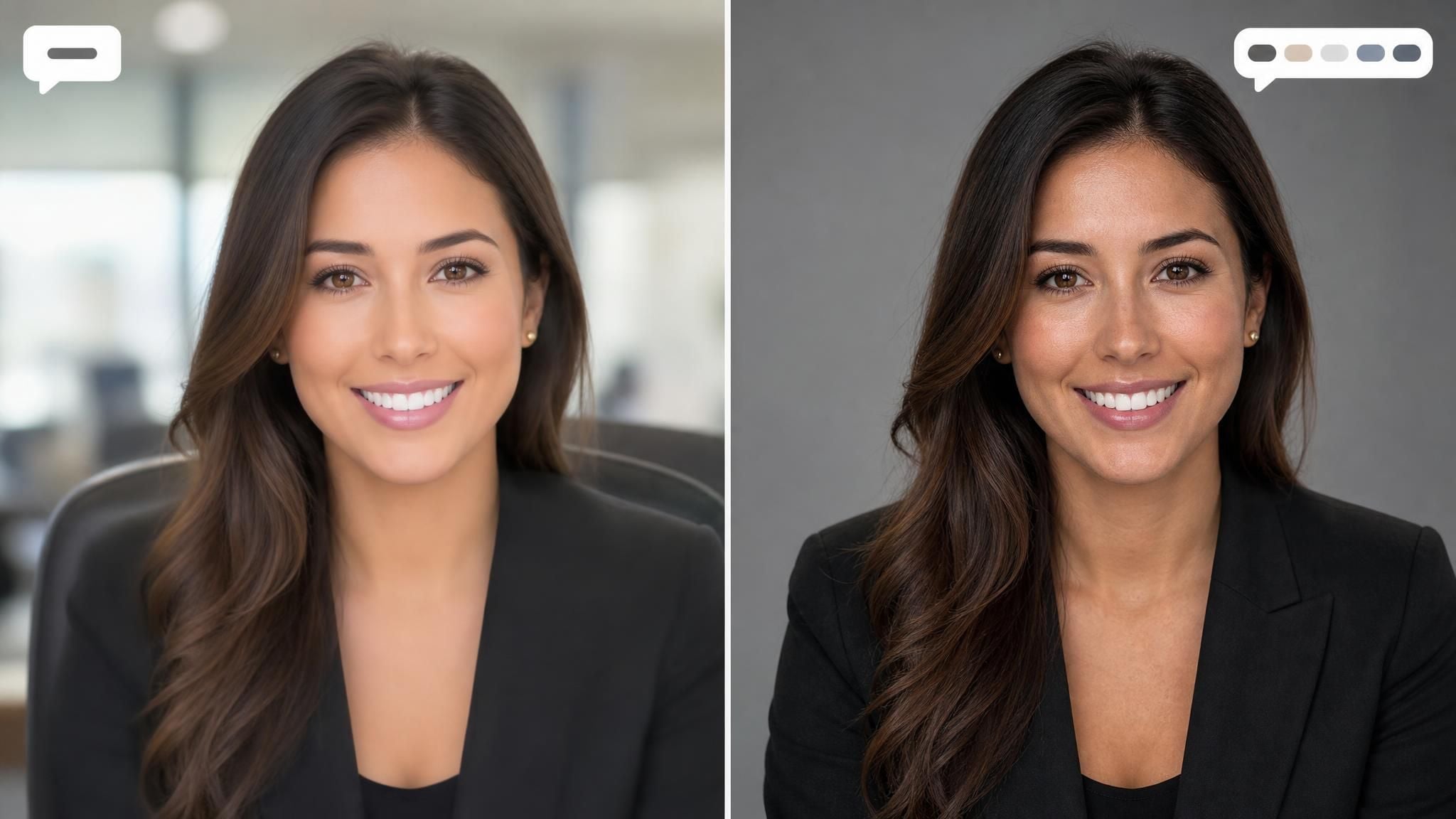
The first prompt I wrote was seven words: professional headshot of a woman, office background. What came back had poreless skin, teeth two shades past white, and a blazer melting into the chair behind it. Thirty-nine drafts later I had a photo worth putting on LinkedIn, and a reasonably clear record of which words did the work. That record is this article: an ai prompt for professional headshot results that hold up, written as a formula you can reuse rather than a wall of one-off examples.
Key Takeaways
- A working professional headshot prompt fills five slots by name: pose, attire, lighting, background, lens framing. Left blank, the model fills each slot with a training-data average, and averages read as plastic.
- For a headshot of yourself, use an image editing model with your selfie as the reference, plus an identity clause that forbids retouching. Text-to-image models invent a person; edit models keep yours.
- Changing style rarely means rewriting. Swap the attire clause, or the background clause, and leave the rest of the prompt untouched.
- Models still change things the prompt never mentioned, hair partings included. The fix is naming what must stay, down to freckles.
- Skipping the formula entirely is also an option: Atlas Cloud's free AI headshot generator gives every account one generation at no charge, no credits, no subscription.
What a Professional Headshot Means to an Image Model
To a model, "professional headshot" is a statistical average of every image that phrase was attached to during training: navy suit, white void backdrop, wide symmetrical smile, heavy studio gloss. Type those two words alone and the average is exactly what returns. The plastic skin isn't a malfunction. It's the model doing what under-specified prompts ask it to do, which is guess, and its guesses run toward beautification, likely because retouched photos dominate the category.
There's a second decision that matters more than any wording choice. A text-to-image model given "professional headshot of a woman with red hair" will produce a convincing professional and an invented face. For a photo of yourself, the job belongs to an image-to-image editing model: you upload a selfie as the reference, and the prompt describes what changes around your face rather than describing the face itself. Every example in this article is written for that editing workflow.
Atlas Cloud Lanes: Free Headshot Tool, Full Prompt Control
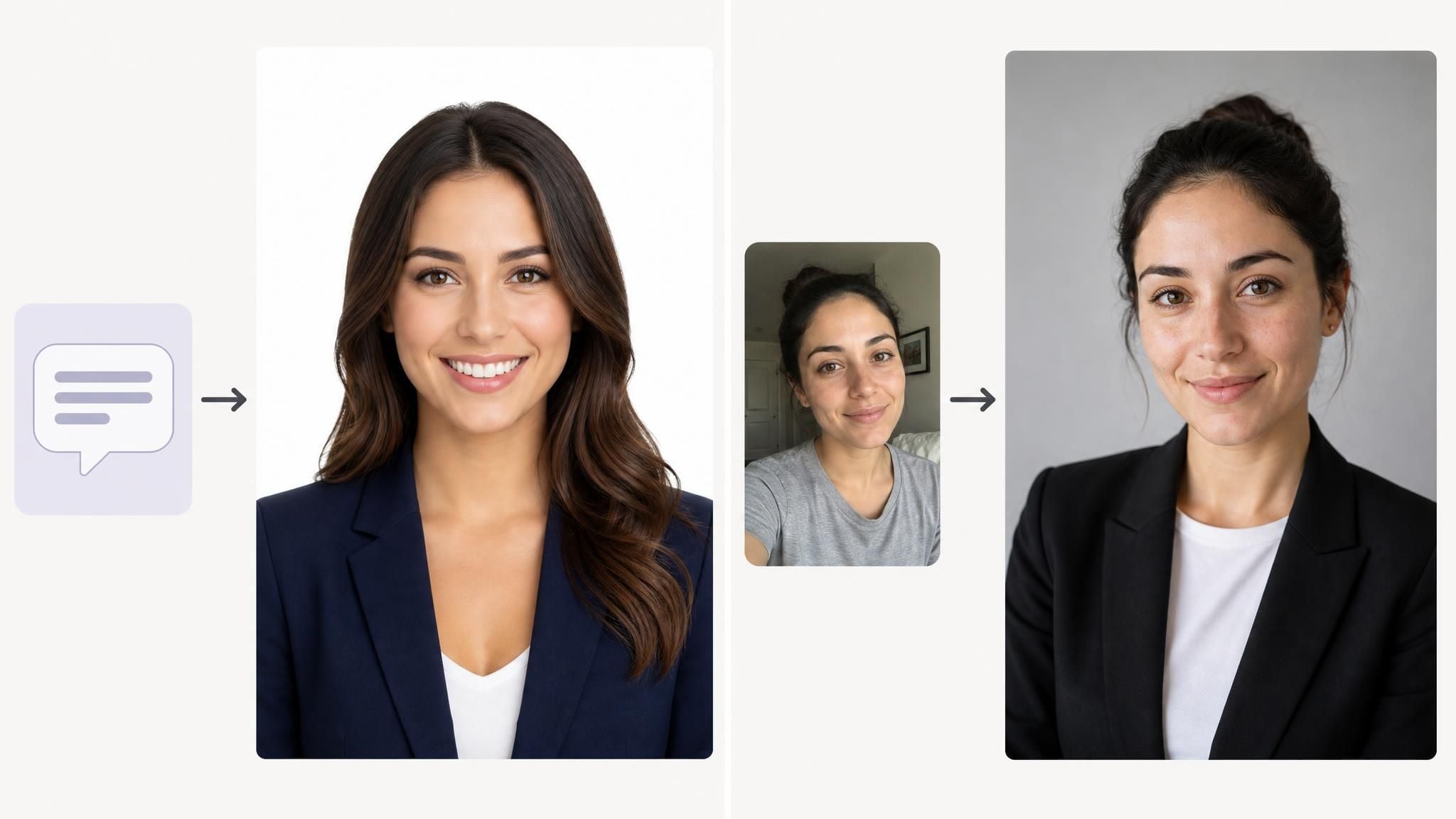
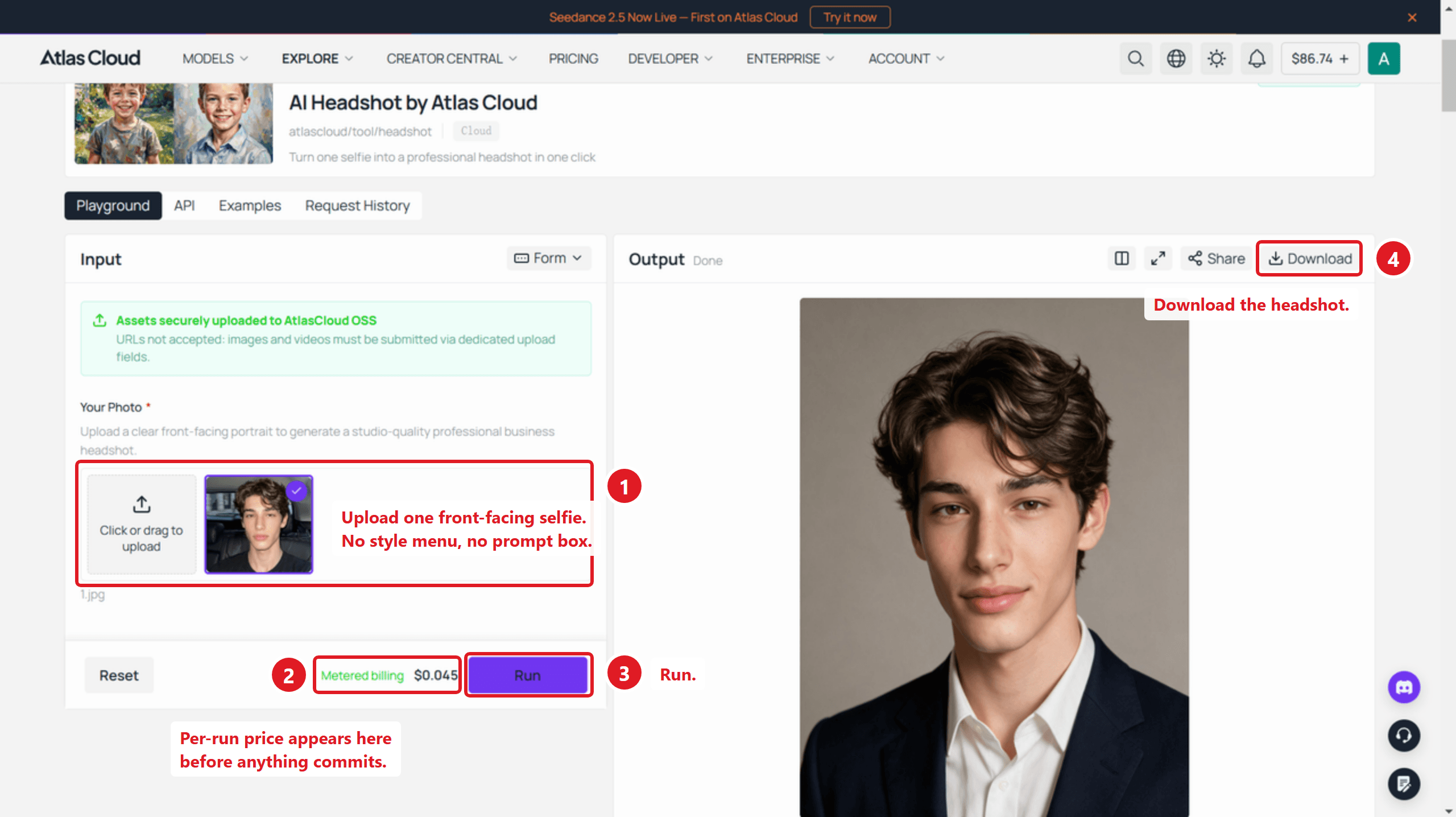
Before the formula, the shortcut. Atlas Cloud collects its no-cost tools on one AI tools page, and the free AI headshot generator there gives every account one full generation with no card and no credit balance. Upload a front-facing selfie and the tool restyles attire and background into a business-ready look, then returns a high-resolution download. There is no style menu to configure. The tool edits your actual photo rather than generating a stranger, and once the free run is spent, further photos bill per generation from a topped-up balance, at $0.045 each.
That default look covers the common case. What it can't do is take instructions: a specific blazer color, a client's brand background, window light instead of studio light. That control lives in the model playgrounds, and the one this article's examples were tuned on is Seedream v5.0 Pro Edit, the editing variant in the Seedream 5.0 Pro family. Its model page describes preserving identity, lighting, and color tone as the design focus, which is the entire job description of a headshot edit. It takes up to 10 reference images, and it prices in two bands set by how many pixels the output holds: $0.045 a run for the smaller presets, $0.09 once the output crosses roughly 2.6 megapixels.
The Five-Slot Formula Behind a Working Headshot Prompt
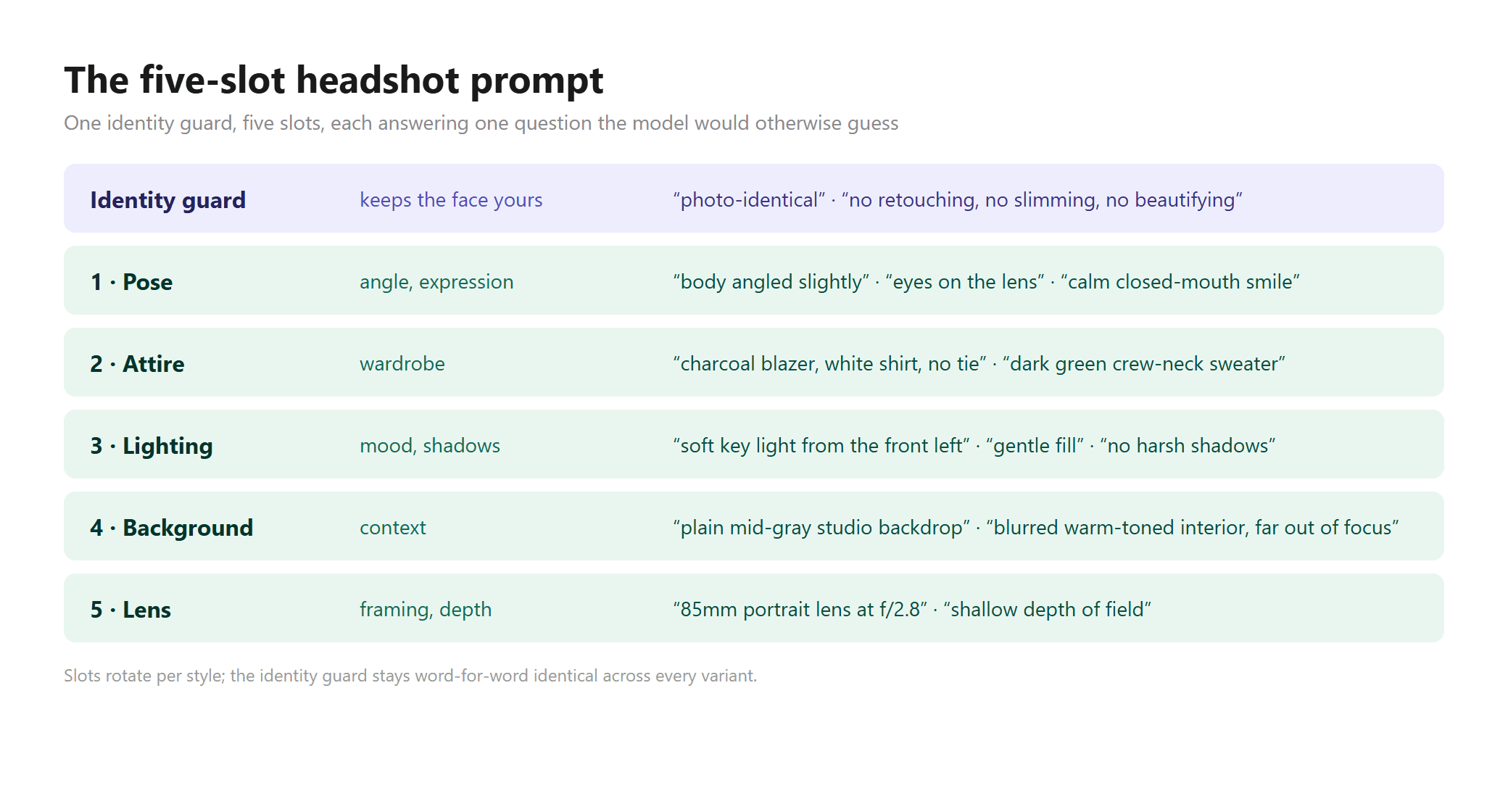
Every reliable headshot prompt I ended up keeping has the same skeleton: an identity guard up front, then five slots filled in a fixed order. The guard is non-negotiable for edit models, because their default behavior is to improve faces, and improvement is exactly what makes a headshot stop looking like you.
Plain1Head-and-shoulders professional headshot of the person in the reference image. 2Keep the face photo-identical: same face shape, eyes, nose, skin texture, hairline. 3No retouching, no slimming, no beautifying. 4[POSE] Body angled slightly, face to the camera, eyes on the lens, calm closed-mouth smile. 5[ATTIRE] Navy suit jacket over a plain white shirt, no tie. 6[LIGHTING] Soft key light from the front left, gentle fill on the right, no harsh shadows. 7[BACKGROUND] Plain mid-gray studio backdrop, softly out of focus. 8[LENS] Framed like an 85mm portrait lens at f/2.8, shallow depth of field.
Run unchanged with a single reference selfie, the block above comes back like this:
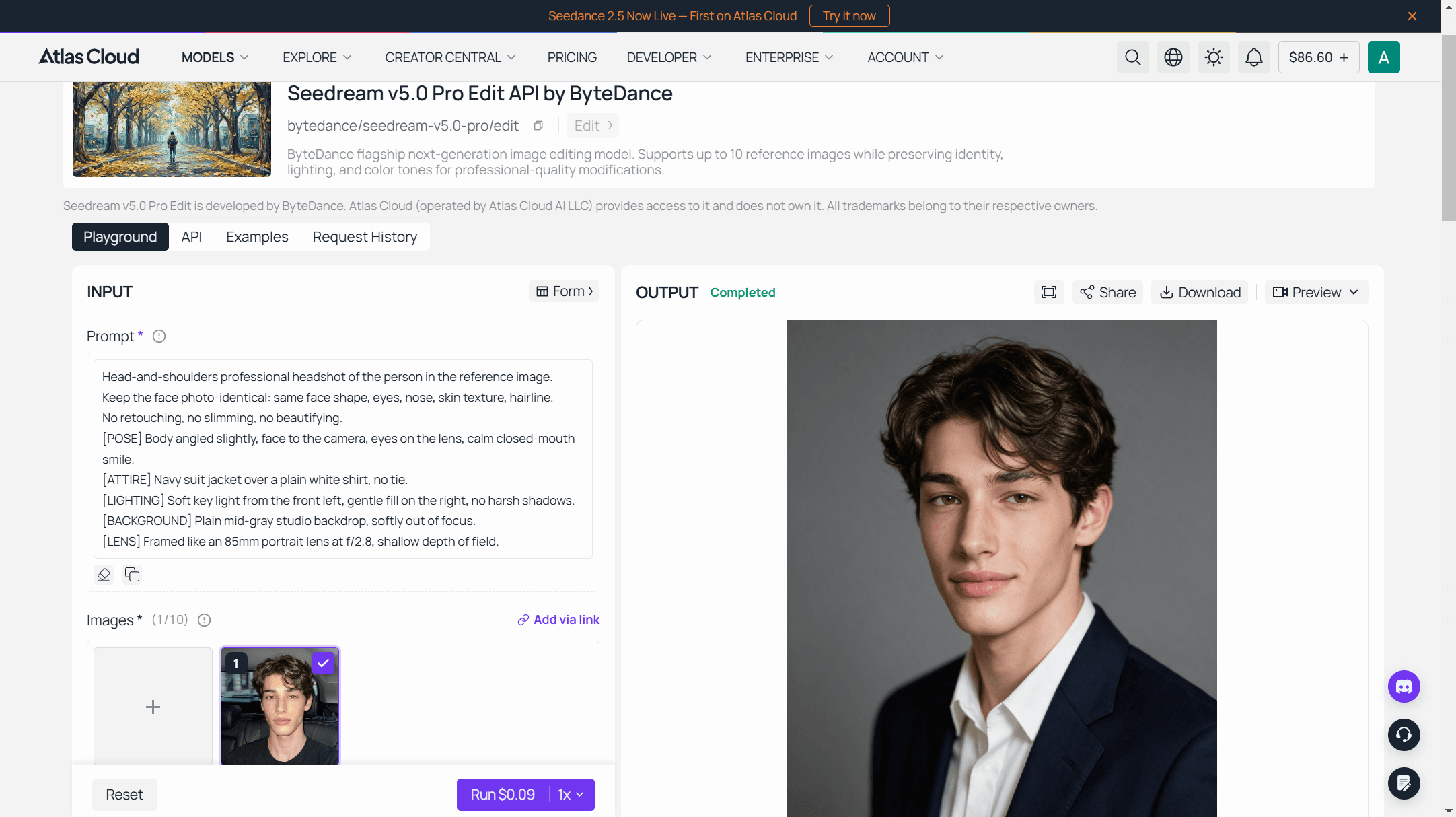
One run on the Seedream v5.0 Pro Edit playground , $0.09.
Each slot answers one question the model would otherwise answer for you. Pose sets angle and expression; a closed-mouth smile sidesteps teeth rendering entirely. Attire is where most style changes happen. Lighting language borrowed from photography (key, fill, softbox) registers reliably, likely because those terms saturate the photo captions models train on. Background stays plain unless there's a reason. The lens clause is shorthand: 85mm at f/2.8 tends to pull the framing tight and blur the backdrop the way portrait photographers actually shoot, though it steers composition rather than simulating real optics.
AI Headshot Prompt Examples by Style
The formula holds; the slots rotate. Three families of examples below, each a working prompt you can paste into an editing playground with a selfie attached.
LinkedIn-Ready Corporate Headshot Prompts
The corporate version keeps everything conservative: muted wardrobe, plain backdrop. The instruction below is the exact one from our August 3 playground test, unedited. Read it against the formula and two slots are missing: lighting and lens go unmentioned, and the model filled both gaps with soft studio defaults. Identity guard, pose, attire, and background carried the run on their own.
Plain1The person must face the camera directly, frontal pose, eyes into the lens. 2Apart from the pose change, the face must remain photo-identical to image 1: 3same face shape, same nose, same eyes, same skin texture, same hairline. 4Do not retouch, slim, or beautify the face in any way. Only change the 5clothing to a charcoal blazer over a white shirt and the background to an 6even light gray studio backdrop. Head-and-shoulders framing, square crop.
The input was an in-car selfie where the subject wasn't even facing the camera.
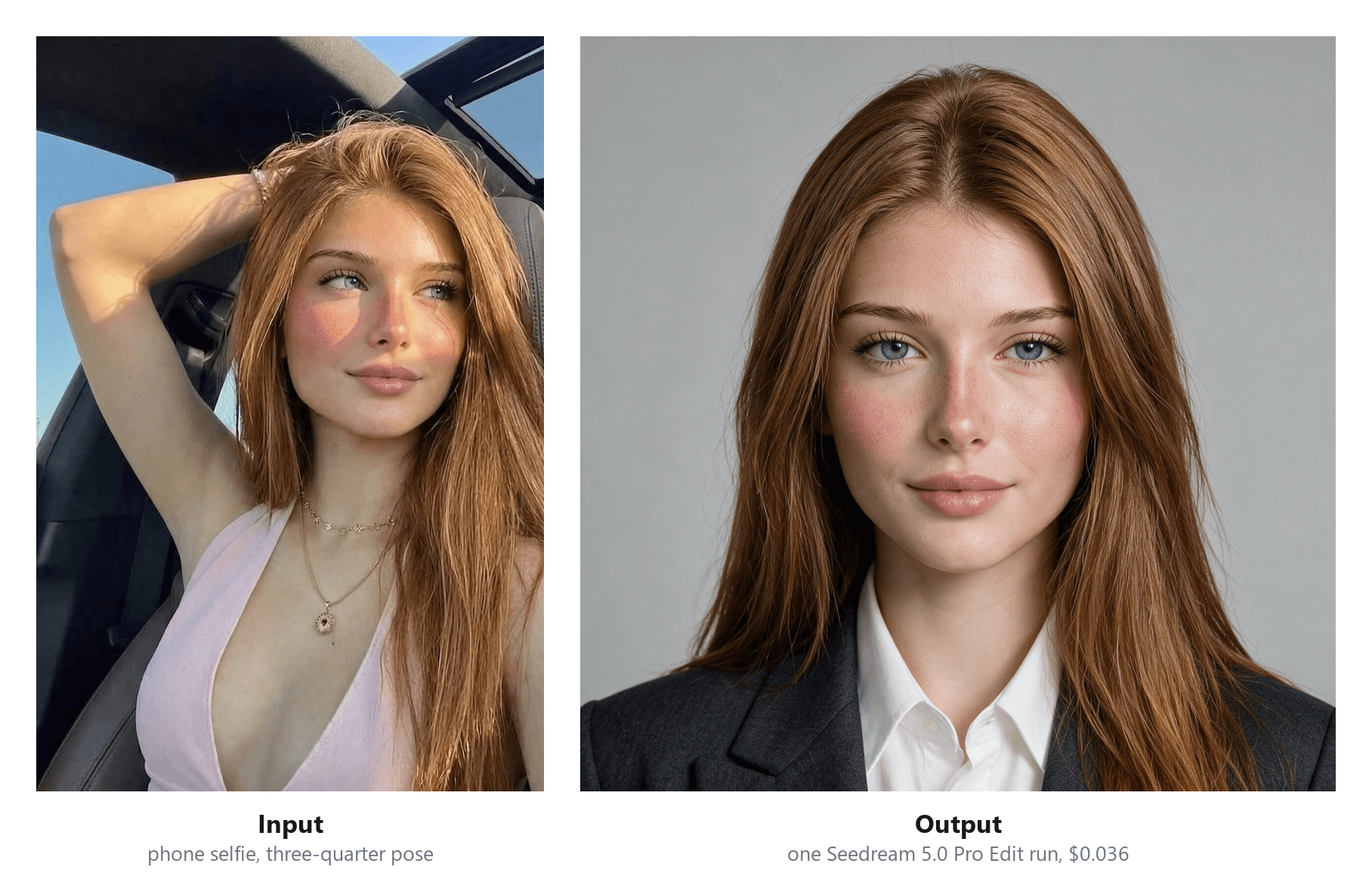
One run on the Seedream v5.0 Pro Edit playground at 1536×1536, $0.045.; the same endpoint quotes $0.045 as of August 18, 2026.
Before uploading the result anywhere, two LinkedIn specifics are worth knowing: profile photos must land between 400×400 and 7680×4320 pixels as PNG or JPG under 8MB, per LinkedIn's upload specifications. Most editing models output inside that window by default, but a heavily cropped export can slip under the floor.
Casual, Creative-Field Headshot Prompts
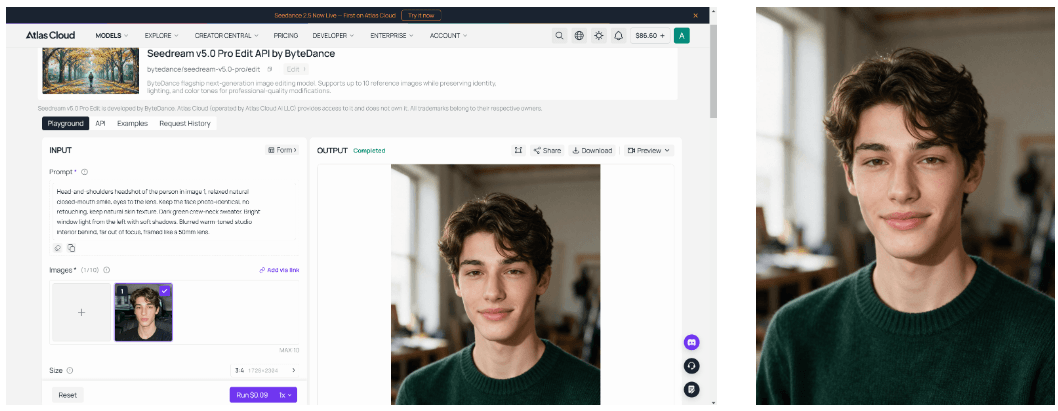
Two slot swaps take the same skeleton somewhere warmer. Attire drops the blazer, background gains depth, lighting moves to a window:
Plain1Head-and-shoulders headshot of the person in image 1, relaxed natural 2closed-mouth smile, eyes to the lens. Keep the face photo-identical, no 3retouching, keep natural skin texture. Dark green crew-neck sweater. Bright 4window light from the left with soft shadows. Blurred warm-toned studio 5interior behind, far out of focus, framed like a 50mm lens.
The 50mm framing reads slightly wider and less formal than 85mm. For creative fields, this register reads as approachable without tipping into vacation photo.
Industry-Specific Prompt Variants
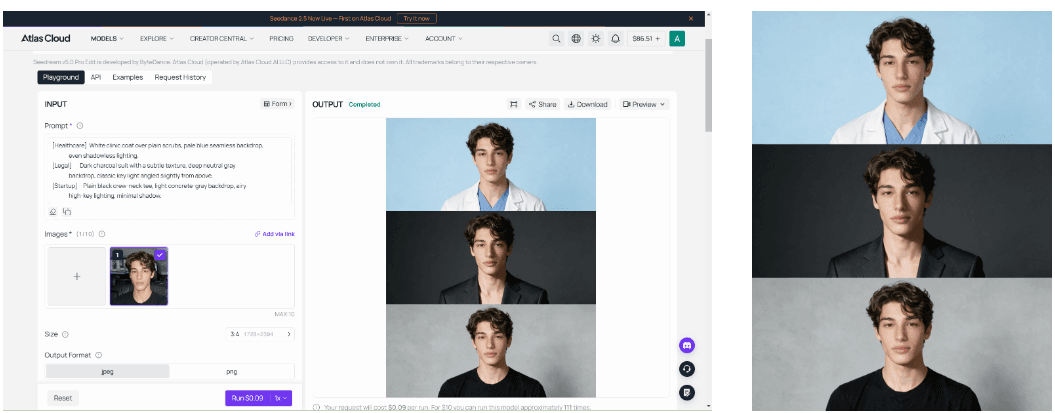
Only the attire and background slots move between industries. Three drop-in swaps:
Plain1[Healthcare] White clinic coat over plain scrubs, pale blue seamless backdrop, 2 even shadowless lighting. 3[Legal] Dark charcoal suit with a subtle texture, deep neutral gray 4 backdrop, classic key light angled slightly from above. 5[Startup] Plain black crew-neck tee, light concrete-gray backdrop, airy 6 high-key lighting, minimal shadow.
Everything before the attire clause, the identity guard included, stays word-for-word identical. That's the practical payoff of slot structure: a team of any size can standardize one skeleton and vary two lines per department.
Where Headshot Prompts Break: Hands, Eyes, Skin Texture
Some failures no wording fully prevents. Hands are the best documented: extra fingers, fused knuckles. The reliable fix is refusing to render them, which "head-and-shoulders" already does; if a prompt says half-body, hands enter the frame and so does their failure rate. Eyes fail quieter. Outputs can come back with a dead-flat gaze, and adding "eyes on the lens" plus "single catchlight in each eye" pushes results toward the alive version, though not every run.
Skin is where defaults fight back hardest. In our August 3 test, the same selfie went through two preset-based free tools and one prompt-directed run. One preset tool smoothed away the subject's freckles and blush entirely; the other happened to keep them. That split is the real finding: under presets, texture survival depends on which tool you drew. The prompt-directed run kept freckles and blush because the instruction demanded it, yet re-parted the subject's hair into near-perfect symmetry, something no part of the prompt requested.
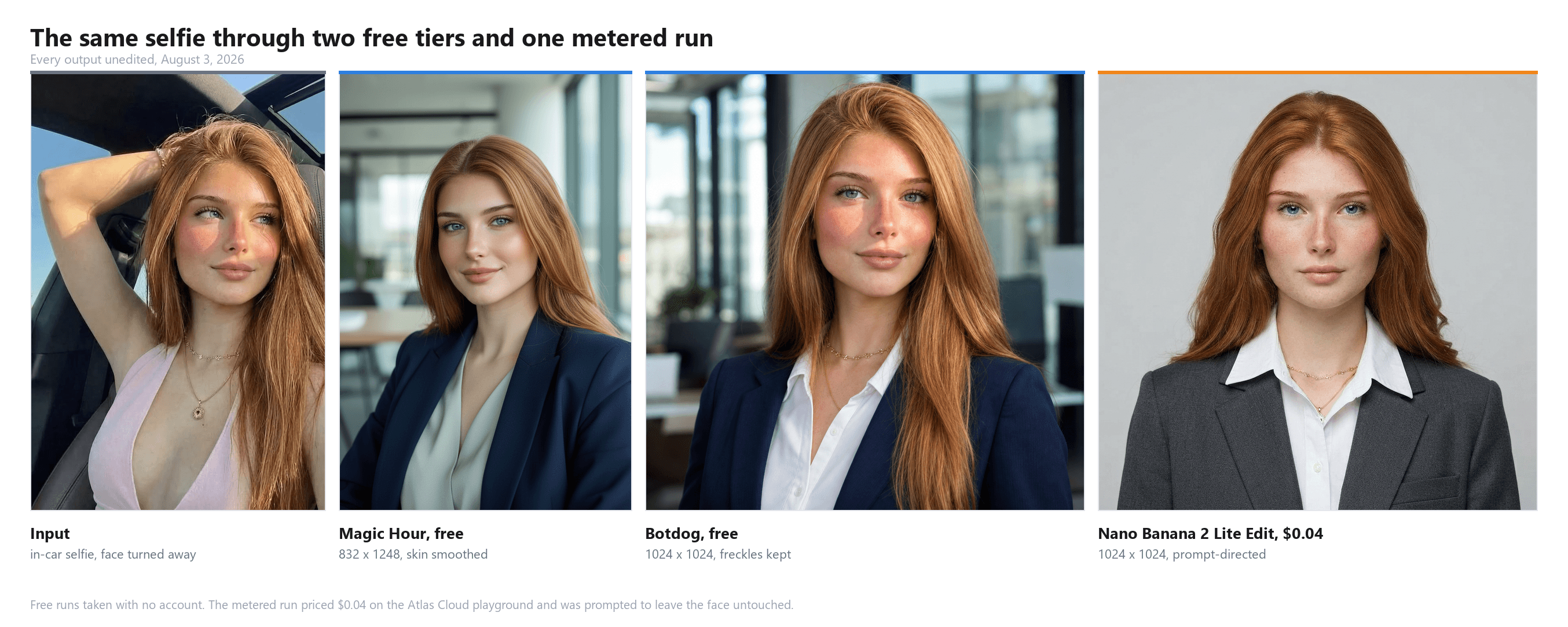
The lesson generalizes: an identity guard protects what it names and nothing else. If the parting, a scar, a birthmark, or asymmetric brows matter, name them. "Keep the original hair parting" costs six words and survives more runs than any general instruction to change nothing.
One Headshot Prompt Across Three Models
The same prompt lands differently depending on the engine behind it, and so does the bill. Three editing models on Atlas Cloud make the comparison concrete, all prices pulled from the platform's price endpoint on August 18, 2026, none carrying a promotional discount that day.
Seedream v5.0 Pro Edit splits into the two pixel bands already mentioned, and the aspect ratio you pick does not settle which one you land in. Its 3:4 option exists twice, at 1328×1776 for $0.045 and at 1728×2304 for $0.09. Same shape, double the bill, so read the size string rather than the ratio label.
GPT Image 2 Edit bills by token, which makes quality the dominant lever: a portrait 1024×1536 run costs $0.00974 at low, $0.04616 at medium, and $0.16964 at high. Its square option is the odd one out, dearer than the taller frame at matching quality, $0.05768 against $0.04616 at medium, since the token formula weights the short-to-long side ratio. Those figures cover output only. The uploaded selfie contributes input tokens on top, which is why a real 3:4 medium run on the playground rings up near $0.049 rather than $0.04616. The Run button carries the finished total before anything commits.
Nano Banana 2 Edit is the one model here that ignores shape entirely, pricing on resolution alone: $0.08 at 1K, $0.12 at 2K, $0.16 at 4K, unchanged whether the output is square or 3:4. Its page carries a line worth reading before uploading portraits, that requests failing Google's content review are still partially billed by the provider.
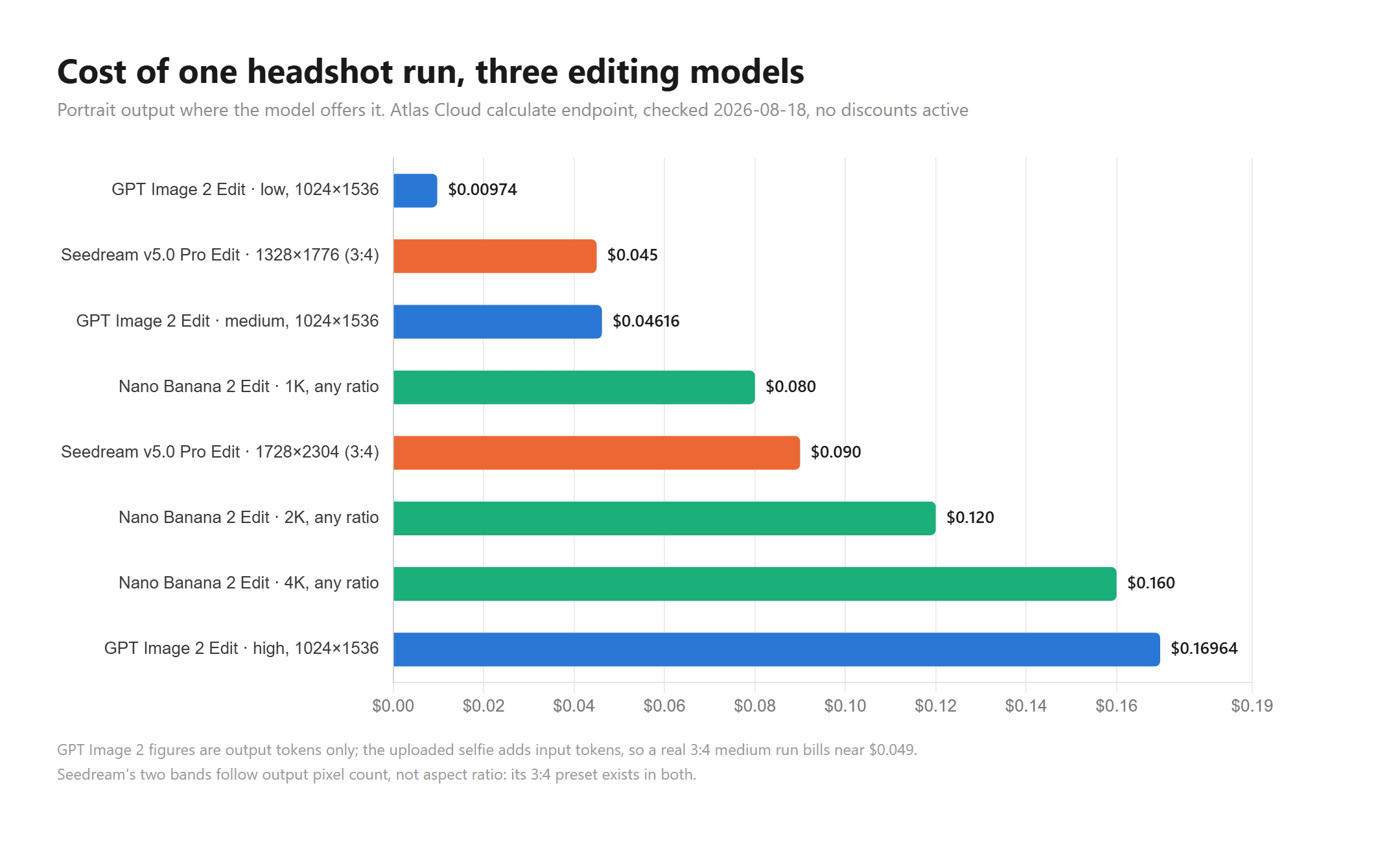
Prices via Atlas Cloud's calculate endpoint, checked 2026-08-18. GPT Image 2 figures are output tokens only; the uploaded photo adds input tokens.
A workflow that respects the ladder: draft on the cheap tier until the slots read right, then spend the expensive run once. Ten GPT low-tier portrait drafts plus one Nano Banana 2 run at 4K lands near 29 cents once each draft's input-image tokens are counted.
Cost aside, the engines read the same words differently. We fed the five-slot template from earlier, unedited, to all three, using one reference photo of a different subject. The fourth panel is the free tool's one-click output on the same photo, included because it takes no prompt at all.
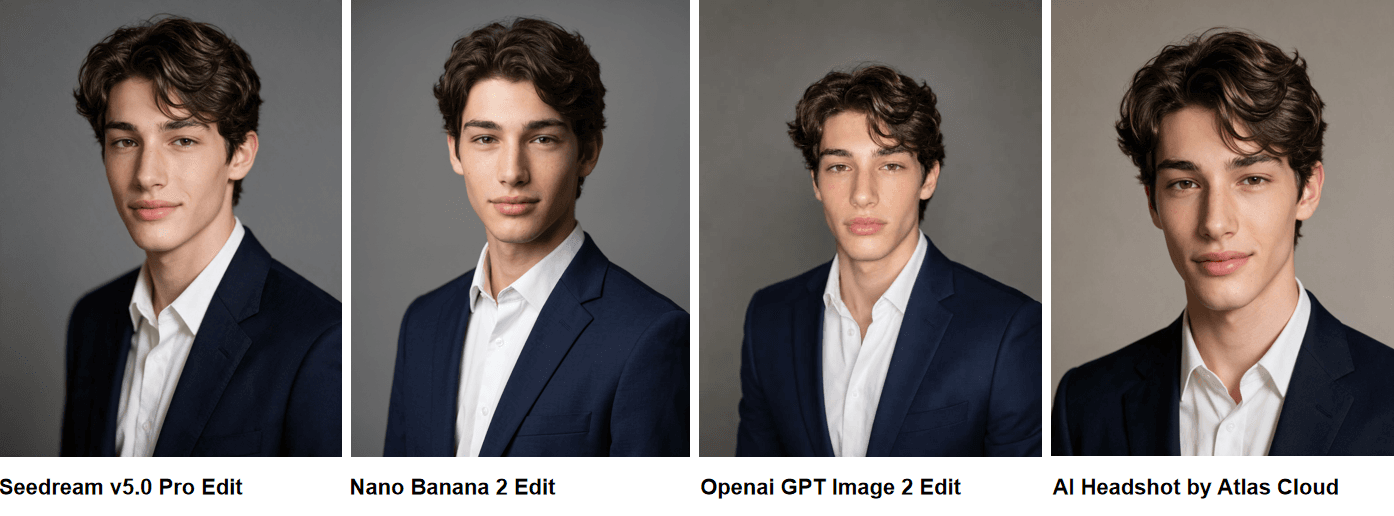
Three prompted runs of the five-slot template plus the free tool's default output, August 18, 2026.
The wardrobe clause landed everywhere: navy jacket, white shirt, collar open, no tie. Backdrop is where the panels separate. All three prompted models produced the mid-gray the template asked for, GPT Image 2 reading coolest and cropping tightest among them. The free tool, with no prompt to follow, went to a warm taupe instead, which is the tradeoff the earlier sections describe: nothing to write, no say in the result. Framing drifts too, from Seedream keeping the most torso to the free tool keeping the least, worth knowing if a profile needs a particular crop.
Frequently Asked Questions
What is the best prompt structure for a professional AI headshot?
An identity guard followed by five slots: pose, attire, lighting, background, lens framing. The guard tells the editing model to keep the face photo-identical with no retouching; each slot answers one visual question the model would otherwise fill with a training-data average. The full skeleton is in the formula section above.
Do I need to name a camera or lens in an AI headshot prompt?
Not a brand, no. Focal-length phrasing like "85mm at f/2.8" acts as a style word: expect tighter framing and a softer background, not a simulation of real glass. Skip it and the model chooses the framing for you.
Can I get a professional headshot without writing any prompt?
Yes. Atlas Cloud's free AI headshot generator needs no prompt at all: upload a selfie and it returns a professionally styled headshot. The first generation on an account costs nothing and needs no card; every one after that draws $0.045 from a topped-up balance.
Why do AI headshots still get hands or teeth wrong?
The usual explanation is training signal: small, high-detail structures photographed in endless pose variety, with errors human eyes catch instantly. Whatever the cause, the working answer is to keep them out of the shot, a head-and-shoulders crop for hands, a closed-mouth expression for teeth.
Which Atlas Cloud model should I start with for headshot prompts?
Seedream v5.0 Pro Edit is the easiest to budget, with two price bands and nothing else to watch, provided you check the size string rather than trusting the aspect-ratio label. GPT Image 2 Edit's low tier is the cheapest drafting lane at about a cent a run. Nano Banana 2 Edit sits in between and prices only on resolution, which makes it the predictable choice for a 4K final render. Exact per-run figures are in the model comparison section and its chart.
Will an AI headshot violate LinkedIn's photo rules?
Not by being AI-made. LinkedIn's profile photo guidelines state "your profile photo must reflect your likeness," and the removable categories cover logos, landscapes, celebrities, and others' likenesses. An AI headshot generated from your own selfie, kept recognizably you, sits inside the rule. One generated from nothing, or beautified past recognition, is the version that risks it.
Conclusion
The formula earns its keep when the output has a spec: a firm's dress code, a brand backdrop, one skeleton reused across a whole team. For a single profile photo with no special requirements, one free run through the preset tool gets there faster than forty drafts ever will. The honest version of prompt skill is knowing which of those two situations you're in before you start typing.





