Most zombie filters fail. They erase your face. Basic apps paste flat green masks over your features.
A convincing 2026 filter locks your bone structure. It alters only surface textures. It grays the skin. It clouds the irises. It deepens eye hollows. It weathers clothing. Your facial geometry stays intact.
How AI Zombie Filters Work And Why Some Erase Your Face
AI zombie tools process facial data in three distinct ways. Choosing the wrong method guarantees a distorted portrait.
| Filter Type | Representative Tools | Likeness Preservation | Customization Level | Video Support | Best Use Case |
| Live AR Masks | TikTok, Snapchat, ZombieFaced | Low (covers features with a 3D overlay) | Fixed presets only | Real-time phone camera | Quick social stories |
| Web Preset Filters | BeFunky Undead GFX, LightX, YouCam Enhance | Moderate (depends on fidelity slider or brush area) | Preset styles or small brush edits | Static photos or fixed templates | Fast single-person portraits |
| Reference AI Models | Qwen Image 3.0 Pro Edit, GPT Image 2.5 Edit, Seedance 2.5 | High (locks reference bone structure) | Full prompt control over skin, clothes, and lighting | Up to 30s multi-shot video with audio | Recognizable portraits, group shots, and viral zombie videos |
1. Live AR Camera Masks
TikTok, Snapchat, and ZombieFaced track facial landmarks in real time. The software pins pre-made masks across your features. It renders instantly on live video. It slaps identical cartoon sores and fake blood onto every face.
2. One-Click Web Preset Filters
Vorla AI, LightX, and BeFunky run image-to-image diffusion. They repaint your photo. High generation strength wipes the frame. The model erases your bone structure. It inserts a random undead face.
To prevent identity loss, look for tools with strength controls or masking brushes:
- Fidelity Sliders: BeFunky's Undead GFX filter includes a Fidelity scale from 1 to 5. Setting Fidelity to 5 forces the generator to adhere strictly to your original portrait contours. This effect requires a subscription to use.
- Selective Brushing: YouCam Enhance uses an AI Replace brush. You paint over your shirt or cheeks first and leave your eyes and nose untouched. New users receive 5 credits upon registration, and two free uses per day.
3. Instruction-Based Reference Editors and Video Models
Dedicated image-to-image AI models separate identity features from surface styling. On Atlas Cloud, models like Nano Banana 2 and GPT Image 2.0 Edit lock your facial geometry from a reference image while following text instructions for skin decay. Multi-reference video models like Seedance 2.5 carry that locked facial identity into animated 1080p clips.
Preparing Your Source Photo so the Zombie Still Looks Like You
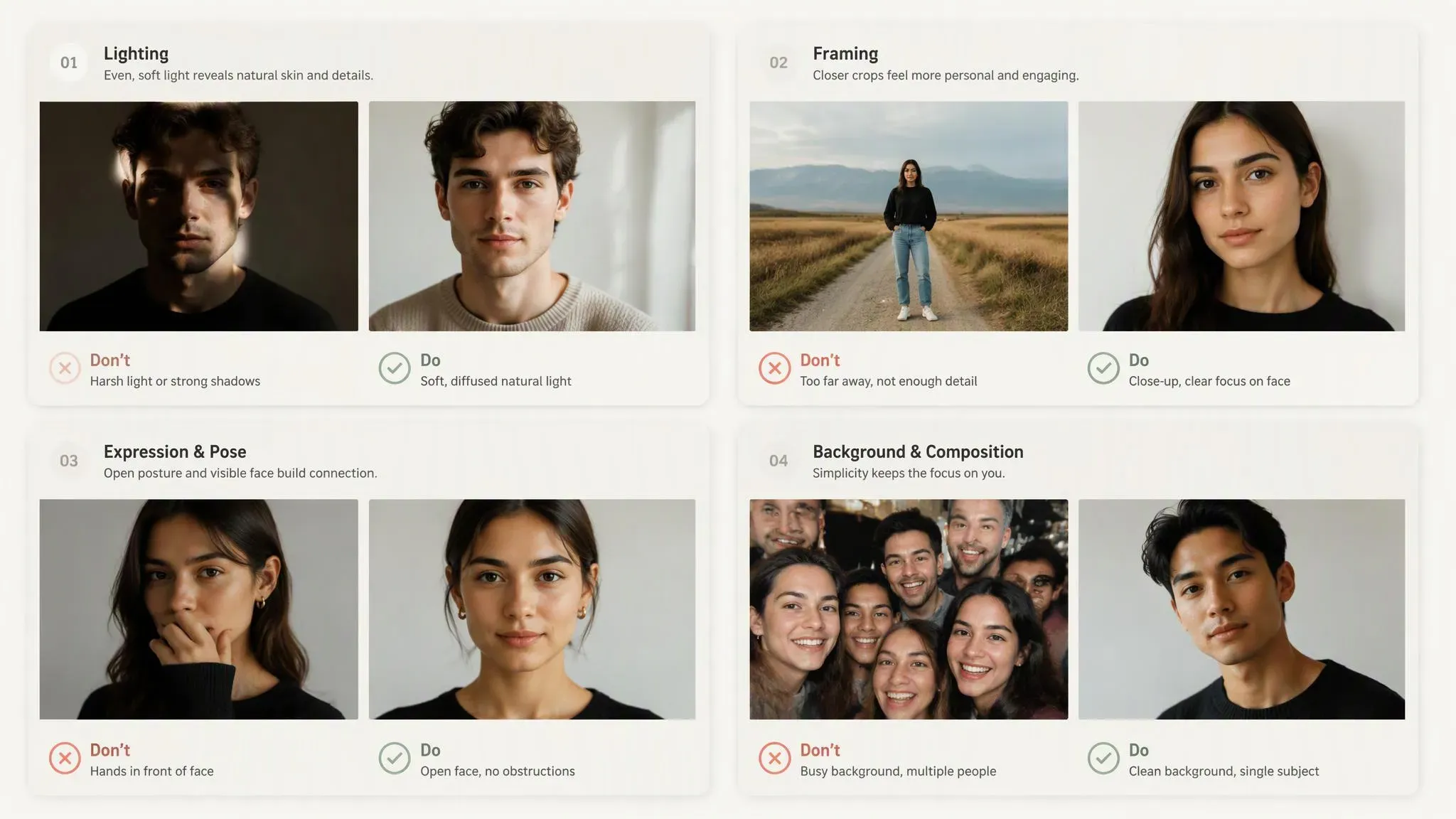
AI models read pixel contrast to map your facial geometry. A flawed source photo causes the generator to misplace your eyes, warp your jaw, or melt background details into your skin. Follow four input rules before you upload an image.
- Use even, front-facing lighting: Harsh overhead lights or dark side shadows hide your cheekbones and jawline. Diffusion models often misread deep shadows as hollow cavities or missing flesh, which warps your bone structure. Stand facing a window or soft indoor lamp so both sides of your face stay equally lit.
- Crop to head and shoulders: Full-body shots shrink your face to a tiny cluster of pixels. Crop the image so your head and upper torso fill at least 60% of the frame. High pixel density around the eyes, nose bridge, and mouth gives the model clear landmarks to lock onto.
- Clear away hands, hair, and lens glare: Fingers resting on your chin or bangs covering one eye break facial landmark detection. The AI frequently fuses fingers into Zombie skin or generates a mismatched second eye. Remove sunglasses, tilt prescription frames to eliminate white ring-light glare, and pull hair back from your cheekbones.
Step-by-Step Photo Workflow for a Recognizable Zombie Portrait
You can transform a prepared portrait using either a quick browser preset or an instruction-based reference model. Select the workflow that matches how much control you need over skin texture and facial likeness.
Method A: Quick Browser Edit with a Fidelity Slider or Selective Brush
If you use a consumer web editor, avoid applying a full-strength global filter across the entire image at once. Use these three steps to protect your facial geometry:
- Max out the structural fidelity slider: In BeFunky, open the Artsy menu, select Fantasy Portrait, and click Undead GFX. Open the filter settings and set Fidelity to 4 or 5. High fidelity restricts the generator from altering the distance between your eyes, nose, and mouth.
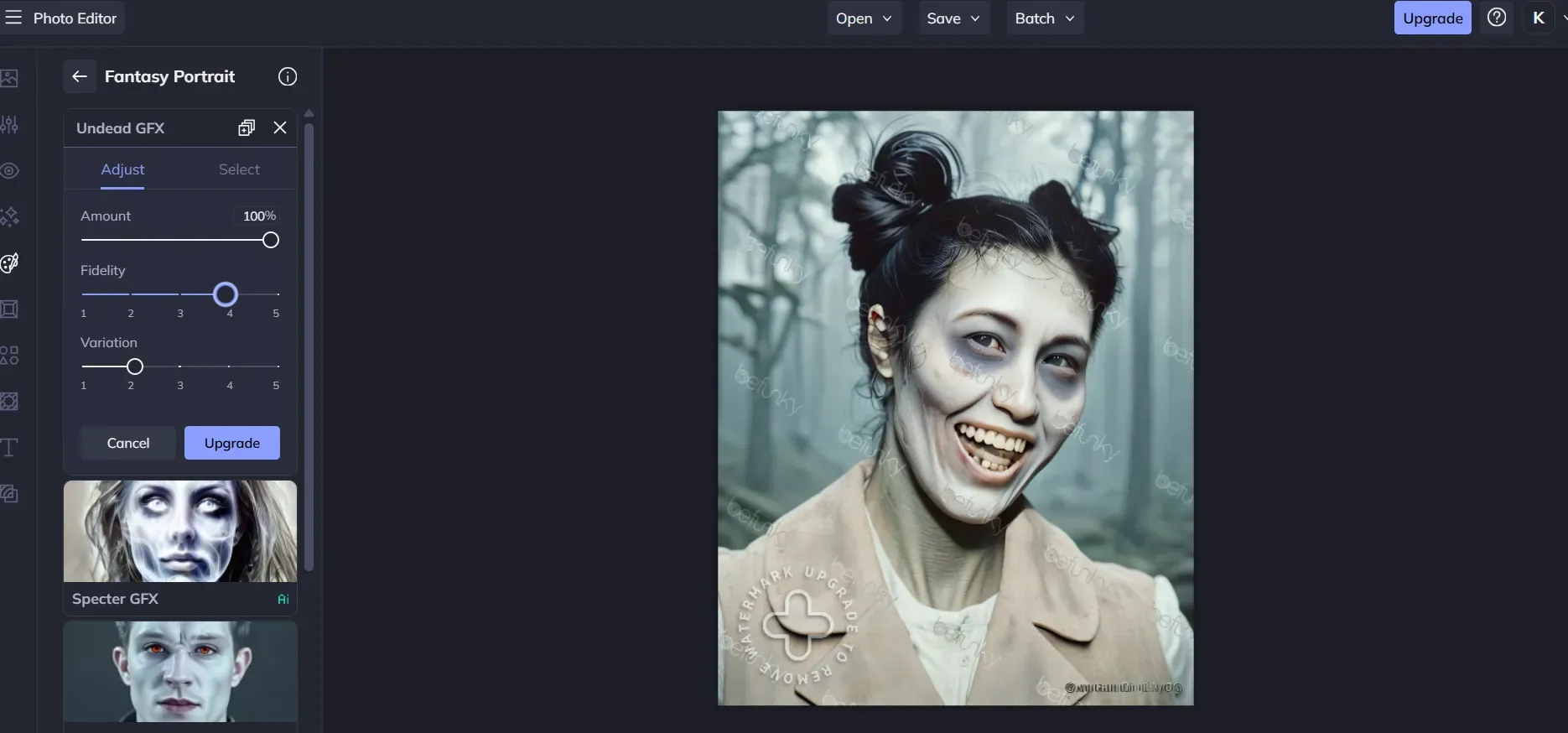
Setting the Fidelity slider to 4 in BeFunky's Undead GFX locks the original facial landmarks while applying the 100% zombie effect.
- Brush clothing in a separate pass: In selective brush tools like YouCam Enhance or LightX, paint over your shirt or jacket first. Enter a clothing-specific prompt such as
"torn dirty zombie jacket"and generate that layer before touching the face.
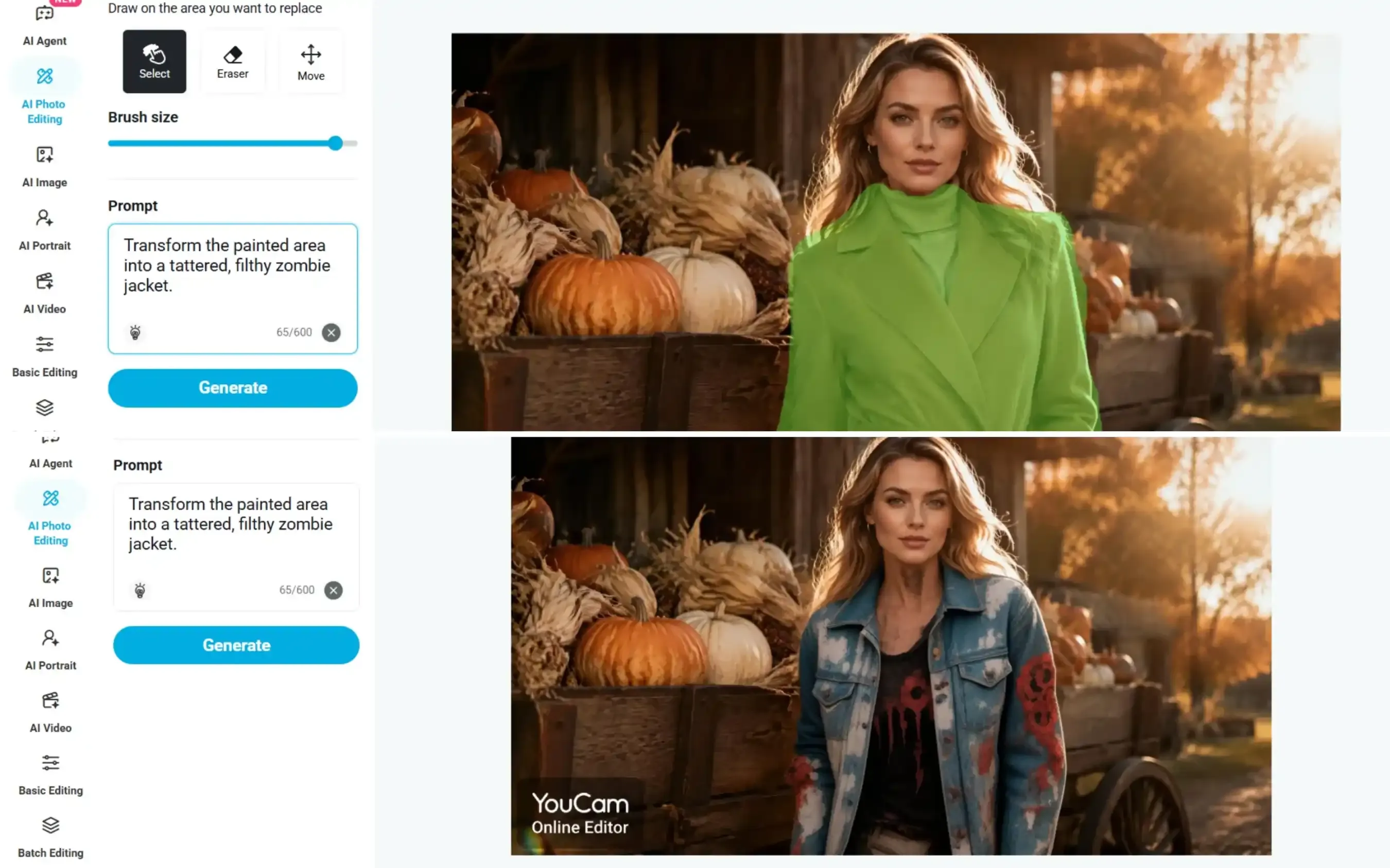
Using YouCam Enhance's AI brush to mask only the jacket (top) and replace it with tattered zombie clothing (bottom), leaving the facial features completely untouched.
- Mask around your core facial landmarks: For the second brush pass, paint over your forehead, cheeks, and neck, but leave the bridge of your nose and the outer corners of your eyes unbrushed. Keeping those anchor points untouched ensures friends still recognize your gaze.
Method B: Precision Identity-Locked Edit on Atlas Cloud
When preset filters distort your features or fail on couple and pet photos, use an instruction-based model from the best image editing models on Atlas Cloud. Qwen Image 3.0 Pro Edit ($0.04 per image) accepts 1 to 3 reference images and locks identity traits during restyling. GPT Image 2.5 offers Flare Edit for rapid drafts and Sunburst Edit for high-resolution skin textures up to 3840x2160.
- Open the Atlas Cloud model playground and choose Qwen Image 3.0 Pro Edit or GPT Image 2.5 Sunburst Edit.
- Upload your prepared portrait as
@Image1. For couple or pet portraits, upload additional subjects as@Image2and@Image3. - Paste one of the identity-locking prompts below into the instruction box. Each prompt explicitly commands the model to lock facial geometry before applying surface decay.
- Generate a preview to verify facial recognition, then export your final portrait.
Three Copy-Paste Zombie Filter Prompts Graded by Intensity
1. Subtle Infected Look (Viral Trend Style):
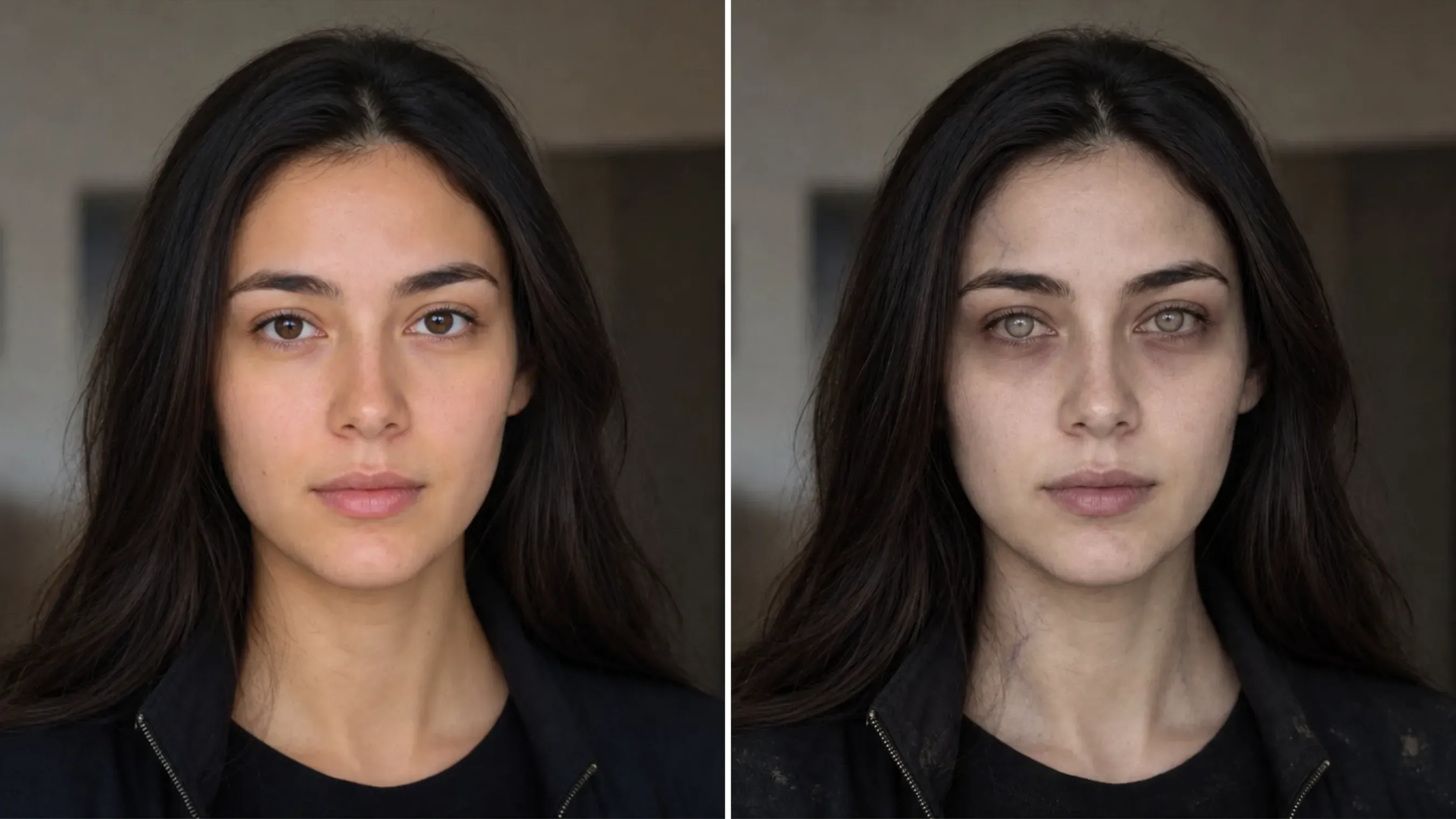
plaintext1Edit @Image1 into a subtly infected zombie portrait. Preserve the person's exact identity, facial structure, hairstyle, expression, clothing design, pose, and original composition. Apply a slightly pale, desaturated grey skin tone with faint dark veins around the temples and neck, subtle under-eye shadows, and lightly cloudy irises. Keep realistic skin pores and natural facial details. Add only minor dust and small wear marks to the existing clothing. Preserve the original lighting and background. The result should look like a realistic viral zombie filter, unsettling but understated, with no gore, no wounds, no exaggerated facial changes, and no added objects.
2. Cinematic Post-Apocalyptic Survivor Turned Zombie:
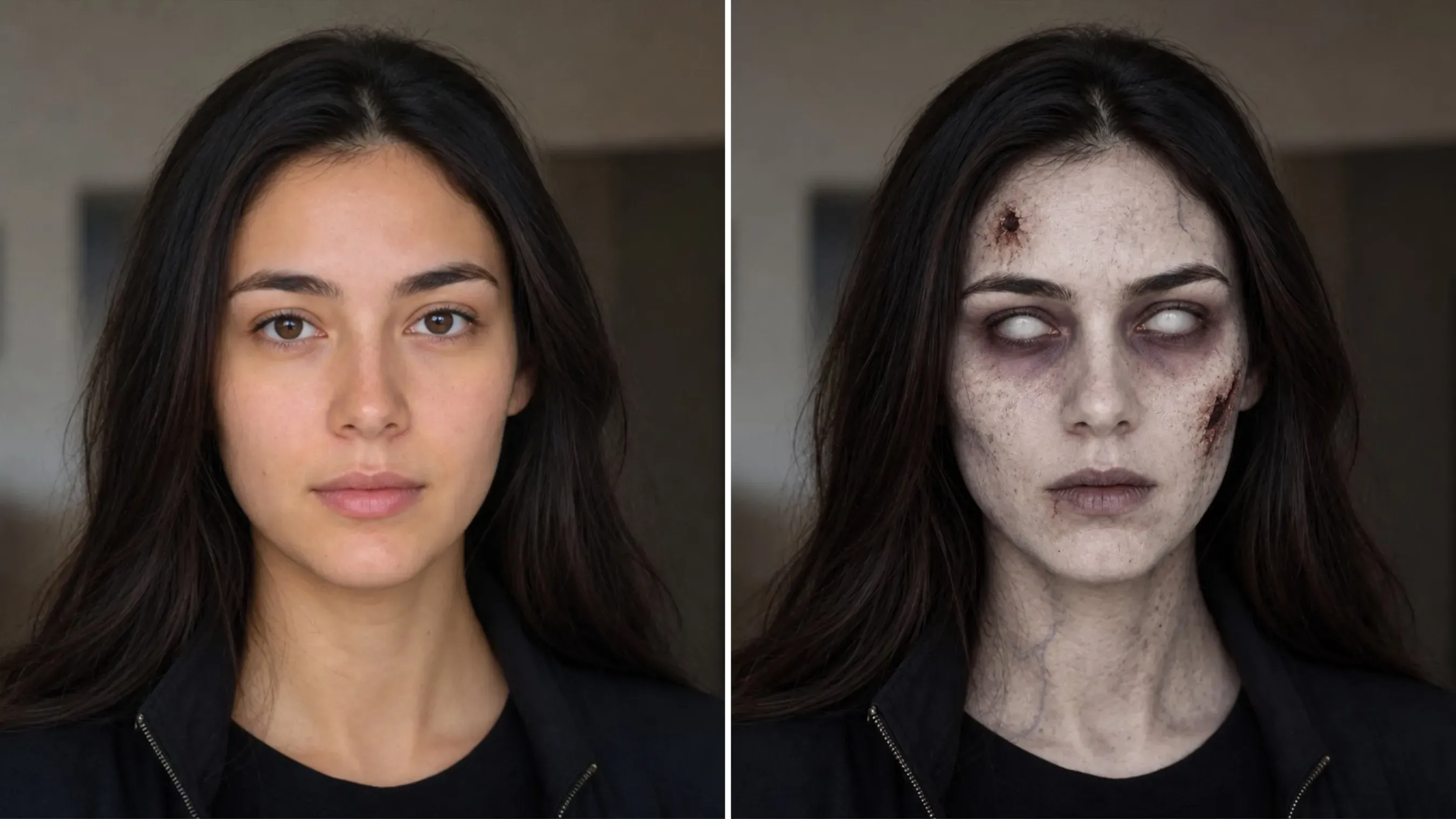
plaintext1Transform @Image1 into a classic cinematic zombie, preserving the person's identity, facial structure, hairstyle, and clothing. Give the face extremely pale, corpse-white skin with a cold grey undertone, deep purple-black sunken eye sockets, completely milky white eyes with no visible pupils, fine dry cracks across the forehead and cheeks, and a few small dark wounds. Desaturated lips, lifeless expression, subtle dark veins on the neck. Realistic horror-movie prosthetic makeup, muted neutral background, soft dramatic lighting. Unmistakably undead, matching the classic zombie makeup style. No excessive gore or facial deformation.
3. Playful Comic and Party Zombie Filter (Family and Pet Friendly):
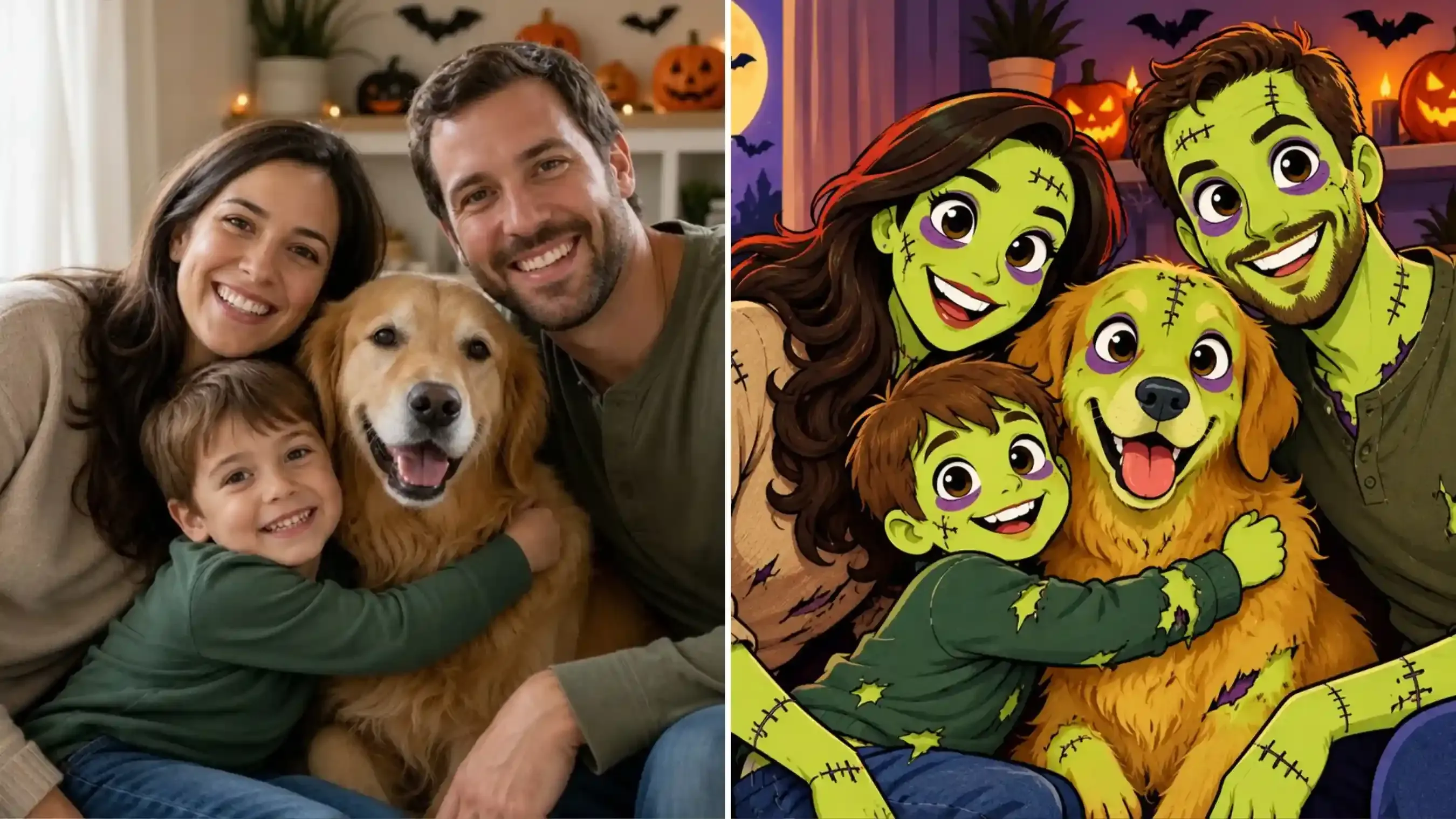
plaintext1Recreate @Image1 as a fully hand-drawn 2D cartoon, not a photo with comic effects. Redesign the entire family and dog as stylized animated characters with simplified facial features, oversized expressive eyes, clean shapes, cel shading, and bold, uniform outlines. Apply playful zombie designs with lime-green skin, purple eye sockets, and graphic stitches. Use a flat, illustrated Halloween background. Every element must be drawn in the same cohesive cartoon style, with absolutely no photorealistic faces, realistic skin textures, or photographic rendering. Preserve the group arrangement and recognizable characteristics. Fun, colorful, family-friendly Halloween animation style.
How to Make an AI Zombie Filter Video: Single Portrait and Two-Photo Trend
Static undead portraits grab attention, but animated transformations drive higher completion rates on TikTok and Reels. You can animate a single zombie portrait into a 5-second reveal or recreate the viral two-photo zombie reunion trend directly on Atlas Cloud without paying third-party wrapper markups.
Animating a Single Zombie Portrait into a 5-Second Reveal
Rapid facial morphing often warps the jaw and eyes. To keep your face recognizable during motion, finish your zombie portrait edit first or instruct the video model to apply gradual texture changes during a slow head turn:
- Open Seedance 2.5 Reference-to-Video on Atlas Cloud.
- Upload your edited zombie portrait or your original human selfie as
@Image1. - Set the video duration to 5 seconds and aspect ratio to 9:16 for vertical social feeds.
- Enter a motion prompt and click run.
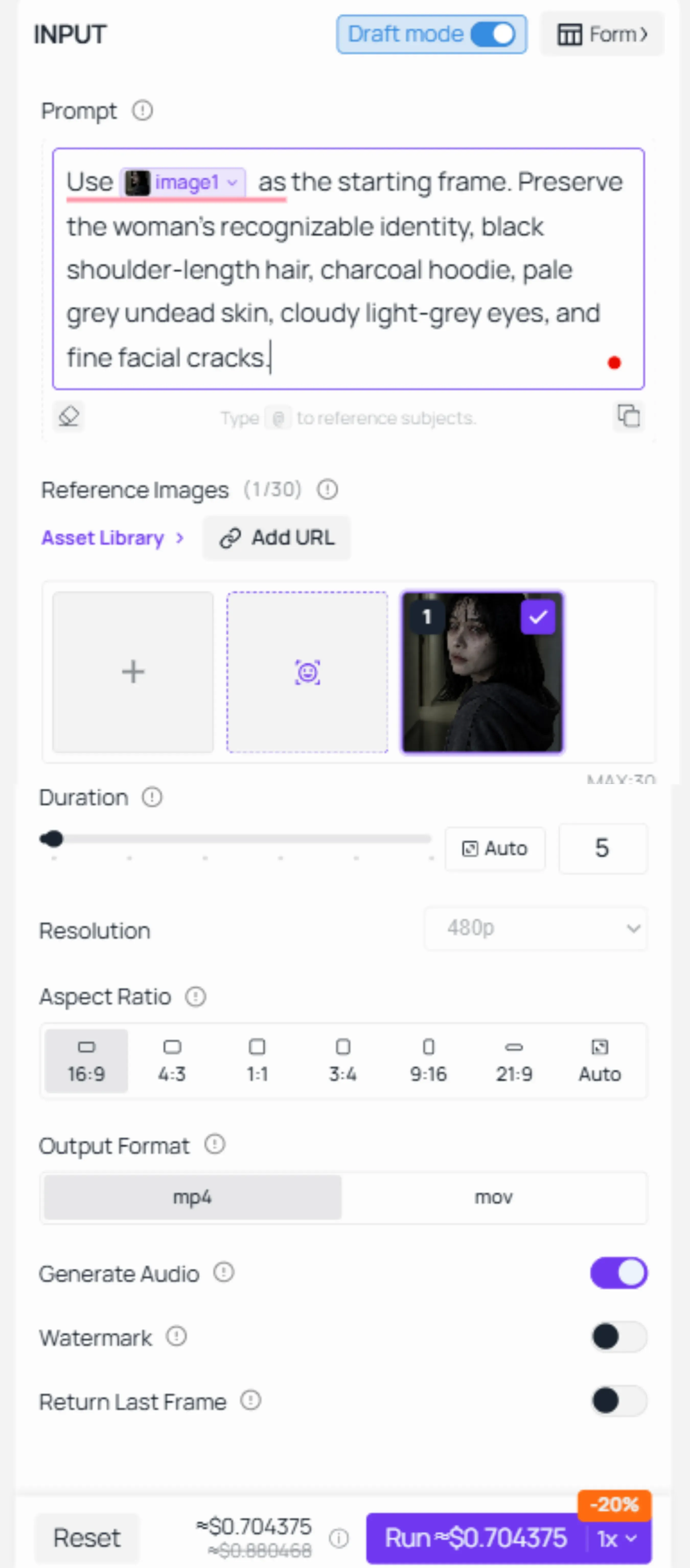
Remember to enable "Draft model"—it will help you save quite a bit on costs.
For the movement sequence, I’ve gone with: "zombie-like detection gaze → an eerie upward curl of the lips → a stiff-bodied approach." Let’s take a look at the result:
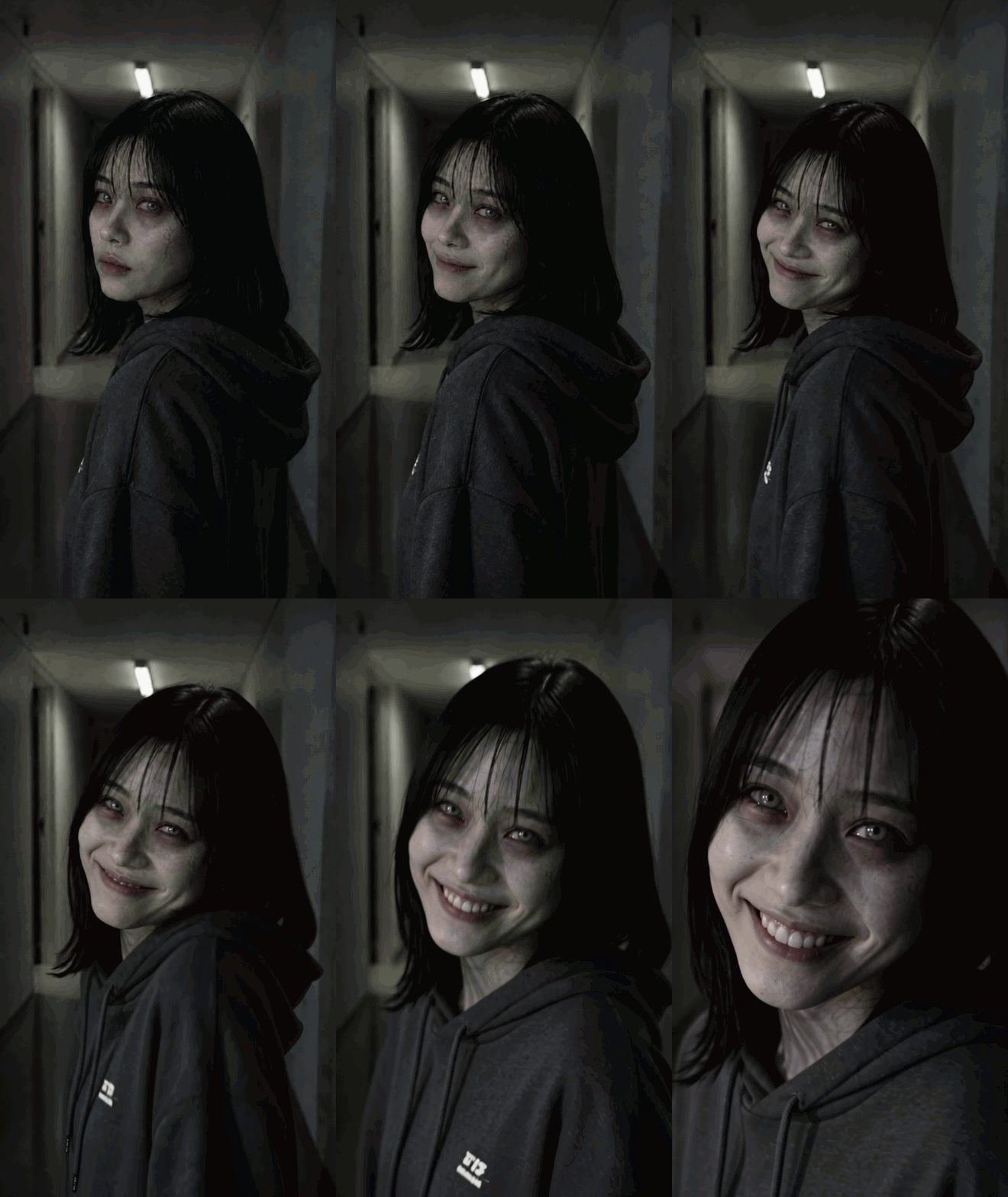
Tip: Plan the video scene and character movements before generating your images. Create image assets that match the planned actions, camera angles, and composition to achieve smoother, more coherent video results.
Recreating the Two-Photo "Zombie Couple / Best Friend" Trend with Seedance 2.5 Reference-to-Video
The viral two-photo zombie reunion trend pairs a human survivor with a zombified partner or best friend.
Follow these steps to build a custom 15-second or 30-second reunion sequence:
- Video design: A human survivor encounters a friend who has turned into a zombie; upon recognizing them, the survivor embraces them tenderly. As the zombie friend returns the embrace, it reverts to its human form.
- Upload three person photos: Assign
@Image1to the human survivor,@Image2to the person receiving the zombie filter and@Image3to the friend in healthy human form. . - Test in Draft mode first: Enable Draft mode (480p preview) to verify that both faces stay accurate and that
@Image2takes the zombie role before you spend credits on a final 1080p render. - Write Stage-Based Video Prompts: Write video prompts for a storyboard, ensuring scene continuity and avoiding unnecessary shot transitions:
| Sequence Stage | Time Window | Scene Action & Audio Prompt |
| Stage 1: Standoff | 0s to 4s | On a foggy, abandoned city street with wet pavement and light rain, @Image1 (human survivor) grips a wooden bat defensively as @Image2 (zombie friend) slowly approaches. Cold blue-gray lighting, subtle camera movement. |
| Stage 2: Recognition | 4s to 6s | @Image2 stops and stares blankly. @Image1 recognizes their friend, expression shifts from fear to sadness, lowers the bat to the pavement, and steps toward @Image2. |
| Stage 3: Embrace | 6s to 11s | @Image1 initiates a tight hug. @Image2 starts stiff, then gradually softens, raises hands, touches @Image1's back, and reciprocates the embrace. |
| Stage 4: Transformation | 11s to 15s | While embracing, @Image2 gradually transforms to match @Image3 (healthy human appearance). Gray skin, dark veins, and cloudy eyes fade back to natural tones. Warm golden light replaces cold blue-gray tones. |
Let’s look at the results:
Tips: Define character actions and track emotional shifts. Toggle “Generate Audio” to create sound effects instantly. You can also upload your own audio as a reference.
A convincing zombie filter comes down to one technical rule: lock your facial structure and alter only surface textures. Dedicated diffusion models keep your gaze, nose bridge, and jawline intact while weathering clothes, desaturating skin, and clouding irises. For animated clips, Seedance 2.5 carries that locked likeness into multi-character trends.
Start with a front-lit shot cropped to your head and shoulders, check alignment in draft mode, and dial in the decay level you need. Running the base models directly gives you complete control over every facial landmark without paying wrapper markups for a flat green mask.





