AI से सारांश माँगें
You ask an image editor to replace a taxi and it quietly moves the pedestrians. You add a reference jacket to a portrait and the face changes. MiniMax H3 Image editing gives creators a way to edit a still image with one or more references, but its practical value rests on what survives the edit. Name the change, name the details that must stay, and inspect the output beside the original at full size. This guide examines four published MiniMax H3 Image editing examples. The first and fourth have published instructions; the other two include clearly labeled reproduction briefs, not the original prompts.
Key takeaways
- MiniMax H3 Image edits still images; the older MiniMax H3 video model is a different task.
- Assign each uploaded image a clear role, then specify the objects, text, framing, and light that must stay.
- Judge 4K by the final crop and text fidelity, not the resolution label alone.
- The first two and fourth figures come from independent MiniMax H3 Image tests; the third is MiniMax's published example. None is proof of an Atlas Cloud MiniMax H3 Image edit endpoint.
What Is MiniMax H3 Image Editing?
MiniMax H3 Image generates still images from text and edits images using visual references. It is related to the broader MiniMax H3 family, but the MiniMax H3 video endpoints produce moving footage. A creator trying to replace a chair in a photograph needs the still-image editor, not an image-to-video page. MiniMax's November 2026 release announcement describes generation, reference-based generation, and editing in the same model.
The model accepts up to 16 reference images, according to the release. That is a capacity limit. It does not mean 16 objects will each retain every identifying feature. More references can even make a brief harder to interpret when their roles overlap. Begin with the source photo, add one reference only when it supplies information the source lacks, and state which image controls each feature.
MiniMax says a 4096 × 4096 image can be generated in under 10 seconds. That is a vendor performance claim, not a timing measured in this article or a promise for a particular hosted queue, computer, or edit. The official MiniMax H3 Image model card (November 2026) lists common output sizes near 16 megapixels and describes a local workflow. Its image editing example uses uploaded image order to identify the references. Online interfaces may use different labels, so confirm the visible order before running.
For an editor, the central question is narrower than whether the model can create an attractive image. Can it make the requested local change while preserving the subject's recognizable geometry, existing writing, and scene logic? A thumbnail cannot answer that. The next sections turn the question into a repeatable review.
What Should an Edit Preserve?
Write an edit brief as two lists: the change you authorize and the evidence you want to retain. “Keep everything else unchanged” sounds clear, but it leaves the model to decide what “everything” means. A photographer may care about the mug's rim and handle, while a product manager cares about a printed label. Say so in the prompt.
Use this five-part acceptance check before uploading:
- Requested change: Identify one object or region and describe the intended replacement.
- Protected subject: Name the shape, color, material, pose, logo placement, or other features that establish identity.
- Scene continuity: Hold camera position, framing, perspective, occlusion, reflections, and the direction of light where relevant.
- Existing text: Compare every visible letter with the original. Treat rewritten packaging copy as a failure even if it looks plausible.
- Delivery use: Decide whether the image is a mood draft, a client proof, or an approved product asset. The stricter the use, the closer the review.
Preservation has a limit in any scene edit. Moving a chair can require a new floor shadow; changing a tabletop must alter the mug's contact shadow. Ask the editor to keep the protected subject while making the physically necessary interaction change. Otherwise “unchanged shadow” conflicts with “new setting,” and the result may satisfy neither.
Save the source file, exact prompt, reference order, selected dimensions, output file, and any rewritten prompt the service returns. That record lets a teammate distinguish a model error from an ambiguous instruction. It also makes a revision meaningful: change one variable, run again, and compare the same region.
A useful review starts at fit-to-screen size to catch composition drift. Then inspect 100% crops around the protected details. For a delivered image, also view it at its actual placement size. A tiny logo can look acceptable when enlarged yet disappear in a banner layout. Use the same viewing scale for source and output crops, or the apparent sharpness comparison becomes misleading.
How to Edit One Image with MiniMax H3 Image
Start with one source image and one edit. In a MiniMax H3 Image interface, select image editing, upload the original as the first image, confirm its thumbnail, choose an output aspect ratio close to the source, and request one output. Keep the first run at 2K if you are testing the wording; move to 4K only after the edit follows the brief. If the interface exposes an expanded prompt, save it with the output for review.
Edit check 1: replace a taxi without changing the street
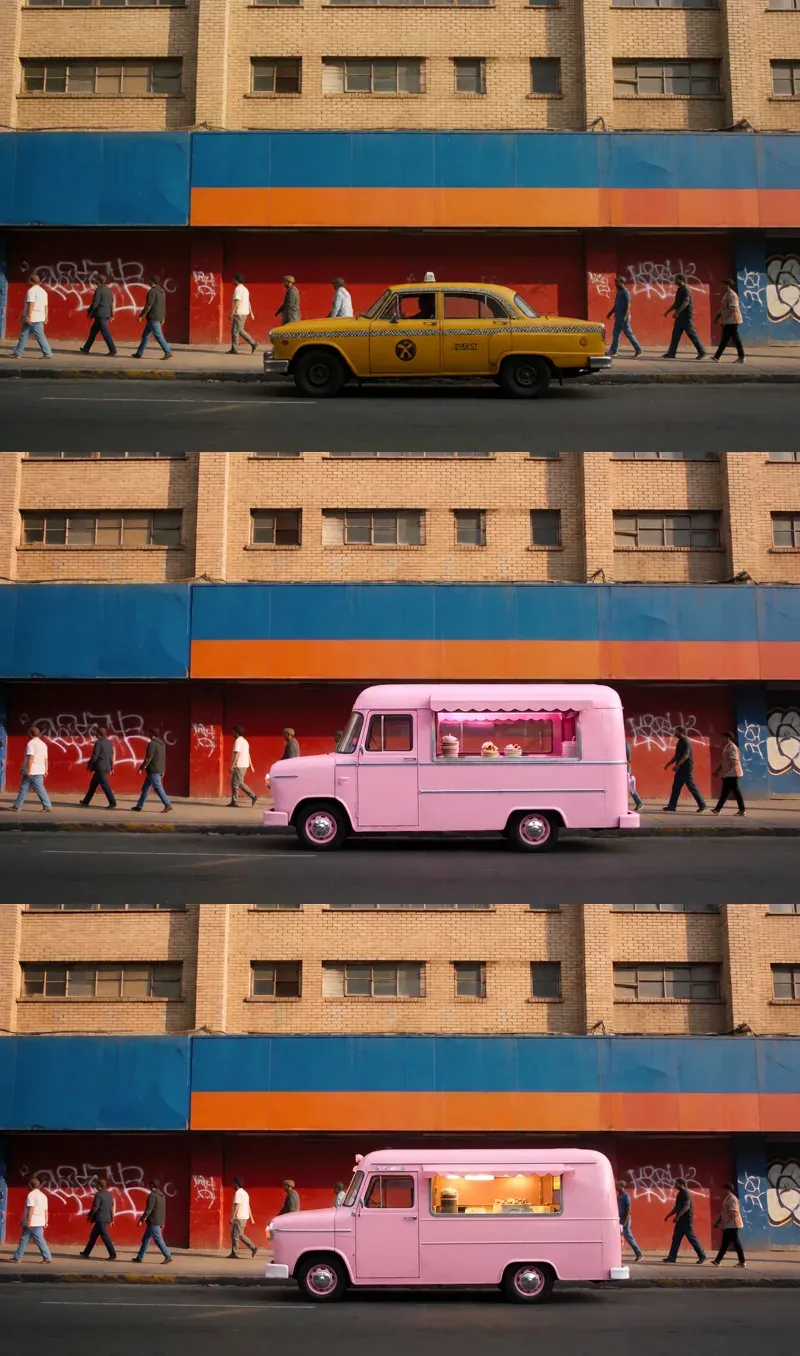
An independent ComfyUI test by KOBO Lab starts with a yellow taxi at a curb and asks MiniMax H3 Image to turn it into a pink ice-cream truck. The published figure shows the source above two results from the same seed: prompt expansion off in the middle and on at the bottom. The tester reports three runs per setting; the figure shows one from each. This is a genuine MiniMax H3 Image edit, not a run performed for this article.
Independent MiniMax H3 Image test: original taxi, edit without prompt expansion, and edit with prompt expansion, top to bottom. The surrounding street provides a preservation check.
The official ComfyUI template supplies the taxi-to-truck instruction used as the test's starting point. For a comparable edit, paste this paraphrased brief:
plaintext1Edit image 1. Replace only the yellow taxi with a pastel-pink ice-cream truck in the same side profile and curb position. Add a scalloped awning and a lit serving window. Keep the buildings, graffiti, pedestrians, street, camera framing, and daylight as they are.
Compare the two results with the source at the same scale. Both show the pink truck in the taxi's location while keeping the building and street composition broadly recognizable. Inspect the pedestrians, graffiti, vehicle footprint, wheel contact, and curb shadow more closely before accepting a delivered edit. The awning is clearer in the middle result; the tester reports that this detail appeared in all three runs without expansion and none of the three with expansion.
This example uses one input, so the review can focus on the requested vehicle replacement and protected street details without uncertainty about reference roles.
How to Combine Multiple References
A second reference is useful when the desired object has a specific silhouette or material. It should have one job. In a portrait composition, the first image controls the person's identity and framing; later images can supply clothing, an accessory, or a location. Confirm upload order in the tool before running. The official model card calls ordered inputs “Picture 1” and “Picture 2” in its API example; some web interfaces show “image 1” and “image 2.” Use the names the interface actually displays if it requires exact reference tokens.
Edit check 2: add a jacket, hat, and location from references
The same KOBO Lab test published four input images across the top: a woman, a red embroidered jacket, a straw hat, and a Kyoto lane. The lower left shows two results using the woman and jacket; the lower right shows two results using all four references. The tester made three runs in each configuration and reports that the main requested details appeared in all of them. The displayed images are actual MiniMax H3 Image results, not a hypothetical collage.
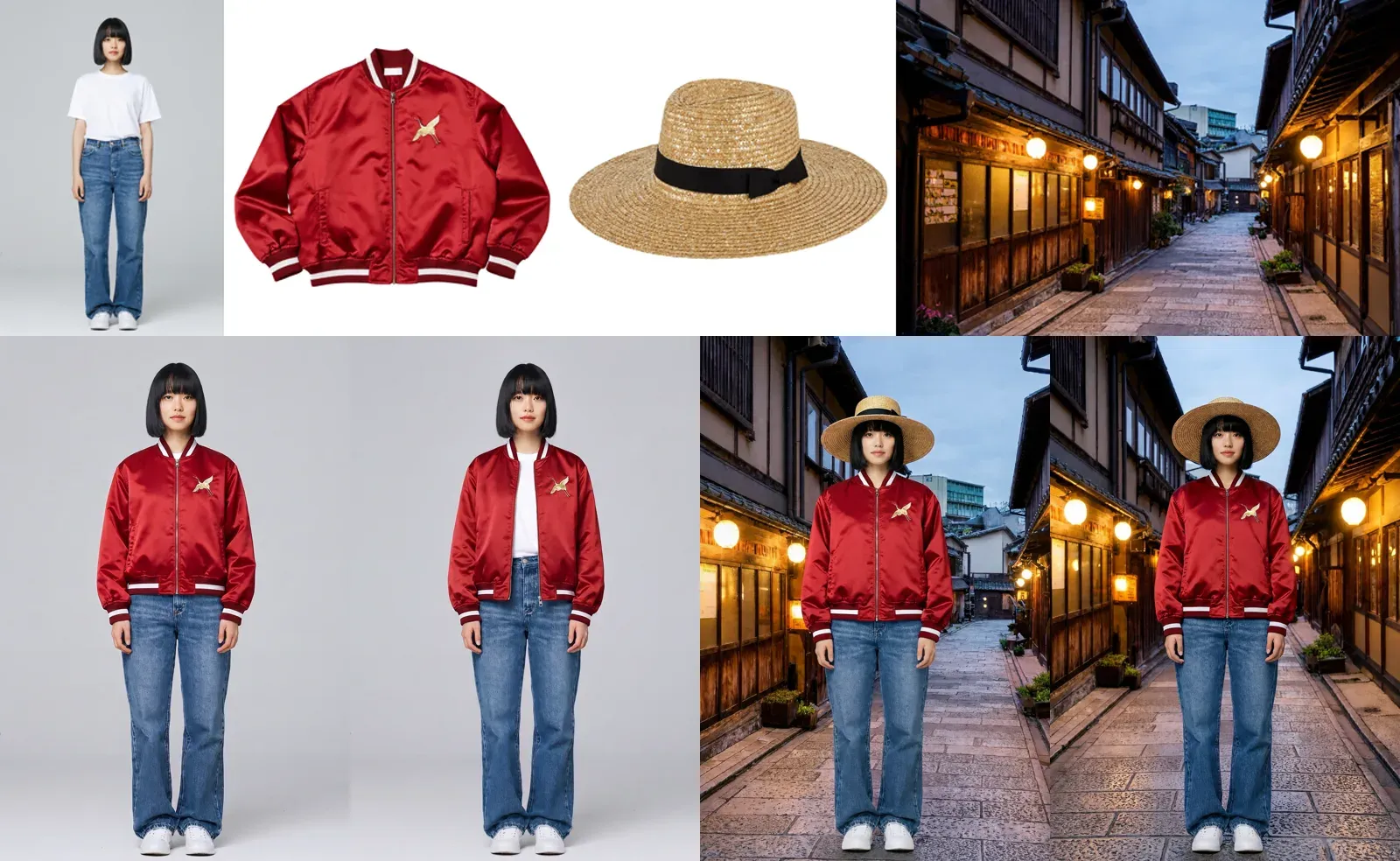
Independent MiniMax H3 Image test: four source images on top; two-reference edits at lower left and four-reference edits at lower right. The bird embroidery, hat ribbon, and lane are visible review points.
For a similar four-reference edit, upload the woman as image 1, jacket as image 2, hat as image 3, and lane as image 4. The following is a reproduction brief, not the tester's exact four-reference prompt:
plaintext1Use image 1 for the woman's face, hair, jeans, white sneakers, and body proportions. Dress her in the red embroidered jacket from image 2, open enough to show the white T-shirt. Add the straw hat with the black ribbon from image 3. Place her in the Kyoto lane from image 4, matching its perspective and evening light. Keep the jacket's bird embroidery recognizable and do not import the plain product-photo backgrounds.
Compare the two-reference results with the four-reference results. The jacket's red satin finish and bird embroidery, the woman's bob and jeans, the hat's black ribbon, and the lane's lanterns are distinct features to inspect. One of the tester's three two-reference runs closed the jacket enough to hide the white shirt, a useful reminder to check protected clothing details even when the main garment transfer succeeds.
If the face, embroidery, or setting drifts in your own run, refine the role of the relevant reference and retry with the same upload order. Extra references help only when each one supplies a distinct feature.
Does 4K Help the Final Edit?
A larger file gives a reviewer more pixels to inspect and more room to crop. It does not by itself prove that the model preserved the original lettering or invented a consistent texture. MiniMax's published 4K sizes vary by aspect ratio; 4096 × 4096 is the square example, while a wide image can have different dimensions near the same pixel area. Read the exported file's actual dimensions rather than assuming every “4K” choice has the same width and height.
For a fair 2K versus 4K check, use the same source, prompt, aspect ratio, and reference order. Export one image per setting. Compare the full frame for composition, then make equal-scale crops around the same labels and object edges. Note whether the higher resolution reveals true letter shapes and structure, merely enlarges ambiguous marks, or introduces new ones. Record elapsed time separately if speed matters; the release's under-10-second figure does not measure your session.
Edit check 3: turn a map into a viewpoint scene
MiniMax's published one-reference map edit pairs an illustrated game map with a first-person scene generated from the red arrow's position. The output includes a small map at the upper left. This published image is downscaled; it illustrates a spatial edit, not a measured 2K-versus-4K comparison. MiniMax does not publish its exact showcase prompt.
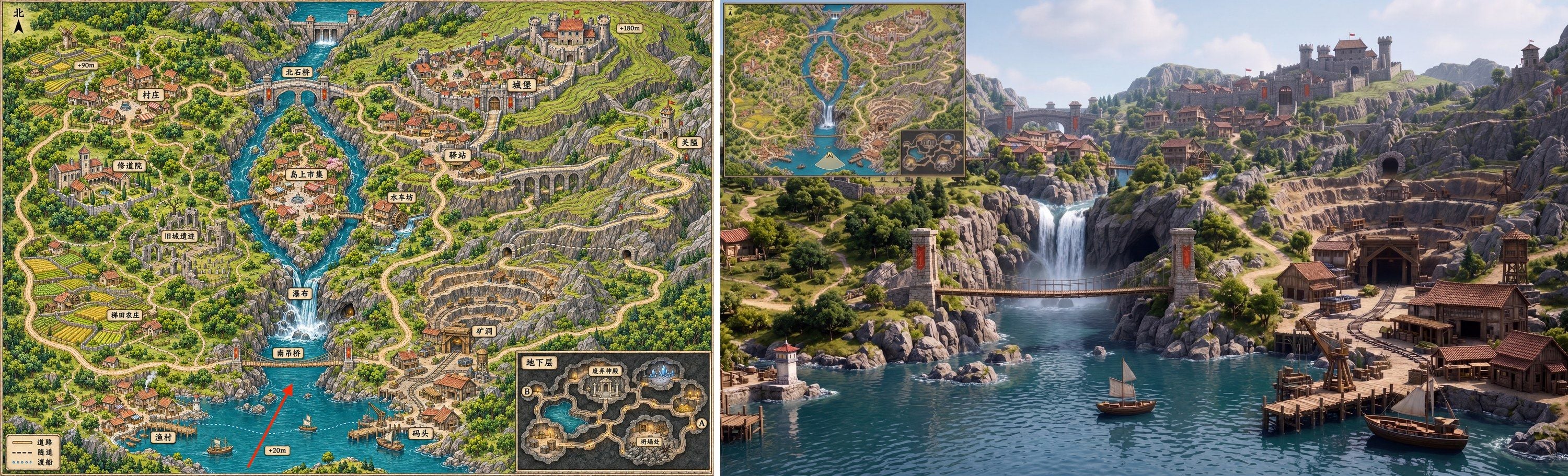
MiniMax's official one-reference example: the source map is on the left and the generated viewpoint scene is on the right. The result is real, but the displayed composite does not establish full-resolution label fidelity.
For a comparable trial, use the map as image 1 and treat this as a reproduction brief, not MiniMax's original prompt:
plaintext1Use image 1 as the spatial reference. Create a first-person game view from the red arrow by the southern lake, looking toward the waterfall and bridge. Keep the river, castle, village, mine, and harbor in positions consistent with the map and show only what the camera could plausibly see. Add a small map inset that accurately reflects the source. Do not invent an unrelated landmark or rewrite any readable map label.
Compare landmark relationships between the two panels: the waterfall and bridge should align with the lake viewpoint, while the castle and mine should occupy plausible positions in the scene. The downscaled image supports a composition check, but not a character-by-character claim about every map label. For a real 4K delivery test, export the source and output at their native sizes, crop the same landmarks and labels at equal scale, and record any shifted or invented detail.
Edit check 4: change a shop sign without rewriting the storefront
In a separate independent MiniMax H3 Image test by KOBO Lab, the editor changed the wooden sign on a café from “MORNING CAFE” to “KOBO.” The published comparison includes the source and a MiniMax H3 Image result from seed 42; the two relevant panels are shown here. The tester reports that MiniMax H3 Image spelled KOBO correctly in all three runs, while nearby storefront details also changed.
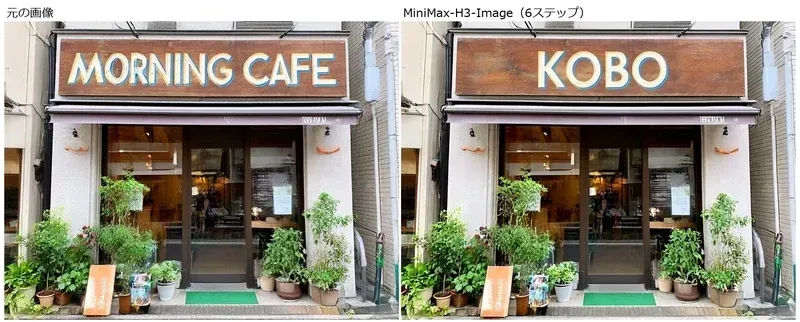
Independent MiniMax H3 Image test: source storefront on the left and the MiniMax H3 Image result on the right, cropped from the author's four-panel comparison. The sign text changes, but the plants and pavement display need a separate preservation check.
The source publishes its edit instruction. This paraphrased brief keeps the same change and protected details:
plaintext1In image 1, replace the words MORNING CAFE on the wooden sign with KOBO. Match the original lettering style. Preserve the storefront, windows, potted plants, pavement display, camera position, and daylight.
The sign reads KOBO in the shown result. Compare the lower half at equal scale before accepting it as a local text edit: the tester found altered plant leaves and a shifted pavement display in the MiniMax H3 Image output. Correct spelling alone does not mean the rest of the photo stayed intact.
The four checks share an acceptance table. The published figures show outcomes, but a separate 2K-versus-4K result column requires your own controlled run.
| Edit check | Authorized change | Must remain recognizable | Record after the run |
|---|---|---|---|
| Taxi | Replace the taxi with an ice-cream truck | Street layout, pedestrians, graffiti, camera | Truck placement, awning, curb contact, scene continuity |
| Portrait | Add jacket, hat, and lane from separate references | Face, hair, jeans, shoes, jacket detail | Identity, embroidery, hat ribbon, lighting |
| Map | Render a viewpoint from the marked lake position | Landmark relationships and readable labels | Perspective, map inset, labels at native size |
| Shop sign | Replace MORNING CAFE with KOBO | Storefront, plants, pavement display, camera | Lettering, plant shapes, display position at equal scale |
Where Can You Run It, and What Does It Cost?
The official model card points to MiniMax's online app and publishes weights for local deployment. An online editor is the shorter path for a creator who needs to test a photo; a local workflow gives a technical team control over its own infrastructure and versioning. Local deployment still needs enough hardware and a review of the model's community license, especially before commercial distribution or hosting. Open weights alone do not settle usage rights.
As of November 11, 2026, I could verify the MiniMax H3 Image release and model card, but I could not verify a MiniMax H3 Image still-image editing endpoint on Atlas Cloud. Its public model directory and endpoint index show MiniMax H3 video entries; those do not execute this still-image workflow. Do not route the four prompts to a video model or label another editor's output as MiniMax H3 Image.
If you need to edit a photo on Atlas Cloud today, the verified Google Nano Banana 2 Edit model page is a related option. It is a different model. Keep its outputs in a separate, clearly labeled comparison and use the same source and edit goal if you compare models. This article contains no such operated comparison.
| Route checked November 11, 2026 | Task | Cost information to verify before use |
|---|---|---|
| MiniMax H3 Image online app | Still-image generation and editing | Check the live MiniMax plan or request estimate; no fixed edit price is asserted here |
| MiniMax H3 Image open weights | Self-hosted still-image generation and editing | Hardware, hosting, and license obligations vary |
| Atlas Cloud Google Nano Banana 2 Edit | Hosted image editing with a different model | Check exact resolution, output count, and current per-image quote on the model page |
| Atlas Cloud MiniMax H3 video entries | Video generation | Not a MiniMax H3 Image still-edit price or workflow |
The table deliberately avoids a low “from” price. Image cost can depend on resolution and output count, and a model family's headline figure may not be the quote for a 4K edit. Before publication or a production batch, verify the exact endpoint, output size, billing unit, and any discount on the live directory and detail page.
A Practical MiniMax H3 Image Editing Checklist
A useful MiniMax H3 Image editing run ends with an acceptance decision, not simply a downloaded file. Prepare the original at a legible resolution, write down the one intended change, name protected details, assign each reference a role, and select an aspect ratio suited to the source. Save the exact prompt and any expansion returned by the service.
After generation, inspect the full image for composition and the close crop for identity, text, edges, and shadows. Mark each required detail pass, fail, or uncertain. Retry by changing one instruction at a time. If a client needs exact packaging copy or a legally controlled logo, keep human review and conventional editing in the approval path.
The three independent tests and MiniMax's published map example above show how these specific edits turned out. They do not establish how MiniMax H3 Image will perform on your own files. Before publishing an independent “real photo test,” attach each genuine output, the full prompt, the actual settings, and the corresponding crop; then report failures as plainly as successes. That is the evidence a creator needs to decide whether the edit can ship.
Frequently Asked Questions
Is MiniMax H3 Image the same as MiniMax H3 video?
No. MiniMax H3 Image produces and edits still images. MiniMax H3 video endpoints produce motion, and an Atlas video listing does not establish MiniMax H3 Image editing availability.
Can I edit with one reference image?
Yes. The official model card describes image editing with one or more reference images. Start with one base photo when the target object is already present; add a second image only when it supplies a distinct object or style reference.
Can I turn off prompt enhancement for edits?
The official model card says the MiniMax API expands short prompts before generation, while its local workflow can use a separately prepared detailed prompt. The controls exposed by a particular online interface may differ. Save the expanded prompt if the service returns one, and inspect that interface's current options before assuming the expansion can be disabled.
Can I use the open weights commercially?
Check the MiniMax H3 Image Community License Agreement attached to the official model card and obtain any authorization required for your intended use. “Open weights” describes access to model files; it is not a blanket commercial permission.


