

Making a clean photo strip comes down to three essentials: locking your character’s face, holding lighting and grain steady, and stacking panels into a standard 1:3 vertical layout (600×1800 px at 300 DPI). A dedicated AI photo booth strip maker handles the heavy lifting—keeping your subject consistent across all four frames while maintaining natural shadows and smooth pose transitions.
This guide outlines how to build four trending ai visual effects using reproducible prompts and layout rules:
- Korean 4-cut photo booth: High-key diffuse glow with soft pastel margins.
- Y2K direct flash: Harsh specular highlights paired with dark background falloff.
- 90s monochrome: Silver-gelatin dynamic range with realistic optical film grain.
- Retro digicam: Low-saturation flash balance with subtle sensor noise.
With this framework, your final asset maintains the physical rhythm of an authentic printed keepsake rather than a grid of mismatched renders.
Understanding Multi-Frame Layouts: Dimensions, Grids, and Visual Rhythm
A successful strip requires planning the spatial grid and visual pacing before rendering your first image.
Canvas Dimensions: Physical Print vs. Social Feeds
Setting up the correct photo booth strip layout depends on where the final output lives. Classic photo strips rely on a 1:3 ratio, while social platforms demand 9:16 vertical video framing.
| Format | Aspect Ratio | Resolution (Pixels) | Primary Use Case |
| 2x6 photo strip template | 1:3 | 600×1800 (300 DPI) | Physical dye-sublimation print |
| Hi-Res Print Strip | 1:3 | 1200×3600 (600 DPI) | Fine-art archival printing |
| Vertical Social Canvas | 9:16 | 1080×1920 | TikTok, Instagram Reels, Shorts |
For social video, place the 1:3 strip in the center with a 15% margin on either side to keep key visual details clear of user interface overlays.
The 4-Frame Emotional Cadence
Nobody wants four frozen passport photos on a strip. A natural sequence moves from posed to playful:
- The warm-up: A classic, front-facing smile.
- The shift: A quick head tilt or a subtle wink.
- The dynamic pose: Hands up—peace signs, cheek rests, or fun gestures.
- The sign-off: A candid laugh or a relaxed, off-center smirk.
Step-by-Step Guide: How to Build an AI Photo Booth Strip
Generating a convincing AI photo booth strip requires more than a generic vintage prompt. To keep the face, lighting, and wardrobe identical across every frame, you need a disciplined reference-first workflow.
Here is the exact production pipeline tested in Nano Banana 2, moving from a reference portrait to a print-ready vertical strip.
Step 1: Anchor Asset Selection: Selfie or Fictional Character
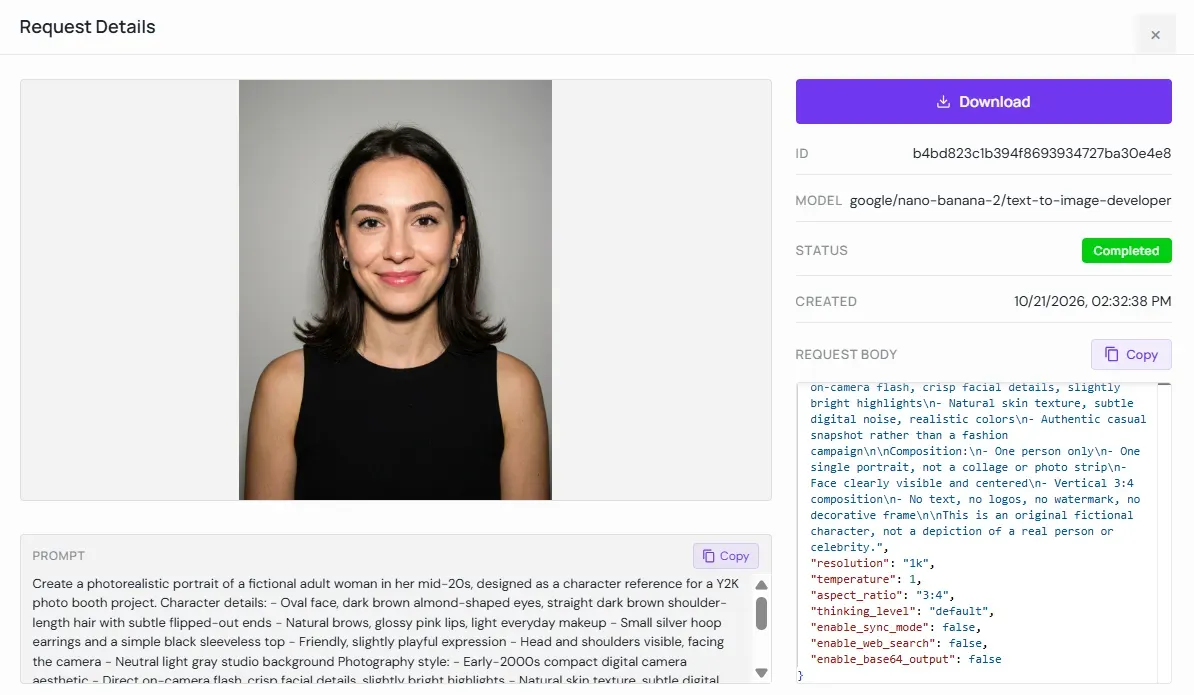
Every consistent strip starts with a clean baseline portrait. You can generate a clean AI portrait of yourself using a well-lit snapshot, or generate a fictional character to anchor the subject’s facial bone structure.
Author’s Note: After testing various character setups across diffusion pipelines, I distilled this into a reusable universal prompt template. Instead of copying rigid character traits, use this framework to swap your own variables while keeping the underlying composition constraints locked.
plaintext1Create a photorealistic portrait of an original [Demographic & Age], designed as a character reference for a [Target Style] photo booth project. 2 3Character details: 4- [Face shape, eye shape/color, hairstyle and texture] 5- [Makeup level, distinct facial traits] 6- [2-3 Signature wardrobe pieces or small accessories] 7- Friendly, subtle smile, looking directly at the camera 8- Head and shoulders framing, perfectly centered 9- Plain [neutral light gray / off-white] studio background 10 11Photography & Lighting: 12- [Aesthetic Profile: e.g., early-2000s digicam on-camera flash / Korean high-key diffuse studio] 13- Crisp facial details, natural skin texture, subtle optical grain, realistic skin tones 14- Authentic casual snapshot rather than a commercial campaign 15 16Composition Constraints (Keep Fixed): 17- One person only 18- Single isolated portrait (do NOT generate a collage, grid, or photo strip) 19- Face unobstructed, fully visible, and centered 20- Aspect ratio: 3:4 vertical framing 21- No text, no logos, no watermarks, no decorative borders or frames 22This is an original fictional character, not a depiction of a real person or celebrity.
The result:
Step 2: Multi-Frame Generation and Layout Calibration
With your anchor image ready, feed it into the image-to-image reference channel to generate the four-panel sequence.
A common failure mode at this stage is spatial layout drift: diffusion models frequently interpret "photo booth strip" as a 2×2 square collage instead of a vertical strip. When I initial run in Nano Banana 2 produced a 2×2 grid, facial consistency and lighting were accurate, but the layout failed the standard 1:3 physical print ratio.
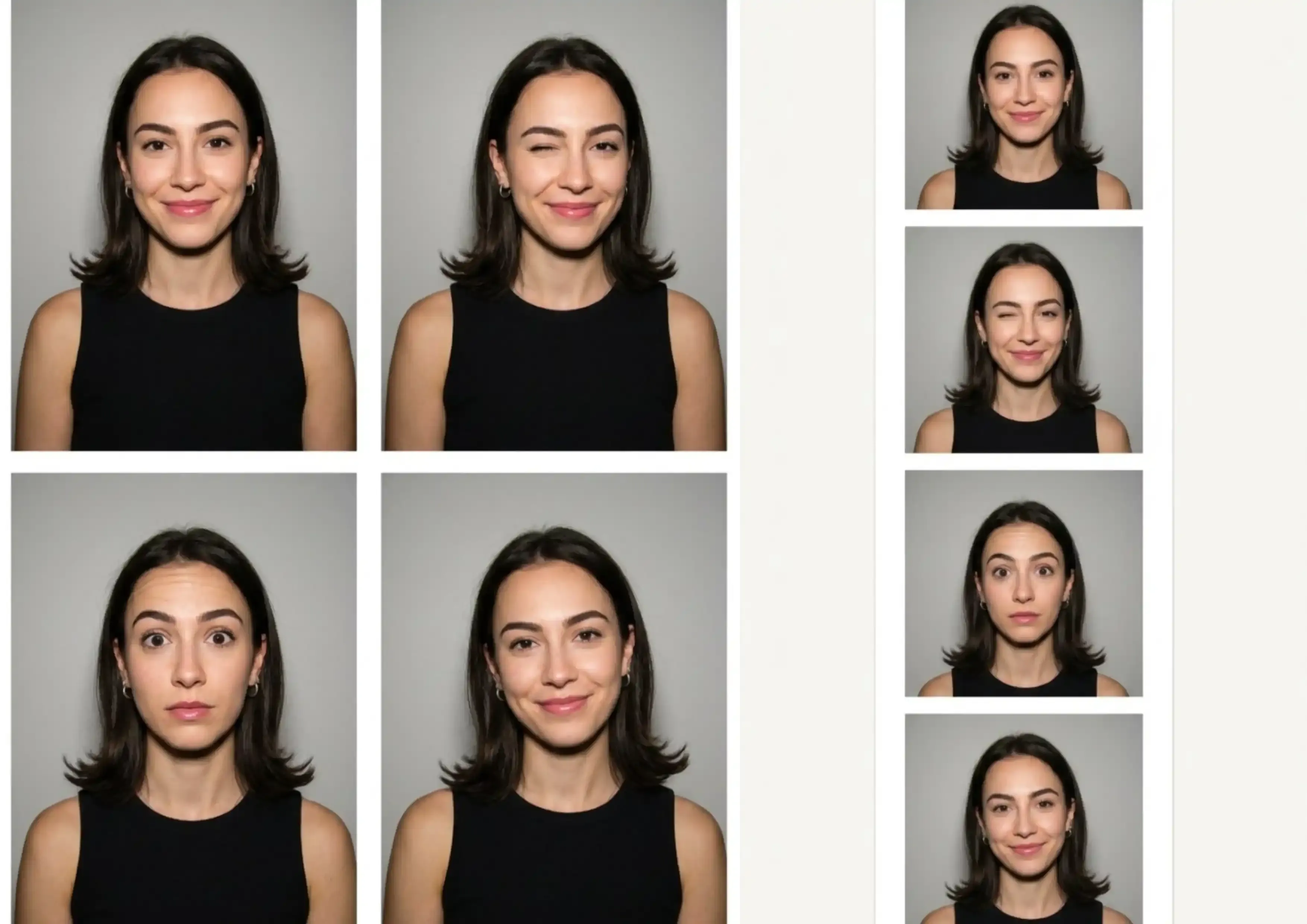
Layout calibration: correcting a 2x2 quad layout into a standard 1x4 vertical strip in Nano Banana 2
To fix this, update your spatial prompt directives to enforce a top-to-bottom layout:
- Specify vertical photo booth strip, 1x4 stacked layout from top to bottom in your positive prompt.
- Explicitly add 2x2 grid, split screen, horizontal collage, quad layout to the negative prompt.
- Set the canvas aspect ratio directly to
--ar 1:3or equivalent vertical strip dimensions.
Step 3: Emotional Pacing: Poses, Backgrounds, and Stickers
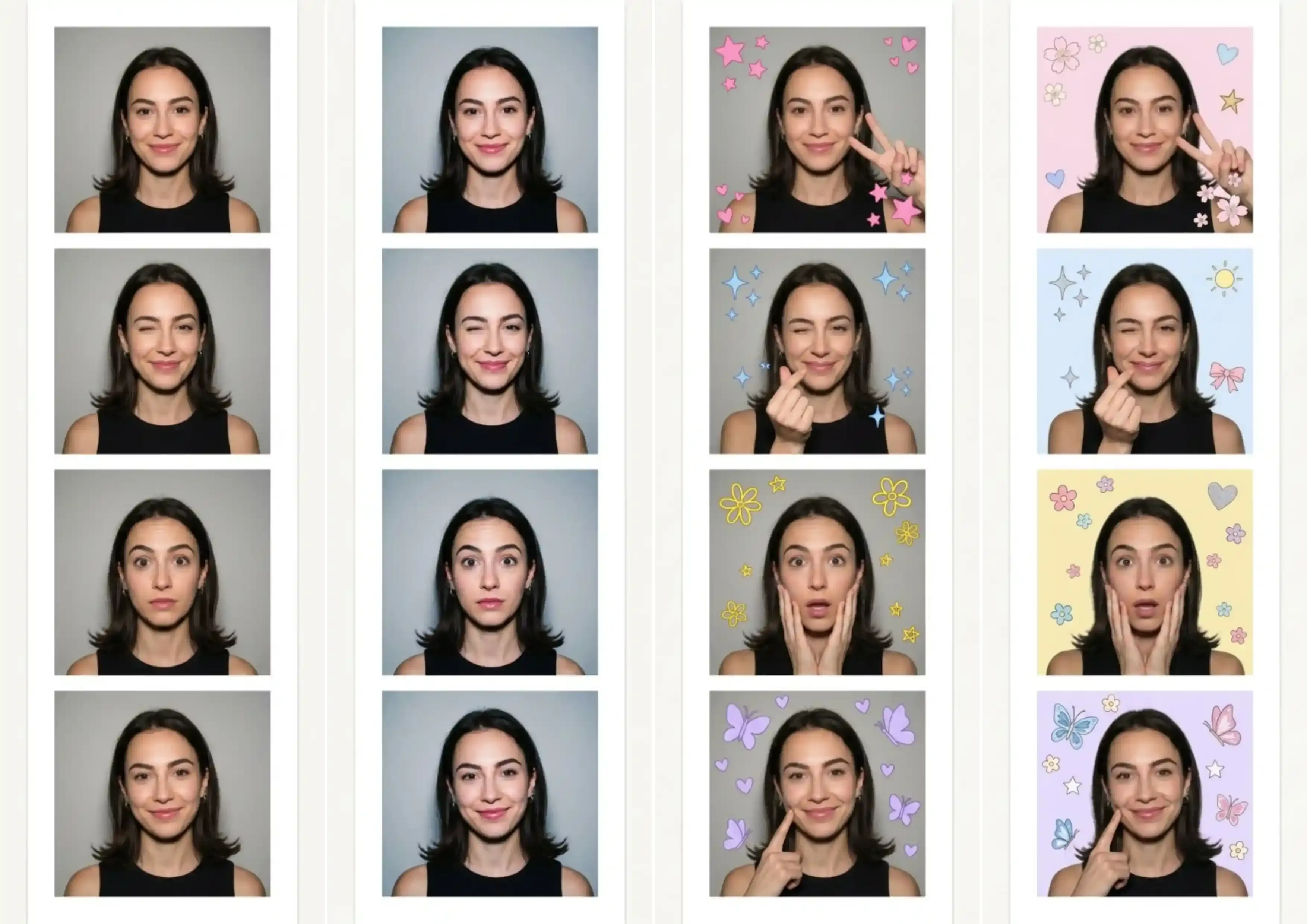
The fun of a photo strip is watching someone loosen up across four frames, not seeing the same stiff headshot four times. Rendering on a single canvas lets you switch up expressions, backdrop colors, and cute stickers while keeping the face completely locked in:
- Mix up the poses down the strip: Start with a relaxed frontal smile or peace sign, move to a wink and finger-heart, ramp up the energy with hands on cheeks, and wrap up with a cheek poke or subtle smirk.
- Rotate pastel backdrops: Swap flat gray for a different soft hue in each frame, cycling from baby pink and light blue down to warm yellow and lavender.
- Add nostalgic Y2K doodles: Scatter retro sparkles, floating hearts, flowers, and butterfly stickers around the borders to give it that authentic Korean photo booth feel.
- Keep anchor details locked: Even with changing gestures and background colors, signature traits—like the flipped hair ends, silver hoops, and black tank top—stay identical in every shot.
Step 4: Border Finishing and Output Specs
Once the vertical four-frame render passes consistency checks, export it to your layout canvas for physical or digital preparation:
- Internal Gutters: Set 14 to 16 pixels of clean white or soft off-white spacing between the individual photo panels.
- Base Margin: Leave a taller 36-pixel footer margin at the bottom for simulated date stamps or minimal branding.
- Print Resolution: If printing on standard 2×6-inch dye-sublimation paper, export at 600×1800 px (300 DPI) with a 0.125-inch outer bleed margin to prevent mechanical blades from clipping the borders.
Trending Visual Recipes: Prompt Formulas for Viral AI Photo Booth Effects
Replicating trending ai effects requires targeting specific optical variables: flash angle, sensor grain, lens curvature, and margin hues.
Here is how the four most popular styles compare across hardware and lighting profiles:
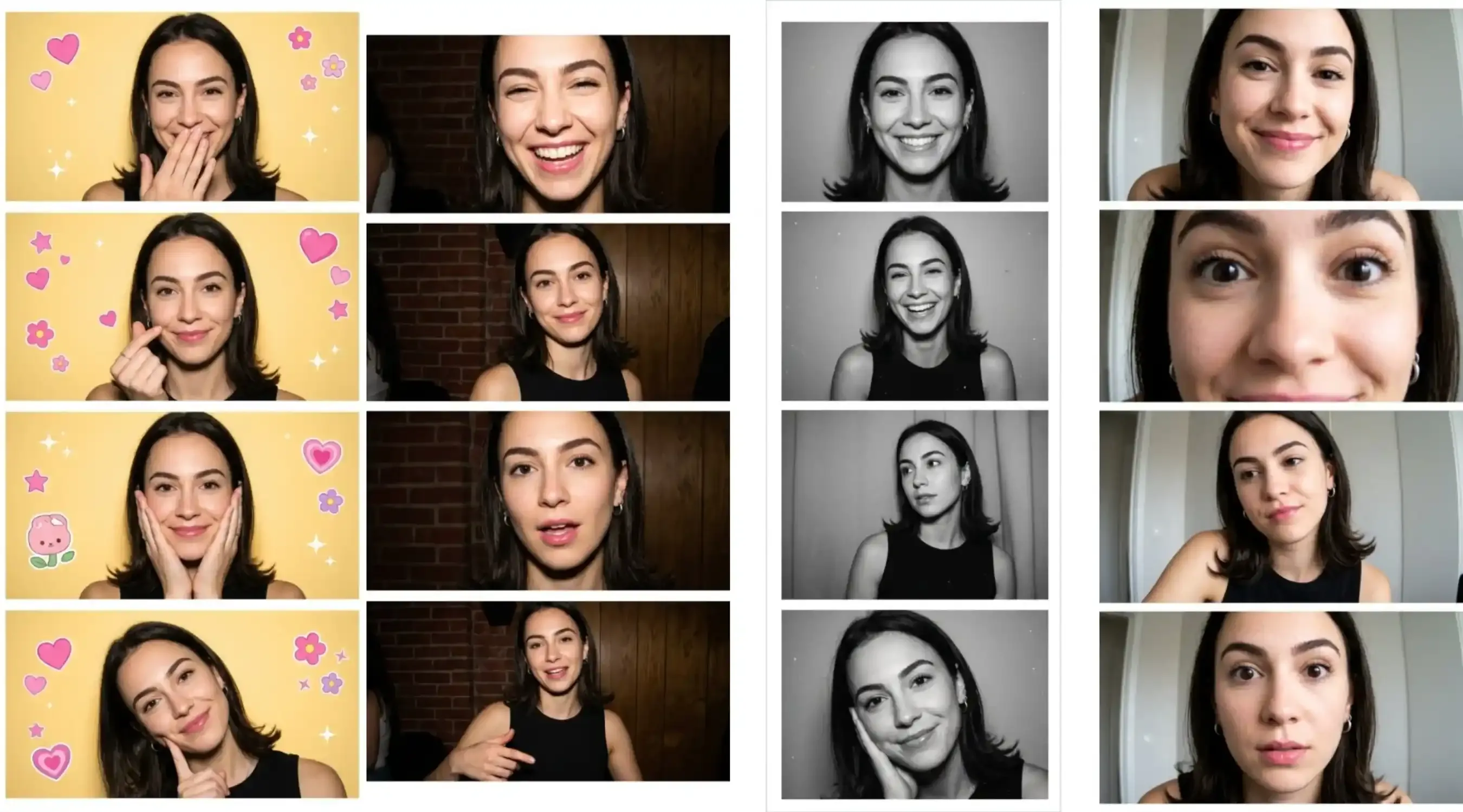
Four trending AI photo booth styles: Korean 4-cut, Y2K direct flash, 90s monochrome, and 2000s MacBook fisheye
1. Korean 4-Cut Style
Replicating an authentic Korean 4-cut strip requires soft frontal lighting, playful micro-gestures, and pastel edge accents. Instead of rigid static prompts, use this modular formula to swap poses, colors, and doodles while keeping the vertical 1×4 layout locked.
plaintext1Create a Korean 4-cut photo booth strip using the uploaded portrait as character reference. 2 31. Character: Keep the same subject, [facial traits, hair, outfit, skin tone]. 42. 4 Poses (1x4 Vertical): 5 - Frame 1: [Pose 1: e.g., shy giggle, covering mouth with one hand] 6 - Frame 2: [Pose 2: e.g., sweet smile with cheek finger-heart] 7 - Frame 3: [Pose 3: e.g., hands cupping chin, cute cheek pose] 8 - Frame 4: [Pose 4: e.g., playful head tilt, touching cheek] 93. Style & Accents: 10 - Backdrop: Solid [Base color / Hex: e.g., warm butter-yellow #F8E8B0]. 11 - Doodles: [Theme: e.g., pink hearts, stars, flowers, sparkles] placed around borders only. 124. Layout Constraints (Keep Fixed): 13 - 1x4 stacked vertical column, soft frontal flash, natural skin texture. 14 - Narrow white gutters, no 2x2 grid, no extra limbs, no text or watermarks.
2. Y2K Direct Flash & Digicam
This aesthetic recreates the raw look of early-2000s compact digital cameras. Rather than formal poses, it relies on unscripted expressions, mixed framing, and harsh on-camera flash that separates the subject from a dim background.
plaintext1Create a nostalgic Y2K direct-flash photo strip using the uploaded portrait as character reference. 2 31. Character: Keep the same subject, [facial traits, hair, outfit, accessories]. 42. Candid Poses & Framing: 5 - 4 spontaneous, unposed moments from a casual night out. 6 - Vary framing: mix close-ups (e.g., candid laughter) with wider torso crops. 73. Flash & Setting: 8 - Strong on-camera flash: bright facial highlights, crisp details, hard background shadows, natural falloff. 9 - Environment: Dim indoor room with [e.g., exposed brick wall, wood paneling]. 10 - Texture: Subtle digital sensor noise, authentic snapshot contrast. 114. Layout Constraints (Keep Fixed): 12 - 1x4 vertical strip, narrow white gutters, clean outer border. 13 - No 2x2 grid, no pastel stickers/doodles, no softbox studio light, no text or logos.
3. 1990s Vintage Monochrome
To produce a genuine vintage film grain photo strip, specify film stock characteristics rather than basic black-and-white filters.
plaintext1Create a 1990s vintage monochrome photo booth strip using the uploaded portrait as character reference. 2 31. Character: Keep the same subject, [facial traits, hair, outfit, accessories]. 42. Framing & Poses: 5 - 4 natural, candid moments without scripted poses. 6 - Alternate between tight close-ups and wider torso framing. 73. Film Stock & Setting: 8 - Analog silver gelatin style inspired by Kodak Tri-X 400: rich blacks, natural grayscale, irregular film grain, subtle dust specks[cite: 10]. 9 - Backdrop: Simple neutral gray booth backdrop with subtle fabric or analog texture. 104. Layout Constraints (Keep Fixed): 11 - 1x4 vertical stacked strip, narrow white gutters, clean outer border. 12 - Pure B&W only (no color, no sepia), no digital sharpness/HDR, no 2x2 grid, no text or logos.
4. 2000s MacBook Fisheye
Recreates the distorted, playful look of early Apple Photo Booth software using extreme barrel distortion, curved edges, and low-res built-in webcam noise.
plaintext1Create an early-2000s MacBook webcam photo booth strip using the uploaded portrait as character reference. 2 31. Character: Keep the same subject, [facial traits, hair, outfit, accessories]. 42. Framing & Distortion: 5 - Exaggerated fisheye lens, barrel distortion, warped perspective, and curved edge vignettes. 6 - Vary framing naturally across 4 candid shots, from extreme facial close-ups to looser torso framing. 73. Sensor & Environment: 8 - Early-2000s built-in webcam aesthetic: low resolution, soft focus, subtle sensor grain, flat ambient indoor lighting. 9 - Backdrop: Simple [neutral indoor room/wall] with muted colors. 104. Layout Constraints (Keep Fixed): 11 - 1x4 vertical stacked strip, narrow white gutters, clean outer border. 12 - No 2x2 grid, no crisp 8K/HDR, no studio lights, no text or logos.
Use each photo booth prompt recipe as a baseline, then adjust only the pose token between panels to keep lighting identical.
The Consistency Hurdle: How to Prevent AI Face Drift Across Frames
Standard diffusion pipelines treat each run as an isolated generation, making ai character consistency the primary technical hurdle when you try to turn photo into photo booth strip formats.
To prevent face drift, you must constrain the model's latent sampling before rendering multi-panel poses.
1. Reference Image Conditioning
Pass a clean front-facing anchor image through an IP-Adapter using an image weight between 0.65 and 0.80. Setting the weight above 0.85 freezes facial mobility, preventing natural smiles or playful gestures.
2. Seed Pinning with Modular Prompts
Lock your initial seed value and hold lighting, wardrobe, and environment tokens static. Adjust only the trailing pose token, such as transitioning from "calm neutral gaze" to "peace sign near cheek."
3. Single-Canvas Spatial Latent Guidance
Render all four frames in a single 1×4 vertical pass instead of stitching separate images together. Generating everything on one canvas keeps lighting, skin tones, and clothing textures consistent across the entire strip without manual color grading.
Export Specifications: Optimizing Strips for Print vs. Social Sharing
Preserving analog grain and razor-sharp typography requires matching your export settings to the physical or digital display medium:
| Destination | Canvas Size | Resolution | Safe Zone & Margin | File Format |
| Physical Dye-Sub Print | 2×6 inches | 600×1800 px (300 DPI) | 0.125-inch outer bleed margin | 8-bit PNG / TIFF |
| Fine-Art Archival Print | 2×6 inches | 1200×3600 px (600 DPI) | 0.125-inch outer bleed margin | Uncompressed TIFF |
| Instagram & TikTok Feed | 9:16 vertical | 1080×1920 px (72 DPI) | 15% top and bottom interface buffer | PNG or MP4 (animated) |
Practical Delivery Guidelines
- Compensate for Mechanical Blade Drift: Thermal dye-sublimation printers e.g., DNP, Citizen shift slightly during automated cutting. Keep critical elements—like simulated orange LED timestamps and faces—inside the interior safe boundary, using a 0.125-inch outer bleed to prevent white slivers.
- Style for 9:16 Social Feeds: Centering a 1:3 vertical strip on a 1080×1920 canvas leaves empty margins. Fill the background with a soft textured backdrop and apply a subtle drop shadow
blur: 24px,opacity: 15%to give the flat image realistic physical weight. - Preserve Grain Integrity with PNG: Never export film-effect renders as lossy JPEGs. Standard JPEG compression smudges high-frequency grain and subtle halftones into muddy block artifacts, ruining the vintage texture.
Troubleshooting Common Artifacts in AI Photo Booth Generation
When diffusion models process multi-panel layouts in a single pass, spatial noise can occasionally distort micro-details or drift scene lighting. Use this quick diagnosis table to resolve common flaws without burning compute credits:
| Generative Flaw | Underlying Cause | Immediate Fix |
| Mangled Hands / Extra Fingers | Low pixel density for fine joint articulation | Pull camera crop tighter to collarbones. If hands are required, run an inpainting pass at 0.50–0.55 denoising strength. |
| Backdrop Drifting | Unconstrained lighting & ambient tokens | Add strict negative anchors: gradient background, outdoor scenery, wallpaper patterns. |
| Corrupted Dates / Numbers | Diffusion treats glyphs as image pixels, not vector fonts | Never prompt text. Render panels completely clean, then overlay typography via layout software. |
| Bleeding Borders | Subject edges blending into strip gutters | Enforce padding with high-contrast border hex codes (e.g., #FFFFFF or #1A1A1A). |
Putting It Together: Your 3-Step Production Checklist
Run this three-step pipeline:
1. Lock the anchor portrait.
Generate a clean 3:4 portrait. Keep lighting flat. Lock two or three distinct wardrobe markers.
2. Render the 1×4 canvas.
Capture all four panels in a single latent pass. Add no 2x2 grid to your negative prompts. Keep the column strictly vertical.
3. Export by target output.
- Print: Set the canvas to 600×1800 px at 300 DPI. Add a 0.125-inch bleed buffer for dye-sub printers.
- Social: Center the strip in a 9:16 frame. Leave a 15% safety margin for TikTok and YouTube Shorts.
Test these workflows in the Atlas Cloud Playground. Generate panels on Nano Banana 2. Animate the strip with Veo 3.1.





