A course creator downloads an old vendor clip and finds subtitles baked straight into the picture, no separate caption file anywhere to edit. That's the job when you remove subtitles from video: not editing a caption track, but repainting pixels that happen to spell out letters, frame after frame, while the footage underneath keeps moving.
We ran an AI video editor through three clips picked to trip up anything less than a real fix: captions that change every couple of seconds, a caption sitting over a face, and dense foreign-language text over a busy background. One question comes before any of that, though: do you even need a removal tool, or can the captions just be switched off?

Key Takeaways
- Hard-coded subtitles are burned into every frame's pixels. Toggleable captions are a separate track a viewer can switch off, no AI removal needed for that kind.
- Removing burned-in subtitles is a generative-rewrite job: the model repaints the caption band using the rest of the frame as a guide, not a crop or a blur bar.
- Open Atlas Cloud's video editor, switch to the Video Edit tab, upload the clip and name exactly which captions to erase.
- Captions that change every few seconds, and captions sitting over a face, are the cases that separate a real fix from a smudge.
- Only remove subtitles from footage you own or have the rights to edit.
Hard-Coded Subtitles vs Toggleable Captions: Which One Do You Actually Have?
Search around for how to remove captions from video and the results mostly assume the words are stuck to the picture. Sometimes they aren't.
YouTube's auto-generated captions, TikTok's auto captions, and a .srt or .vtt file loaded alongside a video all work the same way: the player draws the text on top of the frame at watch time, and the video file itself carries no visible words. Turn the caption setting off, or move the file to a player that ignores the track, and the text disappears. There's nothing to repaint.
Hard-coded subtitles, sometimes called open captions or burned-in text, are different. Whoever exported the clip flattened the words into the image itself, the same way a logo or a watermark gets flattened in. Pause on any frame and the letters are right there in the pixels, no setting will hide them.
| Type | Where it lives | Do you need an AI remover? |
|---|---|---|
| Toggleable captions (YouTube auto captions, TikTok auto captions, .srt/.vtt files) | A separate track the player draws over the video | No. Turn it off in the player or the export settings |
| Hard-coded subtitles (open captions, burned-in text) | Baked into the video's pixels on every frame | Yes. The letters have to be repainted, not switched off |
A quick way to tell which one you've got: if changing a setting or swapping players makes the words vanish, they were never burned in. If they survive every setting change and every export, they're pixels, and the rest of this guide is about getting rid of those.
If the text isn't a caption at all, a logo, a date stamp, an arbitrary title card, the removal mechanics below still apply. Our guide to removing text from video covers that broader case in more depth.
3 Ways People Try to Hide Subtitles (and Why Only One Removes Them)
A crop or a blur bar might make the words unreadable, but neither one counts as an actual video subtitle remover in the sense this guide means. Here's what each approach actually does to the frame.
| Method | How it works | What's left behind | The subtitle-specific catch |
|---|---|---|---|
| Crop the caption band | Cut off the strip of frame carrying the subtitles | A shorter, letterboxed frame | Subtitles usually run the full width of the shot, so the crop takes far more of the picture than trimming a corner logo ever would |
| Blur or box over the band | Smear or paint a solid bar across the subtitle strip | A visible bar sitting across the bottom third of every frame | Anything else in that strip, hands, scenery, a second speaker, disappears under the bar too |
| Generative rewrite | An AI model repaints the caption band using the surrounding footage as a guide | Nothing, on a simple background; a soft patch only on a dense one | Treats a caption that changes every few words the same way it treats one that never moves |
The first two hide the words. Generative rewrite is the one aiming to make the caption look like it was never typed in, and it's also the only one that can fail quietly if the background behind the text is too dense for the model to reconstruct with confidence.
Remove Hard-Coded Subtitles and Captions With AI on Atlas Cloud
Atlas Cloud treats subtitle removal as one editing instruction: upload the clip, name the captions, and an AI subtitle remover rewrites the frame underneath them while leaving the rest of the shot alone.
The model behind it by default is Seedance 2.5, which reads the whole source clip as a reference instead of one frame at a time. That's what keeps a caption band steady while the camera pans, instead of redrawing it a shade differently on every frame.
Method 1: Remove Subtitles in the Video Edit Tab
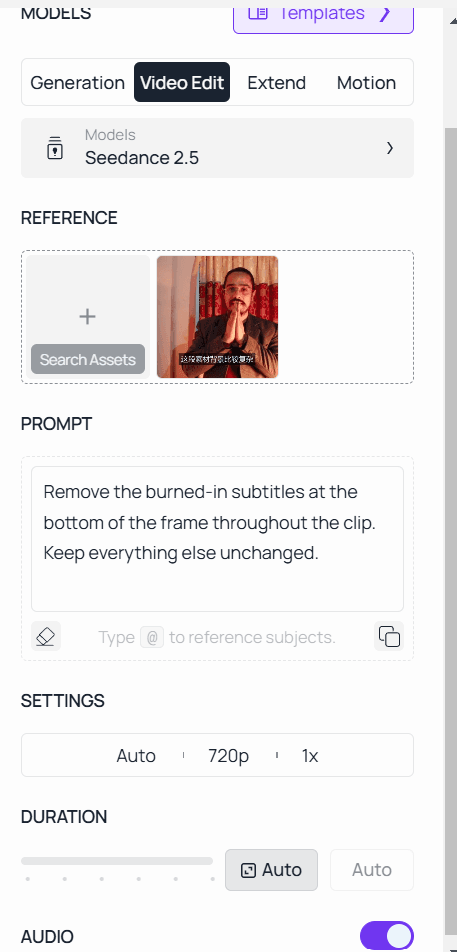
- Open the AI video editor and switch to the Video Edit tab, next to Generation, Extend and Motion.
- Upload the clip carrying the subtitles.
- Type the instruction: "Remove the burned-in subtitles at the bottom of the frame throughout the clip. Keep everything else unchanged." Naming the subtitles specifically, not "the text" or "the video," keeps the edit narrow.
- Run the job and scrub through the whole result, not just the thumbnail. A caption that reappears three seconds in is easy to miss on a quick glance.
Method 2: Remove Subtitles From Video via API
Step 1: Get your API key. Create one in the Atlas Cloud console and copy it.
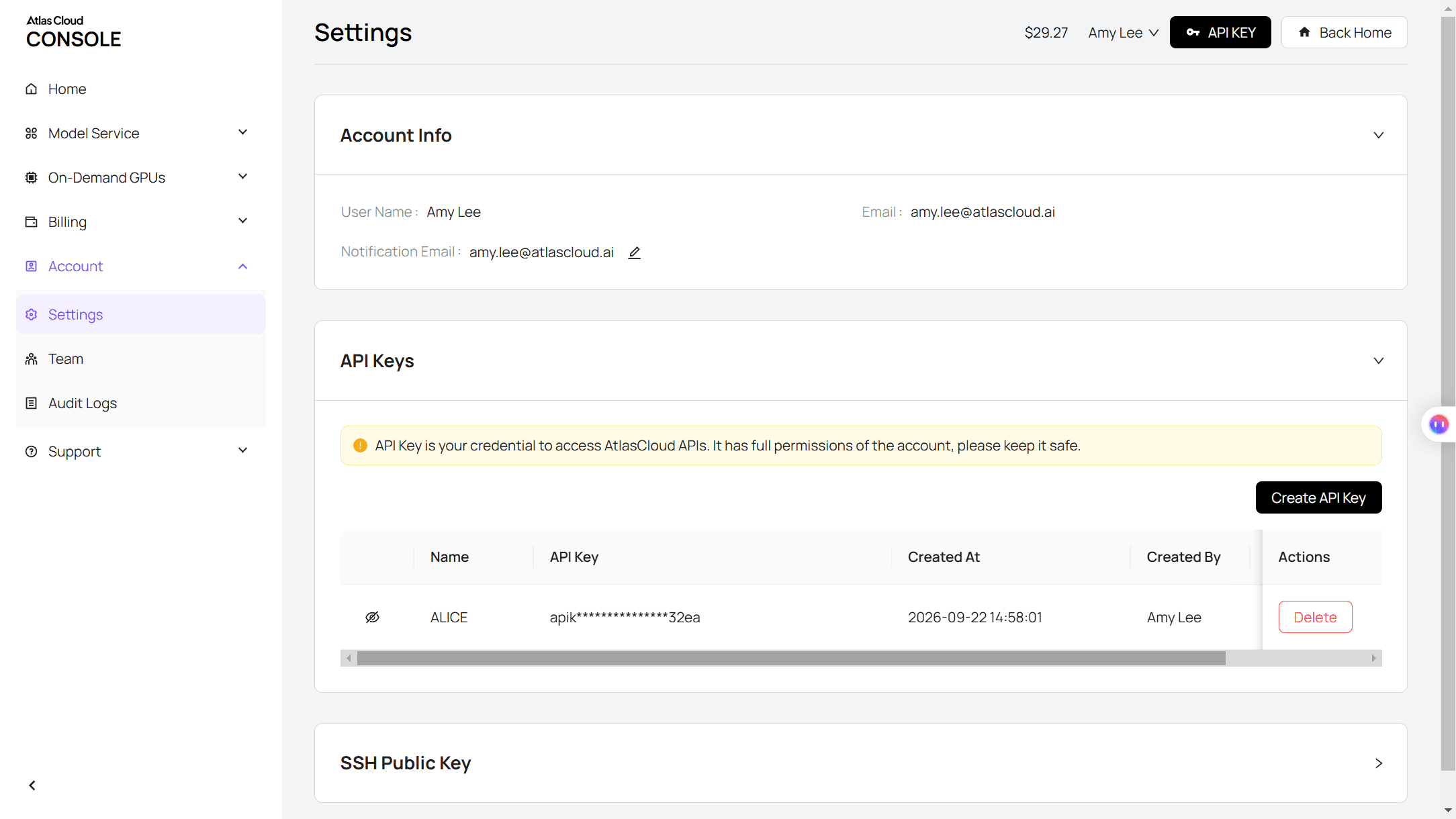
Step 2: Check the API docs. Accepted formats, resolutions and duration limits are listed in the API documentation.
Step 3: Make your first request. Submit the clip with the instruction:
plaintext1curl -X POST https://api.atlascloud.ai/api/v1/model/generateVideo \ 2 -H "Content-Type: application/json" \ 3 -H "Authorization: Bearer $ATLASCLOUD_API_KEY" \ 4 -d '{ 5 "model": "bytedance/seedance-2.5/reference-to-video", 6 "prompt": "Remove the burned-in subtitles at the bottom of the frame throughout the clip. Keep everything else unchanged.", 7 "reference_videos": ["<your_clip_url>"], 8 "duration": -1, 9 "resolution": "720p" 10 }'
duration stays at -1 for an editing prompt like this one. The model reads that as an instruction to match the source clip's length instead of generating a new one.
Poll the job until it finishes:
plaintext1curl https://api.atlascloud.ai/api/v1/model/prediction/<prediction_id> \ 2 -H "Authorization: Bearer $ATLASCLOUD_API_KEY"
One API key and the same submit-and-poll loop work across every model Atlas Cloud hosts. Swap the model string later and nothing else in the integration changes.
What to Type So Only the Subtitles Disappear
Here's how to remove subtitles from video without repainting more than you meant to: there's no mask or brush in Atlas Cloud's video editor, just a text field, so the prompt is doing all the targeting.
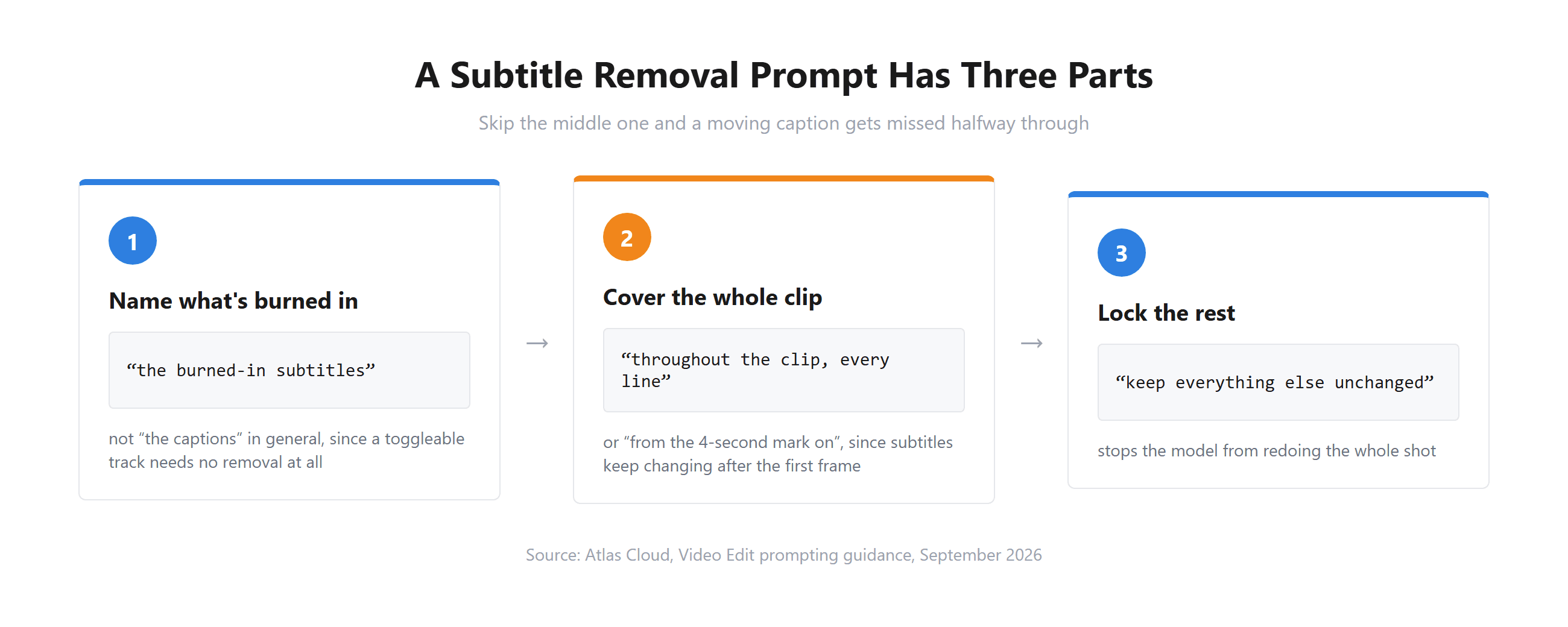
A caption band is a moving target in a way a static logo isn't. Say only "remove the subtitles" and a model might catch the words on the first frame it samples and miss a line that appears four seconds later. Naming the timing, "throughout the clip" or "from the first line to the last," closes that gap.
"Remove the subtitles" on its own can also pull in more of the frame than intended, sometimes shifting color or lighting across the whole shot along with the text. "Remove the burned-in subtitles across the bottom third of the frame for the entire clip, keep everything else exactly as it is" gives the model a boundary instead of a vague target.
We Tested Subtitle Removal on 3 Hard Cases
A single static caption over a plain background is the demo clip most tool pages lead with. We picked three cases that actually test the claim.
Captions that change every few seconds. A short clip with burned-in subtitles at the bottom, new lines appearing every couple of seconds, camera moving throughout.

A caption sitting over a face. A clip where the subtitle band overlaps someone's chin or the lower half of their face, the case that separates a model that understands the scene from one that just repaints a rectangle.

Dense foreign-language subtitles over a busy background. A block of small, tightly packed text sitting over foliage, a crowd, or another detailed scene, the combination most likely to leave a soft patch.
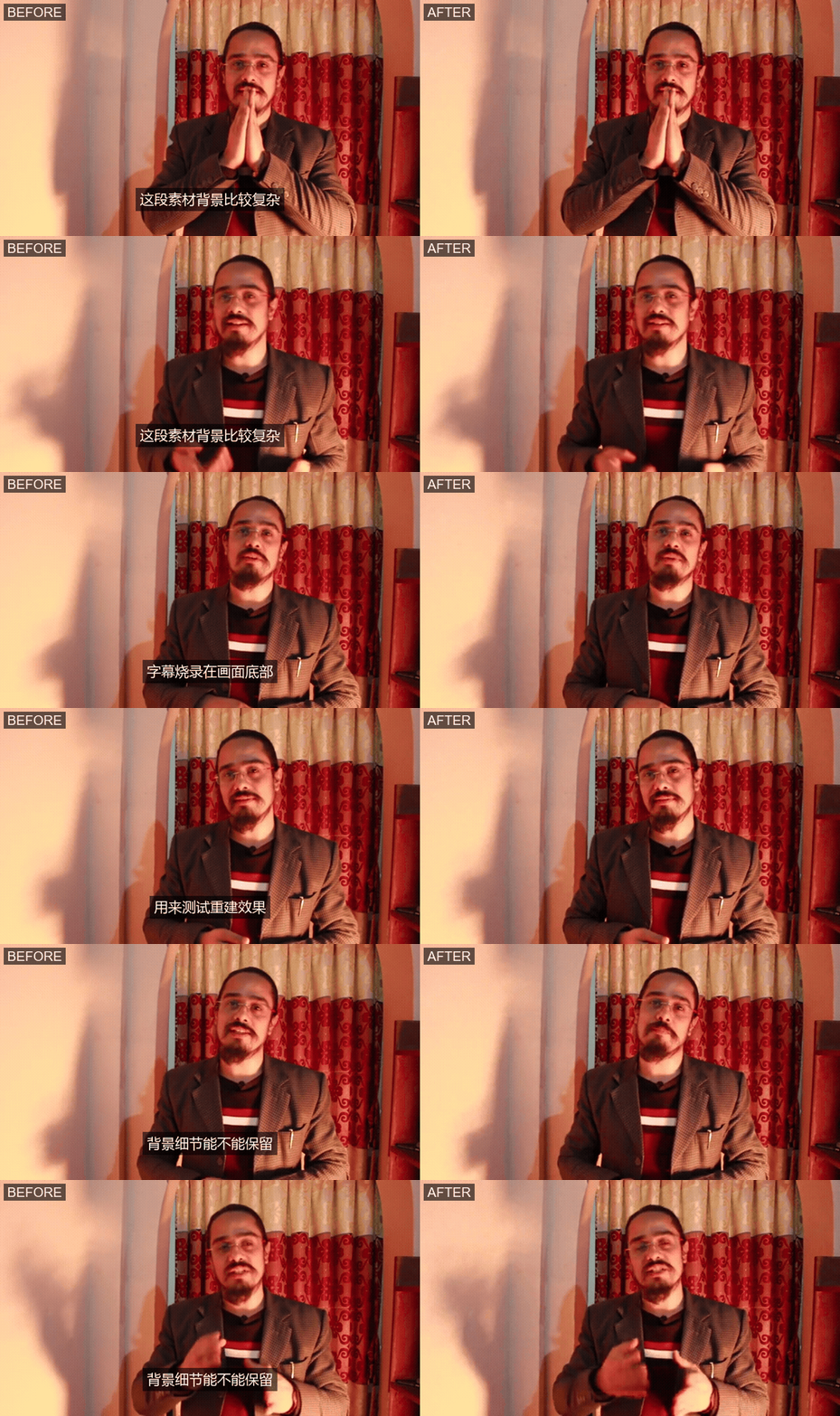
Across all three, check more than whether the letters are gone. Watch the exact moment a new line would have appeared for any leftover ghosting, confirm the rest of the frame stayed untouched, and listen for whether the audio survived the edit.
Frequently Asked Questions
Can I remove subtitles from video online free?
Yes, for short clips. Atlas Cloud's Video Edit tab runs in the browser with nothing to install, and pricing runs per second of output rather than a flat subscription, so a short clip costs a small fraction of a full edit. Check the current rate before a larger batch, since promotional pricing changes.
Will removing subtitles blur or lower video quality?
Only in the patched area, and only if the background there is dense. A flat wall or a soft blur behind the caption band reconstructs cleanly.
Tight text over foliage, a crowd, or fine fabric detail is harder for any model to rebuild convincingly, the same tradeoff covered in our guide to AI inpainting tools. The rest of the frame keeps its original resolution either way.
Can AI remove subtitles that change every few seconds or come in multiple languages?
Yes, when the model reads the whole clip instead of one frame at a time. Tell it what to remove and how long it runs, "the subtitles, throughout the clip," rather than describing a single instant, so the instruction covers every line instead of just the one the model happened to sample. Dense, multi-language text over a busy background is still the harder case, worth a full-resolution check before trusting the result.
What's the difference between a subtitle remover and a caption remover?
Not much in practice. Subtitles and captions both describe words layered over the picture, burned in or toggleable, and tools marketed under either name usually do the same job: repainting hard-coded text. The distinction that actually matters is hard-coded versus toggleable, covered earlier, not which of the two words a tool happens to put on its landing page.
Do I need AI to turn off YouTube or TikTok's automatic captions?
No. Both platforms generate that text as a track the viewer controls, not something baked into the video. YouTube's help center puts it plainly: "To turn on captions, click Closed captions. To turn off captions, click Closed captions again," using the CC button at the bottom right of the player.
TikTok works the same way, with auto captions switched off from the share panel. An AI subtitle remover only comes into play once the text is burned into the picture itself.
Can I remove subtitles from someone else's video?
Only if you made it or have the rights to edit it. TikTok's community guidelines put it plainly: "You should only post content you created or have the right to share." That standard holds regardless of which platform the clip came from or which tool does the editing.
Conclusion
Removing subtitles from video comes down to one fork before a removal tool even opens: are the words a track you can switch off, or are they pixels? Toggleable captions need a settings menu. Burned-in subtitles need a model that rebuilds the frame underneath them, line by line, without flickering when the camera moves or the caption changes.
Start with the easy case in your own footage, a static caption over a plain background, before trying a clip where the subtitles change every few seconds or sit across someone's face. Name exactly what's burned in, tell the model what has to stay the same, and check the result at full resolution before you export. That's what separates a real fix from a smudge when you remove subtitles from video instead of just hiding them.





