API 呼叫與用戶端設定
使用 Coding Plan API Key 直接呼叫介面,或接入 Claude Code、OpenClaw、Cursor、Codex 等主流 Coding 用戶端。
直接呼叫 API
Coding Plan 使用 獨立的 API Key,與 Atlas Cloud 一般 API Key 互相獨立。
- Base URL:
https://api.atlascloud.ai/v1 - API Key: 於 方案管理 → 取得 API Key 中建立。
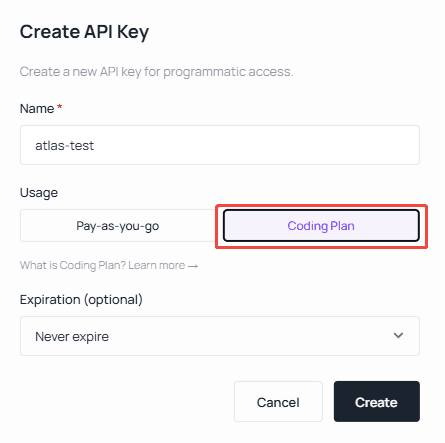
請求與回應格式相容於 OpenAI,完整範例請見 Model APIs。
用戶端設定
多數 Coding 工具(OpenClaw、Hermes、OpenCode、Cursor、Copilot 等)使用 OpenAI 相容協定,Base URL 為:
https://api.atlascloud.ai/v1Claude Code 採用 Anthropic Messages 協定,Base URL 為:
https://api.atlascloud.ai以下為常用工具的接入步驟。
Claude Code
設定環境變數
重要提示: 請將下方
ANTHROPIC_AUTH_TOKEN替換為你在 Atlas Cloud 主控台取得的實際 API Key。
設定檔位置:
- Windows:
%USERPROFILE%\.claude\settings.json - macOS / Linux:
~/.claude/settings.json
修改 settings.json 如下,替換 API Key 與模型 ID:
{
  "env": {
    "ANTHROPIC_AUTH_TOKEN": "atlas-api-key",
    "ANTHROPIC_BASE_URL": "https://api.atlascloud.ai",
    "ANTHROPIC_MODEL": "zai-org/glm-5.1",
    "ANTHROPIC_DEFAULT_HAIKU_MODEL": "zai-org/glm-5.1",
    "ANTHROPIC_DEFAULT_SONNET_MODEL": "zai-org/glm-5.1",
    "CLAUDE_CODE_DISABLE_EXPERIMENTAL_BETAS": "1"
  }
}
OpenClaw
1. 透過 OpenClaw 引導精靈設定
安裝完成後,打開終端機(SSH / CMD / Terminal),執行以下指令啟動設定精靈:
openclaw onboard依序選擇 Yes → QuickStart → Custom Provider,接著:
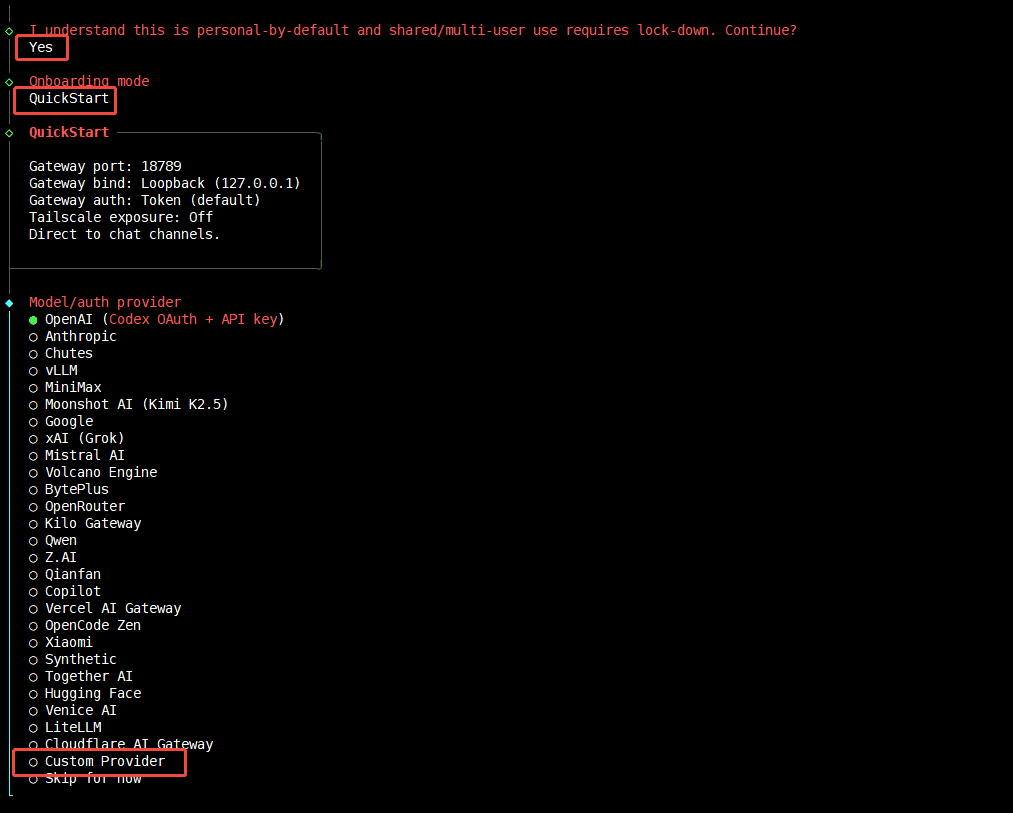
- 輸入 API Base URL:
https://api.atlascloud.ai/v1 - 貼上 Atlas Cloud API Key。
- 貼上模型 ID,協定選擇 OpenAI-compatible。
- 驗證連線,出現
Verification successful即成功。 - 自訂 Endpoint ID 與顯示名稱。
2. 或直接編輯設定檔
- macOS / Linux:
~/.claude/settings.json
{
  "baseUrl": "https://api.atlascloud.ai/v1",
  "apiKey": "your-atlas-key",
  "api": "openai-completions",
  "models": [
    {
      "id": "zai-org/glm-5.1",
      "name": "zai-org/glm-5.1",
      "contextWindow": 200000,
      "input": ["text"]
    }
  ]
}
Hermes
在 Hermes 中新增一個自訂的 OpenAI 相容 Provider 即可接入 Atlas Cloud:
-
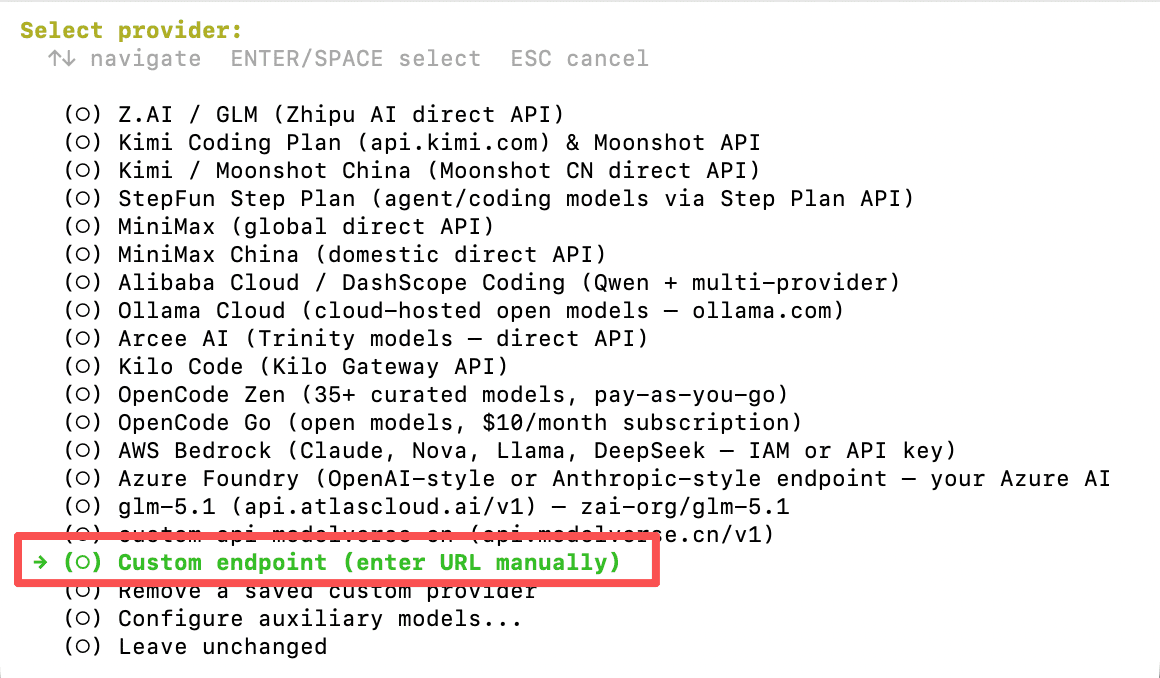
在 Provider 列表中選擇 Custom endpoint (enter URL manually)。
-
將 API base URL 填為
https://api.atlascloud.ai/v1,API key 貼上 Coding Plan 的 API Key;驗證通過後即可看到可用模型列表: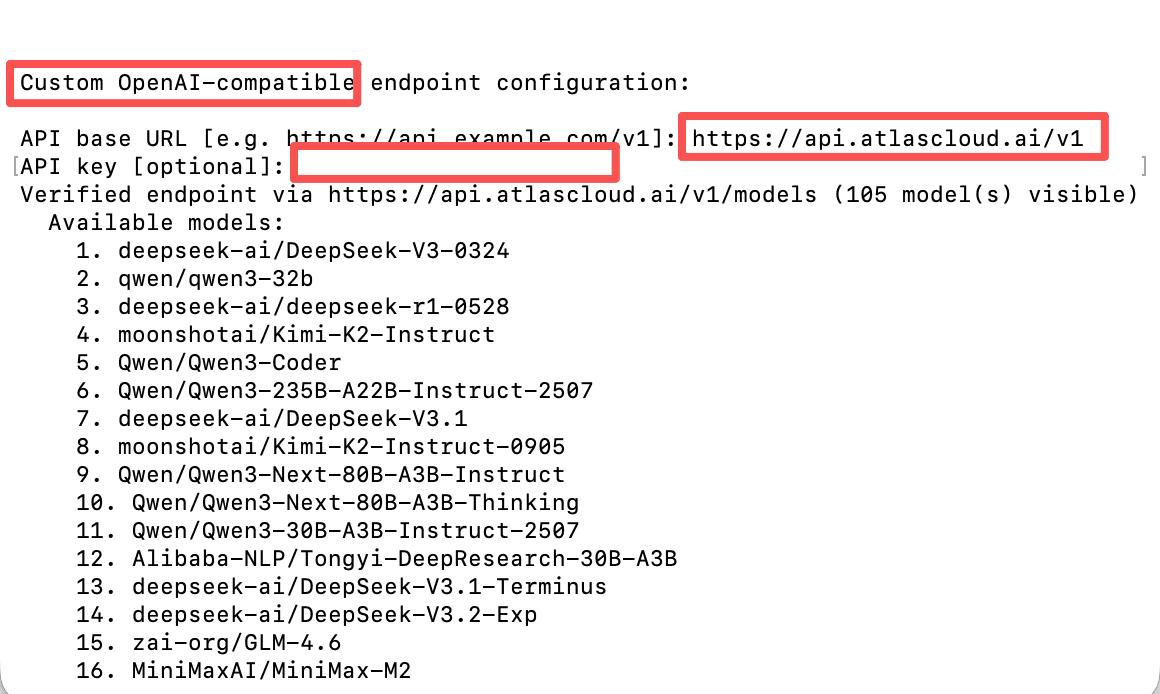
Trae
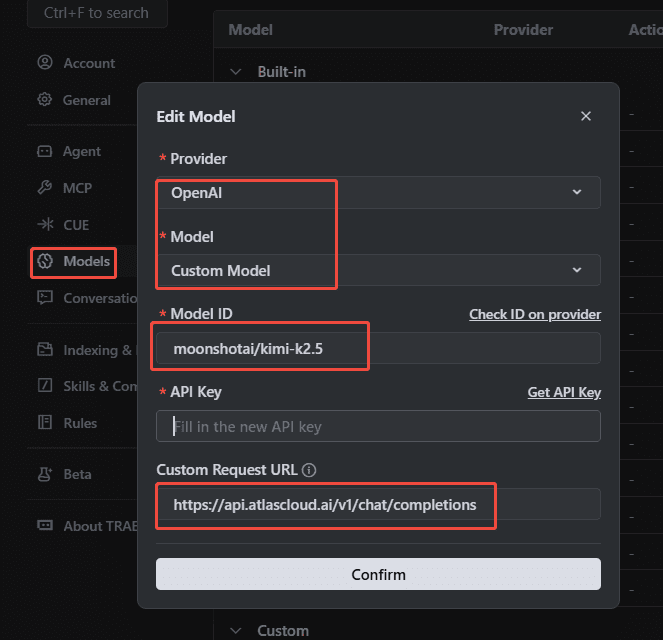
於 Trae 新增一個自訂 OpenAI 相容供應商,填入 Atlas Cloud 的 Base URL 與 Coding Plan API Key 即可。
Cursor
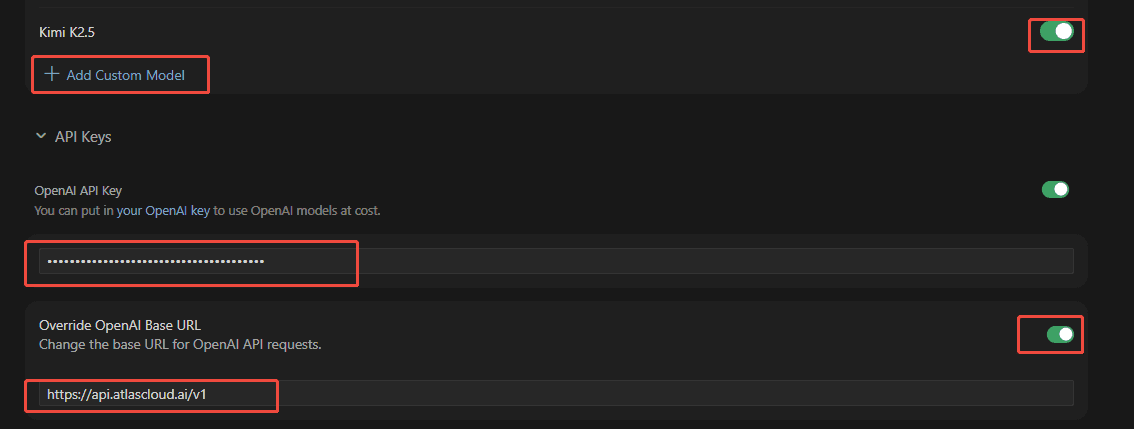
於 Cursor → Settings → Models 新增自訂 OpenAI 相容模型,Base URL 指向 https://api.atlascloud.ai/v1。
OpenCode
打開 OpenCode 設定檔 opencode.json:
- Linux:
~/.config/opencode/opencode.json - Windows:
%USERPROFILE%\.config\opencode\opencode.json
設定 Provider
{
  "$schema": "https://opencode.ai/config.json",
  "provider": {
    "atlascloud": {
      "npm": "@ai-sdk/openai-compatible",
      "name": "atlascloud",
      "options": {
        "baseURL": "https://api.atlascloud.ai/v1",
        "apiKey": "your-atlas-api-key"
      },
      "models": {
        "zai-org/glm-5.1": {
          "name": "glm-5.1"
        }
      }
    }
  }
}
Codex
1. 設定模型供應商
於 macOS / Linux 建立並編輯 ~/.codex/config.toml:
model_provider = "atlas_coding_plan"
model = "zai-org/glm-5.1"

[model_providers.atlas_coding_plan]
name = "atlascloud"
base_url = "https://api.atlascloud.ai/v1"
wire_api = "chat"
requires_openai_auth = true
2. 設定 API Key
建立並編輯 ~/.codex/auth.json:
{
  "OPENAI_API_KEY": "atlas-api-key"
}
請將
atlas-api-key替換為你在 Atlas Cloud 主控台取得的實際 API Key。
3. 啟動 Codex
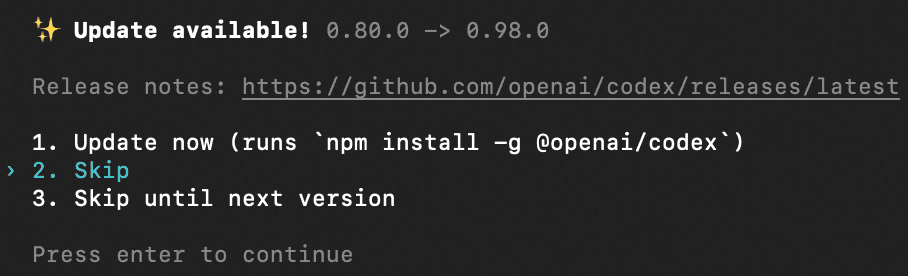
codex跳過更新提示後即可開始使用。
Last updated on