A Veo 3.1 prompt guide relies on a structured formula—Cinematography, Subject, Action, Environment, and Lighting/Style—to ensure token order delivers cinematic consistency and precise audio-visual synchronization. Treating the prompt box like a virtual film crew rather than a search engine prevents character morphing and camera drift across multi-second renders.
To reliably veo 3.1 generate video from text prompt pipelines, apply this foundational formula:
| Prompt Component | Target Function | Technical Parameters |
| Cinematography | Lens & Motion Control | Shot type, focal length, camera movement |
| Subject | Core Focal Point | Physical traits, clothing, posture |
| Action | Motion Tracking | Specific velocity, physical interaction |
| Environment | Spatial Context | Setting, background depth, atmospheric conditions |
| Lighting/Style | Visual Grade | Color palette, light source, render aesthetic |
Key Takeaways
- Structure Drives Stability: Place camera mechanics (lens, depth of field, angles) at the start of the prompt to lock spatial parameters before character tokens are processed.
- Temporal Control Tools: Use Veo 3.1 reference images for identity preservation and First & Last Frame Control to eliminate character morphing in multi-shot sequences.
- Native Audio Integration: Guide the 48kHz audio engine using explicit bracketed syntax for lip-sync timing, emotional dialogue tones, and ambient soundscapes.
This guide covers advanced Veo 3.1 prompting workflows, helping creators master features like 48kHz native dialogue generation, timestamped shot sequencing, and reference image style matching.
The Veo 3.1 Prompting Formula for Cinematic Control
Prompting without sequence structure often yields warped limbs or drifting camera angles. AI video models read tokens in order of operations, so placing camera mechanics at the start gives the renderer immediate spatial rules before loading character assets. Following a structured veo 3.1 prompt guide ensures the model processes cinematic priority correctly.
Deconstructing Prompt Structure
The veo 3.1 prompting formula requires precise ordering to maximize prompt adherence when you veo 3.1 generate video from text prompt workflows.
- Cinematography: Establish shot type, focal length, and movement first (e.g., low-angle dolly zoom, 35mm lens).
- Subject & Action: Specify concrete physical details to lock identity. Mentioning exact age, fabric texture, and deliberate movement prevents body warping.
- Environmental Context: Dictate depth and element blocking, placing objects distinctly in foreground, midground, and background.
| Prompt Component | The Vague Prompt | The Professional Prompt |
| Cinematography | Camera moves forward | Dolly shot on 35mm lens with shallow depth of field |
| Subject & Action | Man walking fast | A 40-year-old mechanic in a dark canvas jacket walking hurriedly |
| Environment | In a city street | Rain-slicked alleyway with background neon sign reflections |
Executing Advanced Cinematic AI Video Prompts
Using specific AI video camera settings grants precise visual governance. Technical descriptors like rack focus or crane shot guide the attention of the model without requiring extra parameters.
Optimizing Camera Mechanics
To ensure continuous visual stability, combine lens choices with clear lighting cues in your veo 3.1 prompting guide setup:
- Define focal lengths explicitly, e.g., 85mm portrait lens for isolated subjects.
- Set movement speed using controlled modifiers, e.g., slow tracking shot rather than fast camera.
Combining opposing camera directives causes render artifacts. Eliminating redundant visual descriptors keeps the primary subject stable.
Applying this structured approach ensures precise optical control, allowing creators to produce consistent, high-fidelity results across varied production environments.
Hands-On Demonstration: Executing 85mm Optical Control & Wet-Ground Physics
To see this framework in action, I used veo 3.1 text-to-video on Atlas Cloud render targeting an 85mm optical profile combined with dynamic atmospheric depth:
Prompt Syntax:
Cinematography: 85mm medium tracking shot, smooth eye-level dolly backward, shallow depth of field.
Subject & Action: A handsome man... walks forward... His boots firmly contact the rain-slicked asphalt with clear weight and friction...
Environment: Rain-soaked cinematic urban alleyway, vibrant neon lights...
Key Takeaways from This Test Run:
- Optical Stability: Explicitly setting an
85mm medium tracking shotcompresses background depth without distorting facial proportions during backward movement. - Anatomical Realism: Specifying
boots firmly contact... with clear weight and frictioneliminates the "moonwalking" effect common in vague prompts, forcing the physics engine to render grounded weight distribution. - Integrated Native Audio: The structured environment tokens automatically synchronized realistic 48kHz footsteps on rain-slicked asphalt, proving that camera mechanics and audio triggers work synergistically.
Mastering Advanced Veo 3.1 Features for Temporal Consistency
The biggest trap in AI video is drift—characters suddenly changing faces and backgrounds warping mid-shot. Text prompts alone aren't enough to keep things steady. To lock in true temporal consistency, you have to go beyond basic prompting and take direct control over reference inputs and frame parameters.
Leveraging Veo 3.1 Reference Images
Strategic use of Veo 3.1 reference images locks the visual style and identity before rendering begins. Avoid uploading random assets; use a tiered strategy to ground the model:
- Style Only: Upload one high-quality reference to dictate lighting and color grading without forcing character structure.
- Full Context: Upload three distinct images (Subject, Environment, and Style) to force strict adherence. This combination is essential when veo 3.1 generate video from text prompt sequences requiring multiple shots of the same character.
Implementing Bookend Control
To eliminate jarring transitions, use First & Last Frame Control. By defining the start and end points of a motion sequence, you provide "bookends" that the model must connect. This effectively prevents the scene from wandering off-script during long-duration generations.
| Feature | Best Use Case | Expected Outcome |
| Start Frame | Establishing character identity | Consistency in face and clothing |
| End Frame | Controlled camera movement | Precision in framing and object placement |
| Both Frames | Seamless scene transitions | Mathematically guided path between shots |
Real-World Case: "Glass Clipping" Artifacts
While First & Last Frame Control mathematically connects two states, violent spatial or physical leaps can create jarring interpolation artifacts.
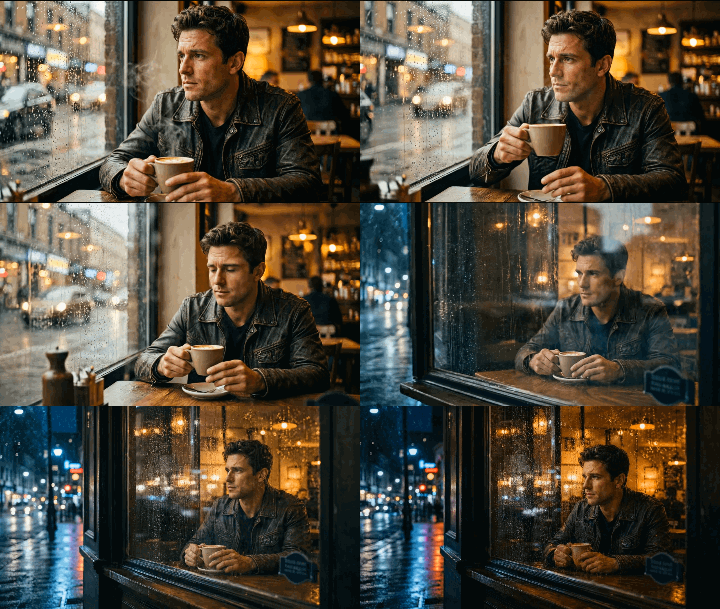
Diagnostic Analysis:
In the sequence above, attempting to transition directly from an indoor close-up to an outdoor wide shot caused the model to struggle with "passing through" the glass barrier. Between second 3 and 4, the renderer performed a sudden spatial dissolve, creating a unnatural morphing artifact as it tried to reconcile the two distinct camera angles.
How to Fix This:
- Avoid Physical Barriers: Do not ask the virtual camera to pass directly through solid objects (like windows or walls). Instead, use a pan or a tilt motion, e.g., “Camera tilts down to the wet pavement, then pans up to reveal the exterior”.
- Align Perspective Vector: Ensure the Start and End frames share similar visual horizons or vanishing points to allow the diffusion model to interpolate linearly without recalculating depth geometry mid-render.
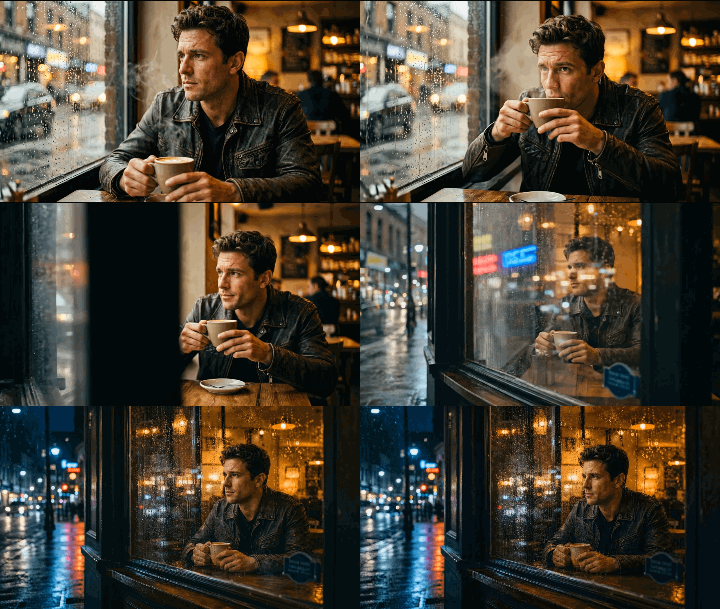
The Corrected Output: By re-framing the prompt to use the window frame as a natural visual occlusion point during a subtle camera pan, the renderer seamlessly reconciles the spatial geometry and optical profiles:
Scaling Sequences with Veo 3.1 Extend
When a 4-second clip is insufficient, Veo 3.1 Extend allows for 7-second sequence generation. To maintain AI character consistency during these extensions, always re-inject the original character reference image in the prompt metadata. Failing to refresh the reference context during extension prompts is the leading cause of character distortion.
How to Integrate Native Audio Cues in Your Prompts
A great video feels incomplete without sound. Even though creators spend hours tweaking visual prompts, Veo 3.1 actually packs a native 48kHz audio engine capable of rendering synchronized dialogue and soundscapes right from text. Leaving out audio direction means rolling the dice on random generation, which rarely hits the right cinematic tone.
Directing Dialogue and Lip-Sync
To achieve professional AI video lip-sync, you must explicitly assign speech attributes within the prompt. Do not simply describe the action; provide the model with the exact dialogue and tonal modifiers required. Structured dialogue commands significantly reduce synchronization errors.
Use this syntax for reliable Veo 3.1 native audio results:
- Dialogue Structure: “Character [Description] says ‘[Exact Quote],’ [Tone Adjective], [Sync Timing].”
- Example: “A middle-aged detective says ‘I told you not to come here,’ weary and gravelly tone, 120ms lip-sync delay.”
Layering Ambient Soundscapes
Background noise grounds the scene and prevents "digital silence." When prompting for AI sound effects, treat the environment as an active participant. Use specific sensory adjectives to define the texture of the sound.
| Sound Category | Recommended Descriptors | Placement Strategy |
| Atmospheric | Faint rain, mechanical hum, distant city traffic | End of prompt for "room tone" |
| Foley/Impact | Echoing footsteps, sharp glass breaking, rustling leaves | Bracketed with the specific motion |
| Musical | Swelling orchestral score, lo-fi beat, synth pad | Modifier at the end of the full sequence |
Avoid overloading the prompt with contradictory audio signals. If you request "heavy rain" and "dead silence" simultaneously, the model will produce inconsistent noise artifacts. Instead, prioritize the primary sound source.
Hands-On Demonstration: Live Test of Multi-Layered Native Audio & Lip-Sync
To verify the effectiveness of this prompt syntax, I generated the following 8-second render using Veo 3.1’s native audio engine—applying the exact dialogue structure, foley timing, and atmospheric layering outlined above:
Key Takeaways from This Test Run:
- Use quotation marks for spoken lines: Putting the exact dialogue in quotes (says, "...") gives the model a clear start and stop point. This keeps the mouth movements natural and prevents the audio from slurring.
- Action-Sound Binding: Pairing physical contact verbs (lowers... with a clink) forces the model to snap the audio wave directly to the visual impact frame.
- Keep background noise in its place: Listing ambient sounds (like rain tapping or cafe murmur) at the end prevents the engine from blending environmental noise into the main speech track.
Industry-Specific Prompt Templates & Examples
Generic prompts often produce flat, unbranded video assets that require extensive re-generation to match specific business needs. Professional outputs demand tailored syntax that bridges the gap between raw AI generation and industry-standard production requirements. Use these tested Veo 3.1 prompting examples to standardize your creative output across diverse platforms.
E-commerce and Product Showcases
Standard AI outputs often struggle with object symmetry. To achieve high-converting product AI video prompts, emphasize studio conditions and circular camera paths to simulate professional 360-degree photography.
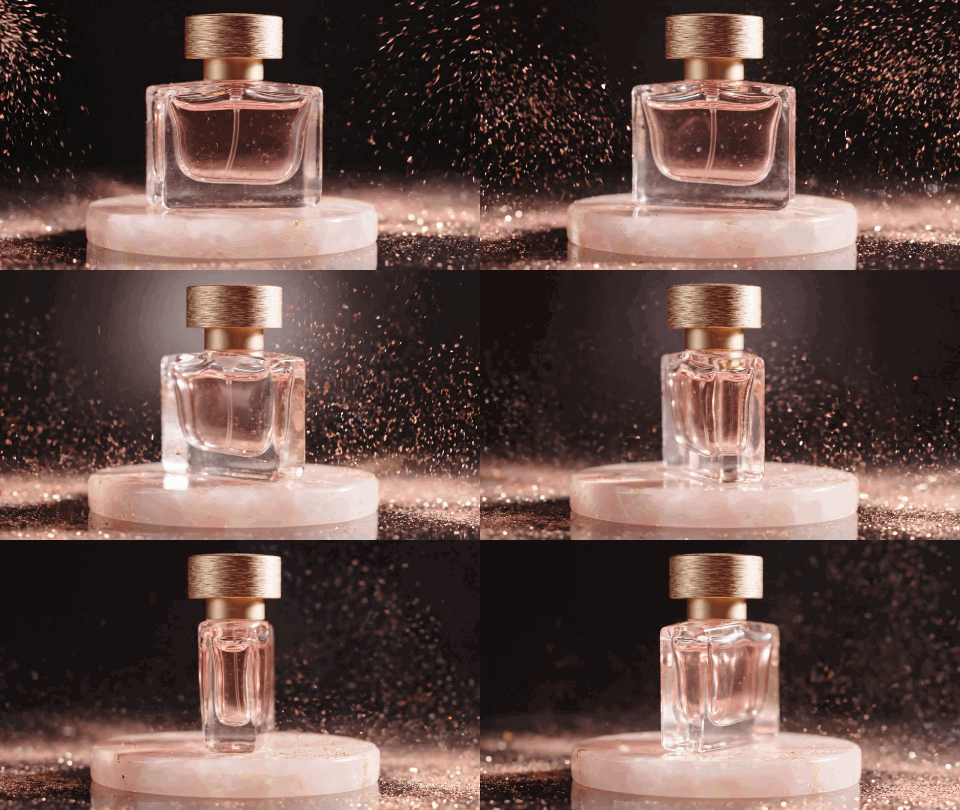
Instead of hardcoding a single item, use this adaptable 4-part modular prompt framework designed for brand-specific workflows:
[Product & Material] + [Brand Aesthetics & Studio Lighting] + [Target Environment / Showcasing Context] + [Camera Path & Motion Control]
The Modular Showcase Template
To use this framework, combine your four elements into a single, cohesive camera directive, for example:
plaintext1Studio product shot of a {Product & Texture}, resting on a {Environment & Surface}. Lit with {Lighting Setup} to match a {Brand Vibe} aesthetic. The camera performs a slow, controlled {Camera Path}, keeping the product sharp and visually stable throughout the shot.
Pro tips: Combine these templates with your brand's specific color palettes to ensure visual consistency across all generated assets.
Narrative and Cinematic Storytelling
Cinematic shots need real movement. Without clear camera direction, AI tools tend to generate glorified living photos—essentially a still image with animated hair or floating dust. To build actual narrative tension, you have to tell the generator how the camera should move through the space.
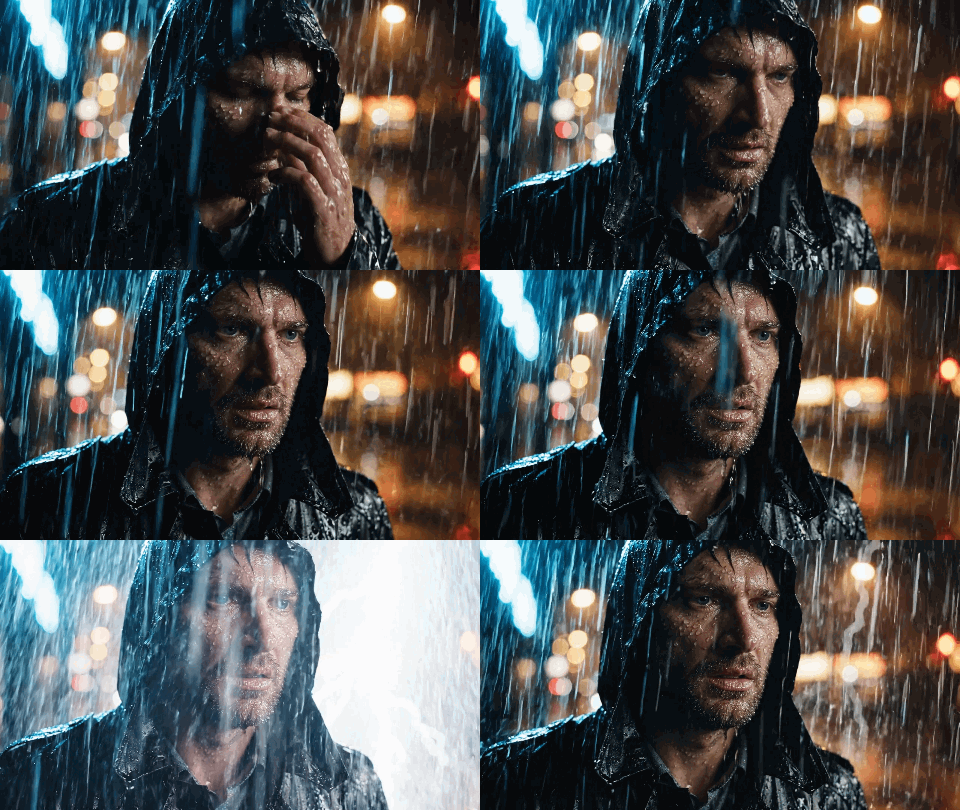
To build prompts with true cinematic continuity, use this 4-part story-driven framework:
[Character & Action] + [Camera Movement & Lens Perspective] + [Lighting & Atmospheric Mood] + [Temporal & Narrative Beat]
The Cinematic Narrative Template
Combine these four narrative beats into a single continuous director's instruction:
plaintext1A {Camera Movement & Lens Perspective} following {Character & Action}. Lit with {Lighting & Atmospheric Mood} to set the scene. As the camera moves, {Temporal & Narrative Beat}, keeping the motion fluid and cinematic throughout the 6-second shot.
Social Media and High-Energy Hooks
Social algorithms favor immediate visual interest. Use high-motion descriptors and aggressive camera movements to stop the scroll.
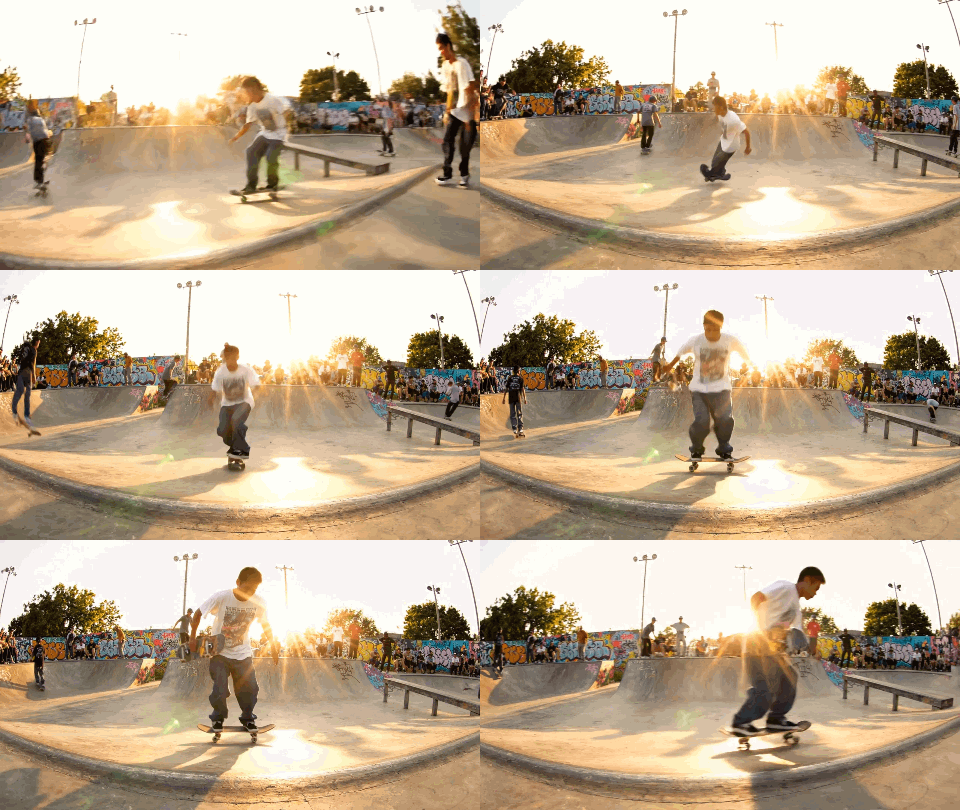
To build high-retention social hooks, use this 4-part high-motion framework:
[Perspective & Motion Style] + [Action & Movement] + [Visual Lighting / Environment] + [Pacing & Speed Modifier]
The High-Energy Hook Template
Combine these four elements to command immediate visual attention:
plaintext1A {Perspective & Motion Style} moving rapidly through {Action & Movement}, surrounded by {Visual Lighting / Environment}. Shot with a {Pacing & Speed Modifier} to create an immersive, fast-paced atmosphere.
Troubleshooting Common Veo 3.1 Artifacts
Nothing halts a production workflow faster than a character sprouting six fingers or an object defying gravity during a critical shot. Veo 3.1 artifacts typically trace back to sloppy spatial cues that leave the model guessing how bodies and physics work. Dialing in your prompt syntax clears up that ambiguity, stabilizing your renders for much sharper results.
Addressing Structural Distortion
When the model struggles with character anatomy, it is usually because the "points of contact" are undefined. If a hand is floating near a surface, the AI may interpret the space as empty and generate extra digits to fill the gap.
- The Issue: Limb morphing and extra fingers.
- The Fix: Anchor the limbs explicitly. Instead of leaving things vague, use clear descriptors like "hand resting firmly on the table" or "fingers locked onto the coffee mug handle." Pinning down that point of contact forces the model to treat the hand as a solid, fixed object rather than a loose, floating limb.
Overcoming Prompt Overload
Overstuffed prompts cause attention drift, leading the model to honor your first few instructions while ignoring the rest. To eliminate video distortion, keep your prompts tight and under 150 words.
| Symptom | Cause | Correction |
| Conflicting Visuals | Too many adjectives | Remove secondary style modifiers |
| Inconsistent Motion | Overly complex sequence | Split into two separate 4-second clips |
| Blurry Details | Subject too far away | Use "close-up" or "macro lens" focus |
Managing Physical Logic
Objects frequently appear to float or slide because the prompt lacks context regarding weight and friction. To improve AI video quality, you can fix this by trading basic verbs for physical actions. Instead of writing "a ball moves," specify the forces at play: "a heavy rubber ball bounces with weight, hitting the pavement with a dull thud."
Material properties dictate physics. Specifying whether something is heavy iron, delicate silk, or fragile glass gives the model built-in density cues. That mass data helps it calculate natural motion paths, keeping your final render from looking weightless and fake.
Conclusion: Iteration is the Final Step
Expecting a perfect cinematic render from your first text input usually leads to disappointment. Real-world production data shows that high-fidelity assets often require three to five iterative cycles to achieve full alignment between intent and output. Professional workflows rely on a rigid Generate to Analyze to Tweak loop, adjusting only one variable at a time to isolate what works.
Mastering the Refinement Loop
If a generation fails, do not rewrite the entire prompt. Apply these surgical adjustments to preserve stability:
- Visual Mismatch: Adjust lighting descriptors before changing subject identity.
- Motion Jitter: Simplify camera movement syntax rather than adding more environmental context.
- Audio Desync: Refine timestamp placement in your prompt instead of re-recording the full scene.
Treating the model as a collaborator rather than a magic box turns Veo 3.1 prompting guide best practices into a repeatable skill set. Bookmark this page as your ultimate prompting guide for Veo 3.1. For deeper technical optimization, study your usage logs on Vertex AI to identify which specific modifiers consistently yield the highest quality for your industry.





