GPT Image 2.5 Menu Design can help you create a cafe menu concept and attempt targeted image edits, including changing a price. A usable menu still needs checked wording, correct item-price pairs, readable output at its intended size, and a separate editable file if staff will maintain it.
The awkward moment comes after the first design is approved: tomorrow, the latte costs more. You need to change one number while keeping the other 11 prices, the headings, and the layout intact. A convincing preview cannot tell you whether that happened.
This guide uses one 12-item content sheet, six complete prompts, and a repeatable review method. It covers a portrait menu, a price edit, a landscape board, a bakery card, bilingual drinks, and an editable-background handoff. The example prices are teaching data in USD, not a real cafe's offer or pricing advice.
Key Takeaways
- Approve the menu content before generating a design.
- Use generation for a new layout and image editing for a specific revision.
- Check the entire output after every edit, including unchanged prices.
- Keep menu names and prices in editable text boxes for ongoing maintenance.
GPT Image 2.5 Menu Design: What It Can Do
There are three different deliverables behind the phrase "AI menu design." A generated image gives you a visual proposal. An image edit gives you a revised raster image. An editable layout gives the cafe a source file in which a person can select a price and type its replacement.
Keep those deliverables separate when agreeing on the job. Someone who asks for a new drinks board might need only an image for a screen. Someone who changes breakfast prices every week needs a maintainable document, even if an image model helps establish its appearance.
| Task | Input | Output | Work you still own |
|---|---|---|---|
| Generate a menu concept | Approved copy and layout prompt | Raster menu artwork | Verify every field and viewing size |
| Edit one price | Approved menu image and precise instruction | Revised raster artwork | Check the target and the unchanged content |
| Deliver editable text | Background plus approved content sheet | Layout source with separate text objects | Align, proofread, export, and test the source |
This guide assigns new concepts to GPT Image 2.5 Flare and revisions to GPT Image 2.5 Sunburst Edit. That is a task split, not a claim that one wins every menu comparison. The Atlas model pages expose separate generation and editing endpoints, which makes the choice concrete when you open a playground.
The documented quality options include low, medium, high, xhigh, and max, plus auto. We request max here because small menu text is the focus. Quality and dimensions remain separate choices: increasing the quality setting does not specify a physical print size. PNG is the requested output format. (OpenAI Create Image reference, accessed September 2026.)
Avoid importing assumptions from ChatGPT demonstrations. A selection tool or template picker shown in another product is not evidence that the same control exists in the model playground. Follow the visible controls on the page you are actually using.
Build a GPT Image 2.5 Menu Design Brief
Start with the menu as data. Confirm the categories, spelling, prices, currency, and order before choosing colors. A model can arrange supplied information; it cannot establish whether your cafe really sells an item or charges the number it draws.
For this exercise, the approved baseline is deliberately compact: three categories with four items each. Copy it into a spreadsheet or plain-text file and retain it beside the images. Label the original version clearly, then record the latte change in a separate revision.
| Category | Item | Example price | Currency |
|---|---|---|---|
| Coffee | Espresso | $3.00 | USD |
| Coffee | Americano | $3.50 | USD |
| Coffee | Cappuccino | $4.50 | USD |
| Coffee | Latte | $4.75 | USD |
| Breakfast | Butter Croissant | $3.25 | USD |
| Breakfast | Cinnamon Roll | $4.00 | USD |
| Breakfast | Blueberry Muffin | $3.75 | USD |
| Breakfast | Sourdough Toast | $5.50 | USD |
| Cold Drinks | Iced Tea | $3.00 | USD |
| Cold Drinks | Lemonade | $3.50 | USD |
| Cold Drinks | Orange Juice | $4.00 | USD |
| Cold Drinks | Sparkling Water | $2.50 | USD |
Also state where people will read the result. A handheld portrait sheet, a wall display, and a counter card have different space constraints. Record the intended orientation and final physical size, even when the generation control only asks for pixels.
Supply the complete wording rather than asking for "a realistic cafe menu." That open request invites invented items, prices, and business details. Leave opening hours, addresses, ingredient descriptions, and dietary labels out unless the cafe has supplied and approved them.
OpenAI's prompting guidance recommends specifying exact text, placement, and typography, then checking the rendered output. Apply that discipline to the currency symbol and decimal places as well as the names. (OpenAI Image Prompting, accessed September 2026.)
A useful review order is category, item name, price, then pairing. Two individually correct strings can still form an incorrect row. Finish by counting rows and checking that no item appears twice. This content sheet stays authoritative even when the generated design looks convincing.
GPT Image 2.5 Menu Design: Your First Cafe Menu
Open Atlas Cloud, then the Flare text-to-image playground. Request max quality, 1024x1536, PNG, an opaque background, and one image. Check the visible settings before running; the prompt cannot substitute for a dimension control.
Paste Prompt 1 in full. The brief asks for flat artwork because you need to inspect the actual menu. A photograph of a menu standing on a table would add perspective and lighting that make text harder to evaluate and the artwork less convenient to reuse.
Prompt 1: A 12-item cafe menu
plaintext1Create a flat, front-facing portrait cafe menu as finished 2D artwork. 2Do not show a menu on a table, a wall, a frame, or in a photograph. 3 4Use a warm ivory background, dark charcoal text, and restrained forest-green section headings. Use a clear serif title and readable sans-serif menu text. Keep generous margins and consistent row spacing. Align prices in a dedicated right-hand column. 5 6Render exactly the following text, once each, with the correct item-price pairing: 7 8CAFE MENU 9Prices in USD 10 11COFFEE 12Espresso | $3.00 13Americano | $3.50 14Cappuccino | $4.50 15Latte | $4.75 16 17BREAKFAST 18Butter Croissant | $3.25 19Cinnamon Roll | $4.00 20Blueberry Muffin | $3.75 21Sourdough Toast | $5.50 22 23COLD DRINKS 24Iced Tea | $3.00 25Lemonade | $3.50 26Orange Juice | $4.00 27Sparkling Water | $2.50 28 29The vertical bars above separate item names from prices; do not print the bars. 30Keep every item on its own row. Give the three sections clear separation. 31Do not add descriptions, offers, logos, photographs, dietary claims, opening hours, addresses, QR codes, or extra text. 32Prioritize readable menu text over decoration.
Download the original output before reviewing it. Keep its dimensions and filename in your run record, along with the model, selected quality, and number of attempts. A screenshot of a small preview is useful process evidence, but it should not be your only copy of the result.
Inspect the title, the three section headings, and all 12 rows against the baseline. Look specifically for a missing decimal point, a repeated drink, and a price attached to the wrong item. Check the longest name, Butter Croissant, for crowding.
Then judge the hierarchy at the size a customer will actually see. The category should be easy to find, and the eye should travel from the item to its own price without crossing another row. Generous spacing helps only if it leaves sufficient room for the complete content.
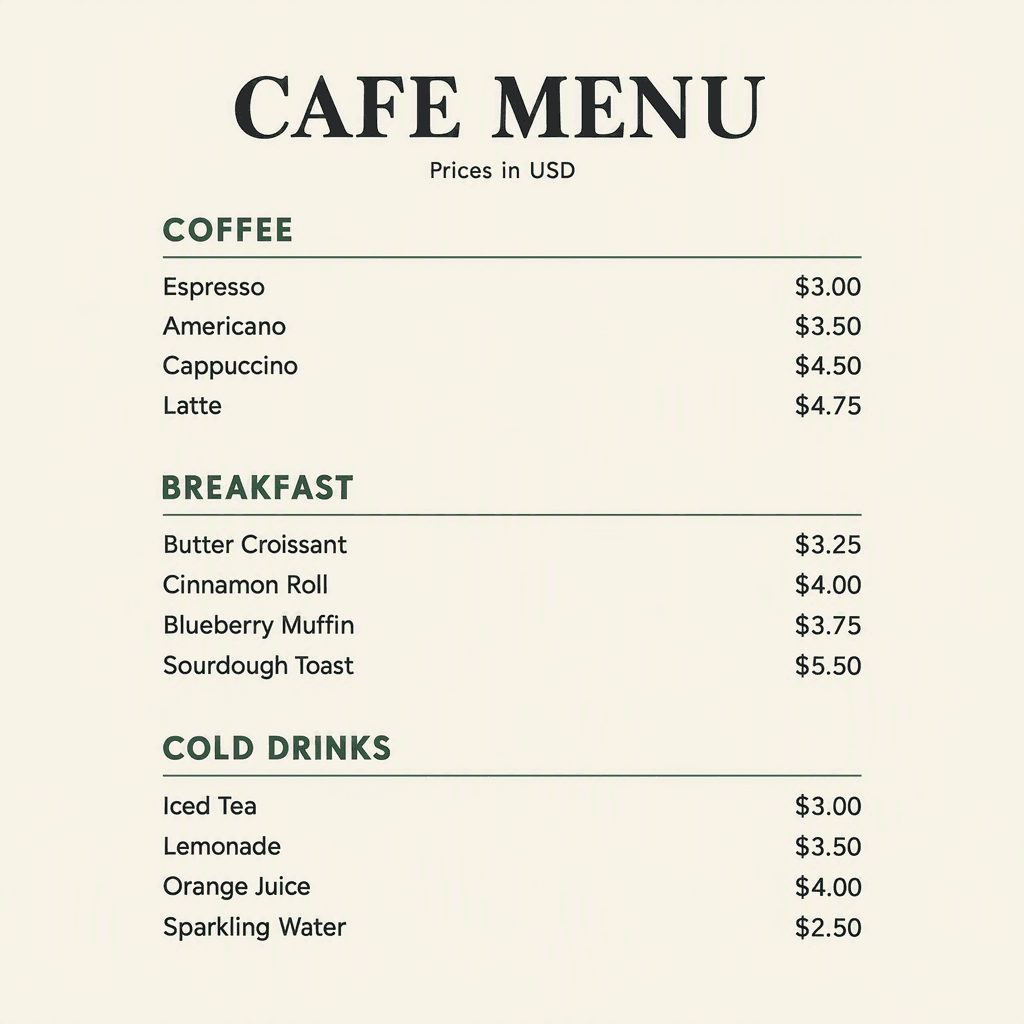 Portrait cafe menu result with twelve item-price pairs for review
The completed baseline is shown above. It contains the requested three sections, 12 item-price pairs, and the original Latte price of $4.75. Review the downloaded file at full size before treating it as the approved reference for an edit.
This article includes the resulting menu files, but not a real Playground capture. Treat the visible settings in the text as a run checklist, and keep your own submitted-prompt and settings record with each final file.
When evaluating the files, count a price as correct only when it is both legible and paired with the right item. Keep a simple record of rejected attempts and the version you approve.
GPT Image 2.5 Menu Design: Change One Price
Save an approved baseline before attempting any edit. For this exercise, only Latte changes, from $4.75 to $5.00. The other 11 item-price pairs remain the same. That creates a precise acceptance test instead of a vague request to "update the menu."
Open the Sunburst editing playground and upload the approved portrait image. Request max quality, the same 1024x1536 dimensions, PNG, opaque background, and one output. Confirm that your menu, rather than a preset sample, appears as the reference.
Prompt 2: Change only the latte price
plaintext1Edit the uploaded cafe menu. 2 3Make exactly one content change: 4On the Latte row in the COFFEE section, replace "$4.75" with "$5.00". 5 6Keep the word "Latte" unchanged. 7Preserve all other words, all other prices, section headings, item order, typography, text sizes, line spacing, alignment, margins, background color, and accent color. 8Do not add, remove, translate, or rewrite anything else. 9Return the complete flat menu at the same portrait dimensions.
The preservation instruction defines your request. It does not prove that the model complied. Save the result under a new filename, then compare it with the baseline at the same scale.
Start with the target: does the Latte row read $5.00, and does it still say Latte? Next compare all 11 unchanged prices. Finally inspect the title, section positions, margins, text sizes, and colors. A correct number can coexist with an unwanted layout shift.
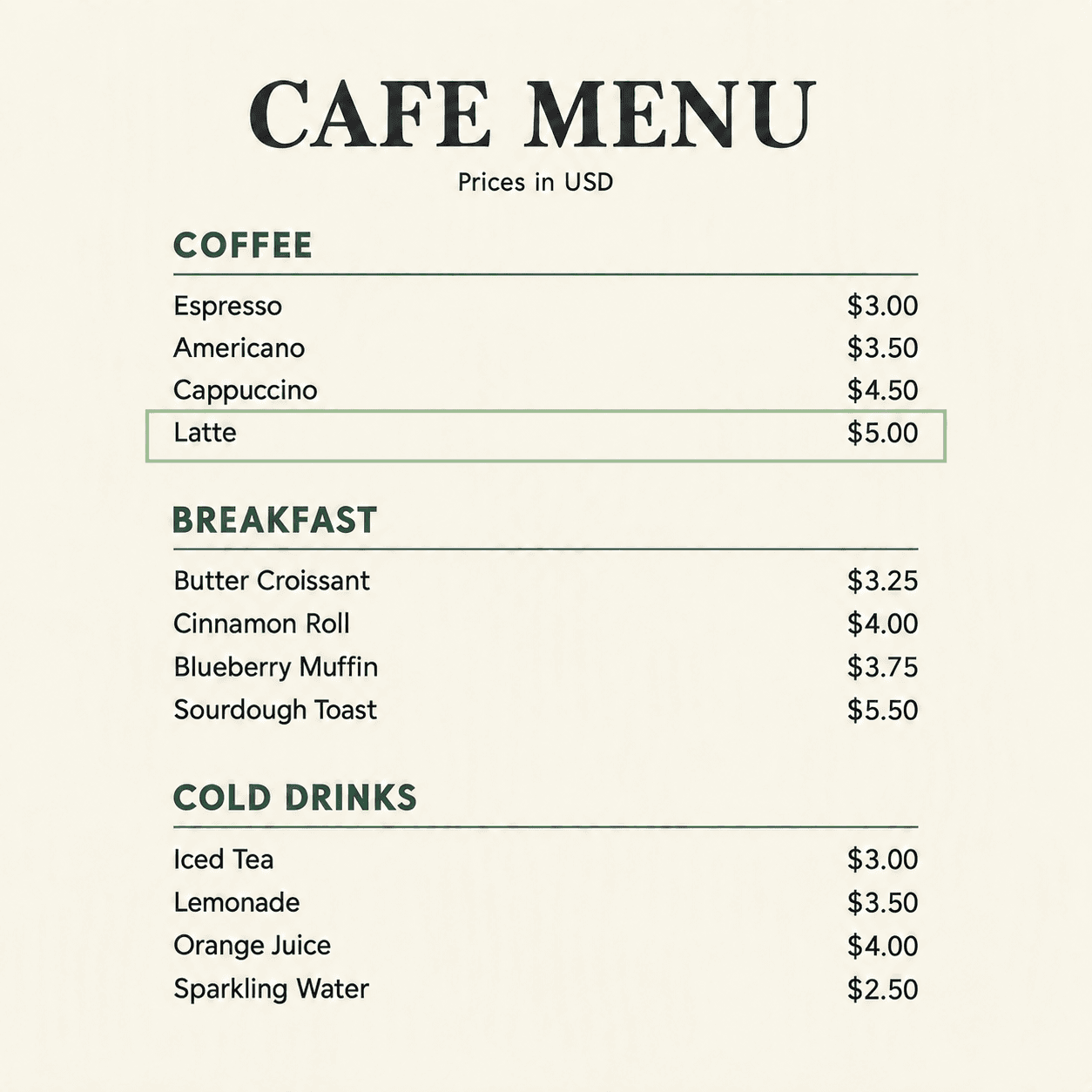 Edited cafe menu with the Latte price changed to $5.00, highlighted with a pale green outline
The pale-green outline marks the single edited Latte row, now priced at $5.00. Compare it with the original at the same scale before approving it: visual similarity alone does not prove that every row, margin, and type treatment stayed fixed.
Keep two judgments in the audit: content preservation and layout preservation. If all prices are right but the title moves, report that distinction. Do not describe an edit as "exactly preserved" merely because the menu still looks similar.
If the result fails, return to the original approved menu for the next attempt. Editing a flawed revision makes it harder to trace which change introduced a mistake. OpenAI Image Prompting similarly advises describing what changes and what stays fixed for controlled edits.
Set a practical stopping point before generating again. For routine price maintenance, rebuilding the wording as editable text may take less effort than reviewing repeated raster edits. The comparison should help you make that decision, not promise a universal success rate.
GPT Image 2.5 Menu Design for Boards and Specials
A landscape menu board needs a different arrangement from the portrait sheet. Changing the canvas shape alone can leave the content cramped or stranded in the middle. Give each category a column and specify how names and prices align within it.
For Prompt 3, upload the original approved portrait, with Latte still at $4.75. Using the edited version would introduce a content difference into a layout comparison. Request Sunburst Edit, max quality, 2048x1152, PNG, opaque background, and one image.
Prompt 3: Adapt the approved menu to a landscape board
plaintext1Adapt the uploaded portrait cafe menu into a flat 16:9 landscape menu board. 2 3Preserve every menu item and price exactly as shown in the reference. 4Keep "CAFE MENU" and "Prices in USD". 5Keep the same ivory background, charcoal text, forest-green headings, and typography style. 6 7Reorganize the content into three clearly separated columns: 8COFFEE on the left, BREAKFAST in the center, and COLD DRINKS on the right. 9Within each column, left-align item names and right-align prices. 10Make the title and section headings easy to scan, with generous spacing between rows. 11 12Do not omit or duplicate any item. 13Do not add food photographs, illustrations, offers, logos, addresses, opening hours, QR codes, or new text. 14Return the menu board artwork itself, not a photograph of a screen or a wall.
Count all 12 items again after the adaptation. Review each column independently, then compare its contents with the source category. An attractive three-column arrangement still fails if the model drops Sparkling Water or shortens a product name without permission.
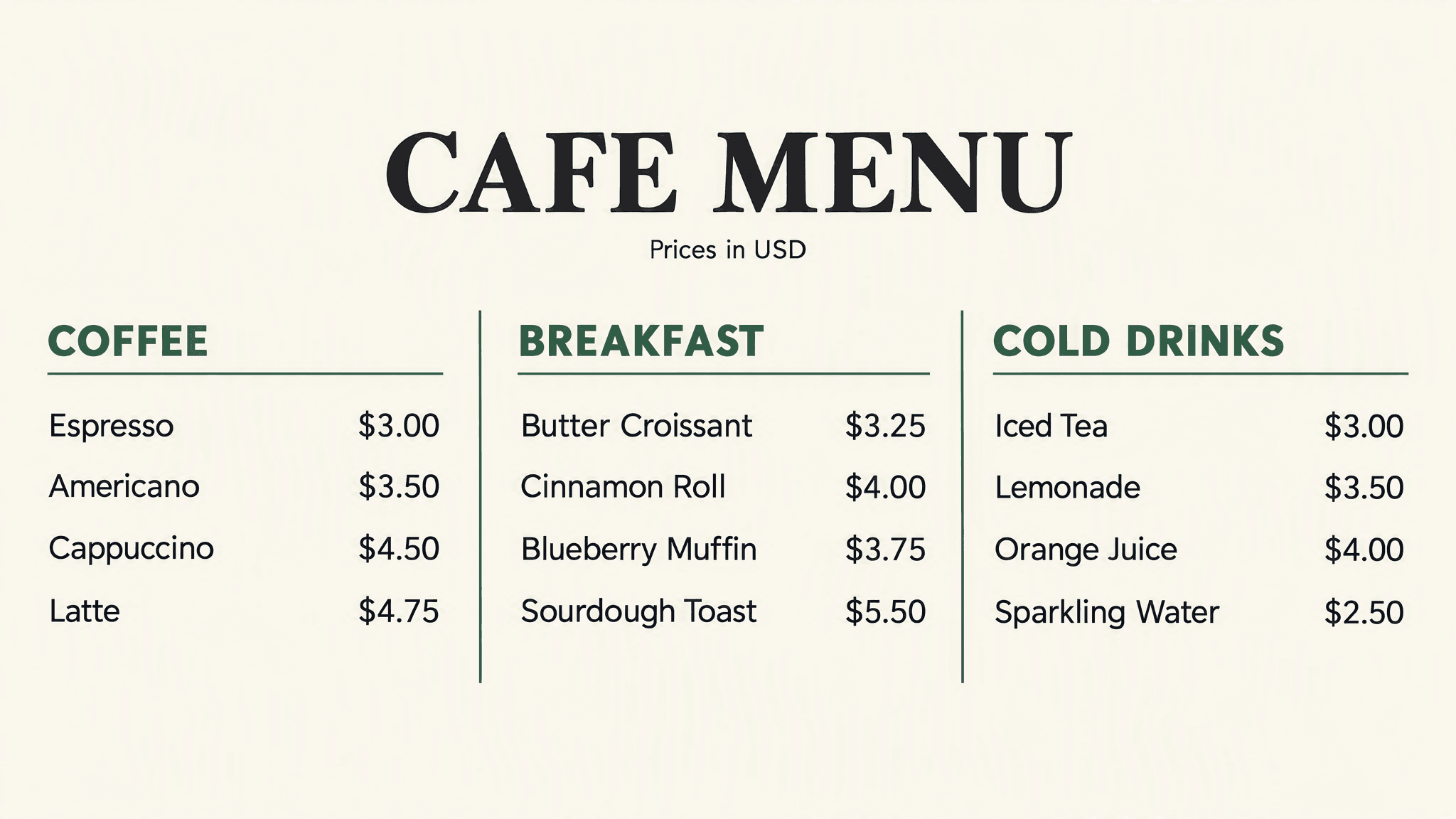 Landscape cafe menu board with the original 12 items in three columns
The completed landscape board above keeps the original three categories and the 12 baseline item-price pairs. Check it on the intended display because the final viewing distance, screen size, and playback scaling determine whether its smaller text remains readable.
Display the file on the actual screen before accepting it as a wall menu. Stand where customers queue and check the smallest text. Pixel dimensions alone do not establish readability because the screen size, mounting position, viewing distance, and playback scaling also matter.
A different brief may require a fuller, denser portrait menu rather than a reduced counter card. This is a separate content set, so it should be reviewed as its own menu instead of being treated as a like-for-like adaptation of the 12-item baseline.
Example: A denser full cafe menu layout
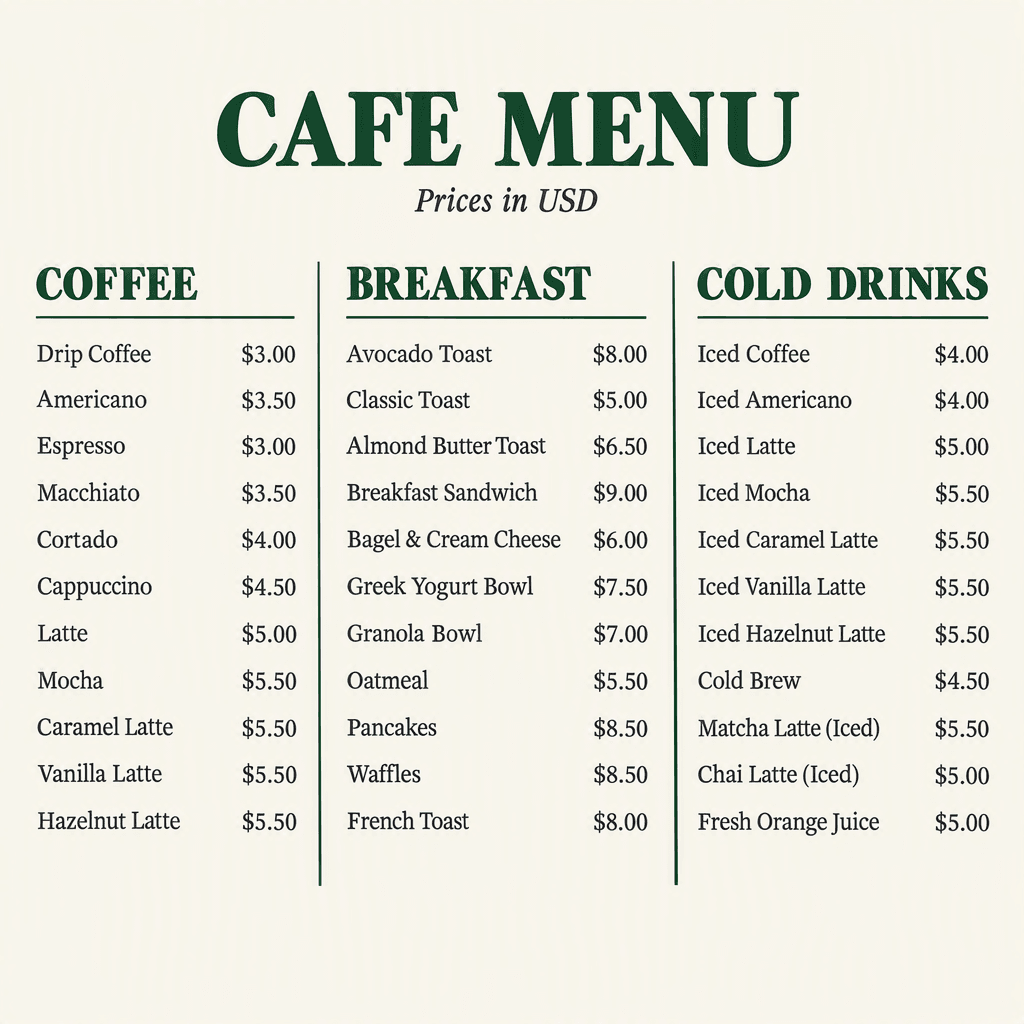
Portrait cafe menu with a denser three-column content layout
The layout above uses three columns and a substantially larger list of products than the baseline. Its value is as a format reference: check every name and price against the cafe's approved source list before using a similar dense layout in production.
| Format | Content density | Typical viewing situation | Requested output |
|---|---|---|---|
| Portrait menu | 12 items in three sections | Held or read nearby | 1024x1536 |
| Landscape board | 12 items in three columns | Display viewed from a queue | 2048x1152 |
| Dense portrait menu | Expanded product list in three columns | Read nearby | 1024x1536 |
Treat the card as a separate communication surface with its own purpose. Three items can support larger type and wider spacing; a complete board must balance those choices against the need to include everything. Neither layout is automatically suitable for every cafe.
If the cafe uses real food photographs, plan their space before final layout and use actual product images. This text-only exercise isolates wording and price checks without implying that generated food represents the cafe's serving size or presentation.
GPT Image 2.5 Menu Design in Two Languages
A bilingual menu needs an approved translation before image generation. The model's task here is to render the supplied English and Spanish, preserving their pairing. It should not choose a different product name or infer ingredients from a short label.
Prompt 5 uses the four Cold Drinks items from the baseline. Each item becomes a two-line block with one price. That structure makes it easier to see whether the model accidentally treats the translation as a separate product.
Prompt 5: An English-Spanish drinks menu
Use Flare with max quality, 1024x1536, PNG, opaque background, and one output.
plaintext1Create a flat portrait bilingual English-Spanish drinks menu. 2 3Use a warm ivory background, charcoal text, forest-green headings, and clear typography. 4For each item, put the English name on the first line and the supplied Spanish name directly below it. Put one price to the right of the two-line item block. 5 6Render the following wording and prices exactly: 7 8DRINKS / BEBIDAS 9 10Iced Tea 11Té helado 12$3.00 13 14Lemonade 15Limonada 16$3.50 17 18Orange Juice 19Zumo de naranja 20$4.00 21 22Sparkling Water 23Agua con gas 24$2.50 25 26Prices in USD / Precios en USD 27 28Preserve the accent in "Té". 29Do not translate or rewrite the supplied wording. 30Do not repeat prices, merge item blocks, or add descriptions, dietary labels, photographs, logos, QR codes, or extra text. 31Return only the flat menu artwork.
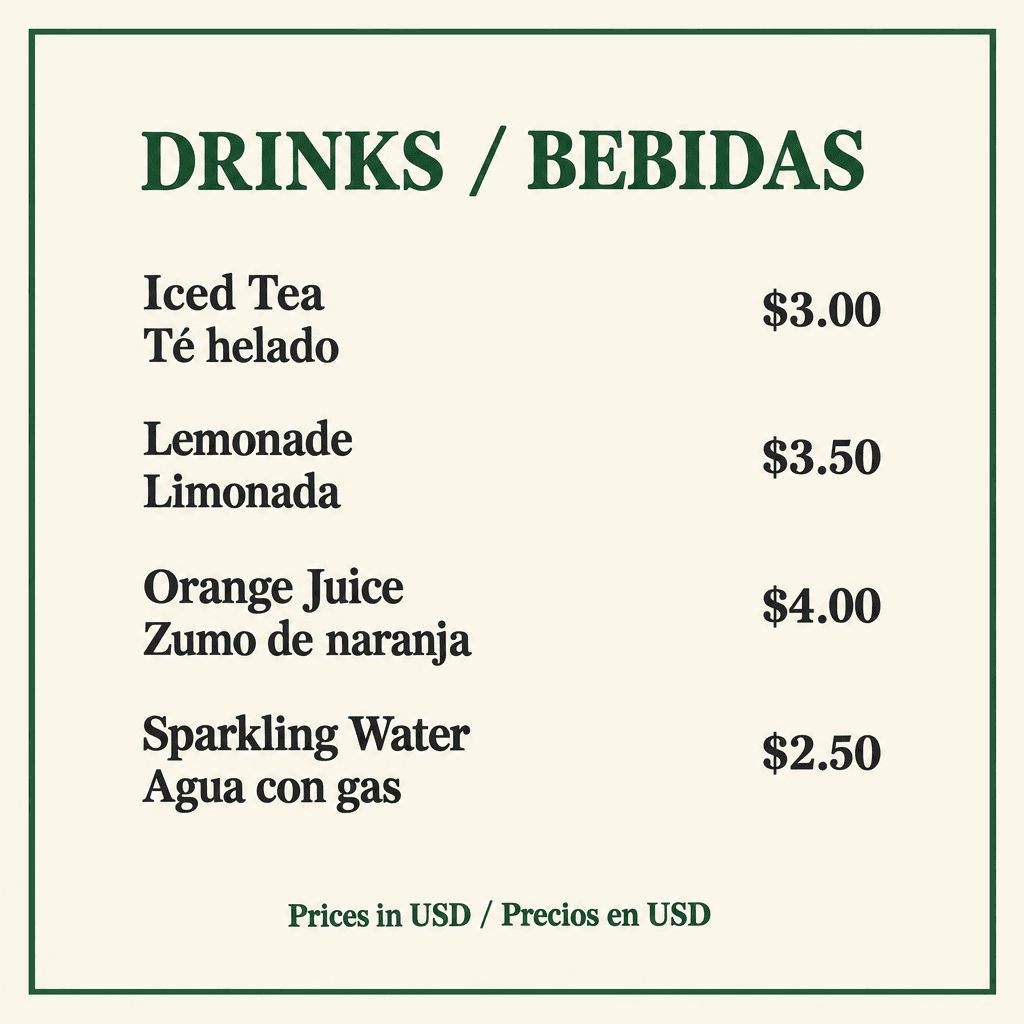 Bilingual drinks menu showing English-Spanish pairing, four prices, and the accent in Té
The completed bilingual menu above shows four English-Spanish item pairs, one price per pair, and the accent in Té. Review both language lines with a speaker familiar with the cafe's market before using the wording publicly.
Check this output in three passes. First read only the English names. Then read the Spanish names, including the accent in Té. Finally trace each pair to its single price. Four English labels, four Spanish labels, and four paired prices form the intended content.
Have someone familiar with your customers' language review real menu terminology. The supplied translation is an exercise input; a cafe may choose wording appropriate to its own market. Approve that choice in the content sheet before asking the model to display it.
Avoid reducing the Spanish text until it becomes an afterthought. Both language lines need to remain readable at the intended size, and each two-line block needs enough separation from the next item to keep the price association clear.
The same review method applies to currency symbols and unfamiliar characters. If you change USD to another currency, revise the entire brief consistently. Do not leave dollar signs in one part of the prompt and request a different currency elsewhere.
A bilingual layout also occupies more vertical space. When adding more items, enlarge the format or split the menu deliberately. Asking the model to fit everything without a content priority can produce text that looks acceptable in a zoomed preview and becomes too small in use.
Make the Menu Editable and Check It for Print
The next price change should have an obvious home. If staff need to maintain the menu, deliver a document with independent text objects for the title, category labels, item names, and prices. Importing a PNG places an image into the document; it does not by itself recreate accurate text layers.
This is a practical handoff concern. A restaurant-design discussion specifically asks for real food images and text editable in Canva. That is an individual user's need, not a market statistic. (Restaurant design discussion, accessed September 2026.)
An older designer discussion describes a boss wanting to change menu items and prices while retaining the design. Decide who will make those changes before choosing the final file format. (Menu editing discussion, February 2024.)
Prompt 6: A background for editable menu text
Use Flare with max quality, 1024x1536, PNG, opaque background, and one image.
plaintext1Create a flat portrait background for an editable cafe menu. 2 3Use a uniform warm ivory background with one thin forest-green rectangular border inset from the edges. 4Keep the entire interior empty and visually quiet so that editable text can be added later. 5Use generous clear margins and no texture behind the future text area. 6 7Do not render any letters, numbers, words, prices, symbols, food images, logos, mock text, placeholder text, QR codes, shadows, or photographic objects. 8Return only the flat background artwork.
Use the empty background as the base in your layout app. Reject it if it includes accidental lettering or marks in the text area. Then complete the handoff:
- Create a document at the intended finished size.
- Insert the background and lock that object or layer.
- Add the approved title, headings, names, and prices as separate text objects.
- Align names and prices consistently, then check every pair against the content sheet.
- Save the editable source and test changing one price.
- Export a display image or the PDF settings requested by the printer.
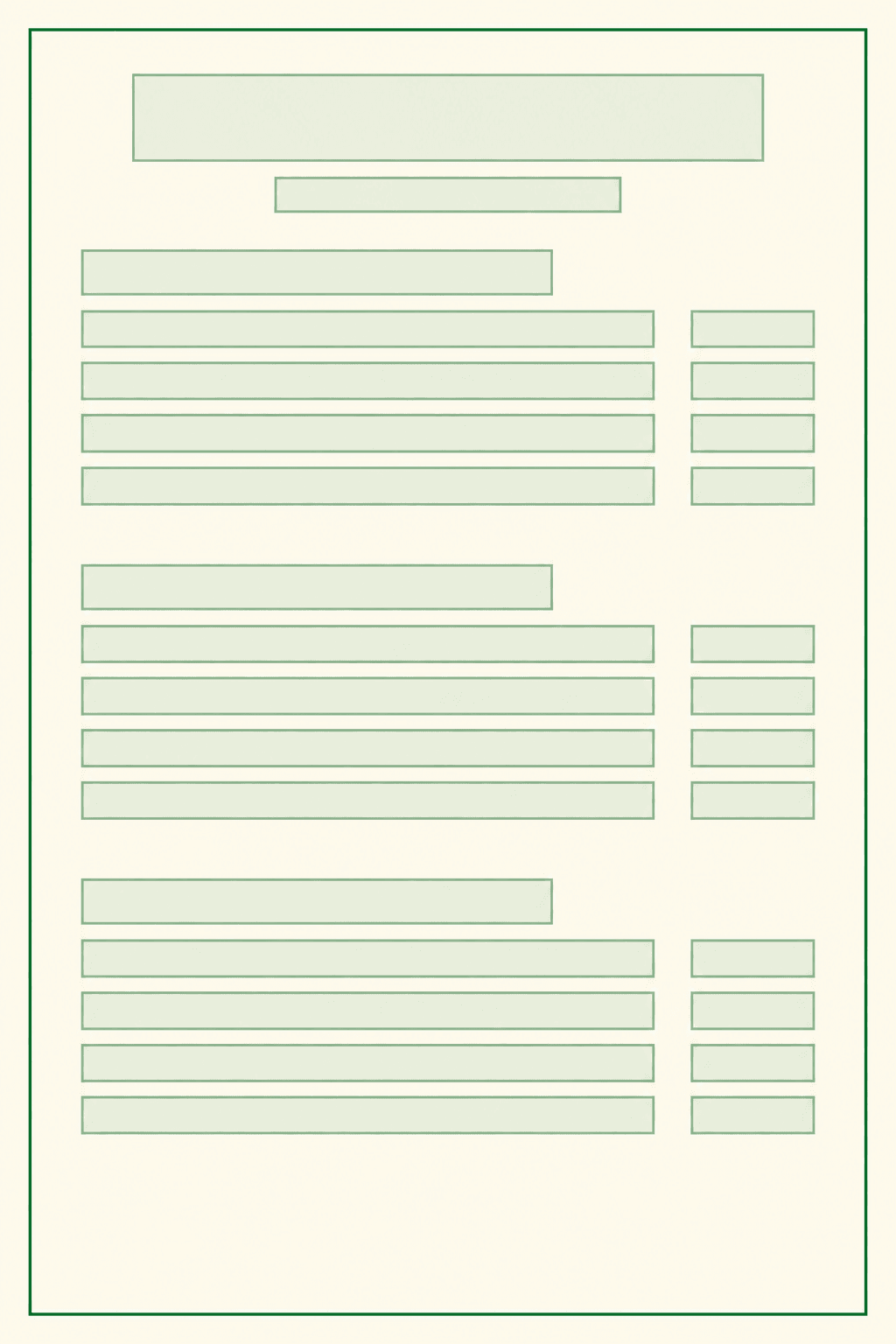
Cafe menu text-placement guide with pale green editable-text boxes
The guide above marks the title, subtitle, three section headings, item-name rows, and aligned price positions with pale-green boxes. Use it as a spacing reference in your layout app, then replace every box with a separate editable text object; it is a layout guide, not an editable source file.
Check pixel dimensions against physical size. Effective PPI equals pixel width divided by finished width in inches. A 1024-pixel image placed 8 inches wide provides 128 PPI. Enlarging that file or wrapping it in a PDF does not create additional original detail.
Ask the printer for the required dimensions, bleed, safe area, color settings, and PDF specification. Build to those requirements and request a proof. A thin inset border makes trimming differences easy to notice, so inspect its position on the physical proof.
If adding food photos, use the cafe's own approved images. Generate a QR code with a real QR tool, link it to the intended destination, and test the printed code on a phone. Verify both scanning and destination content before distribution.
Finish the handoff by reopening the source in the app the recipient will use. Check that fonts are available and a changed price does not overlap its name. This small maintenance test is more relevant to tomorrow's update than whether today's flattened preview looks finished.
GPT Image 2.5 Menu Design Costs and Settings
The cost of a menu includes the outputs you reject and the time someone spends reviewing them. Keep a record of every submitted generation, its settings, its quoted charge, and whether you accepted it. A final gallery containing six images does not establish that only six attempts were needed.
As of September 17, 2026, the Atlas directory showed Flare Text-to-Image from approximately $0.004, discounted to approximately $0.003, and Sunburst Edit from approximately $0.006, discounted to approximately $0.005. Both carried a 20% discount label. These are rounded directory starting prices, not verified max-quality quotes.
The model detail pages separately displayed $0.003/image and $0.005/image, while their schemas stated that higher quality tiers cost more. That distinction matters for this text-heavy exercise. Do not multiply the starting price by six and present the result as the tutorial's actual bill.
| Endpoint | Tasks | Requested quality and size | Directory starting price | Exact-setting quote |
|---|---|---|---|---|
| openai/gpt-image-2.5-flare/text-to-image | Prompts 1, 4, 5, 6 | max; 1024x1536 | Approximately $0.003 after displayed discount | Not yet verified |
| openai/gpt-image-2.5-sunburst/edit | Prompt 2 | max; 1024x1536 | Approximately $0.005 after displayed discount | Not yet verified |
| openai/gpt-image-2.5-sunburst/edit | Prompt 3 | max; 2048x1152 | Approximately $0.005 after displayed discount | Not yet verified |
All six prompts request PNG, opaque background, and n=1. The listed dimensions avoid the experimental very-high-resolution range. Record any unavailable control or size adjustment rather than assuming the prompt forced the requested setting.
Check the current Atlas model prices and the quote shown for your selected settings before running. Account offers and production billing can differ from a tutorial environment; a test balance does not establish a production charge.
You also do not need to run all six prompts for every job. A cafe that needs only an editable portrait menu might use the background route directly. A cafe testing a wall display may need the baseline and landscape adaptation. Choose the deliverables the business will actually use, and budget review time alongside generation.
Frequently Asked Questions
Can GPT Image 2.5 create a menu with correct text and prices?
It can attempt to render your supplied wording and amounts, but you still need to inspect the output. Check the names, prices, pairings, omissions, and duplicate rows. For this exercise, the baseline has 12 names and 12 associated prices. A prompt that says "exactly" defines an acceptance criterion; it is not an accuracy guarantee.
Can GPT Image 2.5 edit one menu price without changing the layout?
You can request that change using the approved image as the reference. Acceptance depends on reviewing the result against the original. Check the new latte price, all 11 unchanged prices, and the surrounding layout. The access block prevented this comparison in our session, so we cannot report whether this sample preserves the other details.
Should I use Flare or Sunburst for GPT Image 2.5 menu design?
This guide uses Flare Text-to-Image for new artwork and Sunburst Edit for reference-based revisions. Start with that task distinction and the controls exposed on your chosen page. It is not a universal quality ranking. Keep the prompt and settings in your run record so you can explain which endpoint produced each file.
Can I edit a generated menu in Canva or another design app?
You can place the generated image into a design, but its visible words remain part of the raster image unless you rebuild them as text. For dependable maintenance, import the blank background and add independent text boxes. Keep the approved content sheet with the editable source, then test a price change before handing the file over.
Is GPT Image 2.5 menu design free on Atlas Cloud?
Do not assume it is free. Check current model pricing, the selected quality and size, and any offer that actually applies to your account. A ChatGPT subscription is separate from Atlas usage credits. This guide's directory figures describe starting prices; they do not establish the bill for max-quality generations, reference edits, or retries.
Can I print the menu or add real food photos and a QR code?
Yes, provided you prepare and verify those components for the intended use. Check the final physical size and effective image resolution, follow the printer's specifications, and inspect a proof. Use real food photographs and a separately generated QR code that you scan after printing. Keep the editable source for later corrections.
Start your GPT Image 2.5 Menu Design with Prompt 1 and your own checked menu content.





