A course avatar that only moves its mouth can hold attention for a sentence, then lose the lesson. OmniHuman 2.0 AI course instructor videos give you a way to plan visible expression, purposeful gestures, and camera direction around a recorded explanation. The color-contrast example below shows a complete 30-second instructor scene and, just as usefully, a prop-continuity issue to catch before publishing a lesson.
Key takeaways
- The core inputs are an instructor image and audio; a text prompt can guide performance or camera direction.
- Treat OmniHuman 2.0 as the presenter-video stage. You still own the lesson, slides, screen recordings, fact checks, and edits.
- The 30-second color-contrast example shows useful gesture and viewpoint changes, plus a disappearing card that needs an editorial review.
- Review lip sync, expression, gestures, image stability, and rights before publishing.
- Atlas Cloud lists $0.07 per second and displays a discounted $0.056 rate; confirm the current rate before generating.
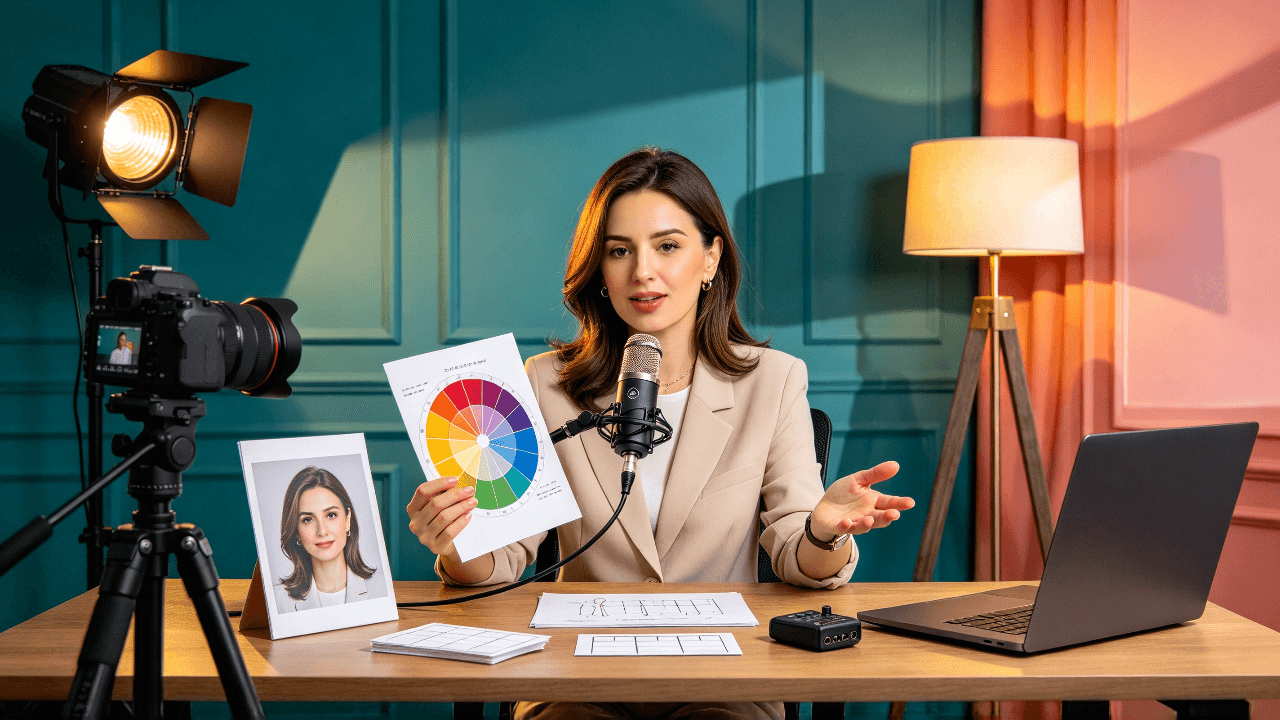
Illustrative preparation scene: a reference portrait, narration recording, and lesson materials are the inputs to plan before making a presenter video.
What OmniHuman 2.0 Does for Course Instructor Videos
OmniHuman 2.0 turns a reference image and an audio track into a 720p video of the pictured character speaking or singing. Atlas Cloud model directory describes optional text direction, dynamic gestures, multi-person scenes, camera movement, and clips up to five minutes. These are listed capabilities, not a guarantee that every course prompt will produce a suitable take.
(Avatar Omni Human 2.0 model details)
The split of responsibilities matters. You supply the instructional content and the voice recording. The model generates the visible performance. You decide where a presenter helps and where a diagram, slide, software capture, or close-up demonstration explains the material better.
| Production element | What you prepare or do | What the model contributes | What you review |
|---|---|---|---|
| Instructor image | A clear, permitted portrait | The visible identity reference | Face, clothing, and background consistency |
| Lesson narration | A checked recording with deliberate pacing | Audio-driven speaking performance | Timing, pronunciation, and pauses |
| Direction | A concise note about framing and delivery | Prompt-guided performance and camera direction | Whether movement supports the lesson |
| Teaching visuals | Slides, screen recordings, diagrams, or examples | No replacement for these materials | Whether each concept is easy to follow |
| Final lesson | Editing, captions, and quality review | A generated video segment | Accuracy, accessibility, and permissions |
An early OmniHuman research paper describes audio-conditioned human animation, but it covers OmniHuman-1 and should not be treated as a performance test of version 2.0. For a course production decision, rely on the current model listing for its stated inputs and output limits, then judge a sample made with your own materials. (OmniHuman-1 paper)
What to Prepare Before You Generate an AI Instructor Video
A convincing sample depends on more than uploading any portrait and any recording. Choose material that makes it easy to judge whether the result fits a real lesson.
Choose a clear, permission-cleared instructor image
Use a front-facing or slightly turned portrait with a clearly visible face, shoulders in frame, and an uncluttered background. Avoid a tiny face, heavy occlusion, dramatic shadows, or a crop that leaves no room for natural head movement. If you want the same presenter across modules, keep a copy of the approved source image and reuse it consistently.
Use your own image or confirm that the person has given permission for the intended synthetic-video use. A portrait’s availability online does not establish permission to animate or publish it.
Record lesson audio that sounds natural on camera
Record one coherent teaching point at a measured pace. A short paragraph is easier to evaluate and revise than an entire lecture. Before recording, check terminology, names, numbers, and the lesson’s factual claims. Leave natural pauses between ideas, but trim long gaps and background noise that could make timing harder to assess.
Listen once with the lesson text in front of you. If a number or technical term is unclear in the recording, fix the source audio first. A generated face cannot repair an incorrect explanation or an ambiguous pronunciation.
Keep the lesson useful without the avatar
Write the explanation so it remains understandable when paired with a slide or screen capture. Use the presenter for context, transitions, and short explanations. Use a screen recording for a software action, a labeled diagram for a process, and a worked example for a calculation. Then edit those elements together in your course editor.
Prepare a sample pack containing the portrait, one complete narration, a direction prompt, and the supporting slide or screen capture you expect to use. That gives you a practical test of the production chain rather than an isolated face animation.
How to Make an OmniHuman 2.0 Course Instructor Video
The goal of the first generation is a decision: does this presenter-and-audio combination help this lesson? Keep the test narrow so a weak result is easy to diagnose.
Start with one short lesson segment
Choose a complete thought that introduces a concept, gives one example, and lands on a clear next step. Do not cut a sentence in half to hit a target duration. The supplied example below runs 30 seconds, long enough to show a visible action and a changed camera viewpoint. Check the actual supported audio duration and current input rules in the live model interface before upload.
Upload the image and narration, then direct the performance
Open the Avatar Omni Human 2.0 playground to inspect the current inputs. Prepare the image and narration yourself; the model listing describes image-and-audio-to-video, not a text-to-speech workflow. If you have not already recorded the voice, create and review it in your preferred audio workflow before this step.
For this workflow, the supplied audio determines the spoken words and pacing. The text prompt directs visible actions, expressions, and camera movement. Review your own generated result before describing any planned move as a successful output. Atlas Cloud lists 720p output and clips up to five minutes, but the live controls and completed job are the final check for your own run.
Review the clip before making a full lesson
Watch the result once with sound, then once while following the lesson text. Note the exact moment a mouth movement, pause, or gesture feels distracting. If the issue appears at a particular phrase, shorten or re-record that sentence and generate only a revised segment. If the face stays convincing but the explanation needs diagrams, retain the presenter shot and add those visuals in the edit.
Only after one segment passes review should you reuse the approved portrait, recording style, and prompt structure on the next lesson section. Consistency comes from a repeatable input process; it does not mean every generated segment will be identical.
Worked Example: A 30-Second Color-Contrast Lesson
The lesson has one visual job: make learners see how a bright coral-and-teal pairing changes when a softer yellow enters the arrangement. A supplied instructor image, two frames selected from the completed video, and the full clip let you inspect the actual teaching action rather than infer it from a prompt. The example illustrates scene design and editorial review; test the workflow described above with your own approved image and audio before drawing a conclusion about its output.
Start with a composition that supports teaching
The input image has a clear face and visible hands, with three matte cards on the worktable. Coral, teal, and yellow are all present before any motion begins. The studio's teal arch, coral panel, and amber glass create a colorful setting while leaving the cards easy to distinguish.
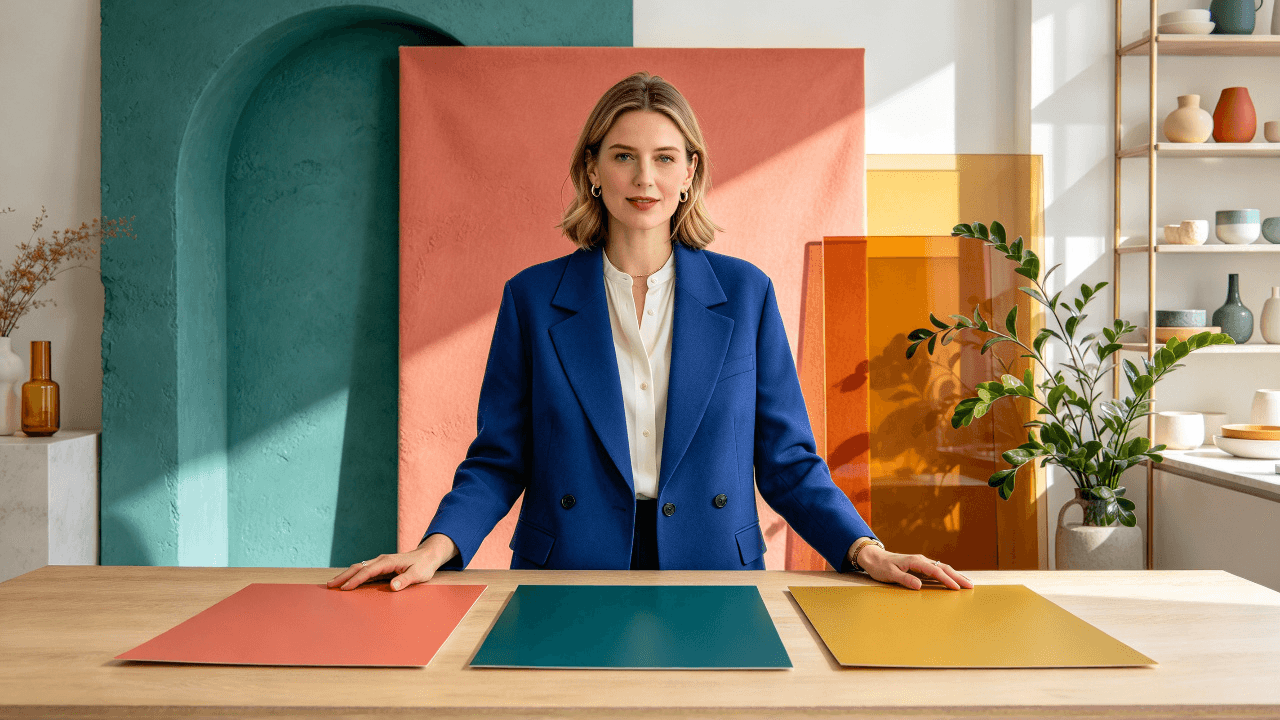
The supplied reference image leaves the instructor's face, hands, and three teaching props clearly visible before animation.
The first comparison is readable
Early in the clip, the instructor turns her attention to the worktable and places a hand near the coral-and-teal boundary. The camera has moved closer than in the reference still, but her face and the three original colors remain visible. This frame shows the action the learner needs to follow: compare two adjacent colors before changing the arrangement.
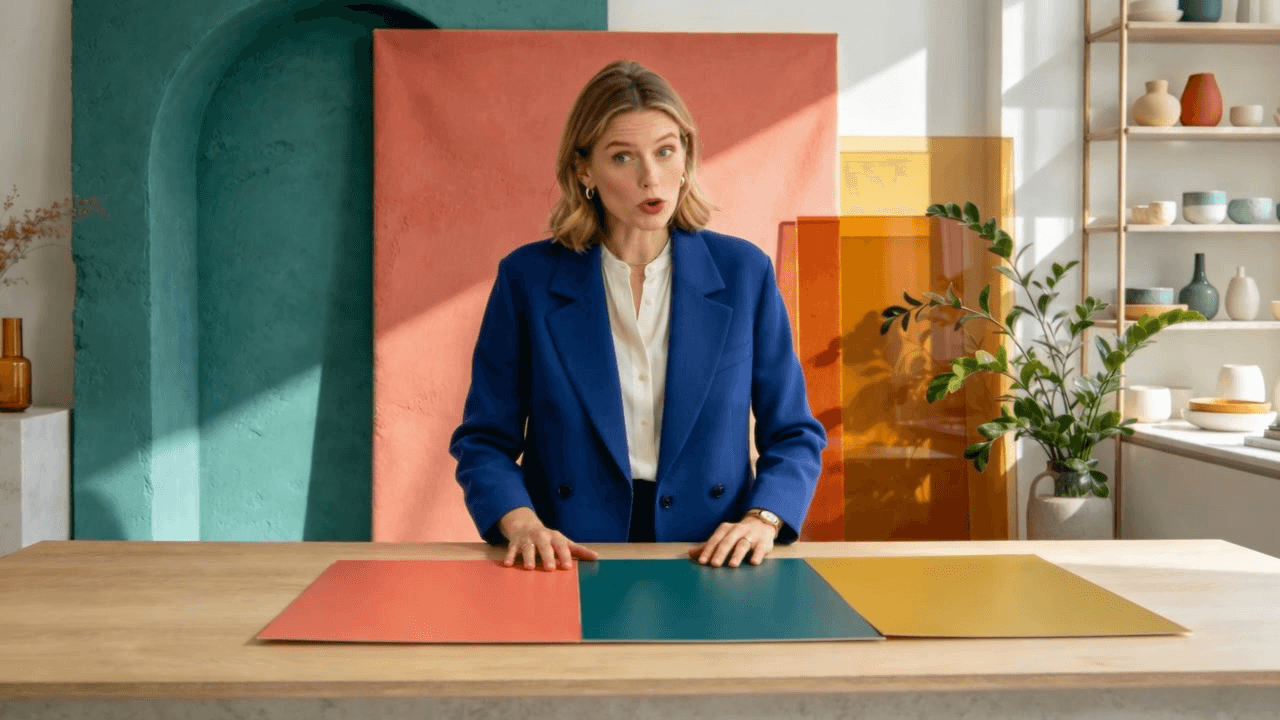
A real frame from the supplied video: the instructor directs attention to the coral-and-teal edge while all three cards are still visible.
The changed viewpoint reveals a continuity issue
Later, the viewpoint shifts to the other side of the table and the instructor gestures toward yellow. The teal card is no longer visible. That differs from the planned three-card arrangement, where yellow would sit between coral and teal. The closer shot and expression give the scene variety, but the missing card changes the teaching example. If this were a final course lesson, the prop change would need another take or an edit that makes the intended comparison accurate.
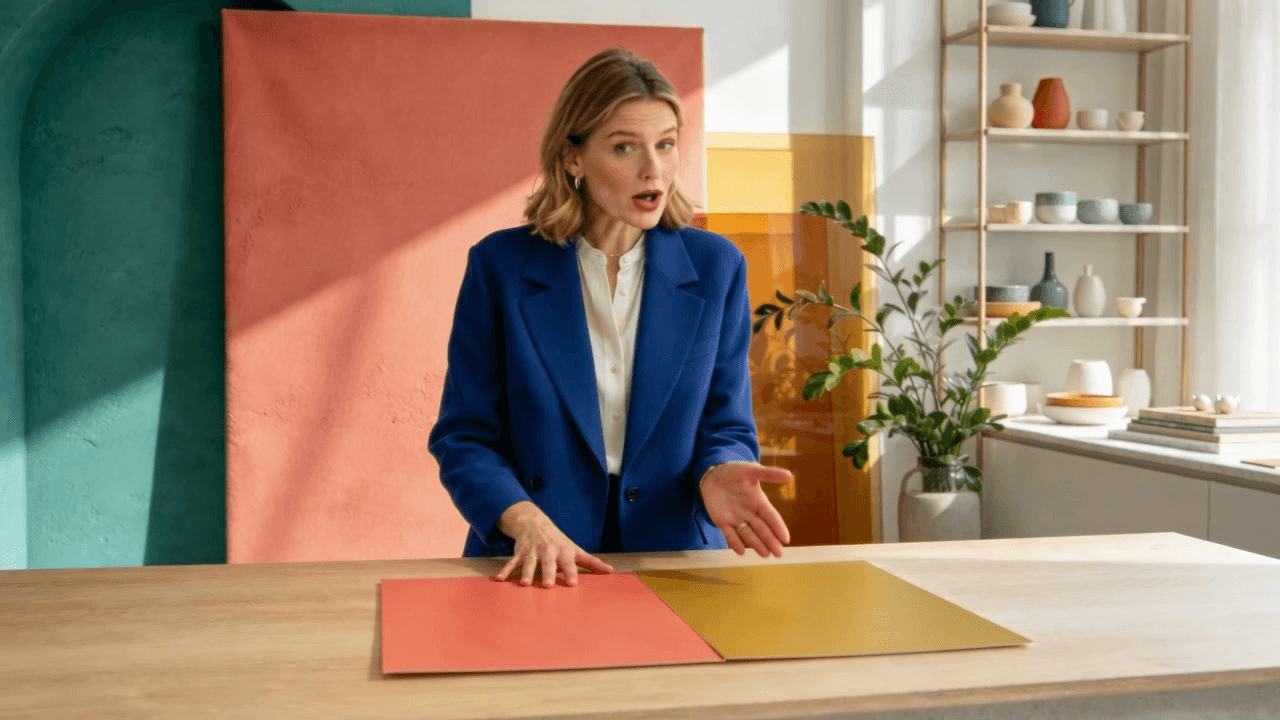
A later frame from the same clip: the camera angle and gesture change, while the teal card has disappeared from the arrangement.
Watch the complete scene with sound
The supplied video runs just over 30 seconds and includes an audio track. Watch it as one continuous example so the gestures, expression, camera movement, and sound can be judged together. The two stills above are evidence of different moments, not separate generated cases.
The scene succeeds at giving the instructor more to do than face the camera: she handles props, changes her gaze, and is shown from more than one viewpoint. The disappearing teal card is the important review finding. Keep a final lesson only when the visual example matches what the learner is meant to understand, and verify the spoken explanation against the audio before publication.
How to Check Whether the AI Instructor Video Is Ready
Use a review pass that checks both the generated performance and the lesson as learners will see it:
- Mouth timing: Do mouth movements broadly track the key syllables and pauses? Replay difficult names and short pauses.
- Expression: Does the face suit a calm explanation, or does it shift into an unrelated smile or exaggerated emotion?
- Gestures: Do hands stay clear of the face and avoid distracting from an important slide?
- Identity and scene: Do facial features, clothing, and background remain stable through the clip?
- Audio accuracy: Are terminology, names, and numbers pronounced correctly in the supplied recording?
- Teaching clarity: Does the edit include the needed slide, screen capture, subtitle, or worked example at the right moment?
- Rights and disclosure: Do you have permission for the image and voice, and have you checked the disclosure rules and institutional policy for the intended audience and market?
Decide whether to keep the clip, revise the source audio or image, or use voiceover with slides instead. Do not keep a presenter shot simply because generation took time. A clear screen recording may teach a procedural step better.
Cost and Scaling for Course Videos
As of October 2026, Atlas Cloud model page lists a standard rate of $0.07 per second and displays a discounted rate of $0.056 per second with a 20% discount. Simple estimates from those listed rates are:
| Generated duration | At $0.07/sec | At displayed $0.056/sec |
|---|---|---|
| 20 seconds | $1.40 | $1.12 |
| 60 seconds | $4.20 | $3.36 |
| 5 minutes | $21.00 | $16.80 |
These are model-rate calculations, not a quote for your account or a guarantee of the final charge. The displayed discount may change, and taxes, account-level terms, or other charges may affect checkout. Recheck the model detail and the actual confirmation screen before production.
A short sample limits the cost of checking a new portrait, voice, or prompt. For longer material, divide the lesson at genuine teaching boundaries such as a new concept or worked example. Do not split a sentence or remove a needed explanation just to match a generation limit. At the listed standard rate, a five-minute output would be $21 before any applicable discount; compare that with shorter segments plus editing time and decide which format serves the lesson.
Privacy, Consent, and Course Trust
Before generating, confirm you can use the instructor’s portrait and voice for synthetic video in the intended course, distribution channel, and duration. If a contractor, employee, guest lecturer, or student appears, document the permission and any limits. Check your institution’s requirements for AI-generated or altered media and applicable rules in your target markets; this article does not determine legal obligations.
Review the finished lesson as an instructor would. Correct the script and recording, disclose synthetic presentation where your audience or policy expects it, and keep a human accountable for the course’s claims. A polished presenter can make weak or unchecked material look authoritative, so the lesson owner should approve both the words and the final edit.
For a first production, make one short segment, review it against the checklist, and estimate the next batch using the current per-second rate. That small decision tells you whether OmniHuman 2.0 AI course instructor videos belong in your course workflow.
Frequently Asked Questions
Can OmniHuman 2.0 create a course video from text alone?
The Atlas Cloud listing describes an image-and-audio-to-video workflow with optional text direction. It does not list plain text as a replacement for the narration audio, so prepare the voice track separately.
Can I reuse the same instructor image across multiple lessons?
You can prepare the same approved image for separate generations. Reusing it supports a consistent visual reference, though it does not guarantee identical expressions, framing, or gestures in every output. Review each segment before joining them.
Does OmniHuman 2.0 generate the lesson voice?
The listed workflow takes an audio track as input. Record or produce the voice separately, check it, and upload the finished narration.
How much does a 20-second OmniHuman 2.0 course clip cost on Atlas Cloud?
At the listed standard rate of $0.07 per second, 20 seconds calculates to $1.40. At the displayed $0.056 rate, it calculates to $1.12. Confirm current pricing and the final charge before running a generation.


