

You paste a command from a README, press Enter, and Claude Code says "Added." Then you open a new session and the tools are nowhere to be found. When that happens, Claude Code MCP configuration usually comes down to two questions: which scope the server landed in, and whether it actually connected. This guide answers both with real terminal output from Claude Code 2.1.300, using the Atlas Cloud MCP server as the example.
Key Takeaways
- Runclaude mcpadd with a server name, two dashes, then the command that starts the server.
- Local scope is the default; add --scope user for every project, or --scope project to share .mcp.json.
- The claude mcp list command shows each server's live status, including connectors from your claude.ai account.
- Claude Desktop reads its own claude_desktop_config.json, so servers added in Claude Code stay separate.
- The Atlas Cloud MCP server adds Seedance 2.5 video generation to Claude Code with one command.
Where Claude Code Stores MCP Configuration
Every server you add lives in one of three scopes, and the scope decides two things: which projects can see it, and which file holds it. The Claude Code MCP documentation defines them like this.
| Scope | Flag | Loads in | Saved to | Shared with your team |
|---|---|---|---|---|
| Local (default) | --scope local, or no flag | The current project only | ~/.claude.json, under that project's path | No |
| Project | --scope project | The current project only | .mcp.json in the project root | Yes, through version control |
| User | --scope user | All your projects | ~/.claude.json | No |
On Windows, ~/.claude.json is the file in your user folder, for example C:\Users\you\.claude.json. Both local and user entries go into that one file, which is why "I added it but it's gone" usually means you added it locally in a different folder.
When the same name exists in more than one scope, Claude Code uses one definition and does not merge fields. Local wins over project, and project wins over user.

The Claude MCP Add Command, With Atlas Cloud as the Example
Atlas Cloud publishes atlascloud-mcp, an MCP server (source on GitHub) that lets Claude send image and video jobs to Atlas models and bring the finished files back into the session. This clip is what our finished setup produced from a single request in Claude Code:

It runs locally through npx, so the only setup is Node.js 18 or newer and an API key. Here is the full add-and-verify loop in two commands.
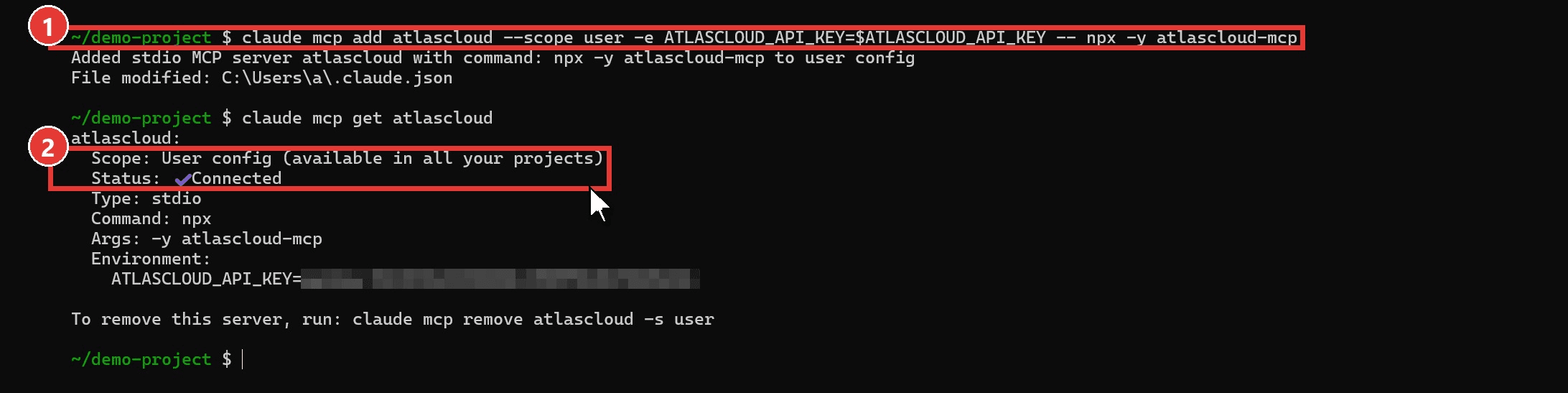
Your key comes from the API Keys panel in your Atlas Cloud console settings. The full client list lives on the MCP server setup page.
Method 1: Add a Local Server With claude mcp add
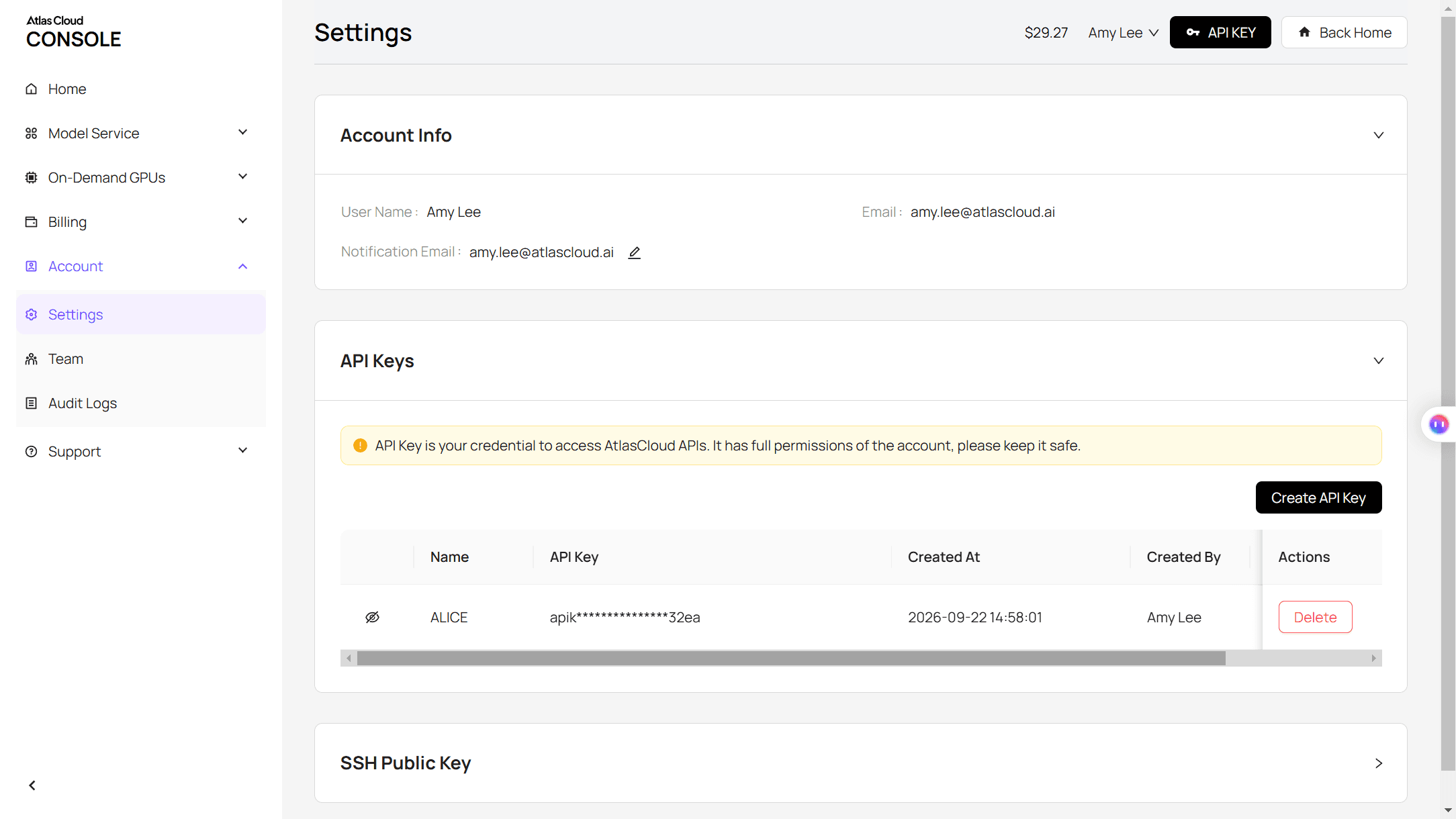
- Export your key, then let Claude Code add MCP servers with one line. The two dashes matter: everything before them is for Claude Code (name, scope, env), and everything after is the command that starts the server.
plaintext1export ATLASCLOUD_API_KEY="your-api-key" 2claude mcp add atlascloud --scope user -e ATLASCLOUD_API_KEY=$ATLASCLOUD_API_KEY -- npx -y atlascloud-mcp
2. Check the result. In the screenshot, the Scope line reads "User config (available in all your projects)" and Status reads Connected.
plaintext1claude mcp get atlascloud
Leave out --scope user and the server only exists in the folder you ran the command from. The -e flag stores the key in the server entry, so the server keeps working in a terminal where you haven't exported it.
A note for Windows users: some guides tell you to wrap npx in cmd /c. On Windows 11 with Claude Code 2.1.300, the plain command above connected on the first try, no wrapper needed.
Method 2: Paste a JSON Block With claude mcp add-json
Many MCP READMEs and setup pages, including Atlas's, hand you a JSON block instead of a command. Pass it straight to add-json:
plaintext1claude mcp add-json atlascloud '{"command":"npx","args":["-y","atlascloud-mcp"],"env":{"ATLASCLOUD_API_KEY":"your-api-key"}}'

Our test entry is named atlascloud-json so both can coexist. Wrap the JSON in single quotes in bash or zsh. Windows PowerShell 5.1 can strip the inner double quotes, so run this one from Git Bash, WSL or PowerShell 7.
Claude Code MCP Server Configuration in .mcp.json
Use project scope when a whole team should get the same server. It writes .mcp.json to the project root, which you commit like any config file.
The catch is the API key. Don't commit it. Claude Code expands VARand{VAR} andVARand{VAR:-default} inside .mcp.json, so each teammate's own environment variable fills the value at launch. Single-quote the -e value so your shell passes the variable name through instead of your key:
plaintext1claude mcp add atlascloud --scope project -e 'ATLASCLOUD_API_KEY=${ATLASCLOUD_API_KEY}' -- npx -y atlascloud-mcp
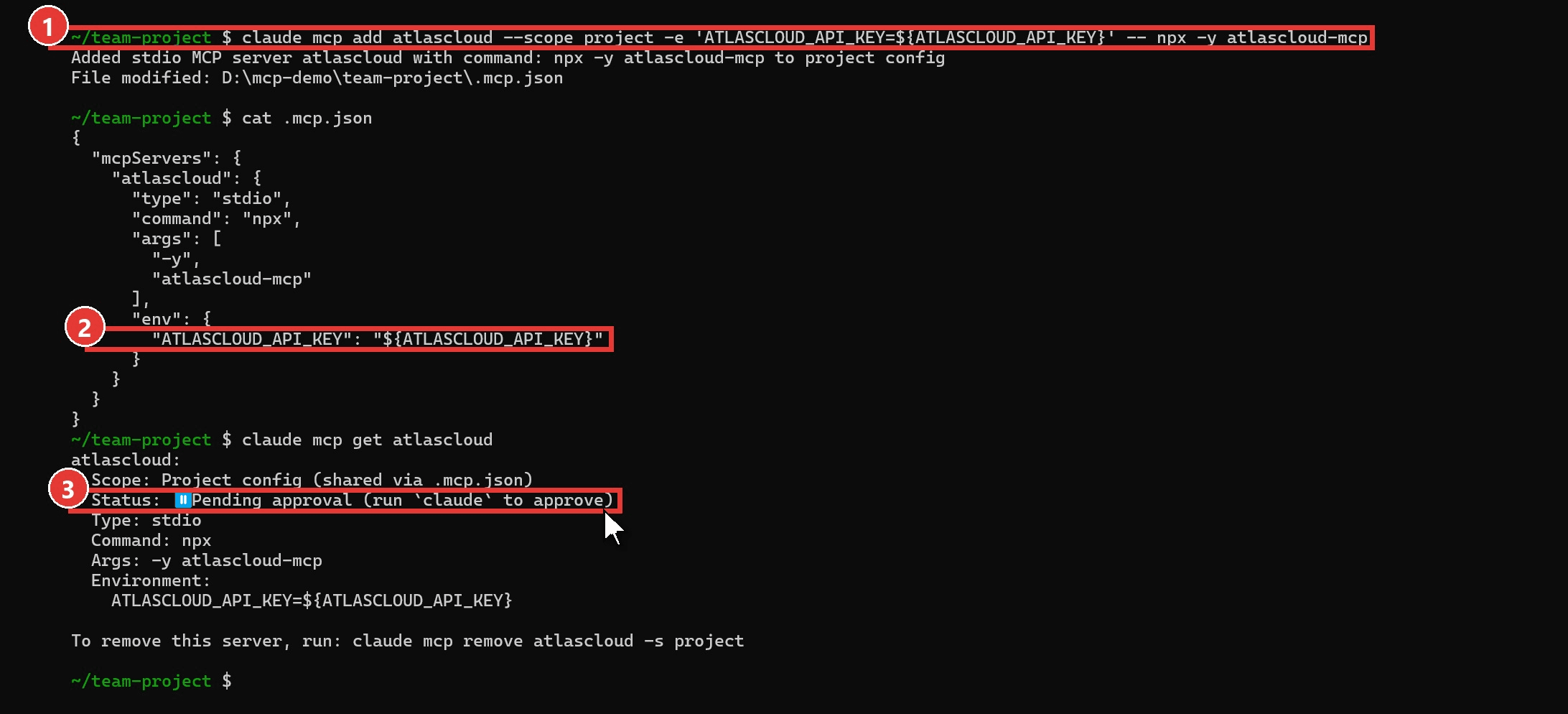
A fresh .mcp.json server shows "Pending approval" and doesn't connect until someone runs claude in that folder and approves it. It's a safety check: a cloned repo can't start programs on your machine by itself.
| You have | Use | Lands in |
|---|---|---|
| A one-line install command | claude mcp add | Local, or the scope you pass |
| A JSON block from a README | claude mcp add-json | Local, or the scope you pass |
| A server the whole repo needs | --scope project, then commit .mcp.json | .mcp.json |
Check Your Servers With the Claude MCP List Command
The claude mcp list command health-checks your configured servers and prints one line each. The status at the end of the line is the part to read.
| Status | What it means | What to do |
|---|---|---|
| ✔ Connected | The server started and answered | Nothing; open a new session and the tools are there |
| ! Needs authentication | A remote server wants an OAuth sign-in | Run /mcp inside Claude Code and choose Authenticate |
| ✘ Failed to connect | The command failed or timed out | Run the server command by hand to see the error |
| ⏸ Pending approval | An unapproved .mcp.json entry | Run claude in that folder and approve it |
If you are signed in with a claude.ai account, the list also includes that account's connectors, each prefixed with "claude.ai". Ours showed more than 20. To see only what you configured, set ENABLE_CLAUDEAI_MCP_SERVERS=false for that shell session.
Claude Remove MCP: Delete a Server From the Right Scope
Add -s with the scope when you know it, and always when the same name exists in more than one scope.
plaintext1claude mcp remove atlascloud -s user

The last line of claude mcp get prints the exact remove command, scope included. For remote servers, removal also deletes the OAuth tokens Claude Code stored.
Claude Desktop MCP Configuration in claude_desktop_config.json

Claude Desktop doesn't read ~/.claude.json. It has its own file, and you edit it by hand: open Settings, choose Developer, click Edit Config, paste the block, then quit and reopen the app.
| System | claude_desktop_config.json location |
|---|---|
| macOS | ~/Library/Application Support/Claude/ |
| Windows | %APPDATA%\Claude\ |
plaintext1{ 2 "mcpServers": { 3 "atlascloud": { 4 "command": "npx", 5 "args": ["-y", "atlascloud-mcp"], 6 "env": { 7 "ATLASCLOUD_API_KEY": "your-api-key" 8 } 9 } 10 } 11}
Already have servers in Desktop? Claude Code can copy them across with claude mcp add-from-claude-desktop, which opens a picker. The command works on macOS and WSL only, so native Windows users paste the same JSON into add-json instead. Our Claude video walkthrough shows the Desktop settings screens step by step.
Test the Setup With a Seedance 2.5 Video From Claude Code
A Connected status only proves the server started. To see a real job go through, we sent the crane clip from the top of this guide. With atlascloud registered, Claude Code called Seedance 2.5, ByteDance's flagship video model, with this request:
plaintext1Use the atlascloud MCP server to make an 8-second 16:9 video at 720p with bytedance/seedance-2.5/text-to-video, audio on. Prompt: Close-up on a walnut desk at blue hour. A white origami crane folded from graph paper slowly lifts its wings, hops once, then glides off the desk edge past a steaming ceramic mug while rain streaks the window behind. Warm desk-lamp key light, cool window fill, shallow depth of field, 50mm lens, slow push-in, subtle film grain. Sound: soft rain, a paper rustle, a faint lamp hum.
| Step | Tool Claude called | What came back |
|---|---|---|
| Read the model's parameters | atlas_get_model_info | Duration 4 to 30 seconds, resolutions from 480p up, audio on by default |
| Submit the job | atlas_generate_video | A prediction ID |
| Check on the job | atlas_get_prediction | An 8-second 1280x720 MP4 with its own audio track |
The GIF near the top of this guide is a silent cut of that MP4. You can run the same prompt by hand in the Seedance 2.5 playground to compare.
How to Add Skills to Claude Code Next to MCP
An MCP server gives Claude tools to call. A skill gives Claude written know-how it loads when a task matches, such as which parameters a model accepts or how to plan a multi-shot video. Atlas ships both.

plaintext1npx skills add AtlasCloudAI/atlas-cloud-skills
That installs three skills from the atlas-cloud-skills repository. You can also copy a skill folder into ~/.claude/skills/ by hand. The skills read the same ATLASCLOUD_API_KEY variable.
| Skill | What Claude gets from it |
|---|---|
atlas-cloud
plaintext1 | API reference for image, video and chat models, plus code templates in Python, Node.js and cURL |
| seedance-2-5-skill | Shot planning for Seedance: picking the route, assigning references, camera and lighting vocabulary | | universal-video-prompt-skill | Prompt structures that carry across video models |
The seedance-2-5-skill references universal-video-prompt-skill, so install both if you want its cross-model prompt specs. For a still-image version of the same setup, see our Claude image generation tests.
FAQ
Can Claude Code be used as an MCP server?
Yes. Run claude mcp serve and Claude Code starts as a stdio MCP server that prints nothing and waits for a client. To use it from Claude Desktop, add an entry whose command is claude and whose args are mcp and serve. If claude isn't on your PATH, put the full path to the executable in the command field.
What MCP servers should I add to Claude Code?
Add servers for work you repeat every week. A database server pays off if you write queries daily; a media server such as atlascloud pays off if you produce images or video, since Claude writes the prompt and fetches the file in one session.
Why does my MCP server show "Failed to connect"?
Run the server command on its own first. For atlascloud that's npx -y atlascloud-mcp, which fails fast if Node.js is older than 18 or npx isn't on your PATH. If the command works by hand, the server may just start slowly: launch Claude Code with MCP_TIMEOUT=10000 to give it 10 seconds.
Do Claude Code and Claude Desktop share MCP servers?
No. Claude Code reads ~/.claude.json and .mcp.json, and Claude Desktop reads claude_desktop_config.json, so a server added in one doesn't appear in the other. Connectors you add to your claude.ai account are the exception: they show up in Claude Code automatically when you sign in with that account.
Conclusion
A typical setup needs five commands: add or add-json to register a server, list and get to confirm it connected, and remove to clean up. Pick the scope before you press Enter and the rest follows.
Get the Claude Code MCP configuration right once, check it with claude mcp list, and new sessions in that scope open with the tools ready. If you want Claude to produce images and video as well as code, the atlascloud server you just practiced on is a good one to keep.





