Suppose you upload a white cup, a coffee bar, and coffee beans, but the video shows a different cup in a generic room. To use Gemini Omni 1.2 Flash multiple reference images well, choose Reference-to-Video, give each image one distinct job, and describe those jobs in upload order. Start with a short shot, then inspect the beginning, middle, end, and the movement between them. A reference steers a generation; it does not guarantee a pixel-for-pixel copy.
The test protocol uses the same cup shot twice: first with only the cup image, then with the cup, café, and beans. A second example uses exterior and interior photos of the Pantheon to test a moving viewpoint. The comparison separates what the prompt asks for from what the output actually shows, so you can decide whether another reference helped or added conflict.
Key takeaways
- Choose Reference-to-Video when images should guide content without dictating the opening frame.
- Assign each uploaded image a role and name it by upload order in the prompt.
- Compare a short 1-image baseline with a 3-image run before increasing complexity.
- Check identity, setting, props, and motion across the entire clip, not just the first frame.
What Multiple Reference Images Control in Gemini Omni 1.2 Flash
A multi-image reference set can describe several parts of one shot. One photo may identify a product, another may supply a location, and a third may identify a prop. You may also use images for a character or a visual style. These roles are useful only when the prompt says which visible features belong to which image. "Use all images" leaves the model to decide whether the second cup in a café photo is a second product or background clutter.
For the cup test, image 1 defines the white ceramic cup and handle. Image 2 supplies the espresso bar counter and warm indoor setting. Image 3 supplies visible beans near the cup. We do not ask the model to carry over the beans photo's white background or every object on the café counter. That exclusion matters: a reference photo often contains more visual information than the job you want it to perform.
The reference set cannot remove every ambiguity. A hand may hide the handle. Camera movement may reveal a side of the cup that the source photo never shows. Lighting and camera angles may conflict across the three source photos. Treat the prompt as a hierarchy of priorities, with the cup's shape above an exact match to background furniture. In its November 2026 announcement, Google describes stronger reference following in Gemini Omni 1.2 Flash while noting that fast action and complex physics remain areas for improvement.
Before uploading, write one sentence for each source: "This image defines X; ignore Y." If you cannot do that without giving two images the same job, simplify the set. Then choose the input mode that matches your goal.
Reference-to-Video or First-and-Last Frame?
Reference-to-Video is the right mode when your images should influence a new moving shot. If you need an exact opening image, use a first-frame or Image-to-Video workflow instead. If you need two specified endpoints, use a first-and-last-frame workflow where available. The same uploaded photo can play a very different role depending on the selected mode, and a prompt sentence cannot always override the mode's input contract.
| Mode | What the input controls | Expected opening | Best use |
|---|---|---|---|
| Reference-to-Video | Subject, scene, prop, or style cues | A generated view guided by the references | Combine a cup, café, and beans in one shot |
| Image-to-Video / first frame | The starting visual state | Closely tied to the supplied first image | Animate a particular still |
| First-and-last frame | The starting and ending visual states | Begins from the specified first image | Plan a transition between fixed endpoints |
Google Cloud's reference-image documentation, accessed in November 2026, describes reference images as additional guidance for generation. The distinction is practical: if the first uploaded photo appears almost unchanged as frame 1 and you wanted a newly composed opening, inspect the mode and the image slot before rewriting the creative prompt.
A white cup on a plain source background can reasonably become a cup on a café counter in Reference-to-Video. That is the experiment here. For the Pantheon, the exterior and dome photos will guide two scenes, but they are not prescribed first and last frames. Their job is to make architectural elements recognizable during a continuous move.
Build a Reference Set the Model Can Read
Choose a clear hero reference before collecting supporting images. The cup should be large enough to judge its rim, body, and handle. In the approved source photo, the cup is small and looks pale cream despite the file title calling it white. That makes this input a useful stress test, but any loss of handle detail may begin with the source. A tiny cup in a busy café photograph is a weak product reference because the model has little specific shape information to retain. The supporting café image has a different job: it should make the environment legible, especially the counter and espresso equipment. The beans image should identify a prop, not supply a competing composition.
Keep upload order stable. The prompt below says "first," "second," and "third"; those words only help if the file order matches. If you replace one source during a retry, check the UI again before running. When multiple photos show similar cups, remove or explicitly exclude the extra cup. Otherwise the model may blend handles, proportions, or colors from the two. For a product with complex packaging, multiple views of that same object may be more valuable than a separate style reference.
| Upload | Target detail | Do not inherit |
|---|---|---|
| 1: white cup | Cup body, rim, and handle | The source photo's background |
| 2: Rome coffee bar | Counter, equipment, indoor atmosphere | Other cups or people as product references |
| 3: coffee beans | Recognizable beans beside the cup | The beans photo's white backdrop |
The three photographs come from Wikimedia Commons: the white ceramic cup and Rome coffee bar photographs are marked CC0, and the coffee beans photograph is marked public domain. Their stated reuse status makes the demonstration easier to trace; it does not turn generated output into a verified photo of a real product.
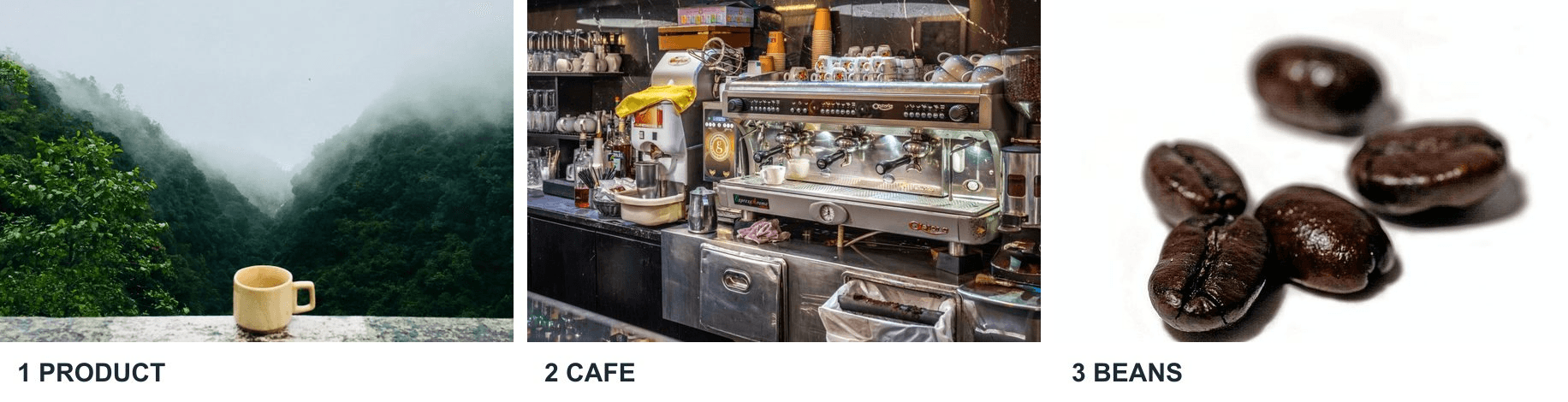
The three source photos separate the product, setting, and prop before any video is generated.
Copy-Ready Workflow: 1 Cup, 3 References, 1 Moving Shot
Download the full-size source photos and keep a note of each Commons file page. In the Gemini Omni 1.2 Flash Reference-to-Video playground, select the Reference-to-Video model, not an Image-to-Video variant. Upload the cup alone for run A1. Set 8 seconds, 16:9, 1080p, and default thinking. Check that the uploaded file appears in the reference-images field. Paste this prompt exactly:
plaintext1Create an eight-second product video featuring the white ceramic cup in the first reference image. Preserve its recognizable cup shape and handle. Begin with the cup resting still on a counter. The camera itself physically travels in a smooth semicircular arc around the stationary cup, so the counter and café background shift with clear parallax while the cup keeps the same orientation relative to the counter. Do not spin or rotate the cup, and do not place it on a turntable. After the camera arc, raise the camera to a slightly elevated viewpoint as a hand briefly lifts the cup and sets it back down without twisting it. Natural café ambience, no dialogue, no logos or added text. Use the uploaded image as a product reference, not as a literal opening frame.
Run A1 and watch the whole output. The first upload is the baseline, so note the cup's shape and whether the orbit and elevated view both happen. Do not penalize A1 for omitting a specific café or beans: neither was supplied as a reference. Save that result separately before changing the form.
For run A2, use the same model and settings. Upload the cup, coffee bar, and beans in that order. Confirm all three thumbnails appear in the reference field, then paste:
plaintext1Create an eight-second product video. The first reference image defines the white ceramic cup: preserve its recognizable shape and handle. The second reference image defines the espresso bar counter and its warm indoor atmosphere, but do not copy any other cup from that image. The third reference image defines the coffee beans placed beside the cup, not the background. Begin with the cup and beans on the counter. Move the camera in a smooth semicircle around the cup, then change to a slightly elevated viewpoint as a hand lifts the cup and sets it down. Keep the same cup and counter through the whole shot. Natural café ambience, no dialogue, no logos or added text. Use all three images as references rather than literal opening frames.
Run A2 and wait for its completed output. Review the generated file, not only the preview thumbnail. The two finished clips below show which details survived the camera move and hand action.
What Changes With the Second and Third Image?
Compare the clips at the same display size. Play each from start to finish, then pause near the opening, midpoint, and end. For cup identity, inspect the rim profile, handle side, and body proportions, especially after the hand lifts it. For environment, look for a counter and espresso-bar cues rather than a generic brown room. For beans, check whether they are distinct props beside the cup rather than an indistinct texture.
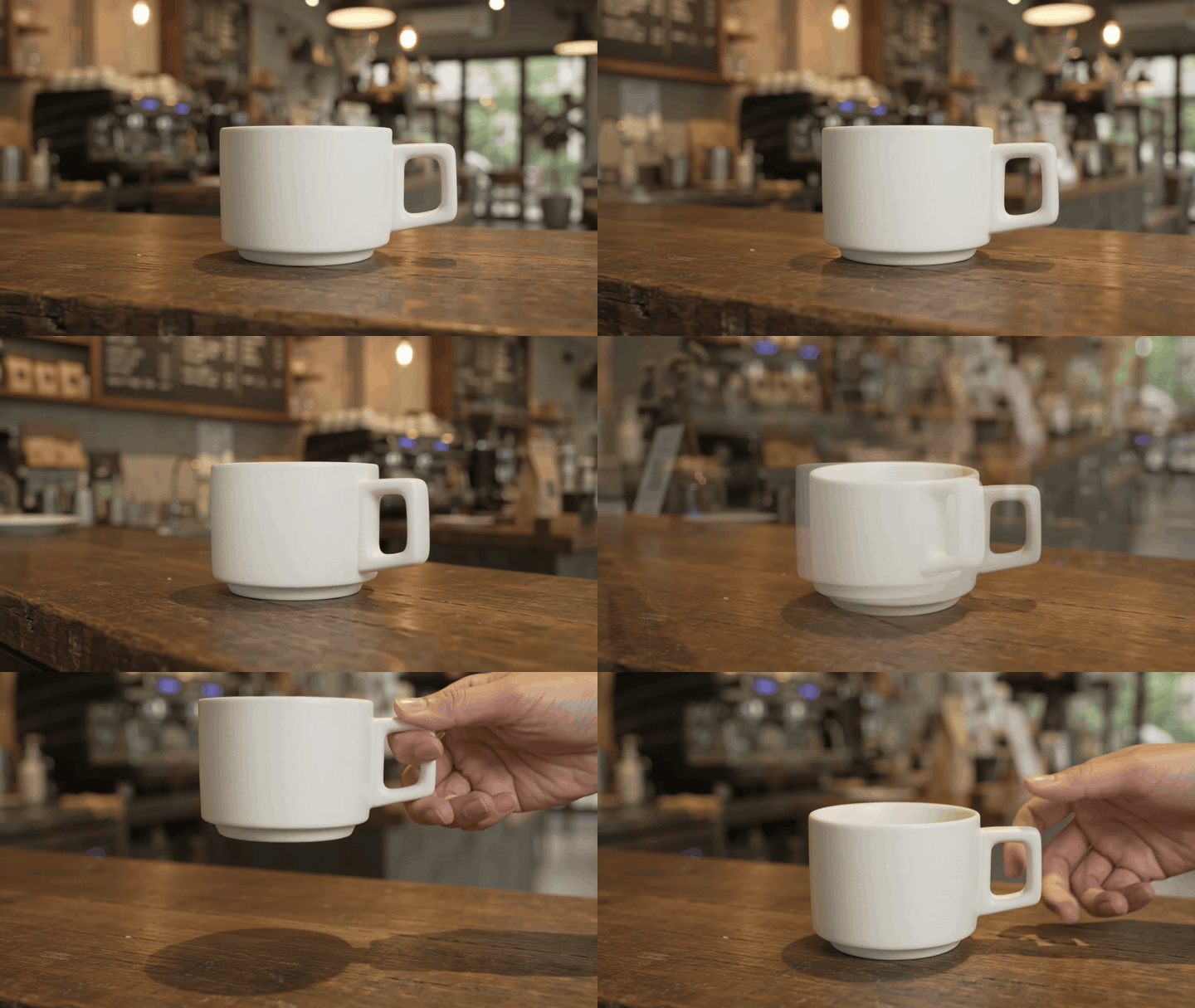
A1 keeps a white cup and visible handle through the hand lift. The camera shift is modest rather than a clear semicircular orbit.
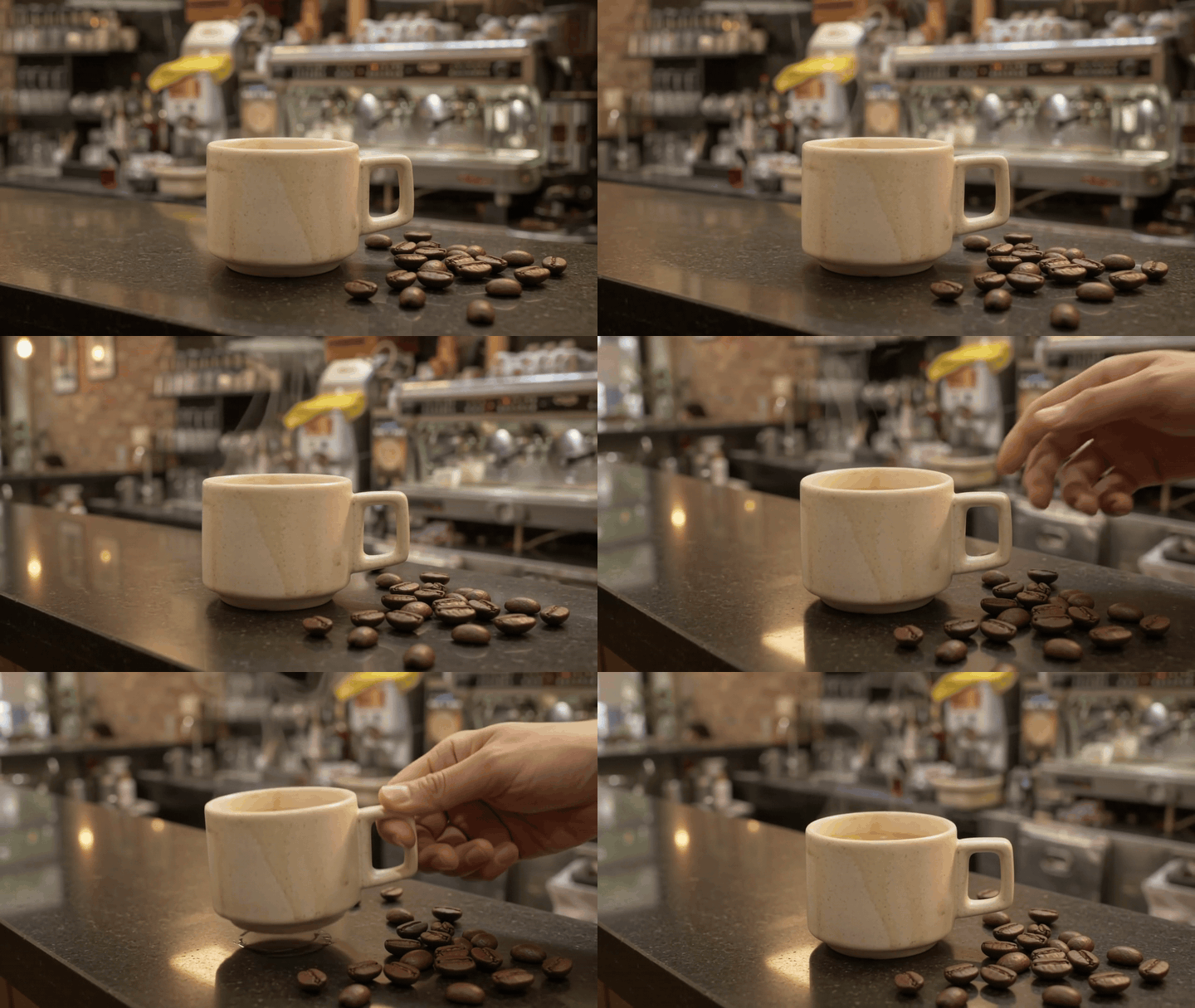
A2 adds visible coffee beans and a more specific espresso-bar setting. The cup looks cream-colored and less regular in shape than A1's cup.
| Check | A1: 1 image | A2: 3 images | What to look for |
|---|---|---|---|
| Cup shape and handle | White body and handle remain visible | Handle remains visible; body looks cream and less regular | Same identifiable object after the camera moves |
| Café counter | Generic café setting | Espresso machine and counter are clear | Environment resembles the counter source |
| Coffee beans | Not shown | Visible beside the cup | Distinct beans beside the cup |
| Motion | Hand lifts cup; camera shift is modest | Hand lifts cup; viewpoint changes modestly | Orbit, elevated view, lift, and set-down |
The added references make the counter and beans easier to identify, but the cup's color and shape change. Neither clip clearly completes the requested semicircular camera move. These are single outputs, so they are diagnostic examples rather than a performance statistic. If cup identity matters most, the next test should strengthen the cup reference or simplify the hand action while keeping the other settings fixed.
A Two-Image Architecture Test
The cup test asks whether several kinds of details coexist in one product shot. Two photos of the Pantheon ask a different question: can exterior and interior references guide a coherent moving viewpoint? The first Commons image shows the exterior façade; the second shows the interior dome and oculus. The Wikimedia Commons file pages for both the exterior and dome photographs mark them CC0.
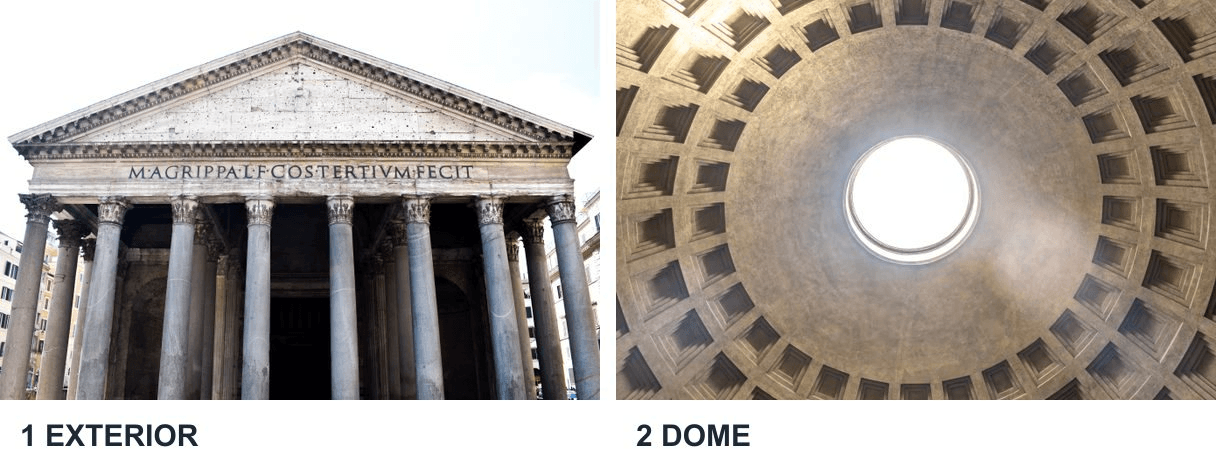 The exterior and dome photographs provide separate scene cues for a generated passage into the building.
Upload exterior first, interior second, in the same Reference-to-Video model. Set 12 seconds, 16:9, 1080p, and default thinking. Use the prompt below:
plaintext1Create a twelve-second architectural concept video guided by the two reference photographs of the Pantheon in Rome. The first image defines the exterior facade and entrance; the second defines the interior dome and oculus. Begin from a human-height viewpoint outside, move steadily toward and through the entrance, then tilt upward inside to reveal the dome and oculus. Use a continuous moving viewpoint with clear parallax and no sudden teleporting or isolated zoom. Keep the building recognizable while treating the result as a generated visualization, not documentary footage. Natural footsteps and room ambience, no dialogue, no titles or labels. Both images are scene references, not mandatory first and last frames.
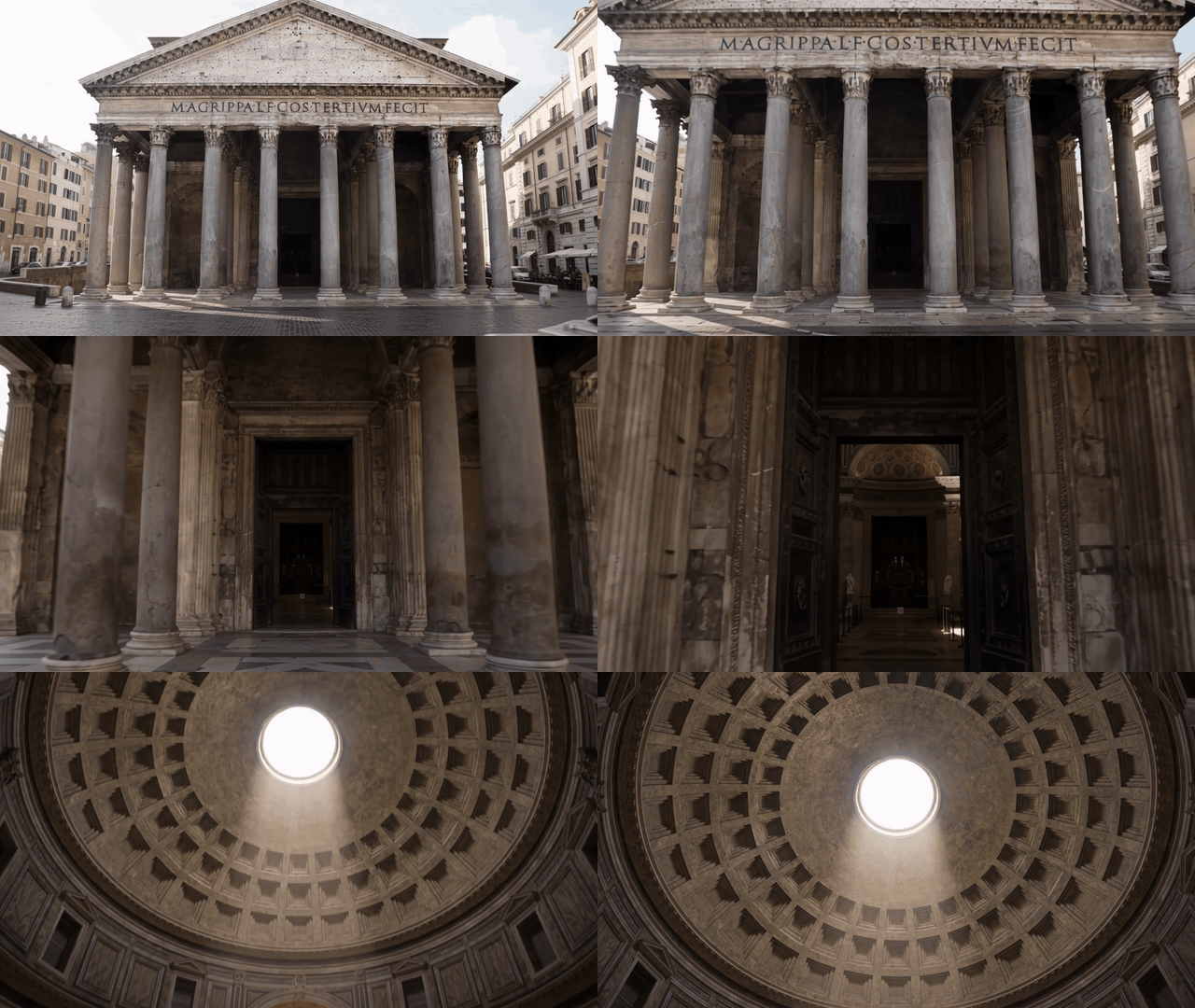
The generated passage moves from the façade through the portico and into a view of the dome and oculus.
Judge the clip by visible features and transition quality, not geographic precision. The façade, portico, and dome are recognizable, and the viewpoint advances toward the entrance before looking up inside. The result is an AI visualization based on photographs, not documentary footage or a reliable architectural survey. A first-and-last-frame setup would answer another question: how to connect two prescribed images as endpoints.
Three Reference Roles in One 15-Second Shot
The cup comparison tests a product, place, and prop. This additional shot gives three references more demanding roles: a moving animal, a colorful environment, and a moving group that enters later. The question is whether all three remain legible as the camera follows the action, rather than appearing only in isolated frames.
Image 1 is a Wikimedia Commons green sea turtle photograph for the turtle's broad shell, head, and flippers. Image 2 is a Wikimedia Commons coral reef photograph for pink and cream coral shapes and clear water. Image 3 is a Wikimedia Commons yellow-tailed fish school photograph for the fish bodies and group movement. Each file page marks its photograph as public domain. The sources come from different places, so the generated scene is a visual concept, not a record of one real reef.
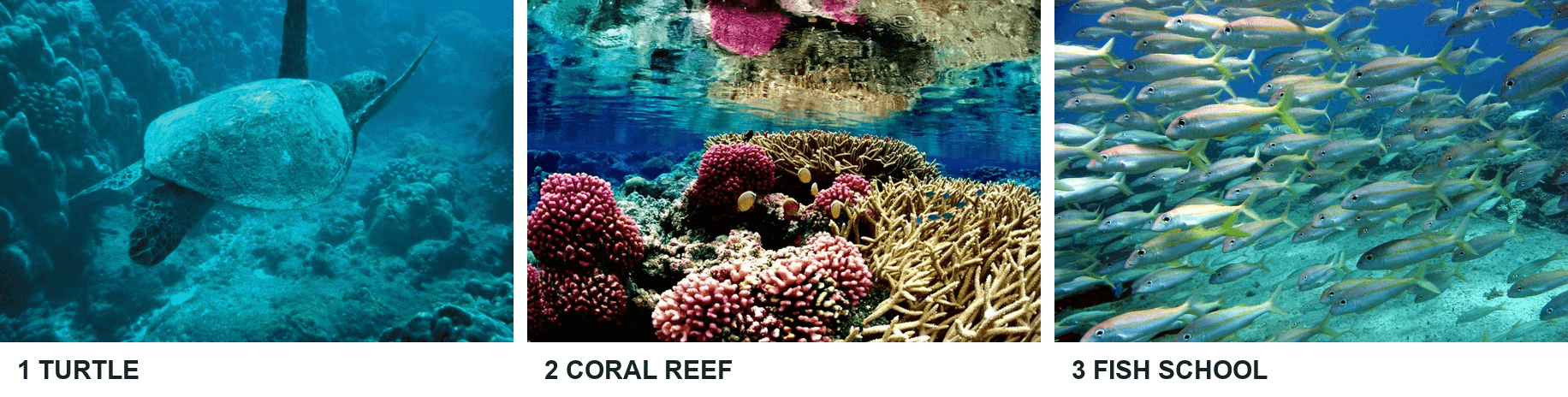 The three uploads give the model a subject, a setting, and a group that should enter the shot later.
Upload them in that order in Reference-to-Video. Select 15 seconds, 16:9, 1080p, and default thinking. Use this prompt:
plaintext1Create a 15-second, single continuous underwater concept film using the three uploaded photographs as references in their exact upload order. The first image defines one green sea turtle: preserve its broad mottled oval shell, head, and four flippers, but ignore that photo's background. The second image defines the setting: vivid pink and cream branching corals, rounded coral heads, clear turquoise water, and rippling sunlight; it is not a mandatory first frame. The third image defines a dense school of slender silver fish with yellow tails; use the fish as moving animals, not as a background texture or a copy of their original seabed. In the opening five seconds, the turtle swims forward above the colorful reef with visible flipper strokes while the camera tracks alongside it. In the middle five seconds, the yellow-tailed fish school sweeps across the frame and curves around the turtle as the camera rises to a three-quarter overhead view. In the final five seconds, the camera widens and arcs to show the same turtle, reef, and fish school together in one coherent underwater space. Keep the turtle's shell pattern and the fish appearance consistent throughout. Show real subject movement, water particles, soft sunbeams, and clear parallax. Smooth camera movement, no cuts, no teleporting, no spinning turtle, no additional turtles, no text, logos, or narration. This is a generated visualization, not documentary footage.
The generated 15-second clip starts with the turtle over coral, then brings the yellow-tailed school into the same moving scene.
The turtle's mottled shell and flippers stay recognizable from opening to end. Pink coral is clearest near the opening; silver fish with yellow tails enter around the middle and share the frame with the turtle later. The camera tracks and widens, although the requested overhead viewpoint is not clearly established. This single output shows the three reference roles working together while also showing where the prompt's camera instruction was only partly followed.
Fix Reference Drift Without Restarting the Whole Idea
When a cup changes shape, identify the exact frame where it happens. If the handle vanishes only while a hand covers it, that may be occlusion. If it returns on the wrong side or the rim changes profile after the cup is set down, the product identity drifted. Make the cup larger and clearer in the reference, simplify the lift, or specify a viewpoint that leaves the handle visible. Keep the previous output so you can tell whether the change helped.
If the setting jumps between cafés, inspect the source set for conflicting rooms, lighting, or similar objects. Replace the weak scene image or remove a reference that supplies unwanted furniture. In the prompt, state which image owns the counter and which visual elements to ignore. A longer list of negative instructions can create more ambiguity; one precise role statement is usually easier to test.
If the last seconds lose detail, shorten the action rather than adding more nouns. Ask for one continuous orbit and a small lift before attempting a longer sequence with several transitions. Google's launch note says the model supports follow-up editing, but do not assume an edit will retain every untouched detail. Inspect an edit with the same opening, middle, and end checks.
Change one variable per retry: reference selection, prompt wording, duration, or camera task. Keep a log of the exact files and settings. That turns a disappointing output into an actionable diagnosis and prevents a lucky frame from being mistaken for consistent control.
Limits, Cost, and Where to Try It
Google announced Gemini Omni 1.2 Flash on November 5, 2026, with native clips up to 15 seconds. The Atlas Cloud Reference-to-Video model page currently lists 1–10 reference images, 3–15-second duration choices, 16:9 or 9:16 aspect ratios, and 360p, 720p, 1080p, and 4K output options. The 1080p and 4K choices are upscaled from natively generated frames. Input limits can differ by access route, so check the field in the interface you use. This guide needs only 1, 2, or 3 images.
For the exact examples, use the model page linked in the workflow and check its current quote before each run. The public Atlas Cloud model catalog provides a second place to check availability and current pricing. A per-second headline rate may not describe every resolution or account condition, so budget from the actual selected controls rather than copying a launch price into a production plan.
The practical next step for Gemini Omni 1.2 Flash multiple reference images is to run the cup baseline first. Save its exact prompt and output. Add the café and beans only after you can identify which detail the baseline lacks, then judge the full motion clip against the four checks above.
Frequently Asked Questions
Can I combine image references with a motion reference clip?
Google describes support for short motion references, but that is a different input mix from the static-photo tests here. Check the limits and duration rules of the specific entry point before combining them. Keep the image roles explicit even when motion is supplied separately.
Will the model copy my reference photos exactly?
No. References guide identity, setting, props, or style. A generated frame may change camera angle, lighting, hidden surfaces, or small details. If you need an exact starting frame, choose a first-frame workflow and still inspect the rest of the clip.
Can I use someone else's photos or branded assets?
Use material you have permission to use and review its license for your intended publication. The Wikimedia Commons file pages for the source photos state their reuse terms. Check each applicable license before publication. That source status does not grant rights in unrelated logos, people, or assets you may add later.


