You have one approved image. The useful question is whether its face, colors, and pose will still look right after it starts moving. The GPT Image 2.6 image to gif workflow begins with that still, asks for one readable action, and checks the saved loop frame by frame. OpenAI introduced GIF creation with GPT Image 2.6 on November 4, 2026, including mascot and product-loop use cases (OpenAI's announcement).
Three published cases show different parts of the job: a short GIF reported as an GPT Image 2.6 API result, a robot's reference image and pose sheet, and a character's teacup movement. The latter two use earlier workflows and are not presented as GPT Image 2.6 output.
Key takeaways
- Start from the approved still and ask for one short action that returns to its first pose.
- Lock the features viewers recognize: face, color, prop, background, camera, and crop.
- Compare the saved GIF against the still, then check its first, middle, and last frames.
- If you need to control individual poses and timing, generate a sprite sheet and assemble the GIF locally.
Can GPT Image 2.6 Turn an Image Into a GIF?
Yes. OpenAI introduced GPT Image 2.6 on November 4, 2026 and explicitly described GIFs for animated mascots and product loops. It says GPT Image 2.6 is available in ChatGPT and Codex across subscription tiers, with GPT Image 2.6 Flare and Sunburst in the OpenAI API. That announcement establishes the capability, but it does not specify a universal GIF length, frame count, or export button for every interface (OpenAI, November 2026).
A native GIF request and a sprite sheet are different jobs. In the native route, you ask GPT Image 2.6 for an animated file and review the returned motion. A sprite sheet is one still image containing several poses. It becomes a GIF only after you crop the panels and assemble them in a local editor. Keep that distinction in mind when a model or page says it supports image generation: a still image endpoint does not automatically produce an animated GIF.
For an approved brand asset, keep an untouched source file. Make sure the moving part is visible, and decide which details must never change. The clay robot below has a mint-colored head, orange antenna, dark eyes, chest button, and fixed ivory background. Its wave should move one arm; those identity details should remain recognizable. A stable camera also makes the first and last poses easier to compare.
The release also names Flare and Sunburst. OpenAI positions Flare for quicker image work and Sunburst for higher-detail, more consistent edits at medium or high quality. That is model-family guidance, not evidence that one variant will solve a particular GIF seam. Start with the GIF route available in your ChatGPT interface, then judge the actual frames.
Published case 1: a paper boat GIF made with GPT Image 2.6
The editors at Ravivit report generating a white paper boat GIF with GPT Image 2.6 through the API on November 5, 2026. Their motion brief kept the camera fixed and asked the boat to rock on water. They specified 16 frames at 120 milliseconds each, giving the delivered file a 1.92-second loop. That timing matches the media file inspected for this article; the generation method is reported by the source.
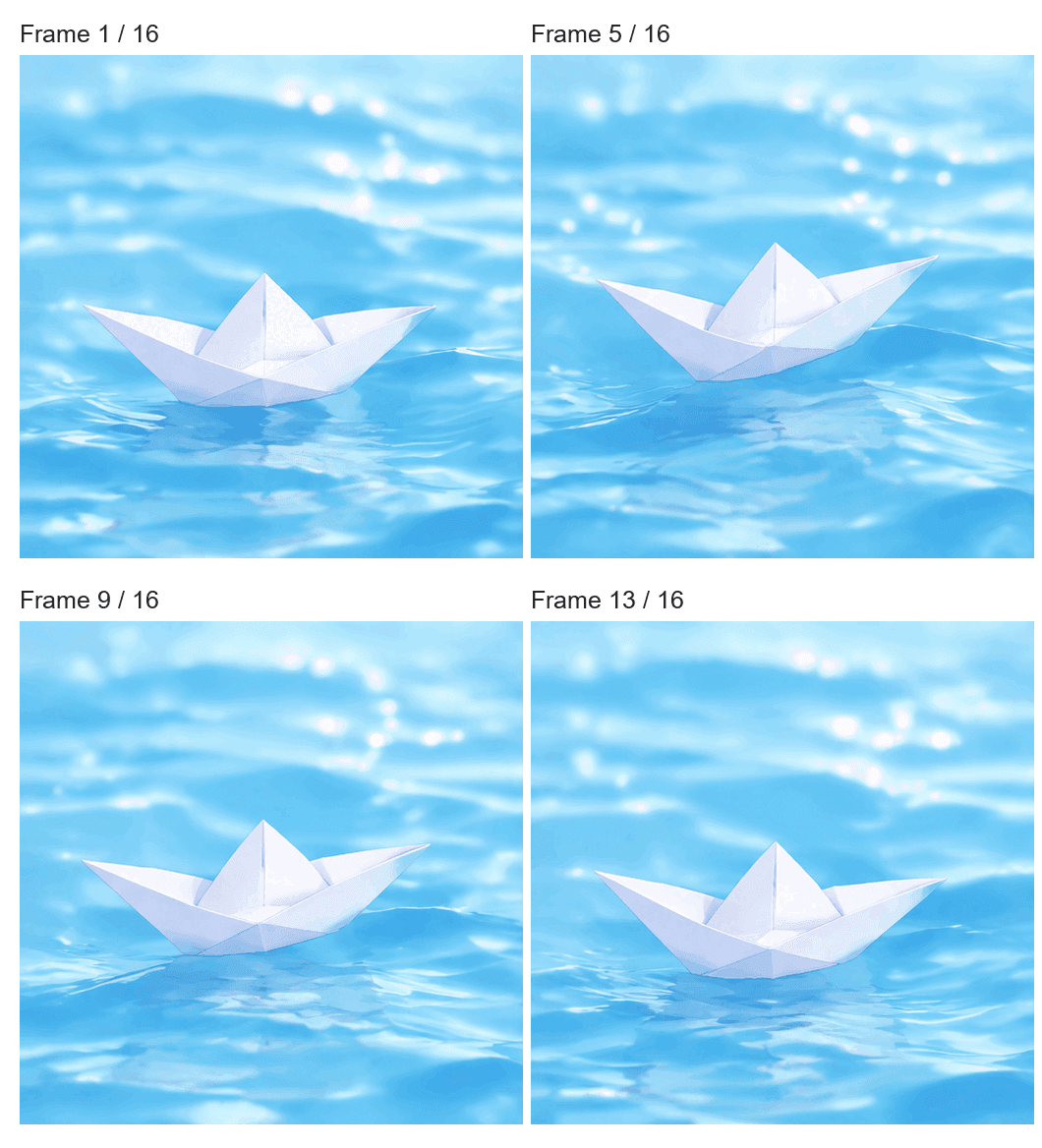
Frames 1, 5, 9, and 13 extracted from Ravivit's published GIF. This is a frame comparison made from the output, not an uploaded input image. Watch the boat's angle and the changing water around it.
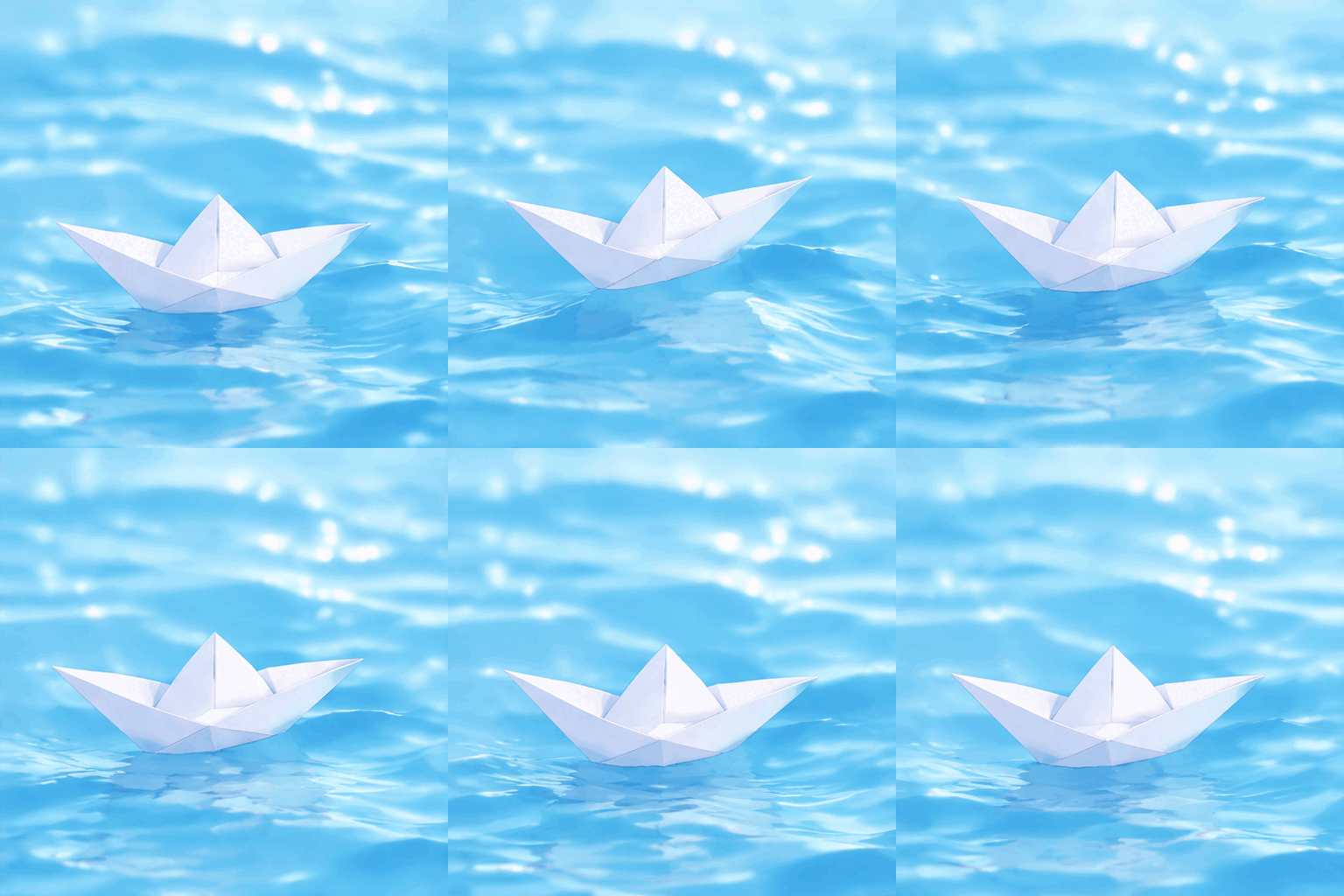
The original 16-frame, 1.92-second paper-boat GIF. The action stays small enough to read as a loop without a camera move.
This source began with a text motion prompt, so it does not test preservation of an uploaded reference image. It does show the shape of a native short GIF result. When starting from your own still, add identity checks for the subject, props, and first-to-last transition.
How to Turn a Still Image Into a GIF in 3 Steps
1. Upload an Image
Use an image you own or are authorized to animate. Keep the original file and upload a copy to GPT Image 2.6 in ChatGPT. The still is the visual reference and the pose the loop should return to. For a concrete reference, look at the source image in K,z Lick's documented clay-robot project. Its orange antenna, face, chest button, and foot position give the reviewer clear anchors.
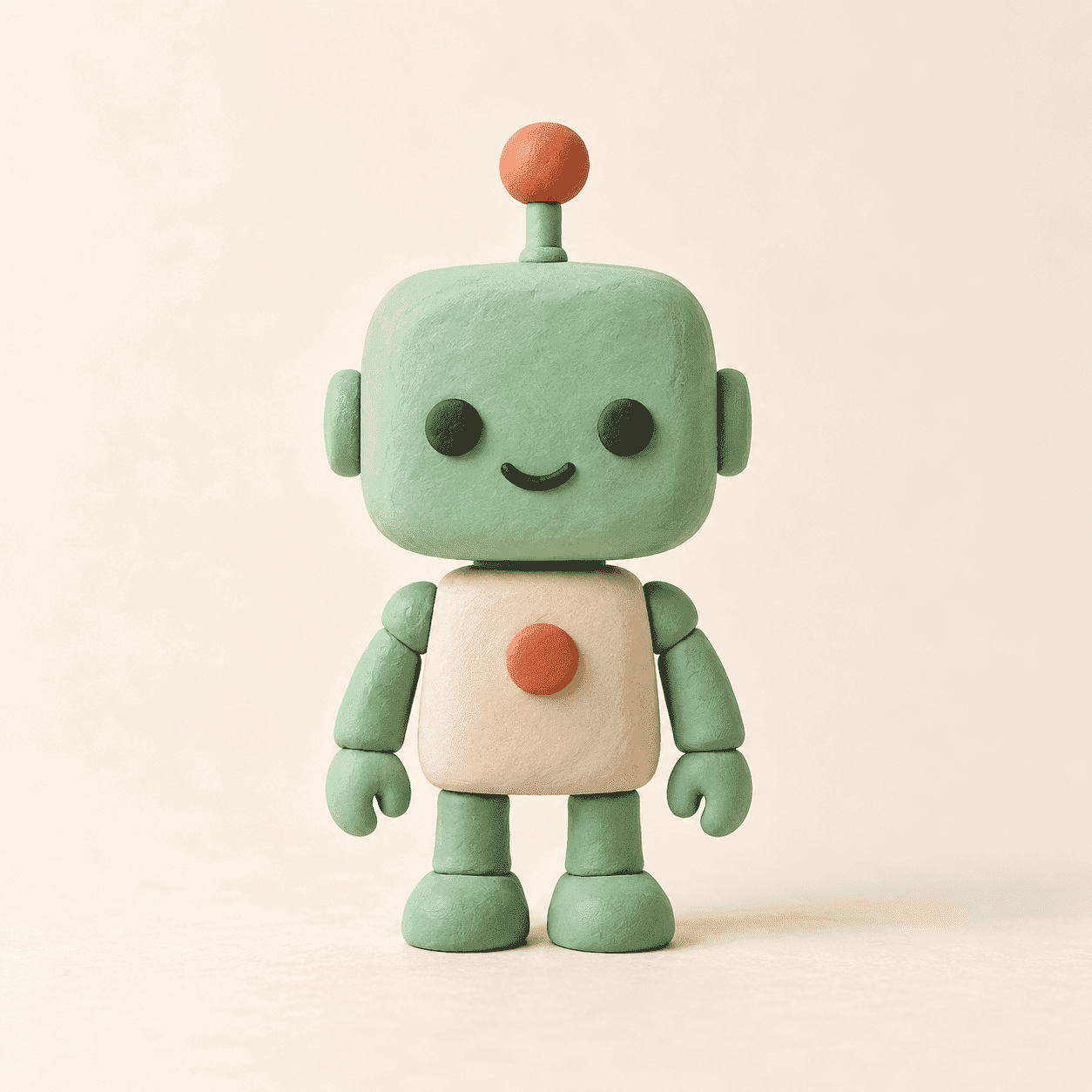
Original reference from K,z Lick's published case. The arm can move, while the face, antenna, button, and feet provide consistency checks.
If you are starting without a still, create one first and save it before requesting motion. On Atlas Cloud, the Text-to-Image page can create a starting image. That page is a still-image route; it does not establish native GPT Image 2.6 GIF output on Atlas Cloud.
2. Describe One Clear Motion
Attach the still and request a single small motion. Here is a prompt adapted to the robot reference for an GPT Image 2.6 attempt. It is a reproducible prompt to try, not the prompt used to make the published GIFs below.
plaintext1Use the attached clay-robot image as the identity reference and starting pose. Make a short, looping animated GIF. The robot raises only the arm on the viewer's left, waves once, lowers that arm, and returns to the exact starting pose. Keep its mint head, orange antenna, eyes, smile, chest button, other arm, feet, ivory background, lighting, camera angle, scale, and framing fixed in every frame. No extra limbs, text, zoom, or scene change. Export an animated GIF.
Ask for a pause at the relaxed pose at both ends of the motion. A long list of simultaneous actions makes it harder to tell which instruction caused a bad frame. If the first attempt fails, keep the same reference image and revise only the unstable part.
3. Review Frames and Export
Play the result more than once. Pause near the start, at the raised-arm moment, and at the end. Check that the antenna and face stay put, the waving arm reads clearly, and the final pose joins the first without a jump. Download the file, open it locally, and confirm the saved file actually animates. A moving preview in the generation interface does not prove the exported file is an animated GIF.
If the output changes the face or shifts the body, revise from the original still. The real case below shows why checking both the animation and its individual frames matters.
Published case 2: a robot waves from an eight-frame sheet
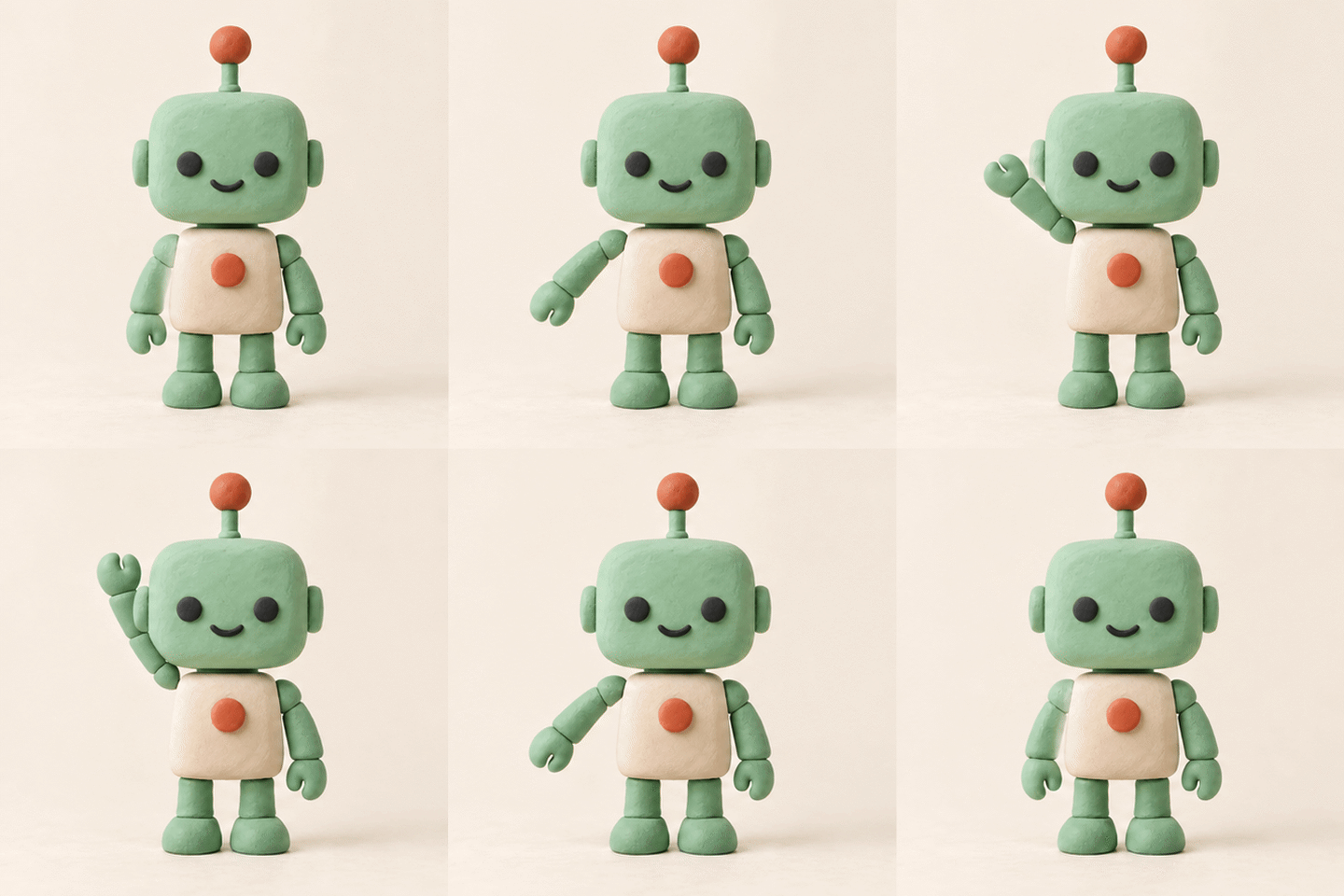
K,z Lick's case study puts the original next to an eight-frame sprite sheet and the finished GIF. This makes the input, intermediate poses, and final motion easy to compare. The author asked for a fixed camera and one moving arm, then cropped the eight poses into a 480 × 480, two-second loop. The first result still let the robot's body drift.
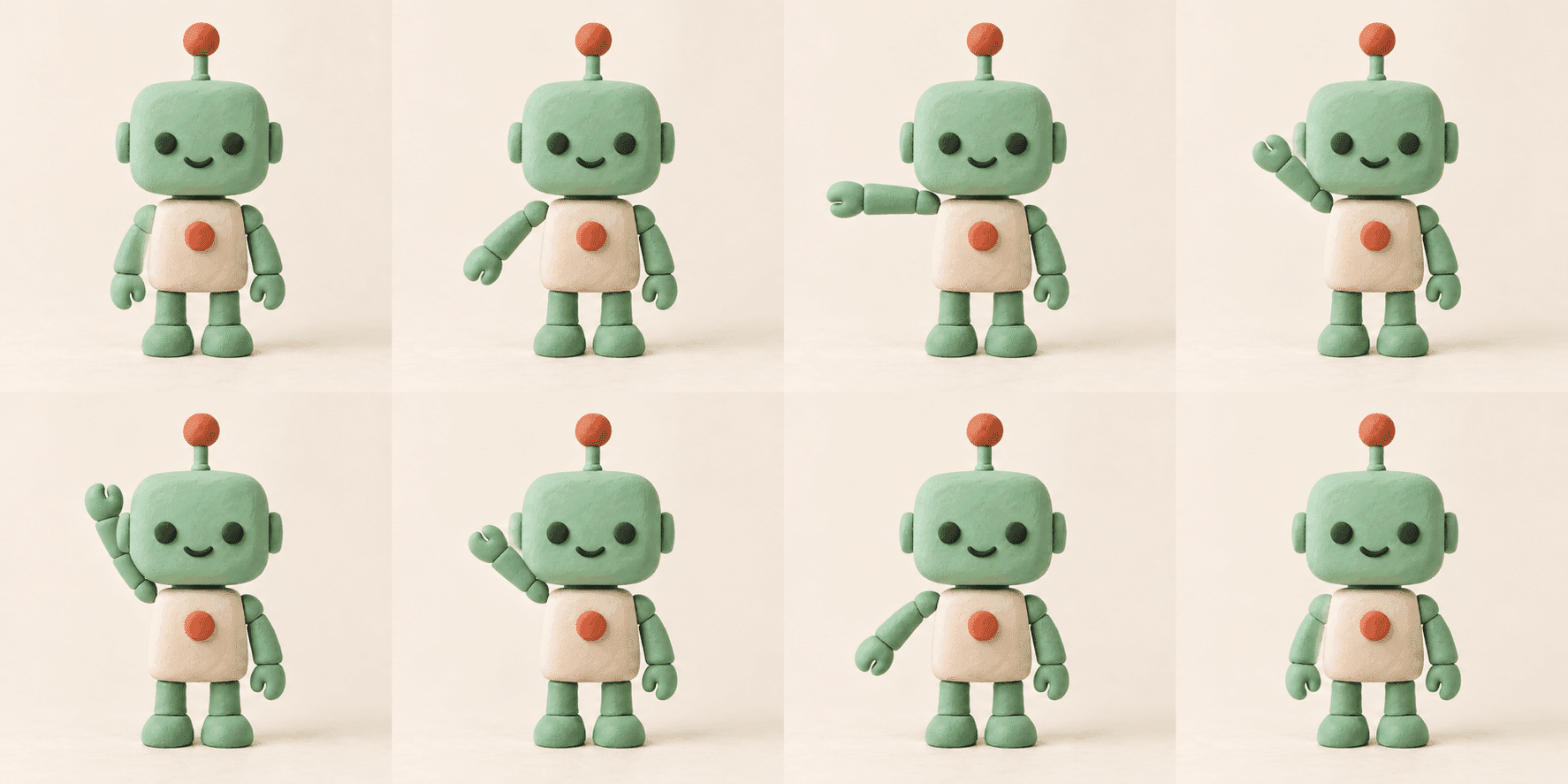 Revised eight-frame sheet from the original case study. Read left to right across the top row, then the bottom row; the last pose returns to the first.
The creator's first attempt allowed the body to wobble. In the revision, the prompt fixed the camera distance, body center, feet, head, and antenna, and asked the final pose to match the first. The author reported the antenna's horizontal range falling from 5.8 px to 0.8 px. This is one creator's before-and-after measurement, not a controlled model benchmark. The revised GIF below is the version worth inspecting in this article; the source post also shows the first attempt.
Two-second robot wave from K,z Lick. Watch the moving arm while the antenna and feet stay nearly fixed. The creator still noted small facial and outline changes.
The lesson for an GPT Image 2.6 attempt is specific: name the parts that may move and the parts that must remain fixed, then inspect the delivered GIF. The published source was made before GPT Image 2.6, and its creator could not verify the exact image model used.
How to Keep the Subject Consistent Across Frames
Look for identity changes before judging smoothness. A fluid arm wave can still fail as a brand asset if the robot's orange antenna jumps, the face changes, or its feet slide. Compare each sampled frame with the approved still, then compare neighboring frames with one another.
A user discussing an unstable ChatGPT GIF described fur color and subject position drifting between frames. That is a useful failure example, not a measured failure rate for GPT Image 2.6 (Reddit, October 2026). The lesson is to test the exact features your audience recognizes. A mascot with the right expression but a different color can still fail a brand review.
Use this order when reviewing a result:
- Identity: Are the face, head shape, and body proportions the same throughout?
- Inventory: Do the orange antenna and chest button stay in place, with no extra limbs?
- Scene: Are the ivory background, lighting, camera angle, and crop stable?
- Action: Can a viewer see the one-arm wave at normal playback speed?
- Seam: Does the last pose lead back to the first without a sudden shift?
Fix the largest visible error first. If the antenna changes shape, correcting timing will not make the asset usable. If identity and props hold but the loop snaps, request a return to the original pose. If only one frame is wrong and your interface allows frame-level editing, a local correction may preserve the rest of a good animation. Otherwise regenerate from the same still with fewer moving elements.
plaintext1Revise this GIF using the uploaded still as the identity reference. Keep the robot's mint head, orange antenna, face, chest button, feet, fixed arm, ivory background, and camera position the same in every frame. Change only the waving arm. Return the last pose to the original first pose.
A practical acceptance rule is to view the loop at the size where it will be posted. A small wave may vanish in a feed thumbnail, while a shifted face becomes obvious in a large email banner. Ask a teammate who did not write the prompt to identify the character and the action in a single viewing. If they notice a color change first, revise the file.
A Repeatable Atlas Cloud Route When You Need Frame Control
The public Atlas Cloud model directory view checked for this guide lists earlier Text-to-Image and Edit routes. It did not provide a verifiable GPT Image 2.6 native-GIF playground entry in that view. OpenAI's API release does not by itself establish availability on a separate platform. Check the live directory again before planning a production handoff.
If you need to control individual poses, use an approved still as input to the Atlas Cloud Edit page. Ask for a fixed-camera sprite sheet, inspect every panel, crop the panels to identical dimensions, and assemble them in a local GIF editor. This is a static-image workflow until the panels are assembled.
The published robot case above demonstrates the sequence with real assets: one still, an eight-pose sheet, and the resulting GIF. Its sheet request was 2048 × 1024, but the actual output was 1774 × 887, so crop from the delivered dimensions rather than assuming the requested canvas size. The author used 0.25 seconds per frame and no pose alignment. The source post shows how the first loop's small body shifts remained visible before the prompt revision.
| Route | Starting point | Delivered output | Control to review before delivery | Good fit |
|---|---|---|---|---|
| GPT Image 2.6 native GIF | Approved still in ChatGPT | Animated GIF | Prompt, returned frames, and any available edit controls | Fast first pass for a short social loop |
| Atlas Cloud sprite sheet | Approved still uploaded to Sunburst Edit | Still pose sheet, then locally assembled GIF | Each pose, crop, frame order, delay, and seam | A team that wants explicit frame timing |
| Longer video | Approved still or a video brief | Video file | Motion, edit points, sound, and platform export | A narrative or audio-led placement |
GIF or Video: Which Should You Export?
Choose the delivery format from the placement and length. A two-second, silent mascot wave like the robot above reads as a GIF. A scene with dialogue, music, or a longer action is easier to handle as video, with a poster image for the first frame. GIFs carry no sound, and their size grows quickly with dimensions, frame rate, and duration.
Published case 3: a character lifts a teacup
The third published case takes a visibly different approach: an illustrated character raises a teacup, sips, and returns to the initial pose. The author first planned the action with a base image and three distinct poses, then reused those poses in reverse for the return. This is another earlier workflow example, not an GPT Image 2.6 test.
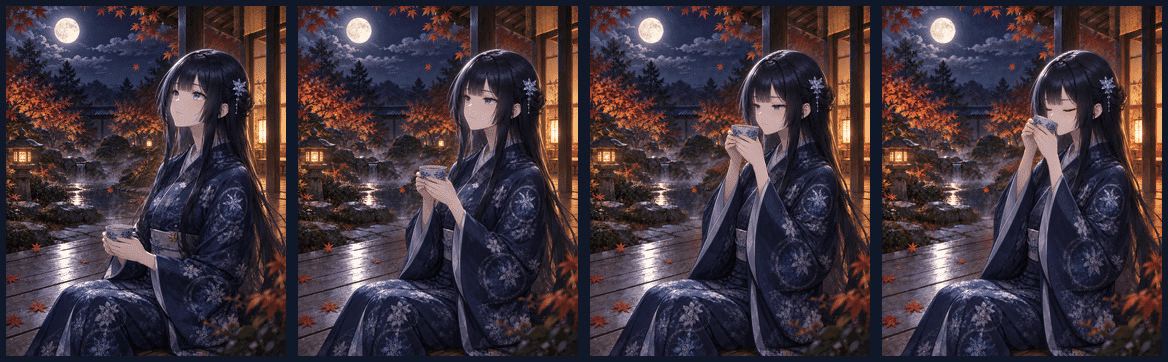
Pose progression from Isana's published case: base pose, cup at chest, cup at mouth, and sip. The same poses can be played backward to return to the start.
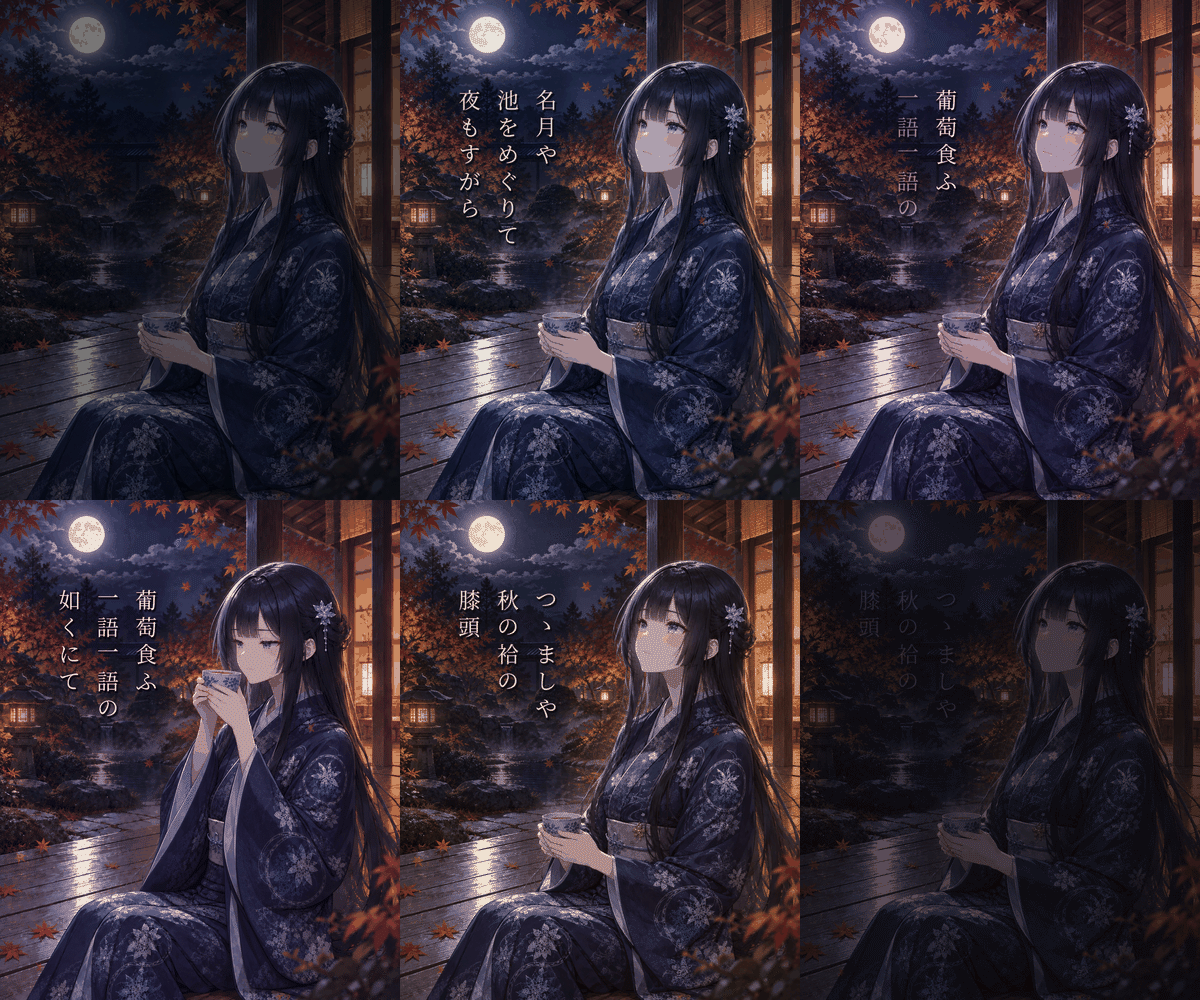
From Isana's published GIF, retimed from about 15.5 to 9.2 seconds for inline viewing; an initial black frame was omitted. The full-length original remains in the source article.
The cases use a useful editorial layout: show a reference or sampled frames, then the moving result beside the point being discussed. Keep a short caption that says what changed and what to inspect. For a social reply or inline help article, test at the final feed width. For email, check the recipient's image limits and first-frame behavior. For a landing-page hero, compare the actual exported file size and playback behavior with a video option.
Before You Publish: A 30-Second GIF Check
Open the delivered file outside the generation interface and run this final check at its intended display size:
- Animation: The saved file contains changing frames and plays in the target placement.
- Loop: The last pose returns cleanly to the first, with no visible jump.
- Identity: Face, colors, antenna, and body position match the approved still.
- Action: The one-arm wave is visible at normal viewing speed.
- Brand details: Any text, logo, or product mark in your own image stays accurate.
- Fit: Dimensions and file size meet the destination's current limits.
If one item fails, revise that item and inspect the whole loop again. For this GPT Image 2.6 image to gif job, the final deliverable is the downloaded animation that survives these checks, not merely a convincing preview. Save the original still and the exact prompt beside it so the next variation begins from the same approved character.
Frequently Asked Questions
Can I upload a photo instead of writing a text-only GIF prompt?
Yes. GPT Image 2.6 supports animation from an existing image. Use a photo you have permission to edit, keep the subject clear, and tell the model which details must remain. The robot source above is a published example from an earlier workflow; its attribution and model caveat are part of the case.
Why does my subject change color between frames?
The model has to draw each moment while satisfying your motion request. A loose brief leaves room for visual changes. Attach the original again, specify the exact color and fixed details, and remove extra actions. If the color still shifts, compare frames manually and choose a route that lets you replace the wrong pose.
Can I change speed or edit one frame after generation?
Some reporting describes speed and single-frame edits, but the controls available to you depend on the current surface and rollout. Inspect the live interface. If those controls are absent, a six-frame sheet and local GIF editor give you direct timing control.
Is GPT Image 2.6 available on Atlas Cloud yet?
The directory view checked while preparing this guide showed earlier Text-to-Image and Edit pages, not a verified GPT Image 2.6 native-GIF playground. Availability can change. Check the current model directory and confirm a real completed GIF run before treating any new page as equivalent to ChatGPT's native workflow.
When should I use video instead?
Use video when sound is part of the message, when the action needs a longer sequence, or when the destination favors video playback. Keep a GIF for short, silent motion that works as a loop and remains readable at the size where viewers will see it.


