A useful answer can disappear under a week of chat. Grok Bot Pages give that answer a place you can reopen, review, update, and share: ask a Bot for a report, dashboard, tracker, memo, or explainer, then check the result before anyone relies on it. A Page can include text, tables, charts, filters, and switches, and it is saved in that Bot's Library. This guide follows one practical loop: provide source material, request a structured Page, verify it, update the same Page when evidence changes, and choose a sharing scope that fits the data.
Key takeaways
- Describe the Page's audience, purpose, sections, and source rules in the same request.
- Treat generated figures and summaries as a draft to verify against source material.
- Pages stay private until shared; "Anyone with the link" allows access without sign-in.
- A routine can create or update a Page, but that does not mean its data is live or continuously synced.
What Are Grok Bot Pages, and When Should You Use One?
A normal chat reply answers a turn. A Page is a saved artifact that you can reopen and continue revising with the Bot. Use a chat reply for a quick explanation or a one-off answer. Use a Page when the work needs a stable structure, a later review, or access for other people.
Pages suit recurring work products such as weekly status reports, project trackers, quote comparisons, research explainers, and dashboards. For example, a small product team could turn its launch notes into a Page with a short summary, workstream table, blockers, and decisions needed. The value is the organized review surface: readers can scan the status and supporting detail without reconstructing the conclusion from a long conversation.
The product supports text, tables, charts, and controls such as filters and switches. Those controls change what a reader sees; they do not save a new Page state. If a filter reveals a useful view that should become part of the shared report, ask the Bot to update the Page itself. The distinction matters for dashboards: an interactive control can help someone inspect what is already there, but it does not by itself refresh source data or rewrite the report.
Pages also differ from a spreadsheet or a live analytics system. The official description establishes that a Bot can build and update a Page, but it does not promise that every chart is connected to a live database. Treat the Page as a readable artifact based on the sources and instructions available to the Bot. If a decision depends on current figures, include a trusted current export or connected source and record when it was checked. (xAI's Pages documentation, updated October 28, 2026)
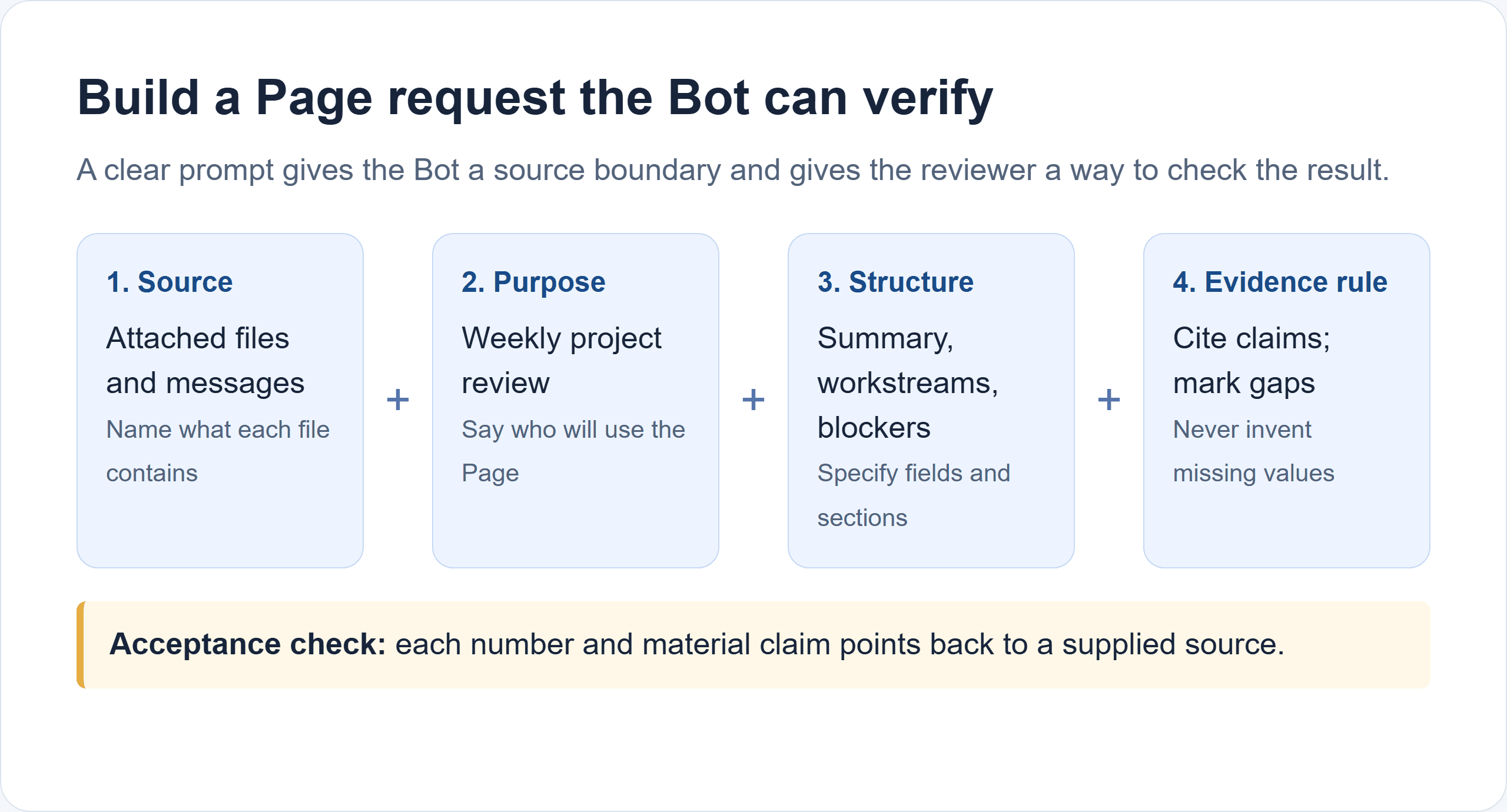
A clear request names its evidence, audience, required sections, and rules for unknown values.
A useful rule is:
| Your need | Best starting point |
|---|---|
| One answer you will not revisit | Keep it in chat |
| A report or tracker to inspect and revise | Ask for a Page |
| A repeated task with a schedule or supported trigger | Consider a routine, then verify each result |
| A live operational dashboard with guaranteed refresh | Confirm that your data source and workflow actually provide live updates |
The path through the product is: attach the source material in chat, ask the Bot to make a Page, open its Page card, check the result, then share it with the intended readers. The diagram shows where each action happens. If new source material arrives later, ask the Bot to update the same Page and review the changed claims again. (Official Grok Bot Pages guide)
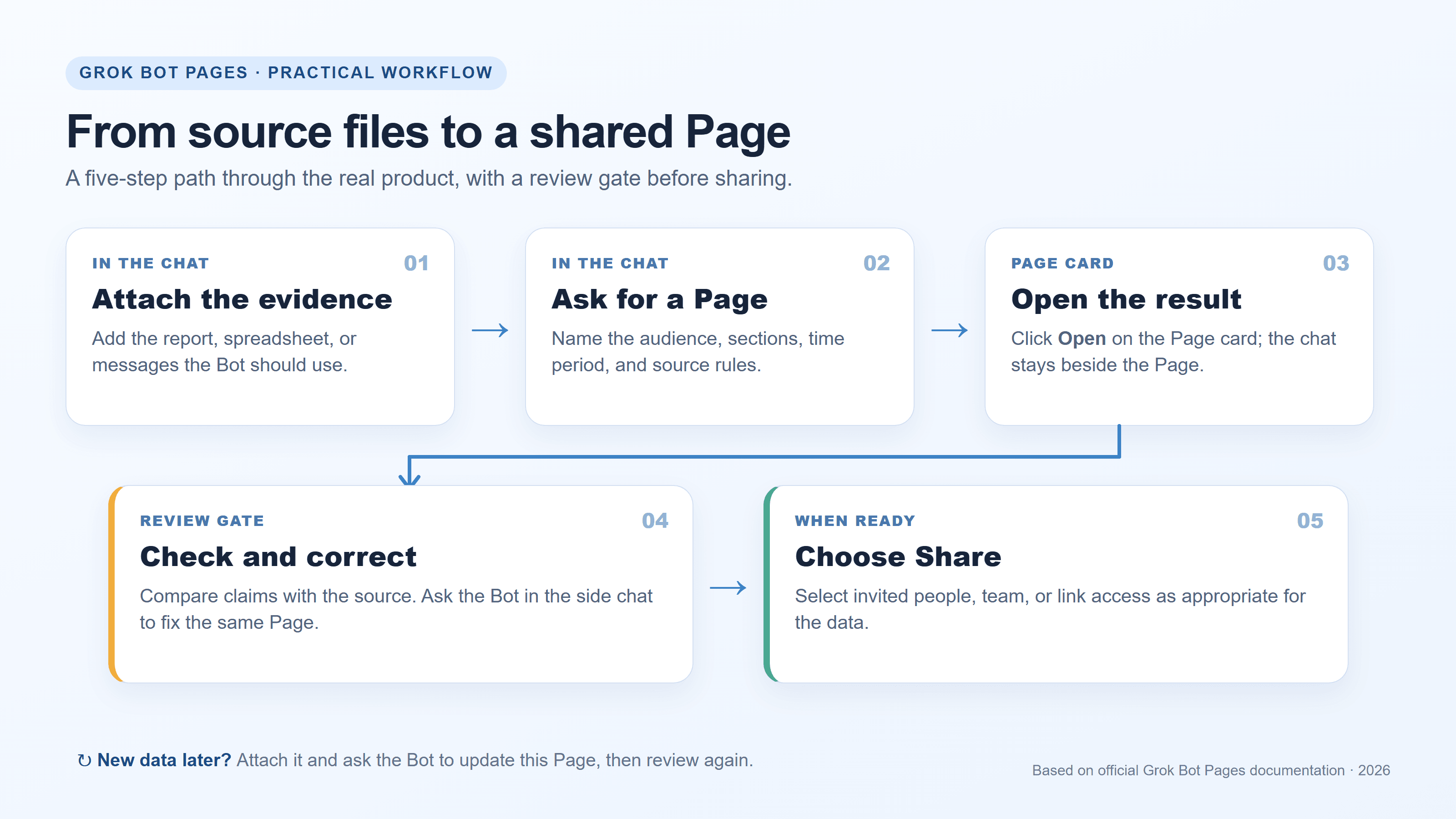
The review step comes before sharing; updates go back through the same check.
How to Create a Grok Bot Report or Dashboard
Give the Bot the source, purpose, and structure
Start in the conversation where the relevant messages or files are available. Attach the source files first, then say what each contains and what the Bot should do with it. Grok Bot's documentation lists common inputs such as PDFs, spreadsheets, text files, CSV, JSON, and images. If you want a change log, include the prior report or identify an authoritative history source. Without a baseline, the Bot cannot reliably establish what changed.
Be specific about the audience and the fields that matter. "Make a dashboard" leaves key choices open: which period, what counts as a metric, who owns each item, and how missing information should appear. A request that spells these out gives you a more reviewable first draft.
Copy and adapt this prompt:
Create a Grok Bot Page for a weekly project status review using only the files and messages attached to this conversation.
Include:
- A short executive summary.
- A table with each workstream, its current status, owner, latest evidence, and next action.
- A separate list of blockers and decisions needed.
- A final section titled "What changed since the last update." Cite the source file or message for every number and material claim. If a source does not contain a value, write "Not provided." Do not invent metrics, owners, dates, or progress. If there is no previous report in the attached material, say that a change comparison is unavailable. Create this as a Page I can review and update in this conversation.
This template is designed to expose gaps rather than hide them. "Not provided" is more useful than an invented owner, and "comparison unavailable" is more honest than a change summary without a baseline. For a marketing dashboard, you could replace workstreams with campaign, reporting period, spend source, conversions, and next action. Keep the evidence column: it helps a reviewer trace a number back to its source.
The Bot posts a card when it creates a Page. Open it and inspect the artifact itself. A generated card confirms that a Page exists; it does not certify the figures or analysis.
The official Grok Bot Pages guide documents the first two screen actions: ask in chat, then click Open on the Page card. The full website capture below includes the xAI mark and the relevant instructions. It shows the documentation, not a generated dashboard.
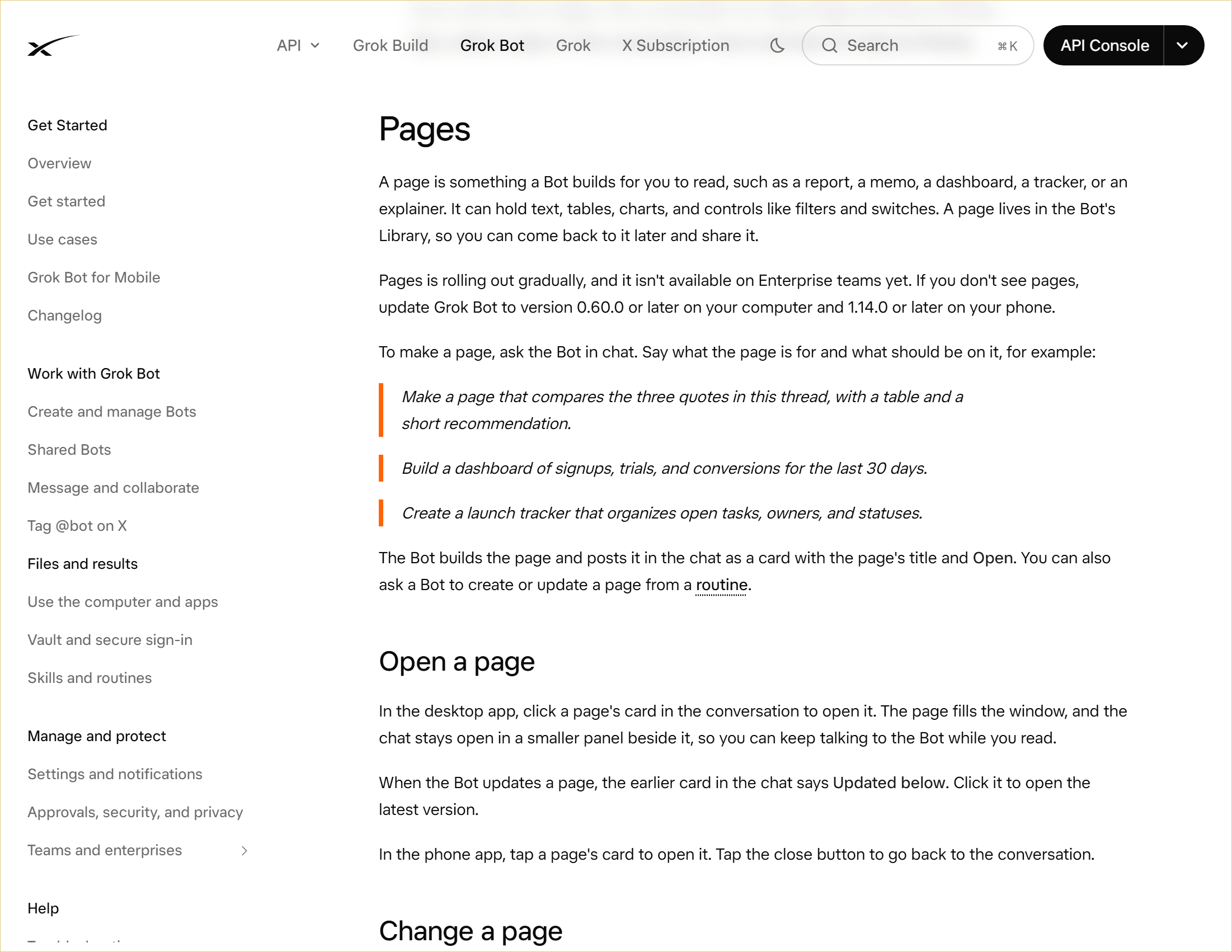
Official xAI documentation: a Page appears as a card with Open, then opens beside the chat. The pale yellow frame separates this website capture from the article diagrams.
Review the Page before treating it as a report
Check the fields most likely to cause a wrong decision:
- Period and dates: Are start and end dates clear, and are they drawn from the source?
- Metrics: Do totals, percentages, and units match the source file? Recalculate important totals independently.
- Status and ownership: Does each label or owner appear in the source, or did the Bot infer one?
- Change claims: Is there a prior version or dated baseline for every "up," "down," or "new" statement?
- Missing information: Are unavailable values marked clearly rather than filled with plausible guesses?
- Sources: Can a reader identify which document or message supports a material claim?
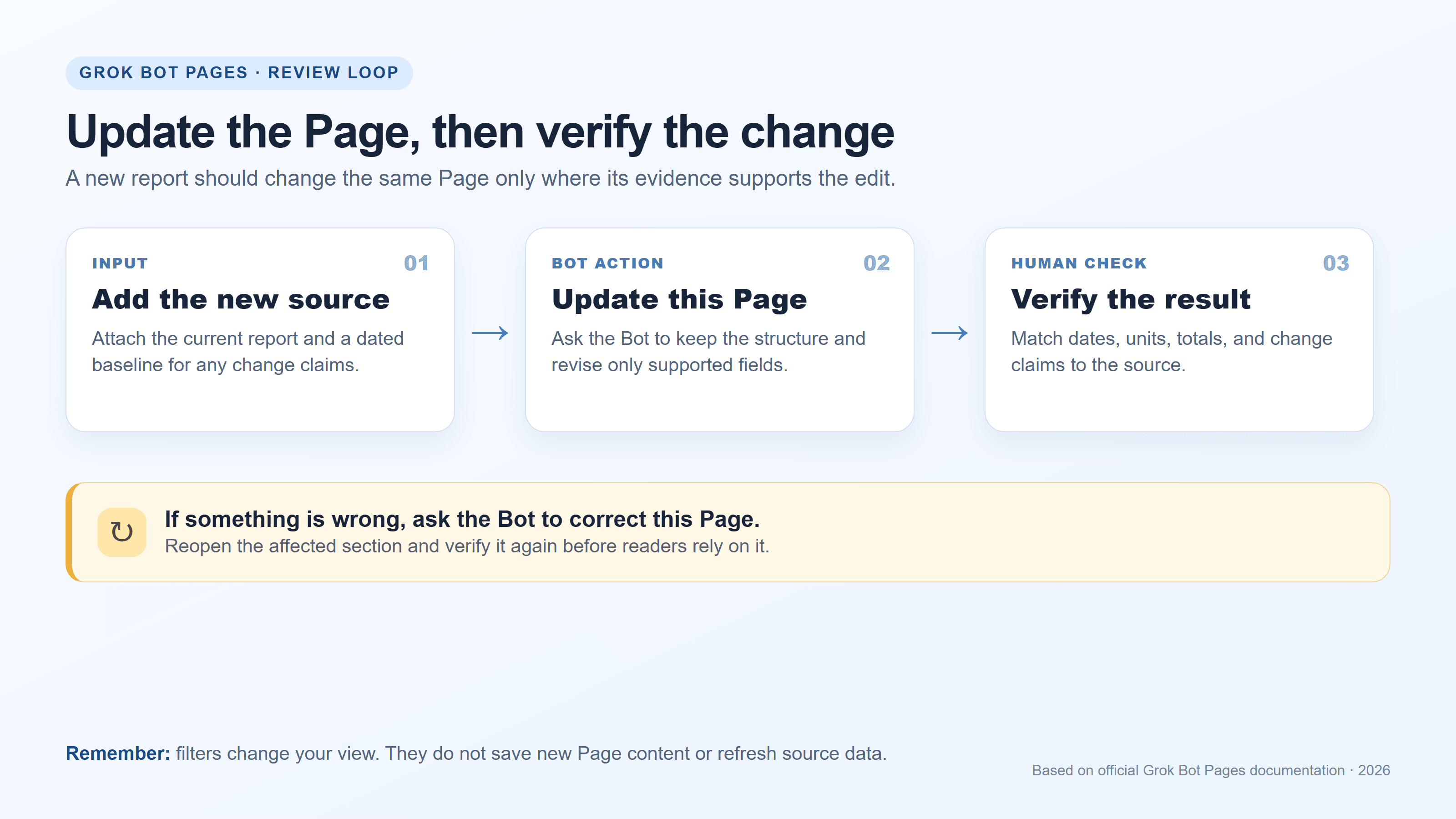
Review each important claim against its source, then ask the Bot to correct the same Page.
If something fails, ask a direct correction in the chat panel while the Page is open. For example: "The source lists the migration as blocked, not on track. Correct the status, cite the release note, and leave the owner as Not provided." Then reopen the affected section and compare it with the source. Review any consequential number yourself; a polished layout is not evidence that a calculation is correct.
You can also ask for assumptions and evidence to be separated. That is useful when the Bot summarizes incomplete notes: a reader can see what the source states, what the Bot inferred, and what still needs an owner or decision. For external reporting, have a subject-matter owner approve the Page before sharing it.
How to Edit, Find, and Update a Page
When a Page is open, Grok Bot keeps a chat panel beside it. Ask for changes there, and the Bot edits the same Page. If it updates the Page, the earlier card in chat is marked "Updated"; opening that card takes you to the latest version. The official editing instructions also explain that filters and switches change the view, not the saved Page.
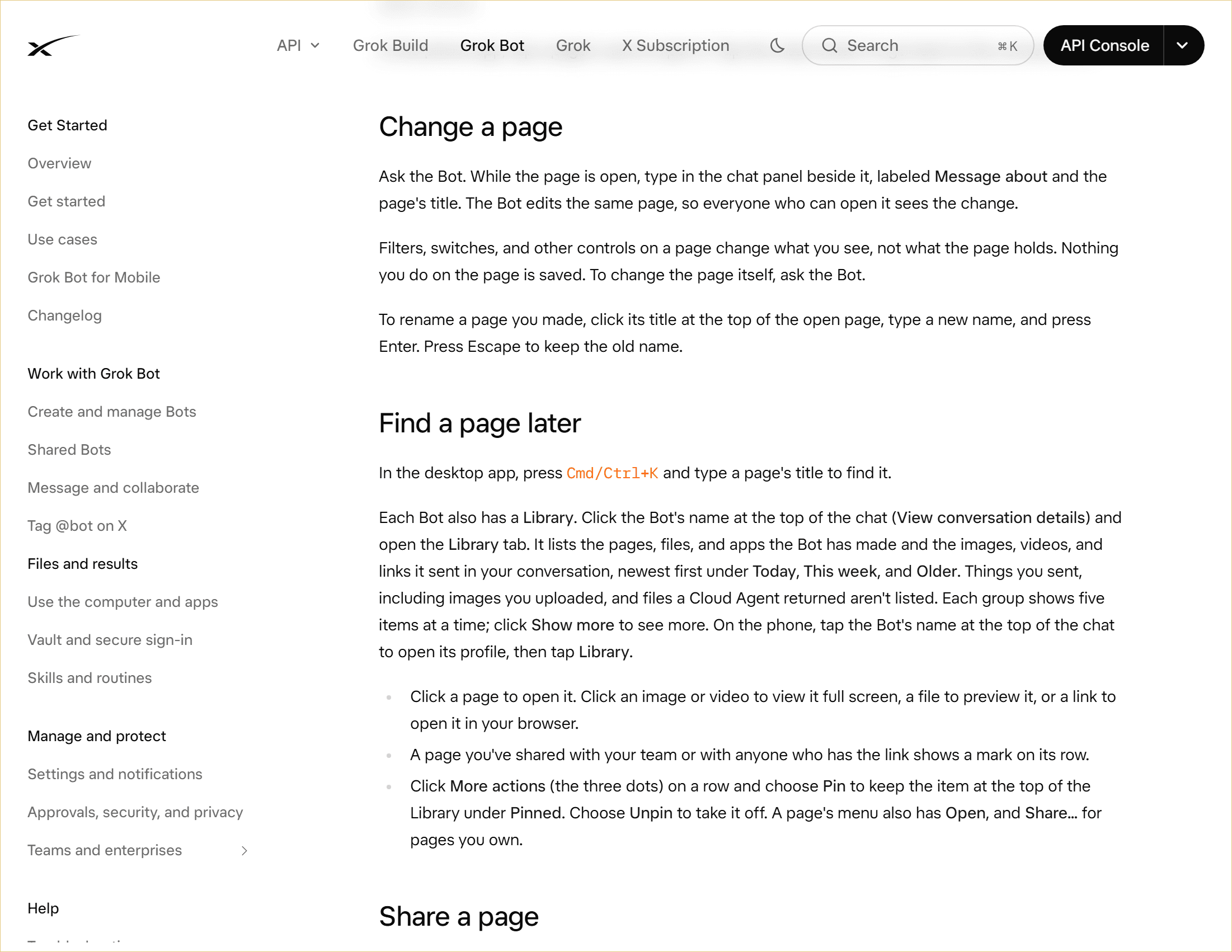
Official xAI documentation: request edits in the chat panel beside the Page. The full website capture retains the xAI mark.
To find the Page later on desktop, press Cmd/Ctrl+K and search its title, or open the Bot's Library. The Library groups items by recency and lets you pin a Page you use often. The official Library instructions show both routes.
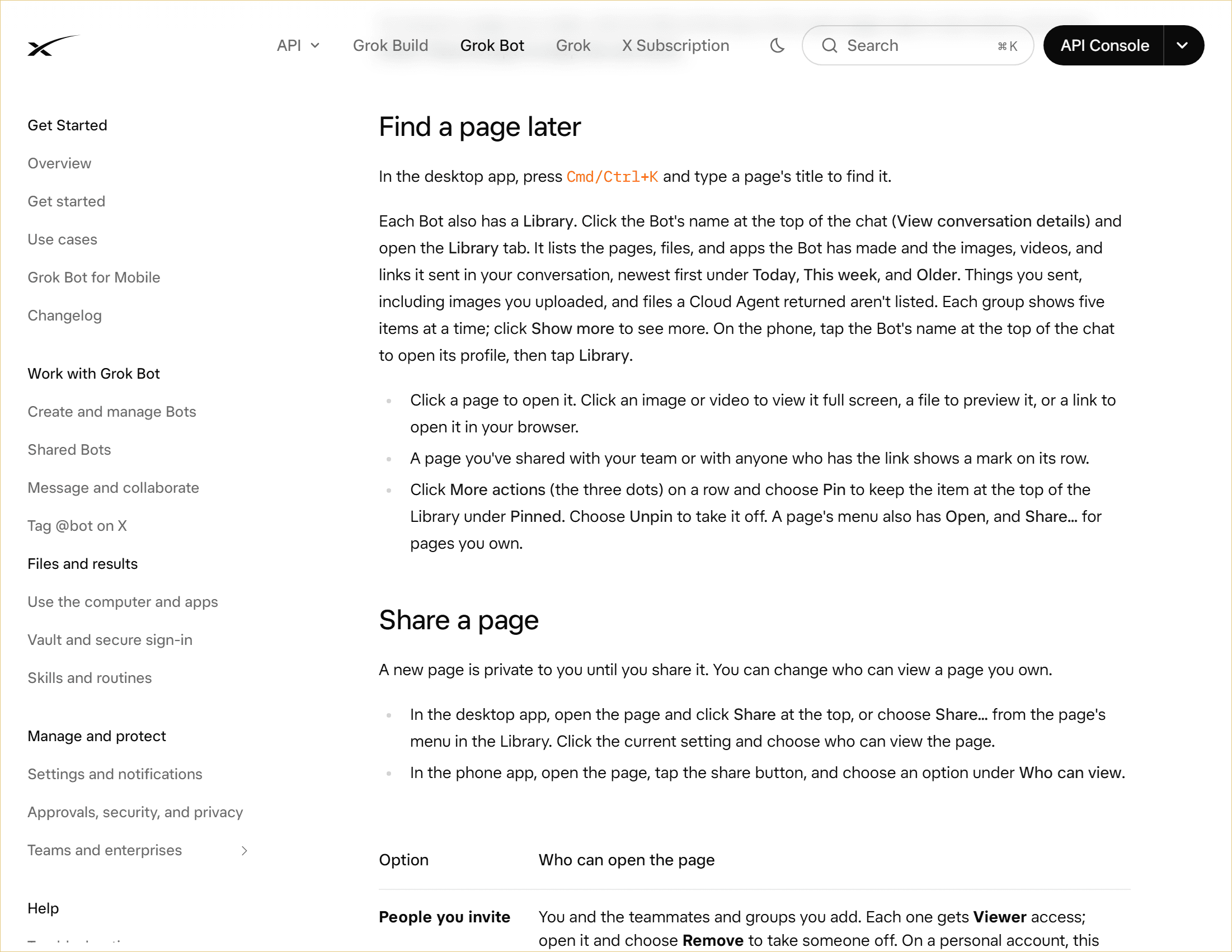
Official xAI documentation: find a Page through search or the Bot's Library.
A good revision request names the source, preserves the useful structure, and says how to handle unverified fields:
Update the existing Page using the newly attached weekly report. Keep the current structure, replace figures only when the new source supports them, show what changed since the previous report, and flag every field that cannot be verified from the new source.
This instruction limits accidental drift. It tells the Bot to update the existing artifact, not create a disconnected copy, and asks it to preserve the prior structure. Still, check that the new period is correct and that the comparison uses the intended previous report.
For repeated work, you can ask a Bot to create or update a Page from a routine. A routine runs the task on its configured schedule or supported trigger; it does not make every Page a real-time dashboard. Before relying on it, confirm which source the routine will use, when it runs, where its result appears, and what happens if the source is missing or stale. Inspect an early run against the input and correct the instructions if the Page does not handle gaps clearly. Keep a person responsible for reviewing results used in decisions.
One Grok Bot user shared a personal usage dashboard built around local tracking data. That is an individual example of how a Page can serve as a repeatable view, not a promise that Grok Bot automatically discovers or validates every user's data. (Community example on Reddit)
How to Share a Grok Bot Page Safely
A new Page is private to you until you share it. Open the Page and choose Share, or use its Library menu, then select who can view it. The available options depend on the account and team configuration, so check the options shown in your own share menu.
| Audience | Typical access choice | Check before sharing |
|---|---|---|
| Just you | Keep it private | No one else needs to review it |
| A few named colleagues | Invite specific people or groups | Confirm each recipient should see the source details |
| Your team | Team access | Check whether everyone on the team is an appropriate reader |
| People outside the team | Anyone with the link, if available | Anyone with the link can open it without signing in |
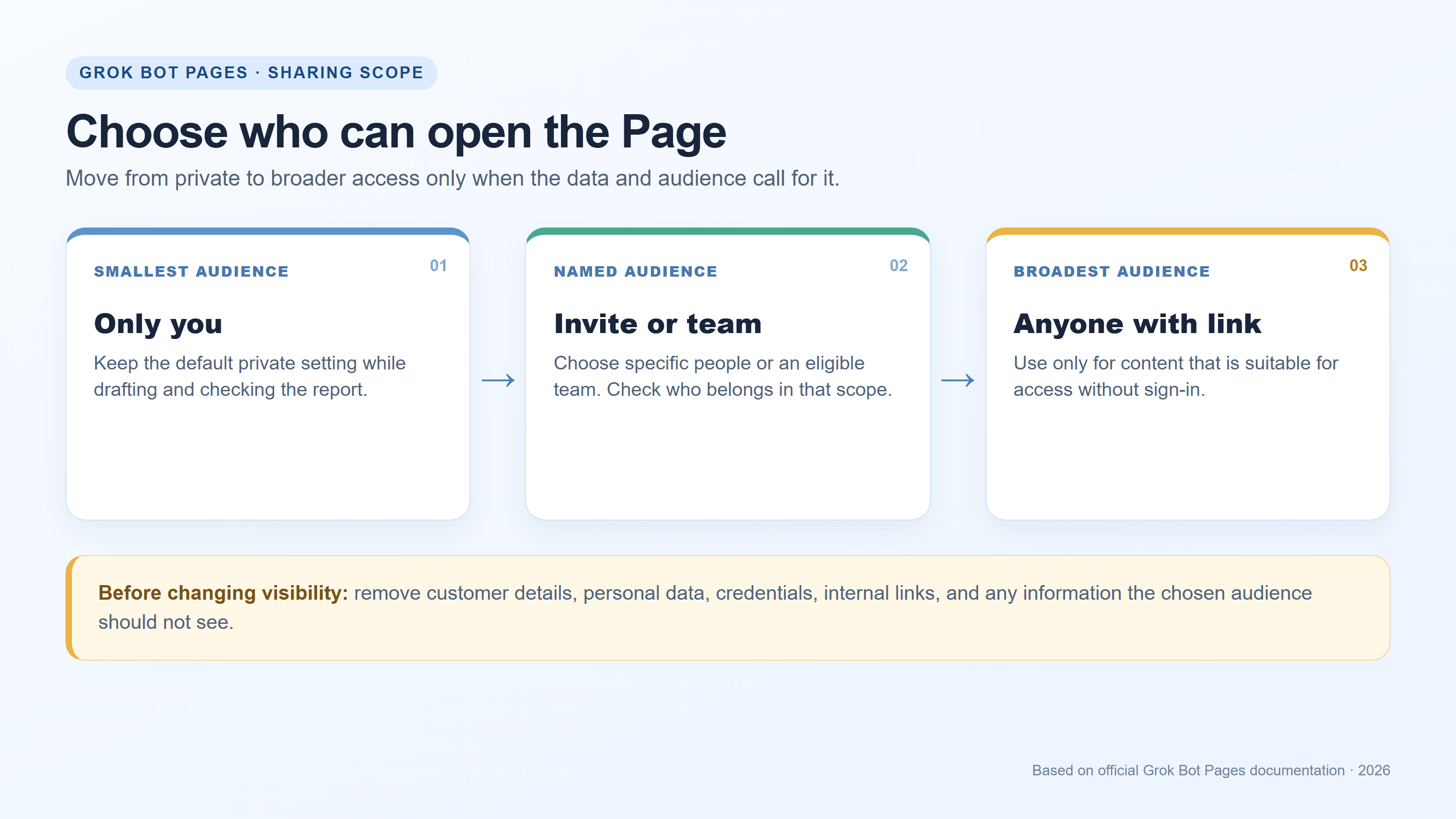
Choose the narrowest audience that can do the review.
The official sharing instructions show where Share appears and explain the three access choices. The screenshot below preserves the full website view, including the xAI mark.
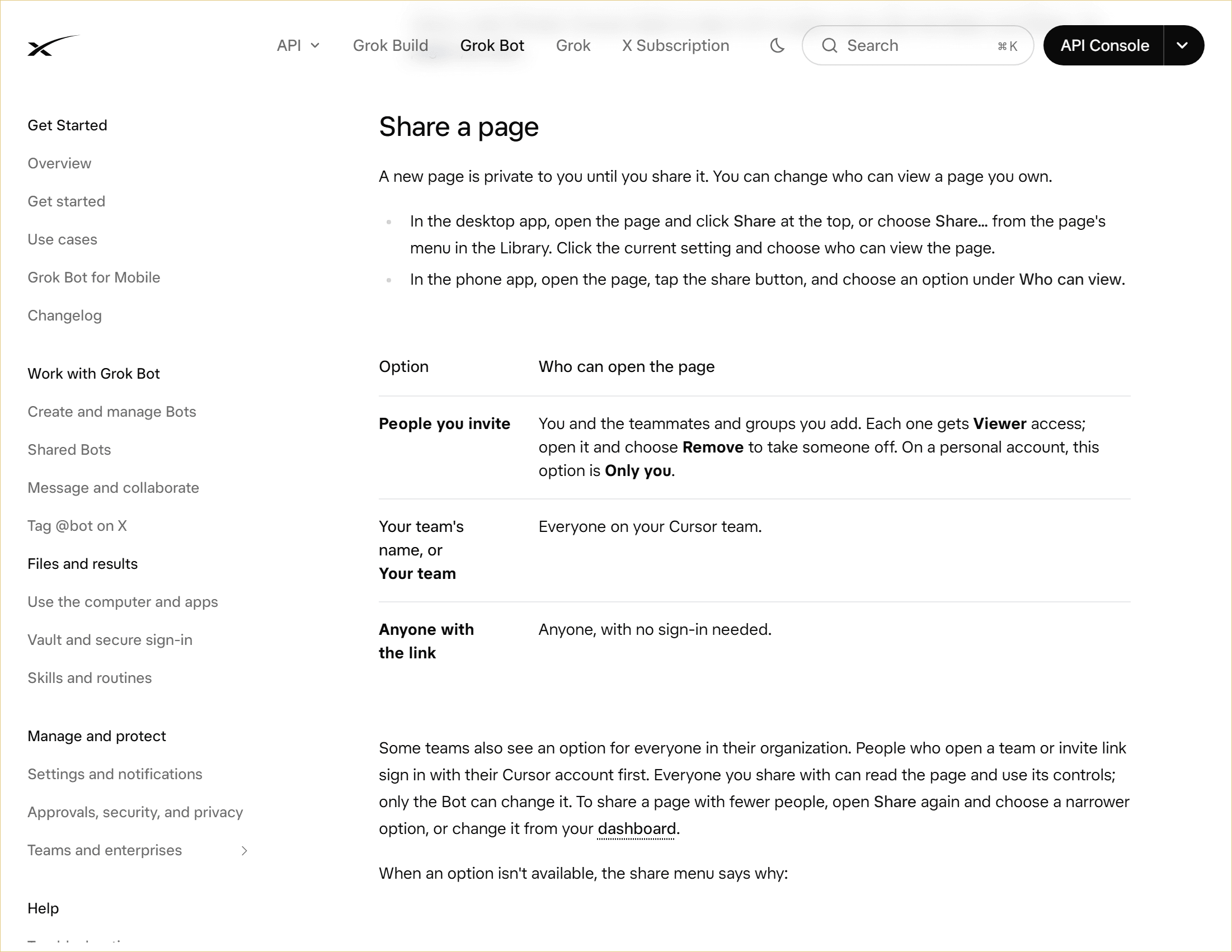
Official xAI documentation: invited people, your team where available, and anyone with the link have different access scopes.
Some teams may also have an organization-wide option. Invite and team links require a Cursor account sign-in according to the current help page. People who can open a shared Page can read it and use its controls; the Bot makes Page edits. On Enterprise teams, public link sharing is off, and Pages are not yet available. Personal Pages may not offer team sharing. Use the menu's explanation if an option is unavailable.
Treat Anyone with the link as public access. The recipient does not need to sign in, so a forwarded link can reach people beyond your intended audience. Before enabling it, scan the Page and source-linked content for customer details, personal information, credentials, API keys, internal URLs, unreleased plans, and commercially sensitive numbers. Remove or generalize material that the audience should not see. If the Page contains information that should stay within a named group, choose an invitation or team scope instead.
Sharing controls access; it does not make the report correct or current. Add a clear reporting period and source note to the Page. When you update it, verify the content and the current access scope again. If you delete a shared Page from the Grok Bot Pages dashboard, people with its link lose access. The official changelog also notes that a shared Page can be downloaded as a PDF in the title bar; use that export only after checking which version and audience you are handing off. (Grok Bot changelog, October 11, 2026)
Grok Bot Pages Not Showing? Check Availability and Access
Pages are rolling out gradually. The help page currently lists minimum Grok Bot versions of 0.60.0 or later on desktop and 1.14.0 or later on phone, and says Pages are not available to Enterprise teams yet. If the feature is missing, update the app, confirm which account or team you are using, and check with an administrator if team settings control your access. A missing menu by itself does not identify the cause.
Sharing choices can vary as well. The team name, invitation access, organization access, and public link options are not necessarily all present for every account. The share menu may explain why a scope is disabled. If an access change fails, verify the Page's current visibility before trying again, especially if another teammate may have changed it.
If the goal is to archive a report, check for the Download control on the shared Page. The changelog records PDF download for shared Pages, but UI details can change; do not assume a menu is available in every context. Keep the Page itself as the maintained artifact, and label any exported PDF with the reporting period so readers can distinguish a snapshot from a later update.
The practical loop is simple: attach the evidence, request an explicitly structured Page, verify the claims, update the same artifact when new evidence arrives, and share only with the people who need it. That is the safest way to make Grok Bot Pages useful beyond the original chat. If you also need original campaign imagery to accompany a report, explore image-generation options on Atlas Cloud. Those visuals are separate from the Page data and evidence.
Frequently Asked Questions
Can a Grok Bot Page update itself on a schedule?
A Bot can create or update a Page through a routine. That means the task can run according to its configured schedule or supported trigger. It does not promise real-time synchronization. Check the routine's source, timing, destination, and actual output before relying on it.
Do Page filters and switches change the saved report?
No. The controls change the view, while the Page's saved content remains unchanged. Ask the Bot to edit the Page if the report itself needs a revised section or saved result.
Can people with a shared link edit my Page?
People with access can read the Page and use its controls; the Bot makes changes to the Page. The options available to you depend on account and team settings, so review the share menu before sending the link.
Can I download a Grok Bot Page as a PDF?
The current changelog says shared Pages have a Download control that saves a PDF. Check for that control on the Page you are using, since features and interface details can vary by version or sharing context.


