You shoot a product on a 24 MP camera, cut the background out on your phone, and the file that lands in your camera roll is 750 pixels on its long side. Nothing failed. That is the documented ceiling for a free export.
The Photoroom background remover is genuinely free to try, and Photoroom publishes exactly where free stops: a maximum export size per platform, a counter on how many images you can save, and a licence that keeps free accounts off commercial work. All three live in its help center. The marketing page you land on first carries none of those numbers.
We read those pages on September 14, 2026, then pushed an 8192 x 4608 product shot through a free browser tool the same afternoon. Same question for both: how big is the file you actually get to keep?
Key Takeaways
- Photoroom Help Center puts free exports at 750 x 550 pixels on iPhone and Android, and at 2000 pixels on the longest side in the web app.
- Free downloads are metered. The current help page lists 25 a week and 100 a month, while an older page still on the site says 50 a month.
- Photoroom's terms grant free accounts a licence "for your own personal, non-commercial purposes."
- Batch Mode sits on the paid side, and the highest colour export Photoroom publishes, 6000 x 6000, is API only.
- The free AI background remover on Atlas Cloud returned our 8192 x 4608 test file, 37.75 MP, at its original size with no account and no watermark.
Is Photoroom Free? The Free Plan in Photoroom's Own Words
Yes, with a meter attached.
Photoroom Help Center's article on export limits explains what the meter counts: "An export is any activity that requires Photoroom to provide an image file for external use," which covers downloads, saving to a phone's gallery, sharing as a file, and publishing to a store. Its table gives the free tier 25 exports a week and 100 a month.
An older help article, still live the day we checked, gives a different number: "On the free plan, you can export up to 50 images each month. The limit refreshes on the 1st of each month."
The newer article explains why two numbers exist, noting that "Previous versions of Photoroom had a mix of different export limits."
Pick either figure and the shape is the same. Cutting a background costs nothing, keeping the result is what gets counted. Photoroom's pricing page adds the fine print: "Each image counts as 1 export, and the number shown in your plan is your monthly export allowance, shared across all export methods," plus a line worth reading twice, "Export limits apply to visual assets up to 2K resolution."
The second condition is a licence. Photoroom Help Center answers it without hedging: "You cannot use a free account for commercial purposes." The quoted clause from its terms grants free accounts a licence "for your own personal, non-commercial purposes." For a tool whose front page is built around marketplace listings, that sentence is easy to miss.
| What the free plan gives you | Photoroom's wording | What it means before you upload |
|---|---|---|
| The tool itself | Background Remover "Does not require AI credits" | Removing a background costs you nothing from the credit pool |
| How many results you keep | 25 weekly and 100 monthly in the current table, 50 monthly on the older page | Every download, share, and save to gallery decrements it |
| What you may do with them | Personal use only under Photoroom's terms | Product listings and client work sit on the paid side |
| Volume work | Upgrade to "Use Batch Mode to edit and export multiple images at once" | One image at a time on free |
One more thing the help center states plainly. The web instructions for Background Remover open with "Log in at app.photoroom.com," so the browser route starts with an account rather than a file.
What the Photoroom Background Remover Exports, Plan by Plan
Here is where the free tier gets specific. The numbers below come from Photoroom's own export resolution page rather than from a roundup, and they differ by device as well as by plan.
Photoroom Help Center's export resolution article lists a maximum per plan and per device. On iPhone, iPad, and Android, the free maximum is 750 x 550 pixels. In the web app, the free maximum is 2000 x 2000, with the behaviour spelled out: "If your image is more than 2000 pixels on its largest side, it will be scaled down proportionately when you export. The largest side will be 2000 pixels."
Paid plans lift the ceiling to 4032 x 4032 for a single image, and drop it back to 2000 x 2000 in Batch Mode. The largest numbers Photoroom publishes belong to the API, at 6000 x 6000 for a colour export.
Imports get trimmed too. Send the web app a file over 4032 pixels and, in the help center's words, "Photoroom will scale down the image. It scales down the largest side to 4032px and then scales the other sides proportionately." Android imports stop at 2000 x 2000.
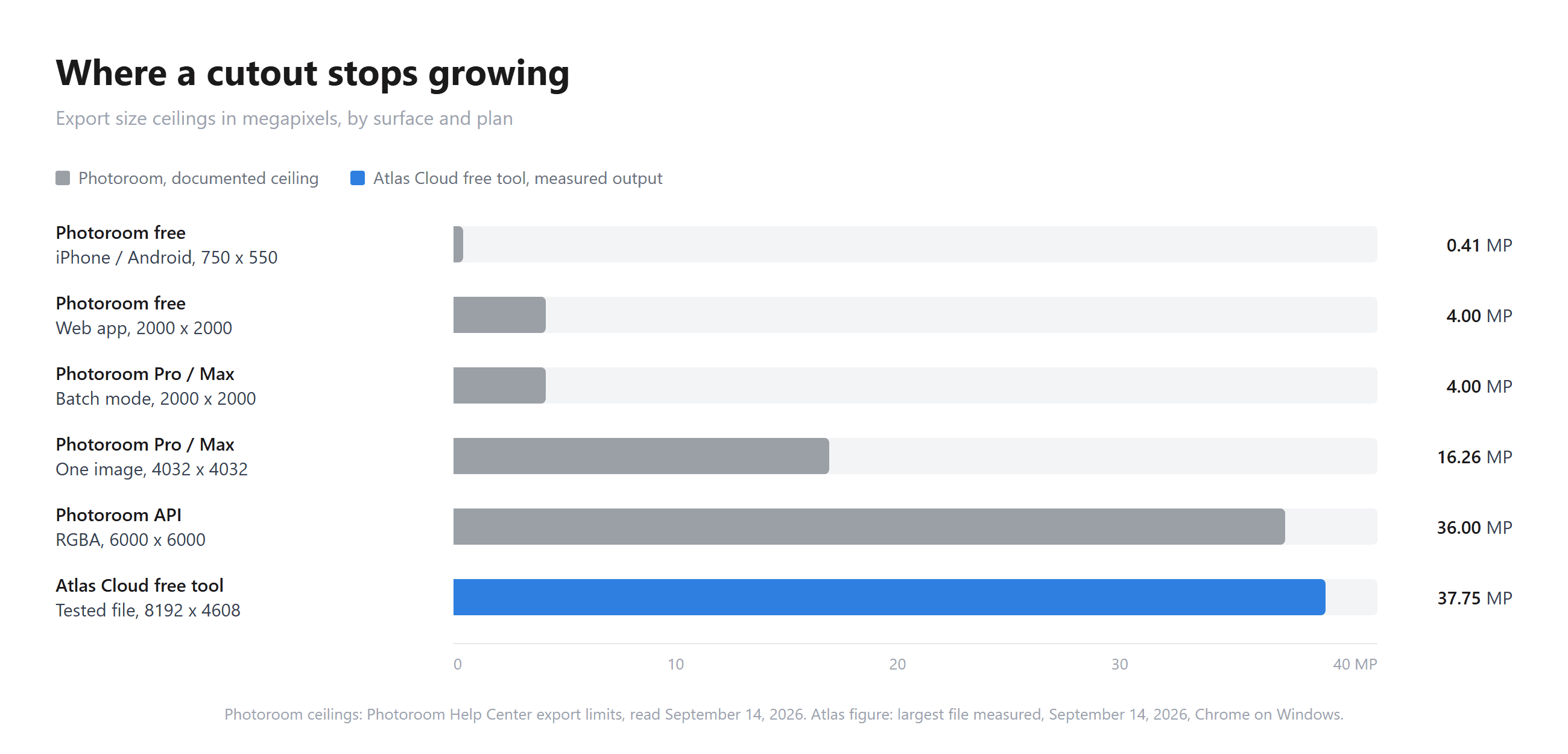
Run a normal phone photo through the free mobile app and the arithmetic is brutal: a 12 MP shot comes back at roughly 0.4 MP, about 3% of the pixels you started with. The web app is kinder at 4 MP, about a third of that same photo.
Now read the tool page. It says "Upload your JPEG or PNG product image; any size works," and its FAQ answers the quality question with "With Photoroom, you can remove the background from any image while preserving every detail. Our AI background remover maintains image resolution, sharpness, and edge precision." Both statements are about what the model does to the subject. The ceiling is applied later, on the way out.
Photoroom's own numbers do not always agree with each other either. The pricing page ties export allowances to "visual assets up to 2K resolution" and lists 4K image resolution as not included on Pro and Max, while the help center gives Pro a 4032 x 4032 export. Whichever page is current for your account, the ladder below 4032 is the part that shapes a free workflow.
The Photoroom Alternative We Run: Free, No Account, Full Size
Disclosure first: Atlas Cloud publishes this article and operates the tool in this section.
Atlas Cloud keeps a small set of browser tools that open and run without a sign-up screen, and the background remover is the one that stands in for the Photoroom feature. You drop a file, it cuts, you download a PNG. There is no plan to choose and no counter to watch.
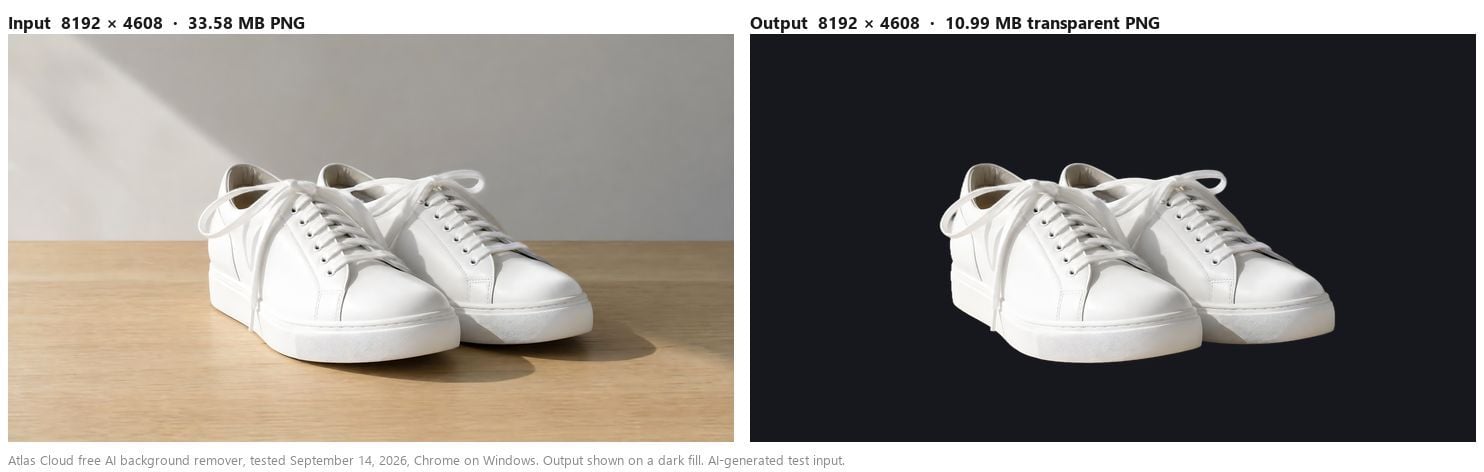
The size claim is the one we measured. The sneaker photo above went in at 8192 x 4608, 37.75 MP, as a 33.58 MB PNG, and came back at 8192 x 4608 as an 11 MB RGBA PNG, tested on September 14, 2026 in Chrome on Windows. The output panel labelled it 8192 x 4608, Transparent PNG. Two smaller files, 4000 x 2250 and 6000 x 3375, behaved the same way in an earlier session. We stopped at 37.75 MP, so treat that as the figure we verified rather than a ceiling somebody published.
It is also not a portrait-only tool, which surprised us. In the same session a handwritten signature on cream paper came back with the paper gone and the thin joins between letters intact. A line-art logo kept the negative space inside its ring as real transparency, so it drops onto a coloured background without a white plate behind it. A white shirt photographed against a white wall survived as well, which is the case that defeats colour-threshold selection entirely.
The model loads into the browser tab and runs there rather than on a server, which is why one of our runs finished after we switched the network off.
Getting a Transparent PNG Out Without a Plan Check
Three moves: drop the file, wait for the cut, press download. The one setting on the panel is Output Format, where PNG (transparent background) is already selected, and the page notes underneath that transparent backgrounds require PNG. There is no resolution choice, because the file comes back at the pixel dimensions you uploaded with transparency already written into the alpha channel.
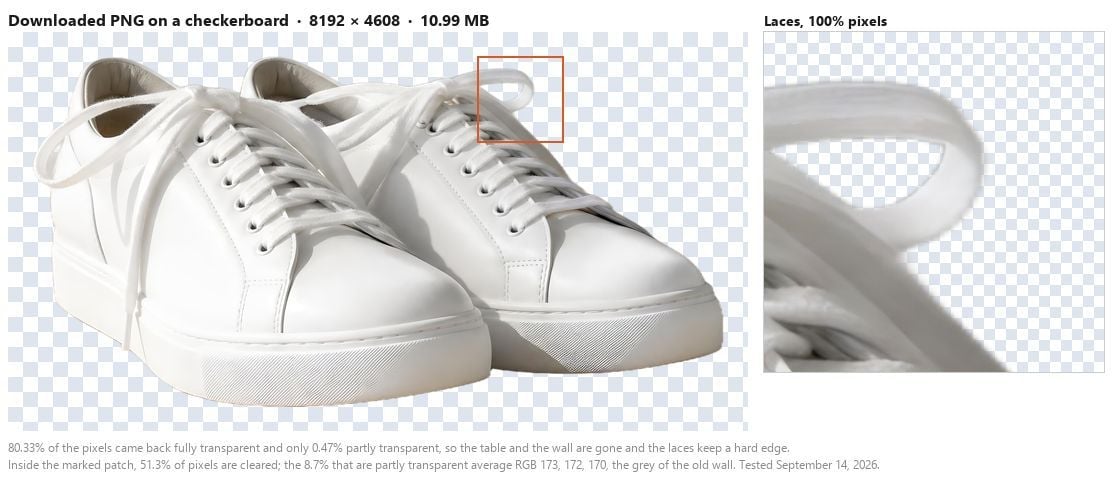
What that alpha channel holds, read back with Python: in the sneaker file, 80.33% of the pixels are fully transparent, 18.84% carry the shoes, and 0.47% sit in the semi-transparent range. Across the single-subject files we have tested, the fully transparent share ran from 61% to 98% depending on how much of the frame the subject filled.
That semi-transparent sliver is the 1 to 3 pixel anti-aliased edge that lets hair and thin laces blend into whatever you place behind them. It stays the same width as the picture grows, which is why it reads as 0.47% here and 2.16% on a 2.4 MP cutout from the same tool.
One technical footnote for anyone who inspects files: the opaque subject reads as alpha 254 rather than 255, which is invisible on screen and held across every file we checked. If the terminology is new, our plain explanation of what an alpha channel is covers why a JPG cannot store any of this.
Where Each Tool Stops: Same File, Both Sides
Neither tool wins every row. Here is the honest split, with the free tiers side by side.
| Photoroom, free plan | Atlas Cloud free tool | |
|---|---|---|
| Export size ceiling | 750 x 550 on phones, 2000 px longest side on web | Returned 8192 x 4608, measured, no downscale |
| Downloads | Metered: 25 weekly and 100 monthly in the current table | No sign-in and no counter appeared in testing |
| Account | Web instructions start with logging in | Not required to run or download |
| Several files at once | Batch Mode on paid plans | One file per run |
| Video | Product Video Generator on paid plans | Not offered |
| Sheer fabric and clear glass | Not tested by us | Comes back opaque, with the shape preserved |
What Our Tool Does Not Do
Sheer fabric is the clearest miss. On a veil test, the cutout kept the shape of the material correctly, but only 0.73% of its pixels came back genuinely semi-transparent, which means the veil itself was treated as a solid object with the old background colour baked into it. Place that on a new backdrop and the veil still carries its original grey green cast.
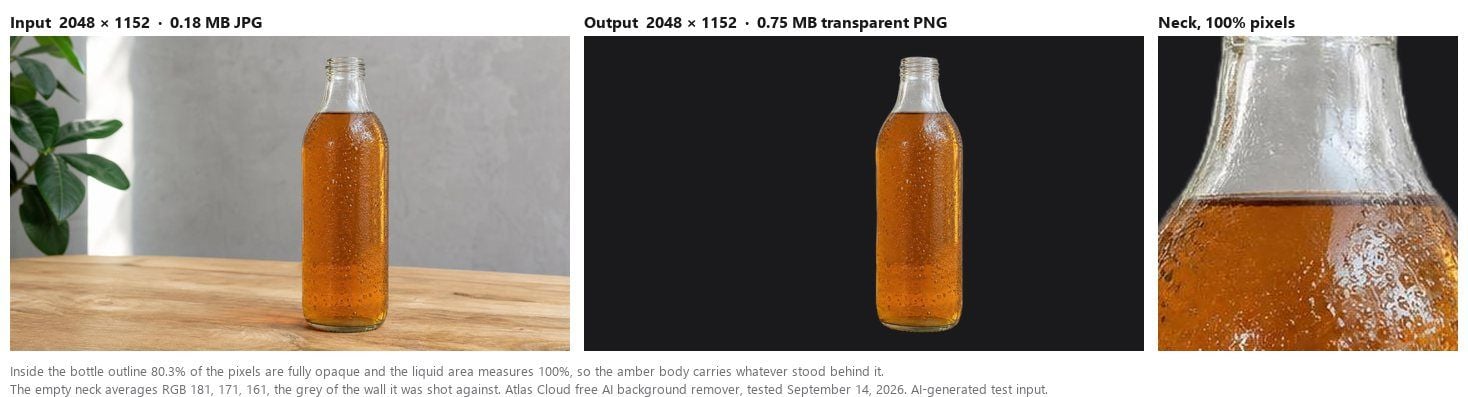
Clear glass lands in the same place. We ran a 2048 x 1152 photo of an iced tea bottle on September 14, and the silhouette came back clean, with the table, the wall and the plant behind it gone.
Inside the bottle outline the pixels are 80.3% fully opaque and only 3.4% semi-transparent, and the liquid area measures 100% opaque. The empty neck above the liquid kept the pale grey of the wall it was shot against, so on a dark background the glass reads as a solid pale object rather than as something you can see through.
Saturated backgrounds need one more check. On a white shirt photographed against a deep red wall, the semi-transparent edge pixels came out 69% red biased, a visible rim once the subject sits on a light background. That combination, a strongly coloured backdrop behind a pale subject, was the only one in our set that did it. A golden retriever on green grass came back with its edge band only 16 points up on the green channel, which reads as no rim.
And a limit that belongs to physics. A small source photo is still a small photo after the cut, so a low resolution cutout headed for print needs an upscaling pass afterwards. Our roundup of free image upscalers covers which ones finish without stamping the result.
What Photoroom Keeps That One Free Tool Cannot
Photoroom is a catalogue product, and its paid tiers show it. Batch Mode processes a folder in one pass, which a one-file-at-a-time tool cannot do. Its Shopify path pushes updated images straight into listings, and its Virtual Model tool puts a garment on an AI-generated model instead of a mannequin.
| What it does | Where Photoroom puts it |
|---|---|
| Batch Mode for folders of images | Paid plans, capped at 2000 x 2000 per image |
| Shopify listing updates | Each update counts against the export limit |
| 6000 x 6000 colour exports | API only, on an allowance separate from the app |
| Product Staging and Virtual Model | Paid plans, drawing on the AI credit pool |
If your week involves 300 SKUs and a storefront that needs them all consistent, those features are the product, and a free cutout tool is not competing for that job.
Should You Switch, or Keep Photoroom?
| Your situation | The better fit | Why |
|---|---|---|
| One-off cutouts at camera resolution | The free browser tool | 8192 x 4608 came back untouched in testing |
| A phone-only workflow | Check the export size first | The mobile free tier lands far below what the camera captured |
| A catalogue of hundreds of images | Photoroom, paid | Batch Mode and the Shopify path live there |
| Work you will sell or publish for a client | Photoroom, paid | Its free licence is personal and non-commercial by its own terms |
The switch makes sense for a specific person: someone cutting a handful of images at a time who wants the pixels they started with. That person is currently either downsizing to 2000 px, watching an export count, or paying a subscription to lift both.
Anyone running a catalogue should stay, and should read Photoroom's licence page before deciding whether the free plan was ever an option for that work. A free plan that forbids commercial use is not a cheaper version of a paid plan, it is a trial with a different purpose.
Frequently Asked Questions
How do I remove a background in Photoroom?
Photoroom Help Center's web instructions run: log in at app.photoroom.com, select your Space, open AI Tools, choose Background Remover, upload a photo, then select Download and pick a file name and format. The same article adds that exporting counts against the export limit, so the meter applies to the file you keep rather than to the cut itself. Photoroom publishes separate articles for iOS and Android, and those pages are the place to check for the current steps.
Does the Photoroom free plan add a watermark to exports?
Photoroom documents two limits on free exports, a count and a maximum size, and we found no watermark policy in its help center when we read it on September 14, 2026. Third-party roundups say otherwise and contradict each other on the numbers, so treat Photoroom's current help pages as the answer for your account. On our side, every file we downloaded from the Atlas Cloud tool came back clean, with nothing stamped on it.
Can I use free Photoroom exports for my shop?
Not under the free licence. Photoroom Help Center states "You cannot use a free account for commercial purposes," quoting terms that grant free accounts access "for your own personal, non-commercial purposes." Commercial use of Photoroom output belongs to the paid plans, and its article on template copyright adds that you remain responsible for the rights to anything you generate.
Does the free tool on Atlas Cloud need an account or count downloads?
No sign-in screen appeared during our testing, and no export counter appeared either. The tool page describes itself as having no counter ticking down, which is the page's own wording rather than something we ran to exhaustion, so if you plan on a very long session the honest answer is that we tested a handful of files rather than hundreds.
What resolution does the alternative return?
The same pixel dimensions you upload. Our largest verified file was 8192 x 4608, or 37.75 MP, which came back at 8192 x 4608 as an 11 MB RGBA PNG on September 14, 2026 in Chrome on Windows. We did not test above that, so the number is a measurement rather than a published ceiling.
Conclusion
The interesting part of this comparison is not which cutout looks better. Photoroom describes its AI as detecting the main subject before erasing what sits behind it, and both tools handle an ordinary product shot without drama. The difference shows up after the model finishes, in the rules each one applies on the way out: a pixel ceiling that varies by device and plan, a download counter, and a licence that decides whether the result can appear on a listing.
Photoroom publishes all of it in its help center, and its paid tiers buy real catalogue machinery. What the free tier buys is smaller than the marketing page suggests. If you only need the background gone and the file intact, a Photoroom background remover alternative that hands back your original pixel dimensions with no account attached is worth the two minutes it takes to test on your own photo.





