Live phone filters slip off your hairline the second you turn your head. One-click tools often smear flat neon over your forehead, ears, and brows.
You get much cleaner results when you split the job into two steps:
- First, lock the exact pink shade, root depth, and strand texture on one clear camera roll selfie.
- Second, feed your original photo and your edited pink portrait into a video model to animate a smooth before-and-after reveal.
This guide covers the input rules, shade formulas, copy-ready prompts, and frame-anchoring steps required to build both assets from a single photo.
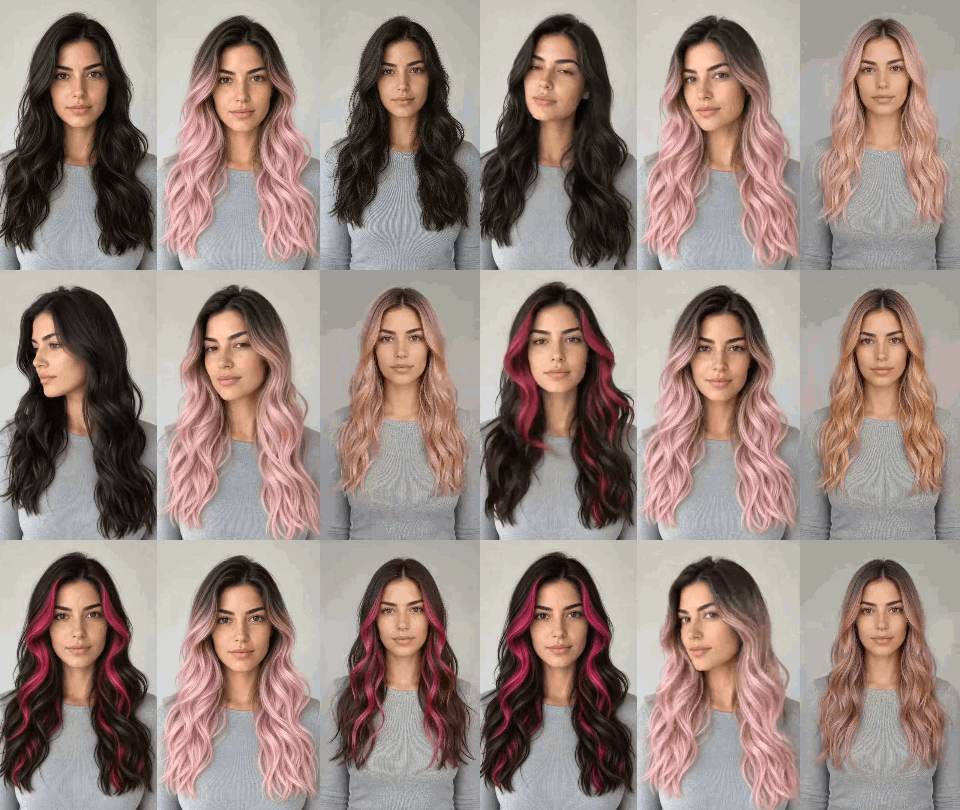
Why Some Pink Hair Filters Look Fake And How to Fix Them
Realistic dyed hair requires root shadows, curved highlights, and clean hairlines. Basic color sliders ignore those mechanics. They place a semi-transparent pink tint over the hair mask. On platinum hair, that tint looks like flat digital paint. On dark hair, pink blends with dark pixels into muddy purple or neon magenta.
Instruction-based editors render lightened, dyed strands while preserving scalp shadows and skin texture. Approve the keyframe, and the model just interpolates motion instead of guessing hairlines every frame.
| Filter Method | Best Use Case | Realism on Dark Hair | Motion & Hairline Stability |
| Live Social AR Filters (TikTok / Instagram) | Casual stories and quick live clips | Low; looks muddy or overly neon on dark bases | Poor; mask jitters when you tilt your head or wave a hand |
| One-Click Web Color Sliders | Fast shade browsing on light blonde hair | Low to Medium; wipes out natural root shadows | None; exports static images only |
| Two-Step Anchor Workflow (Still AI Edit + Video Model) | Salon shade planning and high-retention reveal videos | High; simulates bleached strands with natural dark roots | High; locks start and end frames to prevent face drift |
Preparing Your Base Selfie and Matching Pink Shades to Your Hair Base
Uneven lighting and cluttered backgrounds degrade AI hair segmentation and color fidelity.
Four Input Photo Rules That Prevent Pink Halo Bleed
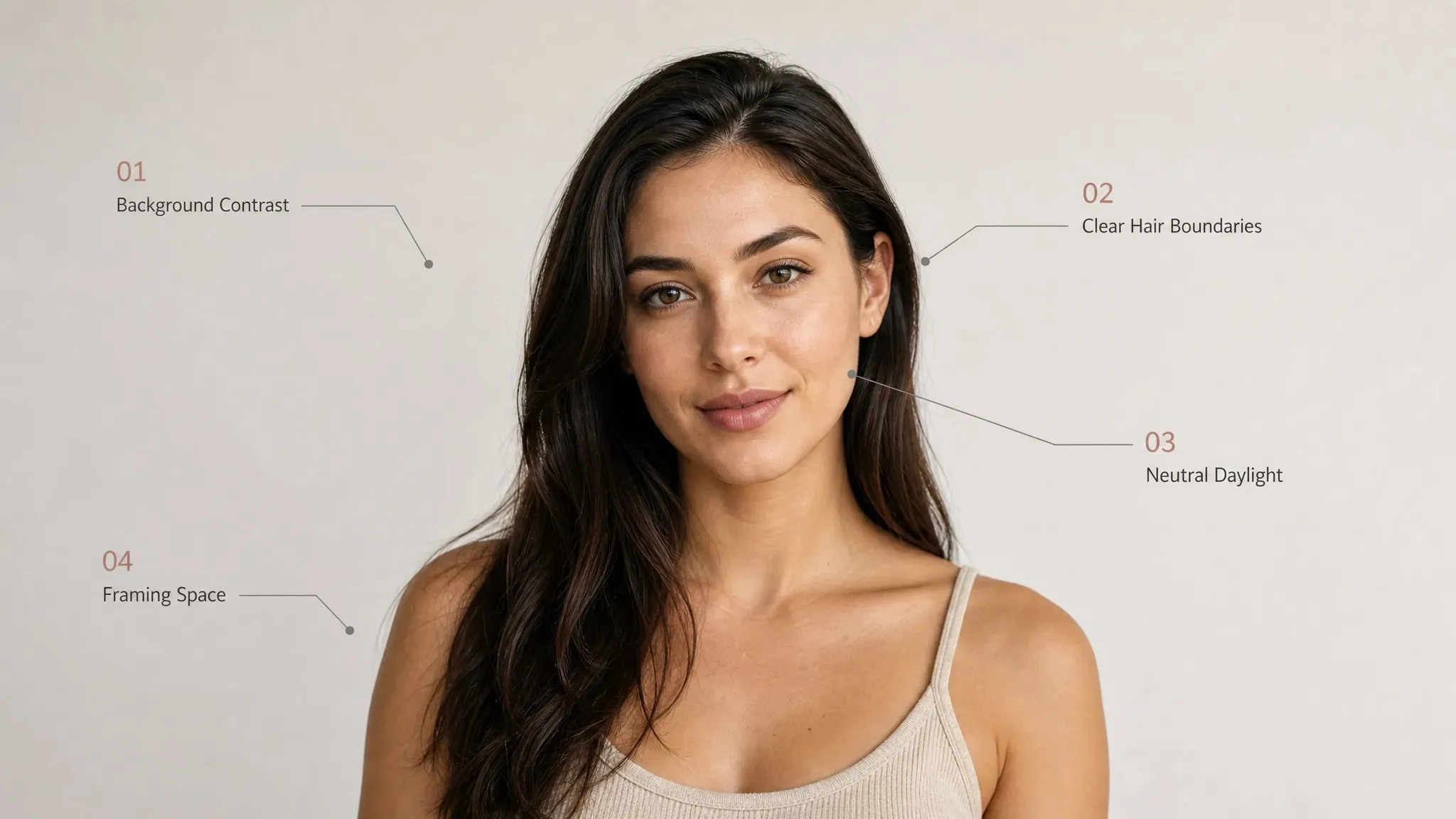
- Create strong background contrast. Use a light backdrop for dark hair and a dark one for blonde—high contrast helps the editor isolate flyaways.
- Clear the eyebrow and ear borders. Tuck hair back or lift bangs above your brows—otherwise, models often accidentally dye your eyebrows.
- Shoot in neutral daylight. Face a window during the day. Yellow bathroom vanity bulbs skew cool pastel pink into an unnatural salmon-orange tint.
- Leave enough space above your head and shoulders. Frame chest-up with generous headroom so the model can animate hair flips without clipping the ends.
Choosing Between Pastel Pink, Rose Gold, Dusty Rose, and Hot Magenta
Not every pink shade flatters every complexion or starting hair color. Match your prompt to your skin undertone and natural root depth:
- Cool Bubblegum and Baby Pastel Pink: Works best on cool or neutral skin undertones. For dark hair, prompt for pink with a subtle shadow root for a seamless blend.
- Warm Rose Gold and Peachy Strawberry: Blends naturally with warm, golden, or olive undertones. For a softer transition, combine warm pink lengths with slightly darker roots.
- Dusty Rose and Smoky Mauve: Uses a muted, slightly ashy pink tone. This shade looks most believable on unbleached brunette hair, mimicking pink toner over dark undertones.
- Electric Hot Pink and Magenta: Delivers high contrast on both pale and deep skin tones. Use it for full-head statement dye, dip-dye tips, or face-framing money pieces.
Step-by-Step Workflow Part 1 Generating a Realistic Pink Hair Photo
Generating or selecting a clean still frame gives you more control over shade placement before you spend time rendering video.
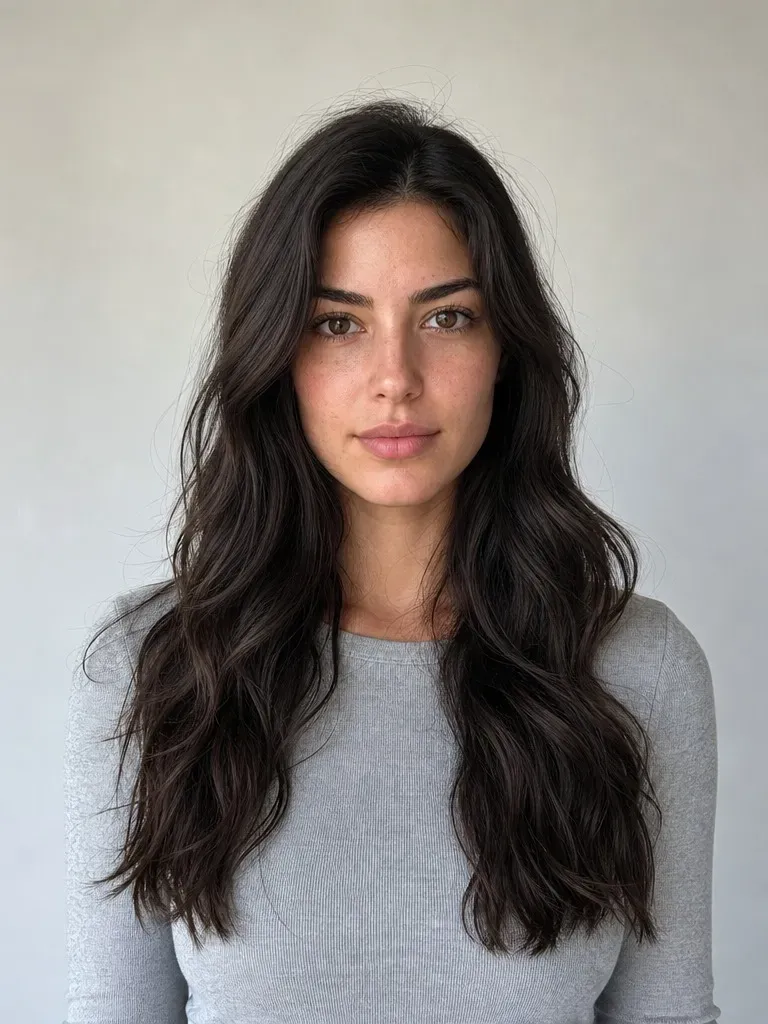
Preserving Your Identity and Setting Up the Image Edit
- Open an instruction-based image editor. Select a reference-capable editing model such as GPT Image 2 Edit or Nano Banana 2.1 and upload your base selfie as the primary reference image.
- Match your intended use aspect ratio. Use
9:16for vertical TikTok and Reels assets, or3:4for standard portraits. Keeping the original framing prevents the model from stretching your face or cropping your shoulders. - Write a two-part edit prompt. In sentence one, specify the pink shade, root transition, and finish. In sentence two, lock identity: facial geometry, pores, brows, clothing, and lighting.
- Inspect the hairline at 100% zoom. Generate two or three variations. Pick a frame with sharp baby hairs and pink-free ears. Isolating dye from skin mirrors the same rule used in gray-hair edits.
Copy-Ready Prompts for Four Trending Pink Hair Styles
Use these prompts directly with your uploaded selfie. Swap the hair length description only if needed, and keep the preservation constraints at the end intact.
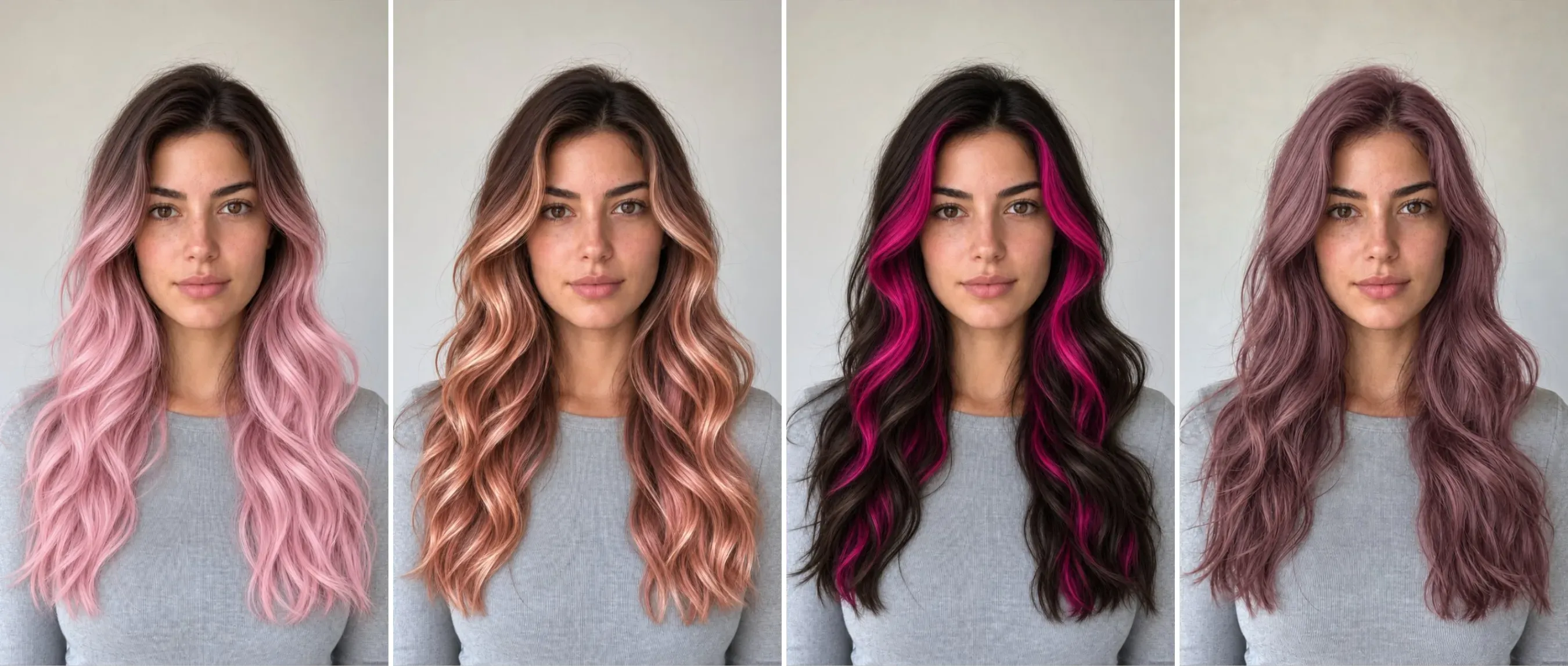
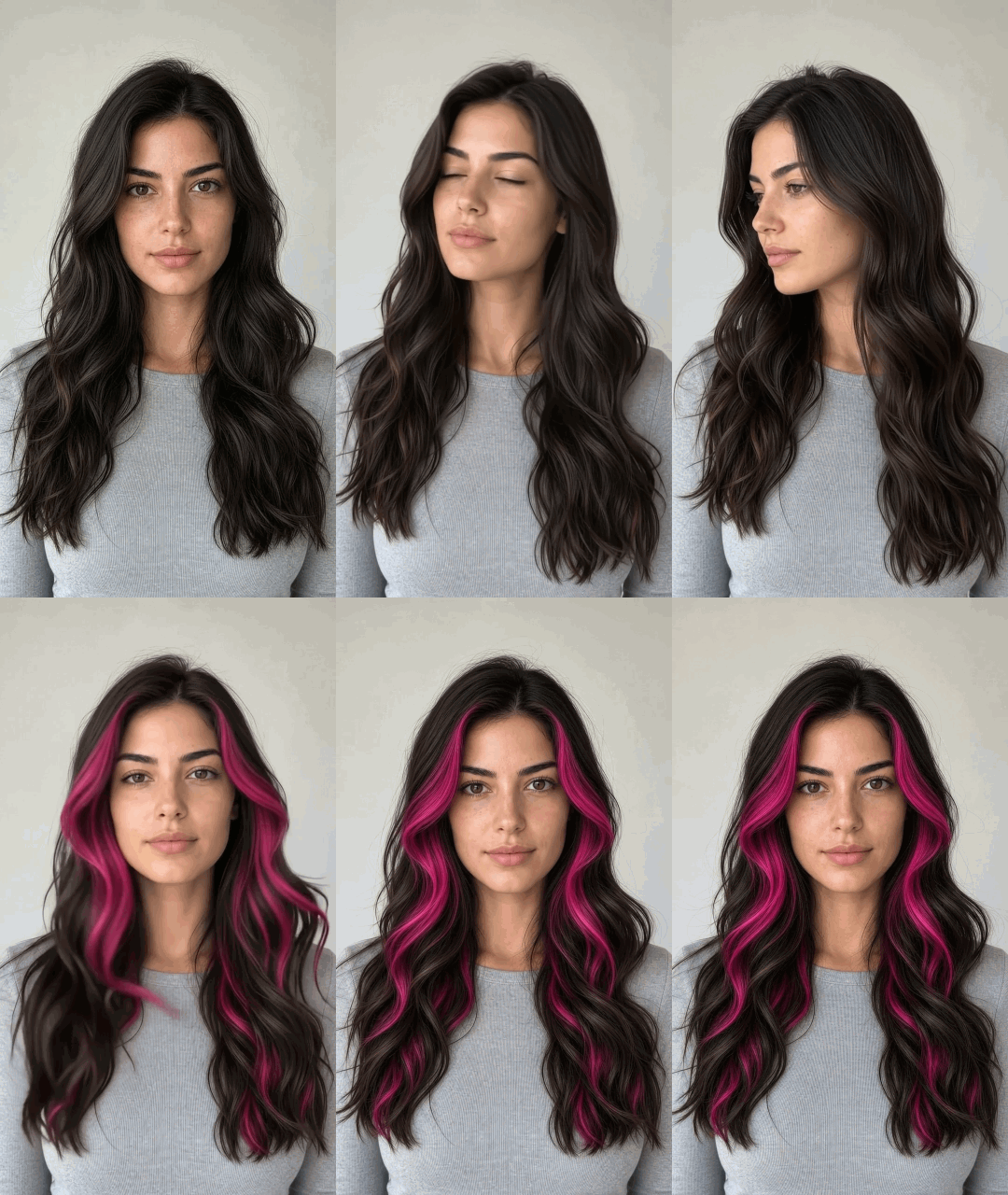
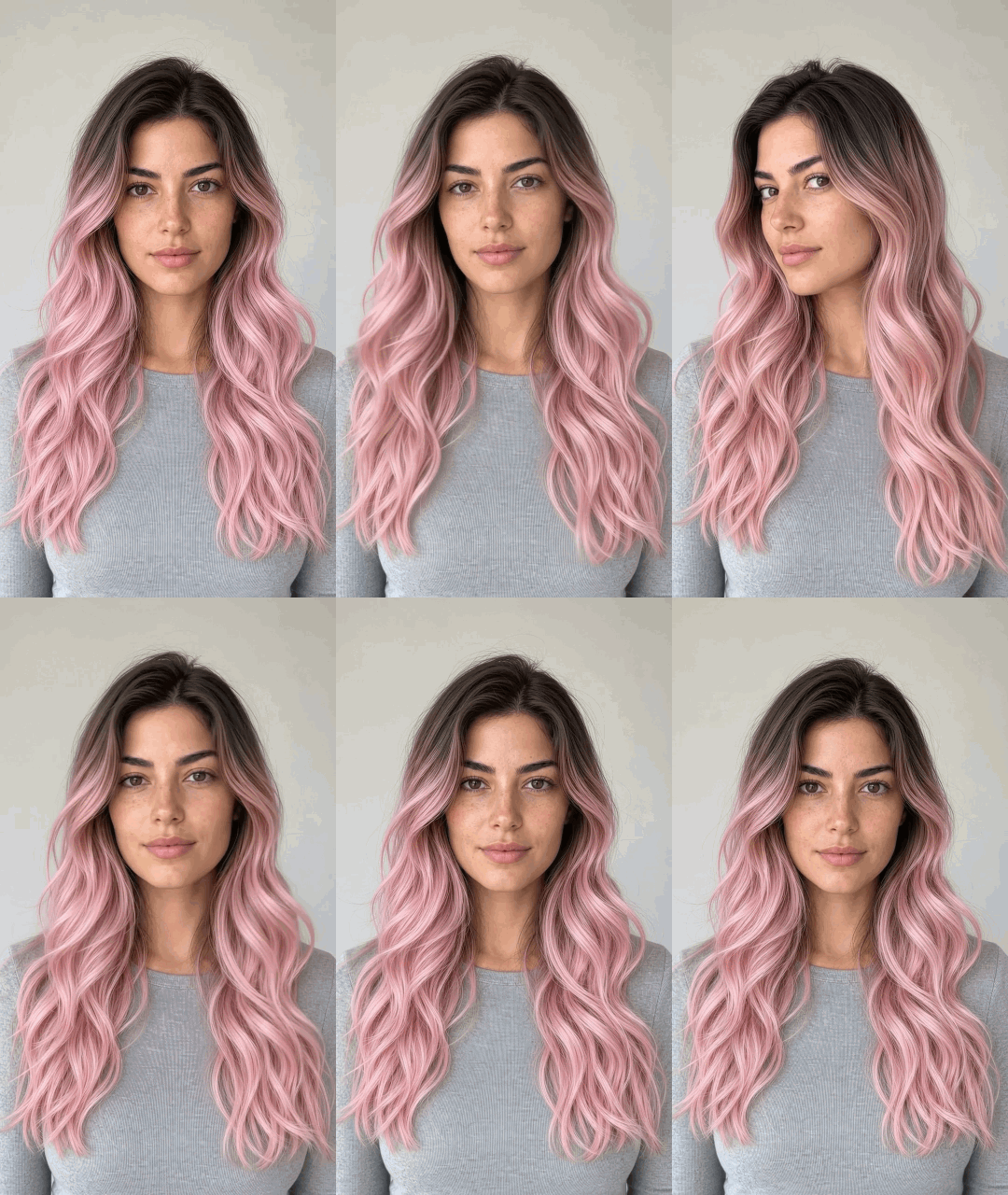
Four AI pink styles from one selfie: pastel shadow roots, rose gold balayage, hot pink money pieces, and dusty rose.
1. Soft Pastel Pink with Natural Dark Shadow Roots (Best for Dark Hair)
plaintext1Edit the hair into a soft pastel baby pink, with a natural dark brown shadow root gradually blending into the pink lengths. Preserve realistic individual hair strands, natural highlights, layered shadows, and a subtle glossy finish. Keep the original facial features, skin tone, dark eyebrows, eye color, earrings, clothing, and background unchanged. Keep the hairline clean and prevent pink tint from spreading onto the forehead, ears, or skin.
2. Warm Rose Gold Balayage with Face-Framing Highlights (Best for Warm Undertones)
plaintext1Transform the hair into a dimensional warm rose gold balayage, blending natural medium-brown roots into metallic peachy-pink and rose gold mid-lengths and ends with bright face-framing highlights. Preserve the original face identity, natural skin texture, eyebrows, expression, shirt color, and room lighting without altering the background.
3. Y2K Hot Pink Money Pieces on Dark Hair (Best for Low-Commitment Try-Ons)
plaintext1Keep the main hair color natural dark espresso brown, and dye only the two front face-framing money piece sections and lower peekaboo underlayer vibrant hot magenta pink with crisp strand separation. Keep the person's exact face, eyebrows, skin tone, clothing, and background completely untouched.
4. Dusty Rose Full-Length Dye with Glossy Strand Texture (Best for Everyday Realism)
plaintext1Change the entire hair color from root to tip to a muted dusty rose mauve-pink, with consistent color coverage across all layers. Preserve realistic hair strand texture, soft natural shadows between overlapping layers, and subtle light reflections across the waves. Keep the original facial features, skin tone, dark eyebrows, eyelashes, expression, clothing, and background unchanged. Maintain a clean hairline and prevent pink color from spreading onto the forehead, ears, or skin.
Step-by-Step Workflow Part 2 Animating a Before-and-After Pink Hair Reveal Video
Once the hairline checks out, you have your motion anchor. Bridge the original and pink portraits into a reveal, or animate solo to test strand lighting.
Method A Two-Frame Transition: Original Selfie to Pink Hair Reveal
Anchoring both ends of the timeline stops the video generator from altering your face mid-clip. The model starts on your real hair, executes a motion trigger, and lands directly on your approved pink edit.
- Load both anchor frames. Select a video model with first-and-last-frame control, such as Kling 4.0, Seedance 2.5, or Veo 3.1. Upload your original selfie as the Start Frame and your edited pink-hair photo as the End Frame.
- Choose a suitable clip duration. Start with 5 seconds if your selected model supports it. Keep the action simple enough to fit the available duration, and avoid adding unnecessary camera or background movement.
- Prompt a physical transition trigger. Plain color crossfades look like a static slideshow. Prompt the subject to sweep a hand past the lens, tuck hair behind an ear, or toss their hair to the side so the pink shade appears right as the motion peaks.
Copy-Ready Two-Frame Reveal Prompt Template:
plaintext1One continuous shot, fixed camera. The person starts facing forward with [ORIGINAL HAIR COLOR]. They turn their head to one side, then sharply whip it back toward the camera in one powerful hair flip. Their [HAIR LENGTH AND TEXTURE] fans outward dramatically, flying through the air with strong directional motion blur. 2Keep the hair in its original color until it sweeps across the frame. At the music beat drop, transform it during the motion blur into [TARGET HAIR COLOR AND STYLE]. 3As the hair falls naturally over the shoulders, reveal the exact hairstyle shown in the end frame. The person finishes in the final pose and expression shown in the end frame. 4Add upbeat [MUSIC STYLE] background music with a rising build-up and a strong beat drop synchronized with the hair flip. [VOCAL PREFERENCE]. 5Preserve facial identity, clothing, and background. No early color changes, no gradual color transition, no extra hand gestures, no cuts, no camera movement.
Method B Single-Image Motion Preview: Seeing How Your Pink Hair Style Looks in Motion
To see how pastel pink catches daylight before a salon visit, skip the wipe and animate the pink portrait solo.
- Upload the edited pink portrait as the single reference image. Leave the end-frame slot empty so the model focuses entirely on realistic hair physics.
- Prompt subtle head movement and light interaction. Ask for a gentle head turn and a light breeze. Watch how specular highlights travel across the crown and face-framing layers. If you are still undecided on color and want to benchmark pink against platinum or honey tones in one sequence, you can adapt this single-portrait setup into a multi-shade blonde hair filter test.
Copy-Ready Single-Image Hair Motion Template
plaintext1One continuous selfie video, fixed camera. The person gently [HEAD MOVEMENT] while a soft breeze moves [HAIR MOVEMENT]. Show natural hair movement, realistic strand separation, and subtle light reflections across the [HAIR TEXTURE]. Keep the original [HAIR COLOR] and [HAIRSTYLE] consistent throughout. Preserve facial identity, skin tone, clothing, and background. [FACIAL EXPRESSION], no exaggerated movements, no camera shake.
Quality Check and Troubleshooting Common Pink Hair AI Artifacts
Even top models bleed pink onto skin or crush dark hair layers. Audit your stills and clips with this table before exporting.
| Visual Problem | Why It Happens | Quick Fix |
| Pink color bleeding onto skin | Inaccurate hair boundaries or segmentation. | Add: "Maintain a clean hairline and preserve the original skin tone." |
| Eyebrows or eyelashes turning pink | Nearby facial hair is mistaken for hair being recolored. | Add: "Preserve the original eyebrow and eyelash colors." |
| Flat, unnatural pink hair | Loss of natural strand contrast and texture. | Add: "Preserve individual hair strands, natural shadows, and subtle highlights." |
| Dark hair turning muddy or uneven pink | The model struggles to recreate lighter shades over dark hair. | Specify the target shade and root transition, such as "even pastel pink lengths with natural dark brown roots." |
| Pink appearing too early during a hair flip | The model changes hair color before the main movement. | Add: "Keep the original hair color until the hair sweeps across the frame." |
| Hair barely moves in the transformation video | The model interprets the action as a simple head turn. | Add: "Sharply whip the head back, sending the hair flying outward with strong directional motion blur." |
| Face or hairstyle changing between video frames | The model struggles to maintain visual consistency during movement. | Add: "Preserve facial identity, hair color, and hairstyle throughout the clip." |
Once approved, export stills at maximum quality and video at 1080p to preserve detail across TikTok, Reels, and CapCut. Repurpose your pink edit for other tests, like a bangs filter prank or a camera roll makeup edit.
Pick a shade, copy the prompt, and generate your pink hair transformation.


