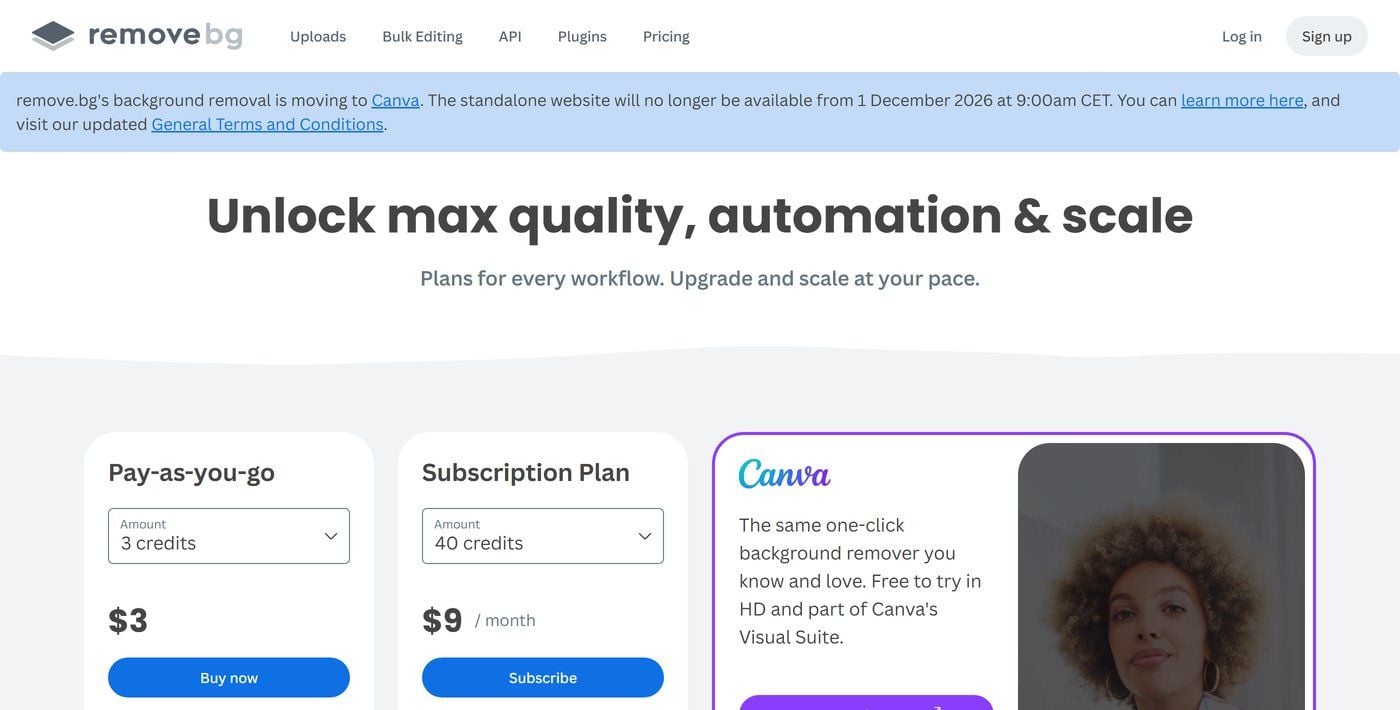
Çoğu derlemenin referans olarak aldığı aracın kendi fiyatlandırma sayfasında bir kapanış tarihi var. remove.bg, arka plan kaldırma özelliğinin Canva'ya taşındığını ve "bağımsız web sitesinin 1 Aralık 2026 saat 09:00 CET'ten itibaren artık kullanılamayacağını" söylüyor.
Bu yazı için derinlemesine okuduğumuz iki derleme de hâlâ remove.bg'yi genel olarak en iyi seçeneklerden biri olarak sıralıyor ve bunların hiçbirinden bahsetmiyor. Biz de listeyi yayınlanan sayılardan yeniden oluşturduk: her ücretsiz katmanın size ne verdiği, ilk ücretli planın ne kadara mal olduğu ve kesim işlemi sırasında fotoğrafınızın nereye gittiği. On araç, gerçekten kullanabilecekleri bir dosya döndüren en iyi yapay zeka arka plan kaldırıcıyı arayanlar için sıralandı.
Aşağıdaki her fiyat ve sınır, 16 Eylül 2026'da okunan her şirketin kendi fiyatlandırma veya yardım sayfalarından alınmıştır.
Önemli Çıkarımlar
- İlk sıraya koyduğumuz ücretsiz yapay zeka arka plan kaldırıcı hesap gerektirmez ve filigran eklemez, üstelik tam boyutta 8192 x 4608 bir kesim döndürdü.
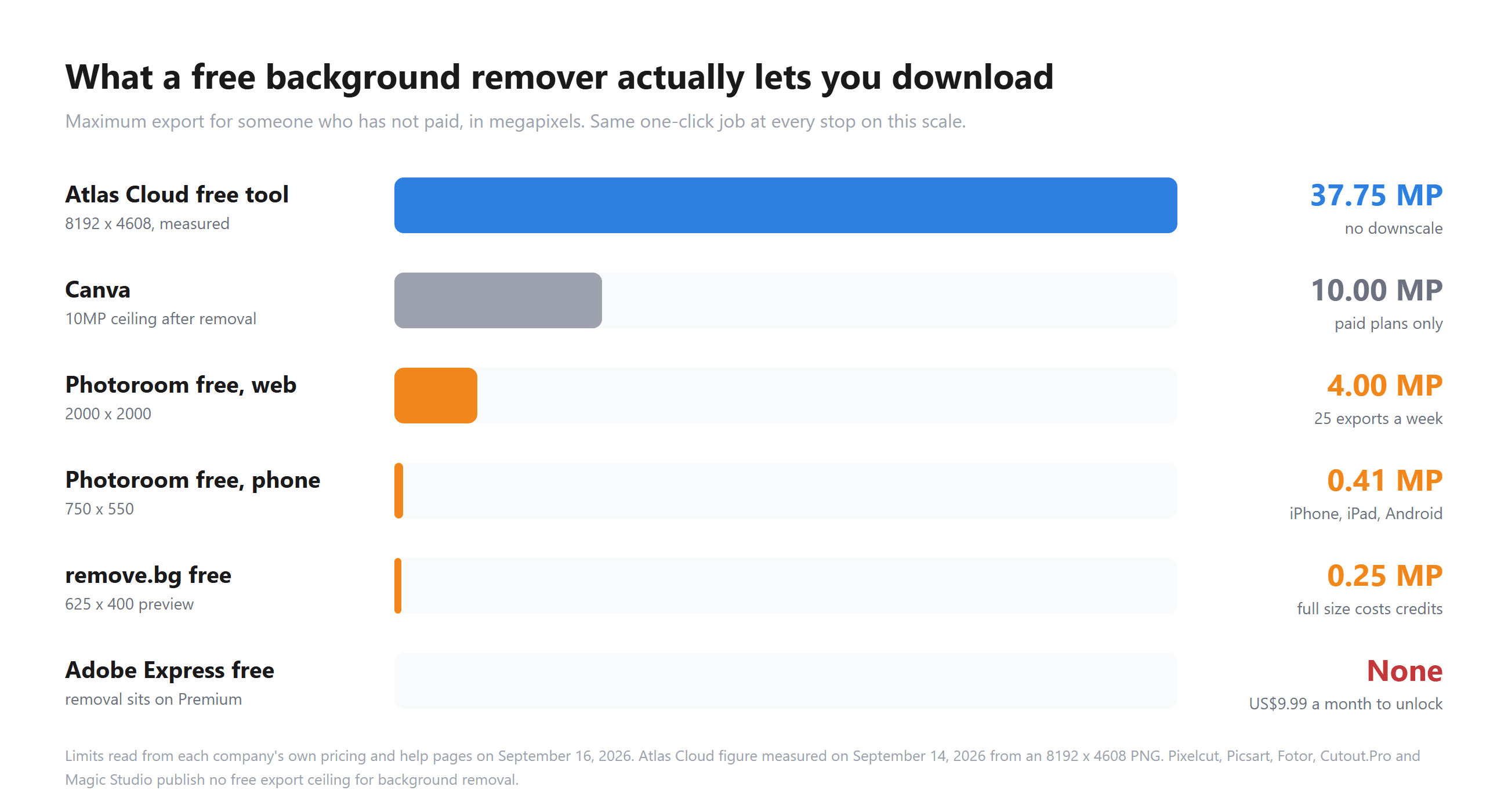
- Ücretsiz katmanlar sizi farklı yerlerde durdurur. Bazıları indirmeyi küçültür (ücretsiz bir remove.bg sonucu 0,25 megapiksel bir önizlemedir, telefonda ücretsiz bir Photoroom dışa aktarımı 750 x 550'dir) ve bazıları özelliği tamamen kaldırır (Canva ve Adobe Express arka plan kaldırmayı ücretli bir planın arkasında tutar).
- remove.bg'nin bağımsız sitesi 1 Aralık 2026'da kapanıyor ve kredileri aynı sabah sona eriyor.
- Photoroom'un ücretsiz katmanı kişisel kullanım için lisanslanmıştır, bu da kendi uygulamasının etrafında inşa edildiği pazar yeri satıcılarını dışarıda bırakır.
- Bir kesim kenarı, fotoğraflandığı arka plandan biraz taşır.
En İyi Ücretsiz Arka Plan Kaldırıcı Karşılaştırma Tablosu
Yayınlanan üst sınırlar birbirinden çok uzak. remove.bg ücretsiz bir sonucu 0,25 megapikselde durduruyor, Photoroom'un telefon uygulamaları 750 x 550'de, Photoroom'un web uygulaması en uzun kenarda 2000 pikselde ve Canva arka plan gittiğinde 10MP üzerindeki her şeyi küçültüyor. Bu tablonun en üstündeki araç, ölçülen 8192 x 4608 boyutunda bir dosya döndürdü.
Giriş seviyesi ücretli planlar Fotor'da ayda US$3.99'dan Photoroom'da US$12.99'a kadar uzanıyor, Canva Pro ise yılda US$144 olarak satılıyor. Bu, aynı tek tıkla yapılan iş için yaklaşık üç katlık bir fark. Bu on araçtan dokuzu, görseli yükledikten sonra işi kendi sunucularında çalıştırıyor. Bir tanesi bunu tarayıcı sekmesinde çalıştırıyor.
| Araç | En uygun olduğu durum | Ücretsiz katman | Giriş ücretli plan | Ücretsiz olarak neleri dışa aktarabilirsiniz | Fotoğrafınız nereye gider |
|---|---|---|---|---|---|
| Atlas Cloud | Tek bir görselin her pikselini korumak | Hesap yok, filigran yok, sayfa Ücretsiz, Ücret Yok diyor | Bu araç için yayınlanmış bir plan yok | 8192 x 4608 ölçüldü, küçültme yok | Tarayıcınız, sayfa yerel olarak işlendiğini söylüyor |
| remove.bg | Photoshop ve masaüstü kullanıcıları, Aralık'a kadar | Web sitesinde 0,25 MP'ye kadar %100 ücretsiz | 40 kredi için ayda US$9 | 0,25 MP önizleme, 625 x 400 | Kendi sunucuları, yüklemeden yaklaşık bir saat sonra silinir |
| Photoroom | Pazar yeri ürün fotoğrafları | Ücretsiz hesap, haftada 25 dışa aktarma | Yıllık faturalandırılan ayda US$7.50 | Telefonlarda 750 x 550, web'de 2000 piksel | Kendi sunucuları |
| Canva | Doğrudan bir tasarıma giren kesimler | Arka Plan Kaldırıcı ücretli planlarda bulunur | Canva Pro yılda US$144 | Hiçbir şey, araç ücretli | Kendi sunucuları |
| Adobe Express | Zaten Adobe'ye ödeme yapan ekipler | Ücretsiz plan, arka plan kaldırma hariç | Premium için ayda US$9.99 | Hiçbir şey, kaldırma bir Premium özelliğidir | Kendi sunucuları |
| Pixelcut | Telefonda hızlı sosyal medya kesimleri | Sınırlı arka plan kaldırma, filigran yok | Yıllık faturalandırılan ayda US$8 | Yayınlanmadı, ücretsiz kaldırmalar sınırlı | Kendi sunucuları |
| Picsart | Daha büyük bir yaratıcı uygulama içinde düzenleme | Sınırlı ücretsiz deneme kredisi | Pro için ayda US$10.50 | Yayınlanmadı, ücretsiz krediler bir denemedir | Kendi sunucuları |
| Fotor | Büyük bir dosyadan tek seferlik kesimler | Sayfa, kayıt olmadan ücretsiz diyor | Yıllık faturalandırılan ayda US$3.99 | Basic plan dışa aktarımları filigranlıdır | Kendi sunucuları |
| Cutout.Pro | Aylık yerine görsel başına ödeme | Sonsuza kadar ücretsiz önizlemeler, 5 ücretsiz kredi | 80 kredi için ayda US$5 | Yalnızca önizleme, tam görsel başına 1 kredi | Kendi sunucuları |
| Magic Studio | Kayıt olmadan kesim, aynı anda 50 görsel | Sayfa, kullanımı ücretsiz, kayıt gerekmez diyor | Araç sayfasında yayınlanmadı | Yayınlanmış çözünürlük sınırı yok | Kendi sunucuları |
Bu Listedeki Her Yapay Zeka Arka Plan Kaldırıcıyı Nasıl Test Ettik
16 Eylül 2026'da buradaki her araç için fiyatlandırma sayfasını, sınırlarla ilgili yardım merkezi makalesini ve uygulama mağazası listelemelerini okuduk. Bir şirket piksel sayısı yayınladığında, o sayı tabloda yer alıyor. Hiçbir şey yayınlamadığında, tablo tahmin yürütmek yerine bunu belirtiyor.
İlk sıraya koyduğumuz araç bizim çalıştırdığımız bir araç, bu yüzden tam tersi bir muamele gördü: okumak yerine ölçüm. 10 ve 14 Eylül 2026'da Windows'ta Chrome'da test dosyalarını içinden geçirdik, sonra her çıktıyı Python'da açtık ve alfa kanalındaki pikselleri saydık.
Sıralamayı dört kriter belirledi:
- Ücretsiz olarak neleri dışa aktarabilirsiniz. Çözünürlük, filigran ve ödeme yapmadan elinizde tuttuğunuz dosya sayısı.
- Zor malzemelerde kenar kalitesi. Saç, kürk, ince çizgi sanatı, ince kumaş, cam; bizim çalıştırdığımız araçta doğrudan ölçüldü ve geri kalanı için uygulama mağazası derecelendirmeleriyle karşılaştırıldı.
- Fiyat şeffaflığı. Kullanılabilir bir kesimin maliyetinin yayınlanan sayılardan hesaplanıp hesaplanamayacağı.
- Görselin işlendiği yer. Bir sunucuya mı yükleniyor, yoksa tarayıcıda mı işleniyor.
İlki en fazla ağırlığı taşıyor. Tam kenar kalitesi testlerini yalnızca bizim işlettiğimiz araçta yaptık, bu yüzden bu liste diğer dokuzunu yan yana maske karşılaştırması yerine yayınladıklarına göre sıralıyor. Doğrudan karşılaştırabildiğimiz şey, indirmenize izin verilen dosyaydı ve yayınlanan sınırların en çok ayrıldığı yer tam da burası: bir uçta 0,25 megapiksel, diğer uçta ölçülen 37,75 megapiksel.
Açıklama: Atlas Cloud bu makaleyi yayınlıyor ve ilk sıradaki aracı işletiyor. Bu listedeki hiçbir araç yerleştirme için ödeme yapmadı ve diğer dokuzuyla iletişime geçilmedi. Her biri kendi yayınlanmış sayfalarından tanımlanmıştır.
1. Atlas Cloud: Genel Olarak En İyi Yapay Zeka Arka Plan Kaldırıcı
Ona 8192 x 4608 boyutunda bir ürün çekimi, 40.44 MB PNG verin, geri gelen dosya 8192 x 4608 ve 18.56 MB. Önizleme değil, girişin arkasında bekleyen 2000 piksellik bir sürüm değil. Bu tek ölçüm, bu listenin en üstünde oturmasının nedeni.
Kendinizinkini tarayıcı tabanlı araçta kesin, sonra PNG'yi saklayın.
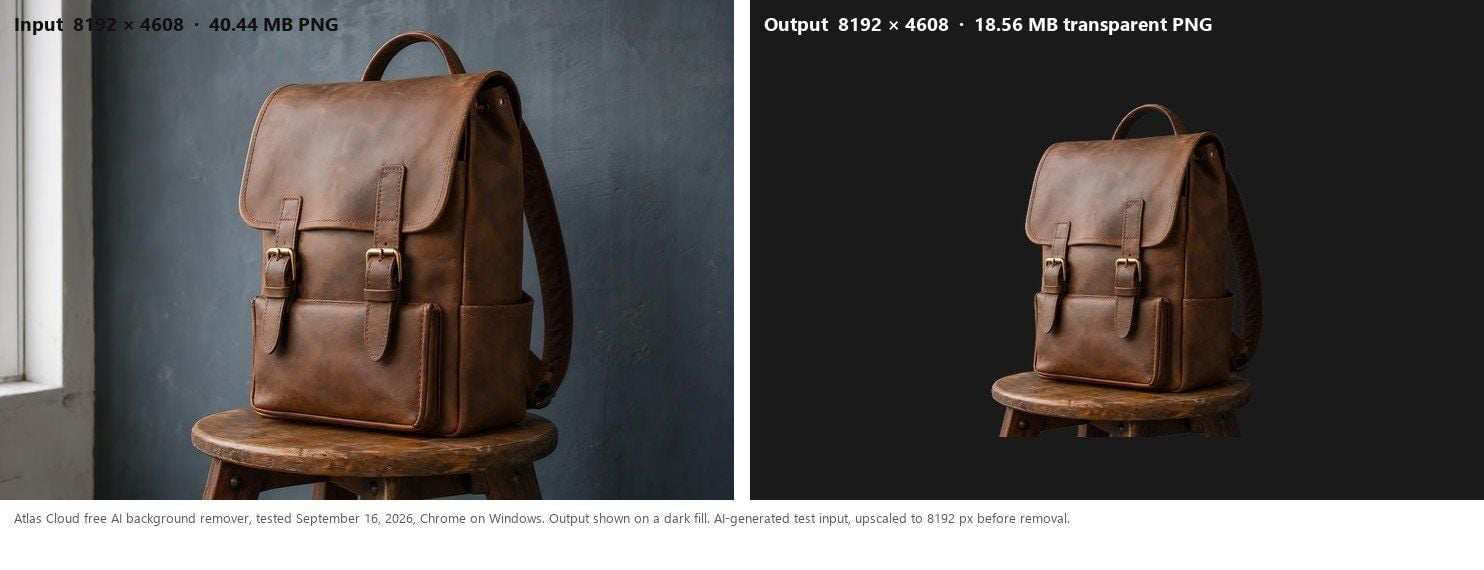
Neden öne çıkıyor: Motor tarayıcı sekmesinde çalışıyor. Sayfa, görsellerin tarayıcıda yerel olarak işlendiğini söylüyor ve bunu zor yoldan kontrol ettik. Ağ kapalı ve VPN tüneli devre dışıyken bile ikinci bir kesim tamamlandı. Çıktı, biçim denetimi PNG (şeffaf arka plan) olarak ayarlanmış halde RGBA PNG olarak geliyor.
Ayrıca renk tabanlı araçların dokunamayacağı malzemeleri de işliyor. Beyaz bir duvarın önünde beyaz bir gömlek temiz bir şekilde çıktı, çünkü model piksel benzerliğinden değil tanıdığı şeylerden çalışıyor. Çizgi sanatı deliklerini koruyor: bir logo testinde, çıktı piksellerinin %98.19'u tamamen şeffaftı, bir halkanın içindeki negatif alan dahil.
Kimler için ideal: Başladıkları pikselleri isteyen, birkaç görsel kesen herkes. Bir ürünü masadan çeken fotoğrafçılar, bir listeleme için şeffaf PNG'ye ihtiyaç duyan satıcılar ve dosyası başka bir yerdeki ücretsiz katman için çok büyük olan herkes.
Fiyatlandırma: Hesap ve filigran olmadan ücretsiz. Sayfa Ücretsiz, Ücret Yok diyor ve üzerinde çalıştırmalarınızı sayan hiçbir şey yok.
**Nasıl çalışır: **Bir çalıştırmada bir görsel. Model tarayıcı sekmesine yüklenir ve önündeki dosya üzerinde, o dosya hangi boyutta olursa olsun çalışır.
Aynı sayfa, bu şekilde çalışan diğer ücretsiz yapay zeka araçlarını listeliyor, bunlara bir büyütücü ve bir nesne silici dahil.
2. remove.bg: Photoshop ve Masaüstü Kullanıcıları için En İyi Arka Plan Kaldırıcı
Yıllarca bu varsayılan cevaptı ve eklenti ekosistemi bunun nedenidir: bir Photoshop uzantısı, Windows, Mac ve Linux için masaüstü uygulamaları ve bu kategorinin yarısının kıyaslama yaptığı bir API. Altbilgi artık "bir Canva Austria GmbH markası" yazıyor ve fiyatlandırma sayfasının üstındeki banner gerisini açıklıyor.
Ücretsiz katman sizi nerede durdurur: Yardım merkezi bu konuda açık sözlü. remove.bg, "web sitesinde işlenen ve kişisel kullanım için düşük çözünürlüklü görseller (0,25 megapiksele kadar) için %100 ücretsizdir" ve masaüstü uygulaması veya API aracılığıyla ayda 50 ücretsiz önizleme sunar. Bir önizleme en fazla 625 x 400'dür. Ücretli hesaplar 50 megapiksele ulaşır.
Kullanılabilir bir kesimin gerçek maliyeti: Üç kredi US$3, yani tek bir tam çözünürlüklü dosya US$1. Ayda US$9 olan 40 kredilik abonelik, tüm hakkı harcarsanız bunu görsel başına yaklaşık 23 sente indirir.
Kullanıcıların bildirdikleri: Google Play'de 56.7B yorumdan 3.5 yıldız, buradaki tüm uygulamalar arasında en düşük ortalama.
Arka plan kaldırma için yetersiz kaldığı yer: Kapanış tarihi. Krediler 1 Aralık 2026 saat 09:00 CET'te sona eriyor, site hizmet vermeyi bıraktığı anda, bu da yeni bir yıllık taahhüdü haklı çıkarmayı zorlaştırıyor.
Uygun olduğu durumlar: Eklenti isteyen ve aracı Canva'ya kadar takip etmekten mutlu olan Photoshop kullanıcıları. Size uygun değilse: yavaş yavaş harcamak için kredi alıyorsanız veya küçük resimden daha büyük ücretsiz bir sonuca ihtiyacınız varsa.
3. Photoroom: Ürün Fotoğrafları için En İyi Yapay Zeka Arka Plan Kaldırıcı
Photoroom uygulamasını pazar yeri listelemeleri etrafında inşa etti ve bu ekstralarda kendini gösteriyor: gölgeler, toplu mod, planların üst kısımlarında bir Shopify entegrasyonu. Ayrıca kendi sınırları hakkında buradaki herkesten daha fazla ayrıntı yayınlıyor, bu alışılmadık ve takdiri hak ediyor.
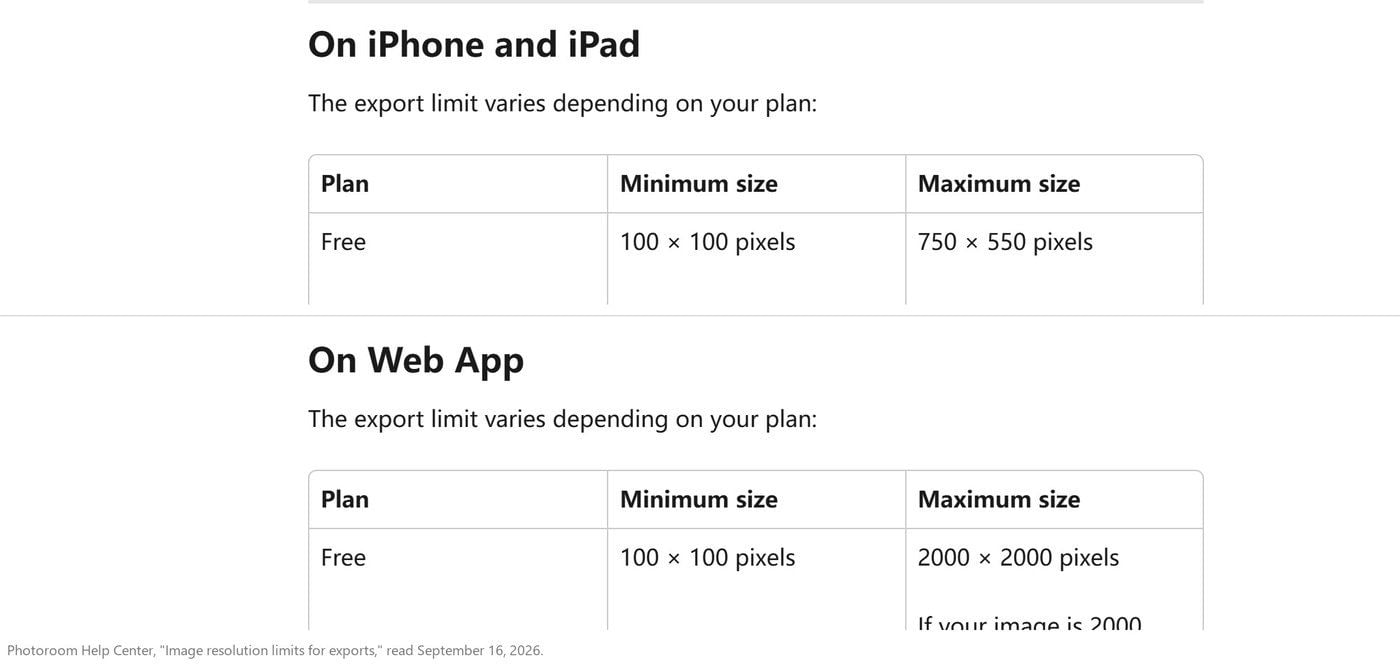
Ücretsiz katman sizi nerede durdurur: Aynı anda üç tavan. Ücretsiz dışa aktarımlar iPhone, iPad ve Android'de 750 x 550'de ve web uygulamasında 2000 x 2000'de maksimuma ulaşır, yardım merkezi burada "en büyük kenar 2000 piksel olacaktır" diye açıkça belirtir. Ücretsiz bir hesap haftada 25 ve ayda 100 dışa aktarma alır. Lisans kişiseldir ve Photoroom'un yardım merkezi ücretsiz bir hesabı ticari amaçlarla kullanamayacağınızı belirtir.
Kullanılabilir bir kesimin gerçek maliyeti: Pro, yıllık faturalandırıldığında ayda US$7.50'dir, aylık US$12.99'a karşı listelenmiştir ve 1.000 dışa aktarma içerir. Tam bir ay boyunca listelemelere yayıldığında bu, görsel başına bir sentin altına düşer; burada hacimli çalışan herkes için dosya başına en ucuz oran.
Kullanıcıların bildirdikleri: Google Play'de 4.01M yorumdan 4.7 yıldız, bu listedeki herhangi bir özel kesim uygulamasının en büyük yorum tabanı.
Arka plan kaldırma için yetersiz kaldığı yer: Ticari lisans maddesi acı verici. Ön sayfası satış etrafında inşa edilmiş bir araç, satıcıları ücretsiz katmanından dışlıyor.
Uygun olduğu durumlar: Kataloğu, aboneliği ve gölgelere ve toplu işlemlere ihtiyacı olan biri. Size uygun değilse: bugün hesap olmadan tam boyutlu bir kesim istiyorsanız. Aynı 8192 piksellik dosyayı Photoroom arka plan kaldırıcı karşılaştırmamızda her ikisinden de geçirdik.
4. Canva: Bir Tasarım Aracı İçinde En İyi Arka Plan Kaldırıcı
Canva'nın kesimi düzenleyicinin içindeki bir düğmedir, asıl olayı da budur. Bir arka planı kaldırın ve özne zaten oluşturduğunuz posterin üzerinde oturuyor olur. Aralık'tan itibaren remove.bg'nin kullanıcılarını da devralır.
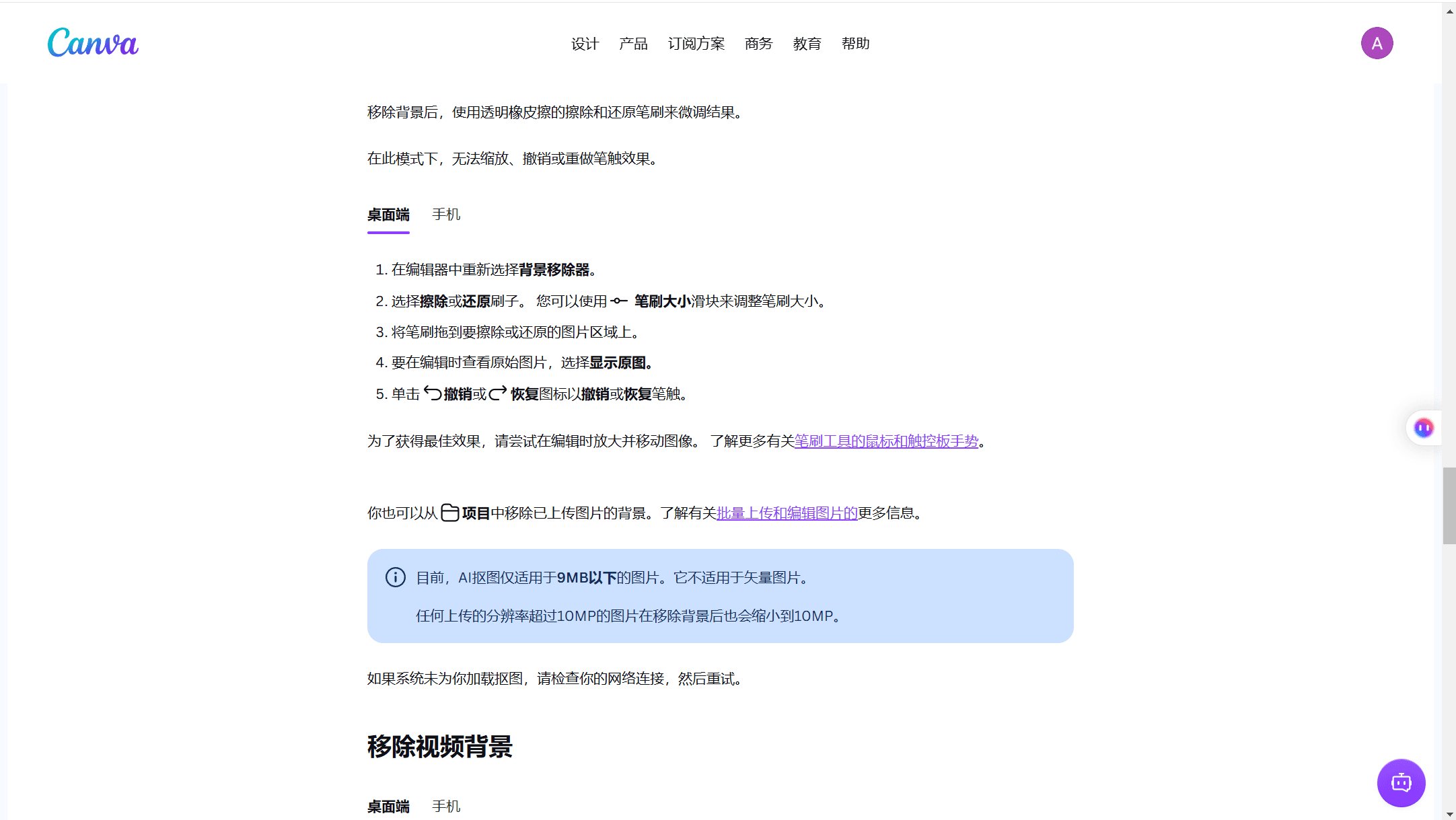
Ücretsiz katman sizi nerede durdurur: Bu araç için ücretsiz katman yok. Canva'nın Yardım Merkezi "Arka Plan Kaldırıcı ücretli planlara dahildir," "yalnızca 9MB'ın altındaki fotoğraflar için çalışır" ve daha büyük bir görselin "arka planı kaldırıldıktan sonra 10MP'ye küçültüldüğünü" söylüyor. Bu üç satırı 10 Eylül 2026'da okuduk.
Kullanılabilir bir kesimin gerçek maliyeti: Canva Pro bir kişi için yılda US$144'tür, bu da tek bir kesimi diğer birkaç yüz özelliğin size değerine göre fiyatlandırır. Kimse sırf bu düğme için Canva satın almaz.
Kullanıcıların bildirdikleri: Google Play'de 27M yorumdan 4.8 yıldız, bu karşılaştırmadaki en yüksek puan ve açık ara en büyük örneklem.
Arka plan kaldırma için yetersiz kaldığı yer: 9MB sınırı en çok insanların kesmek istediği dosyalara, yani kamera orijinallerine çarpar. Kendi 18.64 MB ve 33.58 MB test dosyalarımızın ikisi de bundan sekerek geri dönerdi.
Uygun olduğu durumlar: Zaten ücretli bir planda Canva'da tasarım yapan herkes. Size uygun değilse: kesim tüm işse veya kaynak dosyanız bir kameradan geldiyse. Canva arka plan kaldırıcı alternatifi yazımız bir dosyayı her iki yoldan da geçiriyor.
5. Adobe Express: Adobe Aboneleri için En İyi Yapay Zeka Arka Plan Kaldırıcı
Express, şirketi zaten Adobe'ye ödeme yapan herkes için bir kesime giden en hızlı yoldur ve sonuç bir sapma olmadan Photoshop veya InDesign'a düşer. Adobe ayrıca üretken özelliklerini ticari olarak güvenli olarak pazarlıyor, bu bir marka ekibi için piksel sayısından daha önemlidir.
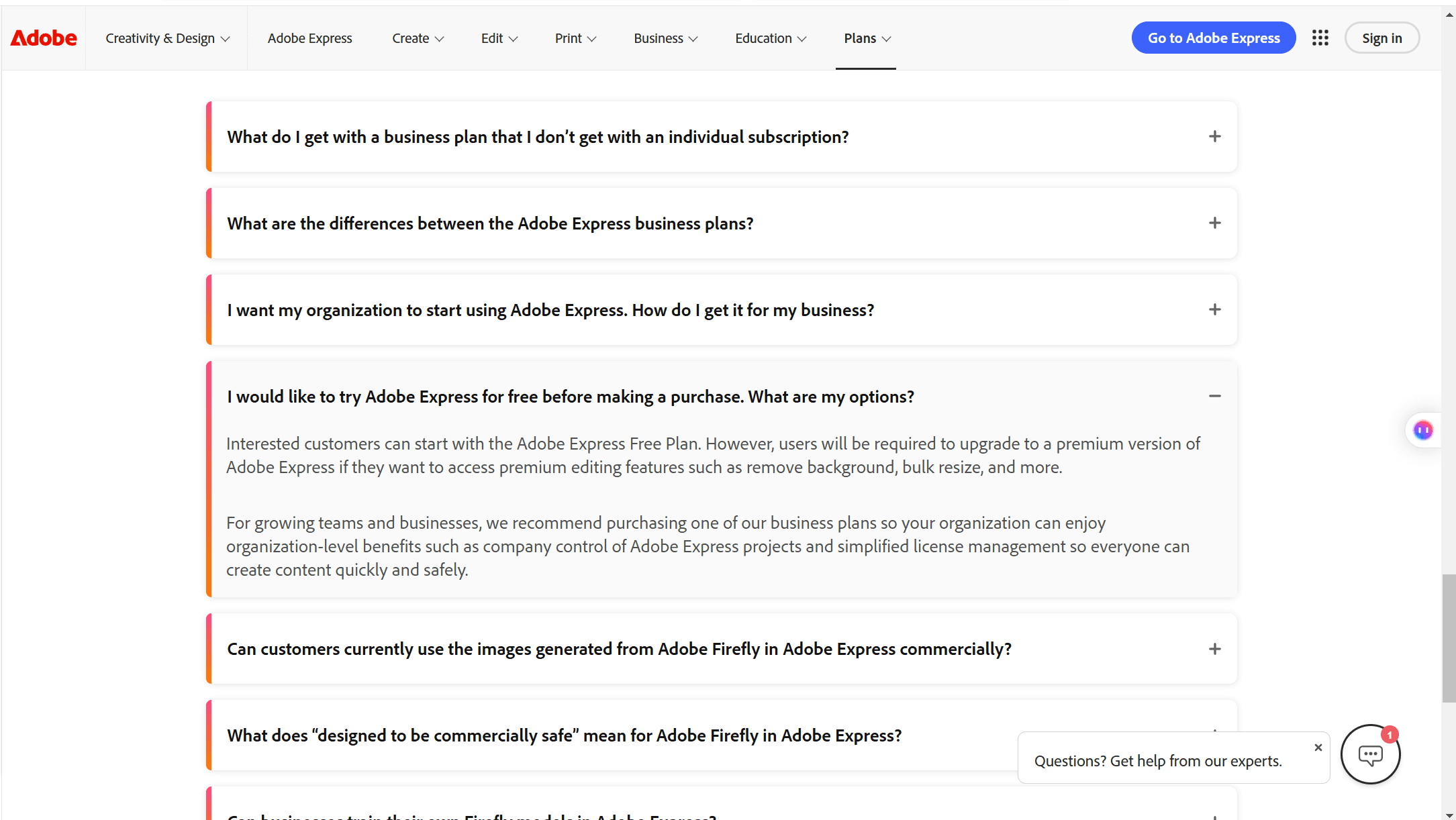
Ücretsiz katman sizi nerede durdurur: Ücretsiz plan var ve kesim onun içinde değil. Adobe'nin kendi fiyatlandırma SSS'si, kullanıcıların "arka plan kaldırma, toplu yeniden boyutlandırma ve daha fazlası gibi premium düzenleme özelliklerine erişmek isterlerse Adobe Express'in premium bir sürümüne yükseltmeleri gerekeceğini" söylüyor. Adobe'nin ayrı Firefly aracı, arka plan kaldırma için ücretsiz bir yol sunar, ancak abonelik yerine bir Adobe ID ve günlük üretim sayısıyla başlar.
Kullanılabilir bir kesimin gerçek maliyeti: Premium için ayda US$9.99, ayrıca ayda 250 üretken kredi içerir.
Kullanıcıların bildirdikleri: Google Play'de 851B yorumdan 4.6 yıldız.
Arka plan kaldırma için yetersiz kaldığı yer: Aynı aramaya üç farklı Adobe ürünü yanıt veriyor, her birinin kendi kapısı var ve fotoğraf hızlı eylem yolu içe aktarmada 4k x 4k'da duruyor. Hangisinin hangisi olduğunu Adobe Express arka plan kaldırma karşılaştırmasında çözdük.
Uygun olduğu durumlar: Bir Adobe sözleşmesi içindeki marka ekipleri. Size uygun değilse: oturum açmadan bir görsel kesmek istiyorsanız.
Bilinmeye Değer Diğer Beş Yapay Zeka Arka Plan Kaldırıcı
Bu beşi de çalışıyor. Her biri kendi nedeniyle çizginin altında yer alıyor: şirketin yayınlamadığı bir tavan, ölçülü bir kredi sistemi veya Fotor örneğinde olduğu gibi aynı sitede birbiriyle çelişen iki sayfa.
| Araç | Kendi ifadeleriyle ücretsiz katman | Önemli olan sayı |
|---|---|---|
| Pixelcut | Sınırlı arka plan kaldırma, filigransız ücretsiz dışa aktarma | Yıllık faturalandırılan ayda US$8 Pro |
| Picsart | Sınırlı ücretsiz deneme kredisi | Ayda US$10.50 Pro |
| Fotor | Kayıt olmadan kullanımı ücretsiz | Basic plan filigranlı dışa aktarımları listeliyor |
| Cutout.Pro | Sonsuza kadar ücretsiz önizlemeler, 5 ücretsiz kredi | Tam çözünürlüklü görsel başına 1 kredi |
| Magic Studio | Kullanımı ücretsiz. Kayıt gerekmez | Toplu işlem başına 50 görsel |
6. Pixelcut
Telefon öncelikli satıcılar için tasarlandı, kesim doğrudan ürün şablonlarına besleniyor. Ücretsiz plan filigransız bir dışa aktarma vaat ediyor, ancak ücretsiz arka plan kaldırmanın kendisine eklenen kelime arkasında bir sayı olmadan "sınırlı". Pro ayda US$10 veya yıllık faturalandırıldığında US$8. İş zaten bir telefon ekranında bitiyorsa bir göz atmaya değer.
7. Picsart
Kesim, çok büyük bir yaratıcı uygulamanın içindeki bir araçtır ve bu uygulama Google Play'de 12.1M yorumdan 4.0 yıldız taşıyor. Ücretsiz erişim, fiyatlandırma sayfasının bir plan başlayana kadar sınırlı olarak tanımladığı deneme kredileriyle çalışır. Pro ayda US$10.50. Etrafındaki kolaj, metin ve video araçlarını da istediğinizde makul, yalnızca kesimler için haklı çıkarmak zor.
8. Fotor
Fotor'un arka plan kaldırıcı sayfası bu karşılaştırmadaki en yüksek sesli ücretsiz iddiayı yapıyor: "Evet, Fotor görsel arka plan kaldırıcı kayıt olmadan kullanımı ücretsizdir," 60 MB ve 8192 x 8192 piksele kadar dosyalarda, 50'lik gruplar halinde. Fiyatlandırma sayfası aynı ücretsiz Basic planını farklı tanımlıyor, "Filigranlı JPG, PNG ve PDF Dışa Aktarımları" listelerken ücretli katmanlar filigransız çıktı alıyor. Biz onları okuduğumuzda her iki sayfa da aynı sitede yayındaydı. Fotor Pro yıllık faturalandırıldığında ayda US$3.99, buradaki en ucuz abonelik.
9. Cutout.Pro
Fiyatlandırma modeli ferahlatıcı derecede gerçekçi. Arka plan kaldırma için bir görsel bir kredidir, ücretsiz bir hesap 5 kredi artı "sonsuza kadar ücretsiz önizlemeler" alır ve tam çözünürlüklü dosyalar kredi gerektirir. Abonelikler 80 kredi için ayda US$5'ten başlar ve kullandıkça öde, süresi dolmayan 30 kredi için US$4.99'dan başlar. Bu son seçenek, yılda bir düzine görsel kesen biri için bu listedeki herhangi bir abonelikten daha uygundur.
10. Magic Studio
Buradaki ücretsiz iddia alışılmadık derecede temiz: "Kullanımı ücretsiz. Kayıt gerekmez!" ve "Yüklenen görselde çözünürlük sınırı yok," her ikisi de araç sayfasında. Aynı anda 50 görsel düzenliyor ve tutmak için noktalara tıkladığınız yapay zeka destekli bir iyileştirme adımı sunuyor. Yayınlamadığı şey arka plan kaldırıcı için herhangi bir fiyat veya dışa aktarma tavanı, bu yüzden ücretli sınırın şekli siz karşılaşana kadar bir sır olarak kalıyor.
Kesiminiz Renkli Bir Arka Planda Dayanır mı?
Bu yazı için okuduğumuz iki derleme kenar doğruluğunu sıralıyor ve orada duruyor. Bir kesimin kullanılabilir olup olmadığına karar veren test daha sonra, onu fotoğraflandığı arka plan olmayan bir arka plana bıraktığınızda gerçekleşir.
İkinci arka planın neden önemli olduğu şu. Öznenizin sınırında oturan bir piksel hiçbir zaman tamamen özne veya tamamen arka plan değildi. İkisinin bir karışımıydı ve kesim bu karışımı korur. Yirmi yıldır fotoğrafçılara maskelemeyi öğreten PhotoshopCAFE, saçak eğitimine aynı şikayetle başlıyor: "Photoshop'ta bir görseli kestikten veya maskeledikten sonra, kenarlarda siyah veya beyaz saçaklar ya da sadece pürüzlü kenarlar olması yaygındır." Bir kesim kenarındaki hale, her zaman iki şeyin karışımı olan piksellerde hapsolmuş eski arka plan rengidir.
Özneyle birlikte ne kadar renk taşındığı, neye karşı çekildiğine bağlıdır. Testlerimizde çim üzerinde fotoğraflanan bir golden retriever, tüm kenar bandında %0.09 yeşil sapma ölçtü, bu da kimsenin asla göremeyeceği bir şey. Doygun düz bir duvar bu aralığın diğer ucunda yer alır.
Şeffaflık, kimsenin test etmediği ikinci şeydir ve renkten farklı bir sorundur. Bir segmentasyon modeli piksel başına bir soruyu yanıtlar: özne burada mı? Ne kadar ışığın geçtiği ayrı bir sorudur ve modelin eğitildiği soru bu değildir. Bu yüzden bir duvak, bir dantel etek ucu, bir cam şişe veya bir duman bulutu, eski arka planın içine işlendiği katı bir siluet olarak geri gelme eğilimindedir. Mekaniği istiyorsanız, alfa kanalının ne olduğunu biçim biçim yazdık.
| Malzeme | Tek tıkla kesimin size verdikleri | Göndermeden önce nasıl kontrol edilir |
| Saç, kürk, ince çizgi sanatı | Tek tellere kadar şekil ve kenar | Hedef rengin üzerinde %400'e yakınlaştırın |
| Çim, orta gri veya kırık beyaz üzerinde çekilmiş özne | Temiz kenar, neredeyse hiçbir şey taşınmamış | Beyaza, sonra siyaha bırakın |
| Doygun düz bir duvar üzerinde çekilmiş özne | Şekil, artı kenar bandında o duvarın bir kısmı | Önce soluk bir katman üzerinde kenara bakın |
| Duvak, dantel, cam, duman | Ana hat, çünkü şeffaflık ayrı bir sorudur | Şeffaf alanı elle boyamak için zaman ayırın |
Bunun yerine ne yapmalı:
- Arka planın doygun düz bir renk olmadığı bir kaynak seçin. Bu tek karar, kenar için sonradan yapılacak herhangi bir kaydırıcıdan daha fazlasını yapar.
- Onaylamadan önce kesimi dama tahtası yerine gerçekten oturacağı renk üzerinde açın.
- Bir kenar görünürse, maskeyi bir piksel içeri çekin. Bu, karışmış bandı kaldırır ve görünür hiçbir maliyeti yoktur.
- Şeffaf malzemeyi son arka planına yakın bir şeye karşı çekin, böylece maskenin içine işlediği şey zaten istediğiniz renk olur.
Reddit En İyi Arka Plan Kaldırıcı Hakkında Ne Diyor?
r/canva'da bir başlık "remove.bg'nin kapatılmasına üzülen tek kişi ben miyim?" başlıklı, bu makalenin açılışındaki aynı kapanışa topluluğun tepkisidir. Bir yanıt Canva'ya birleşmeyi "geçiş yapmak acı verici olacak" olarak nitelendirdi ve bir başkası içe katlanmanın "sadece ödeme duvarının arkasında başka bir şey olacağı" anlamına geldiğini söyledi, Canva'nın kendi kesim aracının bir tasarım içinde "şu anda yalnızca pro'ya kilitli" olduğuna dikkat çekti. Bir üçüncüsü, insanların gerçekte neye değer verdiğini özetledi: "günlük görsel sınırı olmayan" ücretsiz bir araç, ki bu bir abonelik katmanının yapısal olarak sunamayacağı şeydir.
Aynı başlık doğaçlama bir alternatifler listesine dönüştü ve öneriler fiyatlandırma sayfalarını okurken bulduklarımızla örtüşüyor. Bir yorumcu Photoroom'a işaret ederek "daha yüksek kaliteli ve üstelik ücretsiz" dedi. Bir başkası Adobe Express'i öne sürerek "sonucu tam çözünürlükte ücretsiz indirmenize izin veriyor" iddiasında bulundu. Bu ikinci iddia, Adobe'nin kendi fiyatlandırma SSS'sinin arka plan kaldırma için Premium'un gerekli olduğu yönündeki söyledikleriyle uyuşmuyor ve bu tek başına yararlı bir hatırlatmadır: ücretsiz bir aracın sınırları hakkında kulaktan kulağa yayılan bilgiler hızla eskir ve bugün ne elde edeceğinizi bilmenin tek yolu şirketin güncel sayfasını okumak veya dosyayı kendiniz çalıştırmaktır.
| Başlığın endişelendiği şey | Bu makalenin bulduğu |
|---|---|
| Günlük görsel sınırı olmayan ücretsiz bir aracı kaybetmek | Bu listedeki ücretsiz katmanlar ya indirmeleri ölçer (remove.bg, Photoroom) ya da tüm özelliği ücretli bir planın arkasına kilitler (Canva, Adobe Express) |
| Canva birleşmesinin "ödeme duvarının arkasında başka bir şey" haline gelmesi | Canva'nın kendi Arka Plan Kaldırıcısı zaten yalnızca ücretli planlarda yer alıyor, hiç ücretsiz erişimi yok |
| Adobe Express'in tam çözünürlükte ücretsiz dışa aktardığına dair kulaktan kulağa | Adobe'nin fiyatlandırma SSS'si arka plan kaldırmayı ücretsiz plana değil Premium plana bağlıyor |
Sıkça Sorulan Sorular
Hangi Yapay Zeka Arka Plan Kaldırıcı Kayıt Olmadan Çalışır?
Burada üç araç bu iddiayı yayınlıyor. Atlas Cloud'un aracı hesap olmadan çalışır ve görsellerin tarayıcıda yerel olarak işlendiğini belirtir. Magic Studio'nun sayfası "Kullanımı ücretsiz. Kayıt gerekmez!" diyor. Fotor'un arka plan kaldırıcı sayfası "kayıt olmadan kullanımı ücretsiz" diyor, ancak fiyatlandırma sayfası ücretsiz Basic planının dışa aktarımlarını filigranlı olarak listeliyor. Bu listedeki diğer her şey bir hesapla başlar ve Adobe Express bir Adobe ID ile başlar.
Ücretsiz Katmanda Filigran Olmayan Bir Arka Plan Kaldırıcı Var mı?
Evet ve dürüst kontrol yöntemi bir rozete güvenmek yerine bir dosya indirmektir. Pixelcut filigransız ücretsiz dışa aktarma reklamı yapıyor. Atlas Cloud'un çıktısı testlerimizde, denediğimiz her boyutta hiç filigran taşımadı. Ücretsiz bir remove.bg dosyası temiz ama 0,25 megapikselde küçük, ki bu farklı türde bir sınır. Fotor izlenmesi gereken olan, çünkü kendi iki sayfası cevap konusunda anlaşmazlık içinde.
Yüksek Çözünürlüklü İndirmeler için En İyi Ücretsiz Arka Plan Kaldırıcı Hangisi?
Yayınlanan ve ölçülen sayılara göre, test ettiğimiz ücretsiz araç en büyük dosyayı döndürdü: 8192 x 4608 veya 37,75 megapiksel, küçültme yok. Ücretsiz bir remove.bg sonucu 0,25 megapiksel. Ücretsiz bir Photoroom dışa aktarımı telefonda 750 x 550. Canva'nın aracı hiç ücretsiz değil. Yüzlerce küçük yerine bir büyük kesime ihtiyacınız varsa, bu fark karar verir.
Bir Yapay Zeka Arka Plan Kaldırıcı Saç, Kürk ve Cam ile Başa Çıkabilir mi?
Saç ve kürk, evet. İnce teller ve kabarık bir kuyruk test ettiğimiz araçta sağlam bir şekilde geçti. Cam ve ince kumaş elle boyanmış bir maske gerektirir, yukarıda belirtilen nedenden dolayı: bir maske öznenin nerede olduğunu kaydeder, içinden neyi görebileceğinizi değil.
Sonuç
Kategori sessizce ikiye ayrıldı. Bir tarafta abonelik editörleri var, burada kesim bir tasarım uygulaması içindeki bir özelliktir ve ücretsiz sürüm size ödeme duvarını göstermek için vardır. Diğer tarafta tek amaçlı araçlar var, burada tek sorular kaç piksel tuttuğunuz ve fotoğrafınızın ne kadarının makinenizden ayrıldığıdır.
İhtiyacınız olan dosyaya göre seçin. Bütün gün listelemeler oluşturuyorsanız ve gölgeler ve toplu işlemler istiyorsanız, Photoroom'un ekonomisi kazanır. Zaten Canva veya Adobe'ye ödeme yapıyorsanız, düğme düzenleyicinin tam içinde. Bu öğleden sonra hesap olmadan, filigran olmadan ve yükleme olmadan tam boyutlu şeffaf bir PNG istiyorsanız, bu iş için en iyi yapay zeka arka plan kaldırıcı, tüm dosyayı geri veren ve sonra yoldan çekilen araçtır.





