




Amazon A+ Content Examples for Six Modules, Built Around One Hair Oil
See Amazon A+ content examples for six modules on one hair oil listing, plus how Enhanced Brand Content became A+ and what Premium A+ content adds.
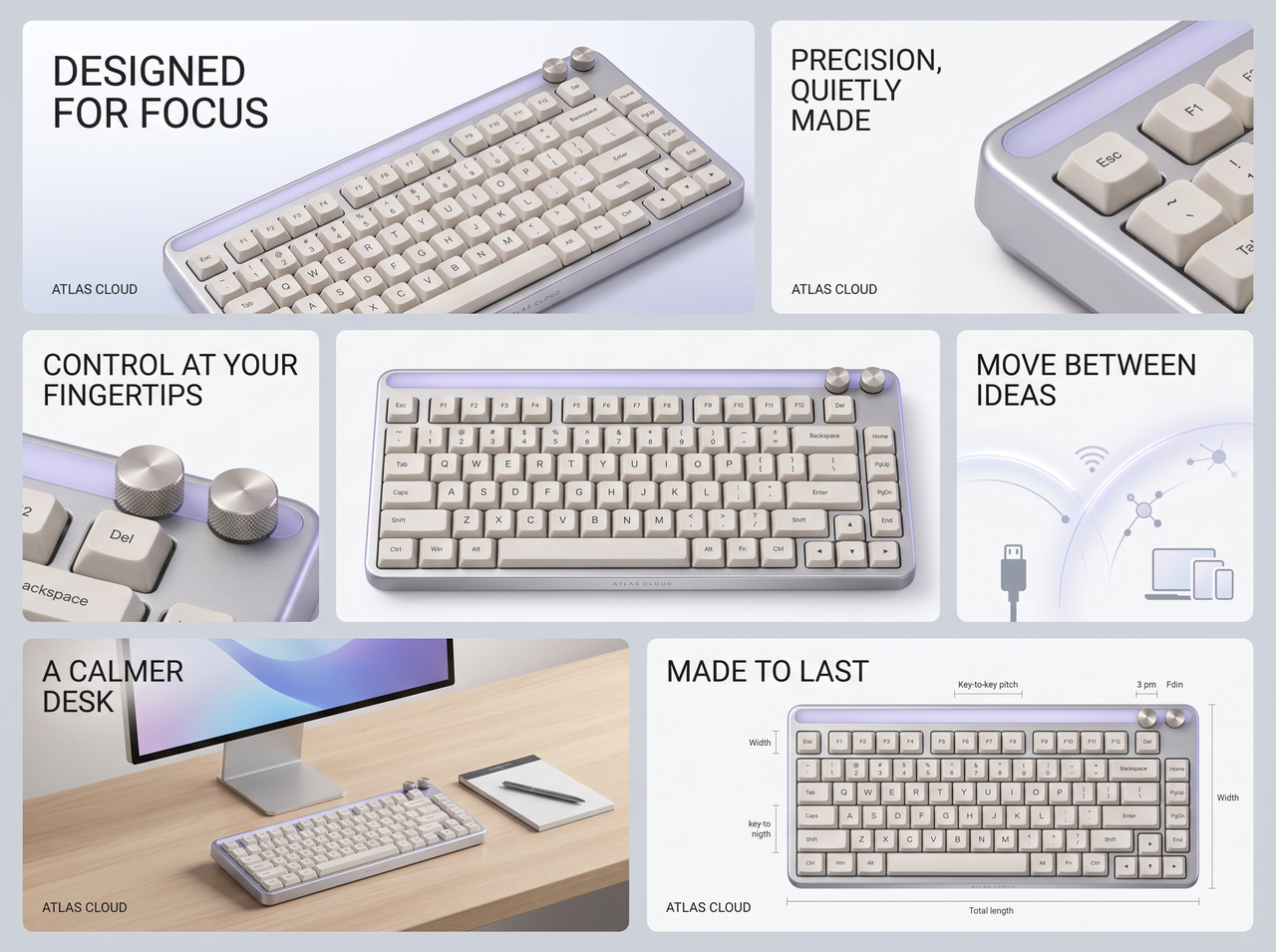
Choose the modules your A+ section needs, and the template renders an image for each one from the same product page or photo, so the section reads as one piece of design rather than seven.




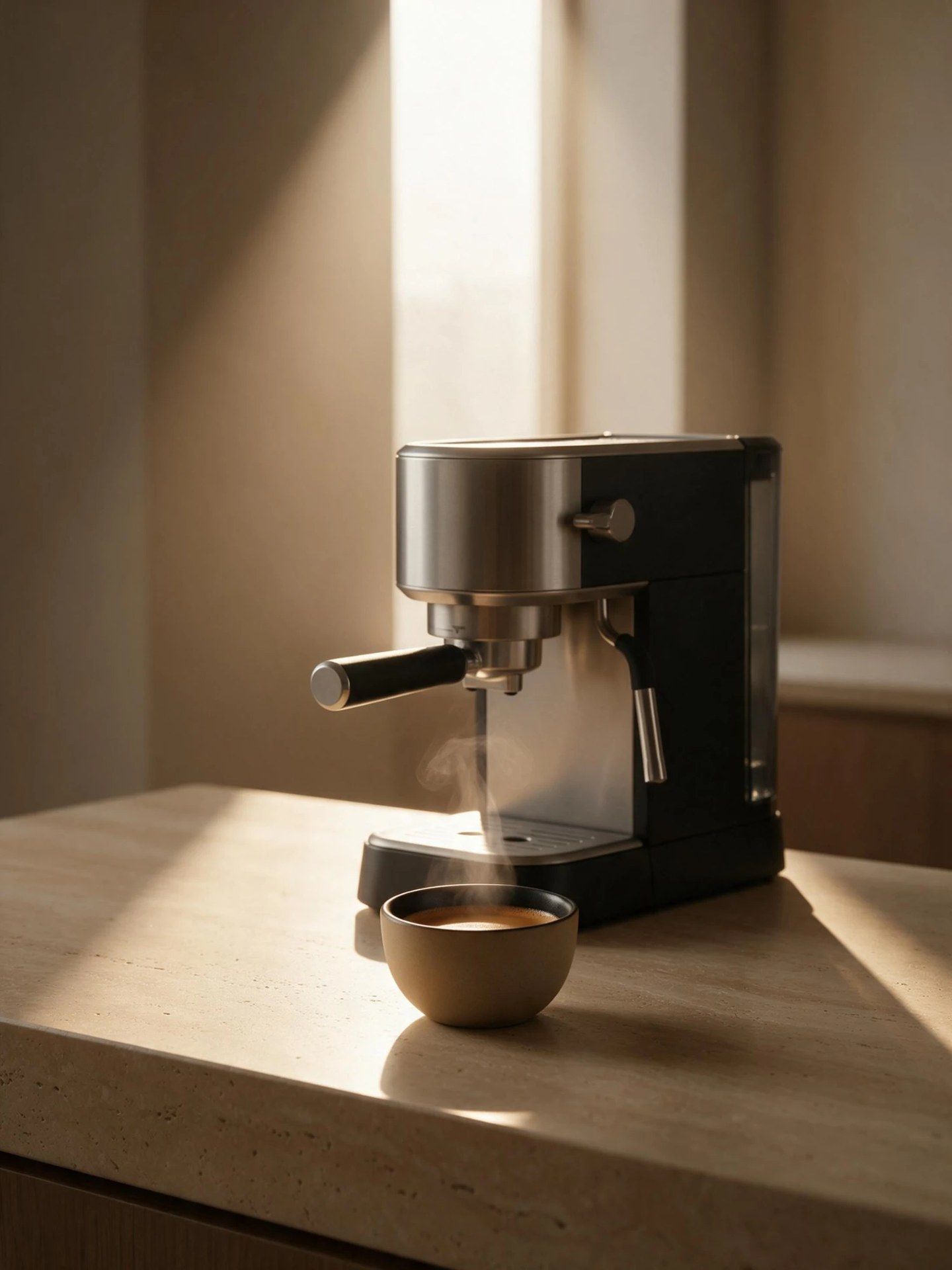

Most people start an A+ section by browsing other brands’ examples. What follows is how the template turns that kind of idea into modules for your product.
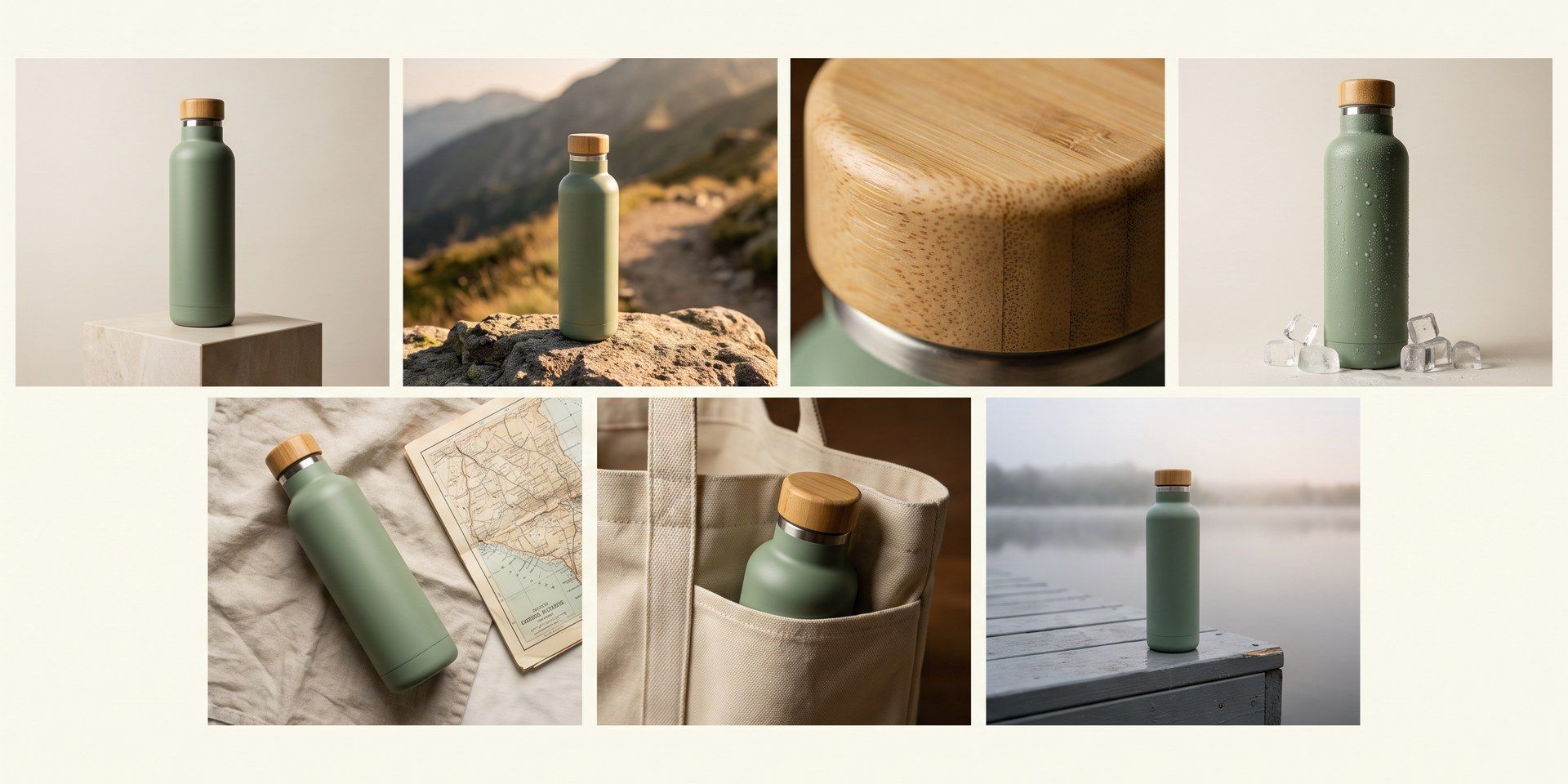
The generative AI inside A+ Content Manager fills one module at a time, and building a section by hand is slower still. Tick the modules you need in the Visual type menu and all of them render from the same source in one run, so the section keeps one look throughout.
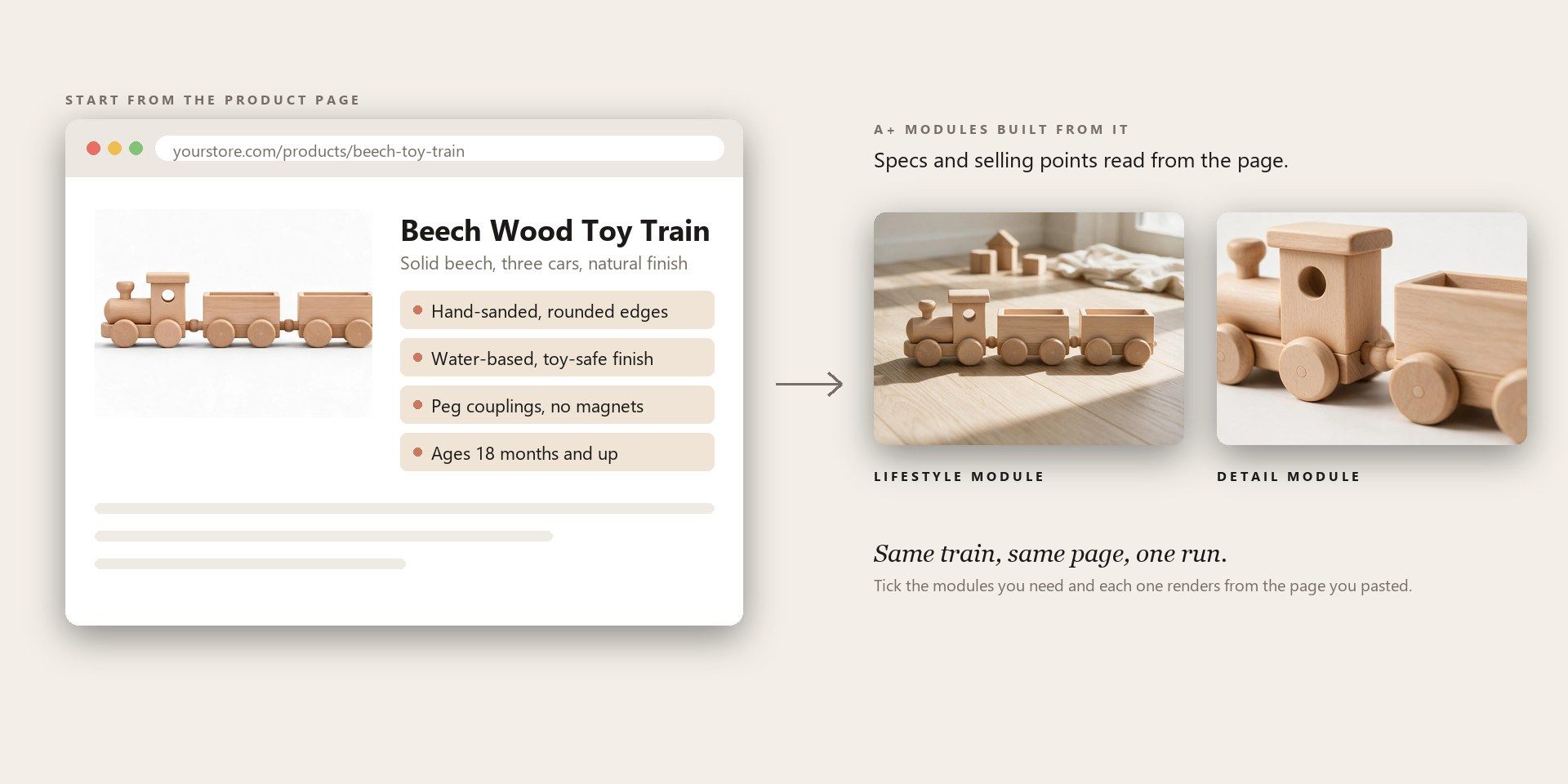
Amazon’s built-in generator only works from ASINs in your own brand catalogue. Here a product page link or a single photo is enough to start, before the brand is even registered. The template reads the page for specs and selling points, so you never type the brief out twice.

An A+ section often needs a person in it, and A+ tools rarely have a slot for one. Upload a model photo with the product and the scene modules are built around that person. Leave it empty and a figure is added only where a module needs one.
Start from a product page link or a product photo. A model photo is only needed when a person should appear.
Choose the A+ modules for the section, and use the prompt to set the brand’s tone.
Under Settings, match the frame to the module layout you plan to use, then run it.
Pick the tab closest to your work.
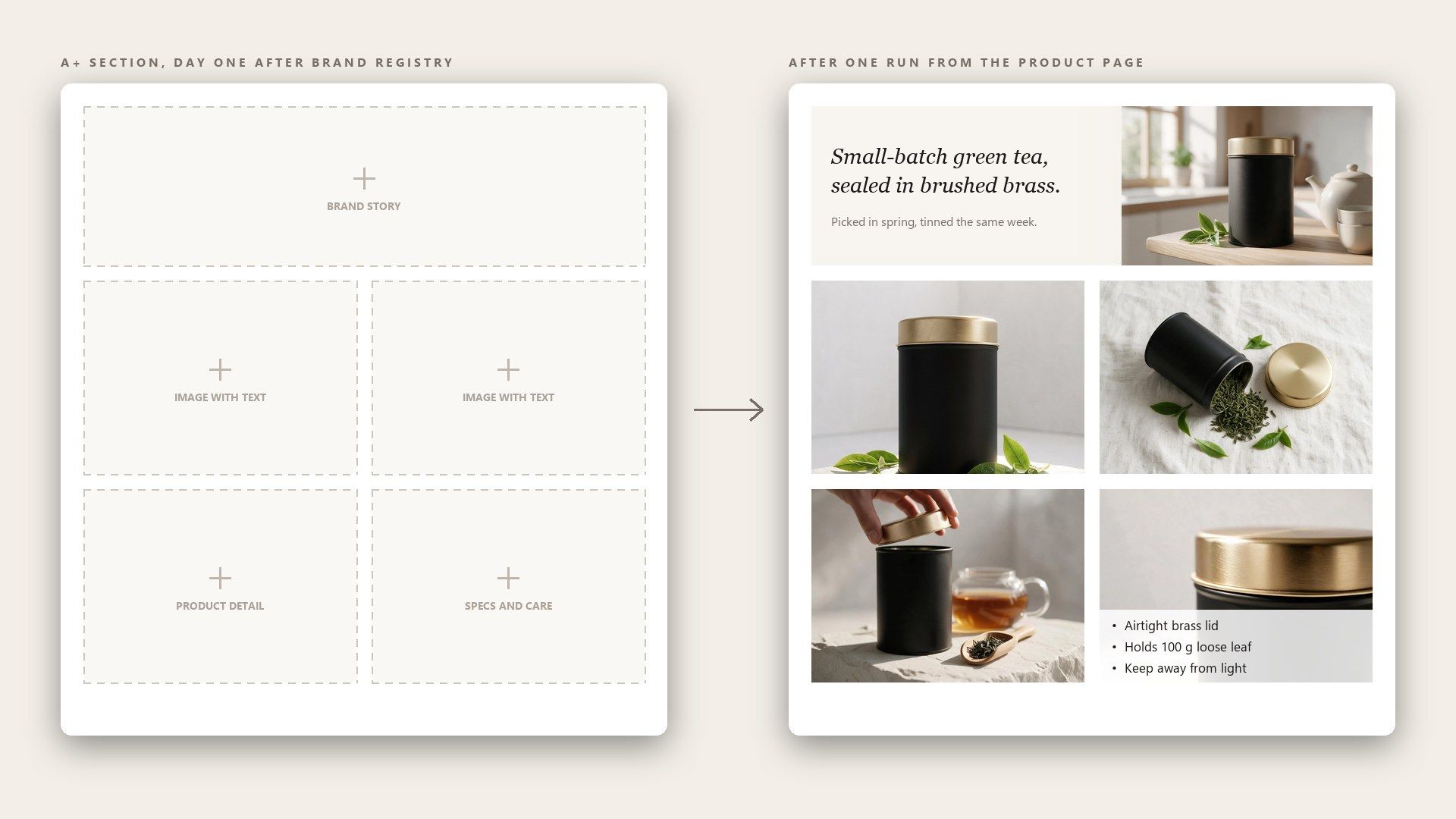
Brand Registry opens up the A+ section, and then it sits empty because nobody has time to design seven modules. One run from the product page fills the whole section in a single sitting, and any module that is not right yet can be redone on its own.
Once a range passes a dozen products, hand-built A+ sections start to drift in colour and layout. Using the same prompt and the same frame for every product keeps the modules consistent across the range, which is what makes a brand look deliberate from one listing to the next.
Clients sign off A+ work faster when they can see it on their own product. Building the modules from the client’s product page puts a complete section on the table at the first meeting, and anything they reject means one module to redo rather than a new layout.

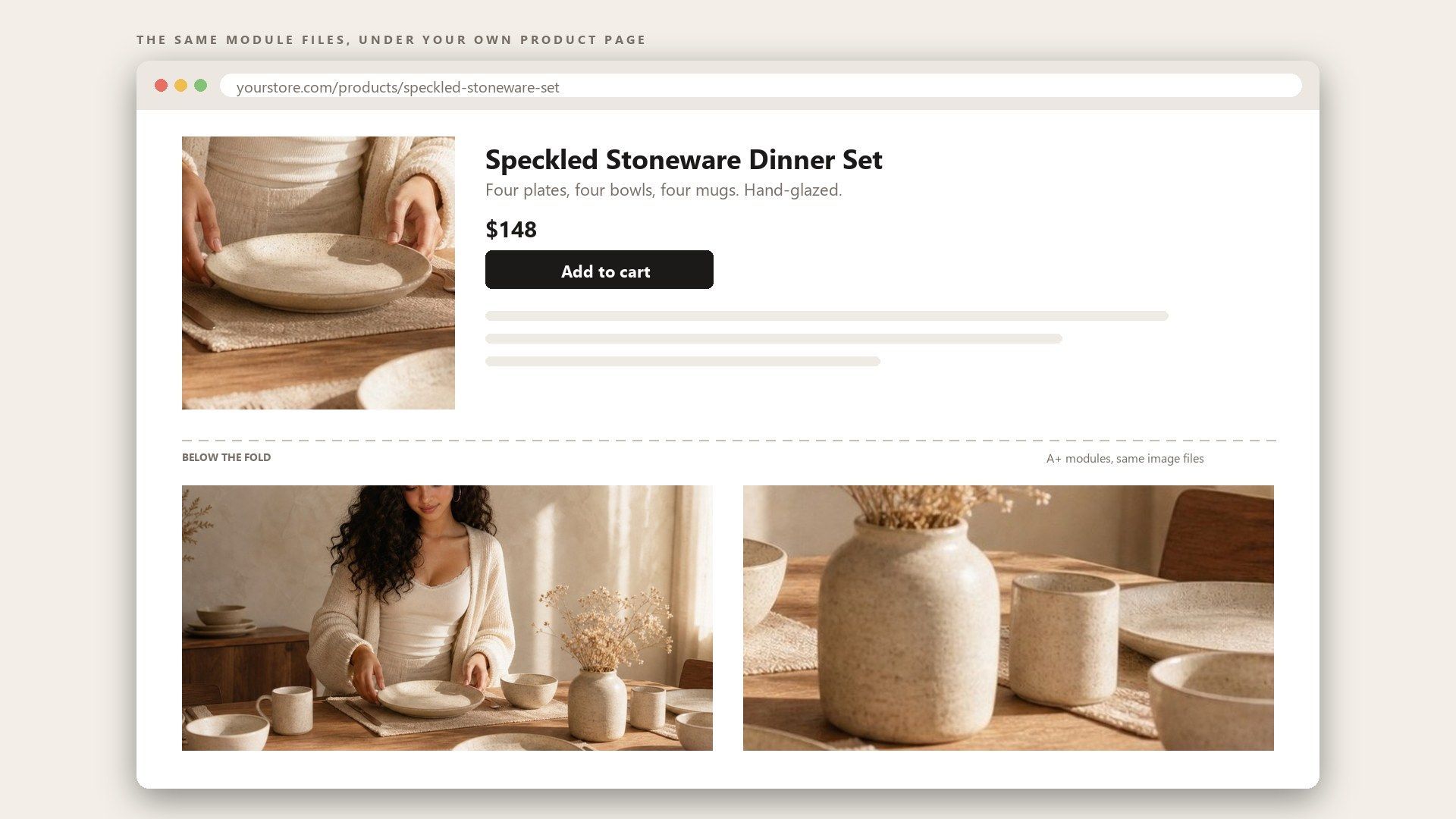
A product page on your own site has the same job as an A+ section: answering the questions the main images cannot. The modules come back as ordinary image files in the frame you chose, so the same set can sit under a Shopify product description as well.
Amazon A+ content is the block of images and rich text that sits under the product description on a detail page, and it used to be called Enhanced Brand Content, or EBC. It is open to sellers on a Professional plan whose brand is enrolled in Brand Registry.
It is built in A+ Content Manager, under Advertising in Seller Central. You pick modules, fill each one with images and text, then apply the section to the ASINs you choose. Rendering the module images here first turns that session into placing files and writing copy rather than designing from scratch.
On Amazon, the standard description field takes text, so the images you see below it on other listings come from A+ Content. Add them as A+ modules in A+ Content Manager once your brand is registered; until then, the description stays text only.
A+ Content Manager is template-based already: each module is a fixed layout, such as one image with text beside it or a row of three images. What the layouts do not supply.
Each module in A+ Content Manager shows the exact dimensions it accepts when you open it, and they vary from module to module. Generate at 2K or 4K in the frame closest to the module’s shape, then crop to the stated size, so the image is scaled down rather than stretched up.
Amazon’s own A+ content design guide on sell.amazon.com walks through live sections from brands such as Jackery and Uproot Clean, which shows how modules are combined on a real page. Running your own product through here then gives you a version to set beside them.
Premium A+ is open to registered brands that meet extra criteria, and eligibility is shown inside Seller Central rather than as a published checklist. It adds interactive modules such as video and Q&A, and Amazon says well-implemented Premium A+ can lift sales by up to 20 percent, against up to 8 percent for Basic.
A single module costs about $0.10 at 1K, $0.14 at 2K and $0.18 at 4K, whatever the frame shape. Every module after the first adds a little less, since a small part of the price is charged once per run, so all seven modules at 2K come to about $0.86. Nothing is billed monthly; each run is charged to your balance when it renders.
Yes. Send a POST to /api/v1/model/generateImage with the model set to atlascloud/studio/a-plus-content, a link or a product_image, and visual_type as a comma-separated list such as hero, feature, spec. Then poll /api/v1/model/prediction/{request_id} until the status comes back completed. The full parameter list is in the API documentation at atlascloud.ai/docs.
Planning the modules and writing the brief behind them.
See Amazon A+ content examples for six modules on one hair oil listing, plus how Enhanced Brand Content became A+ and what Premium A+ content adds.
See Amazon brand story examples for every card in the carousel, then fill in a template built on Amazon's own limits and add it in A+ Content Manager.
Check every photo against the Amazon image requirements, from the Amazon main image requirements to the six extra images Amazon recommends for a listing.
One brief, 8 of the best AI poster generators: which best free AI poster generator keeps your headline editable, plus banner picks and Reddit verdicts.