Seedance 2.0 Mini & Fast API 全球最低價 —— 比官方定價最高低 68%

We Ran the Same Small Photo Through 10 AI Image Upscalers to See Where Free Stops

The best free image upscaler and best AI image upscaler picks, tested: 10 tools ranked on watermarks, resolution caps, and what a clean file costs.

A client sends over the only photo they have of the product. It is 380 pixels on the long edge, pulled off a website years ago, and the layout needs it at 3,000.

That is usually the moment someone goes looking for the best free image upscaler, and also the moment many roundups stop being useful. Nine of the ten tools get labelled free, and nobody mentions that free can mean a watermark, a low resolution preview, or an export button that stays grey until you subscribe.

So we put ten upscalers under the same three questions. What leaves the tool on a free account. Where your image is processed. What the finished file actually prints at.

Prices and limits below came off each vendor's own pages in September 2026. The table is first, then the tools in order.

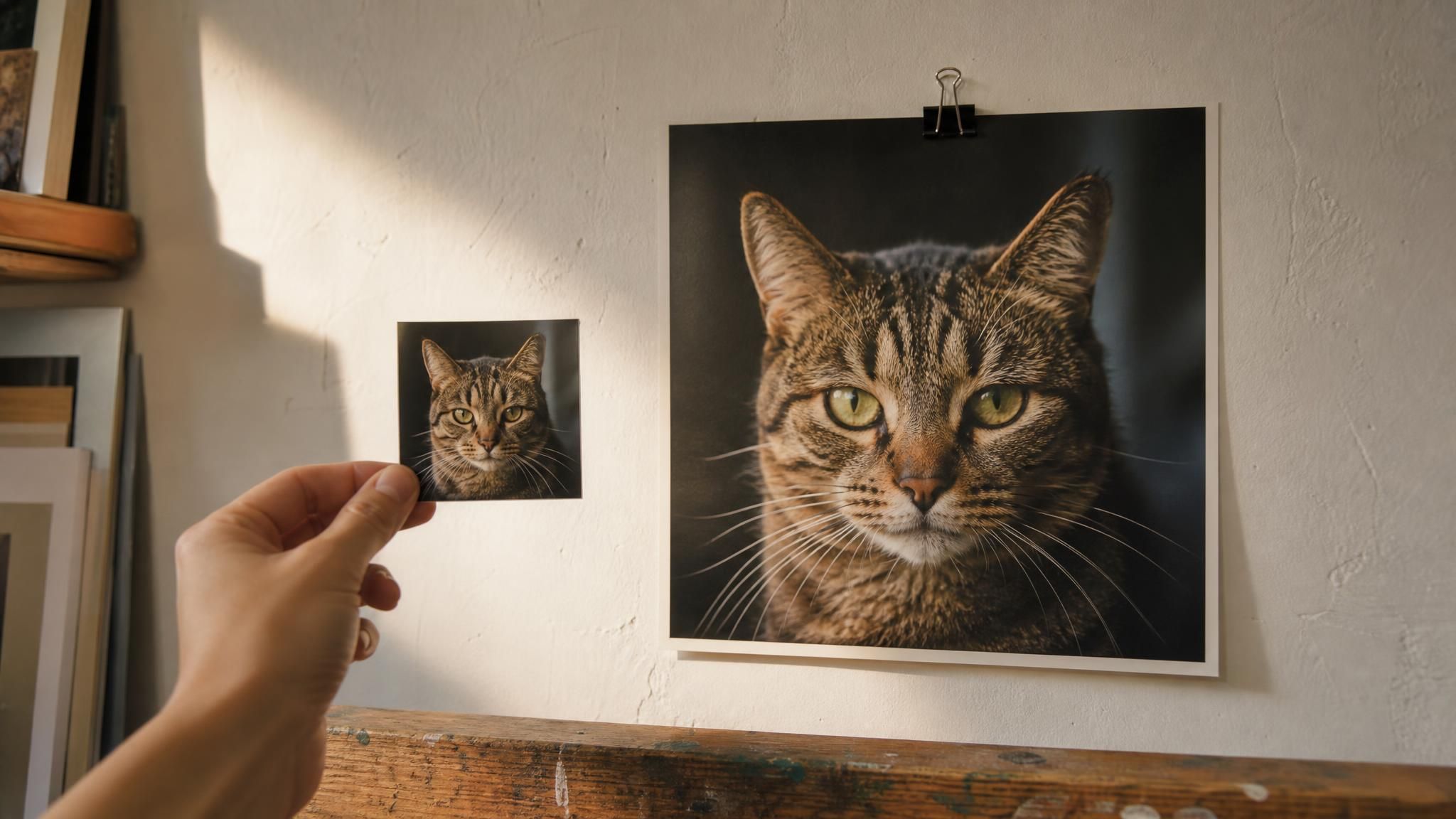
A hand holding a stamp sized photo print of a tabby cat in front of a large print of the same photograph, the enlargement showing fur detail the small print cannot hold

Key Takeaways

  • Free means five different things across these ten tools: unmetered, credit metered, watermarked, resolution capped, or processed but not exportable.
  • Three of the ten do the work on hardware you already own, and the free browser upscaler is one of them.
  • Credit counters and shared AI allowances decide how many clean files a free tier really gives you.
  • A bigger scale factor cannot invent detail your source never held.
  • Print size is arithmetic: pixels divided by 300 is what the printer can give you.

Best Free Image Upscaler Comparison Table

The ten tools split three ways on where the work happens. Three process locally, on your own browser or desktop. Seven upload the file to a server first. Most of those seven meter the free tier, with a credit counter on VanceAI, AirBrush, Let's Enhance and Nero, and a shared monthly AI allowance on Canva. Atlas Cloud, Upscayl and waifu2x run without an account at all. Published entry prices sit between $9 and $29 a month, and Canva prices its plan by the year at $180.

ToolBest forFree tierEntry paid planWhere it runsWhat you can export free
Atlas CloudAvatars, thumbnails, tight cropsUnlimited 2x runs, no account, no meterPay per image, no planYour browserFull 768 px PNG, no watermark
UpscaylUnlimited local batchesFree desktop app, no accountCloud Pro $24.99/moYour computerFull resolution, no watermark
Topaz GigapixelEnlargements headed for printTrial with export disabled$29/mo or $149/yrYour computerNothing, export is blocked
Canva Image EnhancerPeople already designing in CanvaUpscale runs in the editorCanva Pro $180/yrCanva's serversA download, factor not stated
VanceAIPicking a model per image typeFree credits after signup, slower queue$9/mo, 200 creditsVanceAI's serversClean export is a paid feature
Picsart AI Image EnhancerSocial crops at 4xOne run, low resolution downloadPro $10.50/mo annualPicsart's serversA low resolution version
AirBrush Image EnhancerPhone photos and portraitsCredit metered, 1 credit per saveWeb Plus $15.95/moAirBrush's serversWhatever your credits cover
Let's EnhanceWeb jobs with an API path laterFree credits after signup, watermarked$9/mo billed annuallyLet's Enhance's serversWatermarked results
Nero AI Image UpscalerVery large output ceilings10 free credits after signupAPI from $99.99/moNero's serversWhatever your credits cover
waifu2xAnime art and line workFree inside size caps, no accountNone publishedwaifu2x's serversFull result, no watermark

How We Tested Every AI Image Upscaler on This List

Every price, cap and limit in this article was read off the vendor's own pages in September 2026, not from another roundup, and the review scores came from Trustpilot and the App Store. The hands-on part is narrower and worth stating plainly: we ran one 384 pixel source of our own choosing through the free browser route to watch what a 2x pass returns, and that run sits in the Atlas Cloud section below.

Four criteria decided the ranking:

  1. What leaves the tool on a free account. A watermark, a resolution cap or a blocked export all mean the same thing in practice.
  2. Upscaler specific controls. An exposed scale factor, a model choice, batch handling, and a published input ceiling.
  3. Price transparency. Whether the number is printed on the site or waits behind a signup.
  4. Where your image goes. Local processing or an upload, and whether the vendor says so.

The first one carries the most weight. A tool that produces a beautiful 4x result and then hands you a preview, a watermark or a locked save button has not solved the problem you came with, and four of the ten here do one of those three.

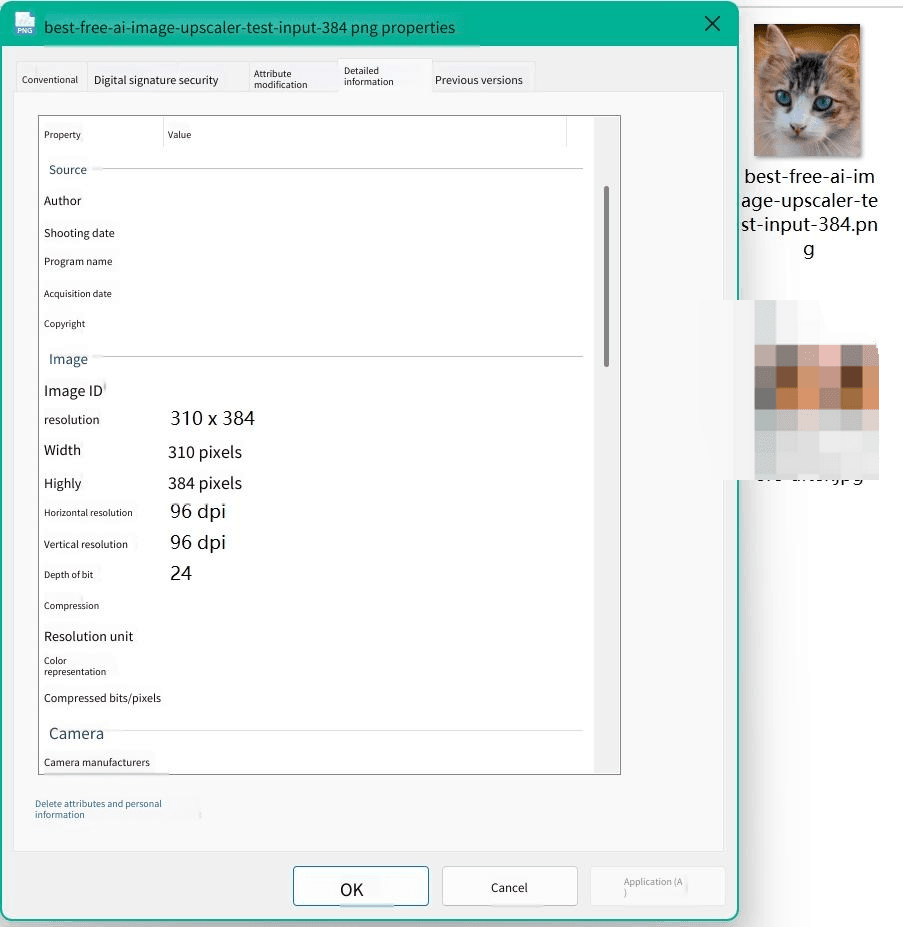
The 310 by 384 pixel cat portrait used as the test source for the AI image upscaler run in this article, shown with its dimensions in the file details pane

Disclosure: Atlas Cloud publishes this article and operates the tool ranked first. No other tool here paid for placement, and every one of them is described from its own published pages.

1. Atlas Cloud: Best AI Image Upscaler Overall

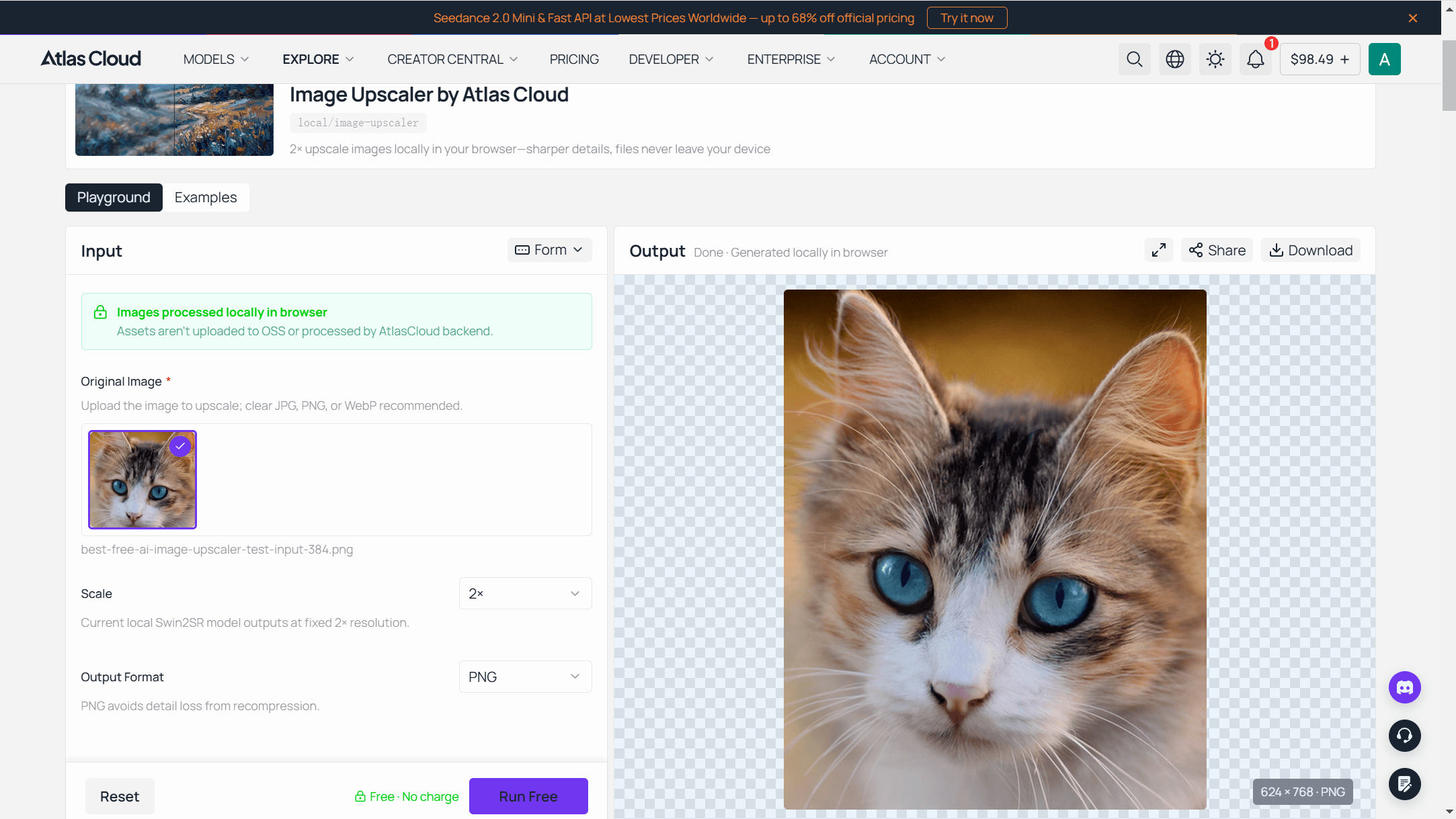
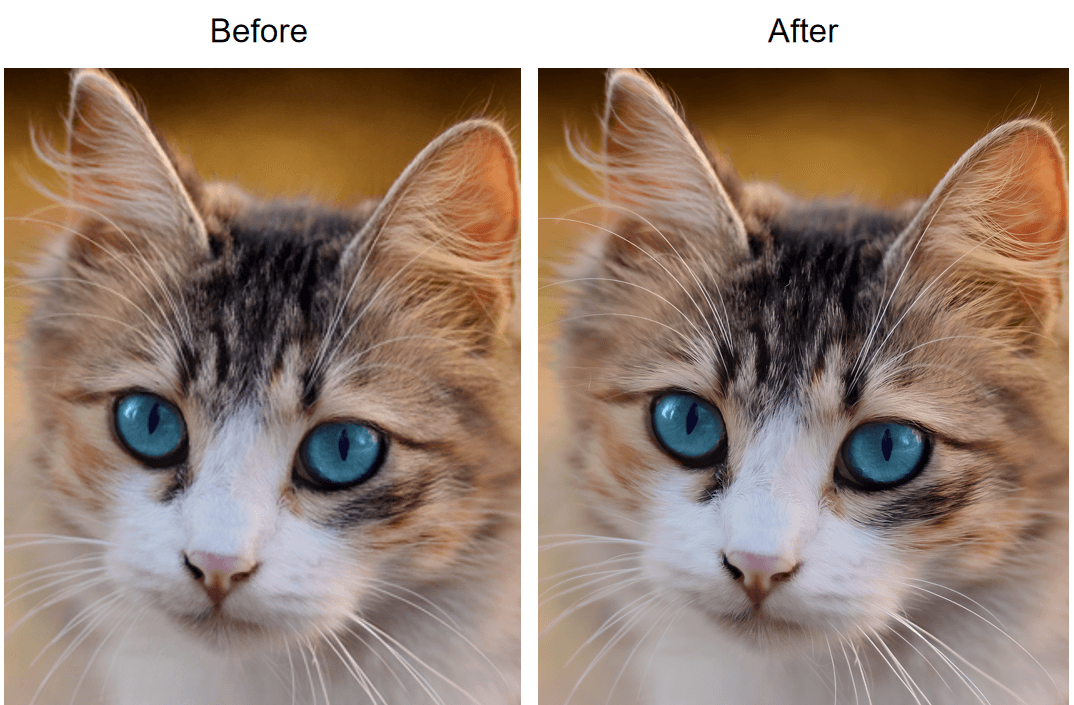
Our test file, a 384 pixel cat portrait, came back at 768 in about a minute without leaving the browser tab. It downloaded as a full resolution PNG with nothing stamped on it, which is the whole reason this tool sits first: the thing you get for free is the finished file, not a preview of it.

The Atlas Cloud free AI image upscaler after a run, with a 384 pixel cat portrait input beside its 768 pixel output and no watermark on the result

Atlas Cloud runs the free browser upscaler on a Swin2SR model that downloads into your tab once, roughly 54 MB, and then does the work on your own hardware.

The tool page is direct about the boundary that follows from that: the model is fed a long edge of 384 pixels at most, which tops the output out at 768. Anything larger gets scaled down before processing, and a 2,000 pixel photo comes back smaller than it started.

That cap is the honest answer to a question this category usually dodges. Local inference in a browser tab has a memory budget, and Atlas Cloud spends it on small sources: avatars, thumbnails, crops from a group shot, reference images for a deck.

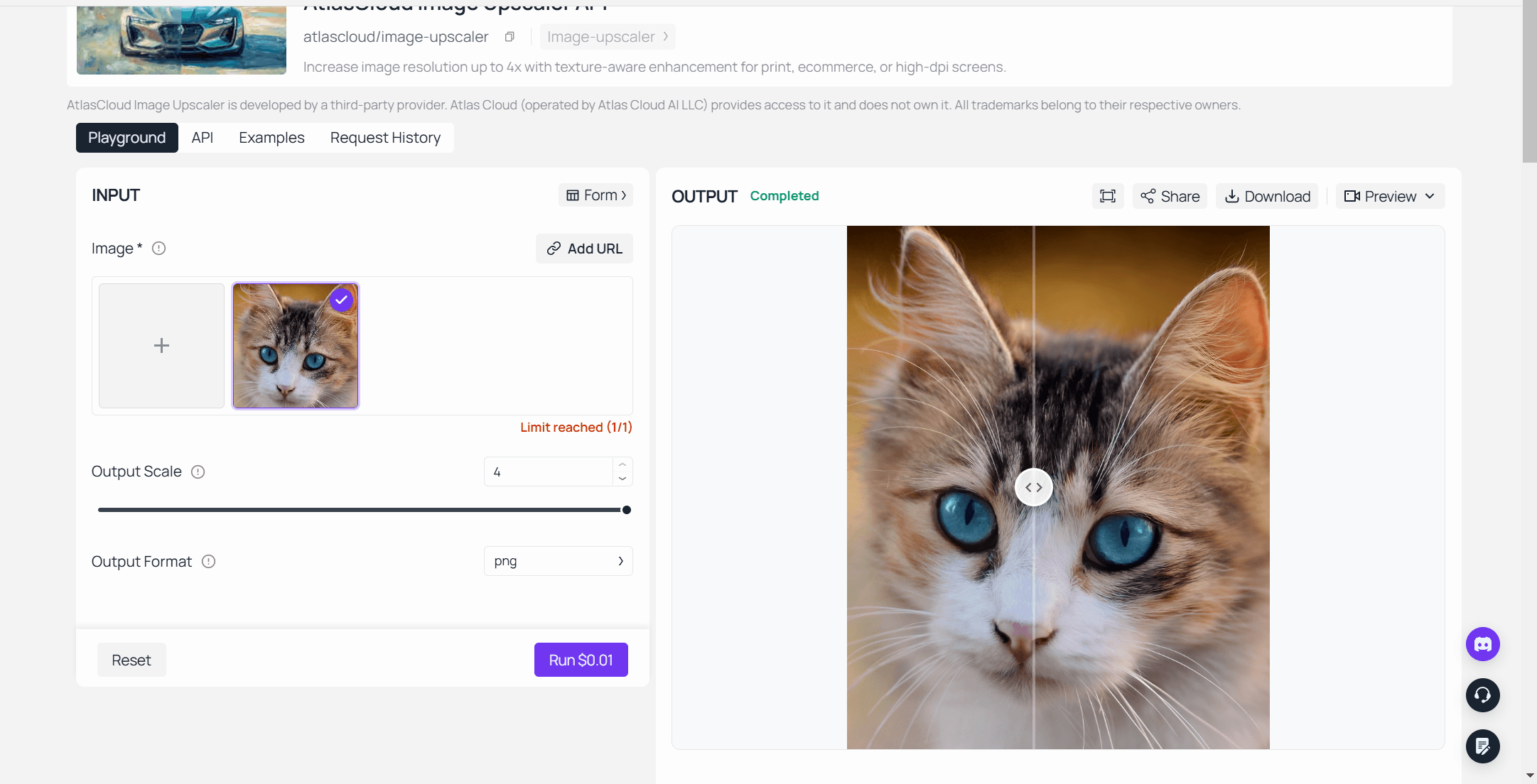
The hosted Atlas Cloud image upscaler playground with outscale set to 4.0, showing the parameter panel next to a finished 4x output

Put your own crop through the free AI image upscaler page to see what a 2x pass does with it, or open the free AI tools collection it belongs to, where a background remover and a video upscaler sit beside it.

For files above that line, the image upscaler model in the playground takes an outscale value from 1.0 to 4.0 on a RealESRGAN backend and returns JPEG, PNG or WebP.

On the platform side it sits in the image and video tools family, reachable with one account and one API key.

Why it stands out: The free route and the paid route are the same product at two sizes, so nothing about the workflow changes when your files get bigger. You test on a crop in the browser, learn how super resolution treats your kind of picture, then send the work that needs 4,000 pixels to the endpoint built for it.

Best for: Anyone whose problem is a small image rather than a large one. Profile pictures, product thumbnails, screenshots headed into a slide, scanned crops.

Pricing: The browser tool is free with no account to create, no cap on how many times you run it, no watermark on the output, and no upload of your picture. The hosted model bills per image out of the same Atlas Cloud balance that covers every other model on the platform.

2. Upscayl: Best Free Image Upscaler for Unlimited Local Runs

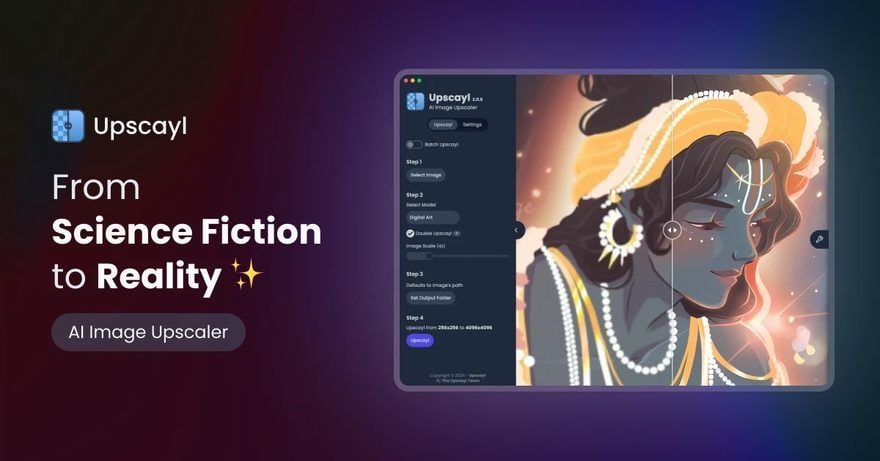
Upscayl is the answer when the words "free" and "unlimited" need to survive contact with a folder of 200 files. It is an open source desktop app, currently around 49,000 stars on GitHub, and it ships the Real-ESRGAN family plus community models like Remacri and Ultrasharp.

The Upscayl desktop app interface with its Batch Upscayl toggle, model selector, Double Upscayl option and 4x scale control, next to a split before and after view of an upscaled illustration

Where the free tier stops you: Not at the output. It stops at your graphics card. The project README is blunt about the requirement: "You'll need a Vulkan compatible GPU (Graphics Card) to upscale images. Many iGPUs (integrated graphics) do not work but, no harm in trying :)"

What one usable upscale actually costs: Nothing, and that holds for the hundredth file as well as the first. Upscayl Cloud exists as a separate paid service at $24.99 a month for 300 credits if you would rather rent someone else's GPU.

What users report: There is no Trustpilot or App Store listing to quote, which is normal for a desktop open source tool. The signal is the repository itself and the community model library built around it.

Where it falls short for image upscaling: It cannot fix focus. The README says so directly: Upscayl "cannot de-blur or do focus adjustment on your image. If your image is out-of-focus or totally blurred, Upscayl is not the right tool for it."

Fits: Batch work, archives, anything you would rather not upload. Not for you if: you are on an integrated graphics laptop, or you need a result in the next two minutes from a machine you do not administer.

3. Topaz Gigapixel: Best AI Photo Upscaler for Big Prints

Gigapixel is the tool photographers name when the destination is a gallery wall. Up to 16x, a stack of specialised models including Recover and Redefine, and Photoshop and Lightroom plugins so it lands inside an existing retouching workflow.

Topaz Labs branding for Topaz Gigapixel, the desktop AI photo upscaler used for print size enlargements

Where the free tier stops you: At the save dialog. Topaz's own getting started documentation describes a trial that runs every feature except the one that matters, and says a licence is required before you can save your images. You can audition the models. You cannot keep the file.

What one usable upscale actually costs: $29 a month with no commitment, $149 a year paid upfront, or $19 a month on an annual commitment. The pricing page lists subscriptions only, so the cost is ongoing rather than one time.

What users report: 3.7 out of 5 across 56,496 Trustpilot reviews, which covers the whole Topaz product line rather than Gigapixel alone. The volume is unusual for this category, and so is the score.

Where it falls short for image upscaling: The plugin route caps out at 30,000 pixels per dimension in Photoshop, and the Lightroom Classic plugin does not accept PSD files. Generative models also need cloud rendering on Intel Macs rather than your own hardware.

Fits: Print work, client deliverables, anyone already paying for a retouching stack. Not for you if: you have one photo to rescue this afternoon.

4. Canva Image Enhancer: Best Image Upscaler Inside a Design Tool

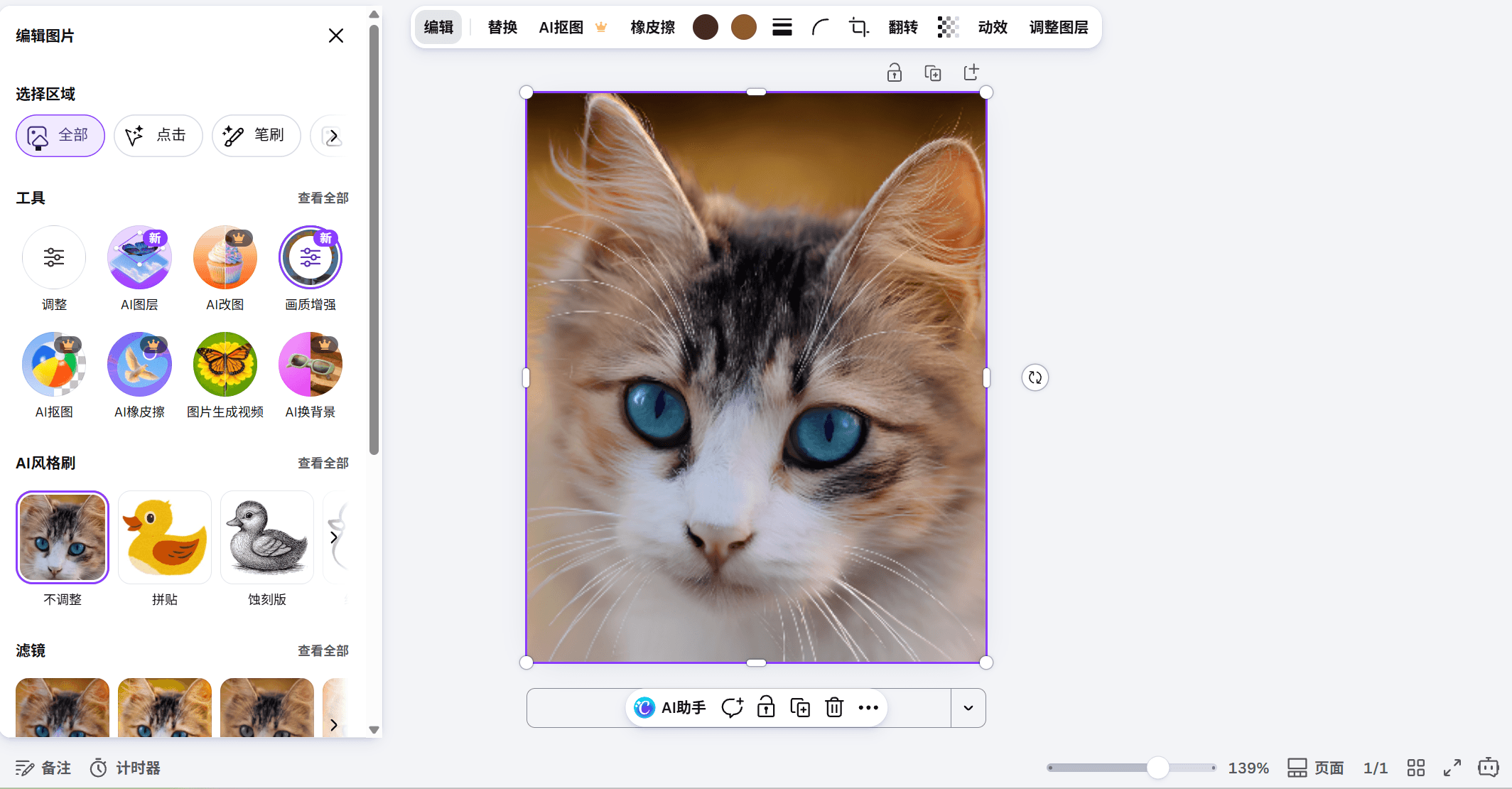
Canva calls its feature Upscale and reaches it from the image editor rather than a standalone page. Click the image, open Edit, find Upscale under Tools, click once. For anyone whose picture is already sitting in a Canva layout, that is three fewer steps than exporting it, upscaling it elsewhere and re-importing it.

The Upscale tool in the Canva editor's Edit panel, shown next to a selected photo with the Adjust and filter controls visible

Where the free tier stops you: Canva markets Upscale as a free online image enhancer and lists the enhancer apps as free to use with any Canva plan. Its feature page does not state a scale factor or an output ceiling, so you cannot plan a print job around it in advance. Canva also pools its AI features into a monthly allowance that varies by plan.

What one usable upscale actually costs: Nothing on a free account, if the result is good enough for the layout it already lives in. Canva Pro is $180 a year for one person, which buys the premium library and a bigger AI allowance rather than the upscaler specifically.

What users report: 4.0 out of 5 from 7,017 Trustpilot reviews, and 4.9 out of 5 from roughly 3.5 million App Store ratings for the mobile app. Those are platform-wide scores for a design suite, not verdicts on the enhancer.

Where it falls short for image upscaling: No published factor, no published output limit, no batch. It is a repair pass on a photo you are already designing with, and it is priced and documented that way.

Fits: Social posts, decks, anything that never leaves Canva. Not for you if: you need to know the output dimensions before you commit to a print size.

5. VanceAI: Best AI Image Enlarger for Credit-Based Runs

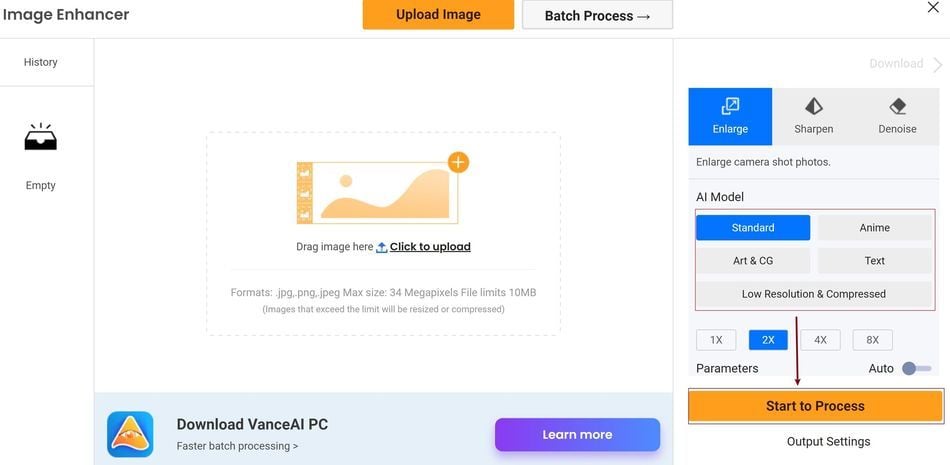
VanceAI is the one that lets you choose the model rather than guessing. Its workspace exposes Standard, Anime, Art & CG, Text, and Low Resolution & Compressed, then 1X through 8X, then a Batch Process button along the top.

The VanceAI Image Enhancer workspace with its Enlarge, Sharpen and Denoise tabs, five AI model choices, 1X to 8X scale buttons and the stated 34 megapixel and 10 MB upload limits

Where the free tier stops you: At the clean download. VanceAI sells the watermark-free export as a paid feature, describing paid plans as the ones that download clean results without watermarks, and it puts free jobs in a slower queue behind paid ones.

What one usable upscale actually costs: $9 a month for 200 credits on the Starter plan, and the credits are spent by factor: 1 credit at 2x, 2 credits at 4x, 3 credits at 8x. A desktop app is sold separately at $39.90 a month, $99.90 a year, or $129.90 once.

What users report: 4.2 out of 5 across 1,339 Trustpilot reviews.

Where it falls short for image upscaling: Automated batch processing is listed as an enterprise feature, so the Batch Process button in the workspace is not the same thing as unattended bulk work. Uploads are also capped at 34 megapixels and 10 MB.

Fits: Mixed libraries where anime art, screenshots and photos each need a different model. Not for you if: you want one clean file today without buying credits.

The Other Five AI Image Upscalers Worth Knowing

These five all work. They sit below the top half because each one puts a condition on the free result: a low resolution download, a credit counter, a watermark, or a size cap that decides the job for you.

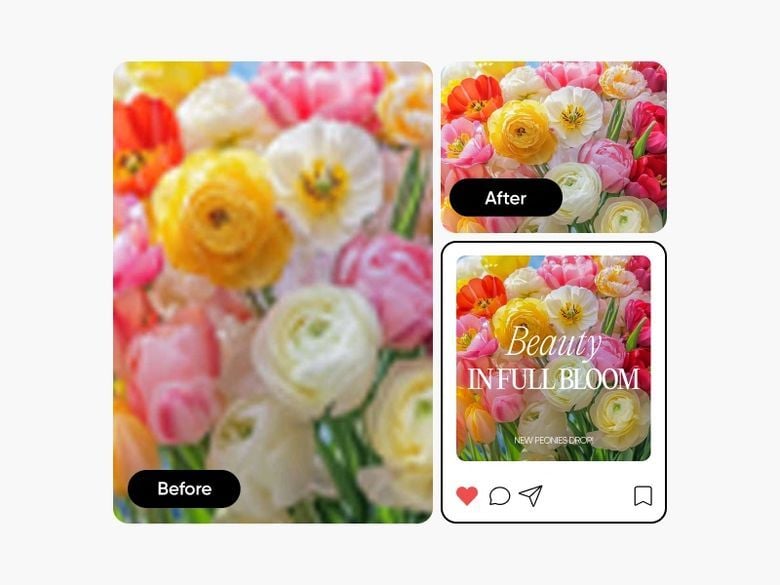
Picsart's own before and after example for its AI image enhancer, with a blurred flower photo, the upscaled version, and the finished image dropped into a social post layout

6. Picsart AI Image Enhancer: Free Preview, Paid Full Resolution

Picsart upscales at 2x or 4x and handles bulk work at up to 50 images at once on Pro, or 100 on its top tier. The catch is stated on the tool page itself: "You can use Picsart's AI Upscaler for free to download a low-resolution version of your image. For high-resolution downloads, you'll need a Picsart Plus subscription." Pro is $10.50 a month billed yearly, and the App Store listing sits at 4.7 out of 5 from about 1.2 million ratings.

7. AirBrush Image Enhancer: Mobile-First Photo Upscaler

AirBrush comes from a phone retouching app, and the enhancer bundles upscaling with sharpening, noise reduction and colour correction. Its pricing page charges 1 credit per save, and subscription credits expire when the term ends. Web Plus is $15.95 a month for 80 credits. No scale factor or batch limit is published, which is the pattern with tools built for faces rather than files.

8. Let's Enhance: Free Image Upscaler Credits With a Watermark

Let's Enhance hands out a few free credits at signup and marks the watermark as removed for paid users, so the free result carries a stamp. Free uploads cap at 24 megapixels and free upscales at 8, while paid uploads go to 64. Starter is $9 a month billed annually for 100 credits and an output ceiling of 256 megapixels, and there is a documented API for anyone who outgrows the web app. Trustpilot has it at 4.0 out of 5, but from only 185 reviews.

9. Nero AI Image Upscaler: 268 Megapixel Ceiling

Nero gives new users 10 free credits, one credit per upscale, and its own page says it is not possible to use the function unlimitedly. The output ceiling is genuinely large at 268 megapixels. The consumer subscription price would not render on its pricing page when we checked, and the business API starts at $99.99 a month at about $0.10 a credit, with batch support for 200 images. Trustpilot shows 4.8 out of 5 from 1,677 reviews.

10. waifu2x: Free Picture Upscaler for Anime Art

The original still runs at waifu2x.net. Free, no watermark, styles for Artwork, Artwork-Scans and Photo, noise reduction from none through highest, and scale at 1.6x, 2x or 4x. The limits are strict and published: 5 MB uploads, 1,500 by 1,500 pixels for upscaling, 3,000 by 3,000 for noise reduction. Development moved to a successor project years ago, so treat it as a stable single purpose utility.

Will an AI Upscaled Image Hold Up in Print?

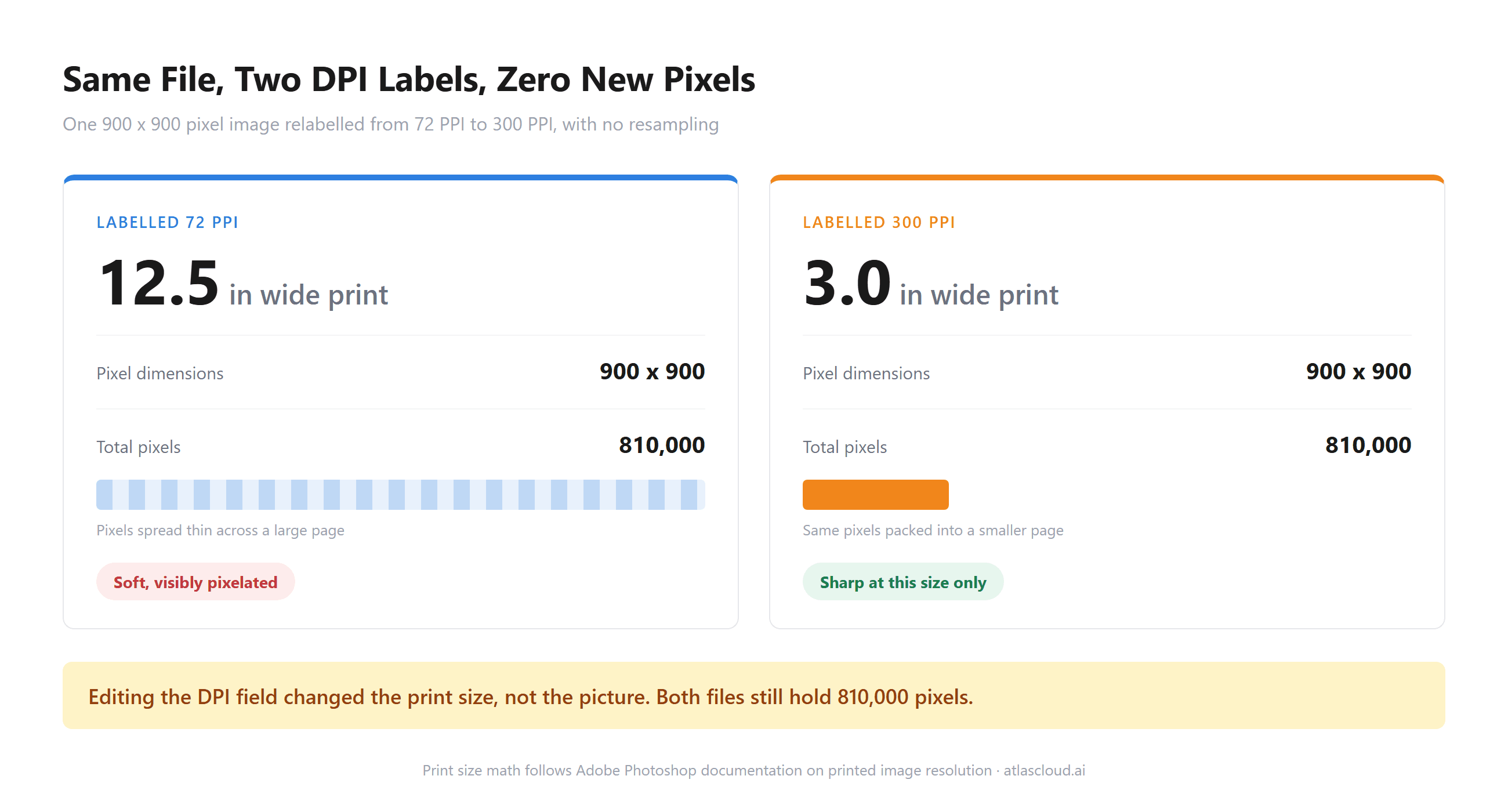
Every scale factor on this page is a promise about pixels, not about print. The arithmetic that decides whether a file survives a printer is one division, and it does not care which model you used.

Chart of print width at 300 PPI for source long edges of 384 to 2,000 pixels at 2x and 4x upscaling, against a dashed A4 width reference at 8.3 inches

Adobe puts the standard plainly in its guide to pixel density: "300 PPI is a go-to option for those looking to produce great print material." Divide your pixel count by that and the picture gets clear fast.

A 384 pixel crop doubled reaches 2.6 inches, about a postcard. The same crop at 4x still stops short of A4. A 1,000 pixel source at 4x clears 13 inches comfortably, which is why the source matters more than the factor.

Our print size guide for AI posters runs the same division across common generator output sizes if you need the wall poster version of this maths.

There is a second question hiding behind the first, and it has been through a courtroom. In an order signed at the end of March 2024, a King County judge in Washington State excluded AI enhanced video from a triple homicide trial, with the order objecting to "opaque methods to represent what the AI model 'thinks' should be shown," as NBC News reported at the time.

The software involved was Topaz. Its own co-founder has since been explicit about the boundary, telling an interviewer "we do specifically strongly advise against any forensics or medical use cases" in a Documentary magazine interview.

Forensic guidance says the same thing in colder language. The Scientific Working Group on Digital Evidence, in its document on resizing imagery, notes that "the enlargement process does not introduce new detail absent from the original recording."

Adobe's own tutorial on generative upscaling puts the flip side of that in marketing prose, describing one model as enhancing a photo creatively by adding detail that was not there before.

What to do instead: Treat an upscaled file as a presentation asset. Use it for layouts, listings, slides and small prints. Keep the original alongside it for anything where the detail has to be true rather than plausible, including insurance photos, legal exhibits, medical images and identification. If a print job depends on the result, run the division before you place the order rather than after.

Where Each Free Image Upscaler Stops Accepting Your File

Output limits get the headlines. Input limits decide whether the tool will even look at your photo, and they are the reason a 12 megapixel phone shot sometimes comes back looking worse than it went in.

ToolPublished input ceilingWhat happens above it
Atlas Cloud free tool384 px long edgeScaled down first, output caps at 768 px
UpscaylYour GPU's memory, Vulkan requiredFails to run rather than degrading quietly
Topaz Gigapixel30,000 px per dimension in the Photoshop pluginStated plugin maximum; PSD not accepted via Lightroom
VanceAI34 megapixels, 10 MBResized or compressed on the way in
Let's Enhance24 megapixels free, 64 paid, 50 MBRejected
Nero AI268 megapixel output ceilingNot accepted beyond the ceiling
waifu2x5 MB upload, 1,500 px for upscalingRefused
Canva, Picsart, AirBrushNot publishedUnknown before you upload

The pattern is worth internalising before you pick a tool. Cloud services cap by megapixels and file size because GPU time scales with pixel count. Local tools cap by your own hardware. Browser tools cap hard, because the model is running in a tab with a memory budget, which is why the Atlas Cloud tool states its ceiling up front rather than quietly returning mush.

Check your long edge first. That one number tells you which half of this list you are shopping in.

Frequently Asked Questions

What Is the Best Free Image Upscaler With No Watermark?

Among the ten here, three document a clean full resolution file on a free account: the Atlas Cloud browser tool, Upscayl on the desktop, and waifu2x within its size caps. Canva's feature page does not state an output size either way. Let's Enhance and VanceAI both treat watermark removal as a paid feature, and Picsart's free download is a low resolution version.

Is There a Free AI Image Upscaler Without Login or Signup?

Yes. The Atlas Cloud browser tool opens and runs without an account, and so do Upscayl as an installed app and waifu2x as a web page. Credit based services generally sit at the other end: the counter has to attach to an account, so signup is usually the price of the free tier there.

How Much Does an AI Image Upscaler Cost per Image?

The hosted Atlas Cloud image upscaler bills a flat $0.0100 per image at the time of writing, with the playground showing the cost before you run it. Subscription tools work out differently depending on usage: VanceAI's $9 Starter plan buys 200 credits, which is 200 images at 2x or about 66 at 8x, and Let's Enhance's $9 annual Starter buys 100 credits a month.

Can an AI Image Upscaler Turn a Phone Screenshot Into a Print File?

Sometimes, and the screenshot's own dimensions decide it rather than the tool. A modern phone screenshot is often 1,200 pixels or more on the long edge, which at 4x lands past 16 inches at 300 PPI. A cropped detail from that screenshot at 300 pixels will not reach A4 at any factor sold on this page, because upscaling reconstructs plausible detail rather than recovering real detail.

Conclusion

The honest summary of this category is that free is a pricing page word, not a product word. Four of these ten meter you with credits, and two of those four also watermark the free result. Canva draws on a shared AI allowance, Picsart hands back a low resolution file, Topaz lets you run every model and save nothing, and three document a finished file with nothing attached. Sorting the list that way took less time than judging image quality, and it changes the answer more.

Start from your source file rather than from the rankings. If the long edge is small, a local browser pass costs nothing and answers the question in a minute. If it is large and headed for print, divide by 300 to see how many pixels you need, then choose between a desktop licence and a per image endpoint. That is how to pick the best free image upscaler for the file on your desktop, rather than the one with the biggest number on its homepage.

最新模型

一個 API,暢享全模態 AI。

探索全部模型