The model is still mid-stride when the shot runs out at eight seconds, and the voice-over has six seconds left to say. Premiere Pro Generative Extend can cover two of them. Adobe's tool adds up to 2 seconds of new video to one end of a clip, right on the timeline, and charges generative credits for every second it makes.
For the other four seconds you need something that generates longer. We took an 8-second dune shot to the Video Extend tab on Atlas Cloud, where Grok Imagine added 10 seconds in one pass. Below is how the two tools compare, and how to bring a longer extension back into a Premiere edit.
Key Takeaways
- Premiere Pro Generative Extend adds up to 2 seconds of video or 10 seconds of ambient audio to one end of a clip, and labels the new frames on your timeline.
- Each secondofnew video costs 50 to 175 generative credits depending on resolution and frame rate, while the Premiere single-app plan now includes 25 credits a month.
- The Atlas Cloud video extender continues a 2 to 15 second clip by 2 to 10 seconds per pass with Grok Imagine, and you write what happens next.
- Atlas Cloud bills each run by the second from a pay-as-you-go balance, with no Creative Cloud subscription.
- Keep Generative Extend for short handles inside a 4K edit: it never leaves Premiere, and Adobe says your media is never used to train its model.
What Premiere Pro Generative Extend Does to a Clip
Generative Extend is a tool in the Premiere toolbar, built on Adobe Firefly. You select it, drag the edge of a clip past its last frame, and Premiere fills the gap with generated frames. Adobe pitches it for small timing fixes: holding a reaction for an extra beat, covering a transition, or stretching background sound under a cut.
The generation happens in the cloud. Adobe's FAQ says the tool sends a short segment of your clip, "typically between 1.5 - 3 seconds," to a Firefly model, which is why it needs an internet connection.
Adobe's help pages set the limits:
- Length: up to 2 seconds of video and up to 10 seconds of audio per extension, on the start or the end of a clip but not both. The video clip itself has to run at least 2 seconds.
- Picture: sources from 360p to 4K UHD in any aspect ratio, vertical included. Clips from 12 to 60 fps are accepted, and anything above 30 fps is extended at 30 fps. New frames are always 8-bit SDR, even when the source is 10-bit or HDR.
- Sound: room tone, sound effects and background audio extend. Existing dialogue is muted during an extension, clips that contain music are not eligible, and only mono and stereo tracks work.
Two details matter to working editors. The generated frames land on your timeline with a label, and a right-click offers Regenerate or Revert to Original, so an extension is always one click from undone. And the overview page states plainly: "Your media is never used to train Adobe's AI model." Adobe also attaches Content Credentials to Generative Extend output.
One naming note: Adobe now calls the desktop app simply Adobe Premiere, while its help pages still use both names. The tool and its limits are the same under either one.
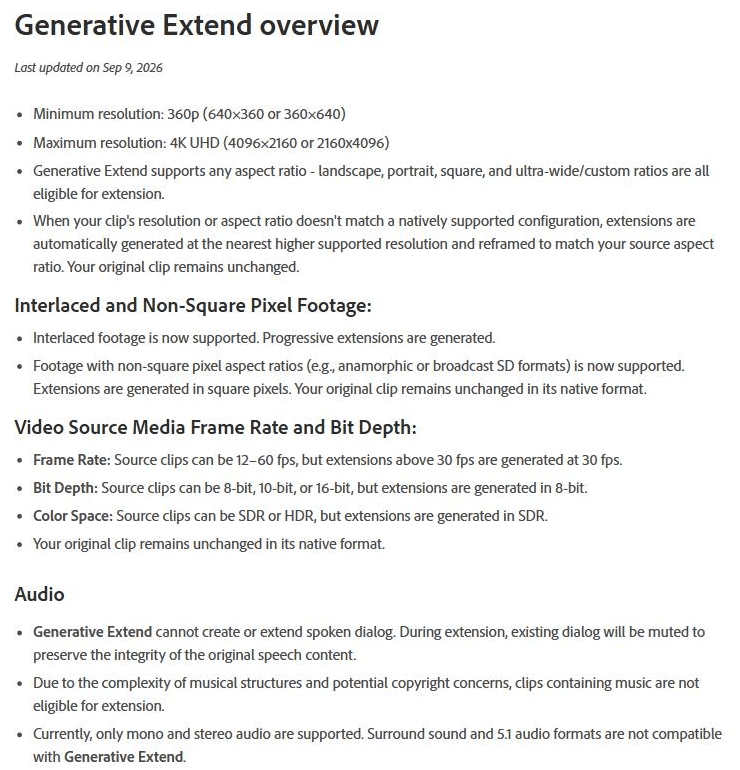
Screenshot from Adobe's Premiere help center (Generative Extend overview, last updated September 9, 2026), taken September 30, 2026.
Why Generative Extend Runs Out on Longer Shots
Two seconds is a handle. It gets a dissolve off the last frame, or buys the few frames a cut needs to land on the beat. It stops being enough the moment the edit needs a longer shot than the one you filmed.
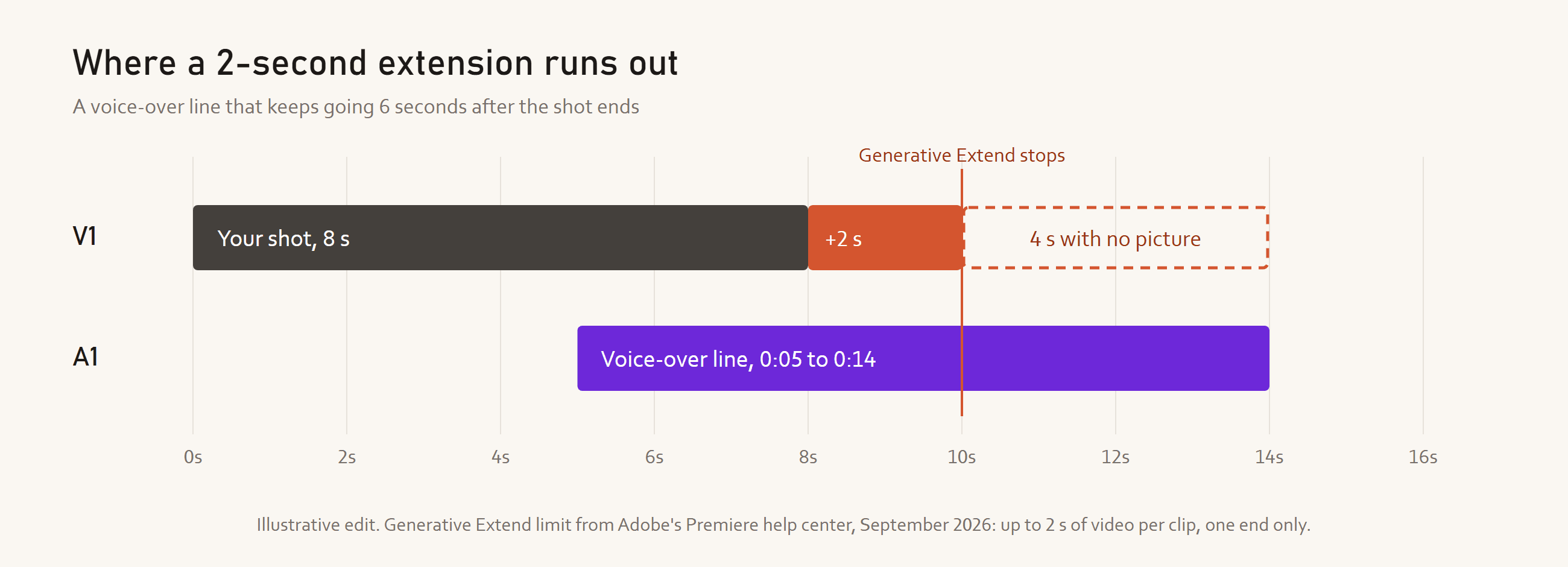
A typical case looks like the timeline below. The picture ends at 8 seconds, the voice-over runs to 14, and Generative Extend fills to 10. The last 4 seconds still need a cutaway, a freeze frame, or footage you don't have.
The same wall shows up in other edits. A title card has to sit on a shot for five more seconds. A product is halfway through its turn when the take ends. A vertical cut for social needs the opening shot to run longer than it did on the day.
You also can't direct the new frames. Adobe's steps are to pick the tool and drag the edge. Nowhere in them do you type a prompt, so you can't ask the subject to stop, turn or walk out of frame. Any shot with dialogue or a music bed runs into the audio rules above as well.
How Many Generative Credits One Premiere Pro Extension Uses
The second ceiling is the credit meter. Adobe's generative credits FAQ, updated September 30, 2026, lists what Generative Extend costs per second of new video.
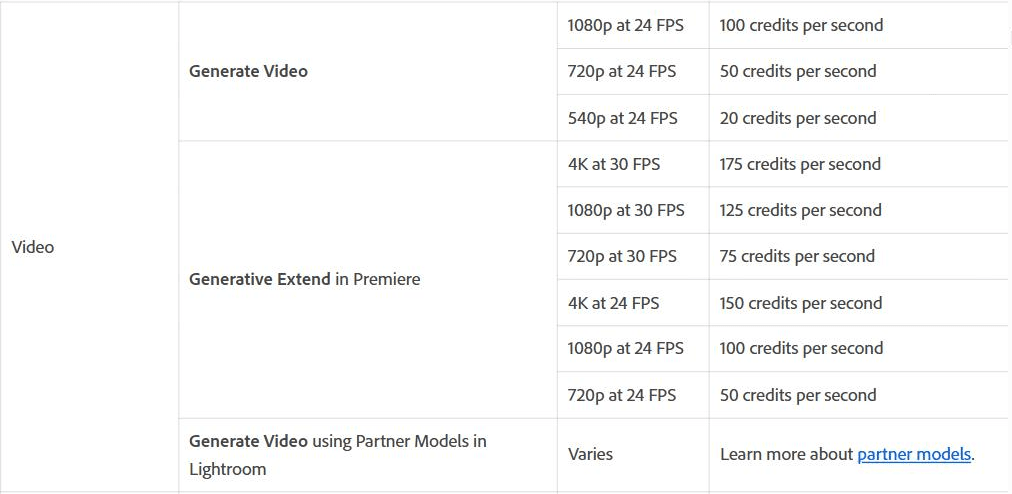
Screenshot from Adobe's Creative Cloud help center (Generative credits FAQ, last updated September 30, 2026).
Here is what those rates add up to for one full 2-second video extension, set against the monthly credits in two Adobe plans that unlock the feature:
| Source format | Credits per second | One 2-second extension | Full passes on 2,000 credits (Firefly Standard) | Full passes on 4,000 credits (Creative Cloud Pro) |
|---|---|---|---|---|
| 720p, 24 fps | 50 | 100 | 20 | 40 |
| 720p, 30 fps | 75 | 150 | 13 | 26 |
| 1080p, 24 fps | 100 | 200 | 10 | 20 |
| 1080p, 30 fps | 125 | 250 | 8 | 16 |
| 4K, 24 fps | 150 | 300 | 6 | 13 |
| 4K, 30 fps | 175 | 350 | 5 | 11 |
The pass counts assume every extension runs the full 2 seconds and nothing else draws on the same credits. Adobe's table has no 60 fps row.
The plan matters more than the rate. According to the same FAQ, Premiere single-app plans started on or after June 17, 2025 include 25 generative credits a month, half a second at the cheapest rate. Past a limited number of complimentary generations, regular use means a Firefly plan or Creative Cloud Pro.
Atlas Cloud as an Adobe AI Video Extender Alternative
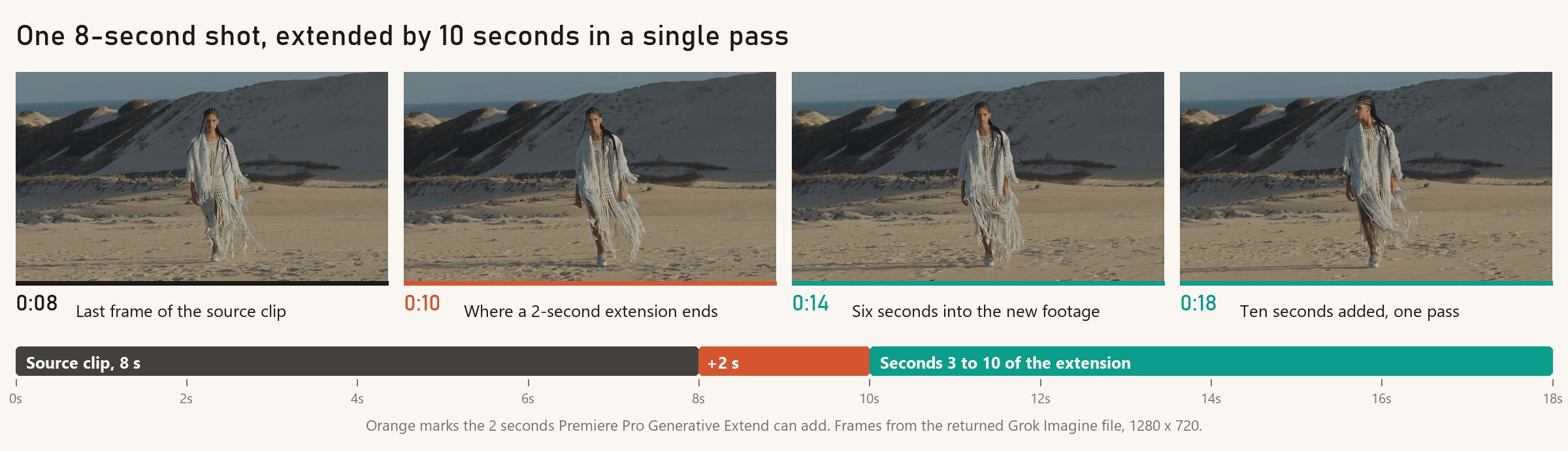
Outside Premiere, generative extend video AI starts from the same raw material: the final frames of your clip. Atlas Cloud runs four extension models from one upload box in the Video Extend tab of its video generator, and every one of them goes past 2 seconds. Here is the 8-second dune shot from the top of this page, extended by 10 seconds with Grok Imagine in one pass:
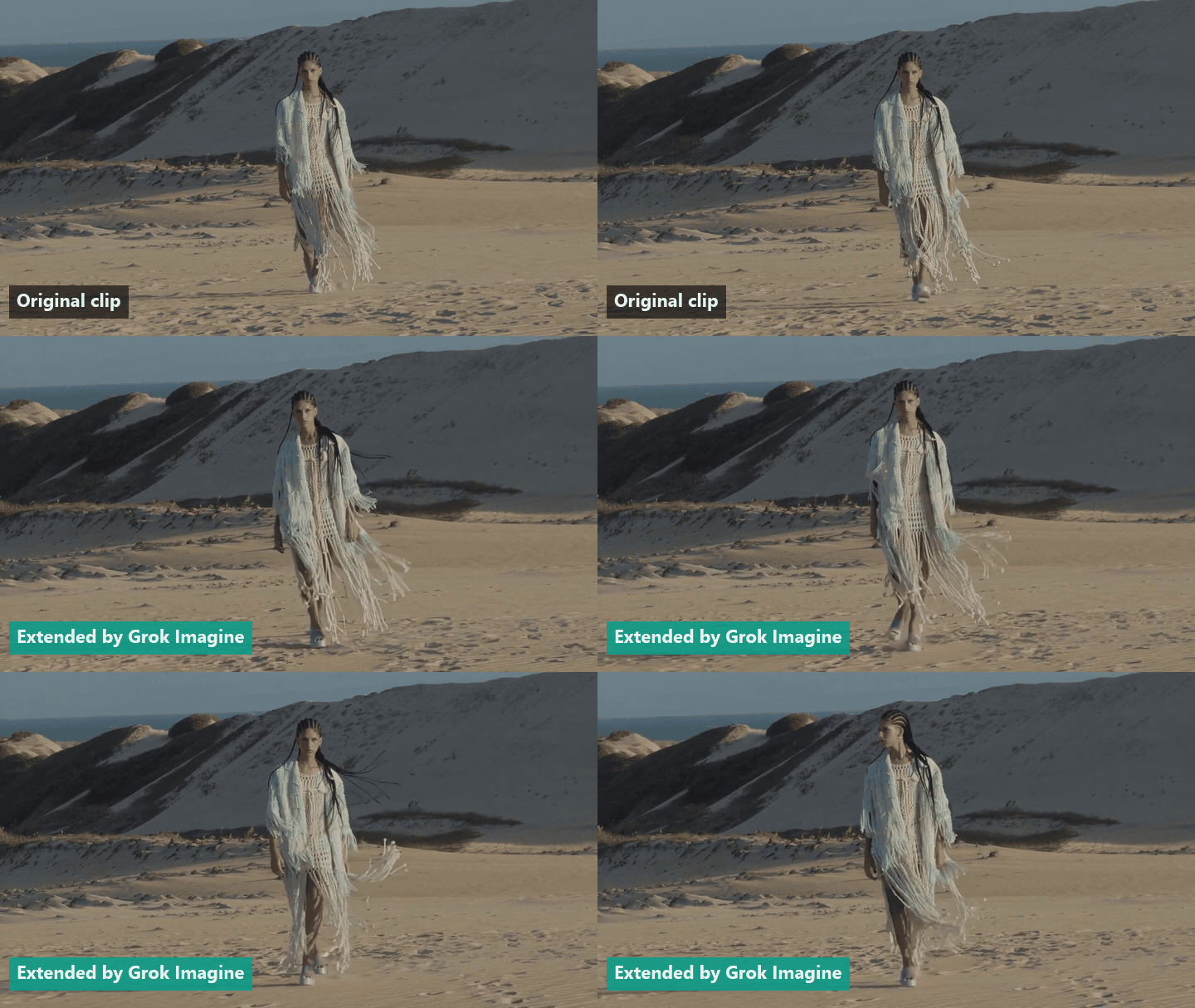
The returned file runs 18 seconds. Its first 8 seconds are our original frames, and the join lands at exactly 8.0 seconds with no jump: her stride, the braids, the fringe and the low sun all carry across.
The camera keeps tracking back at the same pace, and in the final second she turns her head, one of the beats the prompt asked for. Our source had no sound, and the new 10 seconds came back with a quiet ambience track that fades in at the join.
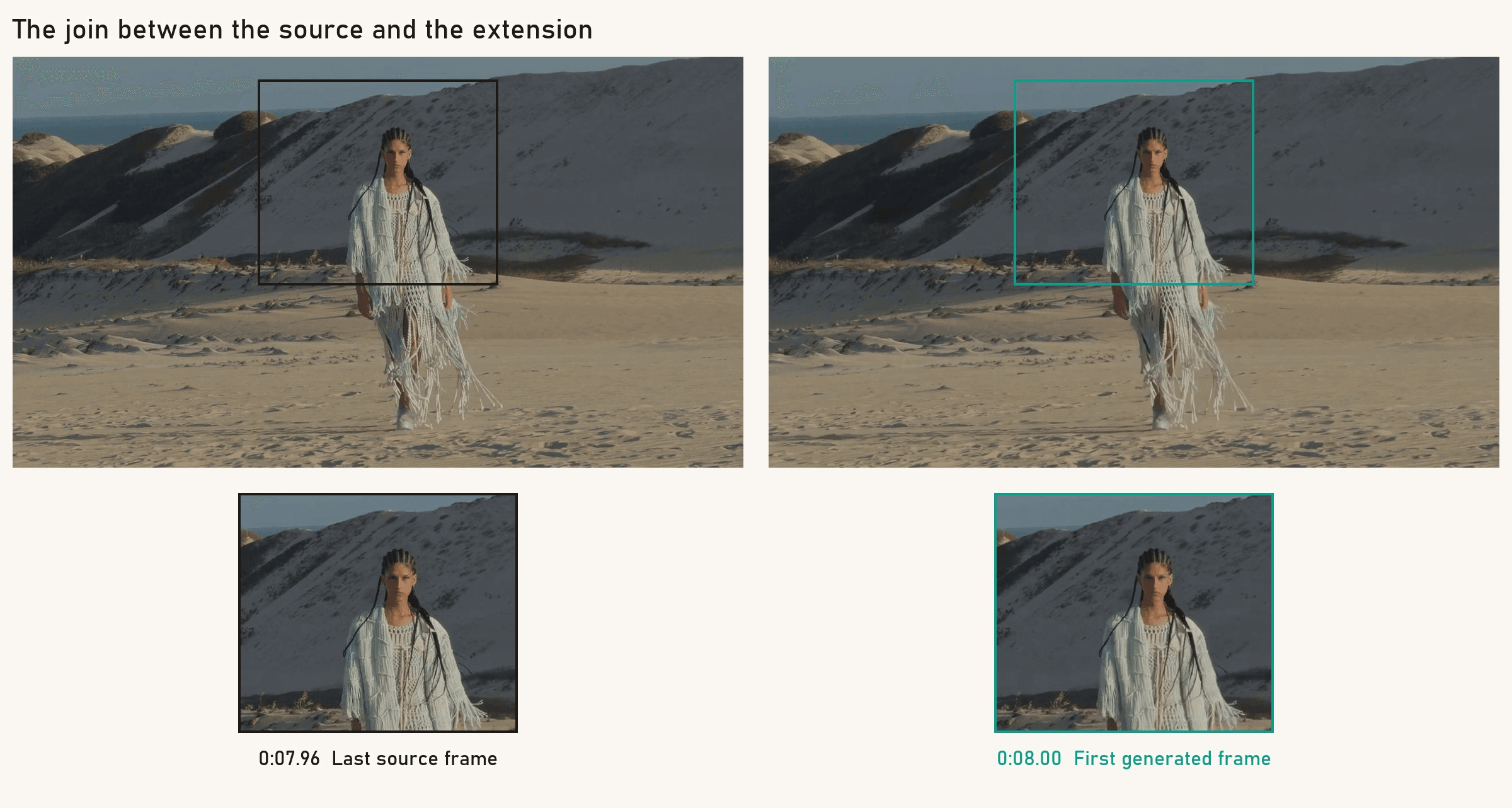
Grok Imagine is the default model in the tab. It takes a 2 to 15 second mp4, adds 2 to 10 seconds per pass, and returns up to 720p. Atlas Cloud hosts the whole xAI model family, and xAI's documentation describes the output as a video that "picks up seamlessly from the last frame of the input."
If you plan to chain several passes, our AI video extender guide has a prompt template that keeps faces and clothing steady.
Method 1: Extend the Clip in the Atlas Cloud Video Extend Tab
Log in, then work through five steps:
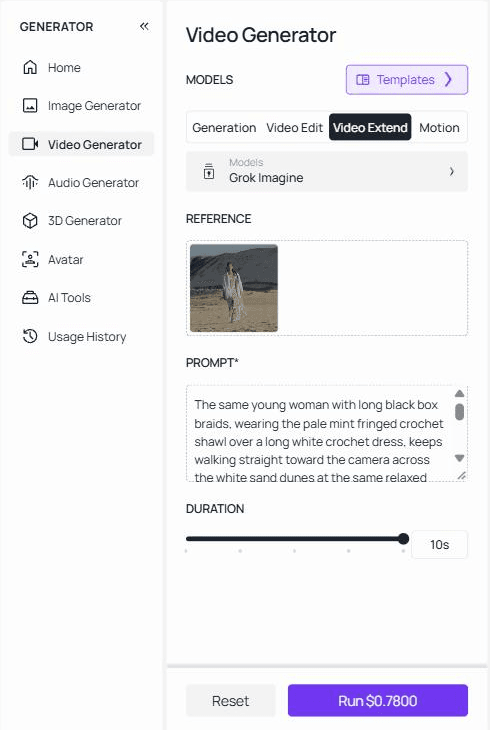
- Open the video generator and click Video Extend. Grok Imagine is already selected.
- Upload your clip into the Video to extend box. It has to be an mp4 between 2 and 15 seconds long.
- Write the prompt. Describe what is already on screen first, then the one new action you want. This is the prompt we used for the dune shot:
plaintext1The same young woman with long black box braids, wearing the pale mint fringed crochet shawl over a long white crochet dress, keeps walking straight toward the camera across the white sand dunes at the same relaxed runway pace. The camera keeps tracking backward at the same speed and height, so she stays full length in the center of the frame. Wind lifts the fringe and a few braids to her left. Warm late-afternoon sun from the right, the tall dune and the strip of blue sea behind her stay in place. Near the end she slows, stops and turns her head to look out toward the sea. No cut.
- Drag the DURATION slider to the number of seconds you want added, anywhere from 2 to 10. The Run button updates with the cost of that exact run before you commit.
- Press Run, then download the finished clip from the history panel.
The same inputs sit on the dedicated Grok Imagine extend page, which also carries the API tab for Method 2.
Method 2: Send the Clip to the Grok Imagine Extend API
For a batch of shots, or a script that runs from your render queue, the API takes the same three inputs.
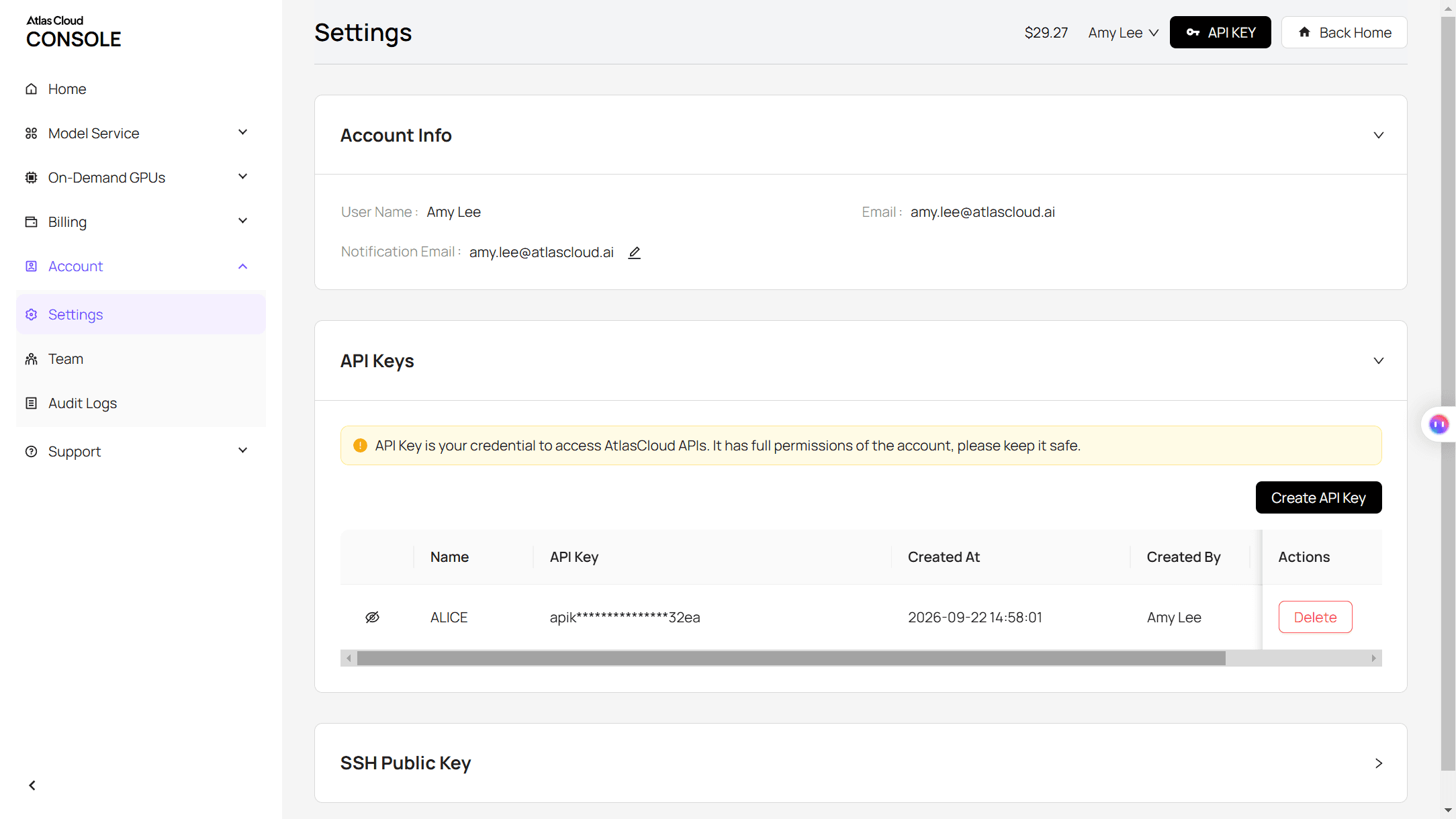
Step 1: Create an API key. In the Atlas Cloud console, open Settings, find the API Keys panel and click Create API Key. Copy the key and keep it on your server.
Step 2: Check the request fields. The Atlas Cloud API docs cover authentication and polling. The extend endpoint takes video_url (a public 2 to 15 second mp4), prompt, and duration (2 to 10 added seconds).
Step 3: Submit the request and poll for the result.
plaintext1curl -X POST https://api.atlascloud.ai/api/v1/model/generateVideo \ 2 -H "Content-Type: application/json" \ 3 -H "Authorization: Bearer $ATLASCLOUD_API_KEY" \ 4 -d '{ 5 "model": "xai/grok-imagine-video/extend-video", 6 "video_url": "<public_https_url_to_your_clip.mp4>", 7 "prompt": "The same young woman with long black box braids, wearing the pale mint fringed crochet shawl over a long white crochet dress, keeps walking straight toward the camera across the white sand dunes at the same relaxed runway pace. The camera keeps tracking backward at the same speed and height. Near the end she slows, stops and turns her head to look out toward the sea. No cut.", 8 "duration": 10 9 }'
The response carries a prediction ID. Poll it until the status reads completed:
plaintext1curl https://api.atlascloud.ai/api/v1/model/prediction/<prediction_id> \ 2 -H "Authorization: Bearer $ATLASCLOUD_API_KEY"
The completed response holds the URL of the full clip, your source plus the new seconds. Atlas Cloud runs one API across its catalog, so trying PixVerse v6 or Wan-2.5 later means changing the model string and that model's own fields, while the endpoint, the key and the polling loop stay the same.
How to Extend Video From an Adobe Premiere Pro Timeline
Method 1 starts with an mp4 on your drive. In a real edit, that file comes out of Premiere and the result has to go back in. The round trip takes five steps, and four of them happen in the editor you already use.
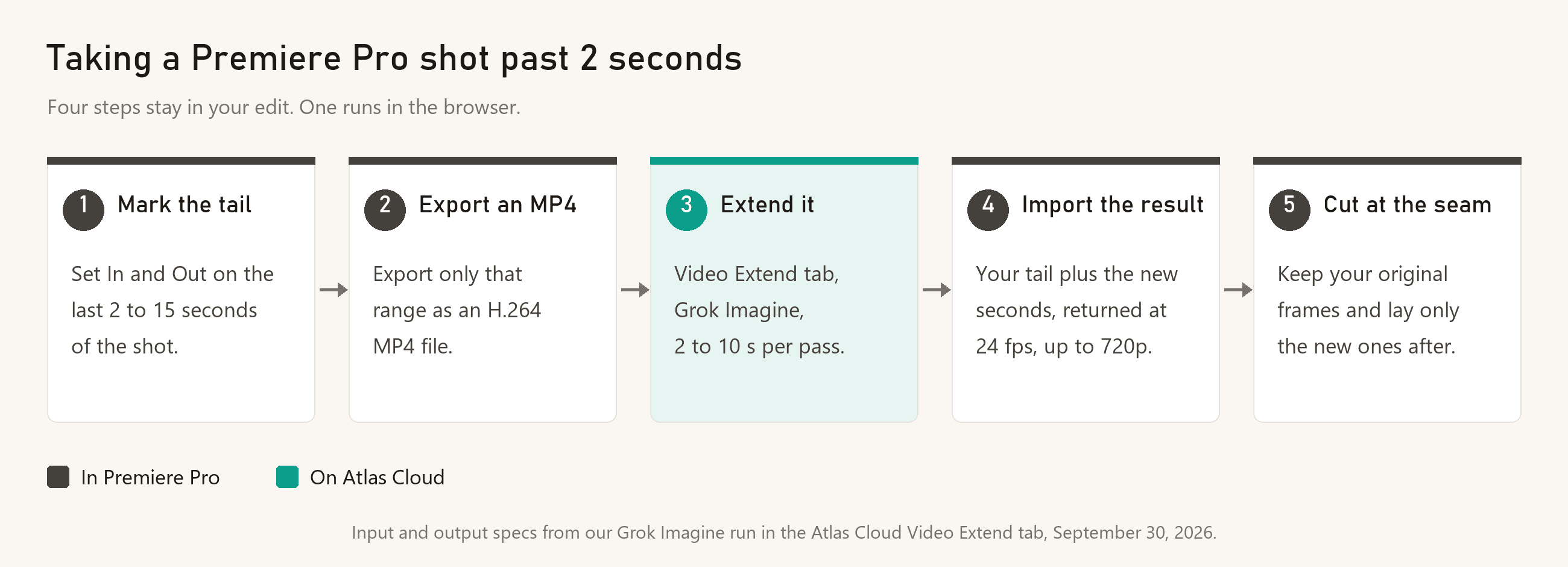
- Mark the tail. Set an In point 2 to 15 seconds before the end of the shot and an Out point on the last frame you want continued. The extension picks up from that exact frame.
- Export that range. Export only the In to Out range as an H.264 MP4. Grok Imagine returns up to 720p, so a 1080p export gives it more than enough to read.
- Extend it in the Video Extend tab with Method 1, or through the API with Method 2.
- Import the result and stack it. Place the returned file on the track above the original shot. It opens with your own tail, re-encoded, so slide it until those frames sit on top of the originals.
- Cutatthe seam. Blade the upper clip where your original footage ends and delete everything to the left of the cut. What plays is your camera original up to the join and new footage after it.
Two format details keep the join invisible. Grok Imagine returned our 30 fps, 1920 x 1080 source at 24 fps and 1280 x 720. On a 24 fps sequence the new seconds drop straight in.
On a 30 fps sequence, set Time Interpolation on the new segment to Frame Blending or Optical Flow. To fill a 1080p frame, apply Set to Frame Size, or run the pass with PixVerse v6 or Wan-2.5 from the same model dropdown, both of which extend at up to 1080p.
Sound follows the same logic. Your production audio stays on the original section, and under the new seconds you can keep the ambience track Grok Imagine generated or lay your own room tone.
Premiere Pro Generative Extend vs Atlas Cloud Side by Side
Both tools read the end of your shot and generate what comes next. They part ways on length, control and billing.
| Premiere Pro Generative Extend | Atlas Cloud Video Extend (Grok Imagine) | |
|---|---|---|
| Where it runs | Inside the Premiere desktop timeline | Browser tab or API, for any editor that imports MP4 |
| Video added per pass | Up to 2 s | 2 to 10 s |
| Which end | Start or end of a clip, not both | After the last frame (LTX 2.3 in the same tab can prepend) |
| Steering | Drag a clip edge, then Regenerate for a variation | A written prompt describes what happens next |
| Audio | Room tone and background up to 10 s; dialogue muted; music clips not eligible | Generated ambience under the new seconds in our run |
| Source clip | 360p to 4K UHD, 12 to 60 fps, at least 2 s | 2 to 15 s mp4 |
| New frames | Up to 4K, 8-bit SDR, 30 fps maximum | Up to 720p at 24 fps in our run; 1080p with PixVerse v6 or Wan-2.5 |
| Billing | 50 to 175 generative credits per second | Per second from a pay-as-you-go balance |
| Plan needed | Premiere or Creative Cloud plan with enough credits | None |
Read the table as a split of jobs. Adobe's column takes 4K and HDR sources and never makes you leave the edit. The Atlas Cloud column covers longer gaps, lets you describe the action, and charges only for the seconds you generate.
Should You Switch From Premiere Pro Generative Extend?
For many editors the answer is to keep both. Generative Extend is the faster fix when the gap is under 2 seconds and the shot lives in a 4K or HDR timeline: no export and no import. If you already pay for Creative Cloud Pro, its 4,000 monthly credits cover 11 to 40 of those fixes, depending on the format.
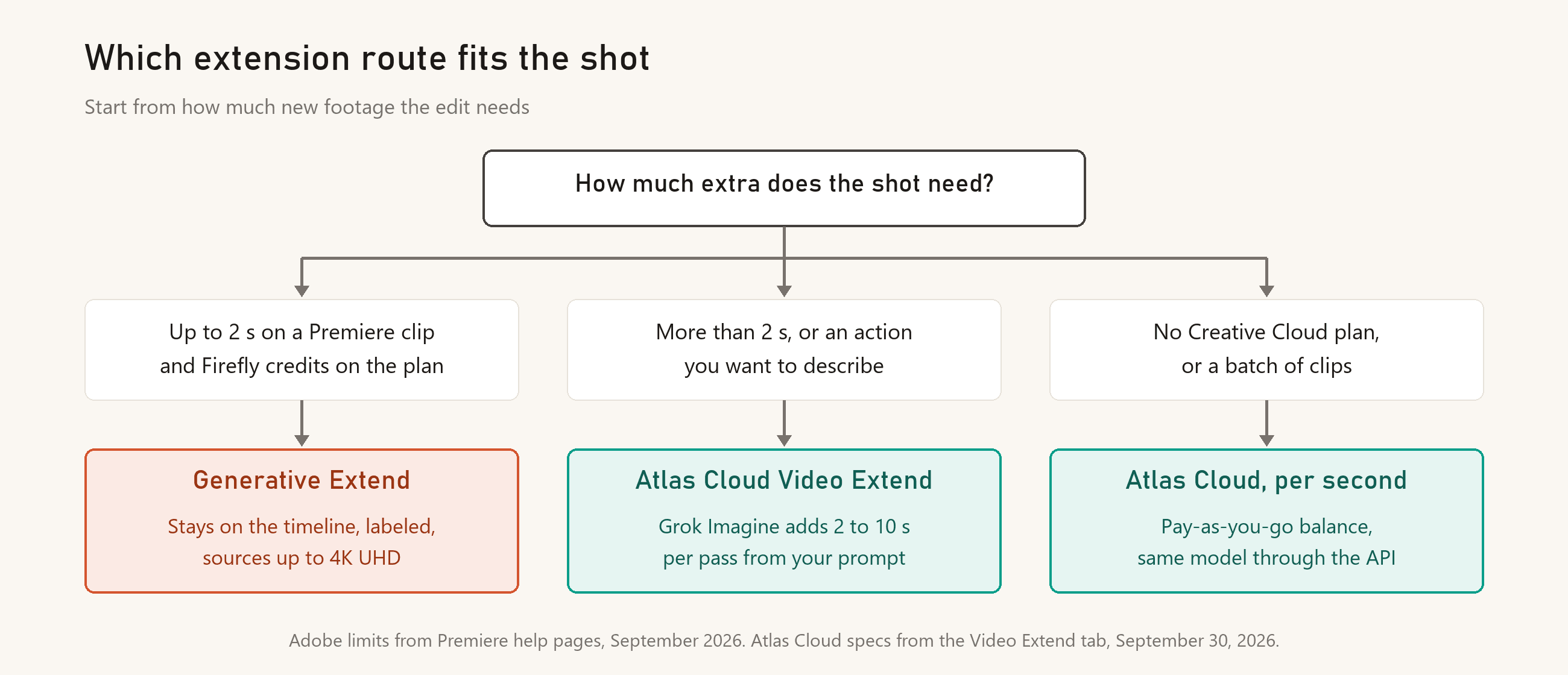
Move the job to Atlas Cloud when the shot needs more than 2 seconds, when you want to decide what happens in the new footage, when the edit lives in another application, or when a Creative Cloud plan makes little sense for a few seconds of footage a month. The chart below sorts the three cases.
Frequently Asked Questions
Why Is Generative Extend Greyed Out in Premiere Pro?
It needs Premiere 25.2 or later, an internet connection and generative credits on the account. Adobe says the feature is unavailable in Russia, Belarus and China, where Firefly isn't offered, and that K-12, education and some enterprise licenses may not have it.
On the clip itself, it fails on video shorter than 2 seconds, audio shorter than 3 seconds, and clips that contain music. Speed changes and multicam source sequences are also on Adobe's list of unsupported cases.
Is Premiere Pro Generative Extend Free?
Not beyond a trial. Premiere has no free desktop plan, only a 7-day trial, and Adobe offers a limited number of complimentary Generative Extend generations. The Premiere single app is listed at US$22.99 a month on an annual plan, billed monthly, with 25 generative credits a month.
Firefly Standard, at US$9.99 a month for 2,000 credits, is the entry Firefly plan, and Adobe lists Firefly plans as the way to unlock premium video features such as Generative Extend.
On Atlas Cloud, adding a payment method unlocks $1 in free credit, enough for one 10-second Grok Imagine pass on any clip it accepts.
What Does a 10-Second Extension Cost on Atlas Cloud Compared With Generative Credits?
Grok Imagine bills $0.07 per added second plus $0.01 per second of the source clip. Our 8-second shot extended by 10 seconds came to $0.78, and a 2-second extension of the same clip is $0.22. At Firefly Standard's rate, a 2-second Generative Extend pass on 1080p, 24 fps footage uses 200 credits, about $1.00 of that plan's monthly allowance.
On Atlas Cloud the minimum top-up is $25, credits stay valid for 365 days from purchase, and failed tasks aren't charged. Prices checked September 30, 2026, with no discounts active.
Can Generative Extend Add Frames to the Start of a Clip?
Yes, on the start or the end, but not both on the same clip. Adobe's workaround is to blade the clip in the middle first and extend each half. On Atlas Cloud, Grok Imagine continues after the last frame, and LTX 2.3 Quality Extend Video in the same Video Extend tab has an Extend direction setting with a Backward (prepend before) option for new frames ahead of the first one.
Is Generative Extend the Same as Generative Expand?
No. Generative Extend lives in Premiere and adds time: new frames before the first frame or after the last one, at the clip's existing size. Generative Expand is a separate Adobe feature that Adobe's Photoshop tutorial uses to resize a video, such as turning a vertical clip into a horizontal one, by generating the missing edges of the frame.
A shot that is the right length but the wrong shape needs Expand. A shot that is the right shape but too short needs Extend, and the Video Extend tab on Atlas Cloud keeps the source's aspect ratio in the same way.
Conclusion
Generative Extend does one job well. It fixes a cut that ends a beat too early without leaving the timeline, and it does so on footage up to 4K. The limits are part of the design: 2 seconds of video, one end per clip, dialogue muted, music excluded, and a credit bill for every second that a base Premiere plan doesn't cover.
When the shot has to run longer than that, cut its tail out, extend it in the Atlas Cloud Video Extend tab by up to 10 seconds per pass, and lay the new footage back in at the seam. Keep Premiere Pro Generative Extend for the short handles, and give the longer holds to a tool built for them.





