

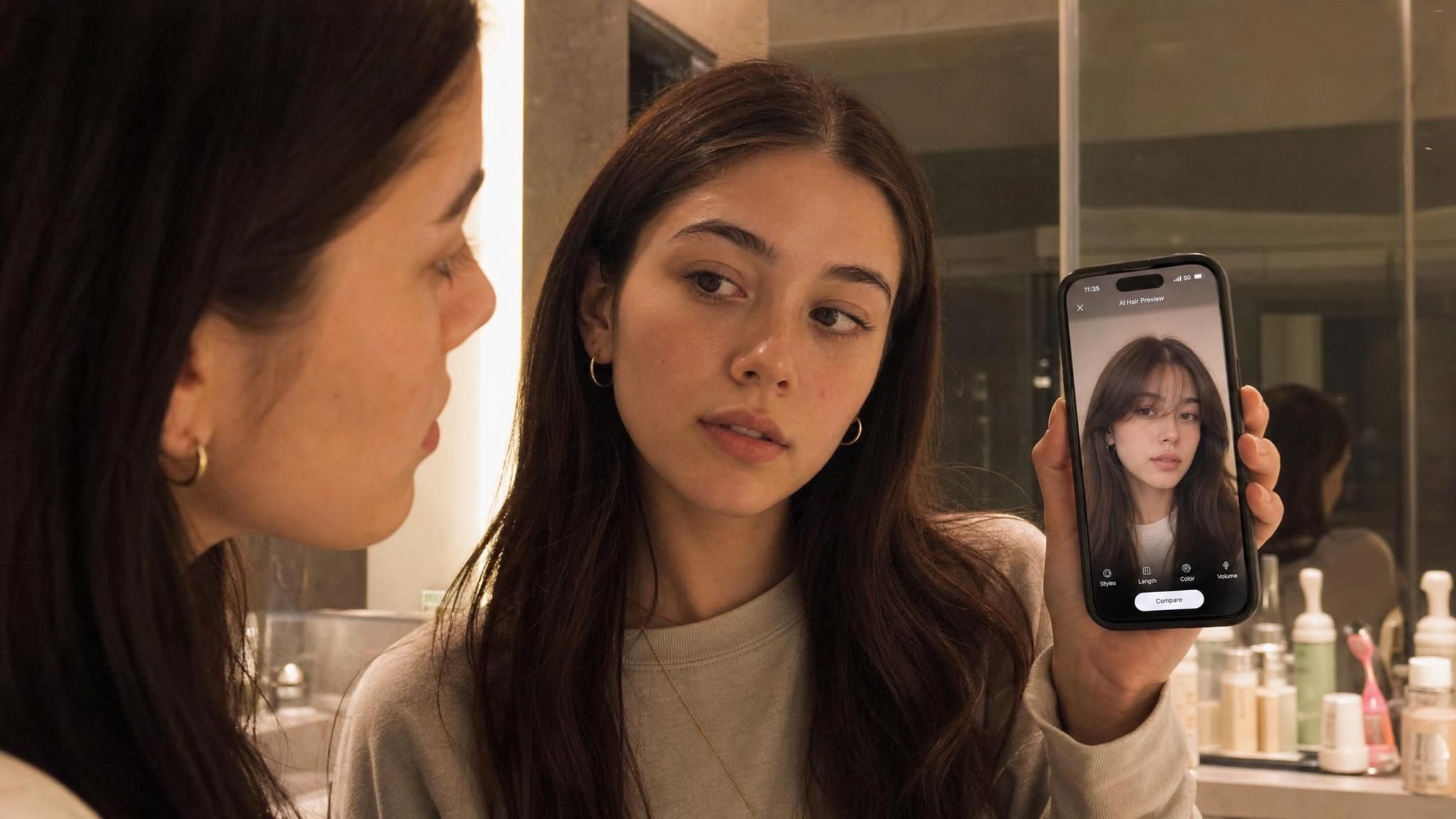
You've scrolled past a dozen bangs photos tonight, and every single one belongs to a face that isn't yours. At some point the question stops being about the style and turns personal: what would I look like with bangs, specifically your bangs, on your face, under your own bathroom light. A stylist can guess. A cartoon filter can slap a flat fringe over your forehead for three seconds on a story. Neither one actually answers the question.
There's a faster way to check, and it isn't limited to bangs. The same free tool that renders a curtain fringe on your photo will just as happily show you a modern mullet, a wolf cut, or a pixie chop, so this guide walks through all four using one account and one upload.
Key Takeaways
- A free AI tool can show what you would look like with bangs from one real photo, no salon visit or guesswork needed.
- Atlas Cloud's Free AI Hairstyle Changer names curtain bangs, mullet, wolf cut, and pixie cut directly among the looks it supports.
- You describe the cut in a sentence instead of picking from a fixed style menu, so "wispy curtain bangs" and "a low, textured wolf cut" both work as typed requests.
- The tool only rewrites your hair; your face, skin tone, and background stay as they were in the original upload.
- A sharp, front-facing photo with the hairline visible gives a far more useful preview than a blurry or angled one.
What Would You Look Like With Bangs? Try It on Your Own Photo First
The most direct way to answer that question is to run your own photo through an editing tool built for exactly this, instead of picturing it from someone else's before-and-after post.
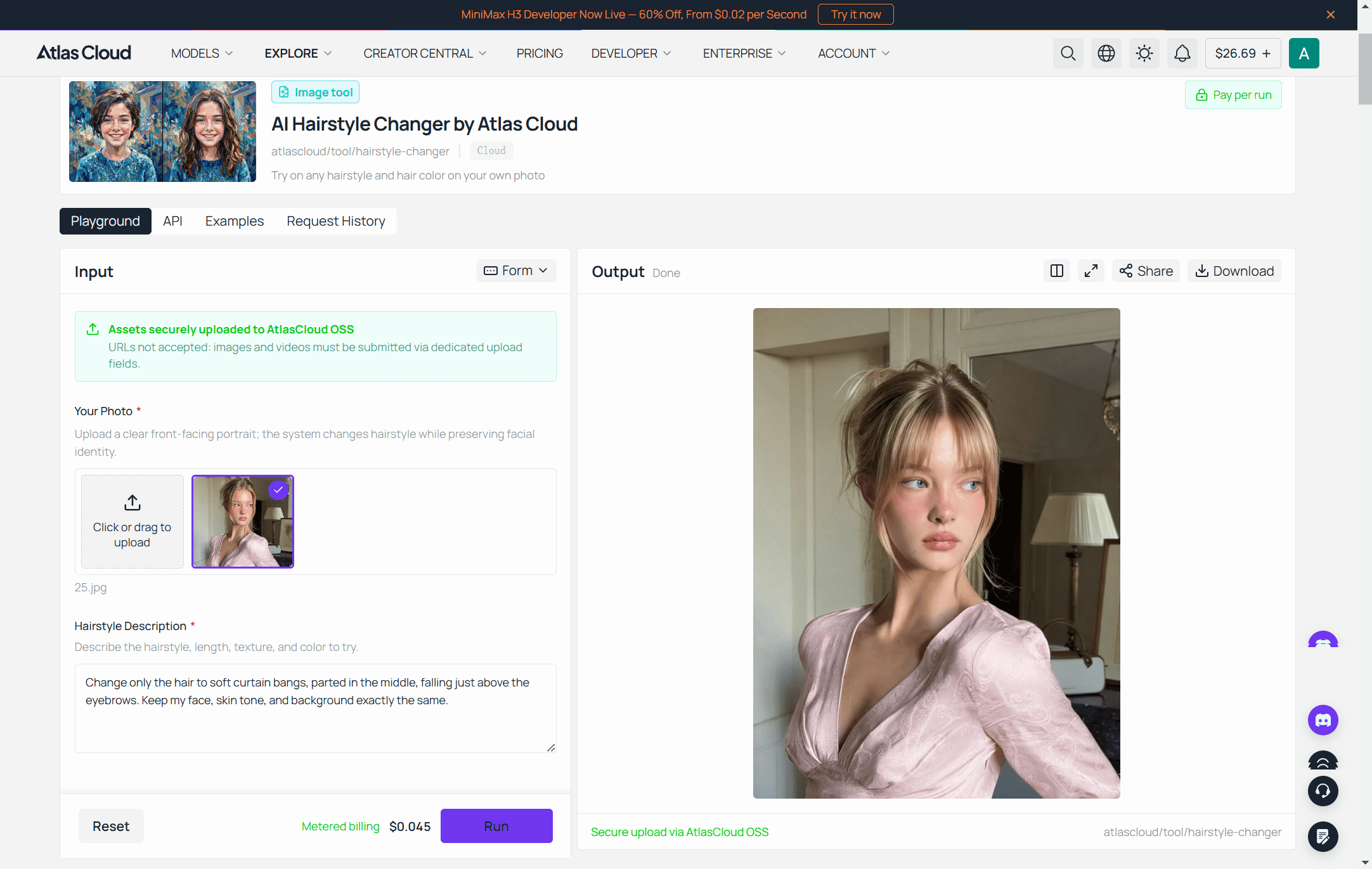
Atlas Cloud keeps a whole shelf of these single-purpose editors under its AI Tools collection, and the one built for hair specifically is the Free AI Hairstyle Changer. The page states plainly that it works for any style you can name, and its own examples list curtain bangs, mullet, wolf cut, and pixie cut by name, alongside dozens of other cuts and colors.
Three things to do before you touch the upload button:
- Pick a sharp, front-facing photo. The tool asks for a long side of at least 1280 pixels, and a clear hairline matters more than a fancy setting.
- Sign in. Running a generation needs a free account, through Google, GitHub, or email; that's what covers the compute cost behind the edit, not a hidden paywall.
- Describe the cut in one full sentence. Not "change my hair," but length, texture, and color named separately, like "a shoulder-length lob with loose waves in a warm caramel brown."
The result opens full-size in a new tab with no watermark on it, since what you save is exactly what the model produced.
That's the consumer version of the tool. If you'd rather wire the same edit into your own booking site or app instead of sending people to a separate page, here's the developer route before we get into testing each cut yourself.
Build the Same Preview Into a Salon or Barbershop App
A single browser tool covers one photo at a time. A booking site that wants to offer curtain bangs, mullet, wolf cut, or pixie previews to every client before they even walk in needs the underlying model directly, and Atlas Cloud exposes that through its API.
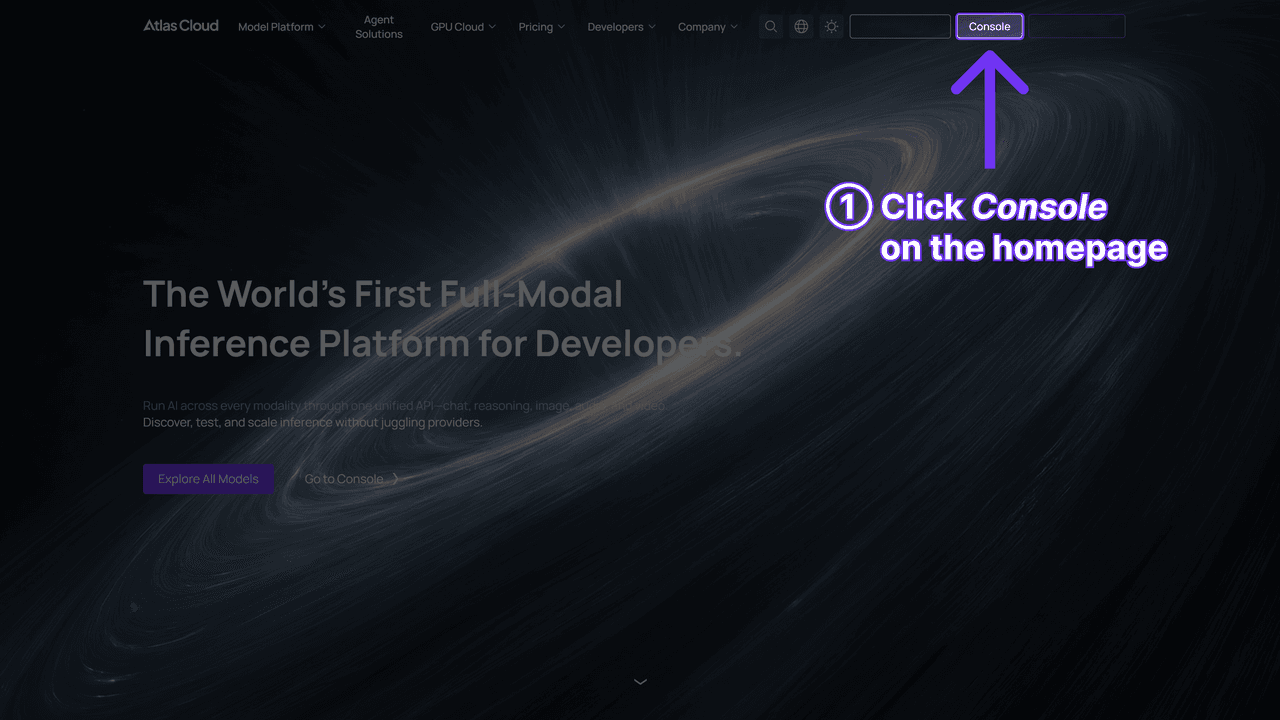
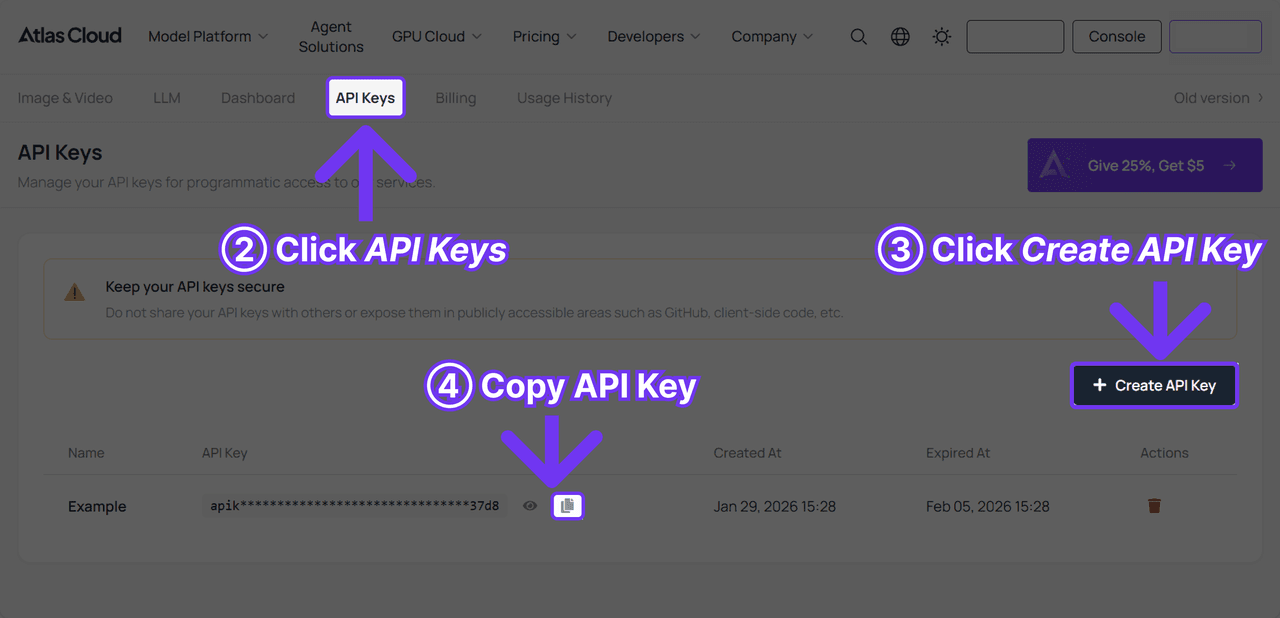
Step 1: Create a key. Generate one from the Atlas Cloud dashboard and keep it server-side.
Step 2: Check the schema. Seedream v5.0 Pro Edit is Atlas Cloud's model for this kind of localized, face-preserving edit, built to rewrite one part of a photo, hair, in this case, while holding the face and lighting steady.
Step 3: Send the request, then poll.
plaintext1curl -X POST https://api.atlascloud.ai/api/v1/model/generateImage \ 2 -H "Authorization: Bearer $ATLASCLOUD_API_KEY" \ 3 -H "Content-Type: application/json" \ 4 -d '{ 5 "model": "bytedance/seedream-v5.0-pro/edit", 6 "prompt": "Change only the hair to soft curtain bangs parted in the middle, keep the face, skin tone, and background unchanged", 7 "images": ["https://your-cdn.example.com/client-photo.jpg"], 8 "size": "1328*1776" 9 }'
plaintext1curl https://api.atlascloud.ai/api/v1/model/prediction/{prediction_id} \ 2 -H "Authorization: Bearer $ATLASCLOUD_API_KEY"
Poll the second endpoint until status reads completed, then read the result out of outputs.
Getting a Preview That Actually Matches What You'll See in the Chair
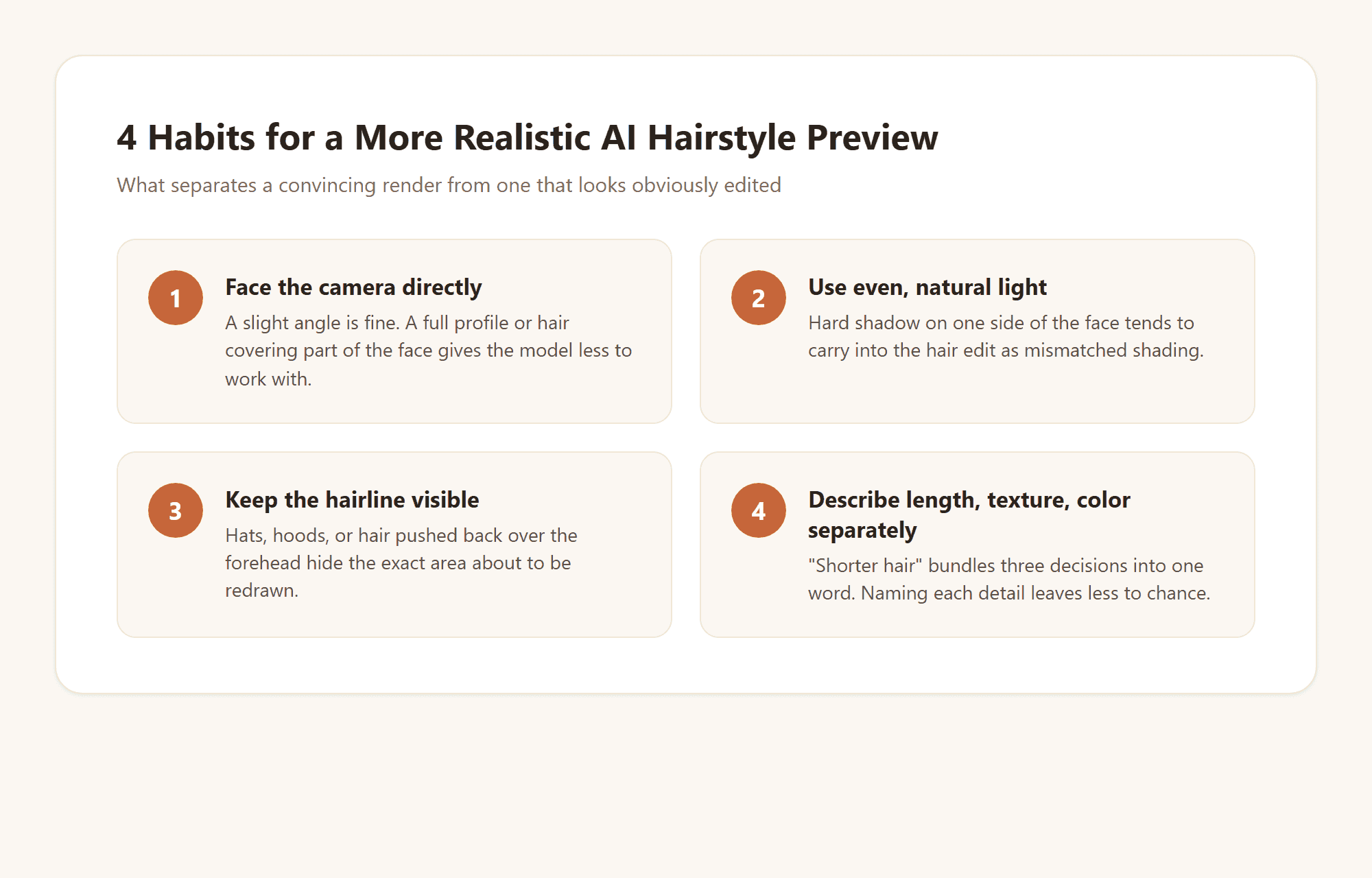
A convincing render and a disappointing one usually come down to the photo, not the request. A few habits make the difference:
- Face the camera directly, or close to it. A slight angle is fine; a full profile or a photo where hair covers part of the face gives the model less to work with.
- Use even, natural light. Hard shadow across half the face tends to carry straight into the hair edit as mismatched shading.
- Keep the hairline visible. Hats, hoods, or hair already pushed back over the forehead hide the exact area that's about to be redrawn.
- Separate length, texture, and color in your description. "Shorter hair" bundles three different decisions into one word; naming each detail leaves less to chance.
None of this guarantees your real haircut turns out identical. Hair behaves differently once it's actually cut than it does in a still photo. What a good preview does is narrower and still genuinely useful: it rules out the cuts that clearly aren't going to work before you spend a real haircut appointment finding that out. With a decent photo ready, here's where to start: the cut that brought most people to this page in the first place.
Curtain Bangs, Wispy Bangs, or a Full Fringe: Try Each One First
A curtain bangs generator search almost always comes from the same hesitation: bangs are the one haircut that can't be undone with a hair tie while it grows out. That's exactly the case an AI curtain bangs preview is built for.
Typed requests that tend to hold up well: "curtain bangs parted in the middle, falling just above the brow" for the classic version, or "wispy bangs with feathered, uneven ends" if the softer, undone look (sometimes searched as a butterfly haircut filter) is closer to what you're picturing.
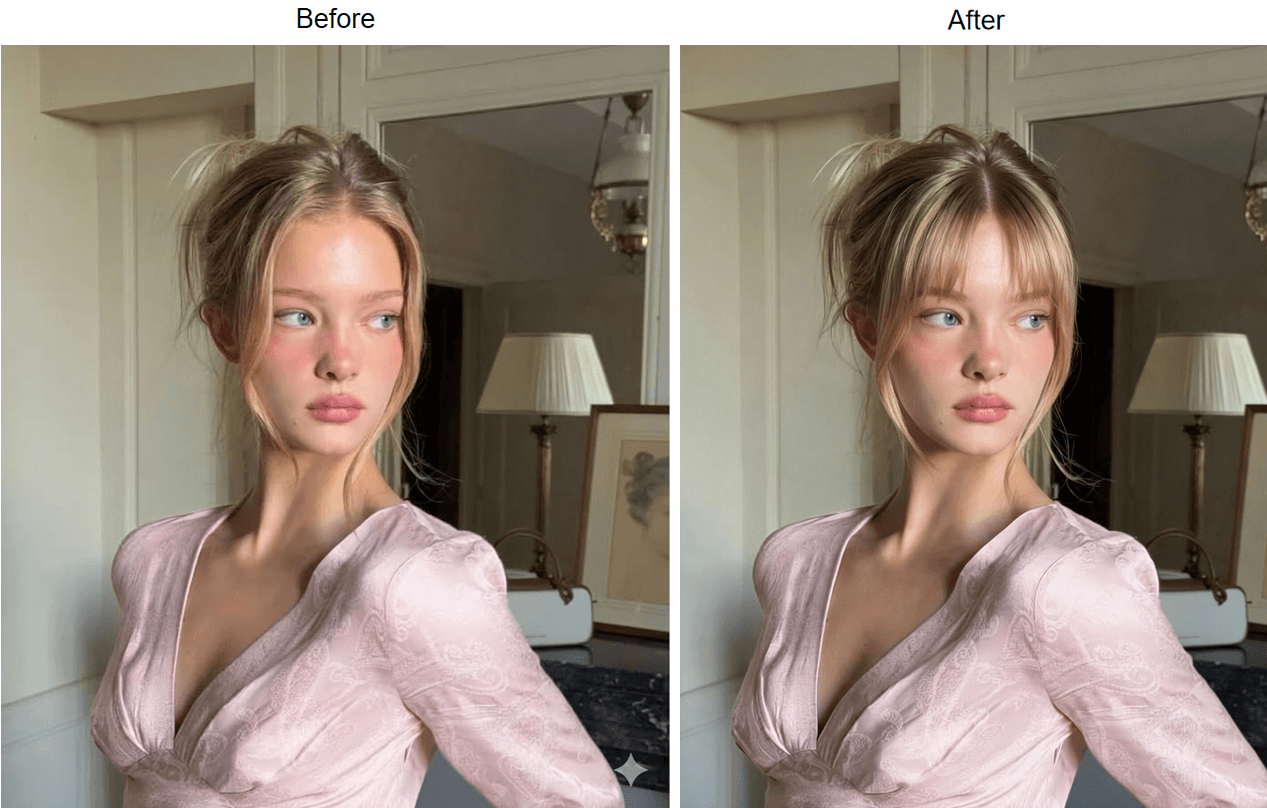
If the real question underneath all this is closer to "should I get bangs" than "what would curtain bangs look like," treat the preview as your answer key: generate the cut and judge it against your own face instead of a stranger's.
A full, blunt fringe is a heavier commitment than a curtain style, and it's worth trying both on the same photo before deciding which one to describe to an actual stylist. Curtain bangs part and frame the face; a full fringe covers the forehead edge to edge. Typing both requests on the same upload, one after the other, makes that difference obvious in a way no written description quite manages.
Thinking About a Modern Mullet? Preview It Before You Commit
A mullet in 2026 rarely means the exact cut from decades of jokes about it. The modern mullet filter searches people run are usually chasing a shorter, more textured version: cropped and tapered through the front and sides, left longer and choppier at the back.
That gap between "mullet" as a word and "mullet" as it actually looks now is precisely why a mullet haircut simulator earns its keep. A typed request like "a modern mullet, short textured top and sides, longer choppy layers at the back, no heavy taper" gives a much clearer preview than the word alone, which still carries decades of a very different image attached to it.
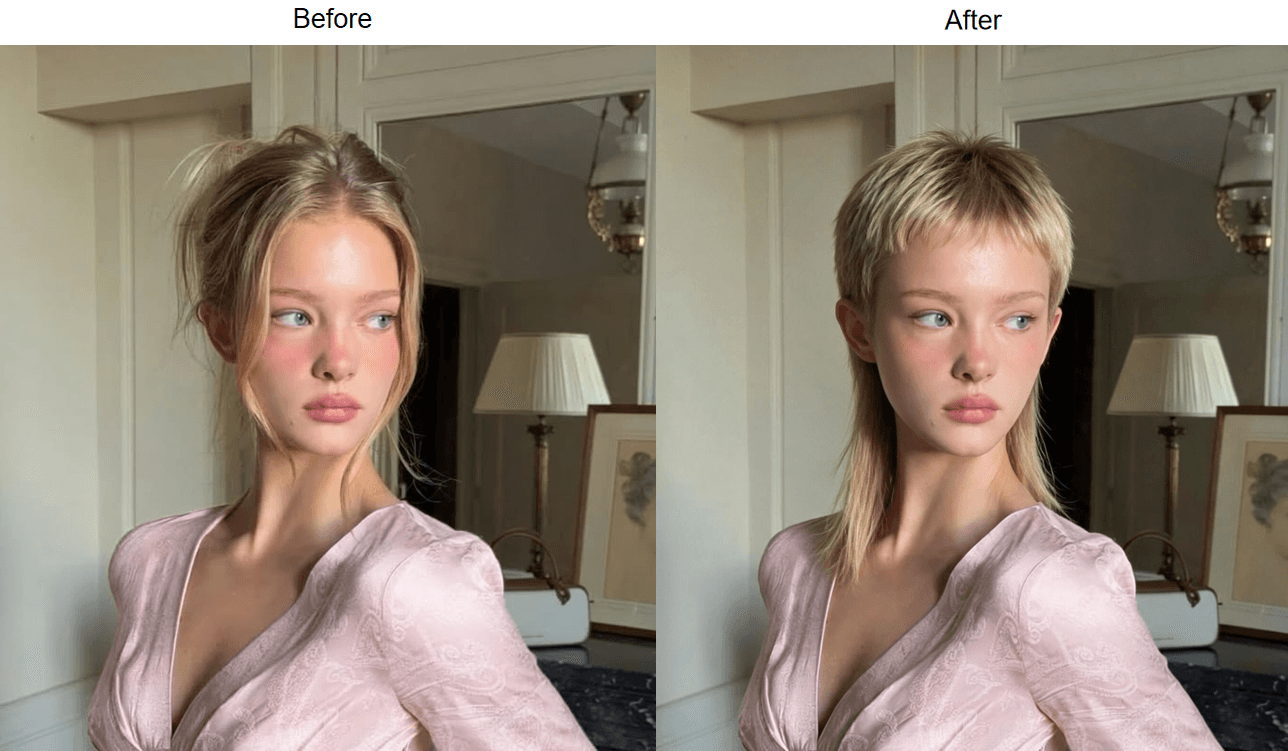
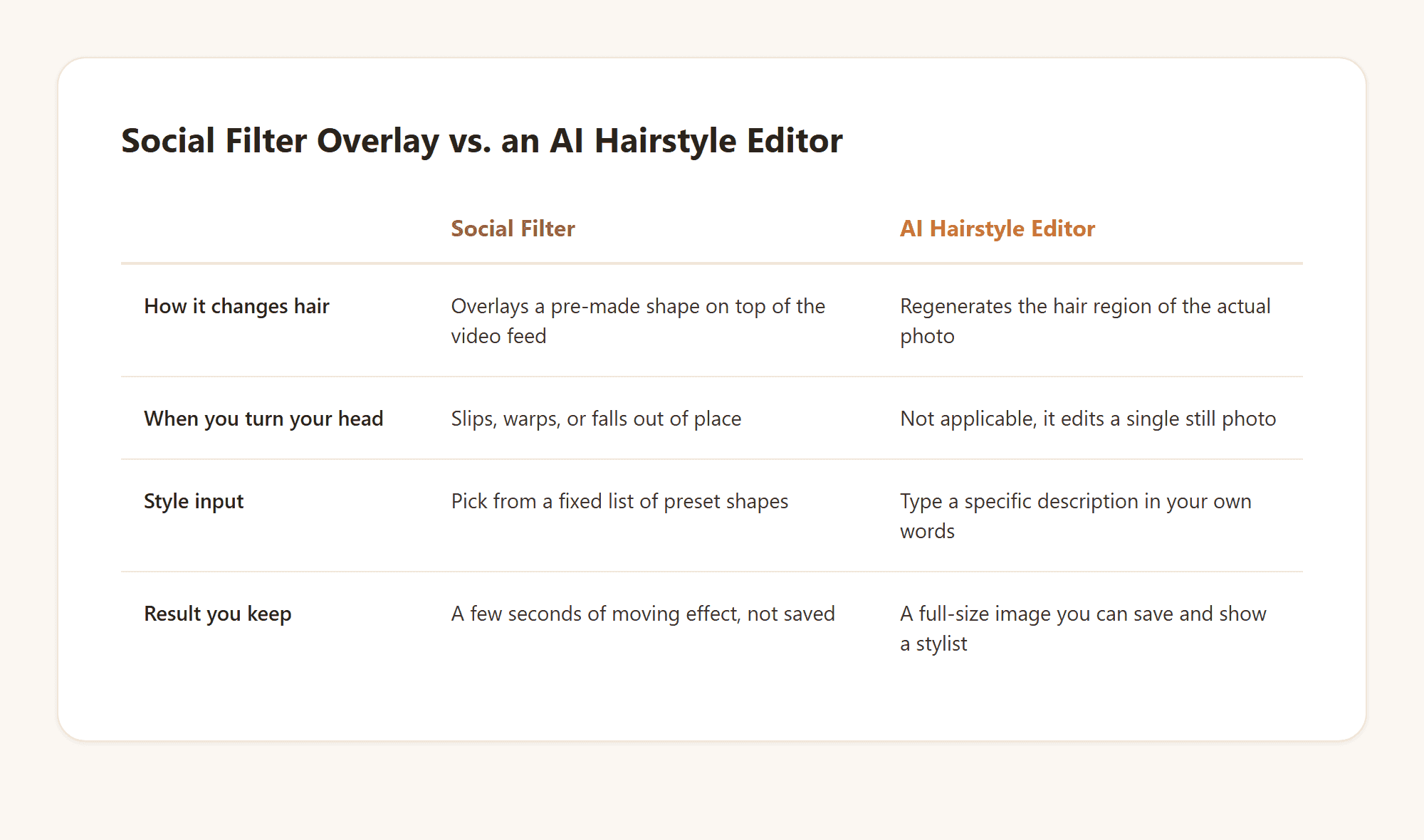
Social filters that overlay a mullet shape onto a video are common enough that "mullet filter instagram" shows up as its own search on a regular basis. Worth knowing the difference going in: an overlay filter sits on top of moving footage and shifts as you move; an AI edit like this one redraws the hair itself in a still photo, so the result holds up as a real reference rather than a few seconds of a moving effect.
Wolf Cut Before-and-After: What the Preview Shows Men and Women
The wolf cut sits at the point where a shag and a mullet overlap, heavy layering on top for volume, choppier and longer through the back and sides. It reads differently depending on hair type and length going in, which is exactly why a wolf cut generator is more useful here than it would be for a simpler, more predictable cut.
"Wolf cut filter men" is a common enough version of this search that it's worth addressing directly: the same tool and the same typed-description approach works regardless of who's asking. A request like "a wolf cut with heavy layers on top, shaggy and slightly longer through the back, textured ends" reads the same whether the starting photo is short hair or shoulder-length.
If a wolf cut is on your list specifically because it's a men's style you've seen recommended elsewhere, Atlas Cloud's guide to trying on men's haircuts goes further into fades, face shape, and other cuts worth testing on the same upload.
Pixie Cut Preview: The Bonus Big Chop Worth Testing Too
A pixie cut wasn't the search that started this guide, but it belongs in the same conversation for one simple reason: it's the other haircut people talk themselves out of testing because "what if it looks wrong" feels too big a risk to find out by trial and error. An AI pixie cut preview removes exactly that risk, since nothing about your real hair changes until you decide it should.
A pixie cut generator works best with a specific request rather than the single word "pixie": try "a short pixie cut with longer, textured pieces on top and closely cropped sides" or "a soft, rounded pixie with side-swept bangs" and compare both against the same starting photo.
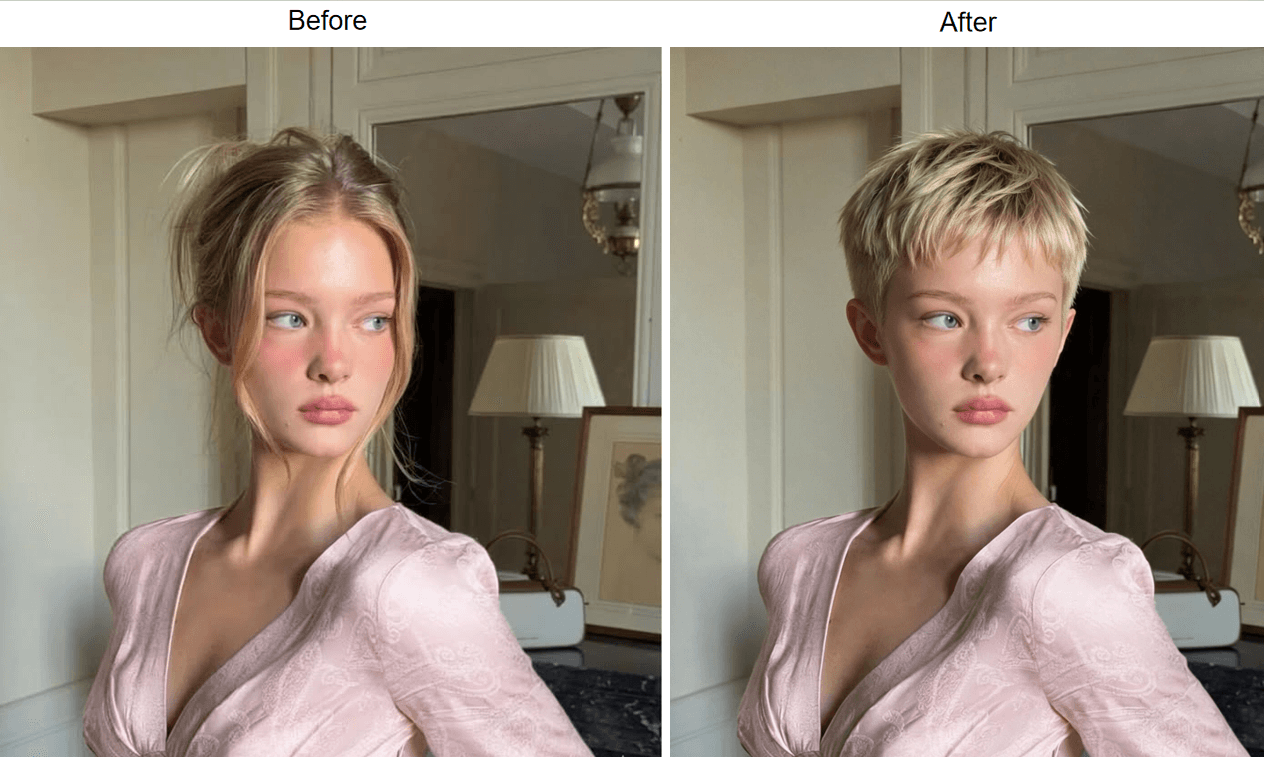
Between curtain bangs, a mullet, a wolf cut, and a pixie, that's four genuinely different silhouettes tested on one photo in the time it would take to describe just one of them to a stylist in person.
How an AI Preview Beats a Social Filter or Just Guessing
A quick filter that overlays a hairstyle shape on a video is fun for a few seconds, but it isn't built to survive a second look. It sits on top of the footage rather than redrawing what's underneath, which is why it slips at the hairline the moment you turn your head, and why nothing about it gets saved as an actual reference photo.
An edit built on a real image model works differently: it looks at the whole photo, regenerates the hair region specifically, and hands back something you can open at full size, save, and actually show to a stylist later. That's the difference between a moment of fun and an answer you can act on.
The same identity-preserving approach shows up outside of hair, too. Atlas Cloud's guide to virtual try-on covers the clothing version of the same idea, worth a look if an outfit is the other thing you're deciding on before a big day.
Frequently Asked Questions
Is there a free tool that shows what I would look like with bangs?
Yes. Atlas Cloud's Free AI Hairstyle Changer generates a preview from your own photo and a typed description at no cost, and curtain bangs, along with a full fringe and wispy bangs, are among the styles its own examples name directly.
Is there an app that tells you if you should get bangs?
Not as a separate quiz. Running your own photo through a hairstyle preview and looking at the actual result answers the same question more reliably than a quiz would, since you're comparing your real face to the real cut instead of a generic recommendation.
Can I try a mullet, a wolf cut, and a pixie cut on the same photo?
Yes, one at a time. Each generation is its own request, so you can describe a mullet, then a wolf cut, then a pixie cut on the same upload and compare all three results side by side.
Does the preview work for curly or textured hair?
The tool works from a written description rather than a fixed style menu, so it isn't limited to a narrow set of textures the way a small preset gallery would be. Results tend to be strongest when the starting photo clearly shows your current hairline and texture.
Do I need an account to try it?
Yes. Signing in with Google, GitHub, or email unlocks the free generation; it's not an account-free demo, and it's worth knowing that going in.
How accurate is an AI hairstyle preview compared to a real haircut?
Treat it as a strong reference rather than a guarantee. The preview shows what the described cut looks like in the photo; it doesn't account for how your specific hair type will move or fall once a stylist actually cuts it.
Can I change my hair color in the same request as the cut?
Yes. Describing both in one sentence, such as "curtain bangs, dyed a warm honey blonde," changes the length, texture, and color together in a single generation.
Conclusion
Every one of those bangs photos you scrolled through tonight belonged to someone else's hairline, someone else's face shape, someone else's lighting. The only way to actually close that gap is to put your own photo through the same kind of edit and look at what comes back.
Start with curtain bangs since that's likely the question that brought you here, then run the same upload through a mullet, a wolf cut, and a pixie cut while you're already signed in. Whichever one survives a second look is the one worth describing to an actual stylist. That, more than any filter or guess from a friend, is the real answer to what would I look like with bangs.





