

Scroll past the bullet points on a hair oil listing and you often hit a wall of plain text. A+ Content swaps that wall for image and text modules, and each module can settle one thing a shopper is unsure about: how the oil looks on hair, how to use it, which size to buy.
Below are Amazon A+ content examples for six modules on one hair oil listing. We made every image from one product photo and one model photo, then wrote the copy for each text field, since Amazon advises keeping words out of A+ images. After the examples come the steps we used and the rules that decide whether a page goes live.
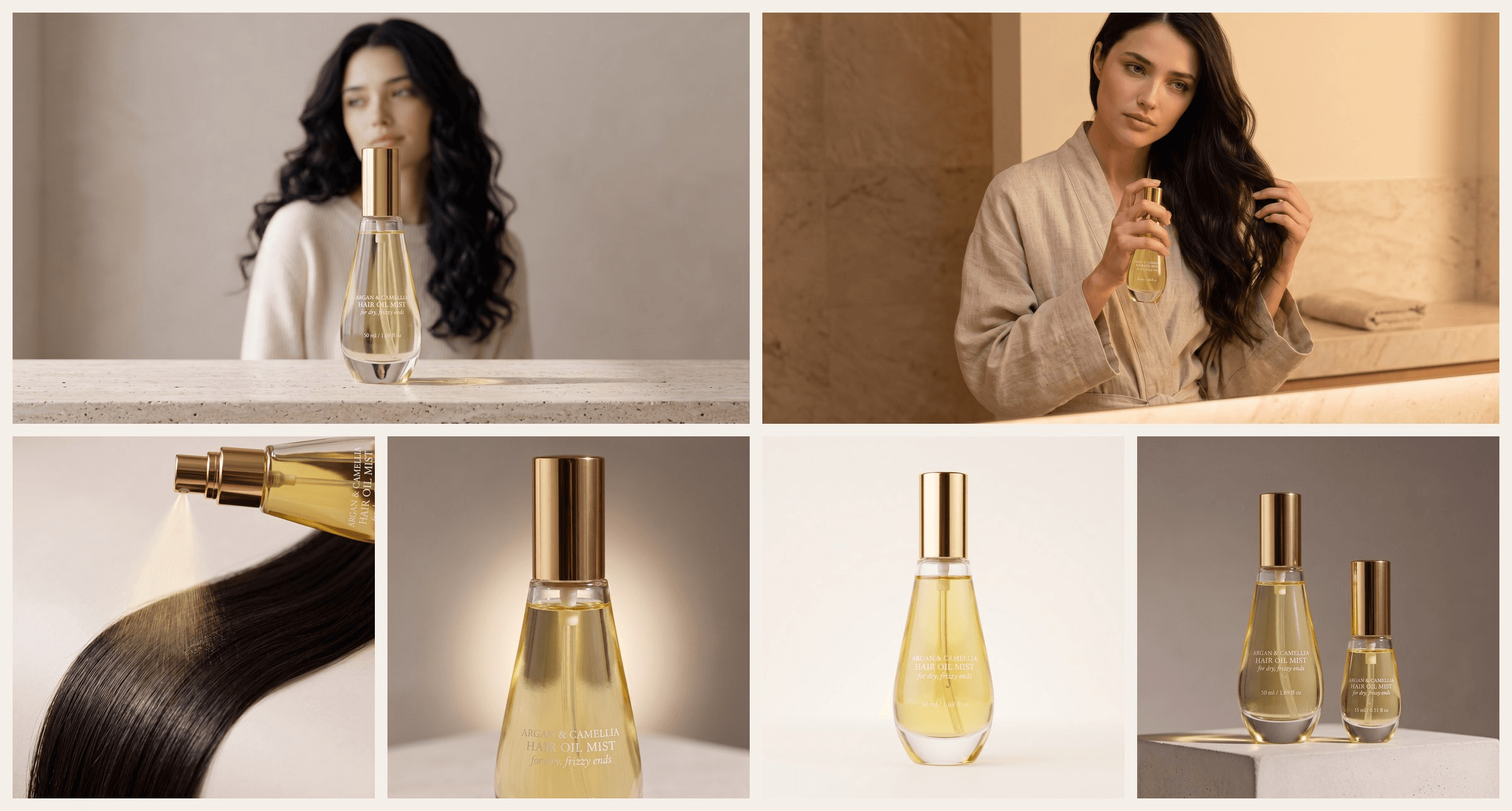
All six module images came from the A+ Content Maker on Atlas Cloud.
Key Takeaways
- A+ Content is Amazon's current name for Enhanced Brand Content, builtinthe A+ Content Manager.
- Basic A+ Content allows up to five modules per ASIN, and Premium allows up to seven.
- Amazon advises keeping text out of A+ images so mobile shoppers can still read every detail.
- Comparison charts can cross-sell your own products, but A+ Content can never compare competitors.
- One product photo and one model photo gave the A+ Content Maker enough for six module images.
Amazon A+ Content Examples, Module by Module
A good A+ page reads top to bottom in the order a shopper's questions come up. What is it? How do I use it? What exactly am I getting? Which one should I buy? Amazon's A+ Content design guide asks for short copy, with bullet points where they make the text easier to scan.
Our example product is a fictional 50 ml hair oil mist with argan and camellia oils, sold in a teardrop-shaped clear glass bottle with a gold spray cap. Four of its six modules follow. The feature and spec images sit in the next section, where we show how the set was made.
Hero Banner Example
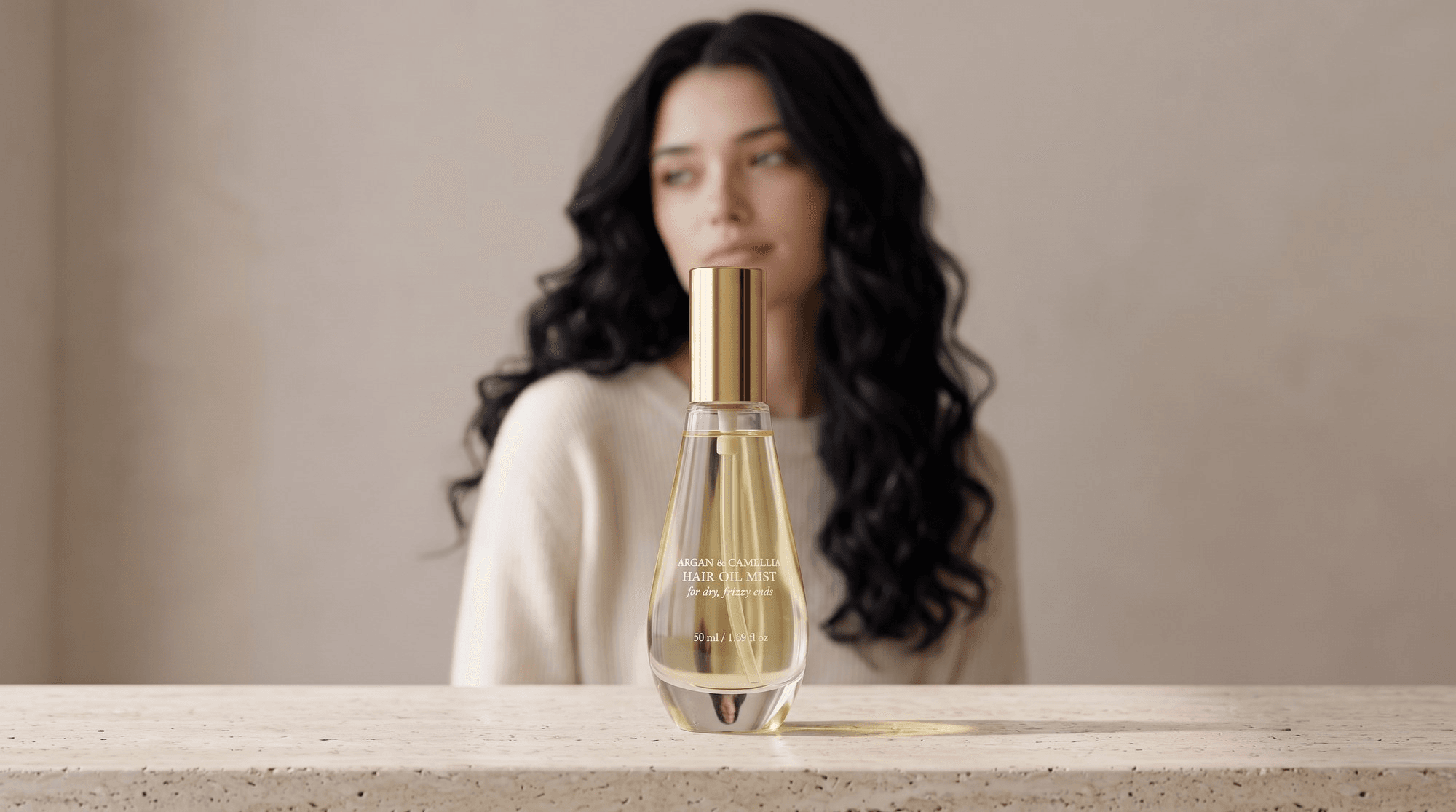
The top module sets the mood and tells shoppers what the product is for. Our hero keeps the bottle sharp on a travertine ledge while the model's long dark hair stays soft behind it. Before reading a word, a shopper knows this is a hair product.
The words go in the module's text field, not on the picture:
- Headline: Lightweight oil for dry, frizzy ends
- Body: Argan and camellia oils in a 50 ml glass spray bottle. Mist two or three sprays over the lengths, damp or dry.
Give the headline one benefit only. Someone who reads that line and nothing else should still know whether the oil is meant for them.
Lifestyle Scene Example
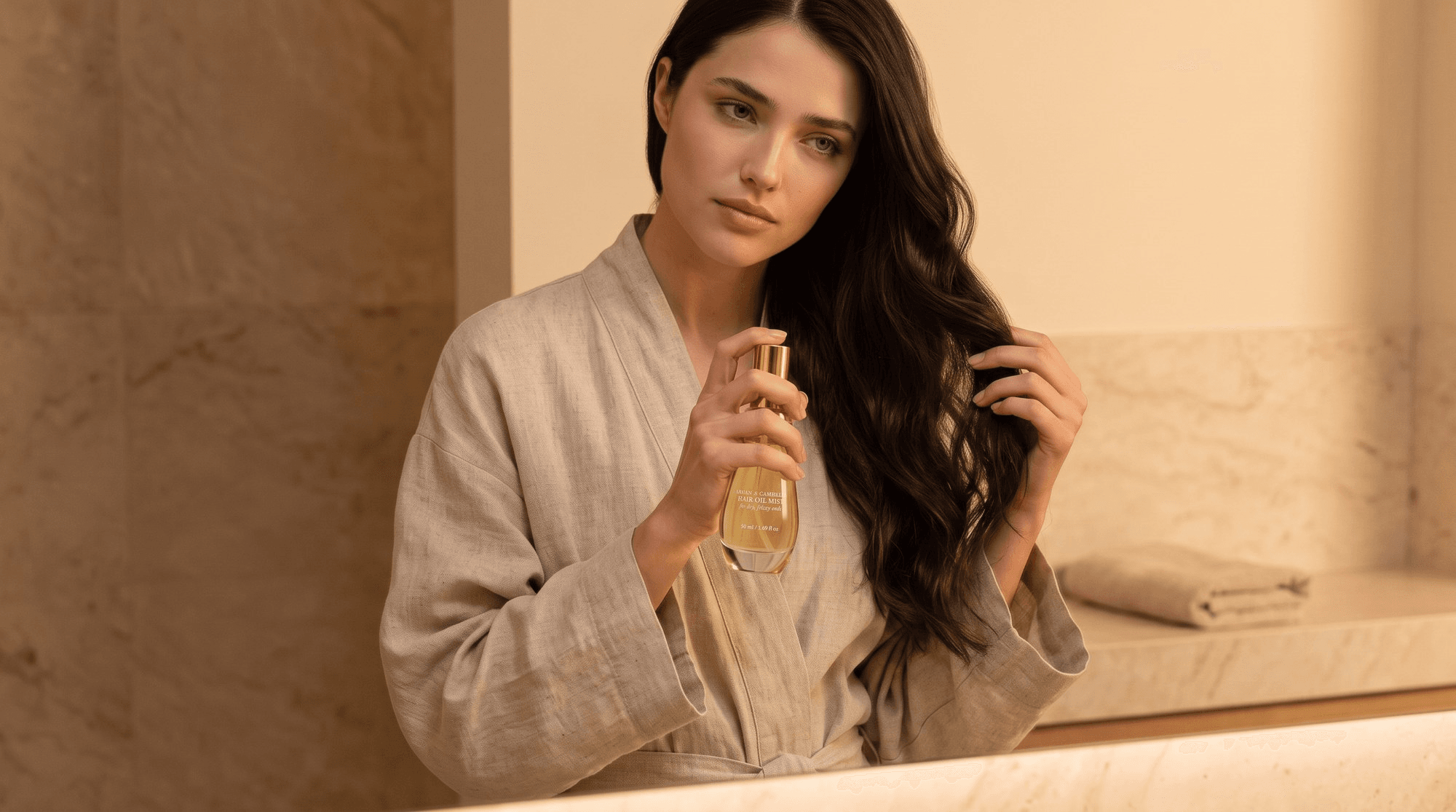
A bottle shot can't show a routine. A lifestyle module can, and Amazon's guide asks for lifestyle imagery that shows items "in action."
In ours, the model stands at a marble vanity in warm lamplight with the bottle in one hand and the ends of her hair gathered in the other. A folded towel sits on the counter behind her. The routine reads at a glance: evening, ends only, a light mist.
- Headline: A two-minute evening step
- Body: Hold the bottle a hand's width away and mist the ends two or three times. Skip the roots.
Detail Close-Up Example
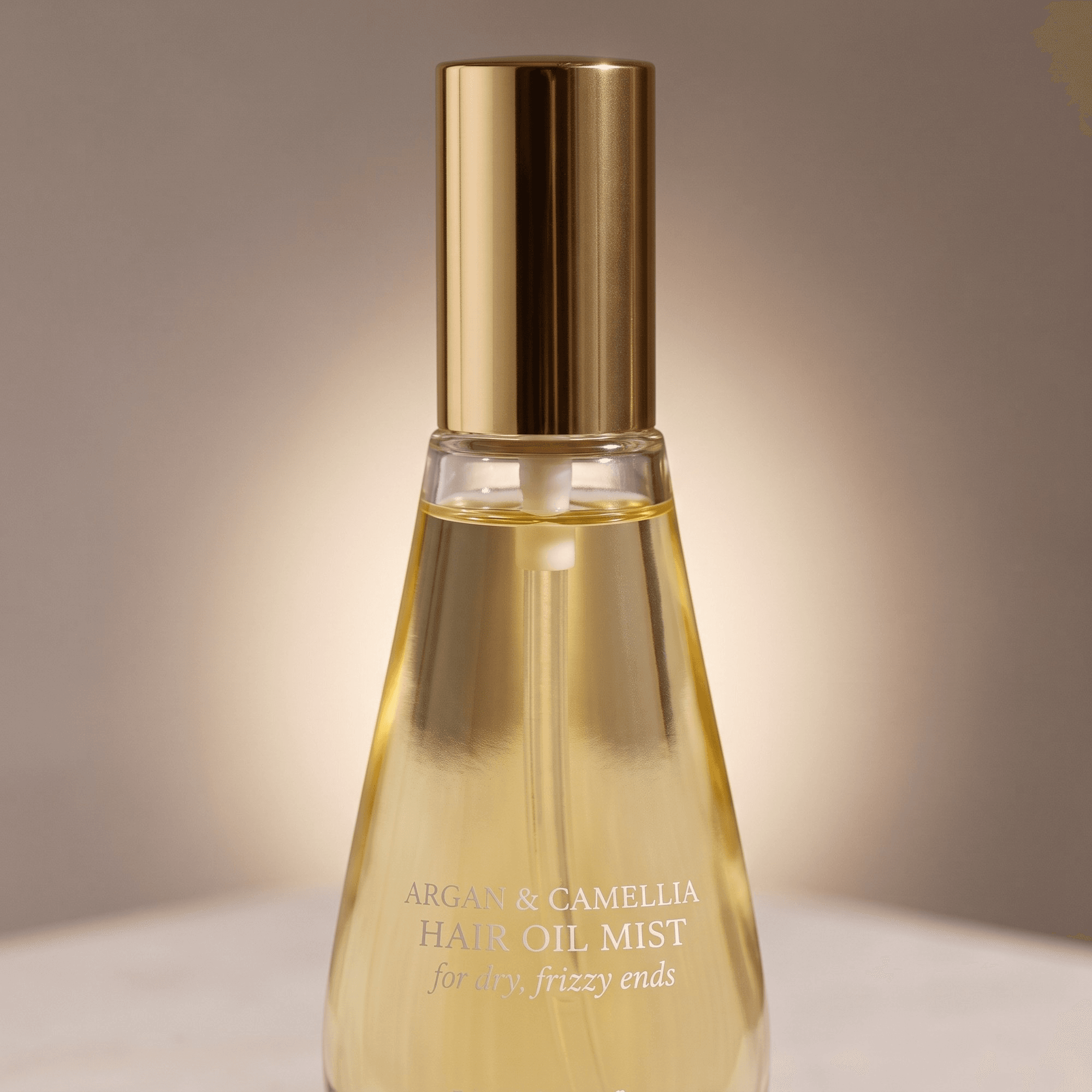
Close-ups answer the questions a shopper would settle by picking the product up in a store. Is the cap metal or plastic? What color is the oil? Our detail image moves in close on the polished gold cap and the curved glass, with backlight behind the bottle so the oil glows through it.
- Headline: A fine mist, not a pour
- Body: The spray pump spreads a light layer of oil over the ends, so hair stays soft without looking greasy.
One subject filling the frame also holds up when the module shrinks to phone width.
Comparison Chart Example
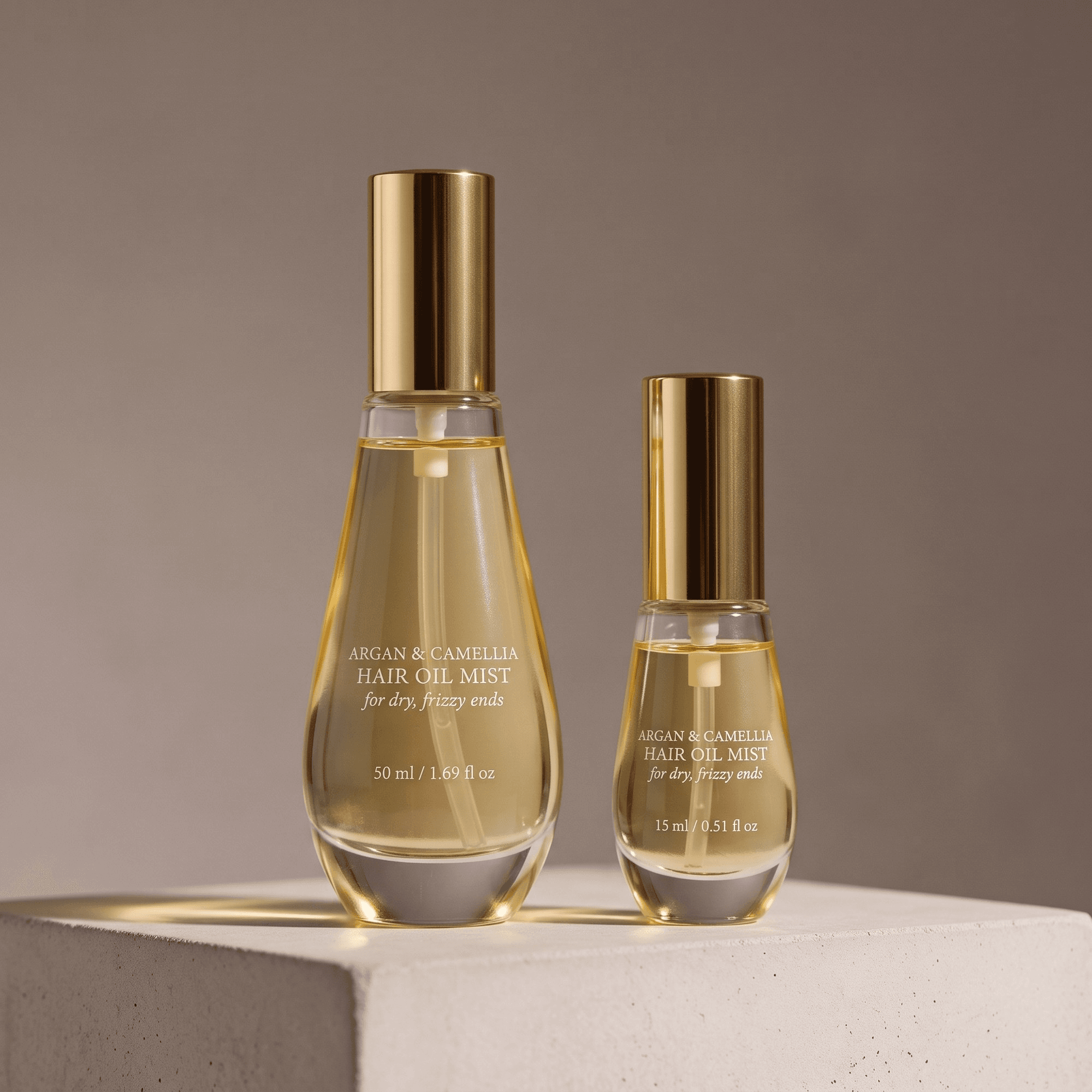
The comparison chart module lines up details such as model type and dimensions, and it can feature other products you sell. That makes it a cross-sell slot for your own catalog.
Our comparison image puts the 50 ml bottle next to a 15 ml travel size, lit the same way so the sizes read honestly. In Amazon's own mockup of a Basic chart, each product gets a single image at the top of its column, with attribute rows underneath:
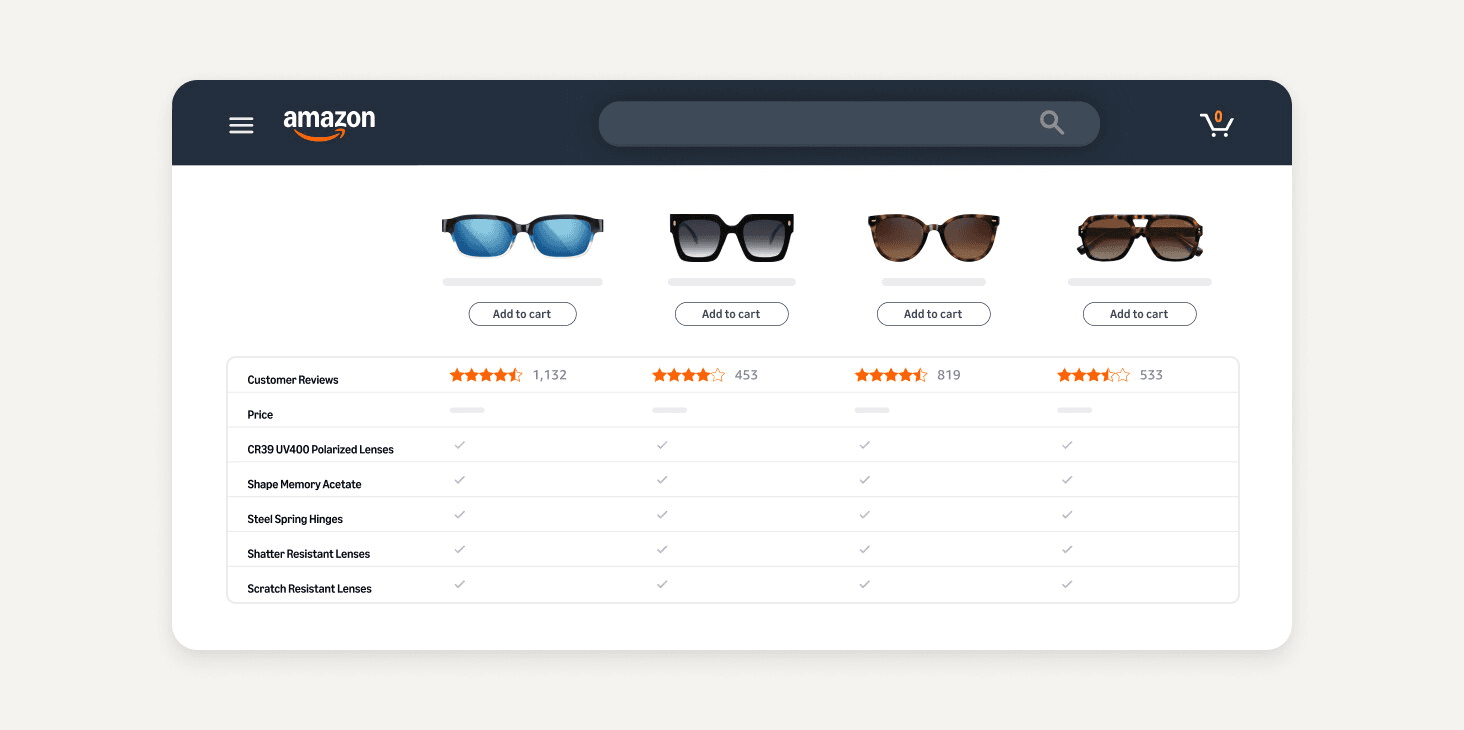
Mockup from Amazon's A+ Content design guide .
So the comparison shot gets split into two tiles, one per bottle, and the rows carry the facts:
| 50 ml bottle | 15 ml travel bottle | |
|---|---|---|
| Size | 50 ml | 15 ml |
| Packaging | Clear glass with a gold spray cap | Clear glass with a gold spray cap |
| Best for | Daily use at home | Gym bags and weekend trips |
Make Images for Amazon A+ Content Modules From One Product Photo
Six module images usually mean a full shoot with a model, a stylist and a new set for each scene. The A+ Content Maker workflow on Atlas Cloud starts from one product photo instead. Add a model photo to keep the same person across the hero and scene modules, tick the modules you need, and it renders each one.
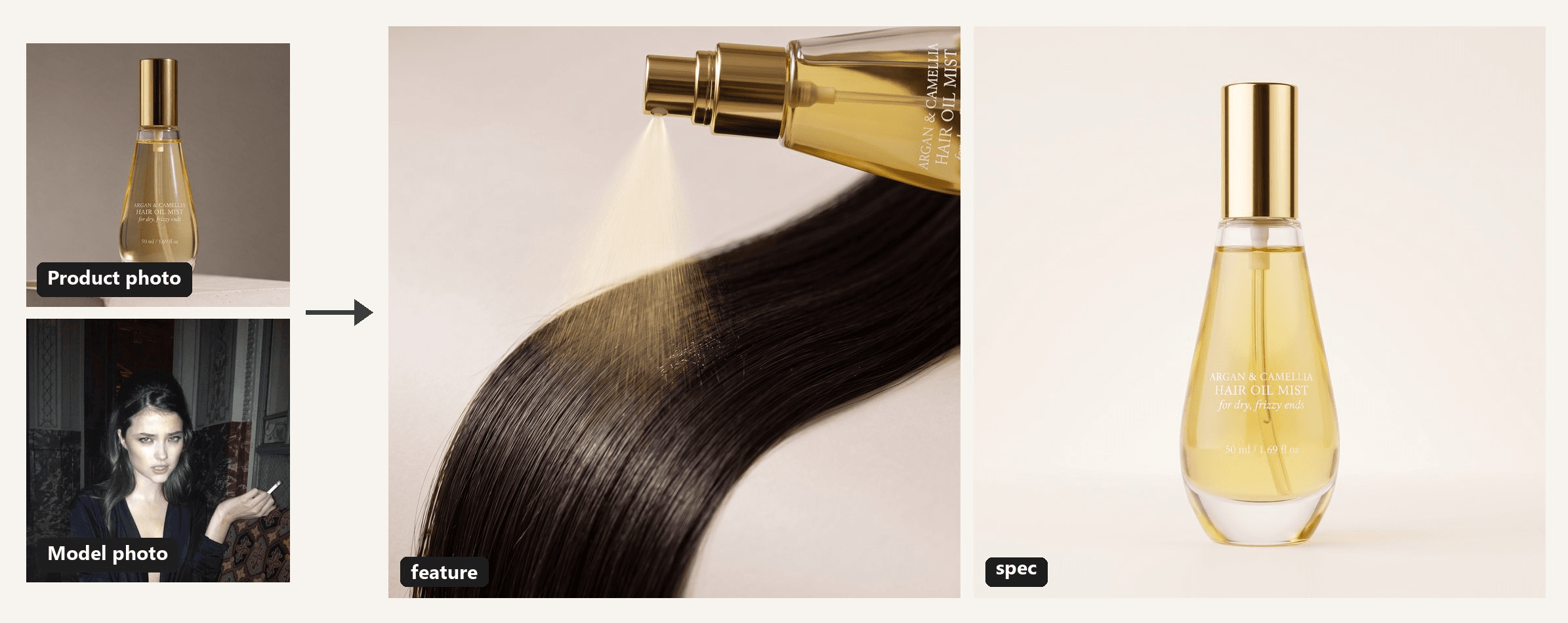
The product photo was generated with Seedream 5.0 Pro on Atlas Cloud as a stand-in for our fictional brand. The model photo is used with permission.
Every image kept the bottle's shape and gold cap, and the 15 ml bottle in the comparison shot even got its own size on the printed label. The spec image pairs with Amazon's technical specifications module, where volume, ingredients and hair type go in as text.
At 2K, files come back at 2,752 × 1,536 for 16:9 and 2,048 × 2,048 for square, so resize each one to its module's dimensions before upload to stay under Amazon's 2 MB limit. Still need the product photo itself? Our guide to product photos with a phone covers a poster-board setup that works at home.
How to Generate A+ Content Images on Atlas Cloud
The whole run happens in one form. Here's how we filled it in for the four product-focused modules.
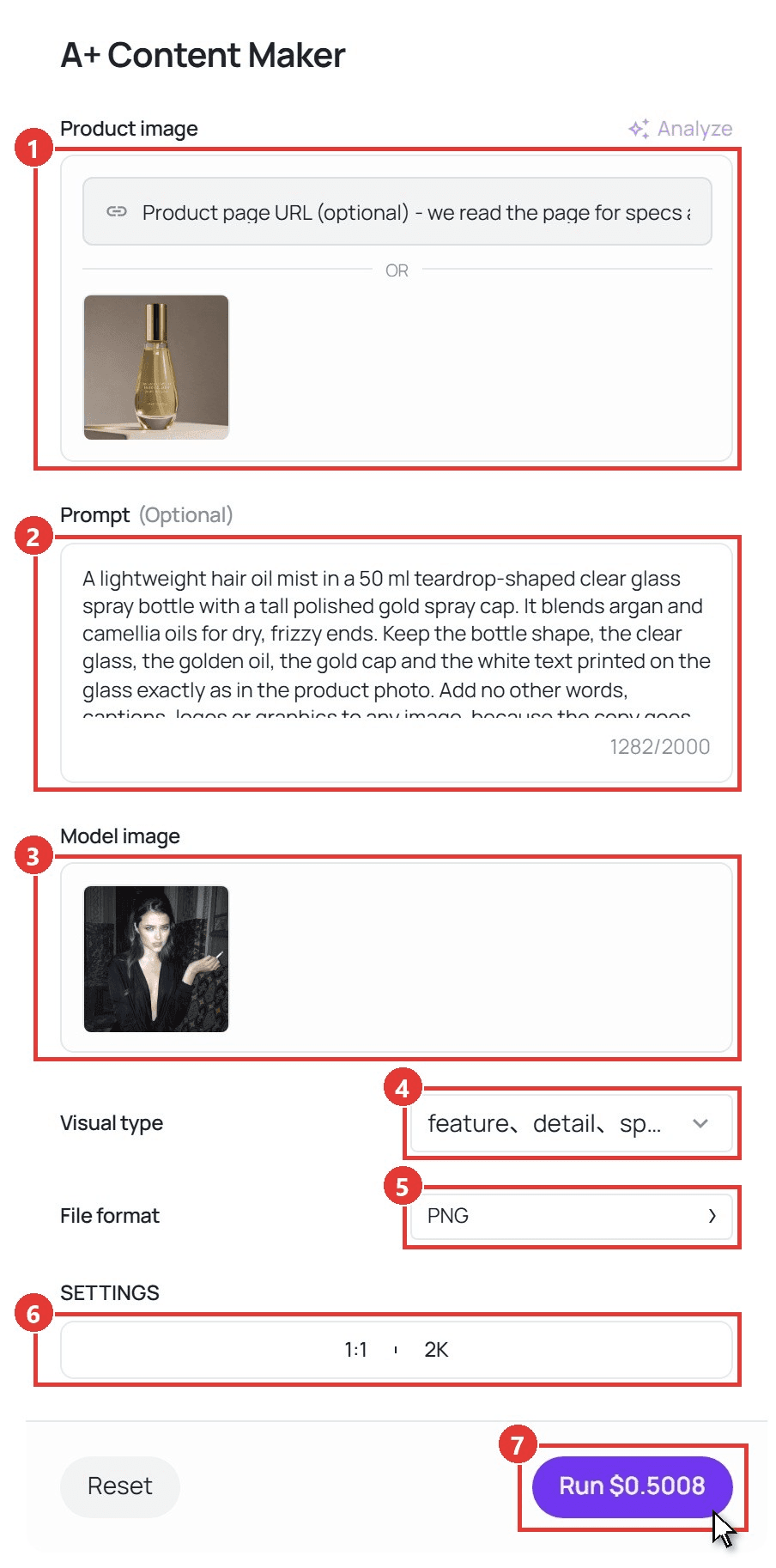
- Add the product under Product image. Upload one clear photo. You can also paste a product page URL into the field above it, and the workflow reads the page for specs and selling points.
- Write the brief in Prompt. You get up to 2,000 characters. Describe the product, give each module its own line and ask for no words in the images. This is the brief we used:
plaintext1A lightweight hair oil mist in a 50 ml teardrop-shaped clear glass spray bottle with a tall polished gold spray cap. It blends argan and camellia oils for dry, frizzy ends. Keep the bottle shape, the clear glass, the golden oil, the gold cap and the white text printed on the glass exactly as in the product photo. Add no other words, captions, logos or graphics to any image, because the copy goes in the A+ text fields. 2Hero: the model with long, glossy dark hair turns her head in soft morning window light, wearing a cream knit sweater, with the bottle in sharp focus on a travertine ledge in the foreground. 3Scene: the model at a marble bathroom vanity in warm evening lamplight, misting the oil onto the ends of her hair, a folded linen towel and the bottle on the counter beside her. 4Feature: a fine golden mist spraying from the gold nozzle onto a lock of dark hair, shot as a close-up with a soft background. 5Detail: a macro close-up of the polished gold cap and the curved glass shoulder, with the golden oil glowing in backlight. 6Spec: the bottle standing upright on a plain warm-white backdrop, shot straight on to show its proportions. 7Comparison: the 50 ml bottle beside a 15 ml travel bottle of the same teardrop design on a pale stone surface, both lit the same way.
- Add a Model image. Upload a photo of the person who should appear in the hero and scene modules, or pick one from Search Assets.
- Tick the modules under Visual type. The list holds seven types, and you can pick several: hero, feature, scene, detail, spec, comparison and brand_story. We picked feature, detail, spec and comparison for this run.
- Choose the File format. PNG is the default, and JPEG is the other choice.
- Set the canvas under SETTINGS. There are seven ratios from 16:9 to 9:16, plus 1K, 2K and 4K. One ratio applies to the whole run, so we did the hero and scene modules at 16:9 in an earlier run and these four at 1:1, all at 2K.
- Click Run. The images appear under Output, where you can download them.
Amazon Enhanced Brand Content Examples Now Live Under A+
If you search for Enhanced Brand Content examples, you're looking at A+ Content under its old name. Amazon's guide calls A+ Content "formerly Enhanced Brand Content or EBC," so an EBC example and an A+ example come from the same tool.
You build it in the A+ Content Manager, found under Advertising in Seller Central. On the product page, A+ sits further down than the image gallery. The gallery has its own set of rules, which our Amazon image requirements guide walks through.
A+ Content comes in three types:
| Basic A+ Content | Premium A+ Content | Brand Story | |
|---|---|---|---|
| Who can use it | Brands on a Professional selling plan enrolled in Brand Registry | Registered brands that meet Amazon's criteria | Brands on a Professional selling plan enrolled in Brand Registry |
| Modules per ASIN | Up to 5 | Up to 7 | A separate section |
| Where it shows | Under "Product Description" | Under "Product Description," with a larger footprint | Under "From the brand" |
| Sales lift Amazon cites | Up to 8% | Up to 20% | Not given |
Amazon's sales figures come from its internal data. Brand Story doesn't need other A+ Content to run, and it tells the story of the brand and its product lines rather than a single product.
Amazon Premium A+ Content Examples Use the Full Page Width
Premium A+ swaps in bigger, more interactive modules. To check whether your brand qualifies, Amazon asks you to log in to Seller Central. Its public guide lists what Premium adds:
- Images that span up to the full width of the page
- Integrated 720p video
- Hotspots that show pop-up text when shoppers hover over parts of an image
- Navigation carousels that shoppers scroll or click through
- Q&A sections
- Enhanced comparison charts and tables
Amazon's guide names three brands as examples:
| Brand | How the page is built, per Amazon |
|---|---|
| Dokotoo | Video modules first, then feature images with descriptive text, then a sizing chart |
| Jackery | Carousels of lifestyle images, then a specifications table, an FAQ section and a comparison chart |
| Uproot Clean | A Brand Story about pet hair cleanup, then videos, carousels, a Q&A section and a comparison table |
Each page uses at least one Premium feature, such as video or a Q&A section.
Each page is all Basic or all Premium. The Selling Partner API documentation says modules in one content document must be entirely Standard or entirely Premium. The same page sets minimums for the full-width background module: 1,464 × 600 pixels on desktop and 600 × 450 on mobile, each with its own crop.
That desktop strip is about 2.4 times as wide as it is tall, much flatter than a 16:9 frame. Plan for the crop before you generate. Keep the face and the product in the middle band of the image, with plain wall above and plain surface below.
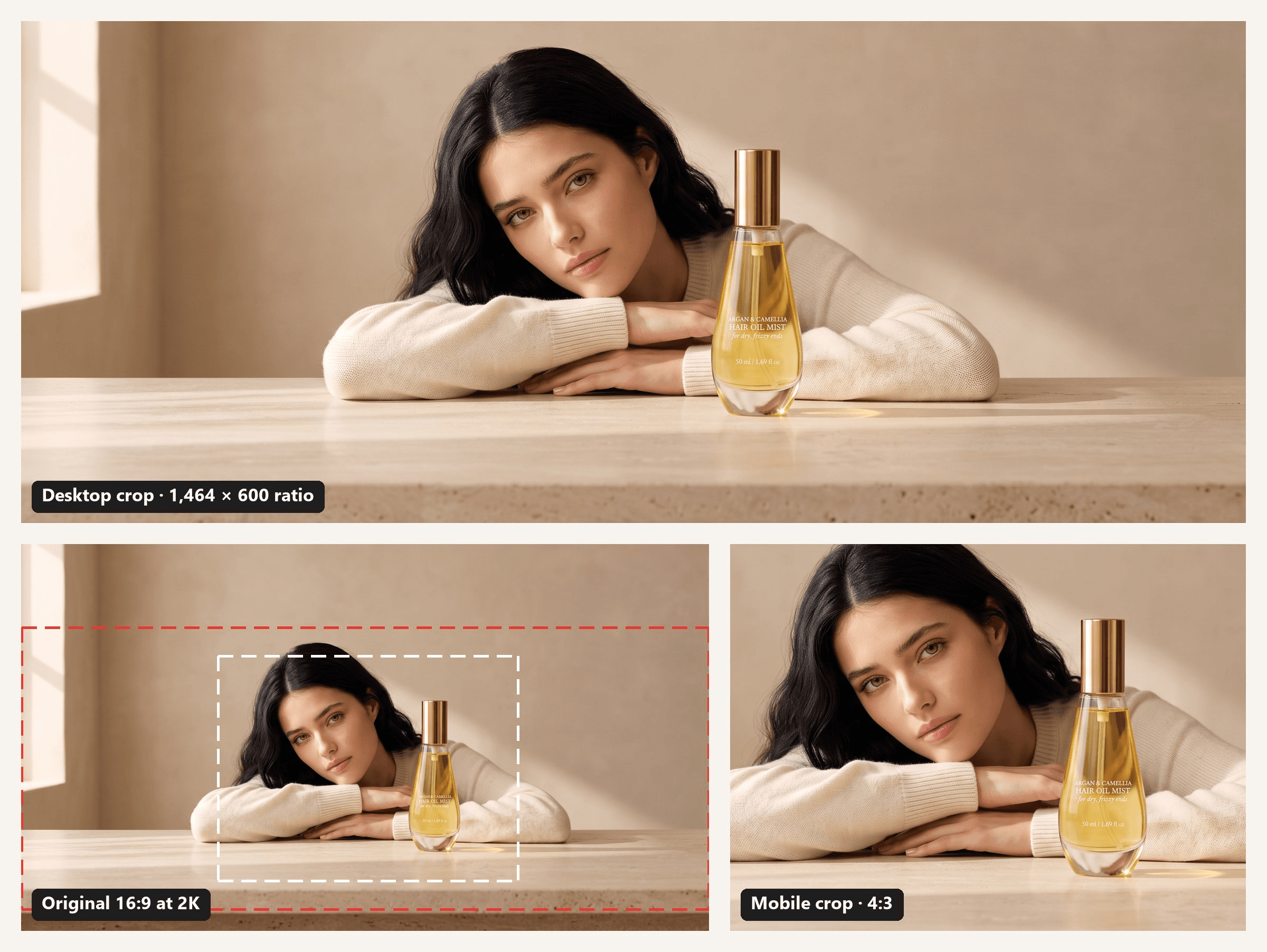
Both crops came from one 2K banner made with the A+ Content Maker. The brief asked for the face and the bottle to stay in the middle band of the frame.
Amazon A+ Content Best Practices That Keep Modules Approved
A+ Content goes live only after it passes Amazon's validation. Before you submit, the preview option shows how the page looks on desktop and on mobile. These are the rules from Amazon's guide that shape the images and copy:
| Amazon's rule | What it means for your modules |
|---|---|
| Avoid embedding text in images | Headlines and specs go in text fields, where phone shoppers can read them |
| Keep images to 2 MB or less | Resize 2K and 4K exports before upload |
| No low-resolution or animated images | Use sharp stills, and save motion for Premium video modules |
| No claims like "best-selling" or "top-rated" | The ban covers text and images alike |
| No warranty or guarantee information in text placements | Leave guarantees out of the A+ copy |
| No pricing, promotions, shipping details, QR codes, hyperlinks or contact information | Keep coupon badges and "free shipping" lines off every module |
| Back up any award with the certifying body and year | Name who gave the award and when, not just "award-winning" |
| Hold the rights to every image, video and text | Use your own photos, licensed stock and models who agreed to the use |
| Never reference or compare competitors | Comparison charts cover your own products only |
FAQ
Does Amazon have its own AI tool for A+ content?
Yes, inside the A+ Content Manager. Modules marked with an "AI Ready" badge offer "Select content to generate," which fills chosen text and image fields automatically. Treat what it writes as a draft and check each line against the rules table above before you submit. Images you make elsewhere, AI or not, go through the same validation, and you still need the rights to each one.
Can you edit Amazon A+ content after it goes live?
Yes. You can go back to the A+ Content Manager at any time to make edits. If a page isn't ready, "save as draft" keeps your work until you return. That makes it easy to swap in a seasonal lifestyle scene or a new size in the comparison chart without rebuilding the page.
Can one A+ content page cover several products?
Yes. Once a page is ready, you can apply it to one ASIN, several ASINs or your whole catalog through bulk upload. That suits a product line that shares one story, like the same oil in two sizes. Keep the hero and lifestyle modules general, and let the comparison chart separate the variants.
How do you find Amazon A+ content examples in your own category?
Amazon's suggestion is to research products similar to the ones you sell. Open a few listings in your category, scroll past the bullet points to the A+ modules and note which shopper question each one answers. Video, hover hotspots and Q&A modules are Premium features, so a page that uses them is running Premium A+ Content.
Conclusion
The hair oil page above follows one pattern: each module answers one shopper question, and the words live in text fields instead of the images. Together, the hero, lifestyle, detail and comparison modules tell a shopper what the oil is, how to use it, what the bottle is made of and which size to pick.
Basic gives you five modules and Premium gives you seven, so pick the questions that matter most for your product and build those first. Use these Amazon A+ content examples as a starting layout, then swap in your own product, your own model and the copy only you can write.





