KI um eine Zusammenfassung bitten
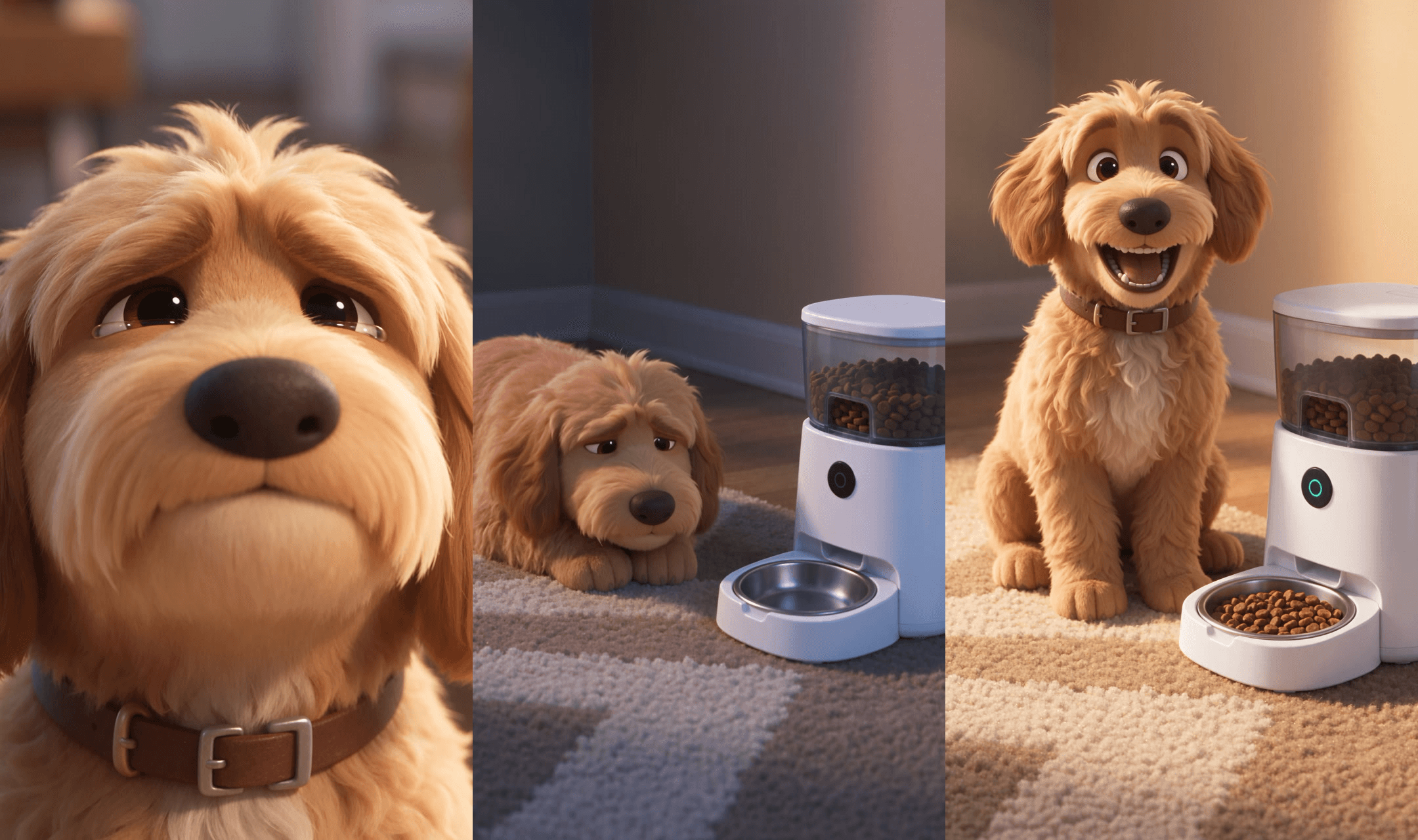
A fluffy dog stares at an empty bowl at 11 a.m. and acts out a full tragedy. Then a feeder chimes, kibble pours, and the dog grins at the camera. That 15-second arc is the Pixar style short that keeps landing on TikTok: big-eyed 3D characters, soap-opera timing, one-word captions.
We tracked where the trend comes from, which templates actually sit behind it, and then made one ourselves with a product written into the plot. Everything below, from the dog to the prompt, is what we ran.
Key Takeaways
- Pixar style on TikTok means AI-made 3D comedy shorts;thebiggest clip we found passed 10 million views.
- No single template drives the trend;thebusiest photo-to-Pixar CapCut template we found has 325,407 uses.
- In our test, Seedance 2.5 kept one Pixar style dog on model for 15 seconds from three reference stills.
- Build the whole short in the Atlas Cloud video generator, then add word-by-word captions afterwards.
- Keep Disney and Pixar logos and real Pixar characters out of anything you publish.
What Is the Pixar Style AI Trend on TikTok?
Pixar style on TikTok names a genre of clips. Open the #pixarstyle or #pixarai tag and almost every top post is an AI-generated 3D sketch: soft lighting, oversized eyes, a domestic disaster and a punchline, usually in 15 seconds or less. The posts we checked go back to May 2026, the biggest landed in July and August, and new ones were still arriving in November.
| Clip | Posted | Views on Nov 10, 2026 | What happens |
|---|---|---|---|
| Doll-like girl cuts her own bangs | Aug 11, 2026 | 10.3M | She panics, scrolls her old photos, sobs on the bed |
| Couple on the sofa | Jul 17, 2026 | 8.9M | He rests a hand on her knee, she bites it, both scream |
| Couple at a door | Oct 1, 2026 | 4.0M | He holds the door for another girl and pays for it |
| A dog and its favorite person | Aug 29, 2026 | 3.0M | The dog clearly prefers someone else |
| Fruit drama, part 1 | Nov 4, 2026 | 1.1M | Anthropomorphic fruit in a soap-opera cliffhanger |
The top clip is this 15-second bangs disaster, with no dialogue at all. One couple-comedy account alone has four clips past 2 million views. The newest branch is the AI fruit drama: fruit characters, long episodes, and at least one recent episode with a product written into the plot.
Which Pixar AI Templates and Tools Are Behind It?
We opened the posts one by one. The big sketches carry no CapCut template link, at most a generic CapCut editing tag. They come from AI video tools, and the captions say which: the dog clip credits OpenArt, and tutorials under the tag credit Higgsfield and Picsart.
| Branch | Template or tool behind it | Template uses |
|---|---|---|
| Pixar style life sketches | AI story and video tools, edited afterwards | None, no template involved |
| AI fruit dramas | Same tools, episodic, some with burned-in captions | None, no template involved |
| Photo to Pixar | CapCut template PET DISNEY PIXAR, created June 21, 2026 | 325,407 uses |
| Older photo templates | CapCut's Pixar trend (Jan 2024), Pixar Character AI (Sep 2023) | 117,201 and 24,630 uses |
| Pixar style ads | Higgsfield's Cartoon story ads; brand films made with Veo and Luma | No CapCut template; Higgsfield lists 7 Cartoon story cards |
Brands noticed. Jeep's "A Tire Story" follows a discarded tire chasing a Jeep across deserts and mountains, and Creative Moment reported that agency Highdive generated it with Google Veo and Luma Dream Machine. Higgsfield packaged the same idea as Cartoon story, one of the styles inside its Drama Ads, where a 3D hero narrates the plot around your product.
How to Make a Pixar Style AI Video With Atlas Cloud
Nothing in the trend depends on a template, so you can build the whole thing yourself. On Atlas Cloud, Seedream v5.5 makes the character stills and Seedance 2.5 turns them into a short with its own sound, all inside the AI video generator and the image generator next to it.
Here is our result, a product drama about an automatic pet feeder:
One take, no cuts. The dog stays the same dog from the first frame to the last, collar included, and the feeder keeps its shape and its teal button through the kibble pour.
Method 1: Build It in the Atlas Cloud Video Generator
You need three stills first, all made in the image generator with Seedream v5.5: the dog in full, the dog's face up close, and the product with an empty bowl. Our dog started life as a real photo (the Pixar filter section below shows how), and the product came from a text prompt.
An empty bowl mattered: the first version had kibble in it, which would have spoiled the plot before it started.
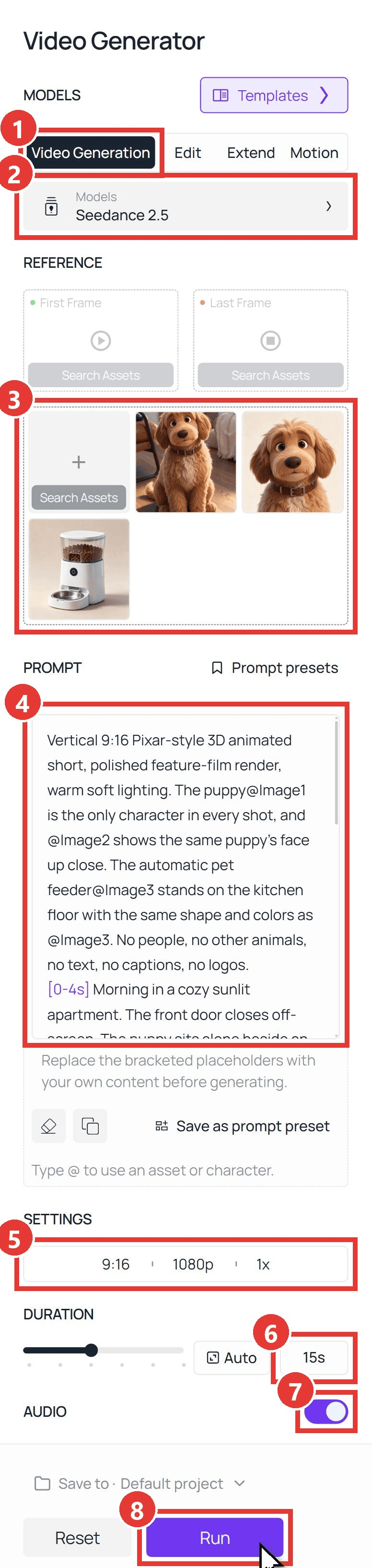
Then open the video generator and follow the numbers in the screenshot:
- Stay on the Video Generation tab.
- Under Models, choose Seedance 2.5.
- Upload the three stills into the reference area below First Frame and Last Frame, in this order: full-body dog, face close-up, product. Leave both frame slots empty.
- Paste the prompt from the next section into Prompt.
- Open Settings and pick 9:16 and 1080p.
- Type 15s into Duration.
- Keep Audio on, so the clip comes with music and sound effects.
- Press Run.
Method 2: Generate It With the Seedance 2.5 API
For a batch of products, or a Pixar button inside your own app, the same job runs as one request.
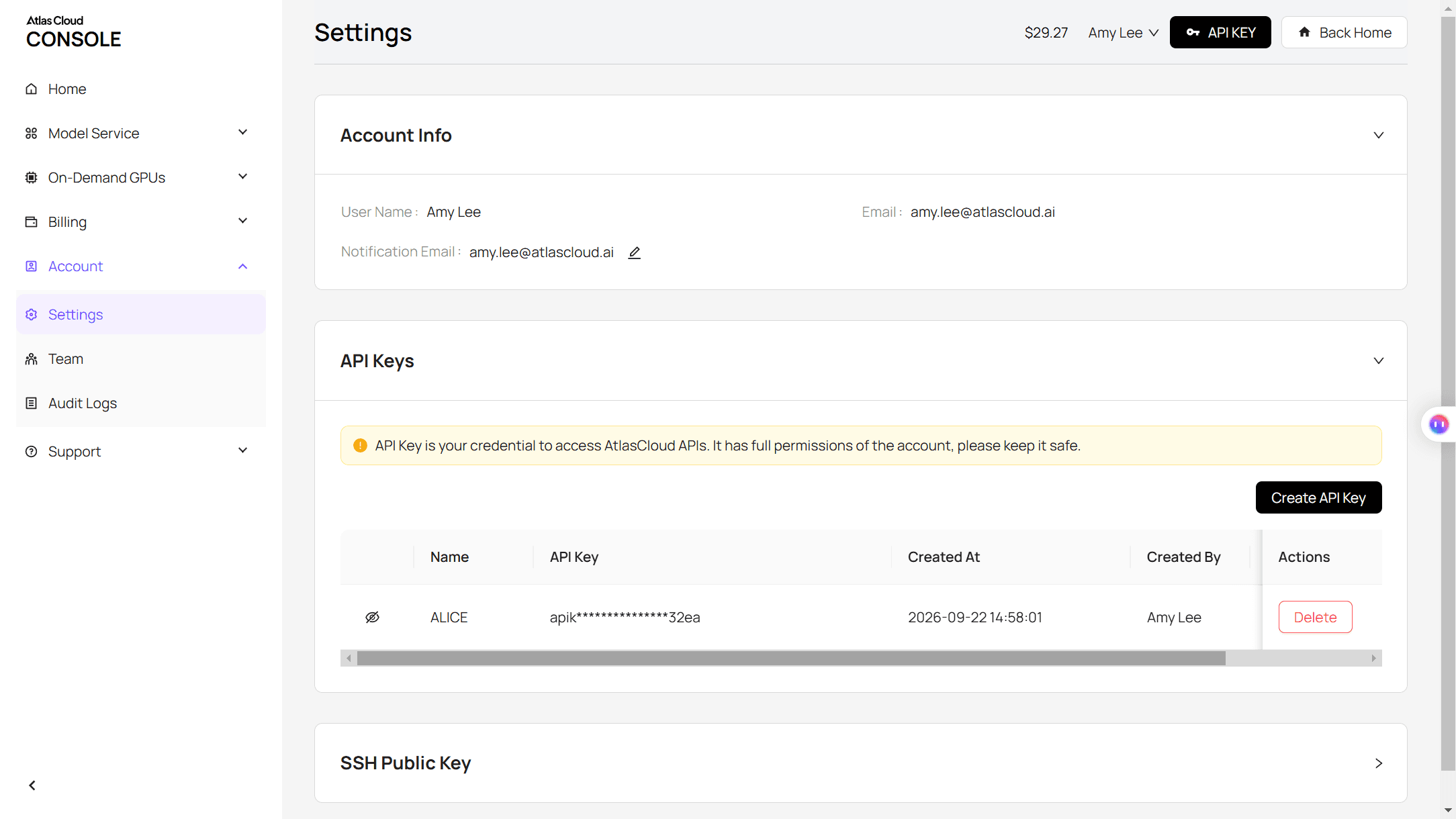
Step 1: Create and copy an API key in the Settings page of the Atlas Cloud console.
Step 2: Check the request format in the Atlas Cloud API docs. Reference-to-video takes your stills as a list, and the prompt points at them as @Image1, @Image2 and so on, in upload order.
Step 3: Submit the clip, then poll for the file.
plaintext1curl -X POST https://api.atlascloud.ai/api/v1/model/generateVideo \ 2 -H "Authorization: Bearer $ATLASCLOUD_API_KEY" \ 3 -H "Content-Type: application/json" \ 4 -d '{ 5 "model": "bytedance/seedance-2.5/reference-to-video", 6 "prompt": "Vertical 9:16 Pixar-style 3D animated short, polished feature-film render, warm soft lighting. The puppy@Image1 is the only character in every shot, and @Image2 shows the same puppy face up close. The automatic pet feeder@Image3 stands on the kitchen floor with the same shape and colors as @Image3. No people, no text, no logos. [0-4s] The puppy sits alone beside an empty steel bowl and looks up at a wall clock. [4-8s] It flops onto its back on the rug, then stares into the empty bowl as the light cools to blue. [8-11s] The feeder chimes and kibble pours into the bowl. [11-15s] Warm light returns, the puppy eats, then grins at the camera. Sound: sad solo violin, then a bouncy pizzicato tune from 8s, a chime at 8s, kibble rattling at 9s. No dialogue.", 7 "reference_images": [ 8 "https://your-cdn.com/pixar-dog.png", 9 "https://your-cdn.com/pixar-dog-face.png", 10 "https://your-cdn.com/feeder-empty.png" 11 ], 12 "duration": 15, 13 "resolution": "1080p", 14 "ratio": "9:16", 15 "generate_audio": true 16 }'
plaintext1curl https://api.atlascloud.ai/api/v1/model/prediction/<prediction_id> \ 2 -H "Authorization: Bearer $ATLASCLOUD_API_KEY"
Poll until the status reads completed, then download the video from outputs. The same endpoint and key run the other video models on Atlas Cloud, so trying the story on another model means changing one string.
A Pixar Style Prompt for a 15-Second Product Short
A good Pixar style prompt does three jobs: it pins the cast to your stills, it times the beats, and it scores the scene. These were our three references:
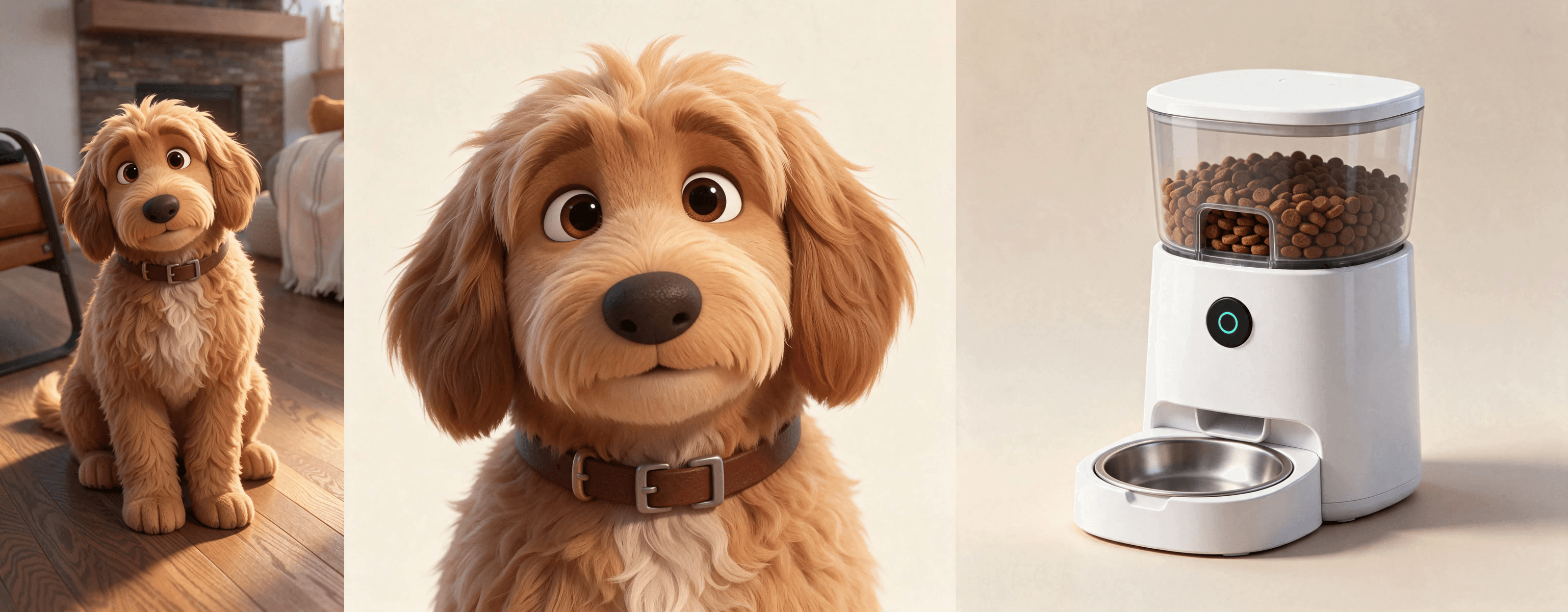
The face close-up earns its slot. A full-body still gives the model only a small patch of face to work from, while the close-up hands it the eyes, nose and collar at full size for the close-up shots.
We skipped a multi-angle character sheet on purpose, since a sheet full of the same dog can turn into two dogs on screen. For the longer character sheet workflow behind multi-character films, see our Seedance 2.0 Pixar guide.
The product still came from this text prompt. Swap in your own product and keep the last line:
plaintext1A modern automatic pet feeder rendered as a prop from a Pixar-style 3D animated film: a rounded glossy white cylinder about 30 cm tall, a clear food hopper on top filled with brown kibble, a small round matte-black control panel on the front with one glowing teal ring button, and a removable stainless steel bowl at the base. Clean seamless light-beige background, soft studio lighting, three-quarter view from slightly above, sharp focus. No text, no logo, no words anywhere.
And this is the full video prompt we ran:
plaintext1Vertical 9:16 Pixar-style 3D animated short, polished feature-film render, warm soft lighting. The puppy@Image1 is the only character in every shot, and @Image2 shows the same puppy's face up close. The automatic pet feeder@Image3 stands on the kitchen floor with the same shape and colors as @Image3. No people, no other animals, no text, no captions, no logos. 2[0-4s] Morning in a cozy sunlit apartment. The front door closes off-screen. The puppy sits alone beside an empty steel bowl, ears drooping, and slowly looks up at a wall clock. Close-up on its trembling lower lip. 3[4-8s] Soap-opera despair: the puppy flops onto its back on the rug with one paw over its forehead, then rolls over and stares into the empty bowl while the camera pushes in slowly. The light cools to a soft blue. 4[8-11s] The feeder@Image3 chimes, its teal ring button lights up, and a stream of kibble pours into the bowl. The puppy's ears shoot up and its eyes go huge. 5[11-15s] Warm golden light returns. The puppy spins in a happy circle, eats with its tail wagging fast, then looks straight at the camera with an overjoyed open-mouth smile beside the feeder. 6Sound: (sad solo violin from 0-8s, then a bouncy pizzicato string tune from 8s) <door click at 1s> <soft whimper at 3s> <cheerful chime at 8s> <kibble rattling into the bowl at 9s> <happy bark at 13s>. No dialogue.
The bracketed timestamps kept the beats in order. Seedance landed the main ones close to their slots: the button lit at about 8.3 seconds and kibble started falling at 9.3. With "empty" in the prompt and an empty bowl on the reference still, the bowl stayed empty until the chime.
The "no captions" line is there so the model doesn't paint its own words into the frame, because the real captions come next.
The AI Fruit Drama Playbook: One-Word Captions Over a Generated Score
In AI fruit dramas the captions do a lot of the work: one big word at a time, bright fill, heavy outline, timed to the line. This 66-second shampoo drama runs that way from start to finish, and the product saves the heroine's hair in the final act.
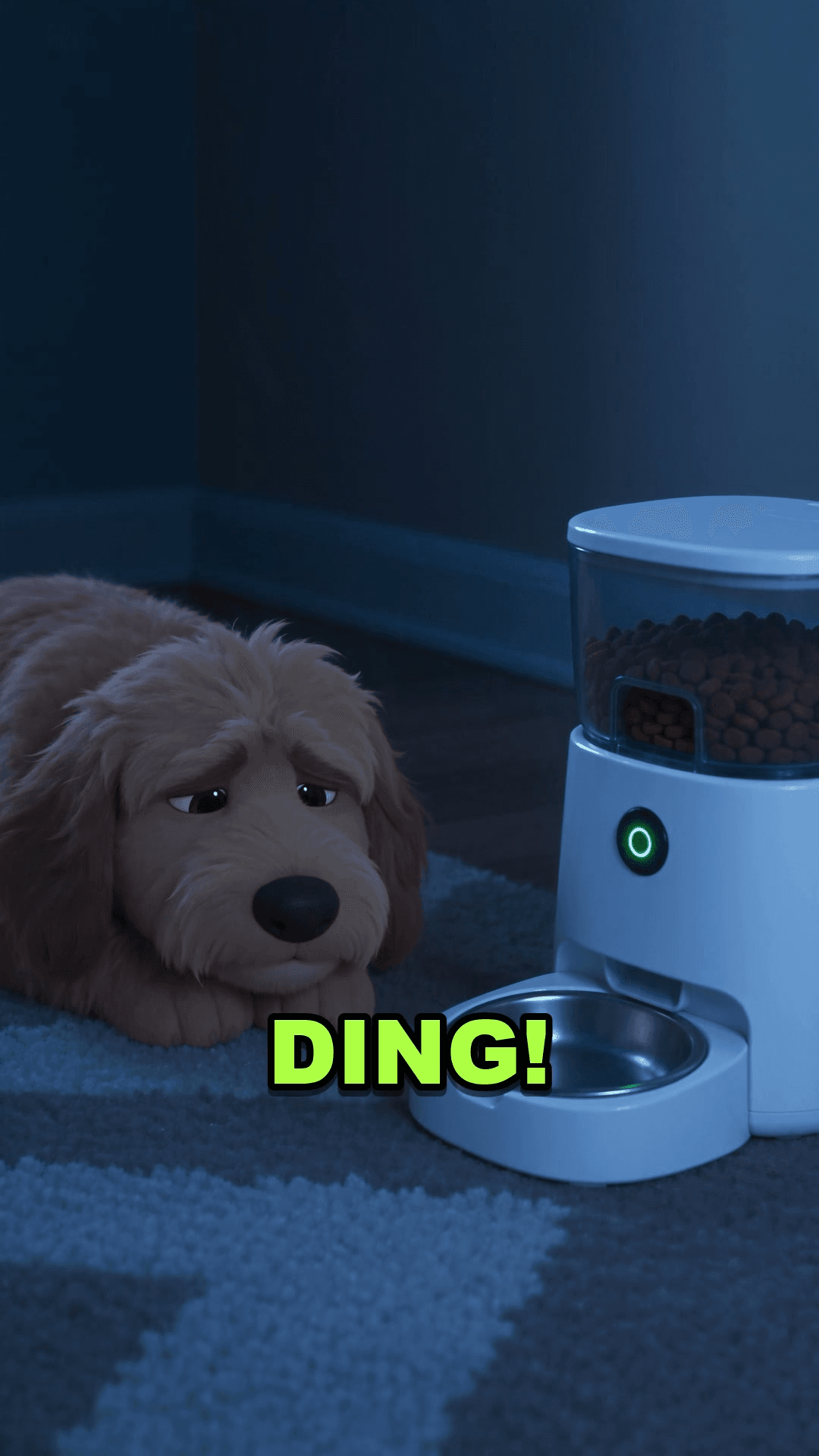
We added ours after generation, one word on screen at a time: "11 AM. Still no breakfast. No hope. Then... DING! Breakfast is served. Best day ever." We left the screen clear between 9 and 11 seconds so nothing covers the kibble pour, the shot the whole story builds toward.
Music came with the clip. With Audio on, Seedance 2.5 scores the scene from the Sound line of the prompt, and in our take the track swells once the feeder chimes. To set the rhythm yourself, add a music file as a reference and call it @Audio1 in the prompt: Seedance 2.5 accepts audio-only references and can follow one track's beat for its cuts.
Pixar Filter: Turn a Pet Photo Into a Pixar Character
The other half of the Pixar style search is the filter: your pet or your face, redrawn as a Pixar-like character. The busiest CapCut version we found is PET DISNEY PIXAR from the table above, a 9-second template whose preview wipes from a pet photo to a 3D puppy in a fairytale castle garden, stamped with a Disney Pixar wordmark.
You can do the same on Atlas Cloud without the castle or the logo. This is how our star was born. We uploaded a real photo of a goldendoodle to the Image Edit tab, chose Seedream v5.5, kept the 9:16 shape and ran this prompt:
plaintext1Re-render this exact photo as a still from a Pixar-style 3D animated feature film. Keep the same young goldendoodle: curly apricot fur, the small white patch on its chest, floppy ears, the same sitting pose with front paws together, the same camera angle and the same living room with the stone fireplace, wooden floor, leather chair on the left and striped throw on the right, so it is clearly the same dog in the same place. Give the dog big expressive dark eyes with bright catchlights, soft rounded proportions, a slightly oversized head and paws, and stylized curly fur with fine strand detail, keeping the warm backlit glow on top of its head. Warm soft key light, shallow depth of field. Polished feature-film 3D render, no text, no logos.
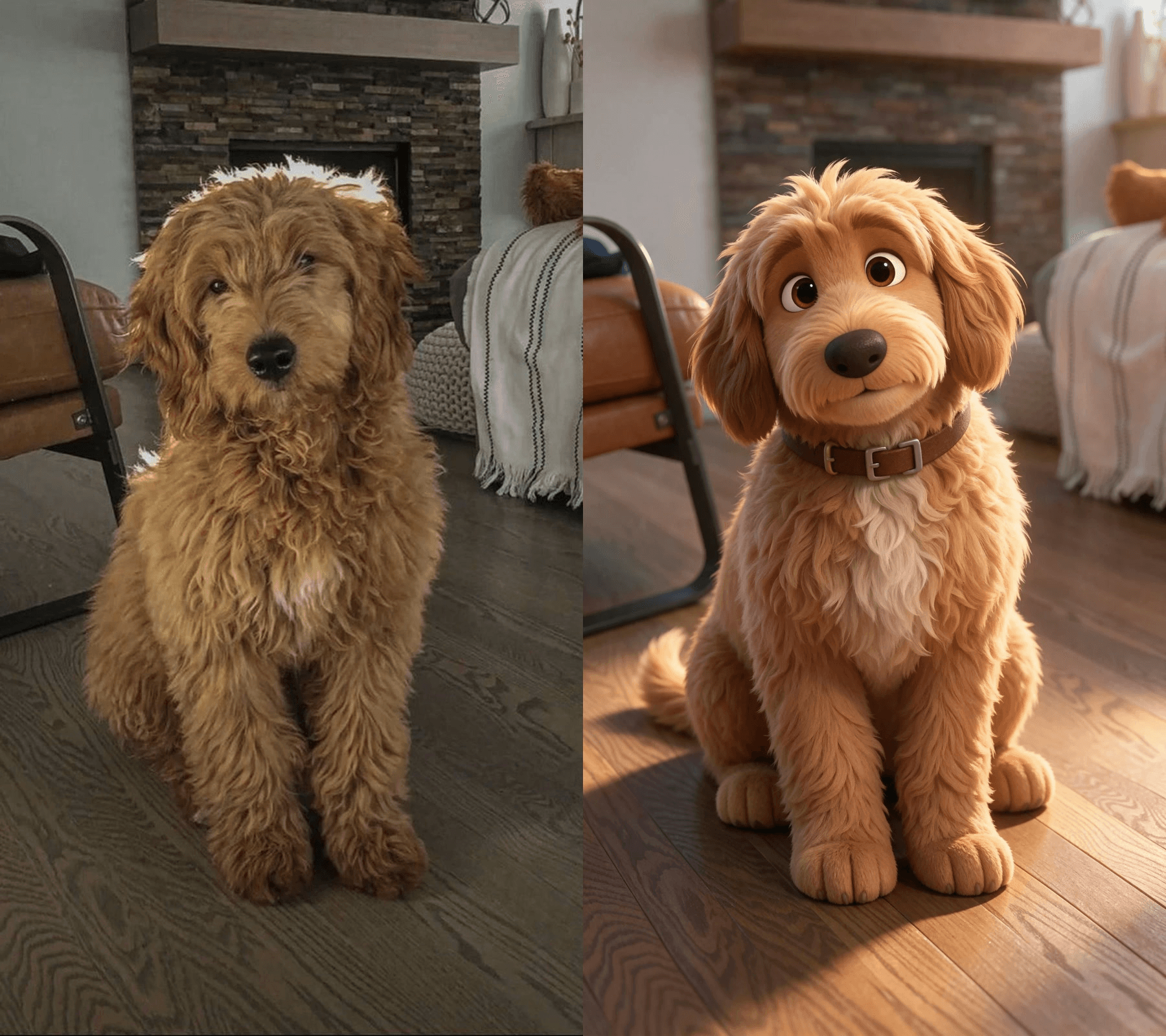
The room survived, the pose survived, and the dog gained much bigger eyes. The model also added a leather collar we never asked for. We kept it, because it gave every later shot one more detail to match.
For the moving version of the filter, Seedance 2.5 took the real photo as the first frame and the Pixar still as the last, and filled the five seconds between with a sparkle sweep:
Pixar AI Generator or Pixar Style Animation Pipeline?
Which route fits depends on what you want to keep control of. Here is how the options we looked at compare:
| Route | You start with | You get | Who decides the story |
|---|---|---|---|
| CapCut template such as PET DISNEY PIXAR | One photo | A short photo-to-Pixar reveal | The template |
| Photo-to-Pixar AI generator sites | One photo or a text idea | A Pixar style still | You, one image at a time |
| Story tools such as Higgsfield Cartoon story or OpenArt | A story idea or a product link | A multi-scene video, often narrated | The tool's story card or agent, guided by you |
| Seedream v5.5 plus Seedance 2.5 on Atlas Cloud | Your photo, your product, your script | A timed 4 to 30 second scene with sound, and a reveal clip | You, beat by beat |
Of these routes, a template is the quickest way to post a pet reveal today. A Pixar AI generator gets you a still for a profile picture. Pixar style animation that sells something, with your product doing the plot twist on cue, takes the pipeline: three stills, one timed prompt, captions on top.
Frequently Asked Questions
Is there an official Pixar AI generator?
Not one we could find. The Pixar-flavored filters and generators online are third-party tools that imitate the look. The closest official link is Disney's deal with OpenAI, announced December 11, 2025, which licenses more than 200 characters from Disney, Pixar, Marvel and Star Wars for OpenAI's Sora and ChatGPT image tools. That license is for OpenAI's own apps.
Can I use the Disney or Pixar logo in an AI video?
Leave it out. In an ad or a brand post, a Disney or Pixar wordmark implies a partnership you don't have. The same goes for recognizable characters. Describe the look instead, as our prompts do: big expressive eyes, soft rounded shapes, warm feature-film lighting.
Why do my Pixar style characters change between shots?
Usually the model is filling in what the references don't show. Give it the full body and a separate face close-up, name the character with @Image1 in every sentence that mentions it, and repeat fixed details such as the collar. A multi-angle sheet of one character can backfire and produce twins, so stick to single-pose stills.
How much does a 15-second Pixar style product video cost on Atlas Cloud?
As of November 11, 2026, with the 20% discount shown on the model pages, Seedance 2.5 reference-to-video for 15 seconds with audio is estimated at $8.90 at 1080p and $4.52 at 720p. Each Seedream v5.5 still costs $0.034 to edit or $0.028 from text, so our four stills plus the short add up to about $9 at these prices. Draft the prompt at 720p, then run the keeper at 1080p.
Conclusion
Pixar style on TikTok has little to do with one filter. The biggest clips are AI-made sketches with a domestic disaster and a punchline, the fruit dramas stretch the same look into episodes, and brands such as Jeep are borrowing it for ads. The CapCut template only covers the photo reveal.
To make your own, start with three stills: your character, its face, and your product in the state the story needs. Give Seedance 2.5 a prompt with timed beats and a sound line, then lay one-word captions on top. Fifteen seconds later you have a Pixar style short where the product is the plot twist.


