The blonde hair filter trend has grown beyond a simple hair-color preview. Online videos now use it for before-and-after reveals, close-up transformations, and rapid color rankings. Some add a playful reversal, while others focus on whether the new shade looks convincing as the person moves. The three clips below show these approaches and the details that make each one easy to follow.
Key takeaways
- The clearest videos show the same person in two hair colors, giving viewers a comparison they can judge for themselves.
- A believable edit changes the hair while holding the face, pose, light, and background steady.
- A 30-second original video can test red, pale blue, and blonde in sequence; distinct reactions make the final choice clear.
- Make the transformation on Atlas Cloud, add on-screen captions in an editor, and keep the final post clearly labeled as an AI edit.
3 online blonde hair filter clips that show the trend
Case 1: The claim turns into a question
This clip opens with a confident line, “Every girl looks better blonde.” A woman in a red top poses with long, pale blonde hair. After several seconds, the caption changes to “Every girl?” and the same woman appears with dark hair. The timing gives viewers a chance to take in the first look before the second one changes the comparison.
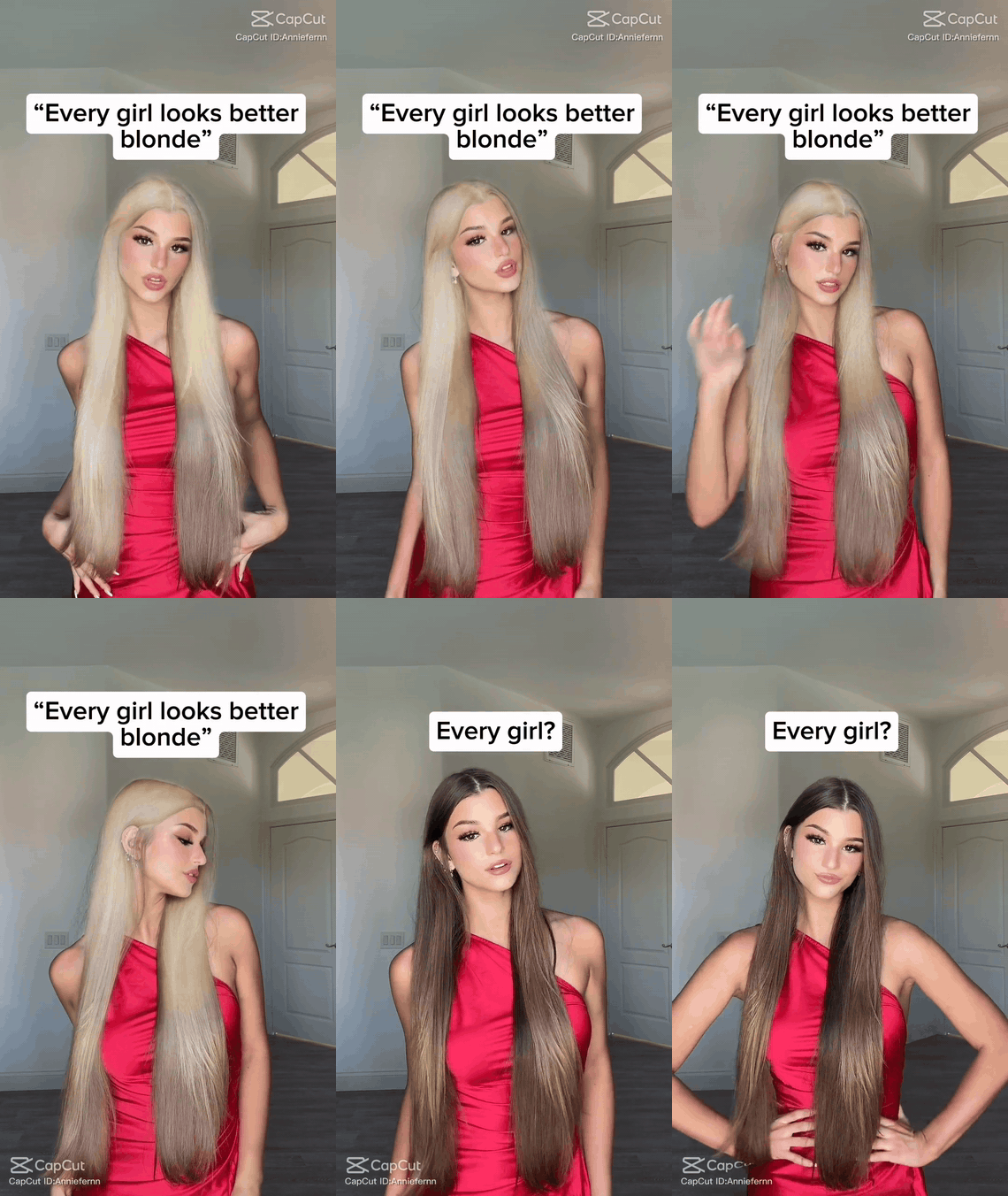
Online example 1, shown as a silent GIF: the final dark-hair reveal challenges the opening claim.
The second look works because the person and outfit remain recognizable. With the rest of the image held steady, viewers can focus on the hair color itself. People may prefer different versions, which is why this simple comparison invites comments and remakes.
Case 2: A filter that almost passes for a dye job
A second online clip starts with brown hair and shifts to a light blonde while the subject stays close to the camera. She touches her hair, turns her head, and checks the result from more than one angle. The caption calls it a realistic blonde filter, so the important test is whether the color continues to fit the same person and room.
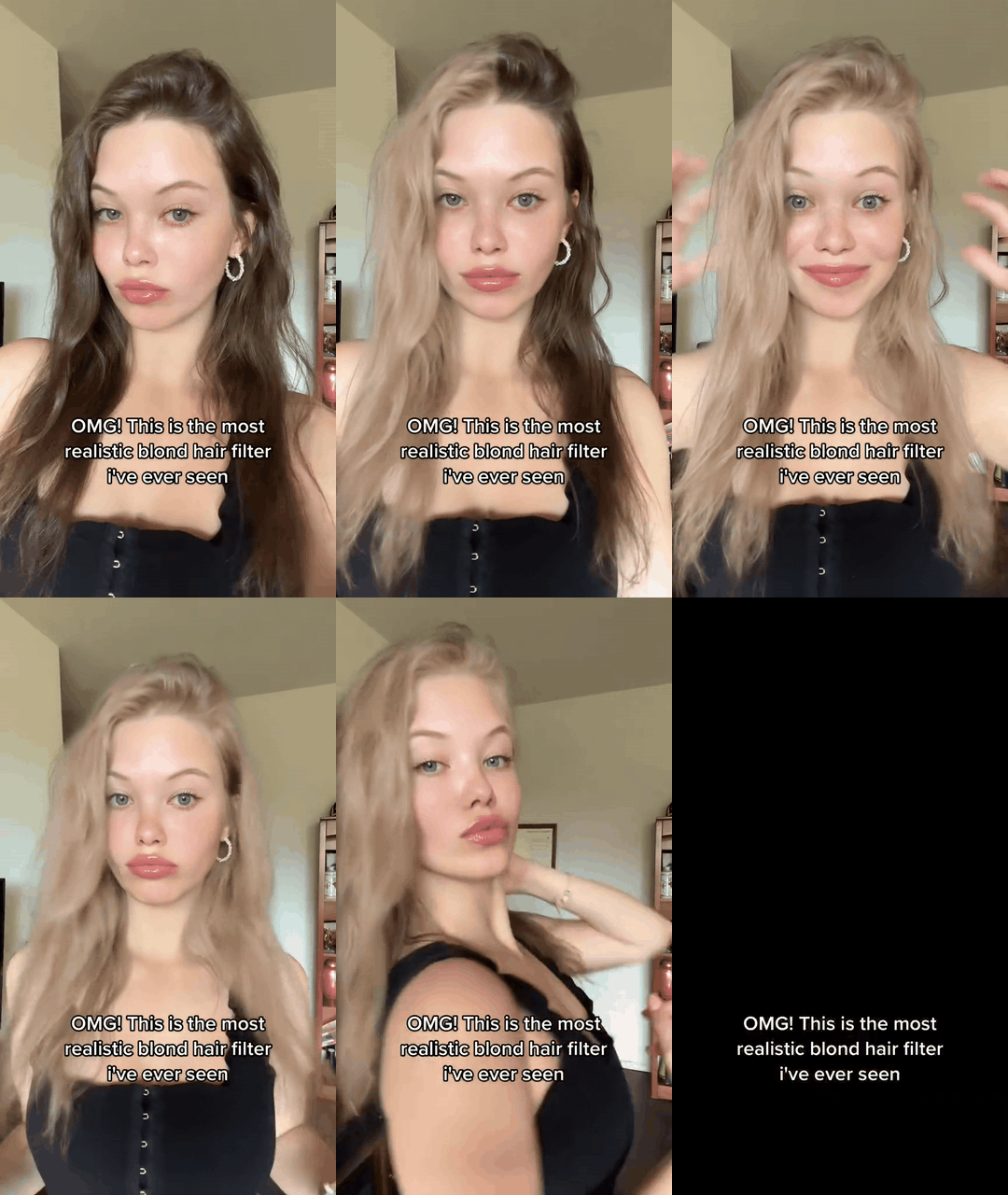
Online example 2, shown as a silent GIF: the hair changes while the face and setting remain familiar.
This version centers on visual realism rather than a scripted ending. Watch the hairline, the strands crossing the cheek, and the color under the room's light. Those details decide whether the audience sees a possible new style or a filter sliding over a face.
Case 3: One face, a color chart, and a vote
The third clip turns the experiment into a ranking. One person stays in the same room while a numbered scale and fast color changes invite viewers to pick a favorite. Blonde appears among cooler and warmer alternatives. The short interval between shades makes the comparison easy to follow, and the ranking prompt gives viewers a reason to reply.
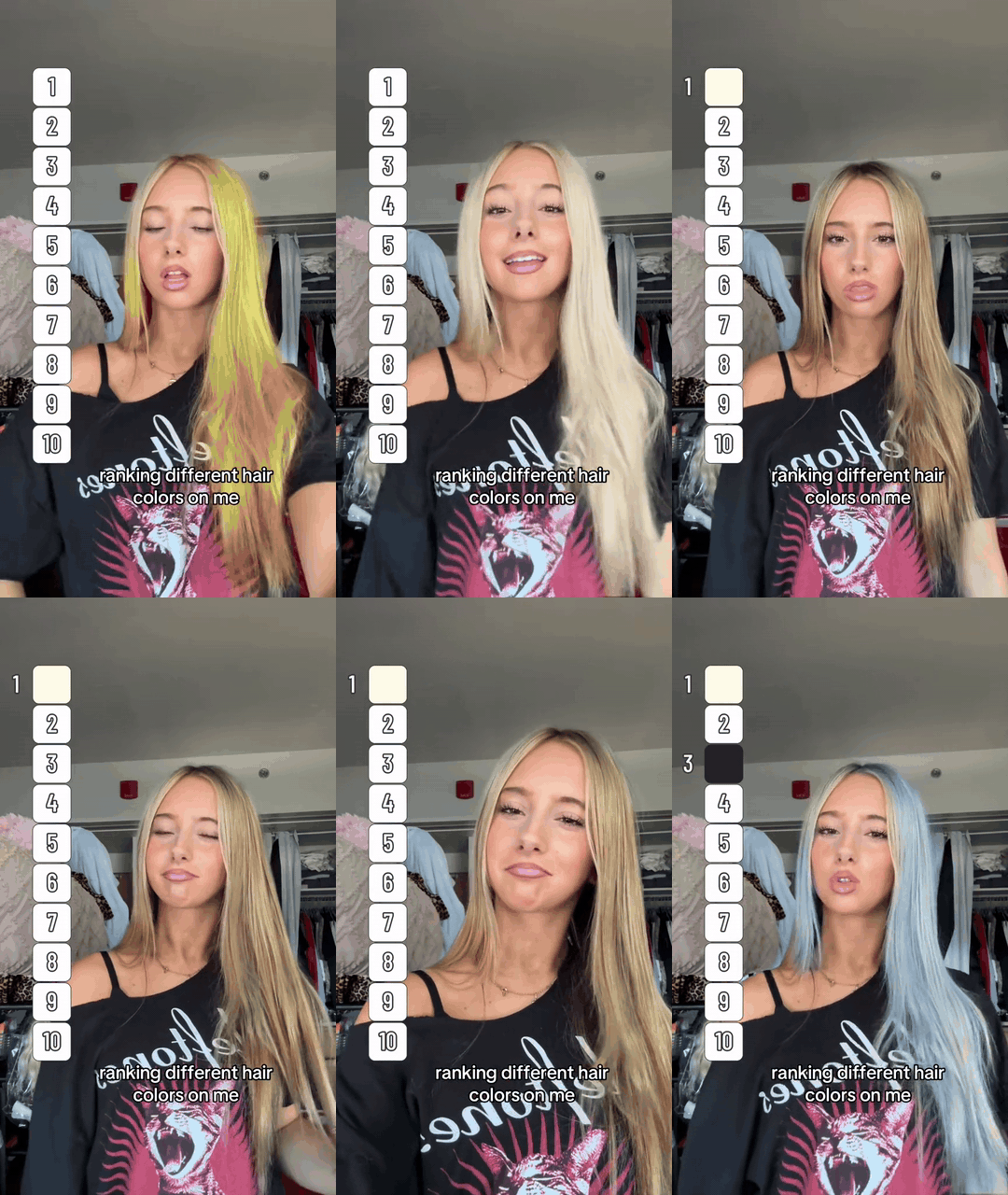
Online example 3, shown as a silent GIF: the color change becomes a public vote rather than a single reveal.
The ranking version is useful for a creator planning an original take. It shows that the same underlying effect can support a different ending. A creator can ask the audience to judge several colors, or let the subject's changing expression reveal her own choice. The color comparison should remain clear enough that a viewer can form an opinion before the next shade appears.
What is the blonde hair filter trend about?
“Blonde hair filter” covers more than one tool and more than one post format. An earlier version used a still-photo color edit and cut between before and after. A later template could turn a single photo into a short moving reveal. A current AI video workflow can animate a reference portrait and control the change over a longer scene. These approaches produce different files, but the audience reads them through the same visual question: what happens to this familiar face when only the hair changes?
An early how-to described making the still in FaceApp and the switching video in CapCut (Dexerto, April 2023). That history helps explain why people use the same phrase for both a photo effect and a video trend.
The three clips give viewers different reasons to watch. Case 1 revisits a broad claim by showing the original dark hair at the end. Case 2 asks whether a blonde edit can hold up from more than one angle. Case 3 offers several shades and invites a choice. All three rely on a familiar face and a visible change, but their endings lead to different reactions.
That also explains why a plain hair-color switch can feel flat. If the clip shows the result immediately, viewers have little time to compare it with the original. If the edit also reshapes the face, smooths skin, changes makeup, or alters the background, the audience cannot tell what caused their reaction. A clearer video holds the person and setting steady while changing one visible variable.
The trend can help someone explore a look, but it cannot replace a real hair-color consultation. Camera white balance, styling, exposure, and the particular shade of blonde all affect the result. A video made under one set of conditions cannot show how hair will lift in a salon or how a real color will look in daylight.
The format has stayed easy to remake because it asks for very little source material. A creator needs a clear portrait, one alternate hair-color result, and a cut or transition that gives both looks time on screen. CapCut's template guidance describes how a photo or clip can be swapped into a template, although access to community templates varies by device and region. The creator's choice of comparison and reveal determines what viewers take from it.
Why does the “Every girl?” version draw attention?
The line “Every girl looks better blonde” is deliberately broad. It gives the viewer a clear claim to test. The edit then shows one face in two states, holds the second state long enough to read, and ends with a question. There is no need for a voiceover explaining what to think. The viewer can compare the looks directly.
Three choices make that reversal legible. First, keep the subject's identity stable. A different face would make the comparison meaningless. Second, use the same clothes and space, so the hair color is the obvious change. Third, place the final text after the image has established the first look. If “Every girl?” appears before the dark-hair reveal, viewers see the conclusion too early.
The tone can stay light without putting anyone down. A self-directed version lets the subject try both looks. Expression does much of the work: confidence during the blonde pose, then a knowing look at the camera when the original color returns. That reaction still reads with the GIF muted.
The longer an original video runs, the more it needs an actual sequence rather than repeated poses. At 30 seconds, the audience has time to watch several transformations, read different reactions, and see why the final color lands. A single slow zoom would stretch a brief color change without adding useful information.
How to make an original 30-second version
Start with a portrait of a consenting adult with black hair visible from roots to ends. Keep the hair loose, the face unobstructed, and the light simple. A medium close-up in a bedroom or dressing room is enough. Record the original look before making any edit. That original frame is the identity and scene reference for every color.
Make three edited stills from the same black-haired portrait: red with a pursed-lip reaction, pale blue with a different dissatisfied expression, and blonde with an open, satisfied smile. Preserve the face, haircut, clothing, camera position, light, and background. Arrange the real original and three edits in one labeled comparison image. A real screenshot of the Atlas Cloud workspace becomes separate process evidence: it should show the uploaded reference, an actual prompt, and its completed output. Neither image needs a fake interface or a decorative card.
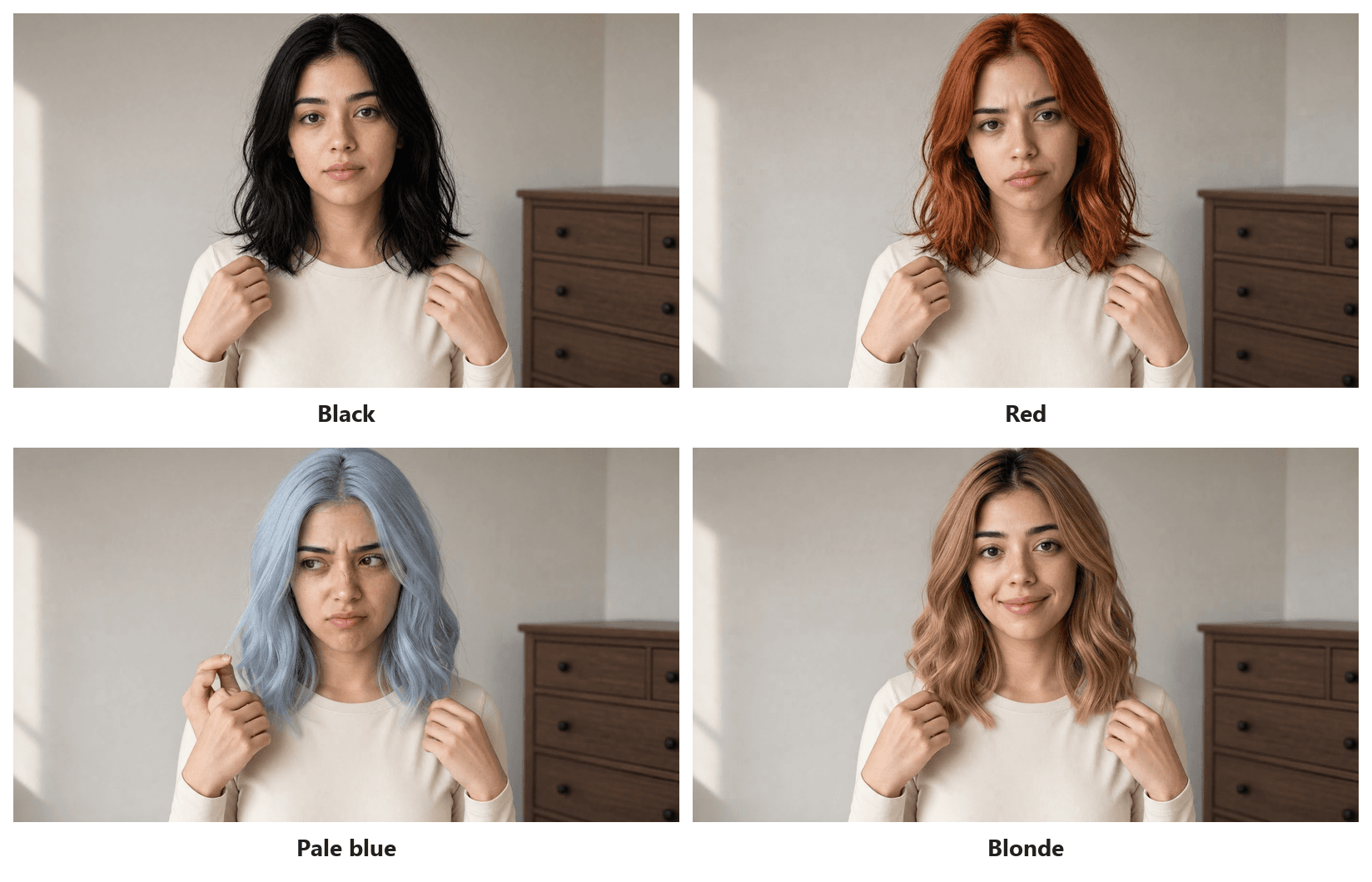
Original four-color comparison: the face, cream top, dresser, and light stay consistent as the hair and expression change.
For the motion, Atlas Cloud offers a way to keep the original portrait connected to the generated result. Its Nano Banana 2 editing workflow can prepare the three color stills from the same reference. The real workspace capture below shows the next step: four reference portraits, the motion prompt, and a completed video preview.
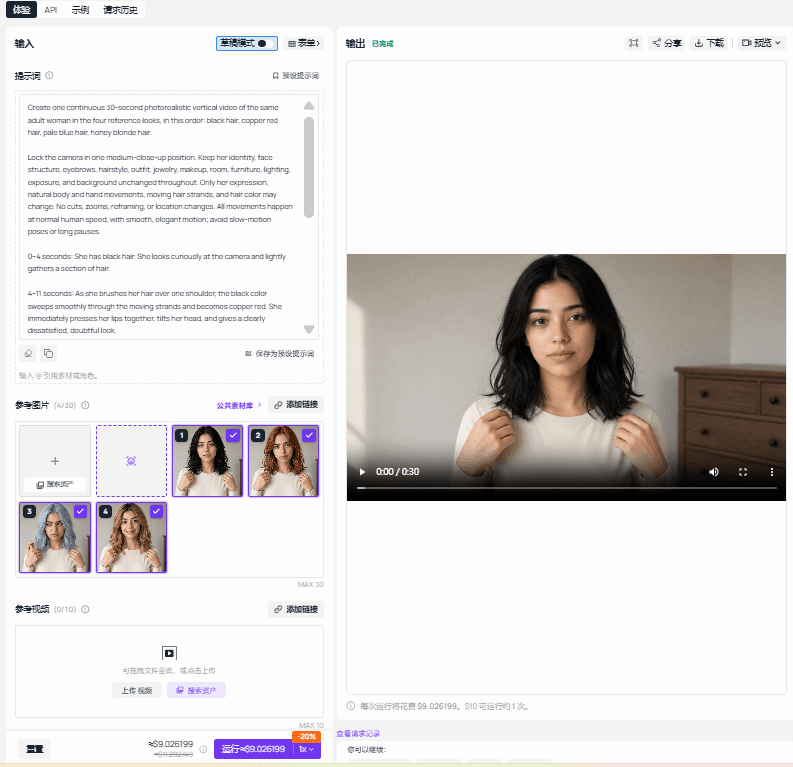
Atlas Cloud creation step: the actual reference images, prompt, and completed video preview in one screen capture.
For a single clip longer than 25 seconds, Atlas Cloud's model library lists Kling Video 4.0 Image-to-Video with a 3 to 30 second range and keyframe control. Use the black, red, pale blue, and blonde stills as ordered visual anchors if the selected interface exposes keyframes. Keep the camera fixed so only the subject's expression, movement, and hair color change. The completed example below uses a 16:9 frame and runs just over 30 seconds; check the actual exported file before publishing.
Build the sequence around three transformations and three distinct reactions. The following timing gives the 30 seconds a clear progression:
| Time | On-screen action | What the viewer learns |
|---|---|---|
| 0 to 4 seconds | The subject begins with black hair, looking into the fixed camera with her hands near her shoulders. | The viewer sees the original person and room. |
| 4 to 9 seconds | Her hair changes to copper red. She tilts her head and gives the camera a doubtful look. | Red is the first trial color, and her reaction is hesitant. |
| 9 to 16 seconds | The hair shifts to pale blue. She inspects a strand and wrinkles her nose. | Blue gets a different, more direct dissatisfied reaction. |
| 16 to 25 seconds | Her hair becomes blonde and she breaks into a broad smile while moving her hands around the hair. | The final color is visibly the one she likes. |
| 25 to 30 seconds | The blonde stays in place while her broad smile relaxes to a smaller one. | The ending holds the chosen color long enough to compare it with the earlier looks. |
Original 30-second color test: red and pale blue draw different doubtful reactions; blonde brings out a broad smile.
If you want labels, add “Red?”, “Blue?”, and “Blonde” in the video editor after generation. Do not ask the model to draw words inside the frames. Keep a version without music for checking the visual sequence. If you add a soundtrack later, make sure each reaction still reads when a viewer watches silently.
The checks that keep the edit believable
Inspect frames from all three color changes at full size. Each color should stop at the hairline and leave the forehead, ears, and neck alone. Look for strands in front of the face that suddenly disappear or turn a different color from the rest. Check the eyebrows as well. They do not have to match the new hair, but they should not change accidentally between frames.
Next, compare the face and room with the original portrait. Expressions should change, but eye shape, nose, jaw, skin tone, makeup, jewelry, and clothing should remain the same. If the light changes, the blonde may seem to “win” simply because its frame is brighter. Use the same crop and exposure for every panel of the comparison image so readers can see the actual difference.
Finally, scrub the whole video rather than checking only its best frame. Watch the color at every head turn and when a hand touches the hair. A stable still can fail as soon as fingers cross a strand. If the reveal looks wrong, fix the reference image or the particular transition before changing the rest of the story.
When posting an AI-edited version, use your own likeness or a subject who has agreed to it, and disclose the edit. TikTok's AI-generated content guidance explains its labeling tools and its rules for realistic synthetic media. The disclosure can sit in the post settings or description without covering the comparison on screen.
Frequently Asked Questions
Is the blonde hair filter a single TikTok effect?
No. The phrase is used for photo edits, template-based before-and-after videos, and AI-generated moving transformations. Search for the specific visual format you want: a two-look reversal, a realistic blonde reveal, or a multi-color ranking.
What makes the result look like the same person?
Use one clear identity reference and change only the hair. Hold the face, outfit, background, camera angle, and light steady. Check the hairline and any frames where a hand crosses the hair.
Does the original video have to be 30 seconds?
No. Short posts often show the result faster. The original example here runs about 30 seconds so black, red, pale blue, and blonde each get a readable beat, with a distinct reaction to every trial color. A new version can be shorter if the same progression stays clear.
What is the simplest way to make the comparison clear?
Show the original black hair first, then make red and pale blue visibly unsuccessful through two different reactions. End on blonde and let the smile and approving nod make the preference clear. Hold the face, outfit, framing, and room consistent so viewers can compare the colors immediately.
The blonde hair filter trend gives viewers a quick way to compare a familiar face in different colors. Keep the comparison clear, let the subject react naturally to each shade, and give her final choice enough time on screen. The result can be a practical style preview or an invitation to vote.


