

Most AI image-to-video generators distort facial proportions or shift background lighting by second 3 of animation. Gemini Omni Flash 1.1 addresses this scene drift by processing visual, textual, and spatial audio tokens simultaneously within a single transformer pass rather than stacking separate diffusion and audio models.
Achieving locked character geometry requires moving away from loose captions toward strict multimodal conditioning.
Quick Reference: Gemini Omni Flash 1.1 Image-to-Video Capabilities & Specs
Traditional image-to-video pipelines often waste GPU compute on character drift and desynced audio. Gemini Omni Flash 1.1 solves these bottlenecks through a unified multimodal architecture, delivering locked geometry and native spatial audio in a single pass. Below is a quick breakdown of its core parameters and API limits:
Core Technical Parameters
| Specification | Supported API Feature / Value |
| Output Resolution | Standard 720p (Optional 360p draft; 1080p/4K upscaled) |
| Frame Rate | Fixed 24 fps output |
| Clip Duration | 3 to 10 seconds base clip (Extends up to 40s) |
| Aspect Ratios | 16:9, 9:16 |
| Input File Types | JPG, PNG, WEBP, GIF, AVIF, MP4 |
| Audio Output | Native synchronized spatial audio (Ambient, Speech, SFX) |
Key Technical Limits & Constraints
- Prompting & Parameter Controls: System instructions, temperature, top_p, stop sequences, and dedicated negative prompt fields are unsupported. Negative constraints must be integrated directly into the main prompt text, e.g., "do not execute X".
- Extension & Append Mechanics: Video extensions are strictly append-only (tail-end); adding content to the beginning or extending the middle of a clip is unsupported. Input videos uploaded for extension or editing cannot exceed 10 seconds.
- Dialogue & Audio Pipeline: Standalone audio reference uploads and YouTube URLs are unsupported. Adding new spoken dialogue is only supported when extending model-generated videos across multi-turn sessions (previous_interaction_id), not on newly uploaded external videos. Voice editing is also unsupported.
- Video References & Multi-Video Reasoning: Video references are capped at 3 clips (maximum 3 seconds per clip), and any audio embedded within reference videos is automatically ignored. Cross-video referencing or multi-video reasoning is unsupported and degrades model performance.
The 5-Part Prompt Formula for Gemini Omni Flash 1.1 Image-to-Video
Over 70% of generation failures in generative video workflows stem from ambiguous prompt syntax, forcing developers to waste API tokens on unpredictable outputs. Writing unstructured instructions like "make the person move and look around" causes chaotic camera shifts, body distortion, and silent clips. Applying a structured Gemini Omni Flash prompt formula removes guesswork by framing video generation as an explicit, production-ready shot brief.
Deconstructing the 5-Part Modular Schema
To maximize output quality, construct every prompt using five distinct structural layers:
- Subject Anchor & Reference Role: Identifies the main subject in the source photo and specifies its subject reference role to maintain character or product identity.
- Frame Motion Beats: Defines character or object movement sequentially, dividing physical action into clear story beats across the generation window.
- Camera Trajectory & Lens Language: Mandates camera angle, focal length, and exact camera trajectory paths such as panning, tilting, or tracking shots.
- Atmospheric Lighting & Style: Details environmental lighting, shadow behavior, and overall motion intensity to prevent visual tearing.
- Native Audio Sync: Explicitly names ambient sound effects, character dialogue, or musical cues to trigger integrated audio rendering.
Side-by-Side Prompt Benchmarks
The cases below illustrate how to transform vague user inputs into structured 5-part prompts for common video creation tasks:
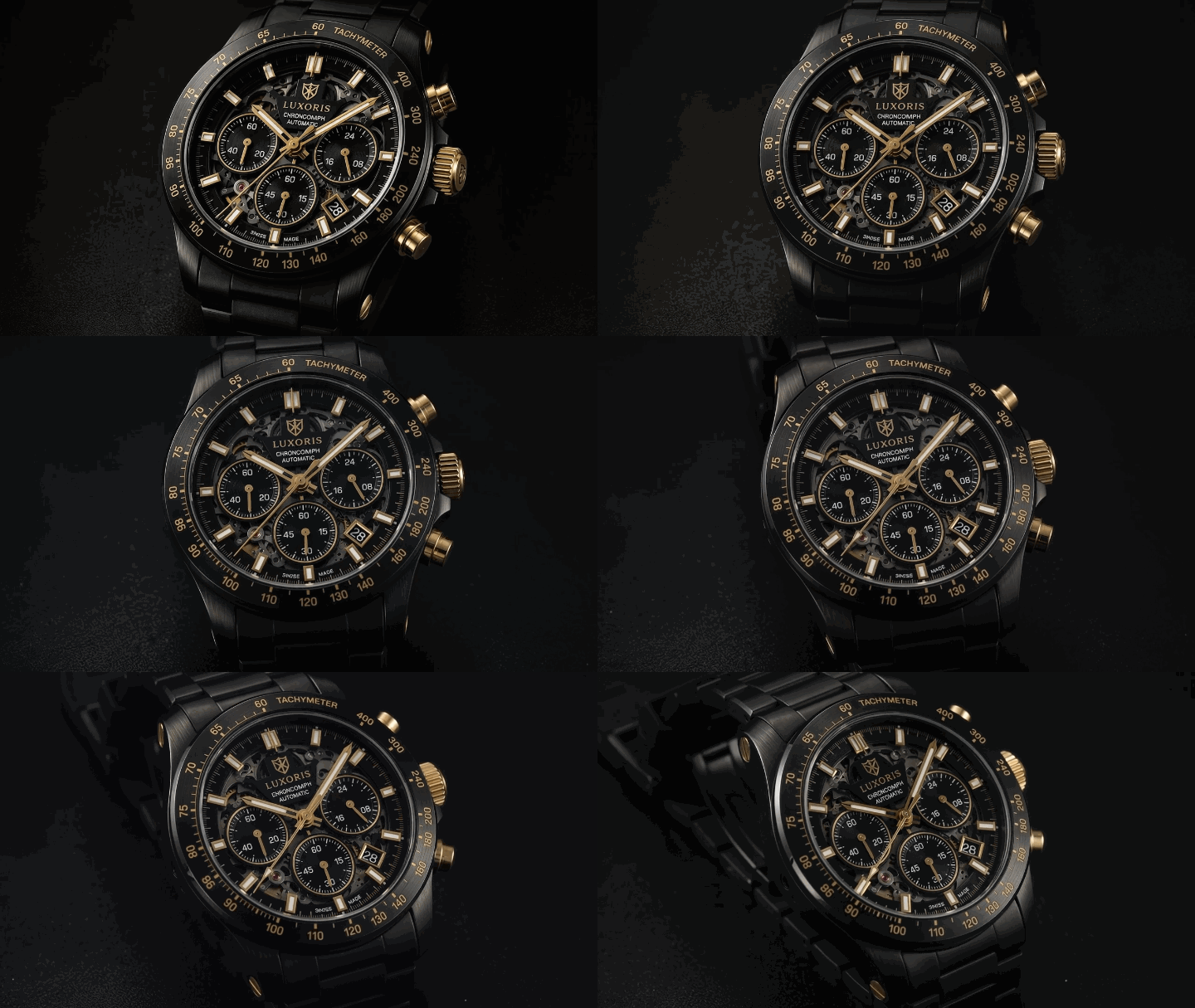
Case 1: Product Showcase
❌ Unstructured Vague Prompt
"Make the luxury watch glisten and move around on the display table."
✅ Gemini Omni flash 1.1 5-Part Prompt Formula
plaintext1[Subject]: Black chronograph watch in source image. 2[Motion]: Second hand sweeps smoothly while light glints off the bezel. 3[Camera]: 50mm lens, 15 degree orbital camera trajectory left to right. 4[Style]: Hard studio key light with low motion intensity. 5[Audio]: Crisp mechanical ticking and silent studio ambience.
Case 2: Character Animation
❌ Unstructured Vague Prompt
"The hero turns around slowly and looks sad while heavy rain falls."
✅ Gemini Omni flash 1.1 5-Part Prompt Formula
plaintext1[Subject]: Detective wearing a brown trench coat. 2[Motion]: Character turns 90 degrees toward the lens across three story beats. 3[Camera]: Medium close-up with a slow dolly push-in. 4[Style]: High-contrast neon teal streetlights, rain droplets sliding down skin. 5[Audio]: Heavy downpour, distant thunder, and a soft sigh.

Negative Prompting Rules for Gemini Omni
Unlike standard diffusion tools, Gemini Omni Flash 1.1 does not support a dedicated negative_prompt API parameter. While official documentation allows embedding negation phrases directly into the main prompt, e.g., "do not perform X", generative video models can still misinterpret negations as visual generation cues.
To ensure reliable generation, apply affirmative boundary framing instead of loose negations:
- Convert Negations into Constraints: Replace "no camera shaking" with "smooth, locked tripod shot."
- Freeze Background Elements: Replace "don't move the background" with "maintain static background geometry throughout the shot."
- Lock Surface Details: Replace "no facial warping" with "preserve exact facial structure and skin texture."
Core Workflows: Step-by-Step Image-to-Video Execution
Animating a single static image with traditional video generators usually yields warped logos, distorted hands, or morphing product shapes after two seconds. Gemini Omni Flash 1.1 resolves this pixel instability by binding input assets directly to spatial frame tokens, allowing precise physical control over single-frame and dual-frame generations.
Workflow 1: Single First-Frame Animation (Action & Motion Reveal)
A successful single image to video workflow requires explicitly separating static elements from dynamic elements in your text prompt. When executing a first frame animation, tag the uploaded asset as <FIRST_FRAME> or pass it through the image_url API parameter.
To execute a clean motion reveal, apply these three core steps:
- Lock Visual Anchors: Specify exact regions that must remain static, such as brand typography, bottle geometry, or facial features.
- Define Motion Vectors: Name moving elements, direction, and physical trajectory across specific timecodes.
- Set Sound Triggers: Pair physical actions directly with matching native audio elements.
Below are copy-paste prompt templates optimized for production workflows:
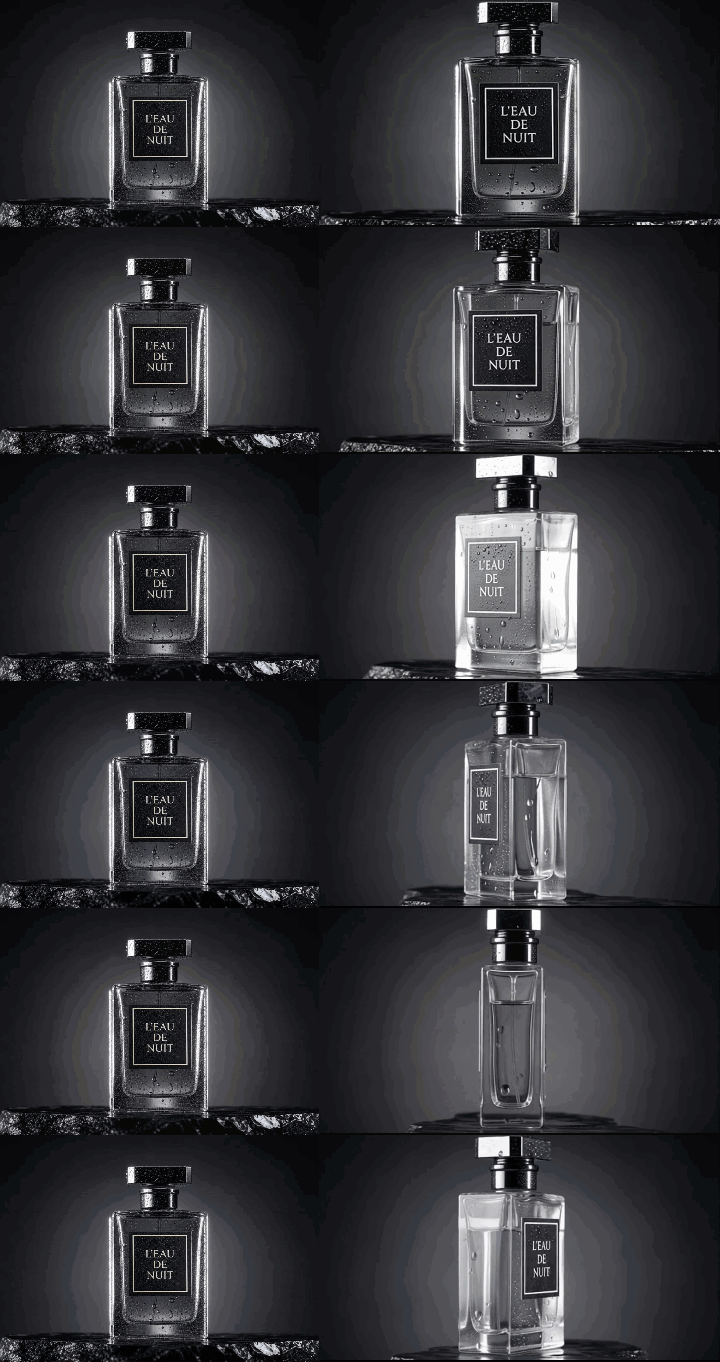
Product Hero Shot Animation:
[Subject]: Luxury glass perfume bottle with crisp label typography in the source image.
[Motion]: Condensation droplets slide down the right side of the glass.
[Camera]: Continuous 8-second orbital camera rotation around the bottle.
[Style]: Hard studio key light glinting off the nozzle, preserving exact glass geometry and label details.
[Audio]: Subtle glass clink and soft ambient room tone.
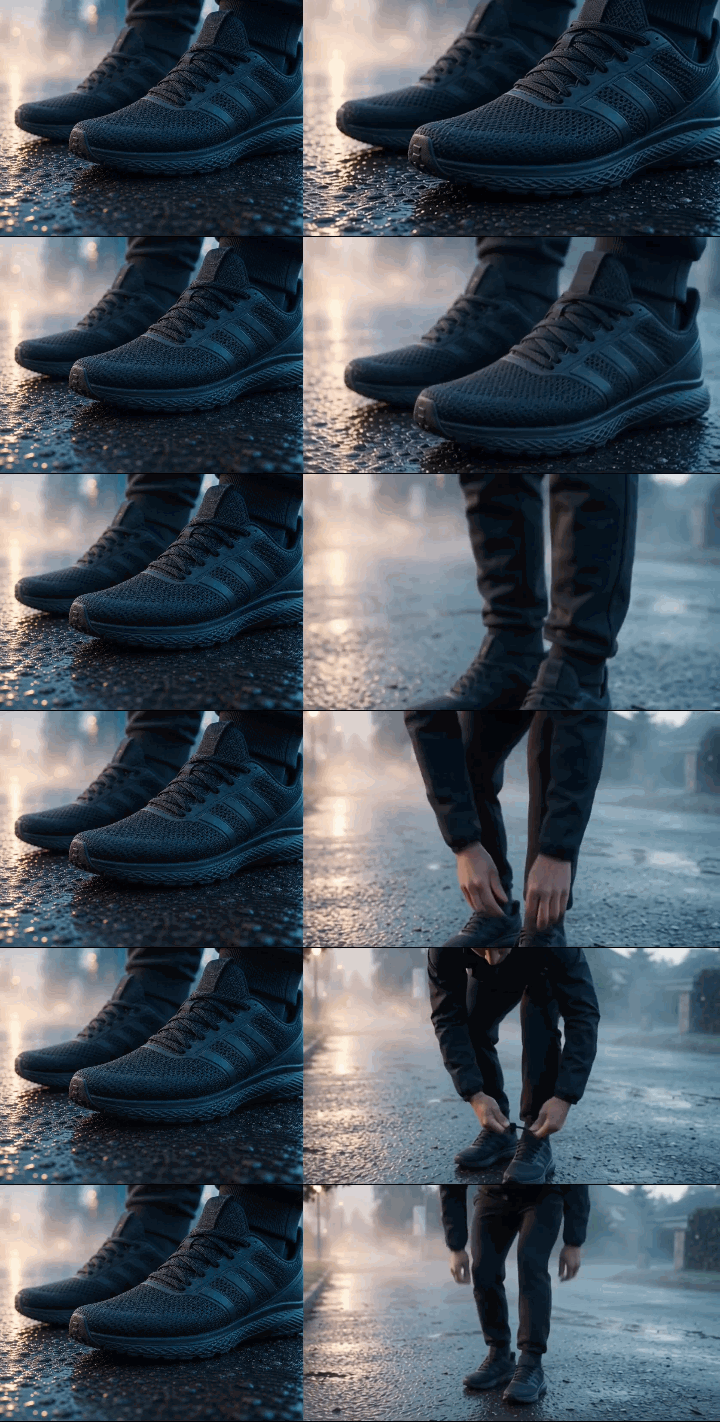
Social Media Ads & B-Roll:
[Subject]: Athletic running shoes in source photo.
[Motion]: Camera tilts up from a macro shot of the shoes to a runner tying their laces. Fog passes over dark pavement.
[Style]: Early morning natural light.
[Audio]: Gravel crunching under foot, faint morning bird calls.
Workflow 2: Dual Keyframe Control (First-and-Last Frame Trajectory)
Connecting two separate visual states without unwanted jump cuts requires first and last frame control. By supplying a starting image (<FIRST_FRAME>) and an ending image (<LAST_FRAME>), Flash 1.1 executes precise dual keyframing through deep image interpolation.
| Operational Setting | Parameter Configuration | Production Purpose |
| Start Frame Tag | <FIRST_FRAME> or image_url | Establishes initial composition, subject pose, and ambient lighting |
| End Frame Tag | <LAST_FRAME> or end_image_url | Sets target destination, final subject state, and camera focal point |
| Transition Style | camera push transition / Whip-pan | Directs model reasoning on how the lens moves between endpoints |
| Looping Mode | Identical Start and End Images | Produces a seamless loop animation for web headers and ad feeds |
To direct a smooth camera push transition, supply both images and describe the trajectory:
<FIRST_FRAME><LAST_FRAME>Smooth 5-second dolly push-in from the wide landscape shot into the subject close-up. Keep lighting and character outfit consistent between frames. Audio transitions smoothly from background wind to spoken dialogue. Audio: subtle wind noise fading into clear dialogue.

Passing identical assets into start and end hooks creates a flawless seamless loop animation. Upload the same photo to both <FIRST_FRAME> and <LAST_FRAME> tags, and the model will animate ambient background motion before returning smoothly to the original frame composition.
Workflow 3: Multi-Turn Scene Extension & Chaining (Up to 40 Seconds)
Generating long-form clips with legacy video models often leads to jarring continuity breaks, where character clothing changes, lighting snaps, or ambient audio suddenly drops out after frame eight. Gemini Omni Flash 1.1 eliminates these hard seams through advanced scene extension chaining. Rather than isolating the tail frame of a prior output, the model evaluates up to 10 seconds of full visual and auditory context across each multi-turn video extension.
How Flash 1.1 Preserves Scene State vs. Tail-Frame Conditioning
Legacy extension models rely solely on the single final frame of a video, leading to abrupt exposure shifts, momentum resets, and audio cut-offs. Gemini Omni Flash 1.1 maintains temporal and spatial continuity across extensions through three key mechanisms:
- 10-Second Context Window: Evaluates up to 10 full seconds of prior video and auditory history, eliminating white balance and lighting snaps.
- Momentum Tracking: Subject speed and trajectory carry over naturally, preventing stutters between extended clips.
- Continuous Audio: Background noise and speech carry forward into new segments without hard cuts or restarts.
To construct a 40-second AI video sequence without visual decay, execute these sequential steps:
- Generate the Base Take: Render your initial 8-second clip using standard prompt parameters.
- Append the Extension Command: Call the extension API passing the
previous_interaction_id. Specify the next action without repeating base environment descriptors. - Chain Sub-Shots Sequentially: Repeat the extension prompt in up to 10-second increments until reaching the 40-second cumulative limit.
By evaluating both visual motion vectors and audio waveforms simultaneously, creators can expand short clips into extended, cohesive narrative shots without post-production stitching.
Directing Camera Control, Aspect Ratios, and Native Audio
Uploading a 9:16 portrait image and requesting a 16:9 landscape video often produces distorted black bars or cropped faces, while unguided audio prompts lead to silent clips or mismatched sound effects.Mastering camera control in Gemini Omni Flash requires pairing precise framing constraints with structured audio tags.
Precision Camera Control and Aspect Ratio Matching
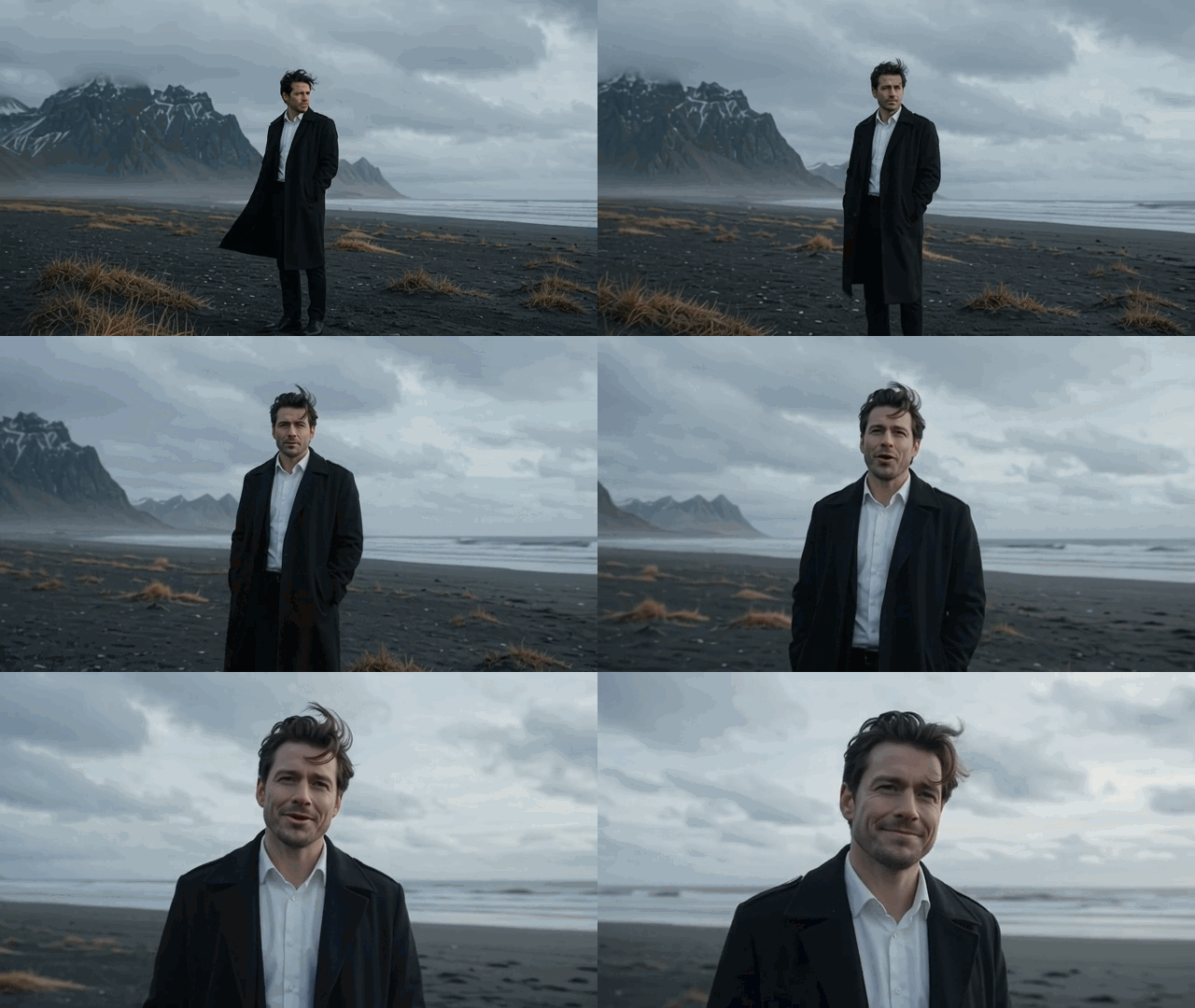
To prevent image stretching during generation, strict aspect ratio matching is required between your input image and output configuration. The model processes standardized cinematic camera language to execute physical movement vectors without distorting focal subjects.
| Camera & Aspect Controls | Prompt Syntax Specification | Target Visual Behavior |
| Dolly & Tracking | Dolly in smoothly on subject anchor | Linear lens move modifying focal depth |
| Orbit & Rack Focus | Slow orbit shot, rack focus to background | 360 rotation while shifting focal plane |
| Pan & Tilt | Pan 45 degrees left, tilt up 15 degrees | Continuous horizontal and vertical camera sweep |
| 16:9 / 9:16 | Set output target matching input dimensions | Prevents letterboxing, edge warping, and cropping |
Native Audio Prompting and Lip Sync Accuracy
Omni Flash 1.1 synthesizes audio and video simultaneously in a single pass. Achieving high lip sync accuracy and realistic ambient soundscape generation depends on separating audio directives from visual motion descriptions.
- Dialogue Alignment: Structure speech with explicit speaker cues, such as Character speaks: "We need to leave now" to lock mouth movement directly to spoken phonemes.
- Environmental Sound: Apply explicit native audio prompting brackets for layered sound design, such as [Audio: Heavy rain, distant thunder, gravel crunching].
- Musical Scoring: Direct mood and tempo with specific acoustic cues, such as [Music: Low acoustic guitar, slow 60 BPM tempo].
Using these structured production controls ensures your generated videos maintain visual alignment and clean audio synchronization across all distribution formats.
Conversational Multi-Turn Video Editing and Reference Swapping
Re-rendering an entire video generation from scratch just to alter a background or tweak lighting at the three-second mark drains GPU quotas and destroys timing consistency. Gemini Omni Flash 1.1 solves this by holding session context in memory, enabling conversational video editing workflows directly on generated video buffers.
Iterative Prompting and Target Modifications
Instead of restarting the diffusion pass, creators execute targeted changes through iterative video prompting. The model interprets precise timecodes, camera angles, and spatial masks while preserving overall scene continuity across sequential requests.
| Edit Type | Conversational Prompt Syntax | Preservation Mechanism |
| Lighting Shift | "At 3 seconds, shift lighting to warm golden hour glow, keep everything else the same." | Maintains subject motion vector and background geometry |
| Asset Replacement | "Replace the coffee mug with [Secondary_Image_2.png], maintaining hand grip." | Binds movement trajectory to new object embeddings |
| Environment Shift | "Change background to a neon city alleyway using style memory preset Alpha." | Locks camera path while swapping background tokens |
Developer Note: When executing reference asset swaps via API, ensure
Secondary_Image_2.pngis uploaded via the Gemini Files API or passed as an inline image part within the same conversation thread (ChatSession), referencing its specific object index or variable name in the system prompt.
Executing Asset and Style Swaps
Executing reference image swapping allows developers to introduce a secondary subject image into an existing clip context. If a character needs to swap wardrobe or a product model requires an updated casing, passing a new reference asset updates the target object while keeping the original camera pan, character trajectory, and frame rate intact.
By leveraging a style memory preset across conversation turns, the unified model stores atmospheric values, color grading, and noise profiles in session memory. Creators can make multi-pass adjustments without risking character deformation, subject jitter, or background drift across successive generation steps. This persistent memory state eliminates the need to restate environmental physics or baseline camera settings during subsequent turns.
Programmatic Integration: API Payload Schemas and ComfyUI Workflows
Manually triggering browser dashboards fails as soon as production demands hundreds of automated video variations daily. Scaling programmatic video generation requires sending structured HTTP POST requests directly to the Gemini Omni Flash 1.1 API or third-party provider gateways like Atlas Cloud image to video endpoint.
Production JSON Request Schema
When triggering generations via a python AI video SDK or custom cURL scripts, format your visual assets, camera directions, and native audio parameters within a single JSON prompt schema.
plaintext1{ 2 "model": "gemini-omni-flash-1.1", 3 "input": { 4 "prompt": "<FIRST_FRAME> Smooth tracking shot forward as condensation drips down the cold soda can. [Audio: Fizzing crack and ambient ice clinking]", 5 "image_urls": ["https://storage.googleapis.com/assets/soda_can.png"], 6 "aspect_ratio": "16:9", 7 "duration": 8, 8 "generate_audio": true 9 } 10}
ComfyUI Node Architecture
Integrating model API calls into a ComfyUI Gemini Omni workflow bypasses local VRAM processing limits by routing complex inference tasks to dedicated cloud instances.
| Node Component | Required Input Data | Core Pipeline Function |
| Load Image Node | Source PNG or JPG file | Loads base image tensor and converts to accessible URL |
| Omni Flash Sampler | String prompt, image_urls | Constructs and posts the API payload to the cloud |
| Audio Sync Decoder | API response payload | Separates the output buffer into video and audio streams |
| Preview Video Node | Composite MP4 media stream | Renders the final combined output with synced sound |
Executing custom backend automation with this API setup ensures reliable processing across commercial video creation tasks. Programmatic error handling allows your system to catch malformed image links or rate limits automatically. Developers can manage batch job queues, process asynchronous webhooks, and enforce consistent output settings across high-volume video pipelines.
Troubleshooting Common Failure Modes & Safety Moderation
When automated video pipelines encounter generation errors or moderation blocks, systematically diagnosing the root cause prevents redundant GPU quota consumption. The diagnostic matrix below outlines common failure modes and their resolution strategies.
Diagnostic Matrix for Gemini Omni Flash Troubleshooting
| Failure Mode | Underlying Root Cause | Production Fix & Resolution |
| Visual Artifacting | Over-prompting with conflicting style descriptors | Implement motion artifact reduction by removing competing adjectives and locking motion parameters. |
| Character Identity Melting | Excessive camera rotation without subject anchors | Apply a character drift fix by tagging facial anchor points and reducing orbit speed to 15 degrees per second. |
| Audio Desynchronization | Unlinked dialogue timestamps | Bind voice events directly to physical actions using explicit timestamp markers in the audio prompt block. |
| Refusal Errors | False-positive moderation on public faces or logos | Resolve safety filter false positives by cropping copyrighted overlays and framing faces as generic reference anchors. |
Resolving Distortions and Guardrail Refusals
Executing a clean image distortion fix requires stripping redundant visual descriptors like "ultra-detailed" or "photorealistic" that compete with original input image embeddings. When encountering safety filter false positives on uploaded face reference shots or commercial products, crop out high-contrast brand logos and re-frame the text prompt to describe generic physical traits instead of trademarked names.
For deep Gemini Omni Flash troubleshooting on complex motion paths, applying a targeted character drift fix prevents identity distortion during 360-degree pans. Lock the frame trajectory using dual-keyframe boundaries or pass a clean, unedited subject reference array in the request body. Enforcing precise motion artifact reduction techniques ensures stable geometry and smooth pixel transitions across all generation passes.
Production Tip: When handling HTTP
400 (Invalid Argument)or422 (Unprocessable Entity)refusal errors caused by moderation filters, check if the input reference frame contains visible brand logos or trademarked icons before adjusting text prompts.
The Future of Programmatic Video Generation
Gemini Omni Flash 1.1 represents a fundamental shift from stochastic video prompting to controllable, multi-pass filmic production. With single-pass audio synthesis, native camera trajectory controls, and persistent session state memory, creators and developers now have the primitive building blocks required to automate enterprise-grade video content generation.
By implementing the structural guardrails, payload schemas, and troubleshooting patterns outlined in this guide, your team can build automated video production engines ready for real-world commercial scale.





