The useful part of a GPT Image 2.5 CapCut workflow is not that three AI tools sit in one stack. It is that the same production decisions can survive the handoff: product shape, lighting, shot order, motion cue, copy safe-zone, soundtrack, and the final edit.
That matters for short ads. A still image can look right but leave the animator guessing what happens next. A video prompt can look detailed but still drift if it has no approved product frame to inherit. And a polished cut can fall apart if its source clips were generated without room for captions, an end card, or a clean transition. This workflow treats the storyboard as a production brief, not a mood board.
Key takeaways
- Use GPT Image 2.5 to turn one written brief into a small, consistent board of keyframes.
- Give Seedance 2.5 one job per shot: inherit the frame, stage a specific action, and land on an editable ending.
- Bring only the selected takes into CapCut, where pacing, copy, sound, and exports are decisions rather than regeneration prompts.
- Keep a shot ledger so a late change affects one shot instead of resetting an entire ad.
Why GPT Image 2.5 CapCut is a real production handoff
The bottleneck in AI ad work is usually not generating an attractive frame. It is carrying intent through the next step. A storyboard panel should tell the video model what must remain fixed, what must move, and what the editor needs after the clip arrives.
For this workflow, GPT Image 2.5 makes the visual source of truth: an approved hero frame, a close-up, and an end-card-ready frame. Seedance 2.5 then turns a chosen frame into a shot with a bounded action and camera move. CapCut is the assembly desk, not a place to rescue vague generations.
Atlas Cloud currently lists GPT Image 2.5 Sunburst and Flare variants for image generation and editing, including models that accept multiple references. It also lists Seedance 2.5 text-to-video, image-to-video, and reference-to-video options. Start in Atlas Cloud's GPT Image 2.5 workspace when you need to make or revise the storyboard, then move the chosen frame to Seedance 2.5 image-to-video for the motion pass.
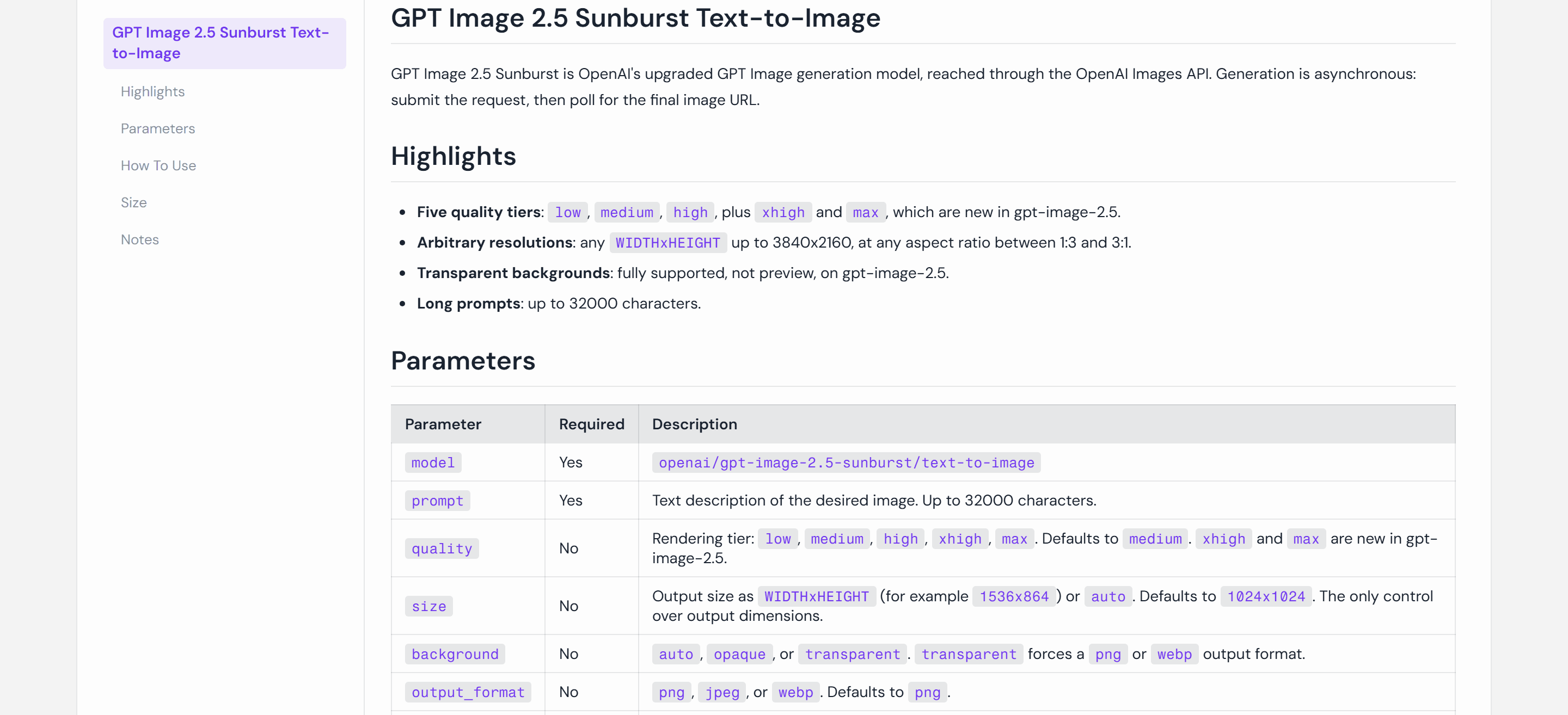
Atlas Cloud public GPT Image 2.5 Sunburst model documentation
The public GPT Image 2.5 model documentation shows the available generation controls. Confirm the model picker and live rate card before budgeting a campaign.
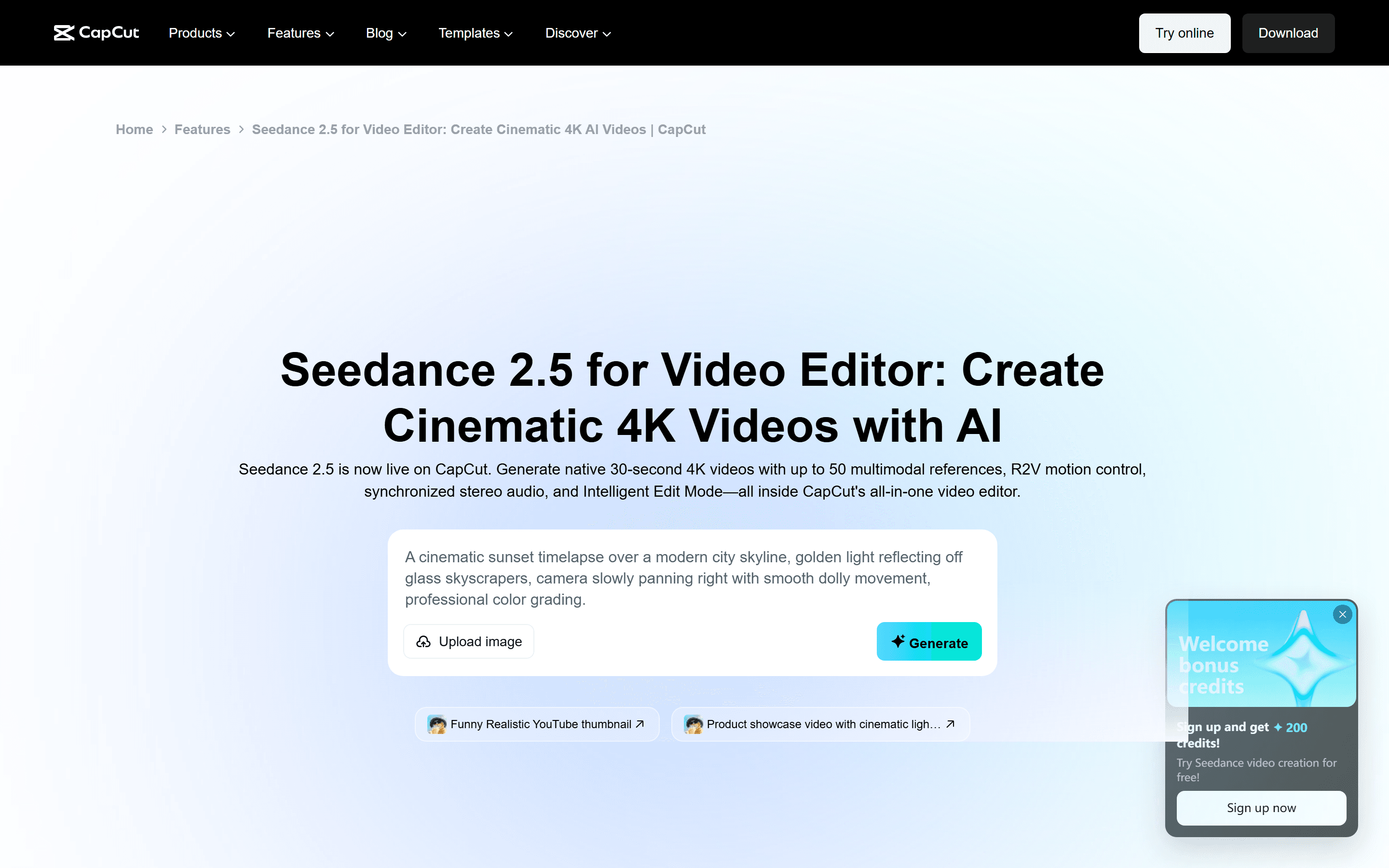
Public CapCut page describing Seedance 2.5 controls for a video-editor workflow
CapCut's public Seedance 2.5 page describes a prompt, multimodal-reference, generate, refine, and export flow. Availability and feature labels can vary by account and region.
The storyboard contract before GPT Image 2.5
Do not start by asking for a beautiful ad. Write a compact contract that can be checked at every handoff. The contract below is for a 15-second vertical beverage spot, but the method works for products, apps, and service ads.
| Field | Decision to lock before generation | Why the next tool needs it |
| Product truth | Exact silhouette, material, colors, label placement, and prohibited changes | Prevents a different product from appearing in the video |
| Shot purpose | Hook, proof, payoff, or CTA | Keeps every clip useful on the timeline |
| Camera | One primary move and a clear endpoint | Gives Seedance 2.5 a bounded motion task |
| Continuity | Lighting direction, lens feel, location, and action direction | Lets cuts feel intentional rather than accidental |
| Edit reserve | Keep the top 20% clear for a headline and hold 0.5 seconds at the ending | Leaves CapCut usable space for copy and transitions |
| Sound note | Ambient cue, dialogue, or music beat that must land with the cut | Determines whether the generated audio is kept or replaced |
For a three-shot ad, the board can be deliberately small:
- Hook, 0 to 4 seconds: condensation slides down a cold can as the camera moves from a dark background into side light.
- Proof, 4 to 10 seconds: the can opens; the tab, spray, and glass pour all move from left to right.
- Payoff, 10 to 15 seconds: the finished drink rests on a sunlit counter, with the product centered low and a clean upper area for the end line.
The point is not to create more panels. It is to make every panel answer a single question: what should the viewer see, and what must still be true when the next shot begins?
Step 1: Generate the keyframes with GPT Image 2.5
Create the first panel as a product-control image, not a poster. Use direct language for the geometry that must not change, then describe composition and light. Save the output with a shot ID such as S01_hook_v1, not with a generic name such as final-final.
Example keyframe prompt
Vertical 9:16 product-ad keyframe. A plain matte black 250 ml cold-brew coffee can with a narrow cream vertical label and no readable brand text, standing on dark wet slate. Condensation beads on the can. Deep charcoal background, one warm side light from camera right, realistic studio product photography, 50 mm lens look. Leave the upper 20% quiet and dark for later headline text. The can stays low-center with empty space to its left. No hands, no extra products, no text overlays.
Use the output as a decision gate. Check the can's silhouette, tab orientation, label strip, highlight direction, and empty text area before making the next panel. If one of those is wrong, edit the image or regenerate the panel now. Do not ask a video model to repair all five later.
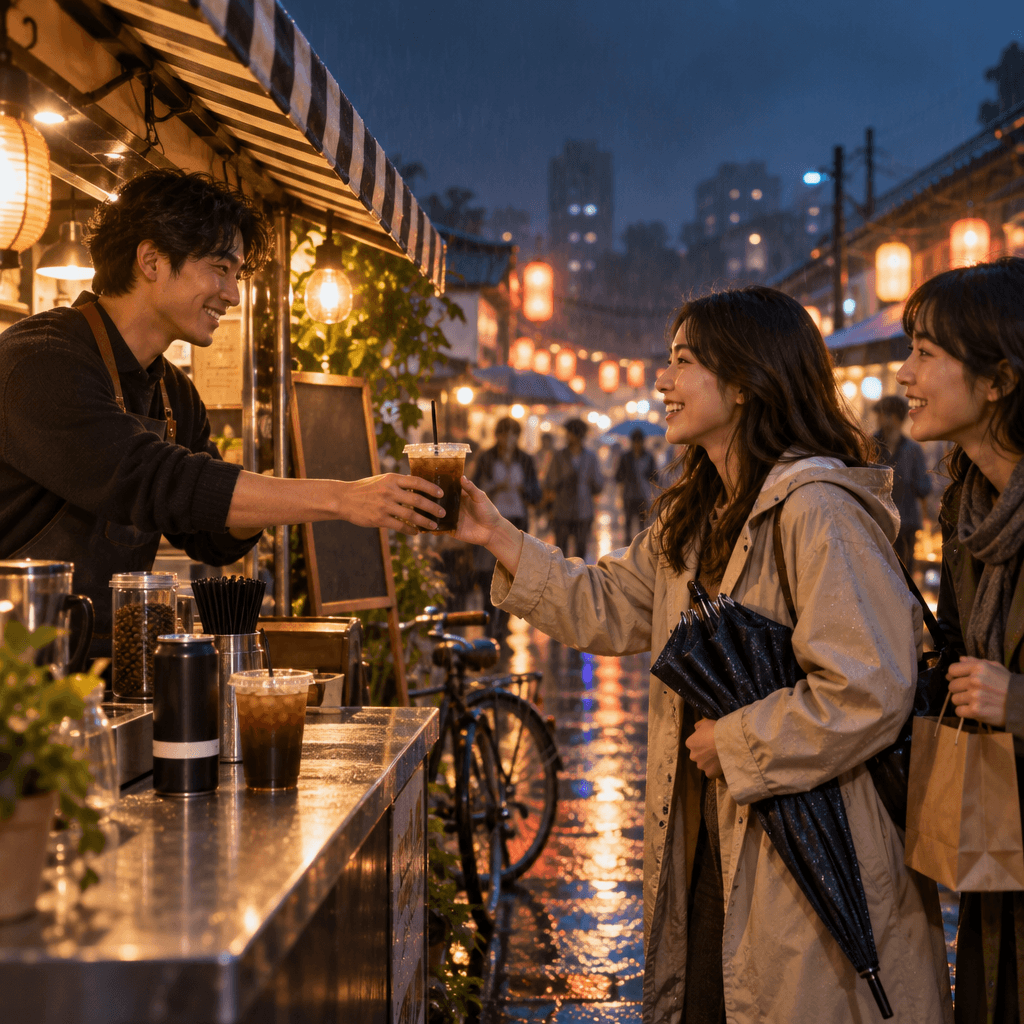
GPT Image 2.5 rain-night-market keyframe with a barista and customers
The GPT Image 2.5 output above establishes a real handoff scene: the unbranded can, the barista, two customers, a rain-washed market, warm stall light, and an active exchange. It is a story keyframe rather than a standalone product display.
For the second and third frames, reference the approved first image and change only what the shot needs: an opening can and pour for proof, then a settled drink for payoff. Keep a one-line ledger next to each panel: must preserve, allowed to change, and editor needs.
Step 2: Turn one keyframe into one Seedance 2.5 shot
Image-to-video is where teams often put the entire commercial into one paragraph. Do the opposite. Give each run one physical action, one camera instruction, and one ending state. The reference image carries the look. The prompt should carry time.
For the first panel, upload the approved keyframe as the primary reference, then use a motion prompt like this:
Use the uploaded product frame as the exact appearance reference. Preserve the matte black can, narrow cream label strip, condensation, dark wet slate, and warm right-side light. Over 5 seconds, begin in a tight low-angle detail on the condensation, then make a slow lateral move from left to right until the complete can is visible. The can stays upright and still. End on a stable medium product frame with the upper 20% dark and clear for later text. No new objects, no label changes, no text, no logo distortion.
Seedance 2.5's official release notes describe up to 30-second audiovisual clips, multimodal references, and timestamp-level revisions. Those controls are useful, but a short ad shot still benefits from a simpler brief. Use timestamps when the action genuinely needs beats, such as 0–2s detail, 2–4s reveal, 4–5s hold. Do not add timestamps merely to sound technical.
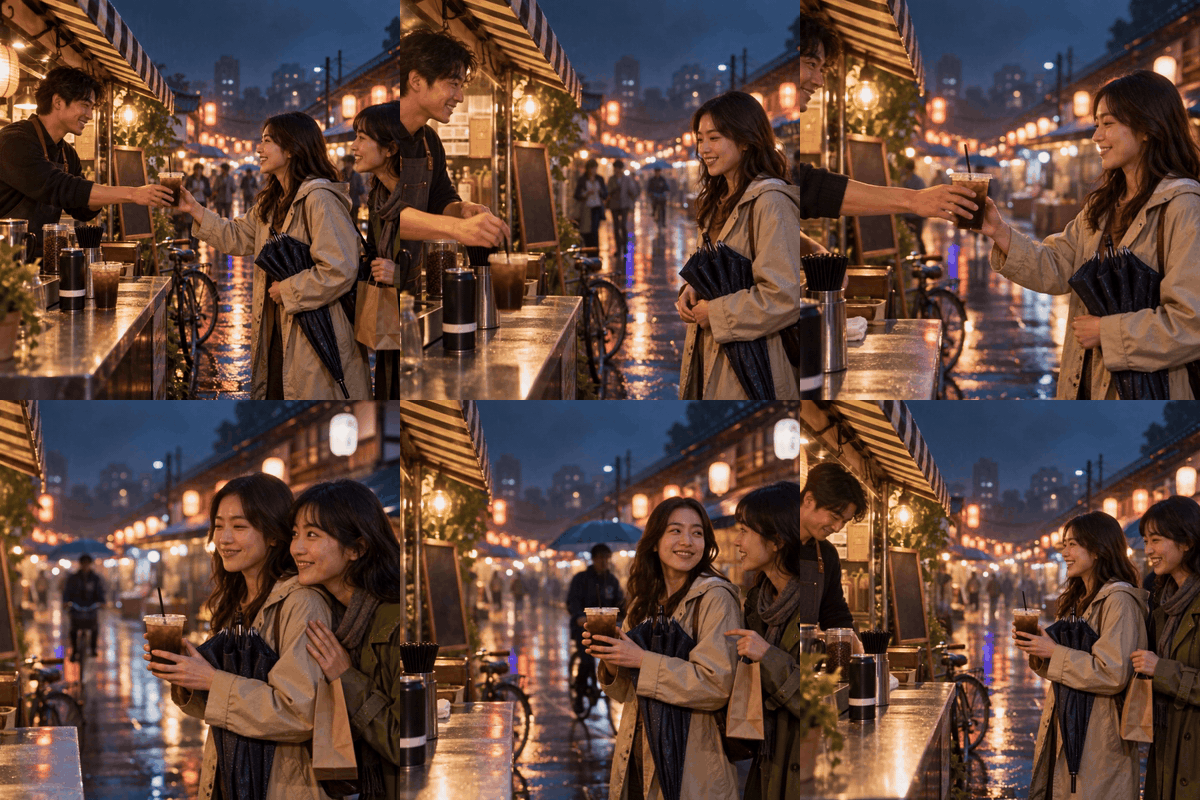
Seedance 2.5 night-market coffee scene animated from the approved keyframe
The silent ten-second Seedance 2.5 result turns the keyframe into a continuous market interaction: the barista works at the counter, the customer takes the drink, and her companion enters the scene. The GIF is shown at 8 fps for article delivery.
Step 3: Build the final cut in CapCut without breaking the plan
Once you have selected takes, import only those takes and the approved stills into CapCut. Build the edit in this order:
- Place the hook, proof, and payoff in timeline order. Trim inside the stable portions of each shot rather than cutting during a model transition.
- Add the voiceover or music first, then line up product actions to its strongest beats. If the generated sound is part of the intended scene, keep that clip's audio; otherwise mute it and use a clean audio bed.
- Add the headline in the safe-zone already reserved in the board. Do not cover the product to compensate for a missing safe-zone.
- Use one simple transition only when adjacent motion directions or backgrounds need it. A hard cut is often cleaner when both shots end and begin on stable compositions.
- Export a review file before adding effects. Watch it once for product drift, clipped copy, bad cut timing, and audio pops.
CapCut's current documentation frames the workflow similarly: prompt and references first, then generation, targeted refinement, captions, transitions, color, and export. Treat those finishing tools as editorial controls. They are not evidence that an inconsistent source clip has become consistent.
The review checklist for a GPT Image 2.5 CapCut ad
Use this checklist before a stakeholder review. It separates a creative decision from a technical rerun.
| Review question | Fix it in | Practical test |
| Is the product shape, label, and key material unchanged? | GPT Image 2.5 or Seedance 2.5 | Compare the first and last clear frame side by side |
| Does each shot have one readable action? | Seedance 2.5 | Mute the clip and describe the action in one sentence |
| Does the next shot continue the same direction, light, or story beat? | Seedance 2.5 or the edit | Scrub across the cut at 0.25x speed |
| Is there space for copy and the end card? | GPT Image 2.5 | Toggle CapCut's title layer on and off |
| Is the sound intentional? | CapCut | Listen on speakers and headphones before export |
| Does the video make its point before the first second is over? | The edit | Watch once with sound off from a cold start |
Cost, rights, and practical limits
Avoid hardcoding generation prices in a workflow article because model availability and rate cards change. Check Atlas Cloud's live model catalog before budgeting a campaign, and price the work as a test set: a few storyboards, a few selected motion takes, then one edit pass.
Also separate model capability from usage rights. For client work, review the terms that apply to your account, source assets, music, logos, people, and final distribution channel. Do not use a customer logo, a protected character, or a reference image you cannot license simply because a model can transform it. Keep the original asset list, prompts, selected outputs, and edit version with the project.
FAQ: GPT Image 2.5, Seedance 2.5, and CapCut
Can I use GPT Image 2.5 directly inside CapCut?
CapCut's current product pages describe GPT Image 2 in its AI Image workflow and Seedance 2.5 in AI Video. Naming, regional rollout, and account access can change, so check the model picker in your own CapCut account. The cross-tool method remains the same: generate controlled keyframes, animate selected frames, then edit the chosen takes.
Should I make every storyboard panel a video?
No. Make video only for panels whose motion communicates a real part of the message. A stable pack shot can stay a still in CapCut, while a product reveal or pour earns an image-to-video generation.
How many references should I upload to Seedance 2.5?
Use the fewest references that clarify the task. For a product reveal, one approved first frame can be enough. Add a second reference only when it supplies a distinct constraint, such as a motion path, packaging detail, or audio cue. More inputs do not replace clear role labels.
What is the fastest way to fix a bad shot?
Identify whether the failure is appearance, action, timing, or edit context. Repair appearance in the keyframe, repair action or timing in the video prompt, and repair pacing or copy placement in CapCut. Sending all of those problems back to one generation wastes iterations.





