Seedance 2.5 は7月31日にリリースされ、30秒の出力と50の参照スロットを備えています。以下はSeedance 2.0から引き継がれたプロンプト文法、変更点、そして現在練習できる場所です。
Seedance 2.5 は1つのプロンプトを30秒の完成した動画に変換できます。ただし、そのプロンプトは多くの情報を担う必要があります。被写体を指定し、カメラを制御し、時には最大50の参照ファイルを一度にバインドする必要があります。
ほとんどのSeedance 2.5プロンプトが失敗する理由は同じです。最初の3秒間はうまく記述できても、その後制御を失います。このガイドでは、Seedance 2.5のプロンプトシステム全体を、実際に再利用可能なテンプレートに分解します。コアとなる公式、参照のバインドルール、ダイアログ、音楽、効果音のための特別な構文を学びます。また、編集、拡張、30秒のストーリー全体のためのプロンプトの書き方も学びます。ここにあるすべてのテンプレートには、公式マニュアルのコピーではなく、新しいオリジナルの例が付いています。
重要なポイント
- Seedance 2.5 のプロンプトは6つのパートからなる公式に従います:被写体、アクション、シーン、スタイル、カメラ、サウンド。必須なのは被写体とアクションのみです。
- 1つのプロンプトで最大50の参照ファイルを使用できます:画像30枚、動画クリップ10本、オーディオクリップ10本。
- 4つの括弧がサウンドとテキストを制御します:() は音楽、<> は効果音、{} はダイアログ、【】は字幕。
- 編集、最初/最後フレーム、拡張機能はそれぞれ異なる設定をロックするため、プロンプトを書く前にどのルールが適用されるか確認してください。
- Atlas Cloud は Seedance 2.5 への Day-0 API アクセスを提供しており、Seedance 2.0 は現在、同じプロンプトパターンをテストするために利用可能です。
Seedance 2.5 プロンプトの公式とは?
Seedance 2.5 のプロンプトは6つのパートで構成されています。必須なのは被写体とアクションのみです。それ以降はすべてオプションで、必要ない部分は省略できます。
完全な公式は次のようになります:
被写体 + アクションまたはイベント + シーンと環境(オプション)+ ビジュアルスタイル(オプション)+ カメラの動きまたはカット(オプション)+ オーディオ(オプション)
各パートが実際に制御するものは次のとおりです:
- 被写体 + アクション:誰が何をしているか。すべてのプロンプトに必要な唯一のパートです。
- シーンと環境:場所、時間帯、天候、空間内の配置。
- ビジュアルスタイル:照明、色、質感、全体的な雰囲気。
- カメラの動き:ショットサイズ、アングル、動き、カットの位置。
- オーディオ:ダイアログ、声、アンビエンス、効果音、音楽。
ほとんどの初心者は強力な被写体とアクションを書いて、そこで止まります。3秒のテストクリップにはそれで十分です。しかし、30秒の完全なSeedance 2.5プロンプトを目指す場合、シーン、スタイル、カメラのレイヤーが、ショットが途中でぶれるのを防ぎます。
シンプルな始め方は、次の基本テンプレートを使用することです:
plaintext1<Subject> performs <primary action or event> in <scene and environment>. 2The visuals feature <visual style>. 3Use <shot size, camera angle, camera movement, or cuts>. 4Audio includes <dialogue, ambience, sound effects, or music>. 5
そのテンプレートをオリジナルの例で埋めたものです:
plaintext1A crowd of shoppers moves through a narrow cobblestone market street at golden hour, past fruit stalls and a rack of hanging silk scarves. 2Low sun backlights the striped stall umbrellas, and steam rises off a tray of fresh pastries in the foreground. 3Start on a close-up of the pastries, then pull back to a wide shot of the market lane and the crowd. 4Keep the low murmur of the market, the clink of coins, and a distant street musician. 5
何が欠けているかに注目してください。長さ、解像度、フレームレートについては触れられていません。これらの設定は生成ページまたはAPI呼び出しに存在し、プロンプト自体には含まれません。プロンプトはカメラが見たり聞いたりすべき内容に集中させてください。
Seedance 2.5 プロンプトで参照資料を選択してバインドする方法
Seedance 2.5 は1つのプロンプトで最大50の参照ファイルを受け入れます。これは画像30枚、動画クリップ10本、オーディオクリップ10本で、各タイプに適切な範囲があります。
td {white-space:nowrap;border:0.5pt solid #dee0e3;font-size:10pt;font-style:normal;font-weight:normal;vertical-align:middle;word-break:normal;word-wrap:normal;}
| 素材 | ハードリミット | 快適な範囲 |
| 画像 | 最大30枚、各4K未満 | 1~8個の異なる被写体 |
| 動画 | 最大10クリップ、合計30秒 | 1~5被写体、各5~10秒 |
| オーディオ | 最大10クリップ、合計30秒 | シーンに実際に必要なものだけ |
| 動画編集のソース | 1つのソース動画+参照画像 | ソースは20秒未満、画像は1~5枚 |
これらの範囲は絶対的な壁ではありません。画像のバッチで9~12被写体など、超えてもモデルは試みます。ただし、数が増えるにつれて安定性は低下する傾向があります。1つの被写体に複数のアングルが必要な場合は、それらを1つのコラージュにまとめるのではなく、各アングルを個別の画像にしてください。個別の画像の方がグリッドよりも確実に整列します。
ファイルをアップロードしたら、それぞれが何に貢献するかを正確に指定してください。どの顔がどの名前に対応するかをモデルに推測させないでください。参照画像の背景や余分な人物が出力に漏れ込む可能性がある場合は、除外を追加してください。
plaintext1@Image 1 defines <subject>'s <appearance, clothing, structure, or material>. 2@Video 1 defines <motion, camera movement, or pacing>. 3@Audio 1 defines <character or sound type>'s <voice, dialogue, ambience, or music>. 4 5<Subject> completes <primary action or event> in <scene>. 6The visuals feature <visual style>, with <camera treatment>. 7
そのパターンに基づいた新しい例です:
plaintext1@Image 1 defines the cream French-style townhouse's facade, balconies, and roofline. 2@Image 2 defines the yellow arcaded building's arches and proportions. 3@Image 3 defines the teal corner storefront's shopfront, signage, and vending machines. 4@Video 1 defines the slow turntable rotation and even studio lighting. Do not use its background. 5 6Render each building as a clean 3D miniature model on a seamless white backdrop, one after another. 7Use a slow orbit around each model, with soft even light and crisp material detail. 8Keep a quiet ambient hum with no music. 9
複数の画像がまったく同じ物体の異なるアングルを示している場合は、直接そう伝えてください:
plaintext1@Image 1 defines the front view of the same running shoe. 2@Image 2 defines the side profile of the same running shoe. 3@Image 3 defines the sole pattern of the same running shoe. 4All three images define one running shoe. The output must show only one shoe throughout. 5
もう一つ知っておくべきこと:参照動画がすでに希望の動きとカメラパスを完璧に捉えている場合、すべての動きを言葉で再説明する必要はありません。保持する部分を指定するだけです。アクションを言い直すと、動画がすでに示しているものと競合する可能性があります。大まかな動きの参照は主に動きと間隔を提供するため、プロンプトではその上に実際の被写体、シーン、ビジュアルスタイルを指定する必要があります。
ダイアログ、音楽、効果音、字幕を区別する構文
ほとんどのSeedance 2.5プロンプトでは平易な言葉で十分です。ただし、サウンドと画面上のテキストをより細かく制御する必要がある場合、4つの括弧タイプが役立ちます。
td {white-space:nowrap;border:0.5pt solid #dee0e3;font-size:10pt;font-style:normal;font-weight:normal;vertical-align:middle;word-break:normal;word-wrap:normal;}
| 要素 | 括弧 | 例 |
| 音楽 | () | (a slow acoustic guitar riff plays) |
| 効果音 | <> | |
| ダイアログ | {} | {Order's up, table six.} |
| 字幕 | 【】 | 【Day 1: The Interview】 |
なぜわざわざ括弧を使うのでしょうか?平文ではダイアログのセリフとサウンドキューとの境界が曖昧になり、モデルが推測しなければならないからです。括弧は推測を排除します。
ダイアログが中国語でない場合は、さらに1つのレイヤーが必要です。セリフの前に言語を指定し、必要に応じて地域のアクセントを追加します。次の順序で使用します:
plaintext1Dialogue language + Regional variety or accent + Delivery style + Speaker + {Dialogue} 2
2つの簡単な例:
plaintext1Dialogue language: British English. Two friends lean on a stone balustrade above a sunlit skyline. The woman says in a warm London accent: {Looks like the clouds are finally breaking.} The man answers, still watching the rooftops: {About time. Fancy a walk before the light goes?} Keep the soft wind and a distant church bell. (a slow piano line plays underneath) 2
plaintext1Dialogue language: authentic Texan English. The rancher says in a slow Texan drawl: {We best get moving before the storm hits.} 2
この手順を省略すると、モデルが間違ったアクセント、さらに悪い場合は完全に間違った言語をデフォルトで使用するリスクがあります。
複数のキャラクターと小道具のためのSeedance 2.5プロンプトの書き方
50の参照スロットが利用可能な場合、すべてを1つの巨大な文に詰め込みたくなる誘惑にかられます。しかし、それを避けてください。本当の目標は、各被写体を独自のファイルにマッピングし、特定のシーンに必要なものだけを選択することです。
これらの手順を順番に実行してください:各素材の役割を定義し、被写体をマッピングし、タイプごとにグループ化し、繰り返し登場するキャラクターのプロファイルを作成し、シーンごとに参照を選択します。
ステップ1:各被写体を個別に名前を付けてマッピングします。
plaintext1<Character A> corresponds to @Image 1. Use only the appearance, hairstyle, and clothing. 2<Character B> corresponds to @Image 2. Use only the appearance, hairstyle, and clothing. 3<Prop A> corresponds to @Image 3. Use only the structure, material, and color. 4<Scene A> references @Image 4. Use only the spatial layout, architecture, and lighting. Do not use the people in the image. 5
「画像1から4が4人のキャラクターを定義する」のような曖昧な省略表現は避けてください。その文ではどの画像がどのキャラクターに対応するかが決して示されず、モデルは推測しなければなりません。
ステップ2:素材をタイプごとにグループ化します。
以下は、1モデルのファッションルックブックを基にしたより詳細な例です:
plaintext1[Characters] 2<Model> corresponds to @Image 1. Use only the face, hairstyle, and build. 3 4[Props and Wardrobe] 5<Streetwear Outfit> corresponds to @Image 2 and is worn only in the café scene. 6<Headphones> corresponds to @Image 3 and belong only to the streetwear look. 7<Evening Gown> corresponds to @Image 4 and is worn only on the red carpet. 8 9[Scenes] 10<Café Terrace> references @Image 5. Use only the space, materials, and lighting. Do not use the people in the image. 11<Stone Arcade> references @Image 6. Use only the space, materials, and lighting. 12<Red Carpet> references @Image 7. Use only the space, materials, and lighting. 13 14[Motion and Audio] 15@Video 1 defines the runway-style walk and pacing. Do not use the person or scene from the video. 16@Audio 1 defines the background music track. 17
ステップ3:複数のシーンにわたって繰り返し登場する被写体のプロファイルを作成します。
plaintext1[Subject Profile: Model] 2Appearance: @Image 1. 3Wardrobe by scene: <Streetwear Outfit> at the café, <Evening Gown> on the red carpet. 4Locations: <Café Terrace>, <Stone Arcade>, and <Red Carpet>. 5Motion reference: the walk from @Video 1. 6Do not use: any second person. Keep the same face across every outfit change. 7
ステップ4:すべてを一度にではなく、シーンごとに参照を選択します。
plaintext1Scene 1 | Café Terrace 2Use: <Model>, <Streetwear Outfit>, <Headphones>, <Café Terrace>. 3Event: <Model> walks past the flower-lined café, adjusting the headphones. 4End state: <Model> exits frame right, and no other person enters. 5 6Scene 2 | Red Carpet 7Use: <Model>, <Evening Gown>, <Red Carpet>. 8Event: <Model> walks the red carpet between the columns and pauses for a pose. 9End state: <Model> stands centered on the carpet, gown settled, alone in frame. 10
このシステム全体のポイントは、目の前のシーンに適切なファイルを選択することです。すべてのファイルを同時にフレーム内に強制的に収めることではありません。参照システムが30秒のカット全体でアイデンティティをどのように固定するかについての詳細は、Seedance 2.5のキャラクター一貫性ガイドで、モデルが最大50のマルチモーダル入力を提案ではなくアンカーとしてどのように扱うかを説明しています。
30秒の完全なSeedance 2.5プロンプトの構成方法
30秒のSeedance 2.5動画は、ステージに分割する必要があります。各ステージに正確に1つの主要な変更と1つの明確な終了状態を与えてください。これを省略すると、ストーリーは後半で漂流する傾向があります。このステージングアプローチは、シングルパス広告を可能にするものであり、Seedance 2.5広告ワークフローの内訳では、ブランドがこれを使用してステッチ手順を完全にスキップする方法を示しています。
以下は長い動画のテンプレートです:
plaintext1[Generation Goal] 2Generate a <video type>. The central subject is <subject>, and the primary event is <story summary>. 3 4[Stage 1] 5Initial state: <initial state of characters, props, and scene>. 6Primary event: <one primary action or event>. 7End state: <character positions, prop ownership, or visible scene state>. 8 9[Stage 2] 10Continue from the previous stage: <state that must remain unchanged>. 11Primary event: <one primary action or event>. 12End state: <observable state>. 13 14[Stage 3] 15Primary event: <closing event>. 16End state: <final visible state>. 17 18[Maintain Consistency] 19Keep <character identity, number of characters, clothing, prop ownership, spatial direction, and audio relationships> consistent. 20
以下は新しい例、30秒の香水広告です:
plaintext1[Generation Goal] 2Generate a 30-second perfume commercial. The central subject is <Perfume Bottle>, and the primary event is a calm reveal from macro detail to a sunlit still life. 3 4[Stage 1] 5Initial state: extreme macro on the bottle's metal cap and glass shoulder, greenery blurred behind. 6Primary event: the camera pulls back slowly to reveal the full bottle on a stone ledge. 7End state: the whole bottle sits centered, sunlight raking across the glass. 8 9[Stage 2] 10Continue from the previous stage: the same bottle, cap, and label stay unchanged. 11Primary event: a fold of cream linen drifts in behind the bottle as the light warms. 12End state: the bottle rests beside the linen, backlit by low sun. 13 14[Stage 3] 15Primary event: a final slow push-in as a light breeze stirs the leaves. 16End state: the bottle holds the center of frame, glass glowing, everything else soft. 17 18[Maintain Consistency] 19Keep the bottle's shape, cap, label, and liquid level consistent, and hold the warm natural-light look throughout. 20
タイムスタンプとペーシング。ほとんどの場合、ステージだけで十分です。特定のハンドオフ、入場、カットを正確に決める必要がある場合にのみ、正確なタイミングを使用します。プロンプトで時間を使用する方法は3つあります:
td {white-space:nowrap;border:0.5pt solid #dee0e3;font-size:10pt;font-style:normal;font-weight:normal;vertical-align:middle;word-break:normal;word-wrap:normal;}
| パターン | 例 |
| 時間範囲 | 0-3秒... 3-7秒... 7-12秒... |
| 正確な時点 | 5秒時点で、カメラが左にウィップパンし、カットを完了する。 |
| 相対的なタイミング | ドアが閉じてから2秒後、廊下の照明が暗くなる。 |
時間範囲を使用した短いオリジナル例:
plaintext10-5 seconds: show an empty display shelf. A hand sets down a red toy car. End state: the hand has left frame, and only the red car remains centered. 25-10 seconds: remove the red car, then place a blue toy robot. End state: only the blue robot remains centered. 310-15 seconds: remove the robot, then place a yellow toy plane. End state: only the yellow plane remains centered. 4
時間範囲は予算のように機能し、正確な編集ポイントではありません。範囲にやることを少なすぎると、モデルはさまよいます。多すぎることを詰め込むと、急いだカットやビートの欠落が発生します。また、タイムスタンプを使用して、1秒間に3つの別々のアクションを詰め込むような非現実的な要求をしないでください。
どのタスクがアスペクト比と長さを自動的にロックするか?
3つのSeedance 2.5タスクタイプは、生成設定を静かにロックします:動画編集、最初フレームまたは最初と最後フレーム生成、動画拡張です。どのルールが適用されるかを知っておくことで、実際には制御できない設定を中心にプロンプトを書く手間を省けます。
td {white-space:nowrap;border:0.5pt solid #dee0e3;font-size:10pt;font-style:normal;font-weight:normal;vertical-align:middle;word-break:normal;word-wrap:normal;}
| タスク | アスペクト比 | 長さ |
| 動画編集 | 入力動画の比率にロック | 入力の長さにほぼロック、プラスマイナス約0.3秒 |
| 最初フレームまたは最初と最後フレーム生成 | 最初の画像の比率にロック | 自由に設定可能 |
| 動画拡張 | 入力動画の比率にロック | 自由に設定可能 |
このようにロックされたものは、生成ページやAPIを通じて上書きできません。最初フレームと最後フレームをペアにする場合は、両方の画像が同じアスペクト比であることを確認してください。比率が一致しないと、最後のフレームが引き伸ばされる可能性があります。
動画編集のためのSeedance 2.5プロンプトの書き方
編集プロンプトには毎回4つの情報が必要です:どの動画がマスターコピーか、何を変更するか、その変更がどの範囲に及ぶか、そして何をそのまま維持する必要があるか。
plaintext1[Edit Goal] 2Edit @Video 1. Within <the entire video or a specific time range>, <add, remove, replace, or adjust> <visual object, region, or audio category>. 3 4[Source Video Role] 5@Video 1 is the sole editing master. It defines <characters, scene, actions, composition, camera movement, occlusion relationships, audio, and event order>. 6 7[Target Material Role] 8@Image 1 or @Audio 1 defines <specified attributes of the target object or sound>. 9 10[Edit Scope] 11Modify only <object, region, time range, or audio category>. 12 13[Content to Preserve] 14Keep <visual content, motion, audio, and timing relationships that must not change> from @Video 1. 15
新しい例:店舗の看板の灯りを変える:
plaintext1[Edit Goal] 2Edit @Video 1. Keep the composition, camera position, lighting, and performance rhythm unchanged, and rewrite only the lead actress's face and expression. 3 4[Source Video Role] 5@Video 1 is the sole editing master. It defines the actress, the framing, camera position, lighting, and the timing of her performance. 6 7[Edit Scope] 8Age her naturally from her mid-twenties to sixty. Let the restraint in her eyes slowly melt, a glint of tears slide past the corner of her eye, and the corners of her mouth lift bit by bit until she smiles through the tears. 9 10[Content to Preserve] 11Keep it a single continuous take with no jump cuts and no flicker, and let her features shift with age without drifting from @Video 1. 12
スタイルもその場で調整できます。動きを維持し、見た目を変更します:
plaintext1Edit @Video 1. Keep the camera movement and rhythm from @Video 1. Change the visual style in sequence to black-and-white comic, Japanese anime, American hard-edged comic, and ink-wash animation. 2
被写体の置き換えも同様の形式ですが、新しいオブジェクトが古いオブジェクトとまったく同じように動くようにタイムライン継承ルールが追加されます:
plaintext1[Edit Goal] 2Edit @Video 1. Change only <original object> to <target object>. 3 4[Source Video Role] 5@Video 1 is the sole editing master. It defines the original scene, camera position, camera movement, motion path, occlusion relationships, and event order. 6 7[Target Reference Role] 8@Image 1 defines <target object>'s <appearance, structure, or material>. Do not use <irrelevant background, people, or composition>. 9 10[Edit Scope] 11Modify only <specific object and area>. The entire video contains <number> target object(s). Do not modify <content to preserve>. 12 13[Timeline Inheritance] 14<Target object> inherits every appearance, motion, occlusion, and exit of <original object>, including timing, duration, path, and speed changes. 15
その形式を埋めた例、ビーチシーンで飲料ボトルを交換する:
plaintext1[Edit Goal] 2Edit @Video 1. Replace only the soda bottle in the video with the pink beverage bottle in @Image 3. 3 4[Source Video Role] 5@Video 1 is the sole editing master. It defines the three friends on the beach, their walk and toast, the composition, camera movement, and event order. 6 7[Target Reference Role] 8@Image 3 defines the pink beverage bottle's shape, label, and material. Do not use any background or people from the reference. 9 10[Timeline Inheritance] 11The pink bottle inherits every position, motion, and hand occlusion of the original soda bottle, including timing and speed. Swap @Image 3 for @Image 5 to get the green bottle instead. 12
背景の置き換えも同じ方法ですが、被写体が持つオブジェクトではなく、被写体の周りの空間を対象とします。スタジオの無地の背景を日当たりの良い屋上庭園に交換すると、被写体のアイデンティティ、位置、動きは変更されず、背後にある空間だけが変わります。
オーディオ編集は、視覚的なものとは別に独立して実行できます:
plaintext1Edit @Video 1. Remove only the background music. Keep the host's dialogue, lip sync, and street ambience. Preserve the visuals and editing rhythm from @Video 1. 2
plaintext1Edit @Video 1. Change <Host>'s spoken language to natural Australian English while preserving the dialogue content and timing. Keep all other voices, music, and visuals from @Video 1. 2
Seedance 2.5 プロンプトで動画を前方または後方に拡張する方法
前方拡張はクリップの終了後に続きます。後方拡張はクリップが始まる前に始まりを追加します。どちらの場合でも、最初に境界フレームを固定し、次に何が起こるかを記述します。
前方拡張:
plaintext1@Video 1 is the source video to extend forward. 2 3Extend @Video 1 forward. The first frame of the extended segment directly continues from the last frame of @Video 1. Maintain continuity in <subject pose and orientation>, <prop position>, <background and spatial relationships>, <camera position and composition>, <lighting>, and <motion direction>. 4 5Then, <describe the new action, event, camera treatment, or audio to add>. 6 7Throughout the extension, maintain continuity in <character identity and clothing>, <key props>, <background layout>, and <axis of action>. 8
例:マクロの花のショットを蜂の受粉シーケンスに拡張する。
plaintext1@Video 1 is the source video to extend forward. 2 3Extend @Video 1 forward. The first frame of the extended segment continues directly from the last frame of @Video 1. Maintain the flower's position, the macro framing, and the soft natural light. 4 5Then, a bee flies in and lands on the flower. Cut to a macro close-up of the bee's legs and abdomen dusted with golden pollen grains. The bee beats its wings and lifts off, and the camera follows it to another flower of the same kind. In slow motion, pollen shakes loose from the bee's fuzz and drops precisely into the flower's center, magnifying the instant of pollination. 6 7Throughout the extension, keep the flower's identity, the plant's position, and the macro lighting consistent. 8
後方拡張は逆の方法です。クリップが始まる前に何が起こるかを記述し、ソース動画の最初のフレームを構築する正確な終了状態として扱います。「ソース動画に接続する」と書くだけでは不十分です。キャラクターや効果が早すぎる段階で現れる可能性があります。
plaintext1@Video 1 is the source video to extend backward. 2 3Extend @Video 1 backward. Before the source video begins, <describe the preceding action, event, camera treatment, or audio>. 4 5The last frame of the extended segment naturally connects to the first frame of @Video 1: <subject pose and orientation>, <prop position>, and <background and spatial relationships>. Match the <camera position and composition>, <lighting>, and <motion direction> of @Video 1's first frame. 6 7Throughout the extension, maintain continuity in <character identity and clothing>, <key props>, <background layout>, and <axis of action>. 8
例:バリスタがカウンターを準備してから客が入ってくるまで。
plaintext1@Video 1 is the source video to extend backward. 2 3Extend @Video 1 backward. Before the source video begins, the barista wipes down the counter, sets out a stack of cups, and switches on the espresso machine. 4 5The last frame of the extended segment naturally connects to the first frame of @Video 1: the barista standing behind the counter, machine humming, cups stacked to the left. Match the eye-level static shot and the warm overhead lighting of @Video 1's first frame. 6
キーフレーム、ストーリーボード、ブロックアウト参照の使用方法
最初と最後のフレーム。1つの画像が開始フレームであり、別の画像が終了フレームであることを明確に述べてください。個別のモードに切り替える必要はありません。
plaintext1@Image 1 is the first frame. It defines the opening composition, subject position, pose, prop state, scene, and camera direction. 2@Image 2 is the last frame. It defines the ending composition, subject position, pose, prop state, scene, and camera direction. 3 4<Describe one continuous action or event>. 5The video begins naturally from the first frame and reaches the last frame after the continuous action. 6
例:蒸気機関車がヴィンテージの映画館のスクリーンから飛び出す。
plaintext1@Image 1 is the first frame. It shows a vintage black-and-white cinema: an audience in hats watches a steam train approaching on the screen, a projector beam cutting through the dark. 2@Image 2 is the last frame. It shows the same steam train bursting out of the screen into the theater in full color, a red and black locomotive wreathed in steam, rushing toward the seats. 3 4Starting from the first-frame pose, the train on the screen gains color and depth, then breaks through the screen and surges into the hall, naturally reaching the last frame. 5
両方のフレームは同じアスペクト比である必要があります。そうしないと、最後のフレームが伸びるリスクがあります。
複数のキーフレーム。個別の画像が異なる段階を示す場合は、最初にそれを明言し、次にそれぞれが何を示すかを記述します。
plaintext1Use @Image 1 through @Image N as keyframes in this order. 2 3@Image 1 is the first frame. It defines <opening composition>. 4@Image 2 defines the second keyframe: <visible end state of stage 1>. 5@Image N is the last frame. It defines <ending composition>. 6 7The video passes through these states in order, using continuous motion to move between them. 8
例:4枚の画像を通して種が花に成長する。
plaintext1Use @Image 1 through @Image 4 as keyframes in this order. 2 3@Image 1 is the first frame. It shows a single seed resting in dark soil. 4@Image 2 defines the second keyframe: a small green sprout breaking the surface. 5@Image 3 defines the third keyframe: a budding stem with tight, unopened petals. 6@Image 4 is the last frame. It shows the same plant in full bloom under midday light. 7 8The video passes through these four states in order, with continuous, gradual growth between them. 9
ストーリーボードグリッド。グリッドは大まかなショットの順序と構図を伝えますが、正確な詳細ではありません。パネルは15枚以下に抑え、読み順を明確に指定してください。
例:4パネルのラテアートシーケンス。
plaintext1@Image 1 provides a four-panel latte art storyboard for shot order and composition. Read it left to right, top to bottom. Do not use the storyboard's sketch style or text labels. 2@Image 2 defines the barista's face, apron, and short hair. 3 4Shot 1: a wide shot of the espresso bar as the barista pulls a shot. 5Shot 2: a close-up of steamed milk pouring into the cup. 6Shot 3: a top-down shot of the barista tracing a leaf pattern into the foam. 7Shot 4: a medium shot of the finished latte set on the counter. 8 9Use a bright, realistic café look. Keep the hiss of the steam wand and quiet café chatter. 10
ブロックアウト参照は2つのタイプに分けられます。粗いブロックアウトは主に動き、パス、カットを提供します。細かいブロックアウトはすでに完全な構造を持ち、素材やスタイルの再レンダリングを目的としています。
td {white-space:nowrap;border:0.5pt solid #dee0e3;font-size:10pt;font-style:normal;font-weight:normal;vertical-align:middle;word-break:normal;word-wrap:normal;}
| タイプ | 最適な用途 | プロンプトの焦点 |
| 粗いブロックアウト | アクション、ブロッキング、カットをプレビューする単純な形状 | 各ブロックアウト形状を実際の被写体にマッピングし、継承するものを指定する |
| 細かいブロックアウト | 新しい素材やスタイルが必要な完全なモデル | 構造と動きを維持し、再レンダリングするものを定義する |
粗いブロックアウトの例、配送ドローンの飛行経路:
plaintext1@Video 1 is a coarse blockout reference. It provides only the drone's flight path, altitude changes, and one camera pan. Do not use its gray geometry or empty scene. 2The small sphere in @Video 1 corresponds to <Delivery Drone>. 3@Image 1 defines <Delivery Drone>'s white shell and orange rotor guards. 4@Image 2 defines the rooftop landing pad's railing and lighting. 5 6<Delivery Drone> descends toward the rooftop pad and lands gently at its center. 7Keep the flight path, altitude change, and camera pan from @Video 1. 8
細かいブロックアウトの例、フィギュアモデルをブロンズの公園彫像に再レンダリングする:
plaintext1@Video 1 is a fine blockout reference. Preserve the figure's complete structure, its slow turntable rotation, and the orbiting camera move. Do not use its gray plastic material or empty background. 2@Image 1 defines a weathered bronze surface with a soft green patina. 3@Image 2 defines a park scene with stone paving and autumn trees. 4 5Re-render the figure from @Video 1 as a bronze statue, and re-render the scene as the park. 6Keep the structure, rotation speed, and camera move from @Video 1. 7
画像やクリップをワンクリック動画またはシームレスなトランジションに変換するSeedance 2.5プロンプトの書き方
ワンクリック動画は、一連の画像、または画像とスタイル参照クリップを取得し、ペース調整された編集済み動画に変換します。各素材の役割、表示順序、追加する動きの量、オーディオを指定してください。
plaintext1[Material Roles] 2@Image 1 is used for <opening image>. 3@Image 2 is used for <process image>. 4@Image 3 is used for <closing image>. 5 6[Arrangement] 7Show the images in <a specified order>. 8 9[Image Motion] 10Apply <subtle motion, push-in, or parallax> to each image. 11 12[Final Style] 13Use <editing rhythm and color style>. 14 15[Audio] 16Include <ambience, sound effects, or music>. 17
例:参照された一連の部屋を通るワンテイクの旅。
plaintext1[Material Roles] 2@Image 1 is used for the man who walks through the rooms. 3@Image 2 is used for the sunflower-field window. 4@Image 3 is used for the painter at the easel. 5@Image 4 is used for the wildflower room. 6@Image 5 is used for the evening party. 7 8[Arrangement] 9Show the scenes as one continuous take, moving from room to room without a cut. 10 11[Image Motion] 12Use a steady forward push through each doorway, with slow parallax on the foreground. 13 14[Final Style] 15Use a warm, dreamlike color palette with soft golden light. 16 17[Audio] 18Include quiet footsteps, a soft piano line, and a swell of crowd murmur at the party. 19
シームレスなトランジションは、2つの別々のクリップを1つの連続した動きに橋渡しします。前のクリップ、後のクリップ、およびそれらの間の切り替えをトリガーするものを正確に指定してください。
td {white-space:nowrap;border:0.5pt solid #dee0e3;font-size:10pt;font-style:normal;font-weight:normal;vertical-align:middle;word-break:normal;word-wrap:normal;}
| トランジション方法 | 指定するもの |
| ダイブまたは逆方向の動き | カメラの方向、速度変化、次のシーンが始まるタイミング |
| オブジェクトの変形 | 対応する形状、素材、および変形 |
| プッシュまたは焦点の変化 | カメラの動き、焦点の対象、空間的な関係 |
例:地下鉄の列車がトンネルに潜り、プラネタリウムのドームの中に着地する。
plaintext1@Video 1 is the before-transition clip. Use its subway platform, the train pulling in, and the platform announcement. 2@Video 2 is the after-transition clip. Use its planetarium dome, the upward camera movement, and the quiet hall reverberation. 3 4At the end of @Video 1, the train's headlight fills the frame as it enters the tunnel. 5The camera continues forward, and the tunnel's curved ceiling gradually becomes the dome's curved interior. 6The transition ends naturally at @Video 2's upward-looking opening shot. 7The train's rumble fades into a hushed audience murmur. 8
感情とカメラの方向性をSeedance 2.5プロンプトに書き込む方法
「緊張した」や「温かい」などの言葉は方向性を示しますが、実際の演技は推測の余地を残します。より安定した結果を得るには、感情語をカメラが実際に見たり聞いたりできるもの(目の動き、呼吸、手のジェスチャー、ペースの変化)とペアにしてください。
単一の感情の遷移:
plaintext1The overall emotion shifts from <starting emotion> to <ending emotion>. 2After <triggering event>, <subject> first shows <immediate observable reaction>. 3Then, <eyes, brows, mouth, breathing, gaze, or hand movement> gradually <changes>. 4Finally, <subject> expresses <target emotion> through <restrained or explicit behavior>. 5
例:劇場の観客席で涙を流す女性。
plaintext1The overall emotion shifts from held-back sorrow to a tearful smile. 2After the performance reaches its peak, the young woman in the audience first shows glassy, welling eyes. 3Then, her brows lift, a tear slides down, and her clasped hands press toward her mouth. 4Finally, she breaks into a smile through the tears, laughing and crying at once, her eyes never leaving the stage. 5
複数段階の感情は、感情が複数回変化し、それぞれ別のイベントによって引き起こされる場合に有効です。例:フィニッシュラインを越えるランナー。
plaintext1When the runner sees the finish line, the pace quickens and the arms pump harder. 2When the crowd's cheering rises, the runner's eyes widen and a smile breaks through the strain. 3After crossing the line, the runner slows to a stop, hands on knees, chest heaving. 4Finally, the runner throws both arms up and laughs, still catching their breath. 5
カメラ言語。ほとんどの標準用語は、追加の説明なしでプロンプトに直接使用できます。
td {white-space:nowrap;border:0.5pt solid #dee0e3;font-size:10pt;font-style:normal;font-weight:normal;vertical-align:middle;word-break:normal;word-wrap:normal;}
| タイプ | 一般的な用語 |
| ショットサイズ | extreme wide shot, wide shot, medium shot, close-up, extreme close-up |
| カメラの動き | push in, pull out, pan, lateral move, follow shot, orbit, dolly out, tilt up, handheld shake |
| カメラの位置 | low angle, overhead view, first-person view |
一般的なテクニックには独自の期待がありますが、カメラが何を追跡し、動きがどこで開始および終了するかを指定することは依然として役立ちます:
td {white-space:nowrap;border:0.5pt solid #dee0e3;font-size:10pt;font-style:normal;font-weight:normal;vertical-align:middle;word-break:normal;word-wrap:normal;}
| テクニック | 指定するもの |
| ワンテイクショット | カメラが通過する被写体と空間の順序 |
| ドリーズーム | 一定に保つ被写体のサイズ、背景が近づくか遠ざかるか |
| バレットタイム | フリーズまたはスローになるアクション、カメラが周回する方向 |
珍しい用語は、目に見えるものに変換する必要があります。次の順序を使用します:撮影用語、被写体、視覚的な変化、方向または速度。
- 浅い被写界深度:バイオリニストの弓を持つ手と顔をシャープに保ち、後ろのストリングライトを柔らかい円形にぼかす。
- トラッキングショット:サイクリストと並んで同じ速度で移動し、ライダーをシャープに保ちながら、ガードレールを水平方向のブラーに流す。
- ゴールデンアワー:暖かく低い太陽がクライマーの背後から来て、岩肌に長い影を落とす。
- 自然なビネット:四隅を徐々に暗くし、中央のトランペット奏者は自然な肌色を保ち、目に見える境界線はない。
- ウィップパントランジション:4秒時点で、カメラを右にウィップパンし、通過するバスがフレームを完全に遮ったところでカットし、次のシーンへ同じ速度でパンし続ける。
Seedance 2.5 プロンプトの提出前チェックリストと既知の制限事項
提出前に、次のリストを確認してください:
- プロンプトは被写体と主なアクションを明確に指定していますか?
- すべての参照ファイルは、何を使用し、何を除外するかを指定していますか?
- すべてのキャラクター、製品、小道具に名前が付けられ、正確に1つのファイルに結び付けられていますか?
- 参照は、すべてを一度に表示するのではなく、シーンごとに選択されていますか?
- 長い動画の各ステージには、1つの主要な変更と明確な終了状態がありますか?
- キャラクター数、衣装、小道具の所有権、間隔は全体を通して一貫していますか?
- 編集の場合、プロンプトはマスター動画、正確な範囲、および保持するものを指定していますか?
- 感情語やカメラ用語は、目に見えるものや聞こえるものとペアになっていますか?
- 各最初、最後、またはキーフレーム画像には、正確に1つの明確な役割が与えられていますか?
- ストーリーボードの場合、プロンプトは継承する構造を指定していますか?ブロックアウトの場合、粗いか細かいかが明確にマークされていますか?
- 編集、最初/最後フレーム、拡張プロンプトは、前述のロックされたパラメータルールを尊重していますか?
- 拡張の場合、境界フレーム、動きの方向、オーディオの連続性を確認しましたか?
長い複数キャラクターのプロンプトに役立つ簡単な習慣:プロンプトを書く間、すべての名前付き被写体とその割り当てられたファイル番号のプレーンテキストリストを脇に置いておきます。些細に聞こえるかもしれませんが、生成を実行する前に、参照の不一致を最も早く見つける方法です。
いくつかの制限事項を事前に知っておくことで、システムが提供するように設計されていない結果を追い求めることを避けられます:
- タイムスタンプは時間予算を設定します。フレーム精度の編集ポイントではありません。
- 編集プロンプトは適切なビートを打つ確率を高めますが、ソースとのフレーム単位の完全な位置合わせを保証するものではありません。
- 複数参照プロンプトは、すべてのファイルを一度に表示するのではなく、シーンごとに適切なファイルを選択することです。
- 字幕、正確な数式、標識、または精密な仕様については、モデルを準備された参照と少しのポストプロダクションと組み合わせてください。
- 編集は入力のアスペクト比とおおよその長さをロックします。出力は約0.3秒ずれる可能性があります。
- 最初フレームおよび最初/最後フレーム生成は比率を最初の画像にロックしますが、長さは調整可能です。
- 拡張は入力のアスペクト比をロックし、追加されたセグメントのオーディオレベルはソースと完全に一致しない場合があります。
今日これらのSeedance 2.5プロンプトを練習できる場所
ここでのポイント: Seedance 2.5 は Atlas Cloud で稼働中です — モデルのプレイグラウンドを開き、このガイドの任意のプロンプトを貼り付けて、30 秒間全体にわたってどのように成立するかをご確認ください。
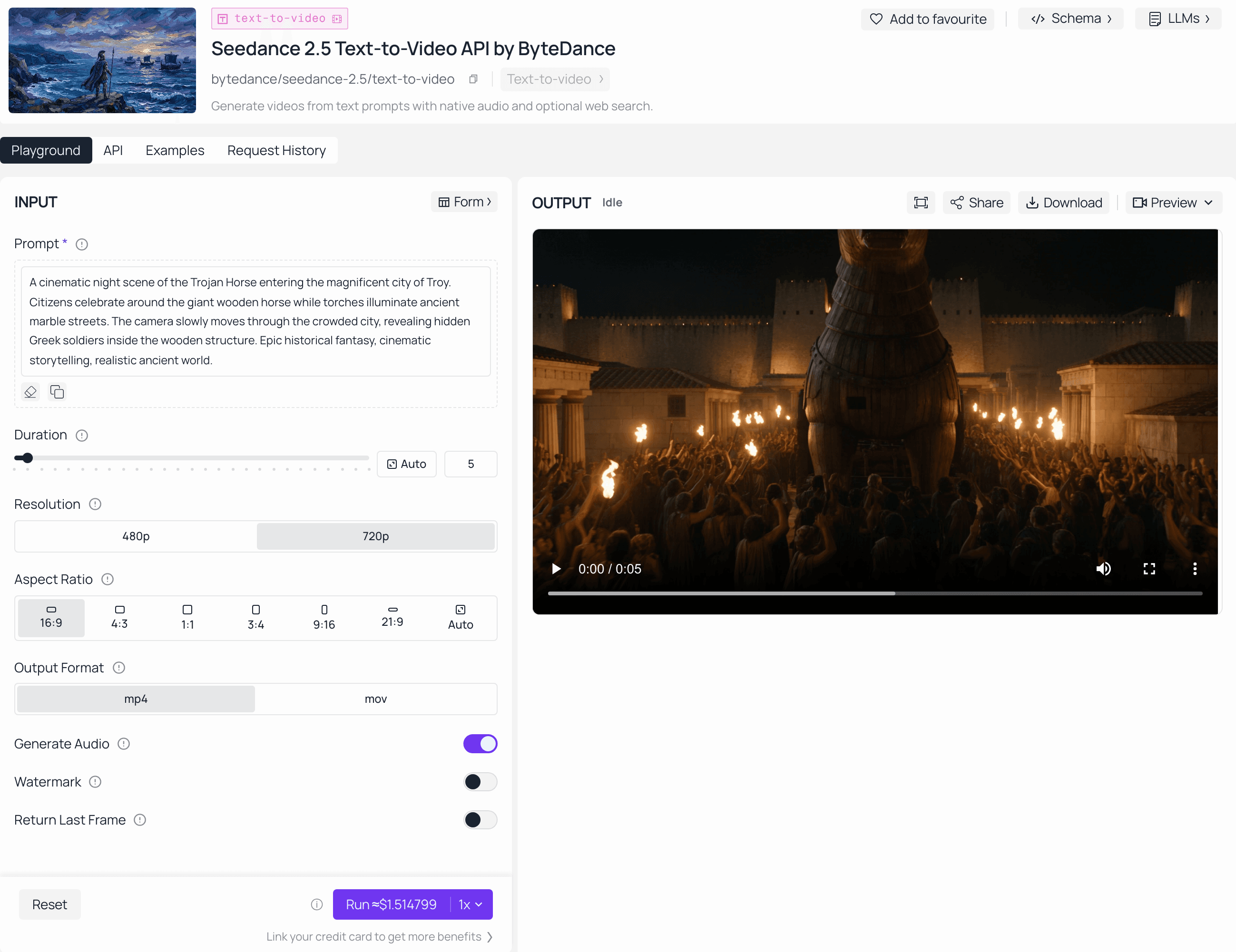
ByteDance は2026年6月にSeedance 2.5をリリースし、Atlas Cloud は Seedance 2.0 および 1.5 にすでにサービスを提供しているのと同じ統合エンドポイントを通じて、Seedance 2.5 への Day-0 API アクセスを提供しています。2.5 ティアの最終価格はまだ発表されていません。
実用的な部分は次のとおりです:このガイドの参照バインディング構文(@Image、@Video、@Audio タグ)は、今日 Seedance 2.0 ですでに機能します。つまり、2.5 アクセスが開かれるのを待たずに、ライブエンドポイントで今すぐプロンプトテンプレートをテストおよび調整できます。すぐに使える出発点が必要な場合は、Seedance 2.5 プロンプトハブ を参照して、コピー&ペースト可能なプロンプト例をご覧ください。
よくある質問
1つのSeedance 2.5プロンプトで使用できる参照ファイルの数は?
1回のリクエストで最大50のマルチモーダル参照ファイルを使用できます。内訳は画像30枚、動画クリップ10本、オーディオクリップ10本ですが、最大限に活用するよりも、8つ以下の個別の被写体に抑えると、より安定した結果が得られる傾向があります。
ダイアログ用の括弧と効果音用の括弧の違いは何ですか?
ダイアログは中括弧 {}、例:{Hello there.} を使用し、話し言葉用です。効果音は山括弧 <>、例: を使用し、環境音や偶発的な音用です。これらを混同すると、モデルが効果音を話し言葉として発声する可能性があります。
動画全体でキャラクターの一貫性を保つにはどうすればよいですか?
キャラクターを初期の段階で1つの特定の参照画像にバインドし、そこから何を使用するか(顔、髪型、服装など)を正確に指定し、後続のシーンやステージでそのキャラクターが登場するたびに同じ名前を繰り返し使用します。毎回外見を最初から説明し直さないでください。
粗いブロックアウトと細かいブロックアウトの違いは何ですか?
粗いブロックアウトは主に動き、パス、カメラカットを提供する単純なジオメトリです。細かいブロックアウトは、構造と動きを維持しながら、新しい素材、色、スタイルで再レンダリングすることを目的とした完全な詳細モデルです。
Atlas Cloud で Seedance 2.5 API をいつ呼び出せますか?
Atlas Cloud は Seedance 2.5 アクセスを「近日公開」としてリストしており、価格は未発表です。Seedance 2.0 および 1.5 は現在同じプラットフォームで利用可能であるため、今日構築されたプロンプトテンプレートは、2.5 エンドポイントが開かれたら直接転送されるはずです。
結論
強力なSeedance 2.5プロンプトは、より長いのではなく、より適切に整理されています。6パートの公式から始め、すべての参照を名前付き被写体にバインドし、数秒を超えるものは明確な終了状態を持つステージに分割します。そこから、このガイドの編集、拡張、キーフレームテンプレートは、プロジェクトが必要とする場所に組み込むことができます。
最も頻繁に再利用するテンプレートをブックマークし、Seedance 2.5 アクセスが展開される間、Atlas Cloud 上の Seedance 2.0 で今日からテストを開始してください。





