Um cliente envia a única foto que tem do produto. Tem 380 píxeis no lado maior, foi tirada de um site há anos, e o layout precisa dela a 3.000.
É normalmente nesse momento que alguém procura o melhor ampliador de imagem gratuito, e também o momento em que muitos comparativos deixam de ser úteis. Nove das dez ferramentas são rotuladas como gratuitas, e ninguém menciona que grátis pode significar uma marca d'água, uma pré-visualização de baixa resolução ou um botão de exportação que fica cinzento até você subscrever.
Por isso, colocámos dez ampliadores sob as mesmas três perguntas. O que sai da ferramenta numa conta gratuita. Onde a sua imagem é processada. O que o ficheiro final realmente imprime.
Os preços e limites abaixo foram retirados das páginas oficiais de cada fornecedor em setembro de 2026. Primeiro vem a tabela, depois as ferramentas por ordem.
Principais conclusões
- Grátis significa cinco coisas diferentes nestas dez ferramentas: sem limite, com créditos, com marca d'água, com resolução limitada, ou processado mas não exportável.
- Três das dez fazem o trabalho no hardware que você já possui, e oampliador gratuito no navegadoré um deles.
- Contadores de crédito e limites de utilização de IA partilhados decidem quantos ficheiros limpos um nível gratuito realmente oferece.
- Um fator de escala maior não pode inventar detalhes que a sua fonte nunca teve.
- O tamanho de impressão é aritmética: os píxeis divididos por 300 são o que a impressora pode oferecer.
Tabela Comparativa dos Melhores Ampliadores de Imagem Gratuitos
As dez ferramentas dividem-se em três grupos quanto ao local onde o trabalho é feito. Três processam localmente, no seu próprio navegador ou computador. Sete enviam primeiro o ficheiro para um servidor. A maioria dessas sete limita o nível gratuito, com um contador de créditos na VanceAI, AirBrush, Let's Enhance e Nero, e uma quota mensal partilhada de IA na Canva. A Atlas Cloud, o Upscayl e o waifu2x funcionam sem conta alguma. Os preços de entrada publicados situam-se entre $9 e $29 por mês, e a Canva precifica o seu plano anualmente em $180.
| Ferramenta | Melhor para | Nível gratuito | Plano pago inicial | Onde é executado | O que pode exportar gratuitamente |
|---|---|---|---|---|---|
| Atlas Cloud | Avatares, miniaturas, recortes apertados | Execuções 2x ilimitadas, sem conta, sem contador | Pague por imagem, sem plano | O seu navegador | PNG completo de 768 px, sem marca d'água |
| Upscayl | Lotes locais ilimitados | Aplicativo de computador gratuito, sem conta | Cloud Pro $24.99/mo | O seu computador | Resolução completa, sem marca d'água |
| Topaz Gigapixel | Ampliações destinadas a impressão | Teste com exportação desativada | $29/mês ou $149/ano | O seu computador | Nada, a exportação está bloqueada |
| Canva Image Enhancer | Pessoas que já criam design na Canva | Ampliação é executada no editor | Canva Pro $180/ano | Servidores da Canva | Um download, fator não indicado |
| VanceAI | Escolher um modelo por tipo de imagem | Créditos gratuitos após registro, fila mais lenta | $9/mês, 200 créditos | Servidores da VanceAI | Exportação limpa é um recurso pago |
| Picsart AI Image Enhancer | Recortes para redes sociais a 4x | Uma execução, download de baixa resolução | Pro $10.50/mês anual | Servidores da Picsart | Uma versão de baixa resolução |
| AirBrush Image Enhancer | Fotos de telemóvel e retratos | Limitado por créditos, 1 crédito por gravação | Web Plus $15.95/mês | Servidores da AirBrush | O que os seus créditos cobrirem |
| Let's Enhance | Trabalhos web com caminho de API futuro | Créditos gratuitos após registro, com marca d'água | $9/mês cobrado anualmente | Servidores da Let's Enhance | Resultados com marca d'água |
| Nero AI Image Upscaler | Limites de saída muito grandes | 10 créditos gratuitos após registro | API a partir de $99.99/mês | Servidores da Nero | O que os seus créditos cobrirem |
| waifu2x | Arte de anime e linha clara | Grátis dentro dos limites de tamanho, sem conta | Nenhum publicado | Servidores da waifu2x | Resultado completo, sem marca d'água |
Como Testámos Cada Ampliador de Imagem com IA nesta Lista
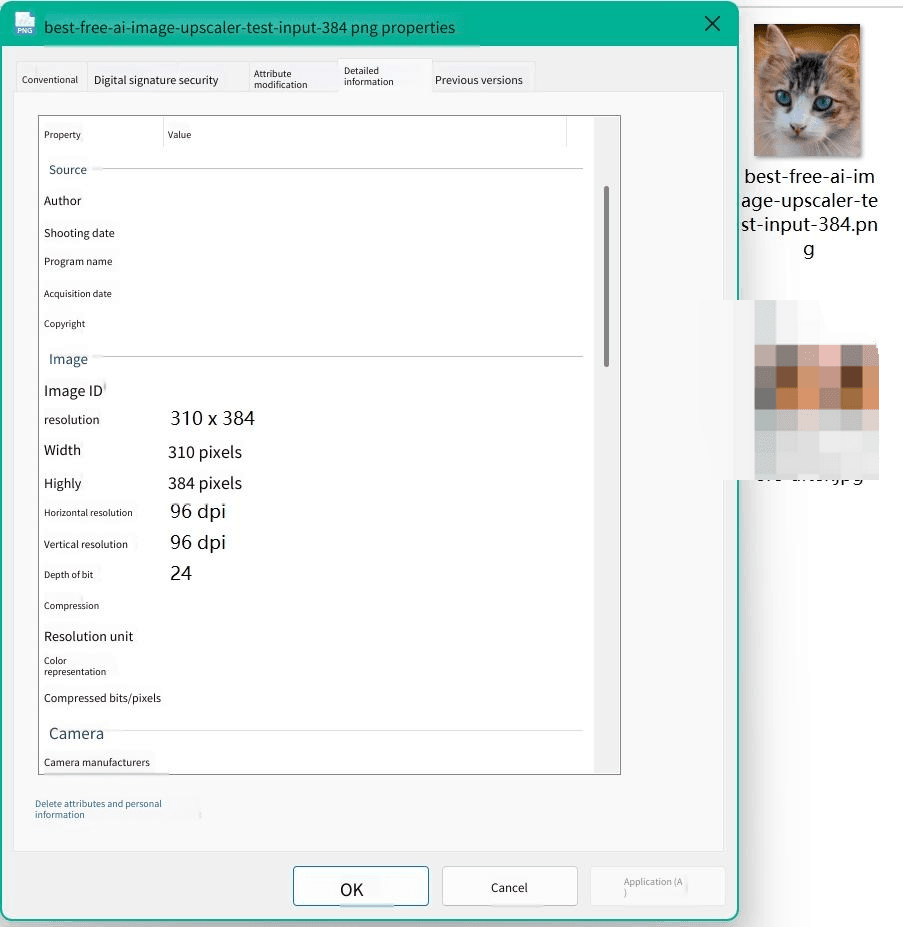
Todos os preços, limites e restrições neste artigo foram lidos nas páginas oficiais dos fornecedores em setembro de 2026, e não noutro comparativo, e as pontuações de avaliação vieram do Trustpilot e da App Store. A parte prática é mais limitada e vale a pena ser clara: executámos uma imagem de origem de 384 píxeis da nossa escolha através da via gratuita no navegador para ver o que uma passagem de 2x devolve, e essa execução está na secção da Atlas Cloud abaixo.
Quatro critérios decidiram a classificação:
- O que sai da ferramenta numa conta gratuita. Uma marca d'água, um limite de resolução ou uma exportação bloqueada significam a mesma coisa na prática.
- Controlos específicos do ampliador. Um fator de escala visível, uma escolha de modelo, processamento em lote e um limite máximo de entrada publicado.
- Transparência de preços. Se o número está visível no site ou fica atrás de um registro.
- Para onde vai a sua imagem. Processamento local ou upload, e se o fornecedor o informa.
O primeiro é o que pesa mais. Uma ferramenta que produz um belo resultado de 4x e depois entrega uma pré-visualização, uma marca d'água ou um botão de gravação bloqueado não resolveu o problema com o qual você veio, e quatro das dez apresentadas fazem uma dessas três coisas.
Divulgação: a Atlas Cloud publica este artigo e opera a ferramenta classificada em primeiro lugar. Nenhuma outra ferramenta aqui pagou por colocação, e cada uma delas é descrita a partir das suas próprias páginas publicadas.
1. Atlas Cloud: Melhor Ampliador de Imagem com IA na Globalidade
O nosso ficheiro de teste, um retrato de gato de 384 píxeis, voltou a 768 em cerca de um minuto sem sair do separador do navegador. Foi descarregado como um PNG de resolução total sem nada marcado nele, e é exatamente por isso que esta ferramenta está em primeiro lugar: aquilo que você obtém de graça é o ficheiro final, não uma pré-visualização dele.
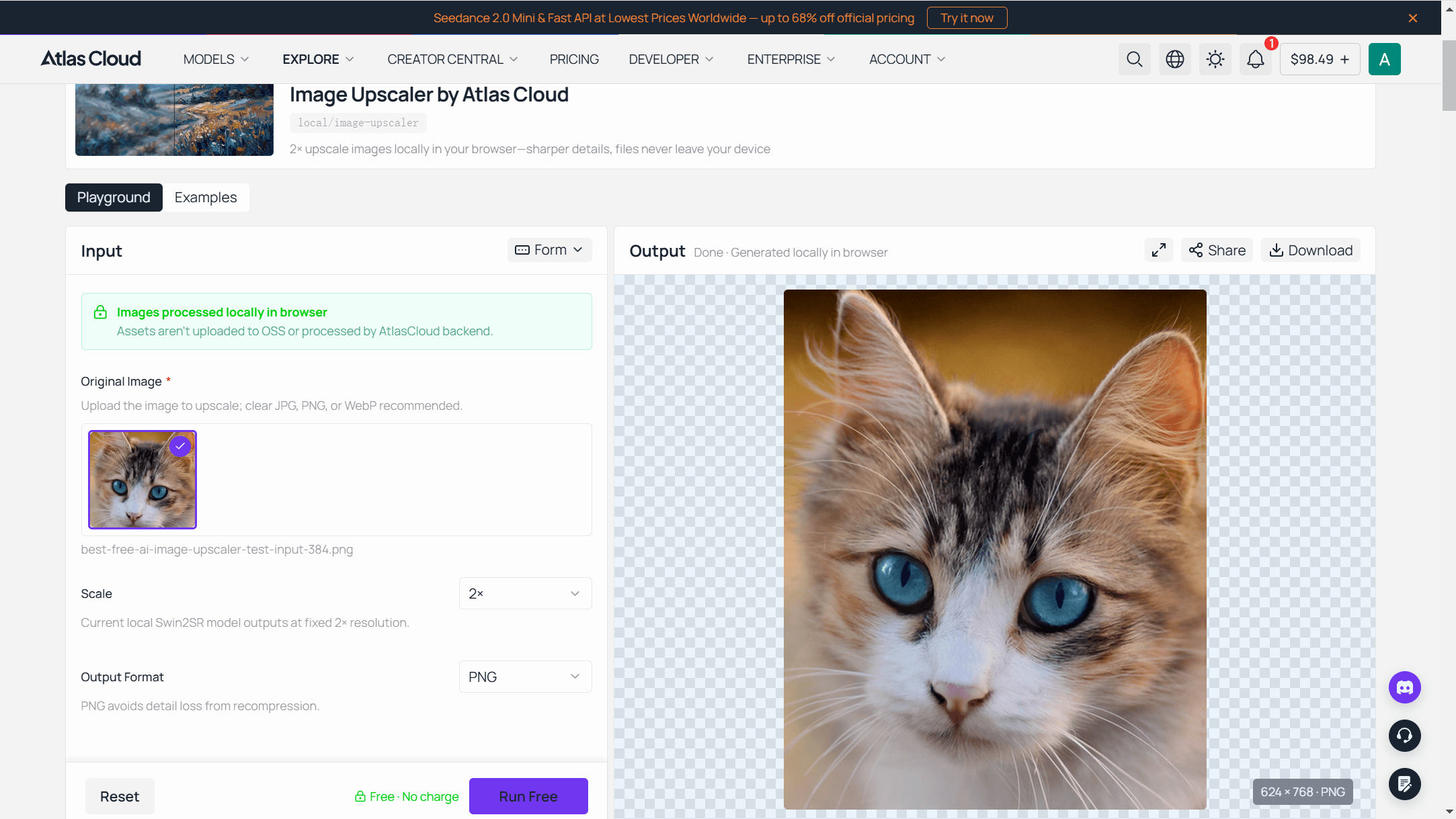
A Atlas Cloud executa o ampliador gratuito no navegador num modelo Swin2SR que é descarregado uma vez para o seu separador, aproximadamente 54 MB, e depois faz o trabalho no seu próprio hardware.
A página da ferramenta é direta quanto ao limite que decorre disso: o modelo recebe no máximo um lado maior de 384 píxeis, o que limita a saída a 768. Qualquer coisa maior é reduzida antes do processamento, e uma foto de 2.000 píxeis volta mais pequena do que começou.
Esse limite é a resposta honesta a uma pergunta que esta categoria normalmente evita. A inferência local num separador do navegador tem um orçamento de memória, e a Atlas Cloud gasta-o em fontes pequenas: avatares, miniaturas, recortes de uma foto de grupo, imagens de referência para uma apresentação.
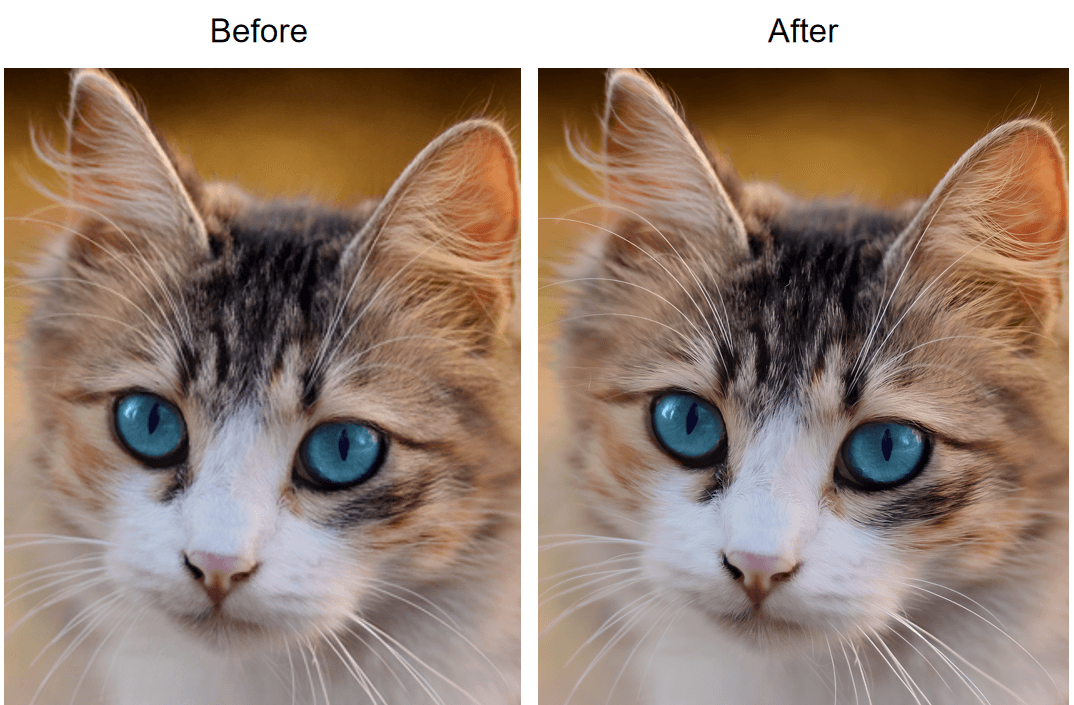
Coloque o seu próprio recorte através da página do ampliador de imagem gratuito com IA para ver o que uma passagem de 2x faz com ele, ou abra a coleção de ferramentas de IA gratuitas à qual pertence, onde estão um remover de fundo e um ampliador de vídeo ao lado.
Para ficheiros acima desse limite, o modelo de ampliação de imagem no playground aceita um valor de outscale de 1.0 a 4.0 num backend RealESRGAN e devolve JPEG, PNG ou WebP.
No lado da plataforma, está na família de ferramentas de imagem e vídeo, acessível com uma conta e uma chave de API.
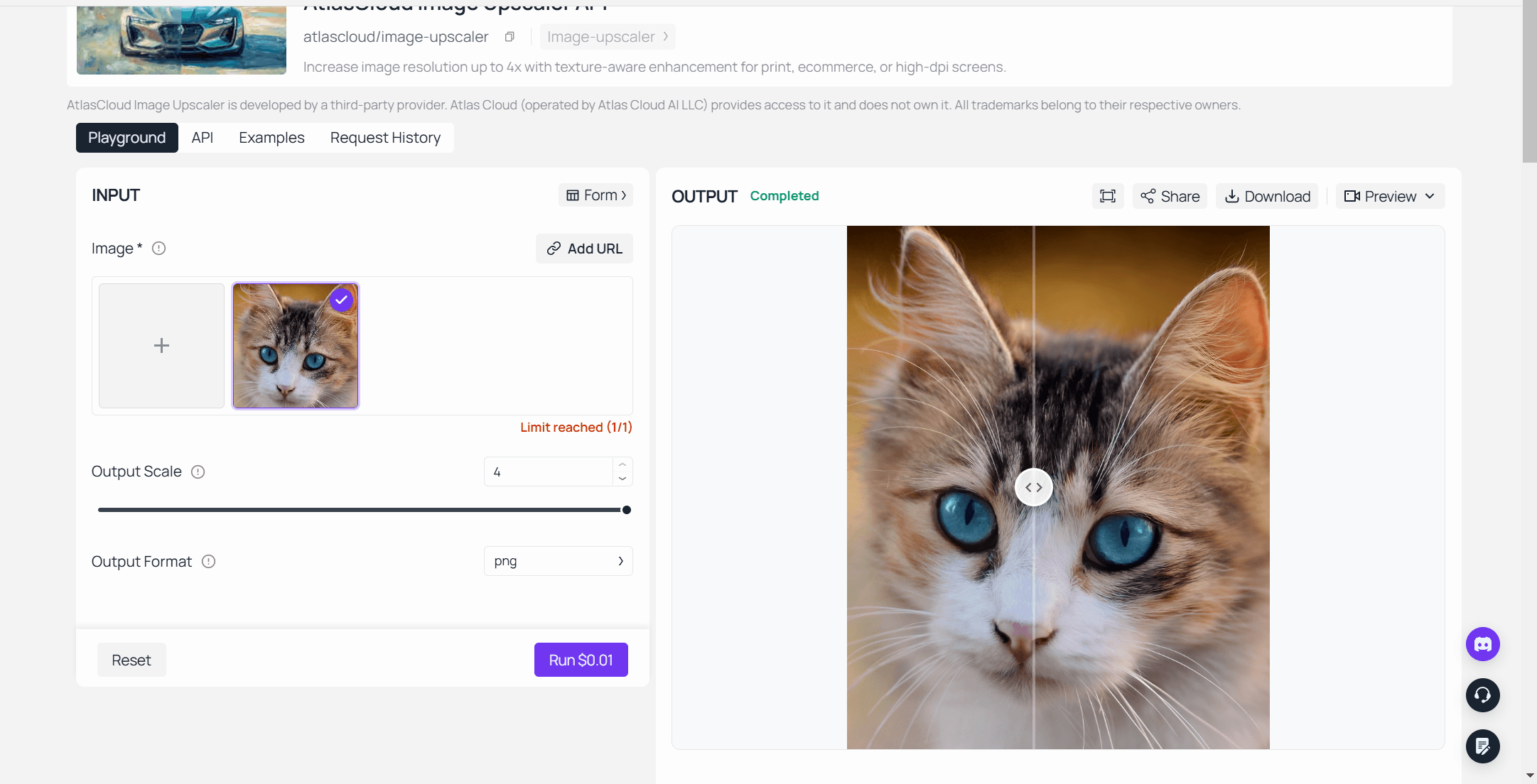
O que a distingue: A via gratuita e a via paga são o mesmo produto em dois tamanhos, por isso nada no fluxo de trabalho muda quando os seus ficheiros ficam maiores. Você testa num recorte no navegador, aprende como a super-resolução trata o seu tipo de imagem e depois envia o trabalho que precisa de 4.000 píxeis para o endpoint criado para isso.
Melhor para: Qualquer pessoa cujo problema seja uma imagem pequena, e não uma grande. Fotos de perfil, miniaturas de produtos, capturas de ecrã para um slide, recortes digitalizados.
Preços: A ferramenta do navegador é gratuita, sem conta para criar, sem limite de quantas vezes a usa, sem marca d'água na saída e sem envio da sua imagem. O modelo hospedado cobra por imagem do mesmo saldo da Atlas Cloud que cobre todos os outros modelos da plataforma.
2. Upscayl: Melhor Ampliador de Imagem Gratuito para Execuções Locais Ilimitadas
O Upscayl é a resposta quando as palavras "gratuito" e "ilimitado" precisam de sobreviver ao contacto com uma pasta de 200 ficheiros. É uma aplicação de computador de código aberto, atualmente com cerca de 49.000 estrelas no GitHub, e inclui a família Real-ESRGAN além de modelos da comunidade como Remacri e Ultrasharp.
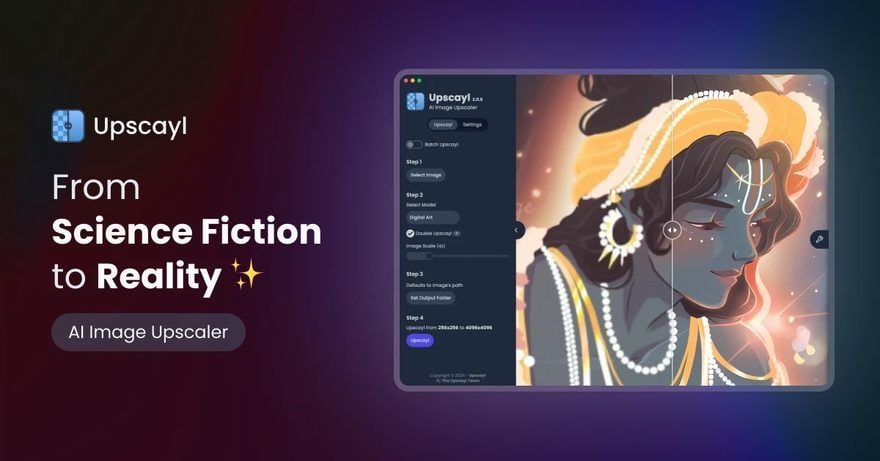
Onde o nível gratuito o limita: Não na saída. Ele limita-o na sua placa gráfica. O README do projeto é direto quanto ao requisito: "Precisará de uma GPU compatível com Vulkan (placa gráfica) para ampliar imagens. Muitas iGPUs (gráficos integrados) não funcionam, mas não custa tentar :)"
Quanto custa uma ampliação utilizável: Nada, e isso vale para o centésimo ficheiro tal como para o primeiro. O Upscayl Cloud existe como um serviço pago separado a $24.99 por mês por 300 créditos, se preferir alugar a GPU de outra pessoa.
O que os utilizadores relatam: Não há listagem no Trustpilot ou na App Store para citar, o que é normal para uma ferramenta de código aberto de computador. O sinal é o próprio repositório e a biblioteca de modelos da comunidade construída ao seu redor.
Onde fica aquém na ampliação de imagem: Não consegue corrigir o foco. O README afirma-o diretamente: o Upscayl "não consegue remover o desfoque nem ajustar o foco da sua imagem. Se a sua imagem estiver desfocada ou totalmente borrada, o Upscayl não é a ferramenta certa para isso."
Adequa-se a: Trabalho em lote, arquivos, qualquer coisa que prefira não enviar. Não é para si se: estiver num computador portátil com gráficos integrados, ou precisar de um resultado nos próximos dois minutos a partir de uma máquina que não administra.
3. Topaz Gigapixel: Melhor Ampliador de Fotos com IA para Grandes Impressões
O Gigapixel é a ferramenta que os fotógrafos escolhem quando o destino é uma parede de galeria. Até 16x, uma pilha de modelos especializados incluindo Recover e Redefine, e plugins para Photoshop e Lightroom, para se integrar num fluxo de trabalho de retoque existente.
Onde o nível gratuito o limita: Na caixa de diálogo de gravação. A própria documentação de introdução da Topaz descreve um teste que executa todos os recursos exceto o que importa, e diz que é necessária uma licença antes de poder gravar as suas imagens. Pode experimentar os modelos. Não pode ficar com o ficheiro.
Quanto custa uma ampliação utilizável: $29 por mês sem compromisso, $149 por ano pagos antecipadamente, ou $19 por mês com compromisso anual. A página de preços lista apenas assinaturas, por isso o custo é contínuo, não pontual.
O que os utilizadores relatam: 3,7 em 5 em 56.496 avaliações no Trustpilot, o que abrange toda a linha de produtos Topaz, não apenas o Gigapixel. O volume é invulgar para esta categoria, e a pontuação também.
Onde fica aquém na ampliação de imagem: A via de plugin limita-se a 30.000 píxeis por dimensão no Photoshop, e o plugin do Lightroom Classic não aceita ficheiros PSD. Modelos generativos também precisam de renderização em nuvem em Macs Intel, em vez do seu próprio hardware.
Adequa-se a: Trabalho de impressão, entregas a clientes, qualquer pessoa que já pague por um conjunto de retoque. Não é para si se: tiver uma foto para salvar esta tarde.
4. Canva Image Enhancer: Melhor Ampliador de Imagem dentro de uma Ferramenta de Design
A Canva chama à sua funcionalidade Upscale e chega-se a ela a partir do editor de imagens, em vez de uma página autónoma. Clique na imagem, abra Editar, encontre Upscale em Ferramentas, clique uma vez. Para qualquer pessoa cuja imagem já esteja num layout da Canva, são três passos a menos do que exportá-la, ampliá-la noutro lugar e reimportá-la.
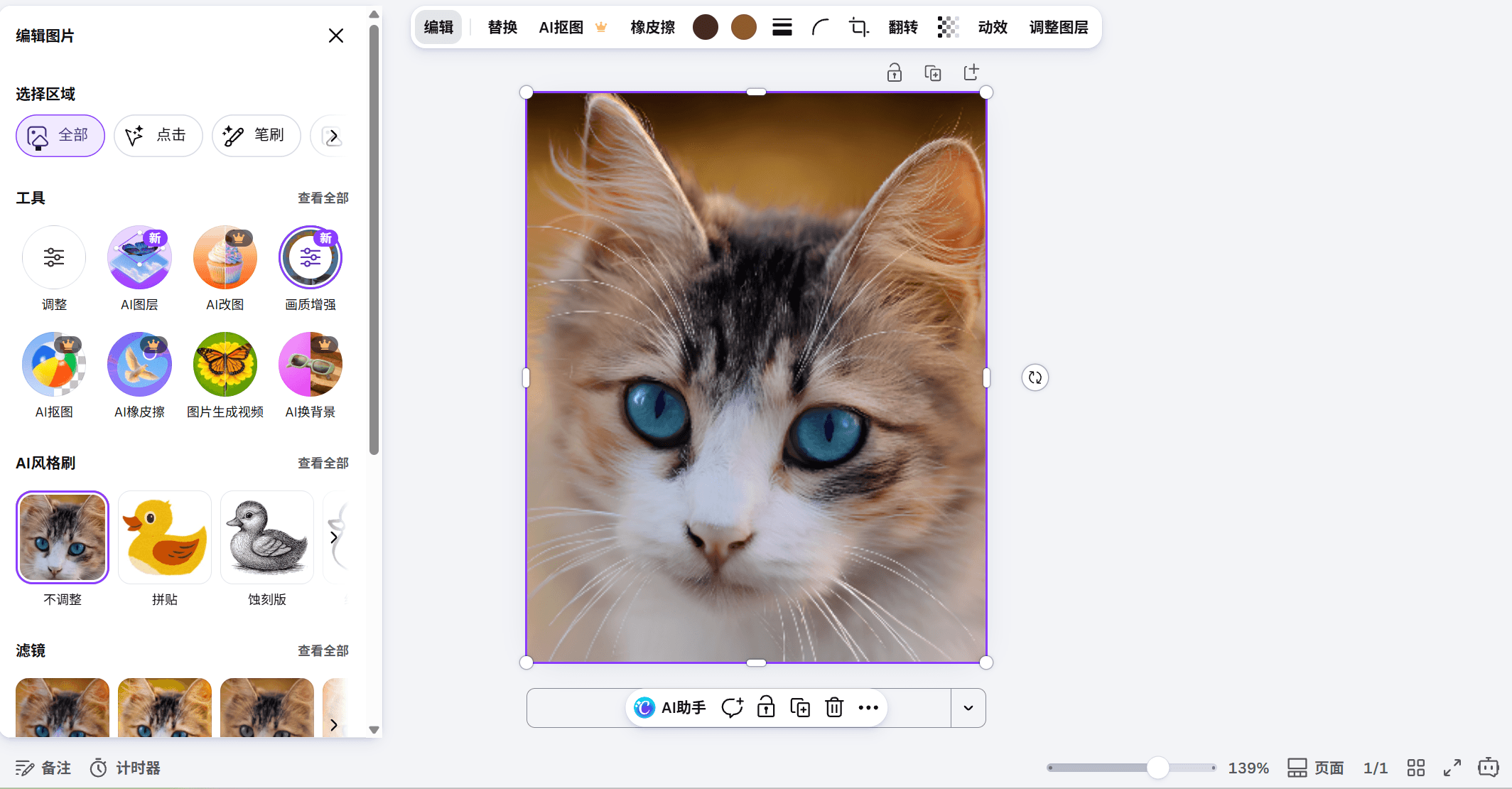
Onde o nível gratuito o limita: A Canva promove o Upscale como um melhorador de imagens online gratuito e lista as aplicações de melhoramento como gratuitas para usar com qualquer plano da Canva. A página da funcionalidade não indica um fator de escala nem um limite de saída, por isso não pode planear um trabalho de impressão com base nisso antecipadamente. A Canva também agrupa as suas funcionalidades de IA numa quota mensal que varia com o plano.
Quanto custa uma ampliação utilizável: Nada numa conta gratuita, se o resultado for suficientemente bom para o layout em que já está. O Canva Pro custa $180 por ano para uma pessoa, o que compra a biblioteca premium e uma maior quota de IA, e não especificamente o ampliador.
O que os utilizadores relatam: 4,0 em 5 em 7.017 avaliações no Trustpilot, e 4,9 em 5 em cerca de 3,5 milhões de classificações na App Store para a aplicação móvel. Essas são pontuações globais da plataforma para um conjunto de design, não veredictos sobre o melhorador.
Onde fica aquém na ampliação de imagem: Sem fator publicado, sem limite de saída publicado, sem lote. É uma passagem de reparação numa foto com a qual já está a trabalhar, e assim é precificado e documentado.
Adequa-se a: Publicações para redes sociais, apresentações, qualquer coisa que nunca saia da Canva. Não é para si se: precisar de saber as dimensões de saída antes de se comprometer com um tamanho de impressão.
5. VanceAI: Melhor Ampliador de Imagem com IA para Execuções Baseadas em Créditos
A VanceAI é aquela que permite escolher o modelo em vez de adivinhar. O seu espaço de trabalho expõe Standard, Anime, Art & CG, Text, e Low Resolution & Compressed, depois 1X a 8X, e um botão Batch Process no topo.
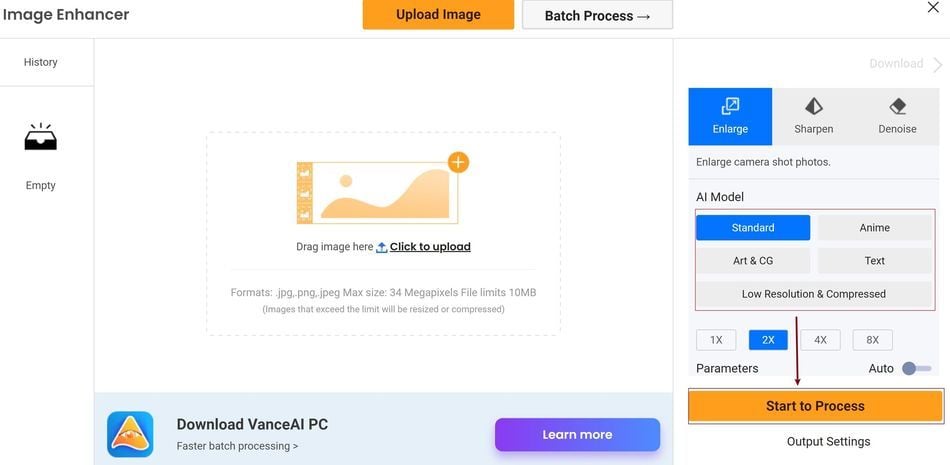
Onde o nível gratuito o limita: No download limpo. A VanceAI vende a exportação sem marca d'água como uma funcionalidade paga, descrevendo os planos pagos como aqueles que fazem download de resultados limpos sem marcas d'água, e coloca os trabalhos gratuitos numa fila mais lenta atrás dos pagos.
Quanto custa uma ampliação utilizável: $9 por mês por 200 créditos no plano Starter, e os créditos são gastos por fator: 1 crédito a 2x, 2 créditos a 4x, 3 créditos a 8x. Uma aplicação de computador é vendida separadamente a $39.90 por mês, $99.90 por ano, ou $129.90 uma vez.
O que os utilizadores relatam: 4,2 em 5 em 1.339 avaliações no Trustpilot.
Onde fica aquém na ampliação de imagem: O processamento automático em lote está listado como uma funcionalidade empresarial, por isso o botão Batch Process no espaço de trabalho não é o mesmo que trabalho em massa sem supervisão. Os envios também estão limitados a 34 megapíxeis e 10 MB.
Adequa-se a: Bibliotecas mistas onde arte de anime, capturas de ecrã e fotos precisam cada uma de um modelo diferente. Não é para si se: quiser um ficheiro limpo hoje sem comprar créditos.
Os Outros Cinco Ampliadores de Imagem com IA que Vale a Pena Conhecer
Estes cinco funcionam. Ficam abaixo da primeira metade porque cada um impõe uma condição ao resultado gratuito: um download de baixa resolução, um contador de créditos, uma marca d'água, ou um limite de tamanho que decide o trabalho por si.
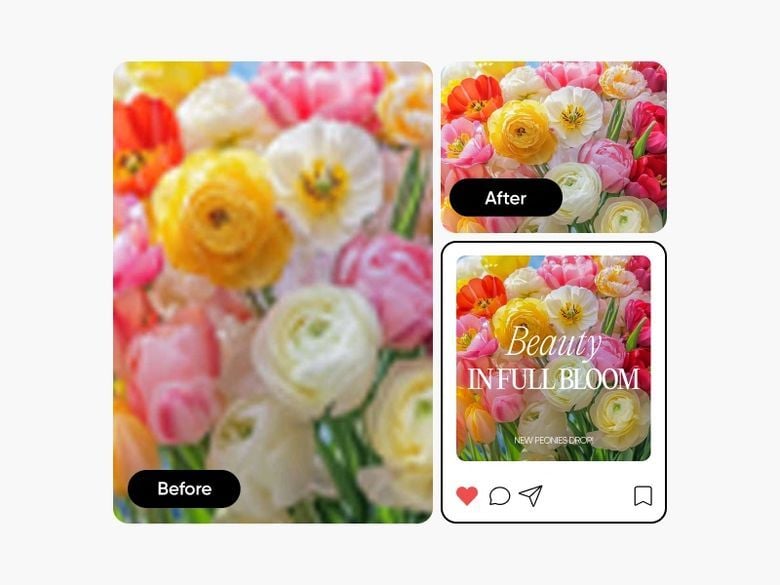
6. Picsart AI Image Enhancer: Pré-visualização Gratuita, Resolução Total Paga
A Picsart amplia a 2x ou 4x e lida com trabalho em lote de até 50 imagens de uma vez no Pro, ou 100 no seu nível superior. O problema está indicado na própria página da ferramenta: "Pode usar o AI Upscaler da Picsart gratuitamente para descarregar uma versão de baixa resolução da sua imagem. Para downloads de alta resolução, precisará de uma assinatura Picsart Plus." O Pro custa $10.50 por mês cobrado anualmente, e a listagem na App Store está em 4,7 em 5 com cerca de 1,2 milhões de classificações.
7. AirBrush Image Enhancer: Ampliador de Fotos Feito Primeiro para Telemóvel
A AirBrush vem de uma aplicação de retoque para telemóvel, e o melhorador combina ampliação com nitidez, redução de ruído e correção de cor. A sua página de preços cobra 1 crédito por gravação, e os créditos da assinatura expiram quando o período termina. O Web Plus custa $15.95 por mês por 80 créditos. Nenhum fator de escala ou limite de lote é publicado, o que é o padrão em ferramentas feitas para rostos, e não para ficheiros.
8. Let's Enhance: Créditos de Ampliador de Imagem Gratuitos com Marca d'Água
A Let's Enhance distribui alguns créditos gratuitos no registro e indica a marca d'água como removida para utilizadores pagos, por isso o resultado gratuito traz um carimbo. Os envios gratuitos estão limitados a 24 megapíxeis e as ampliações gratuitas a 8, enquanto os envios pagos vão até 64. O Starter custa $9 por mês cobrado anualmente por 100 créditos e um limite de saída de 256 megapíxeis, e há uma API documentada para quem ultrapassa a aplicação web. O Trustpilot tem-na com 4,0 em 5, mas a partir de apenas 185 avaliações.
9. Nero AI Image Upscaler: Limite de 268 Megapíxeis
A Nero dá aos novos utilizadores 10 créditos gratuitos, um crédito por ampliação, e a sua própria página diz que não é possível usar a função de forma ilimitada. O limite de saída é realmente grande, de 268 megapíxeis. O preço da assinatura para consumidores não era exibido na página de preços quando verificámos, e a API para empresas começa em $99.99 por mês, a cerca de $0.10 por crédito, com suporte para lote de 200 imagens. O Trustpilot mostra 4,8 em 5 em 1.677 avaliações.
10. waifu2x: Ampliador de Imagens Gratuito para Arte de Anime
O original ainda funciona em waifu2x.net. Grátis, sem marca d'água, estilos para Artwork, Artwork-Scans e Photo, redução de ruído de nenhuma até à máxima, e escala de 1.6x, 2x ou 4x. Os limites são rigorosos e publicados: envios de 5 MB, 1.500 por 1.500 píxeis para ampliação, 3.000 por 3.000 para redução de ruído. O desenvolvimento passou para um projeto sucessor há anos, por isso trate-o como um utilitário estável de propósito único.
Uma Imagem Ampliada por IA Aguentará a Impressão?
Todos os fatores de escala nesta página são uma promessa sobre píxeis, não sobre impressão. A aritmética que decide se um ficheiro sobrevive a uma impressora é uma divisão, e não importa qual modelo usou.
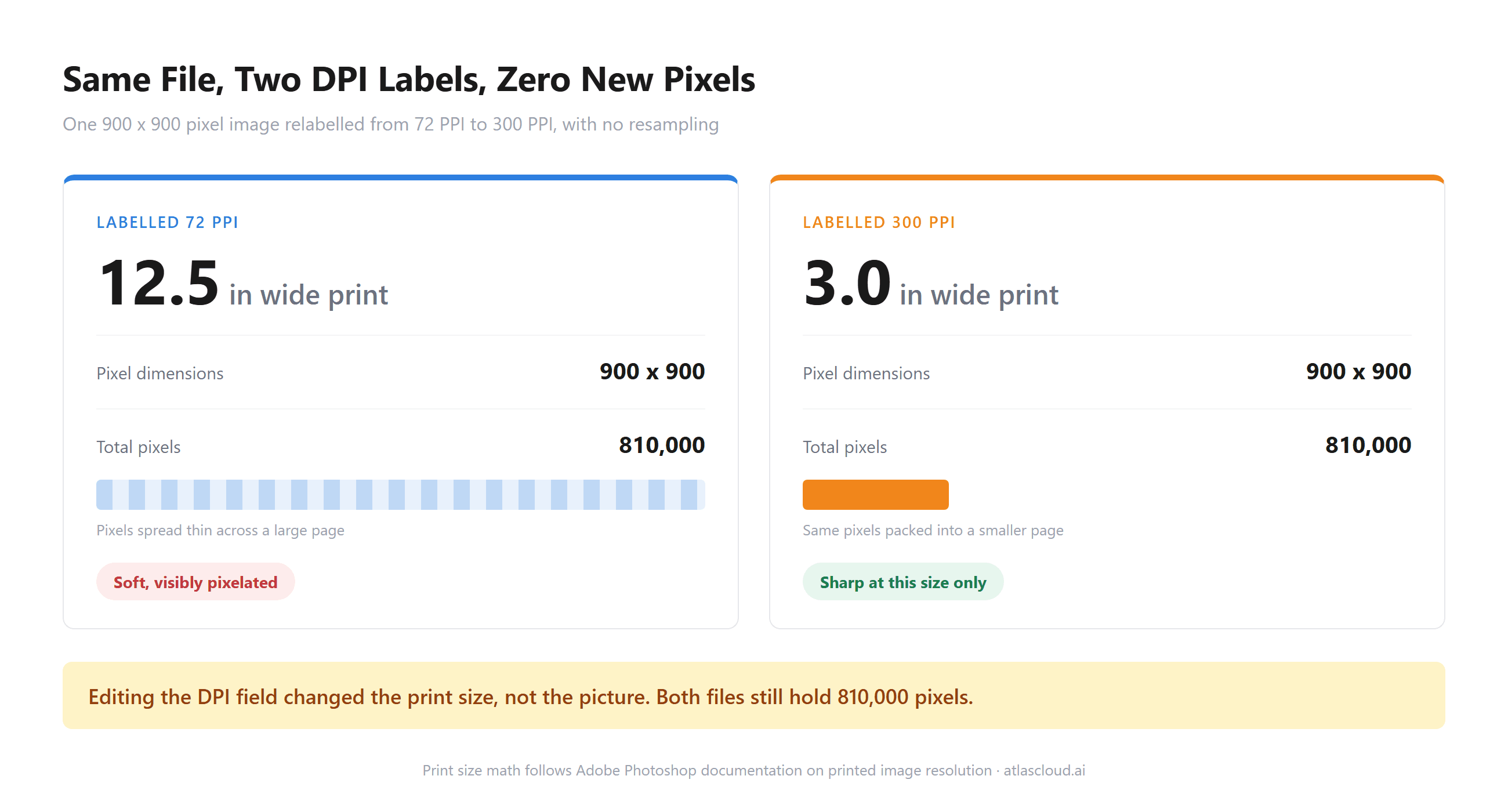
A Adobe expõe o padrão no seu guia de densidade de píxeis: "300 PPI é uma opção de referência para quem procura produzir excelente material impresso." Divida a contagem de píxeis por isso e a imagem fica clara rapidamente.
Um recorte de 384 píxeis duplicado atinge 2,6 polegadas, quase um postal. O mesmo recorte a 4x ainda fica aquém do A4. Uma origem de 1.000 píxeis a 4x ultrapassa confortavelmente as 13 polegadas, por isso é que a origem importa mais do que o fator.
O nosso guia de tamanhos de impressão para posters de IA faz a mesma divisão para tamanhos de saída comuns de geradores, se precisar da versão de poster de parede desta matemática.
Há uma segunda questão escondida atrás da primeira, e ela já passou por um tribunal. Numa ordem assinada no final de março de 2024, um juiz do Condado de King, no estado de Washington, excluiu vídeo melhorado por IA de um julgamento de triplo homicídio, com a ordem a contestar "métodos opacos para representar o que o modelo de IA 'pensa' que deve ser mostrado", como noticiou a NBC News na altura.
O software envolvido era da Topaz. O seu próprio cofundador foi desde então explícito sobre o limite, dizendo a um entrevistador "recomendamos veementemente contra qualquer caso de uso forense ou médico" numa entrevista à Documentary magazine.
As orientações forenses dizem o mesmo em linguagem mais fria. O Scientific Working Group on Digital Evidence, no seu documento sobre a redimensionamento de imagens, assinala que "o processo de ampliação não introduz novos detalhes ausentes da gravação original."
O próprio tutorial da Adobe sobre ampliação generativa coloca o lado oposto disso em prosa de marketing, descrevendo um modelo como melhorando criativamente uma foto ao adicionar detalhes que não estavam lá antes.
O que fazer em alternativa: Trate um ficheiro ampliado como um recurso de apresentação. Use-o para layouts, listagens, slides e pequenas impressões. Mantenha o original ao lado dele para qualquer situação em que o detalhe tenha de ser verdadeiro em vez de plausível, incluindo fotos para seguros, provas legais, imagens médicas e identificação. Se um trabalho de impressão depender do resultado, faça a divisão antes de fazer a encomenda, e não depois.
Onde Cada Ampliador de Imagem Gratuito Deixa de Aceitar o Seu Ficheiro
Os limites de saída ganham os títulos. Os limites de entrada decidem se a ferramenta sequer olhará para a sua foto, e são a razão pela qual uma foto de telemóvel de 12 megapíxeis às vezes volta a parecer pior do que era.
| Ferramenta | Limite máximo de entrada publicado | O que acontece acima dele |
|---|---|---|
| Ferramenta gratuita Atlas Cloud | 384 px no lado maior | Reduzida primeiro, a saída limita-se a 768 px |
| Upscayl | Memória da sua GPU, Vulkan necessário | Não executa, em vez de degradar silenciosamente |
| Topaz Gigapixel | 30.000 px por dimensão no plugin do Photoshop | Máximo indicado do plugin; PSD não aceite através do Lightroom |
| VanceAI | 34 megapíxeis, 10 MB | Redimensionada ou comprimida à entrada |
| Let's Enhance | 24 megapíxeis grátis, 64 pagos, 50 MB | Rejeitada |
| Nero AI | Limite de saída de 268 megapíxeis | Não aceite além do limite |
| waifu2x | Envio de 5 MB, 1.500 px para ampliação | Recusada |
| Canva, Picsart, AirBrush | Não publicado | Desconhecido antes do envio |
Vale a pena interiorizar este padrão antes de escolher uma ferramenta. Os serviços em nuvem limitam por megapíxeis e tamanho de ficheiro porque o tempo de GPU escala com a contagem de píxeis. As ferramentas locais limitam pelo seu próprio hardware. As ferramentas de navegador limitam fortemente, porque o modelo está a correr num separador com orçamento de memória, e é por isso que a ferramenta da Atlas Cloud indica o seu limite antecipadamente em vez de devolver silenciosamente uma papa.
Verifique primeiro o lado maior. Esse número diz-lhe em que metade desta lista está a comprar.
Perguntas Frequentes
Qual É o Melhor Ampliador de Imagem Gratuito Sem Marca d'Água?
Entre os dez aqui, três documentam um ficheiro limpo de resolução total numa conta gratuita: a ferramenta de navegador da Atlas Cloud, o Upscayl no computador e o waifu2x dentro dos seus limites de tamanho. A página da funcionalidade da Canva não indica um tamanho de saída em nenhum dos sentidos. A Let's Enhance e a VanceAI tratam ambas a remoção da marca d'água como uma funcionalidade paga, e o download gratuito da Picsart é uma versão de baixa resolução.
Existe um Ampliador de Imagem com IA Gratuito Sem Login ou Registro?
Sim. A ferramenta de navegador da Atlas Cloud abre e funciona sem conta, tal como o Upscayl como aplicativo instalado e o waifu2x como página web. Os serviços baseados em créditos geralmente estão no outro extremo: o contador tem de estar associado a uma conta, por isso o registro costuma ser o preço do nível gratuito nesses casos.
Quanto Custa um Ampliador de Imagem com IA por Imagem?
O ampliador de imagem hospedado da Atlas Cloud cobra um valor fixo de $0.0100 por imagem no momento em que escrevemos, com o playground a mostrar o custo antes de executar. As ferramentas por assinatura funcionam de forma diferente consoante o uso: o plano Starter de $9 da VanceAI compra 200 créditos, que são 200 imagens a 2x ou cerca de 66 a 8x, e o Starter anual de $9 da Let's Enhance compra 100 créditos por mês.
Um Ampliador de Imagem com IA Pode Transformar uma Captura de Ecrã do Telemóvel num Ficheiro para Impressão?
Às vezes, e são as próprias dimensões da captura de ecrã que o decidem, e não a ferramenta. Uma captura de ecrã moderna de telemóvel costuma ter 1.200 píxeis ou mais no lado maior, o que a 4x ultrapassa as 16 polegadas a 300 PPI. Um detalhe recortado dessa captura com 300 píxeis não alcançará A4 com nenhum fator vendido nesta página, porque a ampliação reconstrói detalhe plausível em vez de recuperar detalhe real.
Conclusão
O resumo honesto desta categoria é que grátis é uma palavra de página de preços, não uma palavra de produto. Quatro destas dez limitam-no com créditos, e duas dessas quatro também colocam marca d'água no resultado gratuito. A Canva usa uma quota de IA partilhada, a Picsart devolve um ficheiro de baixa resolução, a Topaz permite executar todos os modelos e não gravar nada, e três documentam um ficheiro final sem nada anexado. Ordenar a lista dessa forma levou menos tempo do que avaliar a qualidade da imagem, e muda mais a resposta.
Comece pelo seu ficheiro de origem em vez das classificações. Se o lado maior for pequeno, uma passagem local no navegador não custa nada e responde à pergunta num minuto. Se for grande e se destinar a impressão, divida por 300 para ver de quantos píxeis precisa e depois escolha entre uma licença de computador e um endpoint por imagem. É assim que se escolhe o melhor ampliador de imagem gratuito para o ficheiro que está no seu computador, e não aquele com o número maior na página inicial.





