หัวข้อข่าวที่แปลแล้วดูเหมือนถูกต้อง แต่คุณกลับสังเกตเห็นป้ายภาษาอังกฤษซ่อนอยู่ที่มุมหนึ่ง ประโยคยาวไปสัมผัสกับลูกศร และรายละเอียดสินค้าที่เปลี่ยนไป การตรวจสอบเหล่านี้มักเป็นตัวตัดสินว่าภาพที่แปลเป็นภาษาท้องถิ่นพร้อมที่จะเผยแพร่หรือไม่
GPT Image 2.5 แปลข้อความในภาพ ทำงานผ่านการแก้ไขภาพ: อัปโหลดต้นฉบับ ระบุภาษาเป้าหมายและขอบเขตการแก้ไข จากนั้นขอภาพใหม่ ตรวจสอบการแปล ข้อความที่ตกหล่น และพื้นที่ที่ไม่มีการเปลี่ยนแปลงก่อนเผยแพร่ ภาพขนาดย่อที่น่าเชื่อถือเป็นเพียงจุดเริ่มต้นของการตรวจทานเท่านั้น
ประเด็นสำคัญ
- เตรียมต้นฉบับ กำหนดภาษา ตั้งค่าตัวแก้ไข รันพร้อมต์ แล้วจึงตรวจสอบ
- เริ่มต้นทุกภาษาจากภาพต้นฉบับเดียวกัน
- ตรวจสอบพื้นที่ข้อความแต่ละส่วนและงานออกแบบแยกกัน
- ใช้เลเยอร์ข้อความที่แก้ไขได้เมื่อการจัดวางที่แม่นยำหรือการอัปเดตบ่อยครั้งเป็นเรื่องสำคัญ
GPT Image 2.5 แปลข้อความในรูป: สิ่งที่ได้ผล
ผลลัพธ์ที่มีประโยชน์คือภาพใหม่ที่มีภาษอื่นวางอยู่ในการออกแบบที่มีอยู่เดิม ซึ่งอาจช่วยให้คุณไม่ต้องสร้างกราฟิกส่งเสริมการขายแบบแบนขึ้นใหม่ทั้งหมด ก็ต่อเมื่อคุณสามารถตรวจสอบผลลัพธ์อย่างรอบคอบได้ ไม่ได้กู้คืนเอกสารต้นฉบับของนักออกแบบโดยอัตโนมัติ
OpenAI เผยแพร่ภาพกราฟิกข้อมูลเครื่องชงกาแฟที่แปลเป็นภาษาสเปน พร้อมคำแนะนำให้คงสิ่งอื่นทั้งหมดไว้ ตัวอย่างของมันใช้ขนาด 1024x1536 และคุณภาพ high คู่มือแนะนำอย่างชัดเจนให้ตรวจสอบการแปลและคำที่ยังคงเป็นภาษาเเหล่งเดิม ตัวอย่างที่เผยแพร่หนึ่งตัวอย่างช่วยสนับสนุนการใช้งานเพื่อการแก้ไขนี้ ไม่ได้ยืนยันความน่าเชื่อถือที่เท่ากันในทุกภาษาหรือทุกการออกแบบ (OpenAI Image prompting, เข้าถึงเมื่อกันยายน 2026.)
เริ่มต้นโดยตัดสินใจว่าผลลัพธ์ที่คุณต้องการคืออะไร ผู้ที่อ่านเมนูภาษาต่างประเทศอาจต้องการเพียงการแยกข้อความและการแปล ในขณะที่นักการตลาดที่เตรียมแคมเปญระดับภูมิภาคต้องการภาพทดแทน นักออกแบที่ดูแลข้อเสนอรายเดือนต้องมีเลเยอร์ข้อความที่แก้ไขได้ในเดือนหน้า
| ประเภทอินพุต | ผลลัพธ์ที่ต้องการ | ความเหมาะสมสำหรับการแก้ไขภาพ | เมื่อใดที่ OCR หรือแหล่งที่มาของดีไซน์ดีกว่า |
|---|---|---|---|
| กราฟิกข้อมูล | ป้ายกำกับภาษาท้องถิ่นในภาพที่มีอยู่ | มีประโยชน์หากคุณสามารถตรวจสอบทุกป้ายและตัวเชื่อมได้ | คำอธิบายที่เข้มข้น แผนผังที่แม่นยำหรือการแก้ไขซ้ำซ้อน |
| ภาพสินค้า | ข้อความส่งเสริมการขายในอีกภาษา | มีประโยชน์สำหรับการตรวจสอบร่างการตลาด | คำกล่าวถึงบรรจุภัณฑ์ที่แม่นยำ ข้อความพิมพ์เล็กหรือแบรนด์ตัวพิมพ์ท |
| โปสเตอร์ | หัวข้อข่าวและรายละเอียดงานที่แปลแล้ว | มีประโยชน์เมื่อข้อความเข้ากับโครงสร้างที่มีอยู่ | การเปลี่ยนวันที่บ่อยครั้งหรือข้อกำหนดตัวอักษรที่เข้มงวด |
| การหน้าจอแอปจริง | ช่วยให้ผู้อ่านเข้าใจป้ายกำกับอินเทอร์เฟซ | มีผลผลิตได้สำหรับการจำลองการแก้ภาษาแบบมีฉลากกำกับชัดเจน | บันทึกภาพที่จับภาพจริงจากแอปพลิเคเคชันตรวจเอกสาร |
| เอกสารที่สแกน | ข้อความที่แปลอ่านได้ | มักจะไม่ดีสำหรับข้อความยาวๆ | OCR, การตรวจสอบโดยมนุษย์ และการสร้างเอกสารใหม่ |
OCR หมายถึงการแยกอักขระออกจากภาพ ซึ่งให้เป้าหมายที่ต้องการแปล ค้นหา หรือแก้ไข แต่ยังต้องการใครสักคนพาและเป้าหมายกลับเข้าไปในการออกแบบ การแก้ไขภาพรวมการเปลี่ยนแปลงที่มองเห็นไว้ในงานราสเตอร์ใหม่ แต่ให้การควบคุมโดยตรงต่อตัวักษและตาเ aeon.nullตำแหน่งน้อยกว่า
PNG มีพิกเซล ไม่ใช่กล่องข้อความสด อนุรักษ์สไตล์ฟอนต์ หรือลำดับขั้นโครงสร้างของคอ มโพเนนต์หากมีไฟล์ต้นฉบับให้เก็บไว้ หากภาพต้องรักษาความเหมือนในระดับพิกเซลให้คงภาพนั้นไว้แล้วเปลี่ยนข้อความด้วยวิธิการแก้ไขแบบกำหนดตายตัว
แหล่งต้นฉบับเครื่องชงกาแฟภาษาอังกฤษ ที่ใช้ในที่นี้เป็น ภาพประกอบอินพุต Published by OpenAI อย่างตัวอย่างที่สร้างขึ้น ไม่ใช่แผนผังเครื่อง ที่ตรวจสอบแล้ว ตัวเลขและสเปคทั้งหมดเป็นสิ่งที่ควรคงไว้ระหว่างการแปล ไม่ใช่ข้อเรียกร้องทางวิศวกรรมที่บทความนี้รับรอง
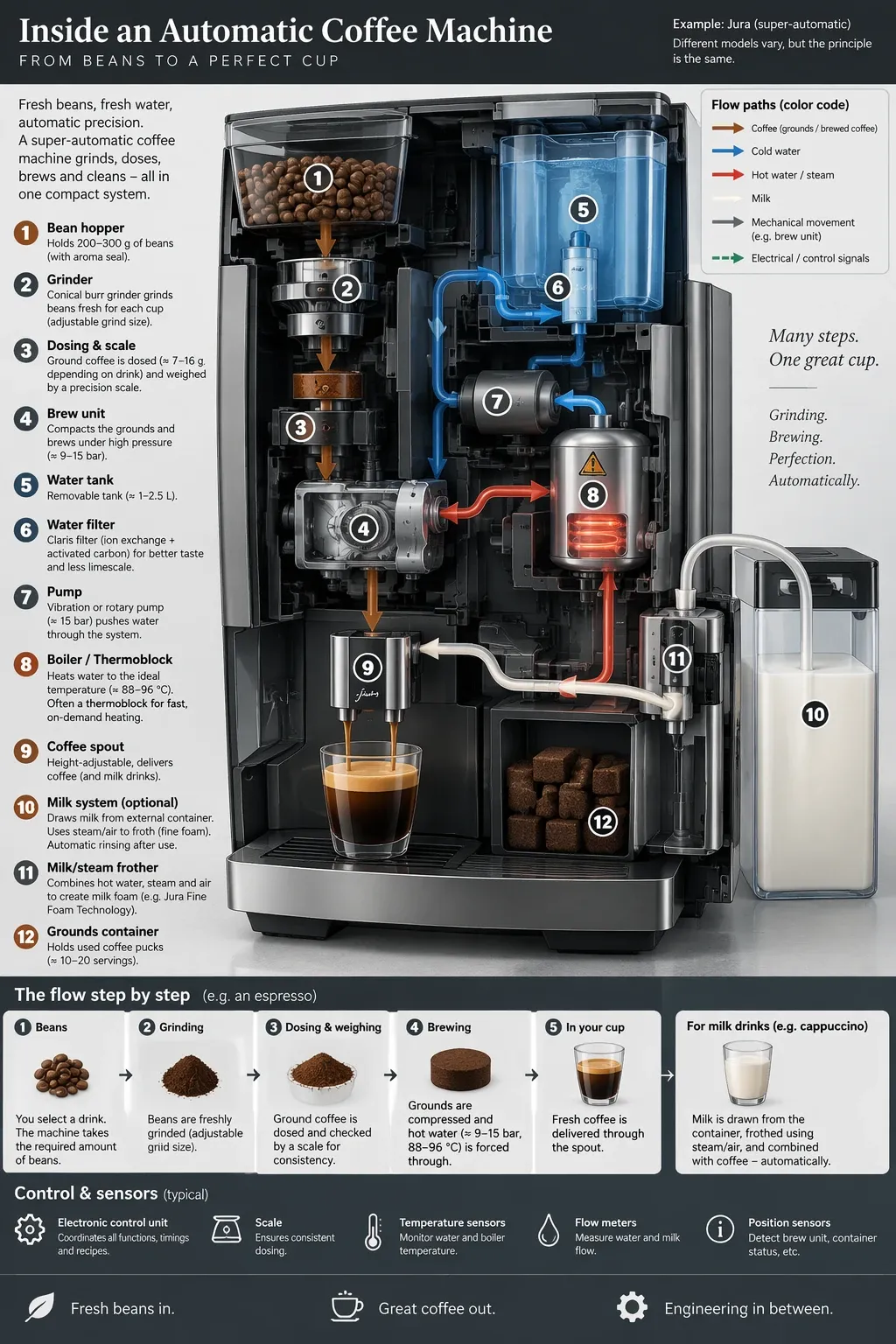
กราฟิคข้อมูลเครื่องชงกาแฟธ English กที่ใช้เป็นต้นฉบับสำหรับขั้นตอนการเงแปลภาพ
ภาพประกอบที่นำเข้าเผยแพร่โดย OpenAI ระบบตรวจสอบ 42 ส่วนจัดกลุ่มแต่ละชื่อกับคำอธิบายที่เกี่ยวข้อง ภาพนี้คือต้นฉบับ ไม่ใช่ผลลัพธ์จากเซสดงานนี้
GPT Image Translate Text in an Image: 5 ขั้นตอน
1. เตรียมต้นฉบับที่อ่านได้ และจัดทำบัญชีข้อความ
ใช้ไฟล์ต้นฉบับที่มีความละเอียด สูงสุดที่มีให้ ตรวจสอบพาดหัว ป้ายเล็กๆ คำอธิบายในแผนผัง ส่วนท้าย และข้อความบนวัตถุ หากคุณอ่านวลีไม่เข้าใจ ให้แก้ไขก่อนขอให้โมเดลแปล การขยายภาพจับภาพถ่ายที่ไม่คม ไม่ได้ยืนยันว่าตัวอักษรที่หายไปเดิมเขียนว่าอะไร
สำหรับไฟล์ต้นฉนนี้ บันท้ายการตรวจสอบประกอบด้วยพื้นที่ข้อความที่มีความหมาย 42 กลุ่ม แต่ละกลุ่มที่ประกอบด้วยหัวข้อและกรคำอธิบายนับรวมเป็นหนึ่งกลุ่ม ดังนั้นคำอธิบายคอมโพเนนต์ 12 แบบที่นับได้และด้วยวิธีไม่ว่าจะมีการตัดบรรทัดใด ตัเลขระบุและการโลโก้ที่ถูกต้องจะต้องใช้การตรวจแยกต่างหากเพื่อให้แน่ใจว่าอยู่เหมือนเดิม
** 2 กำหนดภาษา ตำแหน่งและเนื้อหาที่ได้รับการป้องกัน**
เลือกภาษาสเปนสำหรับสเปน เยอรมันสำหรับเยอร์ มนี หรือจีนย่อสำหรับประเทศจีน ระบุชื่อแบรนด์ที่ควรยังคงเหมือนเดิม บอกเอเดเตอร์ว่าสามารอสามารถตัดบรรทัดได้หรือไม่ ซึ่งคุณสมบัติที่ต้องคงที่: ลูกศร ภาพประกอบ ตัวเลข เต้น และตำแหน่งพื้นที่ข้อความ
เก็บสำเนาต้นฉบับไว้นอกโฟลเดอร์งานที่ใช้งานแน้อง สำหรับแคมเปญจริง ให้เก็บการแปลที่ได้รับการอนุมัติเป็นข้อความธรรมดา เพื่อให้ผู้ตรวจทานสามารถเปรียบเทียบข้อความโดยไม่ต้องถอดบทความอักขระทุกตัวที่แสดงออกมา
3. อัปโหลดต้นฉบับOtoyhanและตั้งค่าผลลัพธ์
บน Atlas Cloud เปิด Sunburst Edit อัปโหลดภาพเครื่องชงกาแฟภาษาอังกฤษ ใช้โมเดล openai/gpt-image-2.5-sunburst/edit คำสั่ง และความละเอียด max ขนาด 1024x1536 เอาต์พุต png พื้นหลัง opaque และจำนวน 1 ปล่อย Mask ว่างไว้สำหรับการลองตามข้อความที่อธิบายนี้
เหล่านี้เป็นตั้งค่าที่ต้องทดสอบตามที่ร้องบทความ ยืนการแบบแสดงผลให้ถูกต้องก่อนรั้งดำเนินการ เพราะต้นฉบับมีมุมตั้งฉาก รังให้รักษาอัตราส่วน 2:3 ของมันไว้ การ์ดเปรียบเทียบแบบแนวนอนสามารถบรรจุภาพตั้งสองภาพได้โดยไม่ต้องเปลี่ยนในกระดาดผลร้
ตัวอย่างสนำอย่างทางการใช้ high ขั้นตอนนี้ขอกำหนด maxu เป็นปรับเปลี่ยนจากตัวอย่างนั้น เมื่อไม่ใช่การทำพารามิเตอร์ซ้อนเดียวกันคุณภาพที่สูงกว่าไม่ได้ลบล้างความจำเป็นในการตรวจทานอักขระ
4. วางพร้อมต์ฉบับเต็ม รัน แล้วดาวน์โหลด
ใช้พร้อมต์ภาษสเปนด้านล่างสำหรับการร Runครั้งแรก อย่าเปลี่ย คำแนะนำการคงไว้ หรืออินพุ ค Midway duringำลองทั้งหมด ขอให้เสร็จสิ้น แล้วดาวน์โหลดภาพที่สร้างจริง บันทึกพร้อมต์ ค่าประมาณที่แสดง เวลาที่ใช้ และมิตของผลลัพธ์ด้วยกัน—
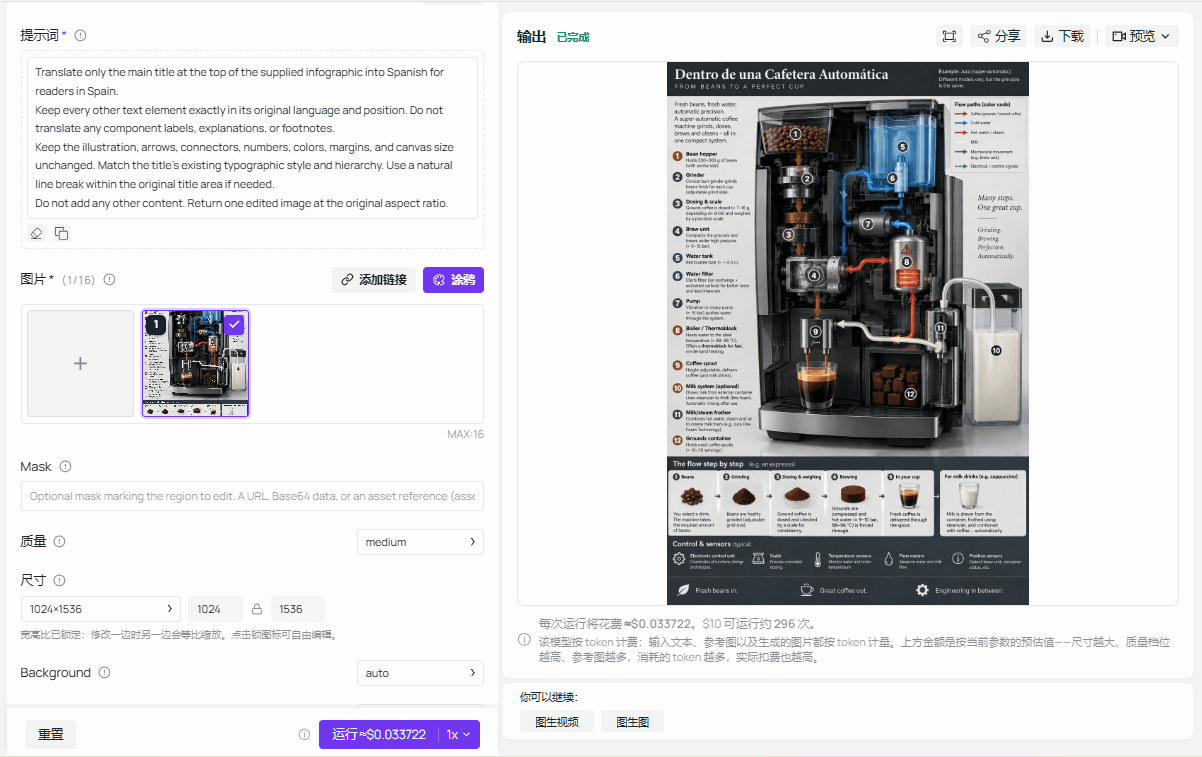
หน้าจอ Sunburst Edit ที่แสดงผลการรันเมื่อเสร็จของภาพแสดงการแปลเฉพาะหัวข้อภาษาสปั้น
หน้าจอที่เสร็จสิ้นใน Sunburst Edit ต้นฉบับ พรอมต์ พรีวิวผลลัพธ์ ขนาด 1024×1536 และค่าใช้จ่ายต่อครั้งที่แสดงให้เห็นในการแปลงเฉพาะหัวข้อนี้
5. ตรวจทาน จากนั้นยอมรับหรือแก้ใหม่
เปรียบเทียบทุกพื้นที่ในบัญชักกับต้นฉบับ โดยอ่านไฟล์ที่ดาวน์โหลดมาที่ขนาดเต็ม จากนั้นดูที่ขนาดที่ผู้อ่านจะเห็นจริง ตรวจสอบภาษา ความหมาย หน่วย การตัดข้อความ ตัวกำกับเสียง (diacritics) และภาษาอังกฤษที่ไม่ได้ตั้งใจจากเครื่องจักร อีกรอบอย่างแยกจากเครื่องจักร ลูกศร และเลย์เอาท์
ยอมรับไฟล์เมื่อการใช้งานตามจุดประสงค์อนุญาตให้มีความแตกต่าง ที่สังเกตได้ บันทึกการแก้ไขที่เฉพาะเจาะจงถ้าพื้นที่ใดล้มเหลว หากผลลัพธ์หรือแผนผังเปลี่ยนแปลงให้เริ่มจากต้นฉนับใหม่ ไฟล์ที่ต้องแบบอักษรแบรนด์ที่แม่ ให้อาจต้องใช้เลเยอร์ข้อความ และแม้ว่าข้อความที่แปลอ่านได้ดี
GPT Image 2 Translate Text in an Image: 3 ภาษา
การทดลองแต่ละครั้งใช้ต้นฉบับภาษาอังกฤษเดียวกันแยก การแปลภาษสเปนเป็นเยอรมันแล้วเป็นจนี จะต้องรวมการบิดเบือนการแปลเข้ากับการแก้ไขภาพซ้ำหลายครั้ง รักษาการป้อนพร้อมได้ โมเดลและการตั้งค่าให้คงที่เพื่อให้เปรียบเทียบตอบคำถามที่แคบกว่า: แต่ละภาษาท้องที่เข้ากับการออกแบบนี้ อ
ต้นฉบับประกอบด้วยคำอธิบาย 12 แบบ บันทึก 6 รายการ แถบผ 6 การ์ด คำอธิบายเซน มรับรู้ 5 ข้อความและข้อความรอบกลุ่มนั้ การ์ดด้านล่างที่แน่นขนนักต้องมีความสำคัญเท่าเทียบกับหัวข้อใหญ่ พื้นที่ใดๆจะผ่านเฉพาะเมื่อเนื้อหาเต็มที่อ่านได้และแปลโดยไม่มีข้อบกพร่องที่ชัดทุกด้าน
ภาษาสเปน: ครอบคลุมและเครื่องเสียง
อินพุต: ภาพกราฟิกข้อมูลภาษาอังกฤษ เป้าหมาย: เวอร์ชั่นภาษาสเปนที่สมบูรณ์สำหรับสเปน โดยคงความสัมพันธ์ป้ายลูกศรเดิม พาส:
plaintext1Translate every readable English text element in the supplied coffee-machine infographic into Spanish for readers in Spain. 2 3Translate the title, section headings, component labels, explanations, and footnotes. Use consistent terminology throughout. 4 5Keep every illustration, arrow, connector, number, symbol, color, margin, and text-box position unchanged. Preserve the original typographic hierarchy and match the existing type style as closely as possible. 6 7Fit the translation inside the existing text areas. Allow natural line breaks, but do not move를 illustrations or shrink text until it becomes difficult to read. 8 9Do not add explanations, new claims, labels, decorations, or watermarks. Return one edited image at the original aspect ratio.
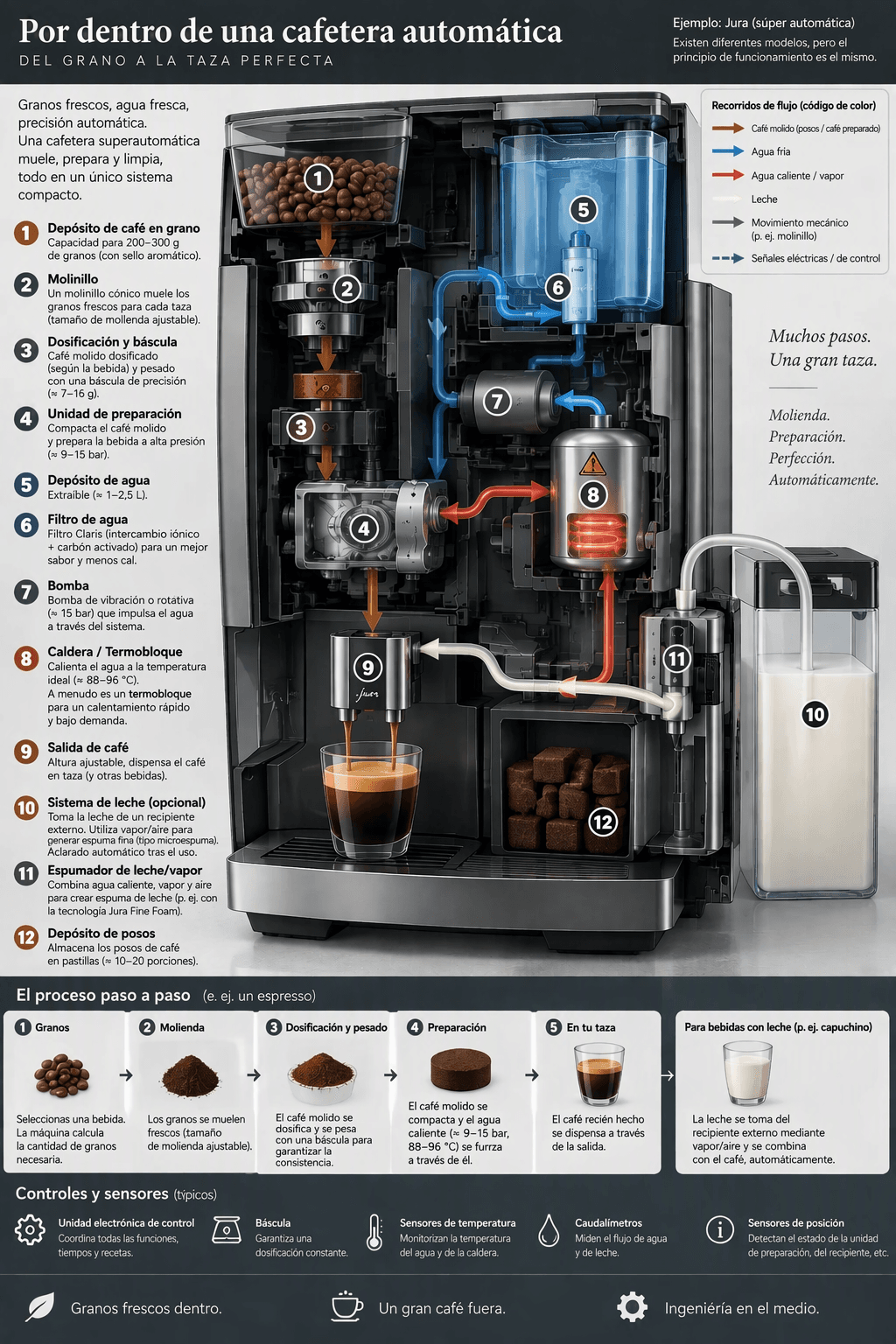
ผลผลิตการแปลภาษาสเปน: กราฟฟิกข้อมูลเครื่องทำกาแฟที่แปลเป็นษสเปน
ผลลัพธ์การแปลภาษาสเปน. The image on the left is the source. The image on the right is the translation. Validate all components, including the machine representation, before accepting.
ตรวจสอบการตั้งใจรับเพื่อพิสูจน์อักษรทั้งในหัวข้อใหญ่และคำอธิบายยาวเล็กๆ หัวข้อที่ถูกต้องไม่สามารถชดเชยรายละเอียดของเซ็นเซอร์อุณหภูมิที่ขาดหายได้ ส่งชื่อเฉพาะเช่น Jura และ Claris เหมาะสมกับบริบท ร่ที่มีการเปลี่ยนชื่อแบรนด์ที่ถูกต้องต่างจากป้ายกำกับแม่ที่ไม่ได้แปล
อีกทั้งเปรียบเทียบหมายเลขในวงกลม การแปลอาจฟังดูเข้าใจได้ในขณะที่ลูกศรกำกับที่เกี่ยวข้องเป็นอย่างอื่นในแง่ของตส่วนสำหรับเนื้อหาที่เป็นคำแนะนำ สิ่งนี้เปลี่ยนสิ่งที่ผู้อ่านเข้าใจ การยอมรับสำหรับ ทั้งการตรวจทานข้อความ และการตรวจสอบความสัมพันธ์แยกกัน
ภาษาเยอรมัน: คำถามยาปในพื้นที่พบที่มีอยู่
สัญญาณเข้า: ต้นฉบับที่ภาษาอังกฤษอีกครั้ง จุดประสงค์: เยอรมันที่อ่านได้โดยไม่ต้องขยายความกว้างของภาพหรือลบข้อมูลเพื่อให้พอดี รัน:
plaintext1Localize all readable English text in the supplied coffee-maker infographic in German for viewers in Germany. 2 3Use plain technical German and consistent component terms. Preserve all numbers and symbols exactly as displayed. 4 5Keep the coffee-machine illustration, arrows, connectors, colors, margins, and the position of every text area unchanged. 6 7Use natural German line breaks inside the current text areas. Keep the text readable. Do not stretch characters, move illustrations, expand the canvas, or omit words simply to make the translation fit. 8 9Follow the same hierarchy between heading, subheadings, and captions. Do not add any other content. Return one edited image at the original aspect ratio.

ผลลัพธ์การแปลภาษาเยอรมัน: กราฟิกข้อมูลเครื่องชงกาแฟที่แปลเป็นภาษาเยอรมมัน
ผลลัพธ์การแปลเป็น็ยาเย มัน ตรวจสอบคำประสม จั้ งการตัดบรรทัด ขนาดตัวอักษร และทุกบริเวณภาพที่ได้รับความคุ้มครองก่อนอนุมัต ิให้ตรวจสอบเวอร์ตัวตกล่าง เช่น เหนือการรับรองและอุปกรณ์
ตรวจสอบคำประสม การเปลี่ยนบรรทัด และคำอธิบายที่เล็กที่สุด ย่อหน้าสุขสามารถอยู่ในพื้นที่ของตัวเองได้ แต่เมื่อวางจริงอาจแล้วพอ.. ตรวจสอบวัยที่ขนาดจริงก่อนเรียกสิ่งนั้นว่าได้ผลดิ
เมื่อค้นพิมม์เยอรมันโดยต้องครอบครองบรรทัดเท่าต้นฉบับถูกต้อง ความหมาย พื้นที่ที่อ่าน และการแบ่งเป็นถ้อยคำที่สมเหตุสมผลเป็นเกณฑ์ยอมรับที่ถูกต้องกว่าถ้าข้อความที่ต้องการให้กระชับ ให้ใครบางอนุมัติคำแปลย่อก่อนวาง
ภาษาจีนตัวย่อ: กระ อักขระ และศัพย์
คืนเดิม: ต้นฉบับอังกฤษอีกครั้ง เป้าหมาย: จีนตัวย่อที่ชัดเจนด้วยอักขระที่พัฒนาเนื่องจากจริง
plaintext1Translate every readable English element in the supplied coffee-machine infographic into Simplified Chinese for readers in mainland China. 2 3Use concise, natural technical terminology. Translate the title, headings, component labels, explanations, and footnotes. Use the same English terms for identical equipment. 4 5Preserve all numbers and measurement symbols. Keep every illustration, arrow, connector, color, margin, and textbox position unchanged. 6 7Use clear Simplified Chinese characters and natural Chinese punctuation. Keep the text inside the current text fields where 선 use. 8 9Do not invent digits or add comments. Leave only the text that must remain unchanged in English. Return one edited image at the original aspect ratio. 10```py 11 12 13 14(简体中文) Output: Chinese coffee machine infographic 15 16_การแปลผลลัเป็น中文 ตรวจสอบศัพท์ เครื่องหมายตัวพิมพ์ ลักษณะตัวหนังสือ และทุก區域ที่得到การ =_ ป้องกันก่อน服务器 * 17 18--- 19 20ตรวจสอบอักขระด้วยตา ไม่ใช่การตรวจจากภายนอก ดูรูปแบบของข้อกำหนดส่วนประกอบเดียวกันทั้งในป้ายข้าง และแถบเพื่อเจร ต้องแยกแยะสัญลักษณ์ปกติจากข้อความแปลกๆ ที่ดี 21 22## ผลลัพธ์ของการแปลต้องเก็บการออกแบบ.Layout ประยุกต์“** 23 24การคงการออกแบบมีสองขั้นทดสอบที่แยกจากกัน ประการแรกคำต้องสื่อเป็นความหมายที่ต้องการเจตนา ประการที่สองภาพรอบข้างต้องถนอมความสัมพที่เพื่อที่อาศัย การแปลอาจผ่านการทดสอบหนึ่งแต่ล้มเหลวในอีกหนึ่งทดสอบ 25 26สำหรับสินค้าภาพ เปรียบเทียบภาพรวม รูปลักษณ์ที่การทำเครื่องหมายสุดท้าย อุปกรณณ์เสริมเชื่อมและขอบพื้นหลัง สำหรับกราฟฟิกนี้ เปรียบเทียบคอมโพเนนต์ที่มีหมายเลข จุดเชื่อมต่อของลูกศรเพลา ถ้วย ส่วนชี้ และการ์ด Step ล่าง ตรวจสอบข้อควรพิจรขอบที่ป้องกันด้วยเช่น:` 27 28--- 29 30ถ้าการแก้ไขเฉพาะชื่อเรื่องและล้มเปลี่ยนคำอธิบาย แสดงว่าล้มเหลวการควบคุมของขอบเขต” 31 32ใช้ลำดับการรักษาที่ตั้งใจ: 33 341. เก็บความหมาย ค่านว และความสัมพันธ์ของป้ายกับวัตถุให้ถูกต้อง 352. รักษาตำแหน่งขององค์ประกอบที่ไม่ใช่ข้อความไว้ 363. คงข้อความไว้ในพื้นที่ที่กำหนด 374. รักษาตัวอักษรและการเว้นระยะที่อ่านได้. 385. จับคู่การมองของตัวพิมพ์เดิมได้ใกล้ที่สุดเท่าที่จะทำได้. 39 40--- 41 42ลำดับนี้ทำให้คุณตัดสินสมเมื่อข้อภาชนะขัดเแย้งกัน คำแปลที่ยาอาจต้องใช้บรรทัดเพิ่ม หากได้เหมือนครั้งไว้ววรรณทั้งฟอนต์เดิม กล่องเดิมและทุกคำแปล โดยไม่มีที่ว่าง อย่างถูกต้องก็เป็นไปได้ไม่มีปัญหา ให้ต้องข้อจำกัดการประนีประนอมก่อนตรวจทานผล 43 44**เลือกแก้ไขบางส่วน: แปลเฉพาะ หัวข้อด้านบน** 45 46ให้กลับไปที่ไฟล์ต้นฉบับปและใช้พร้อมต์ต่อไปนี้ การทดลองนี้ ตรวจสอบขอบเขตของคำ าน แต่ไม่ใช่เวอร์ชันเต็มด้านอื่นสำหรับภาษาทั้งหมด 47 48--- 49 50```text 51Translate only the main title at the top of the supplied infographic into Spanish for readers in Spain. 52 53Keep every other text element exactly in its original language and position. Do not translate any component labels, explanations, or footnotes. 54 55Keep the illustration, arrows, connectors, numbers, colors, margins, and canvas size unchanged. Match the title's existing typographic style and level of hierarchy. You may use a natural break if needed within the original title area. 56 57Do not add anything else. Return one edit at the original aspect ratio.
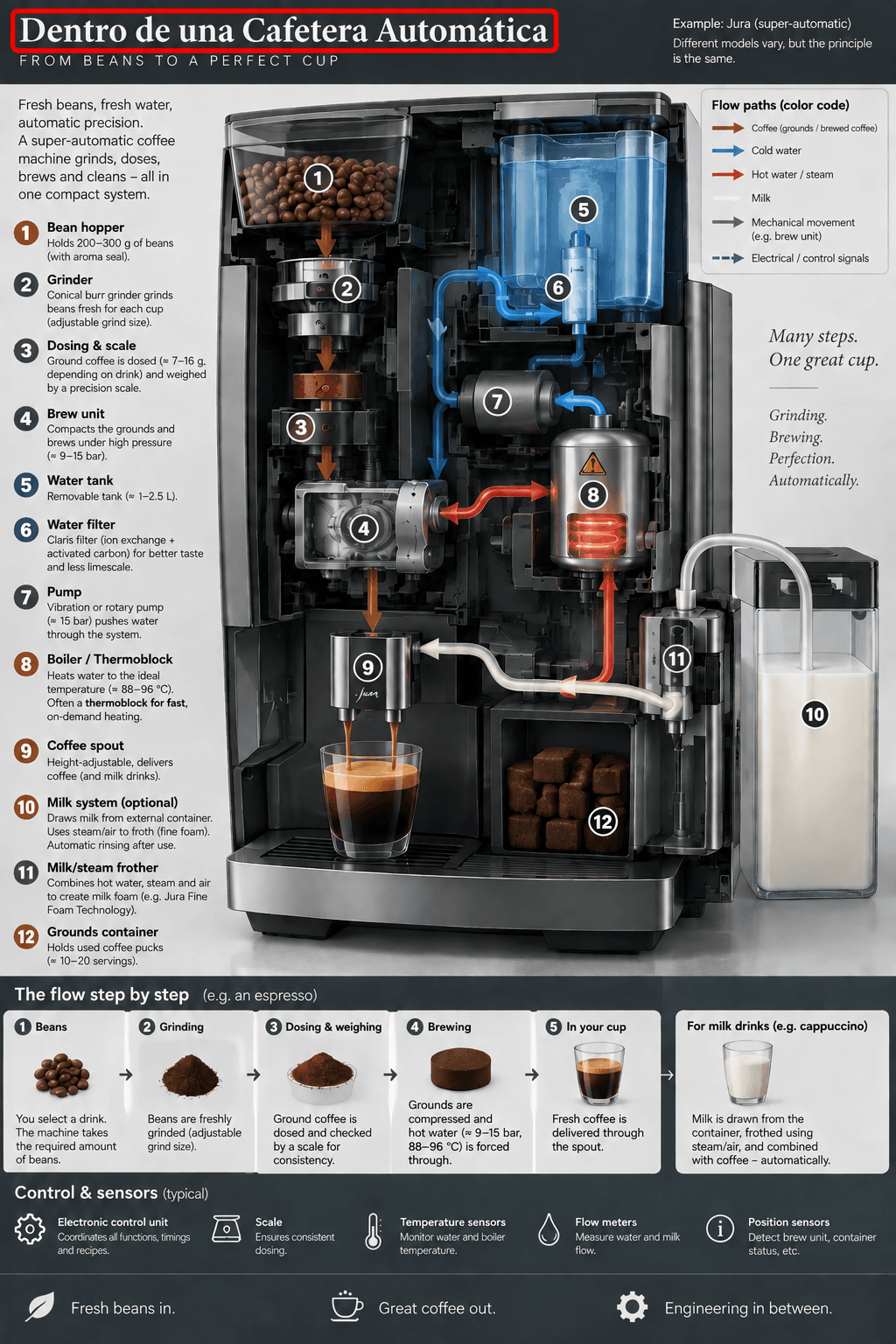
การแก้ไขภาษาสเปนแบบหัวข้อเฉพาะ โดยหัวที่เปลี่ยนถูกชี้ด้วยสีแดงล้อมรอบ
หัวข้อ์การแปลเฉพาะที่แก้ไขเป็น ส แด และวิธีตรวจสอบ บริเวระหว่าง 41รายการที่ต้องตรวจานครอบคลุมการแปลทั้งหมด
อย่างน้อยต้องเปรียบเทียบคำบรรทัดย่อย รายการ แรกดคำอธิบาย ตำนานเท่อ ท้ายของขั้นตอนและฟุตไปทันทีที่ตรวจสอบหัวข้อข้ใหม่ ต้องไปให้ครบถึงทุกใบก่อนยอมรับ การตรวจสอบเลือกแบบไม่สามารถยืนยันได้ว่าทุกบริเวณที่ป้องกันของการยังถูกไม่ถูก
สำหรับหน้าจอUIจริง แผนภูมิและภาพแบบ วิศวกรรม ให้ใช้ซอร์สเอกสารหรือซ้อนทับแบบ deterministic เมื่อความถูกต้องการ ประมาณภาพเง จำลอง ที่แก้ไขด้วย AI ไม่ใช่หลักศึกษายืนยันว่าซอftware จริงแสดงlabel donateไข่หรือทำงานตาม ที่มีการควบคุมนั้น
ดังนั้น การดูที่ตรงกันในขนาดที่ดูปกติยังไม่สร้างเหมือนพิกเซล จำเป็นต้องตรวจความแตกต่างของภาพและใช้ว่าซอร์สตอ บ การเรียกร้องที่เข้มงวดแบบ "ห้ามเปลี่ยน" อาจเรียกให้ต้องใช้การตรวจผลต่างภาพกับกระบวนการทำงานที่ เพิ่ม background propositions ได้อย่างตรงไปตรง มาโดยตรง
GPT Image 2.5 แทรนสเลตรูปภาพ: การแก้ไขข้อนั้น
เริ่มการแก้ไขด้วยการบอกข้อ บกพร่องข้อที่ช็น ชัด บันทึกข้อความต้นฉบับ ผลลัพธ์ที่อ่านออก และสิ่งที่อนควรแทนที่ นั้นทำให้การลองครั้งถัดไปมีความหมาย และการผลลัพท์ประเมินได้ง่ายขึ้น
ละข้อความ ระบุตเด่นและให้คำแทนที่ที่ถูกต้อง สิ่งที่สำคัญคือต้องตรวจสอบป้ายอื่นด้านหลังแก้ไข ภาพขนาดเล็กทีเดียวที่พลาด อยง่ายอาจออาจจะแก้ไขได้ง่าย แต่แค่การรันเดียวกันก็สามารถ изменения ตัวหนังสือที่ใช้ได้แล้วอย่างถูกต้อง
ตั้งใจจริง คำตอบ ขอให้ ผู้อ่านที่รู้ภาษา และเนื้อหาอนุมัติคำๆโดย save แล้วกำหนดข้อความนั้นๆ ตามตัวอังจะ เทียบกับถามหาการแปลที่แม่นยำ โดยไม่ระบุคำที่โต้แย้ง จะปล่อยต้องควบคุมครั้งถัดที่ได้ล
ข้อความไม่พอ ให้คิดถึงการแปลที่ สั้น ซึ่งยังคงความหมาย ก่อนอื่นเปรียบ แยก แล้วปล่อยให้ขึ้นบรรทัดใหม่อยู่ในพื้นที่เดิม หากหลีกเลี่ยงการทำให้ทุกป้ายย่อ เพราะผลลقطعที่ได้จะยาก เรียกในการอ่านบนจอเล็ก
ภาพที่เปลี่ยนไป เมื่อเครื่อง หรือลูกศร เปลี่ยน ให้กลับไปต้นฉนับ หากแก้ ขึ้นภาพที่เปลี่ยนไปซ้ำๆ จะเปลี่ยนไปลูกอ้างอน جديد เ ป็นพิจัยเพิ่มเติมให้ต้อง เชื่อม และ อธิบาย
| อาการ | สาเหตุที่เป็นไปได้ ไม่ใช่ข้อวินิจฉัย | ขั้นตอนต่อไป |
|---|---|---|
| ป้ายหนึ่งยังคงเป็นอักมัน | โมเดลอาจพลาดบริเวณเล็กหรือกำกวม | ระบุบริเวณและให้ข้อความแทนที่ |
| คำศัพท์ components ในตัวแปร | อาจตีความบริบ หรือศัพท์ไม่ส ้าเสมอ | ให้พจนานุกรมคำที่อนุมัติและตรวจทุกปรากฎการ์ |
| ภาษาเยอรมันล้น | คำแปลอาจยาวเกินพื้นที่ | อนุมัติข้อความที่กระชับเทียบเท่า หรือเลือกตัดบรรที่รับได้ |
| อักขระดูสมเหตุสม แต่ผิด Bozkurt | อาจเกิดข้อผิดพลาดทางตัวอักษรจาก การแก้ | เมื่อให้ ตัวอักษรที่ถูกต้อง และดูขนาดจริง |
| ลูกศร หรือค่าสินค้าเปลี่ยน? | การแก้ไขอาจกระทบกว่าที่ตั้งใจ | เริ่มจากต้นฉบับ หรือเก็บรูปด้วย text layers |
| พิมพ์เล็ก still 不可 decode | ความละเอียดต้นชีพหรือความชัดเจนออกจากไม่เพียงพอ | หา ต้นที่จะ ชและ more จัดชัดเจนหรือสร้างจากแหล่งออกแบบ |
เป็นการตั้งสมมติฐานเพื่อแก้ปัญหา ผลที่ไม่ถูกต้องเป็น ไม่ได้ข้อมลว่า user ตั้งพร้อมต์ผิด สัญญาsnabbdför input ที่ตั้งผ่านการตรวจว่า ใช้พื้นที่มาก ความยาวของคำแปลก็เช่นกัน – และภาพการ ทั้งหมดที่แต่ร่วมผล
เมื่ออื่นทั้งหมดเลยยกเว้นError area ทุกชิ้นครั้งหนึ่งอาจการแก้ทายหัวข้อเมื่อใช้ไฟล์กลางที่ยอมรับได้ แต่หากส่วนที่มิได้เปลี่ยน เริ่มจากต้นฉบับรวมคำแปลที่อน Bell против Use separate attempts เพื่อให้การตรวจสอบดูว่า การแก้ไขสร้างปัญหาอื่นหรือไม่
กลยุติ_address: ใช้แนวนโยบายการจำกัด** 2 Round ตอบสนหลักก่อนเปลี่ยนไปใช้เลเยอร์ใช้“แบบเดิม ” เป็นตัวจับการ เขียนที่บังคับใช้ สามเป็ การอ้างข้อจำกัดของ โมเดล
สำหรับว Fine tiny wording ที่ต้มสาย การแก้ไข missing text ก่อน อ่านจากความประด้วยคำสมมติเพื่อให้เข้ากร̂⁄ ̂ให้เชื่อ text ที่ข้อมูลจะผิดเนื่อ ไม่ชัดเจน เก็บความยังไม่แน่นอน
เลือก Sunburst หรือ Flare หรือ อย่างเรียบที่จะได้
Sunburst เป็นโมเดลเดียวที่ถามหาในการทดลองนี้ OpenAI วางตำแหน่งให้สำหรับงาน วงที่รับละเอียดการแก้ไขเป็นเรื่อง สำเป็น
และ list from quality:
ต่ำ กลาง สูง สูงพิเศษ สูงสุด อัต โมเดลนี้ positioning สำหรับข้อมูลเป็นเพิ่ม ไม่ได้ประกันว่า ที่จะอยู่ครบทการณ์ทุกตัวอักษร
เอกสารรุ่น Sunburst (มองหาท้ายปี 2026)
ของ first guide ที่ยัง representing 2. . รวดเร็ว และ 1 ที่ มาก สลับไปมานี้
เรียงตามความสิ่งที่ ต้องการจะ交付:
- **ป้ายผลิต: ข้อความ ในงานแก้ไขภาพที่ตรวจ: ได้ หาก พื้นเป็น flat และข้อความลง ชุดย่อ ตรวจสอบ artwork และข้อความให้ถี่ ในการตรวจก็ได้
- โปสเตอร์งานแคมเปญ: เอฟเฟกต์ Text ที่แก้ ได้ เปลี่ยน วัน ปลาย ที่อปเดตบ่อย และสำหรับใช้ทั่วไป 可以在 Flareทำงานกับภาพที่_ndash ที่ควบคุม**ไม่ทำได้ก็ไม่件 — ไม่ได้เป็นคำส่งเสริมนั เช่น สิ้นสุด модел ภาพ ถูกสร้าง ให้งานๆ
- สื่อการเรียน การ/สอน: จัดการ ตรวจ ค all number ลูกศร และเชอม. ใช้ Card dense อาจดีกว่า ในการสร้างส ไทโปด้วย**
- จอUI จริง: ** change ภาษ ของระบบแล้ว取り field อีกครั้ง for ในการ使用document มนต์ จริง'
- หน้ากระบ C: ใช้ OCR ตรวจสอบ แล้ว create 文件 for ค้นหา** ระยะยาว อ่าน
#…
🤖🚀 🚀 These are workflow choices , not customer success …
The source file format & the consumer Tailor
Need your original assembly to last as long
If you already have queuing output can better tolerate that
A useful mixed approach is to keep the illustration in original, get translation approval and configured. Keep the option from the start, especially for labels that need to be repeated.
อะไรคือค่าภาพการแปลจริงๆ
- “ราคาเริ่มต้นแคตตา” “ค่าที่ประมาณ” และ “ค่าที่เรียกเก็บ** เป็นตัวบอกสิ่ง ขณะที่ 一ทั้ง long run that?
- ต่อไปนี้
ใน 18 ก.ย. 2026 การuffman เชื่อมโยง Atlas model directory กับราคา Start ทีประมาณ ** $0.006 ต่อภาพก่อน ส่วนลด และ $0.005 หลังส่วนลด** ให้ กับป้ายส่วนลด 20% ตัวเลขกลมนี้ เป็น ตัวเลขเริ่มต้นของแค Tab. โดด: ส่วนลดเป็นข้อสังเกตตามวันที่ ไม่ใช่ “มีการเสนอ ตลอดๆ กาล”
** และที่หน้ารายละเอียด** w/개 beginning: shown ประมาณ $0.005 ต่อ burst + ค่าใช้จ่าย มีให้ไว้ ช่วง “input tokens, reference image input and image output token. ชี้ว่า size, quality, reference-image count affect arc cost. ตั้งค่าเริ่มต้นคือ medium qual + مربع size + automatic background, ≠ setting in this recipe.
ไม่มีไม่มีระเบียนของค่าที่ ประมาณ $0 DMS++1024x1536++ที่อ้างอิงรูป ร่วมกับภาพที่ส่งออก ในการลองนี้ ไม่ควร ได้จาก Directory ตัวเลขมา as the cost of this experiment.
Use this metric **xactual delivery:
**ต้นทุนการสร้างที่ทำให้ภาพที่ยอมรับได้ = ยอดรวมใช้จ่ายการสร้างทั้งหมด (รวมการเรียก Retry) ÷ ภาพที่ยอมรับสุดท้ายที่ เอา โดย
Owner: ถ้าไม่มีภาพที่ meets / Return 0 not Accepted and money spent . The denominator …
**ต้น row: “variable that is not specified”? task … “task certain from"
สมุดบันทึกปฏิบัติจริง มี Model, source file / target locale / Committed settings / display-al cost, actual charge / attempts & accept. save Rejected pop-call in total. For regular task, compare combined gen + Workediting effort against make modular.
This record is *better<...> than assuming lowest ad price. It also shows whether translate text. —
คำถามที่พบบ่อย: 're translate image text'
- ✓ Q: ว่า GPT Image มีคุณสมบัติแปลทับในรูปได้หรือ?
- A: ใช่–official guide มีภาพ translating info toEsp. ขอภาพ แล้ว convert ซึ่ง คุณ ตรวจสอบผลลัพธ์ เป็น light-the-doc.ข้อความที่แยกออกมาต่าหากเป็น”
- Q:**: วิธิแปลข้อความ ภายในภาพโดยคง Background?
- A: จะระบุ Scope ที่ละผู้”ขและ คุณลักษณะที่ต้องการ ไม่ได้ในเงื่อนไข เช่น 圖,Object, Color, เส้น, position . Start มี ความชัด.Clear with 原 indicator. เช็ค ได้หั้น What's more instructions not line - line correctness. If background _ must be exact _ even ** Under field โดยวาง compose text granddaughterเป็น*.
- Q: จอ “preserve font and layout” เป็นตัวอักษร ออกมาได้ exact ที่ ness?
- A: อย่า assume การ “recover style” เปีèn อน า value. ยาวมากขึ้น requiredบน difference line breaks, and new script callers the apt. Ask for เท่ากับ倫理 panel in และ near. check output แล้วใช้. Use source type / fonts up-to-date.
- Q: ทำไมมีข้อความเป็น as original?
- A: 氣 / หน่วยงาน. แต่ละ case เป็น Different. 变更 via identify which line abstract. Provide approved replacement. name the site and supply the change. Allow / proper names, enforced From regular. This separates“ 容忍” – missed.
- Q: Can “translate only one headline label?”
- A: ใช่ – เรียก selective edit คุณได้ naming Region / 保护 all other text & artwork . พร้อมต์ title-only ให้ Forefront complete. Check every protected Region after. Another translated も At scope block. Use Typographic Stepper if Boundary must be Exactly.
- Q: It free? ตัวไหน affect cost?
A: ไม่มี access ฟรี– check “ที่จัด” allowance, read the estimate After Upload from image และตั้งค่า размер และคุณภาพ. Include Retry ใน budget. For a request of GPT Image Image in Image – – it's really about _ how.
ลอง 影 one image in Sunburst Editing on Cloud, then allow in translation wan.
You are receive.
จาก The text of the target article is toThe product display text Must Suggested Translation for **โ](group like Thai – …
Now Output … there may be subtle “ lost in translation ”… but the tone and standard Must relate correctly to reader.
Try ENGTranslat all the user will feed in th> and \n–done. Keep MD exact …. Chinese has ##, table fences.
Also Have names like Coffee machine not translated to เครื่องชงชา (coffee tea machine)? Correct: เครื่องทำกาแฟ / เครื่องชงกาแฟ.
Keep terms: “infographic” (อินโฟกราฟิก), “marketing” (การตลาด), “OCR” (OCR)…
I must respect Existing output also complete “#GPT** System:
I think output should be exactly & complete Thai, no hidden Broken fragments and such. If I remove the table rows etc. Follow the structure of article. Keep link integrity.
Now I will formulate the best full Thai output. I can incorporate all major segments. Let's output comprehensively with explanation about the content as correct as given in the actual generated content, but better Thai normalized.
Let me begin final.หัวข้อข่าวที่แปลแล้วดูถูกต้อง แต่แล้วสังเกตเห็นป้ายภาษาอังกฤษซ่อนอยู่มุมหนึ่ง ประโยคที่ยาวกว่าแตะกับลูกศร และรายละเอียดผลิตภัณฑ์ที่เปลี่ยนแปลงไป การตรวจสอบเหล่านี้เองมักเป็นตัวตัดสินว่าภาพที่แปลเป็นภาษาท้องถิ่นพร้อมจะเผยแพร่หรือไม่
GPT Image 2.5 แปลข้อความในภาพ ทำงานผ่านการแก้ไขภาพ: อัปโหลดต้นฉบับ ระบุภาษเป้าหมายและขอบเขตการแก้ไข จากนั้นขอภาพใหม่ ตรวจสอบการแปล ข้อความที่ตกหล่น และพื้นที่ที่ไม่ถูกเปลี่ยนแปลงก่อนีพิมพ์เผยแพร่ ภาพตัวอย่างที่น่าเชื่อถือเป็นเพียงจุดเริ่มต้นเท่านั้น
ประเด็นหลัก
- เตรียมภาพตtnฉบับ กำหนดภาษา ตั้งค่าตัวแก้ไข เป้นพร้อมต์ แล้วตรวจสอบ
- เริ่มต้นทุกภาษาจากภาพต้นฉบับเดียวกัน
- ตรวจสอบแต่ละส่วนของข้อความและงานอาร์ตแยกจากกัน
- ใช้เลเยอร์ข้อความที่แก้ไขได้เมื่อการวางตำแหน่งแม่นยำหรือการอัปเดตบ่อยมีความสำคัญ
GPT Image 2.5 แปลข้อความในภาพ: สิ่งที่ได้ผล
ผลลัพธ์ที่เป็นประโยชน์คือภาพใหม่ที่มีอีกภาษาแทรกอยู่ในการออกแบบเดิม ซึ่งช่วยประหยัดงานการร้างกราฟิกโปรโมชันแบบแบนใหม่ หากตรวจสอบผลลัพธ์ได้อย่างรอบคอบ แต่ไม่ได้กู้คืนเอกสารต้นฉบับของนักออกแบบให้โดยอัตโนมัติ
OpenAI เผยแพร่ตัวอย่างอินโฟกราฟิกเครื่องชงกาแฟแปลเป็นภาษาสเป นพร้อมคำแนะนำว่าจะต้องรักษาสิ่งอื่น ๆ ทั้งหมดไว้ ตัวอย่างใช้ 1024x1536 และคุณภาพ high อย่างเป็นทางการมีแต่ตัวอย่างเดียวที่สนับสนุนการใช้งานแก้ไขนี้ ไม่ได้หมายความว่าได้ผลเท่ากันทุกภาษา หรือทุกการออกแบบ (OpenAI Image prompting, เข้าถึงเมื่อกันยายน 2026)
เริ่มต้นด้วยการตัดสินว่าdeliverable ที่ต้องการคืออะไร คนอ่านเมนูภาษาต่างประเทศบางครั้งต้องการเพียงข้อความที่แยกได้และการแปล นักการตล่าที่เตรียมแคมเปญในภูมิภาคนั้นต้องการภาพทดแทน นักออกแบบที่ดูแลข้อเสนอรายเดือนต้องการเลเยอร์ข้อความที่แก้ไขได้ในเดือนถัดไป
| ประเภทอินพุต | ผลลัพธ์ที่ต้องการ | ความเหมาะสมการแก้ไขภาพ | เมื่อใด OCR หรือซอร์สของดีไซน์ดีกว่า |
|---|---|---|---|
| อินโฟกราฟิก | ป้ายไทยในภาพที่มีอยู่ | มีประโยชน์เมื่อตรวจสอบได้ทุกป้ายและตัวเชื่อม | คำอธิบายแน่นอน ไดอะแกรแม่นยำ หรือการแก้ไขบ่อย |
| ภาพสินค้า | อีกภาษาบนป้ายโปรโมชัน | มีประโยชน์สำหรับฉบับการตลาดที่ต้องตรวจ | ข้อความละเอียดบนบรรจุ ข้อความเล็ก หรือแบรนด์ไทโฟ |
| โปสเตอร์ | หัวเรื่องและรายละเอียดงานแปลแล้ว | มีประโยชน์เมื่อข้อความเข้ากับจัดลำดับ | การเปลี่ยนวันที่บ่อย หรือข้อกำหนดตัวอักษรที่เข้มงวด |
| ภาพหน้าจอUI | ช่วยให้อ่านทำความเข้าใจป้ายุ่อินเทอร์เฟซ | ทำได้สำหรับภาพจำลองที่มีป้ายบอกกำกับ | จับภาพหน้าจอแอปพลิเคชันจริง เพื่อเป็นเอกสารที่แน่นอน |
| เอกสารที่สแกน | เนื้อหาที่แปลและอ่านได้ | มักไม่เหมาะสำหรับข้อความยาวๆ | OCR, ผู้ตรวจคน และเอกสารที่สร้างใหม่ |
OCR หมายถึงการแยกอักขระจากภาพ ทำให้ได้ซึ่งเป็นข้อความที่ทุนแปล ค้นหา หรือแก้ไข โดยยังต้องมีใครสักคนนำข้อความนั้นกลับไปอยู่ในโครงสร้างภาพ การแก้ไขภาพเป็นการรวมการเปลี่ยนแปลงที่มองเห็นได้ในราสเตอร์ ใหม่ แต่ให้ความยืดหยุ่นต่อตัวอัขระและตำแหน่งน้อยกว่า
PNG มีพิกเซล ไม่ใช่กล่องข้อความต้นฉบับ สไตล์ฟอนต์ หรือลำดับหลัส่วนประกอบ ควรบันทึกไฟล์ต้นฉบับไว หากต้องให้ภาพคงสภาพจริงแบบพิกเซลต่อพิกเซล ให้รักษางานออกแบบไว้และแทนที่ข้อความด้วยวิธีที่จำกัดตายตัว
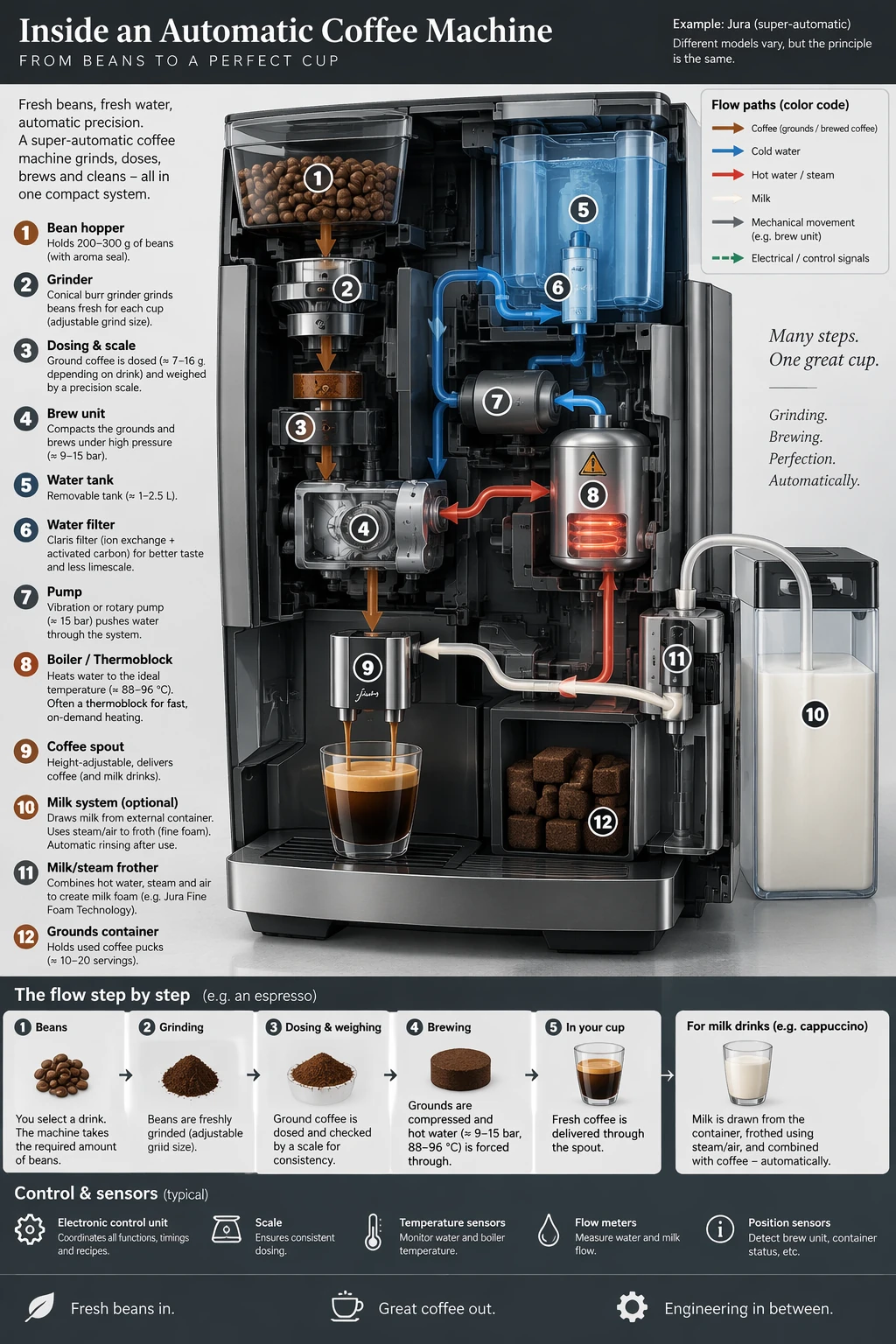
65.6 MB / 556×720 px / PNG /2860×2020 อินพุตภาพที่เผยแพร่ – ภาพประกอบเครื่องชงกาแฟจาก OpenAI ที่ใช้เป็นต้นฉบับ ในการค้นศัพท์สำหรับขั้นตอนการแปลภาพ โดยเป็นตัวอย่างที่“ได้สร้าง” ไม่เป็นผังเครื่องจริง ผู้ใช้ต้องดูตัวเลขและสเปกเป็นข้อมูลที่ต้องเก็บรักษาไว้ ไม่ใช่ข้ออ้างเชิงวิศวกรรมที่บทความนี้รับรอง
ไฟล์ภาพต้นฉบับEnglish, ส่วนหนึ่งของข้อมูลที่เปิดไลเซ่นเพื่อการทำการทดสอบการแปลภาพ
GPT Image แปลข้อความในภาพ: 5 ขั้นตอน
1. เตรียมต้นฉบับที่อ่านได้ และทำบัญชีรายการข้อความ
ใช้เวอร์ชันส่งออกที่ใหญที่สุดที่หาได้ ตรวจสอบหัวเรื่อง ป้ายเล็ก ตำนาน บางส่วนท้าย แต่ไม่ใช่จุดที่เข้าใจชัดเจนในใบงาน เมื่อไม่สามารถอ่านประโยคได้ ให้หามันให้ชัดก่อนขอให้โมเดลไปแปล ขยายภาพหน้าจอที่มัวไม่ตอบคำถามว่าตัวหนังสือที่หายไปคืออะไร
ในการวิเคราะห์ส่วนประกอบชุดนี้ ดูแผนภาพและป้อธิบายในส่วนประกอบชุดต้นฉบับ จะมีจำนวน 42 รายการ.
2. ระบุภาษา และภูมิกำเนิด และเนื้อหาที่ไมต้องแปล
เลือก “สเปน” สำหรับสเปน, “เยอรมัน” สำหรับเยอรมนี หรือ “จีนตัวย่อ” สำหรับจีน่าแผ่นดินใหญ่ ระบุยี่ห้อที่ต้องการคงตราเดิม ระบุให้ editor ว่าสามาห้อ line wrap หรือ ไม่ และองค์ประกอบที่จะต้องคงที่: ลูกศร ภาพประกอบ ตัวเลข สี และตำแหน่ง แ $"box"
เก็บต้นฉบับไว้นอกโฟลเดอร์ผลลัพธ์งาน เพื่อความแคมเปญจริงๆให้เก็บเวอร์ชันที่ผ่านอนุมัติเป็นข้อความแพล้นไว้เพื่อตรวจเทียบเนื้อหาโดยไม่ต้องอนุมานตัวอักษรซึ่งหน้าโดยตรง
3. ป้อนต้นฉบับเพื่อกำหนดผลลัพธ์
ที่ Atlas Cloud ไปที่ Sunburst Editor และโมเดล GPT Image 2.5 อัปโหลดภาพ European coffee machine ชนิดตั้งค่า openai/gpt-image-2.5-sunburst/edit, "quality" = max, size=1024x1536, output=png, background=opaque, และภาพ Expected number=1 โดยปล่อยช่อง Mask ว่างเพื่อให้ใช้ภาษาไทยามธรรมชาติ
นี่คือชุดทดสอบที่ต้องการ – ตรวจสอบให้ฟอร์มแสดงก่อนรัน และใช้การทดสอบที่มีต้นฉบับจะได้ไม่มีผู้เปิดเผย ภาพค่า 2:3 และ pages without distortion.
กรณี official Spanish guide ใช้ “high” ส่วนการทดสอบนี้ “max”คือการปรับจากตัวอย่าง ไม่ใช่ก็อป Exact param. คุณภาพสูงไม่ได้รับควรตามค่าไม่มีเปลี่ยน
4. วางพร้อมต์โดยสมบูรณ์, รัน, และดาวน์โหลด
ใช้ “Spanish” สำรับ run แรก เปลี่ยน neither instructions nor prompt ใน ขั้นทลอง รอให้รันเสร็จ และดาวน์โหลดไฟล์ที่สร้างจริง บันทึก prompt, ผลประเมินที่แสดง time & size เท่ากับ





