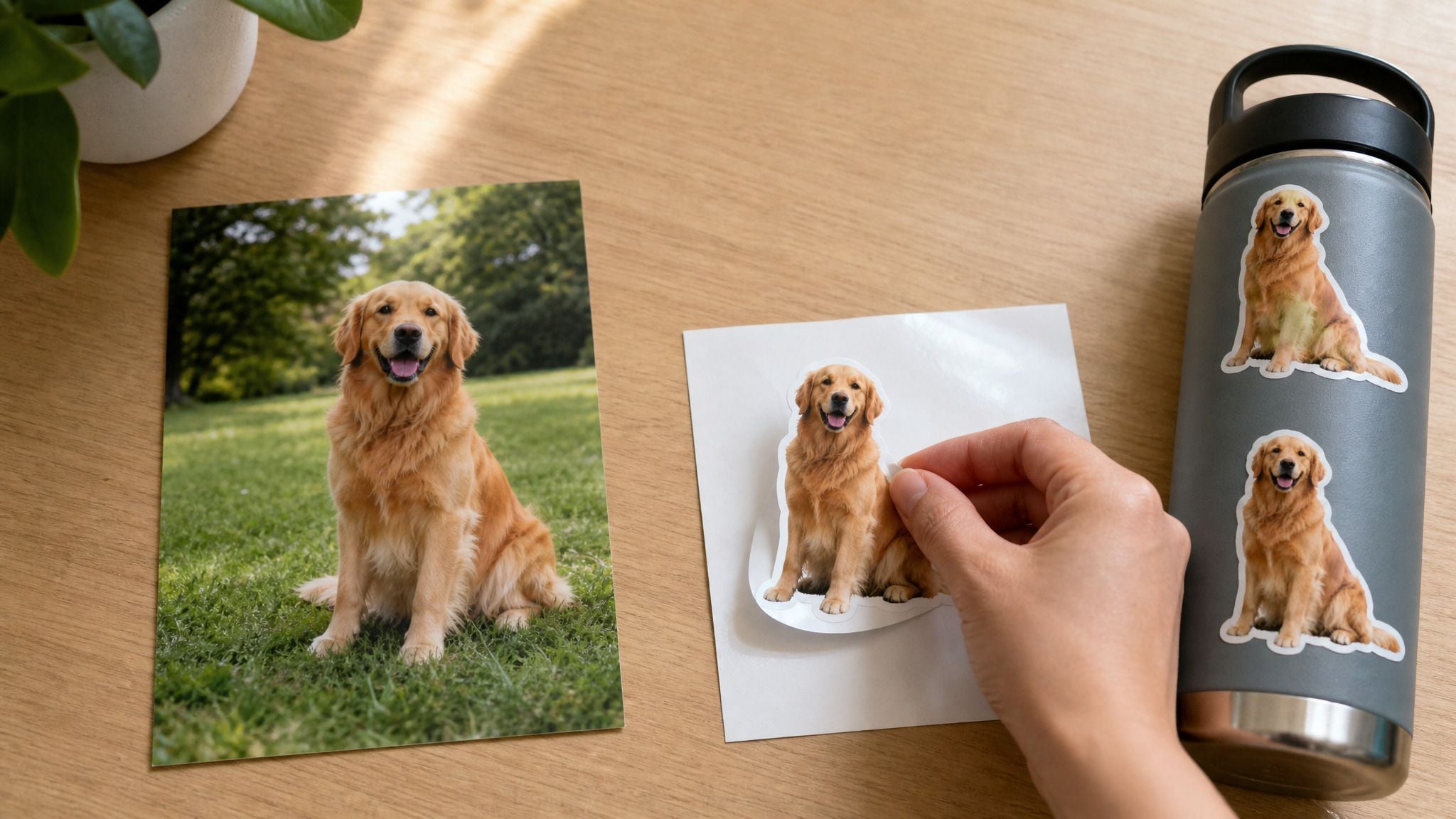
The dog photo is perfect. Ears up, tongue out, grass behind him. You want him as an emoji for the Discord server, a sticker for the family WhatsApp group, and a real die cut sticker for the laptop lid. Three destinations, three rulebooks, and the guides you find tend to cover one of them.
Here's the thing about photo to sticker work: the hard part is the same everywhere. Discord, Twitch, WhatsApp, Telegram, a print shop, and a Cricut all get easier once the subject sits alone on a transparent background. Get that single file right and what remains is resizing plus reading a spec sheet. This guide makes the cutout once with a free browser tool, then walks the same PNG through all six destinations using each platform's own published numbers.
Key Takeaways
- This guide builds one file first, the subject alone on a transparent PNG, and every destination below starts from that same cutout.
- Atlas Cloud'sfree AI background removermakes the cutout in the browser at the photo's original pixel size, with no watermark.
- Chat platforms want small squares: Discord emoji at 128 px, Twitch emotes at 112 px, WhatsApp and Telegram stickers at 512 px.
- Print wants 300 PPI and a cut line. The cutout supplies the shape, and the print shop or Cricut Design Space draws the border.
- Twitch'semote rulesbar other people's photographs and likeness, and WhatsApp requires stickers to be authorized, so stick to facesyouown.
How to Make a Sticker From a Photo in Three Steps
A sticker is a photo with the world removed. Whatever ends up on a chat window or a vinyl sheet, the first move is separating the dog, the kid, or the face from everything behind it, and that is the one step where a bad tool shows: chopped hair, a grey halo, a fringe of old background colour along the edge.
Atlas Cloud handles that step with a free background remover that runs in the browser tab, one of a small set of free AI tools on the platform that run without an account. The tool page names the sticker use case itself: "A sticker, a mug, or a cut vinyl decal needs the figure on its own with a clean outline to cut along." That clean outline is what the rest of this guide feeds to six different destinations.
Step 1: Cut the Subject Out of the Photo
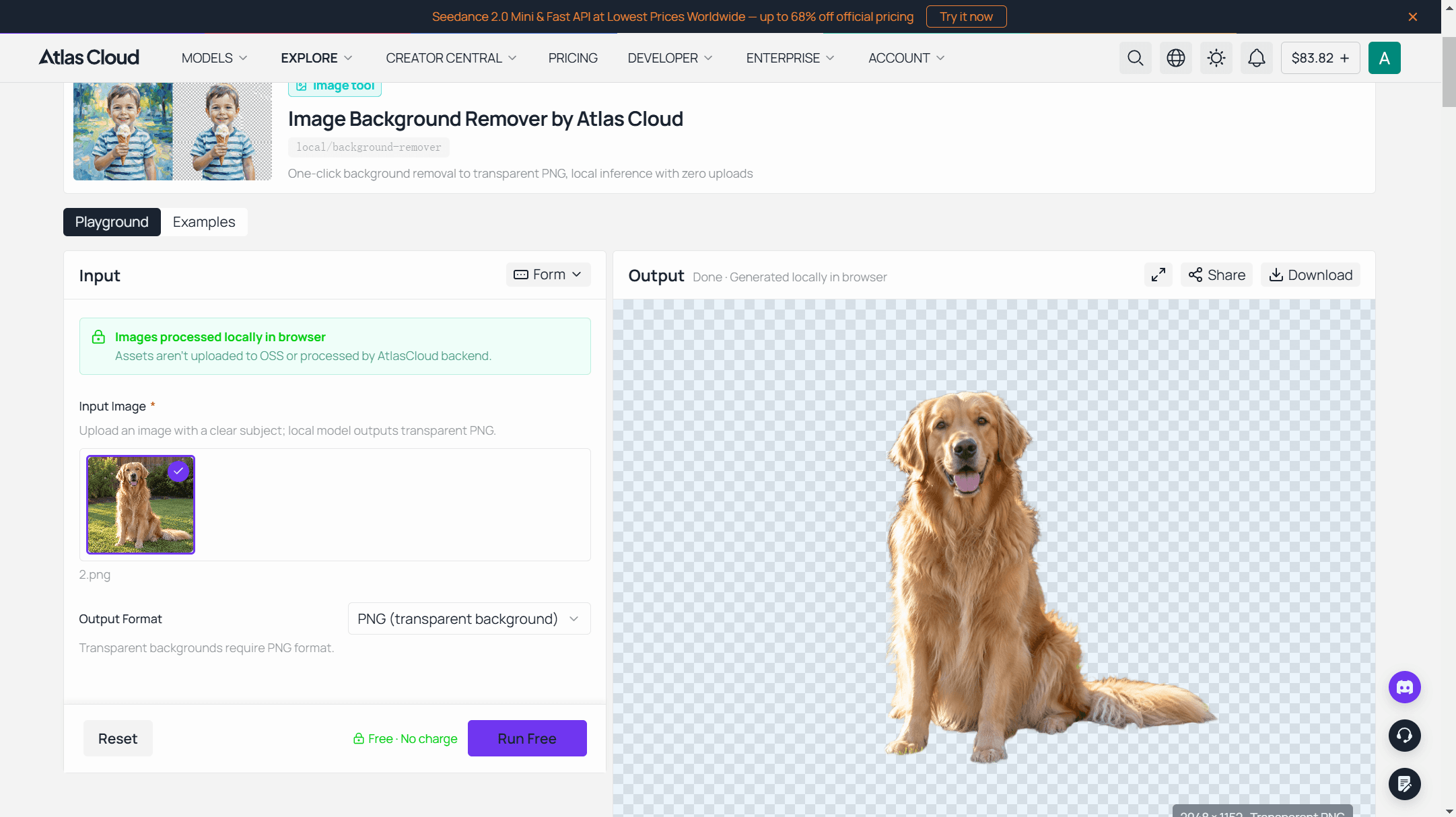
Drop the photo into the upload zone. The tool page also lists a Ctrl+V paste for images already on your clipboard, and names JPG, PNG, and WebP as accepted inputs. Click the run button, and the model builds the mask on its own, no lasso, no tolerance slider, no feathering value to guess.
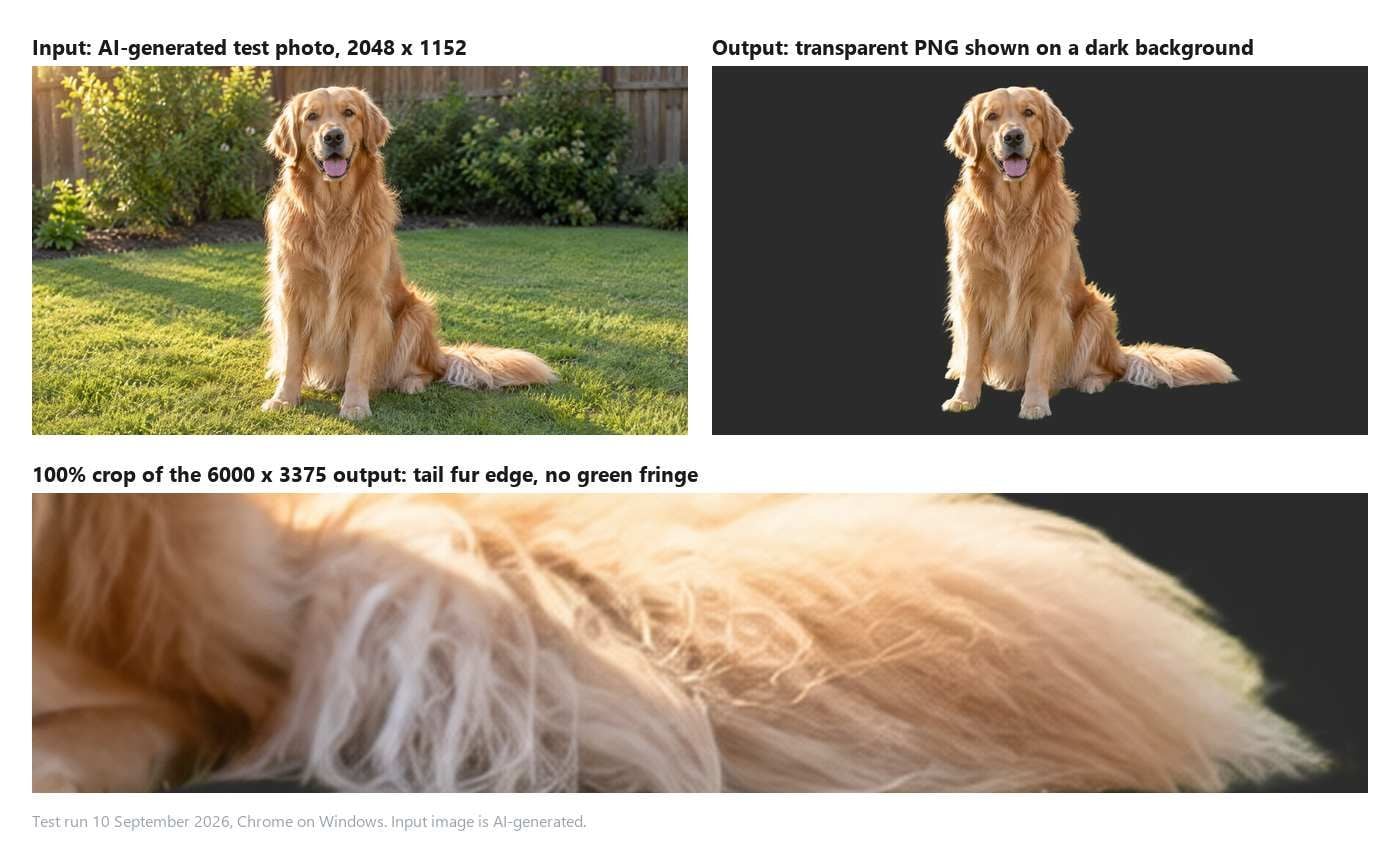
What comes back is a PNG with a real alpha channel at the pixel size you uploaded. In our 10 September 2026 test in Chrome on Windows, a 6000 by 3375 pixel input returned at 6000 by 3375, so a phone photo keeps every pixel it arrived with. The model runs locally in the tab, and that test run kept working with the network switched off.
The golden retriever is the sample for this guide. He came off a grass and fence background with the tail fur intact and no visible green fringe. In pixel terms, 79 percent of the output is fully transparent, and the semi-transparent band along the edge is one to three pixels wide (2.16 percent of the image), which is normal anti-aliasing rather than leftover background.
Three things this tool does not do, so you can plan for them: it does not resize to a platform canvas, it does not add a white sticker border, and it does not draw a cut line. Those happen in the destination's own tool or any image editor, and each section below says which.
Step 2: Resize the Cutout to the Destination Canvas
Keep the full-size cutout as your master and make copies for each destination. Discord, Twitch, and WhatsApp want a square canvas. Telegram wants 512 pixels on one side and lets the other side be shorter. Print wants inches at 300 pixels per inch, which we get to later.
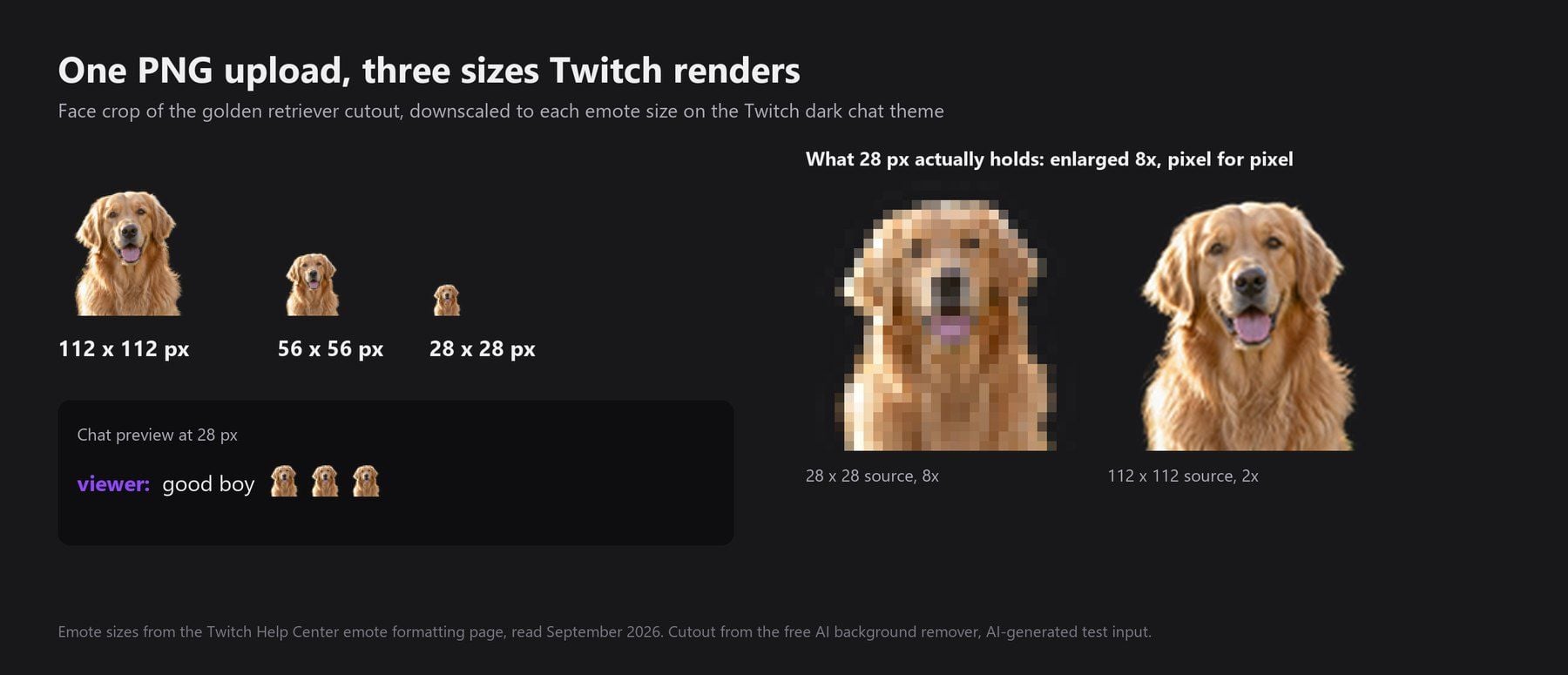
Any image editor does this part, including free ones like GIMP or the Photos app on a phone. Create a transparent canvas at the target size, place the cutout, and leave a little room around it so an ear or a shoulder does not touch the edge. For emoji and emotes, crop to the face before you shrink. A full-body dog at 112 pixels is a brown smudge. A face at 112 pixels is still a dog.
Step 3: Export a Transparent PNG, Not a JPG
This is a common source of white boxes. JPG has no alpha channel, so exporting a cutout as JPG flattens it onto white and the sticker arrives inside a rectangle. Export as PNG for Discord, Twitch, Telegram, and any printer. WhatsApp is the exception and wants WebP, which also carries transparency; check your editor's export menu for it.
One more check before uploading: open the exported file over a dark background. If the edge shows a pale rim, the export was flattened somewhere. Go back to the master PNG and export again.
Discord Emoji Maker Sizes: 128 Pixels, 256 KB, Auto Resize
Same PNG, smallest canvas. Discord's own emoji guide puts the target at "128x128. Bigger or smaller will work, but 128x128 is juuuust right." The file limit is 256 KB, and the same guide says an oversized upload gets compressed rather than rejected. Accepted formats are JPEG, PNG, GIF, WEBP, and AVIF, and Discord resizes whatever you upload, so a larger square PNG of the cropped face works fine.
Size is rarely the problem at this scale. A 128 by 128 PNG holds 16,384 pixels, which is under 70 KB even before compression, so a photo cutout lands well inside the cap. Legibility is the problem. Custom emoji render tiny in chat, so the crop you made in Step 2 matters more than the export settings.
Slot counts depend on the server. Discord's guide lists 50 standard plus 50 animated emoji slots on an unboosted server, rising to 100, 150, and 250 of each at boost levels 1, 2, and 3. Using a server's custom emoji inside a different server needs Nitro.
Discord also has a separate sticker feature with its own rules, and it is easy to confuse the two when your cutout could be either. Discord's sticker guide specifies 320 by 320 pixels exactly, PNG for static and APNG or GIF for animated, a 512 KB cap, and 5 sticker slots on a plain server rising to 15, 30, and 60 with boosts.
| Discord custom emoji | Discord sticker | |
|---|---|---|
| Canvas | 128 x 128 recommended, auto-resized | 320 x 320 exact |
| Formats | JPEG, PNG, GIF, WEBP, AVIF | PNG static, APNG or GIF animated |
| File cap | 256 KB, compressed if larger | 512 KB |
| Slots, no boost | 50 static + 50 animated | 5 |
| Slots, boost level 1 / 2 / 3 | 100 / 150 / 250 of each type | 15 / 30 / 60 |
Source: Discord's published emoji and sticker guides, read September 2026.
Twitch Emote Maker Rules: 112 Pixels, PNG, Fully Transparent
Twitch pins the format down harder than Discord and reviews what you upload, so the same cutout needs a little more care. The Twitch Help Center's emote formatting page allows two upload routes: "a single PNG between 112 x 112px and 4096 x 4096px, or three image sizes: 28 x 28px, 56 x 56px and 112 x 112px." The image must be square, "The file size cannot exceed 1MB," and the page asks you to "submit your emote with a fully transparent background."
That last line is the one a JPG export breaks. Static emotes must be PNG under Twitch's formatting rules, so the PNG from Step 3 is the file to upload.
The auto-resize route is the easy one for a photo cutout. Upload one square PNG of the face at, say, 512 pixels, and Twitch generates the 28, 56, and 112 pixel versions. Before you upload, do what the page tells you: view the emote at 100 percent and check that the lines stay clear. Fine detail that reads at 112 pixels can vanish at 28, which is why the three-size mockup below is worth building for your own emote before submission.
Animated emotes follow separate rules on the same page: GIF only, square, 60 frames maximum, no flashing more than 3 times in a second, and a 512 KB cap per size if you upload the three sizes manually.
Review is where photo emotes need a second thought. Affiliates earn instant upload after 60 unique streaming days in a rolling year; before that, each emote is reviewed by automation or by a person before it goes live. Twitch's Emote Guidelines list content you may not use without permission, including "Another person's artwork or photographs" and "The likeness of another person (such as the face of a celebrity or athlete)." Your own face and your own dog are yours. A screenshot of a streamer you like is not.
WhatsApp Sticker Maker Specs: 512 Pixels, WebP, Under 100 KB
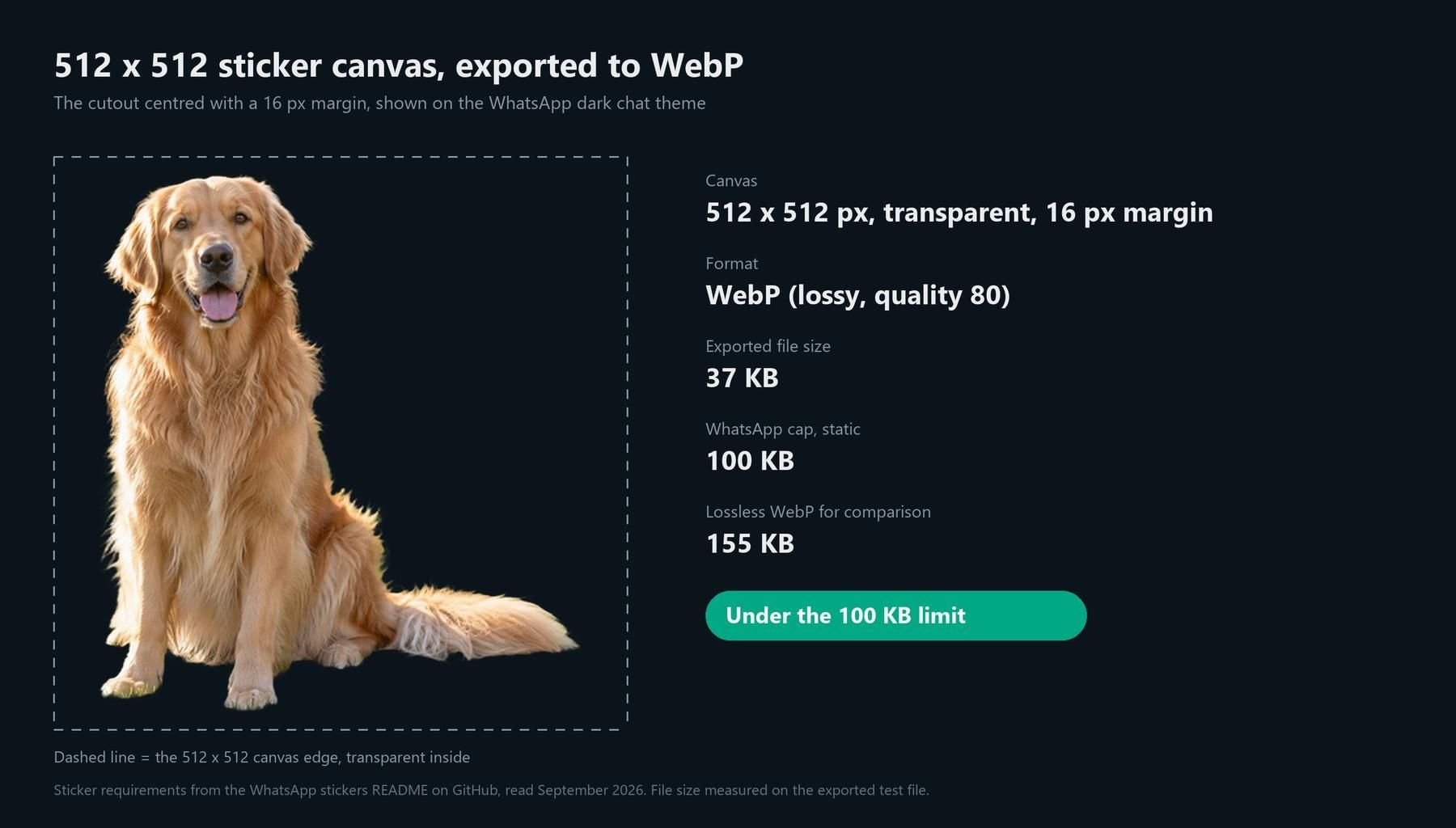
The canvas grows and the format changes. WhatsApp publishes its sticker rules in the WhatsApp stickers README for pack developers: "Stickers must be exactly 512 x 512 pixels," "Stickers must be in the WebP format," and "Each static sticker must be less than or equal to 100KB." Animated stickers get 500 KB. A pack needs a 96 by 96 pixel PNG tray icon under 50 KB, and "a minimum of 3 stickers and a maximum of 30 stickers."
So the 512 pixel copy from Step 2 gets exported as WebP instead of PNG. A photo cutout at that size saved as lossy WebP usually lands comfortably under 100 KB; if yours does not, drop the WebP quality setting a notch and export again. Transparency survives the format change.
WhatsApp also builds stickers from photos inside the app now. Its Help Center describes the flow for current Android and iOS versions: tap the sticker icon in a chat, choose Create, pick a photo from your gallery or take one, choose one of the preset options, then add emoji, text, or a drawing before sending. A long-press on any sticker adds it to a pack. WhatsApp's Help Center also states that stickers must be legal, authorized, and acceptable under its Terms of Service.
Why bother with the browser cutout, then? Three situations. The photo lives on a desktop, so the master file starts there. You want the same edge quality across every platform instead of a different automatic cut in each app. Or you plan to print the same dog later and need the full-resolution master, which a 512 pixel in-app sticker cannot give back.
Telegram Sticker Maker Path: 512 Pixels on One Side, Then the Stickers Bot
Telegram uses the same 512 pixel scale as WhatsApp but relaxes the shape. Its sticker specification says a static sticker "must be in either .PNG or .WEBP format," and that "one side must be exactly 512 pixels in size," while the other side can be 512 pixels or shorter. A tall portrait cutout therefore needs no padding into a square; scale it so the long side is 512 and upload.
Transparency is a recommendation rather than a rule here. Telegram's own wording is that "a transparent background, white stroke and black shadow effect will make your sticker stand out." The white stroke is the classic sticker look, and the tool from Step 1 does not add it, so draw one in your editor if you want it: select the subject, grow the selection by a few pixels, fill the ring white underneath the cutout.
Packs are published through Telegram's Stickers bot, which the specification page points to for uploading your PNG or WEBP files. Telegram has also had a built-in sticker editor since April 2024; the announcement on Telegram's blog describes "one tap to cut out objects and remove the background," with manual erase and restore and an optional outline. As with WhatsApp, that covers one-off phone stickers.
Animated (.TGS) and video (.WEBM) stickers have their own limits, which the FAQ below covers, since a still photo cutout is static by nature.
| WhatsApp static sticker | Telegram static sticker | |
|---|---|---|
| Canvas | Exactly 512 x 512 | One side exactly 512, other side 512 or less |
| Format | WebP | PNG or WEBP |
| File cap | 100 KB | Not stated for static stickers |
| Transparent background | Required; the README defines a sticker as an image with a transparent background | Recommended, with white stroke and shadow |
| Pack size | 3 to 30 stickers | Created through the Stickers bot |
| Built-in editor from photos | Yes, Android and iOS | Yes, since April 2024 |
Source: WhatsApp stickers README and Help Center, Telegram sticker specification and blog, read September 2026.
Die Cut Sticker Files: 300 PPI, Bleed, Cut Line
Pixels become inches. Up to this point the cutout only had to look right on a screen. A print shop needs enough pixels to cover physical paper, and it needs to know where to cut.
The vocabulary first, from Sticker Mule's support pages. A die cut sticker is "cut into a unique custom shape to fit a logo or piece of artwork," so the finished piece is the dog's silhouette with nothing around it. A kiss cut sticker is cut through the vinyl only, and it peels off a rectangular backing that stays intact, which protects thin edges like tail fur and gives space for a label. Both start from the same file.
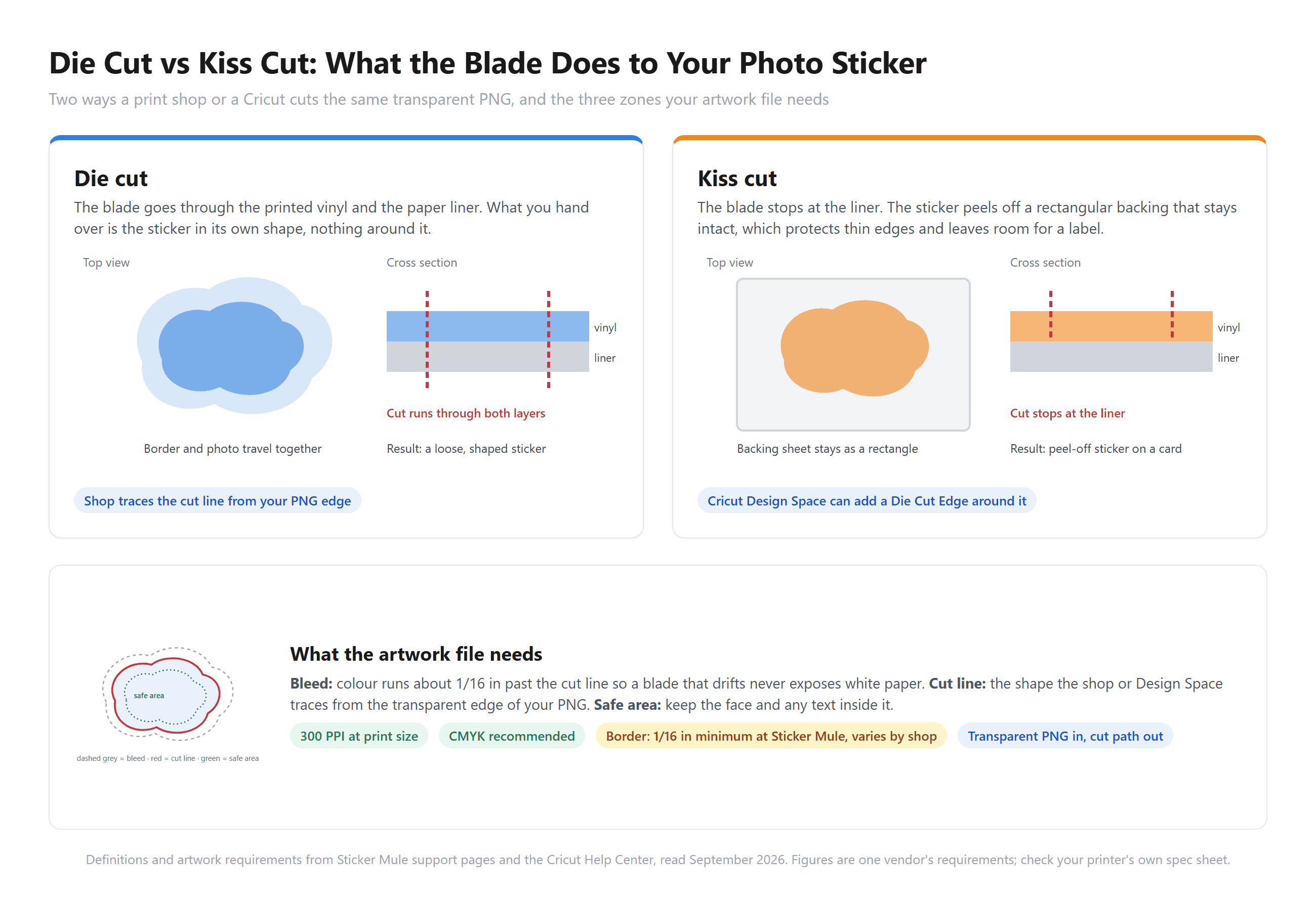
Sticker Mule's artwork requirements ask for "at least 300 PPI" at the final print size, recommend CMYK colour, and set a bleed of 1/16 inch past the cut line with a 1/16 inch minimum border. Other shops publish their own numbers, so read the spec sheet of the printer you actually order from. The transparent PNG is what makes the cut line cheap: the shop traces the edge of the alpha channel, adds the border, and sends you a proof. You do not draw the die line yourself.
The pixel maths is the part people skip. A 3 inch sticker at 300 PPI needs 900 pixels across the dog. Our 6000 pixel wide test cutout could print 20 inches across, which is why Step 1 keeps the original size instead of shrinking to a preview. A face cropped out of a group photo at 400 pixels prints at 1.3 inches and no wider. If that is where your source sits, the guide on how to increase image DPI covers upscaling before you order.
Cricut PNG for Print Then Cut: Flat Graphic, Border, Page Limits
With a Cricut you are the print shop, so the cut line and the border become your job, and Design Space has tools for both. The Cricut Help Center lists the raster types it accepts on upload: .jpg, .bmp, .png, .gif, and .heic. Pick the transparent PNG and Design Space opens the Basic image flow, where Select, Erase, and Restore tools clear unwanted background and a checkerboard marks areas that will not cut.
Here is where the cutout from Step 1 pays off. Design Space offers an Automatic Background Remover on that screen, and the Help Center marks it "exclusive to Cricut Access subscribers." A PNG that arrives already transparent skips the step entirely. Use Preview Single Layer to confirm the cut shape follows the dog, then choose Flat Graphic, which Cricut describes as "a single layer, full-color image (for Print Then Cut projects with a home printer)."
The border comes from the Create Sticker tool. Select the image, open Create Sticker, and choose Die Cut, which "cuts around your design all the way through the material and liner," or Kiss Cut, which "cuts through the printable layer only, leaving the liner intact." The same panel adds a border, Cricut's word is offset, with a size and colour you set, and Kiss Cut gets an optional Die Cut Edge so a single sticker can be torn off and handed over.
Size limits are per machine and per page, and the Cricut help page that lists them was last edited in August 2026, so check the current table rather than an old forum post. On Letter paper the maximum Print Then Cut area is 9.94 inches tall by 7.44 inches wide for Explore, Maker, Venture, and Joy Xtra machines; on A4 it is 10.62 by 7.2 inches. Cricut Joy 2 cuts the same height but only 3.19 inches wide on Letter.
If a design runs over, Design Space flags it in the Layers panel and offers Auto-Resize or a larger page size.
Two hardware notes from the same pages: printable sticker materials are for inkjet printers only, and the original Cricut Joy cannot Print Then Cut at all.
Frequently Asked Questions
Can my iPhone already turn a photo into a sticker?
Yes, for messaging. Apple's iPhone User Guide describes the flow in the Photos app: touch and hold the subject, tap Add Sticker, and optionally tap Add Effect for an Outline, Comic, or Puffy finish. The sticker then lives in the sticker menu on the keyboard and in Markup, ready for messages, notes, and photo markup. It is not a file you can hand to Twitch, drop into a Discord server's emoji settings, or send to a print shop at full resolution, which is what the browser route is for.
Why does my sticker have a white box around it?
The transparency was lost on export, either because the file went out as JPG or because an editor merged the cutout layer onto a background before saving. Go back to the master PNG, export again as PNG (or WebP for WhatsApp), and check the file over a dark background before uploading.
Do stickers need a white border?
Discord and Twitch do not ask for one, and a tight face crop usually looks better without it at emoji size. Telegram recommends a white stroke and shadow but does not require them. For print, the border is the offset the shop or Design Space adds around your cut line, so you rarely draw it yourself. If you want the border on a chat sticker, grow a selection around the subject in your editor and fill it white beneath the cutout layer.
Can I make an animated sticker from a photo this way?
No. The cutout is a still image, and each platform's animated format is different: GIF for Twitch and Discord emoji, APNG or GIF for Discord stickers, animated WebP under 500 KB for WhatsApp, and .TGS or .WEBM video stickers for Telegram, which caps video stickers at 3 seconds and 256 KB. On iPhone, Apple's guide notes that a Live Photo can become an animated sticker in Messages.
Is the photo to sticker tool free to use?
The background remover is free to use, needs no account, and adds no watermark. The resizing, the WebP conversion for WhatsApp, and the sticker border happen in the destination's own tool or an image editor, so the whole route from photo to finished chat sticker can run on free software. Costs start when a print shop or a roll of vinyl enters the picture.
Conclusion
The dog from the opening paragraph went to six places, and the work was front-loaded into one file. Once he sat alone on a transparent PNG at full size, Discord took a 128 pixel crop, Twitch took a 112 pixel PNG with a clean edge, WhatsApp took a 512 pixel WebP, Telegram took a 512 pixel PNG with a white stroke, and the printer took the whole 6000 pixels with a cut line traced from the edge.
That order is the whole method. Cut once, keep the master, then read the destination's own numbers before you resize and export. Do that and photo to sticker stops being six separate projects and becomes one cutout with six exports.





