The clip runs 47 seconds. The upload screen wants a minute. You have watched it four times now, hoping it grew. Figuring out how to make a video longer comes down to one decision: do you stretch the frames you already have, or do you add frames that never existed? Slow motion, loops, freeze frames and B-roll all fall on the first side, and each one has a cost in audio or smoothness that this guide spells out. AI extension sits on the second side, and it is the right call only when the shot itself has to keep going. The sections below start with the AI route for shots that have to keep going, then work through the four editing fixes and the iPhone.
Key Takeaways
- Slowing a clip to half speed doubles its length, and it stays smoothest when the footagewasshot at a high frame rate orrunthrough optical flow.
- A loop, a freeze frame or a few seconds of B-roll adds time without new footage, and each hides best at a natural pause in the action.
- OniPhone, the Photos app trims and adjusts Slo-mo clips. Speed changes and freeze frames live in iMovie.
- When the shot has to keep going, the Video Extend tab in the Atlas Cloud video generator continues it from the last frame.
- Platform rules decide how long is long enough: TikTok's Creator Rewards needs at least one minute, and YouTube counts vertical uploads up to three minutes as Shorts.
What Makes a Video Longer Without Reshooting It
Every way to make a video longer does one of two things. It either replays or slows the frames you already shot, or it manufactures frames you never shot. The first group costs nothing beyond the editor you already have and keeps the footage honest. Short of a reshoot, the second group is the only option when the subject has to do something new on screen.
The reason this matters is usually a platform threshold. TikTok's Creator Rewards Program lists "Post videos that are at least one minute long" among its requirements, according to the TikTok Support page for the program. YouTube Help says that since October 15, 2024, any upload with a square or vertical aspect ratio up to three minutes in length counts as a Short. A clip that misses one of these marks by ten seconds does not need new footage. It needs the right one of the five fixes below, so find your clip in the last column.
| Method | Time it adds | Needs new footage | Best for |
|---|---|---|---|
| Slow motion | 2x at half speed, more at lower speeds | No | Action shot at 60 fps or in Slo-mo mode |
| Loop or bounce | Any multiple of the clip | No | Ambient motion that still looks right in reverse |
| Freeze frame | A few seconds per hold | No | A clip that pauses or ends on a still moment |
| B-roll, intro, outro | As long as your spare material | Only what you already have | Talking heads and tutorials with cuts to cover |
| AI extension | 2 to 10 seconds per pass | No, the model generates it | A shot whose action has to keep going |
Pick by what the clip is for. A product demo that needs nine more seconds of the same table wants a freeze or B-roll. A dance clip that stops mid-move wants AI extension.
How to Extend Video With AI When the Shot Has to Keep Going
Four of the five fixes in that table stretch, repeat or surround the frames you shot. None of them can make a skateboarder reach the railing if the clip ends before she gets there. When you need to extend video past the moment the camera stopped, the frames have to be generated, and that is the one job Atlas Cloud does in this story.
Its AI video extender reads the last frame of your upload and generates the next 2 to 10 seconds in the same shot, keeping the audio on the original portion. The default model in the Video Extend tab is Grok Imagine, part of the xAI model family on Atlas Cloud. It takes an mp4 of 2 to 15 seconds and returns up to 720p at the source's aspect ratio.
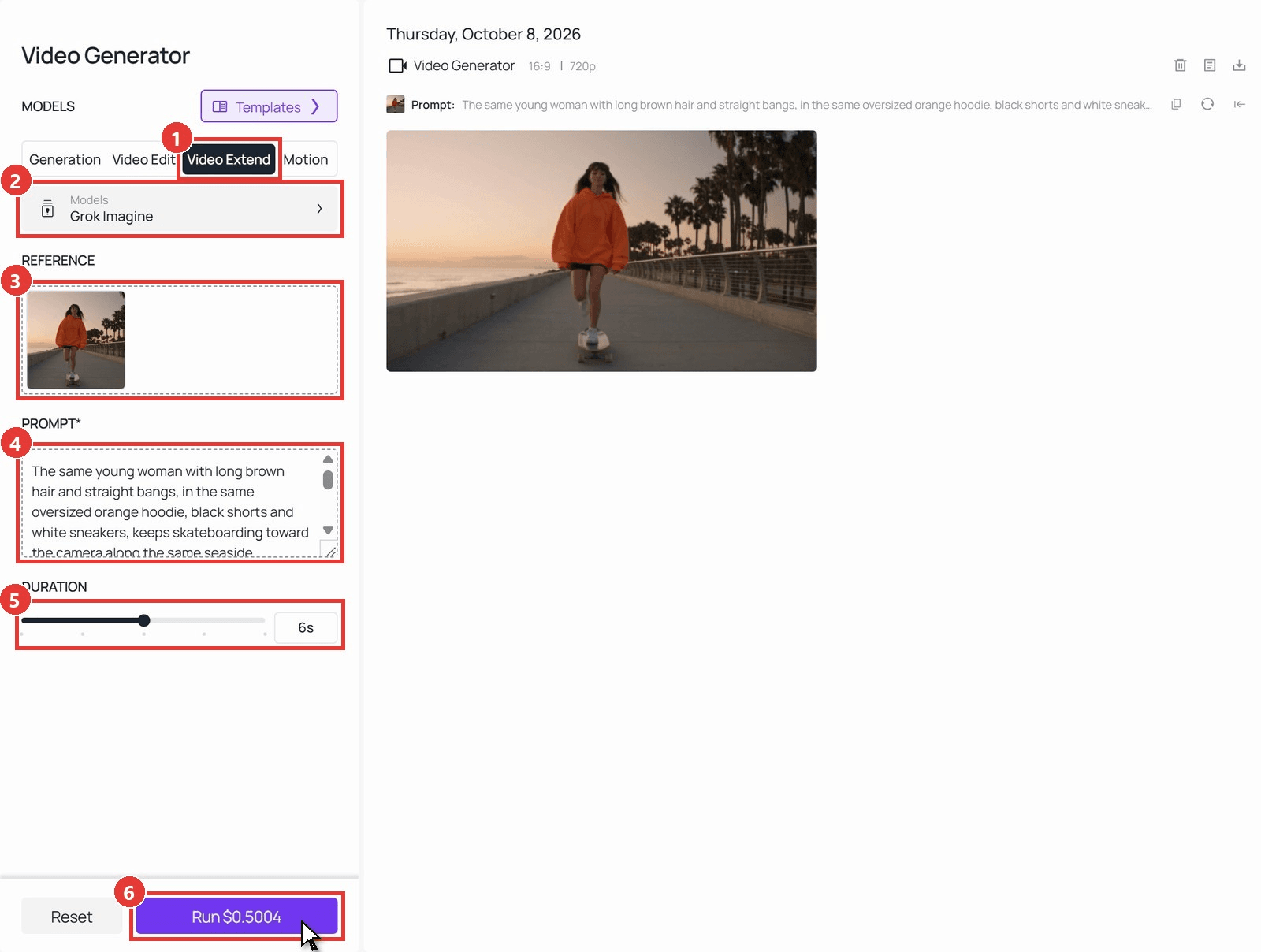
Here is the run behind the demo below, step by step:
- Open the Video Extend tab in the video generator.
- Leave Grok Imagine selected in the model menu.
- Upload the clip under Video to extend.
- Write the prompt for what happens next.
- Drag DURATION to the number of seconds to add, anywhere from 2 to 10.
- Click Run. The result panel returns the original clip with the new seconds attached.
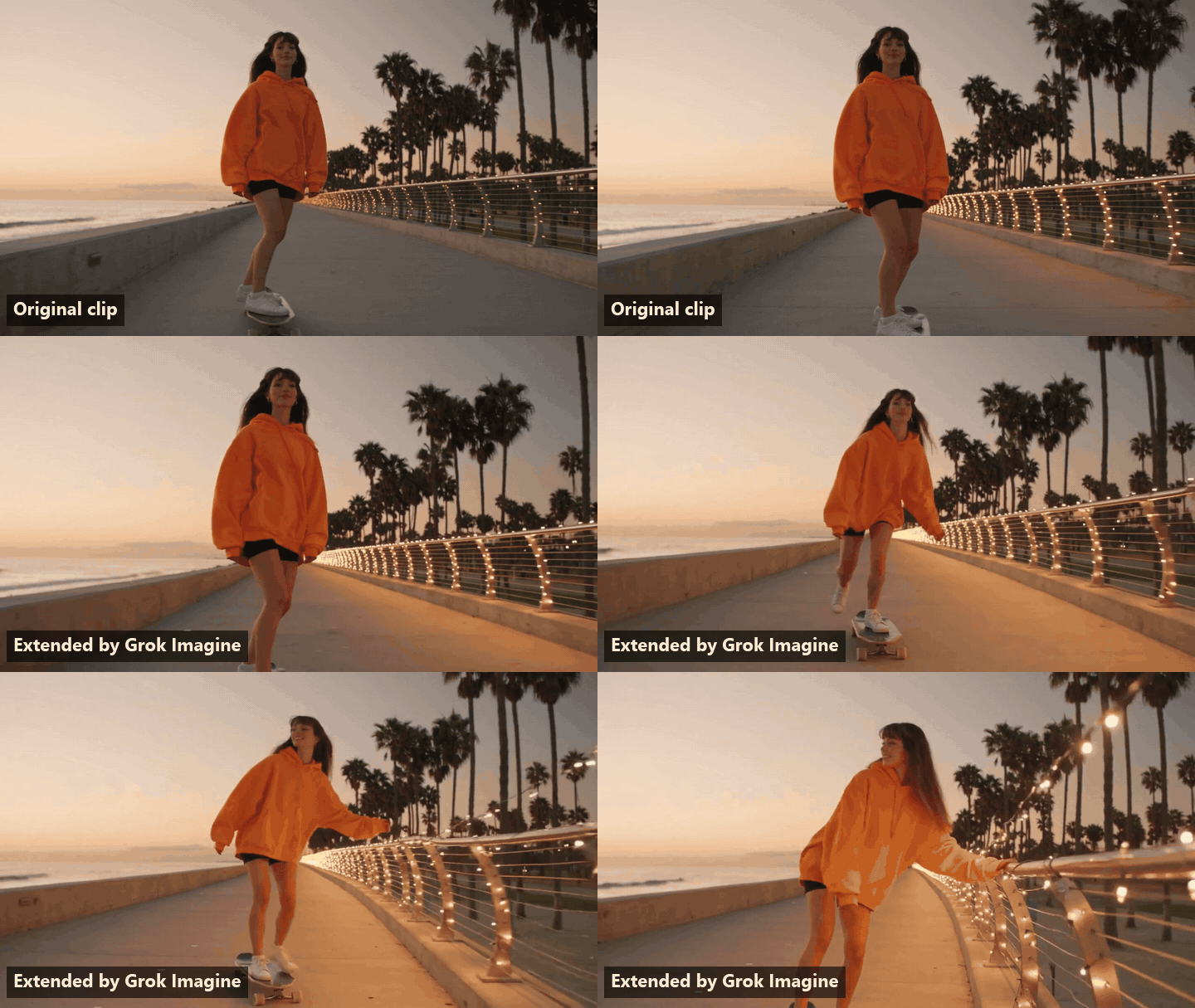
We generated the 8-second source with Seedance 2.5 and asked Grok Imagine for 6 more seconds in which she reaches the railing and stops. The join sits at the 8-second mark, and the hoodie, the long hair and bangs, the dusk light and the camera's tracking speed carry across it. That is what the four editing fixes below cannot do: the action continues instead of pausing or repeating.
The prompt does the steering. Describe the same person, clothing and light, then one new action, and the model treats the final frame as the first frame of a continuation. Our AI video extender guide covers the other three models in the dropdown and how to keep a character from drifting across chained passes.
How to Make a Video Longer With Slow Motion
When the clip only needs to fill time, go back to the frames you already have. Slow motion takes one slider to make video longer, and it is easy to get wrong. Set a 20-second, 30 fps clip to 50% speed and it becomes 40 seconds. The question is where the extra 600 frames come from, because the camera only captured 600 in the first place.
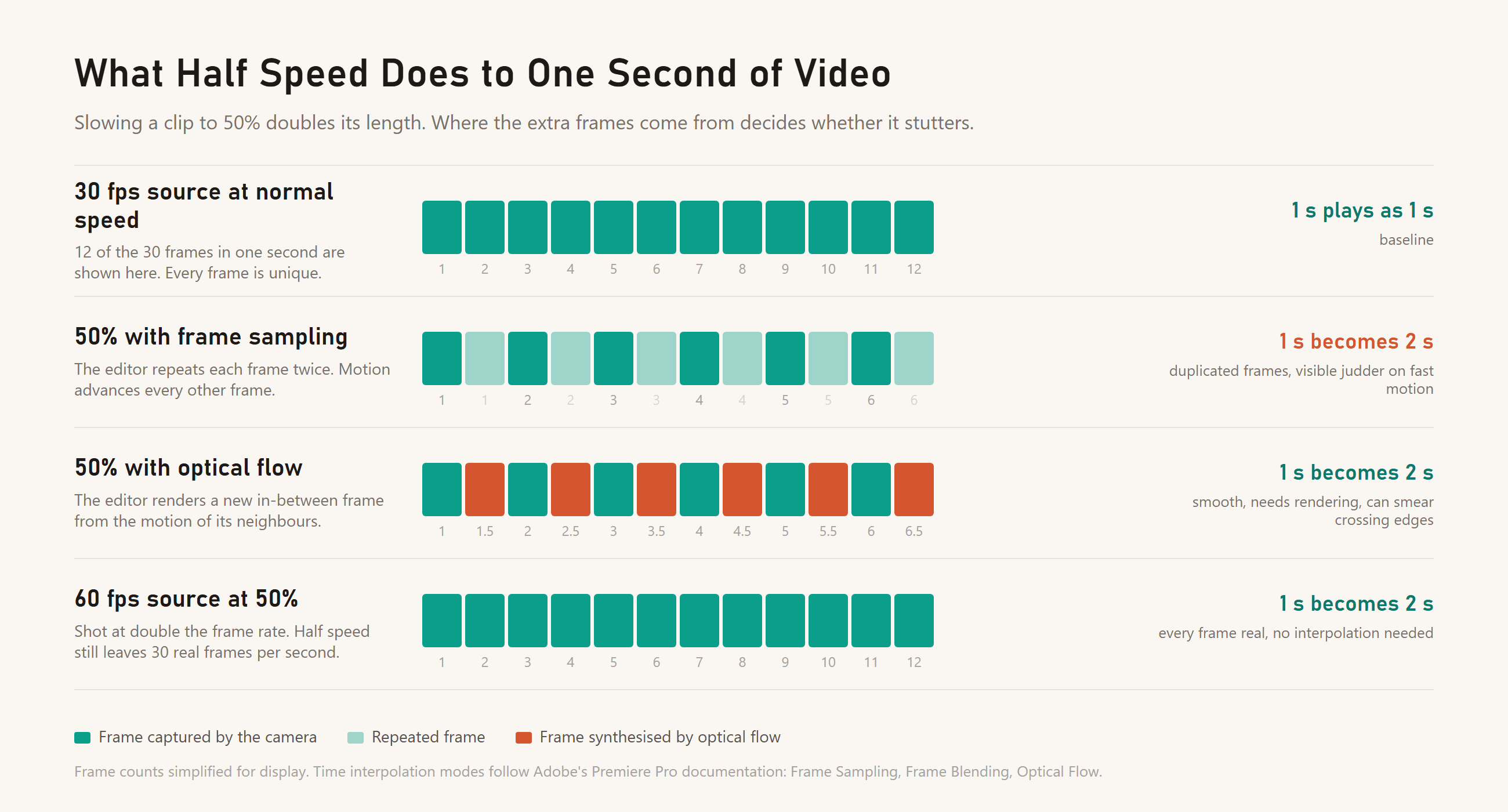
The basic method repeats frames. At 50% speed each captured frame plays twice, so motion advances every other frame and anything moving fast looks like it is stepping rather than gliding. Adobe's Premiere documentation lists three time interpolation modes in the Speed/Duration dialog: Frame Sampling, Frame Blending and Optical Flow.
Optical Flow analyses the motion between frames and generates new ones in between. Adobe rates it the smoothest of the three and best for footage with clear motion and defined edges.
The clean route is to shoot for it. A 60 fps clip slowed to 50% still shows 30 real frames every second, so there is nothing to interpolate. If you know a clip will need to run long, record it at 60 fps or in your phone's Slo-mo mode and decide the speed later.
Two more things change when you slow a clip. Dialogue drops in pitch unless the editor corrects it, and background music stretches into a drone, so a slowed clip usually needs a fresh audio bed. And a slowed clip can look soft, because the viewer now has twice as long to study each frame. If that happens, the fix is a sharpening pass rather than a different speed, and our guide on fixing a blurry video walks through it.
How to Lengthen a Video With a Loop or a Freeze Frame
When slowing the clip would ruin the pacing, the next way to lengthen a video is to reuse frames at full speed. A loop replays them. A freeze frame holds one of them. Both take seconds in a timeline editor, and both hinge on where you put the join.
Loop the Clip Forward and Back
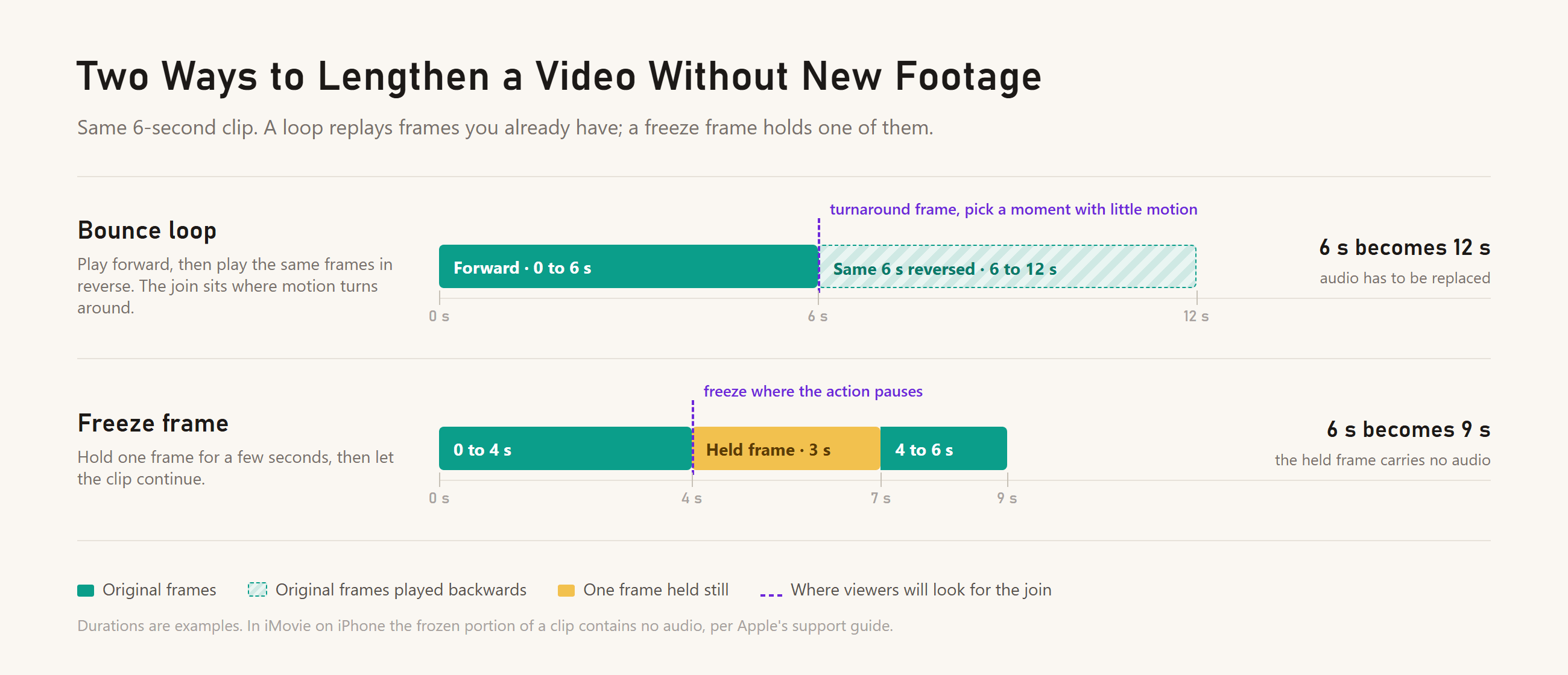
A straight loop cuts from the last frame back to the first, and unless the clip was shot to loop, that cut is a jump. A bounce loop avoids the jump by playing the clip forward, then playing the same frames in reverse. The last frame of the forward pass is the first frame of the reverse pass, so there is no visible cut. What viewers do see is the motion turning around. Water flowing backwards, a person un-sitting into a chair, text un-typing: all of it reads as a loop within a second.
Bounce loops work on motion that looks plausible both ways. A slow camera drift across a room, hair moving in wind, a drone hovering, steam rising and then sinking. Cut the forward segment so the turnaround lands on the frame with the least motion, and the reversal is easy to miss. Reversed audio plays backwards too, so plan on a new track.
Hold a Frame Where the Action Pauses
A freeze frame pauses the clip on one frame for however long you need, then resumes. It hides best when the frame you hold is already still: a person finishing a sentence, a product set down on a table, a landscape between camera moves. Freeze mid-step and the hold reads as a glitch.
In iMovie on iPhone the frozen portion carries no audio, as Apple's guide notes. Use that. A three-second hold is the natural spot for a caption, a price or a voiceover line, and the silence stops being a problem once something is happening over it.
How to Extend a Video With B-Roll, Intros and Outros
Slow motion, loops and freezes all reuse frames from the same shot. The next way to extend a video reaches for footage you already have but did not use. Cutaways, a cold open, a title card and an end card can turn a 40-second clip into a 70-second video without touching the main take, and the original audio stays exactly where it was.
| What to add | Typical length | Where it goes | What you need |
|---|---|---|---|
| Cold open | 3 to 5 seconds | Before the title | A striking moment pulled from later in the same video |
| Title card | 2 to 4 seconds | After the cold open | Text over a still or a few seconds of B-roll |
| B-roll cutaway | 2 to 6 seconds each | Over a jump cut or a slow stretch of the main take | Second-angle shots, hands, details, the room |
| End card | 5 to 10 seconds | After the last line | A still frame or looping B-roll with a call to action |
B-roll earns its place when it covers a problem. Every jump cut in a talking-head clip is a spot where two seconds of a second angle hides the edit and adds two seconds. A long pause while you reach for something becomes a close-up of the thing. The viewer experiences a longer, smoother video, and nothing was slowed or repeated.
The cold open is the addition that earns its seconds twice. Pull the best three seconds from minute two, put them at the very top, cut to the title, and the video is five seconds longer with a stronger hook than it had before. Intros and outros should be measured against the clip, though. A 20-second title sequence on a 50-second video is padding, and viewers treat it as padding.
How to Make a Video Longer on iPhone
Half the people searching how to make a video longer on iPhone want to do it without leaving the phone, and the phone can do most of it. The split is between two apps. Photos handles trimming and Slo-mo clips. Everything that adds time to a normal clip happens in iMovie, which Apple distributes free.
What the Photos App Can and Can't Do
Open any video in Photos, tap Edit, and the frame viewer under the video has handles at both ends. Dragging them trims the clip, and tapping Done offers Save Video or Save Video as New Clip. That is the whole toolset for normal clips: Photos cuts time out, it does not put time in.
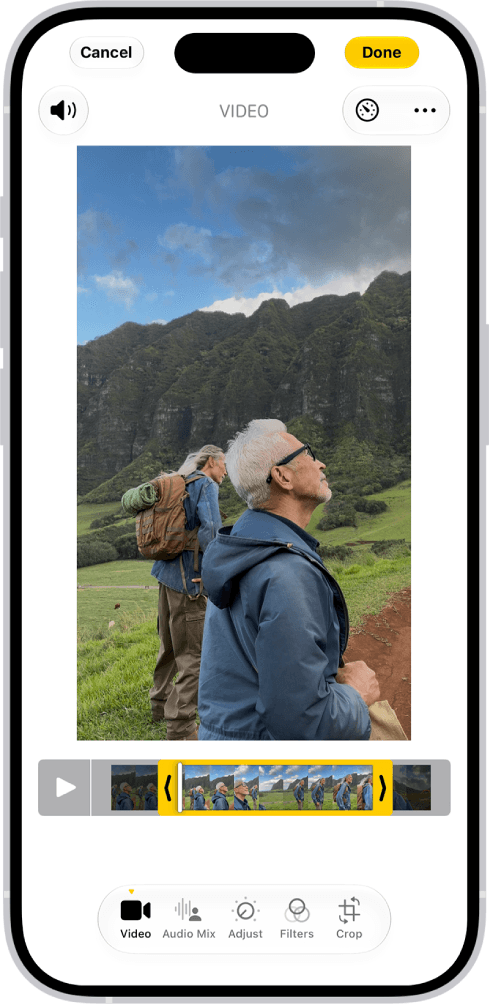
Screenshot from Apple's iPhone User Guide , Trim video length, adjust speed, and edit audio on iPhone.
Two kinds of clip are the exception. For a video shot in Slo-mo mode, Apple's guide says to drag the black vertical bars beneath the frame viewer to set where the video plays in slow motion. Widen that range and the clip gets longer, at full smoothness, because the camera recorded the extra frames. The other exception is footage captured at a high frame rate: tap Video in the Edit screen, then the Playback Speed button, and pick a speed. Apple notes that "the larger the format you capture, the more options are available." Apple ties both controls to how the clip was captured, so a standard 30 fps clip is the moment to switch apps.
Slow Down or Freeze a Clip in iMovie
iMovie on iPhone puts both lengthening tools behind one button. Open a project, tap the clip in the timeline, then tap Speed. A yellow bar with range handles appears along the bottom of the clip.
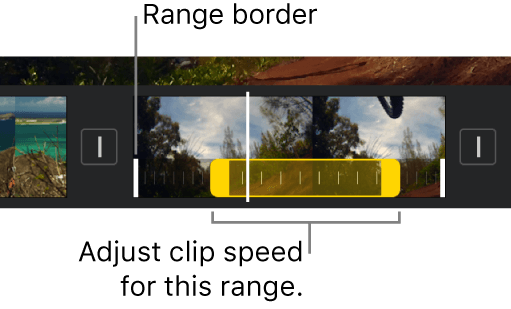
Screenshot from Apple's iMovie User Guide for iPhone , Adjust video speed in iMovie on iPhone.
Drag the slider left to slow the clip down. The speed shows under the clip as you drag, and Apple's guide spells out the scale: "2x means twice the normal speed, 1/2x means half the normal speed, and so on." Drag a range handle inward, or tap Add, and the slowdown applies to only part of the clip, so a 15-second clip can run at normal speed, drop to half speed for the five seconds that matter, and pick up again. Apple also notes that iMovie preserves the pitch of slowed audio by default, which keeps a voice from turning into a growl. Reset returns the clip to normal speed.
Freeze lives in the same inspector. Touch and hold the clip, swipe to the frame you want to hold, tap the clip, tap Speed, then tap Freeze. The frame holds, attached to the clip on both sides, and the yellow handles set how long it lasts.
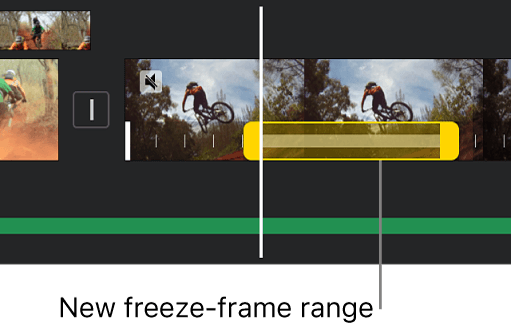
Screenshot from Apple's iMovie User Guide for iPhone, Adjust video speed in iMovie on iPhone.
To remove a hold, tap anywhere in the frozen range, then tap Freeze again. For a bounce loop on iPhone, Apple's iMovie guide lists no reverse option, so duplicate the clip, reverse the copy in a third-party editor, and place it after the original.
Frequently Asked Questions
How do I make a video longer without it looking stretched?
Keep speed changes on a 30 fps clip small unless the editor offers optical flow or the clip was shot at 60 fps or higher. Adobe pitches plain frame sampling at minor speed adjustments, because at bigger slowdowns the duplicated frames show as judder on anything that moves. Freeze frames at a natural pause, B-roll over cuts and a cold open all add time at normal speed, so nothing looks stretched because nothing is.
Can I make a video longer on iPhone without downloading an app?
Only if the clip was shot in Slo-mo or at a high frame rate, because Photos can widen the slow-motion range or lower the playback speed on those clips. For a normal clip, Photos can only trim. iMovie is a free download from Apple and adds speed changes and freeze frames, so the phone still does the job without a paid editor.
How do I stretch a 45-second clip to one minute for TikTok?
Fifteen seconds is too much to cover with one freeze. Combine fixes: a 3-second cold open, a 2-second title, two 3-second B-roll cutaways over existing cuts, and a 4-second end card gets there at normal speed. If the clip has no cuts to hide behind, slow one 10-second section to half speed with optical flow and add a 5-second end card. TikTok's requirement is at least one minute, so land at 61 or 62 seconds rather than 60 exactly.
Does extending a video with AI keep the original audio?
On Atlas Cloud, the uploaded portion of the clip comes back with its own audio intact; only the generated seconds are new. Whether the new seconds carry sound depends on the model. Grok Imagine returns an ambience track across the generated part, and Wan 2.5 in the same tab generates audio to match its new frames.
Is there a free way to make a video longer?
Yes, as long as the clip doesn't need new frames. Slow motion, freeze frames and title cards all run in Photos or iMovie without a fee. AI extension is the paid step: on Atlas Cloud in October 2026, with no discounts active, Grok Imagine costs $0.07 per added second plus $0.01 per second of the source clip, so an 8-second clip extended by 6 seconds is $0.50. New accounts unlock $1 in free credit after adding a payment method, enough for two passes like that one.
Conclusion
Many clips that need to be longer do not need new footage. A platform minimum, a cut that lands too early or a shot that feels rushed is usually solved by one of four edits that work on frames you already have: slow a high-frame-rate section, bounce the clip on a still moment, hold a frame while a caption plays, or wrap the take in a cold open and an end card. On iPhone, iMovie handles the slowdown, the freeze and the titles, with Photos covering the Slo-mo special case.
Save AI extension for the case the other four cannot touch, when the subject has to keep moving after the camera stopped. Upload the clip, describe the same scene with one more action, and the Video Extend tab generates the seconds that were never shot. Knowing which side of that line your clip sits on is most of knowing how to make a video longer.





