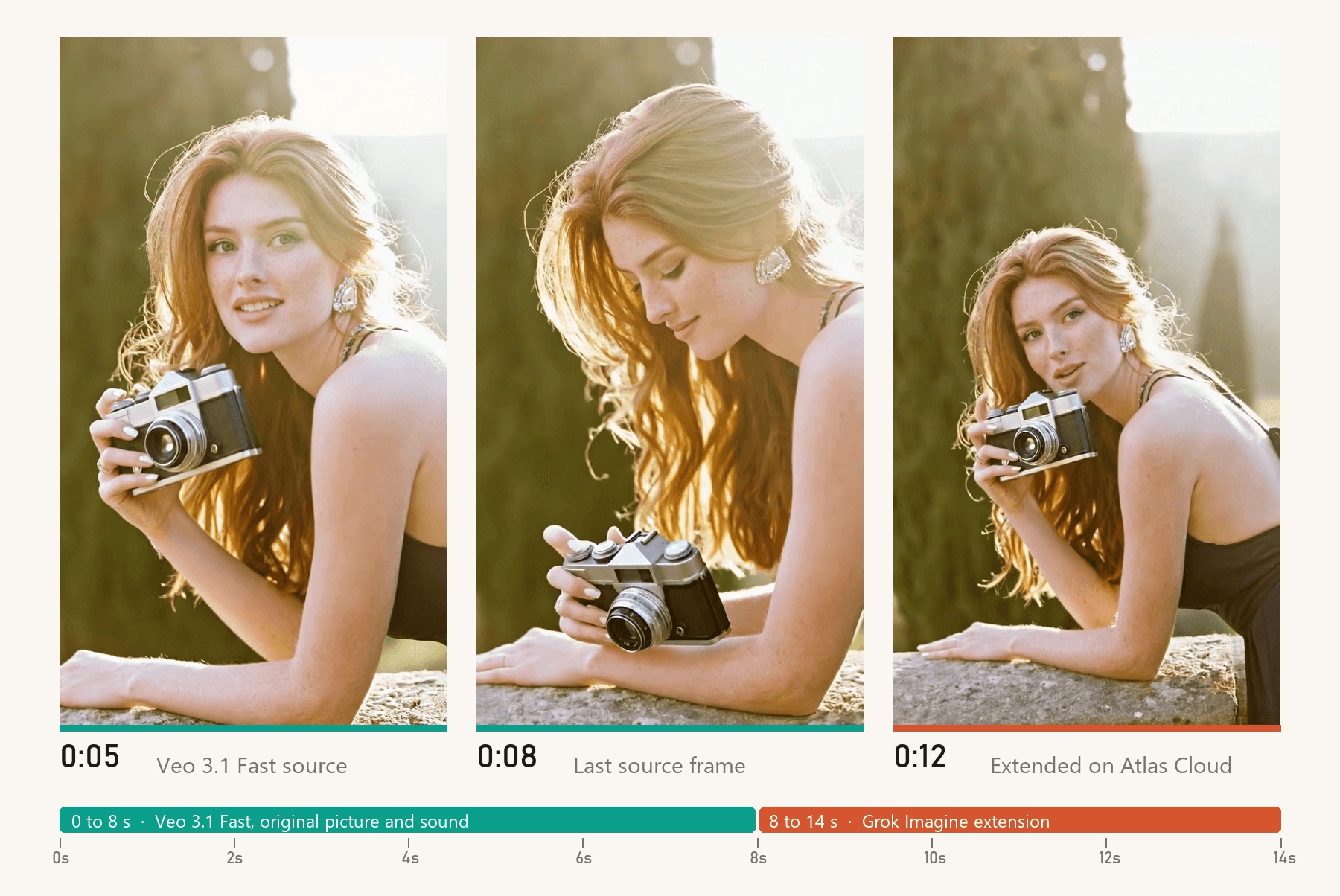
She lifts her chin from her hand, holds up her film camera, and says the light only lasts a few more minutes. Then the clip ends, because Veo stops at eight seconds. Getting Veo 3 longer than 8 seconds is possible, just never in a single render. The extra time has to come from an extension pass or a cut.
Google now offers Veo extension in several places, and each comes with a condition that's easy to miss unless you read the documentation. We go through Flow, the Gemini API and Google Cloud below. Then we take a downloaded Veo 3.1 clip, extend it on Atlas Cloud, and measure what happens to its sound at the seam.
Key Takeaways
- Every Veo 3 and Veo 3.1 generation still ends at 8 seconds, so going longer always means an extension pass or a cut.
- Google's ownextendonly works on Veo-made clips: Flow runs it on Veo 3.1 Lite, and the Gemini API adds 7 seconds a pass to clips from the last two days.
- The Gemini API's Veo 3.1 preview models shut down on October 22, 2026, with Gemini Omni named as the replacement.
- A Veo file you already downloaded can go into Atlas Cloud's Video Extend tab, which returns the original 8 seconds and their audio intact, followed by the new footage.
- Write the next line of dialogue into theextendprompt in quotes, and let the Veo line finish before the clip's last second.
Why Every Veo 3 Clip Stops at 8 Seconds
Google's developer docs state the ceiling plainly: "Veo 3.1 is a model for generating 8-second videos (720p, 1080p, or 4k) with natively generated audio." You can ask for 4, 6 or 8 seconds. Nothing longer is on the menu, and some settings take away the shorter options too.
| Model | Longest single clip | What forces the 8-second setting |
|---|---|---|
| Veo 3.1 | 8 seconds (4, 6 or 8) | 1080p, 4K, reference images, or an extension |
| Veo 3.1 Fast | 8 seconds (4, 6 or 8) | Same as Veo 3.1 |
| Veo 3.1 Lite | 8 seconds (4, 6 or 8) | 1080p or reference images |
| Gemini Omni Flash (Google's newer model, for contrast) | 10 seconds | Not applicable |
The confusion usually starts with Google's own marketing. When Flow added audio to Extend, the announcement said you could create videos "lasting for a minute or more." That figure describes a chain of extensions stitched onto one clip. People in Google's AI developer forum have been asking how to break the 8-second limit since June 2025, and one thread from October 2025 shows a user expecting 60-second renders from Veo 3.1 itself.
So the real question becomes which extension route fits the clip you have. The oldest one lives inside Flow.
How to Extend a Veo 3 Video Inside Google Flow
Flow's Extend button has changed underneath its users. In June 2025, Google's Flow tips post said Jump To and Extend "only work with Veo 2," and tutorials from that summer describe that version. Then on October 15, 2025, Google announced it was "bringing audio to existing capabilities like 'Ingredients to Video,' 'Frames to Video' and 'Extend.'"
Today there's a different catch. Flow's model feature page lists Extend as unsupported on Veo 3.1 Fast and Quality, and adds this tip under Lite:
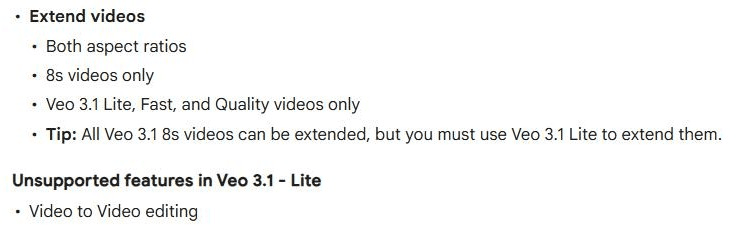
Screenshot from Google Flow Help, "Learn about Google Flow models & supported features," September 2026.
Here's how to run it, following Flow's editing help page:
- Open the project and click the clip you want to continue. It has to be an 8-second Veo 3.1 clip.
- At the bottom, click Extend.
- Describe how the action should continue in the prompt box, then click Generate.
Each new segment is built from the final second of the clip before it. Google's announcement says this makes Extend "most useful for creating a longer establishing shot." Two more limits from the same help pages: Flow "can currently only extend Veo generated videos," and extended clips can't take other edit modes such as insert, remove or camera changes.
Some Flow tutorials on TikTok skip Extend and chain clips by hand instead. They take the final frame of one clip and use it as the first frame of a new Frames to Video generation, a mode Flow's feature page lists for all three Veo 3.1 models. It works for clips that aren't 8 seconds long, but every link in that chain is a separate render with its own freshly generated sound, so treat each join like a cut.
That leaves a gap. If your clip came from Veo 3.1 Quality, Flow still hands the continuation to Lite. And if you already exported the MP4, trimmed it, or made it somewhere other than Flow, you need a tool that takes an upload.
Extend a Downloaded Veo 3 Clip on Atlas Cloud
Atlas Cloud takes the file itself. The Video Extend tab in its video generator accepts an MP4 between 2 and 15 seconds long, whichever model made it, so an 8-second Veo export fits with room to spare.
We turned a portrait photo, into an 8-second vertical clip with dialogue on Atlas Cloud, then extended it by 6 seconds with Grok Imagine. Turn the sound on:
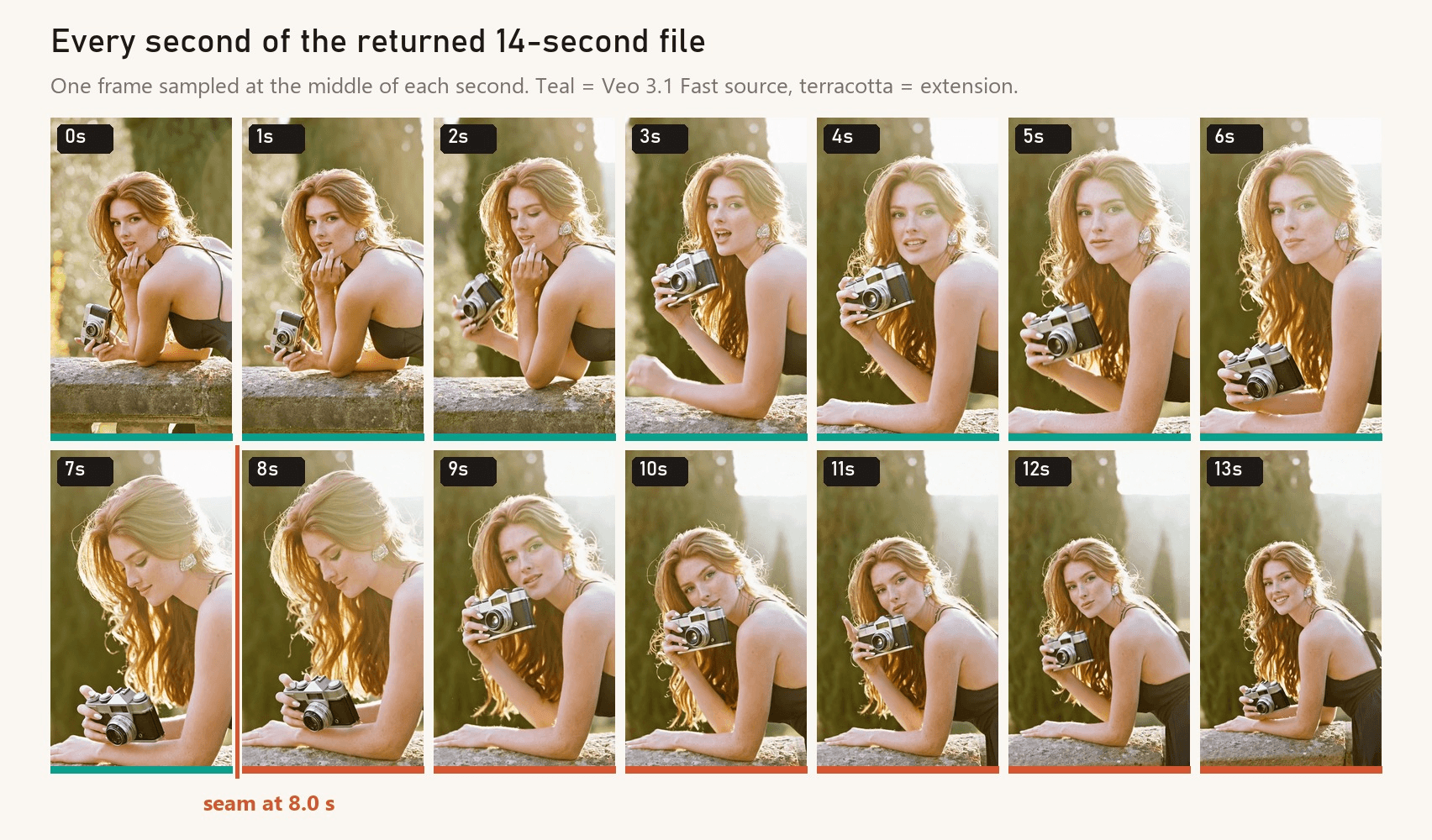
The file came back at 14 seconds, 720 × 1280 and 24 fps, in the same vertical frame as the source. Its first 8 seconds are the original clip. Compared frame by frame against the source, they show nothing beyond re-encoding noise, and the soundtrack matches the original second by second. The 6 new seconds carry the line we wrote into the prompt, "Got it. One more before the sun goes," spoken between the 9- and 12-second marks while she holds the camera up and smiles into the lens.
Grok Imagine, part of the xAI model family on Atlas Cloud, is the tab's default model. It continues from the last frame of your upload and adds 2 to 10 seconds per pass at up to 720p. The same dropdown also lists PixVerse v6, Wan 2.5 and LTX 2.3.
Method 1: Run the Extension in the Video Extend Tab
Log in, open the Video Extend tab, and keep Grok Imagine selected.
- Upload the Veo MP4. Drop it into the Video to extend slot. If Flow stamped its corner wordmark on the export, our Veo watermark guide covers taking it off.
- Write what happens next. Start with the new action, put the next line of dialogue in quotes, then restate the person, wardrobe, set and light. End with the sound you want to keep hearing.
- Set the duration. The DURATION slider runs from 2 to 10 seconds, and the Run button shows the price of that exact run.
- Run it. The result is one file: your Veo clip followed by the extension.
This is the prompt behind the demo above:
plaintext1She raises the vintage film camera to her eye, takes a photo of the garden and presses the shutter, then lowers the camera, smiles into the lens and says: "Got it. One more before the sun goes." Same woman, same long copper-red hair, same crystal earrings, same black backless dress, same stone balustrade and cypress trees, same warm golden-hour backlight and camera angle. Birdsong and the breeze continue, with the soft click of the shutter.
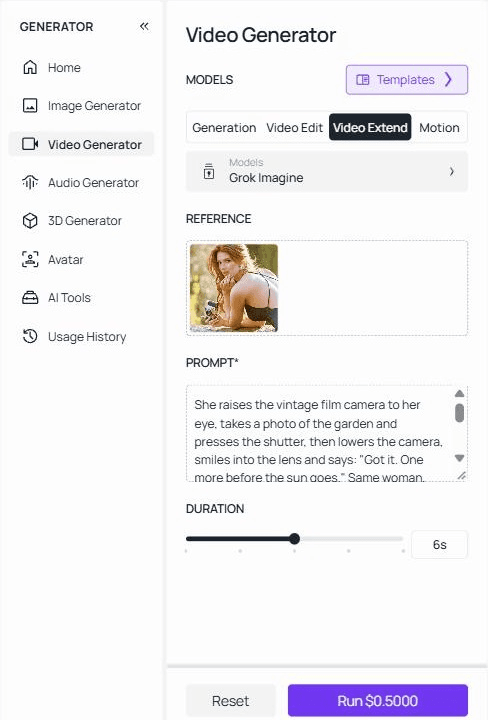
The model also has its own Grok Imagine extend page with the same inputs and an API tab.
Method 2: Send the Veo Clip to the Extend Endpoint via API
If you're extending a batch of Veo renders or wiring this into an editing pipeline, the API takes the same three inputs.
Step 1: Create an API key. Create one in the Atlas Cloud console and copy it. Keep it server-side. One key covers every model on the platform.
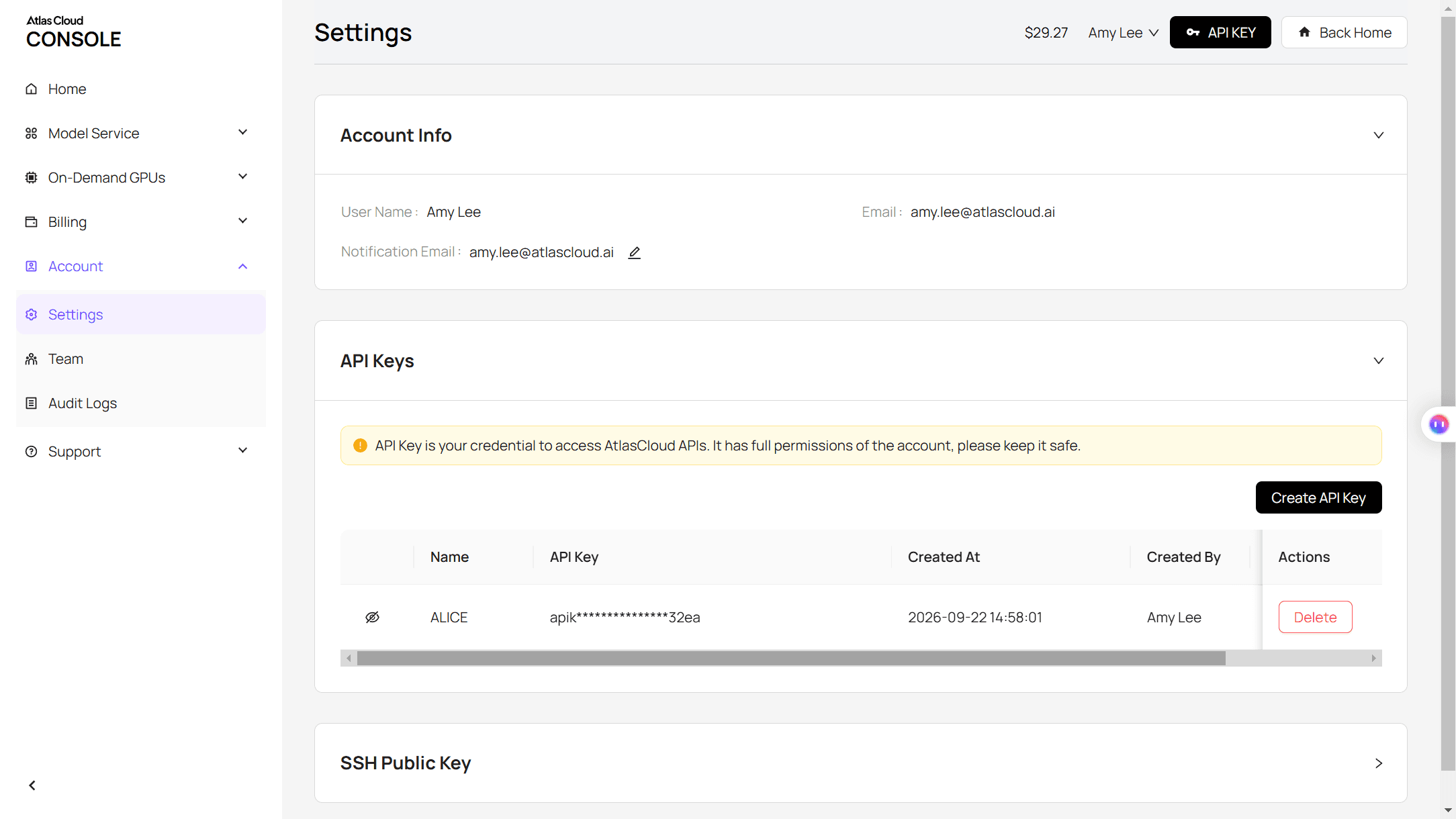
Step 2: Check the request shape. The Atlas Cloud API docs cover authentication and polling. The extend model needs video_url (a public link to a 2 to 15 second MP4), prompt, and duration (2 to 10 added seconds). A Veo export on your laptop needs to go to a bucket or CDN first so the model can fetch it.
Step 3: Send the request and poll.
plaintext1curl -X POST https://api.atlascloud.ai/api/v1/model/generateVideo \ 2 -H "Content-Type: application/json" \ 3 -H "Authorization: Bearer $ATLASCLOUD_API_KEY" \ 4 -d '{ 5 "model": "xai/grok-imagine-video/extend-video", 6 "video_url": "<public_https_url_to_your_veo_clip.mp4>", 7 "prompt": "She raises the vintage film camera to her eye, takes a photo of the garden and presses the shutter, then lowers the camera, smiles into the lens and says: "Got it. One more before the sun goes." Same woman, same long copper-red hair, same crystal earrings, same black backless dress, same stone balustrade and cypress trees, same warm golden-hour backlight and camera angle. Birdsong and the breeze continue, with the soft click of the shutter.", 8 "duration": 6 9 }'
The response returns a prediction ID. Poll it until the status reads completed:
plaintext1curl https://api.atlascloud.ai/api/v1/model/prediction/<prediction_id> \ 2 -H "Authorization: Bearer $ATLASCLOUD_API_KEY"
The completed response links to the full file, source plus extension. Atlas Cloud runs one API across its catalog, so the Veo 3.1 generation that made the source clip and this extension share the same endpoint, auth header and polling loop. Switching models means changing the model string and that model's own fields.
Extend Veo 3.1 Videos Through the Gemini API
Developers who generate Veo clips through Google's API get a documented ceiling of 148 seconds, as long as the clip never leaves Google's storage. The Gemini API docs put it this way: "Use Veo 3.1 to extend videos that you previously generated with Veo by 7 seconds and up to 20 times." One 8-second clip plus 20 passes of 7 seconds is where that 148 comes from.
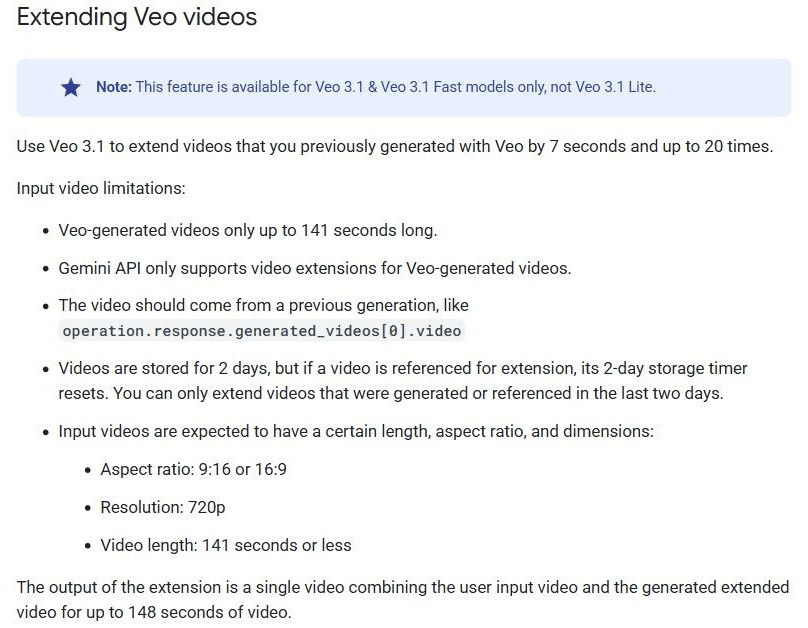
Screenshot from Google AI for Developers, "Generate videos with Veo 3.1 in Gemini API," page last updated September 17, 2026.
Read the input rules closely before you build a loop around them:
- The input has to be a reference to a previous generation, not a file you upload. The docs say the Gemini API "only supports video extensions for Veo-generated videos."
- Generated videos are stored for two days. Referencing one for an extension resets that timer, but a clip from last week is gone.
- Input must be 720p, in 9:16 or 16:9, and no longer than 141 seconds.
- Veo 3.1 Lite can't extend here, which is the opposite of Flow, where Lite runs every extension.
Google Cloud's version, now under the Gemini Enterprise Agent Platform, is more flexible about input: its extend page accepts an MP4 of 1 to 30 seconds at 24 fps in 720p, 1080p or 4K. It still adds 7 seconds at a time, and it caps Veo extensions at 37 seconds.
Then there's the calendar. Google's deprecations page lists October 22, 2026 as the shutdown date for all three Veo 3.1 preview models in the Gemini API, with gemini-omni-1.1-flash as the replacement. An extension loop you build against veo-3.1-generate-preview this week has about three weeks to live.
Which Veo 3 Extend Route Fits Your Clip
Each route rests on a different assumption about where your clip lives. Line them up and the choice mostly makes itself:
| Route | What it accepts | Added per pass | Longest result | Sound in the extension |
|---|---|---|---|---|
| Google Flow Extend | 8-second Veo 3.1 clips inside a Flow project, extended with Veo 3.1 Lite | Not listed on Flow's help pages | "A minute or more," per Google | Generated since October 2025 |
| Gemini API | Veo clips generated or referenced in the last two days, 720p, up to 141 seconds | 7 seconds | 148 seconds | Voice continues only if speech is in the last second |
| Google Cloud (Gemini Enterprise Agent Platform) | MP4, 1 to 30 seconds, 24 fps, 720p to 4K | 7 seconds | 37 seconds | Not described on the extend page |
| Atlas Cloud Video Extend (Grok Imagine) | Any MP4 from 2 to 15 seconds | 2 to 10 seconds | Source plus up to 10 seconds per pass | Source track kept, new sound generated for the added seconds |
One more Google surface joined in June 2026: Google Vids, which lets Workspace and personal accounts extend existing clips with Veo inside a Vids project, according to Google's Workspace Updates blog.
Still editing in Flow and happy with Lite as the extension model? Stay there. Building an app on the Gemini API, plan the move to Gemini Omni before October 22. If the clip is already an MP4 on your drive, trimmed, color-graded, or older than two days, upload it to the Video Extend tab.
Whichever route you pick, the seam is where viewers notice problems, and in a clip with dialogue a broken voice is hard to miss.
How to Keep the Voice Continuous Across the Seam
Google's docs spell out the voice rule on the same page: "voice is not able to be effectively extended if it's not present in the last 1 second of video." Its extension works from the clip's final second, so a voice has to be there to carry on. That pushes dialogue right up to the seam, which causes the other failure users describe. In a June 2026 thread on Google's developer forum about Flow, one user wrote that even with extend, "the last word of the dialogue still flows into" the start of the next clip.
Our Atlas Cloud run took the opposite approach. We let the Veo line finish early and wrote the next line into the prompt. Here is what the returned file's soundtrack looks like against the source:
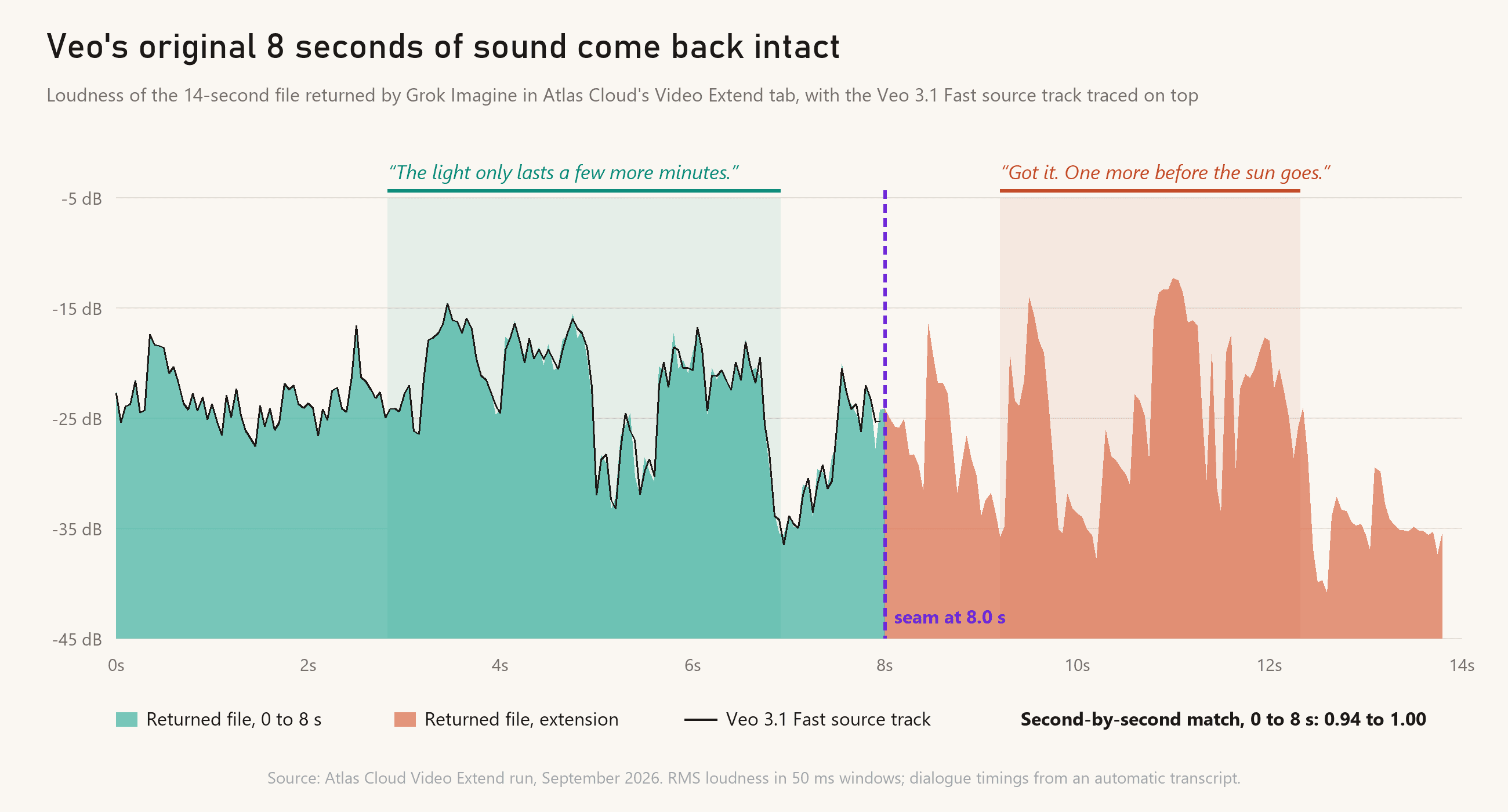
Veo's dialogue ended at 6.9 seconds, leaving just over a second of ambience before the seam, so no word got split. The original track came through with a second-by-second match of 0.94 to 1.00 against the source. The new line came in between 9 and 12.3 seconds, spoken exactly as quoted in the prompt.
Three habits carried that result:
- End the Veo line before the last second. Write the Veo prompt so the character finishes speaking by about the 6-second mark. The seam then falls in room tone instead of mid-word.
- Quote the next line in the extend prompt. Grok Imagine spoke "Got it. One more before the sun goes" word for word. Without a quoted line, the model decides whether anyone talks at all.
- Name the sound bed again. Our prompt ended with birdsong and the breeze, the same sounds described in the Veo prompt, plus a shutter click for the new action, so the extension had the same ambience to work from.
A good seam still only buys a few more seconds of one shot. Past that, you get more out of planning the scene than out of extending it.
When to Cut Between 8-Second Shots Instead of Extending
An extension continues the same take from where it ends. That's right for a pour, a walk or a storm rolling in, and wrong for a conversation that would naturally cut to a close-up. Chain enough passes and faces and clothing start to drift, something we tested pass by pass in our AI video extender guide.
So plan in 8-second blocks. Give each camera angle its own Veo generation, extend only the takes that keep moving, and hard-cut between blocks in your editor. A 30-second scene can work out to three generations and one extension:
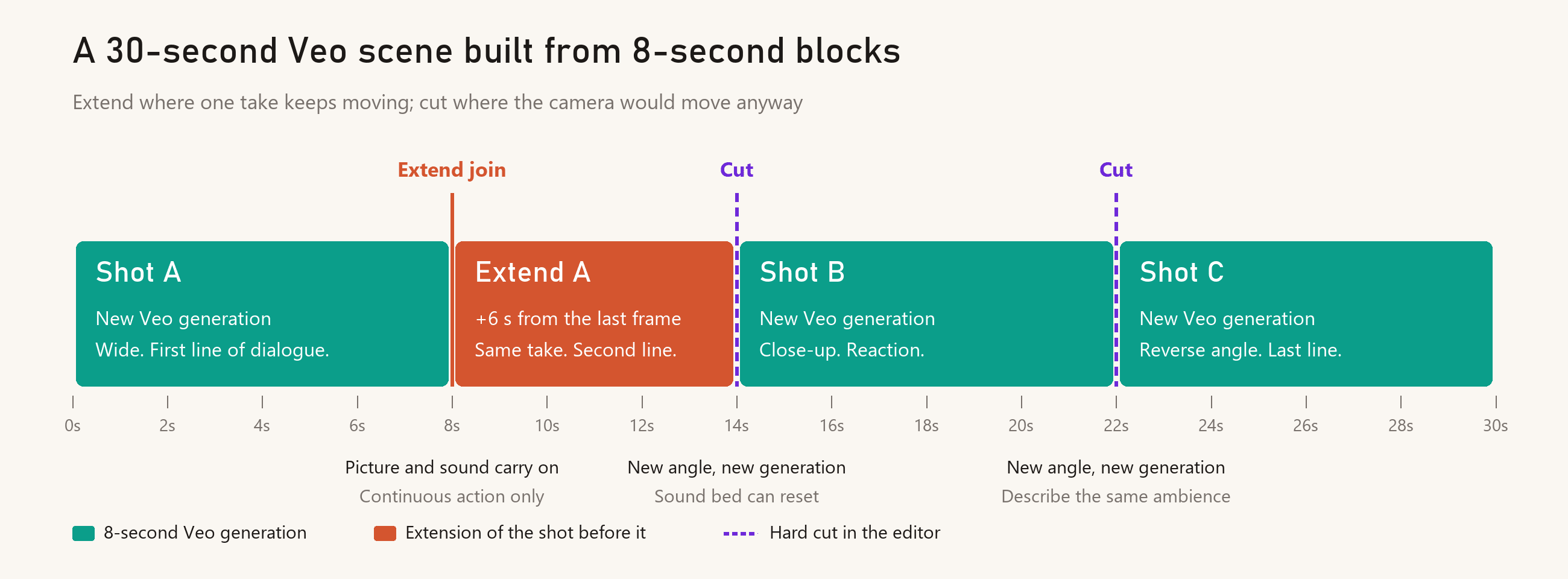
Cuts also get you out of audio trouble. A slight change in room tone passes at a hard cut, while the same change in the middle of a continuous take tends to sound like a glitch. Describe the same ambience in every block's prompt and the scene still sounds like one place.
For a lead-in that has to meet an existing shot exactly, Frames to Video's first-and-last-frame mode bridges two images instead of continuing one clip.
Frequently Asked Questions
What's the longest video you can make with Veo 3?
Eight seconds per render, on every Veo 3 and Veo 3.1 model. Anything longer is a chain: Google's "a minute or more" describes Flow's Extend adding segments to a clip, so a 60-second piece means several passes of one take, several shots cut together, or both.
Is Veo 3 still available, or has everything moved to Veo 3.1?
In the Gemini API, the veo-3.0-generate-001 and veo-3.0-fast-generate-001 models shut down on June 30, 2026, with Veo 3.1 models listed as replacements. Flow's model page lists Veo 3.1 Lite, Fast and Quality. Most tutorials that say "Veo 3" today are describing Veo 3.1, and the 8-second ceiling is the same.
Does Gemini Omni make videos longer than 8 seconds?
Yes, a little. Flow's model page lists 10-second clips for Gemini Omni Flash 1.1, and the Gemini API's Omni guide says you can extend Omni videos "by 10s, up to a total length of 40s." Google's Gemini app page also says Omni "will replace Veo in the Gemini app," so the app is moving off Veo as well.
What does it cost to make and extend an 8-second Veo clip on Atlas Cloud?
An 8-second Veo 3.1 Fast clip with audio at 720p comes to $0.768, and a 6-second Grok Imagine extension of it comes to $0.50, so our 14-second demo cost about $1.27 in total. Grok Imagine bills $0.07 per added second plus $0.01 per second of the source you upload. That means the full 10-second extension of the same clip is $0.78. New accounts that add a payment method get $1 in free credit, enough to try the extension on a clip you already have.
Conclusion
The garden clip ran 8 seconds because Veo 3.1 renders 8 seconds, and it ran 14 because an extension read its last frame and kept going while the original picture and sound stayed as Veo made them. Flow, the Gemini API and Atlas Cloud all work this way, building each new segment from the end of the one before it. The differences are in which clips each route accepts and how long it will keep them.
If the clip is still in Flow, extend it there with Veo 3.1 Lite. If it sits in the Gemini API, use the 7-second passes before the October 22 shutdown. If it's already an MP4 on your drive, upload it to Atlas Cloud's Video Extend tab, finish the dialogue before the seam, and quote the next line in the prompt. That's how to get Veo 3 longer than 8 seconds and keep the sound your clip started with.





