A friend forwards you a clip with a laughing-face emoji over the best part of the frame. The footage is fine, but by the time it reaches your camera roll, the emoji is no longer a separate layer.
So when you remove emojis from a video, you're asking a tool to repaint the pixels the sticker covered, frame after frame, while the shot keeps moving underneath.
We tried cropping, zooming and covering, then pushed an AI video editor through three harder cases: a sticker that moves with the camera, several emoji in one frame, and one over someone's face.

Key Takeaways
- An emoji or sticker baked into an exported clip is pixels. The file keeps no record of it as a separate layer.
- Cropping, zooming past it or covering it with a shapehidethe graphic. A generative edit rebuilds what the camera saw underneath.
- Open Atlas Cloud's video editor, switch to the Video Edit tab, upload the clip and name the emoji or sticker to erase and where it sits.
- Still have the original TikTok, Instagram or Snapchat project? Delete the sticker there before you export it. It only takes a drag.
- Only remove an emoji or sticker from footage you made or have permission to edit.
Still Editable or Already Exported? Check Before You Remove an Emoji From a Video
Before you open any removal tool, check one thing: do you still have the project this clip came from, or only the file it exported into?
TikTok is the clearest example. TikTok's own instructions cover deleting a sticker while you're still editing, in one line: "Drag the text or sticker to the Delete button until it's selected, then release." Instagram Stories and Snapchat use a similar drag-to-delete gesture on their sticker trays. CapCut works a little differently: an overlay sits on its own layer above the main video track, so you select that layer in the timeline and delete it before you export, no dragging required.
That window closes the moment you export or post. Once a clip is flattened into a single video file, there's no layer panel left to open. The sticker is part of every frame it touches, like the footage around it, which is a version of the same burned-in-versus-toggleable problem that shows up with subtitles.
| Where the clip lives | Can you still delete the sticker? |
|---|---|
| Still in the TikTok, Instagram or Snapchat editor, before you post | Yes. Drag it onto the delete icon and it's gone before anyone sees it. |
| Still in a CapCut project, before you export | Yes. Select the overlay layer in the timeline and delete it. |
| Downloaded, reposted or already exported | No. The sticker is baked into the pixels. This is where an AI emoji remover comes in. |
If your clip sits in that last row, cropping or zooming is the tempting first move, since neither needs a special tool. Each fix leaves something behind.
3 Ways People Try to Erase an Emoji From Video (and Why Most Leave a Patch)
| Method | How it works | What's left behind |
|---|---|---|
| Crop or zoom past it | Reframe the shot so the sticker falls outside the new frame | A smaller or more zoomed-in clip; anything else near that edge disappears too |
| Cover it with a shape or blur it | Paste a box over the sticker, or smear the area until it's unreadable | A visible patch that reads as "something was hidden here," in a color that doesn't match what's around it |
| Generative rewrite | An AI model repaints the covered area using the rest of the frame as a guide | Nothing, on a simple background. A soft patch only where the background underneath is dense with detail |
The first two hide the sticker. A cropped frame or a blurred patch still reads as edited the moment anyone looks, the same tradeoff covered in our guide to AI inpainting tools for photos. Generative rewrite aims for a frame where the emoji was never there.
Remove Emoji From Video With AI on Atlas Cloud
Atlas Cloud runs emoji and sticker removal the same way it handles any other video editing task: upload the clip, describe what's sitting on top of the footage, and the model rebuilds the frame underneath it.
The default model behind it is Seedance 2.5, which reads the uploaded clip as a reference and returns a video that follows the clip's original length, within about half a second in our tests, so the result drops back into a timeline with at most a trim at the tail.
Method 1: Remove Emojis and Stickers in the Video Edit Tab
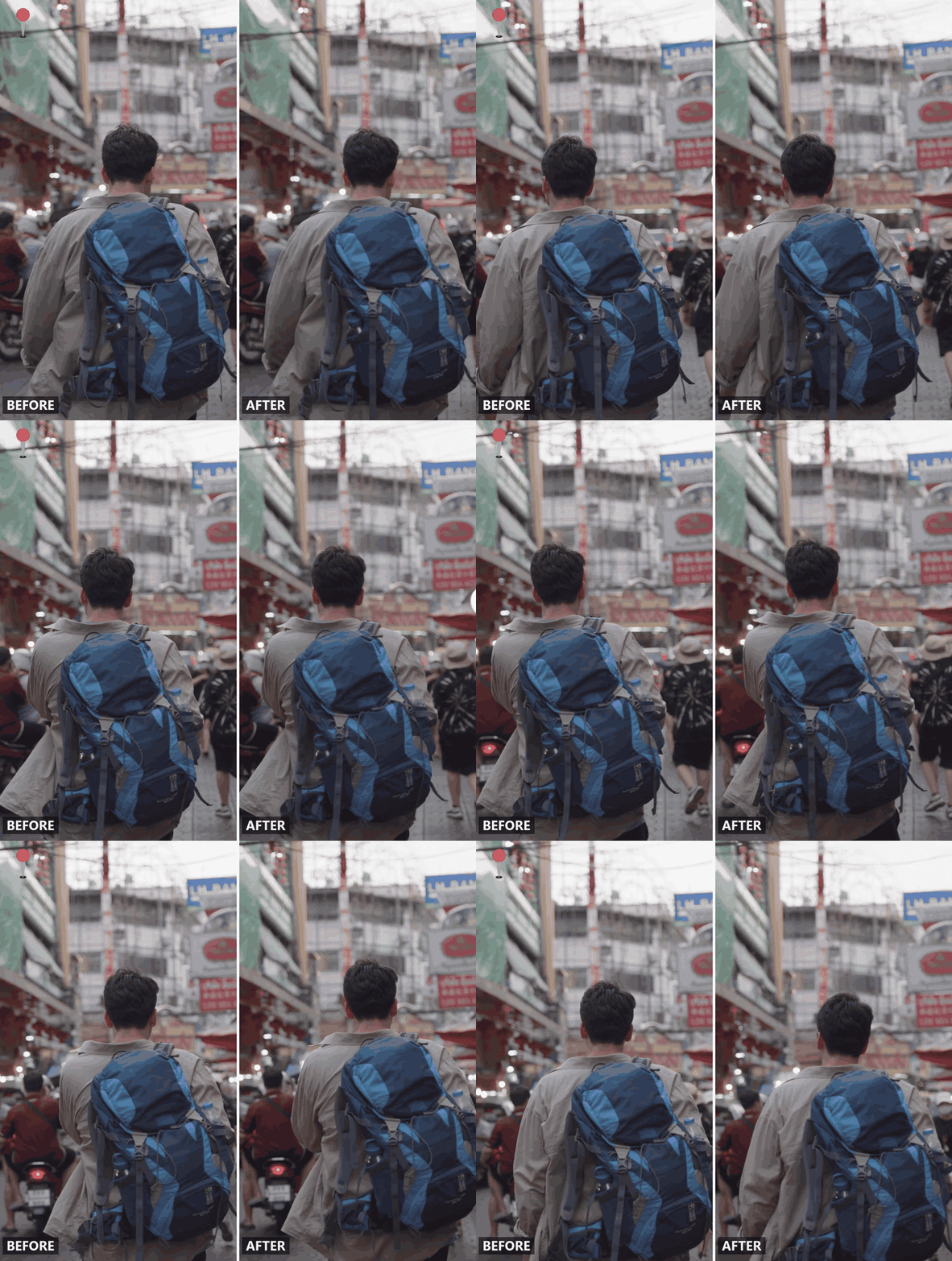
- Open the AI video editor and switch to the Video Edit tab, next to Generation, Extend and Motion.
- Upload the clip with the emoji or sticker on it.
- Name the graphic and where it sits: "Remove the heart emoji in the top-right corner. Keep everything else unchanged." A precise description keeps the edit narrow.
- Run the job and check the result at full resolution, zooming into the area the sticker covered, before exporting.
Method 2: Remove Emoji From a Video via API
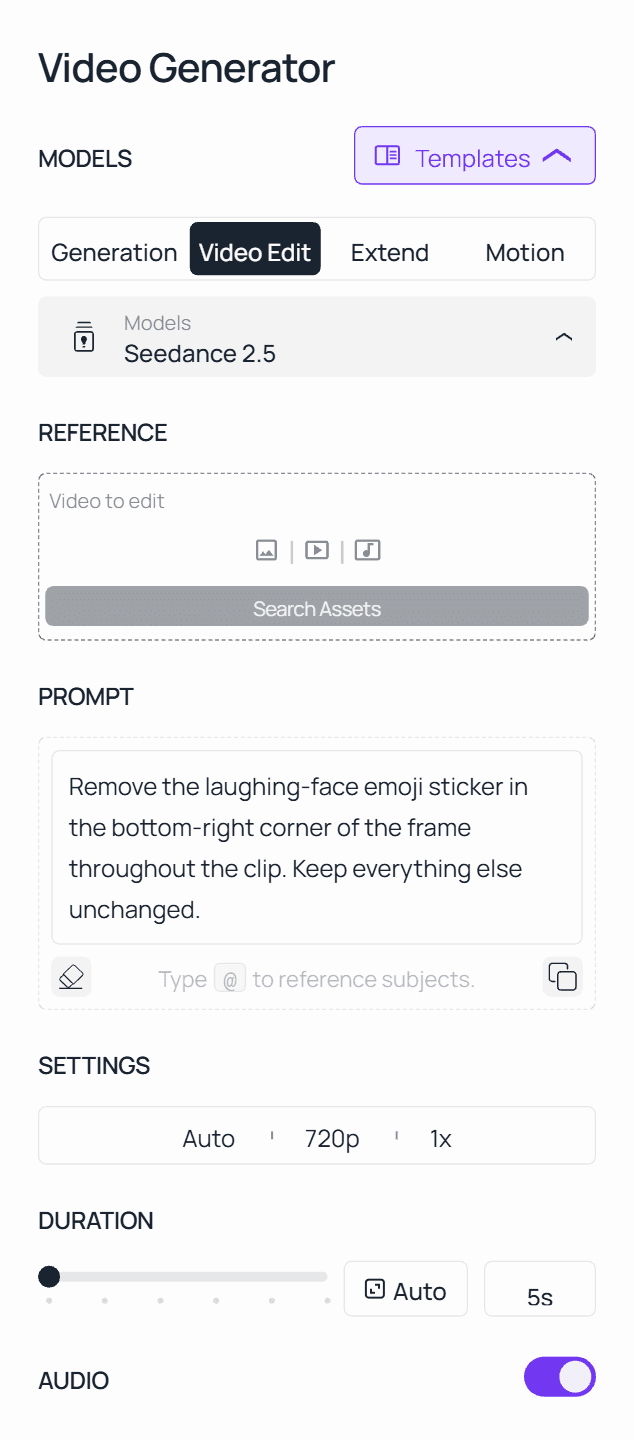
Step 1: Get your API key. Create one in the Atlas Cloud console and copy it.
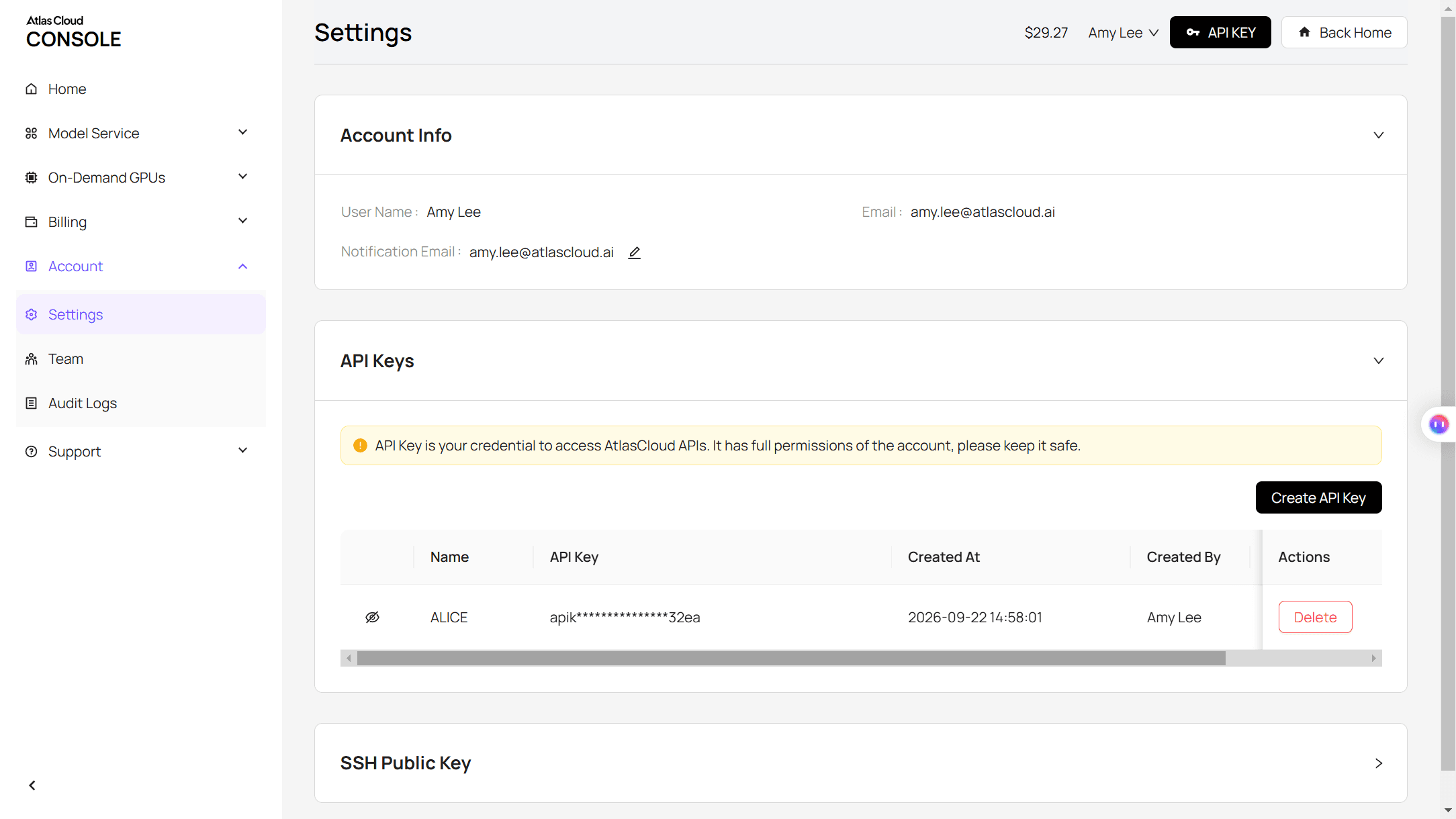
Step 2: Check the API docs. Parameters, accepted formats and duration limits live in the API documentation.
Step 3: Make your first request. Submit the clip and the instruction:
plaintext1curl -X POST https://api.atlascloud.ai/api/v1/model/generateVideo \ 2 -H "Content-Type: application/json" \ 3 -H "Authorization: Bearer $ATLASCLOUD_API_KEY" \ 4 -d '{ 5 "model": "bytedance/seedance-2.5/reference-to-video", 6 "prompt": "Remove the emoji sticker in the top-right corner of the frame throughout the clip. Keep everything else unchanged.", 7 "reference_videos": ["<your_clip_url>"], 8 "duration": -1, 9 "resolution": "720p" 10 }'
duration has to stay at -1 for an editing prompt like this one. The model reads it as an instruction to follow the source clip's length.
Poll the job until it finishes:
plaintext1curl https://api.atlascloud.ai/api/v1/model/prediction/<prediction_id> \ 2 -H "Authorization: Bearer $ATLASCLOUD_API_KEY"
Atlas Cloud runs one API across the whole platform, so this same key and the same submit-and-poll loop work for every model it hosts. Swap the model string later and the rest of the integration doesn't change.
We Tested an AI Emoji Remover on 3 Hard Cases
A single static sticker sitting in the corner of a still shot is the easy case, the kind of demo clip that makes any emoji remover look flawless. We picked three that aren't.
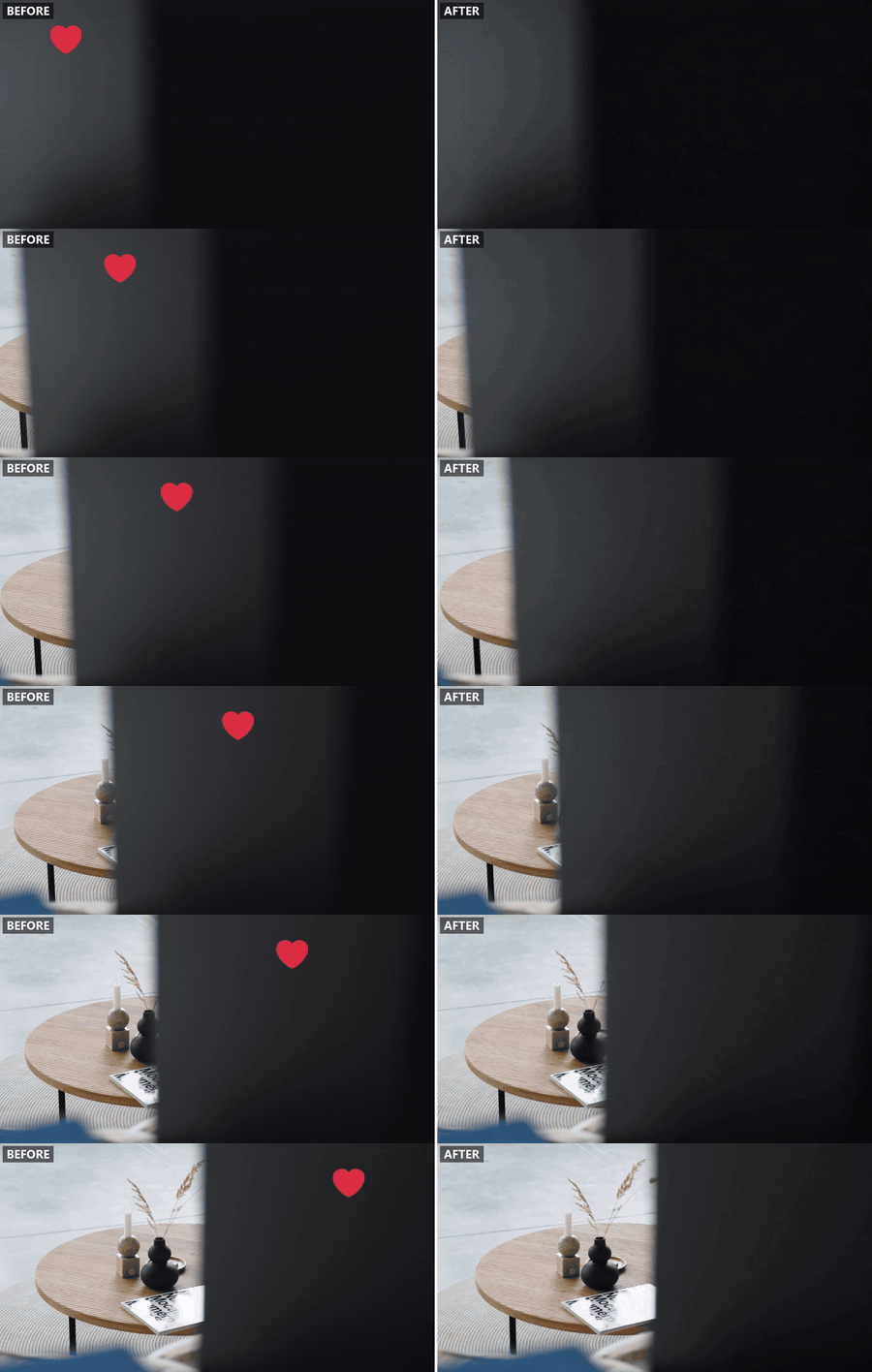
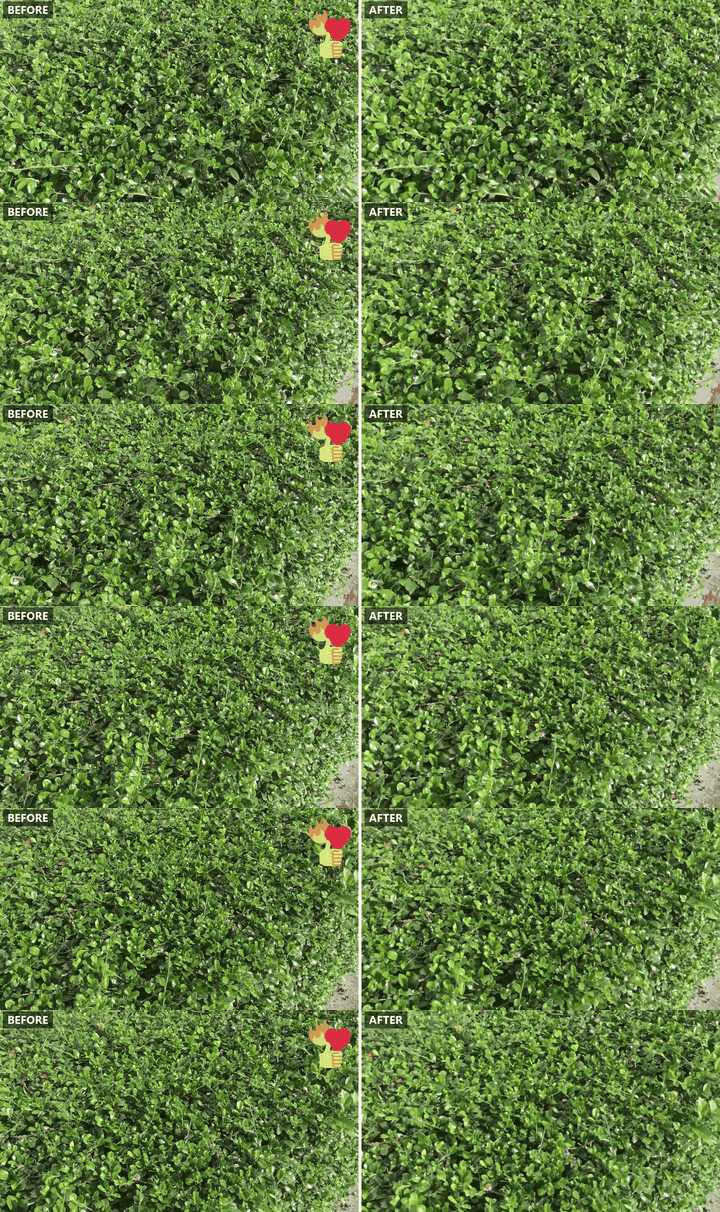
A sticker that moves with the camera. The emoji drifts across the frame as the camera pans, so the model has to track it from one frame to the next.
Several emoji crowded into one corner. A repost with three reaction emoji stacked together, the kind that piles up when a clip gets passed around.
An emoji sitting over a face. A vertical clip where a sticker covers part of someone's face, so the model has to rebuild an eye and part of a cheek.
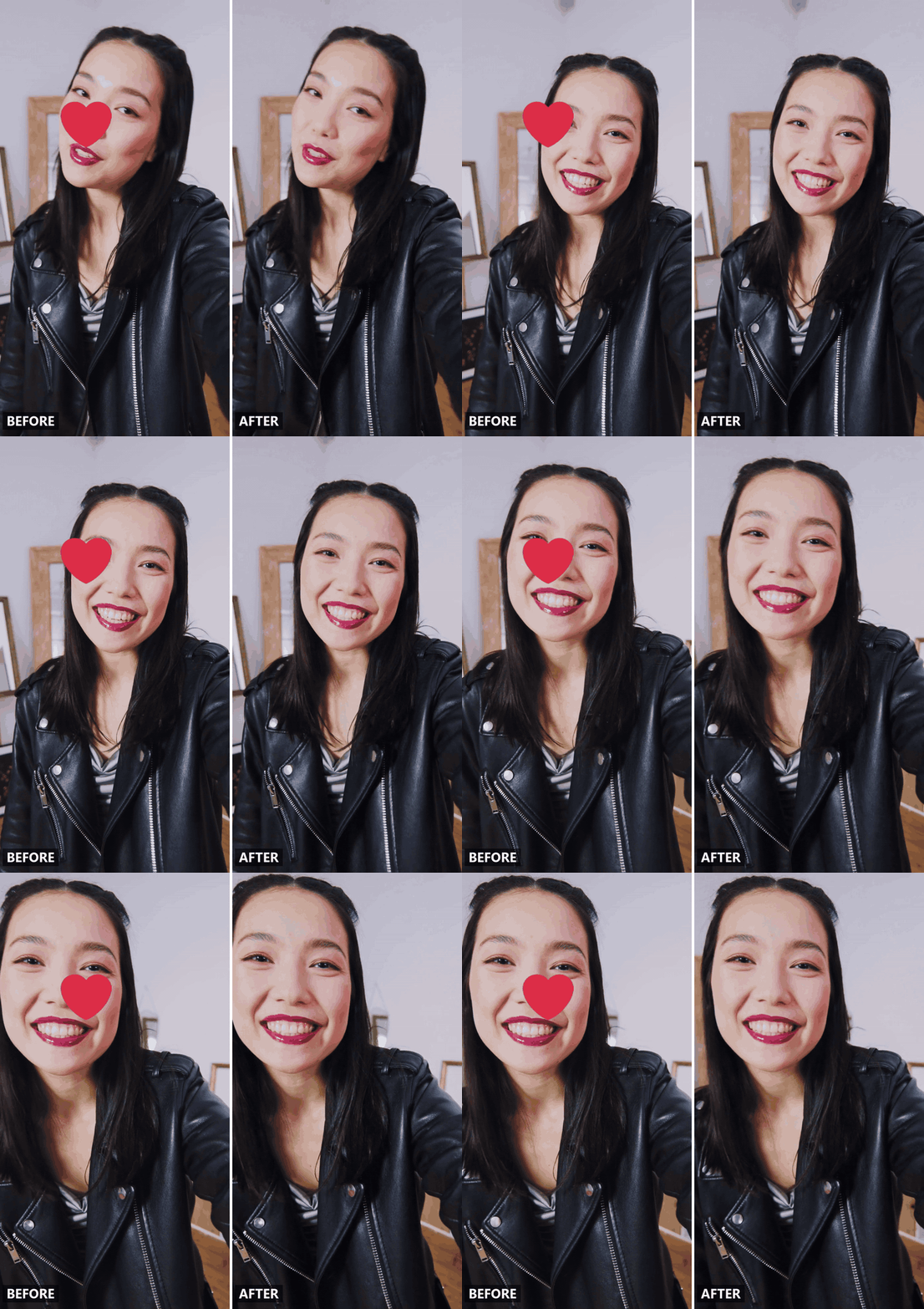
Across all three, watch the edges of the erased area as the camera moves, and confirm the rest of the frame, faces above all, stayed as it was.
What to Type So Only the Emoji Disappears
The Video Edit tab targets the sticker through the prompt alone, so every word you type is doing the aiming.
| Part of the prompt | What it does | Example |
|---|---|---|
| Name the graphic and where it sits | Gives the model one clear target when there's more than one sticker on screen | "the laughing-face emoji in the bottom-right corner" |
| Say how long it's there | Applies the edit to every frame the sticker appears in, instead of a single frame | "throughout the clip" or "from second two to the end" |
| Lock the rest of the frame | Keeps the edit from drifting into areas that didn't need repainting | "keep everything else unchanged" |
"Remove the emoji" on its own leaves the model to guess the boundary, and the guess can take detail around the sticker with it. "Remove the heart emoji in the top-left corner of the frame throughout the clip, keep everything else unchanged" gives it a boundary.
Remove Sticker From Video: Same Tool, a Slightly Different Prompt
Not everything sitting on a clip is a single character. Snapchat's temperature readout, Instagram's location and GIF stickers and the GIPHY stickers in TikTok's tray all get baked in the same way once a video is exported, but they read differently to a model following a written prompt.
An emoji is small and one shape, so its color and corner are enough to name it. A sticker takes up more of the frame and carries more detail, so describe what it looks like as well as where it sits. "The animated weather sticker showing a cloud icon in the top-left corner" gives the model more to match than "the sticker in the corner" does.
Frequently Asked Questions
Can you remove an emoji from a video online for free?
No. Atlas Cloud's Video Edit tab bills per second of output with no subscription, and it runs in the browser with nothing to install, so one clip means one charge.
In our test runs, a five-second clip at 720p came to about $1.75 per pass at the 20% discount Seedance 2.5 carried at the time of writing. Check the current rate on the model page before a larger batch, since promotional pricing changes.
Does removing an emoji lower the video quality underneath it?
Only in the repainted area, and only when the background there is dense. A plain wall or a soft blur behind the sticker comes back clean.
Tight foliage or fine fabric texture is harder for any model to rebuild, the same limit covered in our guide to blurry source footage. The rest of the frame keeps its original resolution untouched either way.
Can AI remove a moving emoji, or one that only appears partway through the clip?
Yes, when the model reads the whole clip rather than a single frame. The moving-heart test above was that case, and it came back clean. For one that appears late, give the model the window it shows up in, "the heart in the bottom-left corner from the three-second mark until it disappears," so it isn't asked to repaint frames the sticker was never on.
Will the audio stay the same after the edit?
Treat the edited file as a new video track. The AUDIO switch in the Video Edit tab, generate_audio in the API, controls whether the model generates a synchronized soundtrack for the output, and our test clips were silent, so we didn't put a soundtrack through it. When the original audio matters, turn AUDIO off, export the edit, and lay your original audio back over it in your editor. Because the output follows the source length, the two line up with at most a small trim at the end.
Can you remove emojis from someone's video, or only your own?
Only if you made the clip or have permission to edit it. TikTok's community guidelines put it in one line: "You should only post content you created or have the right to share." The same principle holds regardless of which platform the clip came from or which tool does the editing.
Conclusion
Removing an emoji from a video comes down to one question: does the fix hide the sticker, or does it rebuild what the camera saw underneath it? Cropping, blurring and covering it with a shape all do the first.
A model that reads the whole clip and repaints the area you name does the second, and the result is footage that doesn't look touched at all. Whether it's a location sticker from a repost or a reaction emoji someone stacked on a repost, the same rule applies: name what to remove, and tell the model what has to stay. Check the result at full resolution before you call it done, and an AI emoji remover becomes something you can trust the next time you need to remove emojis from a video for good.





