Background Gone, Edges Intact
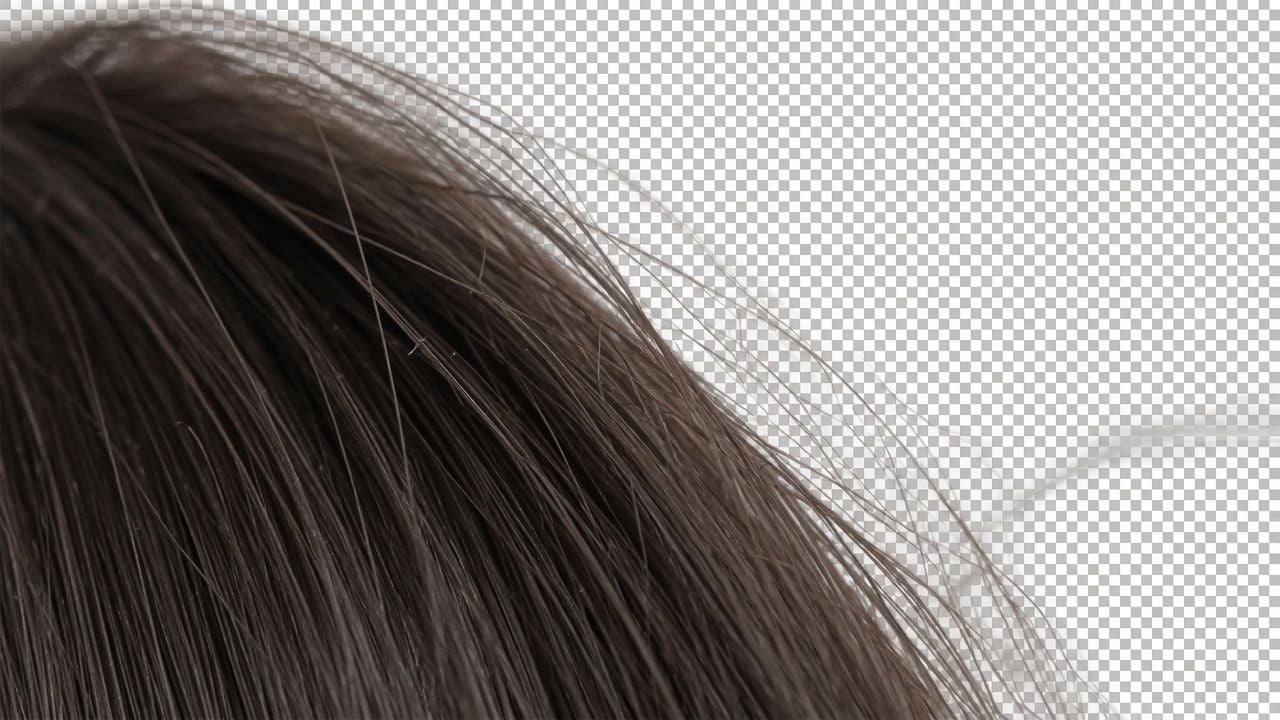
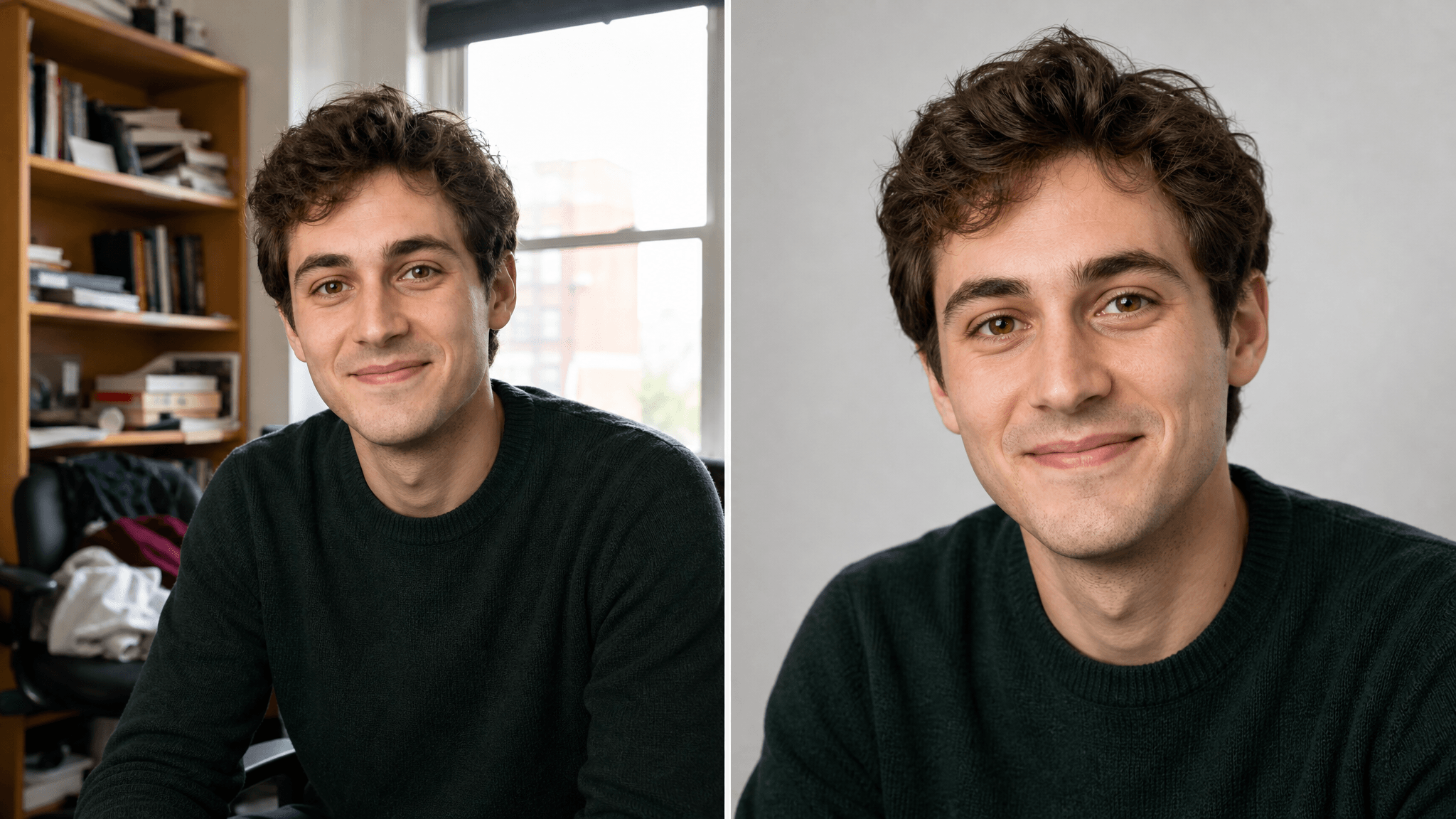
Hair gets the attention it needs. The model produces a soft alpha mask rather than a hard outline, so loose strands and flyaway edges keep their shape, and the edge still reads naturally when you zoom all the way in.
Upload a photo of a person, a pet, a product, a logo, or a signature. The subject comes away on a clean transparent layer, an AI tool for removing background from image files you already have, ready for headshots, product shots, slide decks, and social posts.
local/background-removerएक क्लिक में बैकग्राउंड हटाएं, पारदर्शी PNG दें, लोकल प्रोसेसिंग, कोई अपलोड नहीं
साफ़ सब्जेक्ट वाली इमेज अपलोड करें, लोकल मॉडल ट्रांसपेरेंट बैकग्राउंड PNG देगा।
ट्रांसपेरेंट बैकग्राउंड के लिए PNG जरूरी।
बाएं तरफ़ ज़रूरी फील्ड भरें, फिर "मुफ़्त रन" दबाएं।
ब्राउज़र पहली बार मॉडल वेट डाउनलोड और कैश करेगा; असली स्पीड डिवाइस और नेटवर्क पर निर्भर करती है।
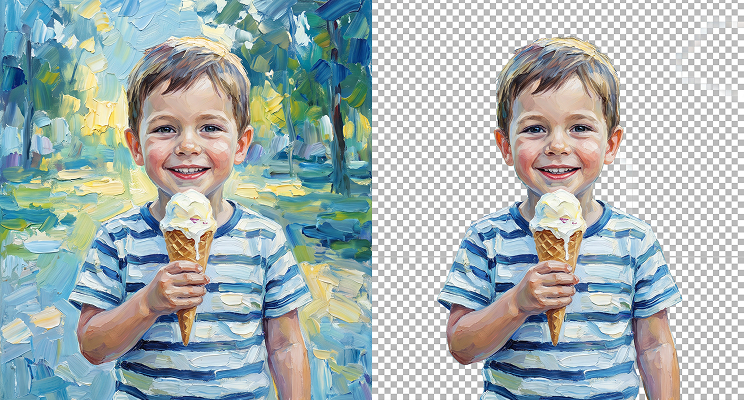
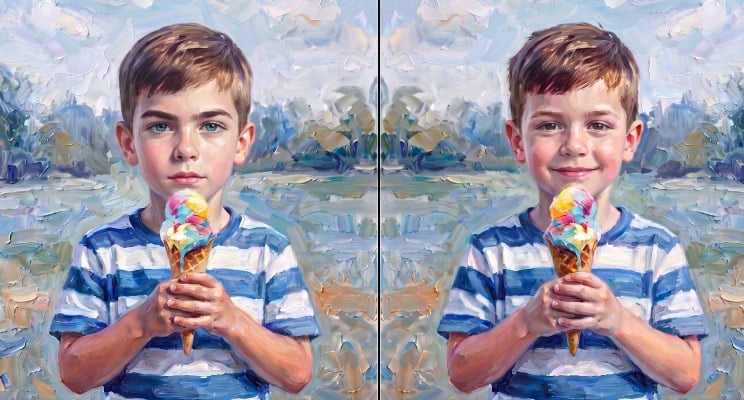
The same photo, side by side. What the background remover hands back is the figure on a transparent layer, hair edge intact, at exactly the pixel size you uploaded, ready to drop onto any background you choose.
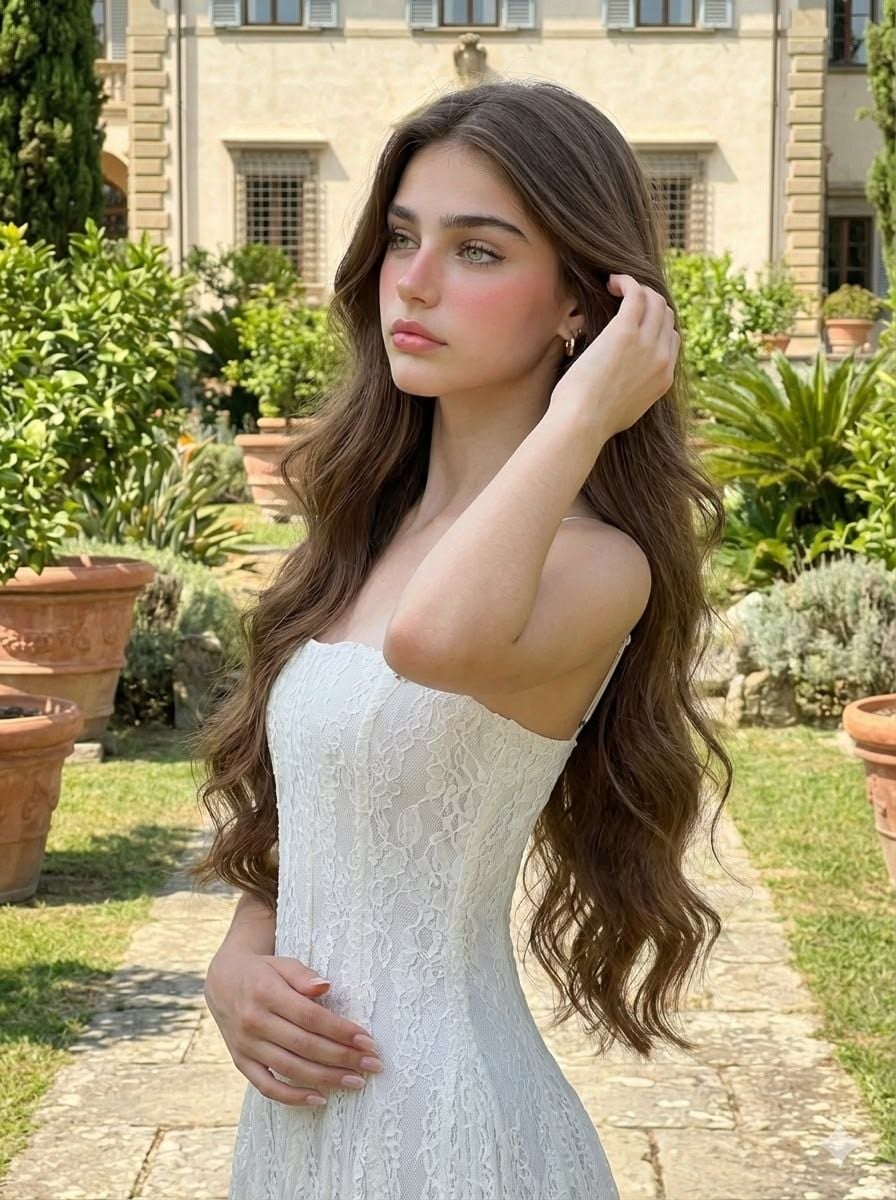
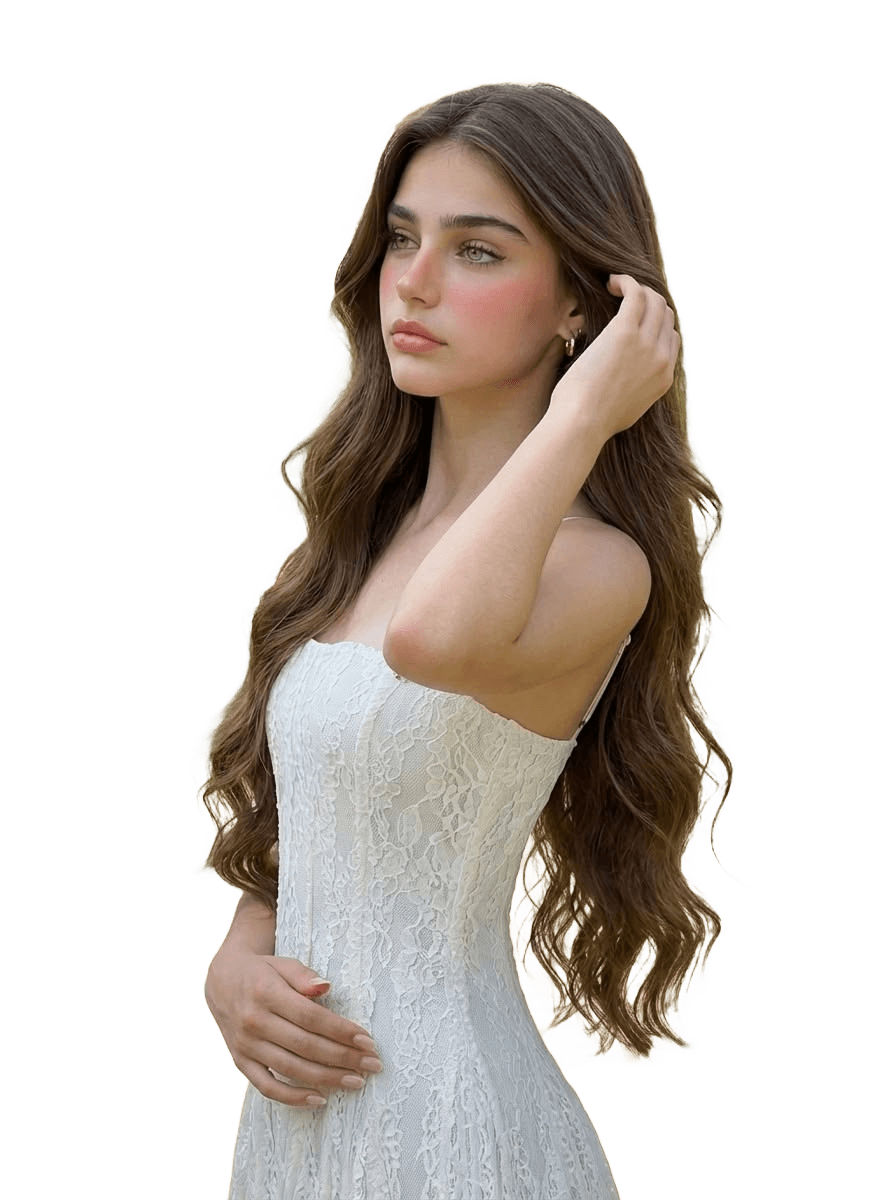
Everything this background remover does happens inside the browser tab you already have open, which is why your photo stays on your own machine and nothing counts against a quota.
Hair gets the attention it needs. The model produces a soft alpha mask rather than a hard outline, so loose strands and flyaway edges keep their shape, and the edge still reads naturally when you zoom all the way in.
Whatever pixel dimensions you upload come back untouched. We've tested files up to 20 megapixels (6000×3375px, 18MB) with zero downscaling. A large portrait exports at the size you gave it rather than a shrunken preview, so the file still holds up in print, on a large screen, or anywhere a downscaled image would come apart.
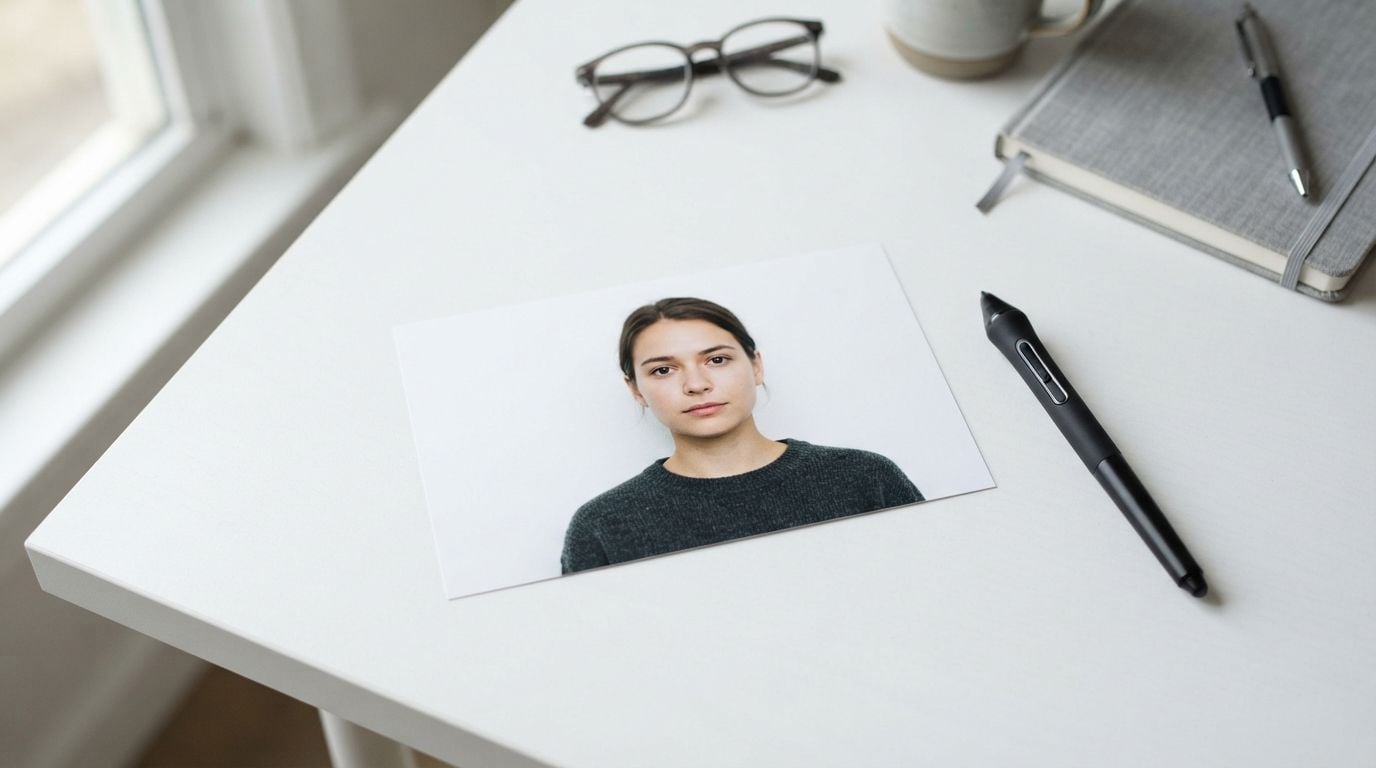
Copy an image from anywhere, a screenshot, a chat window, a web page, then press Ctrl+V with this page open. It loads into the workspace on its own. No saving to a folder first, no hunting through your downloads to find the file again.
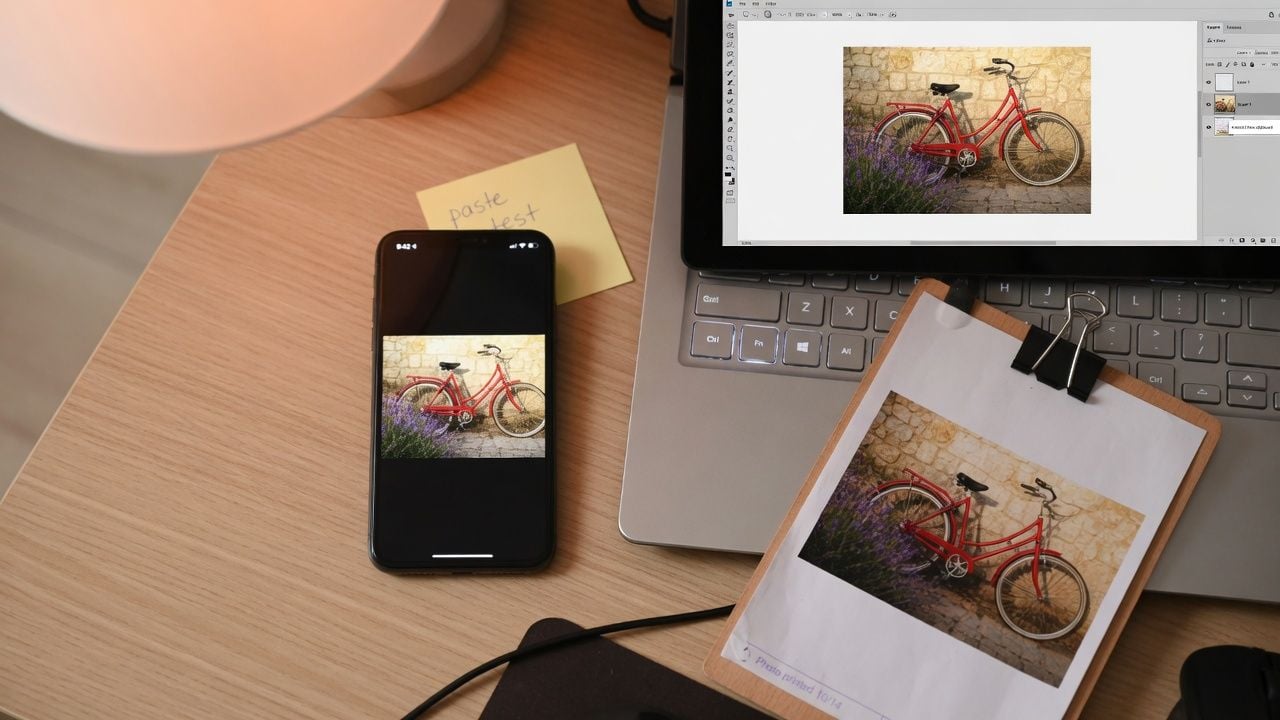
The image you drop in is read by your own browser and processed right there. Your photo is not uploaded, does not sit in a queue, and is not stored once you close the tab, which matters when the shot is a client file or a headshot that is not public yet.
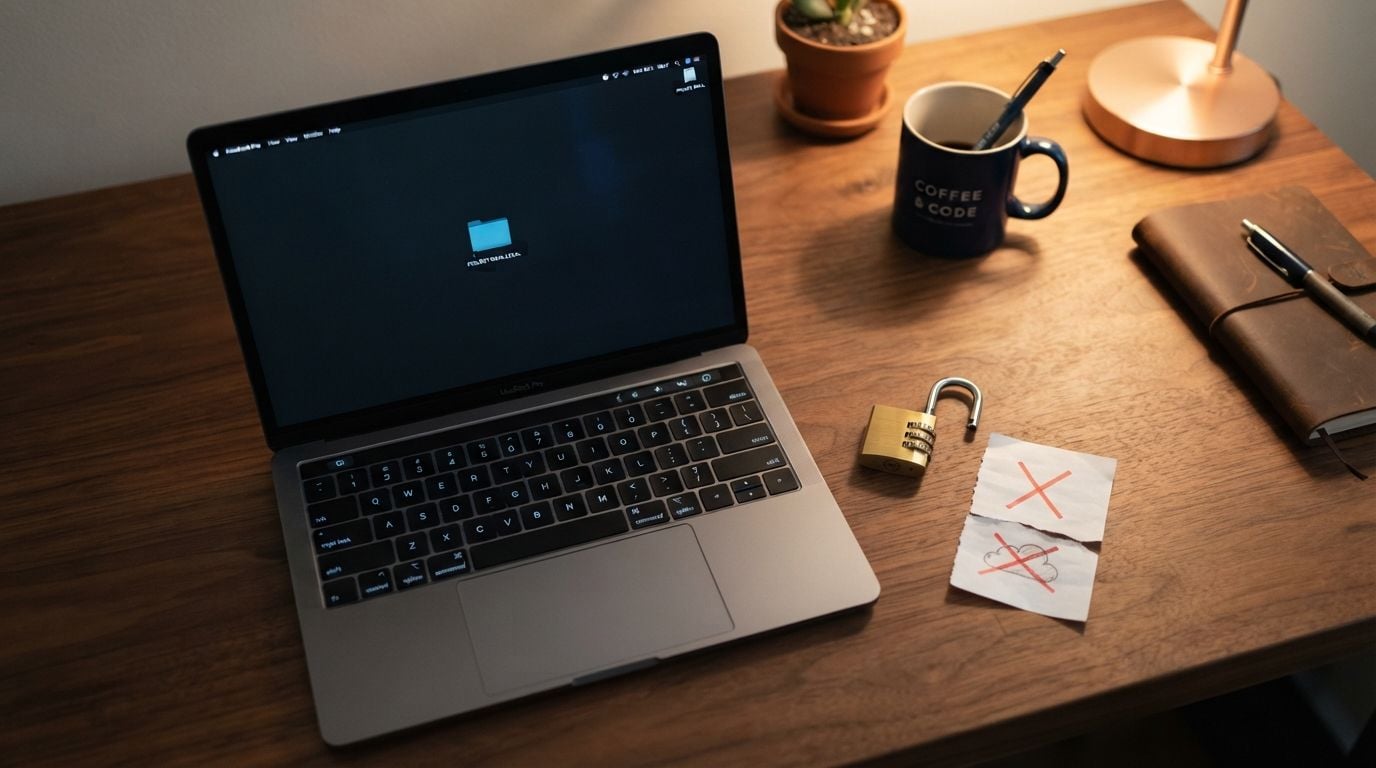
Results download clean. There is no logo in the corner, no faded diagonal text across the middle, and no counter ticking down after your third or fourth image. Run one photo, then run another, and the last one looks exactly like the first.
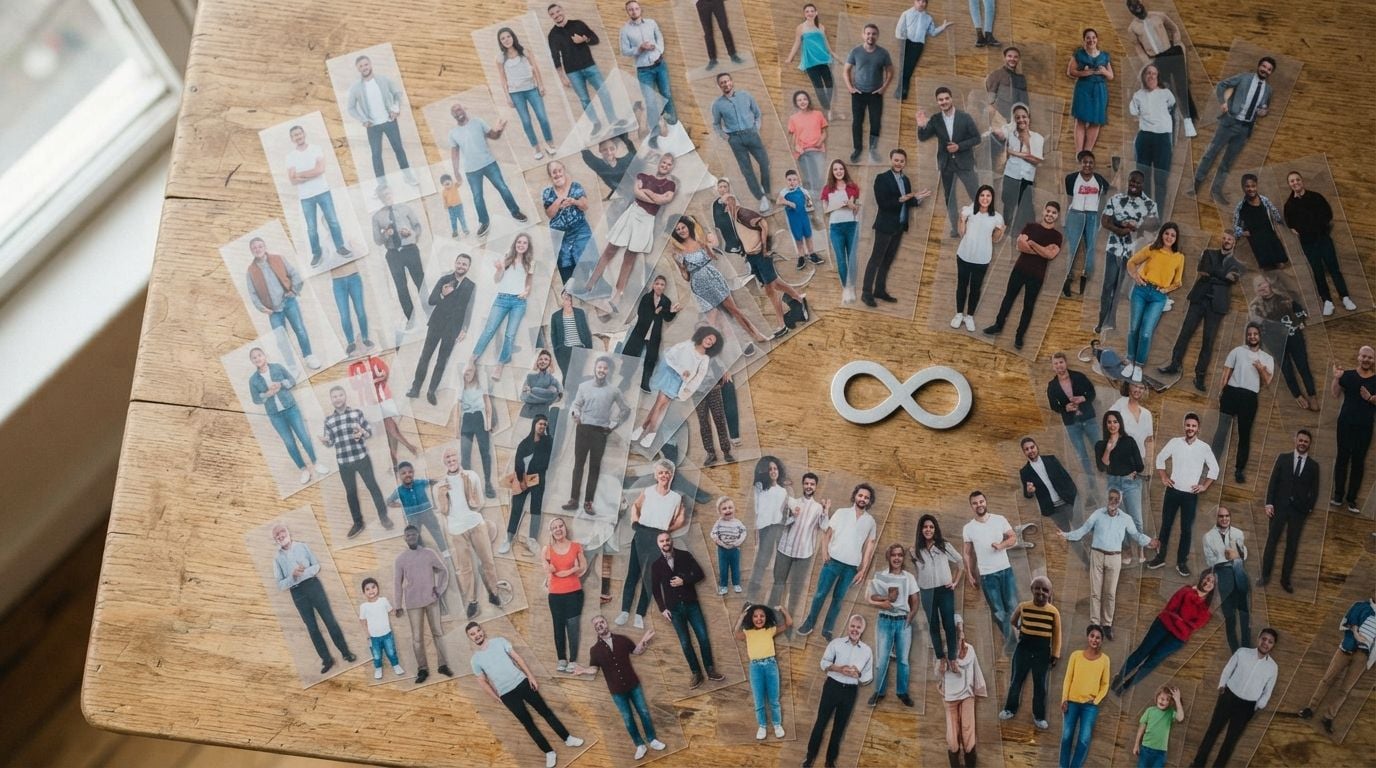
Whether the file ends up on a team page or on slide twelve of a deck, the starting point is the same, a person with no background behind them.
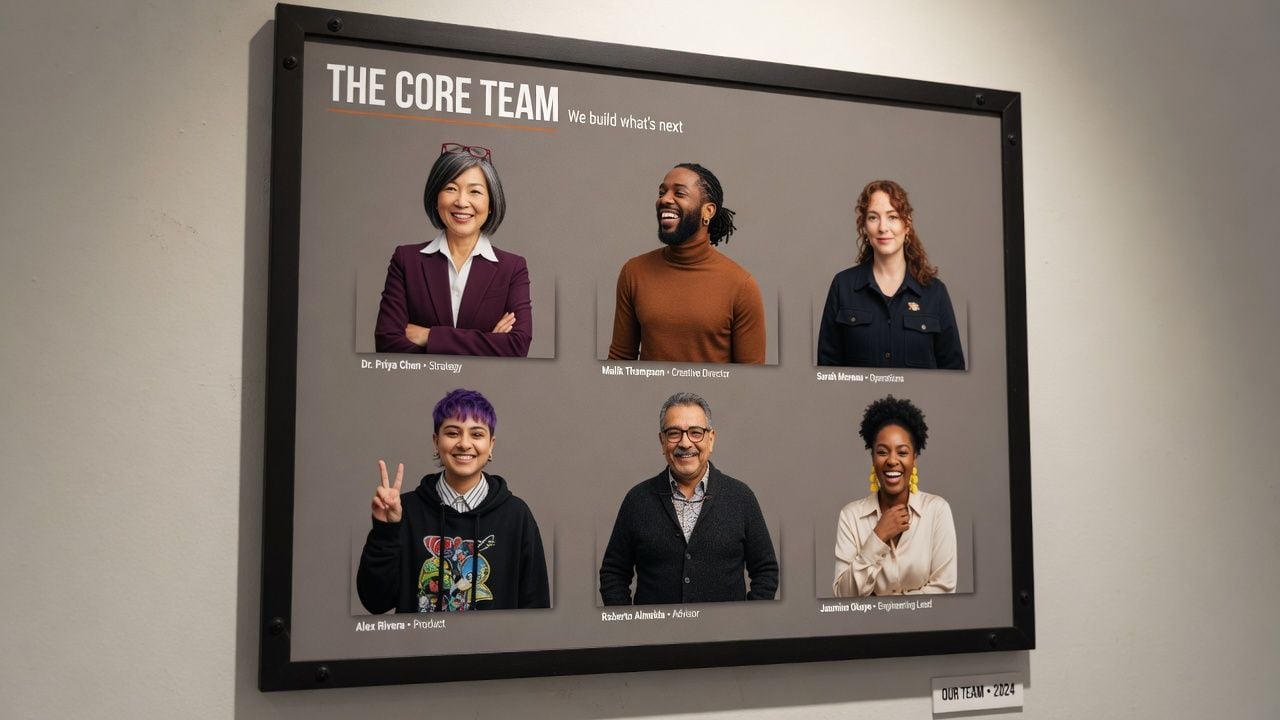
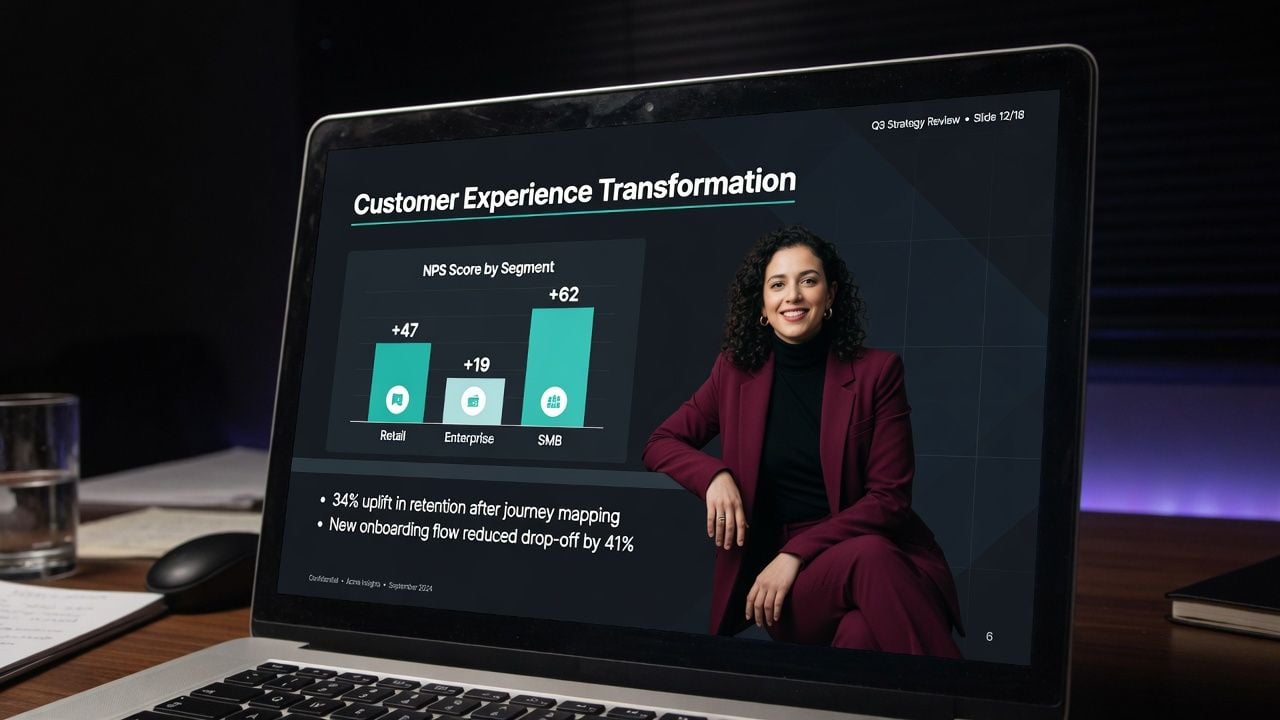
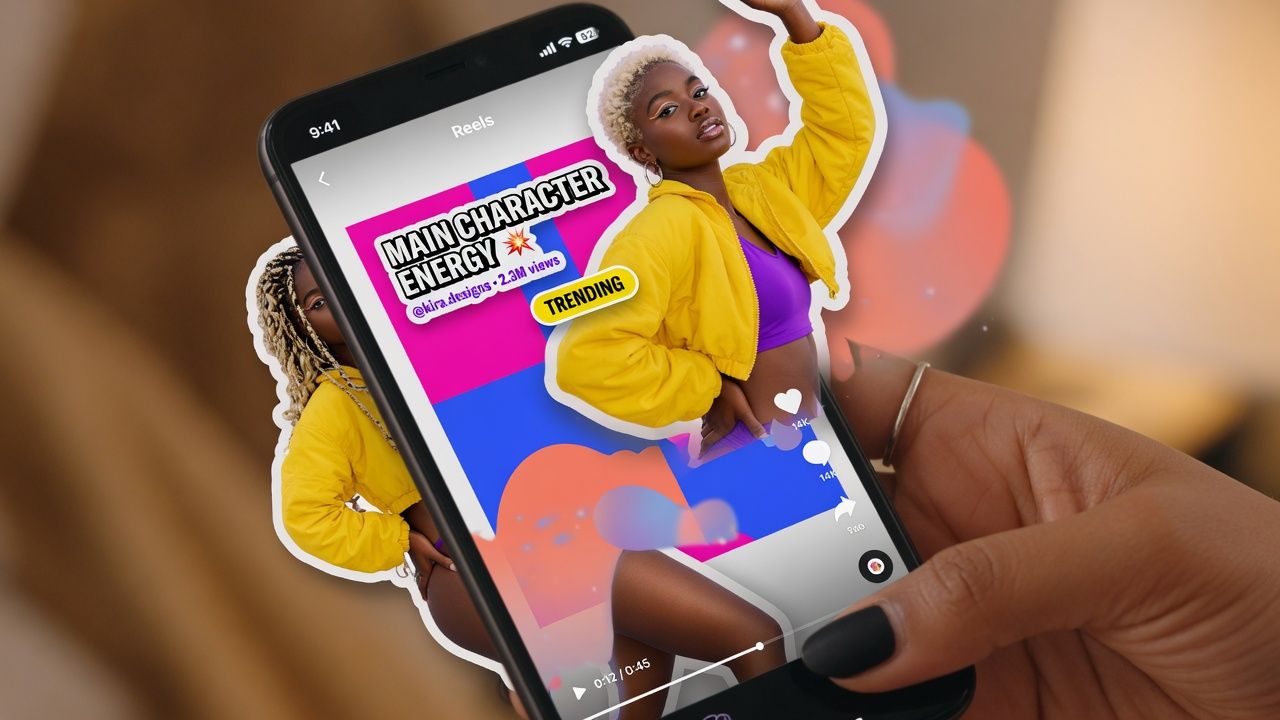
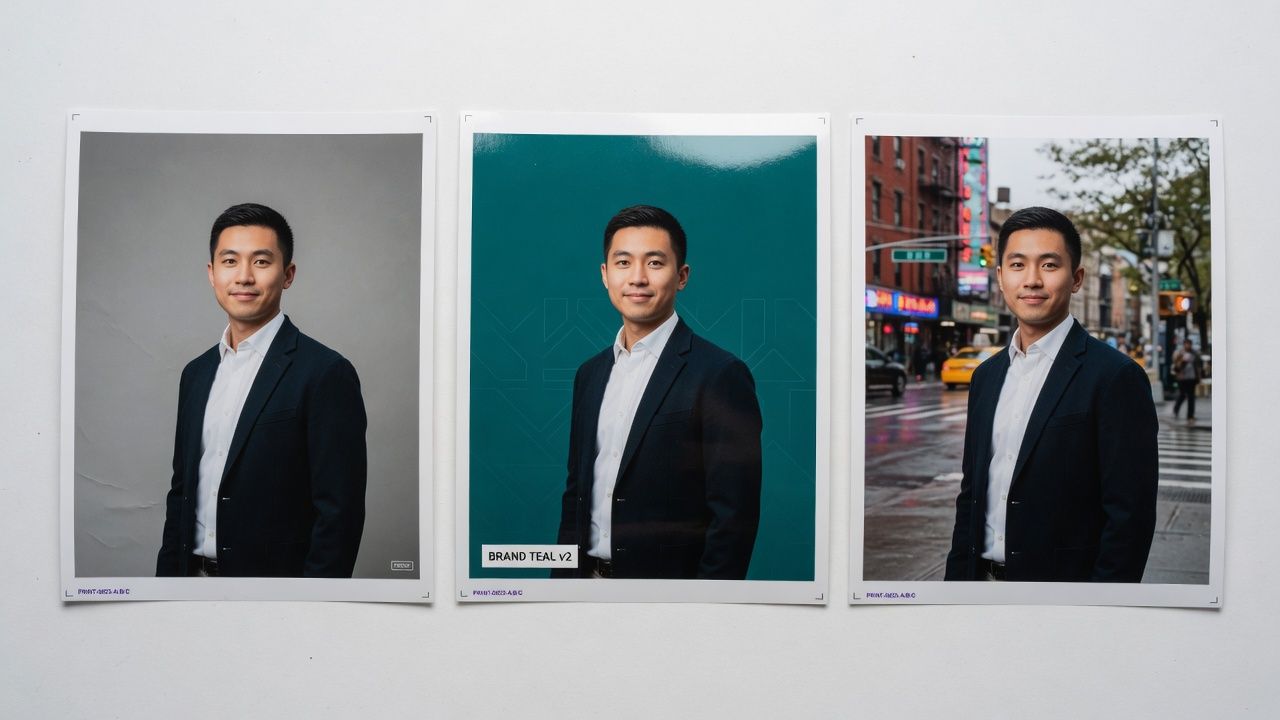
Three steps, and none of them ask you to draw a selection, feather an edge, or pick a tolerance value by hand.
Click the dropzone, drag a file in, or press Ctrl+V. JPG, PNG, and WebP all load directly, and there is a sample photo on the page if you want to watch a run first.
One button. The model finds the person, builds the mask, and shows the result on a checkered panel next to your original.
Hit download and the file saves as a PNG with a transparent layer behind the figure, ready to place in any editor.
Small choices at the upload stage carry through to what the background remover hands back, and none of them take longer than picking a different photo.
 Run The Sample First
Click the sample photo before your own upload and the model loads in the background while you pick your file, so it is ready when you are.
 Paste From Your Clipboard
Screenshot something, press Ctrl+V on this page, and it loads without ever becoming a file on your desktop.
 Send The Original
Upload the full size file rather than a resized copy, since the export comes back at the same dimensions and a sharper source gives the model more edge to work with.
 Separate Subject From Backdrop
Pick the shot where the person's tone or clothing sits furthest from what is behind them, and the edge comes out crisper.
 Keep The Outline Whole
Frame the shot so nothing crosses in front of the person, leaving the full silhouette visible from head to feet.
 Keep the Subject Unobstructed
A photo with nothing crossing in front of the subject cuts out most precisely. Overlapping figures or objects in front of the subject can leave rough edges.
Continue creating with more free AtlasCloud tools.
 Image Upscalerब्राउज़र में ही इमेज को 2× अपस्केल करें, डिटेल साफ़ हो, फाइल बाहर न जाएTry it now !
 Object Eraserब्रश से पेंट करें और अनचाही चीज़/वॉटरमार्क/लोगों को मिटाएंTry it now !
 Video Upscalerशॉर्ट वीडियो को फ्रेम-बाई-फ्रेम 2× अपस्केल करें, ब्राउज़र में ही रेंडर (प्रीव्यू क्वालिटी)Try it now !
 Face Swap · Imageब्राउज़र में ही सोर्स चेहरा टारगेट इमेज पर लगाएं, कोई अपलोड नहीं (फेस-स्वैप लेवल)Try it now !
Here is what comes back from the people who keep this page pinned in a tab, across team pages, decks, and social feeds.
Every new hire sends me a headshot taken somewhere different. A kitchen, a car, a conference hallway. I run them all through here and the team page finally looks like one company instead of twelve.
Priya RaghavanHR Coordinator
What sold me was the hair. I've thrown a lot of portraits at free tools and usually end up cleaning the edge by hand afterward. Here the strands came through soft, not chopped, and I skipped the cleanup pass.
Marcus FeldFreelance Retoucher
Honestly I only found it because I needed one thumbnail at 11pm. Pasted a screenshot straight in with Ctrl+V, got the transparent PNG, dropped it into the layout. It's been in my bookmarks bar since.
Dani OkonkwoSocial Media Manager
Our compliance team gets nervous about client photos touching outside servers. This one processes on the machine and the image doesn't upload, so I stopped having that conversation.
Helena BrandtBrand Designer
I teach a workshop and half my slides have people on them. Dark background decks used to mean white boxes around every face. Now the PNGs just sit on the slide the way they should.
Tom AldridgeCorporate Trainer
Twenty years of pen tool work and I still expected to be fixing the selection afterward. There was no selection to fix. It read the shoulder line and the jaw on its own, which I did not expect from something running in a tab.
Yuki NakamuraPortrait Photographer
Built for both creative speed and dependable delivery.
Fast, responsive workflows for daily creation.
One visual language across different AI tools.
The exact parameters stay visible and predictable.
Examples and upload flows fit real production work.
AtlasCloud infrastructure supports every cloud run.
Clear boundaries for local and cloud processing.
An AI background remover is a tool that separates the person in a photo from whatever is behind them, then hands back the figure on its own layer. On this page that layer is a transparent PNG, which you can place onto any color, texture, or scene you choose in your editor.
Yes. The model reads the photo, works out where the person ends, and builds the mask on its own, with no selection to draw and no trimap to prepare beforehand. That is the entire job this page does.
Yes. We've tested it on pets, product shots, hand-drawn logos, and signatures, and it handles all of them. Two things it doesn't do perfectly: semi-transparent materials like veils or glass keep their shape but lose their see-through quality, and a subject photographed against a strongly saturated background (like a solid red wall) can pick up a faint color fringe at the edge.
Load the photo and press the button. The white background comes away along with everything else behind the subject, and the result downloads as a transparent PNG, so you can leave it transparent or place a different color behind it in your editor.
Yes. There is no paid tier gating the result, no credit counter, no card required, and no account to create. Run as many photos through it as you want.
No. Downloads come out clean, with no logo, no corner stamp, and no faded text over the image. What you see in the result panel is exactly what saves to your computer.
No. The photo is read by your browser and processed on your own machine, so the image itself is never uploaded. The model runs locally on your computer, which is why the file can stay where it is.
JPG, PNG, and WebP go in, and the output is always a transparent PNG at your original resolution. There's no fixed size cap. We've tested files past 20 megapixels without any downscaling.
Drop the transparent PNG into any editor (Canva, PowerPoint, Figma, even Preview on a Mac) and place a solid color or image behind it. For a plain white or brand-color background specifically, add a solid rectangle layer underneath the PNG and export.



