Your phone caught a perfect five-second clip, and now you want it to look hand-drawn instead of real. Search for how to turn video into cartoon footage and the top results are mostly tool landing pages that want a signup before they show a frame of proof.
Two AI methods actually get you there. One restyles the clip you already have, keeping the camera moves and gestures intact. The other builds a brand-new anime-style clip from nothing but a text prompt. Both run on Atlas Cloud, and this guide walks through each one with the exact prompts, the steps, and the clips we got back.
Key Takeaways
- Two different AI jobs hide under "turn video into cartoon": restyling footage you already shot, and generating a brand-new clip from text.
- The Video Edit tab in the Atlas Cloud Video Generator restyles an existing clip while keeping the original motion and camera moves;thesame job runs through the Gemini Omni 1.1 Flash Video Edit API.
- Gemini Omni 1.1 Flash Text-to-Video generates a fresh anime-style clip straight from a text prompt, with no source footage involved.
- Source clips for the restyle method are capped at 10 seconds; the Generator takes an upload, the API wants a public MP4 URL.
- A well-known tool like VEED's Video Cartoonizer fakes video to cartoon by animating a separate character image instead of restyling your actual footage.
Turn Video Into Cartoon vs. Video to Anime: Two Different AI Jobs
Cartoon and anime are just two art styles. The real fork in the road is what the AI does with your footage. People search this as turn video into cartoon, video to anime, or video to anime AI depending on which look they want, but the underlying question is the same: restyle or generate?
One path keeps your original clip. You upload it, name the one thing that should change, and everything else survives the edit: the person's face, the camera pan, the background traffic. The result still moves the way your source moved, just repainted.
The other path throws the camera away. You describe a scene in words and the model renders it from scratch, an anime spaceship chase or a cartoon dog chasing a ball with no source footage involved. Nothing about an original clip carries over, because there wasn't one to begin with.
| What you have | What you want | Which job | Model on Atlas Cloud |
|---|---|---|---|
| A real video clip | Same shot, cartoon or anime look | Restyle (video-to-video) | Gemini Omni 1.1 Flash Video Edit |
| No footage, just an idea | A new anime or cartoon scene from scratch | Generate (text-to-video) | Gemini Omni 1.1 Flash Text-to-Video |
The restyle path is what people usually mean when they say turn video into cartoon, since they already have footage worth keeping.
Restyle Real Footage: Turn Video Into Cartoon or Anime Without Losing the Motion
Gemini Omni 1.1 Flash Video Edit takes your clip and a plain-language instruction, then hands back the same shot with the art style changed. Camera moves stay put. Gestures land on the same frame they did before. The model reads the whole clip at once instead of repainting frame by frame, so motion that was smooth going in stays smooth coming out.
We fed the same seven-second street clip through Gemini Omni 1.1 Flash Video Edit twice, once with a cartoon prompt and once with an anime prompt. The walk, the turn back toward the camera, and the street layout survive both passes.
Cartoon prompt: "Restyle this clip as a flat 2D cartoon with bold outlines and warm saturated colors. Keep the same person, walking pace, camera framing, and background layout. Do not add text, dialogue, or new objects."
Anime prompt: "Restyle this clip as Japanese anime with clean linework and cel shading. Keep the same person, motion, camera framing, and background. No new dialogue or text."
Method 1: Restyle on the Atlas Cloud Generator
Log into Atlas Cloud, open the Atlas Cloud Generator, and switch to the Video Edit tab. Pick Gemini Omni Flash from the model list, upload your clip, and type the change you want.
- Upload a clip under 10 seconds, saved as an MP4.
- Name one change: the art style, a color, a single object. Leave out anything you want kept as is.
- Check the price on the Run button before you commit. Our seven-second 1080p test clip showed $0.98.
- Run the edit and compare the output against your source frame by frame before you download it.
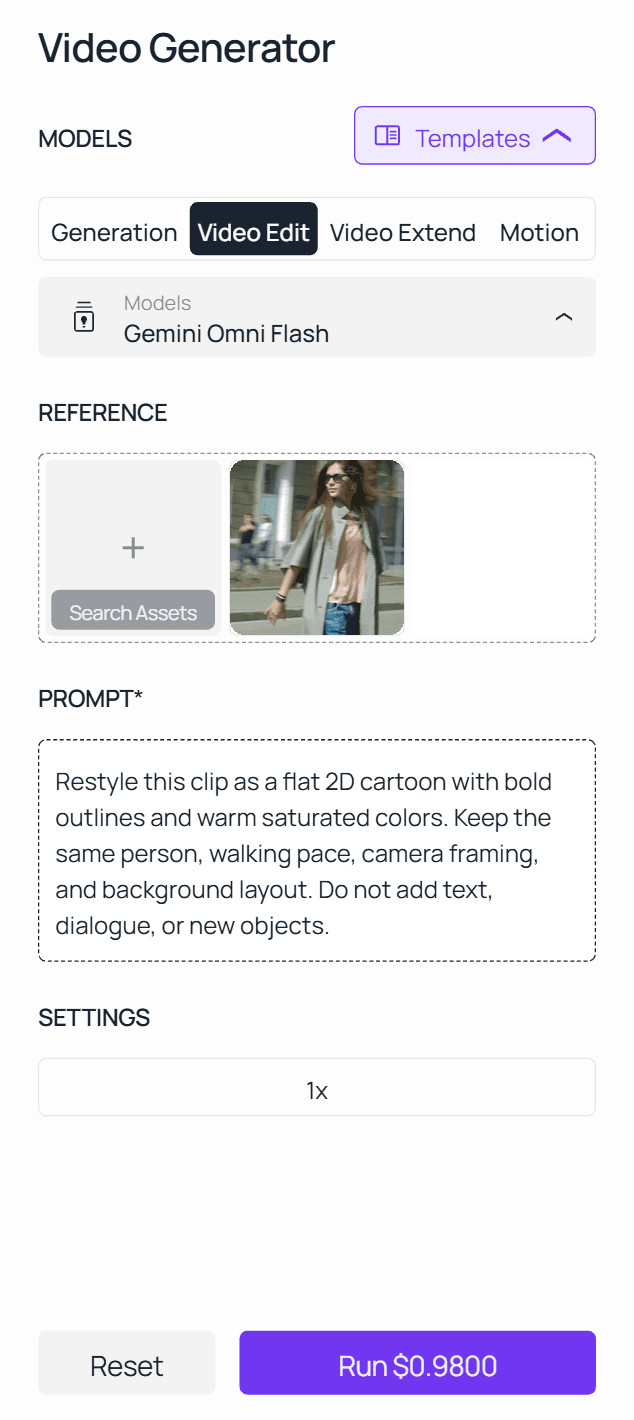
If you want reference images matched, or the 1.1 endpoint specifically, the Gemini Omni 1.1 Flash Video Edit model page has its own playground with the same upload-and-prompt flow, plus slots for up to ten reference images. The same Video Edit tab also handles cleanup jobs, which is why our guide to removing text from a video starts from the very same form.
Method 2: Call the Gemini Omni Video Edit API in 3 Steps
Once a prompt works in the Generator, the API runs the same job from a script, on the 1.1 endpoint.
Step 1: Get your API key. Create one in the Atlas Cloud console and store it as an environment variable, never in client-side code.
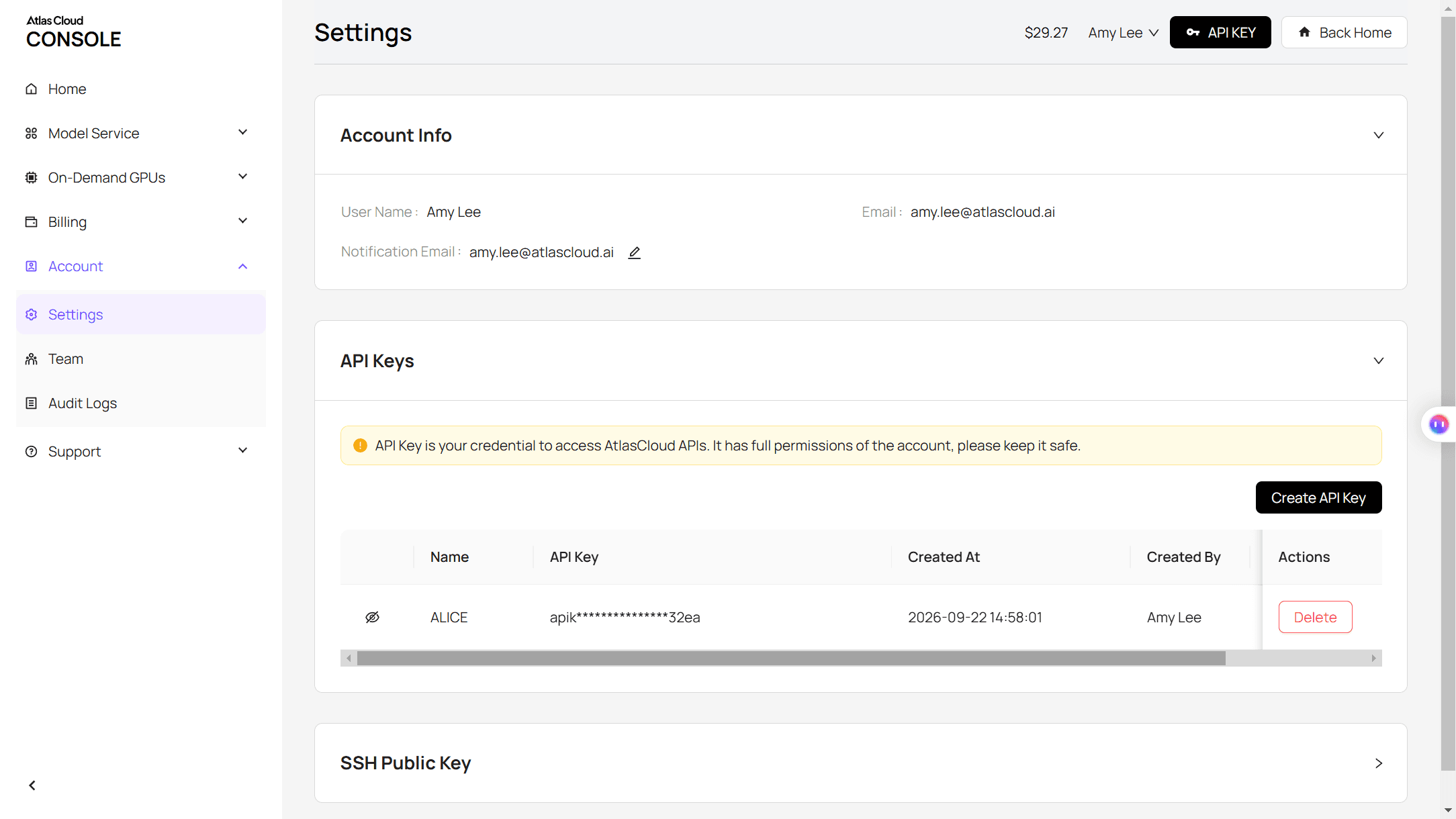
Step 2: Check the API docs. Parameters and authentication for this model live in the API documentation.
Step 3: Make your first request. Submit the job:
plaintext1curl -X POST https://api.atlascloud.ai/api/v1/model/generateVideo \ 2 -H "Content-Type: application/json" \ 3 -H "Authorization: Bearer $ATLASCLOUD_API_KEY" \ 4 -d '{ 5 "model": "google/gemini-omni-1.1-flash/video-edit", 6 "video": "https://yourdomain.com/source-clip.mp4", 7 "prompt": "Restyle this clip as Japanese anime with clean linework and cel shading. Keep the same person, motion, camera framing, and background. No new dialogue or text." 8 }'
The response returns a prediction ID. Poll it until the status reads completed:
plaintext1curl https://api.atlascloud.ai/api/v1/model/prediction/<prediction_id> \ 2 -H "Authorization: Bearer $ATLASCLOUD_API_KEY"
The completed response carries the hosted video URL. Swap the model string to google/gemini-omni-1.1-flash/text-to-video later and the same key, header, and polling loop still work, since the video models on Atlas Cloud share this one generateVideo endpoint.
Video to Anime AI: Generate a Brand-New Anime Clip From Text
Sometimes there's no footage to restyle, just an idea. Gemini Omni 1.1 Flash Text-to-Video takes a written scene and renders it straight into a finished clip, sound included.
The clip above came from one 7-second, 720p run of this prompt: "A lone samurai walks through a rain-soaked Japanese street market at night, anime style with cel shading and bold linework, neon signs reflecting in puddles, distant thunder, footsteps splashing in rhythm, one continuous tracking shot."
Describe five things and the model has enough to work with: the shot and camera movement, the art style, the lighting, the setting, and the action. Draft at 360p while the wording is still rough, then rerun the winning version at 1080p or 4K once the shot reads right.
This route never touches a source clip, so it's the one to reach for when the scene only exists in your head.
How Other AI Video Style Transfer Tools Handle This (VEED and DomoAI)
VEED's Video Cartoonizer doesn't restyle your footage. Its own how-to starts with "Create or upload a cartoon photo," made in a separate image generator, and then "the AI transfers your expressions and gestures onto the cartoon." The background, camera work, and location in your original clip don't carry over, since they were never part of what the model received.
DomoAI's video style transfer works closer to true restyling. Its site describes the tool as applying "custom art styles to any video based on text or image reference," so your footage is the thing being transformed, the same idea behind Gemini Omni's approach, with a style image as an optional extra input.
The table below lays out the mechanism each tool actually uses, separate from what the landing page promises.
| Tool | What actually changes | What it needs from you |
|---|---|---|
| Gemini Omni 1.1 Flash Video Edit (Atlas Cloud) | Restyles the real clip in place, motion and background included | Your video plus a written instruction |
| VEED Video Cartoonizer | Transfers your motion onto a separate cartoon character | Your video plus a pre-made character image |
| DomoAI AI Video Style Transfer | Transforms your existing footage into the chosen style | Your video plus a text or image reference |
Video Style Transfer Prompt Tips for a Clean Cartoon or Anime Look
Gemini Omni 1.1 Flash rewards a narrow instruction. Name the one thing that changes, then list everything that has to survive the edit. A prompt like "make this better" gives the model permission to reinterpret the whole scene, while a structured preservation instruction keeps the edit contained.
| Prompt habit | Why it works |
|---|---|
| State the change first: "Restyle as anime with cel shading" | The model knows exactly what's allowed to move |
| List what to keep: person, motion, camera, background, audio | Nothing gets rewritten by accident |
| Test a 5-second single-shot clip before a longer one | Easier to check every frame for drift |
| Run once, review, then make one more change | Stacking several changes in one prompt raises the failure rate |
For a deeper breakdown of preservation-contract prompting, Atlas Cloud's Gemini Omni 1.1 Flash video editing guide walks through three test cases frame by frame.
Common Problems When You Turn Video Into Cartoon or Anime (and Fixes)
A few issues show up often enough to plan around before they cost a render.
| Problem | Why it happens | Fix |
|---|---|---|
| The character's face changes along with the style | The prompt described the whole scene instead of naming one change | Name only the style, then list face and identity as things to preserve |
| Motion looks stiff or delayed | The style request fights the source footage's original pace | Keep the style request simple and skip new camera moves in the same prompt |
| Original dialogue disappears or falls out of sync | Voice and lip sync aren't guaranteed to survive a restyle | Test a silent clip first, and keep the original audio track separate if dialogue matters |
| The text-to-video anime clip looks generic | The prompt skipped camera direction or lighting | Add real videography terms: shot type, camera movement, lighting, and describe the audio too |
FAQ
How much does it cost to turn a video into a cartoon or anime with AI on Atlas Cloud?
Restyling an existing clip with Gemini Omni 1.1 Flash Video Edit bills per second of your source video: $0.041 per second at the 360p tier, up to $0.31 per second above 1080p, plus a small per-second ingestion charge and a per-image fee if you add reference images.
Generating a new anime clip from text with Gemini Omni 1.1 Flash Text-to-Video uses the same per-second tiers, from $0.041 at a 360p draft to $0.31 at 4K, with a 3-second minimum either way. Draft at the cheapest resolution first, since a 360p test costs a fraction of a 4K final render and tells you if the prompt works before you pay for the finished version.
Does converting video to anime keep the original audio and voice?
Not reliably. Gemini Omni 1.1 Flash can regenerate audio alongside a restyle, but dialogue and lip sync aren't guaranteed to survive the edit intact. Run a silent test clip first, and keep your original audio track on hand so you can resync it in a normal editor if the generated version doesn't match.
How long can my source video be for a style-transfer edit?
Ten seconds or less. Gemini Omni 1.1 Flash Video Edit requires a publicly accessible MP4 URL of 10 seconds or under, and the output keeps the same duration and aspect ratio as whatever you upload. For a longer piece, cut it into 10-second segments and restyle each one separately.
What's the difference between video style transfer and generating a new anime video from scratch?
Style transfer starts with your footage and changes how it looks while keeping the motion. Text-to-video generation starts with nothing but a written description and builds the whole clip, camera included. Pick style transfer when the shot you already have is the one you want to keep, and text-to-video when there is no footage to start from.
Conclusion
Turning a video into a cartoon or anime comes down to picking the right job for what you actually have. A clip worth keeping calls for a restyle, where Gemini Omni 1.1 Flash Video Edit holds onto the motion and just repaints the surface. An idea with no footage behind it calls for text-to-video generation instead, building the whole scene from a written description.
Both routes run through the same Atlas Cloud API, so the harder part is writing a prompt narrow enough to survive the edit, not finding the right model. Start with a short test clip, name one change, and check the output against your source before committing to a longer render. That's really all it takes to turn video into cartoon or anime footage that still looks like yours.





