

Masz wreszcie 10-sekundowe ujęcie produktowe, które Ci się podoba. Kubek jest odpowiedni, aktor jest odpowiedni, deszcz robi swoje. Potem przychodzi ryzykowny klik. Dłuższy prompt nie chroni tego ujęcia. Kontrolowane kolejne ujęcie tak.
Rozszerzenie wideo Gemini Omni Flash 1.1 może dodać 3 do 10 sekund naraz, aż do 40-sekundowego łącznego wyniku w obsługiwanym przepływie pracy Gemini API. Traktuj to jak łańcuch: zatwierdź 10-sekundowy punkt zakotwiczenia, a następnie kieruj jednym obserwowalnym zdarzeniem na każdą kontynuację.
Daje to montażystom, zespołom social media i programistom punkt przeglądu po każdym segmencie, zanim dryfująca ręka, rekwizyt, twarz, kierunek światła lub ścieżka dźwiękowa zamieni się w kosztowną niespodziankę.
Rozszerzenie wideo Gemini Omni Flash 1.1: Najważniejsze wnioski
- Pojedynczy wynik trwa od 3 do 10 sekund.
- Rozszerzenie dodaje na końcu, do 40 sekund łącznie.
- Zachowaj zatwierdzony punkt zakotwiczenia, a następnie dodaj jedno zdarzenie.
- Sprawdź połączenie przed ponownym rozszerzeniem.
- Dostęp w interfejsie użytkownika może być opóźniony względem możliwości API.
Rozszerzenie wideo Gemini Omni Flash 1.1: Przypadek testowy ciągłości
Pożądanym rezultatem jest połączona sekwencja, a nie dłuższy izolowany klip. W przypadku deszczowej reklamy kawy sprawdzaj kubek, grafitowy fartuch, pozycję drzwi, światło w pochmurny dzień i wysokość kamery na każdym połączeniu.
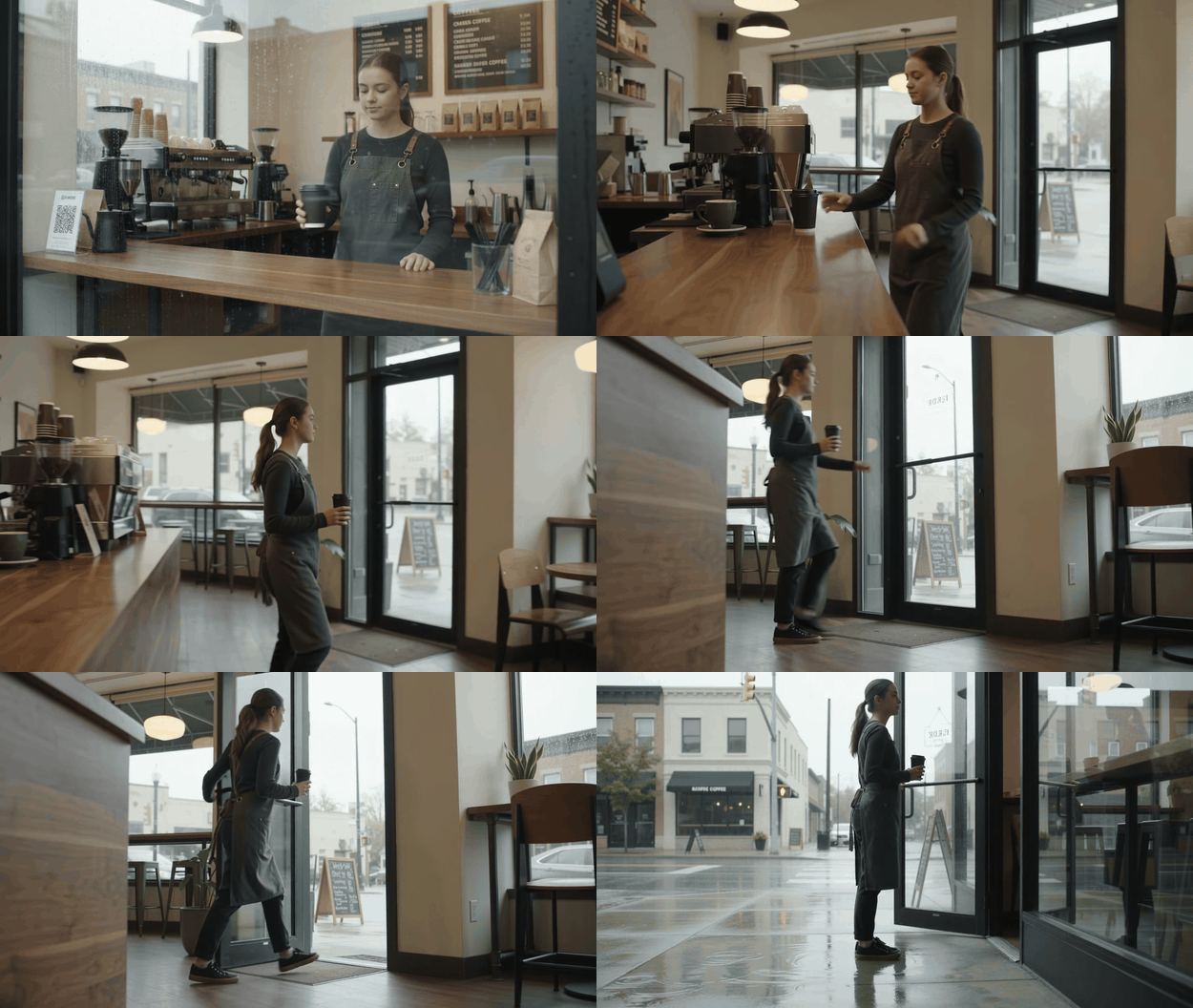
Przypadek ciągłości Gemini Omni 1.1 Flash: baristka i ten sam matowo-czarny kubek do kawy przechodzą z ujęcia otwierającego przy oknie w deszczu, przez wewnętrzne ujęcie z jazdą kamery, do widoku z niskiego progu drzwi
Rzeczywisty wynik z 10-sekundowego środowiska testowego wygenerowany za pomocą Google Gemini Omni 1.1 Flash Text-to-Video w 720p. Sekwencja zachowuje baristkę, grafitowy fartuch, kubek do kawy, deszcz i wystrój kawiarni, zmieniając się z widoku otwierającego przy oknie w deszczu na wewnętrzne ujęcie z jazdą boczną i niski widok drzwi/na zewnątrz. GIF jest tutaj niemy, ponieważ w tym przypadku chodzi o ciągłość wizualną i zmiany kamery, a nie o dźwięk.
Dlaczego rozszerzenie wideo Gemini Omni Flash 1.1 jest gorące i dlaczego próby zawodzą
Stabilne wydanie gemini-omni-1.1-flash obsługuje wejście tekstowe, obrazowe i krótkiego wideo, a także wyniki 3–10-sekundowe w 360p, 720p, 1080p i 4K. Google opisuje w tym wydaniu 1080p i 4K jako wyniki skalowane w górę. (Strona modelu Gemini Omni Flash, sierpień 2026)
Nagłówek jest atrakcyjny: 10-sekundowy klip może stać się 40-sekundową sekwencją. Problem produkcyjny to połączenie.
Trzy wybory powodują większość niepowodzeń kontynuacji:
- Zamknięty punkt zakotwiczenia. Jeśli pierwszy klip kończy się finalną pozą, kolejna akcja nie ma wiarygodnego wyjścia. Zakończ, pozostawiając ruch: ręka sięgająca do drzwi, biegacz zawiązujący sznurowadło, pies tuż poza kadrem.
- Prompt typu przepisanie. Powtarzanie każdego szczegółu osoby, planu, obiektywu i pogody zachęca do przerysowania. Zachowaj kilka istotnych punktów zakotwiczenia tożsamości, a następnie opisz nowy ruch.
- Niedopasowanie powierzchni. Możliwości modelu, dostępność API, aplikacja Gemini i element sterujący Flow to osobne powierzchnie. Zweryfikuj dokładną powierzchnię, zanim obiecasz klientowi przycisk Extend.
Przepływ pracy, modele i koszty Gemini Omni Flash 1.1 przed wygenerowaniem
Google dokumentuje rozszerzenie jako operację na końcu klipu. Może ono wykorzystać poprzednią interakcję w przypadku wideo wygenerowanego przez model lub przesłany klip o długości do 10 sekund. Przesłanego materiału z mówieniem nie można rozszerzyć o nowy dialog, a rozszerzanie przesłanego wideo ma ograniczenia regionalne w EOG, Szwajcarii i Wielkiej Brytanii. (Przewodnik Gemini Omni Flash, sierpień 2026)
Trzymaj wybór modelu, prompt, przesyłanie i przegląd wyników w jednej karcie przeglądarki. Atlas Cloud może stanowić cichą warstwę operacyjną, ponieważ jego katalog modeli pozwala zespołowi przeglądać rzeczywiste powierzchnie wideo przed rozpoczęciem działania.
Środowisko testowe Atlas udostępnia teraz wykonywalny przepływ pracy Gemini Omni Flash. Przypadki z kawą, biegaczem i piknikiem w tym artykule wykorzystują prawdziwe wyniki ze środowiska testowego, aby pokazać prompt, punkty zakotwiczenia ciągłości i widoczne kolejne zdarzenie. Nie są deklarowane żadne ceny produkcyjne.
td {white-space:nowrap;border:0.5pt solid #dee0e3;font-size:10pt;font-style:normal;font-weight:normal;vertical-align:middle;word-break:normal;word-wrap:normal;}
| Etap | Cel | Zablokuj lub dodaj | Jeśli zawiedzie |
| Szkic | Znajdź użyteczne wyjście akcji | Pozostaw seed otwarty | Przepisz beat historii |
| Zatwierdź | Wybierz jeden punkt zakotwiczenia | Zapisz seed i klatkę końcową | Zachowaj zatwierdzony klip |
| Rozszerz | Dodaj jedno widoczne zdarzenie | Zachowaj punkty zakotwiczenia, dodaj jedną zmienną | Ponów tylko to połączenie |
| QC | Sprawdź 1 sekundę po obu stronach | Sprawdź tożsamość, rekwizyt, przestrzeń, dłonie, ruch | Zmniejsz nową zmienną |
| Skalowanie | Dostarcz po zatwierdzeniu | Zachowaj zatwierdzony łańcuch | Nie używaj skalowania, aby ukryć złe połączenie |
Jak krok po kroku korzystać z rozszerzenia wideo Gemini Omni Flash 1.1
Krok 1: Wygeneruj 10-sekundowe ujęcie kotwiczące
W powierzchni obsługującej Gemini API wybierz 10 sekund, 16:9 i 720p, jeśli te elementy sterujące są dostępne. Pozostaw seed na -1, dopóki nie uzyskasz użytecznego ujęcia, a następnie zapisz seed i zachowaj zatwierdzony wynik.
plaintext1A realistic cinematic commercial in one continuous handheld 35mm shot. Inside a small independent coffee shop on a rainy morning, a young female barista in a charcoal apron places one matte black takeaway coffee cup on a warm walnut counter, turns toward the glass door, and walks to it. Rain streaks move naturally on the window, soft overcast daylight, shallow depth of field, subtle reflections on the floor. Keep the same woman, apron, cup, shop layout, lighting, and camera height throughout. Natural audio: quiet espresso machine, rain against glass, soft footsteps. No text, no logos, no jump cuts.

Przypadek kotwiczący w kawiarni: baristka, matowo-czarny kubek, drzwi, deszcz i oświetlenie to elementy do zachowania
Wizualizacja przypadku planowania ciągłości wygenerowana za pomocą GPT Image. Pokazuje konkretne punkty zakotwiczenia z briefu w kroku 1, a nie wynik Gemini Omni Flash.
Krok 2: Rozszerz to samo ujęcie o jedno nowe zdarzenie
Używaj tego tylko wtedy, gdy wybrana powierzchnia udostępnia prawdziwą ścieżkę rozszerzenia lub kontynuacji. Prześlij zatwierdzony klip z kroku 1. Ukończony wynik powinien zachować źródło i dodać nowy ogon.
plaintext1Continue this exact scene from its final moment. The same barista opens the glass door and steps onto the rain-wet sidewalk while still carrying the same matte black coffee cup. The camera follows behind her at the same height in one smooth movement. Preserve her face, charcoal apron, cup shape, coffee shop interior, rainy overcast lighting, realistic motion, and ambient rain sound. Add no new people, no text, no logo, and no cut.
Sprawdź sekundę po obu stronach połączenia: kubek, dłonie, pozycję drzwi, fartuch, kierunek światła i dźwięk otoczenia. Dryf tutaj oznacza poprawkę kroku 2, a nie kroku 1.

Przypadek kontynuacji z kroku 2: baristka wynosi ten sam matowo-czarny kubek przez otwarte drzwi kawiarni na mokry od deszczu chodnik
Wizualizacja w wysokiej rozdzielczości dla promptu kontynuacji z kroku 2. Sprawia, że końcowe zdarzenie jest weryfikowalne: baristka, matowo-czarny kubek, drzwi kawiarni, deszcz i światło zewnętrzne pozostają wyraźne, gdy przekracza próg.
Krok 3: Rozszerz ponownie o jedno kontrolowane zdarzenie fabularne
Ten przebieg dodaje jedną osobę na krawędzi kadru. Nie łącz nowej osoby, miejsca, pory dnia, kąta kamery i dialogu w jednym żądaniu.
plaintext1Continue this exact scene from its final moment. The same barista walks two steps under the café awning and hands the same matte black coffee cup to one waiting customer wearing a navy raincoat. Keep the barista, cup, rain, lighting, camera height, and natural ambient sound consistent. The customer enters only at the right edge of frame. No dialogue, no text, no logo, no sudden camera cut.

Przypadek kontrolowanej zmiennej z kroku 3: baristka podaje ten sam kubek do kawy jednej klientce w granatowym płaszczu przeciwdeszczowym pod markizą kawiarni
Wizualizacja w wysokiej rozdzielczości dla promptu kontynuacji z kroku 3. Pokazuje jedyną dozwoloną nową zmienną: pojedynczą klientkę otrzymującą kubek pod markizą, podczas gdy baristka, deszcz, drzwi kawiarni i przekazanie pozostają wyraźne.
Krok 4: Przeprowadź wariant spójności produktu
Przetestuj biegacza przemieszczającego się od drzwi mieszkania do ścieżki wzdłuż rzeki. Punktami zakotwiczenia są: twarz, ciemnozielona kurtka, białe buty, mokry chodnik, chłodne światło świtu i kierunek kamery.
plaintext1Continue the same runner and product story in one realistic 35mm commercial shot. The runner finishes tying the same white running shoes beside an apartment door, opens it, and starts jogging onto a quiet riverside path at blue hour. Preserve the runner’s face, dark green jacket, white shoes, wet pavement, cool dawn light, and camera direction. Natural audio: shoelace pull, door latch, distant birds, soft footsteps. No text, no logos, no cut.
Zatwierdź tylko wtedy, gdy sylwetka buta, kolor sznurowadeł, kurtka i kierunek biegu pozostają stabilne przez całe połączenie.
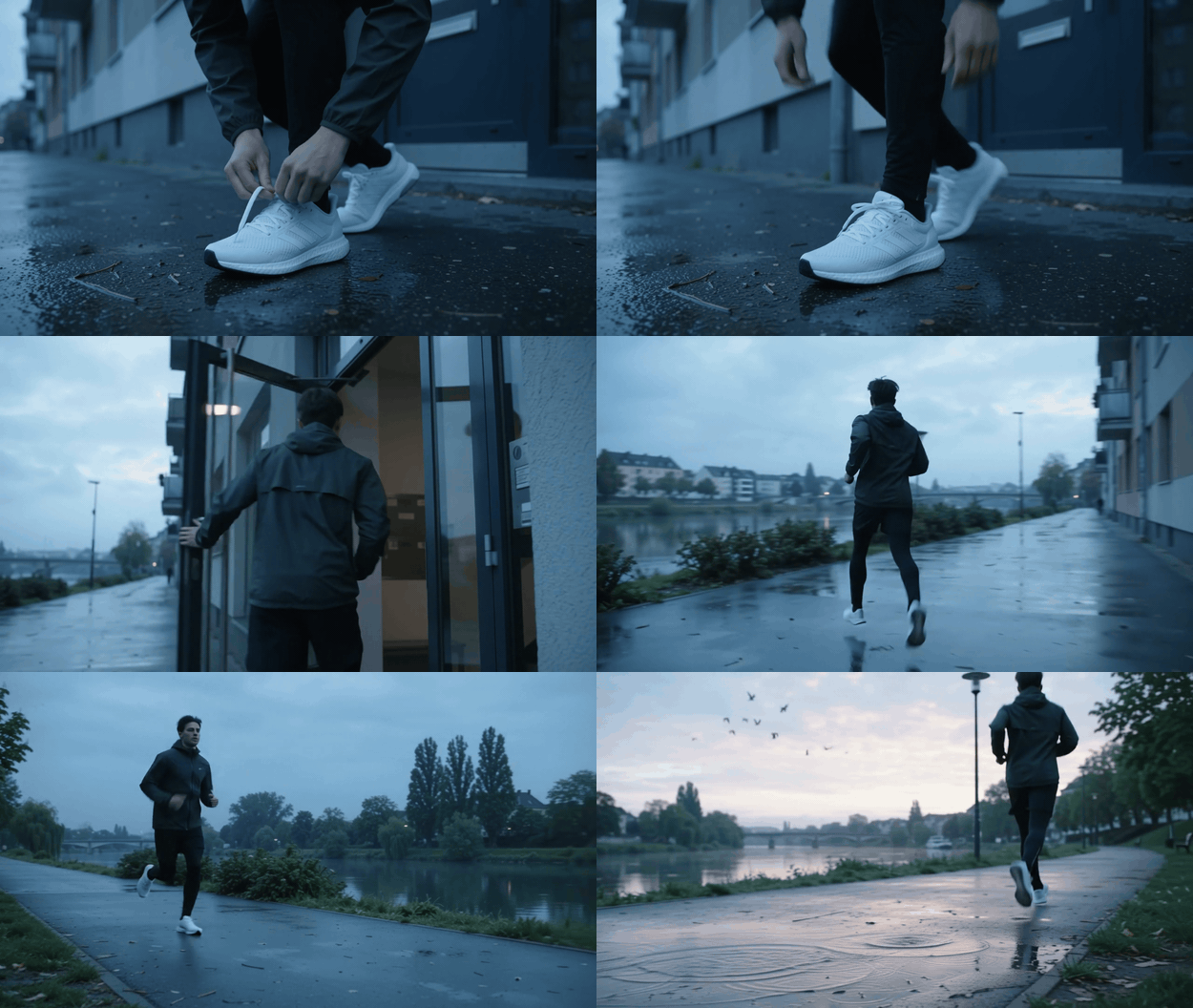
GIF spójności produktu biegacza: ta sama ciemnozielona kurtka i białe buty przechodzą od wiązania sznurowadła przy drzwiach mieszkania do biegu wzdłuż rzeki
Rzeczywisty wynik z 10-sekundowego środowiska testowego Google Gemini Omni 1.1 Flash Text-to-Video. Testuje punkty zakotwiczenia z kroku 4 w niskim ujęciu na poziomie butów, bocznym ujęciu z jazdą od drzwi mieszkania i niskim przejściu nad rzeką, zamiast polegać na pojedynczym ujęciu najechaniu kamery.
Krok 5: Przeprowadź wariant z postacią referencyjną
Użyj jednej referencji niebędącej człowiekiem. Zachowaj stabilność ludzi i pikniku; pies jest jedyną nową zmienną.
plaintext1In the same realistic park picnic scene, continue from the final moment. Two friends keep arranging a cream picnic blanket under leafy trees in soft late-afternoon light. The small golden dog shown in IMAGE_REF_0 runs gently into frame from the left, circles the blanket once, and sits beside them. Preserve the people, picnic objects, sunlight direction, camera distance, and natural park ambience. No text, no logos, no abrupt cut.

GIF postaci referencyjnej: mały złoty pies wchodzi z lewej strony, okrąża kremowy koc piknikowy i siada obok dwojga przyjaciół
Rzeczywisty wynik z 10-sekundowego środowiska testowego Google Gemini Omni 1.1 Flash Text-to-Video. Pies jest jedyną nową postacią: wchodzi z lewej, okrąża koc i siada, podczas gdy dwoje przyjaciół, kremowy zestaw piknikowy i późnopopołudniowy park pozostają stabilne w szerokich ujęciach, na wysokości psa i z góry w trzech czwartych.
Krok 6: Zatwierdź, skaluj i eksportuj bez uszkadzania połączenia
Sprawdź tożsamość, produkt główny, ciągłość przestrzenną, dłonie, ruch, dźwięk, a następnie punkt cięcia. Po 2 niepowodzeniach ciągłości zmień poprzednie wyjście fabularne lub usuń nową zmienną. Nie nadpisuj dobrego punktu zakotwiczenia, bo późniejszy segment się potknął.
Jeśli wybrana powierzchnia to obsługuje, poproś o 1080p lub 4K po zatwierdzeniu łańcucha. Google opisuje je jako wyniki skalowane w górę, a nie natywne 4K. (Notatki wydania Gemini API, sierpień 2026)
Warianty rozszerzenia wideo Gemini Omni Flash 1.1, które wymagają innych promptów
Kontynuacja kamery. Opisz tylko kolejny ruch kamery, np. „kamera przesuwa się po górach”.
Kontynuacja prowadzona referencją. Wprowadź jedną referencję postaci, produktu lub akcji. Pies z kroku 5 ma jedno zadanie: wejść, okrążyć raz, usiąść.
Interpolacja pierwszej i ostatniej klatki. Użyj jej, gdy znasz dwa obrazy graniczne i chcesz uzyskać most między nimi. Nie zastępuje to kontynuowania ostatniego momentu istniejącego klipu.
Przesłane nagranie. Zachowaj źródło do 10 sekund lub krócej. Jeśli ktoś już mówi, nie proś o nowy dialog.
Koszt rozszerzenia wideo Gemini Omni Flash 1.1 i rzeczywistość produkcyjna
Użyj wyceny na powierzchni, która faktycznie działa. Test w tym artykule nie mógł zweryfikować trasy ani ceny Atlas Gemini Omni Flash, więc podanie stałego 40-sekundowego szacunku Atlas byłoby zmyślone.
td {white-space:nowrap;border:0.5pt solid #dee0e3;font-size:10pt;font-style:normal;font-weight:normal;vertical-align:middle;word-break:normal;word-wrap:normal;}
| Element | Niezawodna zasada budżetowania | Co może to zmienić |
| Punkt zakotwiczenia 10 sekund | Zapisz wycenę z ukończonego przebiegu | Wybrany model i opcje |
| Przebieg edycji wideo | Zapisz wycenę z ukończonego przebiegu | Czas trwania źródła i powierzchnia |
| Łańcuch 40 sekund | Budżetuj każdy zatwierdzony etap | Długość wejścia i ponowne uruchomienia |
| Dostawa skalowana | Sprawdź wybrany przebieg | Wsparcie rozdzielczości i wycena |
Opcja wersji roboczej 360p w Gemini nie oznacza, że każda inna powierzchnia udostępnia 360p. Zweryfikuj formularz, który wykonujesz. W przypadku produkcji z rozszerzeniem wideo Gemini Omni Flash 1.1 zatrzymaj się po 2 nieudanych połączeniach i zmień węzeł fabularny, zamiast dokładać przymiotniki do tego samego promptu.
Często zadawane pytania
Czy Gemini Omni Flash 1.1 naprawdę może rozszerzyć wideo do 40 sekund?
Tak. Udokumentowany przepływ pracy Gemini API dodaje do 10 sekund na każdą kontynuację, do łącznych 40 sekund wideo. Pojedynczy wynik pozostaje od 3 do 10 sekund.
Czy rozszerzenie wideo Gemini Omni Flash 1.1 jest dostępne w Flow?
Dostępność może się różnić w zależności od powierzchni API, aplikacji i interfejsu użytkownika. Potwierdź dokładne konto i powierzchnię przed zaplanowaniem przepływu Extend.
Jak zachować tę samą postać podczas rozszerzania wideo AI?
Zatwierdź mocny punkt zakotwiczenia, zachowaj mały zestaw punktów zakotwiczenia tożsamości i kieruj tylko kolejną widoczną akcją. Dodaj referencję tylko dla określonego tematu lub produktu.
Czy mogę rozszerzyć przesłane wideo o dialog?
Nie dodawaj dialogu do przesłanego klipu, w którym ktoś mówi. Pozostaw kontynuację bez dźwięku lub użyj udokumentowanej ścieżki wieloetapowej dla wideo wygenerowanego przez model, jeśli obsługuje ono mowę.
Czy Gemini Omni Flash 1.1 generuje natywne wideo 4K?
Google opisuje w tym wydaniu 1080p i 4K jako wyniki skalowane w górę.
Jaka jest różnica między rozszerzeniem wideo, edycją wideo a interpolacją pierwszej i ostatniej klatki?
Rozszerzenie dodaje nowy ogon. Edycja wideo przekształca krótkie źródło za pomocą promptu. Interpolacja pierwszej i ostatniej klatki tworzy most między dwoma dostarczonymi obrazami.





